
n8n Integration – WorkDo Dash SaaS Add-On Guide
Learn how to configure and automate workflows using n8n integration in WorkDo Dash SaaS.
Introduction
The n8n Add-On is a powerful integration tool that allows you to connect your software platform with n8n workflows through webhooks. This Add-On enables automatic data transfer from various system activities like user creation, invoice generation, or customer registration to your n8n platform for further processing and automation. The system supports multiple HTTP methods and can handle data from over 75 different Add-Ons across various business functions including General operations, Accounting, HRM, CRM, and specialized industry Add-Ons.
How to Install the Add-On?
To Set Up the n8n Add-On, you can follow this link: Setup Add-On.
How to use the n8n Add-On?
n8n Integration
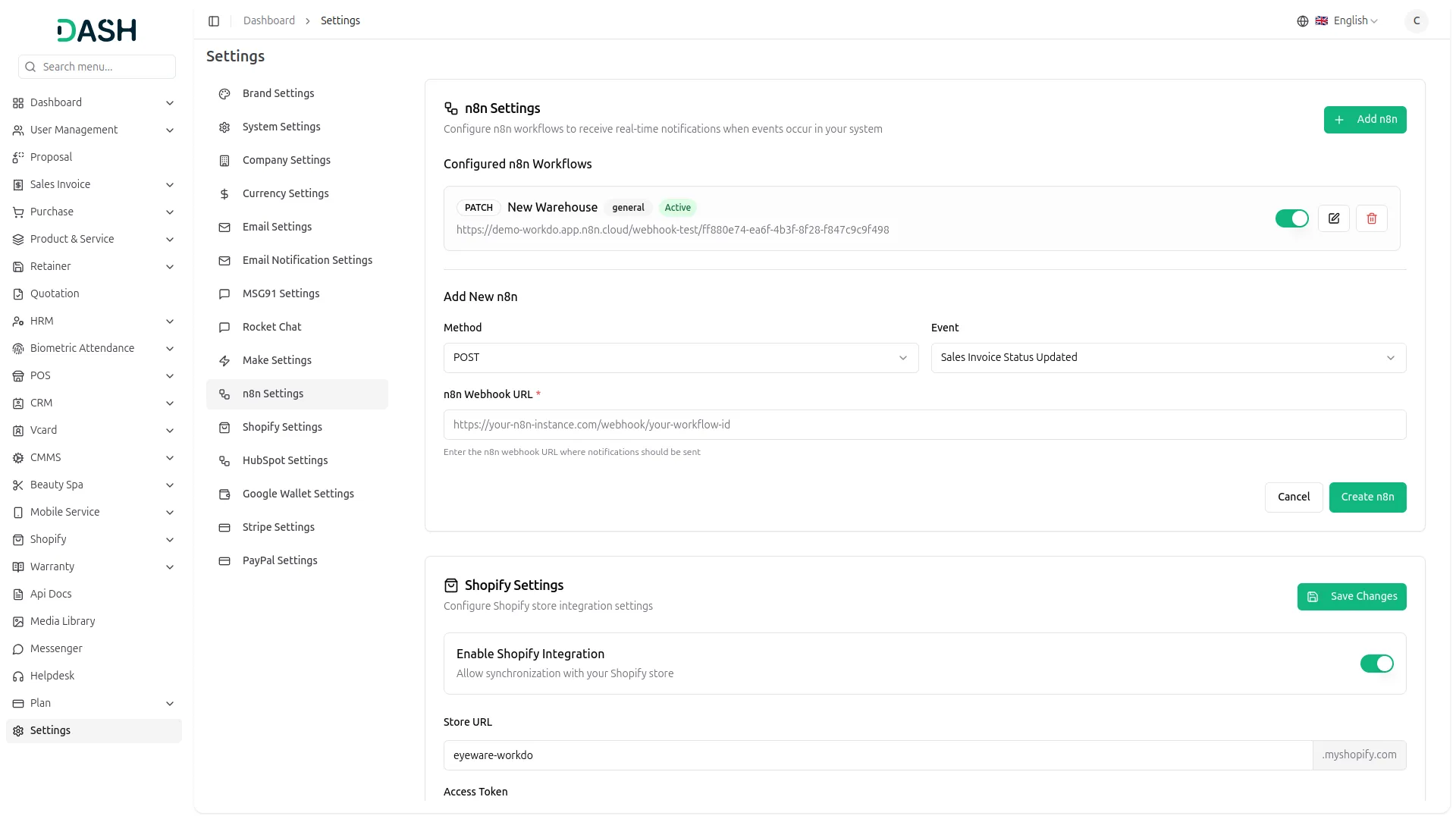
- To set up a new n8n integration, click the “Add n8n” button on the n8n integration settings page.
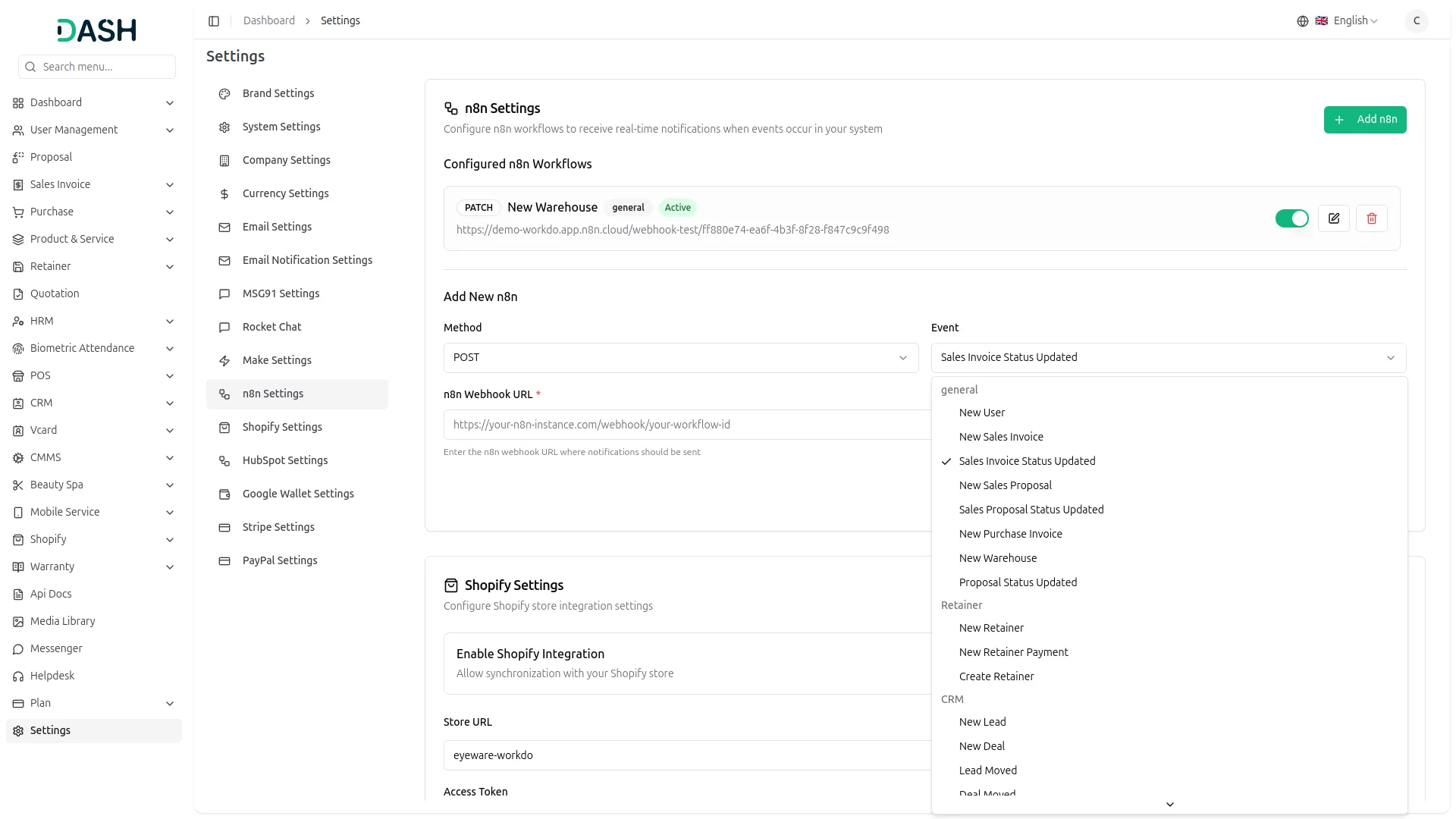
- First, select the appropriate Add-On from the dropdown menu. The Add-On field contains predefined options organized by categories such as General (Create User, New Invoice, Invoice Status Updated, New Proposal, Proposal Status Updated), Account (New Customer, New Vendor, New Revenue), POS (New Purchase, New Warehouse), HRM (New Award, New Announcement, New Holidays, New Monthly Payslip, New Event, New Employee), Recruitment (New Job, New Job Application, Interview Schedule, Convert To Employee), and many other specialized Add-Ons for different business functions.
- Next, choose the HTTP method that matches your n8n workflow requirements. You can select from GET, HEAD, POST, PUT, or PATCH methods depending on how you want the data to be transmitted to your n8n platform.
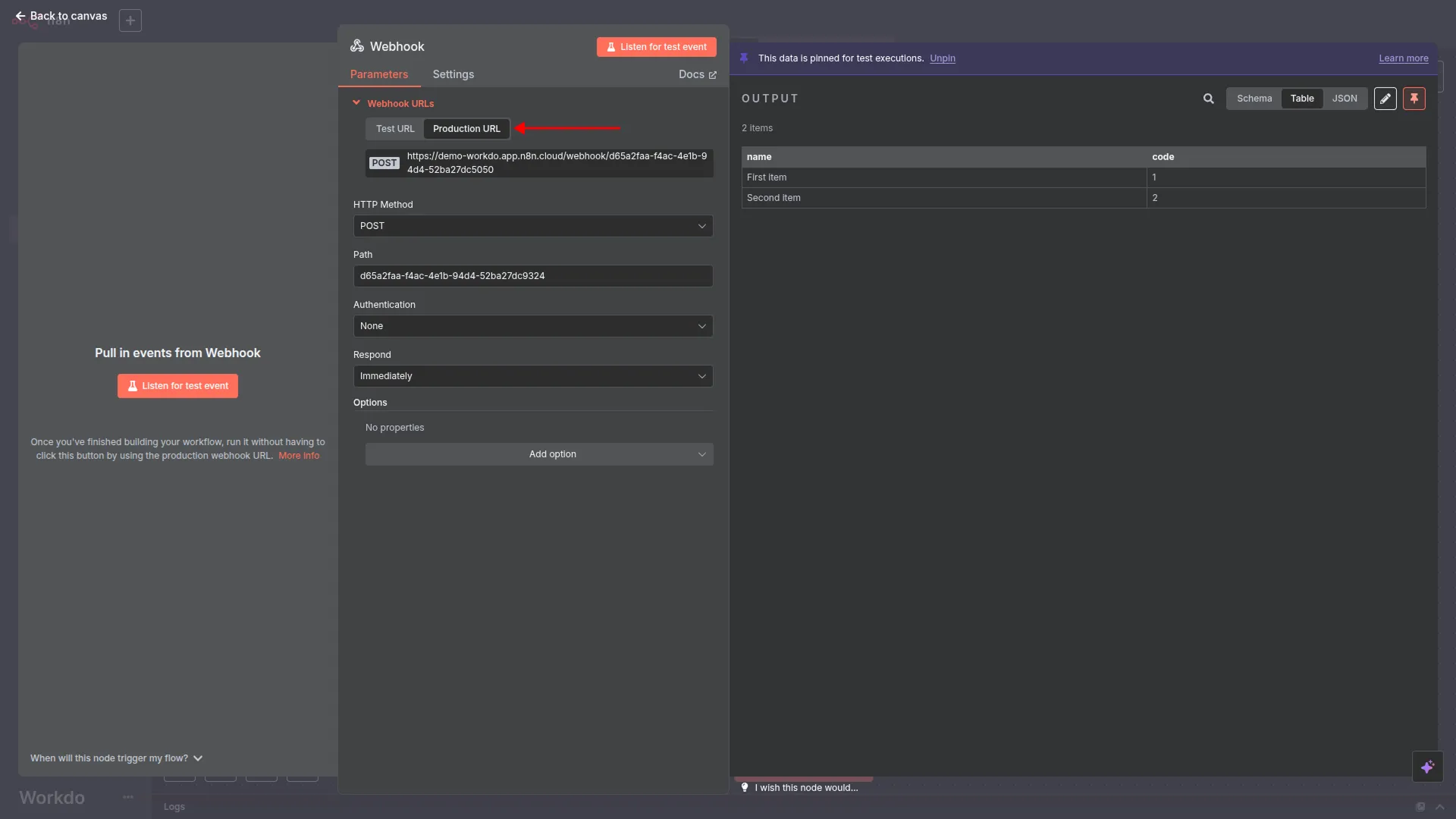
- Finally, enter the complete webhook URL that you have created and copied from your n8n platform. This URL is where all the selected Add-On data will be sent when the corresponding action occurs in your system.
- The system will now automatically send data on the n8n platform whenever the selected Add-On activity occurs.
- After creating a record, the list displays Action, Module Name, Method, and Status (Active/Inactive). A toggle switch is provided to enable or disable the webhook by switching its status between Active and Inactive. When the webhook is set to Inactive, it will not function.
- From the Actions column, you can click “Edit” to modify any existing webhook configuration, such as changing the HTTP method or updating the webhook URL. You can also click “Delete” to remove webhook integrations that are no longer needed.
How n8n Integration Works
- The n8n integration operates through a straightforward webhook-based system that automatically transfers data from your platform to n8n workflows. When you create a new webhook integration, you essentially establish a communication bridge between your software and the n8n platform.
- For example, if you want to capture all new user registrations in your n8n workflow, you would first create a webhook on your n8n platform specifically designed to receive user data. After copying the webhook URL from n8n, you would configure it in your system by selecting “Create User” from the Add-On dropdown, choosing “POST” as the method, and pasting the webhook URL.
- Once configured, whenever a new user registers or is created in your system, the webhook automatically triggers and sends all relevant user data (such as name, email, mobile number, address, and other profile information) to your n8n platform through the webhook URL.
- The data arrives in your n8n workflow exactly as it was captured in your system, allowing you to process it further according to your automation requirements.
- This seamless data transfer happens in real-time, ensuring that your n8n workflows always have access to the most current information from your platform. You can then use this data within n8n to trigger additional processes, send notifications, update external systems, or perform any other automated tasks based on your specific business needs.
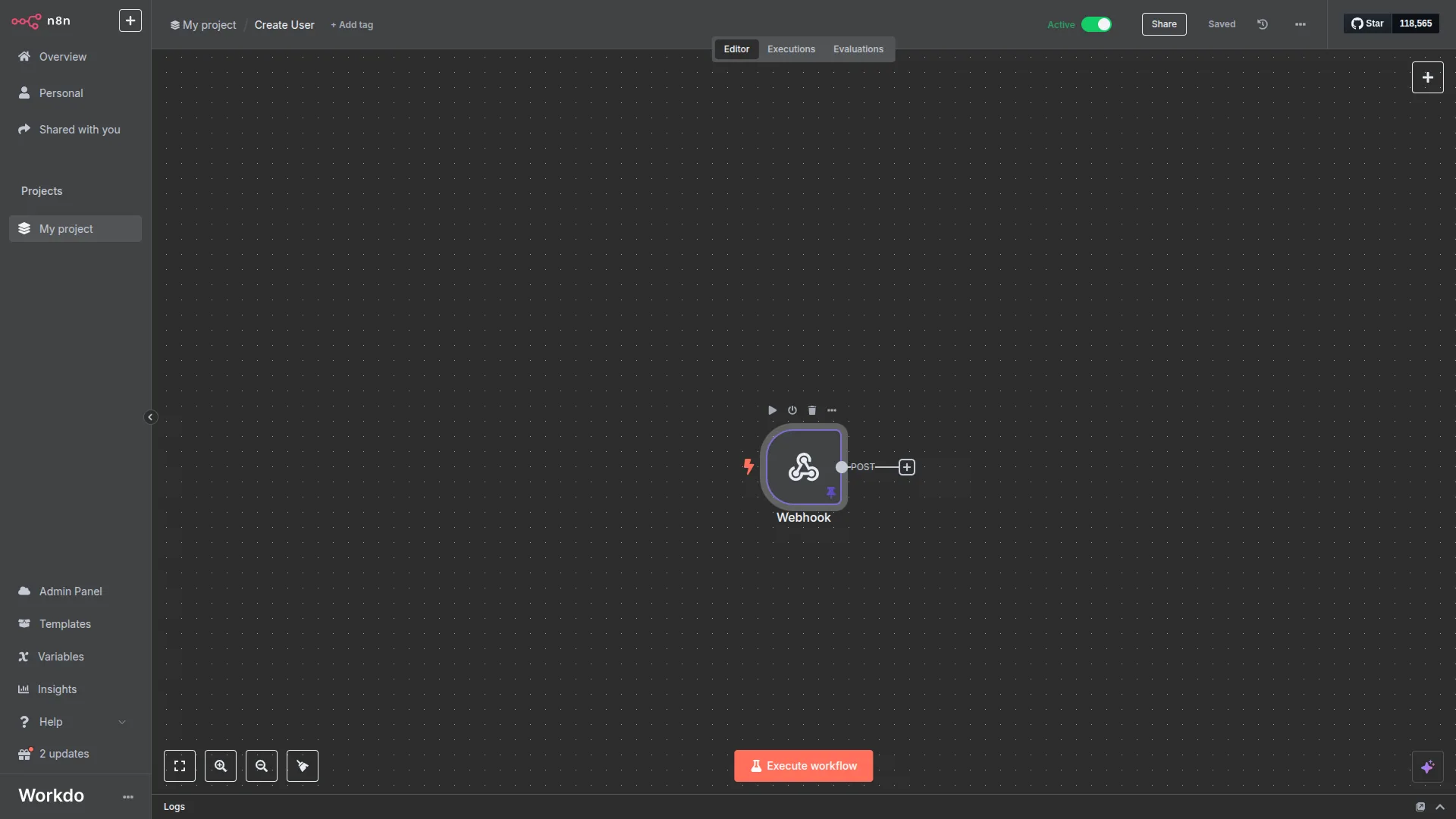
- Access the n8n platform, go to the my project section, and click on the create workflow button.
- After you click on that button, a user interface will open in front of you, at the top of that page there is a “+” button, and search for the webhook under that tab.
- Navigate to the n8n settings menu under the “Settings”. Click on the n8n option from the left sidebar to access the n8n management interface.
- The n8n settings page displays a list of configured webhooks with columns showing Add-On, Method, URL, Status (Active/Inactive), and Action options. You can view existing n8n webhook configurations and manage them from this interface.
- Click on the “Add n8n” button to start setting up a new webhook integration with n8n.
- In the Create n8n Webhook page, select the appropriate Add-On from the dropdown menu. Choose the specific module or function you want to integrate with n8n such as “Create User” for user registration events.
- Select the HTTP method from the Method dropdown. Choose “POST” for sending data to n8n, or select the appropriate method based on your workflow requirements.
- Paste the webhook URL that you copied from n8n into the URL field. This establishes the connection endpoint where data will be sent.
- Click Create to save the n8 webhook configuration and activate the integration.
- After creating the webhook, it will appear in the n8n webhook list showing the configured Add-On, Method, and URL. The webhook entry includes action buttons to Edit or Delete the configuration. A toggle switch is provided to enable or disable the webhook by changing its status between Active and Inactive. When the webhook is set to Inactive, it will not function.
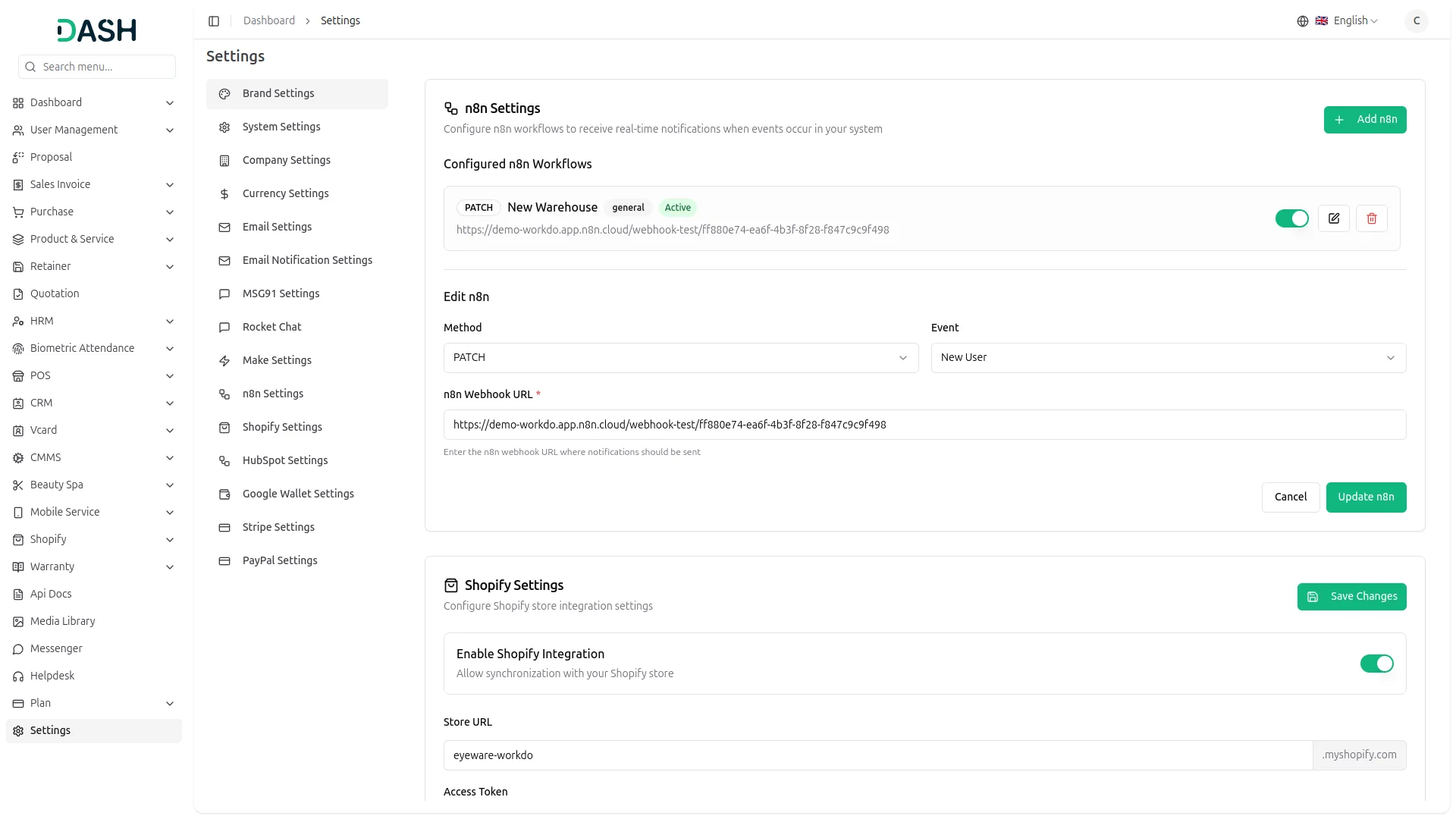
- The webhook is now active and will automatically trigger whenever the specified event occurs in your platform. For example, if you configured it for “Create User”, it will fire every time a new user registers or is created.
- You can create multiple n8n webhooks for different events by repeating the process and selecting different Add-On options from the dropdown menu.
- Above we have created the webhook for creating users. So now. Let’s create the user. go to the customer page at super admin side & click on the + button to create the user , enter the name of the customer, enter the workspace name, email, enable the login if you want, and add the password at the end.
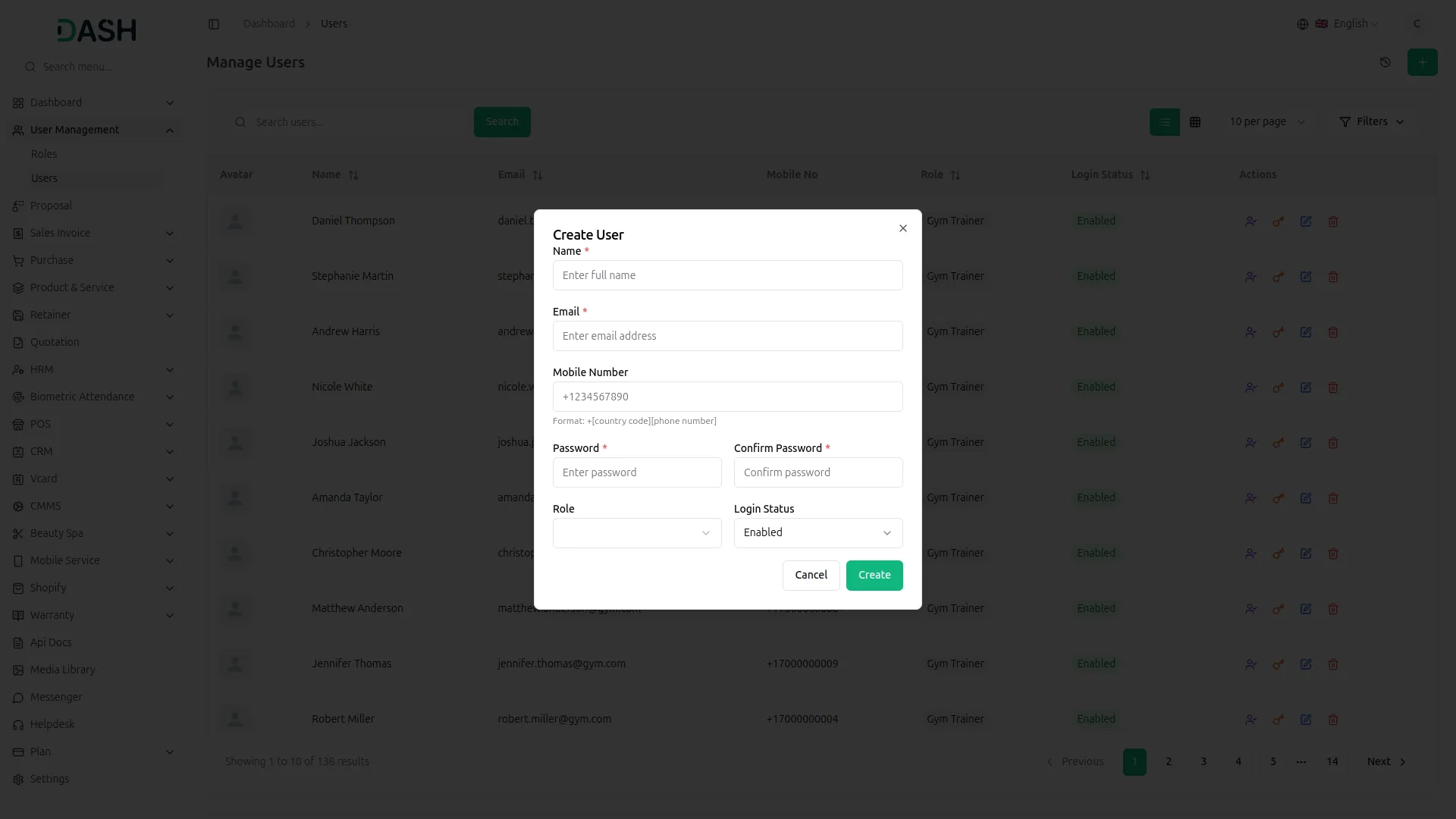
- Now once we click on the create button, a configured event occurs in your platform such as user registration, the webhook automatically sends all relevant data to your n8n workflow. The data includes all captured information like name, email, mobile number, address, and other profile details.
- The data arrives in your n8n workflow in real-time, maintaining the same structure and format as captured in your platform. You can then process this data within n8n to trigger additional automations, send notifications, or update external systems.
- Monitor your n8n workflow to ensure data is being received correctly and that subsequent automation steps are executing as expected. The integration provides seamless, real-time data synchronization between your platform and n8n workflows.
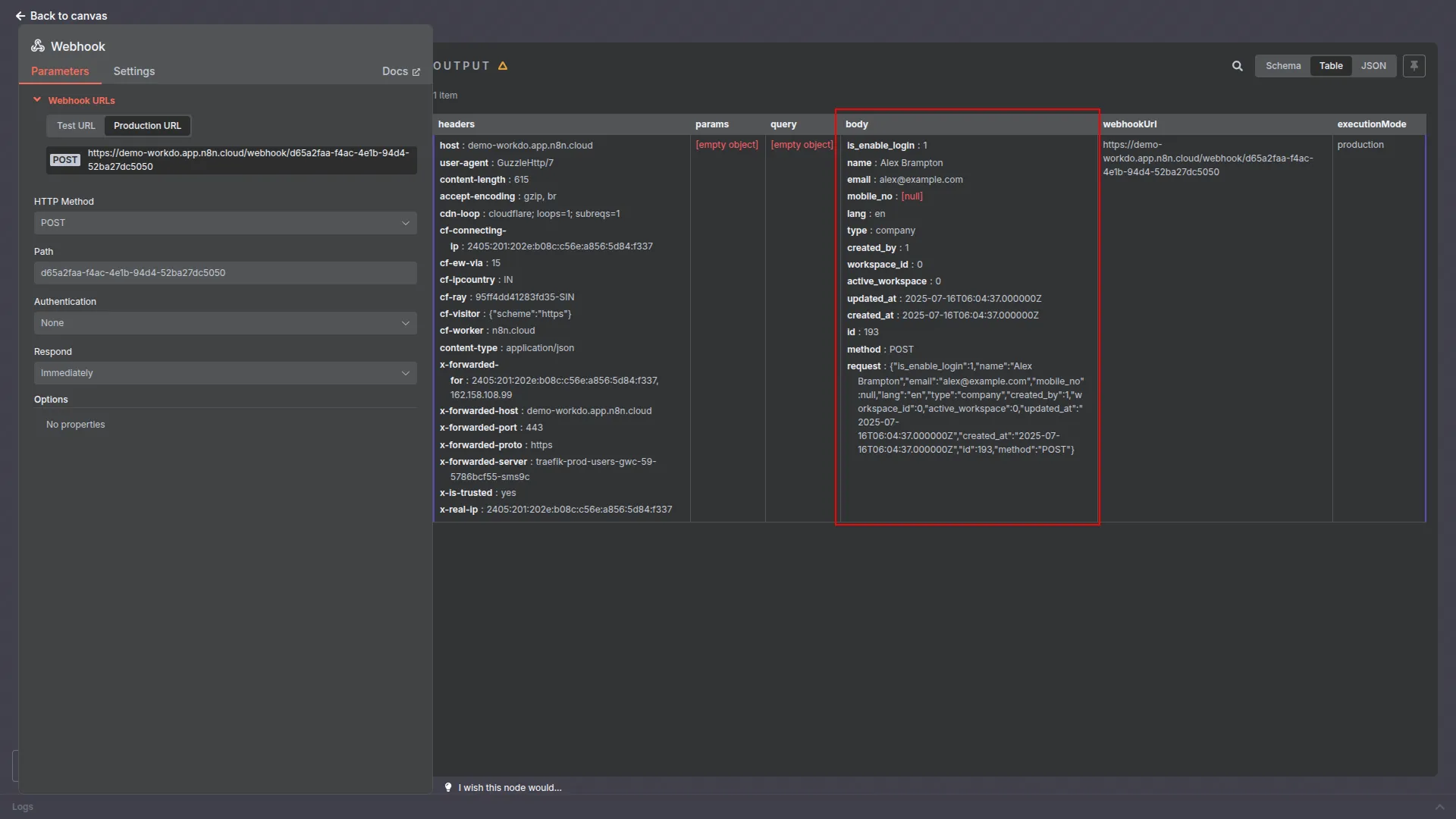
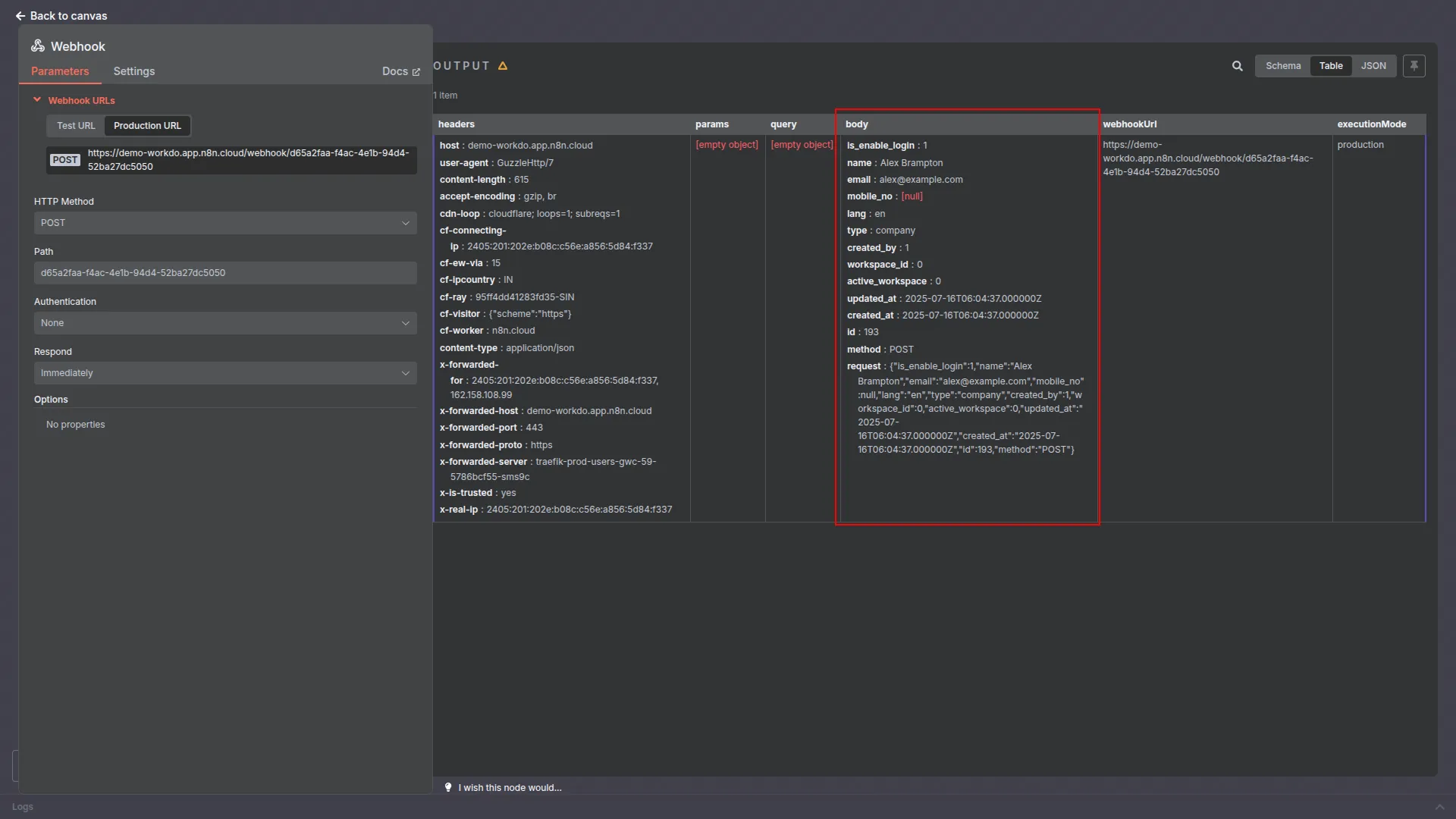
- Now once we click on the create button configured event occurs in your platform (such as user registration), the webhook automatically sends all relevant data to your n8n workflow. The data includes all captured information like name, email, mobile number, address, and other profile details.
- The data arrives in your n8n workflow in real-time, maintaining the same structure and format as captured in your platform. You can then process this data within n8n to trigger additional automations, send notifications, or update external systems.
- Monitor your n8n workflow to ensure data is being received correctly and that subsequent automation steps are executing as expected. The integration provides seamless, real-time data synchronization between your platform and n8n workflows.
Note: Here is a list of some Add-Ons that we can easily connect to with the Webhook Add-On.
Available Add-Ons By Category
General
- New User
- New Sales Invoice
- Sales Invoice Status Updated
- New Sales Proposal
- Proposal Status Updated
- New Purchase Invoice
- New Warehouse
Account
- New Customer
- New Vendor
- New Revenue
Appointment
- New Appointment
- Appointment Status
CMMS
- Work Order Request
- New Supplier
- New POs
- New Component
- New Location
- New Pms
- New Workorder
Contract
- New Contract
Hrm
- New Award
- New Event
- New Announcement
- New Holidays
Lead
- New Lead
- Lead to Deal Conversion
- New Deal
- Lead Moved
- Deal Moved
Recruitment
- New Candidate
- Interview Schedule
- Convert To Employee
- New Job Posting
Retainer
- Create Retainer
- New Retainer Payment
Sales
- New Quote
- New Sales Order
- New Meeting
Taskly
- New Project
- New Task
- New Bug
- New Milestone
- Task Stage Update
- New Task Comment
Training
- New Trainer
- New Training
ZoomMeeting
- New Zoom Meeting
Portfolio
- New Portfolio
- New Portfolio Category
Spreadsheet
- New Spreadsheet
FixEquipment
- New Accessories
- New Asset
- New Audit
- New Fix Equipment Component
- New Consumables
- New Licencet
- New Fix Equipment Location
- New Maintenance
- New Category
- New Depreciation
- New Manufacturer
- New Pre Defined Kit
- New Status
Visitor Management
- New Visitor
- New Visit Reason
WordPress (WooCommerce)
- New Product
- New Product Category
- New Tax
Feedback
- New Template
- New Feedback Rating
- New Rating
School-Institute Management
- New Admissions
- New Parents
- New Students
- New Homework
- New Subject
- New Time Table
- New Employee
- New Classroom
Cleaning Management
- New Cleaning Team
- New Cleaning Booking
- New Cleaning Invoice
Time Tracker
- New Tracker
Machine Repair Management
- New Machine
- New Repair Request
Hospital Management
- New Doctor
- New Patient
- New Hospital Appointment
- New Hospital Medicine
- New Specialization
- New Medicine Category
- New Bed Type
- New Ward
- New Hospital Bed
- New Medical Records
Internal knowledge (KB)
- New Book
- New Article
Innovation Center
- New Creativity
- New Challenge
- New Category
- New Challenges
- New Stage
ToDo
- New To Do
- New To Do Stage
Documents
- New Document
- New Document Type
Agriculture Management
- New Agriculture Fleet
- New Agriculture Process
- New Agriculture Cycle
- New Agriculture Office
- New Agriculture Activity
- New Agriculture Service
- New Agriculture Cultivation
- New Agriculture Equipment
- New Agriculture Claim Type
- New Agriculture Department
- New Agriculture Canal
- New Agriculture Season Type
- New Agriculture Service Product
- New Agriculture User
Property Management
- New Property
- New Property Units
- New Tenant
- New Property Invoice
- New Property Invoice Payment
LMS
- New Course
- New Course Order
- New Custom Page
- New Blog
Beverage Management
- New Manufacturing
- New Raw Material
- New Packaging
- New Collection Center
- New Bill of Material
- New Bill Item Material
Courier Management
- New Branch
- New Service Type
- New Tracking Status
- New Package Category
- New Courier
- New Payment
Repair Management System
- New Repair Order Request
- New Repair Part
- New Repair Invoice
Freight Management System
- New Freight Booking Request
- New Freight Container
- New Freight Customer
- New Freight Price
- New Freight Service
- New Freight Route
- New Freight Invoice
- Update Freight Shipping Order
- Update Freight Shipping Service
- Update Freight Shipping Container
Contract Template
- New Contract Template
- Duplicate Contract Template
File Sharing
- New File
Garage-Workshop Management
- New Fuel Type
- New Garage Category
- New Garage Vehicle
- New Service
- New Vehicle Brand
- New Vehicle Color
- New Vehicle Type
- New Job Card
Beauty Spa Management
- New Beauty Service
- New Beauty Booking
- Update Working Hours
Insurance Management
- New Insurance
- New Policy
- New Policy Type
- New Insurance Invoice
- New Insurance Claim
- New Insurance Claim Payment
Document Template
- New Document Template
- Duplicate Document Template
- Convert Document Template
Video Hub
- New Video
Meeting Hub
- New Meeting
- New Meeting Task
- New Meeting Minute
- New Meeting Note
Categories
Related articles
- Tawk.to Messenger – eCommerceGo SaaS Add-On Guide
- Store Locator – eCommerceGo SaaS Add-On Guide
- Bulk SMS – WorkDo Dash SaaS Add-On Guide
- YooKassa – WorkDo Dash SaaS Add-On Guide
- Zoom Meeting – BookingGo SaaS Add-On Guide
- Medical Lab Management – WorkDo Dash SaaS Add-On Guide
- Quick Checkout – eCommerceGo SaaS Add-On Guide
- Livestorm Meeting – WorkDo Dash SaaS Add-On Guide
- Vehicle Wash – WorkDo Dash SaaS Add-On Guide
- Activity Log – WorkDo Dash SaaS Add-On Guide
- Shopify Module Guide – eCommerceGo SaaS
- Pesapal – BookingGo SaaS Add-On Guide
We're Here to Help - Let's Talk
Have questions about our solutions, customization services, or business tools? Our team is here to help you. let's talk.