
Security Guard Management Integration in Dash SaaS
Security Guards Management Add-On which simplifies the management of security personnel, assignments, payments, and incident tracking.
Introduction
The Security Guard Management Add-On is a complete system for managing security personnel, posts, assignments, and operations in one centralized platform. It allows administrators to configure guard types and posts, manage guard profiles, assign shifts, track attendance, handle client security requests with payments, record incidents, and manage equipment inventory and assignments. With organized workflows, filters, and status tracking, it ensures efficient oversight of security staff and daily operations.
How to Install the Add-On?
To Set Up the Security Guard Management Add-On, you can follow this link: Setup Add-On
How To Use The Security Guard Management Add-on?
System Setup
- The System Setup section allows administrators to configure foundational data used across the system. It currently includes Guard Types and Security Posts, which are referenced when managing security personnel and locations throughout the platform.
-
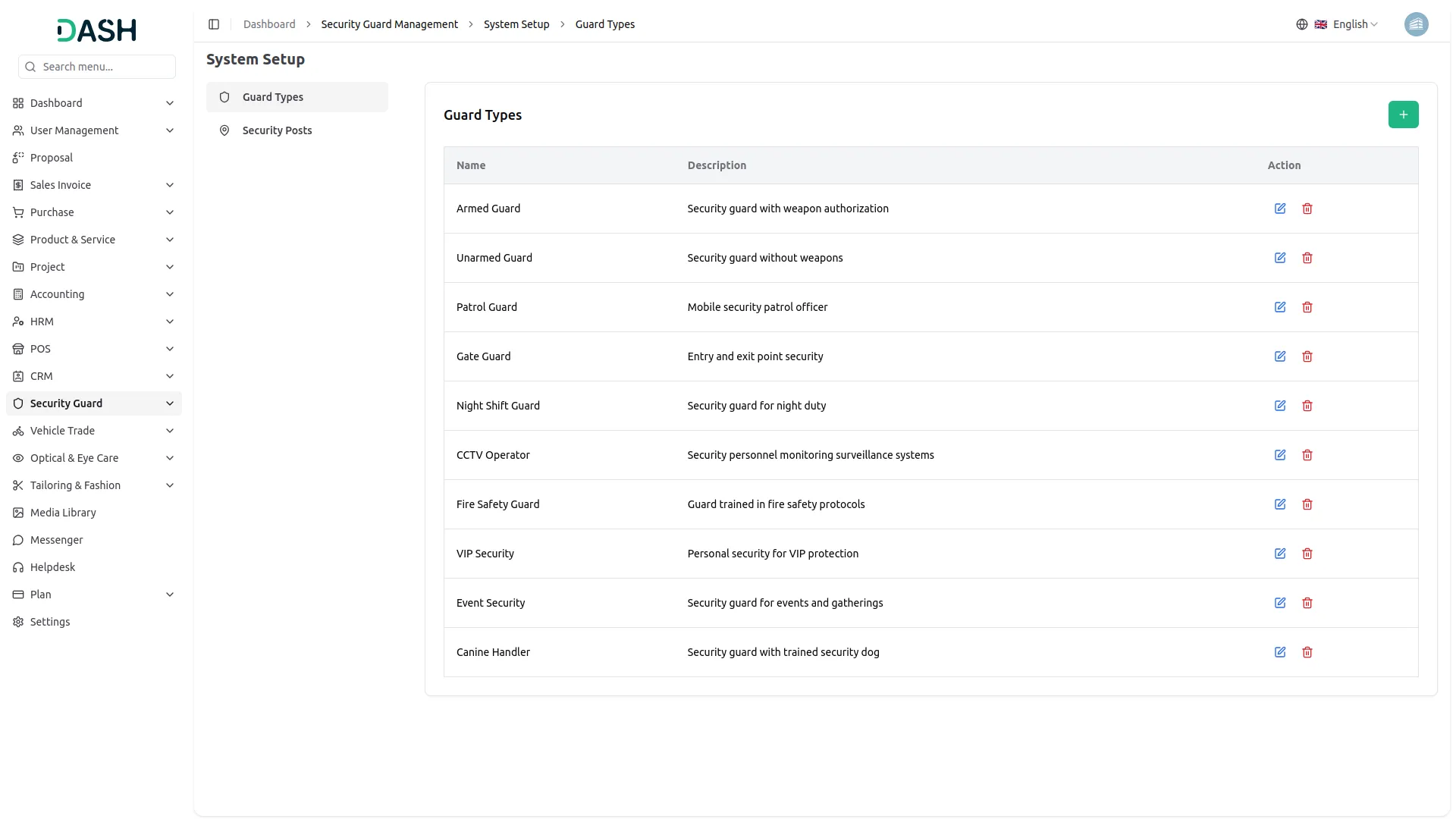
- To add a new guard type, click the “Create” button on the Guard Types page. In the form that opens, enter the Name of the guard type in the provided field. Optionally, add a Description to explain the role or characteristics of the guard type. Click Create to save, or Cancel to discard the entry.
- The Guard Types list displays all configured types in a table with columns for Name, Description, and Action.
- Available Actions: use Edit to update or modify an existing guard type, and Delete to permanently remove it from the system. Note that guard types actively in use should be managed carefully, as changes may affect existing records that reference them.
-
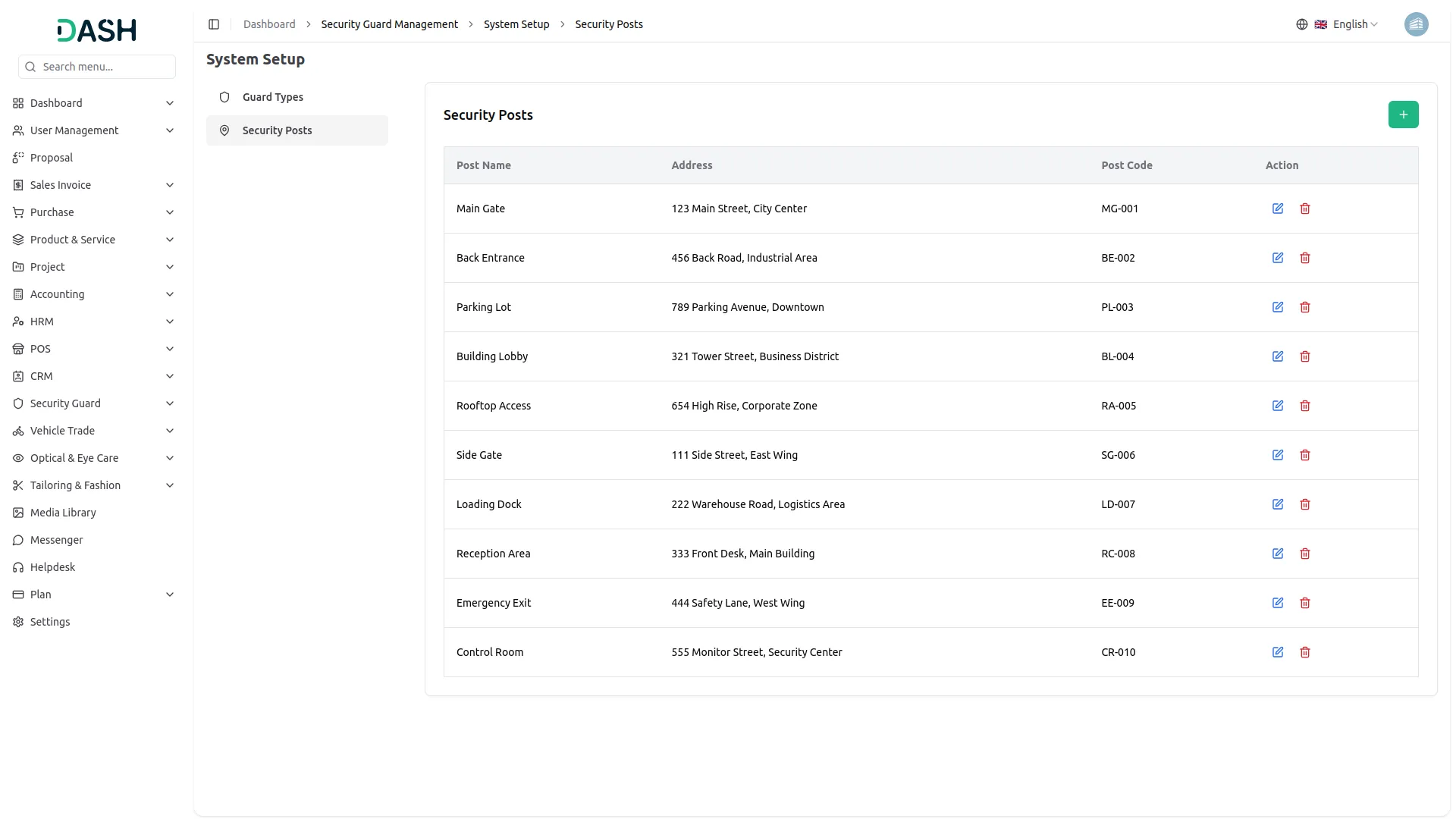
- To add a new security post, click the “Create” button on the Security Posts page. In the form that opens, enter the Post Name, Address, and Post Code in their respective fields. All three fields are required. Click Create to save, or Cancel to discard the entry.
- The Security Posts list displays all configured posts in a table with columns for Post Name, Address, Post Code, and Action.
- Available Actions: use Edit to update or modify an existing security post, and Delete to permanently remove it from the system. Note that security posts actively in use should be managed carefully, as changes may affect existing assignments or records that reference them.
-
Guard Types
Security Posts
Security Guards
- To add a new security guard, click the “Create” button on the Manage Security Guards page. In the form that opens, enter the guard’s Name and Employee Code. Provide their Email and Contact Number.
- Select the Date of Birth and Gender from their respective fields. Choose the Guard Type from the dropdown (populated from the Guard Types configured in System Setup) and set the Date of Joining.
- Enter the Salary and Experience (Years). Set the Status (Active or Inactive) and fill in the Emergency Contact Name and Emergency Contact Number. Finally, enter the guard’s Address. Click Create to save the record, or Cancel to discard it.
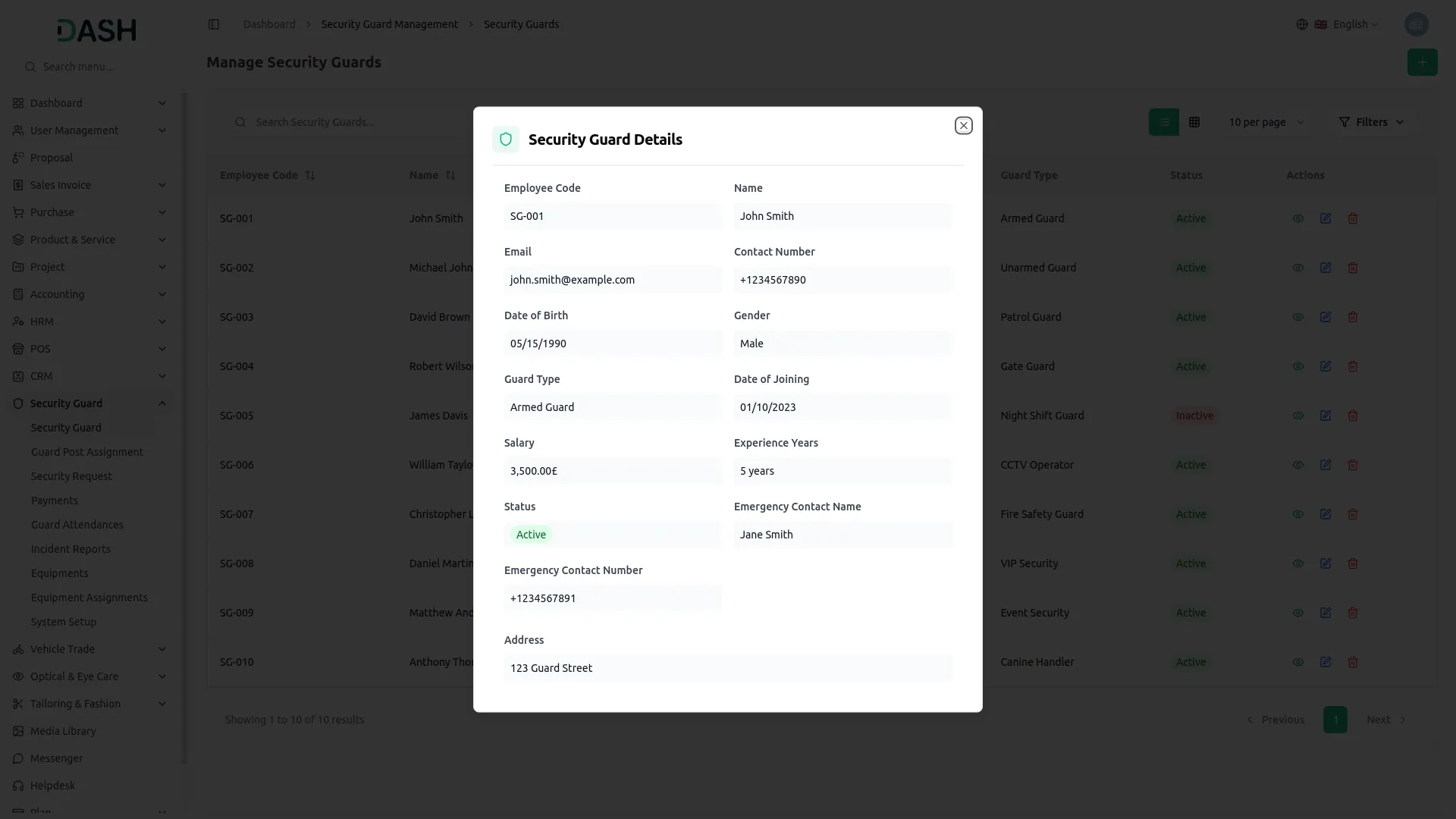
- The list page displays all security guards in a table with columns for Employee Code, Name, Email, Contact, Guard Type, Status, and Actions.
- Use the Search bar to find specific guards by name or other details. Apply filters using the Guard Type dropdown and the Status dropdown to narrow down results. Click Apply to activate the filters or Clear to remove them. Toggle between list view and grid view using the view buttons.
- Using the Actions column, select View to see a guard’s full details, Edit to modify an existing record, and Delete to permanently remove the guard from the system.
-
Guard Post Assignment
- To add a new guard post assignment, click the “Create” button on the Manage Guard Post Assignments page. In the form that opens, select the Security Guard from the dropdown (populated from the security guards configured in Manage Security Guards) and choose the Security Post from the dropdown (populated from the Security Posts configured in System Setup).
- Set the Start Date and, optionally, an End Date if the assignment has a defined end. Select the Shift Type from the dropdown (Morning, Night, or General). Click Create to save the assignment, or Cancel to discard it.
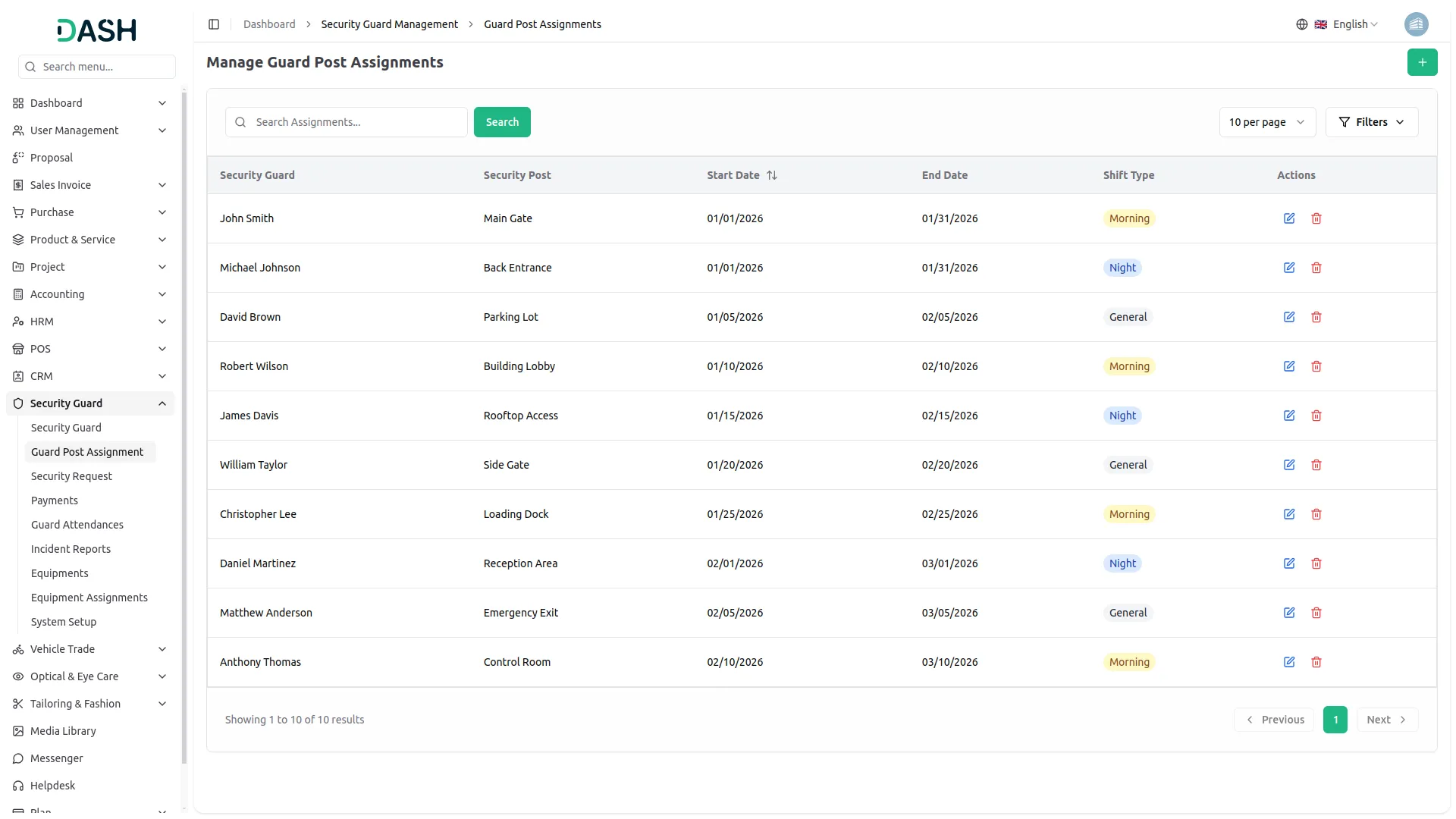
- The list page displays all guard post assignments in a table with columns for Security Guard, Security Post, Start Date, End Date, and Shift Type. Assignments without an end date will display a dash (“–”) in the End Date column, indicating an ongoing assignment.
- Use the Search bar to find specific assignments. Apply filters using the Security Post dropdown and the Shift Type dropdown to narrow down results. Click Apply to activate the filters or Clear to remove them.
- In the Actions column, select Edit to modify an existing assignment, and Delete to permanently remove the assignment from the system.
-
Security Requests
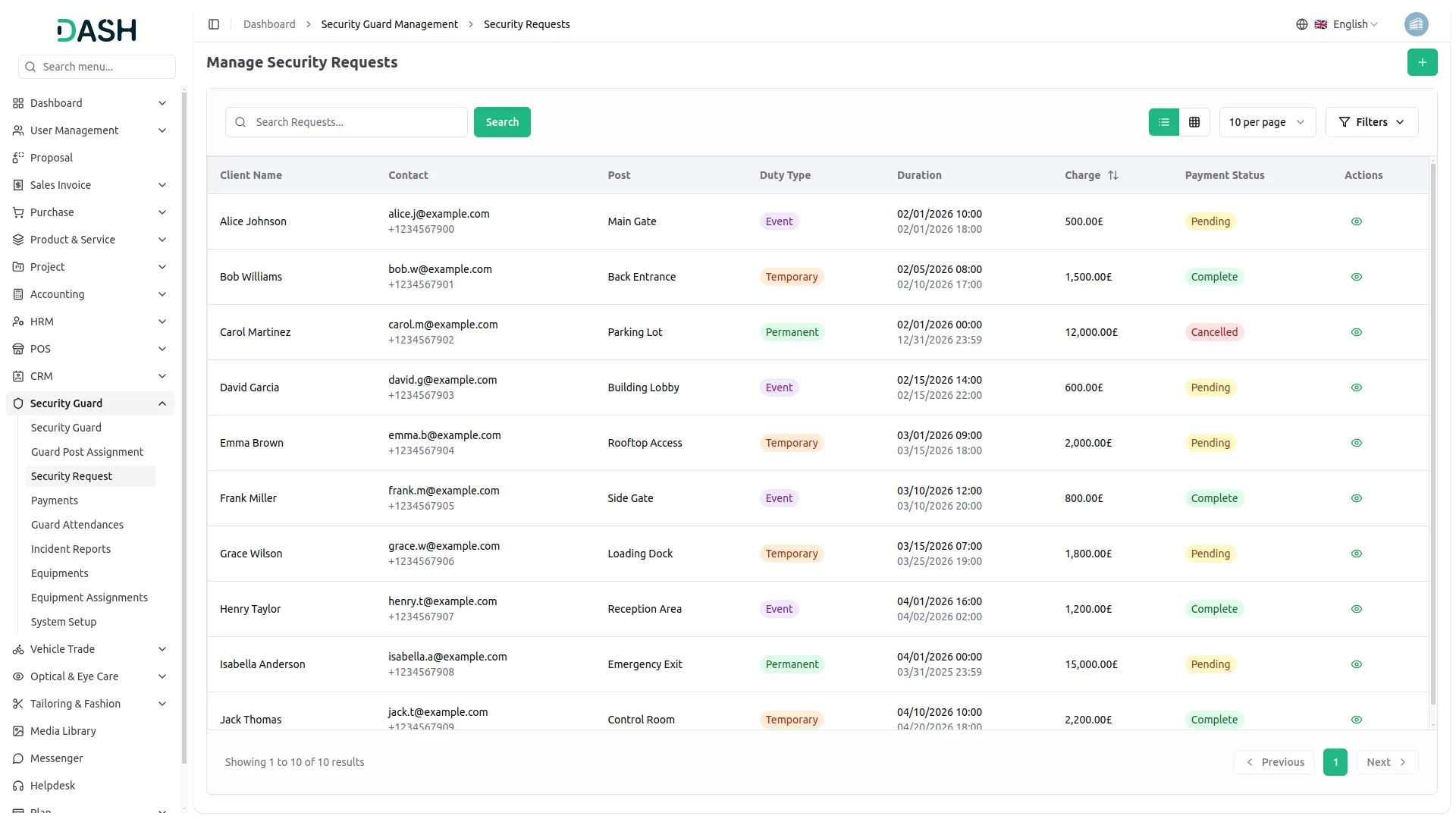
- To add a new security request, click the “Create” button on the Manage Security Requests page. In the form that opens, enter the client’s First Name and Last Name, along with their Email and Contact Number.
- Select the Security Post from the dropdown (populated from the Security Posts configured in System Setup) and choose the Security Duty type (Temporary, Permanent, or Event). Set the Date Time Range to define the duration of the security coverage.
- Select the Assigned Guards from the dropdown (populated from the security guards configured in Manage Security Guards). Enter the Total Charge for the request and optionally add a Description with any additional details. Click Create to save the request, or Cancel to discard it.
- The list page displays all security requests in a table with columns for Client Name, Contact (email and phone number), Post, Duty Type, Duration (start and end date/time), Charge, Payment Status, and Actions. Payment Status reflects the current state of the request, which can be Pending, Complete, or Cancelled.
- Use the Search bar to find specific requests. Apply filters using the Security Post, Duty Type, and Status dropdowns to narrow down results. Click Apply to activate the filters or Clear to remove them. Toggle between list view and grid view using the view buttons.
- In the Actions column, select View to see the full details of a request, Edit to modify it, and Delete to permanently remove it from the system. For requests that are ready for payment.
-
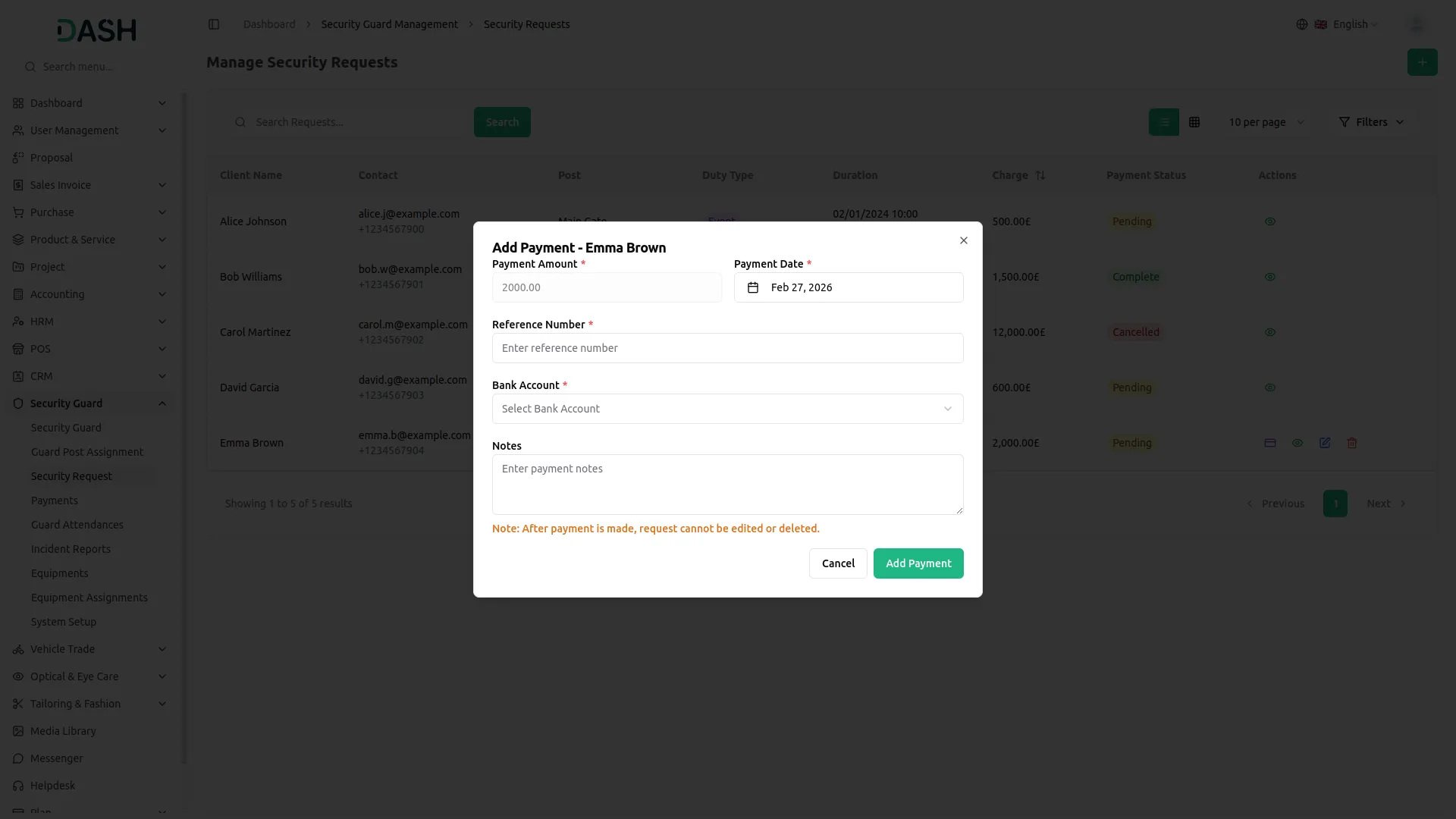
- Click the Payment to open the Add Payment form. In the form, the Payment Amount is pre-filled based on the total charge of the request. Set the Payment Date, enter a Reference Number, and select the Bank Account from the dropdown. Optionally, add any Notes relevant to the payment. Click Add Payment to confirm, or Cancel to discard. Note that once a payment is made, the request can no longer be edited or deleted.
-
Manage Payments
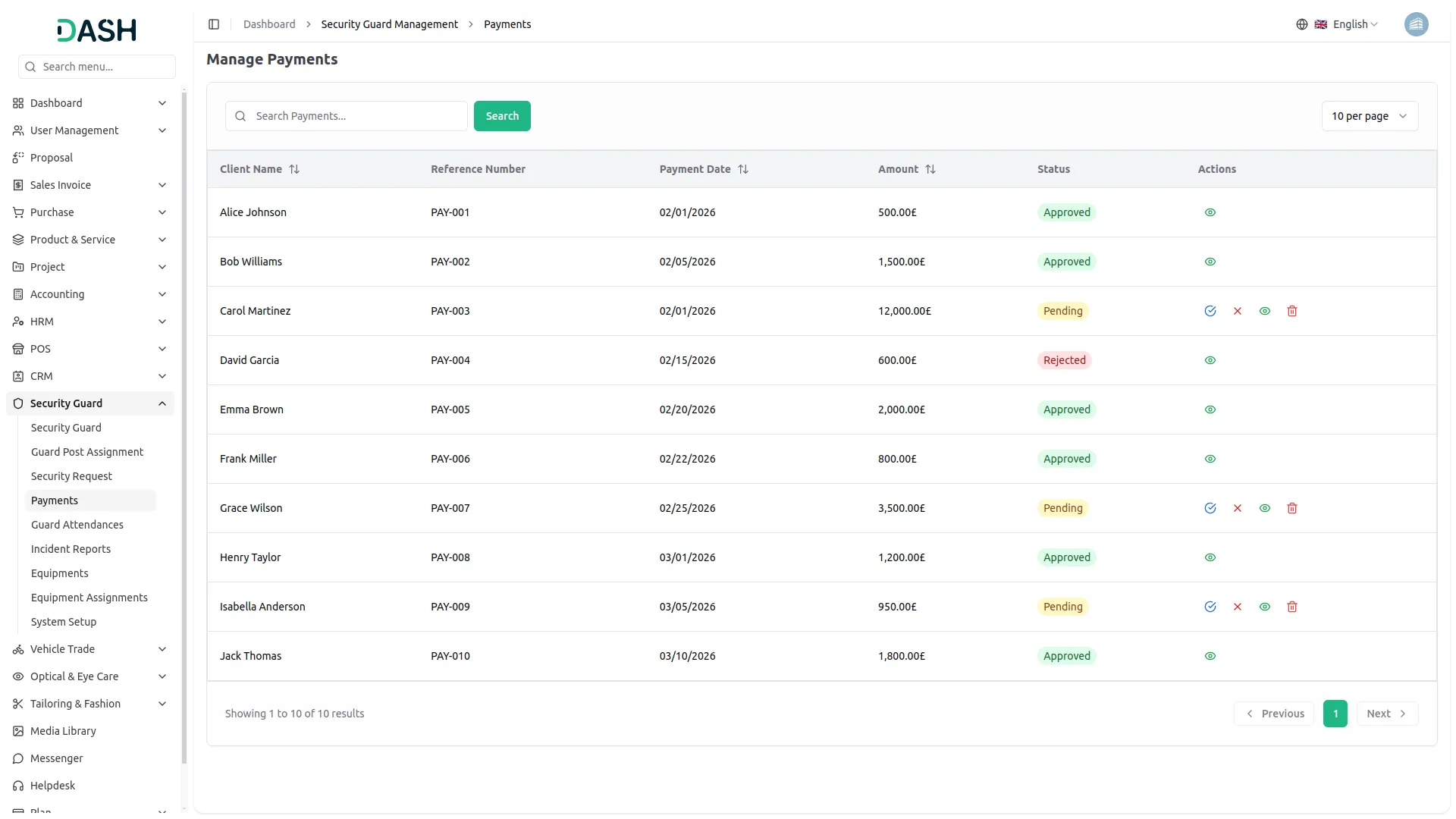
- The Manage Payments page provides an overview of all payments linked to security requests. The list displays payments in a table with columns for Client Name, Reference Number, Payment Date, Amount, Status, and Actions. Payment status can be Approved, Pending, or Rejected. Use the Search bar to find specific payments by client name or reference number.
- Using the Actions column, select View to see the full details of a payment record. For payments with a Pending status, additional actions are available: click Approve to confirm and approve the payment, Reject to decline it, and Delete to permanently remove the payment record. Once a payment has been Approved or Rejected, only the View option remains available, as the record can no longer be modified.
-
Guard Attendance
- To add a new guard attendance record, click the “Create” button on the Manage Guard Attendances page. Select the Security Guard from the dropdown (populated from the security guards configured in Manage Security Guards) and choose the Security Post from the dropdown (populated from the Security Posts configured in System Setup).
- Select the Date of the attendance record and set the Status (Present, Half Day, or Absent). Optionally, enter the Check In and Check Out times to record the guard’s working hours. Click Create to save the record, or Cancel to discard it.
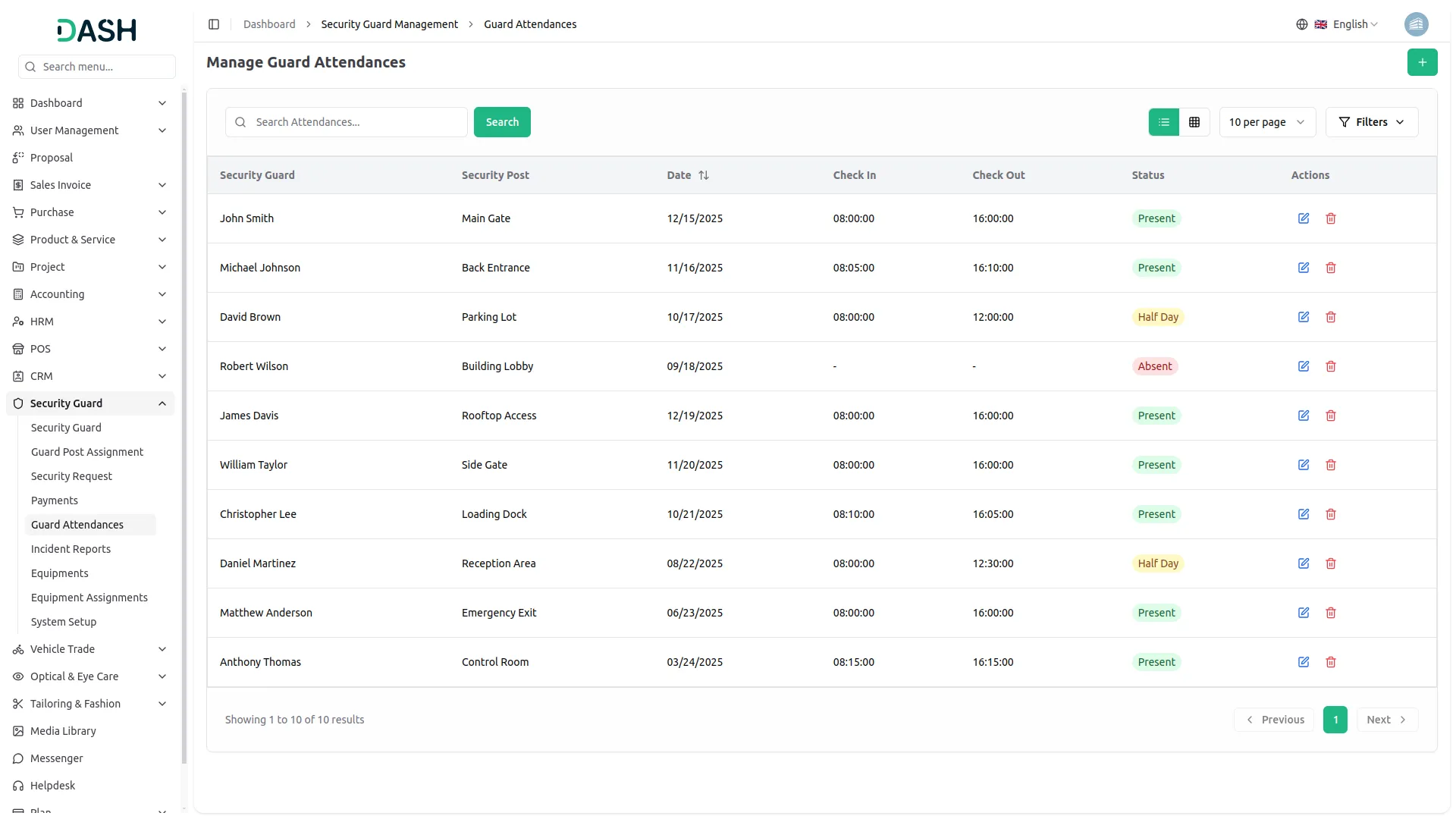
- The list page displays all attendance records in a table with columns for Security Guard, Security Post, Date, Check In, Check Out, Status, and Actions. Attendance status can be Present, Half Day, or Absent. Records marked as Absent will display a dash (“–”) in the Check In and Check Out columns.
- Use the Search bar to find specific attendance records. Apply filters using the Security Post and Status dropdowns to narrow down results. Click Apply to activate the filters or Clear to remove them. Toggle between list view and grid view using the view buttons.
- In the Actions column, select Edit to modify an existing attendance record, and Delete to permanently remove it from the system.
-
Incident Report
- To add a new incident report, click the “Create” button on the Manage Incident Reports page. In the form that opens, enter the Incident Name and the Institution Name where the incident occurred. Provide the Address of the location. Enter the Complainee Name and their Contact Number.
- Set the Incident Date & Time to record when the incident took place. Select the Assigned Guard from the dropdown (populated from the security guards configured in Manage Security Guards) and choose the Assigned Post from the dropdown (populated from the Security Posts configured in System Setup).
- Set the Priority level (High, Medium, or Low) and the Status (Open or Closed). Optionally, add a Description with any additional details about the incident. Click Create to save the report, or Cancel to discard it.
- The list page displays all incident reports in a table with columns for Incident Name, Institution, Assigned Guard, Assigned Post, Date & Time, Priority, Status, and Actions. Priority levels are indicated (High, Medium, or Low), and Status reflects whether the incident is currently Open or Closed.
- Use the Search bar to find specific incident reports. Apply filters using the Assigned Guard, Assigned Post, and Priority dropdowns to narrow down results. Click Apply to activate the filters or Clear to remove them. Toggle between list view and grid view using the view buttons.
- Available actions: select View to see the full details of an incident report, Edit to modify it, and Delete to permanently remove it from the system.
-
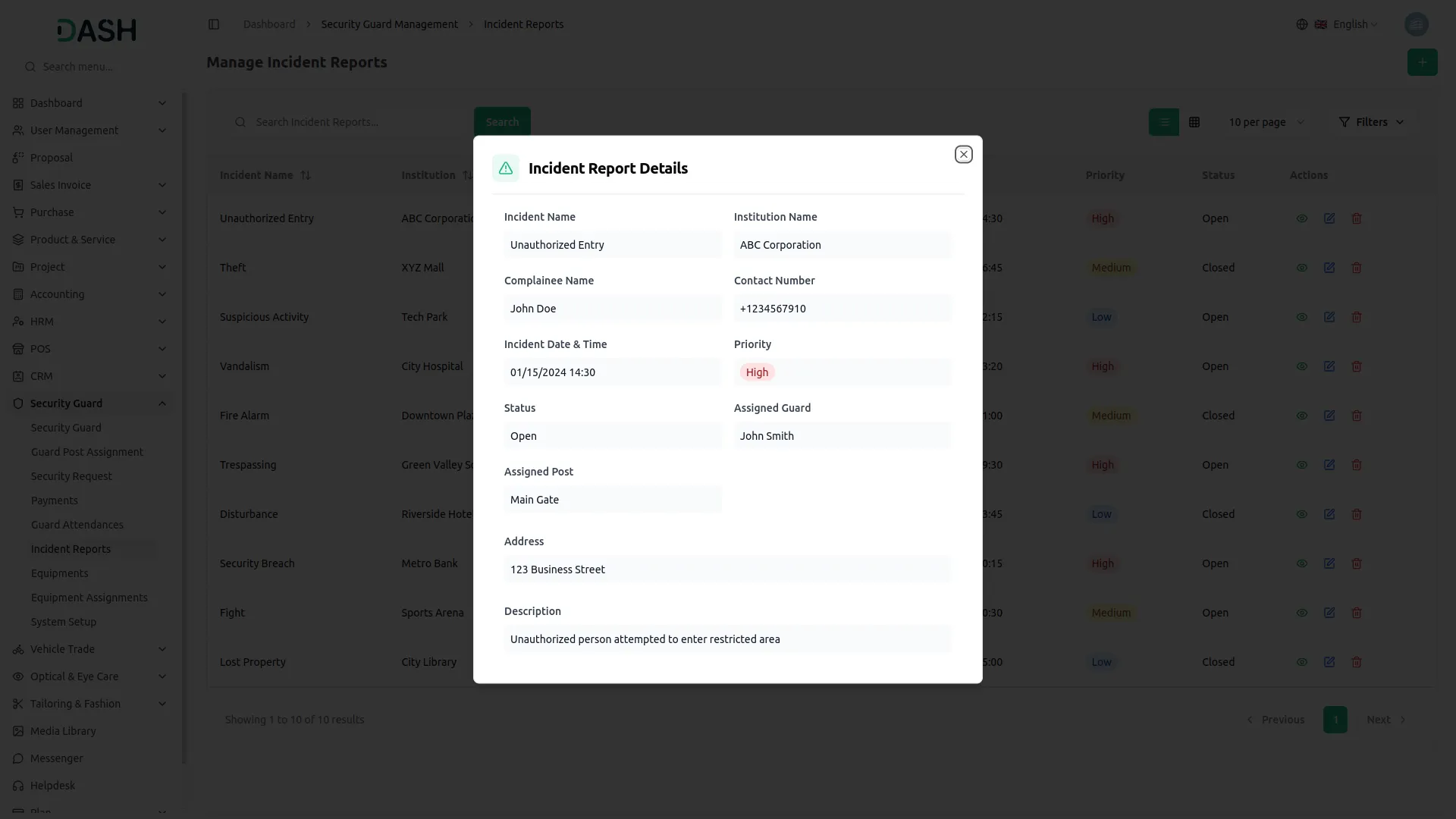
Manage Equipments
- To add a new equipment record, click the “Create” button on the Manage Equipment page. In the form that opens, enter the equipment Name and its Serial Number. Enter the Category to classify the type of equipment (e.g., Communication, Lighting, Defense, Surveillance). Select the Purchase Date and set the Status (Available, Assigned, or Damaged). Click Create to save the record, or Cancel to discard it.
- The list page displays all equipment records in a table with columns for Name, Serial Number, Category, Purchase Date, Status, and Actions. You’ll see in the status column is Available for equipment ready for use, Assigned for equipment currently in use, and Damaged for equipment that is out of service.
- Use the Search bar to find specific equipment by name or other details. Apply filters using the Status dropdown to narrow down results. Click Apply to activate the filter or Clear to remove it. Toggle between list view and grid view using the view buttons.
- Using the Actions column, select Edit to update or modify an existing equipment record, and Delete to permanently remove it from the system.
-
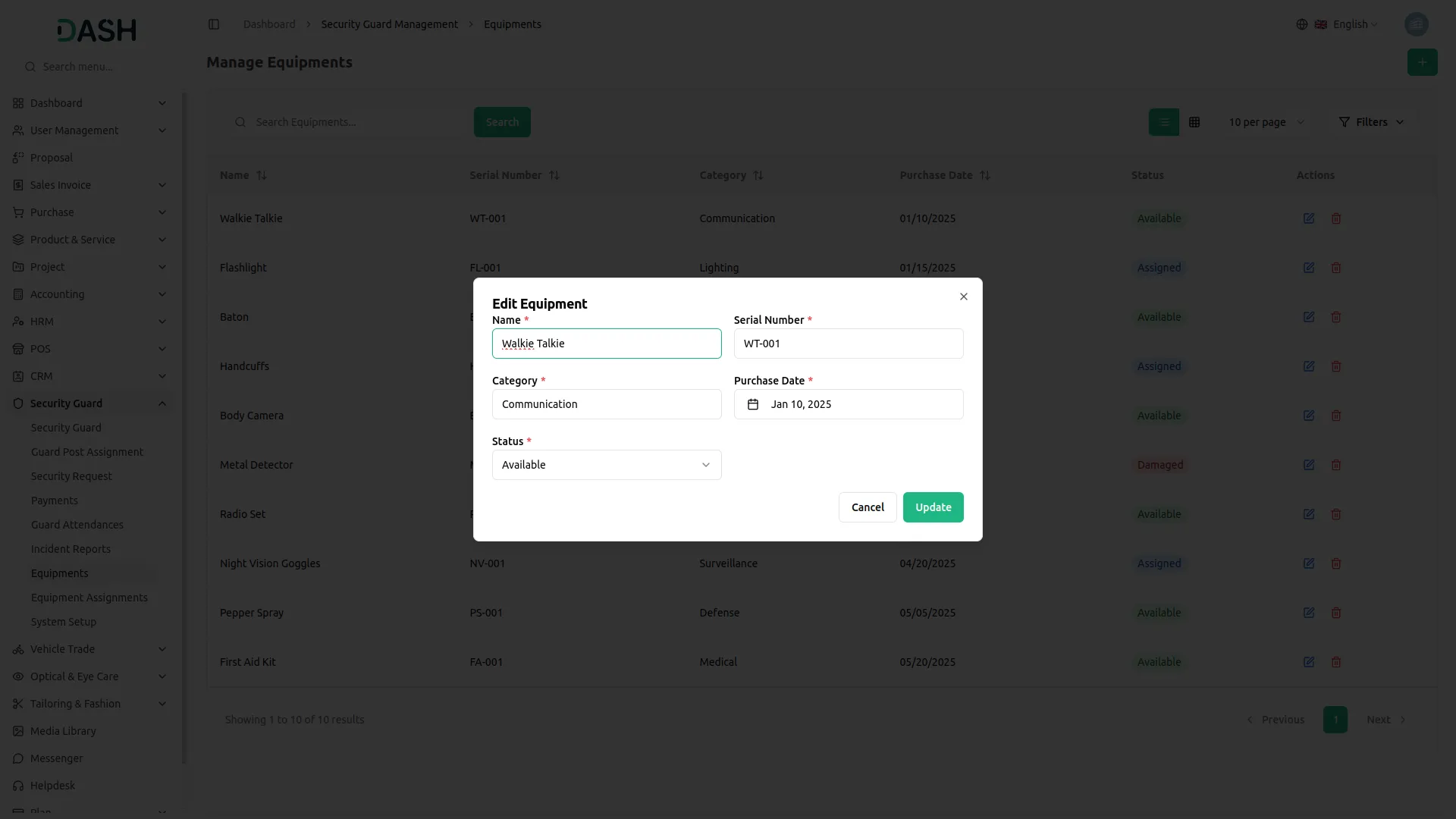
Equipment Assignment
- To add a new equipment assignment, click the “Create” button on the Manage Equipment Assignments page. In the form that opens, select the Equipment from the dropdown (populated from the equipment records configured in Manage Equipment) and choose the Security Guard from the dropdown (populated from the security guards configured in Manage Security Guards).
- Set the Assigned Date to record when the equipment was issued, and optionally enter a Returned Date if the equipment has already been returned. Optionally, enter the Condition of the equipment at the time of assignment (e.g., Good, Excellent, Fair). Click Create to save the assignment, or Cancel to discard it.
- The list page displays all equipment assignments in a table with columns for Equipment (name and serial number), Security Guard, Assigned Date, Returned Date, and Condition. Assignments without a returned date will display a dash (“–”) in the Returned Date column, indicating the equipment is still in use.
- Use the Search bar to find specific assignment records. Apply filters using the Equipment dropdown, Security Guard dropdown, and Assigned Date selector to narrow down results. Click Apply to activate the filters or Clear to remove them. Toggle between list view and grid view using the view buttons.
- In the Actions column, select Edit to update or modify an existing assignment record, and Delete to permanently remove it from the system.
-
Categories
Related articles
- Bakery Store Detailed Documentation
- Commission Integration in Dash SaaS
- Consultancy Integration in Dash SaaS
- Goto Meeting Integration in Dash SaaS
- Support Ticket Integration in Dash SaaS
- Double Entry Integrational Entry Integration
- Business Model Integration in Dash SaaS
- Rotas Integration in Dash SaaS
- Adyen Detailed Documentation
- To Do Integration in Dash SaaS
- PetCare Integration in Dash SaaS
- Google Authentication Integration in BookingGo SaaS
Reach Out to Us
Have questions or need assistance? We're here to help! Reach out to our team for support, inquiries, or feedback. Your needs are important to us, and we’re ready to assist you!

Need more help?
If you’re still uncertain or need professional guidance, don’t hesitate to contact us. You can contact us via email or submit a ticket with a description of your issue. Our team of experts is always available to help you with any questions. Rest assured that we’ll respond to your inquiry promptly.
Love what you see?
Do you like the quality of our products, themes, and applications, or perhaps the design of our website caught your eye? You can have similarly outstanding designs for your website or apps. Contact us, and we’ll bring your ideas to life.