
Adyen – WorkDo Dash SaaS Add-On Guide
Learn how to configure and manage Adyen payment integration in WorkDo Dash SaaS.
Supported Currencies: USD, EUR, GBP, JPY, AUD, CAD, INR, AED, and more
Supported Countries: United States, United Kingdom, Germany, Japan, Australia, Canada, India, United Arab Emirates, and more
Benefits of Adyen Payment Gateway
Enterprise-Grade Transaction Security
Adyen protects every payment with advanced encryption and security protocols, ensuring that all customer data and financial transactions remain fully safe and secure within the WorkDo Dash platform.
Wide Range of Payment Methods
From credit and debit cards to bank transfers and alternative payment options, Adyen accommodates diverse customer preferences, making it easier for businesses to serve a broader audience without any payment barriers.
Truly Global Payment Reach
Adyen’s extensive international support allows businesses to accept payments from customers across the world, making it an ideal gateway for companies looking to scale beyond their local markets.
Frictionless Payment Experience
Adyen delivers a clean and intuitive checkout flow that minimizes disruptions, helping businesses reduce drop-offs and provide customers with a consistently smooth and satisfying payment experience.
Dependable Uptime & Support
With reliable infrastructure and responsive customer support, Adyen ensures that payment operations run without interruption, complementing the overall operational stability of the WorkDo Dash platform.
How to Access Adyen Add-On?
- Visit the WorkDo Dash Website Go to https://www.workdo.io to access the WorkDo Dash platform.
- Navigate to Dash SaaS Add-Ons Explore the “Dash SaaS Add-Ons” section on the website to discover available Add-Ons.
- Discover Adyen Add-On Browse the list of available Add-Ons and find the “Adyen Payment Gateway.”
- Activate the Add-On Click the “Activate” button next to the Adyen Add-On to enable it for your WorkDo Dash account.
Once activated, Adyen becomes available across supported modules based on permissions and settings.
How does Adyen Works?
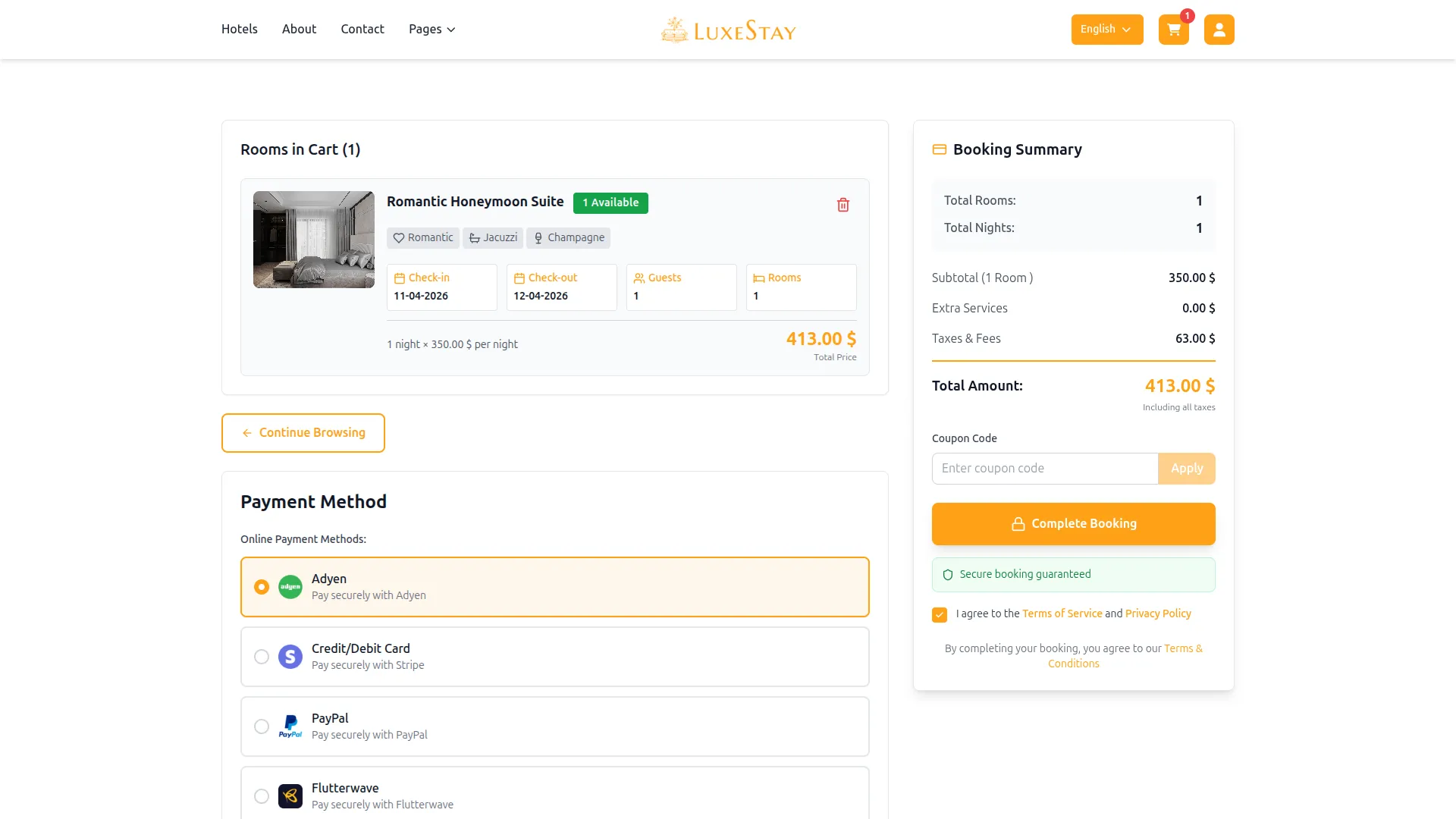
Adyen integration in Dash SaaS enables businesses to accept online payments directly within their platform by connecting their Adyen account through the settings panel. Once integrated, users can offer customers a variety of payment options such as cards, bank transfers, and more, all processed securely via Adyen’s encrypted gateway. Transactions are automatically tracked and recorded within Dash SaaS, providing real-time visibility and simplifying financial management. The integration requires minimal setup and ensures a smooth, reliable, and secure payment experience for both businesses and their customers.
Super Admin Settings
(Plan Purchase by the Company)
The Super Admin Settings are accessible only to the highest-level administrator. These settings allow the Super Admin to manage company-level subscriptions and payment configurations.
Key Capabilities:
- Purchase or upgrade company subscription plans
- Configure Adyen API credentials for plan payments
- Enable or disable Adyen as a payment gateway
Configuration Path:
Super Admin Login → Settings → Adyen Settings
Company Settings
(Bookings, Beauty Spa, LMS & Other Payments)
Company Settings allow organizations to configure Adyen for receiving payments from customers across multiple modules.
Supported Modules Include:
Configuration Path:
Company Login → Settings → System Settings → Adyen Settings
Company-Level Capabilities:
- Configure Adyen API credentials
- Enable Adyen for selected modules
- Accept online payments from customers
- Manage Bookings, Beauty Spa, and service
- Handle tax, coupon, and discount calculations
How to Generate Adyen API Credentials?
To integrate Adyen with WorkDo Dash, obtain API credentials from your Adyen Portal:
1. Generate Adyen Credentials
- To obtain your Adyen login credentials, follow these steps:
- Login Url: https://www.adyen.com/
- Select Mode: Sandbox: For testing. Live: For real transactions.
- You must first generate credentials in your Adyen account:
- Generate API Credentials: https://docs.adyen.com/development-resources/api-credentials/
- You will need: Merchant Account, API Key, Client Key, Prefix(Required only in Live mode)
2. Configure Adyen Gateway In (Product Name)
- Log in to your Dash SaaS account with administrator credentials.
- Navigate to the settings page.
3. Set Up Adyen Gateway
- Scroll down the page until you find the Adyen Gateway option.
- Click on the Adyen Gateway to access its configuration settings.
4. Enter Required Adyen Details
- In the Adyen settings, provide the following essential details
- Adyen Mode: Choose either Sandbox or Live.
- Adyen Prefix: (Required only in Live mode) Enter your Adyen Prefix
- Merchant Account: Enter your unique Adyen Merchant Account.
- Api Key: Enter your Api Key.
- Client Key: Enter your Client Key.
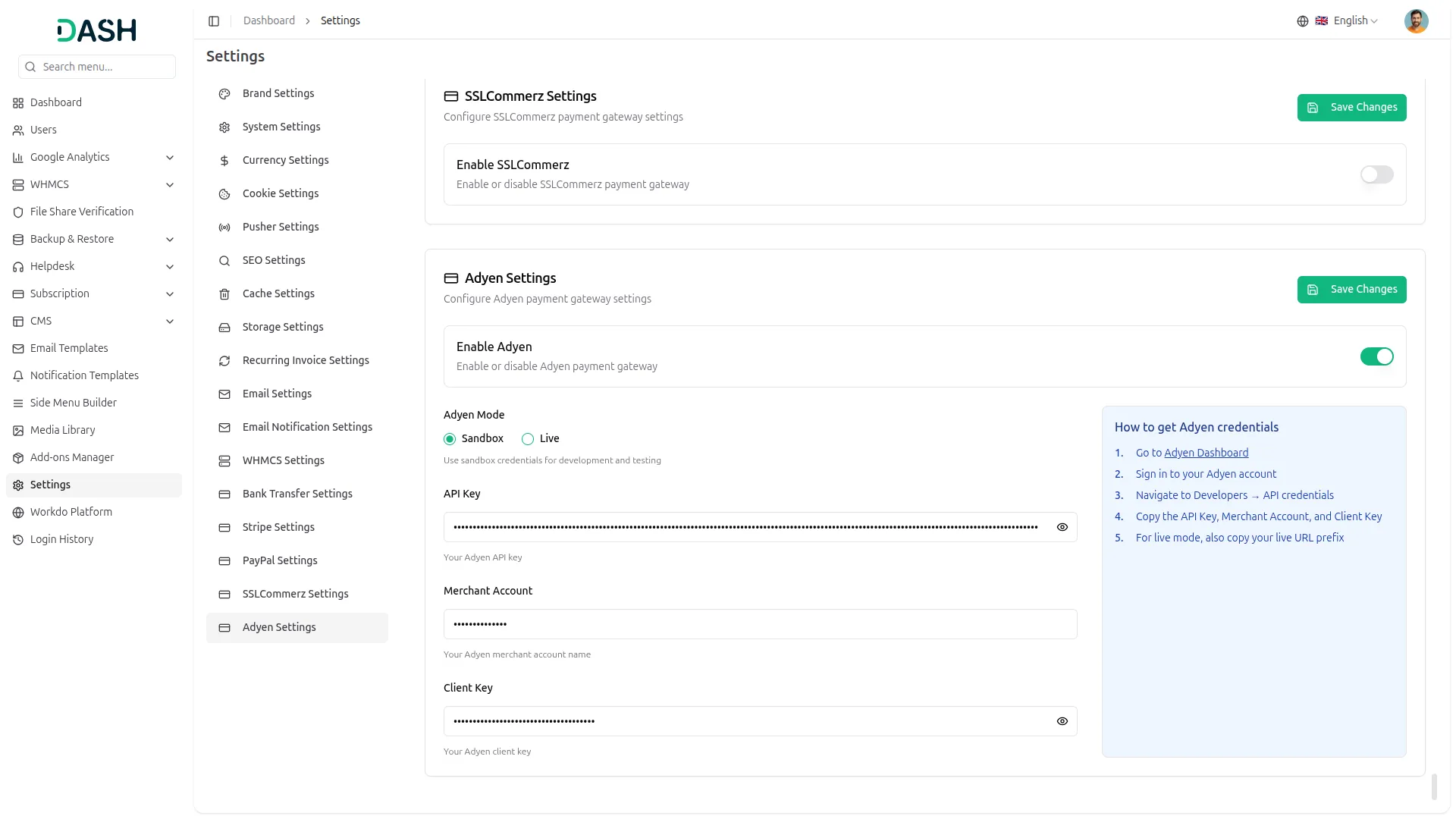
5. Save Your Settings
- After entering the necessary details, save the settings to activate the Adyen Payment Gateway within your (Product Name) platform.
This detailed documentation overviews Adyen Payment Integration, its benefits, and the integration process. By integrating Adyen, businesses and organizations can offer their customers a secure and flexible payment experience while streamlining their payment processes.
Note: The Adyen Add-On is a paid feature and can be accessed by users who have purchased it. By integrating the Adyen Add-On into your WorkDo Dash SaaS account, you’ll provide a reliable and user-friendly payment gateway that supports global transactions.
Categories
Related articles
- TicketGo Add-On Setup Guide
- Mollie – BookingGo SaaS Add-On Guide
- Sequential Appointment – BookingGo SaaS Add-On Guide
- NMI – BookingGo SaaS Add-On Guide
- Authorize.Net – WorkDo Dash SaaS Add-On Guide
- Sign in with Facebook – WorkDo Dash SaaS Add-On Guide
- Flutterwave – BookingGo SaaS Add-On Guide
- Visitor Management – WorkDo Dash SaaS Add-On Guide
- vCard SaaS Add-On Setup Guide
- Plivo SMS – WorkDo Dash SaaS Add-On Guide
- User Manual – AccountGo
- Report Module Guide – eCommerceGo SaaS
We're Here to Help - Let's Talk
Have questions about our solutions, customization services, or business tools? Our team is here to help you. let's talk.