
Bakery Store – WorkDo Dash SaaS Add-On Guide
Learn how to manage bakery products, orders, and store operations in WorkDo Dash SaaS.
Introduction
The Bakery Store Add-On is a comprehensive tool designed to simplify and organize bakery operations, covering products, orders, expenses, wastage, and categories. It enables users to manage records efficiently, track inventory, monitor order status, calculate totals, and document important details such as customer information, payments, and reasons for wastage. Advanced search, filtering, and pagination features make it easy to locate specific records, while status indicators provide a clear overview of progress for orders, expenses, and categories, ensuring smooth and well-structured business management.
How to Install the Add-On?
To Set Up the Bakery Store Add-On, you can follow this link: Setup Add-On.
How to Use the Bakery Store Add-On?
Manage Products
- To add a new product record, click the “Create” button on the Manage Products page. In the form that opens, enter the Product Name and select the Category from the dropdown (populated from the categories section). Enter the Price and Quantity in their respective fields, then provide an optional Description in the text area. Click Create to save the record, or Cancel to discard it.
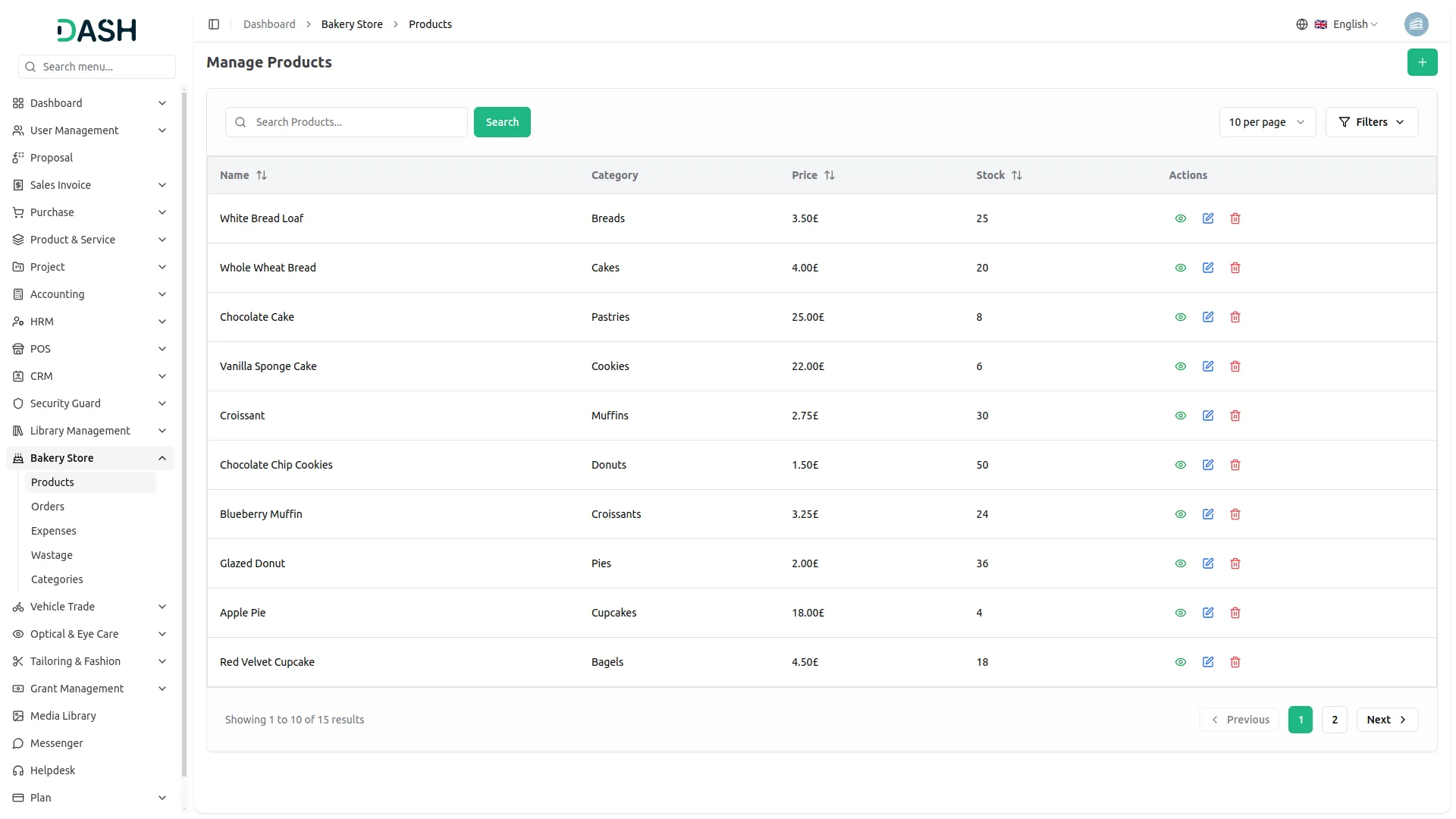
- The list page displays all product records in a table with columns for Name, Category, Price, and Stock.
- Use the Search bar to find specific products by name. Apply filters using the Category dropdown to narrow down results. Click Apply to activate the filter or Clear to remove it. Use the pagination control to adjust how many records are displayed per page.
- In the Actions column, select the View to inspect the full details of a product record, the Edit to modify an existing record, and the Delete to permanently remove the product from the system.
Manage Orders
- To add a new order record, click the “Create” button on the Manage Orders page. In the form that opens, enter the Order Date, Customer Name, Contact No, and Email under the Order Details section. Provide the Address, select the Bank Account from the dropdown, and enter any Extra Charge if applicable. Fill in the Prescription Details and Special Notes in their respective text areas.
- Under the Order Items section, select a Product from the dropdown, then enter the Qty, Price, and Discount for each line item. The Total is calculated automatically per item and reflected in the Order Summary, which displays the Subtotal, Discount, and overall Total. Click ” Add Item” to include additional products in the order. Click Create to save the record, or Cancel to discard it.
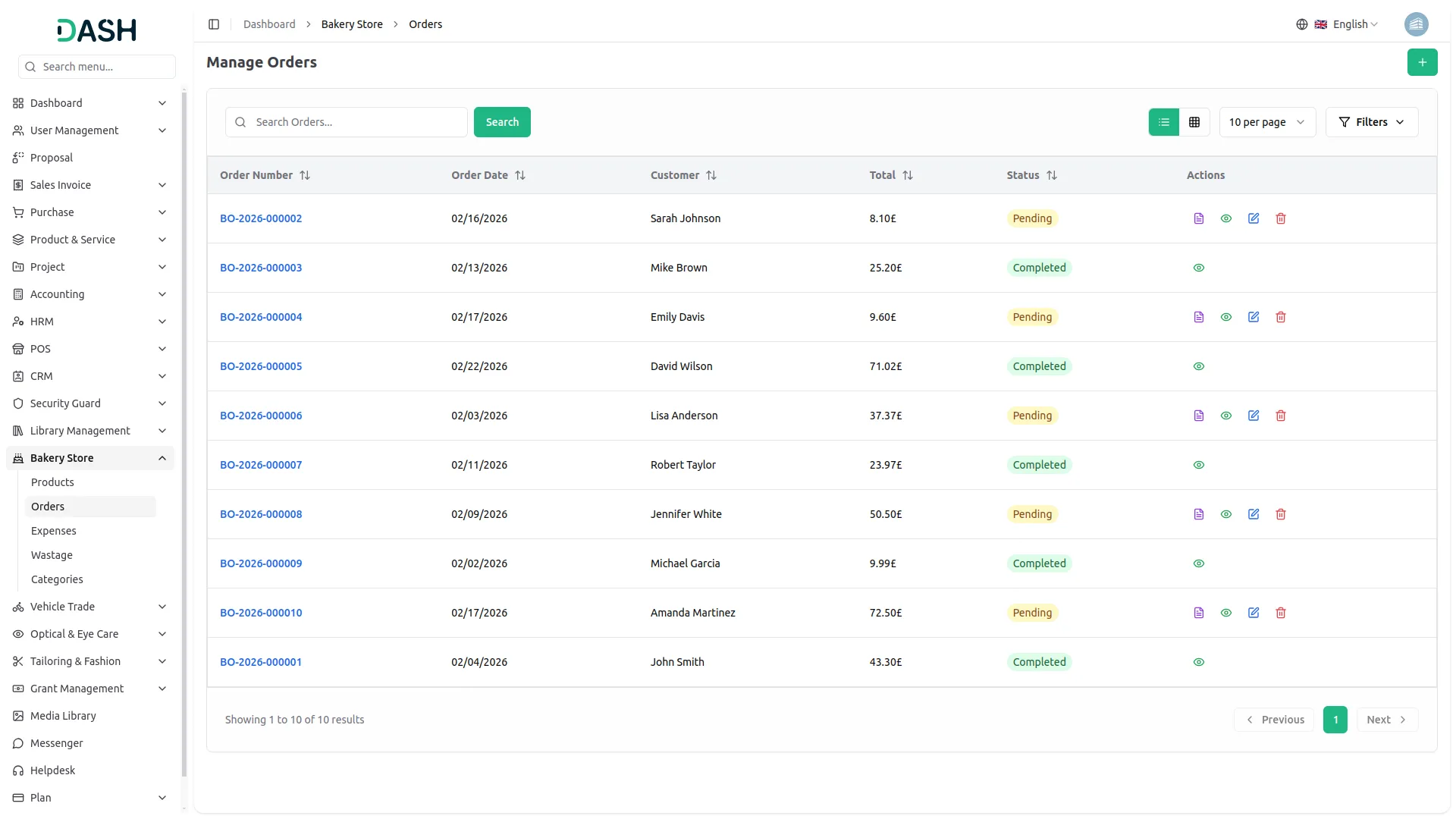
- The list page displays all order records in a table with columns for Order Number, Order Date, Customer, Total, and Status. The Order Number is displayed as a clickable link for quick access to the full order details.
- The Status field reflects the current state of the order. It can be one of two values: Pending (the order has been placed and is awaiting fulfillment) or Completed (the order has been successfully processed and fulfilled).
- Use the Search bar to find specific orders by name. Apply filters using the Status dropdown and the Date Range picker to narrow down results. Click Apply to activate the filters or Clear to remove them. Use the pagination control to adjust how many records are displayed per page. The page also allows you to toggle between list view and grid view.
- In the Actions column, select the Post Order to mark a pending order as posted, the Invoice to generate an invoice for the order, the View to inspect the full details of an order record, the Edit to modify an existing record, and the Delete to permanently remove the order from the system. Note that the Post Order action is available only for Completed orders, while the Invoice, Edit, and Delete actions are available only for Pending orders.
Manage Expenses
- To add a new expense record, click the “Create” button on the Manage Expenses page. In the form that opens, enter the Title and Amount, then select the Expense Date using the date picker. Enter the Payment Method and select the Bank Account from the dropdown. Provide an optional Description in the text area. Click Create to save the record, or Cancel to discard it.
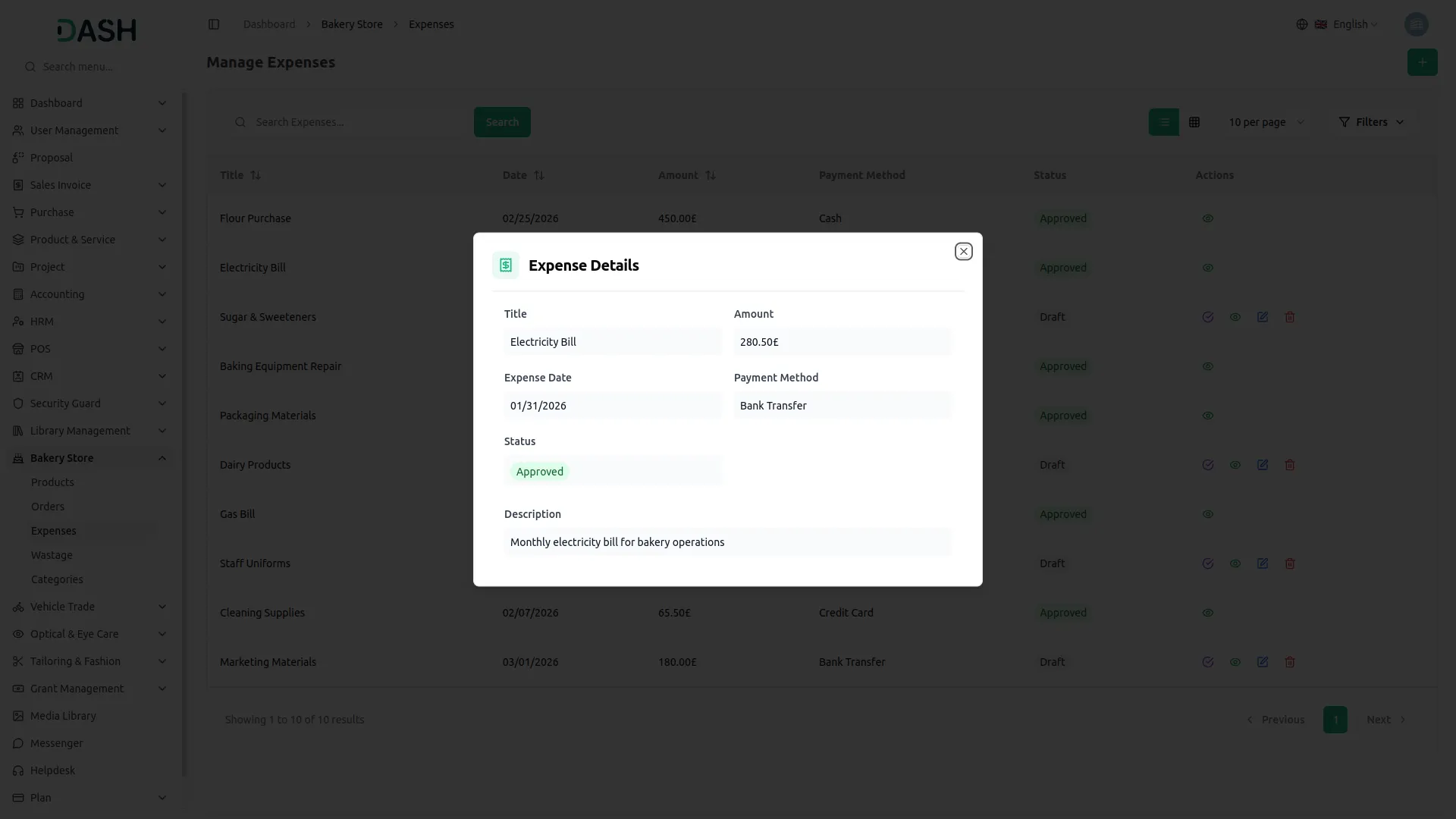
- The list page displays all expense records in a table with columns for Title, Date, Amount, Payment Method, and Status. The page also allows you to toggle between list view and grid view.
- The Status field reflects the current state of the expense. It can be one of two values: Draft (the expense has been recorded but is pending approval) or Approved (the expense has been reviewed and confirmed).
- Use the Search bar to find specific expenses by title. Apply filters using the Status dropdown and the Expense Date Range picker to narrow down results. Click Apply to activate the filters or Clear to remove them. Use the pagination control to adjust how many records are displayed per page.
- In the Actions column, select Approve to approve a draft expense, View to inspect the full details of an expense record, Edit to modify an existing record, and Delete to permanently remove the expense from the system. Note that the Approve, Edit, and Delete actions are available only for Draft expenses, while Approved expenses display only the View action.
Manage Wastage
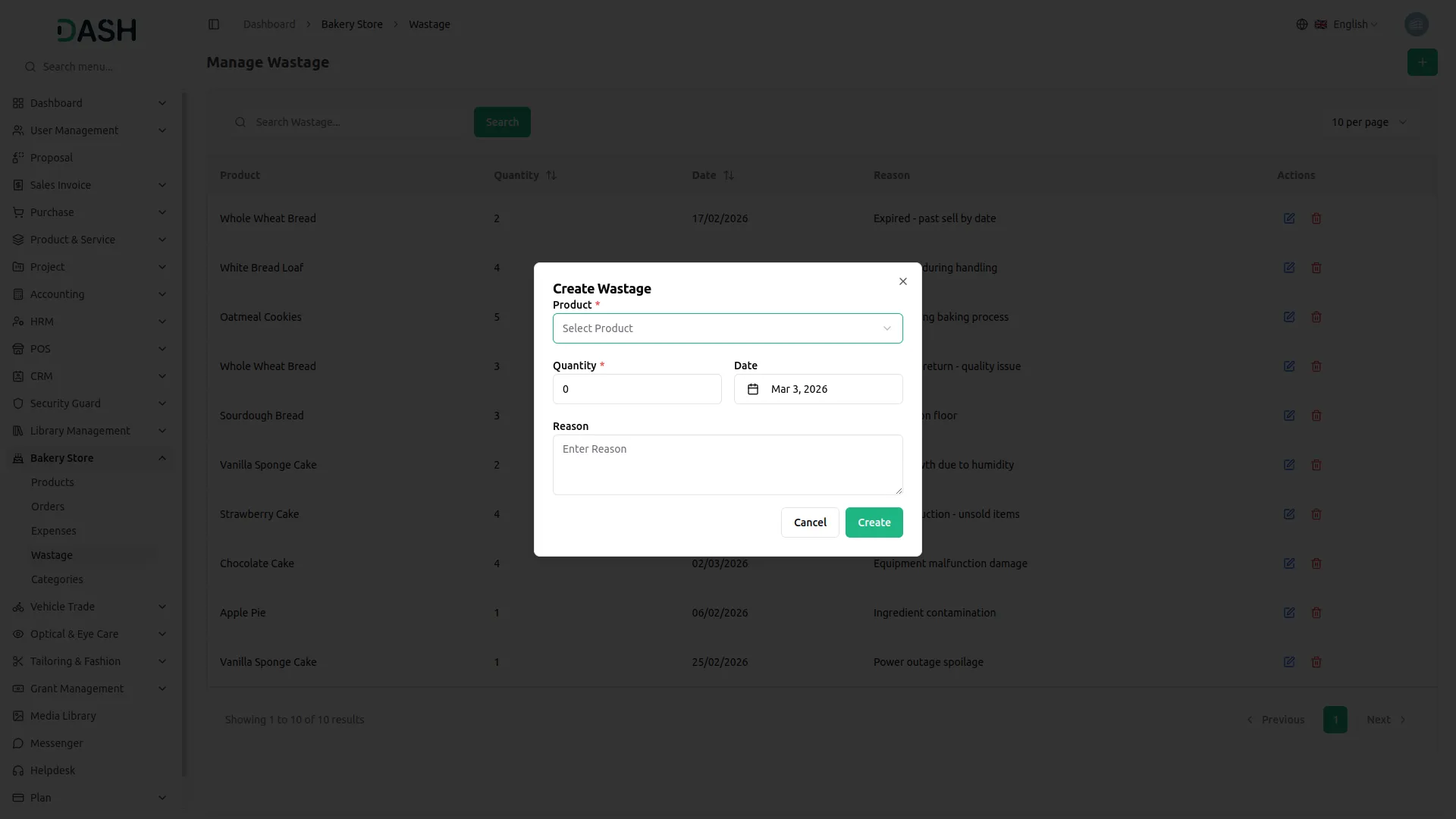
- To add a new wastage record, click the “Create” button on the Manage Wastage page. In the form that opens, select the Product from the dropdown (comes from the Product section), enter the Quantity, and choose the Date using the date picker. Provide a reason in the textarea to document the cause of the wastage. Click Create to save the record, or Cancel to discard it.
- The list page displays all wastage records in a table with columns for Product, Quantity, Date, and Reason.
- Use the Search bar to find specific wastage records by product name. Use the pagination control to adjust how many records are displayed per page.
- In the Actions column, select Edit to modify an existing record, and Delete to permanently remove the wastage entry from the system.
Manage Categories
- To add a new category record, click the “Create” button on the Manage Categories page. In the form that opens, enter the Category Name and toggle the Active switch to set the category’s initial status. Click Create to save the record, or Cancel to discard it.
- The list page displays all category records in a table with columns for Name and Status. The Status field reflects the current state of the category. It can be one of two values: Active (the category is enabled and available for use across the system) or Inactive (the category is disabled and will not appear in category selections).
- Use the Search bar to find specific categories by name. Use the pagination control to adjust how many records are displayed per page.
- In the Actions column, select Edit to modify an existing record, and Delete to permanently remove the category from the system
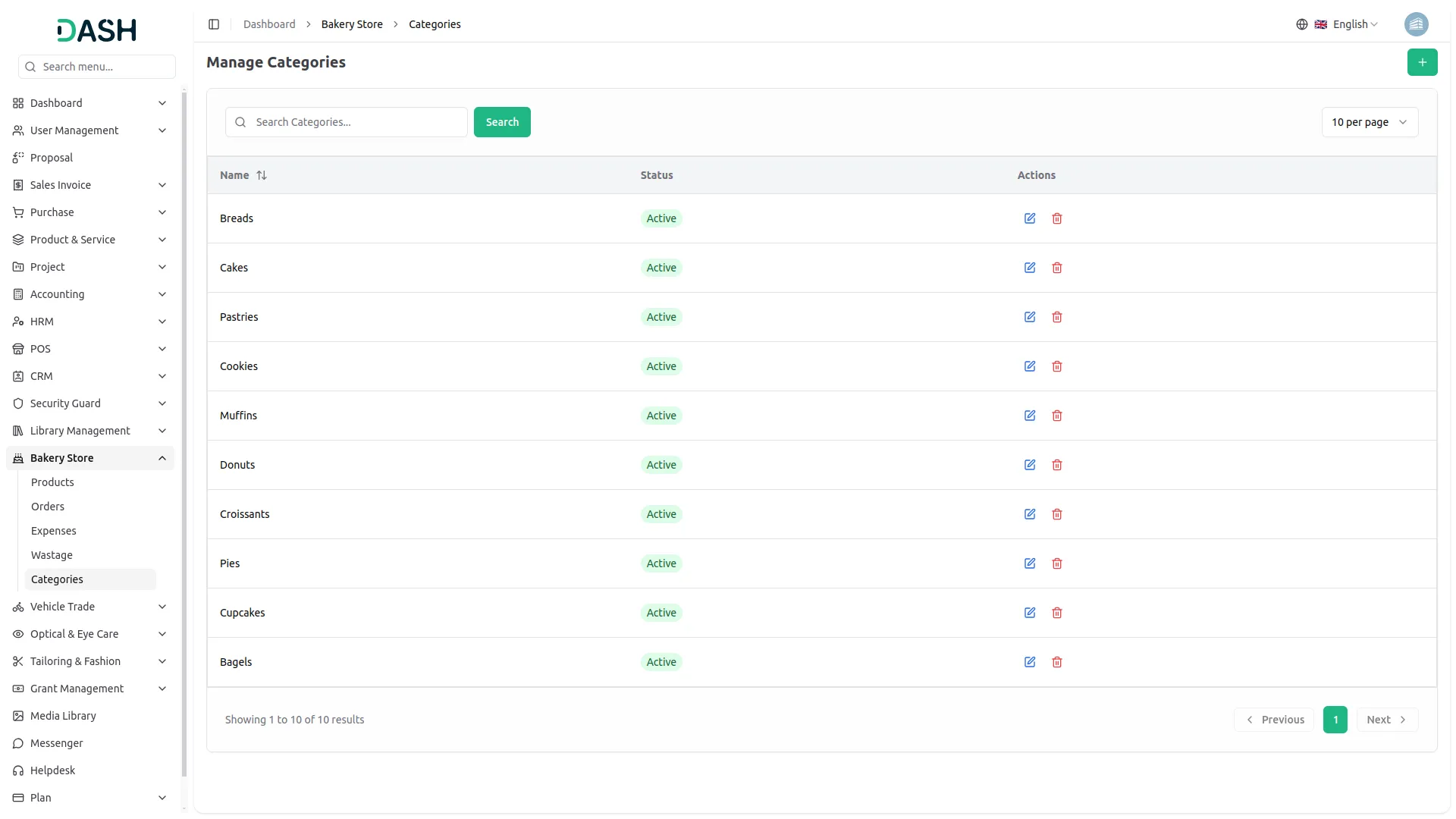
Categories
Related articles
- Google Calendar – BookingGo SaaS Add-On Guide
- Easebuzz – WorkDo Dash SaaS Add-On Guide
- Events Management – WorkDo Dash SaaS Add-On Guide
- Fleet – WorkDo Dash SaaS Add-On Guide
- Skrill – WorkDo Dash SaaS Add-On Guide
- Benefit – WorkDo Dash SaaS Add-On Guide
- Sales – WorkDo Dash SaaS Add-On Guide
- Movie Show Booking System – WorkDo Dash SaaS Add-On Guide
- Rocket.Chat – WorkDo Dash SaaS Add-On Guide
- Razorpay – WorkDo Dash SaaS Add-On Guide
- Xero – WorkDo Dash SaaS Add-On Guide
- User Manual – HRM SaaS
We're Here to Help - Let's Talk
Have questions about our solutions, customization services, or business tools? Our team is here to help you. let's talk.