
PetCare – WorkDo Dash SaaS Add-On Guide
Learn how to manage pet appointments, services, and records in WorkDo Dash SaaS.
Introduction
The PetCare Management Add-On is a complete pet care center management solution that gives you full control over your business from a single, easy-to-use backend. From setting up your brand, working hours, and website content, to managing services, grooming packages, bookings, memberships, payments, pet adoptions, and customer contacts, everything is organized in one place. Every detail you configure in the backend is instantly reflected on your frontend website, ensuring your customers always see accurate, up-to-date information while you stay in full control of your operations and growth.
How to Install the Add-On?
To Set Up the Pet Care Management Add-On, you can follow this link: Setup Add-On.
How to use the Pet Care Management Add-On?
PetCare Dashboard
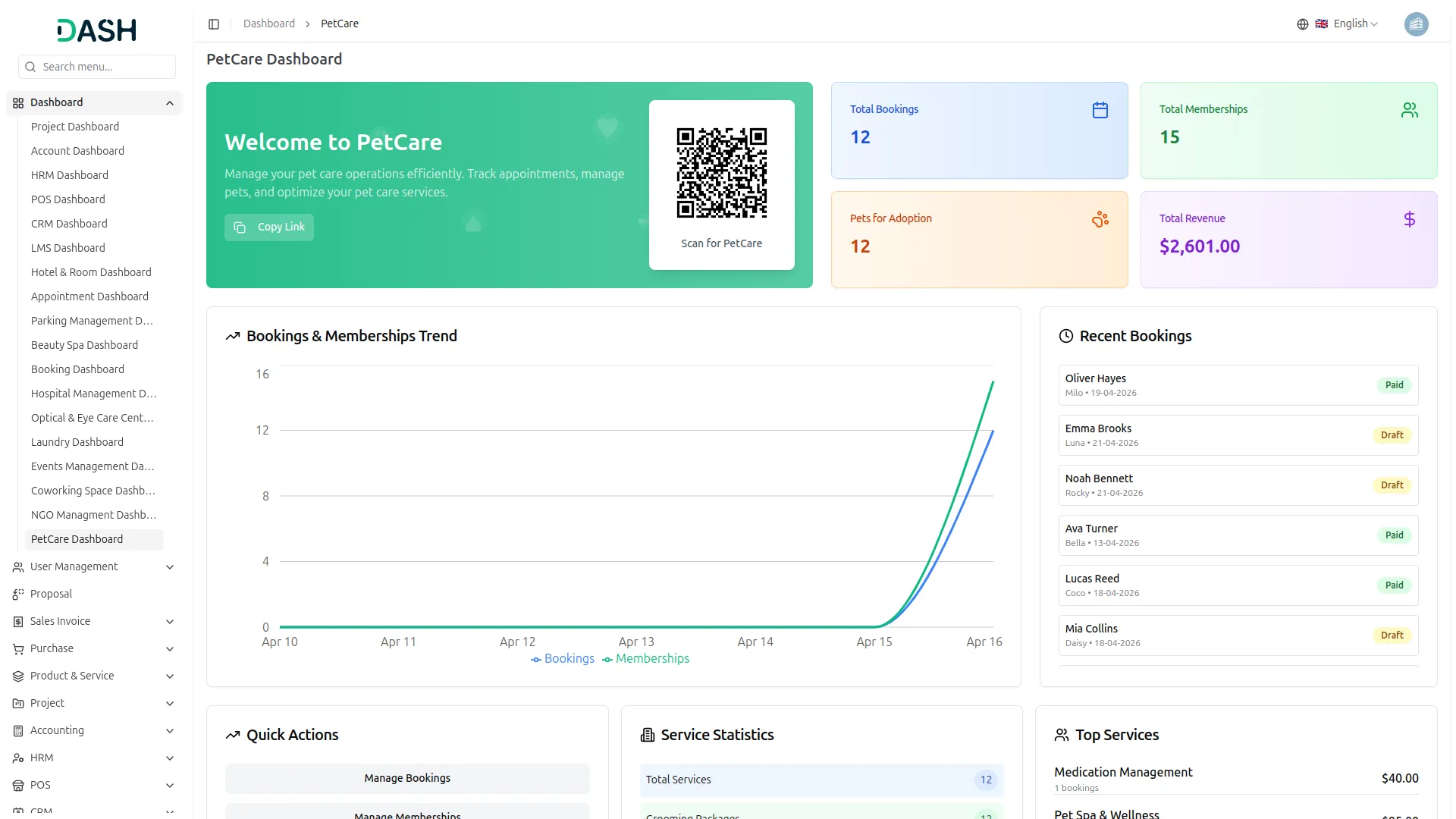
- The dashboard provides a complete overview of your pet care center’s operations and performance through various visual elements and quick access features.
- At the top, you will find a QR Code that customers can scan to directly access the booking page, along with a Copy Link button to share the booking website link easily.
- The dashboard displays important summary cards showing Total Bookings, Total Memberships, Pets for Adoption, and Total Revenue, giving you instant insights into your center’s key metrics at a glance.
- The Bookings & Memberships Trend chart displays a line graph showing the growth of bookings and memberships over a week’s dates, allowing you to track activity patterns and measure business performance over time.
- The Recent Bookings section on the right displays the latest appointments with the customer name, pet name, scheduled date, and payment status (Paid or Draft), allowing you to monitor and track the most recent client bookings directly from the dashboard.
- The Quick Actions panel gives you instant navigation to the most used management areas: Manage Bookings, Manage Memberships, Manage Services, and Pet Adoptions, so you can access key sections without browsing through menus.
- The Service Statistics section provides a snapshot of your total services, grooming packages, pending adoptions, and monthly revenue, giving you a quick operational summary in one place.
- The Top Services panel highlights the most booked services along with their prices, helping you identify which offerings are performing best.
- The Upcoming Bookings section at the bottom left lists scheduled appointments with the customer name, pet name, service type, date, and time slot, so you are always prepared for what is ahead.
- The Recent Payments section displays the latest transactions with a unique payment ID, customer name, service, amount, and payment status (Cleared or Pending), allowing you to monitor payment activity and follow up on outstanding dues directly from the dashboard.
Staff Dashboard
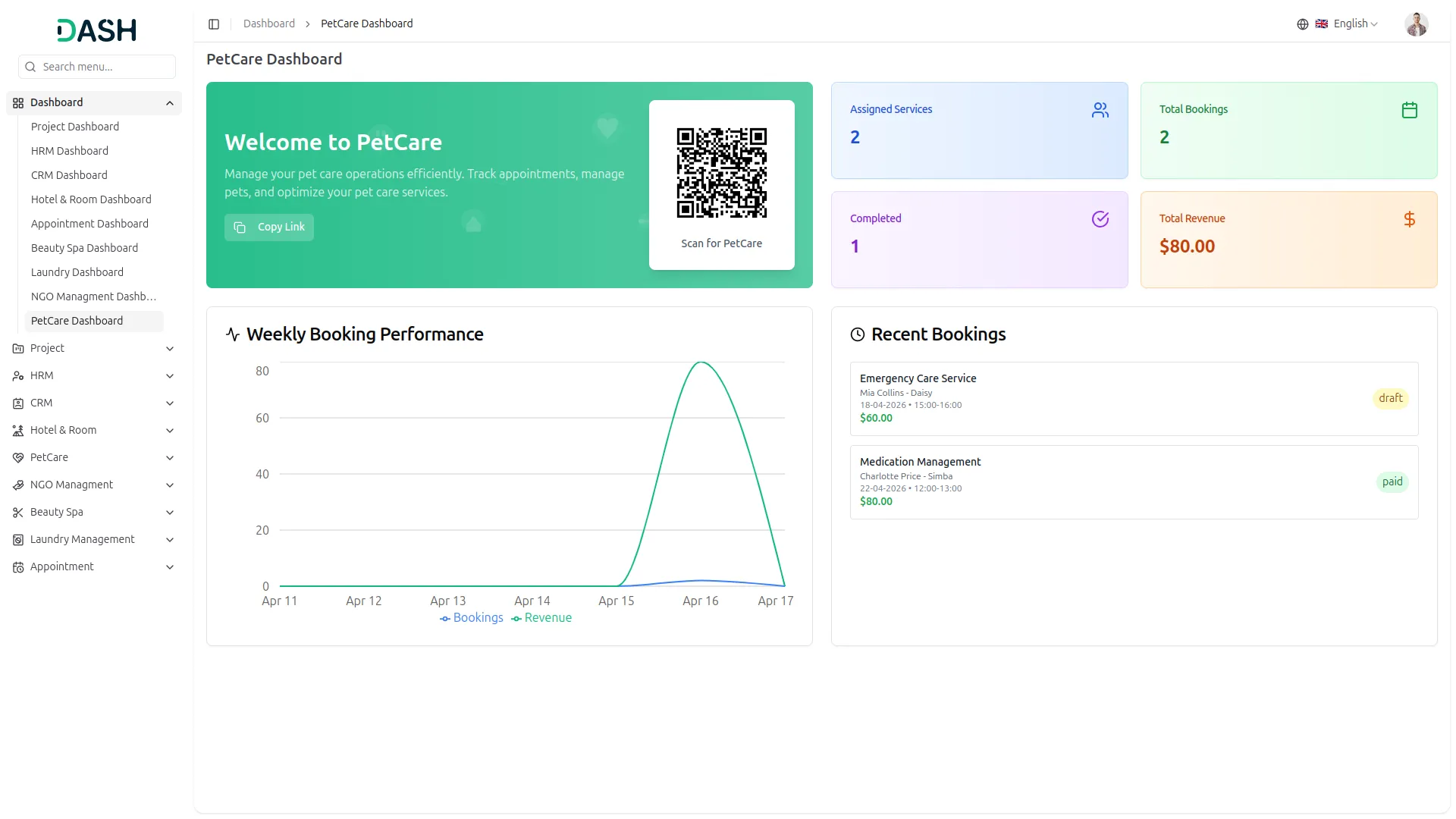
- The Staff Dashboard provides a focused overview of your assigned work and booking performance through various visual elements and quick access features.
- At the top, you will find a QR Code that customers can scan to directly access the booking page, along with a Copy Link button to share the booking website link easily.
- The dashboard displays important summary cards showing Assigned Services, Total Bookings, Completed, and Total Revenue, giving you instant insights into your personal performance and workload at a glance.
- The Weekly Booking Performance chart displays a line graph showing the volume of bookings assigned to you over the current week, allowing you to track your activity and monitor busy periods at a glance.
- The Recent Bookings section on the right displays your latest assigned appointments with the service name, customer name, pet name, scheduled date and time slot, amount, and payment status (Paid or Draft), allowing you to stay on top of your upcoming and recent client bookings directly from the dashboard.
System Setup
Brand Settings
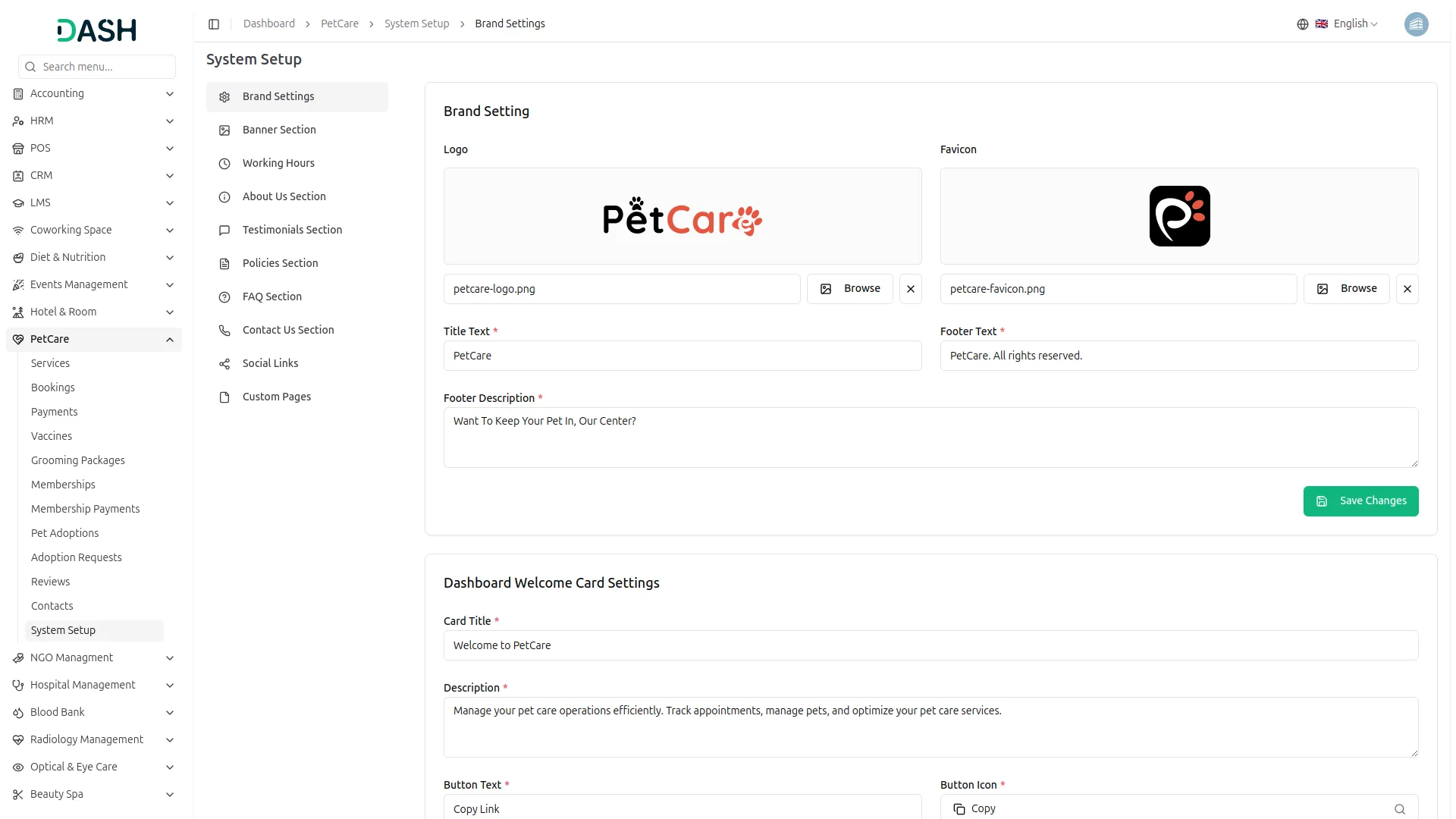
- In the Brand Settings section, you will find fields for Logo, Favicon, Title Text, Footer Text, and Footer Description. You can upload your logo and favicon using the Browse button. Enter all the required details and click Save Changes.
- In the Dashboard Welcome Card Settings, you will find fields for Card Title, Description, Button Text, and Button Icon. Enter all the details and click Save Changes.
- Once saved, the Logo will appear in both the header and footer of your website. The Favicon will display as the small icon in the browser tab. The Title Text will represent your pet care center’s name across the site, the Footer Text will display as the copyright tagline at the bottom of every page, and the Footer Description will appear as the short call-to-action text in the footer section.
- The Dashboard Welcome Card title and description appear as a welcome banner on the backend dashboard. A QR code is provided that they can scan to directly access the booking page, along with a “Copy Link” button to easily share the booking website link.
Banner Section
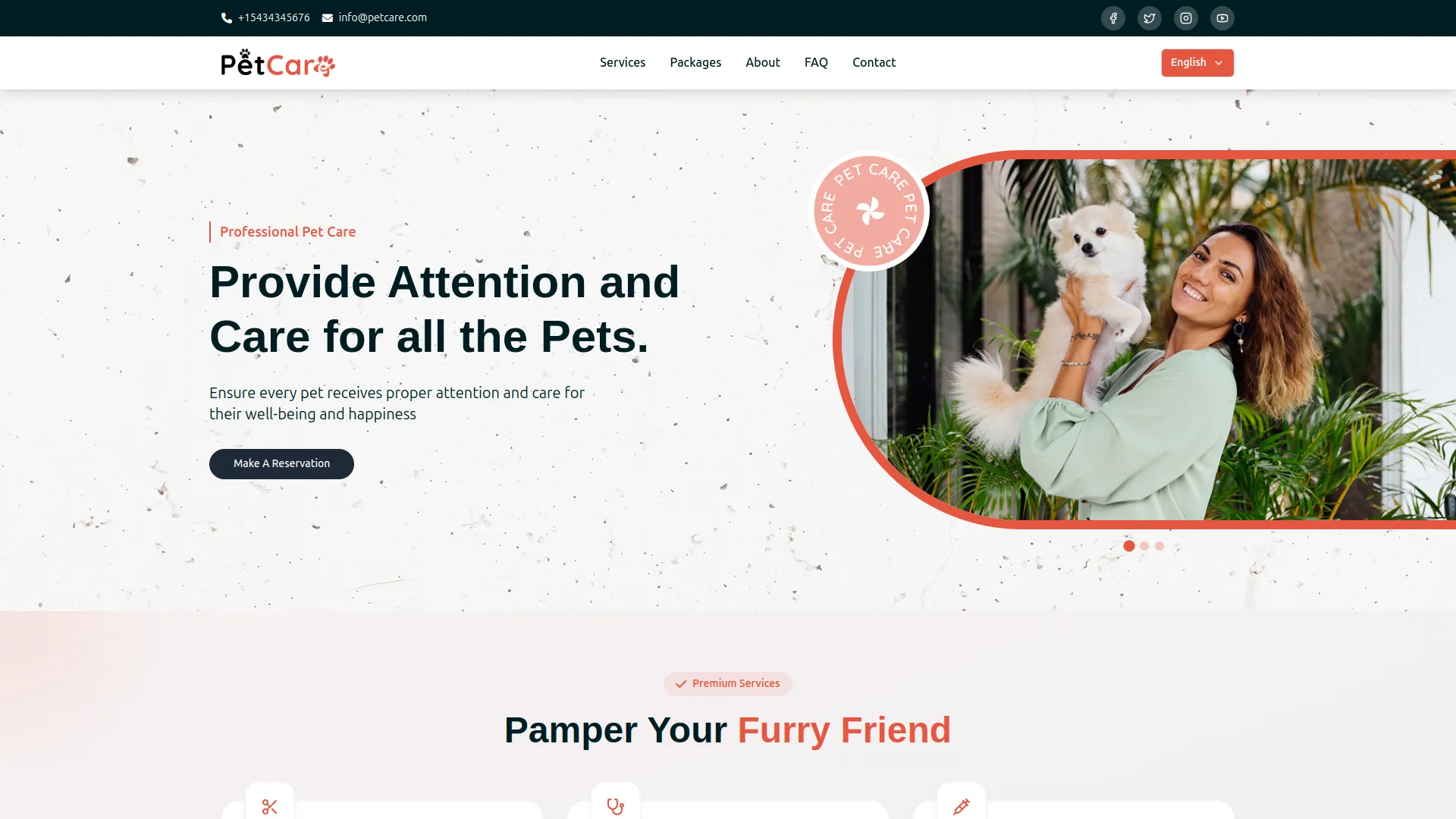
- In the Banner Section, you will find fields for Subtitle Text, Title Text, Description, and Main Banner Image. Upload your hero background image using the Browse button and enter all the required details.
- In the Banner Images section, you can upload multiple banner images by clicking the “Add Banner Image” button. Each item requires an image upload. Enter all the details and click Save Changes.
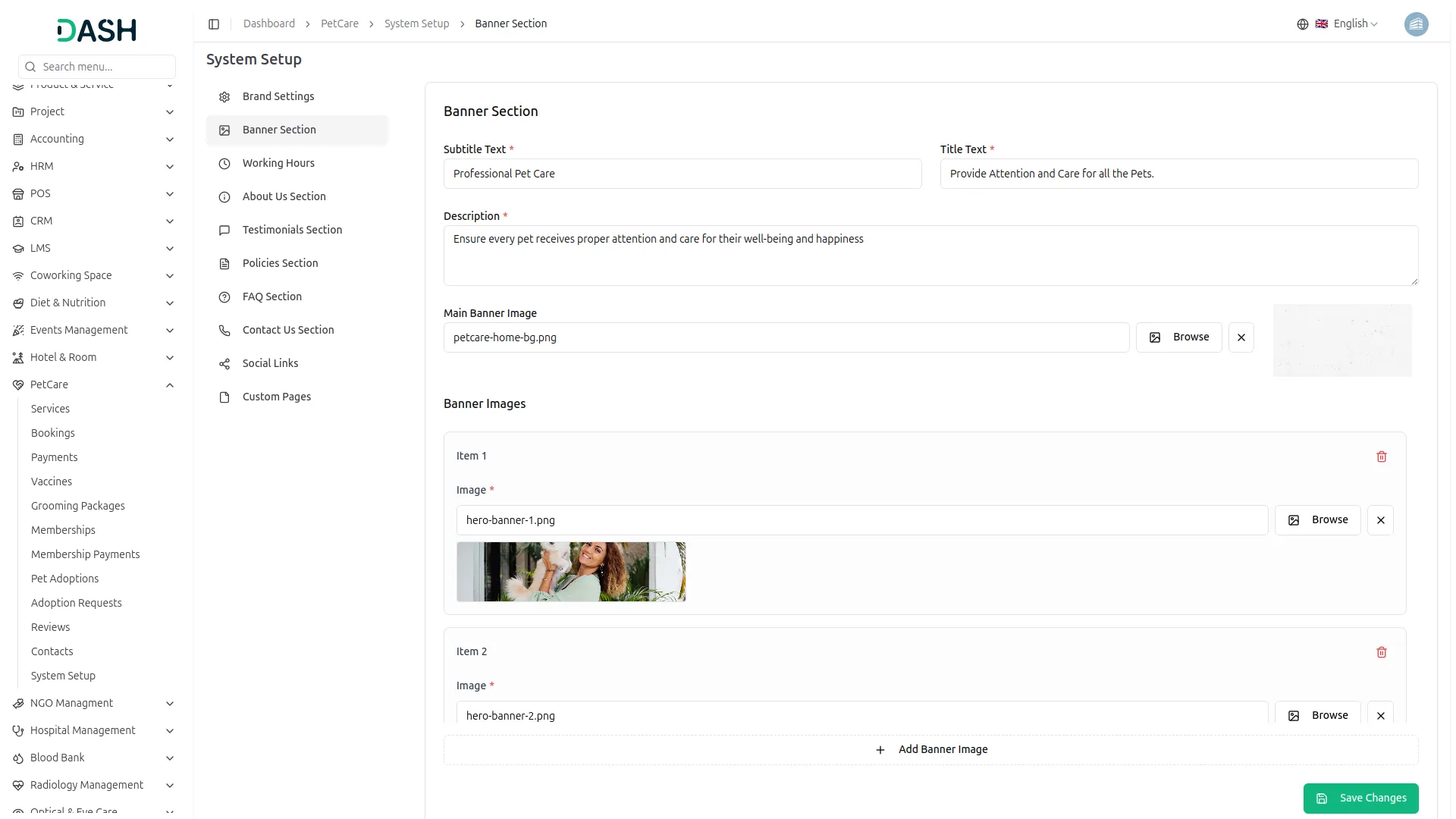
- Once saved, the Subtitle Text, Title Text, and Description will appear in the hero section on your homepage, giving visitors an engaging first impression of your pet care center. The Main Banner Image will display as the background visual in the hero area. The additional Banner Images will rotate as slideshow images within the homepage banner, creating a dynamic and visually appealing introduction.
Working Hours
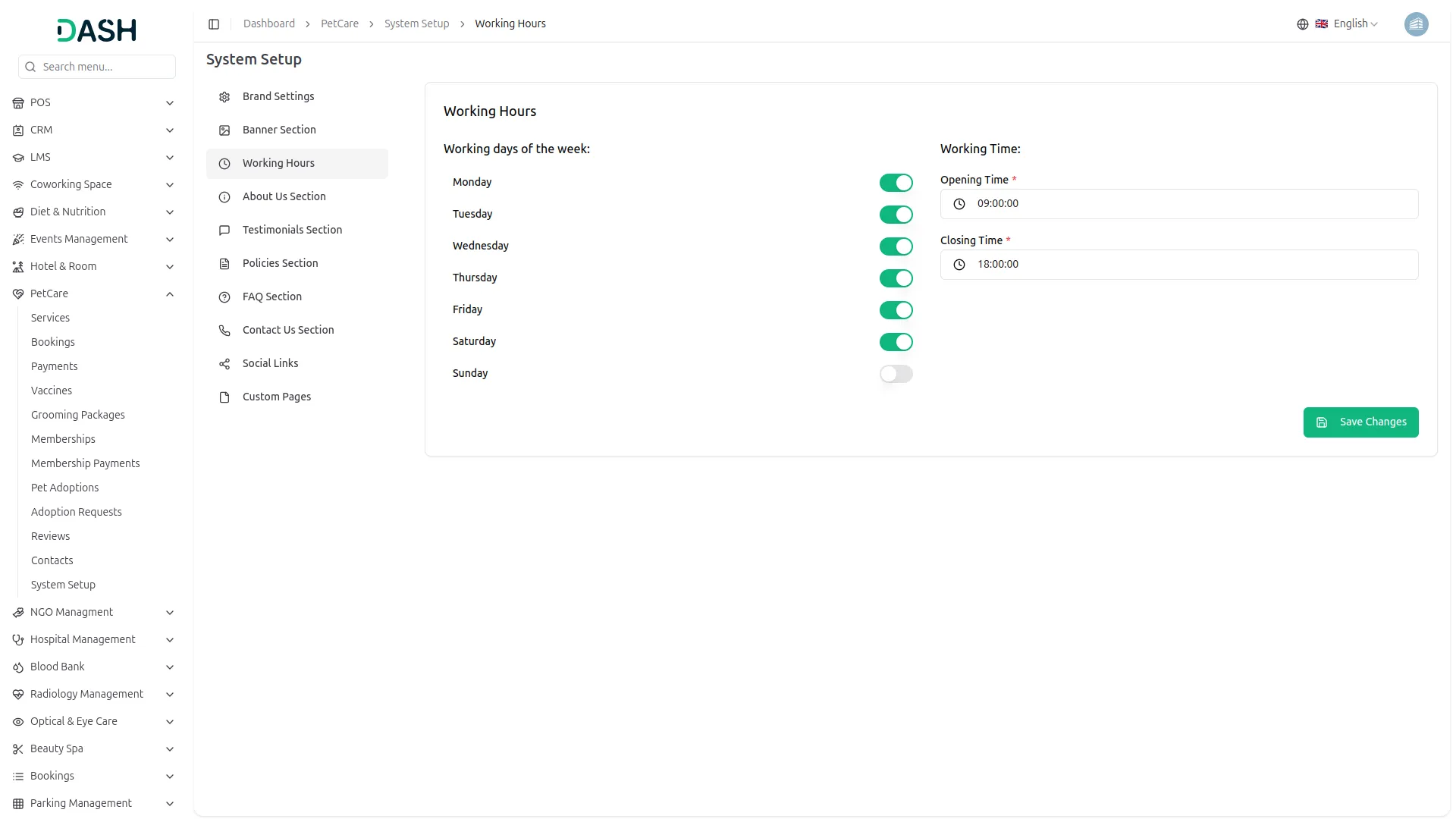
- In the Working Hours section, you will find toggle switches for each day of the week, Monday through Sunday, allowing you to enable or disable specific working days. On the right side, you will find fields for Opening Time and Closing Time. Set your preferred times and click Save Changes.
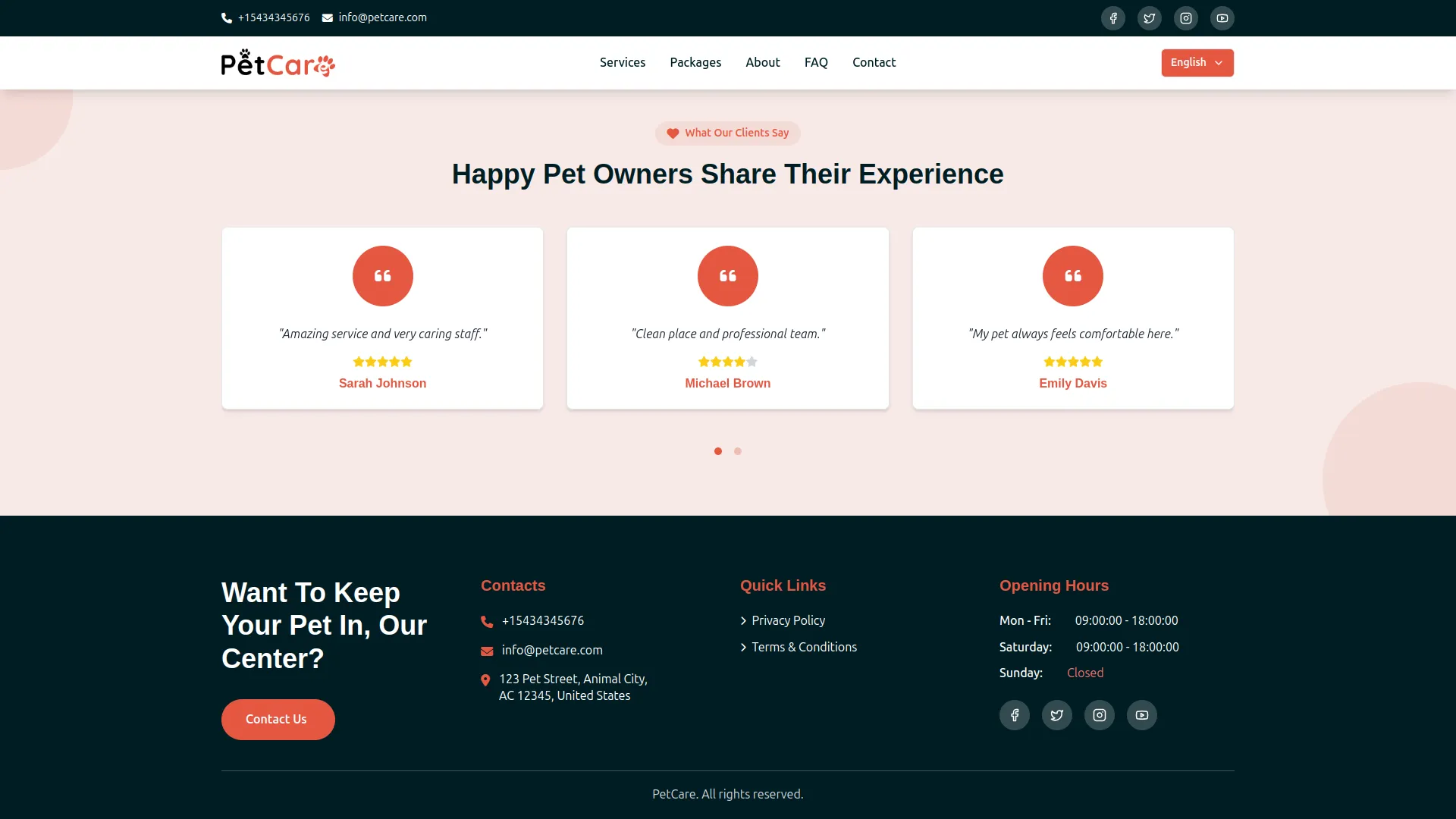
- Once saved, the working days and hours you have configured will appear in the footer section across all pages of the website, as well as on the Contact Us page under the Opening Hours panel, ensuring your customers always have accurate information about when your center is available.
About Us Section
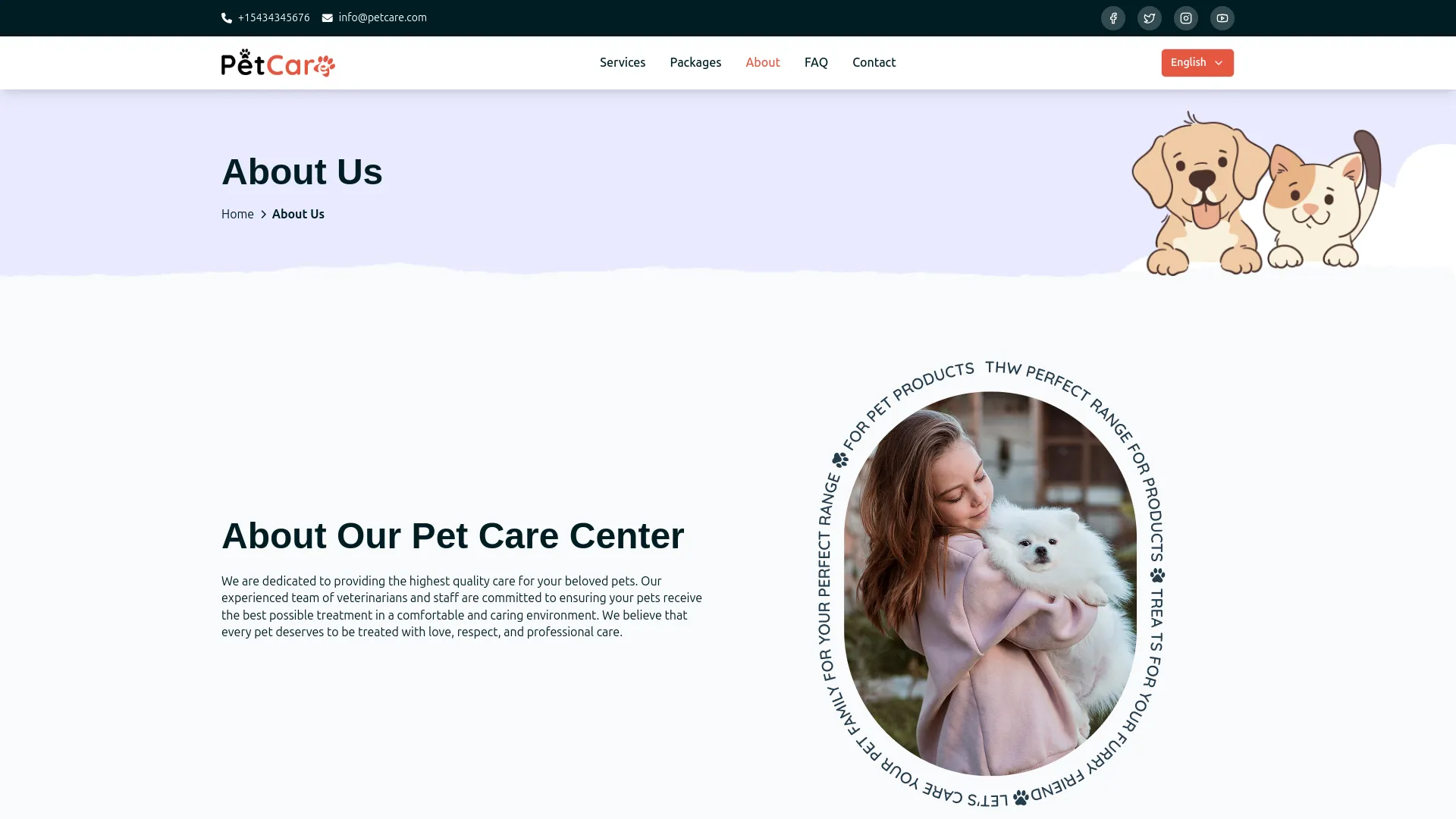
- In the About Us section, you will find fields for Title Text, Description, and an Image upload. Enter your center’s description and upload a relevant image using the Browse button.
- In the Milestones Section, you will find fields for Subtitle and Title, which appear as the heading for your achievement statistics.
- In the Team Members section, you can add multiple team members by clicking the “Add Team Member” button. Each team member requires a Name, Designation, and Photo. Enter all the details and click Save Changes.
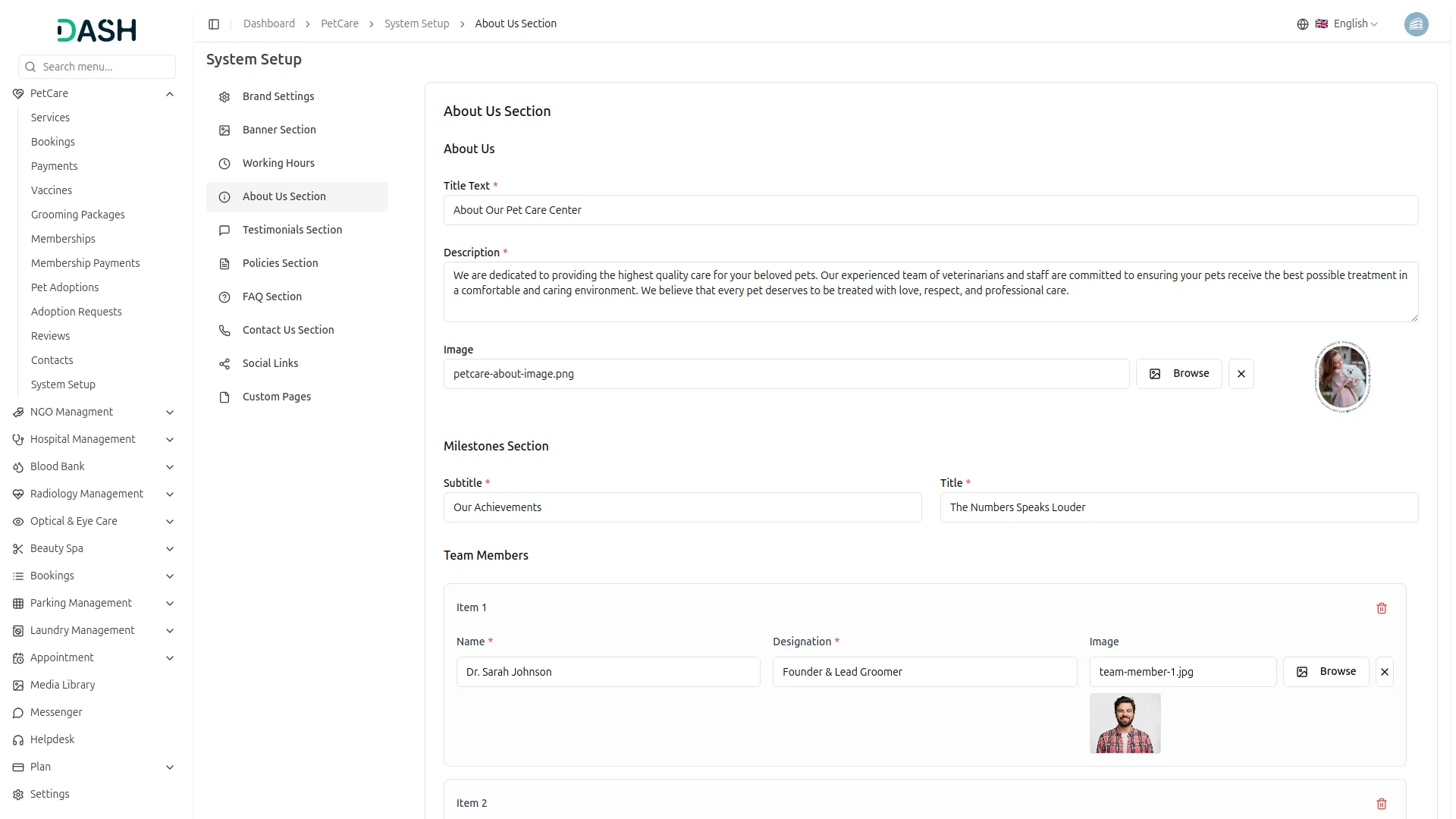
- Once saved, the Title Text, Description, and Image will appear on the About Us page, introducing your pet care center to visitors. The Milestones Section heading will display above the statistics counter cards showing total services, packages, adoptions, and appointments. Each Team Member’s name, designation, and photo will appear in the Meet Our Experts section on the About Us page.
Testimonials Section
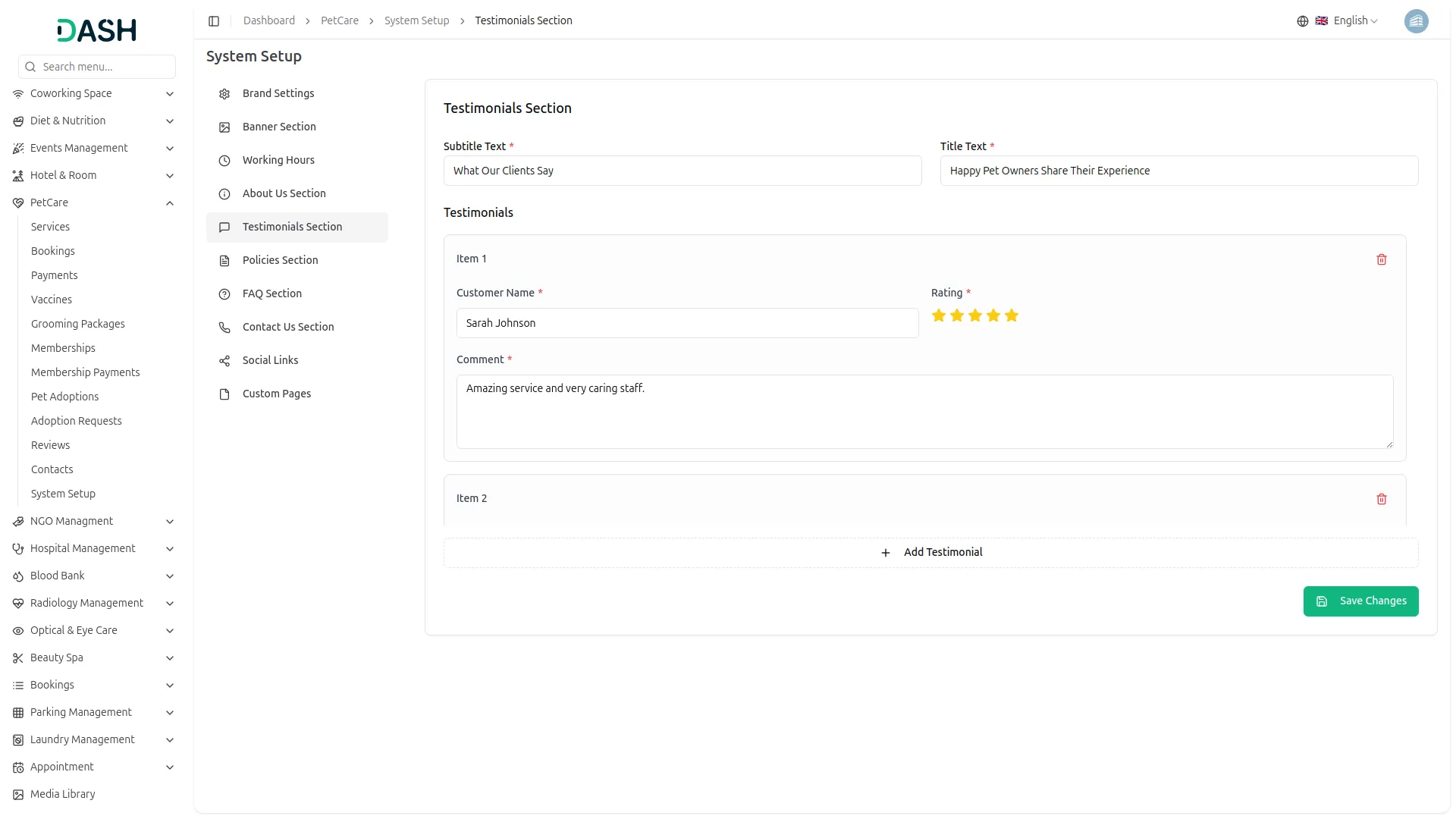
- In the Testimonials Section, you will find fields for Subtitle Text and Title Text, which serve as the heading for the reviews section. In the Testimonials list, you can add multiple reviews by clicking the “Add Testimonial” button. Each testimonial requires a Customer Name, Star Rating, and Comment. Enter all the details and click Save Changes.
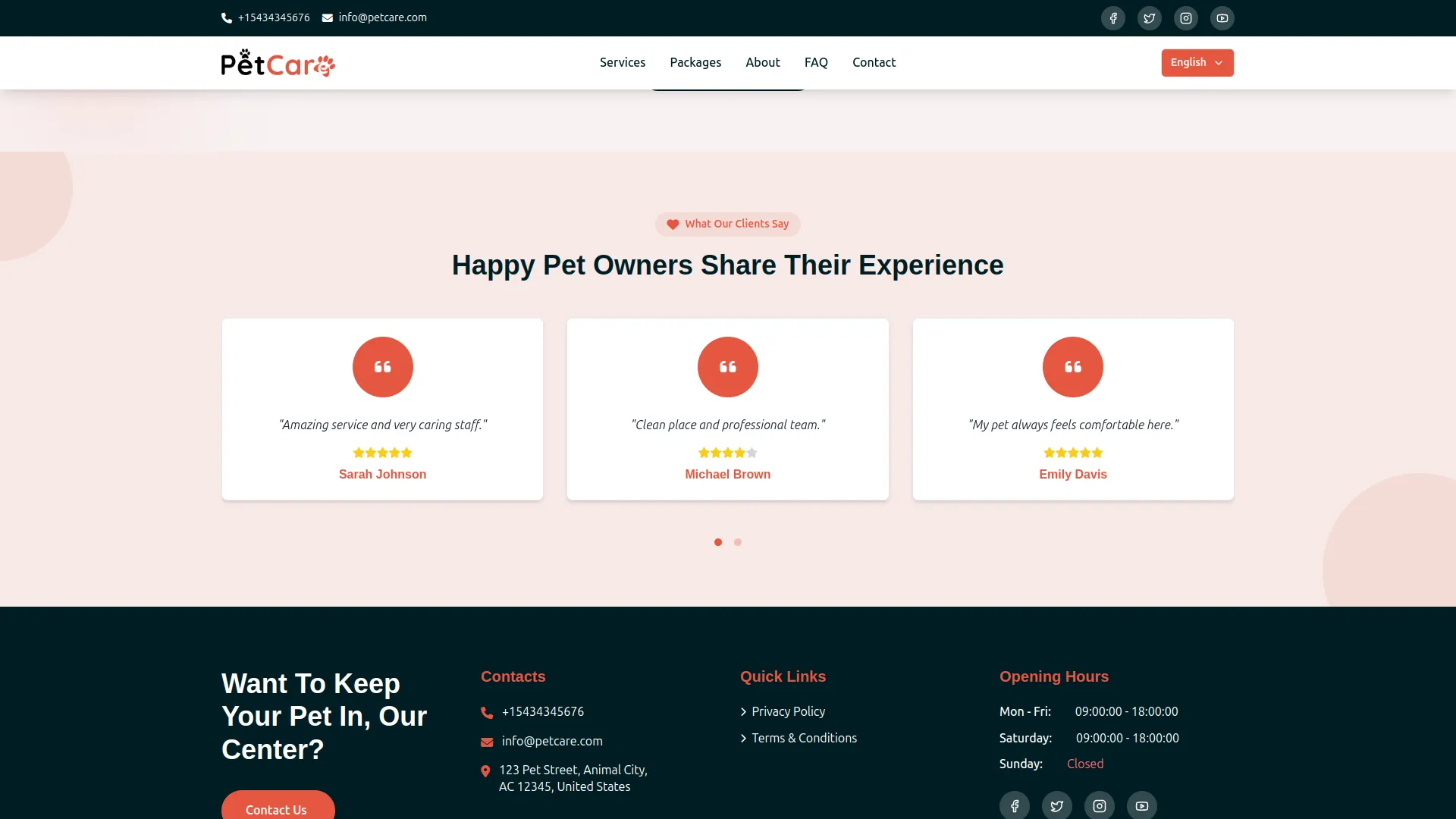
- Once saved, the Subtitle and Title Text will appear as the section heading on the homepage. Each testimonial’s customer name, star rating, and comment will display as individual review cards in the Happy Pet Owners section on the homepage, building trust and social proof for potential new clients.
Policies Section
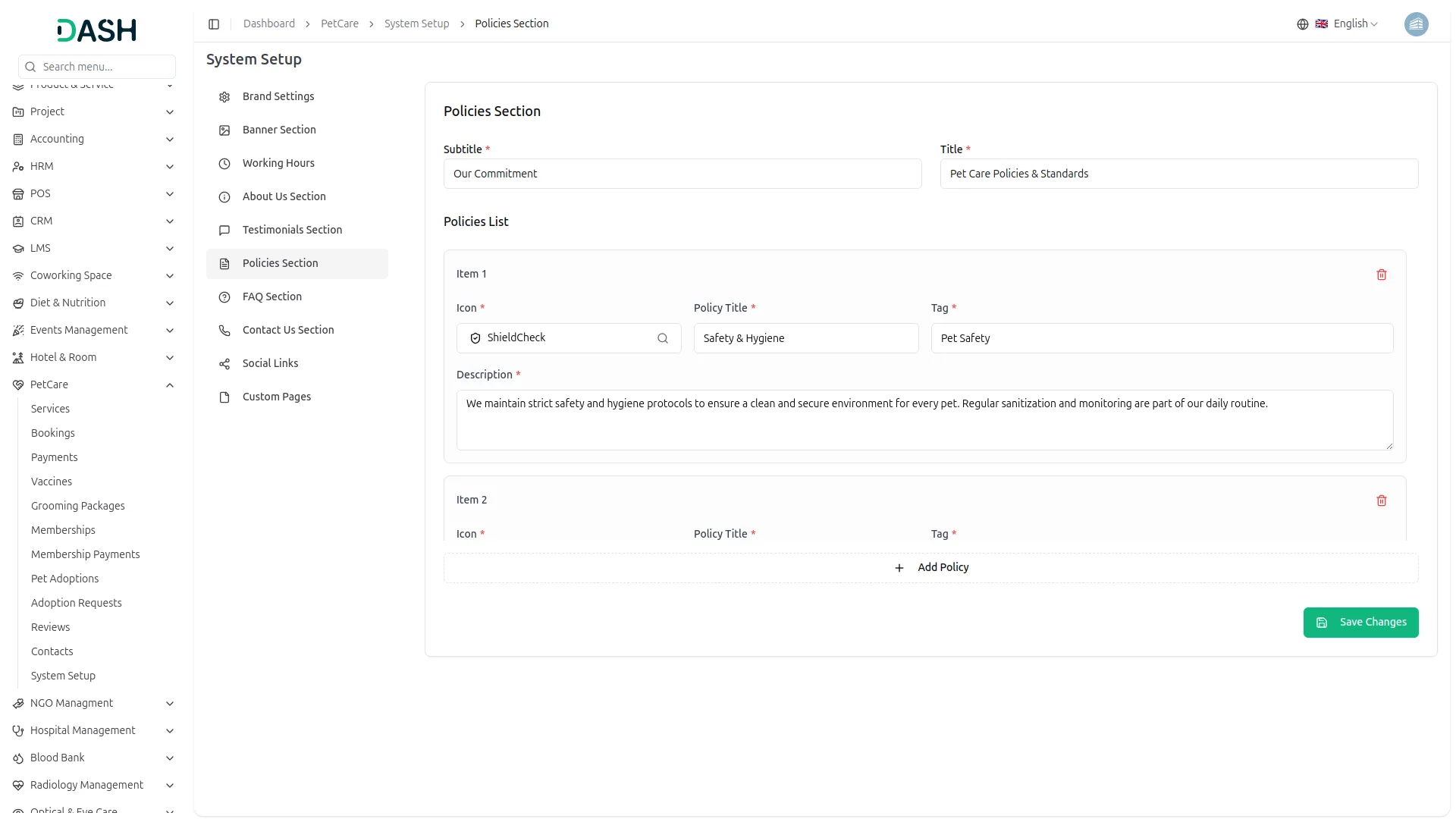
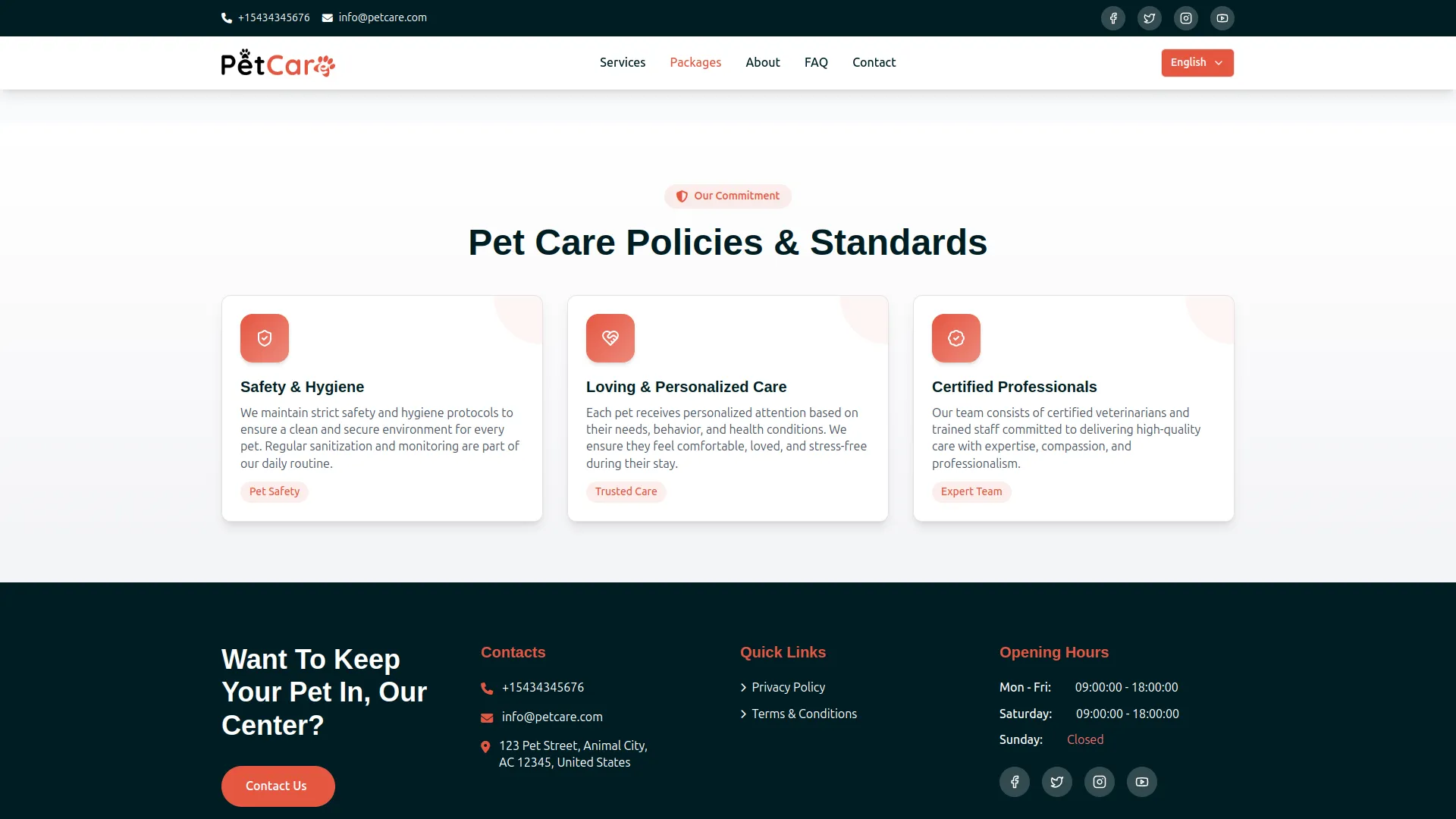
- In the Policies Section, you will find fields for Subtitle and Title, which serve as the heading for the policies area. In the Policies List, you can add multiple policies by clicking the “Add Policy” button. Each policy requires an Icon, Policy Title, Tag, and Description. Enter all the details and click Save Changes.
- Once saved, the Subtitle and Title will appear as the section heading on the Packages page. Each policy’s icon, title, tag, and description will display as individual policy cards in the Pet Care Policies & Standards section, communicating your center’s commitment to safety, care, and professionalism to every visitor.
FAQ Section
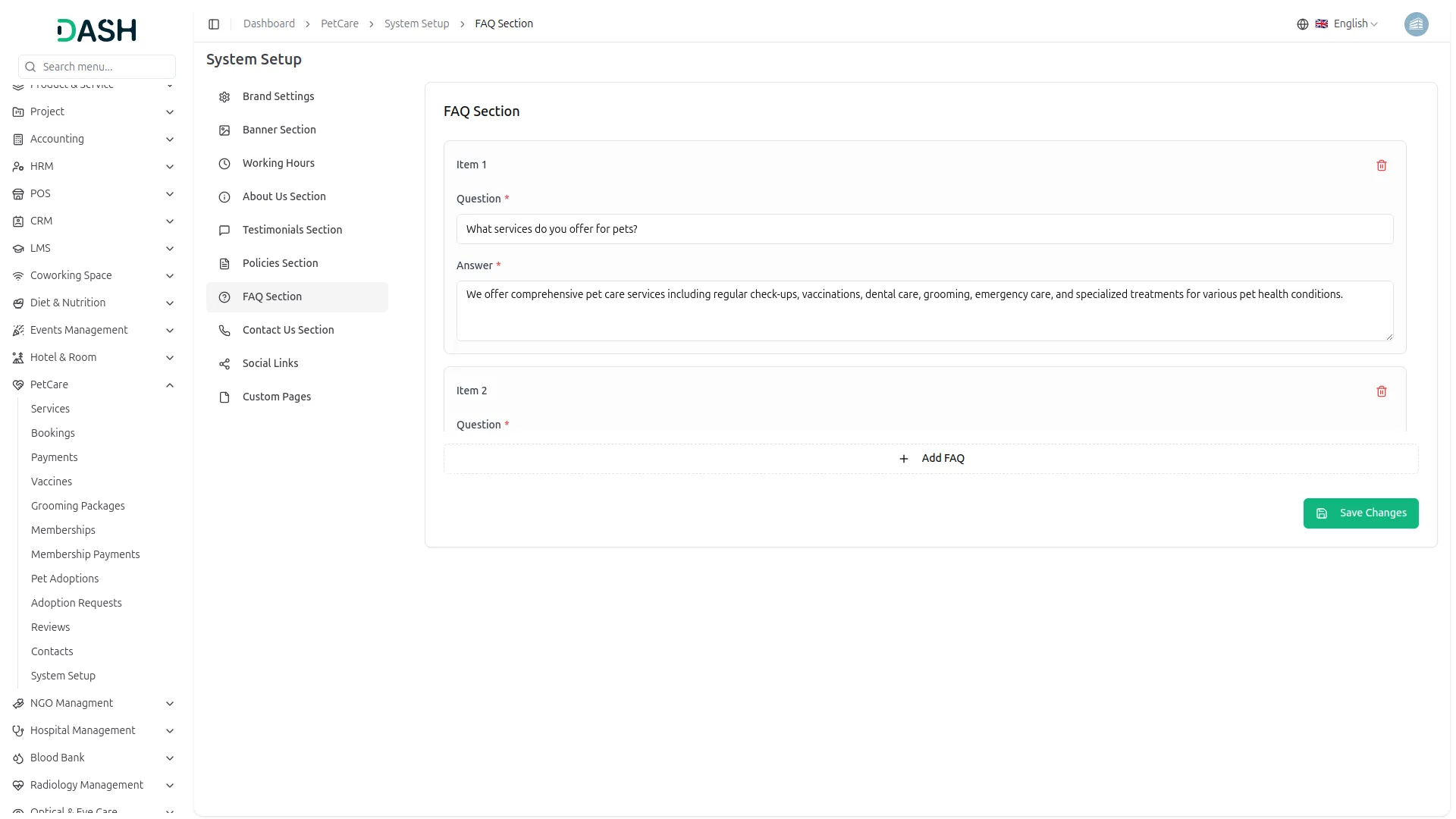
- In the FAQ Section, you can add multiple frequently asked questions by clicking the “Add FAQ” button. Each item requires a Question and an Answer. Enter all the details and click Save Changes.
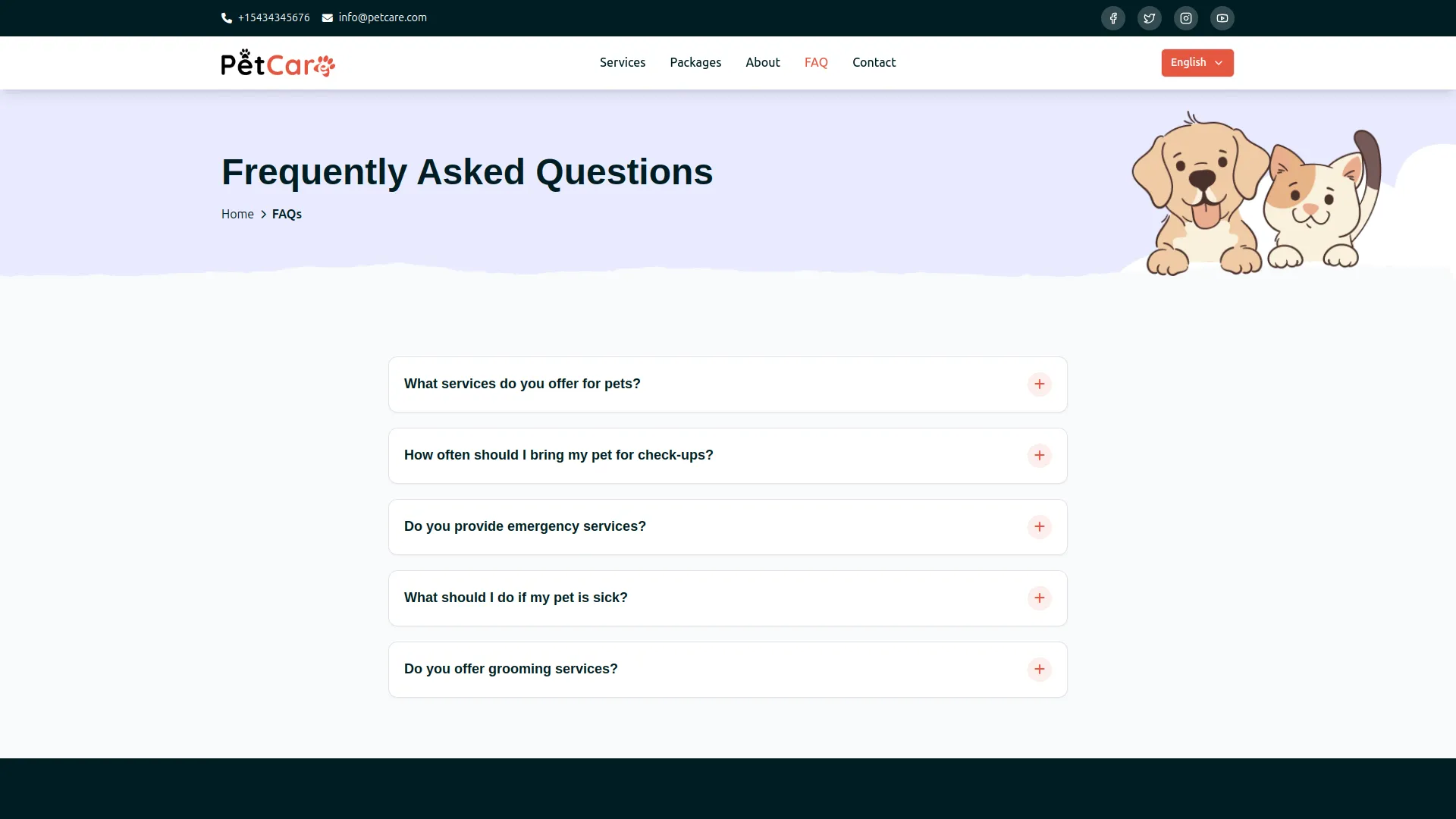
- Once saved, all FAQ items will appear on the dedicated FAQ page as accordion-style expandable cards. Visitors can click on any question to reveal the answer, making it easy for pet owners to quickly find information about your services, care standards, and policies.
Contact Us Section
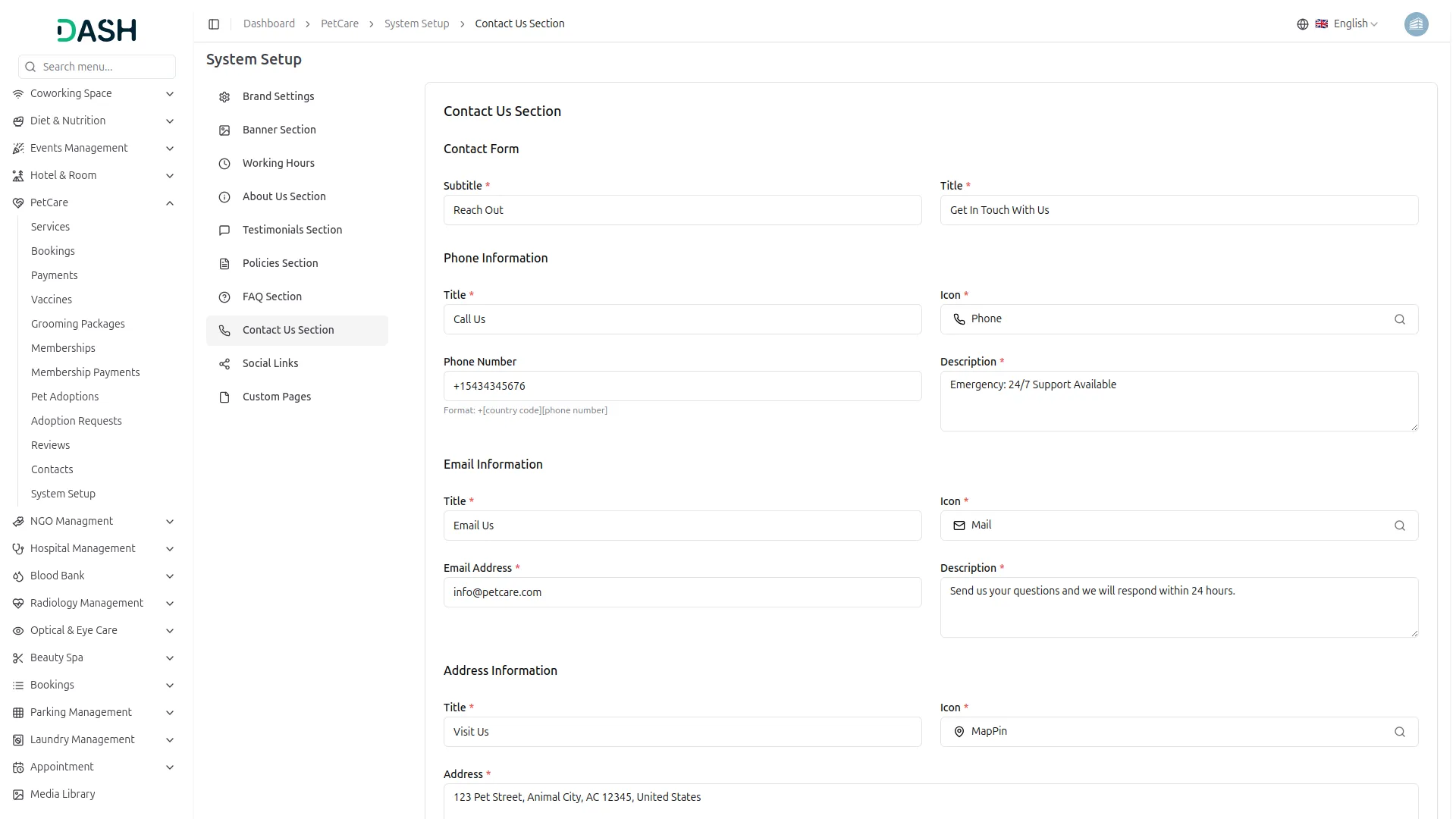
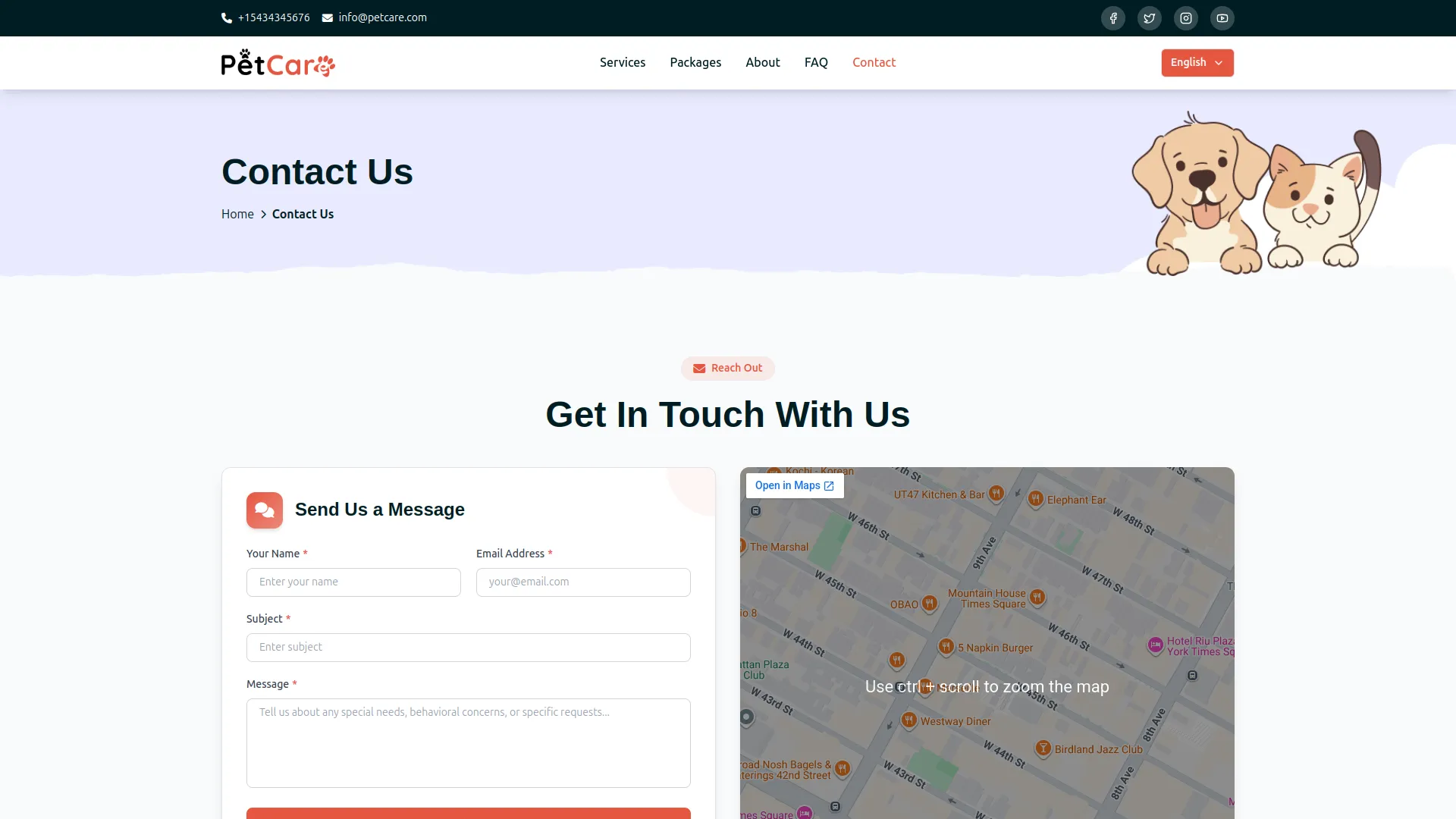
- In the Contact Us Section, you will find fields for the Contact Form subtitle and title. Under Phone Information, enter the Title, Icon, Phone Number, and a short Description. Under Email Information, enter the Title, Icon, Email Address, and Description.
- Under Address Information, enter the Title, Icon, and full Address. In the Map field, paste the Google Maps iframe embed code to display your location. Enter all the details and click Save Changes.
- Once saved, the Contact Form title and subtitle will appear as the heading on the Contact Us page. The Phone, Email, and Address details will display as individual contact cards, each with its respective icon, label, and description. The Google Maps iframe will render as an interactive map on the Contact Us page, helping customers easily locate your pet care center.
Social Links
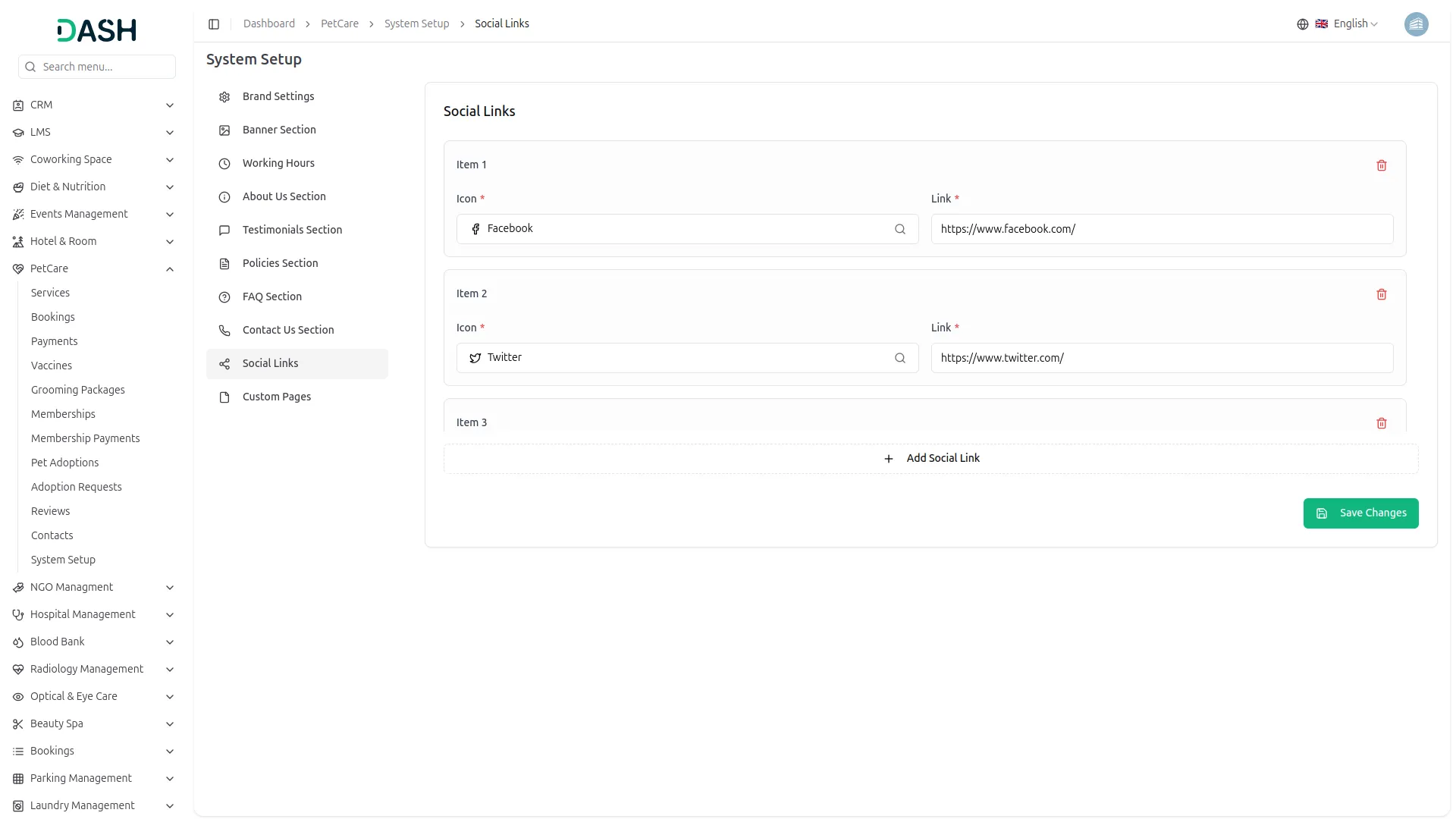
- In the Social Links section, you can add multiple social media profiles by clicking the “Add Social Link” button. Each item requires an Icon (selected from the icon picker) and a Link (the full URL of your social media profile). Enter all the details and click Save Changes.
- Once saved, all added social media icons and links will appear in the header and footer across all pages of the website, allowing visitors to easily find and follow your pet care center on their preferred social media platforms.
Custom Pages
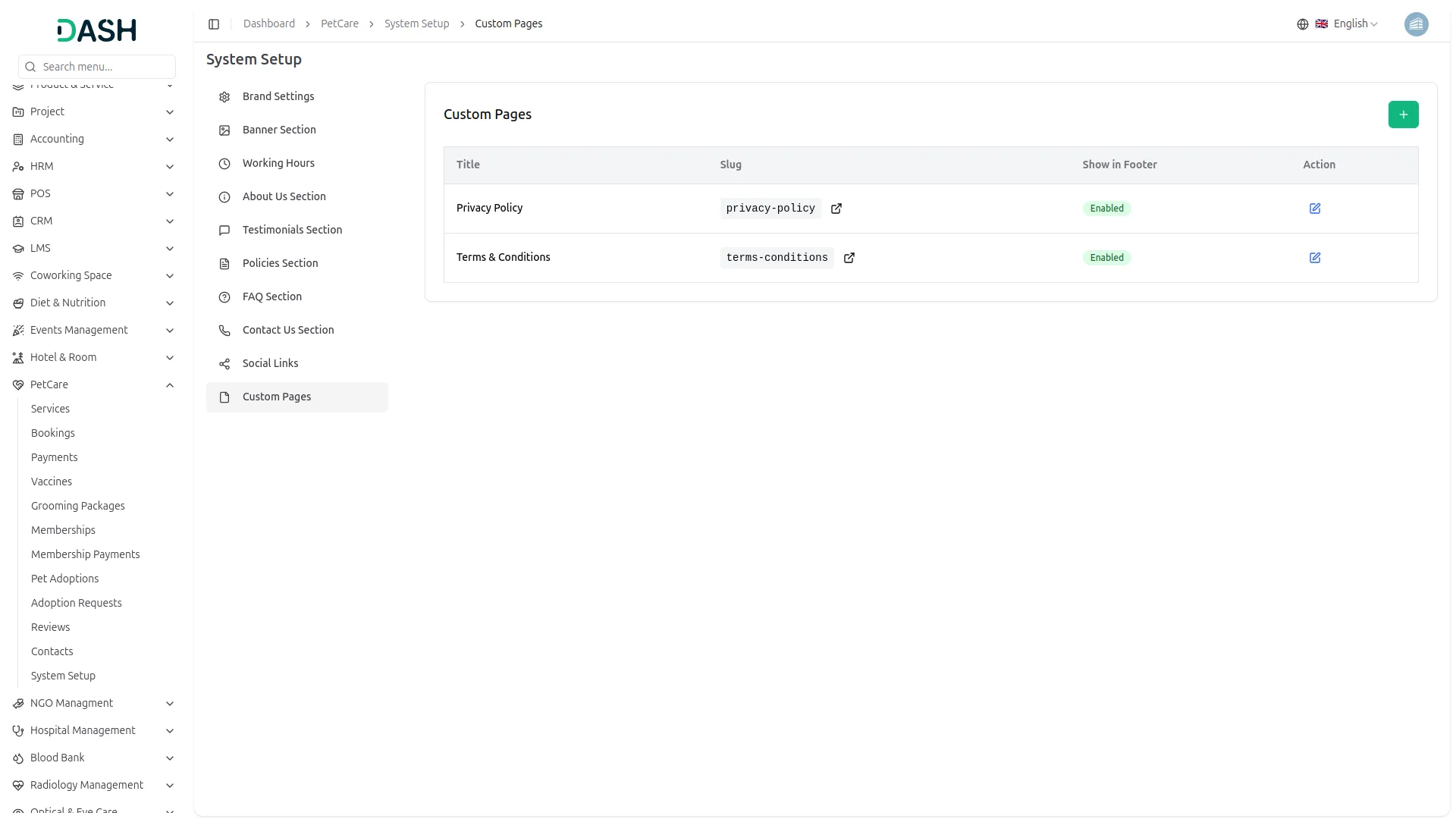
- To create a new page, click the “Create” button in this section. Then, complete the custom page form by entering the Title, URL Slug, and Description, and add the full page Content using the rich text editor. You can also use the “Enable Page Footer” toggle to choose whether the page link appears in the website footer.
- On the list page, you can view all custom pages displayed in a table. The table includes columns for Title, Slug, Footer Visibility, and Action buttons for managing each page. You can use the available actions to manage each page: choose Edit to update its details, or Delete to remove it.
- Once saved, the custom page will be accessible on your website via its unique slug URL. If the Page Footer option is enabled, the page link will automatically appear in the footer navigation, making it easily accessible to visitors for pages such as privacy policies, terms and conditions, or any additional information pages your center requires.
Manage Services
- To add a new service, click the “Create” button on the Manage Services page. In the Create Service form, fill in the Basic Information section by selecting a Service Icon, entering the Service Name, Service Price, and Service Duration, selecting an Assigned Staff member from the dropdown (which comes from the User Management), uploading a Service Image using the Browse button, and entering a Service Description.
- In the Service Features section, you can add multiple features by clicking the “Add Feature” button. Each feature requires a Feature Icon, Feature Name, and Feature Description. In the Service Process Steps section, you can add multiple steps by clicking the “Add Process Step” button. Each step requires a Step Name and Step Description. Once all details are filled in, click Create to save the service.
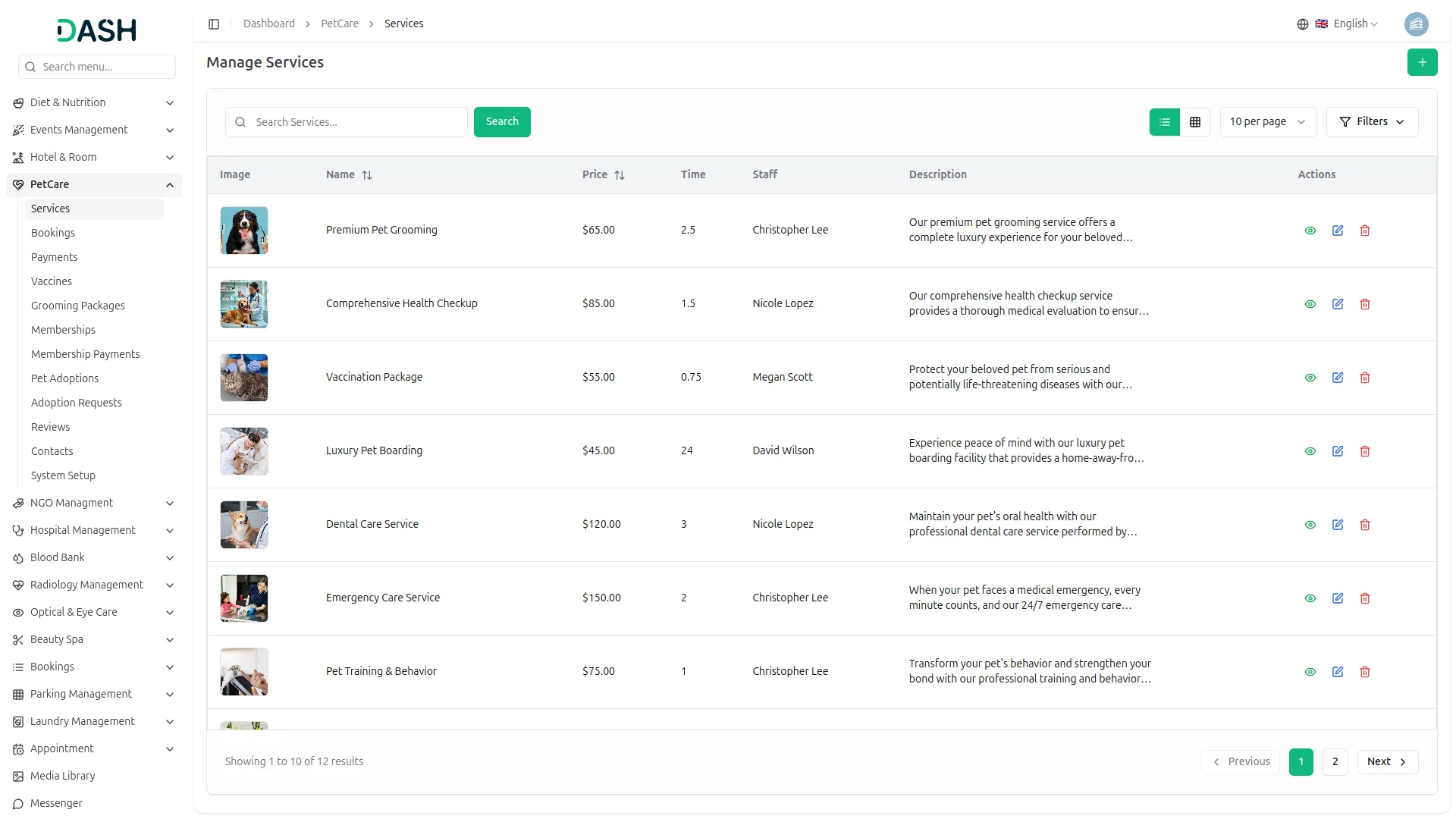
- The list page displays a table with columns for Image, Name, Price, Time, Staff, Description, and Actions. Use the search bar to find a specific service. You can also use the “Filters” button to filter services by Staff Member, then click “Apply” to filter the results or “Clear” to reset them. The page also allows you to toggle between list view and grid view.
- In the Actions column, you can use the view to open the full service details, the edit to update any service information, or the delete to permanently remove the service from the system.
- Once saved, all created services will appear on the Services page of your website, displaying each service’s icon, name, description, price, and a “Book Now” button. The featured services will also appear on the Homepage under the Pamper Your Furry Friend section, giving visitors quick access to your most popular offerings.
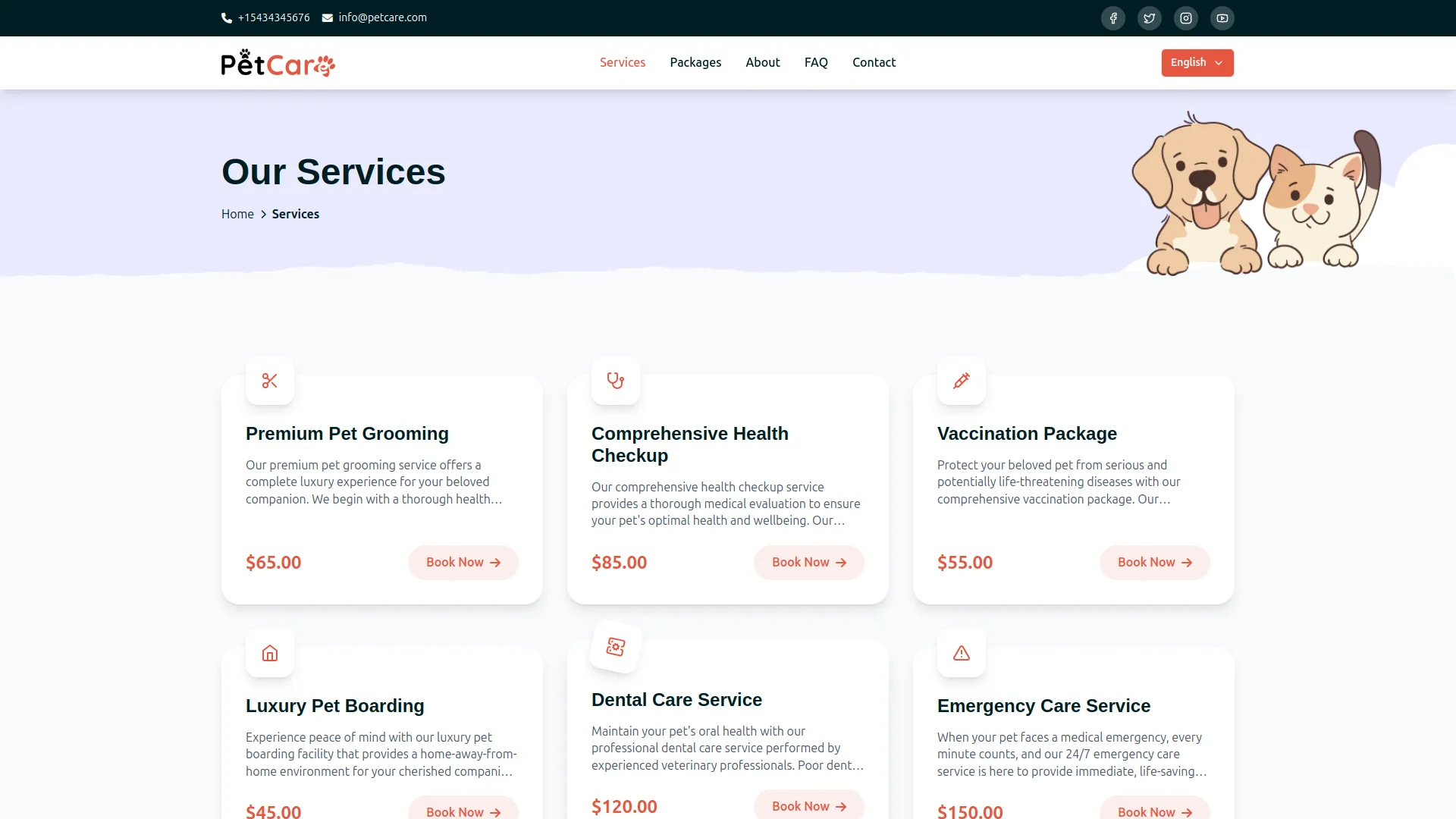
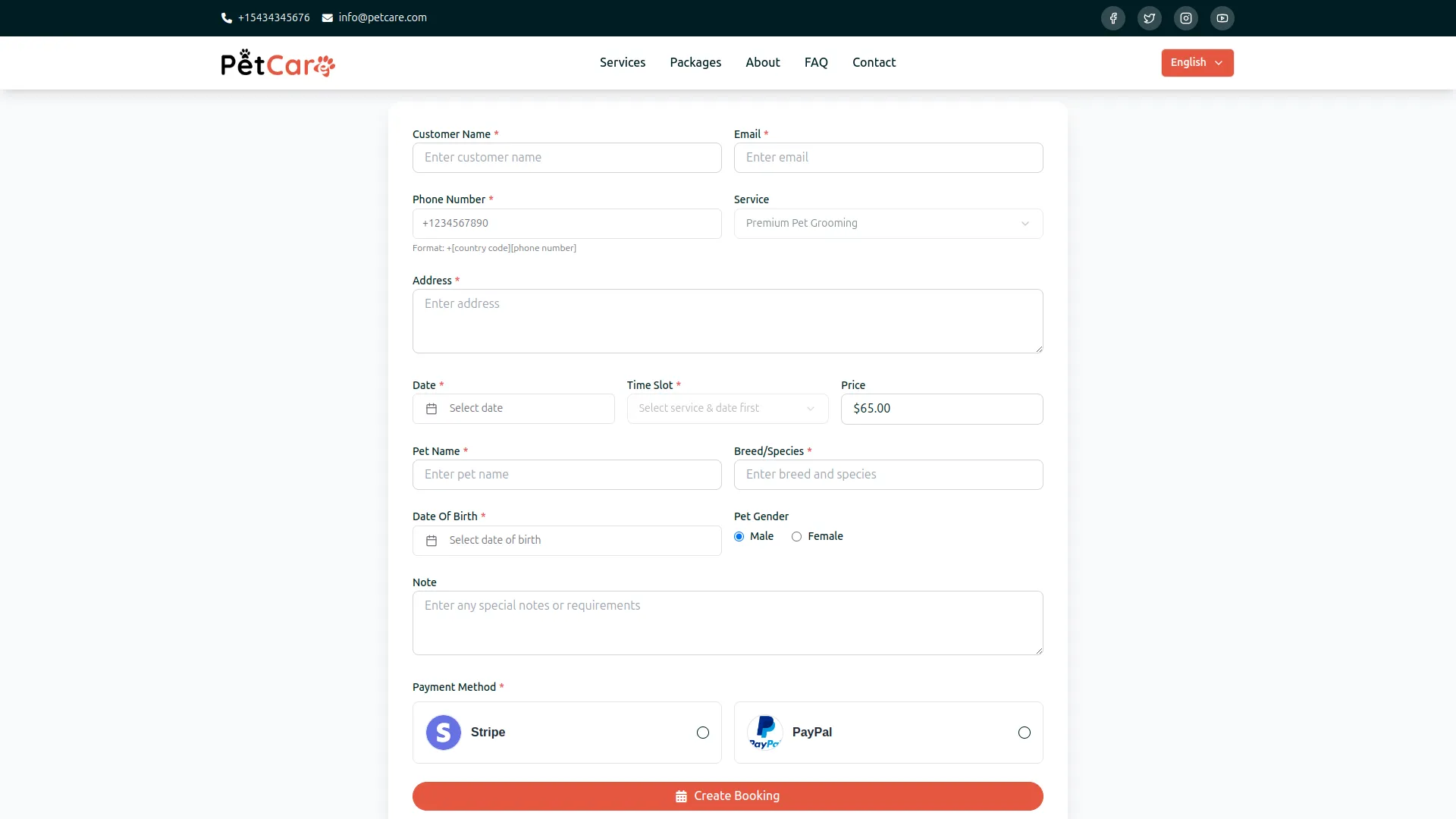
- When a visitor clicks “Book Now” on any service, the selected service will be pre-filled in the Service Appointment Booking form, along with the corresponding price, making it easy for customers to complete their reservation without any extra steps.
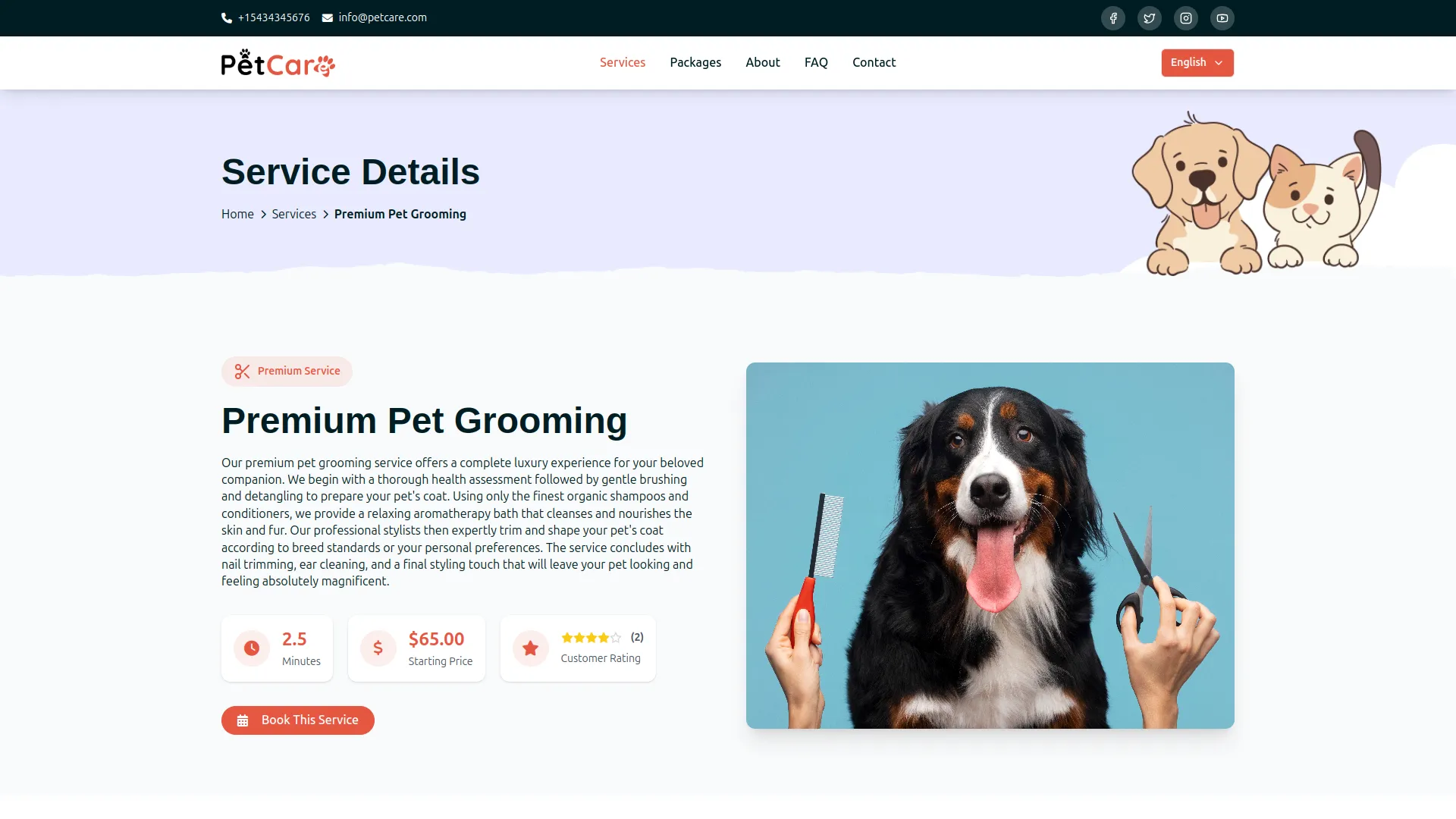
- When a user clicks on any service, they are taken to the Service Details page. This page displays the complete service information, including the full service name, description, image, duration, starting price, and customer rating. Below this, the “What’s Included” section highlights the features of the service you added, each presented with its icon, name, and description.
- The “Our Process” section outlines the step-by-step workflow you configured, displayed as numbered steps along with their respective names and descriptions.
Manage Bookings
- To add a new booking manually, click the “Create” button at the top right of the Bookings page. Enter the Customer Name, Email, Phone Number, select a Service from the dropdown, enter the Address, select a Date, and based on the selected service or date, available Time Slots will be displayed accordingly, and you can choose a suitable time slot.
- The Price will be auto-filled based on the selected service. Enter the Pet Name, Breed/Species, Date of Birth, select the Pet Gender by choosing either the Male or Female radio button, and add any special Notes or requirements. Once all details are filled in, click Create to save the booking.
- The list page displays a table with columns for Customer, Service, Pet Info, Gender, Date & Time, Price, Payment Method, Payment Status, Booking Status, and Actions. Use the search bar to find a specific booking.
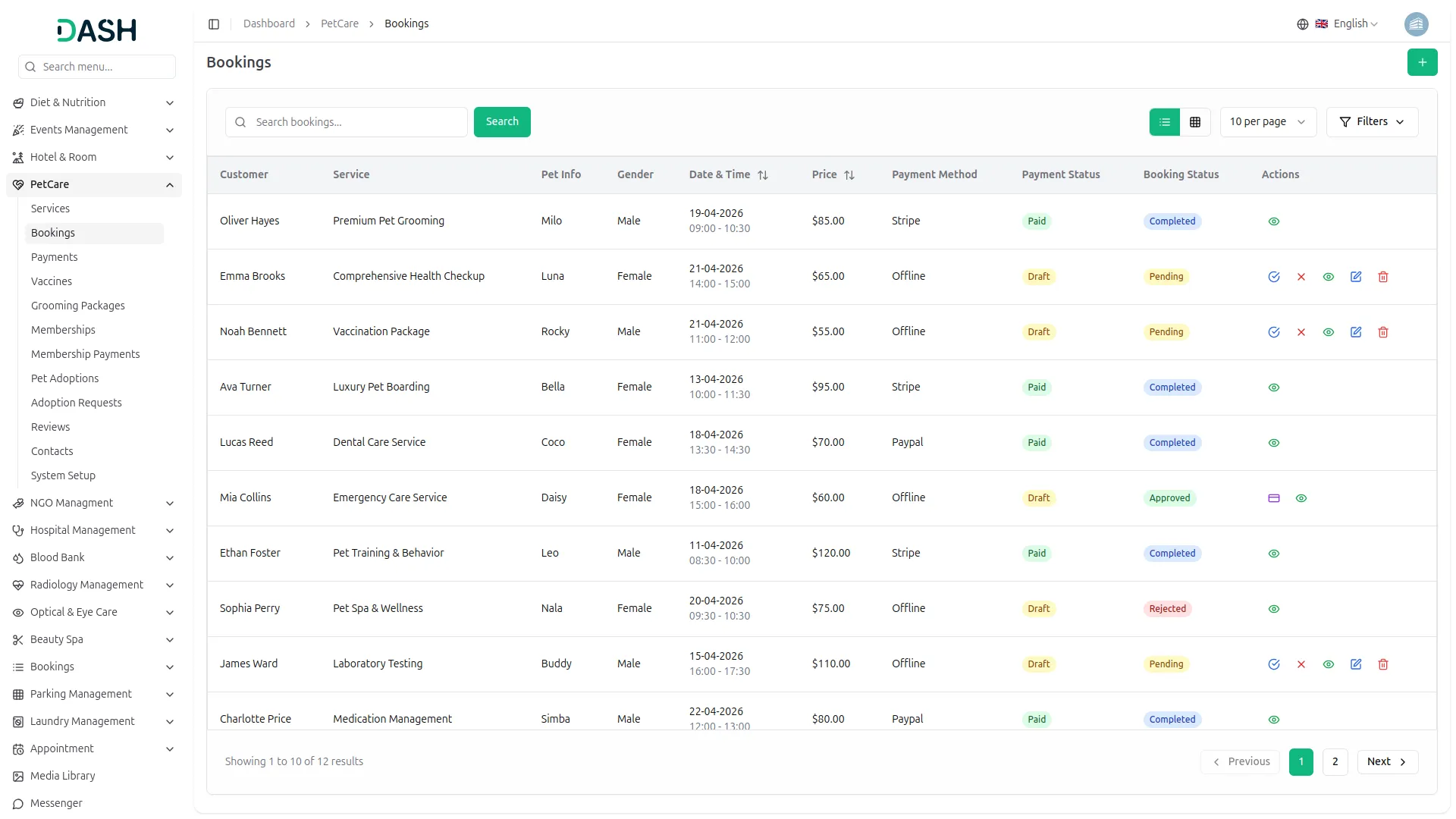
- You can also use the “Filters” button to filter bookings by Service, Gender, Payment Status, and Booking Status, then click “Apply” to filter the results or “Clear” to reset them. The page also allows you to toggle between list view and grid view.
- In the Actions column, you can also use the View to see the full booking details, the Edit to update booking information, or the Delete to permanently remove the booking from the system.
- For bookings with a Pending status, the Actions column displays Approve and Reject, allowing you to quickly accept or decline a booking directly from the list without opening it.
- Once a booking is approved or rejected, its Booking Status will update accordingly, showing statuses such as Approved, Completed, Pending, or Rejected.
- For offline bookings where payment has not yet been recorded, a Payment will appear in the Actions column. Clicking it opens the Add Payment form, where the Service, Payment Amount, Customer Name, and Pet Name are pre-filled. You will need to enter the Reference Number, select the Payment Date, choose the Bank Account, and optionally add a Description. Once submitted by clicking Add Payment, the payment status will be updated. Please note that once a payment is recorded, the booking can no longer be edited or deleted.
- Once a booking is created, either from the backend or through the frontend Service Appointment form, it will appear in this list, allowing you to track every appointment with full visibility into the customer details, pet information, selected service, scheduled time, payment method, and current booking status.
Manage Payments
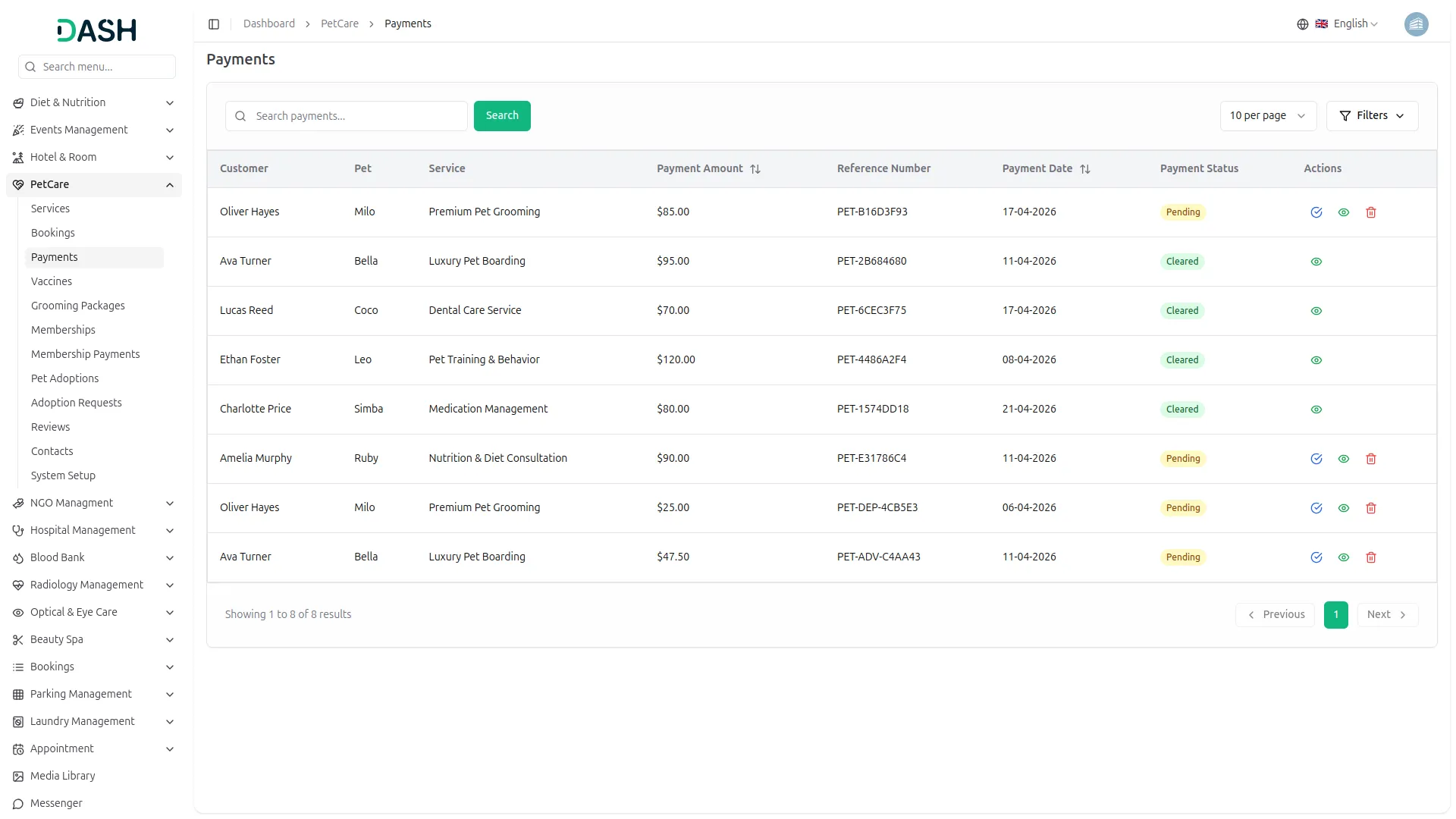
- The Payments page gives you a complete overview of all payment transactions recorded across service bookings and package bookings.
- The list page displays a table with columns for Customer, Pet, Service, Payment Amount, Reference Number, Payment Date, Payment Status, and Actions. Use the search bar to find a specific payment by customer name. You can also use the “Filters” button to filter payments by Payment Status, then click “Apply” to filter the results or “Clear” to reset them.
- Payments can carry two statuses: Pending for transactions that are yet to be verified or cleared, and Cleared for transactions that have been successfully confirmed.
- For payments with a Pending status, the Actions column displays a Mark as Cleared. Clicking the Mark as Cleared will immediately update the payment status to Cleared, confirming that the payment has been received and verified.
- Once a payment is marked as Cleared, the mark as cleared and delete options will no longer be available; only the view will remain, as the transaction is considered final and cannot be modified.
- In the Actions column, you can use the view to open the full payment details or the delete to permanently remove a pending payment record from the system.
- Once a payment is recorded, either through the Add Payment form in Bookings or via an online transaction through Stripe or PayPal, it will appear here, allowing you to track every payment with full visibility into the customer, pet, service, amount, reference number, date, and current payment status. Cleared payments are also reflected in the Total Revenue and Recent Payments sections on the dashboard.
Manage Vaccines
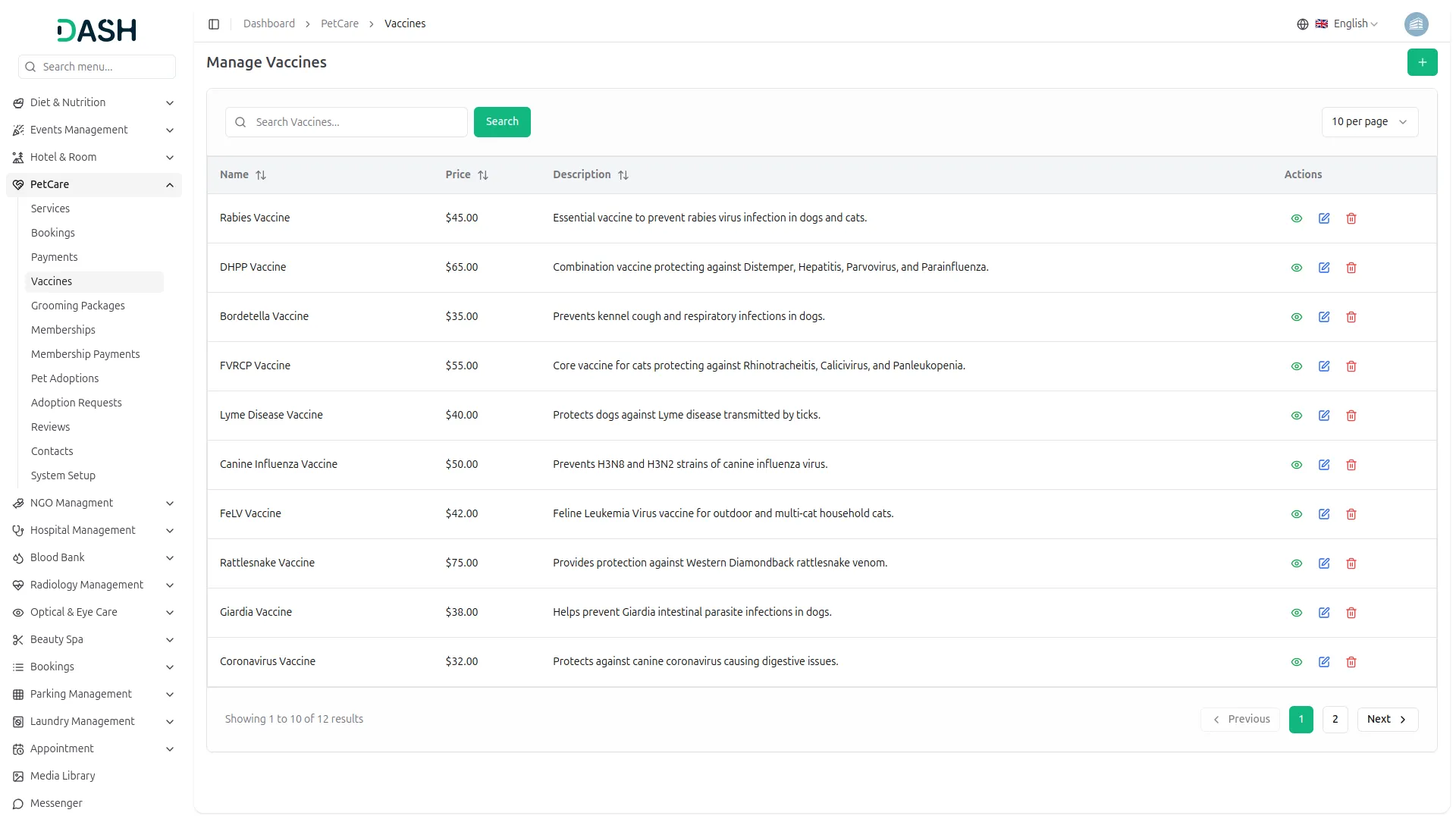
- To add a new vaccine, click the “Create” button at the top right of the Manage Vaccines page. In the Create Vaccine form, enter the vaccine Name, Price, Description, and Instructions.
- The list page displays a table with columns for Name, Price, Description, and Actions. Use the search bar to find a specific vaccine by name. You can also sort the results by Name, Price, or Description using the sort arrows on each column header.
- In the Actions column, you can use the View to open the full vaccine details, the Edit to modify the data, or the Delete to permanently remove the vaccine from the system.
- Once saved, the vaccines you have added will be available for selection when creating or managing Vaccination Package bookings, ensuring that every vaccination appointment is linked to the correct vaccine with accurate pricing and administration instructions.
Manage Grooming Packages
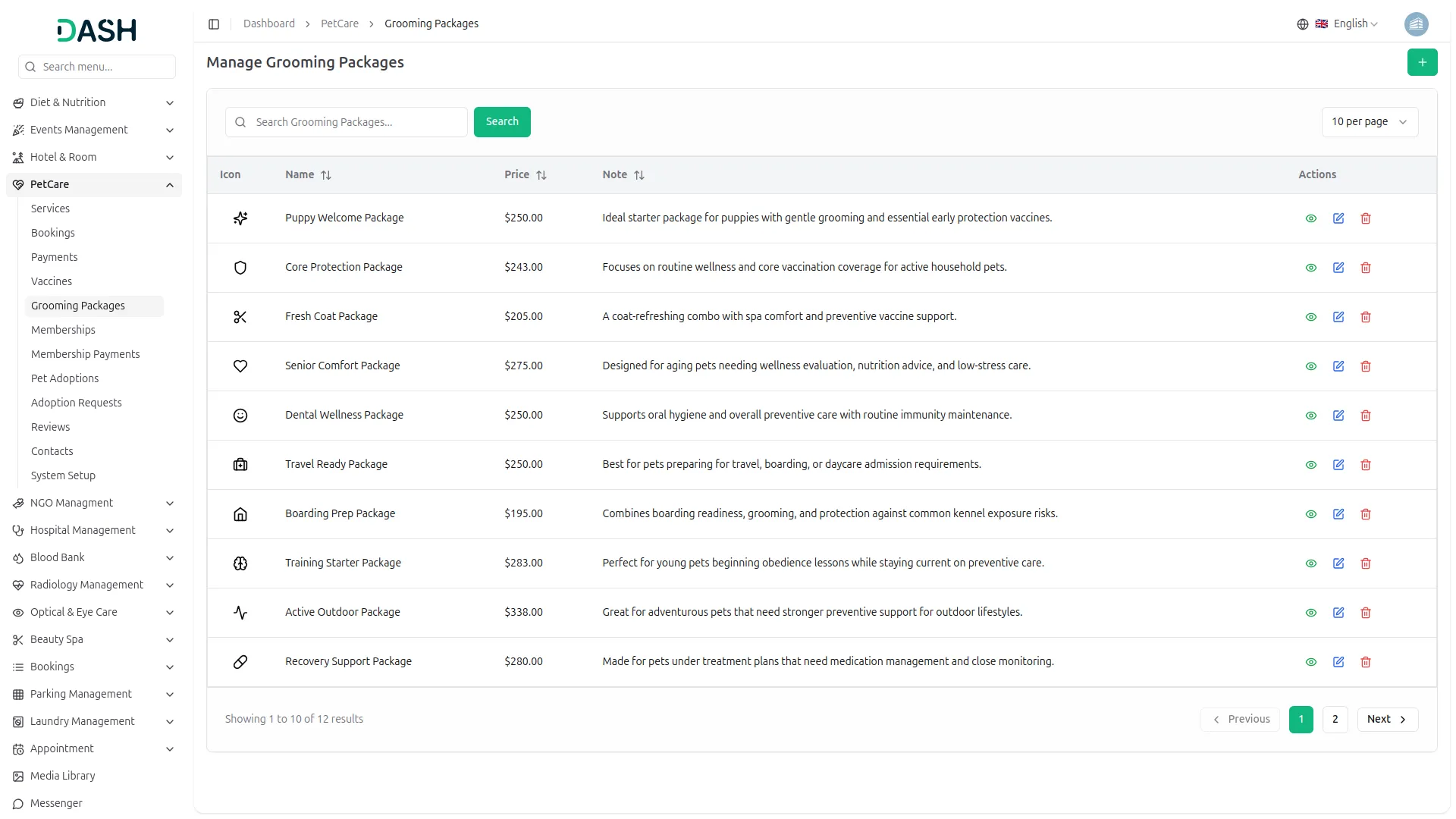
- To add a new grooming package, click the “Create” button at the top right of the Manage Grooming Packages page. In the Create Grooming Package form, select an Icon from the icon picker, enter the package Name, and select a Service from the dropdown (which comes from the service section).
- Select Vaccines from the dropdown (which comes from the vaccines section), and add the package Features. The Price is calculated automatically based on the selected services and vaccines, so you do not need to enter it manually. Enter a Note to briefly describe what the package covers.
- The list page displays a table with columns for Icon, Name, Price, Note, and Actions. Use the search bar to find a specific package by name. You can also sort the results by Name, Price, or Note using the sort arrows on each column header.
- In the Actions column, you can use the View to open the full package details, the Edit to update the package information, or the Delete to permanently remove the package from the system.
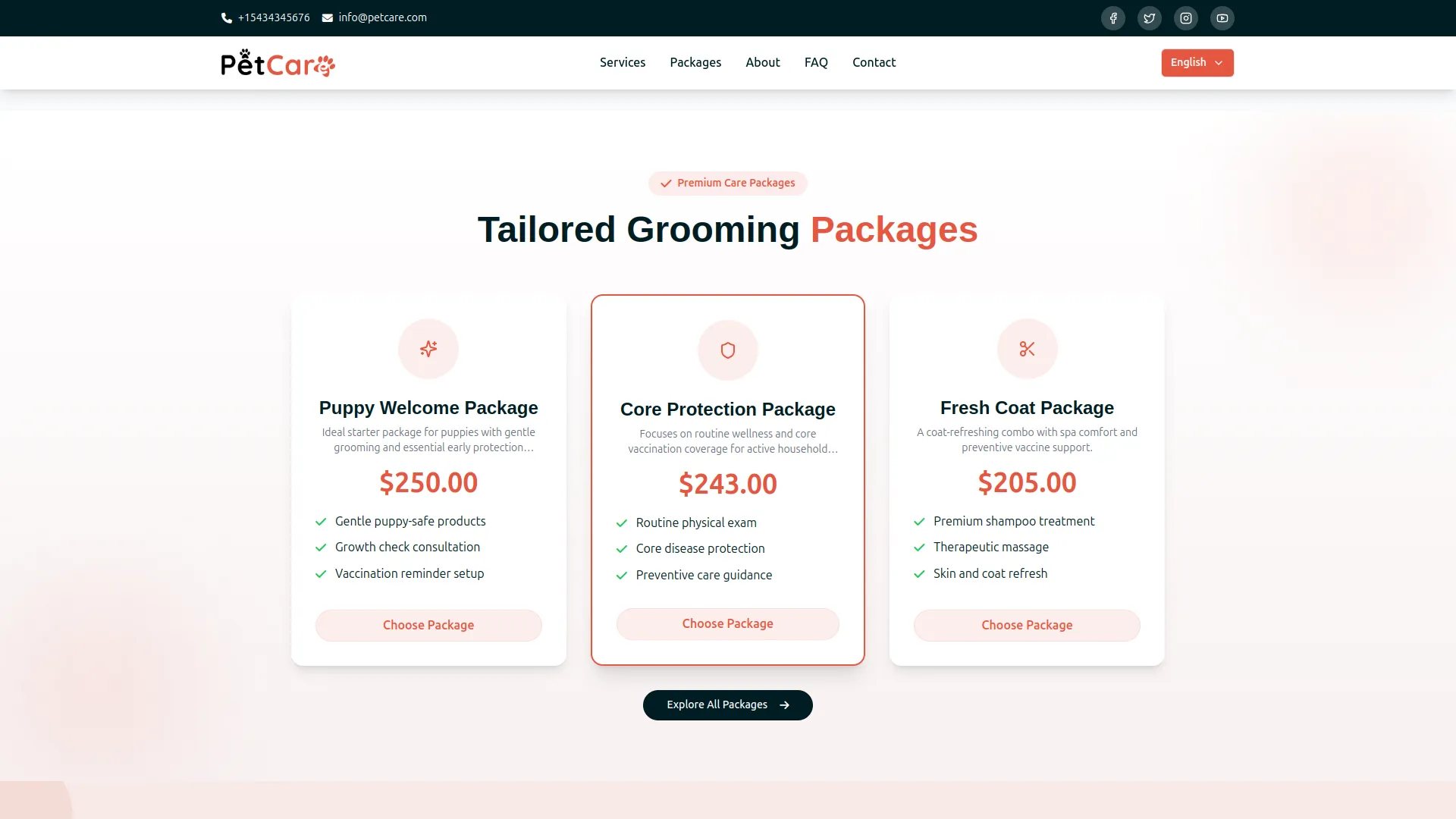
- Once saved, all created grooming packages will appear on the Packages & Policies page of your website, displaying each package’s icon, name, price, feature checklist, and a Choose Package button. Featured packages will also appear on the Homepage under the Tailored Grooming Packages section.
- When a visitor clicks Choose Package, the selected package will be pre-filled in the Package Booking form along with its price, making it easy for customers to complete their reservation without any extra steps.
Manage Memberships
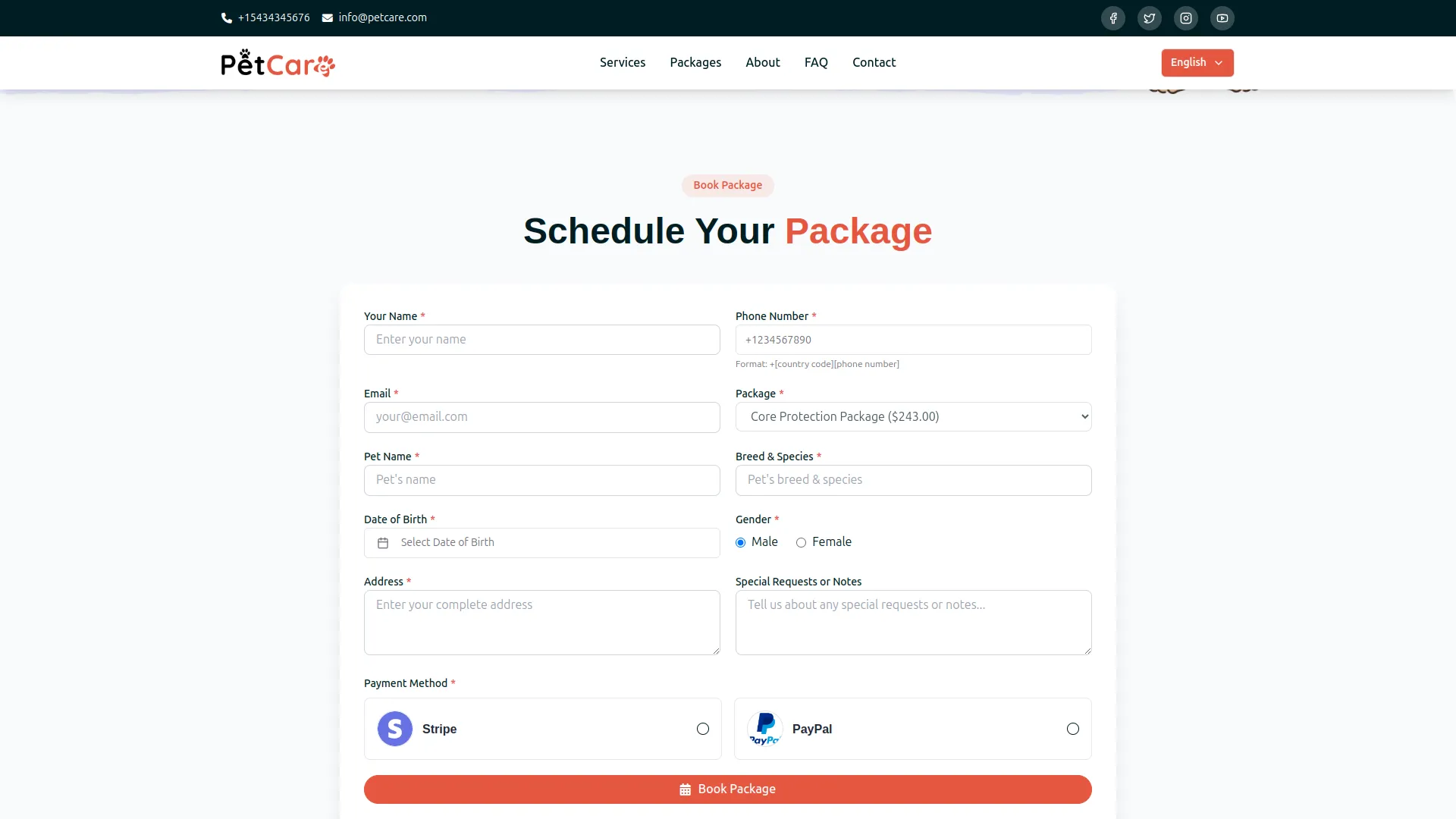
- To add a new membership manually, click the “Create” button at the top right of the Manage Memberships page. Enter the customer’s Name, Phone Number, Email, and select a Package from the dropdown. The Amount will be auto-filled based on the selected package.
- Enter the Pet Name, Breed & Species, Date of Birth, select the Pet Gender by choosing either the Male or Female radio button, only one option can be selected at a time, enter the Address, and optionally add any Special Requests.
- The list page displays a table with columns for Membership ID, Name, Package, Pet Name, Breed & Species, Amount, Payment Method, Payment Status, Membership Status, and Actions.
- Use the search bar to find a specific membership by customer name. You can also use the “Filters” button to filter memberships by Package, Payment Status, and Membership Status, then click “Apply” to filter the results or “Clear” to reset them. You can also toggle between list and grid view using the view button.
- In the Actions column, you can also use the View to see the full membership details, the Edit to update membership information, or the Delete to permanently remove the membership from the system.
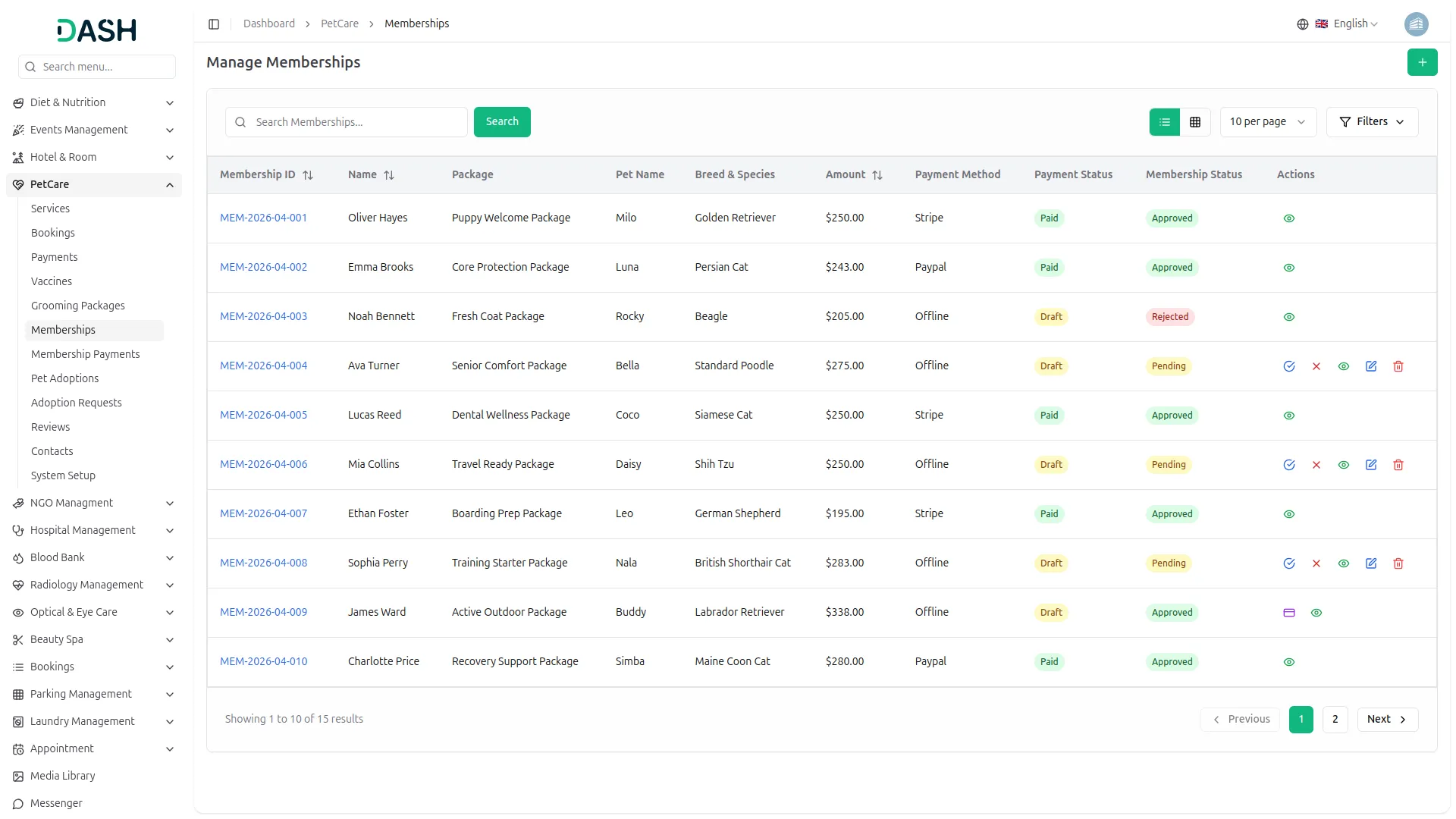
- For memberships with a Pending status, the Actions column displays Approve and Reject, allowing you to quickly accept or decline a membership directly from the list. Once actioned, the Membership Status will update accordingly, showing statuses such as Approved, Pending, or Rejected.
- For offline memberships where payment has not yet been recorded, a Payment will appear in the Actions column. Clicking it opens the Add Payment form, where the Package, Payment Amount, Customer Name, and Membership ID are pre-filled.
- You will need to enter the Reference Number, select the Payment Date, choose the Bank Account, and optionally add a Description. Once submitted by clicking Add Payment, the payment status will be updated. Please note that once a payment is recorded, the membership can no longer be edited or deleted.
- Once a membership is created, either from the backend or through the frontend Package Booking form, it will appear in this list with a unique Membership ID, allowing you to track every membership with full visibility into the customer details, pet information, selected package, payment method, and current membership status. Approved memberships are also reflected in the Total Memberships counter on the dashboard.
Membership Payments
- The Membership Payments page gives you a complete overview of all payment transactions recorded specifically for grooming package memberships.
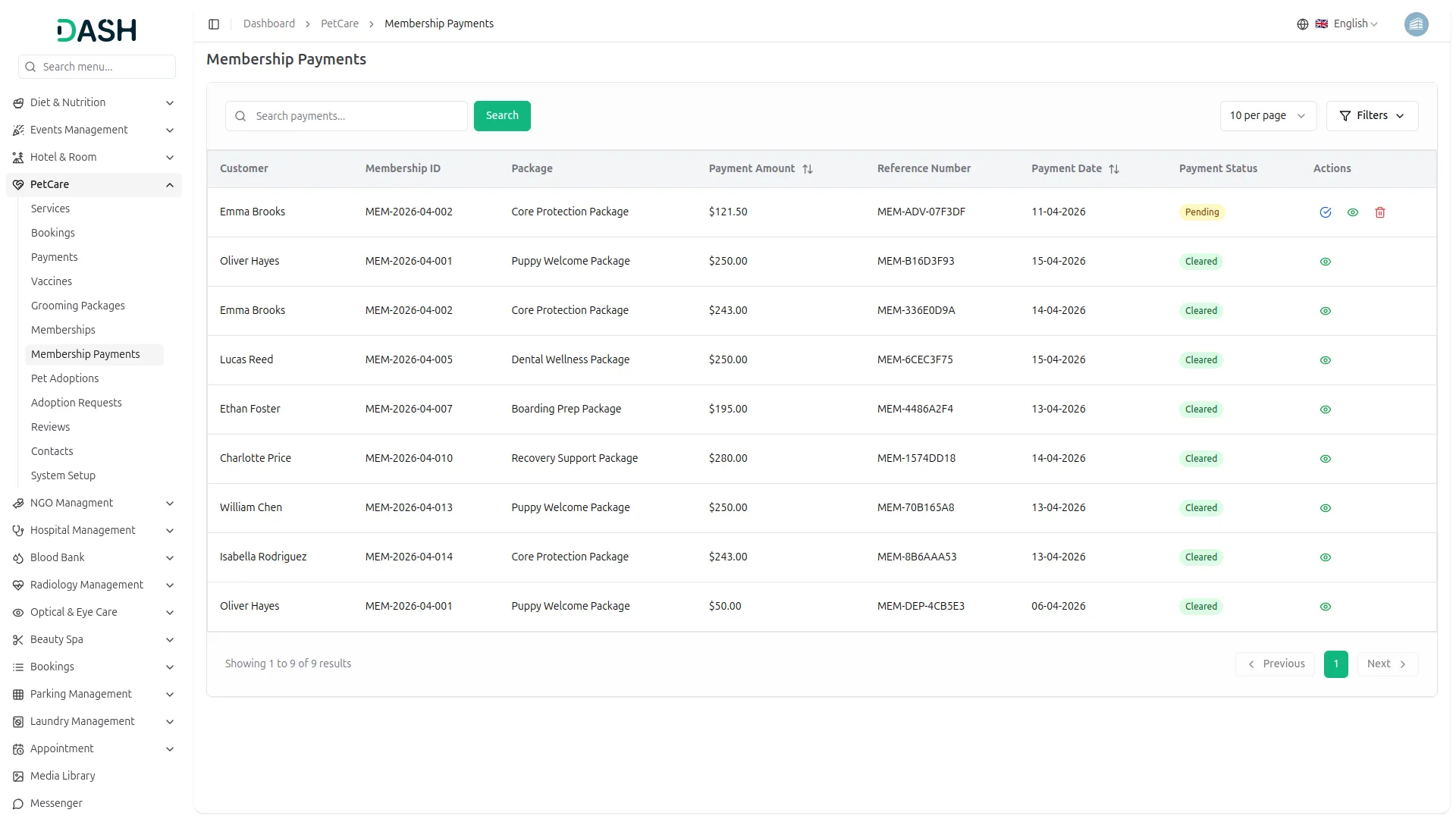
- The list page displays a table with columns for Customer, Membership ID, Package, Payment Amount, Reference Number, Payment Date, Payment Status, and Actions.
- Use the search bar to find a specific payment by customer name. You can also use the “Filters” button to filter membership payments by Payment Status, then click “Apply” to filter the results or “Clear” to reset them.
- Membership payments can carry two statuses: Pending for transactions that are yet to be verified or cleared, and Cleared for transactions that have been successfully confirmed.
- In the Actions column, you can use the view to open the full payment details or the delete to permanently remove a pending payment record from the system.
- For payments with a Pending status, the Actions column displays a Mark as Cleared, a view, and a delete. Clicking the Mark as Cleared will immediately update the payment status to Cleared, confirming that the membership payment has been received and verified.
- Once a payment is marked as Cleared, the mark as cleared and delete options will no longer be available; only the view will remain, as the transaction is considered final and cannot be modified.
- Once a membership payment is recorded, either through the Add Payment form in Memberships or via an online transaction such as Stripe or PayPal, it will appear here with a unique Membership ID, allowing you to track every transaction with full visibility into the customer, package, amount, reference number, date, and current payment status.
Pet Adoptions
- To add a new pet for adoption, click the “Create” button at the top right of the Manage Pet Adoptions page. Enter the Pet Name, Species, and Breed. Select the Date of Birth, and select the Pet Gender by choosing either the Male or Female radio button; only one option can be selected at a time.
- Set the Availability status from the dropdown (Available Now, Coming Soon, or Adopted, Not Available). Enter the Health Status and optionally add Classification Tags to describe the pet’s personality or suitability. Upload a Pet Image using the Browse button and add a Description. You can also enable the “Free Pet Adoption” toggle if the pet is available for adoption at no cost.
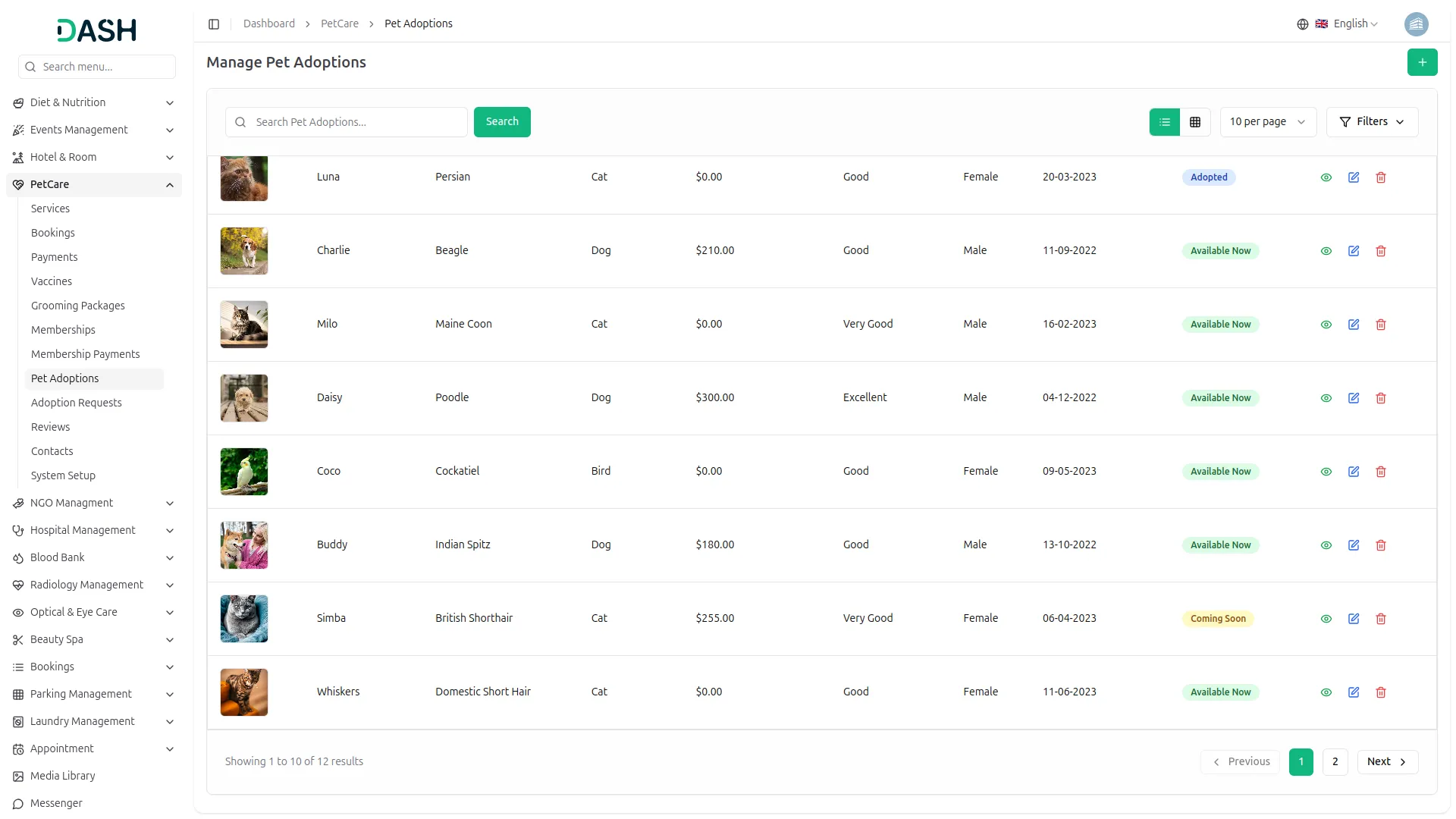
- The list page displays a table with columns for Pet Image, Pet Name, Breed, Species, Adoption Amount, Health Status, Gender, Date of Birth, Availability, and Actions. Use the search bar to find a specific pet by name. You can also use the “Filters” button to filter pets by Gender and Availability, then click “Apply” to filter the results or “Clear” to reset them. You can also toggle between list and grid view using the view button.
- In the Actions column, you can use the View to open the full pet details, the Edit to update the pet’s information or availability status, or the Delete to permanently remove the pet from the system.
- Pets can carry three availability statuses: Available Now for pets that are ready for immediate adoption, Coming Soon for pets that will be available shortly, and Adopted for pets that have already found a home.
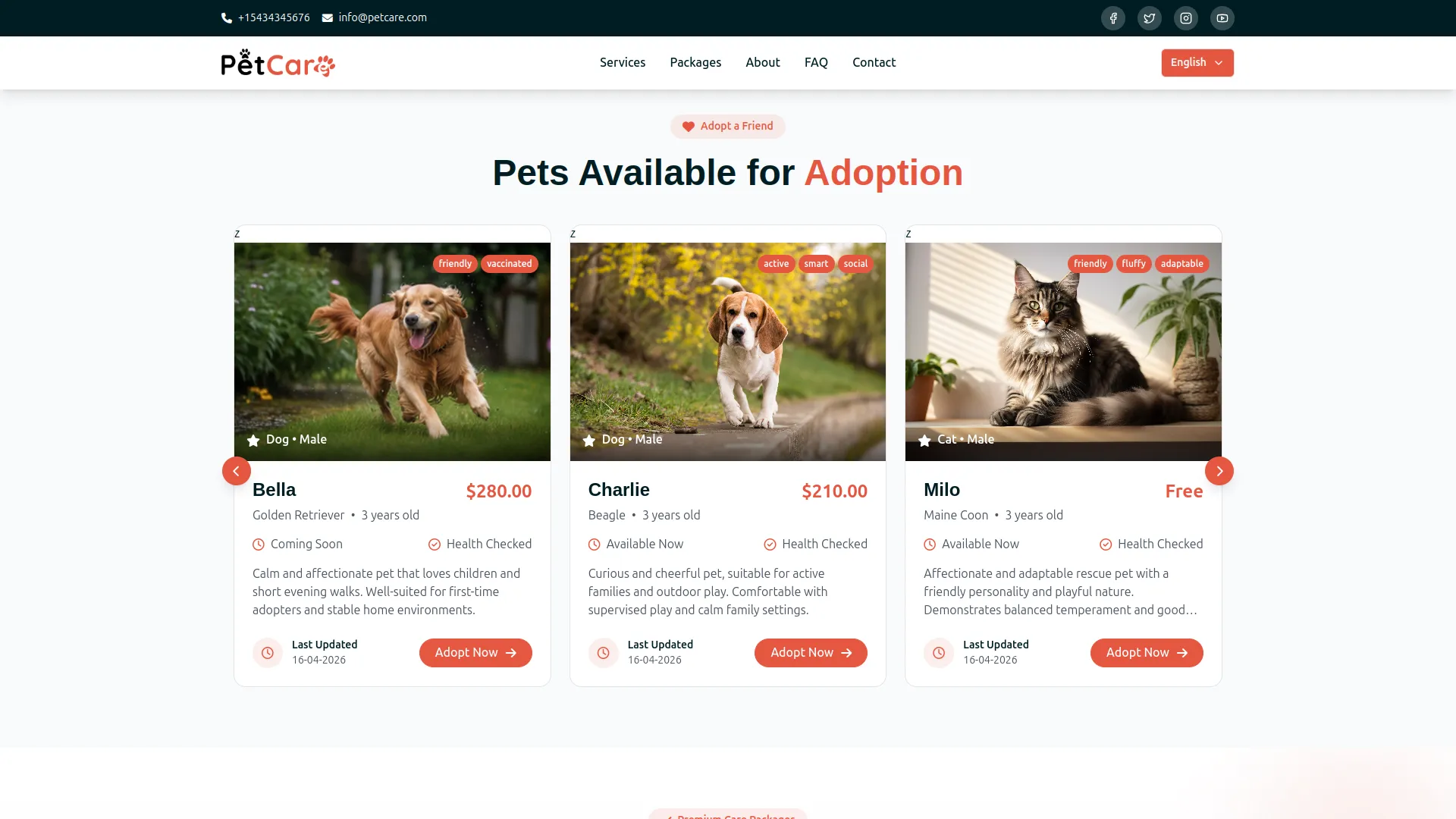
- Once saved, all pets will appear in the Pets Available for Adoption section on the homepage of your website, displaying each pet’s photo, name, breed, age, adoption amount, availability status, health check badge, and an Adopt Now button, allowing visitors to browse and connect with pets they wish to adopt. The total number of pets listed for adoption is also reflected in the Pets for Adoption counter on the dashboard.
Adoption Requests
- To add a new adoption request manually, click the “Create” button at the top right of the Manage Adoption Requests page. In the Create Adoption Request form, enter the applicant’s First Name, Last Name, Email, and Phone Number. Select the Pet Adoption from the dropdown, and the Amount will be auto-filled based on the selected pet’s adoption fee. Enter the Address and a Reason For Adoption.
- The list page displays a table with columns for Request Number, First Name, Last Name, Email, Phone Number, Pet, Amount, Payment Date, Payment Status, Request Status, and Actions.
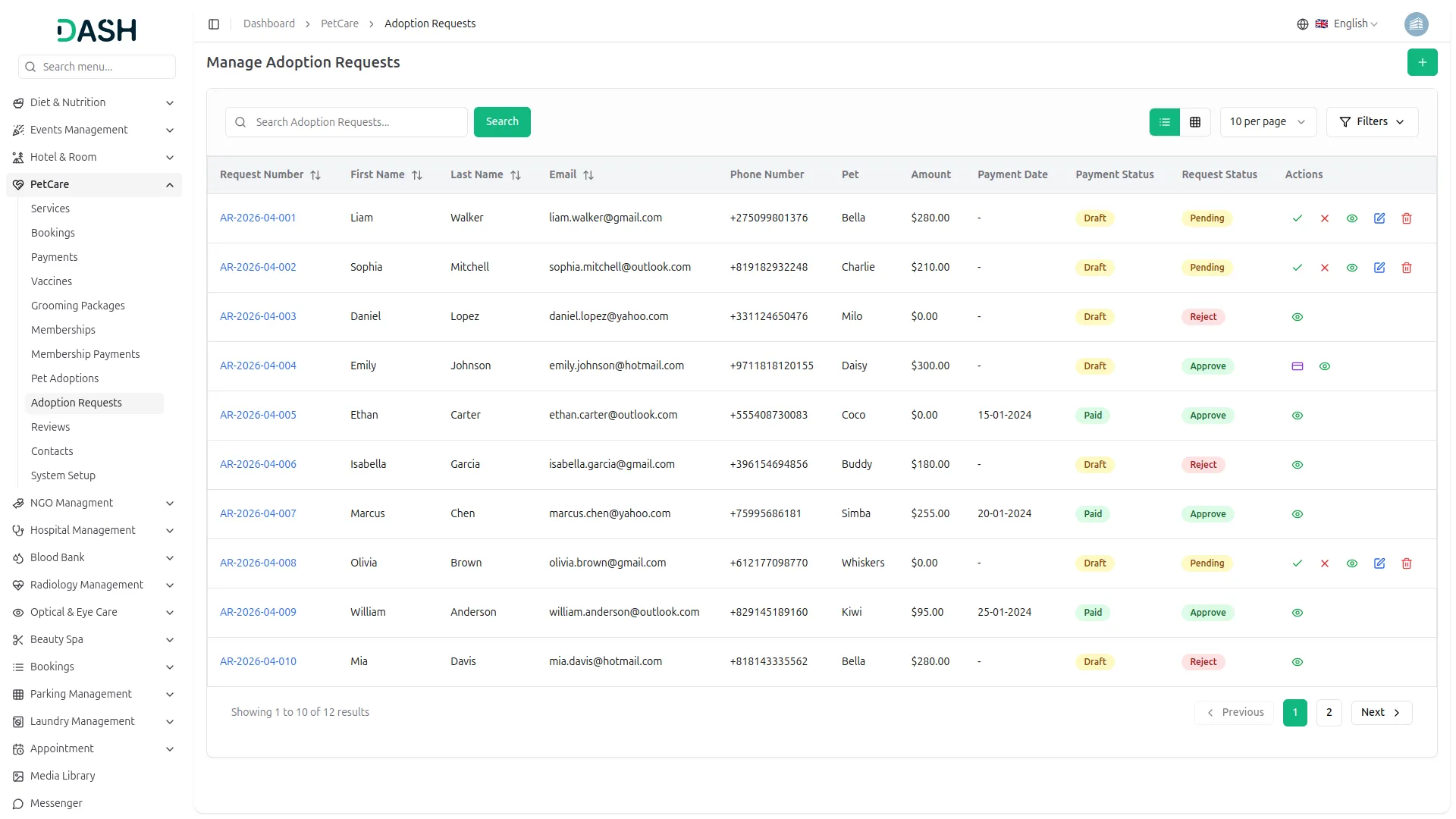
- Use the search bar to find a specific request by applicant name. You can also use the “Filters” button to filter adoption requests by Pet, Payment Status, and Request Status, then click “Apply” to filter the results or “Clear” to reset them. You can also toggle between list and grid view using the view button.
- For requests with a Pending status, the Actions column displays Approve and Reject, allowing you to quickly accept or decline an adoption request directly from the list. Once actioned, the Request Status will update accordingly, showing statuses such as Approve, Reject, or Pending.
- For offline adoption requests where payment has not yet been recorded, a Payment will appear in the Actions column. Clicking it opens the Add Payment form, where the Request Number, Pet, Applicant Name, and Amount are pre-filled. You will need to enter the Reference Number, select the Payment Date, choose the Bank Account, and optionally add a Description.
- Once submitted by clicking Add Payment, the payment status will be updated. Please note that once a payment is recorded, the adoption request can no longer be edited or deleted.
- In the Actions column, you can also use the View to see the full adoption request details, the Edit to update the request information, or the Delete to permanently remove the request from the system.
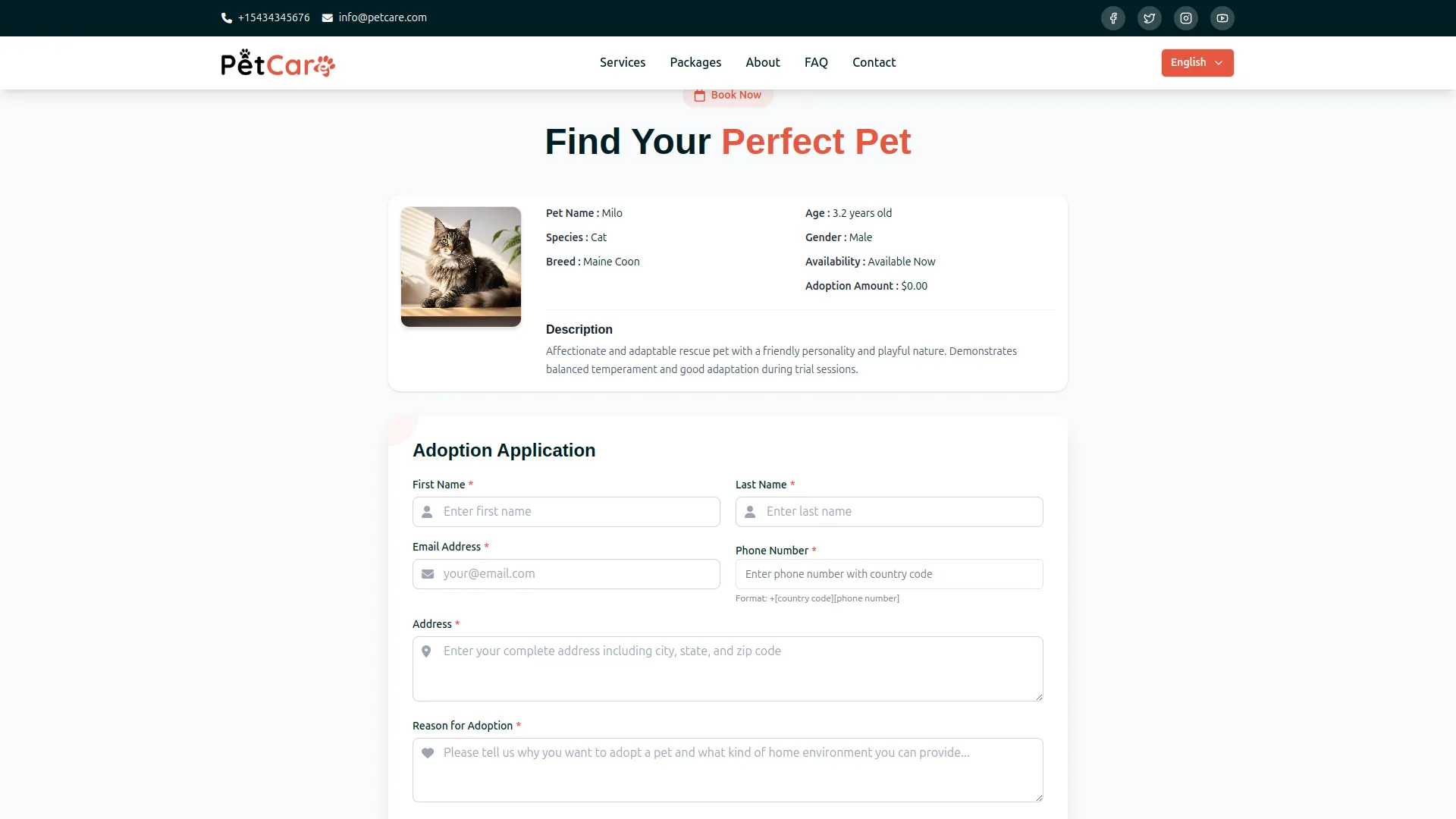
- Once an adoption request is created, either from the backend or when a visitor clicks the Adopt Now button on the frontend website, it will appear in this list with a unique Request Number, allowing you to manage every adoption inquiry with full visibility into the applicant details, selected pet, adoption amount, payment status, and current request status.
Manage Reviews
- The Manage Reviews page gives you a complete overview of all service reviews submitted by customers after their appointments.
- The list page displays a table with columns for Name, Email, Rating, Service, Review, Date, and Actions. Use the search bar to find a specific review by customer name. You can also sort the results by Name, Email, Rating, or Date using the sort arrows on each column header. You can also toggle between list and grid view using the view icons at the top right.
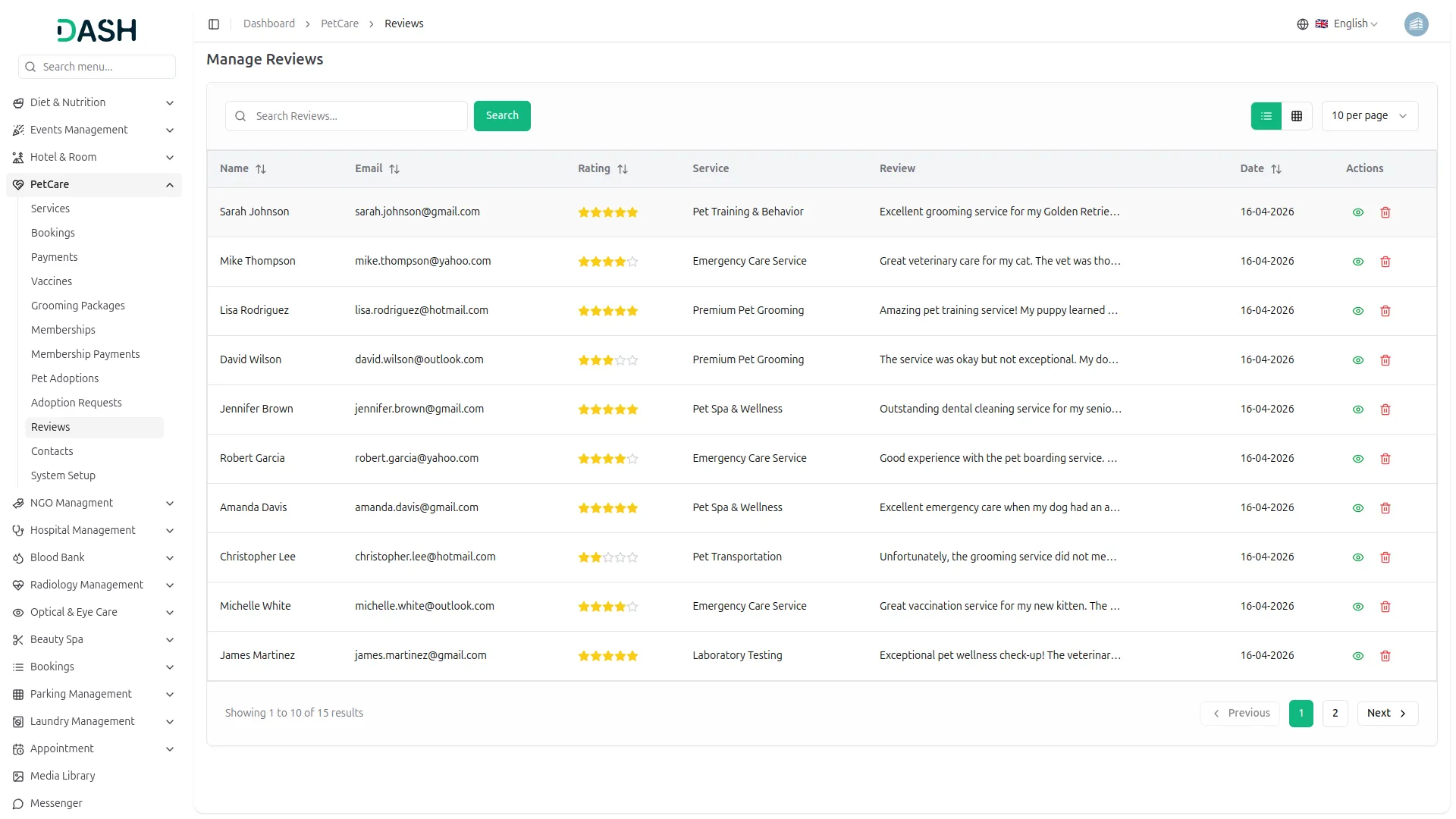
- In the Actions column, you can use the View to open the full review details or the Delete to permanently remove a review from the system.
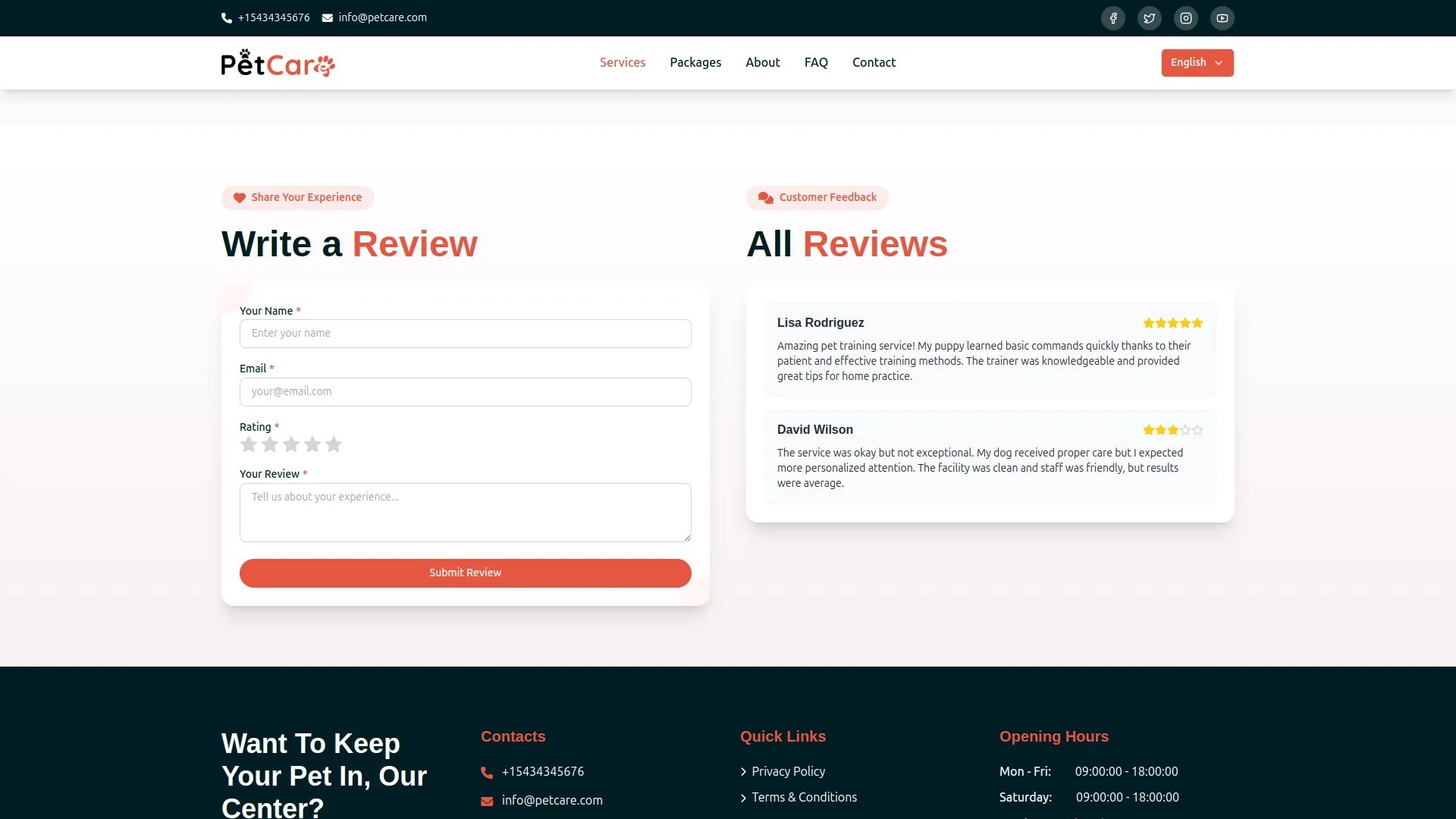
- On the Service Details page, visitors can also submit a review directly using the Write a Review form by entering their Name, Email, Rating, and Review comment. Once submitted, the review will automatically appear in the Manage Reviews section on the backend, allowing you to monitor all customer feedback from one place. All previously submitted reviews are also displayed in the All Reviews section on the same Service Details page, giving potential customers confidence in your services.
Manage Contacts
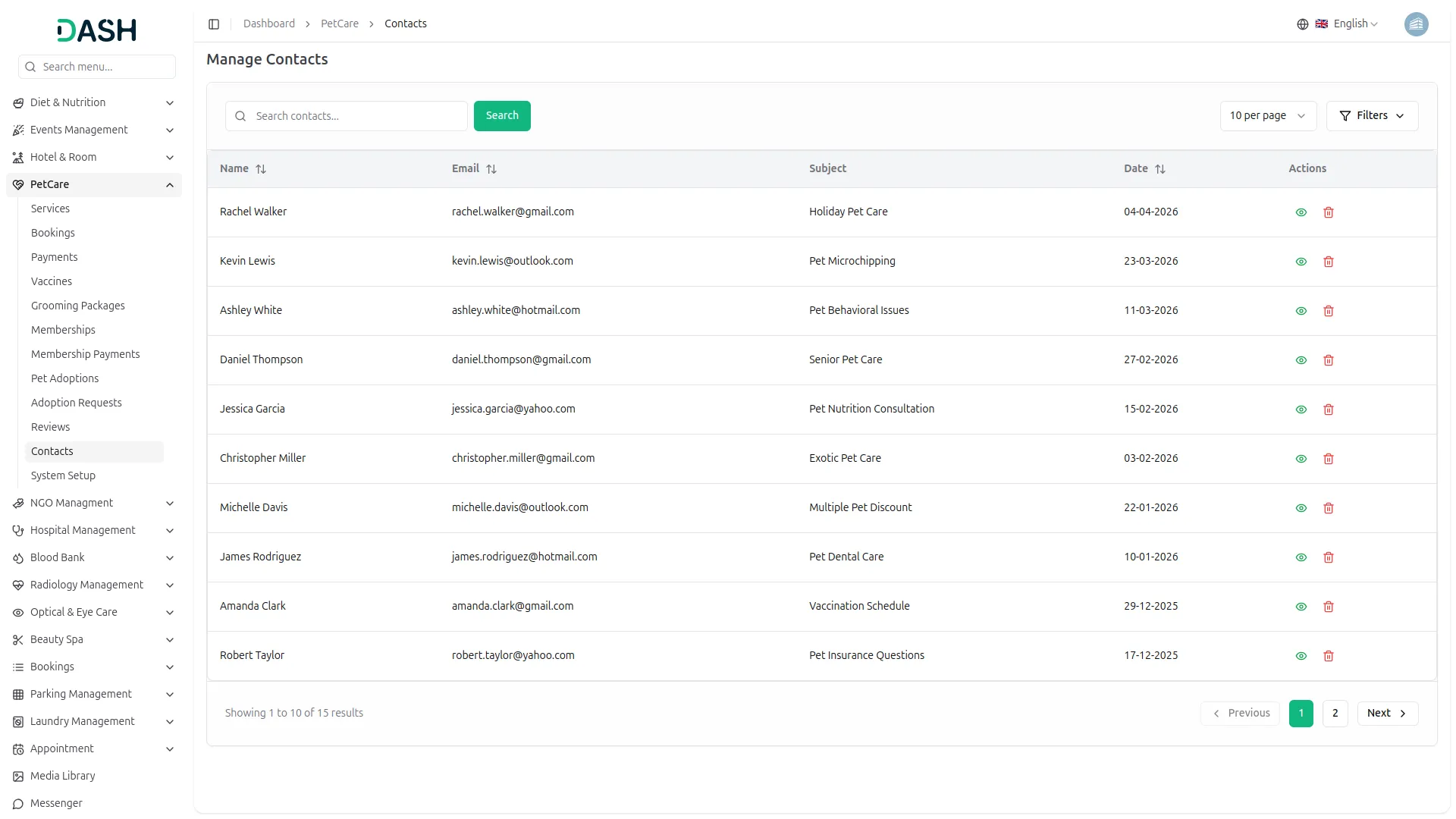
- The Manage Contacts page gives you a complete overview of all enquiries submitted by visitors through the Contact Us form on your website.
- The list page displays a table with columns for Name, Email, Subject, Date, and Actions. Use the search bar to find a specific contact by name. You can also use the “Filters” button to filter contacts by Email or Subject, then click “Apply” to filter the results or “Clear” to reset them. You can also sort the results by Name, Email, or Date using the sort arrows on each column header.
- In the Actions column, you can use the View to open the full message details or the Delete to permanently remove a contact entry from the system.
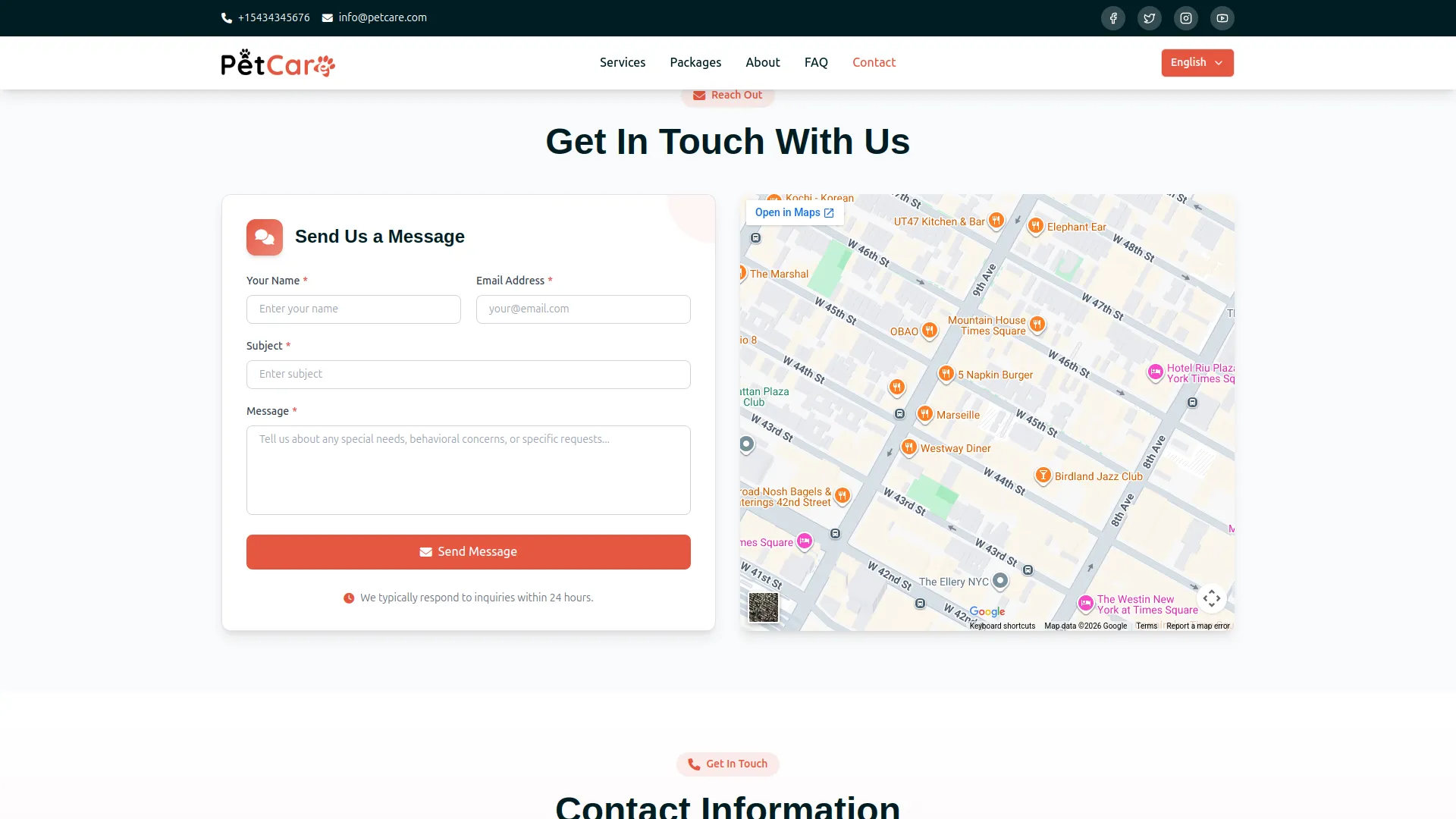
- Once a visitor submits the Send Us a Message form on the Contact Us page, entering their name, email, subject, and message, it will automatically appear in this list, allowing you to track all incoming enquiries with full visibility into the sender’s name, email address, subject, and the date the message was received.
Categories
Related articles
- Product & Service – WorkDo Dash SaaS Add-On Guide
- Telegram – BookingGo SaaS Add-On Guide
- Cashfree – BookingGo SaaS Add-On Guide
- Shopify Sync – WorkDo Dash SaaS Add-On Guide
- Resume Builder – WorkDo Dash SaaS Add-On Guide
- OneNote – WorkDo Dash SaaS Add-On Guide
- Elderly Care – WorkDo Dash SaaS Add-On Guide
- Sign in with Google – WorkDo Dash SaaS Add-On Guide
- Internal Knowledge – WorkDo Dash SaaS Add-On Guide
- Garden Management – WorkDo Dash SaaS Add-On Guide
- PayU – WorkDo Dash SaaS Add-On Guide
- Razorpay – BookingGo SaaS Add-On Guide
We're Here to Help - Let's Talk
Have questions about our solutions, customization services, or business tools? Our team is here to help you. let's talk.