
Job Search Detailed Documentation
The Job Search Add-On enables organizations to manage job postings and applications through an integrated recruitment system.
Introduction
The Job Search Add-On enables organizations to manage job postings and applications through an integrated recruitment system. This Add-On depends on the Recruitment Add-On and allows administrators to view and manage job listings, track applications through different stages, and monitor candidate progress. Staff members can configure their job seeker profiles and apply for available positions directly through the platform. The system provides comprehensive tracking from job posting to application management with detailed filtering and reporting capabilities.
Note: This Add-On is dependent on the Recruitment Add-On, so you need to purchase it first.
How To Install The Add-On?
To Set Up the Job Search Add-On, you can follow this link: Setup Add-On
How to Use The Job Search Add-On?
Company Login – Manage Job Search
- The Job Search Add-On depends on the Recruitment Add-On and will only function when the Recruitment Add-On is active. All job data comes from the Manage Job Add-On within the Recruitment system.
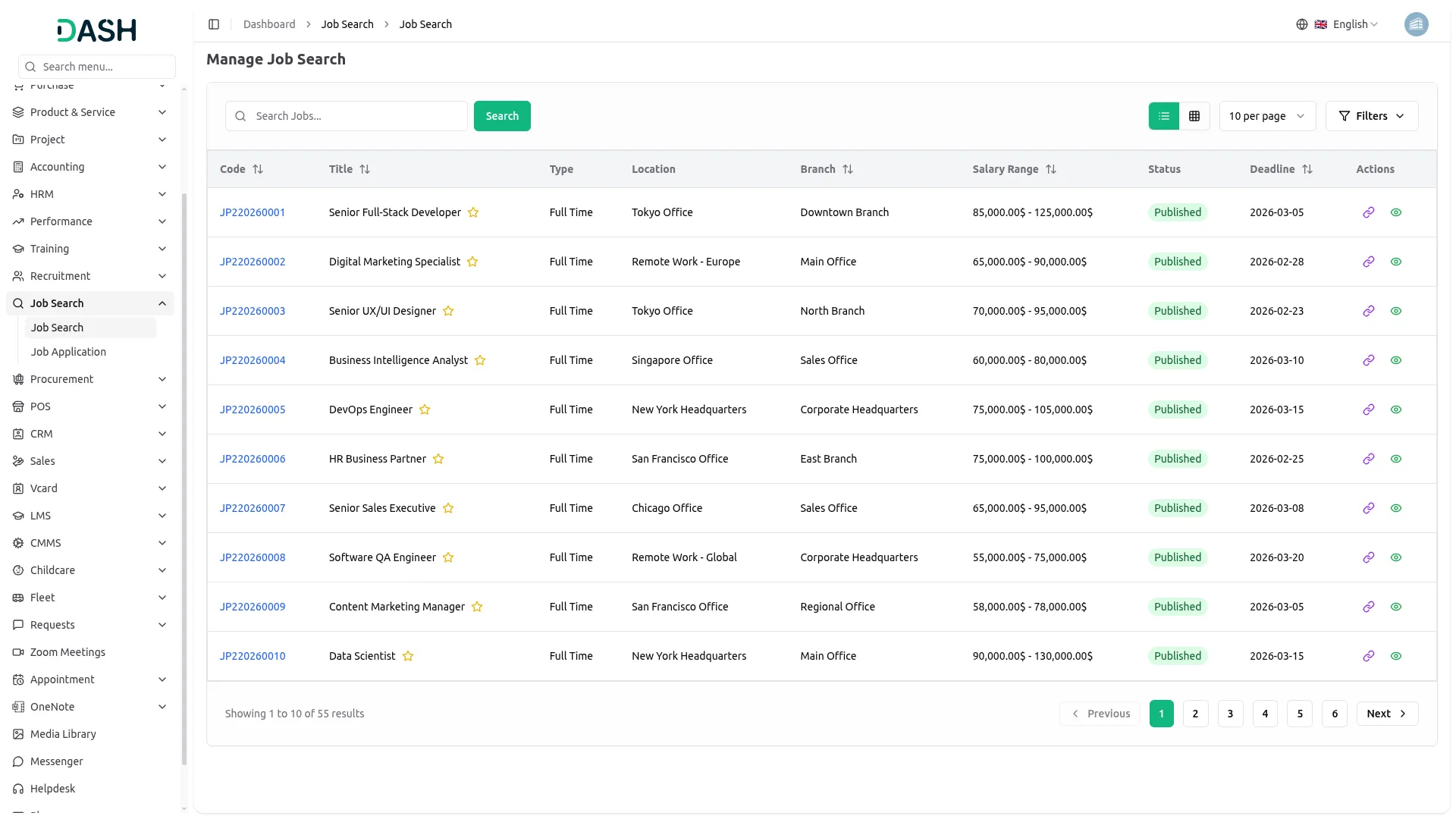
- To view available jobs, use the filter options at the top of the page including Job type, Location, Department, Status fields. Click “Apply” to activate your filters or “Reset” to clear all filter selections. You can also use the Search button to find specific jobs or Export button to download job listings data.
- The list page displays all job postings in a table format with columns for Code, Title, Type, Location, Department, Salary Range, Status, and Deadline. In the Actions column, you can Copy job postings after the job status is set to post, or click View to access comprehensive job details.
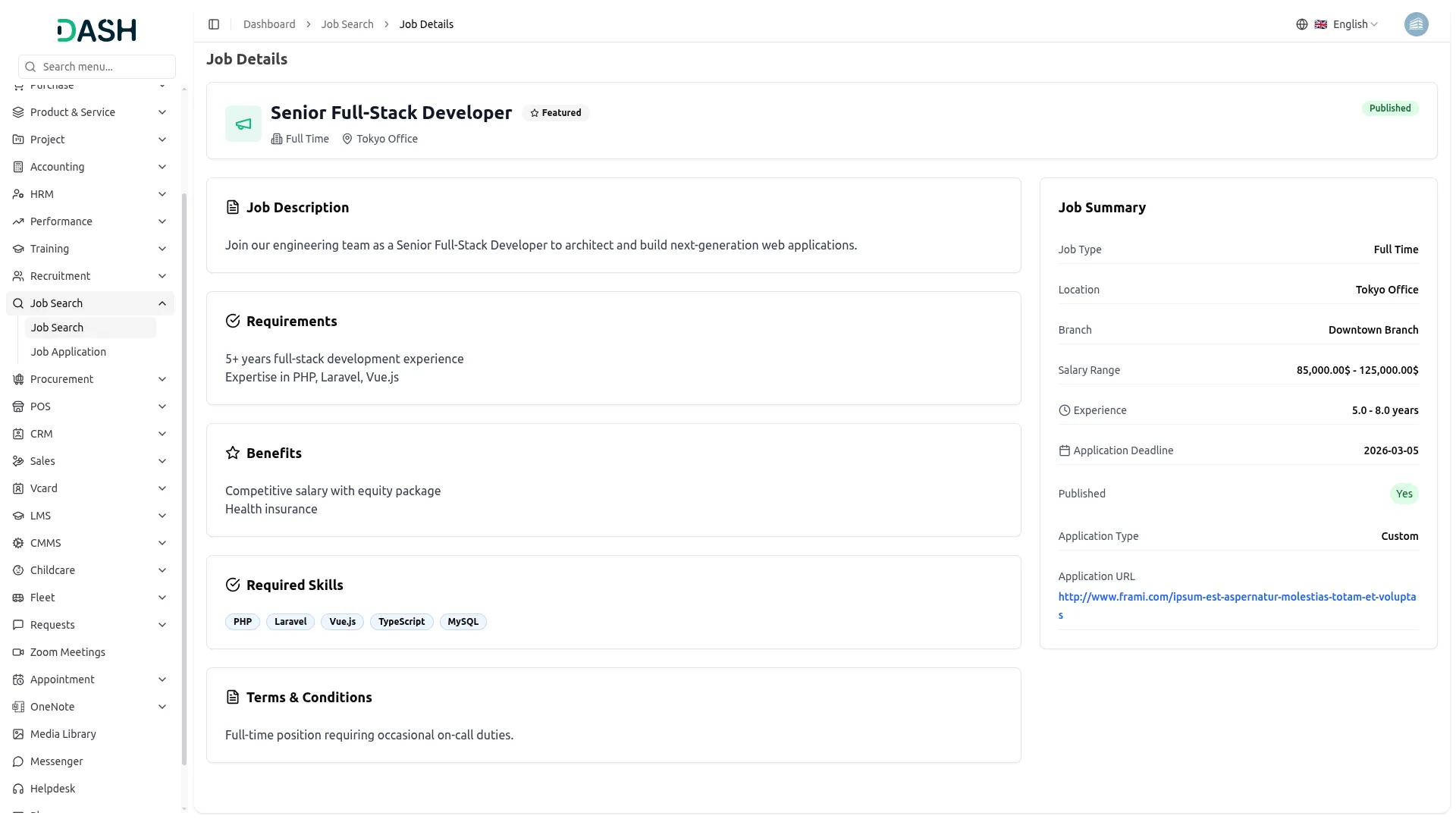
- When you click View in the Actions column, a detailed page opens showing Job Details, Job Status, Job Description, Job Requirements, Benefits, Required Skills, Terms & Conditions, Job Summary and Requisition.
Company Login – Manage Job Applications
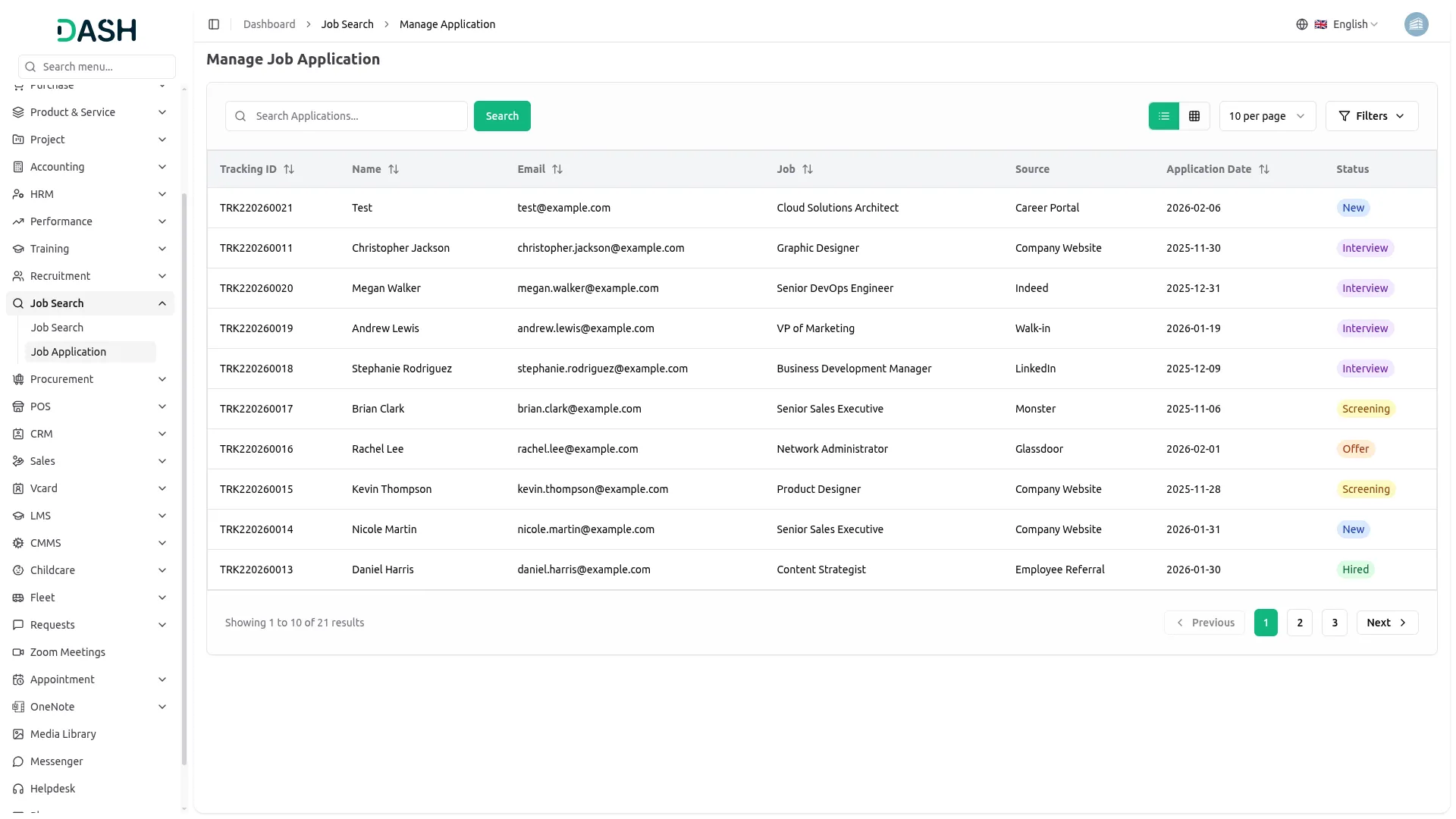
- To manage job applications, access the applications Add-On where you can filter by Job selections from the recruitment job posting Add-On, and Status options from the job stage Add-On in recruitment and Application Date. Use Apply to activate filters or Reset to clear selections.
- Click the “List View” button to switch to a GridView format that displays applications in a table with columns for Tracking ID, Name, Email, Job, Source, and Application Date.
Staff Login – Job Seeker Configuration
- Before applying for jobs, staff members must configure their job seeker profile. Navigate to Edit Profile then Job Seeker Information to access the configuration page.
- Fill out your personal information including Name, Email, Phone, and select your Gender from Male or Female options. Enter your location details by specifying Country, State, and City. Upload your Resume/CV and Cover Letter to complete your professional profile.
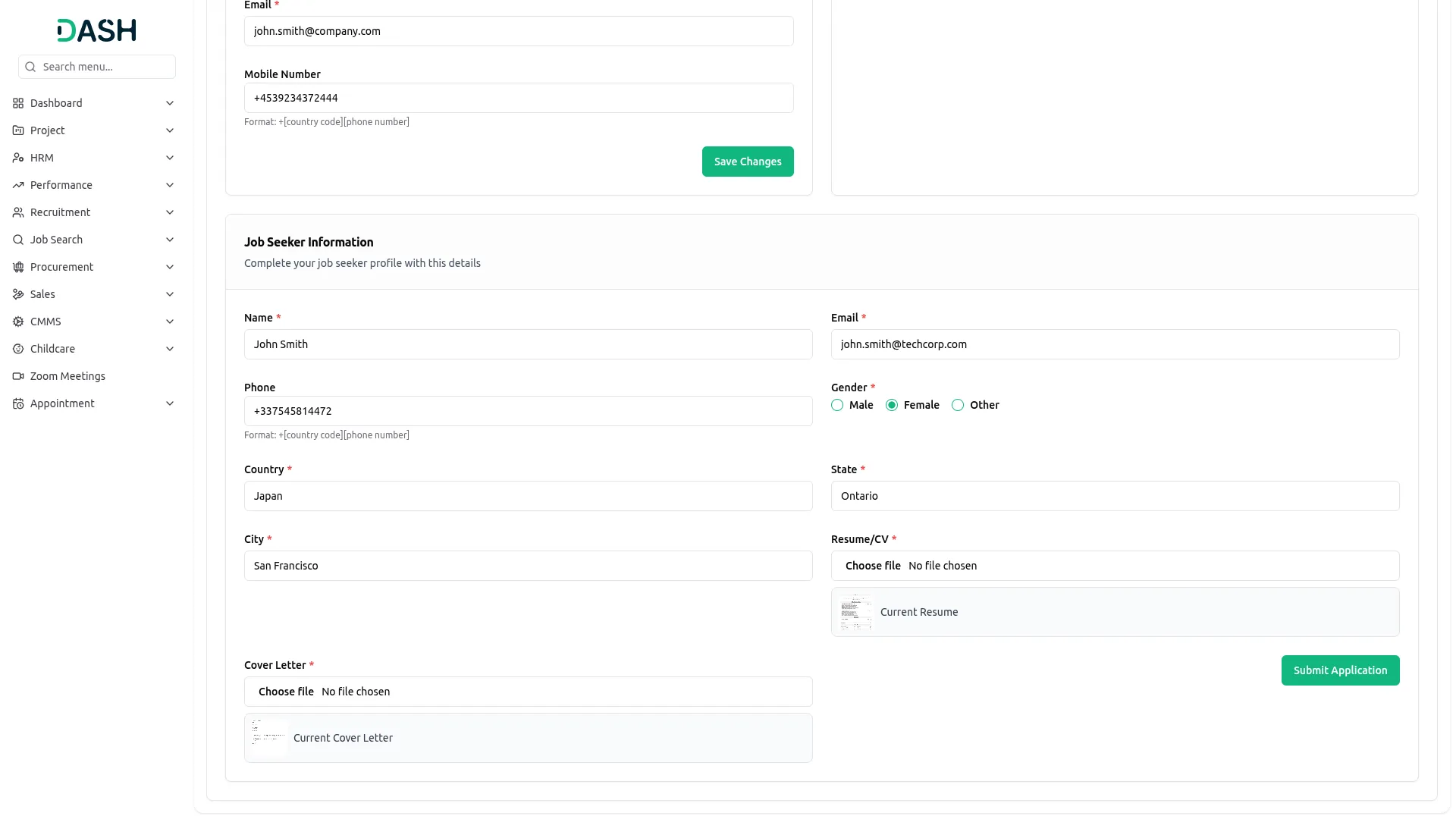
- This job seeker information will be automatically used when applying for jobs through the job search Add-On, though you can modify details during the application process if needed.
Staff Login- Manage Job Search
- Once your job seeker profile is configured, you can browse and apply for available positions. Access the job search section to view all posted job opportunities.
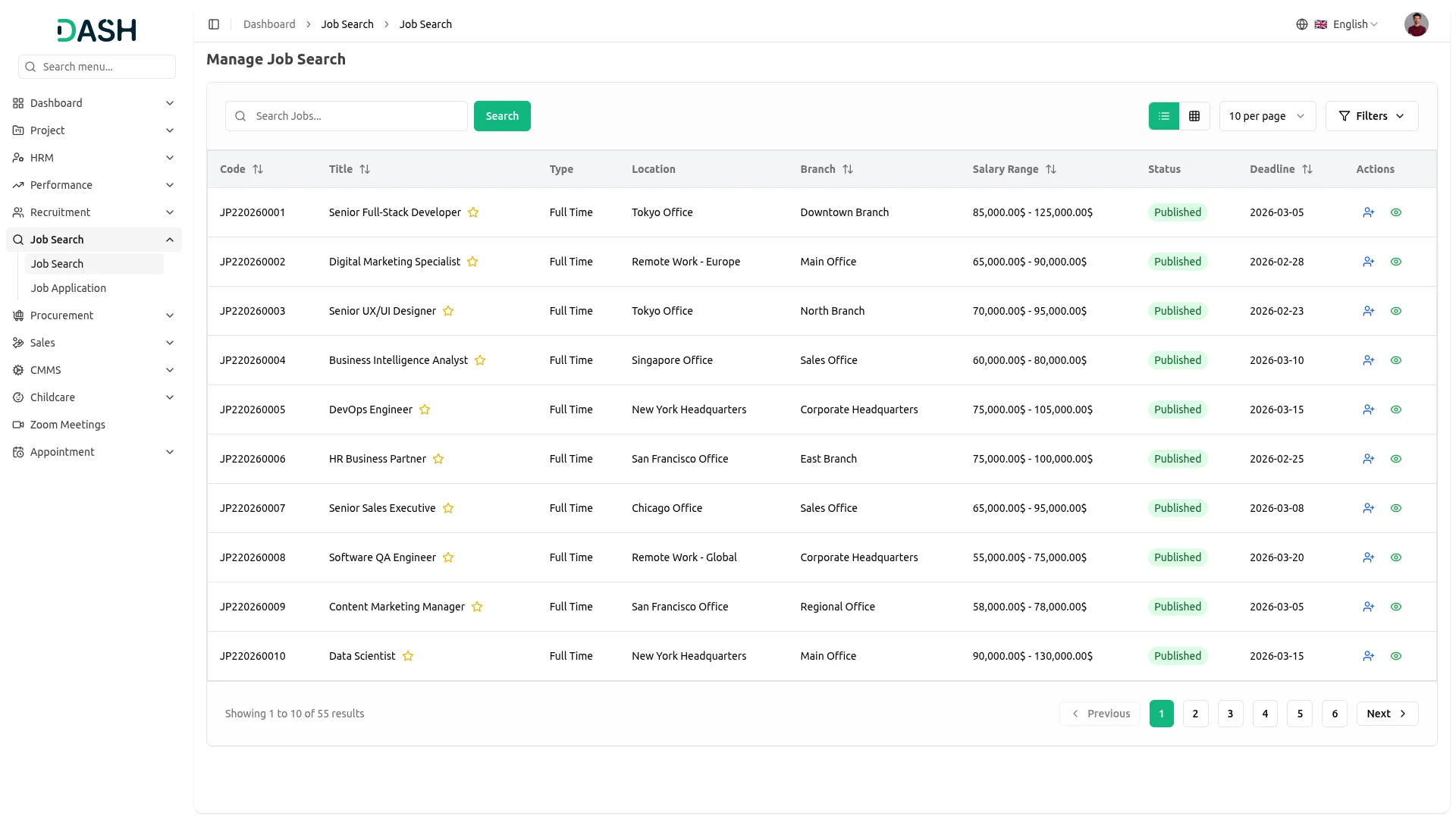
- Use the filter options to narrow your search by Job type, Location, Department, and Status then click Apply to activate filters or Reset to clear them. The Search helps you find specific positions or save job listings for reference.
- The job listings appear in a table showing Code, Title, Type, Location, Department, Salary Range, Status, and Deadline information. In the Actions column, click Apply to submit your application for any job.
- When you click View in the Actions column, a detailed page opens showing Job Details, Job Status, Job Description, Job Requirements, Benefits, Required Skills, Terms & Conditions, Job Summary and Requisition.
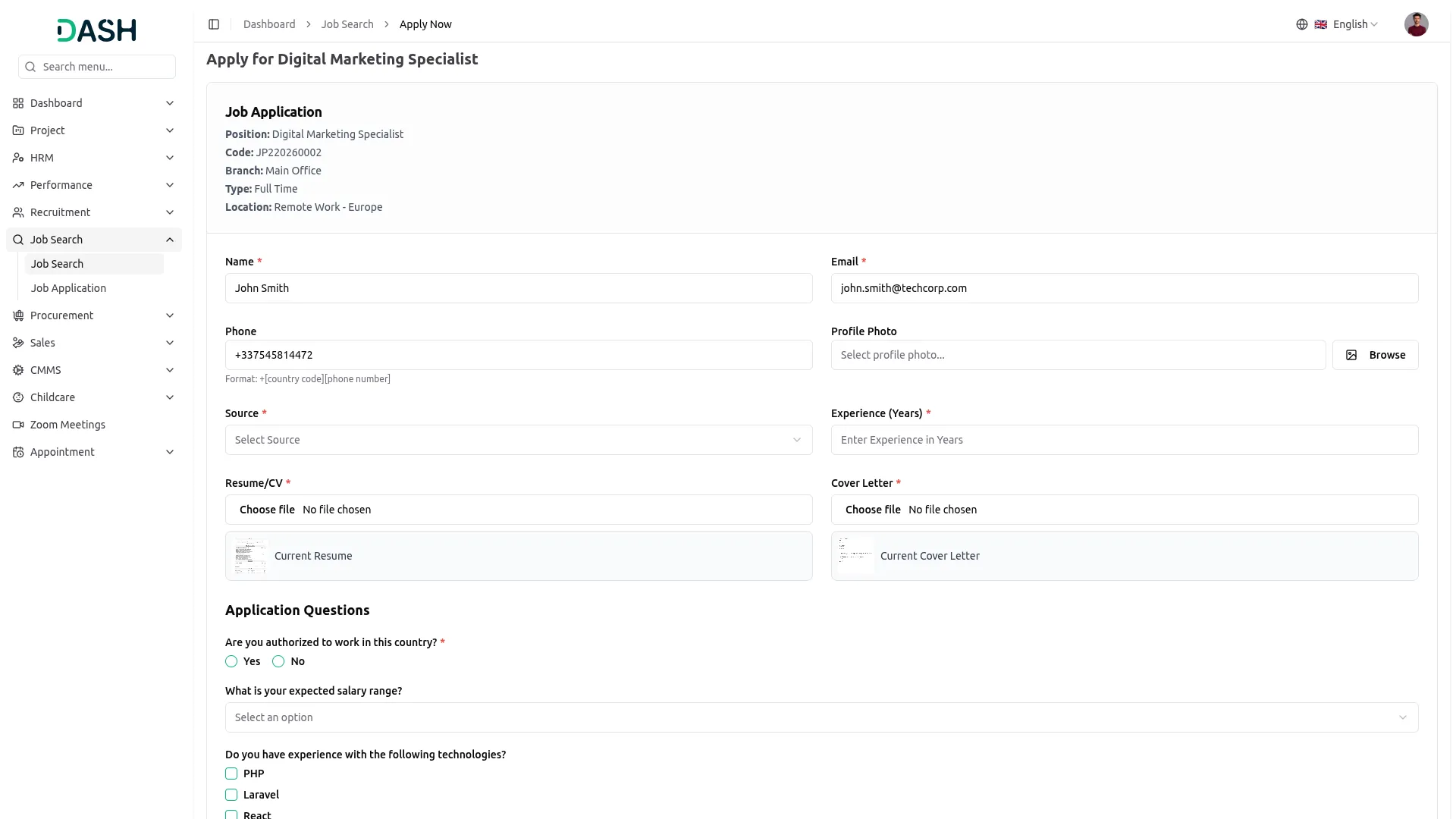
- When you click Apply, the system automatically fills in your information from the job seeker profile section, but you can modify any details before submitting your application.
Staff Login – Manage Job Applications
- After applying for positions, you can track your applications through the application management section. Use filters for Job selections from the recruitment Add-On, and Stage options from the job stage Add-On to find specific applications and Application Date.
- Click the “List View” button to switch to a GridView format that displays applications in a table with columns for Tracking ID, Name, Email, Job, Source, and Application Date.
Categories
Related articles
- Music Institute Integration in Dash SaaS
- Rotas Integration in Dash SaaS
- NMI Payment Gateway Integration in Dash SaaS
- How To Generate Whatsapp API Permanent Access Token
- Recent Orders – eCommerceGo Addon
- Google Wallet Integration in Dash SaaS
- Blood Bank Integration in Dash SaaS
- senangPay Payment Gateway Integration
- Scholarship Detailed Documentation
- Webhook – WorkDo Dash SaaS Add-on
- Custom Domain Documentation: White Label Settings
- Coworking Space Management Detail Documentation
Reach Out to Us
Have questions or need assistance? We're here to help! Reach out to our team for support, inquiries, or feedback. Your needs are important to us, and we’re ready to assist you!


Need more help?
If you’re still uncertain or need professional guidance, don’t hesitate to contact us. You can contact us via email or submit a ticket with a description of your issue. Our team of experts is always available to help you with any questions. Rest assured that we’ll respond to your inquiry promptly.
Love what you see?
Do you like the quality of our products, themes, and applications, or perhaps the design of our website caught your eye? You can have similarly outstanding designs for your website or apps. Contact us, and we’ll bring your ideas to life.