
Blood Bank – WorkDo Dash SaaS Add-On Guide
Learn how to manage blood donors, requests, and blood bank operations in WorkDo Dash SaaS.
Introduction
The Blood Bank Management Add-On is a comprehensive solution designed to streamline blood bank operations within the system. Built as an extension of the Hospital Add-On, it covers the complete workflow, from registering donors and recording blood tests to managing donation records, processing blood requests, handling payments, and tracking inventory. With a dedicated System Setup section for configuring blood groups, component types, storage locations, and donation rules, the add-on provides full visibility and control over blood bank operations from a single, centralized platform.
Note: This Add-On is dependent on the Hospital Add-On, so you need to purchase it first.
How to Install the Add-On?
To Set Up the Blood Bank Management Add-On, you can follow this link: Setup Add-On..
How to use the Blood Bank Management Add-On?
System Setup
Blood Groups
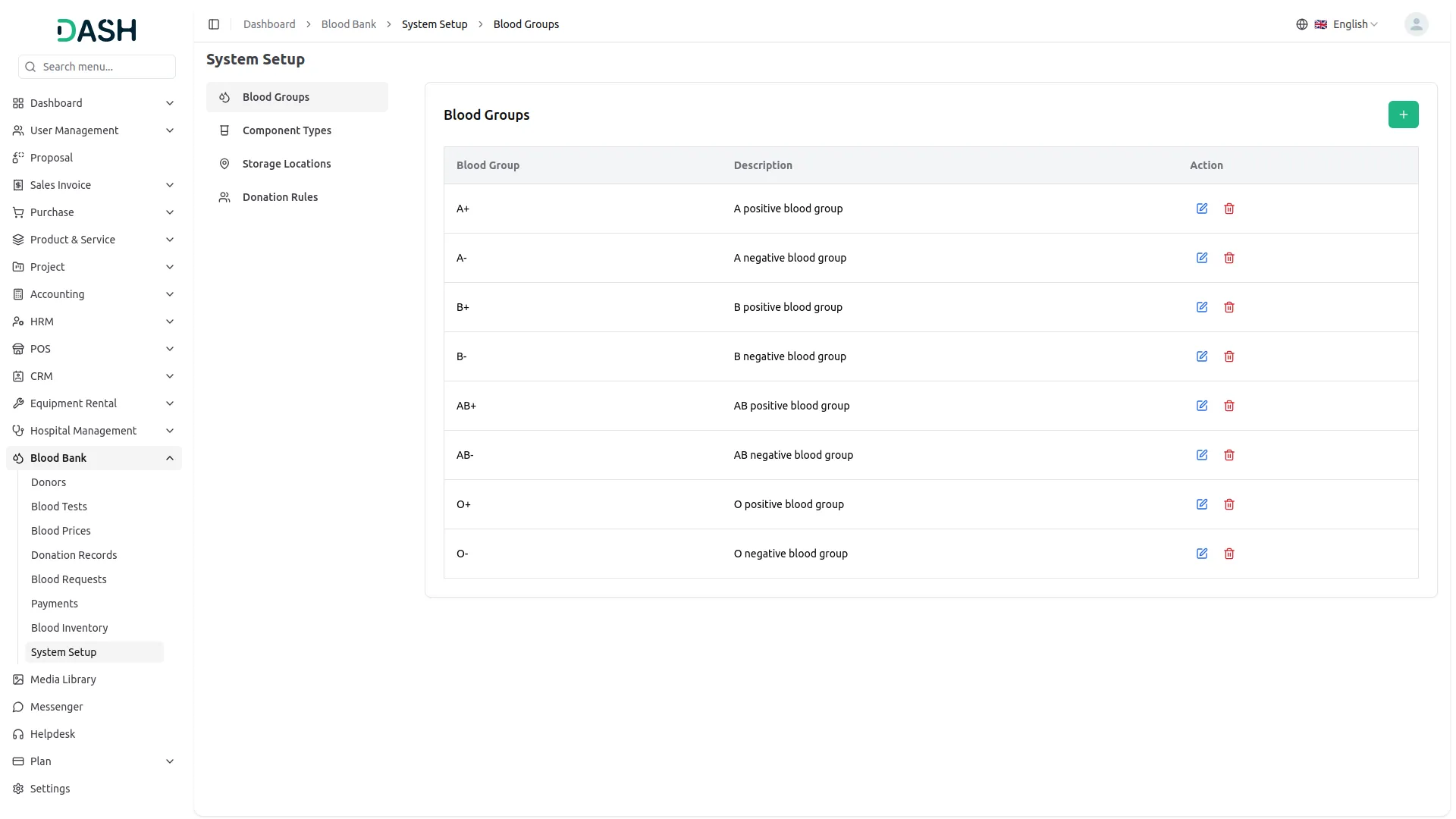
- To create a new Blood Group, click the “Create” button on the Blood Groups page. Enter the blood group Name in the text field. Optionally, add a Description before clicking Create to save the record.
- The list page displays all blood groups in a table with columns for Blood Group, Description, and Action.
- In the Action column, use the Edit to update any blood group information. Use the Delete to permanently remove the blood group from the system.
Component Types
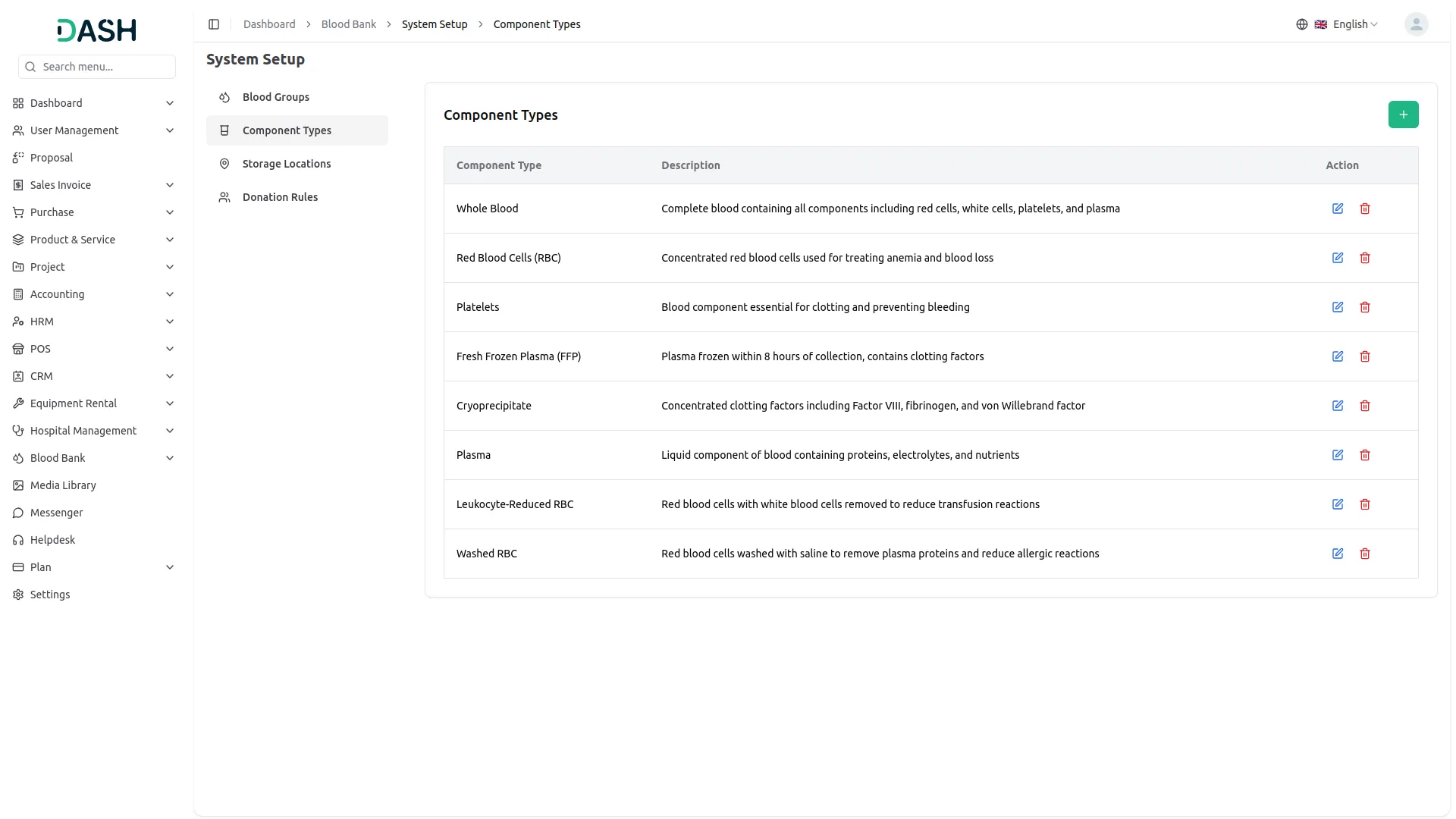
- To create a new Component Type, click the “Create” button on the Component Types page. Enter the component type Name in the text field. Optionally, add a Description before clicking Create to save the record.
- The list page displays all component types in a table with columns for Component Type, Description, and Action.
- In the Action column, use the Edit to update any component type information. Use the Delete to permanently remove the component type from the system.
Storage Locations
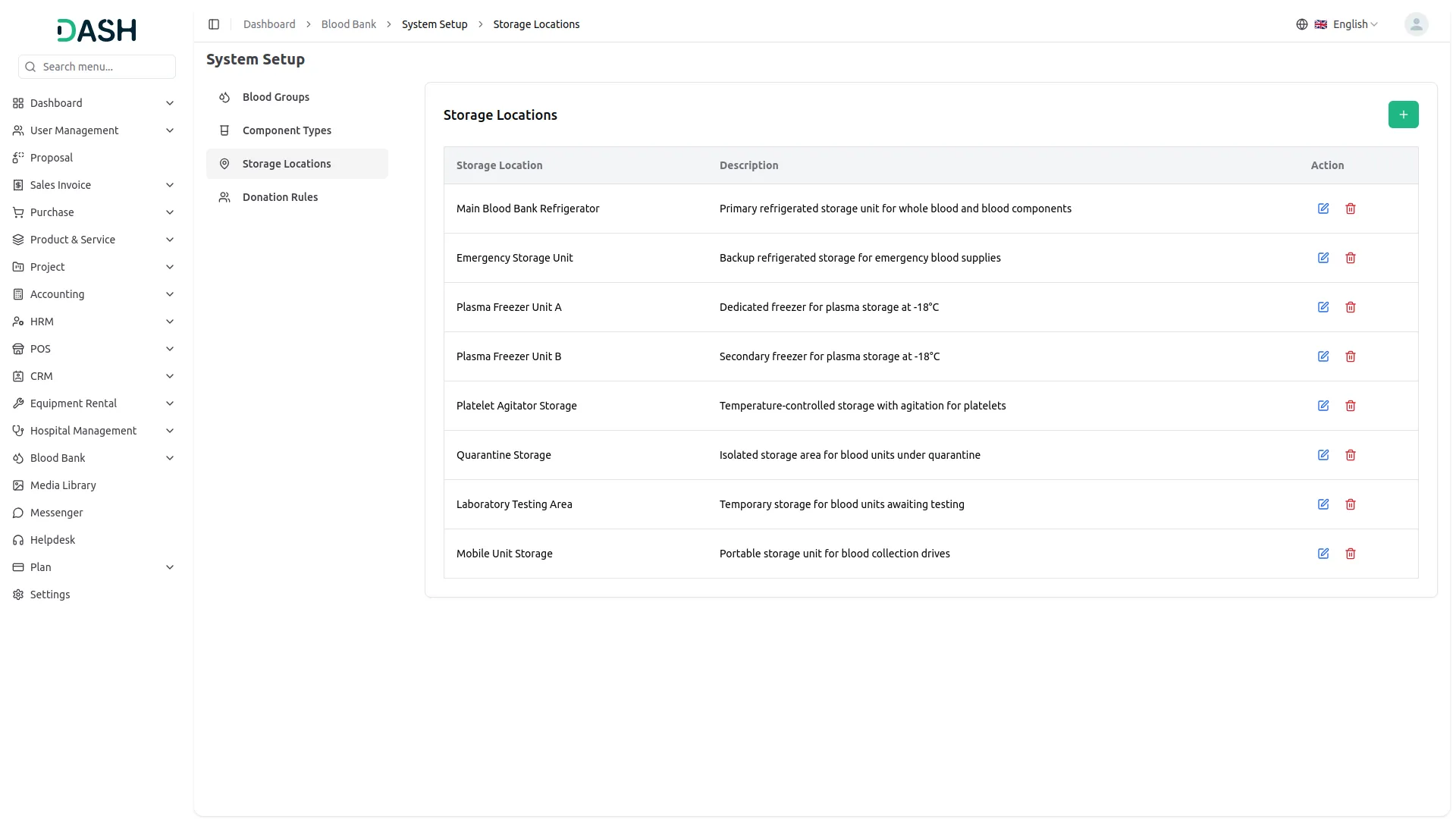
- To create a new Storage Location, click the “Create” button on the Storage Locations page. Enter the storage location Name in the text field. Optionally, add a Description before clicking Create to save the record.
- The list page displays all storage locations in a table with columns for Storage Location, Description, and Action.
- In the Action column, use the Edit to update any storage location information. Use the Delete to permanently remove the storage location from the system.
Donation Rules
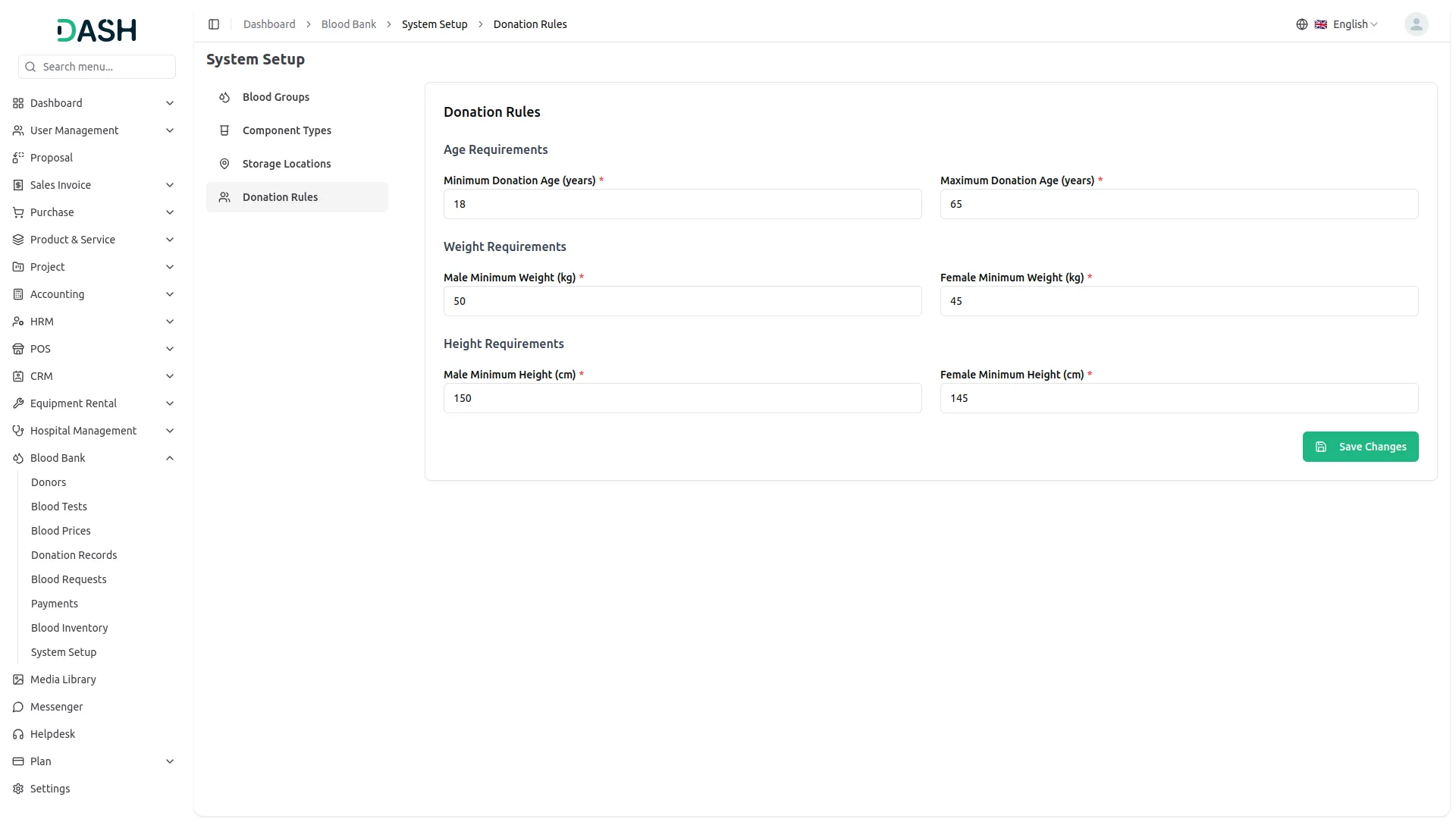
- The Donation Rules section allows administrators to define the eligibility criteria applied when registering blood donors. Under Age Requirements, set the Minimum and Maximum Donation Age in years.
- Under Weight Requirements, enter the Male Minimum Weight and Female Minimum Weight in kg. Under Height Requirements, enter the Male Minimum Height and Female Minimum Height in cm. Click Save Changes to apply the updated rules across the system.
Blood Donors
- To create a new Blood Donor, click the “Create” button on the Manage Blood Donors page. Enter the donor’s Full Name and Email Address in their respective text fields. Enter the Contact Number. Select the Gender from the dropdown.
- Select the Date of Birth using the date picker and enter the donor’s Weight (in kg) and Height (in cm) in their respective fields. Enter the complete Address in the text area before clicking Create to save the record.
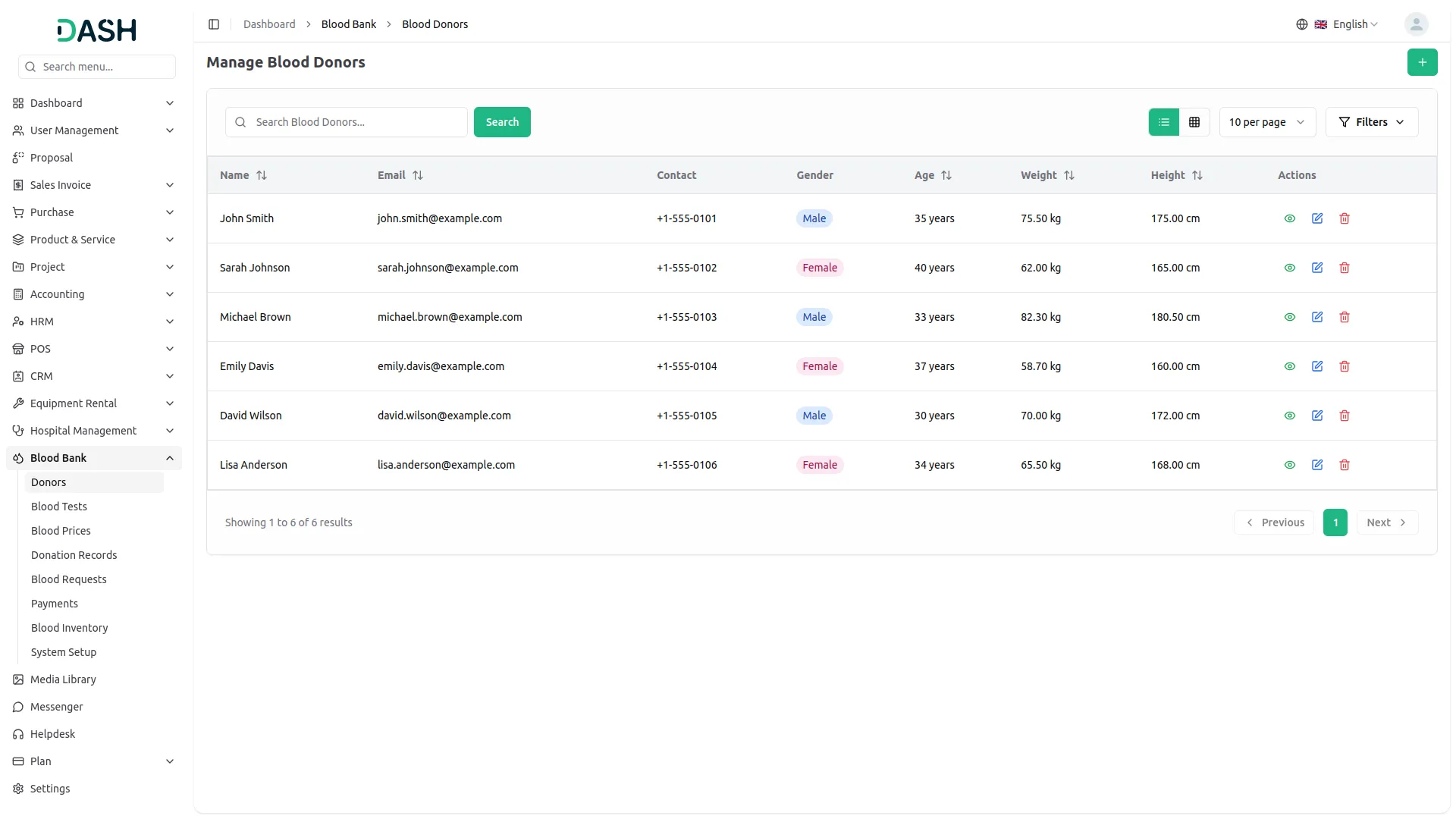
- The list page displays all registered blood donors in a table with columns for Name, Email, Contact, Gender, Age, Weight, Height, and Actions. Age is automatically calculated based on the date of birth entered during donor creation.
- Use the search bar to quickly locate a specific donor by name. Click Filters to expand the filter panel, then apply filters using the Email field and the Gender dropdown to narrow down results. Click Apply to activate the filters or Clear to reset them. Toggle between list view and grid view using the view buttons at the top right.
- In the Actions column, use the View to see the full donor profile and associated details. Use the Edit to update any donor information, and the Delete to permanently remove the donor record from the system.
Blood Test
- To create a new Blood Test, click the “Create” button on the Manage Blood Tests page. Select the Donor from the dropdown (configure from the Blood Donor section), and use the date picker to set the Test Date.
- Select the Doctor from the dropdown (which is populated from the Hospital Add-On) and choose the Blood Group from the dropdown ( configured from the Blood Group > System setup). Set the Test Result to either Valid or Invalid using the dropdown. Optionally, enter any relevant Remarks in the text area before clicking Create to save the record.
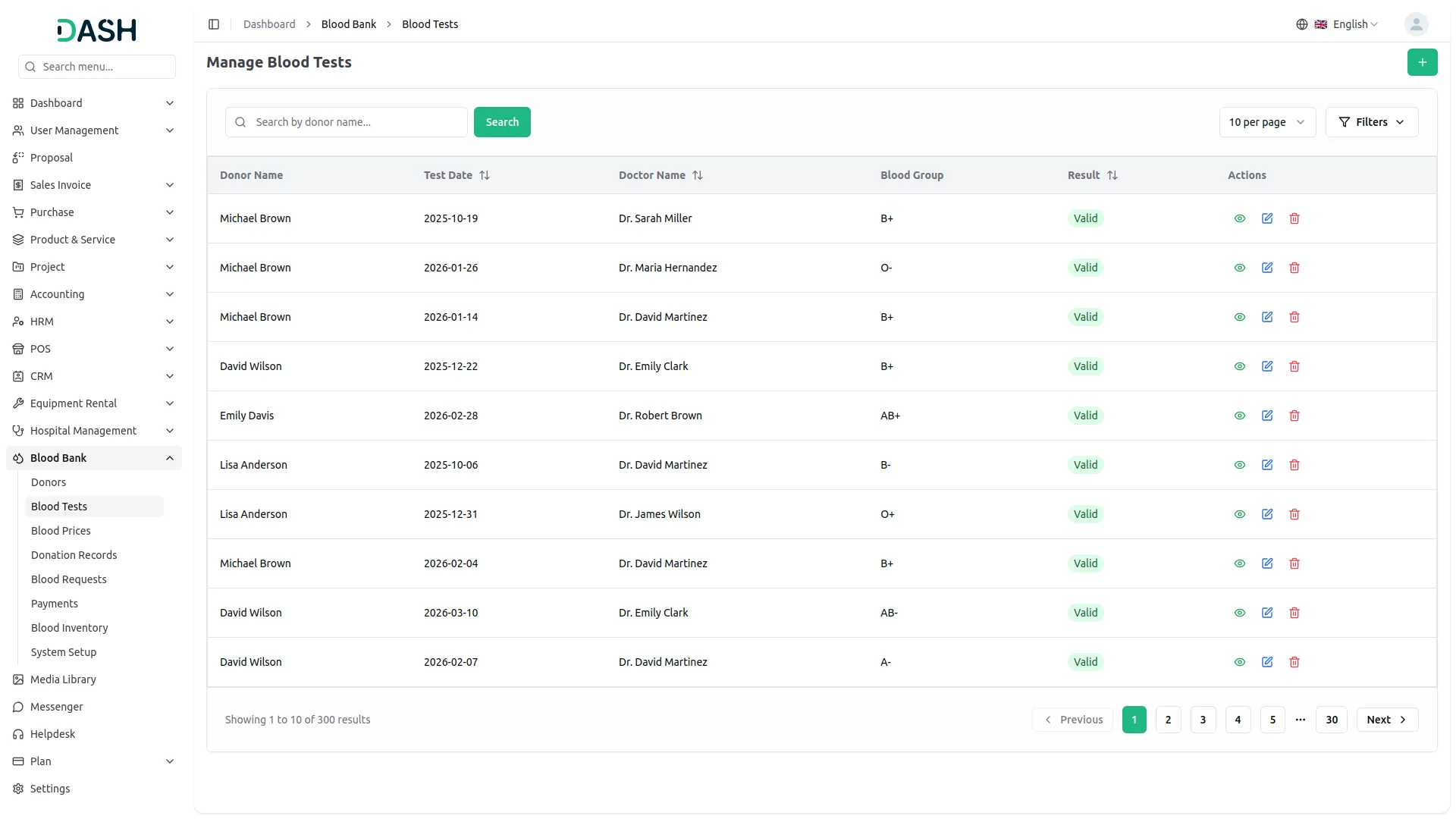
- The list page displays all blood test records in a table with columns for Donor Name, Test Date, Doctor Name, Blood Group, Result, and Actions. The Result column displays each test’s outcome as either Valid or Invalid, clearly reflecting the current status of the donor’s test.
- Use the search bar to quickly locate a specific record by donor name. Click Filters to expand the filter panel, then apply filters using the Doctor Name dropdown, the Blood Group dropdown, and the Result dropdown to narrow down results. Click Apply to activate the filters or Clear to reset them.
- In the Actions column, use the View to see the full blood test record and associated details. Use the Edit to update any test information, and the Delete to permanently remove the blood test record from the system.
Blood Price
- To create a new Blood Price, click the “Create” button on the Manage Blood Prices page. Select the Blood Group and Component Type from their respective dropdowns (configured from the Blood Group or Component Type > System setup).
- Enter the Price per ML in the text field and use the date picker to set the Effective Date. Toggle the Status to set the price as Active or Inactive before clicking Create to save the record.
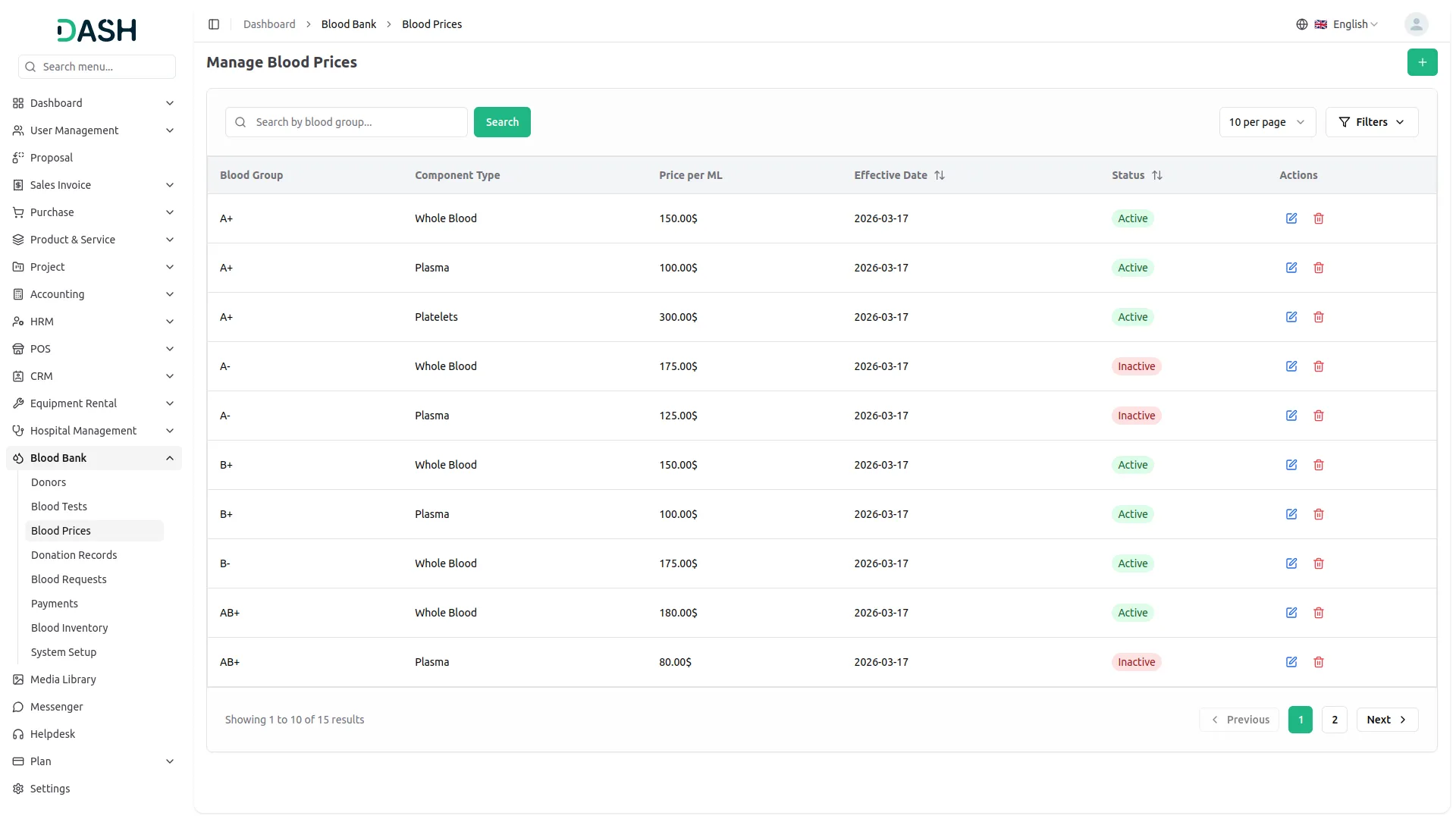
- The list page displays all blood price records in a table with columns for Blood Group, Component Type, Price per ML, Effective Date, Status, and Actions. The Status column displays each entry as either Active or Inactive, reflecting whether the pricing is currently in effect.
- Use the search bar to quickly locate a specific record by blood group. Click Filters to expand the filter panel, then apply filters using the Component Type dropdown and the Status dropdown to narrow down results. Click Apply to activate the filters or Clear to reset them.
- In the Actions column, use the Edit to update any blood price information, and the Delete to permanently remove the blood price record from the system.
Donation Record
- To create a new Donation Record, click the “Create” button on the Manage Donation Records page. Select the Donor from the dropdown (comes from the Blood Donor section), and use the date picker to set the Donation Date.
- Select the Component Type and Storage Location from their respective dropdowns. (configured from the Blood Group or Storage Location > System setup) Enter the Volume in ml in the text field, with accepted values ranging between 100 and 500 ml. Optionally, add any relevant Notes in the text area before clicking Create to save the record.
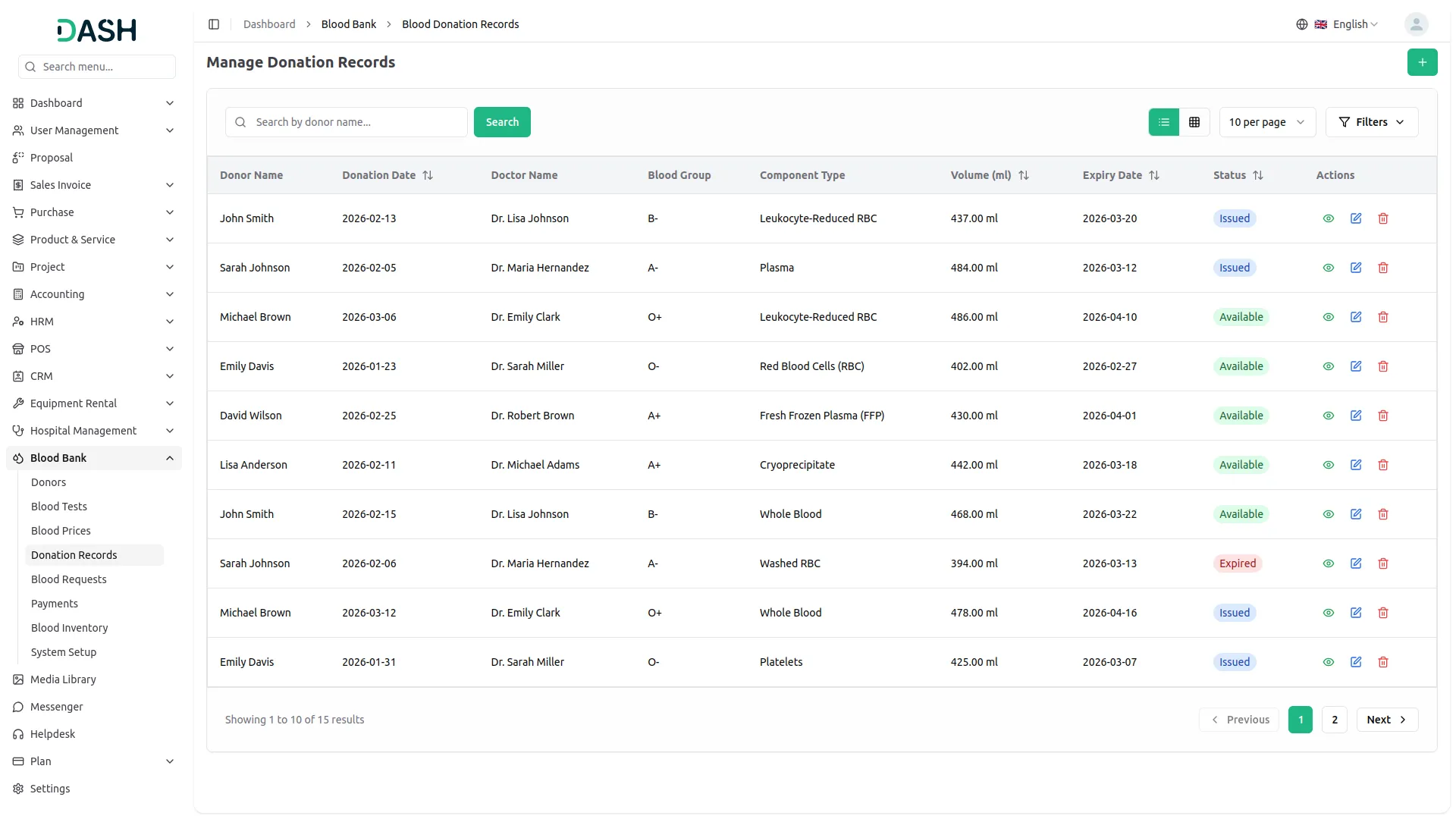
- The list page displays all donation records in a table with columns for Donor Name, Donation Date, Doctor Name, Blood Group, Component Type, Volume (ml), Expiry Date, Status, and Actions. The Status column reflects the current state of each donation, displaying it as Available, Issued, or Expired.
- Use the search bar to quickly locate a specific record by donor name. Click Filters to expand the filter panel, then apply filters using the Doctor Name dropdown, the Blood Group dropdown, the Component Type dropdown, and the Status dropdown to narrow down results. Click Apply to activate the filters or Clear to reset them. Toggle between list view and grid view using the view buttons at the top right.
- In the Actions column, use the View to see the full donation record and associated details. Use the Edit to update any donation information, and the Delete to permanently remove the donation record from the system.
Blood Request
- To create a new Blood Request, click the “Create” button on the Manage Blood Requests page. Select the Patient and Doctor from their respective dropdowns (which is populated from the Hospital Add-On).
- Enter the Hospital Name in the text field and select the Blood Group or choose Component Type from their respective dropdown (configured from the Blood Group or Component Type > System setup).
- and enter the Quantity Needed in ml. Use the date picker to set the Request Date and choose the Priority level, Low, Medium, or High, from the dropdown. Enter the complete Address in the text area. Optionally, add any relevant Notes before clicking Create to save the record.
- The list page displays all blood requests in a table with columns for Patient Name, Doctor, Hospital, Blood Group, Quantity, Request Date, Priority, Payment Status, and Actions. The Priority column displays each request’s urgency as Low, Medium, or High, while the Payment Status column shows whether the payment is Pending or Paid.
- Use the search bar to quickly locate a specific record by blood request details. Click Filters to expand the filter panel, then apply filters using the Doctor Name dropdown, the Status dropdown, the Priority dropdown, and the Request Date Range picker to narrow down results. Click Apply to activate the filters or Clear to reset them. Toggle between list view and grid view using the view buttons at the top right.
- In the Actions column, use the Payment to process payment for the request. Use the View to see the full request details. Use the Edit to update any request information, and the Delete to permanently remove the blood request from the system.
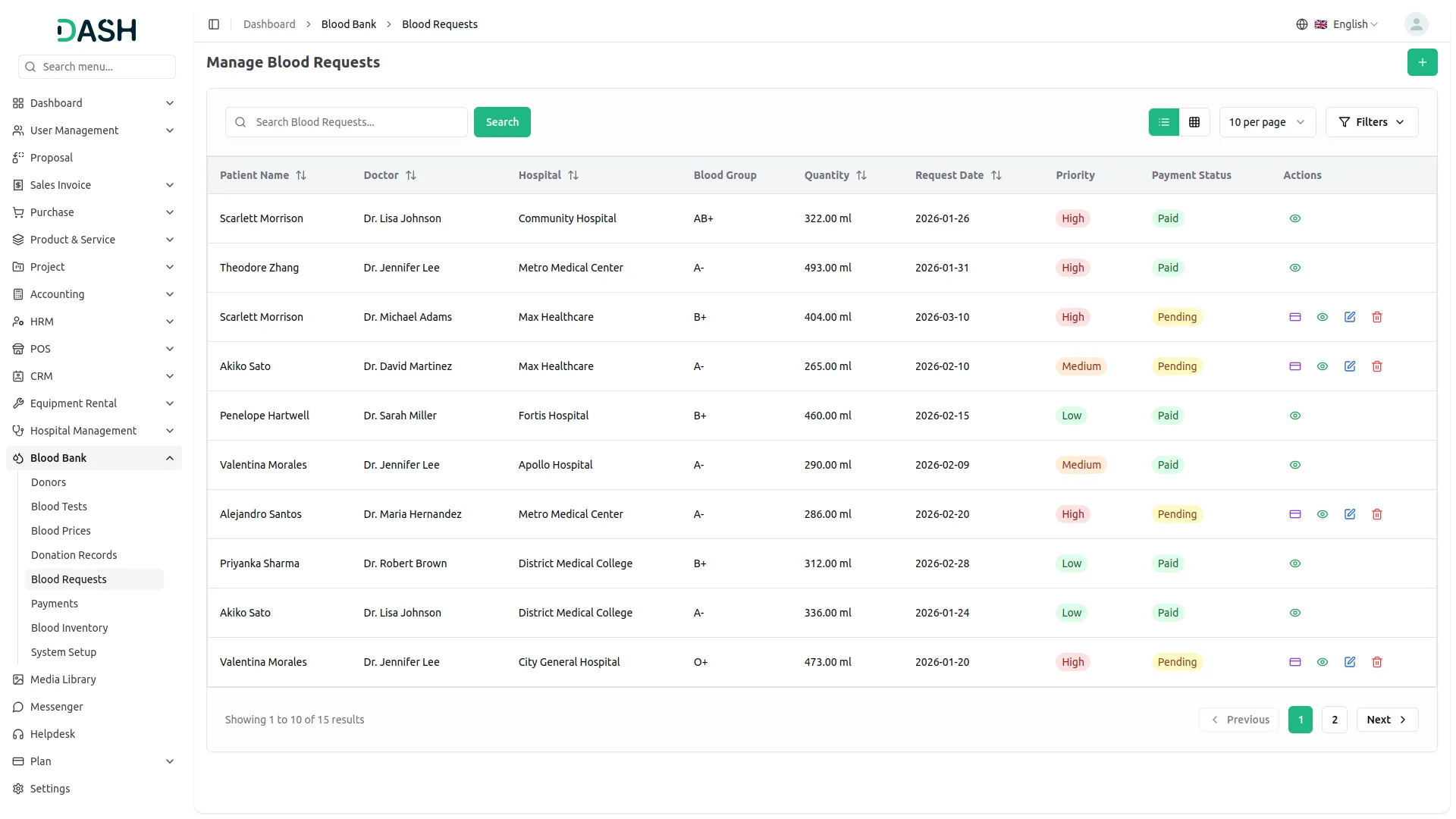
- When you click Payment, the Payment Amount will be automatically filled based on the selected request. Choose the Payment Method and confirm the Payment Date using the date picker.
- The Patient Name will be auto-populated. You may optionally enter a Reference Number and select a Bank Account from the dropdown menu. If needed, add a Description in the text area. Click Add Payment to complete the transaction.
- Note: Once a payment has been processed, the blood request can no longer be edited or deleted.
Blood Request Payments
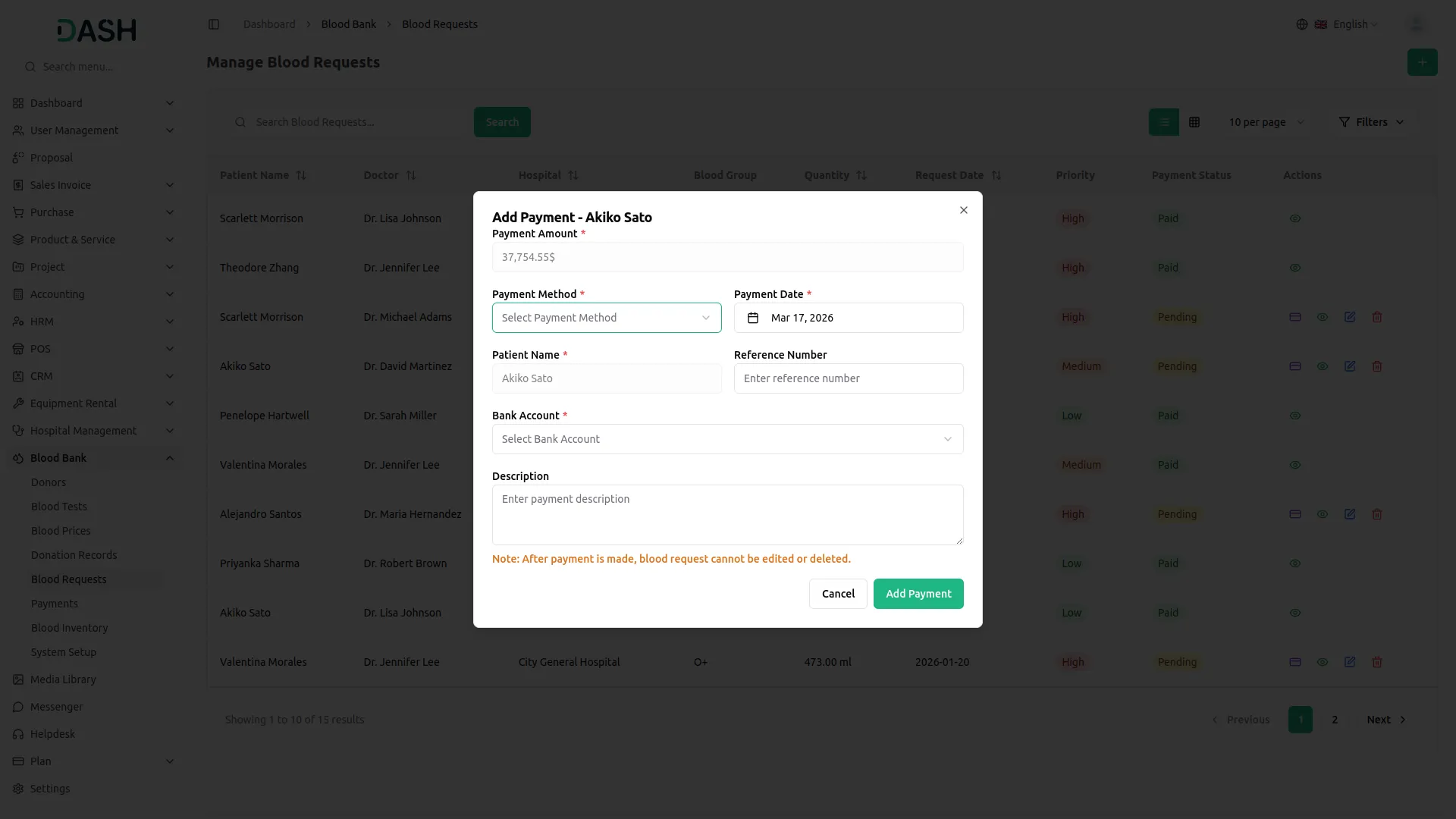
- The Blood Request Payments page displays all payment records associated with blood requests in a table with columns for Patient Name, Payment Amount, Payment Method, Payment Date, Status, and Actions. The Status column reflects the current state of each payment, showing it as either Draft or Approved.
- Use the search bar to quickly locate a specific payment record by patient name. In the Actions column, use Approve to confirm and approve a Draft payment. Use the View to see the full payment details. Use the Delete to permanently remove the payment record from the system.
- Note: once a payment is Approved, only the View option remains available for that record.
Blood Inventory
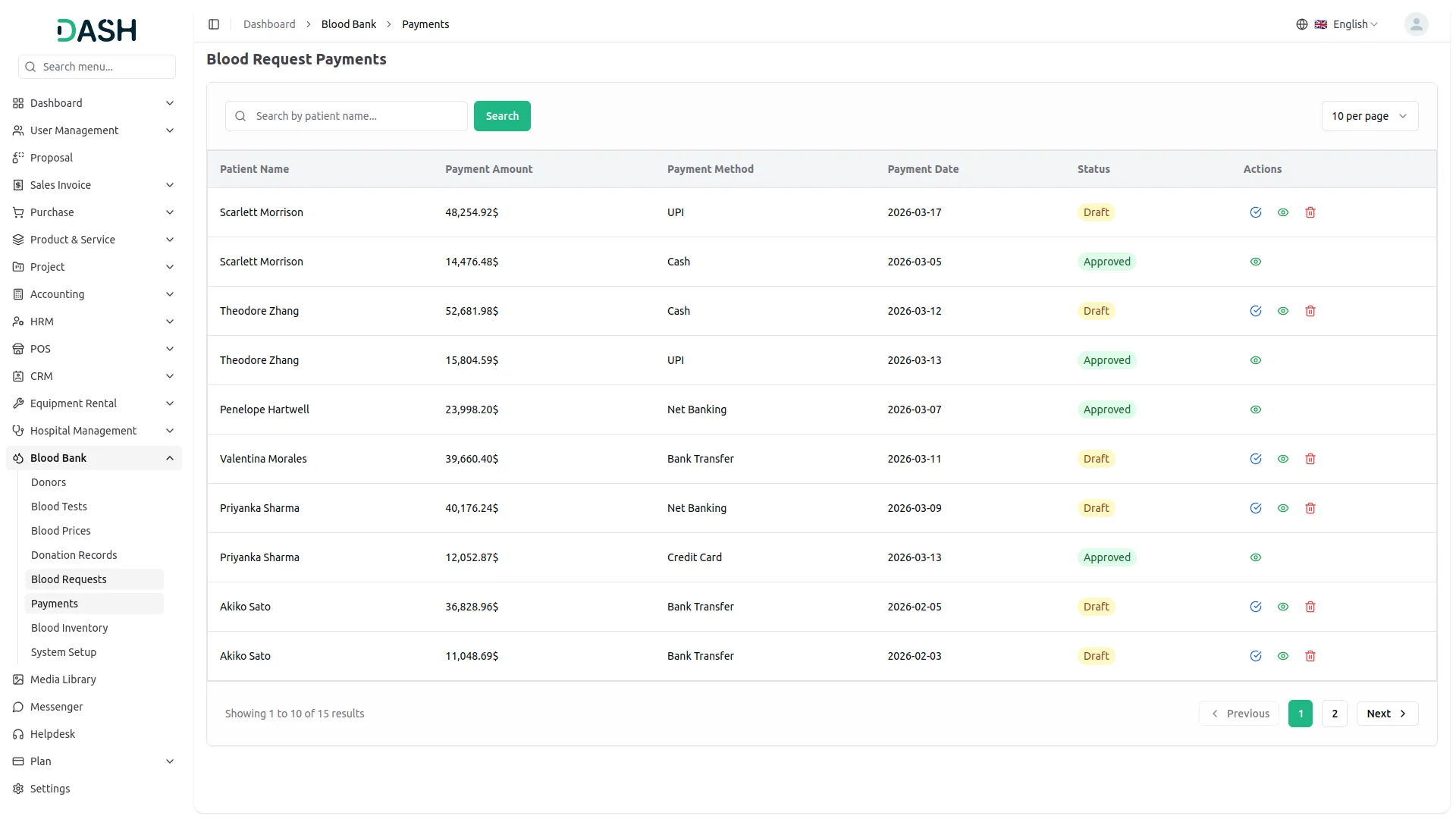
- The Blood Inventory page provides a consolidated view of all blood stock organized by blood group. The table displays columns for Blood Group, Total Quantity (ml), Donations, Remaining (ml), Sold (ml), and Revenue, giving a complete picture of inventory levels and financial performance for each blood group.
- Use the search bar to quickly locate a specific blood group. Toggle between list view and grid view using the view buttons at the top right.
- In the Actions column, use the Donor Details to view the full breakdown of individual donation records associated with that blood group. Use the Patient Requests to view all blood requests submitted for that blood group.
Donor Details
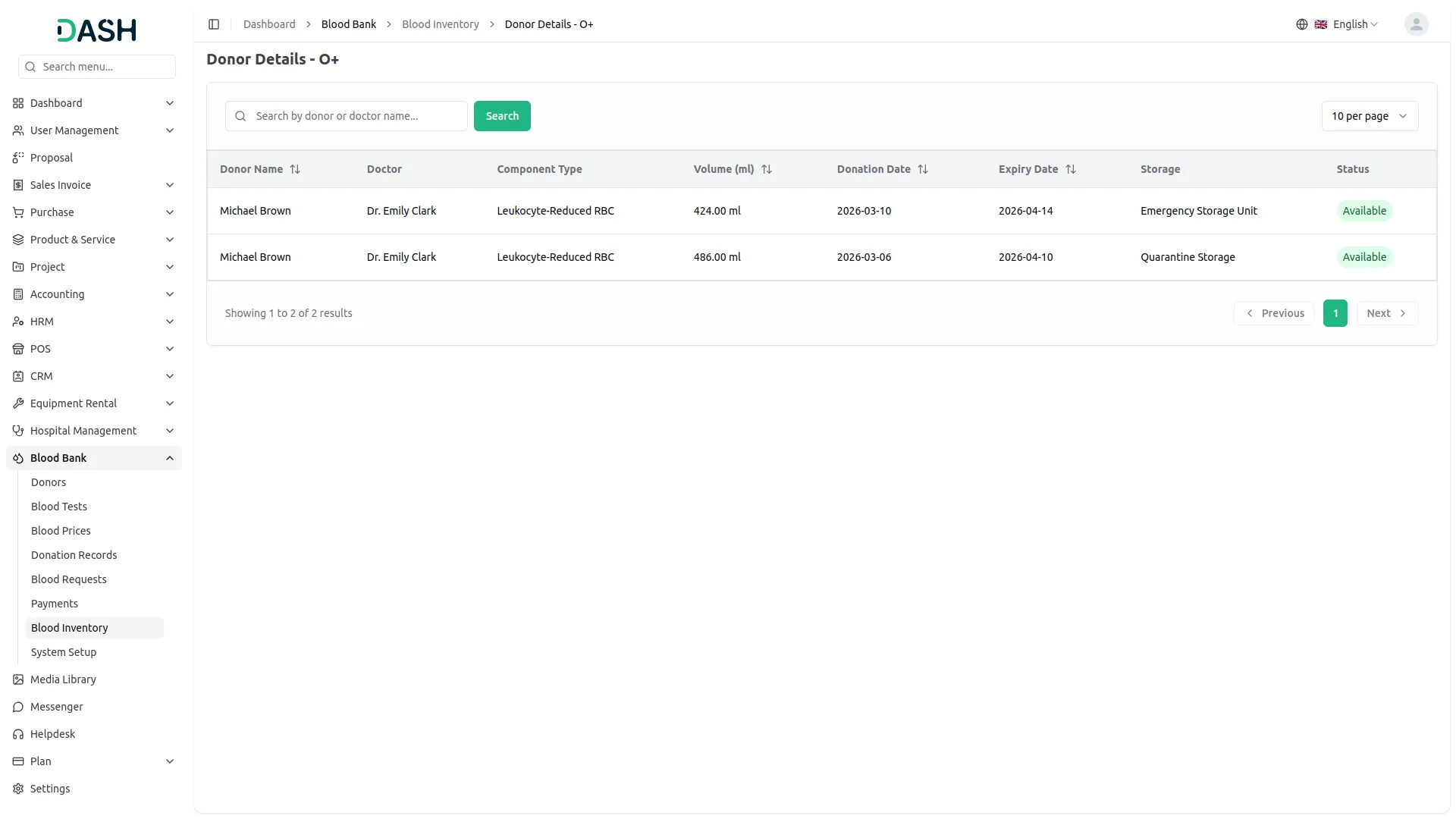
- The Donor Details page displays all donation records linked to a specific blood group. The table includes columns for Donor Name, Doctor, Component Type, Volume (ml), Donation Date, Expiry Date, Storage, and Status, providing a detailed overview of each donation’s current availability and storage location.
- Use the search bar to locate a specific record by donor or doctor name.
Patient Requests
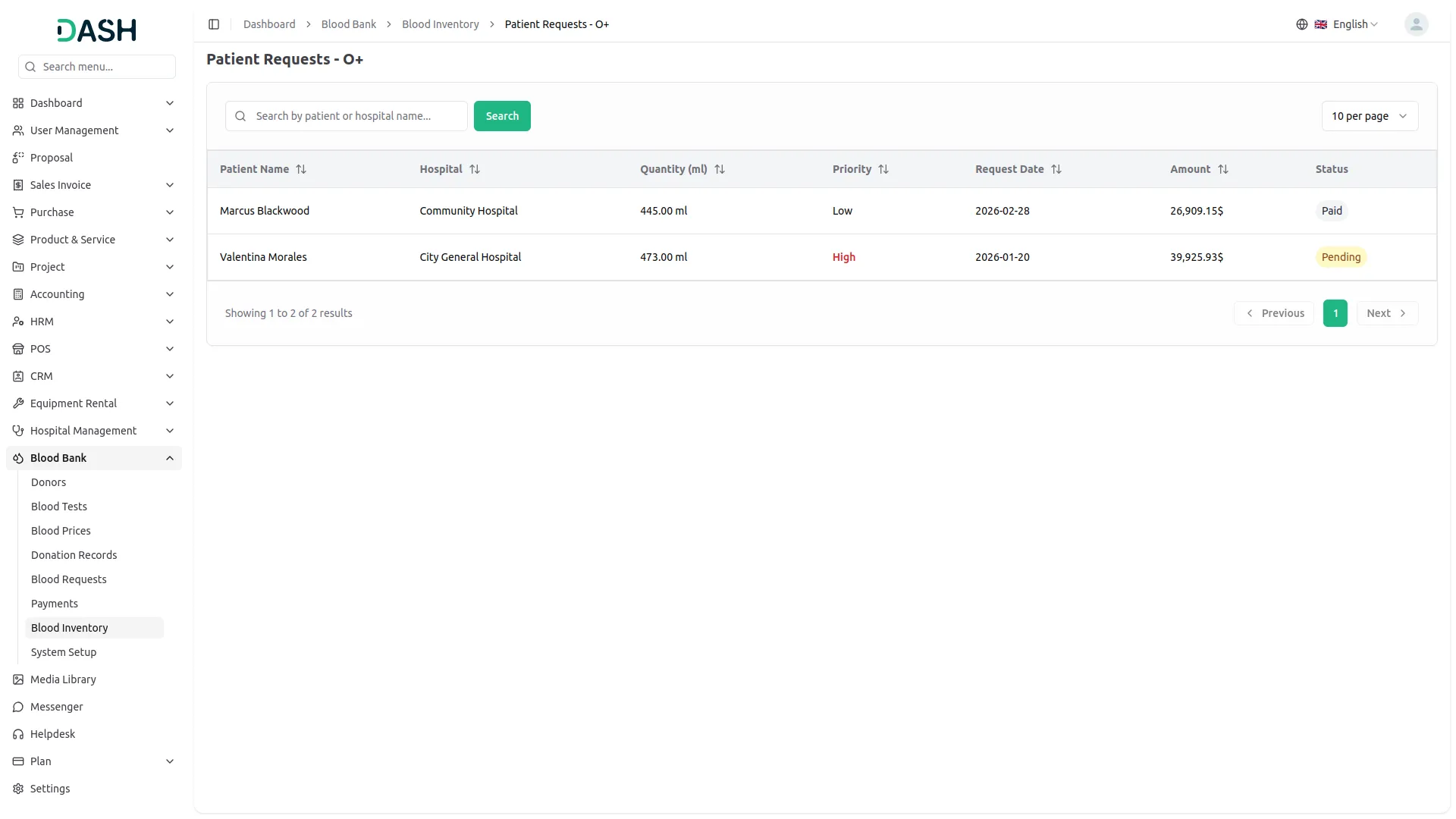
- The Patient Requests page displays all blood requests associated with a specific blood group. The table includes columns for Patient Name, Hospital, Quantity (ml), Priority, Request Date, Amount, and Status, providing a clear view of pending and fulfilled requests for that blood group. The Status column reflects each request’s current payment state as either Pending or Paid.
- Use the search bar to locate a specific record by patient or hospital name.
Categories
Related articles
- Midtrans – WorkDo Dash SaaS Add-On Guide
- Helpdesk – eCommerceGo SaaS Add-On Guide
- OneNote – WorkDo Dash SaaS Add-On Guide
- Google Map URL – vCard SaaS Add-On Guide
- Store Locator – eCommerceGo SaaS Add-On Guide
- Mobile Service Management – WorkDo Dash SaaS Add-On Guide
- Review Reminder – eCommerceGo SaaS Add-On Guide
- Rocket.Chat – WorkDo Dash SaaS Add-On Guide
- Skrill – BookingGo SaaS Add-On Guide
- Consignment – WorkDo Dash SaaS Add-On Guide
- Campaign – eCommerceGo SaaS Add-On Guide
- Support Ticket – BookingGo SaaS Add-On Guide
We're Here to Help - Let's Talk
Have questions about our solutions, customization services, or business tools? Our team is here to help you. let's talk.