
Google Wallet – WorkDo Dash SaaS Add-On Guide
Learn how to configure and manage Google Wallet features in WorkDo Dash SaaS.
Introduction
Google Wallet is a digital wallet integration section that allows you to add business cards from the vCard Add-On directly to Google Wallet. This section enables users to save and share digital business cards through Google’s wallet platform, making it easy to store and access contact information on mobile devices.
Note: This Add-On is dependent on the vCard Add-On, so you need to purchase it first.
How to Install the Add-On?
To Set Up the Google Wallet Add-On, you can follow this link: Setup Add-On.
How to use the Google Wallet Add-On?
Google Wallet Settings Configuration
- Go to the Settings and find Google Wallet. Enter the Google Wallet Issuer ID and upload the Google Wallet JSON file to connect your account. This will enable your system to integrate seamlessly with Google Wallet services. Once configured, use the sidebar to search for Google Wallet and access all available features.
- You can also download the uploaded JSON file.
- To generate your API credentials, follow the link below: https://workdo.io/documents/google-wallet-settings
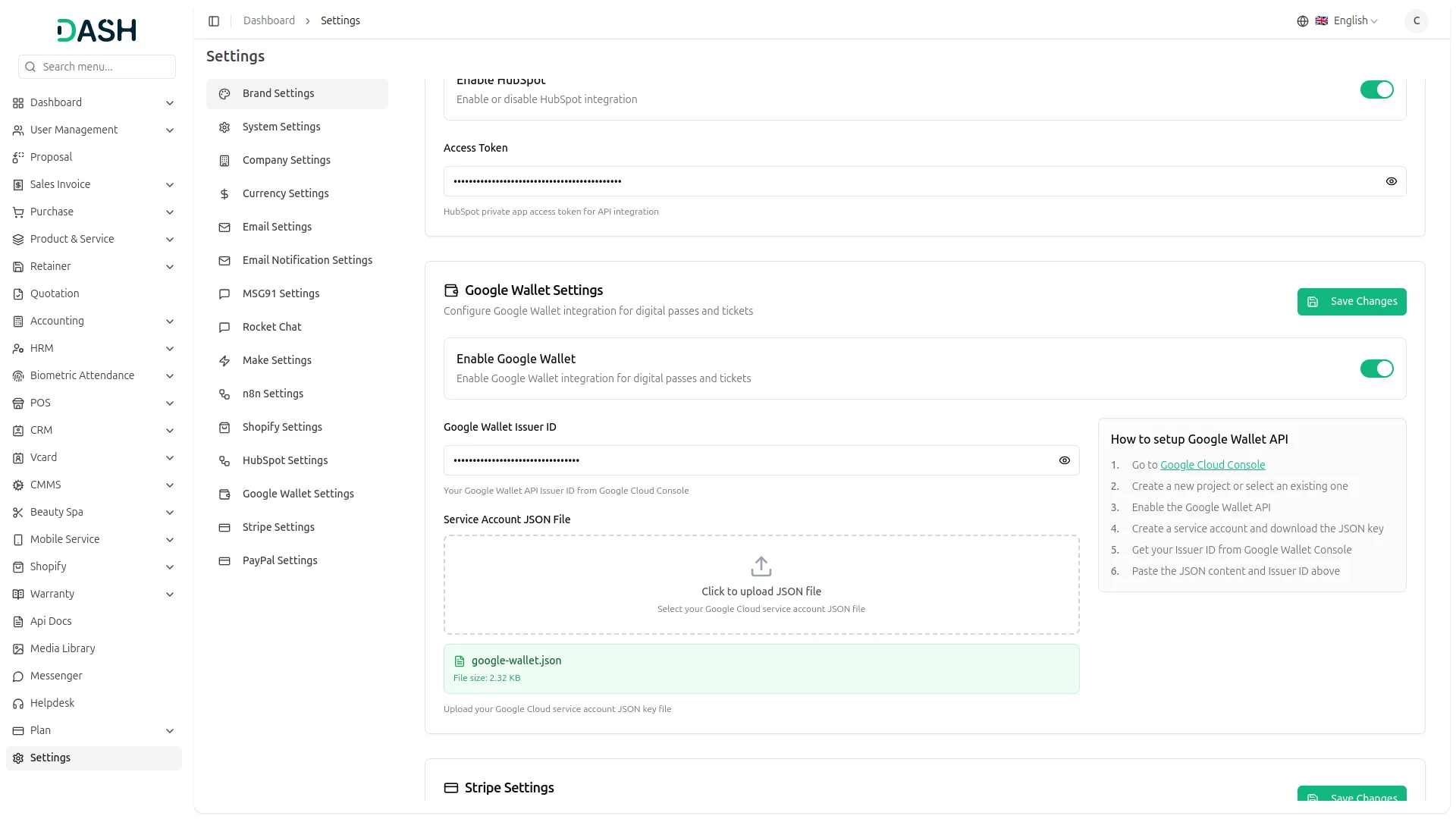
Google Wallet
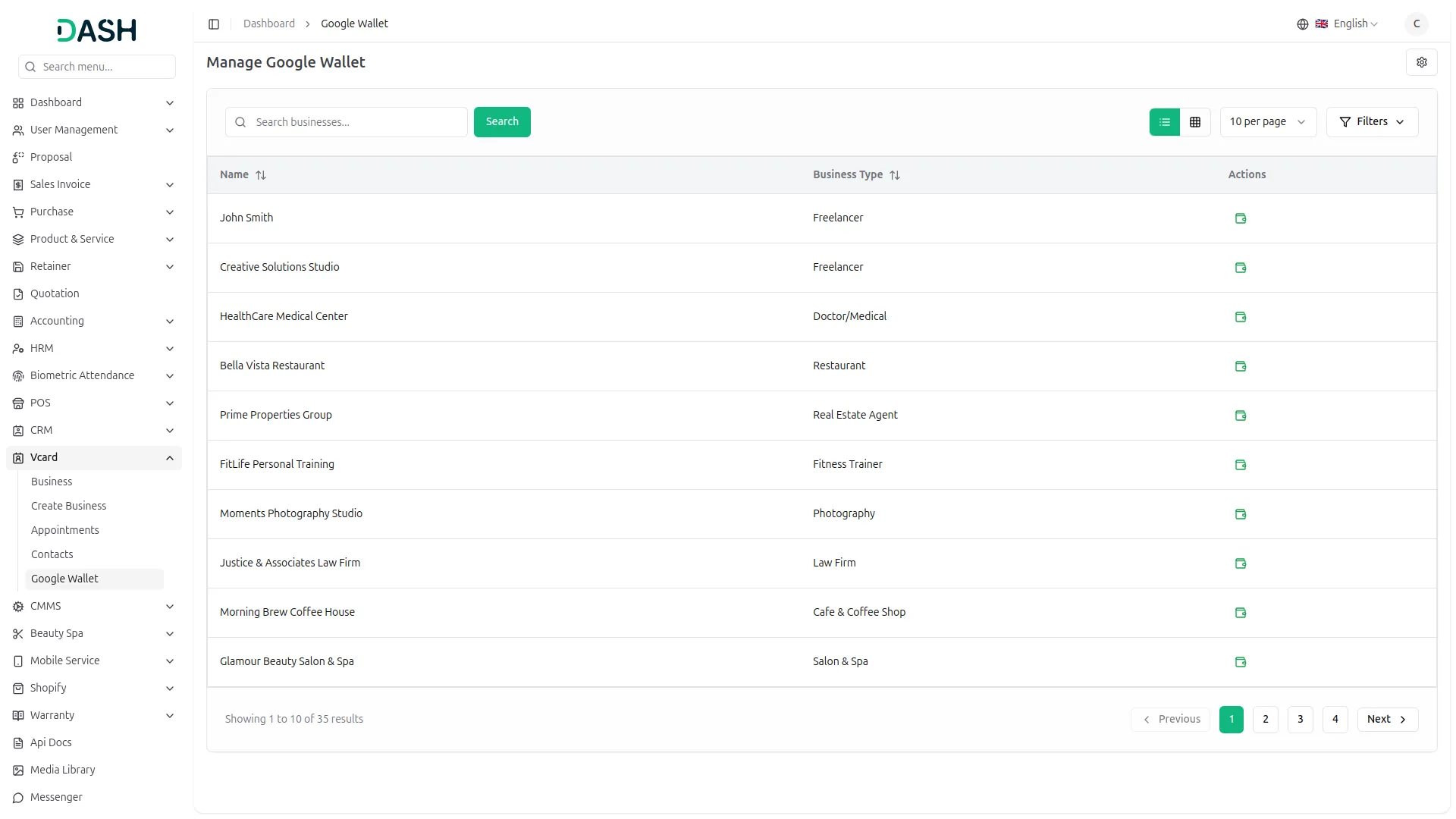
- Once the Settings Configuration is complete, go to the sidebar and search for Google Wallet inside the vCard Add-On. This section allows you to manage and add your business cards to Google Wallet with ease.
- When you click on Google Wallet, you will see a list of all businesses you have created within the vCard Add-On. Each business will have its own card ready to be connected. From this list, simply select the business card you wish to add to Google Wallet.
- If you want to add any business card to Wallet, simply click on the Add to Google Wallet button. The system will process your request and securely add the selected business card to your Google Wallet account. This ensures that your card is digitally stored and ready to use at any time. After configuring the settings, you can click the Google Wallet button.
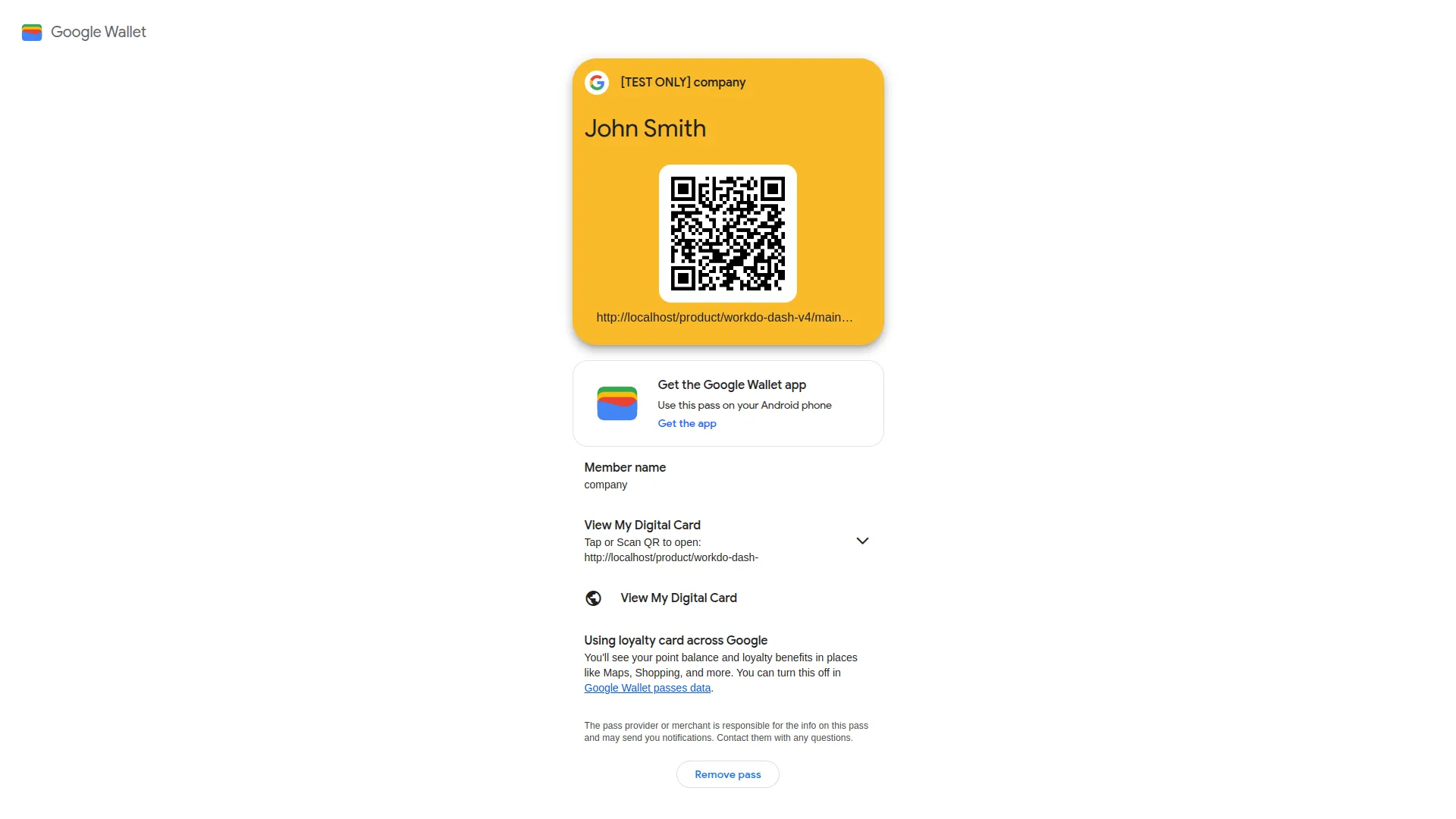
- Once the process is complete, open the Google Wallet app on your device to view the newly added card.
Categories
Related articles
- ZitaSMS – WorkDo Dash SaaS Add-On Guide
- Benefit – WorkDo Dash SaaS Add-On Guide
- User Management, Roles & Permissions Guide
- Mail2Ticket – TicketGo Add-On Guide
- SinchSMS – WorkDo Dash SaaS Add-On Guide
- Telegram – TicketGo Add-On Guide
- Outlook Calendar – WorkDo Dash SaaS Add-On Guide
- User Manual – Taskly
- User Manual – eCommerceGo SaaS
- Fast2SMS – WorkDo Dash SaaS Add-On Guide
- eSewa – WorkDo Dash SaaS Add-On Guide
- Google Authentication – WorkDo Dash SaaS Add-On Guide
We're Here to Help - Let's Talk
Have questions about our solutions, customization services, or business tools? Our team is here to help you. let's talk.