
Beverages Production System Integration in Dash SaaS
Transform your beverage production operations with the Beverages Production System, a comprehensive solution designed to enhance every stage of your workflow.
Introduction
Transform your beverage production operations with the Beverage Management System, a comprehensive solution designed to streamline every aspect of your manufacturing workflow. From managing collection centers and tracking raw materials to defining precise recipes with Bill of Materials, the platform ensures consistency and quality throughout your production cycle. It supports efficient manufacturing schedules, monitors inventory levels, manages quality control processes, and provides detailed insights to optimize productivity. The system covers the complete production lifecycle from raw material procurement to final packaging, waste management, and maintenance tracking.
How to Install the Add-On?
To Set Up the Agriculture Management Add-On, you can follow this link: Setup Add-On
How to use the Beverages Production System Add-on?
- After purchasing the Add-On, go to the sidebar of your Dash SaaS dashboard and type “Beverage Production System” into the search bar to quickly find the Add-On.
- Once the Add-On opens, you will find multiple pages listed in the sidebar, each representing a specific section of the beverage production workflow.
Collection Centers
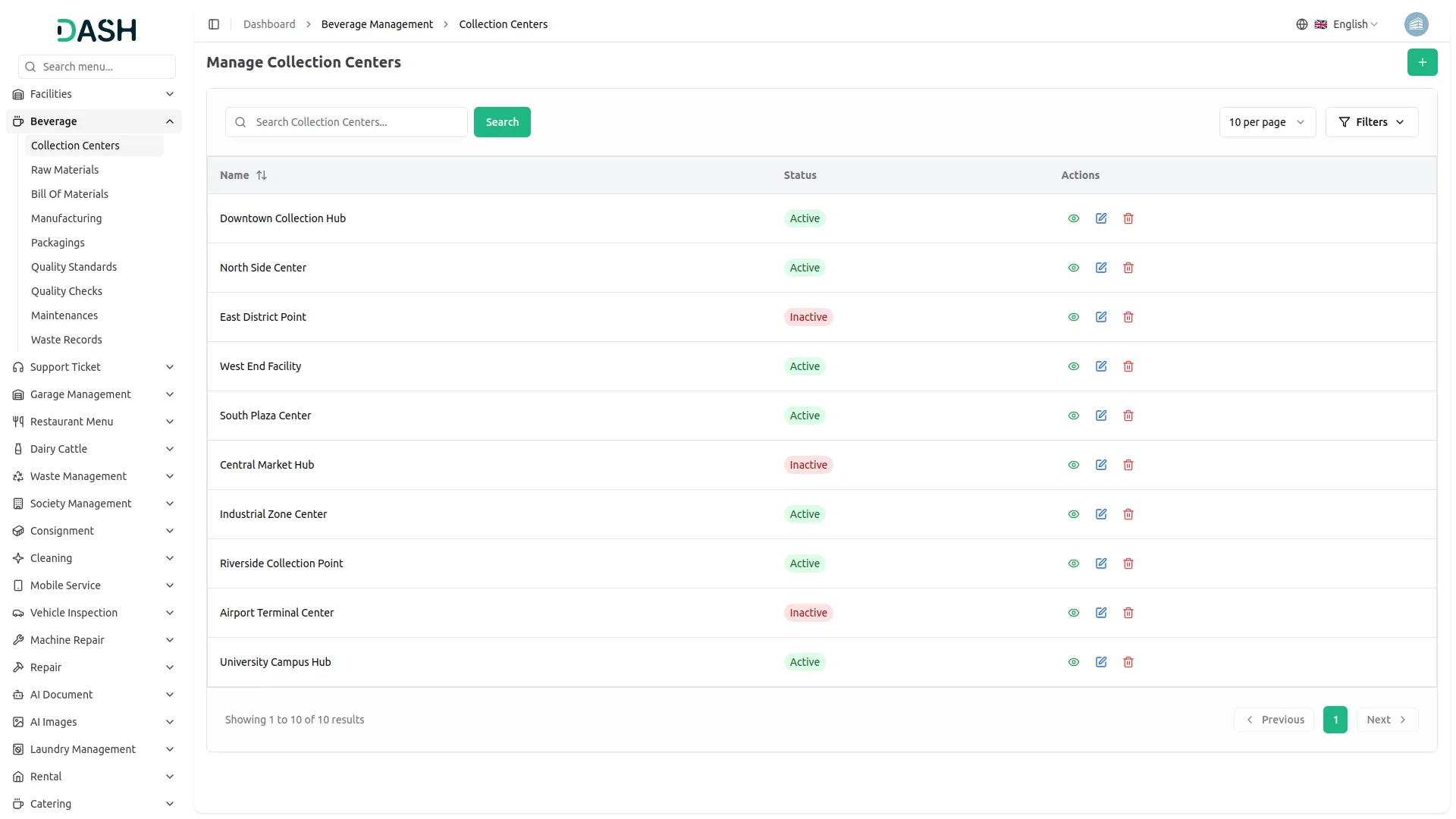
- The first page in the Add-On is for managing Collection Centers, where you can define and maintain the physical locations responsible for storing raw materials and managing inventory.
- To create a new collection center, click on the “Create” button at the top of the page, enter the Location Name in the required field, and set its Status as either Active or Inactive using the dropdown menu.
- After the collection center is created, all relevant details will be displayed in a table format showing the ID, Location Name, Status with color-coded badges, Created Date, and Actions column for management options.
- From the action column, you can: View Stock See all stock details linked to that collection center, Edit Update the center information including name and status, Delete Remove the center when no longer needed
- The system provides search functionality to find centers by location name and filter options to view centers by their active/inactive status.
Raw Materials
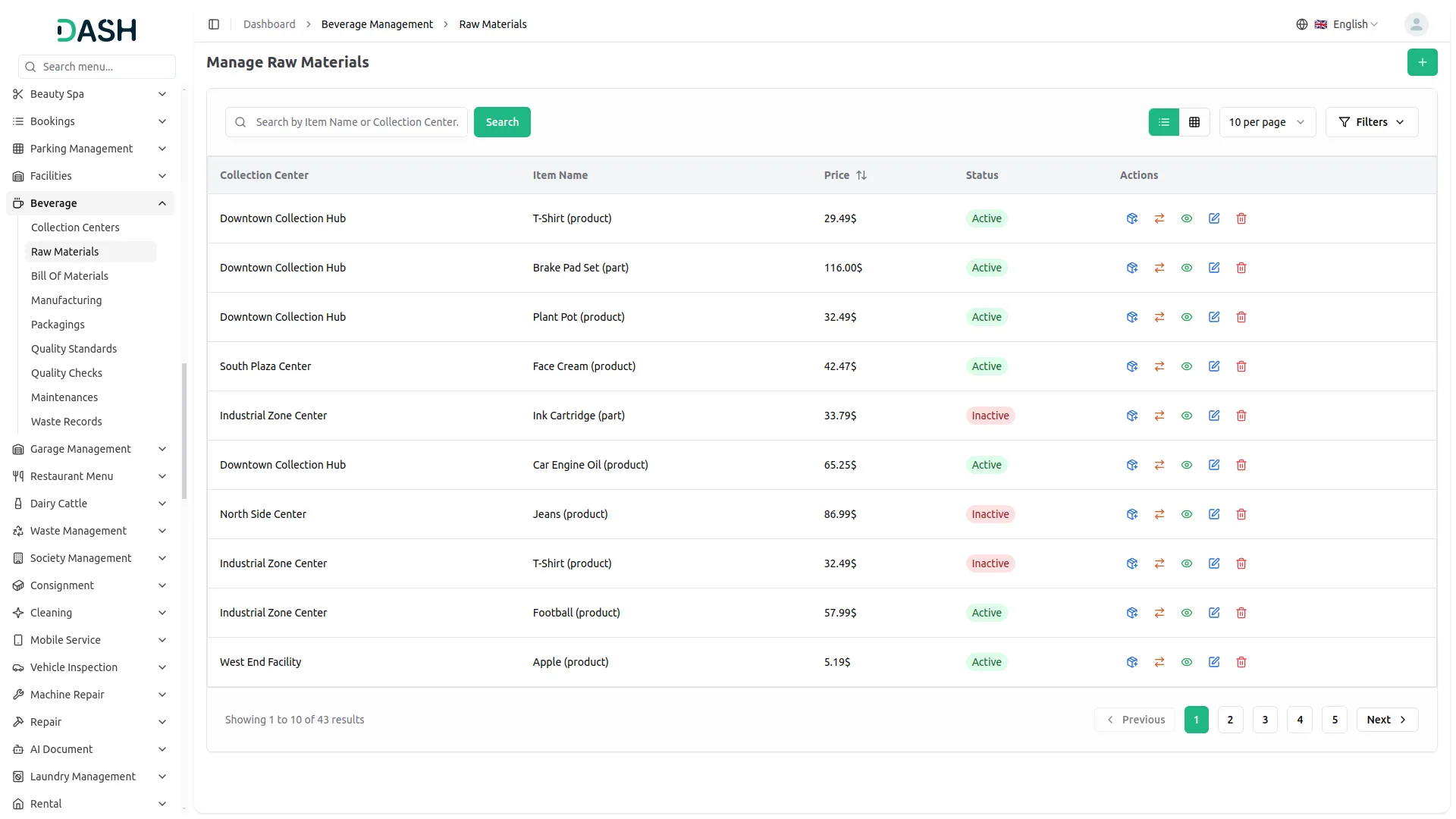
- On the Raw Materials page, you can create and track all raw materials used in beverage production, ensuring each is linked to a specific collection center for proper inventory management.
- Click the “Create” button at the top of the page, then select the appropriate Collection Center from the dropdown, choose the Product from the available ProductService items, and set the Status as Active or Inactive.
- Once these fields are selected, the system will automatically display the Base Price, Tax Amount, Final Price (base plus tax), Unit, Tax Rate, Description, and Product Image if available.
- The raw materials are displayed in both List View (table format) and Grid View (card format), showing the Collection Center, Item Name with type, Price with currency formatting, Status with color badges, and Created Date.
- The action column includes specialized buttons for: Add Stock – Increase inventory levels with quantity input and notes, Move Stock – Transfer materials between collection centers with source/destination selection, View – Display complete material details, Edit – Modify material information and pricing, Delete – Remove obsolete materials
- Search and filter capabilities include searching by Item Name or Collection Center, filtering by specific Item Name from dropdown, filtering by Collection Center, and filtering by Status.
Bills of Materials
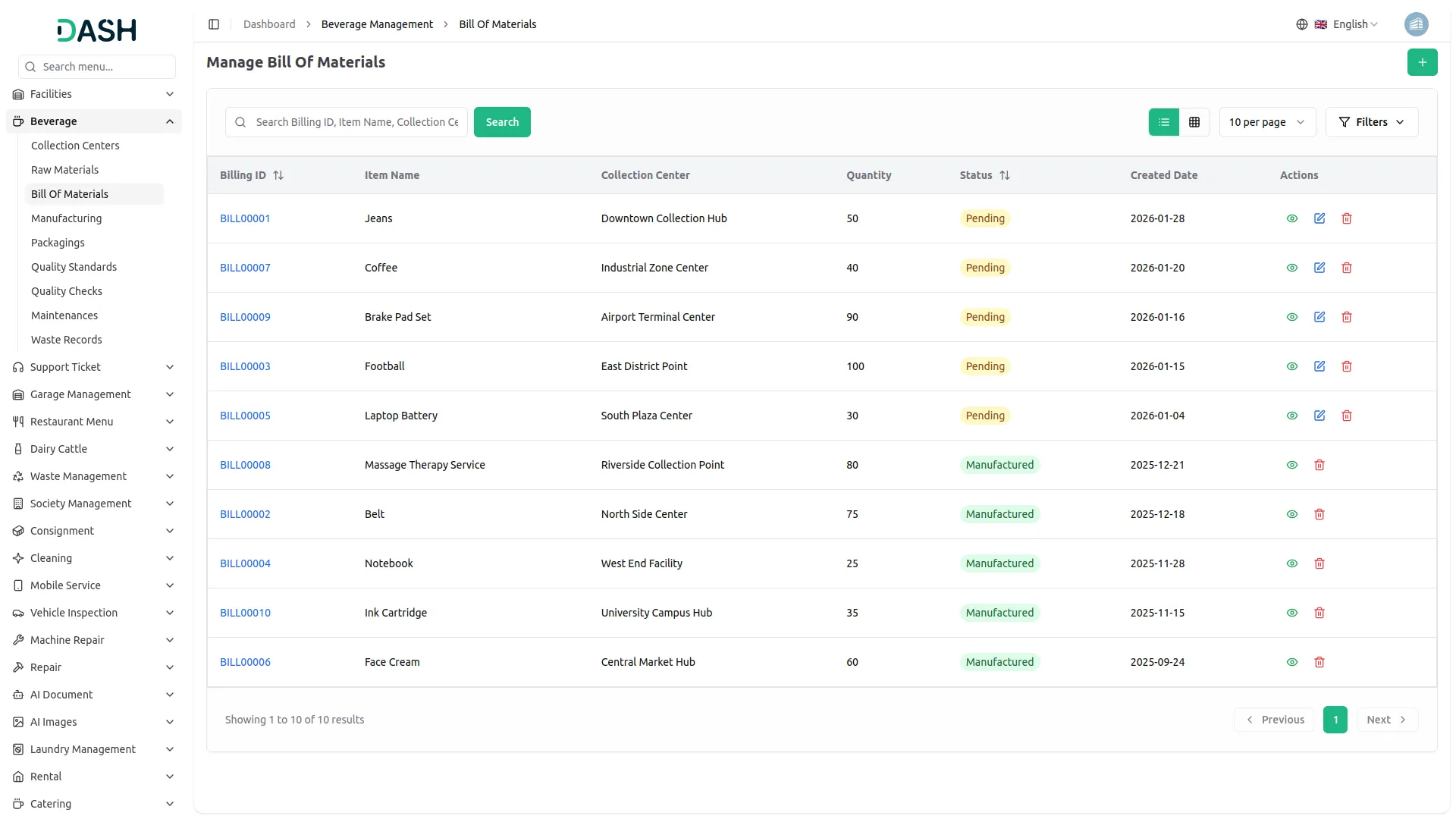
- The Bill of Materials section allows you to define recipes and specify exact material requirements for each beverage product you manufacture.
- Click the “Create” button at the top, then select the Final Product from the dropdown, choose the Production Collection Center, enter the Total Quantity to be manufactured, and add required Raw Materials by selecting each one and entering specific quantities.
- For each raw material in the recipe, select the Raw Material from available inventory, enter the Required Quantity, and the system automatically calculates Unit Price and Sub Total. You can use the “New Item” button to add more materials to the recipe before saving the bill of material.
- After creation, each BOM receives an auto-generated Billing ID in BILL00001 format and displays status indicators with color-coded badges for Pending (Yellow), Manufactured (Green), and Cancelled (Red).
- The action column provides options to: View – Complete BOM breakdown with all materials and costs, Edit – Modify recipes (only available for Pending status), Delete – Remove unused recipes, Print – Generate printable BOM documents
- Search and filter options include searching by Billing ID, Item Name, or Collection Center, and filtering by specific Item, Collection Center, and Status.
Manufacturing
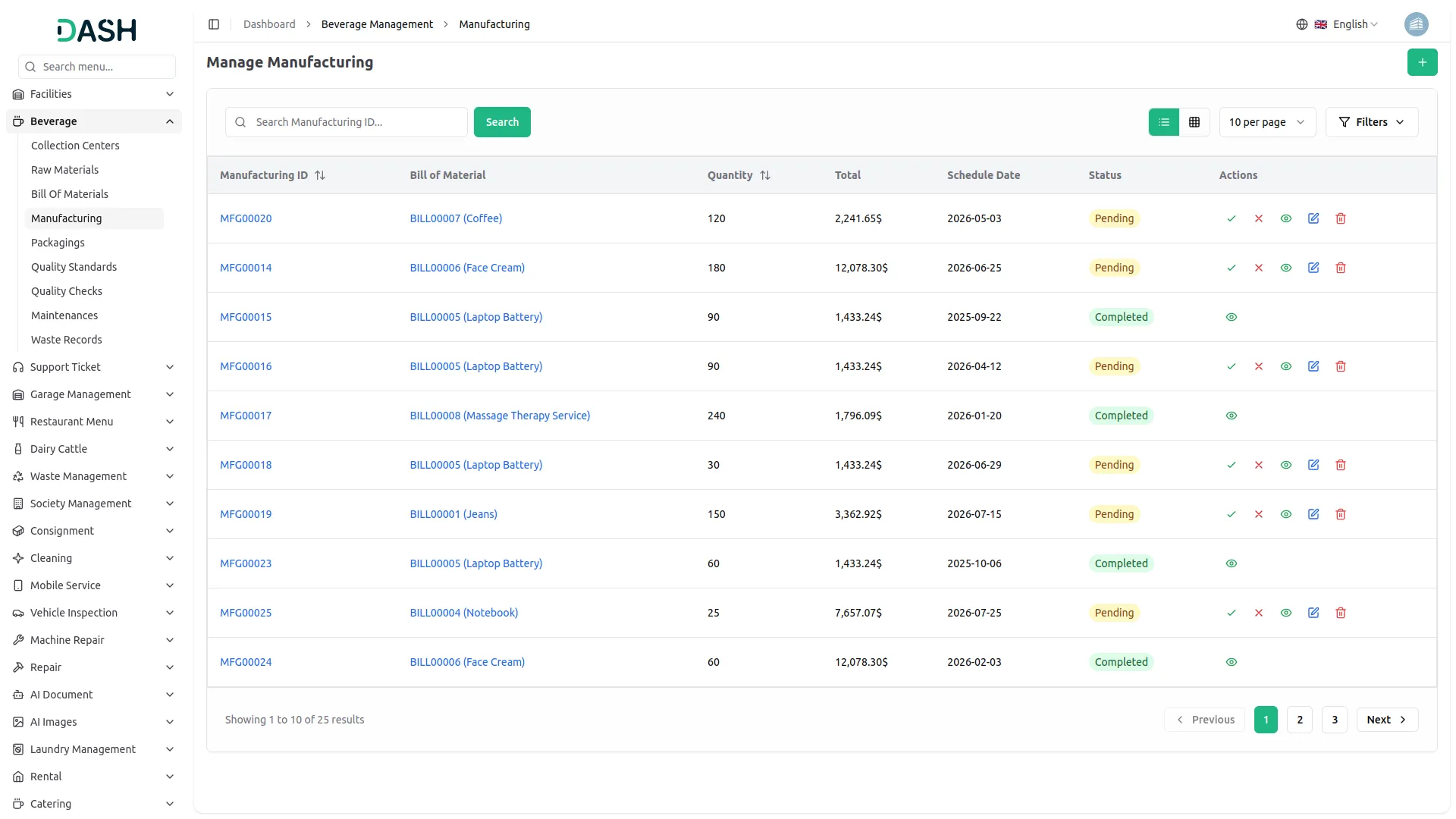
- The Manufacturing page handles the actual production process based on your defined Bill of Materials.
- Click on the “Create” button and select a Bill of Material from the dropdown, choose the Production Collection Center, specify the Product to be manufactured, enter the Scheduled Production Date, and set the Production Quantity.
- As soon as these fields are completed, the system automatically displays all Required Raw Materials based on the selected BOM, calculates the Total Production Cost, and shows material availability from the selected collection center.
- Each manufacturing order receives an auto-generated Manufacturing ID in MFG00001 format and displays status tracking with color-coded badges for Pending (Yellow), Completed (Green), and Cancelled (Red).
- The action column includes options to: Complete – Mark production as finished (Pending orders only), Cancel – Terminate production (Pending orders only), View – Display detailed production records, Edit – Modify production parameters (Pending orders only), Delete – Remove orders (not allowed for completed orders)
- Search and filter features include searching by Manufacturing ID and filtering by Bill of Material and Status.
Packaging
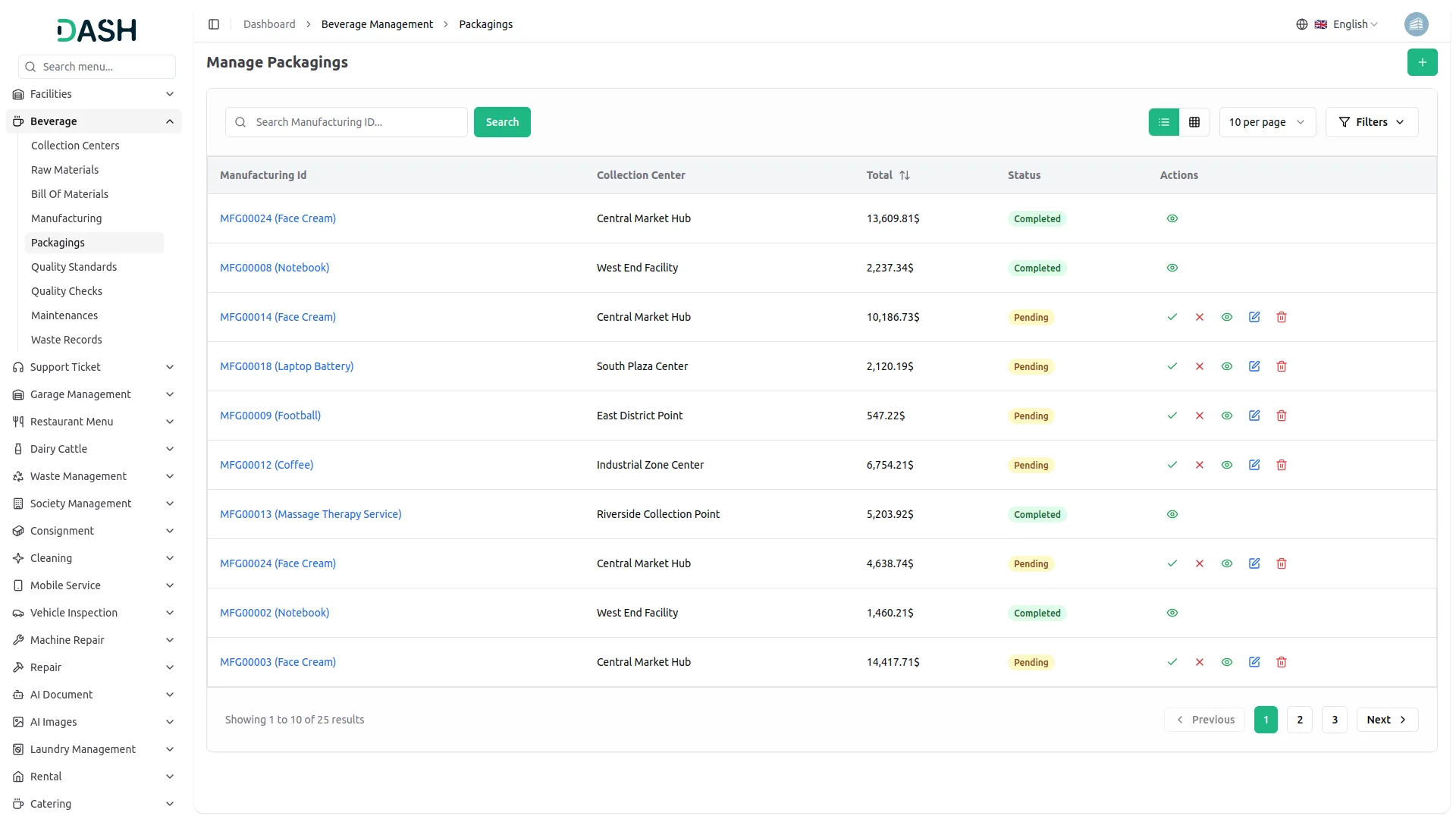
- The Packaging section manages the final packaging process for your manufactured beverages.
- To create a new packaging entry, click on the “Create” button at the top of the page, then select the Manufacturing Order from the dropdown, choose the Collection Center where packaging will take place, enter the Total Packaging Cost, and set the initial Status.
- Once the packaging entry is created, it appears in the list showing the Manufacturing Order reference, Collection Center, Total Cost with currency formatting, Status with color badges, and Created Date.
- The action column provides options to: Complete – Mark packaging as finished with confirmation, Cancel – Mark packaging as cancelled with confirmation, View – Display complete packaging details, Edit – Modify packaging specifications, Delete – Remove packaging records, Print – Generate packaging documents
Quality Control
Quality Checks
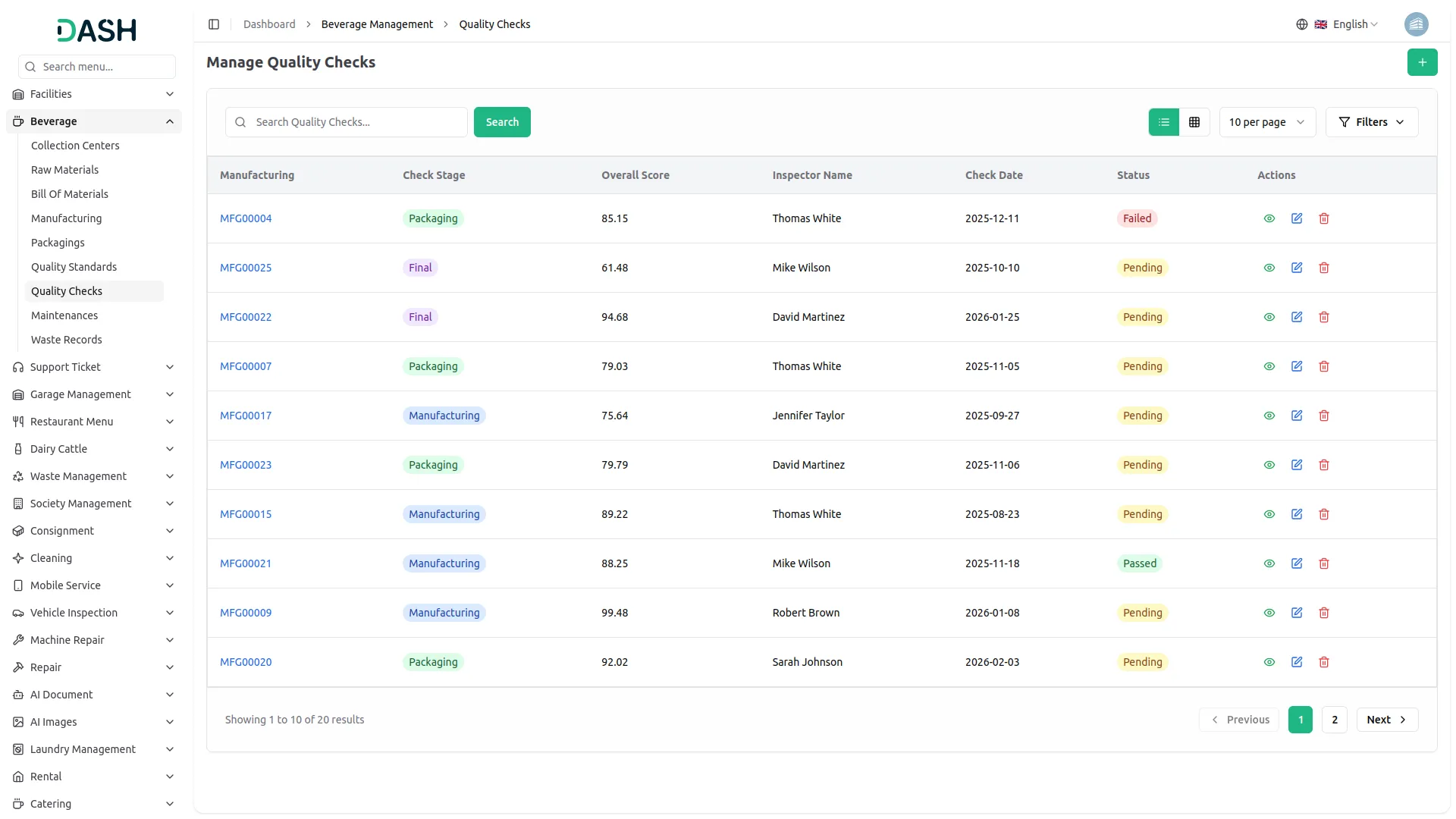
- On the Quality Checks page, you can perform actual quality inspections and record test results against established standards.
- Click the “Create” button and select the Manufacturing Order, choose Associated Packaging if applicable, set the Check Stage (Manufacturing, Packaging, or Final), enter the Check Date, record the Overall Quality Score, add the Inspector Name, include detailed Notes about the inspection, and set the Status as Pending, Passed, or Failed.
- The action column allows you to: View – Complete test results and quality documentation, Edit – Update test results and inspection details, Delete – Remove test records, Print – Generate quality certificates
- Search and filter options include searching by Inspector Name and filtering by Manufacturing Order, Check Stage, and Status.
Quality Standards
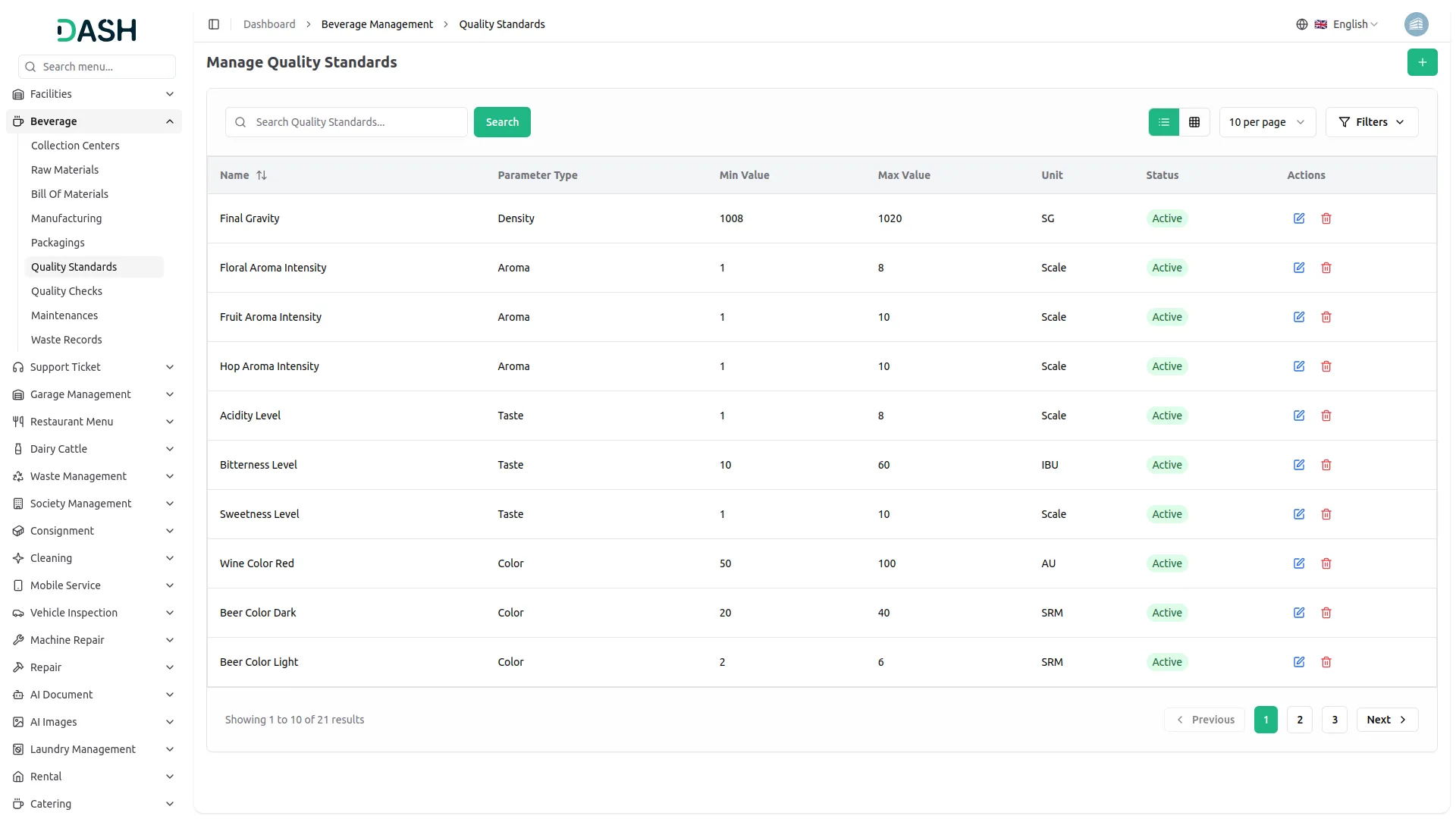
- Use the Quality Standards page to establish reference criteria and acceptable ranges for quality measurements.
- Click on the “Create” button and select the Manufacturing Order, enter the Standard Name, choose the Parameter Type from available options (pH, Temperature, Alcohol Content, Density, Color, Taste, or Aroma), specify Minimum Value and Maximum Value, enter the Measurement Unit, and set as Active or Inactive.
- Standards are shown with color-coded parameter type badges for easy identification, Min/Max value ranges, and Active/Inactive status indicators. The system provides search by name and filtering by parameter type.
Maintenance
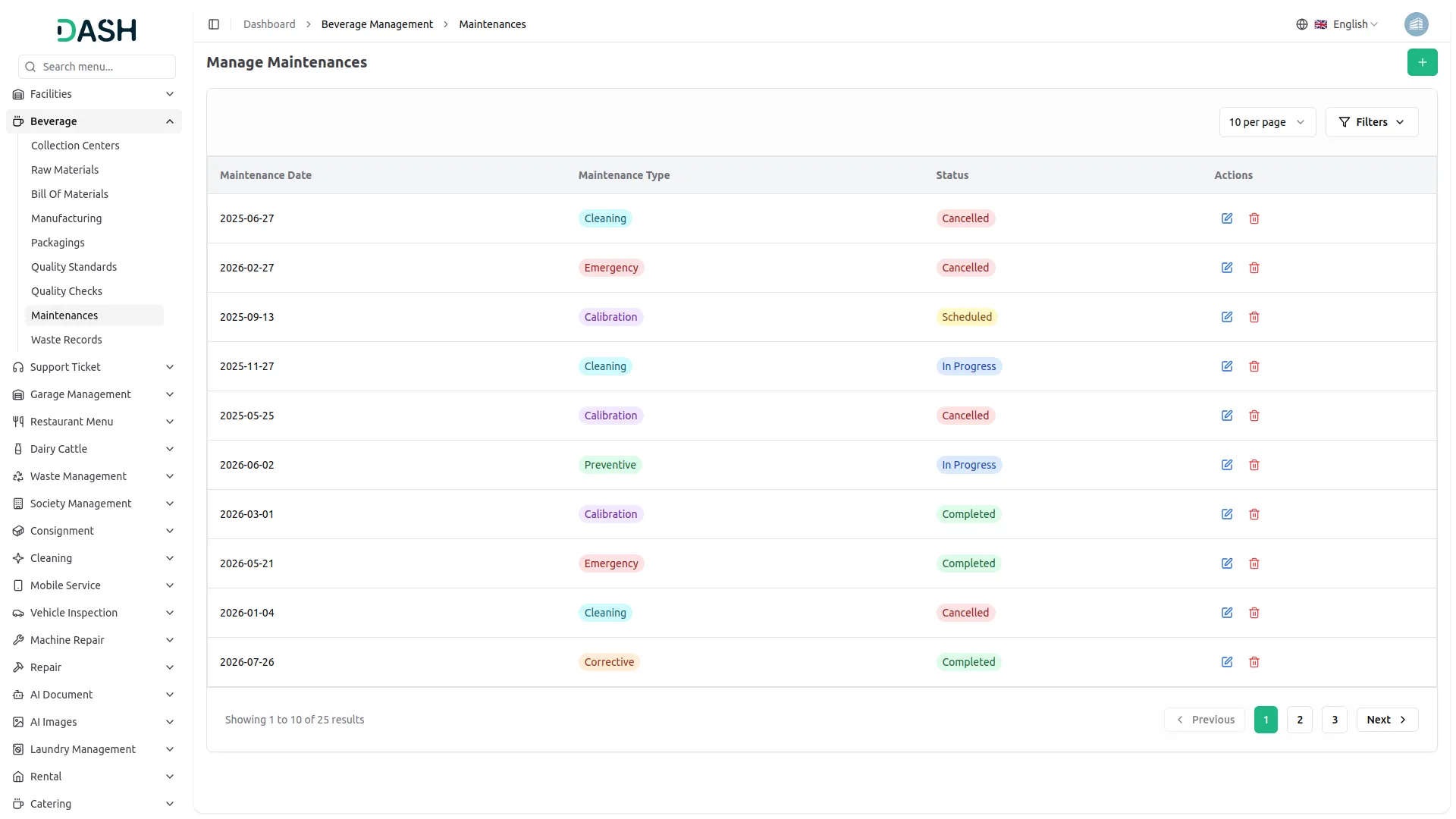
- The Maintenance page is used to schedule and record upkeep activities for production equipment and facilities.
- To add a maintenance entry, click the “Create” button, then select the Maintenance Date, choose the Type of Maintenance (Preventive, Corrective, Emergency, Calibration, or Cleaning), set the Current Status (Scheduled, In Progress, Completed, or Cancelled), and enter detailed Comments about the maintenance work.
- All maintenance records are listed with color-coded badges for maintenance type and status, maintenance date and detailed comments, along with action options to edit or delete records.
- Filter capabilities include filtering by Maintenance Type and filtering by Status.
Waste Records
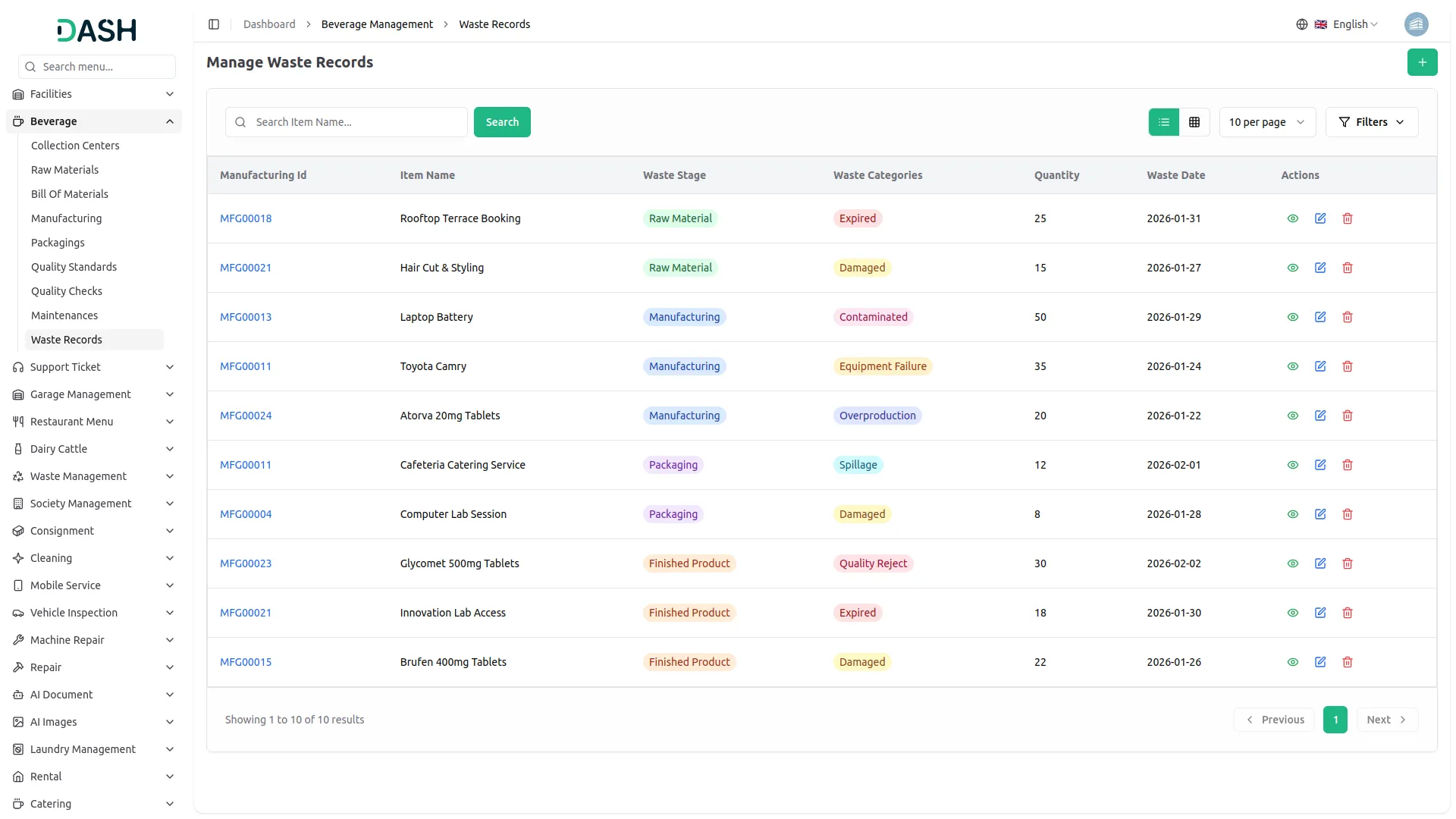
- The Waste Records page allows you to document and manage instances of material or product wastage during any stage of the production process.
- Click the “Create” button and select the Manufacturing Order where waste occurred, choose the Packaging Order if applicable, select the Affected Item from the dropdown, enter the Waste Date, specify the Waste Stage (Raw Material, Manufacturing, Packaging, or Finished Product), select the Waste Category (Expired, Damaged, Contaminated, Overproduction, Quality Reject, Spillage, or Equipment Failure), enter the Quantity of waste, provide detailed Reasons for the waste occurrence, and add Additional Comments for future reference.
- The system offers both Table View and Grid View formats, displaying the manufacturing order reference, item name and waste details, color-coded waste stage and category badges, waste quantity and date, and complete waste documentation.
- The action column allows you to: View – Complete waste details and documentation, Edit – Update waste records and information, Delete – Remove waste entries as needed
- Advanced search and filter options include auto-search by item name (searches while typing), filtering by Manufacturing Order, filtering by Waste Stage, and filtering by Waste Category.
Categories
Related articles
- Legal Case Management Integration in Dash SaaS
- Blog & Article Integration in Dash SaaS
- Instagram Post Integration in Dash SaaS
- How To Generate Whatsapp API Permanent Access Token
- LiveStorm Meeting Detailed Documentation
- PayNow Payment Gateway Integration in Dash SaaS
- PayFort Add-On Integration in Dash SaaS
- Newsletter Integration in Dash SaaS
- Zatca Integration in Dash SaaS
- Sales Integration in Dash SaaS
- NGO Management Integration in Dash SaaS
- Beauty Spa Integration in Dash SaaS
Reach Out to Us
Have questions or need assistance? We're here to help! Reach out to our team for support, inquiries, or feedback. Your needs are important to us, and we’re ready to assist you!


Need more help?
If you’re still uncertain or need professional guidance, don’t hesitate to contact us. You can contact us via email or submit a ticket with a description of your issue. Our team of experts is always available to help you with any questions. Rest assured that we’ll respond to your inquiry promptly.
Love what you see?
Do you like the quality of our products, themes, and applications, or perhaps the design of our website caught your eye? You can have similarly outstanding designs for your website or apps. Contact us, and we’ll bring your ideas to life.