
Livestorm Meeting – WorkDo Dash SaaS Add-On Guide
Learn how to configure and manage Livestorm Meeting integration in WorkDo Dash SaaS easily.
Introduction to Livestorm Meeting Add-On
The Livestorm Meeting Add-On enhances virtual collaboration by integrating seamlessly with Livestorm, a powerful video conferencing platform. This Add-On allows businesses to schedule, manage, and track online meetings directly from the platform, ensuring a smooth workflow without switching between multiple applications. With real-time synchronization, automated reminders, and easy access to meeting data, teams can improve efficiency and communication. Whether for client consultations, internal discussions, or webinars, this integration simplifies virtual meetings, making them more organized and productive.
How to Install the Add-On?
To Set Up the Livestorm Add-On you can follow this link: Setup Add-On.
How to use the Livestorm Meeting Add-On?
General Setting
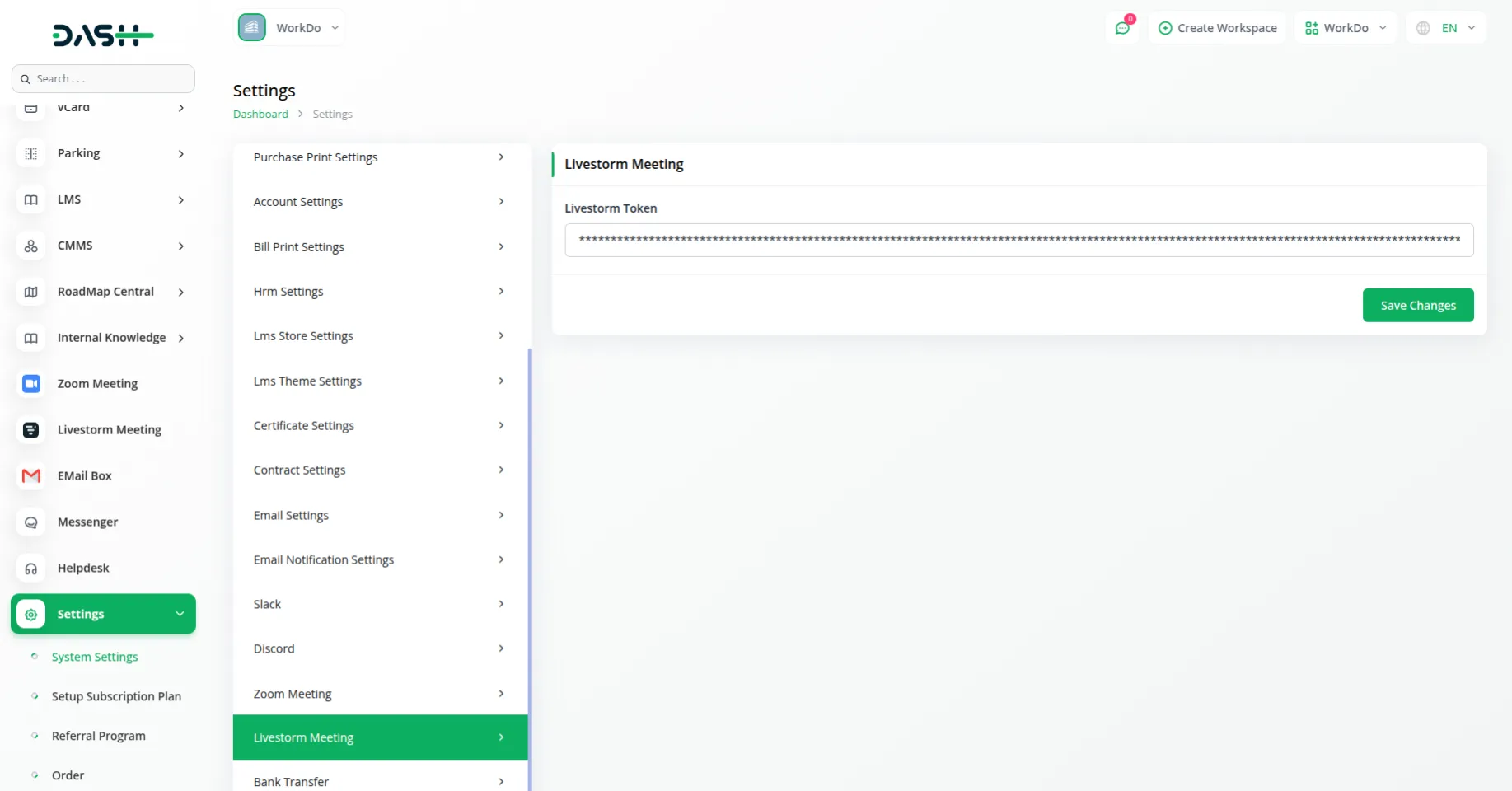
- After installing the Add-On, go to the system settings page and click on system settings, and find Livestorm Meeting.
- To set up Livestorm Meeting integration, enable the integration toggle at the top of the section to allow Livestorm Meeting functionality within your system.
- Once enabled, enter your Livestorm API Token. This API token is required for integration and establishes the connection between your application and Livestorm.
- To learn how to generate the Livestorm token, you can follow this link:
Livestorm Meeting Credentials Generation Guide
- Click the “Save Changes” button in the top right corner to save your configuration and activate the Livestorm Meeting integration.
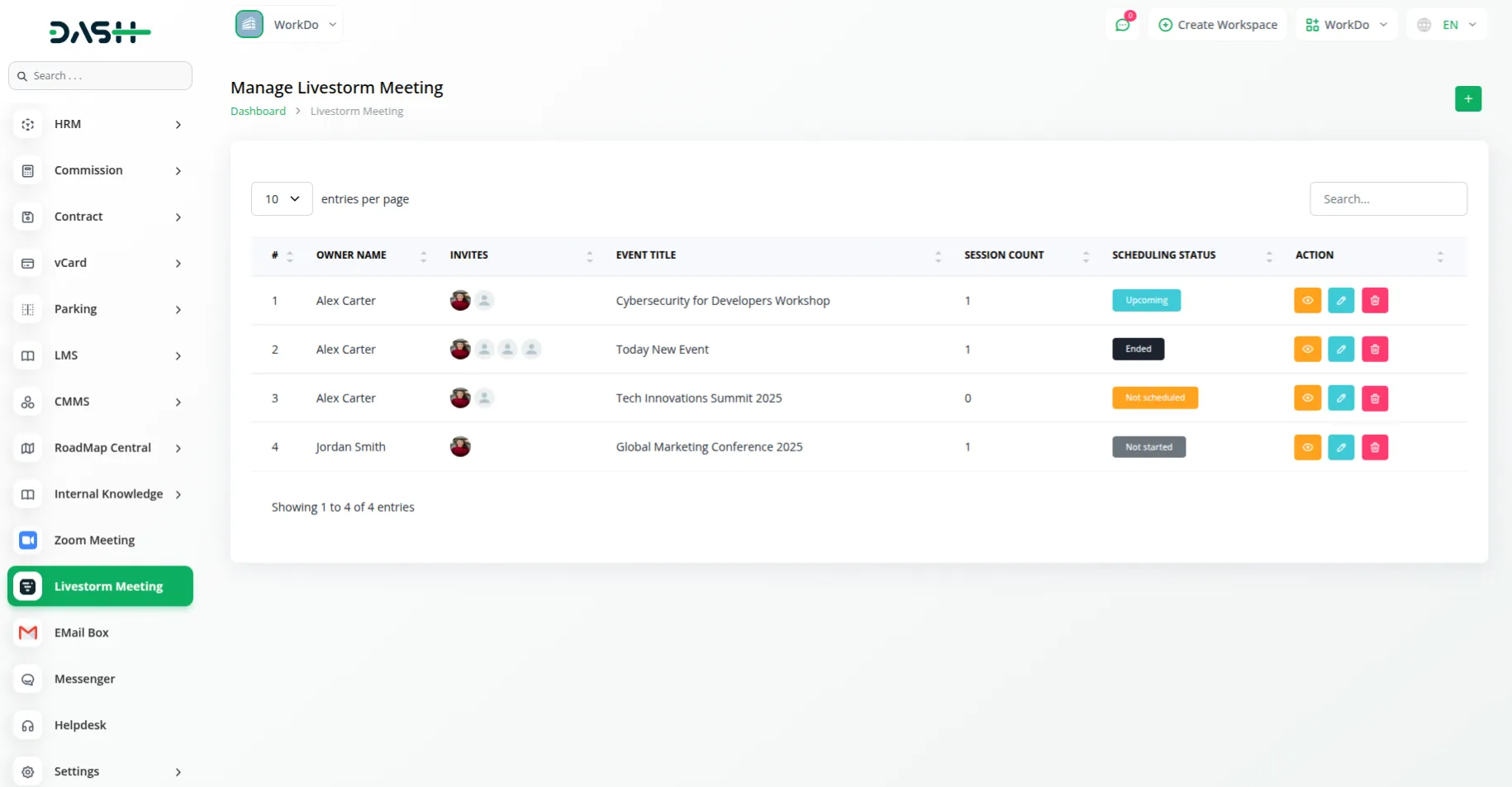
Manage Livestorm Meetings
- To create a new Livestorm event, click the “Create” button in the top right corner of the page. This opens the Create Event form, where you can enter the event title.
- Select the users you want to invite to the event from the Users dropdown menu in the User section. Also, select an Owner from the list of available email addresses.
- To manage existing events, use the search bar to quickly find specific events. You can filter events by Status using the dropdown menu (Not Scheduled, Not Started, Scheduled, Upcoming, Live, and Ended).
- You can also filter by User using the dropdown(which comes from the user management section), then click “Apply” to view filtered results or “Clear” to reset the filters.
- The event list displays all your scheduled events with details including Owner Name, Event Title, Invites, Session Count, and Scheduling Status. Switch between list and grid view using the view toggle buttons.
- In the action column, you can perform various actions, such as view session,Edit and Delete.The View button is used to display all created sessions, the Edit button is used to modify event information, and the Delete button is used to permanently remove an event.
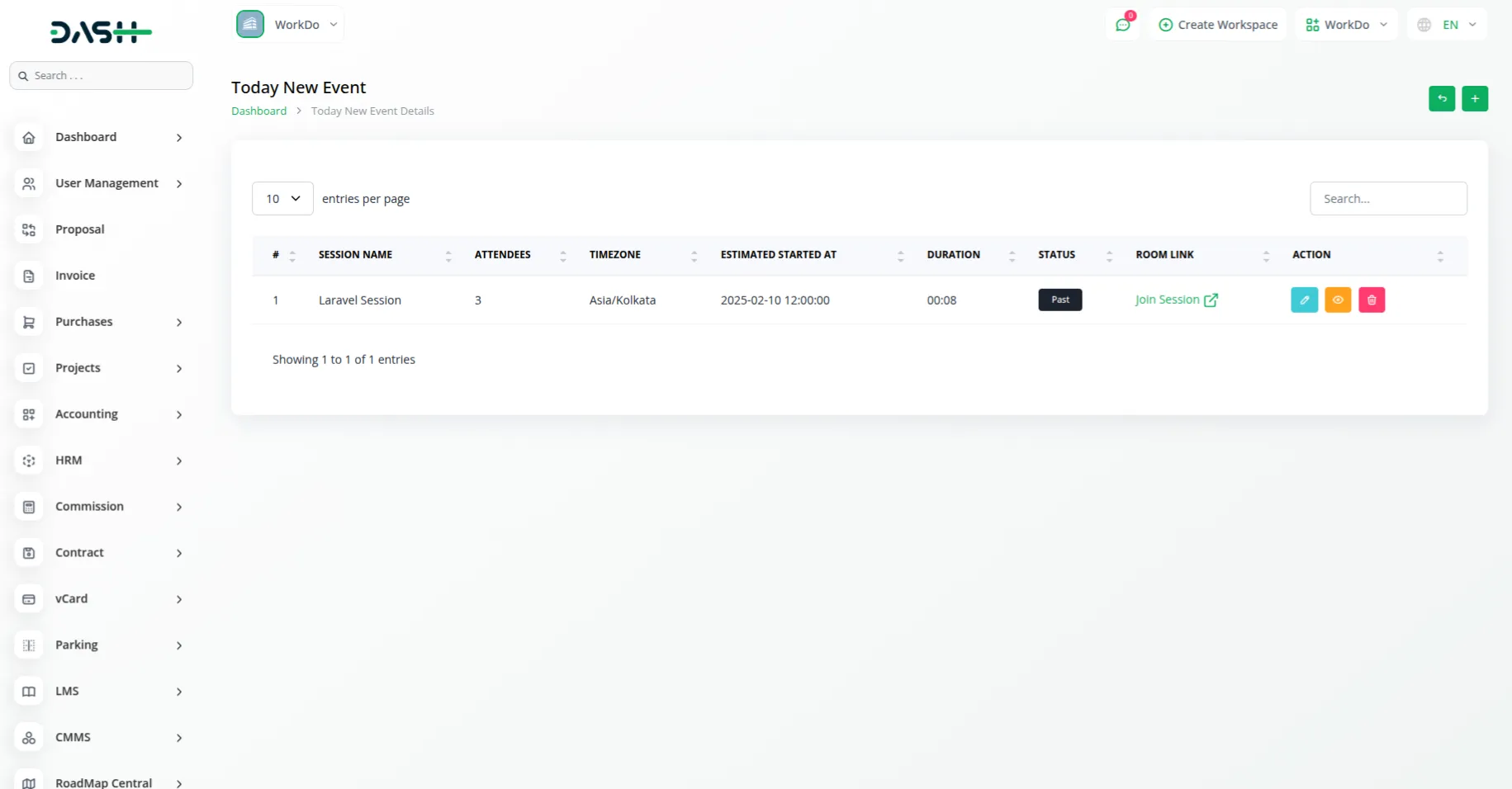
Manage Livestorm Sessions
- To add a new session to an event, click the “Create” button located in the top right corner. This will open a form where you can provide the session title and scheduled start date/time.
- Quickly locate specific sessions using the search bar by entering the session name. Filter sessions by their current Status through the dropdown options (Upcoming, Live, Ended, Cancelled, and Past Not Started)
- After selecting your filters, click “Apply” to display the filtered results or “Clear” to remove all filters. An active filter count badge appears on the filter button when filters are applied.
- The session table shows all your scheduled sessions with information such as Session Name, Attendees count, Estimated Started At timestamp, Duration (shown in hours, minutes, and seconds format), and current Status.
- You can perform actions like Join Session, View, Edit, and Delete on each session using the action buttons.You can use the action buttons to join Upcoming or Live sessions, view detailed session information, and delete Draft or Upcoming sessions when they are no longer required.
Categories
Related articles
- Diet & Nutrition Consultant – WorkDo Dash SaaS Add-On Guide
- Vehicle Booking Management – WorkDo Dash SaaS Add-On Guide
- SSLCommerz – WorkDo Dash SaaS Add-On Guide
- WizzChat – BookingGo SaaS Add-On Guide
- Fatora – WorkDo Dash SaaS Add-On Guide
- Sign in with LinkedIn – eCommerceGo SaaS Add-On Guide
- Skip Cart – eCommerceGo SaaS Add-On Guide
- Auction Product – eCommerceGo SaaS Add-On Guide
- Instagram Follow – vCard SaaS Add-On Guide
- HubSpot Support Ticket – WorkDo Dash SaaS Add-On Guide
- Contract Template – WorkDo Dash SaaS Add-On Guide
- 2Checkout – BookingGo SaaS Add-On Guide
We're Here to Help - Let's Talk
Have questions about our solutions, customization services, or business tools? Our team is here to help you. let's talk.