
Payfort – WorkDo Dash SaaS Add-On Guide
Learn how to configure and manage Payfort integration in WorkDo Dash SaaS easily.
Supported Countries: UAE, Saudi Arabia, Egypt, Jordan, Lebanon, Qatar, and more
Supported Currencies: USD, EUR, GBP, AUD, CAD, BRL, HKD, and more
Benefits of PayFort Payment Gateway
Advanced Security & Data Protection
PayFort employs industry-leading encryption and tokenization technology to safeguard every transaction, ensuring that sensitive customer information remains fully protected throughout the payment process.
Versatile Integration Capabilities
Whether your business requires a straightforward or complex payment setup, PayFort offers multiple integration options that adapt flexibly to different operational needs and technical environments.
Insightful Payment Dashboard
PayFort provides businesses with a clean and intuitive dashboard offering real-time transaction monitoring and detailed reporting, helping teams make well-informed financial decisions with ease.
Regulatory & Compliance Ready
PayFort strictly adheres to established security standards and regional compliance regulations, giving businesses the confidence that their payment operations meet all necessary legal requirements.
Dedicated Round-the-Clock Support
PayFort offers continuous customer support to help businesses resolve any payment-related concerns quickly, ensuring smooth and uninterrupted operations at all times.
How to Access PayFort Add-On?
- Visit WorkDo Website Head over to WorkDo.io and explore the extensive range of Dash SaaS Add-Ons.
- Discover PayFort Navigate to the “Dash SaaS Add-Ons” section and locate the “PayFort Add-On.”
- Activate the Add-On Click the “Activate” button next to the PayFort Add-On to enable it for your WorkDo Dash account.
Once activated, PayFort becomes available across supported modules based on permissions and settings.
How does PayFort work?
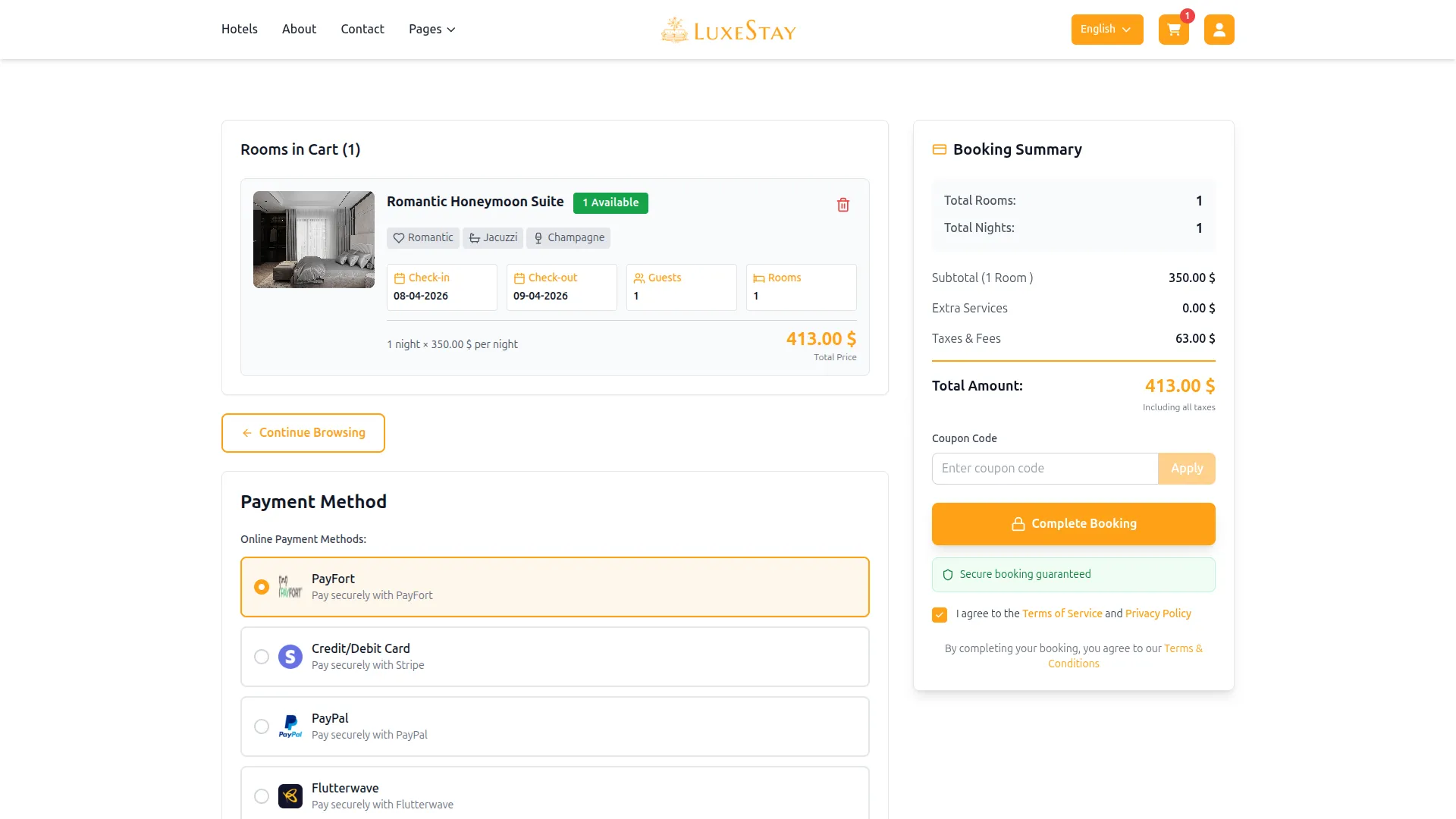
PayFort facilitates secure online payments by allowing businesses to accept credit and debit card transactions across various channels. Once configured, it supports real-time payment processing and automated status updates. Customers can complete transactions smoothly with a trusted and secure interface. The integration helps streamline billing and enhances the overall payment experience.
Super Admin Settings
(Plan Purchase by the Company)
The Super Admin Settings are accessible only to the highest-level administrator. These settings allow the Super Admin to manage company-level subscriptions and payment configurations.
Key Capabilities:
- Purchase or upgrade company subscription plans
- Configure PayFort API credentials for plan payments
- Enable or disable PayFort as a payment gateway
Configuration Path:
Super Admin Login → Settings → PayFort Settings
Company Settings
(Bookings, Beauty Spa, LMS & Other Payments)
Company Settings allow organizations to configure PayFort for receiving payments from customers across multiple modules.
Supported Modules Include:
Configuration Path:
Company Login → Settings → System Settings → PayFort Settings
Company-Level Capabilities:
- Configure PayFort API credentials
- Enable PayFort for selected modules
- Accept online payments from customers
- Manage Bookings, Beauty Spa, and service
- Handle tax, coupon, and discount calculations
How to Generate PayFort API Keys?
To seamlessly integrate the PayFort Payment Gateway into your (Product Name), follow these simple steps
1. Generate API Key
- To obtain your PayFort login credentials, follow these steps:
- Live Mode Login: https://fort.payfort.com/
- Sandbox Mode Login: https://testfort.payfort.com/
- Log in to the appropriate PayFort portal based on your selected mode (Live or Sandbox).
- From the side menu, click on Merchant Management.
- Click on your registered email to open the merchant details.
- Navigate to the Security Settings tab.
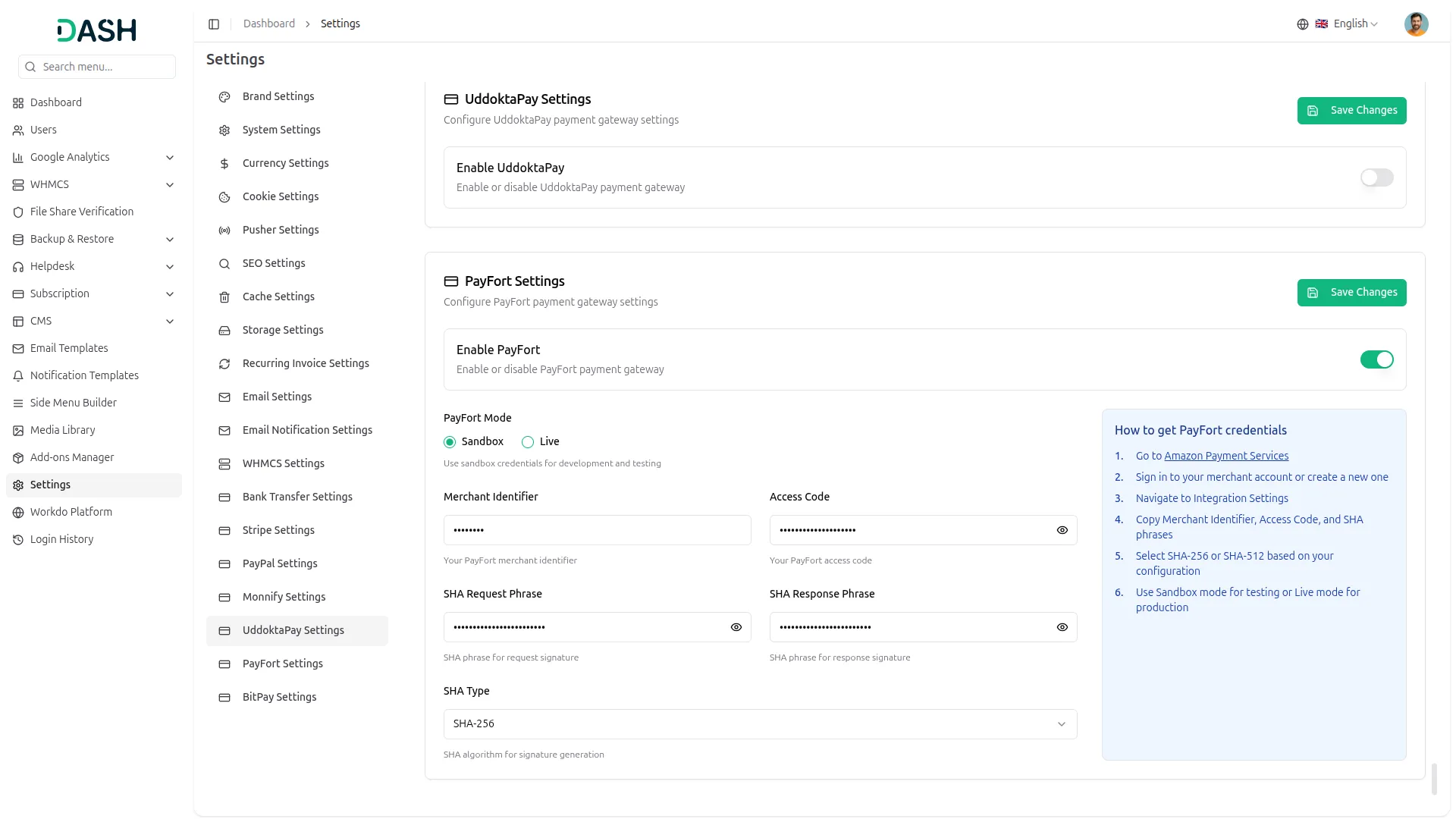
- In this section, you will find the following required credentials: Merchant Identifier, Access Code, SHA Type, SHA Request Phrase, and SHA Response Phrase
Note: Go to the ‘General Information’ tab to select the appropriate currency supported by your payment gateway.
2. Configure PayFort Gateway In (Product Name)
- Log in to your Dash SaaS account with administrator credentials.
- Navigate to the settings page.
3. Access Payment Settings
- Within the settings page, locate and select the “Payment Settings” option.
4. Set Up PayFort Gateway
- Scroll down the page until you find the PayFort Gateway option.
- Click on the PayFort Gateway to access its configuration settings.
5. Enter Required Details
In the PayFort settings, provide the following essential details
- PayFort Mode: Choose either Sandbox or Live.
- Merchant Identifier: Enter your unique PayFort Merchant Identifier.
- SHA Type: Select the SHA algorithm type (e.g., SHA-256).
- SHA Request Phrase: Enter your SHA request secret key.
- SHA Response Phrase: Enter your SHA response secret key.
6. Save Your Settings
- After entering the necessary details, save the settings to activate the PayFort Payment Gateway within your Dash SaaS platform.
This detailed documentation overviews PayFort Payment Integration, its benefits, and the integration process. By integrating PayFort, businesses, and organizations can offer their customers a secure and flexible payment experience while streamlining their payment processes.
Note: The PayFort Add-On is a paid feature and can be accessed by users who have purchased it. By integrating the PayFort Add-On into your WorkDo Dash SaaS account, you’ll provide a reliable and user-friendly payment gateway that supports global transactions.
Categories
Related articles
- Moyasar – BookingGo SaaS Add-On Guide
- NMI – BookingGo SaaS Add-On Guide
- Ratings – TicketGo Add-On Guide
- Tawk.to Messenger – BookingGo SaaS Add-On Guide
- Pipedrive – WorkDo Dash SaaS Add-On Guide
- Repair Management – WorkDo Dash SaaS Add-On Guide
- Petty Cash Management – WorkDo Dash SaaS Add-On Guide
- Make Documentation – TicketGo Add-On Guide
- Service Tax – BookingGo SaaS Add-On Guide
- Bulk SMS – WorkDo Dash SaaS Add-On Guide
- Bulk SMS – TicketGo Add-On Guide
- Skrill – BookingGo SaaS Add-On Guide
We're Here to Help - Let's Talk
Have questions about our solutions, customization services, or business tools? Our team is here to help you. let's talk.