
Trello Integration Detailed Documentation
The Trello Integration Add-On helps you connect your Trello account with the system so you can manage tasks and projects more easily.
Introduction
The Trello Integration Add-On helps you connect your Trello account with the system so you can manage tasks and projects more easily. It lets you bring your Trello boards, lists, and cards into one place, so you don’t have to switch between different platforms to stay updated. Whether you’re handling daily tasks or planning big projects, this Add-On makes it easier to organize and work with your team. This documentation will guide you through the setup and explain how to use the features of the Trello Integration Add-On in a simple and clear way.
How To Install The Trello Add-On?
To Set Up the Trello Add-On you can follow this link: Setup Add-On
How To Use the Trello Add-On?
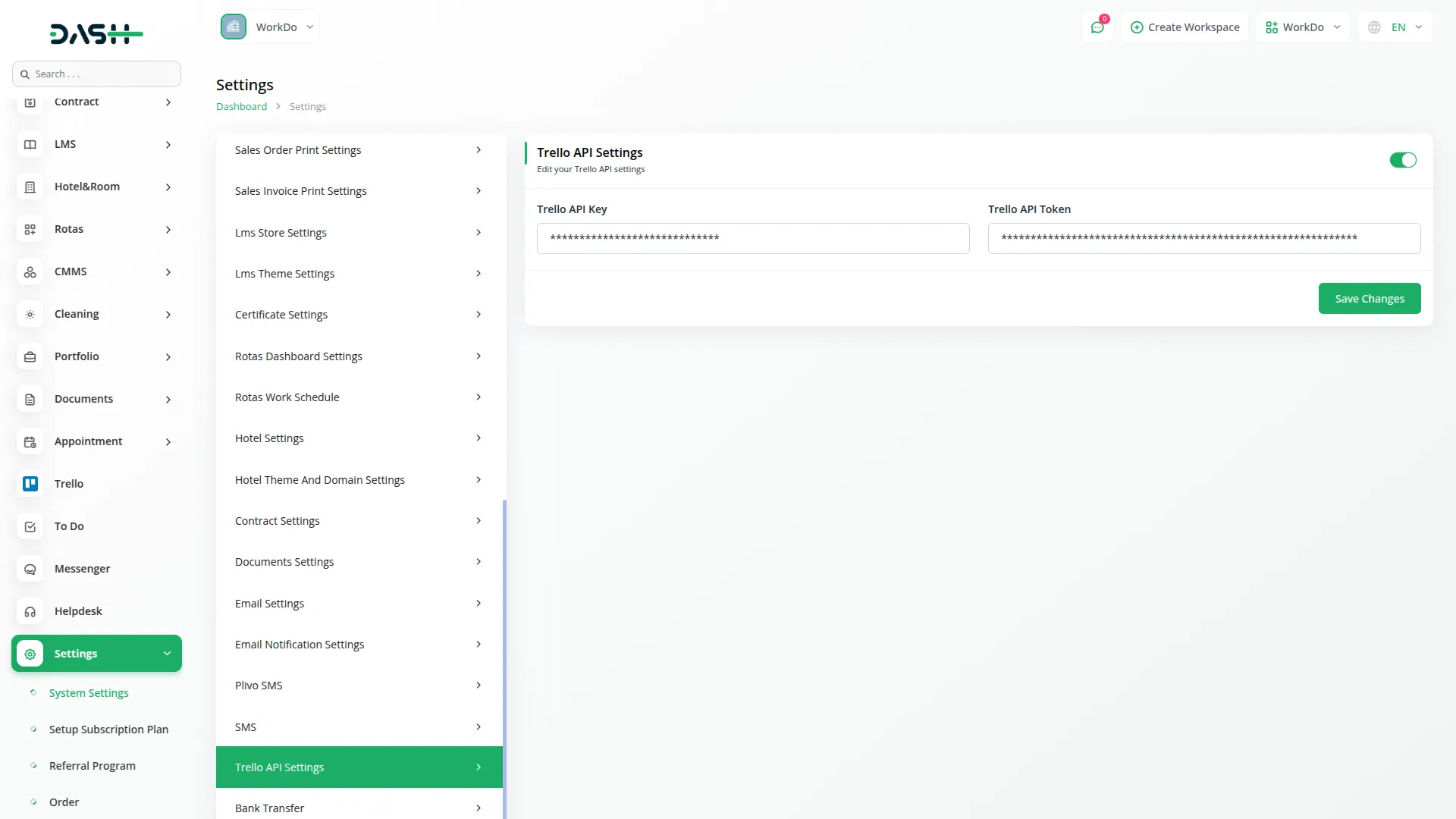
- After you buy the Trello Add-On, go to the Settings section of your platform where you’ll find an option to enter your Trello API Key and Trello API Token so that the platform can connect with your Trello account.
- To get your Trello key, you can simply watch this short YouTube video which explains it clearly:
- After you get the API key and token, copy them and paste them into the given fields on the platform.
- Once both details are filled in, click on Save to connect Trello with your platform.
-
Trello on the Platform
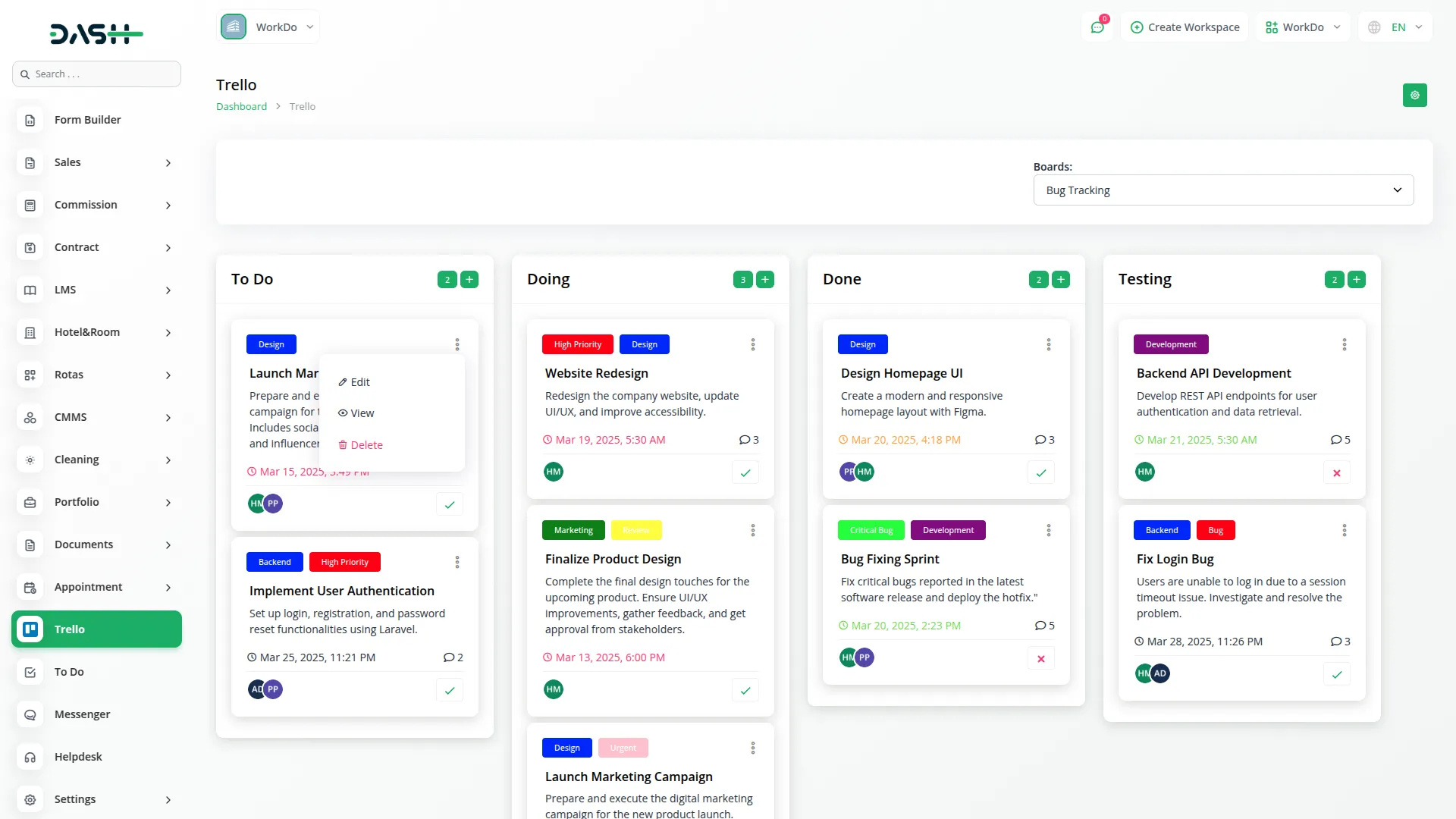
- After the setup is done, you will see a new Trello option in the sidebar menu of your platform which will take you to a dedicated Trello page inside the system.
-
Manage Boards
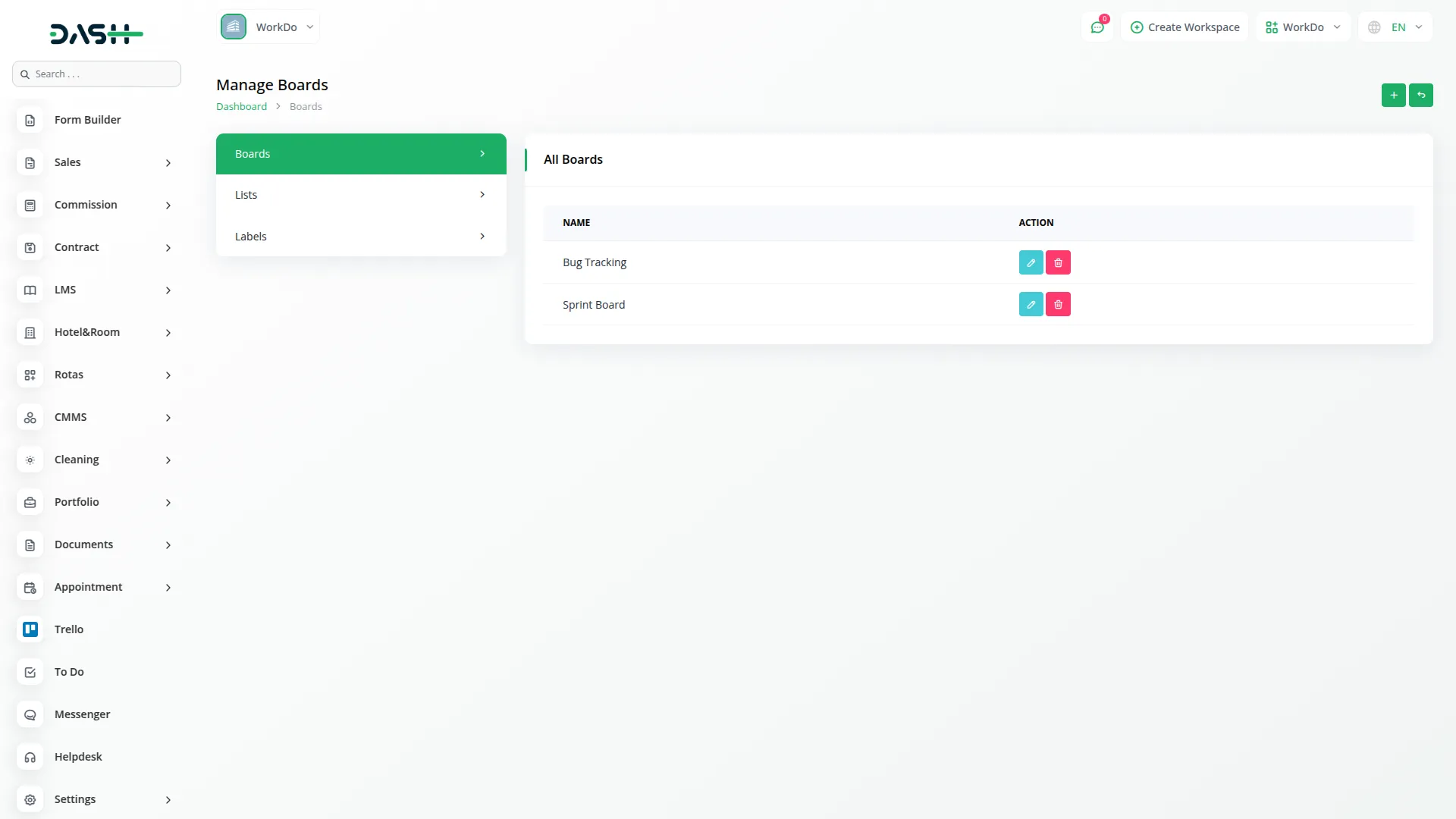
To create a new board, navigate to the Manage Trello Boards page. At the top, you will see the page action buttons. Click the Create button.
The Boards table displays the following columns:
- Board Name
- Lists (Count)
- Labels (Count)
- Last Activity
-
Actions: This column contains the following action buttons:
- Manage Lists : Click to view and manage lists for this specific board.
- Manage Labels : Click to view and manage labels for this specific board.
- Manage Cards : Click to view and manage the Kanban board and cards.
- Edit : Click to edit the board details.
- Delete : Click to delete the board.
Enter the following fields for a new board:
- Name: Enter the name of your board.
- Description: (Optional) Enter a description for your board.
Click Save to complete the process.
You can also use the Edit button to update the board details or the Delete button to remove the board whenever you want.
Manage Lists
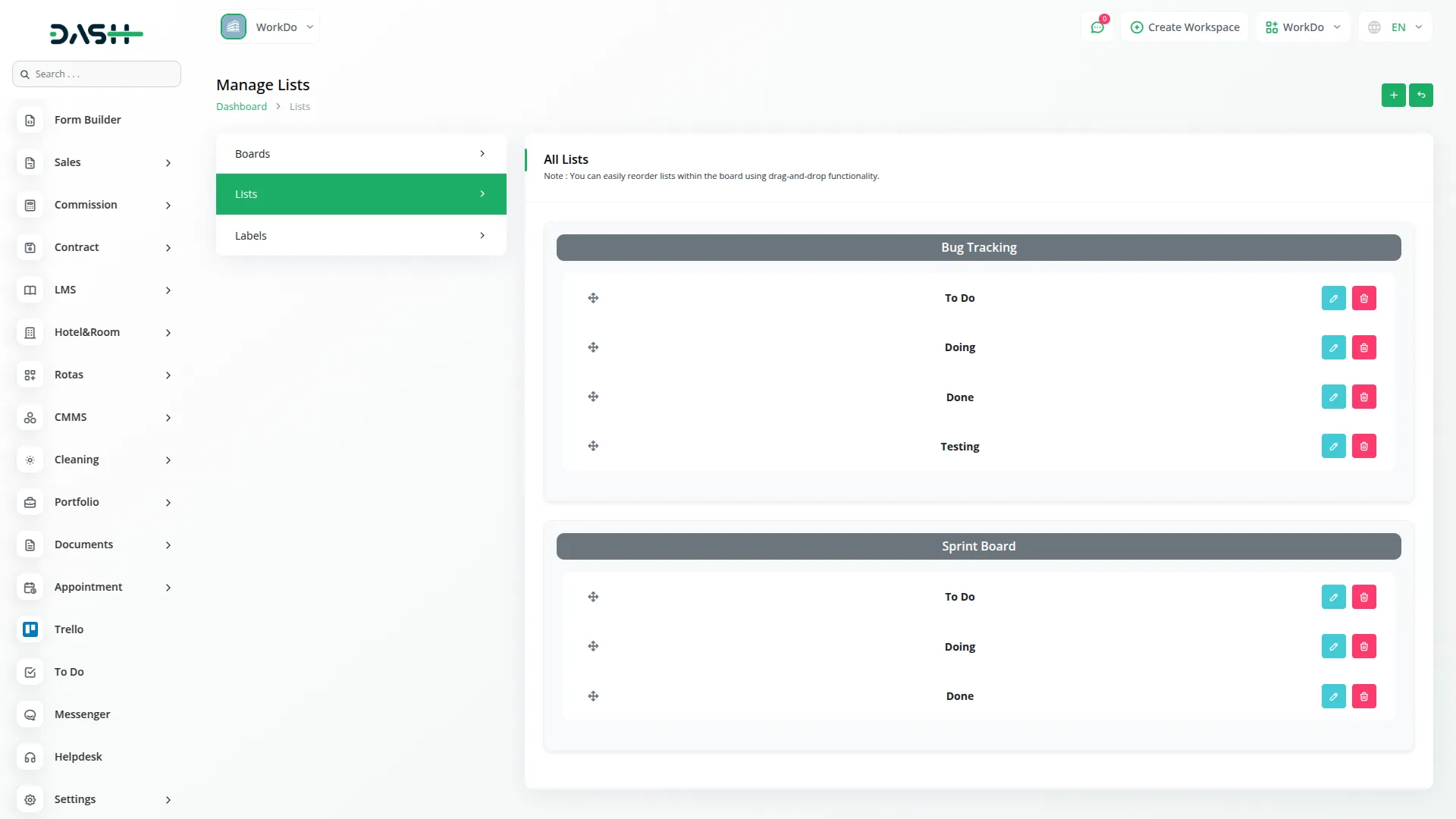
To create a list, navigate to the Manage Trello Boards page. Inside each board card, you will see the List icon/button. Click it to open the Board Lists page.
The Lists table displays the following columns:
- Name
- Cards (Preview/Count)
- Actions: This column contains the following action buttons:
- Edit : Click to edit the list name.
- Delete : Click to delete the list.
At the top of this page, you will see the page action buttons. Click the Create button to open the Create List form.
Enter the following fields:
- Name: Enter the name of the list.
Click Create. Your list will be added successfully.
You can also use the Edit button to update the list name or the Delete button to remove the list whenever you want.
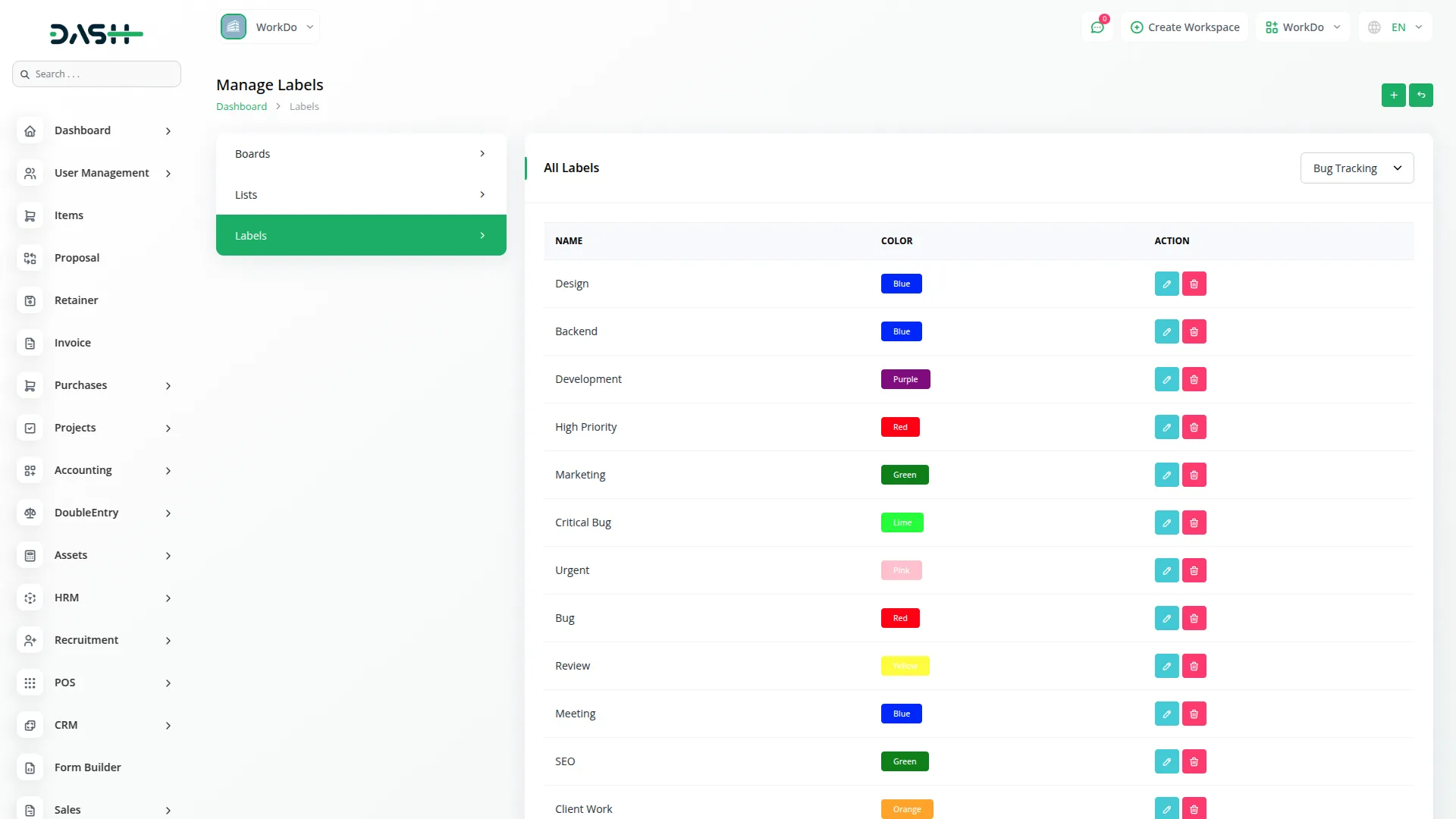
Manage Labels
To create a label, navigate to the Manage Trello Boards page. Inside each board card, you will see the Label icon/button. Click it to open the Board Labels page.
The Labels table displays the following columns:
- Name
- Color
- Actions: This column contains the following action buttons:
- Edit : Click to edit the label details.
- Delete : Click to delete the label.
At the top of this page, you will see the page action buttons. Click the Create button to open the Create Label form.
Enter the following fields:
- Name: Enter the name of the label.
- Color: Choose a color for the label.
Click Create. Your label will be created.
You can also use the Edit button to update the label details or the Delete button to remove the label whenever you want.
Manage Cards
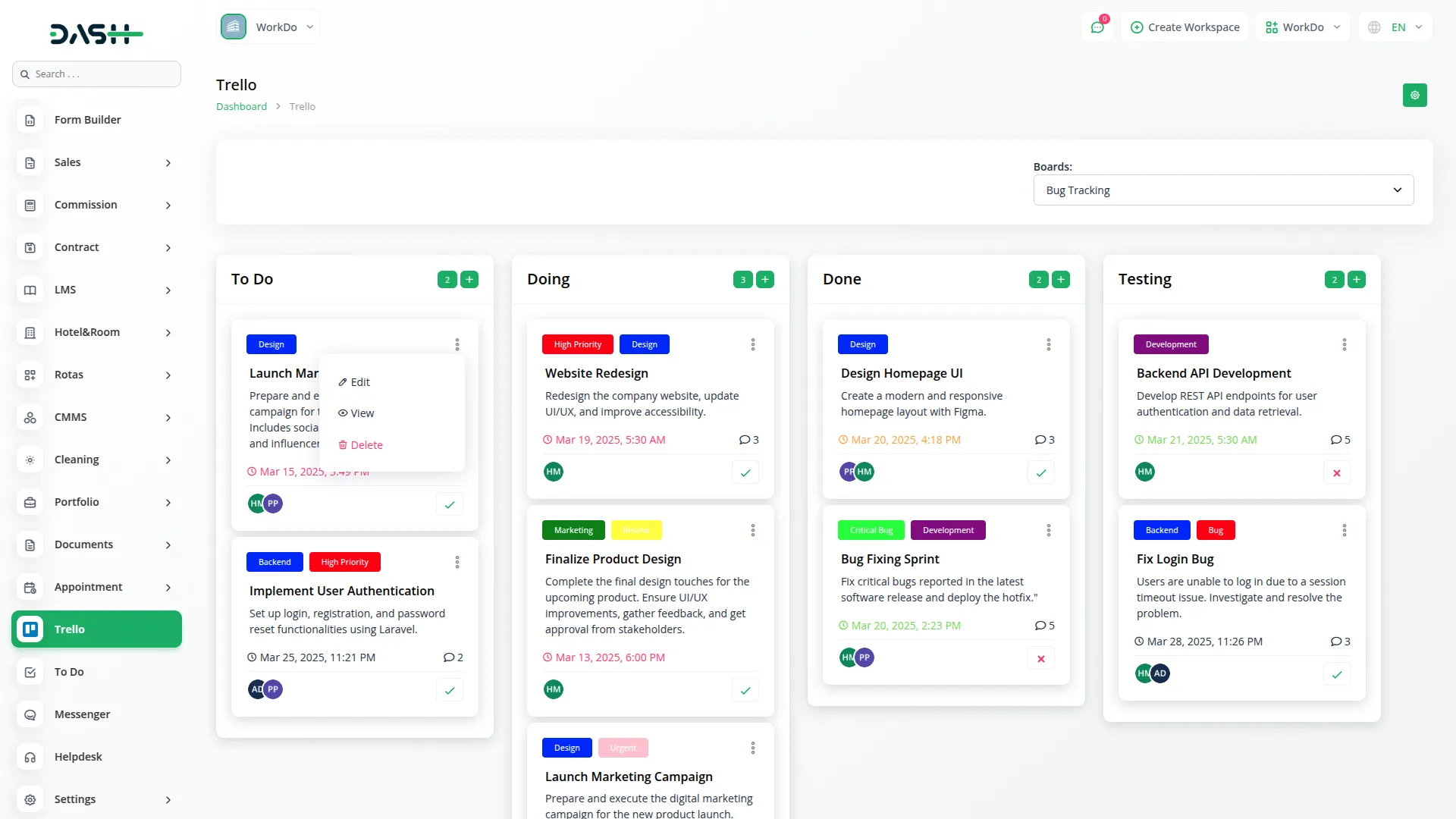
To create cards, navigate to the Manage Trello Boards page. Inside each board card, you will see the Trello icon/button. Click it to open the Board Cards page.
Under every list, there is a Create button you can click to add a new card.
Enter the following fields:
- Name: Enter the card’s title.
- Start Date: Select a start date for the task.
- Due Date: Select a due date for the task.
- Members: Assign members from the dropdown list.
- Labels: Choose applicable labels.
- Description: Add a detailed description.
After the card is created, it will show up under that list. If you want to make any changes to a card, you can click the Edit button, update the information, and then save your changes.
If a card is no longer needed, you can click the Delete button to remove it from the list.
To see all the details about a card, you can click the View button which will open a page showing the board name, list name, card title, description, start date, due date, labels, and assigned members.
Manage Comments
You can also view and add comments to a card when you open it in view mode.
- Comment Text: Enter your comment or update note.
This is helpful for adding updates or notes. You can also Edit and Delete your comments using the respective action buttons.
Move Cards Between Lists
You can easily move a card from one list to another by dragging it with your mouse and dropping it into the new list where it belongs, which helps you stay organized as tasks move forward.
Trello and the Platform Work Together in Real Time
- Any changes you make in Trello, such as adding or updating cards, will automatically appear inside your platform so you don’t have to do it twice.
- The same way, if you make any changes or create new boards, lists, or cards from within the platform, they will show up in your Trello account as well.
Categories
Related articles
- Work Permit Detailed Documentation
- Jira Add-On WorkDo Dash Detailed Documentation
- Courier Management Integration in Dash SaaS
- Google Sheet Integration in Dash SaaS
- Planning Module Detailed Integration in Dash SaaS
- Moyasar Detailed Documentation
- Support Ticket Integration in Dash SaaS
- Dash SaaS Setup Guide
- Office Equipment Management Detailed Documentation
- Sales Integration in Dash SaaS
- Square Payment Gateway in Dash SaaS
- Tiffin Service Manager Integration in Dash SaaS
Reach Out to Us
Have questions or need assistance? We're here to help! Reach out to our team for support, inquiries, or feedback. Your needs are important to us, and we’re ready to assist you!


Need more help?
If you’re still uncertain or need professional guidance, don’t hesitate to contact us. You can contact us via email or submit a ticket with a description of your issue. Our team of experts is always available to help you with any questions. Rest assured that we’ll respond to your inquiry promptly.
Love what you see?
Do you like the quality of our products, themes, and applications, or perhaps the design of our website caught your eye? You can have similarly outstanding designs for your website or apps. Contact us, and we’ll bring your ideas to life.