
Square – WorkDo Dash SaaS Add-On Guide
Learn how to configure and manage Square payment features in WorkDo Dash SaaS.
Supported Countries: United States, Canada, Australia, Japan, United Kingdom, Ireland, France, Spain
Supported Currency: USD (US Dollar), CAD (Canadian Dollar), GBP (British Pound), AUD (Australian Dollar), JPY (Japanese Yen), EUR (Euro)
Overview
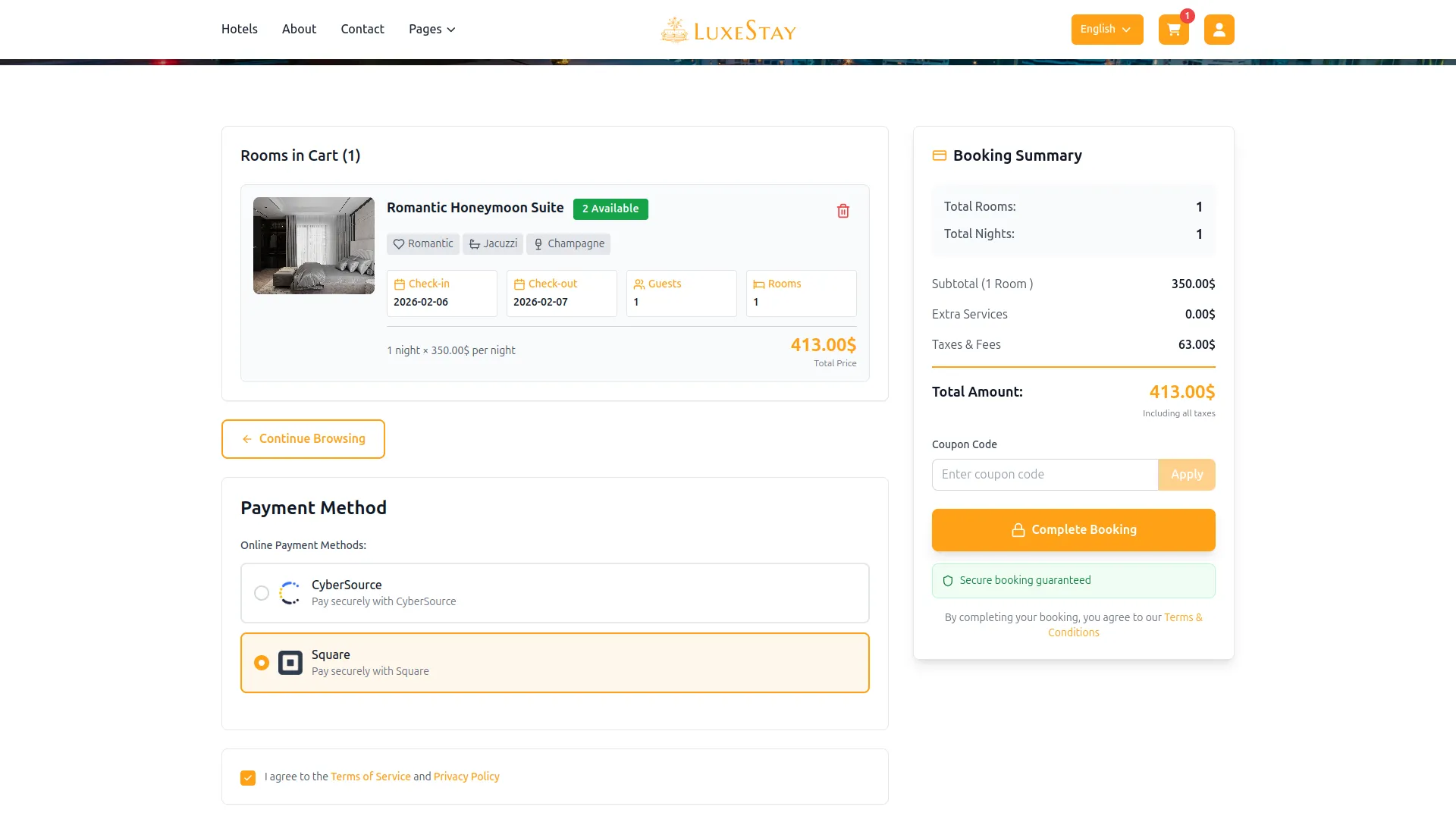
Integrate Square Payment Gateway with WorkDo Dash to accept secure, fast, and reliable payments across multiple regions. Square supports one-time payments, invoices, retainers, and subscription-based plan purchases, making it a flexible solution for both SaaS platforms and service-based businesses.
Square uses a unified API configuration that works seamlessly for both Super Admin and Company-level transactions, ensuring centralized control, simplified setup, and consistent payment handling across all supported modules.
Benefits of Square Payment Gateway
Seamless Payment Processing: Square provides a platform for businesses to accept a wide range of payment methods, including credit cards, debit cards, bank transfers, and digital wallets, making it easy for customers to make payments.
Multi-Currency Support: Square supports various currencies, which is especially valuable for businesses operating in multiple countries, allowing them to transact in local currencies.
Local Payment Methods: Square offers support for popular local payment methods in dedicated areas, catering to the preferences of customers in the region.
How to Access the Square Add-On?
Ready to enhance your online payment capabilities with Square? Follow these simple steps to get started:
Visit WorkDo Website: Head over to workdo.io and explore the extensive range of Dash SaaS Add-Ons.
Discover Square: Navigate to the “Dash SaaS Add-Ons” section and locate the “Square Add-On”.
Activate the Add-On: Click the “Activate” button next to the Square Add-On to enable it for your WorkDo Dash account.
How does Square work?
Square serves as a versatile payment gateway by seamlessly integrating with your online platform. Customers are empowered to select their preferred payment method, and Square handles the payment transaction with a strong emphasis on security and reliability. The platform features a user-friendly interface and is supported by a responsive customer service team, delivering a dependable and hassle-free payment experience, which makes it a trusted choice for merchants and customers alike.
Super Admin Settings
(Plan Purchase by the Company)
The “Super Admin Settings” are typically accessible to the highest-level administrator or super administrator within a software platform or system. These settings allow the super admin to manage various aspects of the company’s usage and subscription plans. This may include:
- Purchasing or upgrading subscription plans for the entire company.
Company Settings
(Bookings, Beauty Spa, LMS & Other Payments)
“Company Settings” in the context of retainers, and payments refers to the configuration options available to a company or organization for managing financial transactions. These settings may include:
- Setting up payment gateways for accepting payments from clients or customers.
- Defining retainer or deposit policies for services or products.
- Managing tax settings and compliance.
- Setting payment terms and conditions
- This Payment Gateway Supports
Supported Modules Include:
How to Generate the API Key?
1. Generate API Key:
- Log in to your Square account or create one if you don’t have an account yet.
- Obtain comprehensive information about Square.
- Generate the Credentials by following the link below: https://developer.squareup.com/docs/build-basics/access-tokens
2. Configure Square Gateway in (Product Name):
- Log in to your (Product Name) account with administrator credentials.
- Navigate to the settings page.
3. Access Payment Settings
- Within the settings page, locate and select the “Payment Settings” option.
4. Set Up Square Gateway:
- Scroll down the page until you find the Square Gateway option.
- Click on the Square Gateway to access its configuration settings.
5. Enter Required Details:
In the settings, provide the following essential details:
- Square Mode(Sandbox, Production)
- Application ID
- Access Token
- Location ID
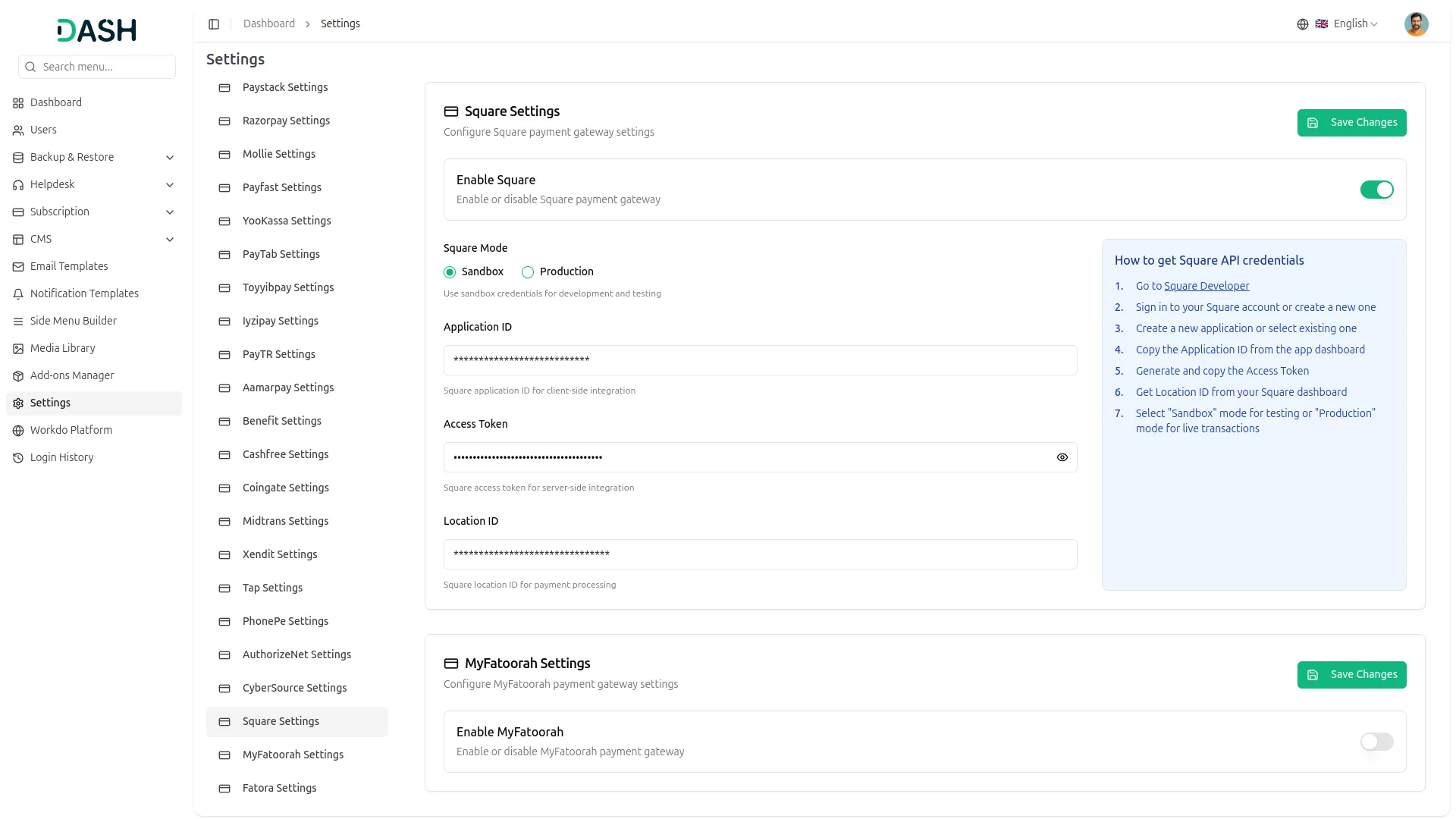
6. Save Your Settings:
- After entering the necessary details, save the settings to activate the Square Payment Gateway within your (Product Name) platform.
This detailed documentation provides an overview of Square Payment Integration, its benefits, and the integration process. By integrating Square, businesses and organizations can offer their customers a secure and flexible payment experience while streamlining their own payment processes.
Note: The Square Add-On is a paid feature and can be accessed by users who have purchased it. By integrating the Square Add-On into your WorkDo Dash SaaS account, you’ll provide a reliable and user-friendly payment gateway that supports global transactions.
Categories
Related articles
- Yoga Classes – WorkDo Dash SaaS Add-On Guide
- Google Calendar – BookingGo SaaS Add-On Guide
- Mercado Pago – WorkDo Dash SaaS Add-On Guide
- Zendesk – TicketGo Add-On Guide
- Google Slides – WorkDo Dash SaaS Add-On Guide
- LinePay – WorkDo Dash SaaS Add-On Guide
- Boost Sales – eCommerceGo SaaS Add-On Guide
- WizzChat – eCommerceGo SaaS Add-On Guide
- Zoom Meeting – BookingGo SaaS Add-On Guide
- CoinPayments – BookingGo SaaS Add-On Guide
- Campaign – eCommerceGo SaaS Add-On Guide
- Automatic Order Printing – eCommerceGo SaaS Add-On Guide
We're Here to Help - Let's Talk
Have questions about our solutions, customization services, or business tools? Our team is here to help you. let's talk.