
Tiffin Service Manager – WorkDo Dash SaaS Add-On Guide
Learn how to manage tiffin services, orders, and deliveries in WorkDo Dash SaaS.
Introduction
The Tiffin Service Manager is a comprehensive Add-On designed to help you manage every aspect of your tiffin delivery business from a single platform. From setting up meal types, meal items, and delivery areas to managing customers, subscribers, and delivery persons, the system provides a structured and efficient way to handle your day-to-day operations. You can create and manage meal plans with detailed weekly schedules, track payments and their approval status, handle customer complaints, and monitor today’s service activity in real time. The built-in dashboard gives you an instant overview of your business performance, making it easier to stay on top of your operations at all times.
How to Install the Add-On?
To Set Up the Tiffin Service Manager Add-On, you can follow this link: Setup Add-On.
How to Use the Tiffin Service Manager Add-On?
Tiffin Service Dashboard
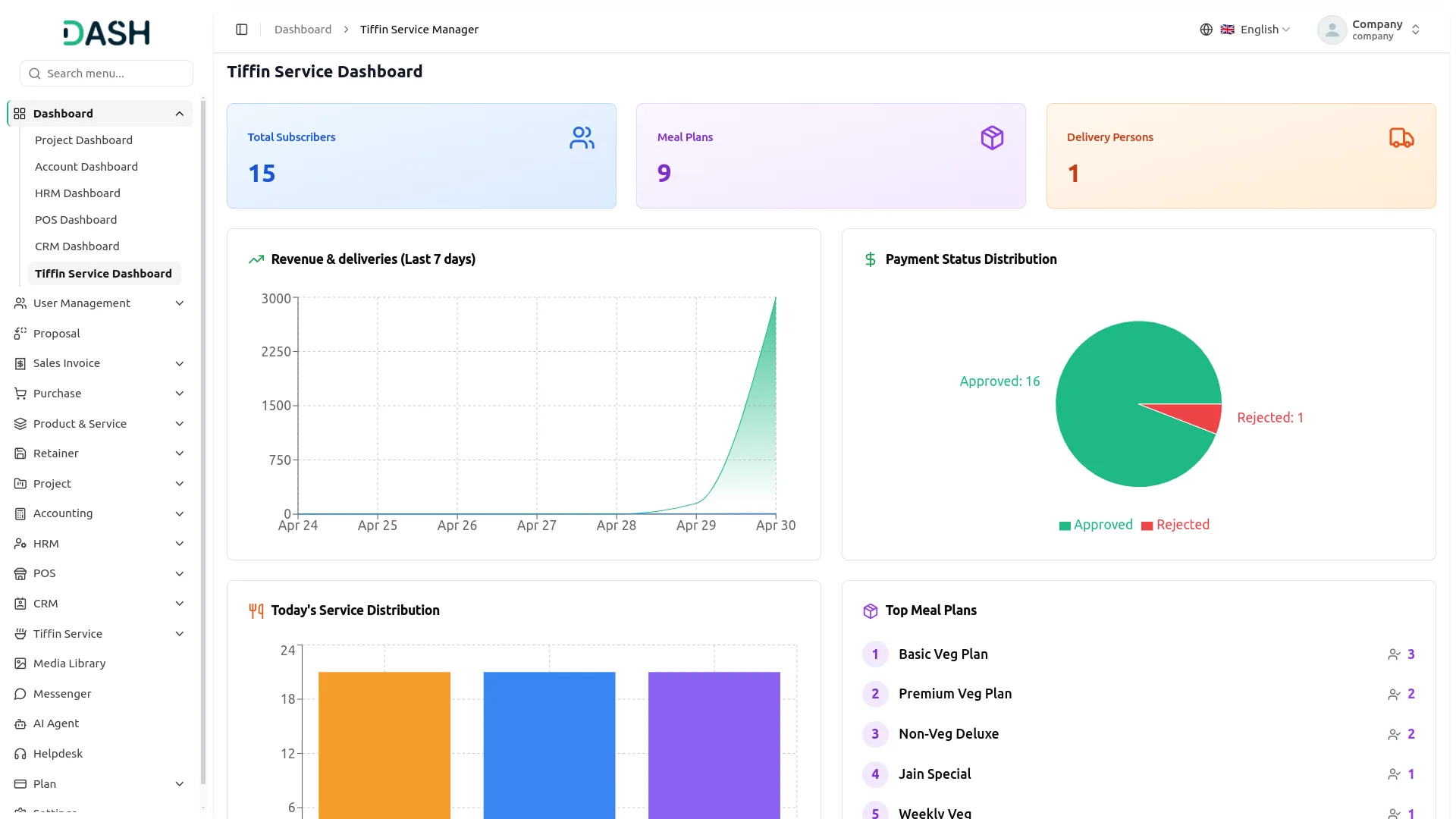
- The Tiffin Service Dashboard provides a complete overview of your tiffin service operations at a glance. The dashboard displays key performance metrics through various widgets and charts.
- At the top of the dashboard, you’ll find three important summary cards showing Total Subscribers, Meal Plans, and Delivery Persons. These cards give you an instant snapshot of your overall service capacity and reach.
- The Revenue & Deliveries chart displays financial and delivery activity over the last 7 days, allowing you to track performance trends on a daily basis. This helps you identify peak delivery periods and monitor revenue patterns across the week.
- The Payment Status Distribution chart provides a visual breakdown of payment outcomes, distinguishing between Approved and Rejected transactions. This gives you a quick understanding of how smoothly payments are being processed across your subscriber base.
- The Today’s Service Distribution panel displays the volume of deliveries spread across different time slots throughout the day. This allows you to assess the distribution of workload and ensure your delivery team is adequately prepared for each shift.
- The Top Meal Plans panel lists your most subscribed meal plans in ranked order, along with their subscriber counts. This helps you quickly identify which plans are driving the most demand, supporting better decisions around menu planning and resource allocation.
System Setup
Meal Types
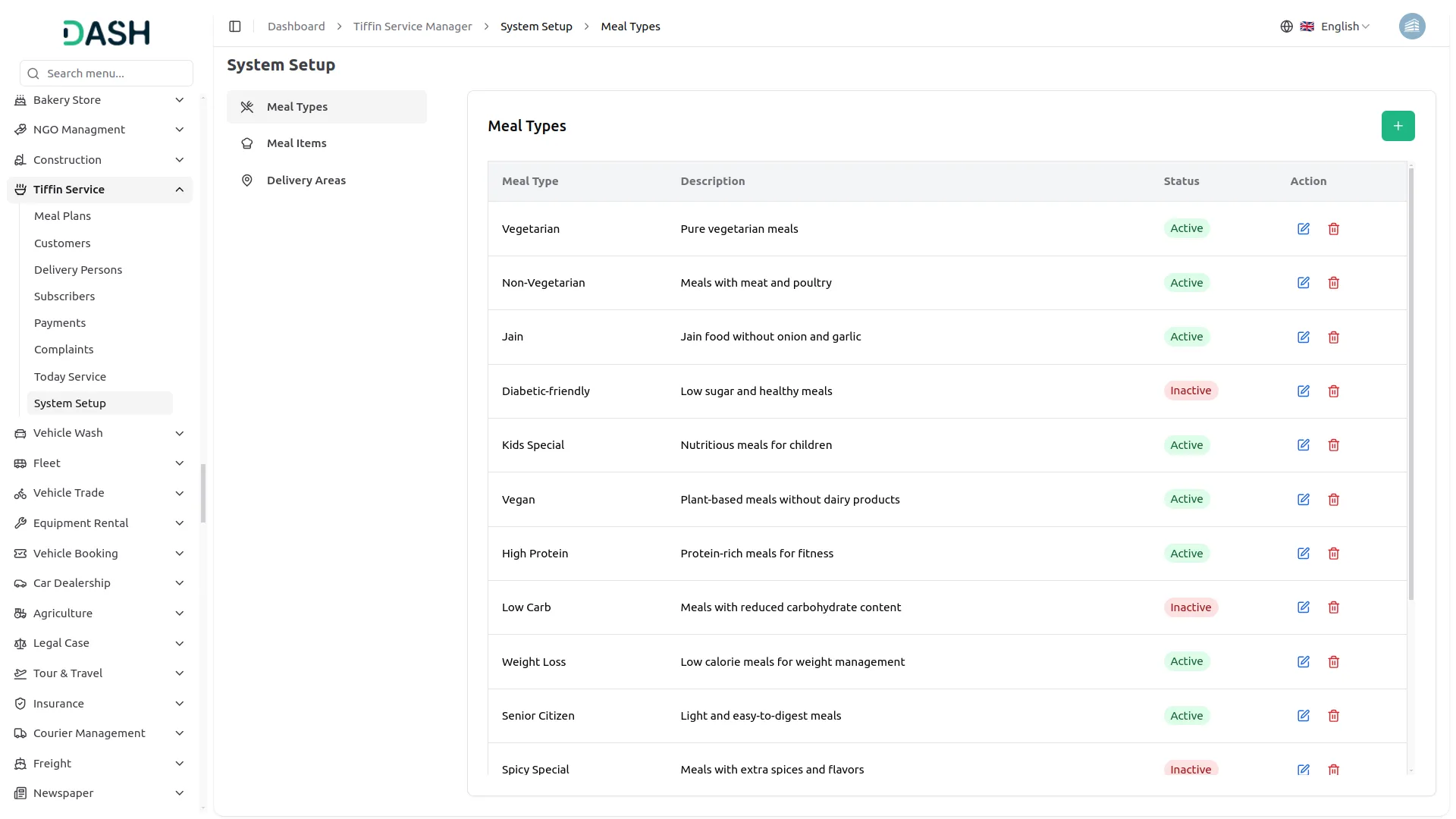
- To create a new Meal Type, click the “Create” button on the Meal Types page. Enter the Meal Type name in the text field. Add a description to provide additional context about the meal type. Set the Status toggle to Active or Inactive to control its availability, then click Create to save the record.
- The list page displays all meal types in a table with columns for Meal Type, Description, Status, and Actions. Status will show as either Active or Inactive, reflecting the current availability of that meal type within the system.
- In the Actions column, use the Edit to update any meal type information. Use the Delete to permanently remove the meal type from the system.
Meal Items
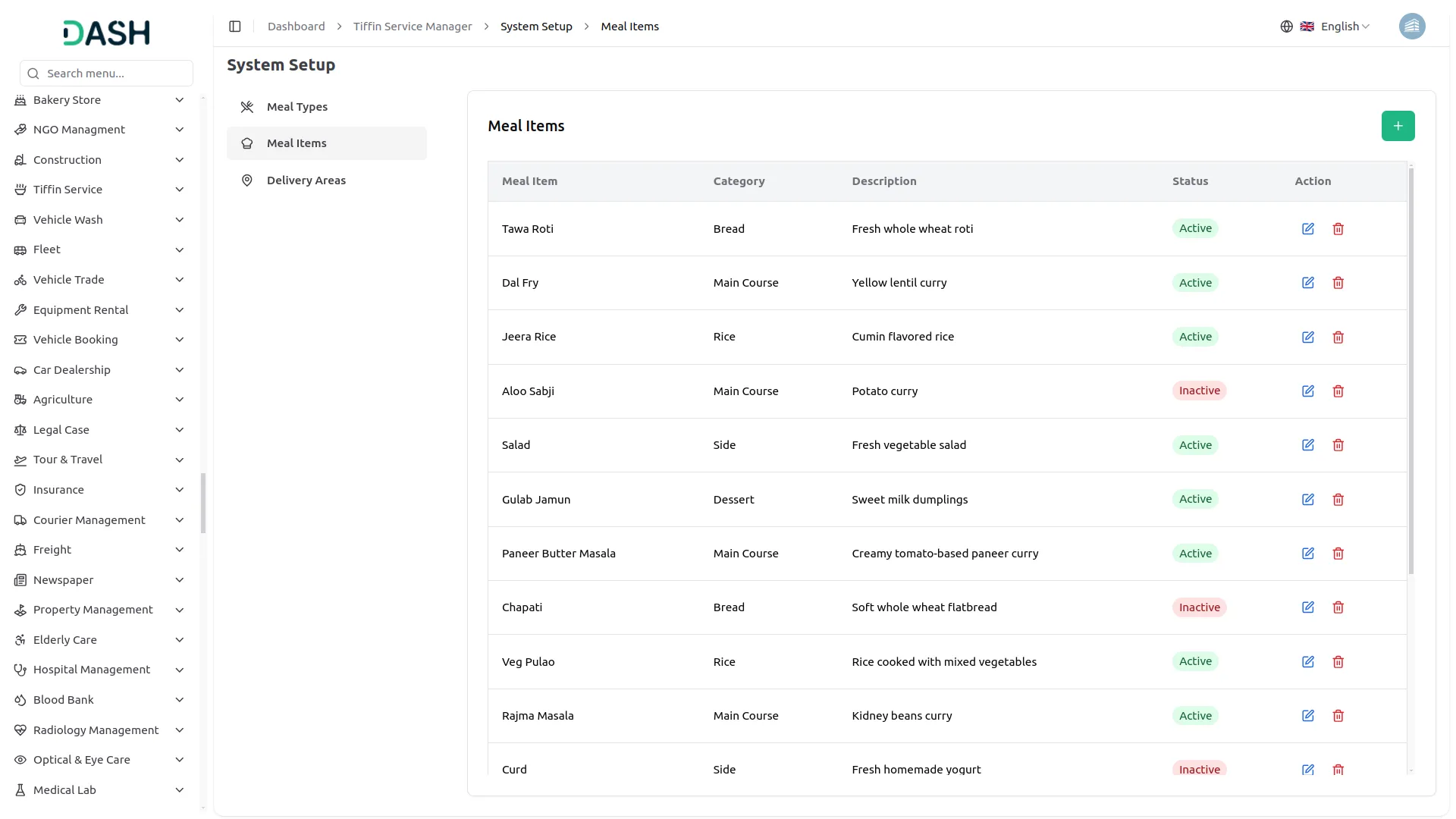
- To create a new Meal Item, click the “Create” button on the Meal Items page. Enter the Meal Item name in the text field. Select the Category from the dropdown (Main Course, Bread, Rice, Side, Dessert, Other). Add a description to provide additional details about the meal item. Set the Status toggle to Active or Inactive to control its availability, then click Create to save the record.
- The list page displays all meal items in a table with columns for Meal Item, Category, Description, Status, and Actions. Status will show as either Active or Inactive, reflecting the current availability of that meal item within the system.
- In the Actions column, use the Edit to update any meal item information. Use the Delete to permanently remove the meal item from the system.
Delivery Areas
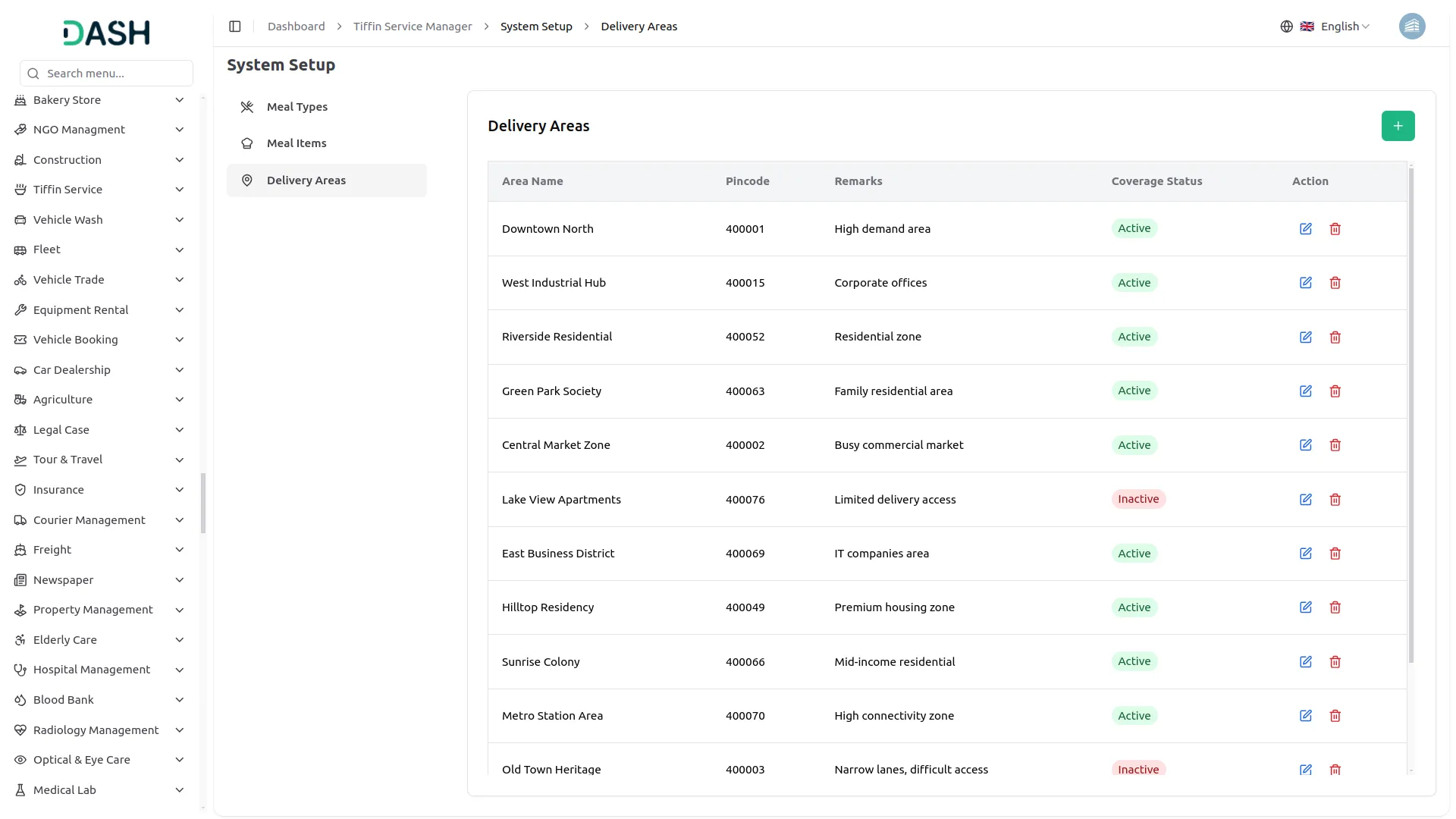
- To create a new Delivery Area, click the “Create” button on the Delivery Areas page. Enter the Area Name in the text field. Enter the Pincode to define the geographical coverage of the area. Add any relevant Remarks to provide additional context about the delivery location. Set the Coverage Status toggle to Active or Inactive to control whether the area is currently being serviced, then click Create to save the record.
- The list page displays all delivery areas in a table with columns for Area Name, Pincode, Remarks, Coverage Status, and Actions. Coverage Status will show as either Active or Inactive, reflecting whether deliveries are currently being made to that area.
- In the Actions column, use the Edit to update any delivery area information. Use the Delete to permanently remove the delivery area from the system.
Meal Plans
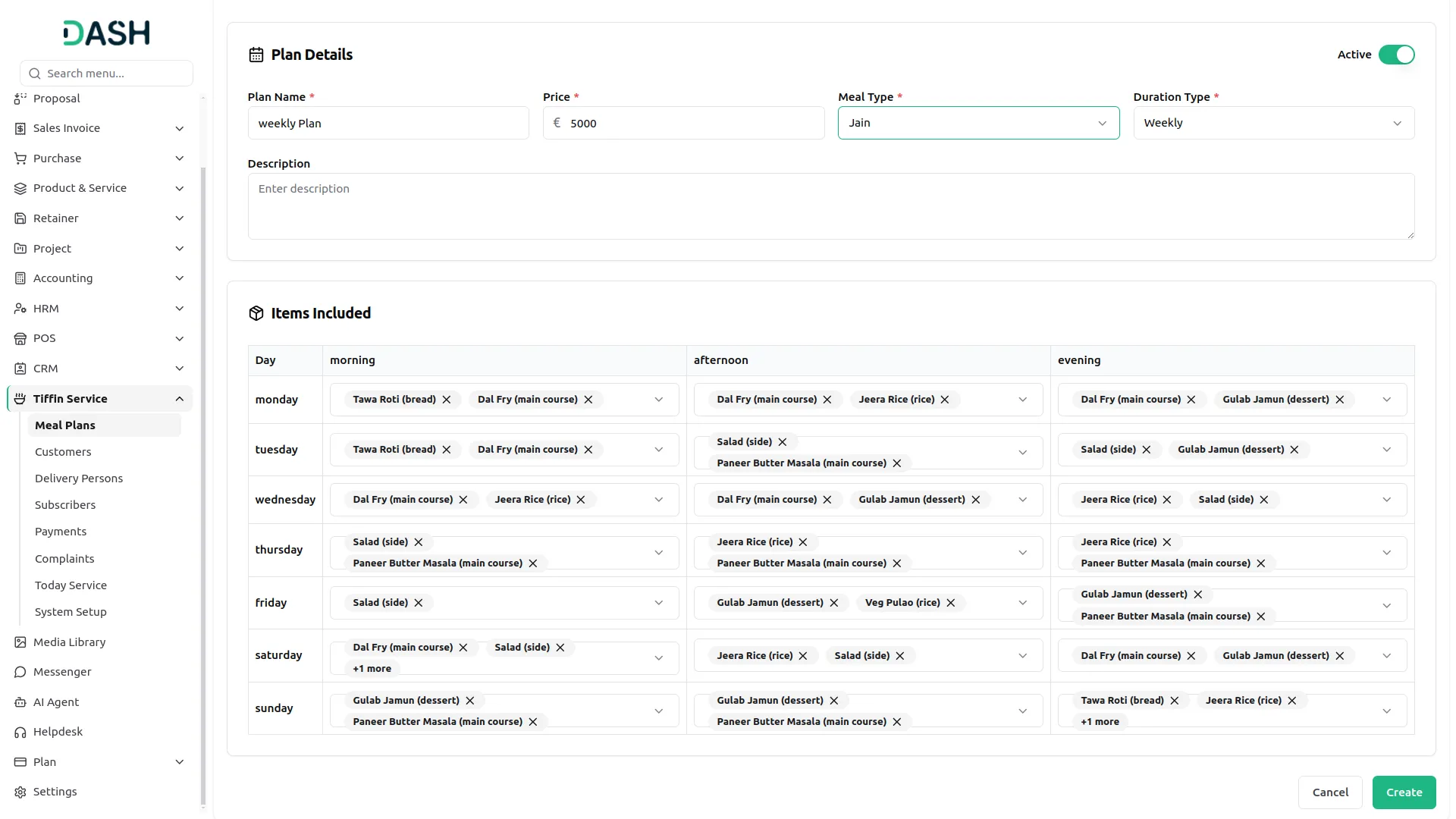
- To create a new Meal Plan, click the “Create” button on the Manage Meal Plans page. Enter the Plan Name, and set the Price for the plan. Select the Meal Type from the dropdown (configured from the system setup), and choose the Duration Type from the dropdown(monthly, weekly, single day).
- Optionally, add a Description to provide additional context about the plan. Use the Status toggle to set the plan as Active or Inactive.
- In the Items Included section, configure the meal schedule for each day of the week. For every day, select the meal items to be served during Morning, Afternoon, and Evening slots using the respective dropdowns. (All items are configured from the system setup) Once all details are filled in, click Create to save the record.
- The list page displays all meal plans in a table with columns for Plan Name, Meal Type, Duration Type, Price, Status, and Actions. Status will show as either Active or Inactive, reflecting the plan’s current availability.
- Use the search bar to quickly locate a specific meal plan by name. Click Filters to expand the filter panel, then apply filters using the Meal Type dropdown, the Duration Type dropdown, and the Status dropdown to narrow down results. Click Apply to activate the filters or Clear to reset them. Toggle between list view and grid view using the view buttons at the top right.
- In the Actions column, use the View button to open the Meal Plan Details page, which displays the plan’s Price, Meal Type, Duration Type, Status, and Description, along with the complete Meal Schedule. The Meal Schedule shows the meal items assigned for Morning, Afternoon, and Evening slots for each day of the week.
- Use the Edit to update any meal plan information, and the Delete to permanently remove the meal plan from the system.
Manage Customers
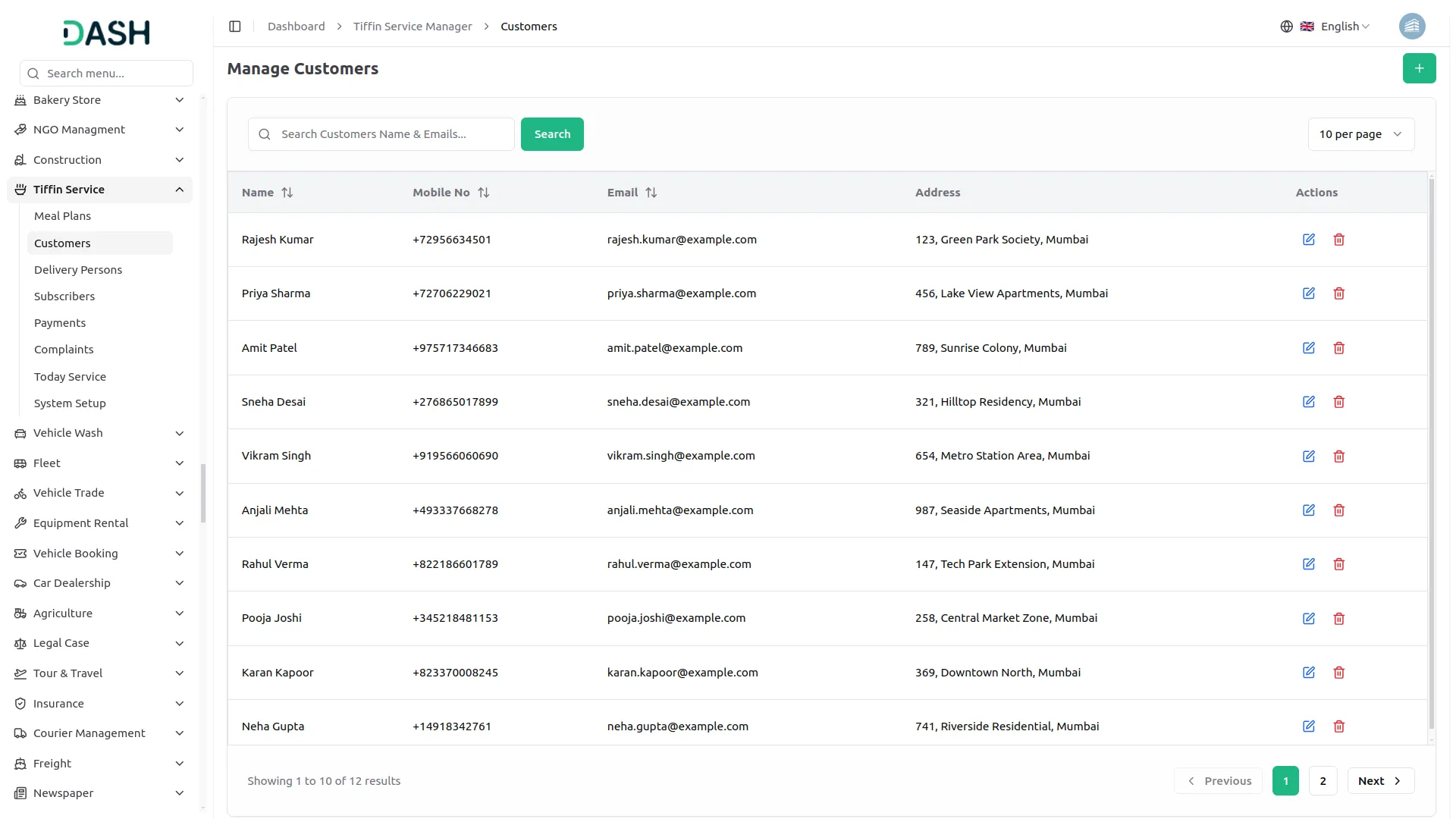
- To create a new Customer, click the “Create” button on the Manage Customers page. Enter the customer’s Name, Mobile Number, and customer’s Email address, or add the Address, then click Create to save the record.
- The list page displays all customers in a table with columns for Name, Mobile No, Email, Address, and Actions. Use the search bar to quickly locate a specific customer by name or email address.
- In the Actions column, use the Edit to update any customer information, and the Delete to permanently remove the customer from the system.
Delivery Persons
- To create a new Delivery Person, click the “Create” button on the Manage Delivery Persons page. Select the Name from the dropdown, which is linked to the user list. Once a user is selected, the Mobile No and Email fields will be auto-filled from the user’s profile.
- Note: The selected user cannot be changed after the record is created.
- Select the Assigned Area from the dropdown to define the delivery zone for this person. Enter the Vehicle Number and optionally add any relevant Remarks. Set the Status toggle to Active or Inactive to control the delivery person’s availability, then click Create to save the record.
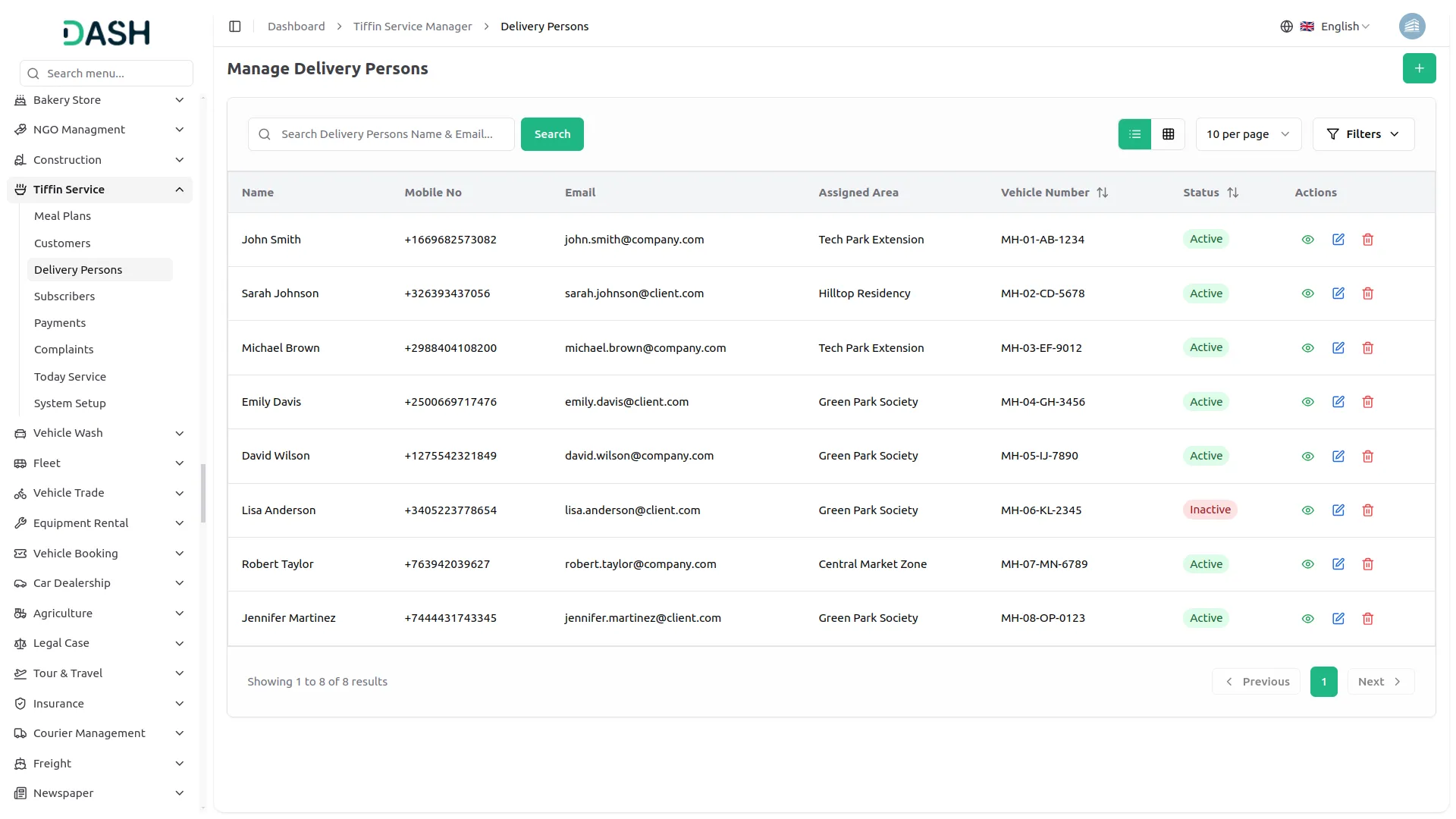
- The list page displays all delivery persons in a table with columns for Name, Mobile No, Email, Assigned Area, Vehicle Number, Status, and Actions. Status will show as either Active or Inactive, reflecting the delivery person’s current availability.
- Use the search bar to quickly locate a specific delivery person by name or email. Click Filters to expand the filter panel, then apply filters using the Assigned Area dropdown and the Status dropdown to narrow down results. Click Apply to activate the filters or Clear to reset them. Toggle between list view and grid view using the view buttons at the top right.
- In the Actions column, use the View to see the full delivery person profile and associated details. Use the Edit to update any delivery person information, and the Delete to permanently remove the delivery person from the system.
Manage Subscribers
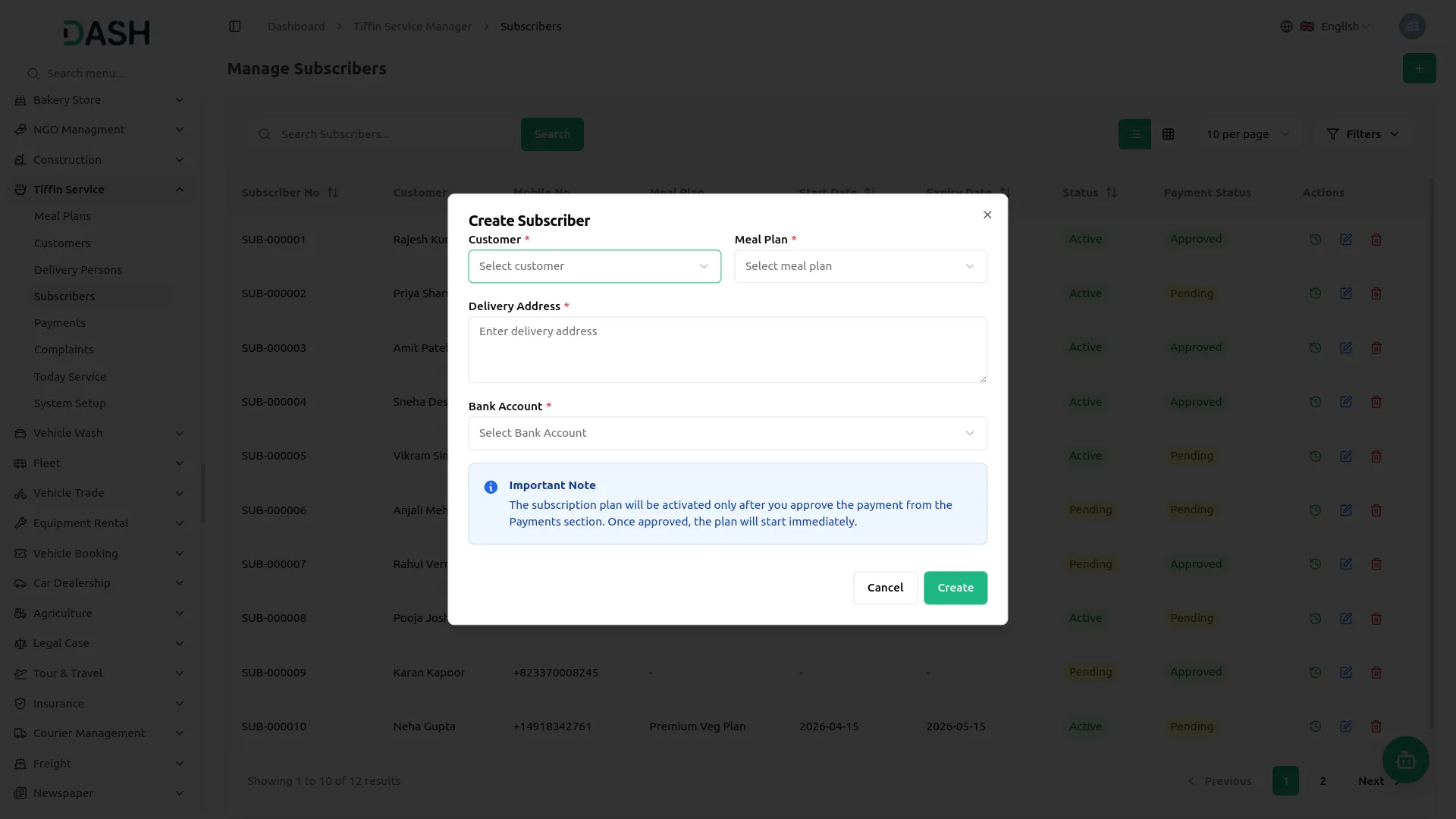
- To create a new Subscriber, click the “Create” button on the Manage Subscribers page. Select the Customer from the dropdown (configured from the Manage Customers section) and choose the Meal Plan to assign to the subscription (configured from the Manage Meal Plans section).
- Select the Delivery Person responsible for delivering to this subscriber (configured from the Manage Delivery Persons section) and choose the Bank Account from the dropdown. Enter the Delivery Address, then click Create to save the record.
- Important Note: The subscription plan will be activated only after the payment is approved in the Payments section. Once approved, the plan will start immediately.
- The list page displays all subscribers in a table with columns for Subscriber No, Customer, Mobile No, Meal Plan, Start Date, Expiry Date, Status, Payment Status, and Actions. Status will show as either Active or Pending, and Payment Status will show as either Approved or Pending, reflecting the current state of each subscription.
- Use the search bar to quickly locate a specific subscriber by name. Click Filters to expand the filter panel, then apply filters using the Customer dropdown, Meal Plan dropdown, Status dropdown, and Payment Status dropdown to narrow down results. Click Apply to activate the filters or Clear to reset them. Toggle between list view and grid view using the view buttons at the top right.
- In the Actions column, use the History button to view the complete subscription history for that subscriber. Clicking this button opens the Subscription Plan History page, which shows the Subscriber No, Customer Name, Mobile No, and Current Plan at the top. Below that, the Plan History table displays all previous plans with their Meal Plan, Start Date, Expiry Date, and Status.
- Use View to see the full subscriber profile. Use Edit to update subscriber information and Delete to permanently remove the subscriber from the system.
- Use the Renew Plan button to renew an existing subscription. Clicking it opens a model showing the current plan details. Select the new Meal Plan and Bank Account from the dropdowns, review the Plan Summary, and click Renew Plan to confirm or Cancel to close without saving.
Manage Payments
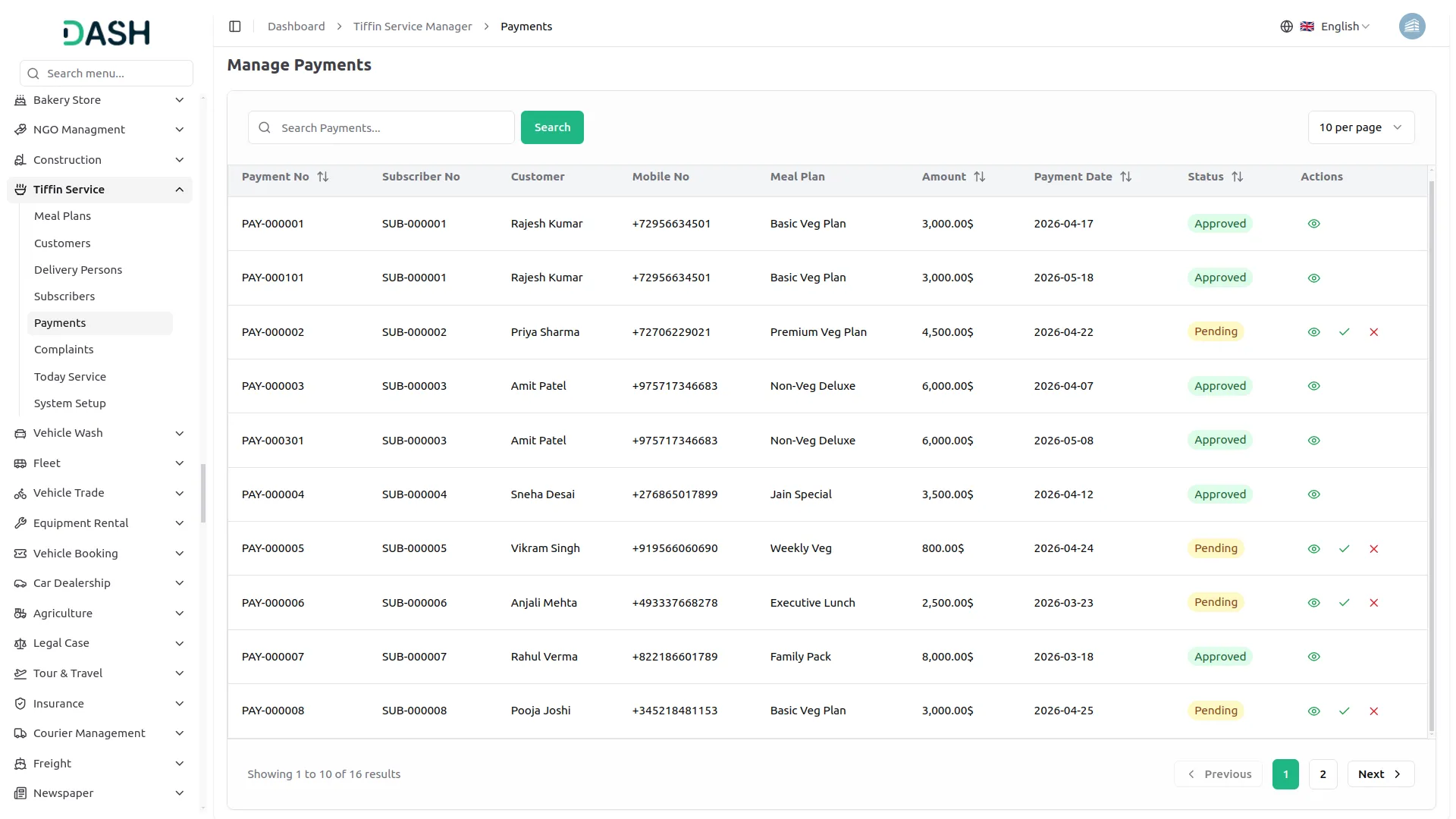
- The Manage Payments page displays all payment records that are automatically generated whenever a subscription is created or renewed. The list shows columns for Payment No, Subscriber No, Customer, Mobile No, Meal Plan, Amount, Payment Date, and Status (Approved / Pending/ Reject). Use the search bar to find a specific payment record.
- In the Actions column, use the View to see the full payment details. For payments with a Pending status, use the Approve button to confirm the payment and activate the subscription plan immediately, or use the Reject button to decline the payment. Once a payment is approved, the Approve and Reject options will no longer be available for that record.
Manage Complaints
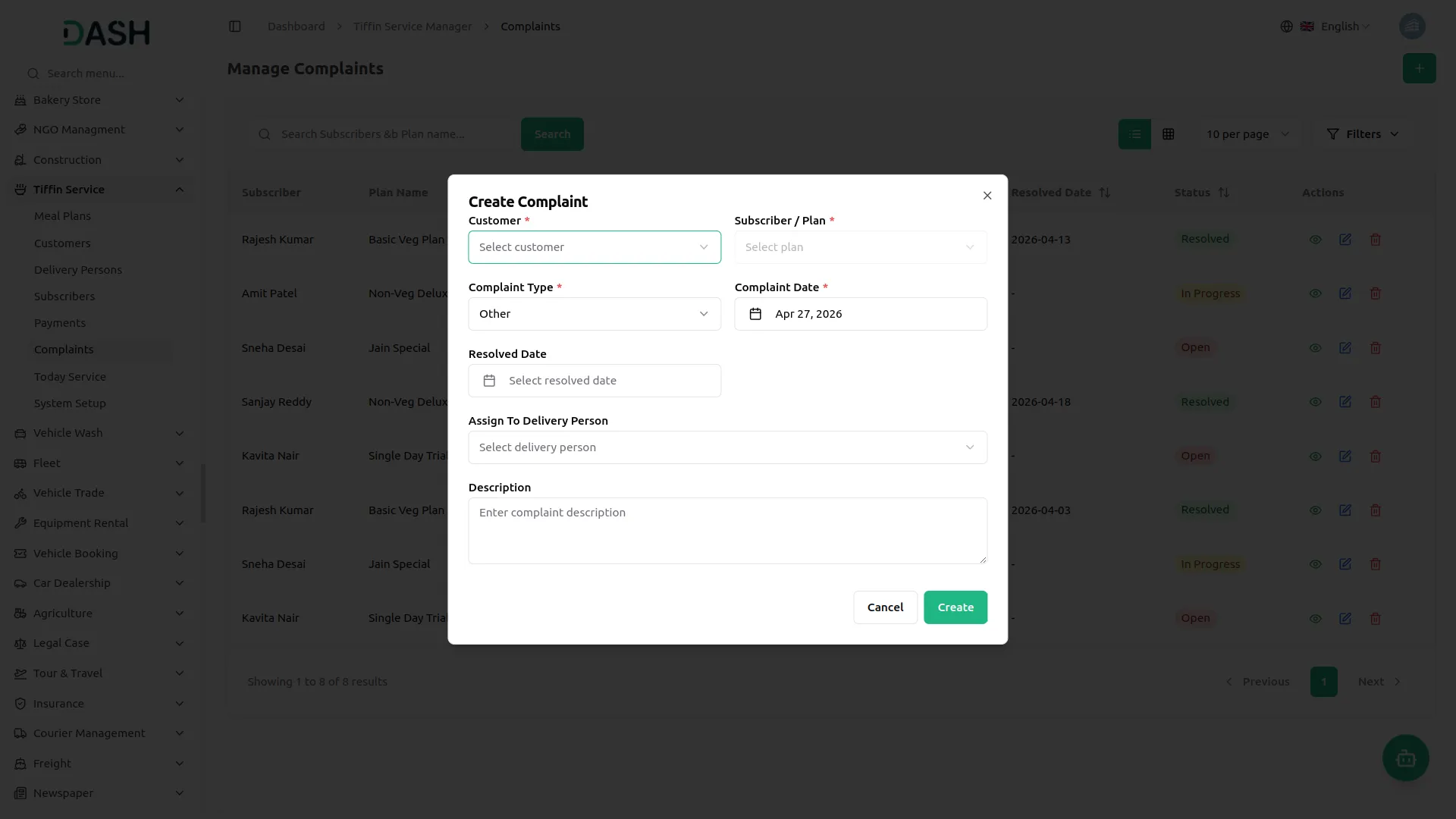
- To create a new Complaint, click the “Create” button on the Manage Complaints page. Select the Customer from the dropdown and choose the Subscriber / Plan associated from their respective dropdown (configured from the Manage Subscribers section).
- Select the Complaint Type from the dropdown (Late Delivery, Not Delivered, Wrong Item, Quality Issue, Other)and set the Complaint Date and Resolved Date. The Assign To Delivery Person field will be auto-selected based on the subscriber’s assigned delivery person (also available as a select option). Add a Description, then click Create to save the record.
- The list page displays all complaints in a table with columns for Subscriber, Plan Name, Complaint Type, Assigned To, Complaint Date, Resolved Date, Status, and Actions. Status will show as Open, In Progress, or Resolved, reflecting the current state of each complaint.
- Use the search bar to quickly locate a specific complaint by subscriber or plan name. Click Filters to expand the filter panel, then apply filters using the Complaint Type dropdown, Status dropdown, Assigned To dropdown, and Complaint Date picker to narrow down results. Click Apply to activate the filters or Clear to reset them. Toggle between list view and grid view using the view buttons at the top right.
- In the Actions column, use the View to see the full complaint details. Use the Edit to update any complaint information, and the Delete to permanently remove the complaint from the system.
Today Service
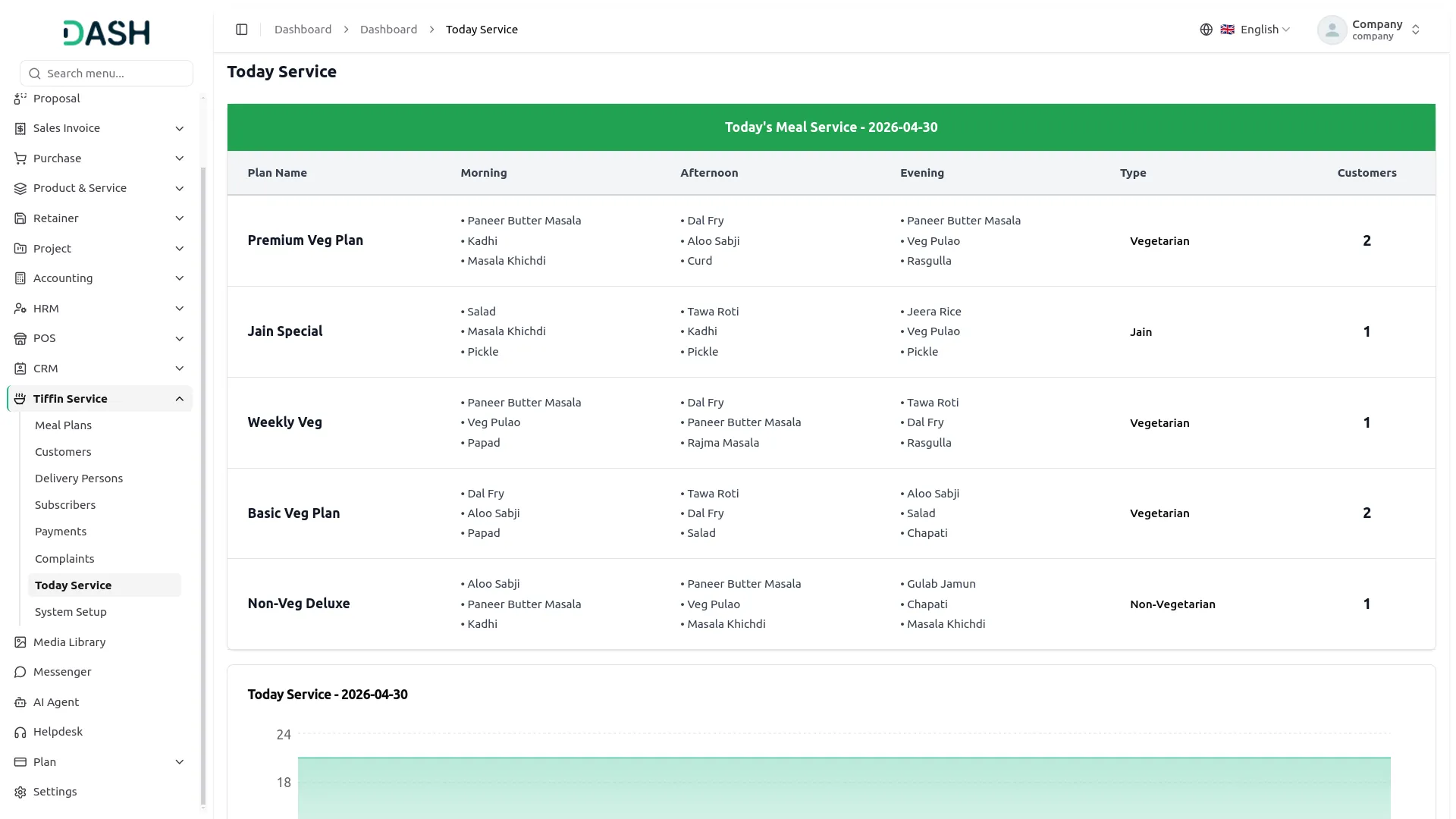
- The Today Service page provides a complete overview of all meal plans being served on the current date.
- The Today’s Meal Service table displays each active plan for the day with columns for Plan Name, Morning, Afternoon, and Evening meal items, Type, and the number of Customers assigned to each plan. This gives a clear, at-a-glance view of what meals are being prepared and delivered across all plans for the day.
- Below the table, the Today Service chart visually represents the volume of deliveries distributed across Morning, Afternoon, and Evening slots, helping you quickly assess the delivery workload throughout the day.
Categories
Related articles
- Vehicle Inspection Management – WorkDo Dash SaaS Add-On Guide
- User Manual – ERPGo SaaS
- Paddle – BookingGo SaaS Add-On Guide
- Skrill – BookingGo SaaS Add-On Guide
- Document Template – WorkDo Dash SaaS Add-On Guide
- User Manual – vCard SaaS
- Paystack – BookingGo SaaS Add-On Guide
- Ozow – WorkDo Dash SaaS Add-On Guide
- Ratings – TicketGo Add-On Guide
- Tracking Pixel – BookingGo SaaS Add-On Guide
- Support Ticket – WorkDo Dash SaaS Add-On Guide
- Checkout – BookingGo SaaS Add-On Guide
We're Here to Help - Let's Talk
Have questions about our solutions, customization services, or business tools? Our team is here to help you. let's talk.