
Petty Cash Management Integration in Dash SaaS
The Petty Cash Management add-on for Dash SaaS helps businesses efficiently track and manage small daily expenses.
Introduction
The Petty Cash Management Add-On helps businesses efficiently track and manage small daily expenses. This documentation provides a step-by-step guide on how to set up the Add-On, record transactions, set spending limits, and monitor cash flow. Whether you’re handling office supplies, travel expenses, or other minor costs, this module ensures transparency and better financial control. By following this guide, you’ll learn how to streamline petty cash handling and maintain accurate records without relying on complex accounting tools.
How to Install the Add-On?
- To Set Up the Petty Cash Management Add-On, you can follow this link: Setup Add-On
How to use the Petty Cash Management Add-On?
Once the Petty Cash Management Add-On is purchased, it will automatically appear in the sidebar of your platform, making it easy for staff and admin users to access.
Any staff member who wants to use the petty cash features must first log into their account, as only authenticated users can access the Add-On.
Petty Cash
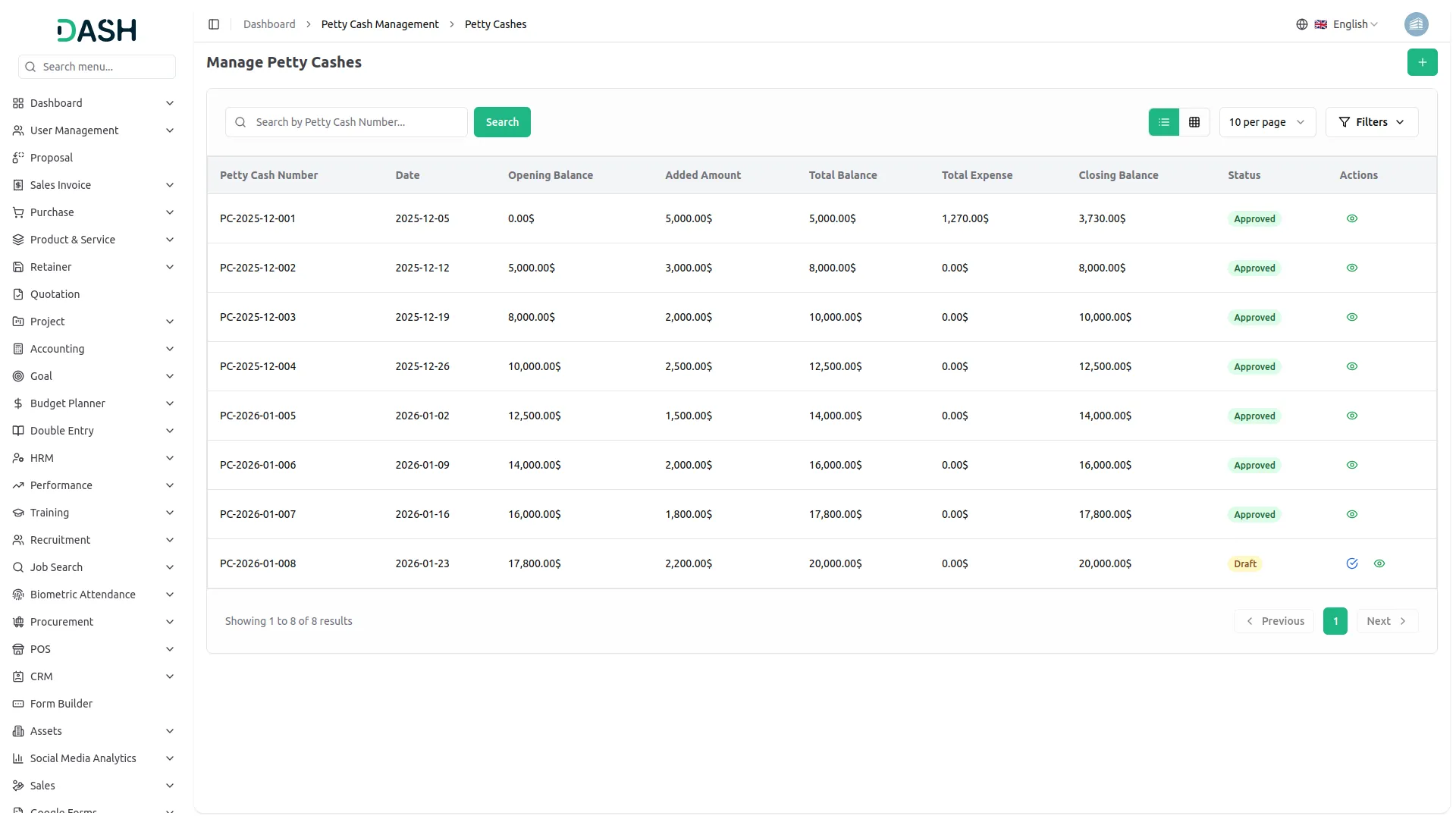
- The Petty Cash page allows administrators to manage petty cash allocations for employees. To create a new petty cash entry, click the “Create” button at the top of the page and enter the required details, including: amount, date, and remarks.
- The list page displays all previously recorded petty cash entries and provides financial details such as: petty cash number, date, opening balance, added amount, total balance, total expenses, and closing balance for each staff member.
- You will see action buttons only on the current active entry, as calculations depend on it.
- Click Approve to approve the current petty cash entry. After approval, the Edit and Delete buttons are disabled to ensure data integrity.
- Click View to see all approved expenses recorded under that petty cash entry.
- You can Edit or Delete a petty cash record only before it is approved. After approval, no further modifications can be made.
Manage Categories
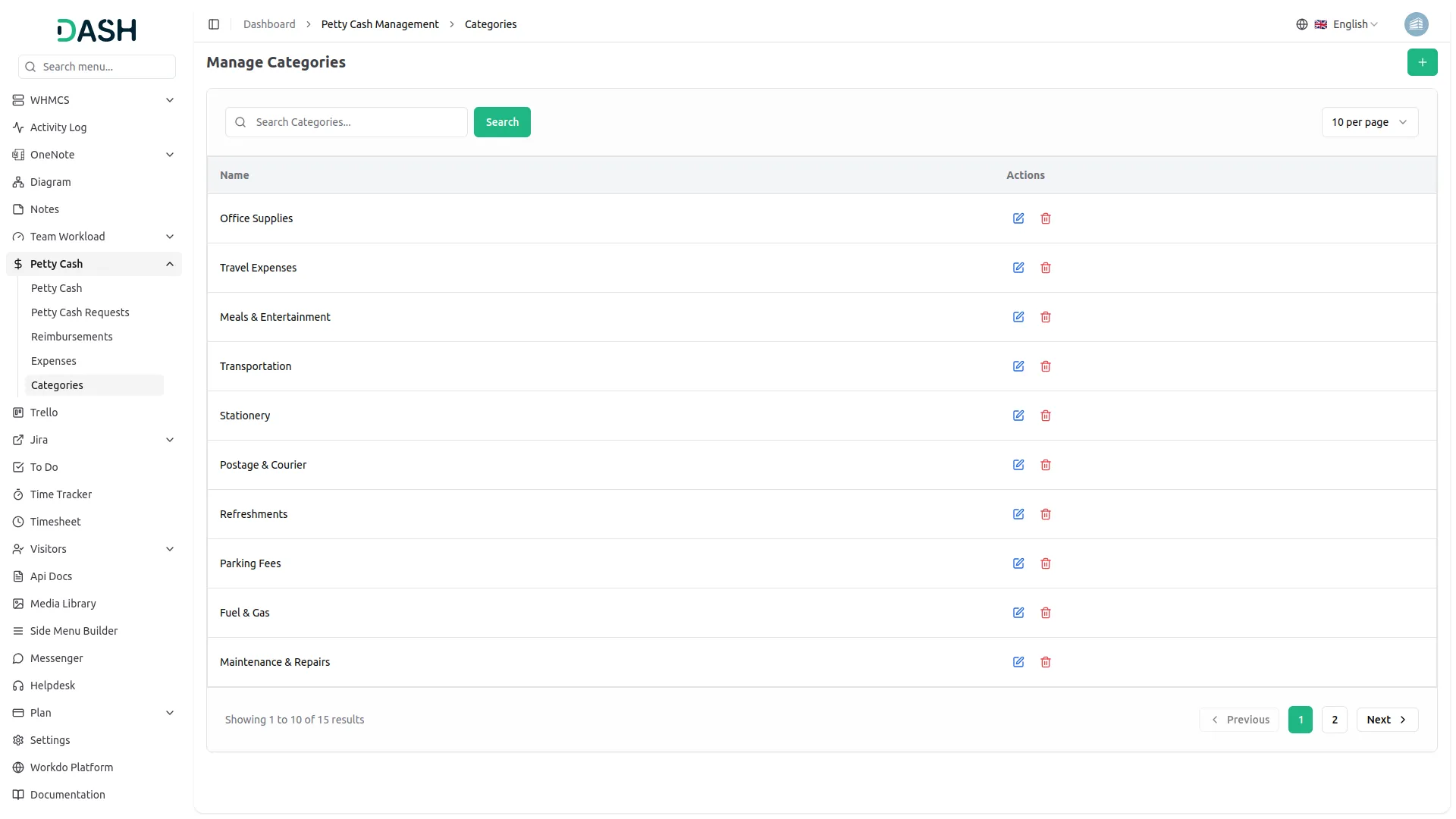
- The Categories Page allows admins to create, edit, or delete various expense categories so that staff can tag their expenses correctly, helping keep all transactions well-organized and easy to review.
- To create new categories click on the create button given at the top, enter the category name. After which it will be added in the list of categories, and will be visible to the users while creating the request.
Petty Cash Request
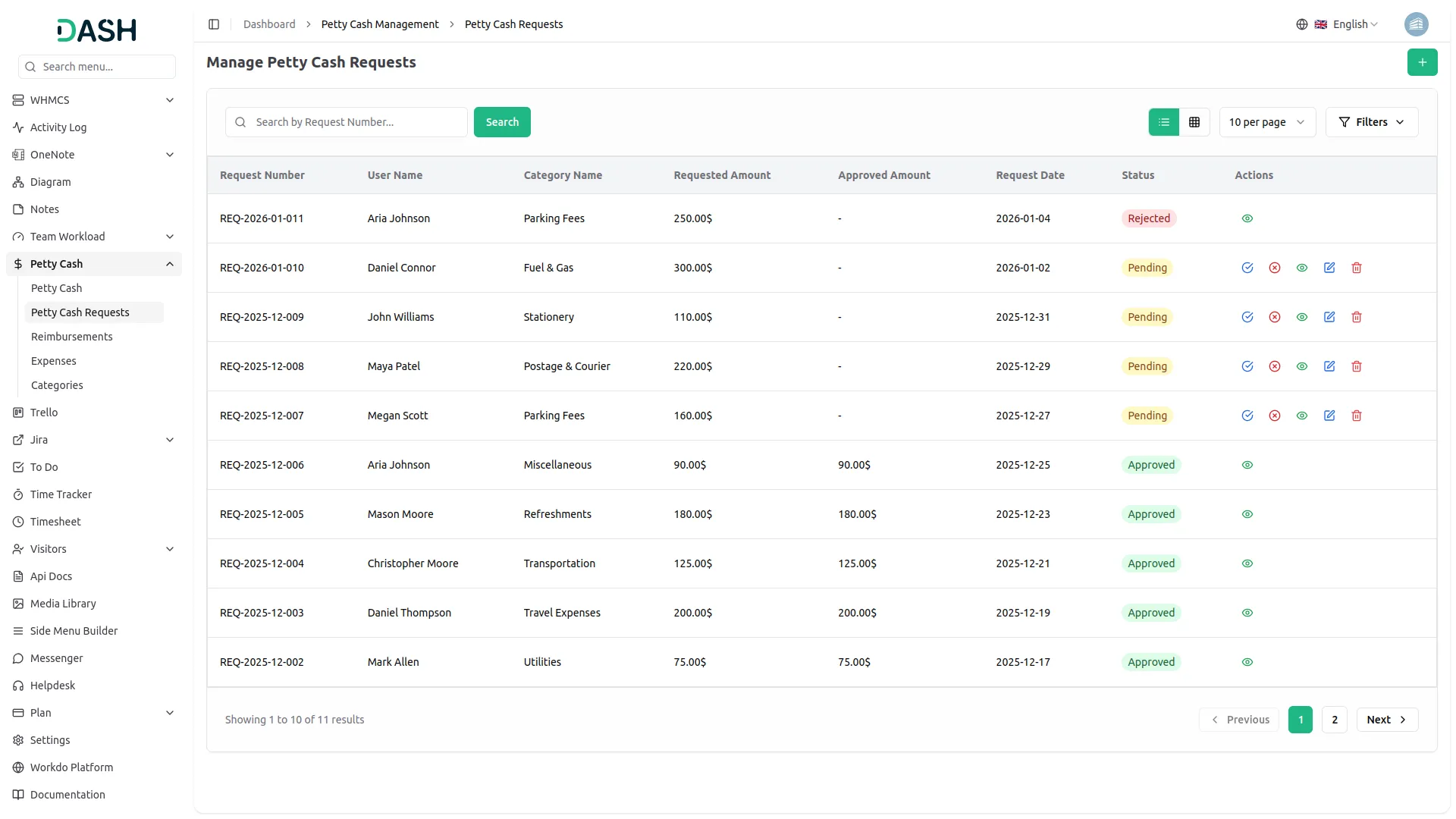
- Staff members can request petty cash through the Petty Cash Request page. To create a new request, click the “Create” button at the top of the page.
- You will be required to fill in the form with the following details: User selected from the dropdown, loaded from the Users section in User Management, category selected from the dropdown loaded from Manage Categories, Requested Amount, remarks.
- The list page displays key information for each petty cash request, including: Request Number, User Name, Category Name, Requested Amount, Request Date, Status “Pending”,“Rejected”,”Approved”.
- Click “Approve” to open the approval form The form displays User name, Category, Requested Amount, Field to enter the Approved Amount. After clicking the Approve button: The request status is updated to Approved. The Edit, Delete, and Reject buttons are hidden. The approved amount is automatically recorded in Manage Expenses. In Manage Petty Cash, the Total Expense increases based on the approved amount, and the Closing Balance decreases accordingly.
- Click “Reject” to open the rejection form. Enter the Rejection Reason After submitting, the record status changes to Rejected. The Approve, Edit, and Delete buttons are hidden
- Click “View” to see the full request details. You can Edit or Delete a request only while it is in Pending status Once Approved or Rejected, editing and deleting are disabled
Manage Reimbursements
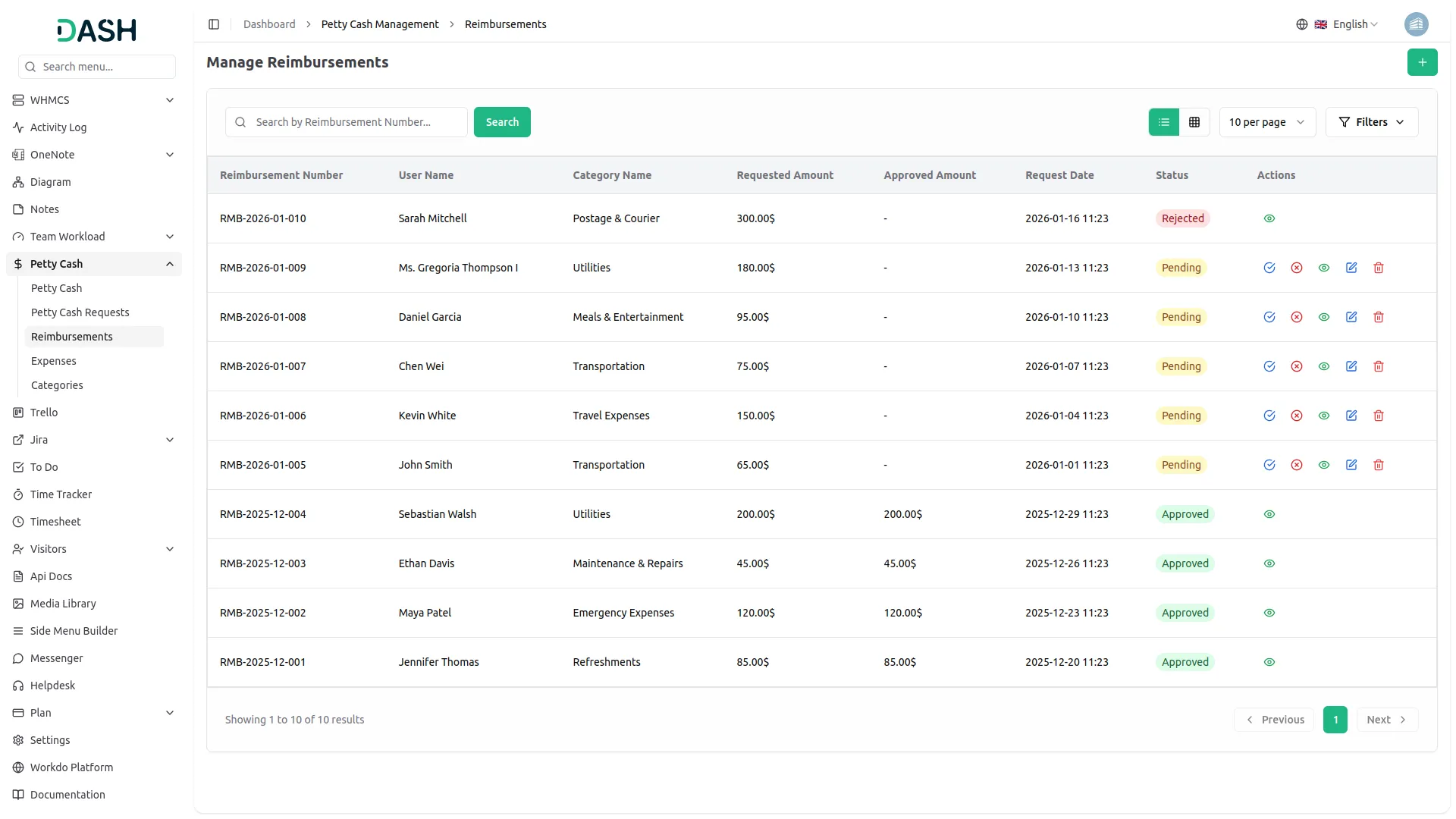
- If a staff member has already paid for something out of their own pocket, they can go to the Reimbursement Page to create a reimbursement request instead of a petty cash request To create a new request, click the “Create” button at the top of the page.
- You will be required to fill in the form with the following details: User selected from the dropdown, loaded from the Users section in User Management, category selected from the dropdown loaded from manage categories, amount, upload payment receipt, and description.
- The list page displays key information for each reimbursement request, including: Reimbursement Number, User Name, Category Name, Amount, Request Date, Status “Pending”,“Rejected”,”Approved”.
- Click “Approve” to open the approval form The form displays User name, Category, Requested Amount, Field to enter the Approved Amount. After clicking the Approve button: The request status is updated to Approved. The Edit, Delete, and Reject buttons are hidden. The approved amount is automatically recorded in Manage Expenses. In Manage Petty Cash, the Total Expense increases based on the approved amount, and the Closing Balance decreases accordingly.
- Click “Reject” to open the rejection form. Enter the Rejection Reason After submitting, the record status changes to Rejected. The Approve, Edit, and Delete buttons are hidden
- Click “View” to see the full request details. You can Edit or Delete a request only while it is in Pending status Once Approved or Rejected, editing and deleting are disabled
Expense Management
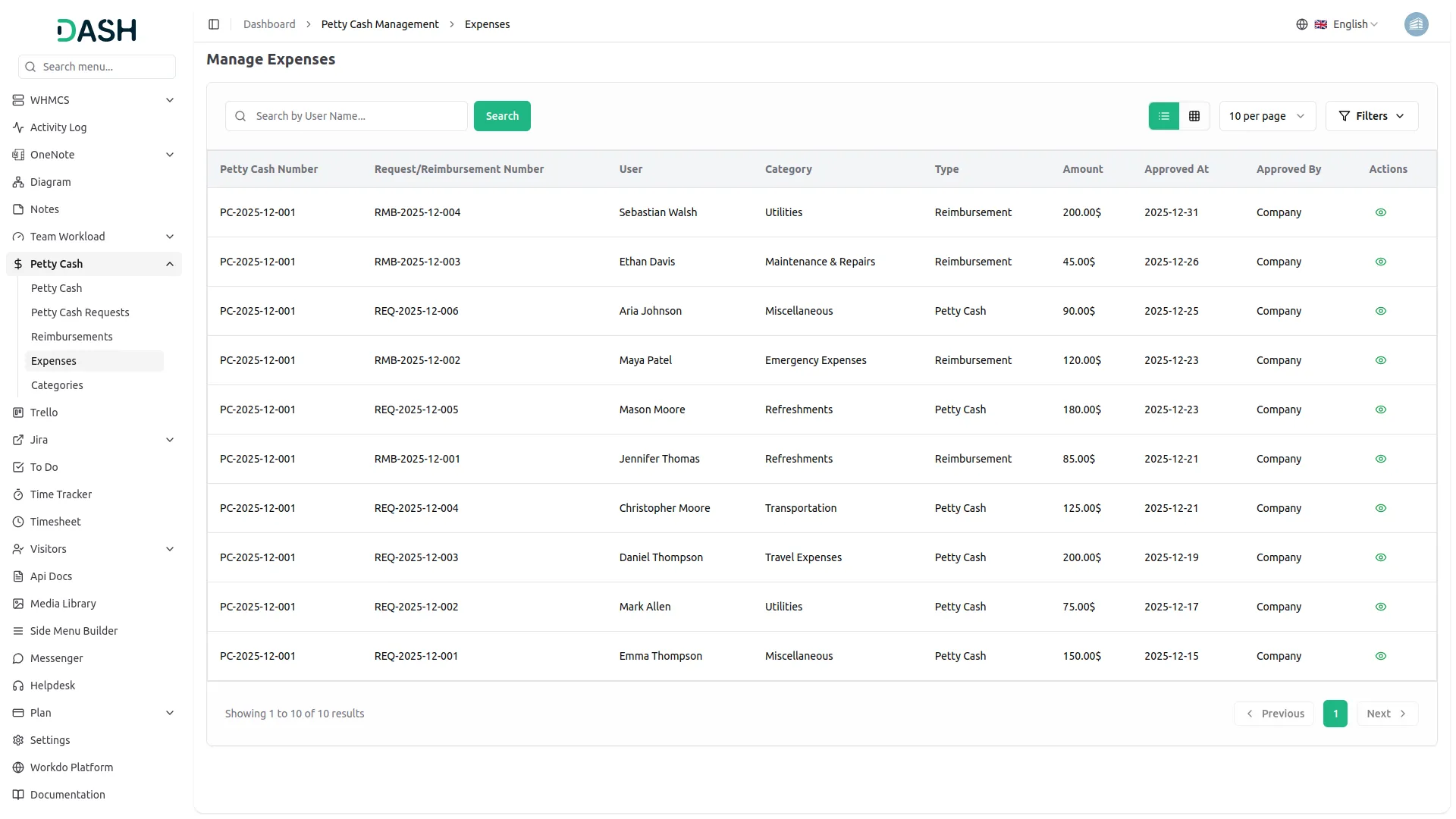
- Staff can go to the Expense Page to view a detailed list of all expenses made using petty cash, where they can track how much has been used, under which categories, and the approval status of each transaction.
- The Expense Page also provides admins with an overview of all recorded expenses, including who spent what, under which category, the type of transaction (cash or reimbursement), the amount, description, and approval status.
Categories
Related articles
- PayU Payment Gateway Integration in Dash SaaS
- Music Institute Integration in Dash SaaS
- Nepalste Integration in Dash SaaS
- Zoom Meeting Integration in Dash SaaS
- Goto Meeting Integration in Dash SaaS
- Sign-In with Github Add-On Integration in Dash SaaS
- PESTEL Analysis Integration in Dash SaaS
- Pesapal Integration in Dash SaaS
- Slack Integration in Dash SaaS
- Performance Indicator Integration in Dash SaaS
- Library Management Detailed Documentation
- Elderly Care Detailed Documentation
Reach Out to Us
Have questions or need assistance? We're here to help! Reach out to our team for support, inquiries, or feedback. Your needs are important to us, and we’re ready to assist you!


Need more help?
If you’re still uncertain or need professional guidance, don’t hesitate to contact us. You can contact us via email or submit a ticket with a description of your issue. Our team of experts is always available to help you with any questions. Rest assured that we’ll respond to your inquiry promptly.
Love what you see?
Do you like the quality of our products, themes, and applications, or perhaps the design of our website caught your eye? You can have similarly outstanding designs for your website or apps. Contact us, and we’ll bring your ideas to life.