
DPO – WorkDo Dash SaaS Add-On Guide
Learn how to configure and manage DPO payment integration in Dash SaaS.
Supported Countries : Kenyan Shilling (KES), South African Rand (ZAR), Tanzanian Shilling (TZS) and Many More
Supported Currencies : Kenya, Tanzania, Uganda, South Africa, Rwanda, Ethiopia, Zambia and Many More
Benefits of DPO Pay Payment Gateway
End-to-End Transaction Security
DPO Pay encrypts every transaction from start to finish, ensuring that sensitive customer data remains fully protected throughout the payment process and giving both businesses and their customers complete confidence in every interaction.
Smooth & Embedded Payment Experience
DPO Pay integrates directly within the platform, allowing customers to complete payments without being redirected to external sites, resulting in a cleaner, more professional, and uninterrupted checkout experience.
Multi-Currency Payment Support
DPO Pay enables businesses to accept payments in multiple currencies, making it easier to serve international customers and broaden their client base without limitations.
Fast & Reliable Fund Settlements
DPO Pay delivers quick and dependable settlements, helping businesses maintain healthy cash flow and ensuring that funds are received promptly following each completed transaction.
How To Access DPO Pay Add-On?
Ready to enhance your online payment capabilities with DPO Pay? Follow these simple steps to get started:
- Visit the WorkDo Dash Website Go to https://www.workdo.io/ to access the WorkDo Dash platform.
- Navigate to Dash SaaS Add-OnsExplore the “Dash SaaS Add-Ons” section to view all available integrations.
- Discover DPO Add-OnBrowse the Add-Ons list and locate “DPO Payment Gateway.”
- Activate the Add-OnClick on the Activate button to enable DPO for your WorkDo Dash account.
Once activated, DPO becomes available across supported modules based on permissions and settings.
How does DPO Pay work ?
DPO Pay works by securely processing payments when a customer books a service on Dash. After the customer selects DPO Pay at checkout, they enter their payment details, which are encrypted for security. DPO Pay then verifies and authorizes the transaction with the customer’s bank or payment provider. Once approved, both the customer and business receive a confirmation, and the funds are settled into the merchant’s account, ensuring a smooth and secure payment experience.
Super Admin Settings
(Plan Purchase by the Company)
The Super Admin Settings are accessible only to the highest-level administrator. These settings allow the Super Admin to manage company-level subscriptions and payment configurations.
Key Capabilities:
- Purchase or upgrade company subscription plans
- Configure DPO Pay API credentials for plan payments
- Enable or disable DPO Pay as a payment gateway
Configuration Path:
Super Admin Login → Settings → DPO Pay Settings
Company Settings
(Bookings, Beauty Spa, LMS & Other Payments)
Company Settings allow organizations to configure DPO Pay for receiving payments from customers across multiple modules.
Supported Modules Include:
Configuration Path:
Company Login → Settings → DPO Pay Settings
Company-Level Capabilities:
- Configure DPO Pay API credentials
- Enable DPO Pay for selected modules
- Accept online payments from customers
- Manage Bookings, Beauty Spa, and service
- Handle tax, coupon, and discount calculations
How To Generate a Key?
1. Generate API Key:
- Log in to your account or create one if you don’t have an account yet.
- Obtain comprehensive information about DPO Pay.
- Proceed to generate your API key by visiting the DPO Pay API documentation: https://dpogroup.com/
2. Configure DPO Pay Gateway in (Product Name):
- Log in to your (Product Name) account with administrator credentials.
- Navigate to the settings page.
3. Access Payment Settings
- Within the settings page, locate and select the “Payment Settings” option.
4. Enter Required Details
In the DPO Pay settings, provide the following essential details:
- Company Token
- Service Type
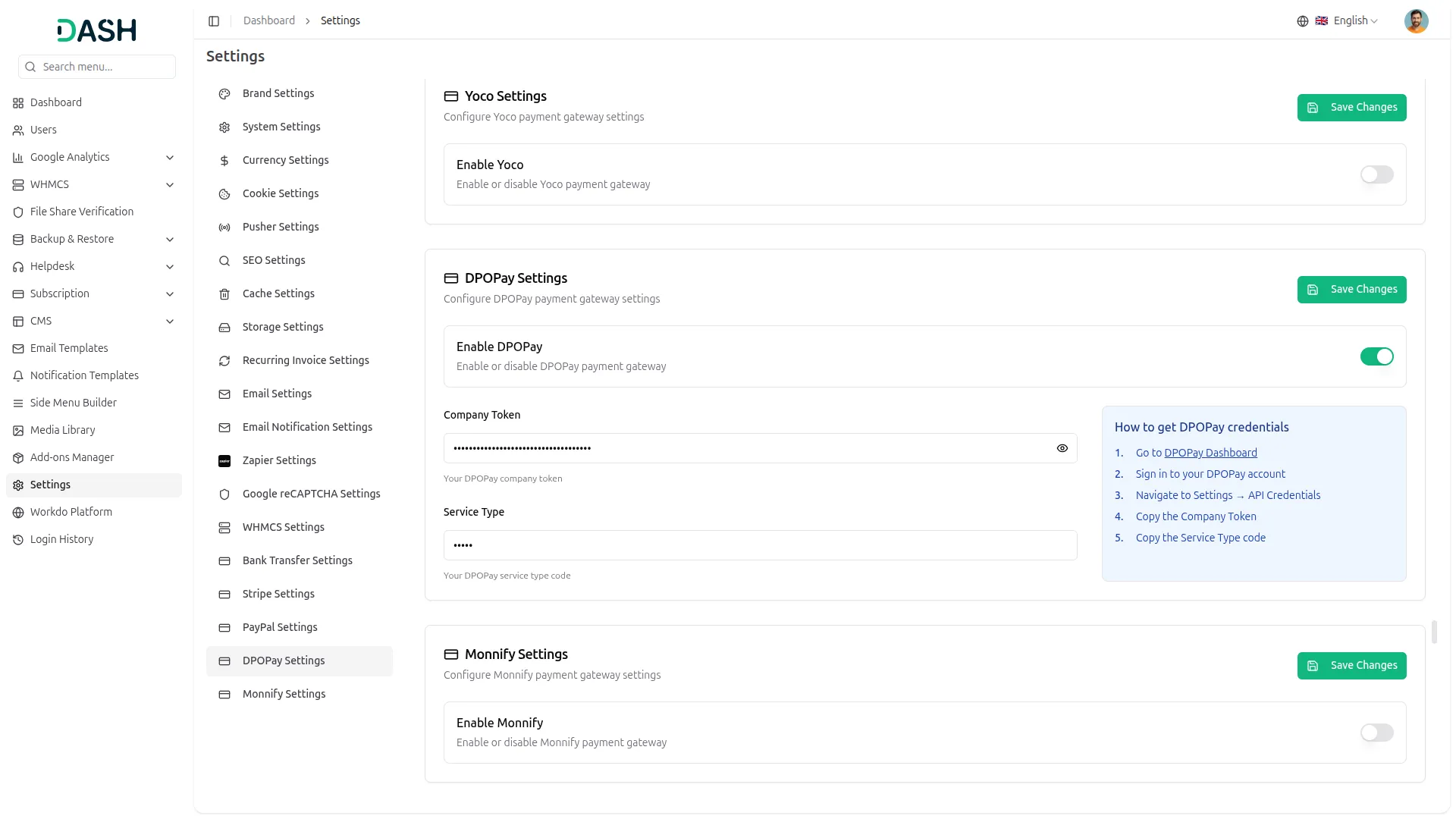
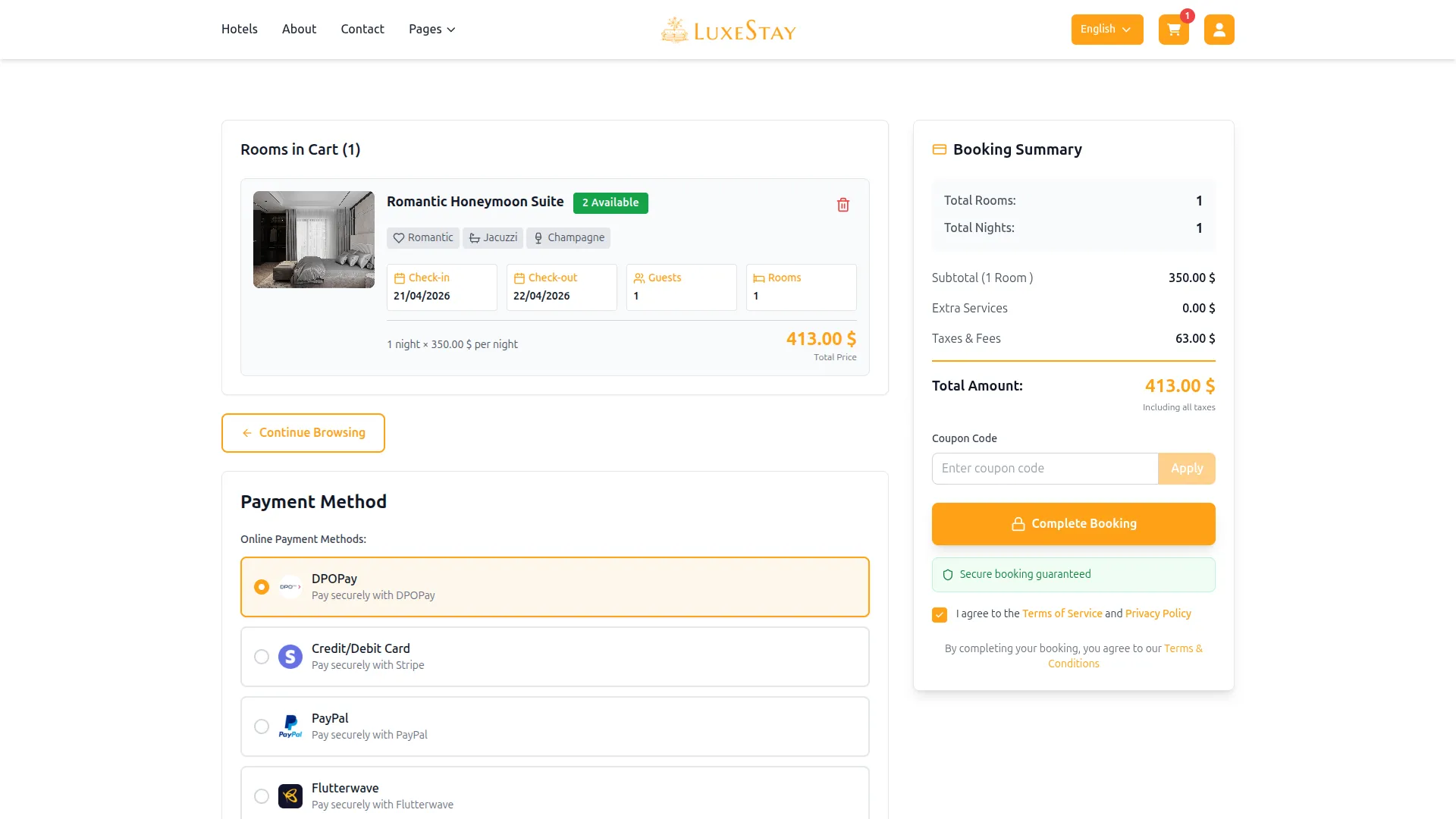
5. Save Your Settings
- After entering the necessary details, save the settings to activate the DPO Pay Payment Gateway within your (Product Name) platform.
This process will enable you to seamlessly integrate DPO Pay as a payment gateway, allowing your users to make secure and efficient online payments in various cryptocurrencies.
Note : This Add-On is a paid feature and can be accessed by users who have purchased it. By integrating the DPO Pay Add-On into your Dash SaaS account, you’ll provide a reliable and user-friendly payment gateway that supports global transactions.
Categories
Related articles
- Tap – BookingGo SaaS Add-On Guide
- Machine Repair Management – WorkDo Dash SaaS Add-On Guide
- Grant Management – WorkDo Dash SaaS Add-On Guide
- Rocket.Chat Credentials Generation Guide
- Google Calendar – BookingGo SaaS Add-On Guide
- Google Analytics – WorkDo Dash SaaS Add-On Guide
- Coupon – vCard SaaS Add-On Guide
- WHMCS – WorkDo Dash SaaS Add-On Guide
- Internal Knowledge – WorkDo Dash SaaS Add-On Guide
- Store Locator – eCommerceGo SaaS Add-On Guide
- Twilio – TicketGo Add-On Guide
- Instagram Post – WorkDo Dash SaaS Add-On Guide
We're Here to Help - Let's Talk
Have questions about our solutions, customization services, or business tools? Our team is here to help you. let's talk.