
Franchise Management Integration in Dash SaaS
The Franchise Management Add-On is a comprehensive system designed to manage and monitor franchise operations across multiple locations.
Introduction
The Franchise Management Add-On is a comprehensive solution designed to help you manage every aspect of your franchise operations from a single platform. It enables you to organize Brands, Owners, Branches, and Franchises while streamlining compliance through built-in Audit management. The Agreements module allows you to define and monitor franchise contracts, royalty terms, and payment statuses, while the Profits module tracks sales, expenses, and royalty calculations per branch with automated computations. Whether overseeing a handful of locations or a large multi-brand network, the Franchise Management Add-On provides the tools you need to stay organized and make informed business decisions.
How to Install the Add-On?
To Set Up the Franchise Management Add-On, you can follow this link: Setup Add-On.
How to use the Franchise Management Add-On?
Franchise Dashboard
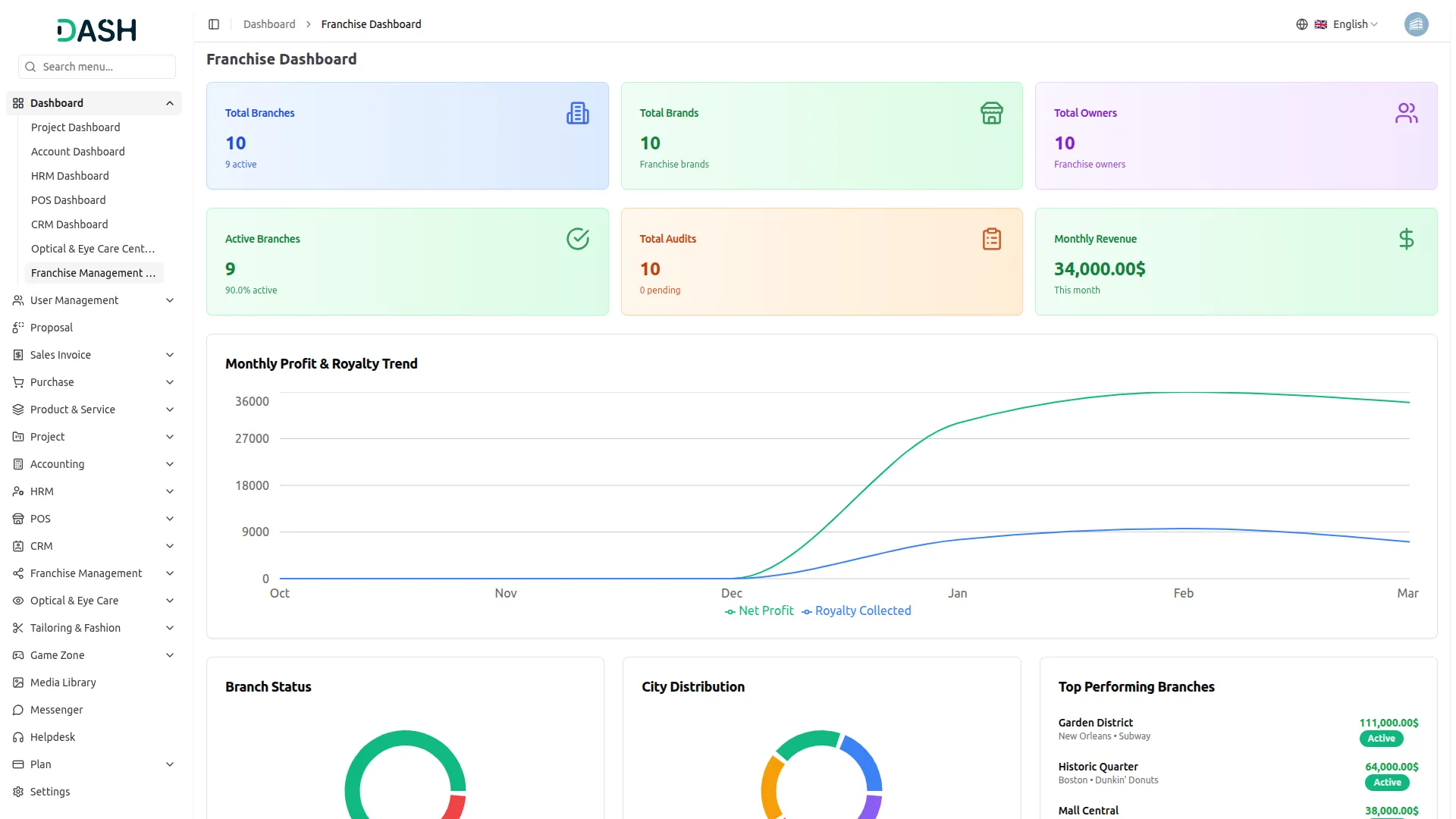
- The Franchise Dashboard provides a complete overview of your franchise operations at a glance. The dashboard displays key performance metrics through various widgets and charts.
- At the top of the dashboard, you’ll find six important summary cards showing Total Branches, Total Brands, Total Owners, Active Branches, Total Audits, and Monthly Revenue. These cards give you instant access to your most critical operational numbers, including active branch counts, pending audit status, and current month revenue.
- The Monthly Profit & Royalty Trend chart displays Net Profit and Royalty Collected data over time, allowing you to track financial performance and royalty trends across months. This helps you identify growth patterns and monitor royalty collection progress side by side.
- The Branch Status donut chart provides a visual breakdown of branches by their current status, giving you an at-a-glance understanding of your overall branch health. Alongside this, the City Distribution chart shows how branches are spread across different cities, helping you understand your geographic footprint.
- The Top Performing Branches panel lists the highest-earning branches along with their city, associated brand, total revenue, and current status. This allows you to quickly identify your best-performing locations and benchmark performance across the network.
- At the bottom of the dashboard, the Recent Branches section displays the latest branch cards with details including Branch Code, City, Brand, Owner, and Contact. Each card also shows the branch’s current Active or Inactive status, giving you a quick snapshot of recently added or updated branches across your franchise network.
Manage Brands
- To create a new brand, click the “Create” button on the Manage Brands page. Enter the Brand Name in the text field. Upload a logo by clicking Browse to select an image file. Enter the Industry to categorize the brand appropriately.
- Optionally, provide a Description to give additional context about the brand. Enter the HQ Address if applicable. Fill in the required Email and phone number. Optionally, enter a Website URL before clicking Create to save the brand.
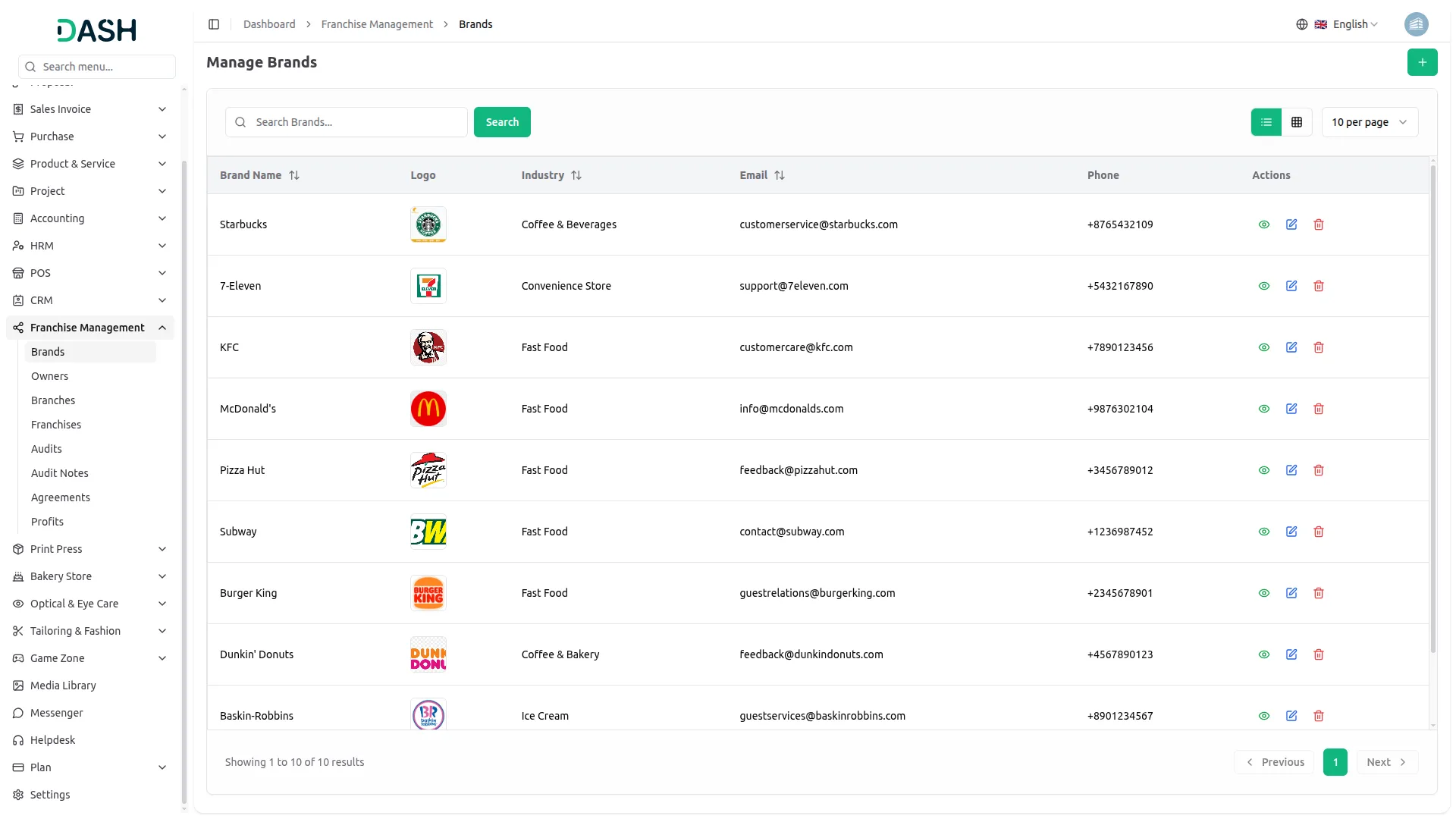
- The list page displays all brands in a table with columns for Brand Name, Logo, Industry, Email, Phone, and Actions. Each row represents a registered brand along with its key contact and classification details. Use the search bar to quickly locate a specific brand by name. Toggle between list view and grid view using the view buttons at the top right.
- In the Actions column, use View to see the full brand profile. Use Edit to update any brand information or use Delete to permanently remove the brand from the system.
Manage Owners
- To create a new owner, click the “Create” button on the Manage Owners page. Enter the Owner Name in the text field. Fill in the required Email and Phone number, and enter the Address to register the owner’s location.
- Upload an ID Proof by clicking Browse to select the relevant document, this is a required field. Optionally, upload a Profile Photo by clicking Browse to attach an image. Use the Status toggle to set the owner as Active or Inactive before clicking Create to save the record.
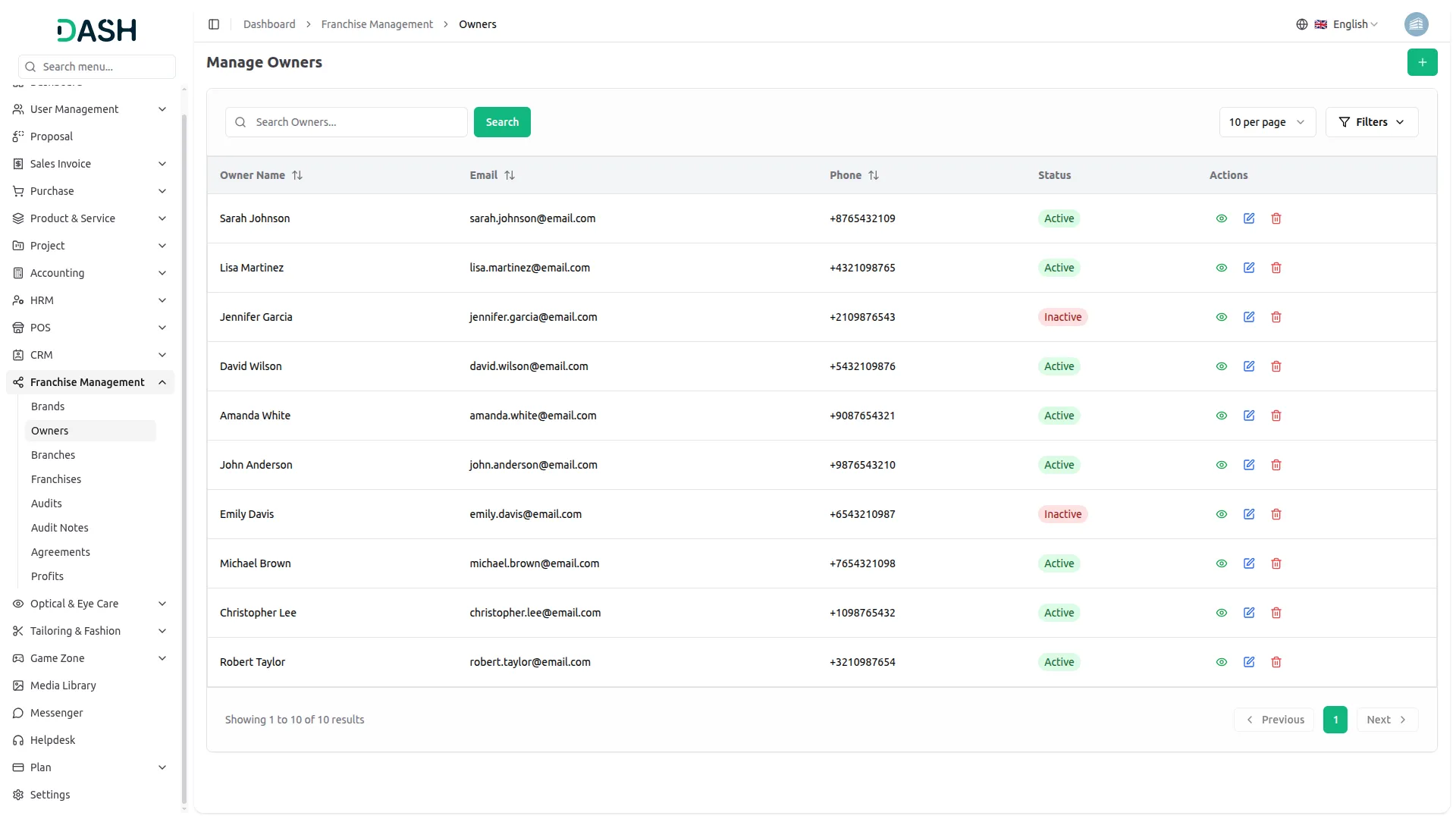
- The list page displays all owners in a table with columns for Owner Name, Email, Phone, Status, and Actions. Status will show as either Active or Inactive, reflecting the owner’s current standing in the system.
- Use the search bar to quickly locate a specific owner by name. Click Filters to expand the filter panel, then use the Status dropdown to narrow results by Active or Inactive. Click Apply to activate the filter or Clear to reset it.
- In the Actions column, use View to see the full owner profile and associated details. Use Edit to update any owner information, and Delete to permanently remove the owner from the system.
Manage Branches
- To create a new branch, click the “Create” button on the Manage Branches page. Enter the Branch Name in the text field. Select the Franchise Brand from the dropdown (comes from the Brand section).
- Select the Franchise Owner from the dropdown (comes from the Owner section) to assign the branch to a registered owner. Enter a unique Branch Code to identify the branch within the system.
- Fill in the City and Address fields to specify the branch location. Enter the Contact number, use the Status toggle to set the branch as Active or Inactive before clicking Create to save the record.
- The list page displays all branches in a table with columns for Branch Name, Brand, Franchise Owner, Branch Code, City, Contact, Status, and Actions. Status will show as either Active or Inactive, reflecting the branch’s current operational state.
- Use the search bar to quickly locate a specific branch by name. Click Filters to expand the filter panel, then apply filters using the Brand dropdown, the Franchise Owner dropdown, and the Status dropdown to narrow down results. Click Apply to activate the filters or Clear to reset them. Toggle between list view and grid view using the view buttons at the top right.
- In the Actions column, use View to see the full branch profile and associated details. Use Edit to update any branch information, and Delete to permanently remove the branch from the system.

Manage Franchises
- To create a new franchise, click the “Create” button on the Manage Franchises page. Enter the Franchise Name and a unique Franchise Code in their respective fields; both are required. Fill in the Country, State, and City fields to define the franchise’s location, followed by the full Address.
- Select the Start Date and Agreement End Date using the date pickers to define the franchise agreement period. Enter the Royalty Percentage applicable to the franchise. Use Status from the dropdown to set the franchise’s current standing, options (Active, Inactive, Suspended, Terminated)
- Select the Franchise Brand from the dropdown (comes from the Brand section). Select the Franchise Owner from the dropdown (comes from the Franchise Owner section). Optionally, upload a Logo by clicking Browse.
- Upload any KYC Documents by clicking Browse next to the KYC Documents field. Optionally, enter Bank Details and Benefits in their respective text areas before clicking Create to save the record.
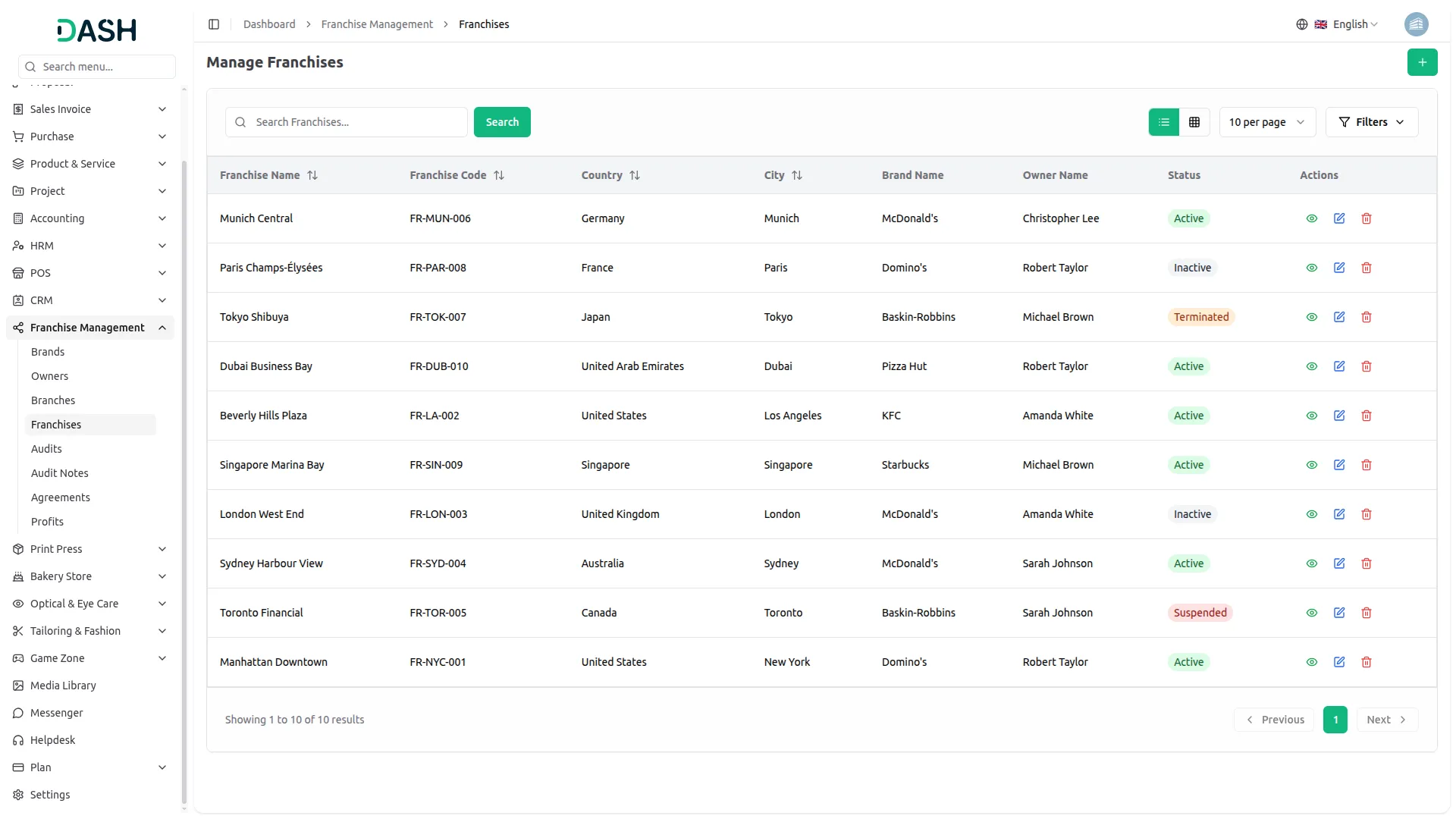
- The list page displays all franchises in a table with columns for Franchise Name, Franchise Code, Country, City, Brand Name, Owner Name, Status, and Actions. Status will show as Active, Inactive, Suspended, or Terminated, reflecting the franchise’s current agreement state.
- Use the search bar to quickly locate a specific franchise by name. Click Filters to expand the filter panel, then apply filters using the Status dropdown, the Brand Name dropdown, and the Owner Name dropdown to narrow down results. Click Apply to activate the filters or Clear to reset them. Toggle between list view and grid view using the view buttons.
- In the Actions column, use View to see the full franchise profile, including agreement and financial details. Use Edit to update any franchise date, and Delete to permanently remove the franchise from the system.
Manage Audits
- To create a new audit, click the “Create” button on the Manage Audits page. Select the Audit Date using the date picker to schedule when the audit will take place. Enter a descriptive Title for the audit.
- Select the Franchise from the dropdown (comes from the Franchise section). Select Franchise Branch from the dropdown (comes from the Franchise Branch section), select the Auditor from the dropdown.
- Use the Status dropdown to set the current state of the audit; options include Scheduled, In Progress, Cancelled, or Completed. Optionally, enter a Score to record the audit result numerically. Add a Description and Remarks in their respective text areas to provide additional context or observations before clicking Create to save the record.
- The list page displays all audits in a table with columns for Title, Franchise, Franchise Branch, Auditor Name, Score, Audit Date, Status, and Actions. Status will show as Scheduled, In Progress, or Completed, reflecting the current stage of each audit.
- Use the search bar to quickly locate a specific audit by title. Click Filters to expand the filter panel, then apply filters using the Franchise dropdown, the Franchise Branch dropdown, and the Status dropdown to narrow down results. Click Apply to activate the filters or Clear to reset them. Toggle between list view and grid view using the view buttons.
- In the Actions column, use View to see the full audit details, including score, remarks, and description. Use Edit to update the audit record, and Delete to permanently remove the audit from the system.

Audit Notes
- To create a new audit note, click the “Create” button on the Manage Audit Notes page. Select the Audit from the dropdown (comes from the Audit section). Enter the Note in the text area to document the observation or finding.
- Optionally, select a Follow Up Date using the date picker to indicate when the noted issue should be revisited. Use the Action Required toggle to flag whether the note demands a follow-up action. Once all details are filled in, click Create to save the note.
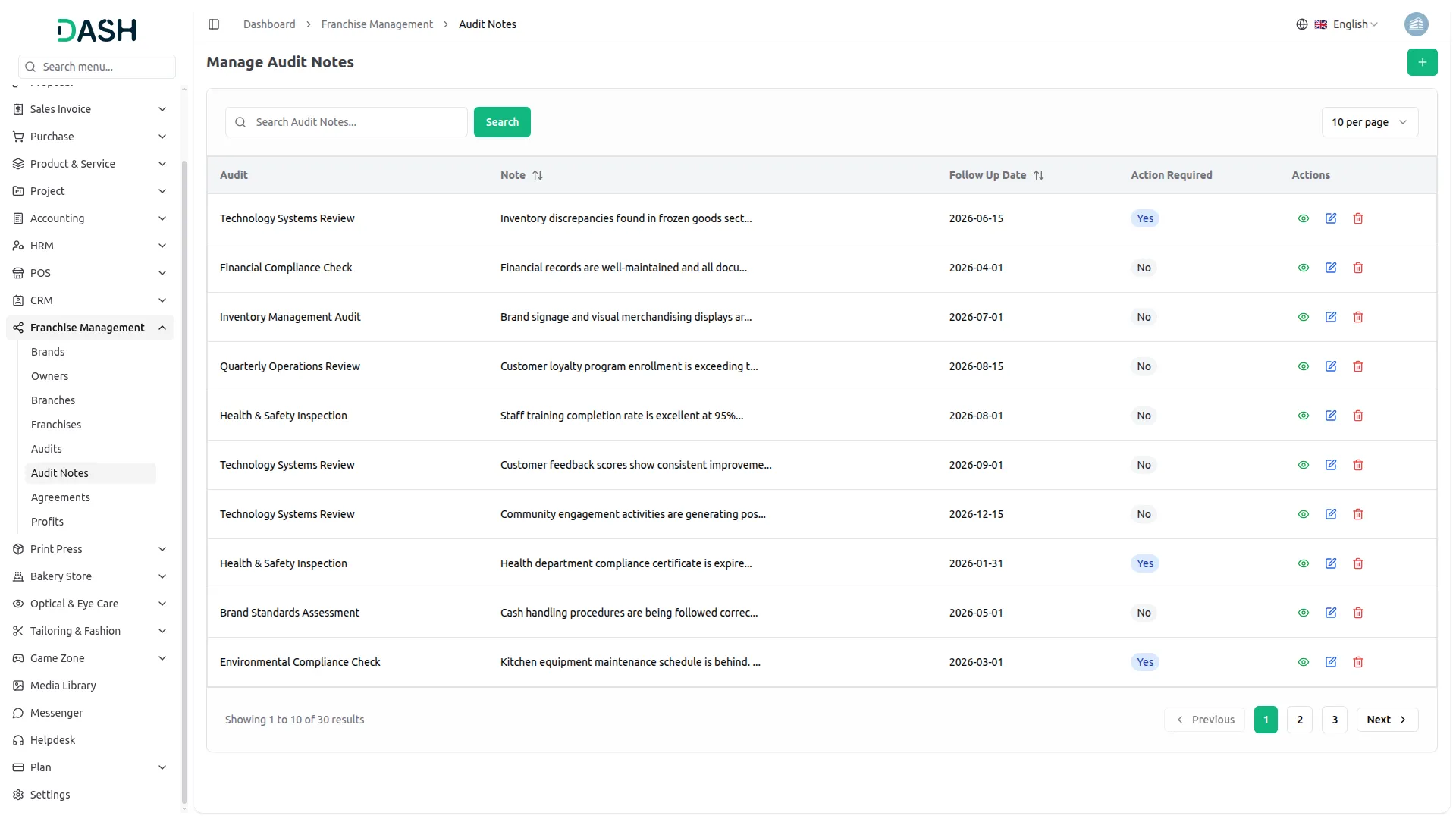
- The list page displays all audit notes in a table with columns for Audit, Note, Follow Up Date, Action Required, and Actions. The Note column shows a truncated preview of the note content. Action Required will display as either Yes or No, indicating whether the note demands further attention. Use the search bar to quickly locate a specific audit note.
- In the Actions column, use View to read the full note content along with all associated details. Use Edit to update the note content, follow-up date, or action required status. Use Delete to permanently remove the audit note from the system.
Manage Agreements
- To create a new agreement, click the “Create” button on the Manage Agreements page. Select the Franchise from the dropdown (comes from the Franchise section). Select the Franchise Branch from the dropdown (comes from the Franchise Branch section).
- Select the Agreement Start Date and Agreement End Date using the date pickers to define the contract period. Enter the Initial Franchise Fee, select the Royalty Type from the dropdown, options include Fixed Fee or Profit Percentage.
- Enter the Royalty Percentage applicable to the agreement. Select the Payment Frequency from the dropdown; options include Monthly, Quarterly, or Yearly, select the Bank Account from the dropdown.
- Optionally, upload an Agreement Document by clicking Browse to attach the signed contract file. Enter any Terms in the text area to outline the agreement conditions. Use the Status toggle to set the agreement as Active or Inactive before clicking Create to save the record.
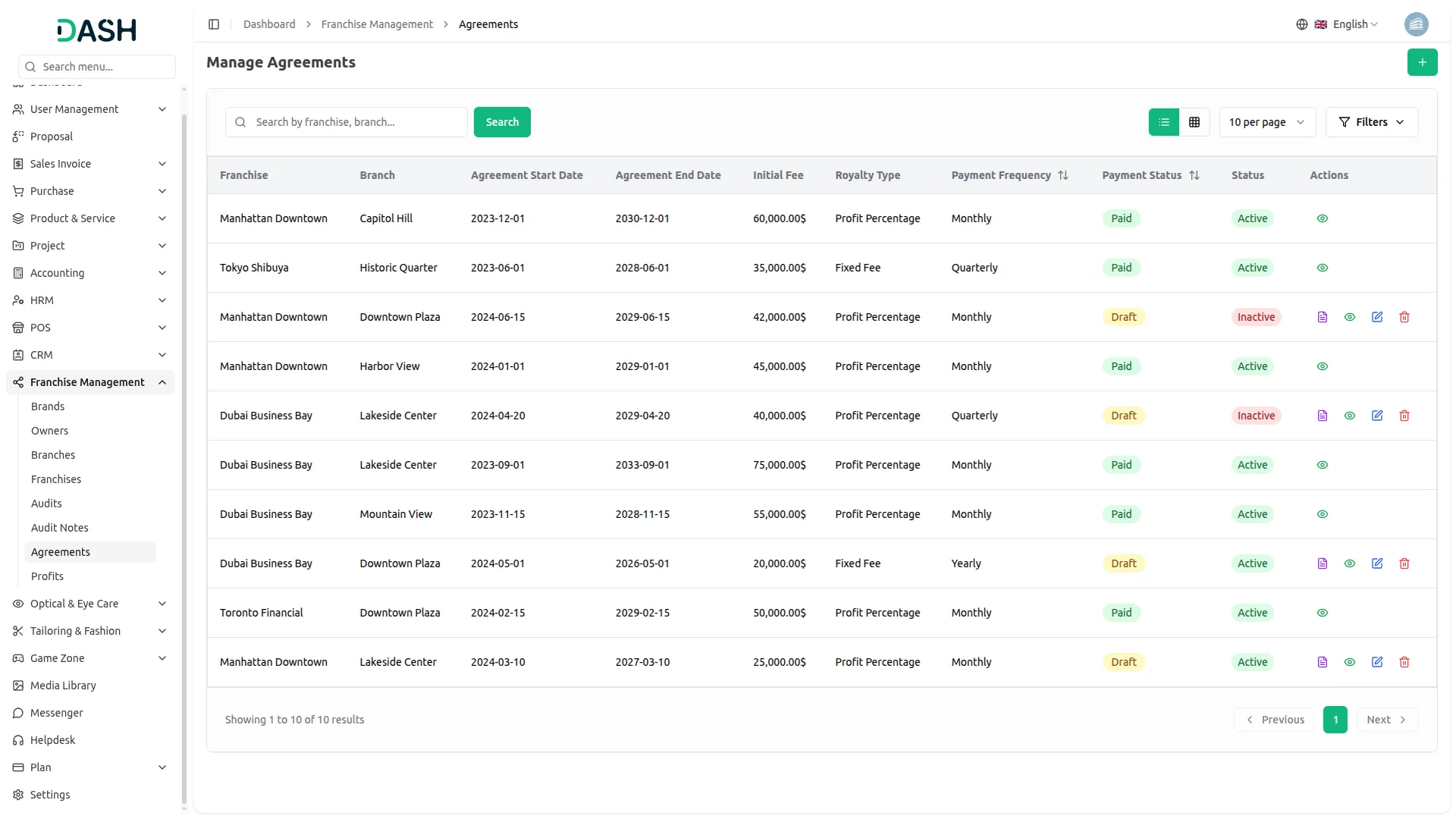
- The list page displays all agreements in a table with columns for Franchise, Branch, Agreement Start Date, Agreement End Date, Initial Fee, Royalty Type, Payment Frequency, Payment Status, Status, and Actions. Payment Status will show as either Paid or Draft, indicating the current payment state. Status will show as Active or Inactive.
- Use the search bar to quickly locate a specific agreement by franchise or branch name. Click Filters to expand the filter panel, then apply filters using the Royalty Type dropdown, the Payment Frequency dropdown, the Payment Status dropdown, and the Status dropdown to narrow down results. Click Apply to activate the filters or Clear to reset them. Toggle between list view and grid view using the view buttons.
- In the Actions column, use Mark As Paid to update the payment status of a Draft agreement to Paid. Use the Document icon to download or preview the attached agreement document. Use View to see the full agreement details. Use Edit to update agreement data, and Delete to permanently remove the agreement from the system.
Manage Profits
- To create a new profit record, click the “Create” button on the Manage Profits page. Select the Date using the date picker to specify the profit reporting period. Select the Franchise from the dropdown (comes from the Franchise section), note that only franchises with paid agreements are shown. Once a franchise is selected, choose the Franchise Branch from the dropdown (comes from the Franchise Branch section).
- Enter the Total Sales and Total Expenses in their respective currency fields. The Net Profit field will auto-calculate based on the values entered. The Royalty Percentage will auto-fill once a branch is selected, and the Calculated Royalty will be automatically computed based on Net Profit × Royalty Percentage.
- Select the Bank Account from the dropdown (comes from the Bank Account section). Optionally, enter a Payment Method and upload any payment proof by clicking Browse next to the Uploaded Proof field. Use the Status toggle to set the profit record as Active or Inactive before clicking Create to save the record.
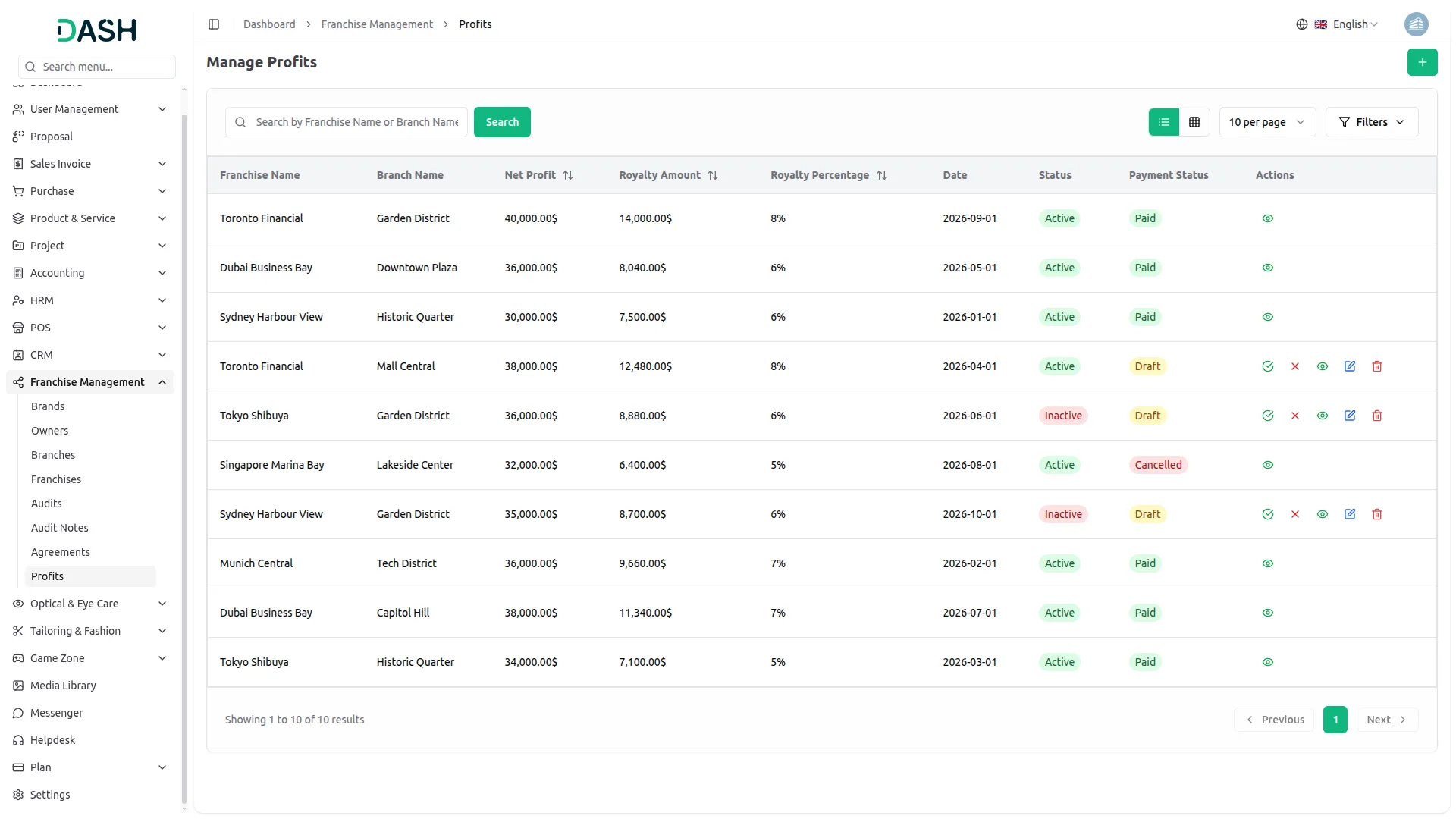
- The list page displays all profit records in a table with columns for Franchise Name, Branch Name, Net Profit, Royalty Amount, Royalty Percentage, Date, Status, Payment Status, and Actions. Payment Status will show as Paid, Draft, or Cancelled. Status will show as Active or Inactive.
- Use the search bar to quickly locate a specific profit record by franchise or branch name. Click Filters to expand the filter panel, then apply filters using the Status dropdown and the Payment Status dropdown to narrow down results. Click Apply to activate the filters or Clear to reset them. Toggle between list view and grid view using the view buttons.
- In the Actions column, use Mark as Paid to update a Draft payment status to Paid. Use Cancel Payment to reverse and mark a payment as Cancelled. Use View to see the full profit record details. Use Edit to update profit information, and Delete to permanently remove the record from the system.
Categories
Related articles
- Biometric Attendance Detailed Documentation
- n8n Detailed Documentation
- Backup & Restore – eCommerceGo Addon
- Assets Integration in Dash SaaS
- Sign in With OutLook Module Integration in eCommerceGo SaaS
- Additional Services Integration in BookingGo SaaS
- How To Generate Whatsapp API Permanent Access Token
- Digital Certificate integration in dash saas
- DJ & Orchestra Add-On Detailed Documentation
- Sage Integration in Dash SaaS
- Discord Module Detailed Documentation
- Duo 2FA Integration in eCommerceGo SaaS
Reach Out to Us
Have questions or need assistance? We're here to help! Reach out to our team for support, inquiries, or feedback. Your needs are important to us, and we’re ready to assist you!


Need more help?
If you’re still uncertain or need professional guidance, don’t hesitate to contact us. You can contact us via email or submit a ticket with a description of your issue. Our team of experts is always available to help you with any questions. Rest assured that we’ll respond to your inquiry promptly.
Love what you see?
Do you like the quality of our products, themes, and applications, or perhaps the design of our website caught your eye? You can have similarly outstanding designs for your website or apps. Contact us, and we’ll bring your ideas to life.