
Digital Certificate – WorkDo Dash SaaS Add-On Guide
Learn how to create and manage digital certificates in WorkDo Dash SaaS easily.
Introduction
The Digital Certificate Add-On is a comprehensive platform designed to create, manage, and distribute professional digital certificates. This system allows administrators to design custom certificate templates using a built-in editor with dynamic elements, media management, and background customization features. Users can assign certificates to individuals from the user database and automatically generate personalized PDF certificates. The platform includes template management capabilities, user assignment features, and certificate distribution tools that streamline the entire certificate creation and distribution process for educational institutions, corporate training programs, and professional organizations.
How to Install the Add-On?
To Set Up the Digital Certificate Add-On, you can follow this link: Setup Add-On.
How to Use the Digital Certificate Add-On?
Certificate Templates
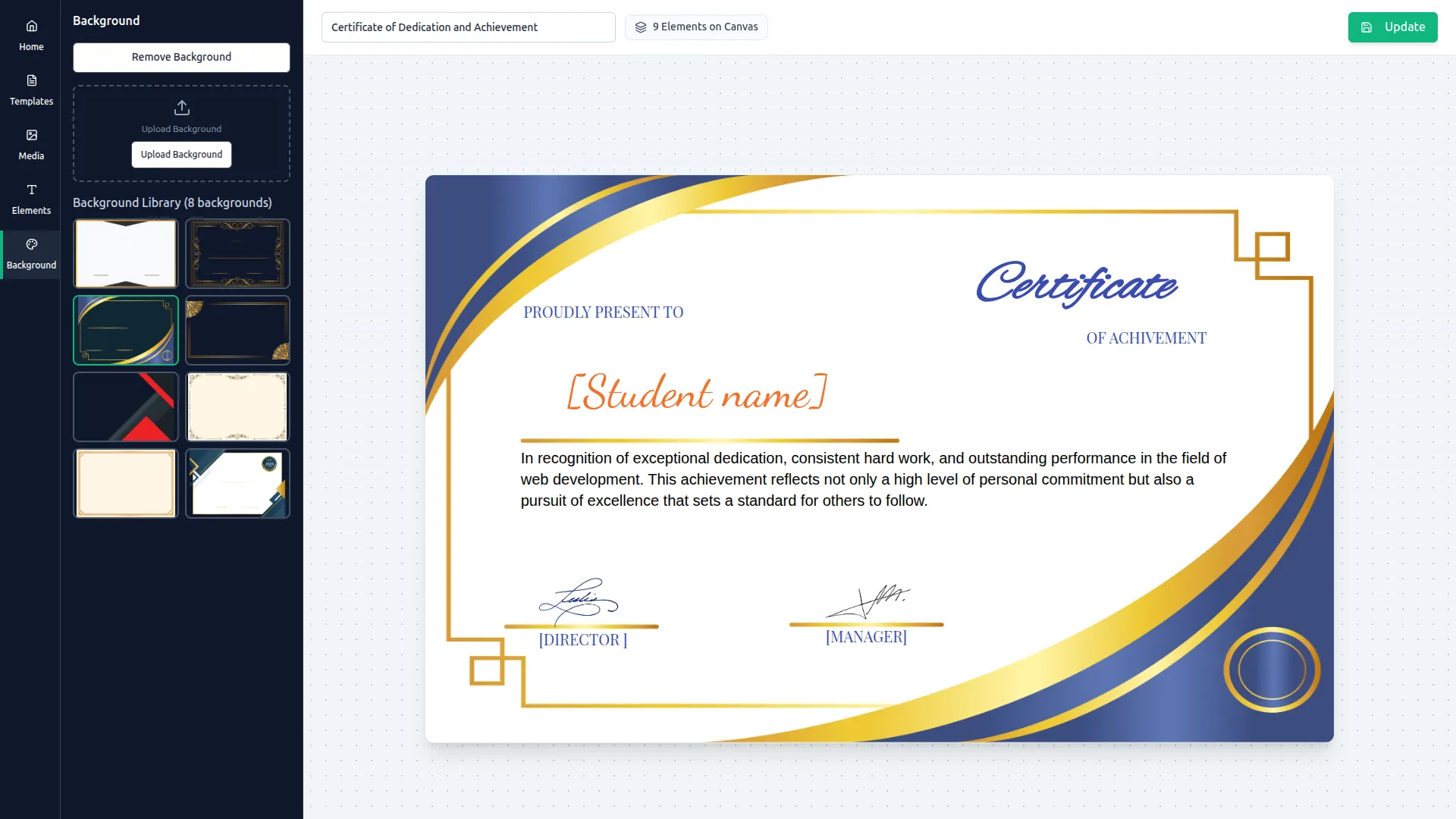
- To create a new certificate template, click the “Create” button located on the certificate templates page. This will open the certificate editor, which provides several menu options along the left sidebar to help you design your template.
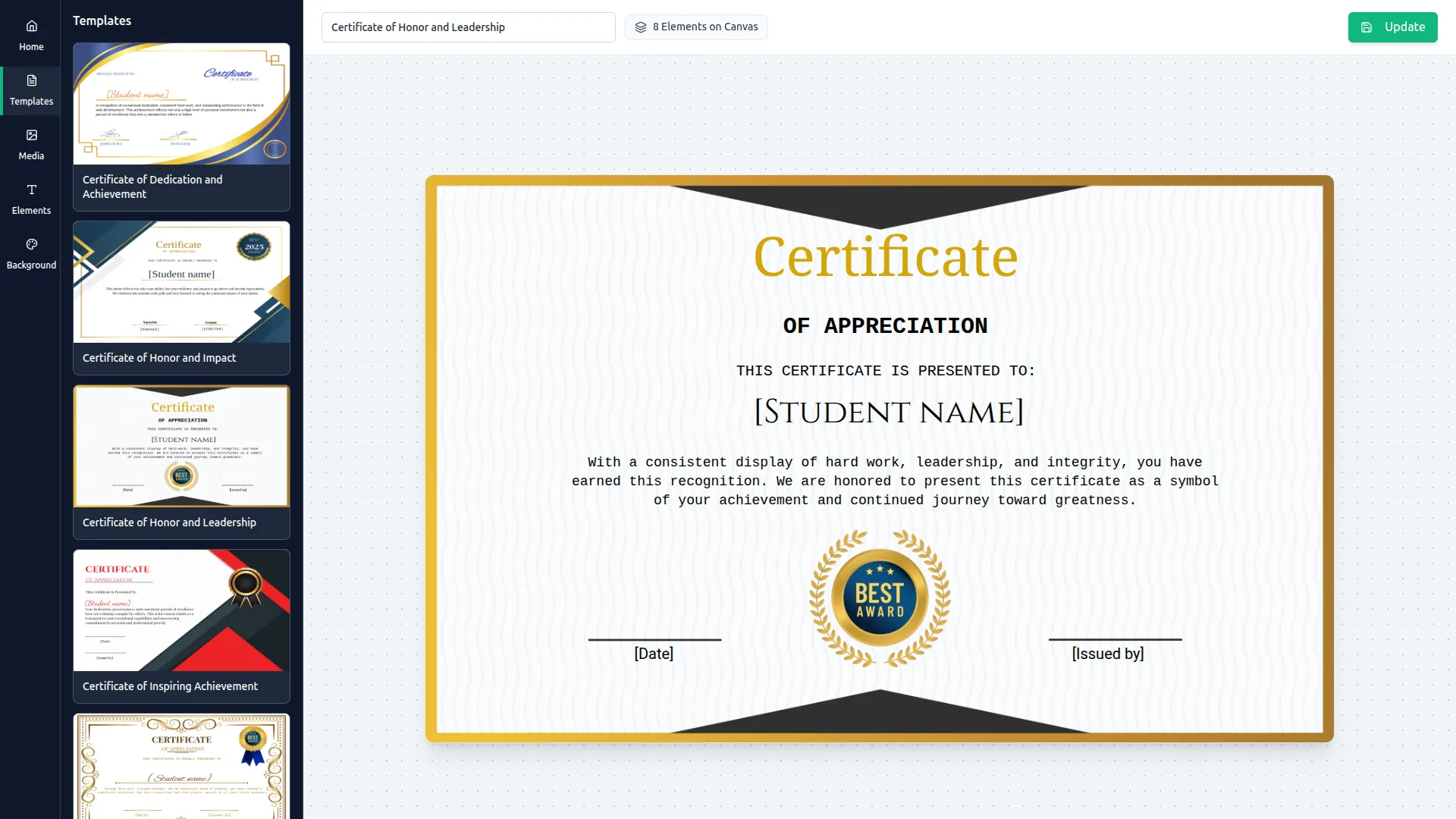
- Use the Templates menu to view all the templates you have created. All created templates will be displayed here in a list, allowing you to easily browse, review, or select them for further editing or reference.
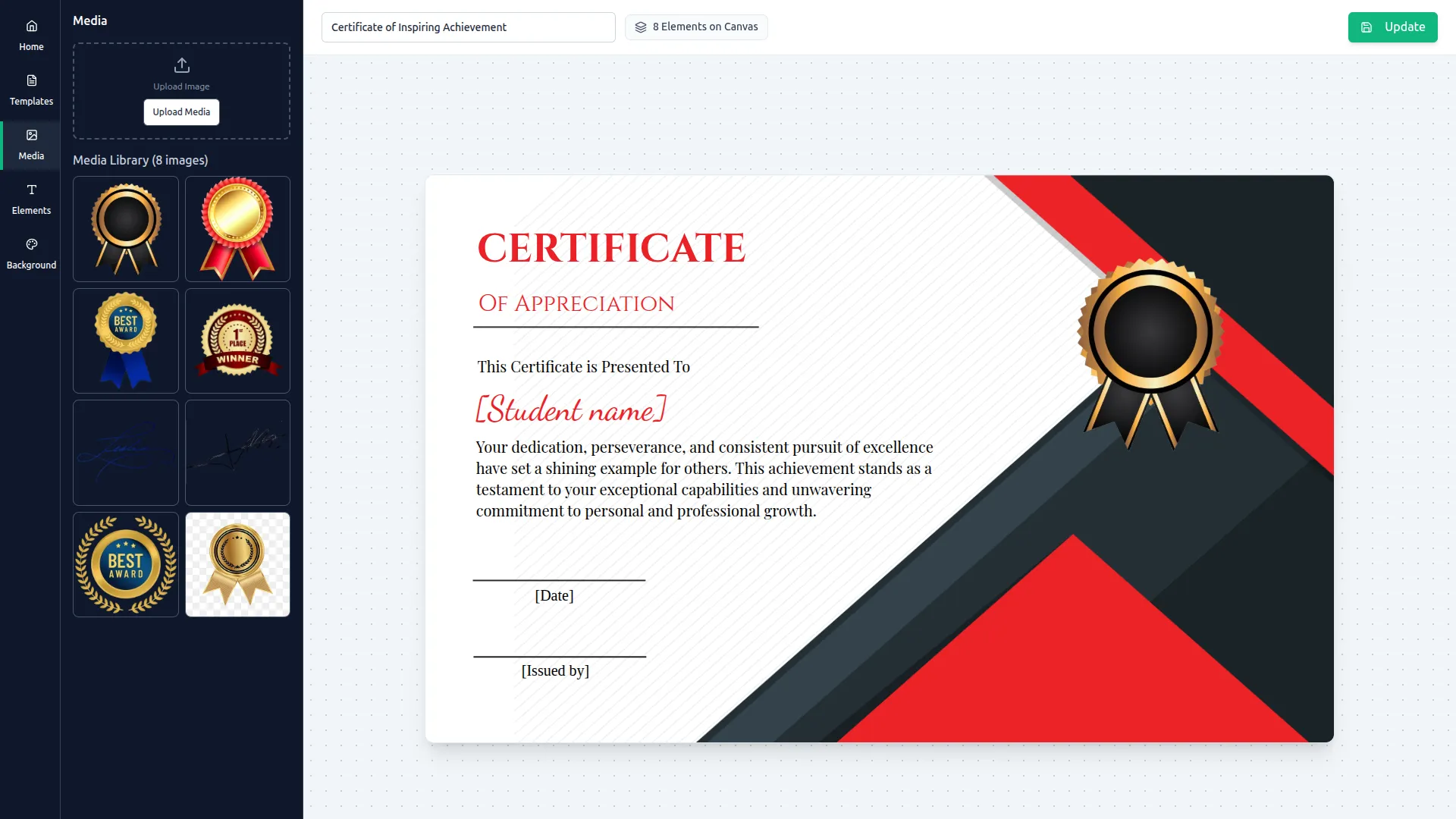
- Media Access the Media menu to upload custom images and view all media files currently available in your library. Uploaded assets, such as award badges, medals, ribbons, and signature images, can be added directly to your certificate design from this panel.
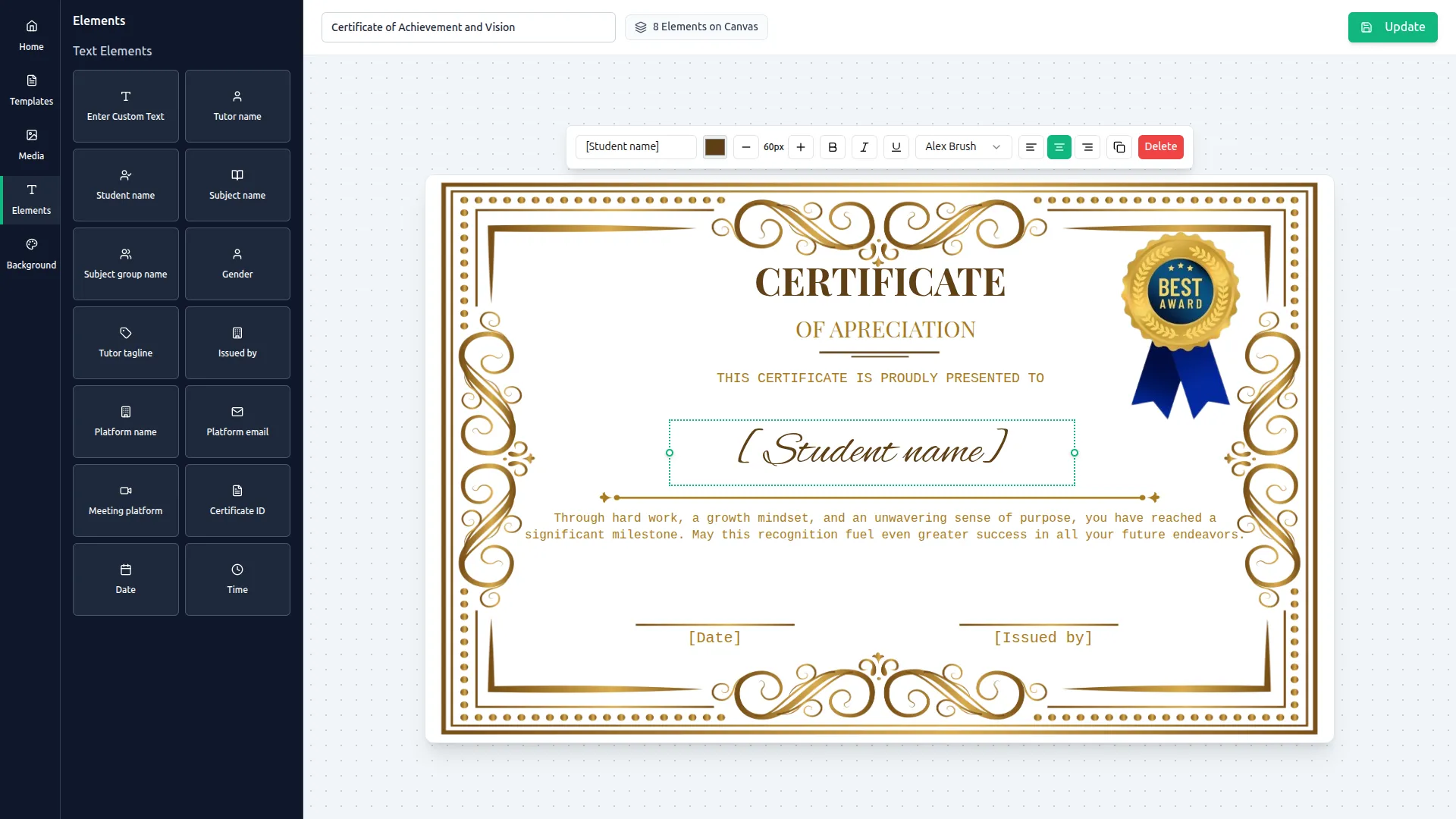
- Elements Navigate to the Elements menu to insert dynamic text fields that will automatically populate with recipient-specific information, including Student Name, Subject Name, Tutor Name, Gender, Certificate ID, Date, Time, and more. You can also add custom text blocks to include any additional content relevant to your certificate.
- Background Use the Background menu to upload a custom background image or choose from the available options in the Background Library. You can also remove an existing background if you wish to start with a blank canvas.
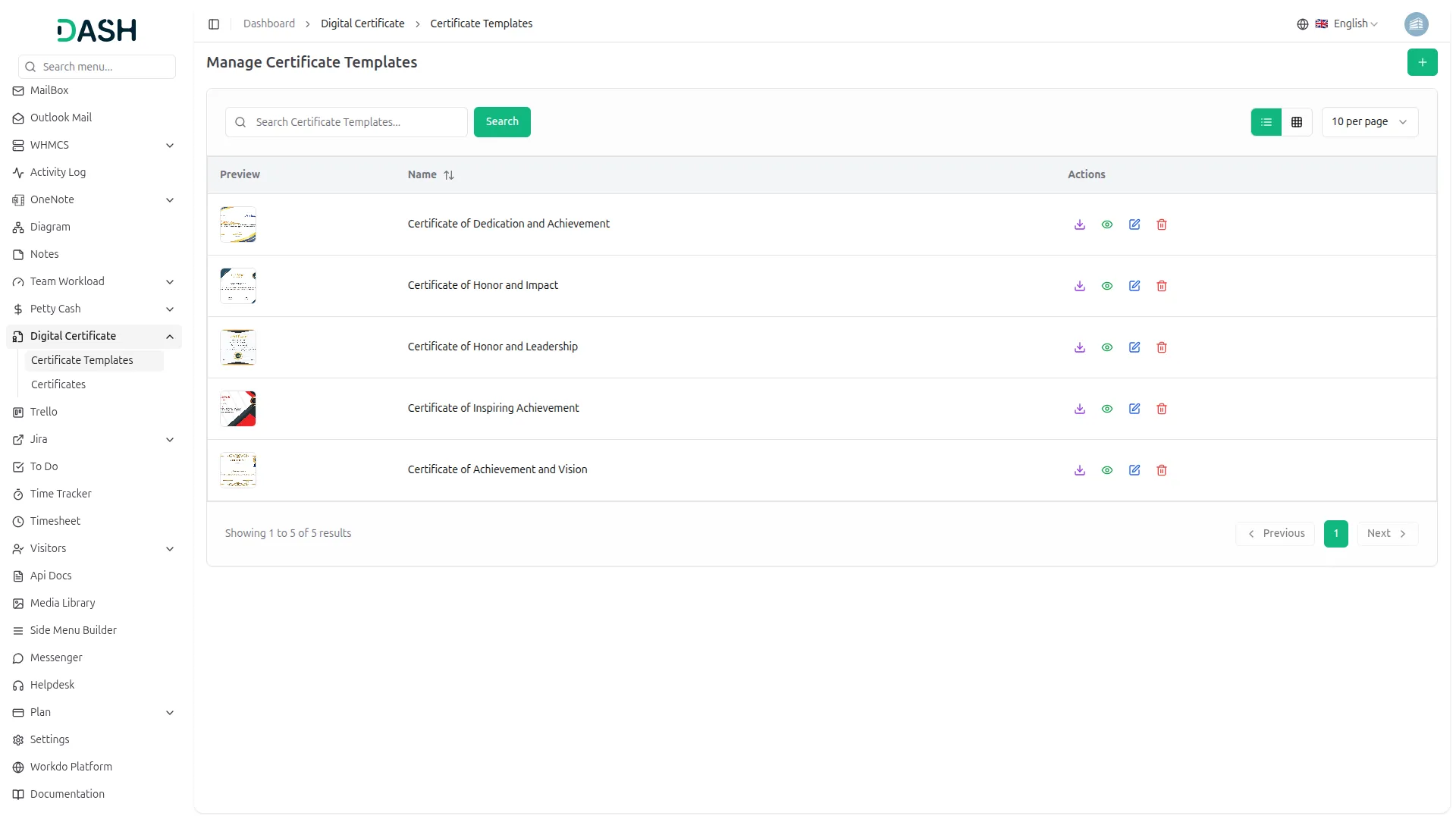
- The list page displays all certificate templates with columns Preview and Name. You can switch between standard table view and Grid View to see templates in a visual grid format. Use the Search bar to quickly locate a specific template by name.
- Available actions include Download to save the template in PDF format, View to see the complete template design, Edit to modify the template using the certificate editor, and Delete to permanently remove the certificate template from the system.
Manage Certificates
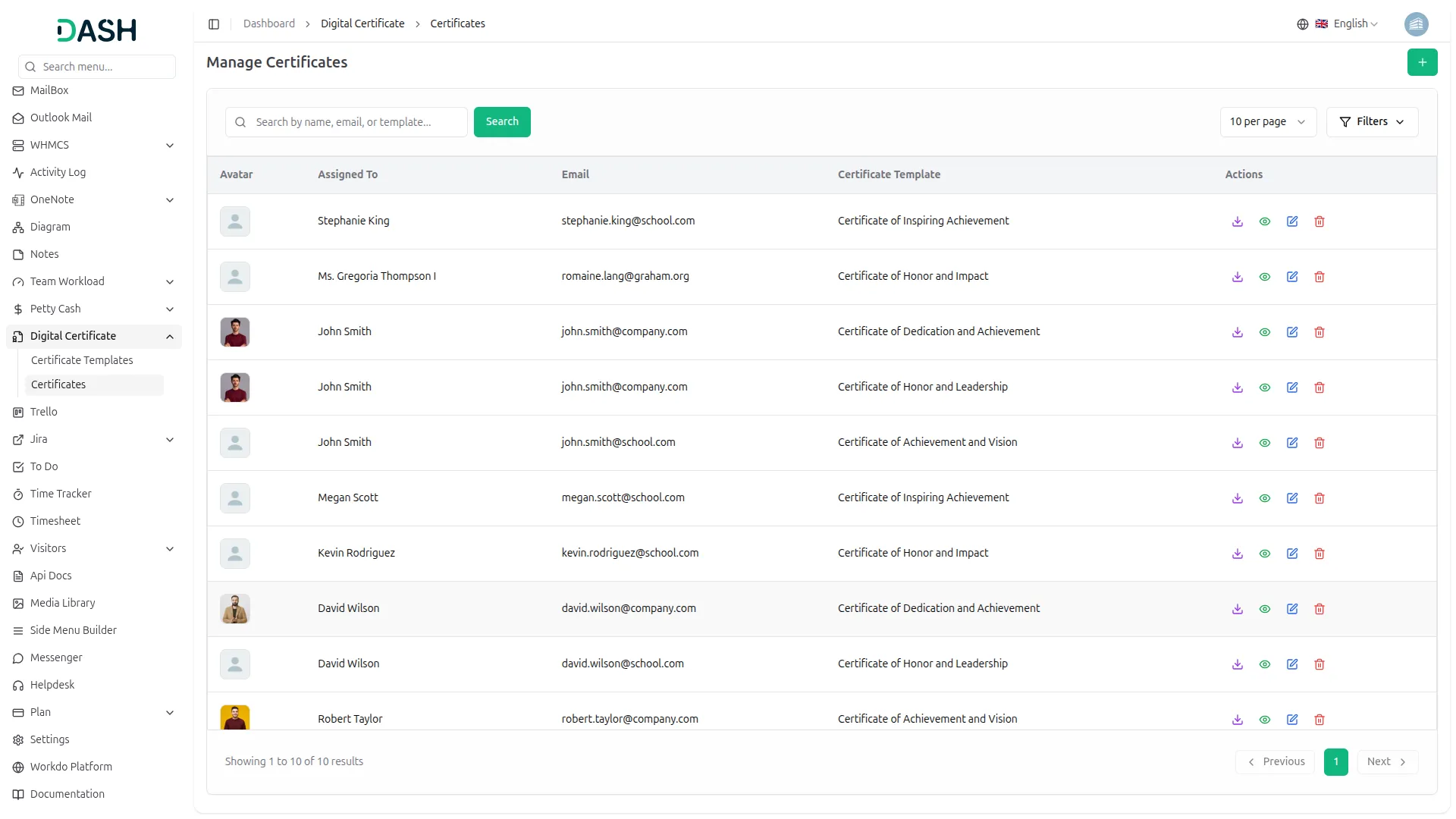
- To issue a new certificate, click the “Create” button on the Manage Certificates page. A Create Certificates dialog will appear where you need to select the user the certificate will be assigned to and choose the certificate template to be applied. Once both fields are filled in, click Create to issue the certificate, or Cancel to close the dialog without saving.
- The list page shows all certificate assignments with columns displaying Avatar showing the user’s profile picture, Assigned To showing the recipient’s name, Email displaying the user’s email address, and Certificate Template showing which template was assigned.
- Click the Filters option on the filter panel. You can filter the certificate list by a specific recipient using the Assigned To field, or narrow results by the template used through the Certificate Template field. Click Apply to activate the selected filters, or Clear to reset them and return to the full list. You can search for specific certificates using the search bar.
- Available actions include Download to save the issued certificate as a PDF file, View to open a full preview of the certificate as issued to the recipient, Edit to update the assigned user or certificate template for an existing record, and Delete to permanently remove the certificate record from the system.
- The assigned certificate will be shown to the user when they log in, and they can download it and preview it.
Categories
Related articles
- Pesapal – WorkDo Dash SaaS Add-On Guide
- Sign in with Google – WorkDo Dash SaaS Add-On Guide
- Waste Management – WorkDo Dash SaaS Add-On Guide
- Make Documentation – TicketGo Add-On Guide
- BitPay – BookingGo SaaS Add-On Guide
- Zapier – BookingGo SaaS Add-On Guide
- Campaign – eCommerceGo SaaS Add-On Guide
- Compound Service – BookingGo SaaS Add-On Guide
- PowerTranz – BookingGo SaaS Add-On Guide
- Asana Project Management – WorkDo Dash SaaS Add-On Guide
- PWA – BookingGo SaaS Add-On Guide
- Marketplace List – eCommerceGo SaaS Add-On Guide
We're Here to Help - Let's Talk
Have questions about our solutions, customization services, or business tools? Our team is here to help you. let's talk.