
Biometric Attendance Documentation Guide
Learn how to configure and manage biometric attendance features with easy setup steps.
Biometric Attendance
Biometric Attendance is a powerful feature built to streamline and secure employee attendance tracking within your organization. Leveraging advanced biometric technology integrated with the ZKTeco machine, this module delivers accurate, real-time attendance data, eliminating the inefficiencies of manual entry or traditional card-based systems. With automated clock-in/clock-out detection, detailed punch logs, and seamless API-based sync, it equips HR and admin teams with everything they need for precise workforce management. Additionally, if an employee records multiple entries in a single day, the system automatically considers the first entry as the clock-in time and the last entry as the clock-out time.
Note: The biometric attendance system is compatible only with the ZKTeco machine. To use this module, ensure that the API supports the ZKTeco machine. You can refer to the ZKBioTime API Documentation for more details.
You can only use this module if the API supports the ZKteco Machine. Follow this ZKBioTime API for API Documentation: https://www.zkteco.com/en/ZKBioTime_API
Workflow
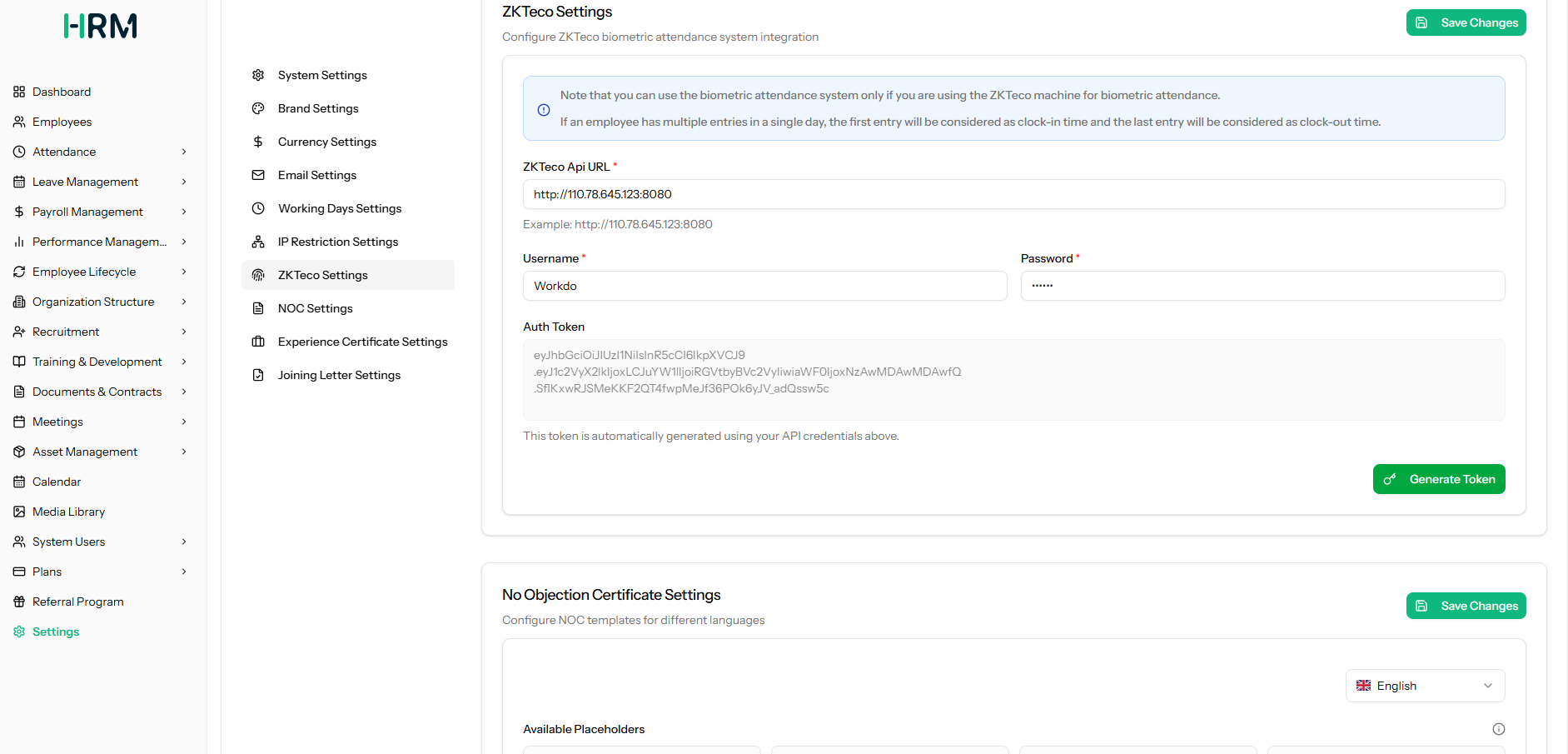
- To get started, navigate to System Settings and open the ZKTeco Settings page. Here, you will need to enter your ZKTeco API URL, which is the address of your ZKTeco device, along with your Username and Password.
- Once all fields are filled in, click “Save Changes,” and the auth token will be automatically generated. And when you click on the “Generated Token”, it will be automatically saved.
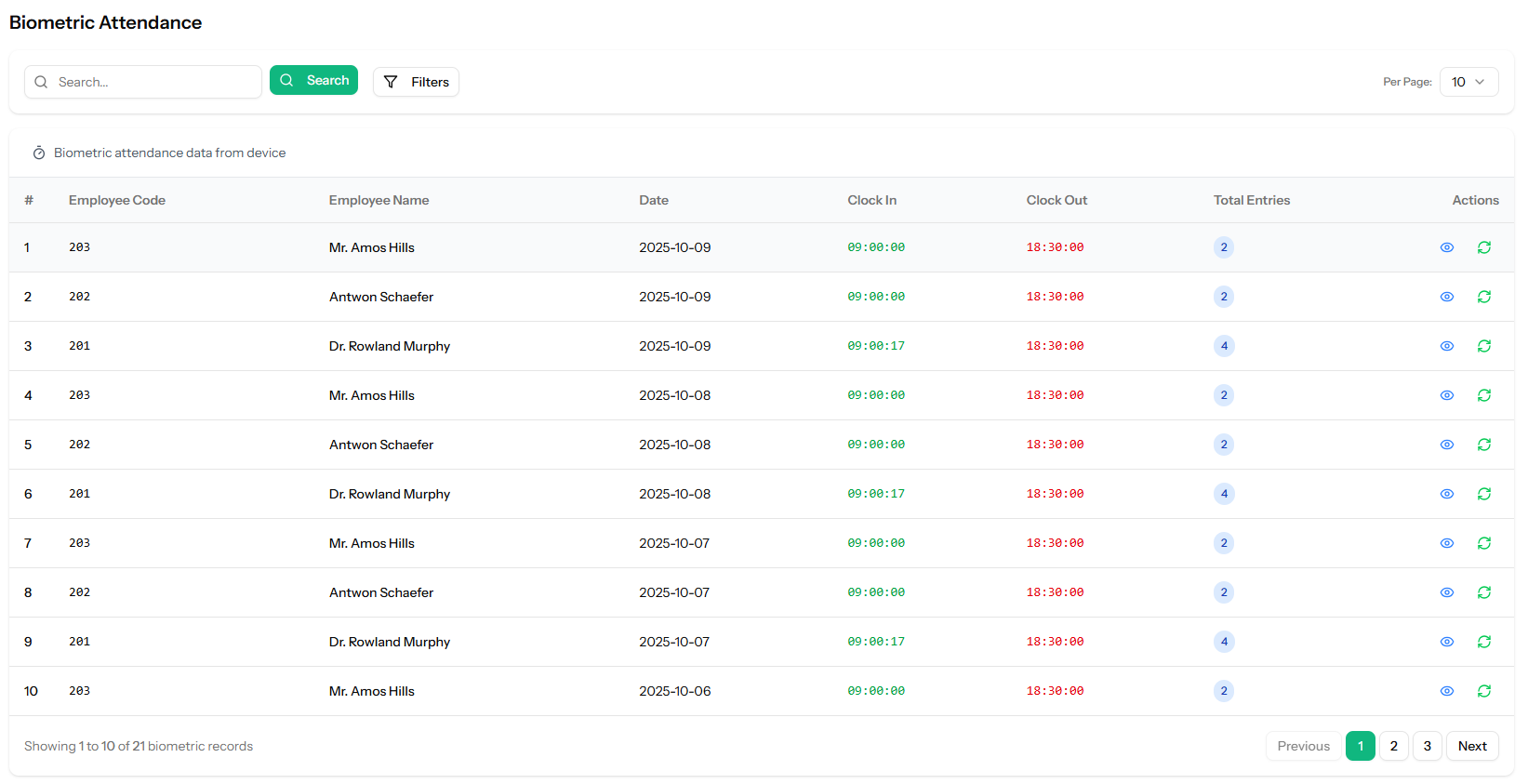
- Once your ZKTeco device is connected, open the Biometric Attendance page from the Attendance menu, and you will see a list of all attendance records fetched directly from the device. The table displays each employee’s Name, Employee Code, Date, clock-in time, clock-out time, and Total Entries for that day.
- Use the Start Date and End Date filters along with Apply Filters to narrow records by a specific date range.
- If you want to see a more detailed breakdown of an employee’s attendance for a specific day, click the View Actions column. A punch details panel will open showing the exact time of each punch, whether it was a Clock In or Clock Out, the verification method used, such as Fingerprint, and the terminal or device from which the punch was recorded.
- Once you click the Sync button, the attendance data will automatically sync with the attendance records. Note that this option can be used only once.
Categories
Related articles
- Catering Management – WorkDo Dash SaaS Add-On Guide
- Gym Management – WorkDo Dash SaaS Add-On Guide
- Instagram Chat – TicketGo Add-On Guide
- Zapier – WorkDo Dash SaaS Add-On Guide
- PayU – BookingGo SaaS Add-On Guide
- Planning Module – WorkDo Dash SaaS Add-On Guide
- Recent Orders – eCommerceGo SaaS Add-On Guide
- BlueSnap – WorkDo Dash SaaS Add-On Guide
- Art Showcase – WorkDo Dash SaaS Add-On Guide
- Job Search – WorkDo Dash SaaS Add-On Guide
- Childcare Management – WorkDo Dash SaaS Add-On Guide
- Performance Indicator – WorkDo Dash SaaS Add-On Guide
We're Here to Help - Let's Talk
Have questions about our solutions, customization services, or business tools? Our team is here to help you. let's talk.