
Dairy & Cattle Management Integration in Dash SaaS
Streamline your dairy farm operations with our integrated Dairy & Cattle Management System. Manage tasks effortlessly.
Introduction
The Dairy and Cattle Management Add-On is a comprehensive farm management solution designed to help dairy farmers efficiently manage all aspects of their livestock operations. This system enables you to maintain detailed records of your animals, including health status, breeding information, weight tracking, and milk production data. The software manages the complete milk production cycle from daily collection to product creation and sales distribution. You can track animal health through veterinary checkups and vaccination schedules, monitor breeding programs, manage feed schedules and consumption, record birth information, track expenses, and maintain equipment records. The integrated system connects animal data with milk production, inventory management, and sales tracking to provide complete farm operation oversight.
How to Install the Add-On?
To Set Up the Dairy and Cattle Management Add-On, you can follow this link: Setup Add-On
How to Use The Dairy & Cattle Management Add-On?
Animal Management
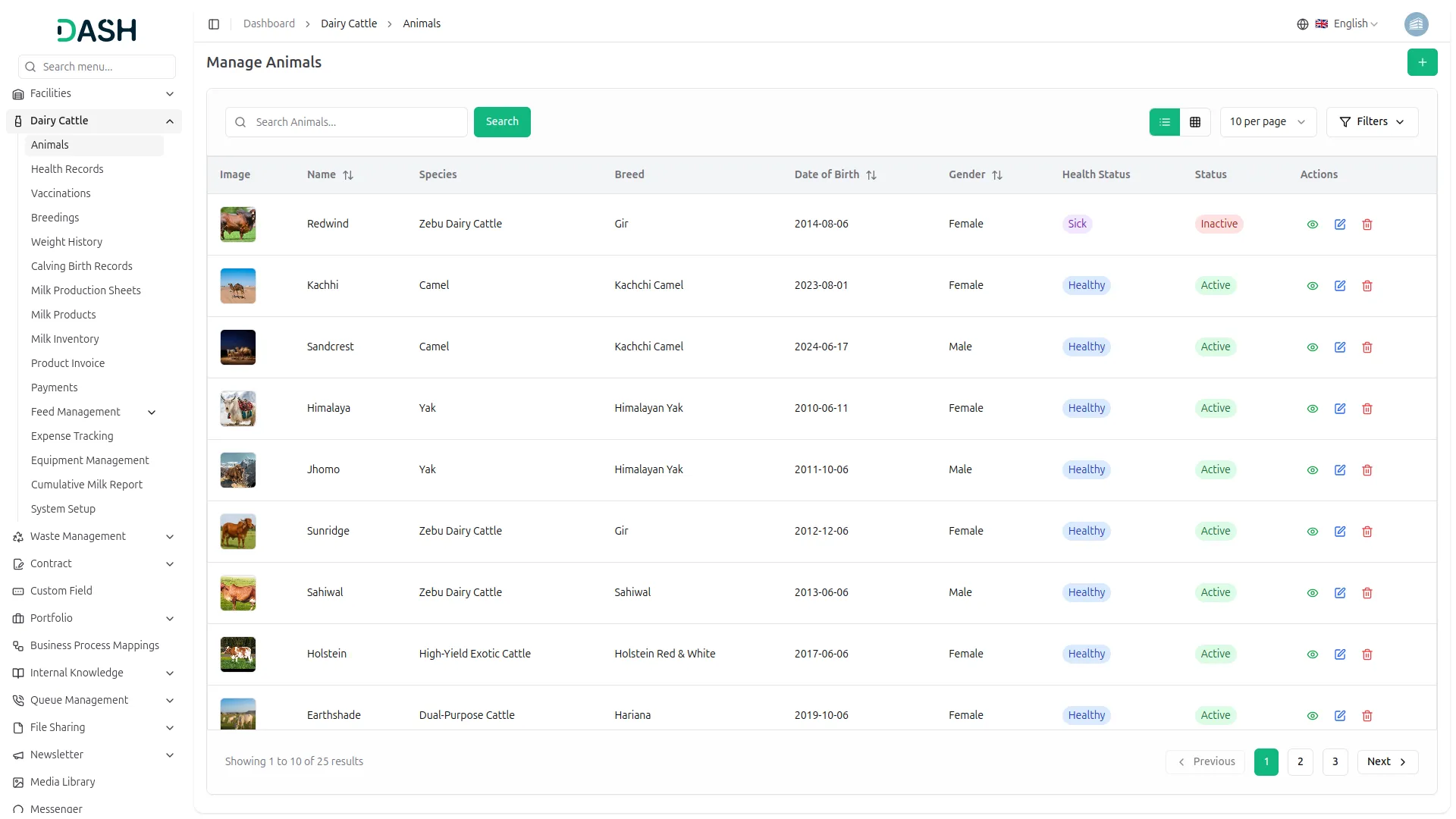
- The Animal Management module allows you to create and manage detailed animal records efficiently. To create a new animal record, click the Create button on the Animal Management page. Enter the Animal Name, upload an Image, select the Species and appropriate Breed, and set the Date of Birth using the date picker. Choose the Gender of the animal to complete the basic profile information.
- Next, select the Health Status (Healthy, Sick, or Injured) and enter the animal’s Current Weight. Choose the Breeding Status from the dropdown options (Ready for Breeding, Pregnant, or Not Ready) and set the Status accordingly. You can also add any relevant Notes or Comments to maintain additional information about the animal.
- On the Animals List page, all animals are displayed in a table with columns such as Image, Name, Species, Breed, Date of Birth, Gender, Health Status, and Status. You can use the Search and Filter options to quickly find specific animal records. Available actions include View to see complete animal details, Edit to update information, and Delete to remove animal records.
- When you click View on an animal, you can access the detailed animal profile. From this profile, you can record Morning Milk and Evening Milk quantities organized by date. This feature helps track daily milk production for each animal over time, supporting better monitoring and farm management decisions.
Health Records Management
- The Health Records Management module allows you to record and track animal health checkups efficiently. To create a new health record, click the Create button on the Health Management page. Select the Animal Name from the dropdown list, which is fetched from the Animal Management module. Then select the Veterinarian from the dropdown, fetched from the Veterinarians module, who conducted the examination. Choose the Checkup Date, select the Duration Type (Monthly, Quarterly, Half-Yearly, or Yearly), and enter the Cost of the checkup.
- Next, set the Next Checkup Date for future scheduling. Record the Diagnosis findings and Treatment Recommendations provided by the veterinarian, and enter the prescribed Medication details. After completing all required fields, save the health record.
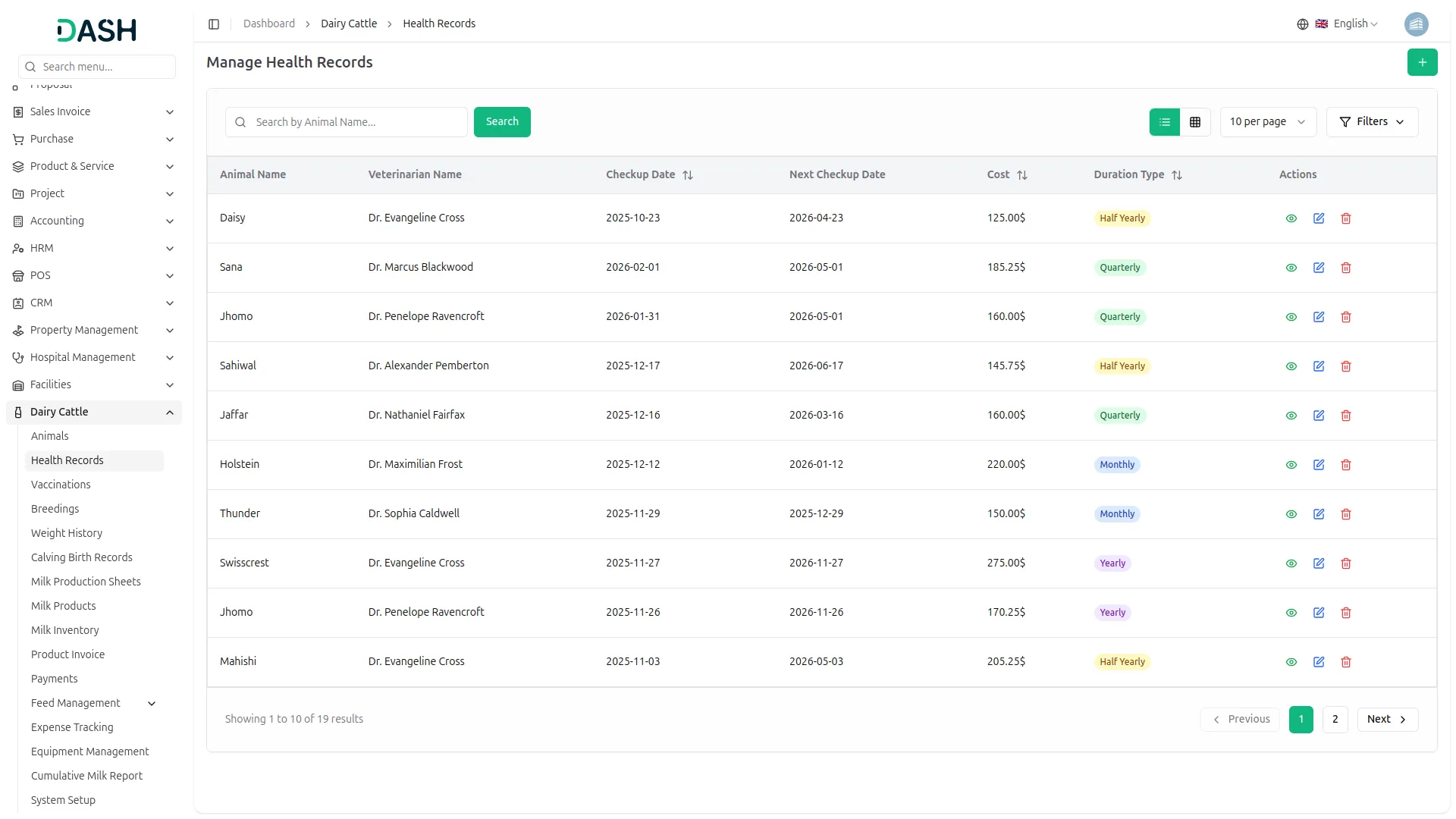
- On the Health Records List page, all health records are displayed in a table with columns such as Animal Name, Veterinarian Name, Checkup Date, Next Checkup Date, Cost, and Duration Type. You can use the Search and Filter options to manage records efficiently.
- Available actions include View to see complete health record details, Edit to update health information, and Delete to remove health records from the system.
Vaccinations Management
- The Vaccinations Management module allows you to record and track animal vaccination details efficiently. To create a new vaccination record, click the Create button on the Vaccinations page. Select the Animal from the dropdown list fetched from the Animal Management module. Then select the Veterinarian from the dropdown, loaded from the System Setup → Veterinarians module. Enter the Vaccine Name, Vaccination Date, Next Due Date, Cost, and any additional Notes.
- After completing all required fields, click the Create button to save the vaccination record.
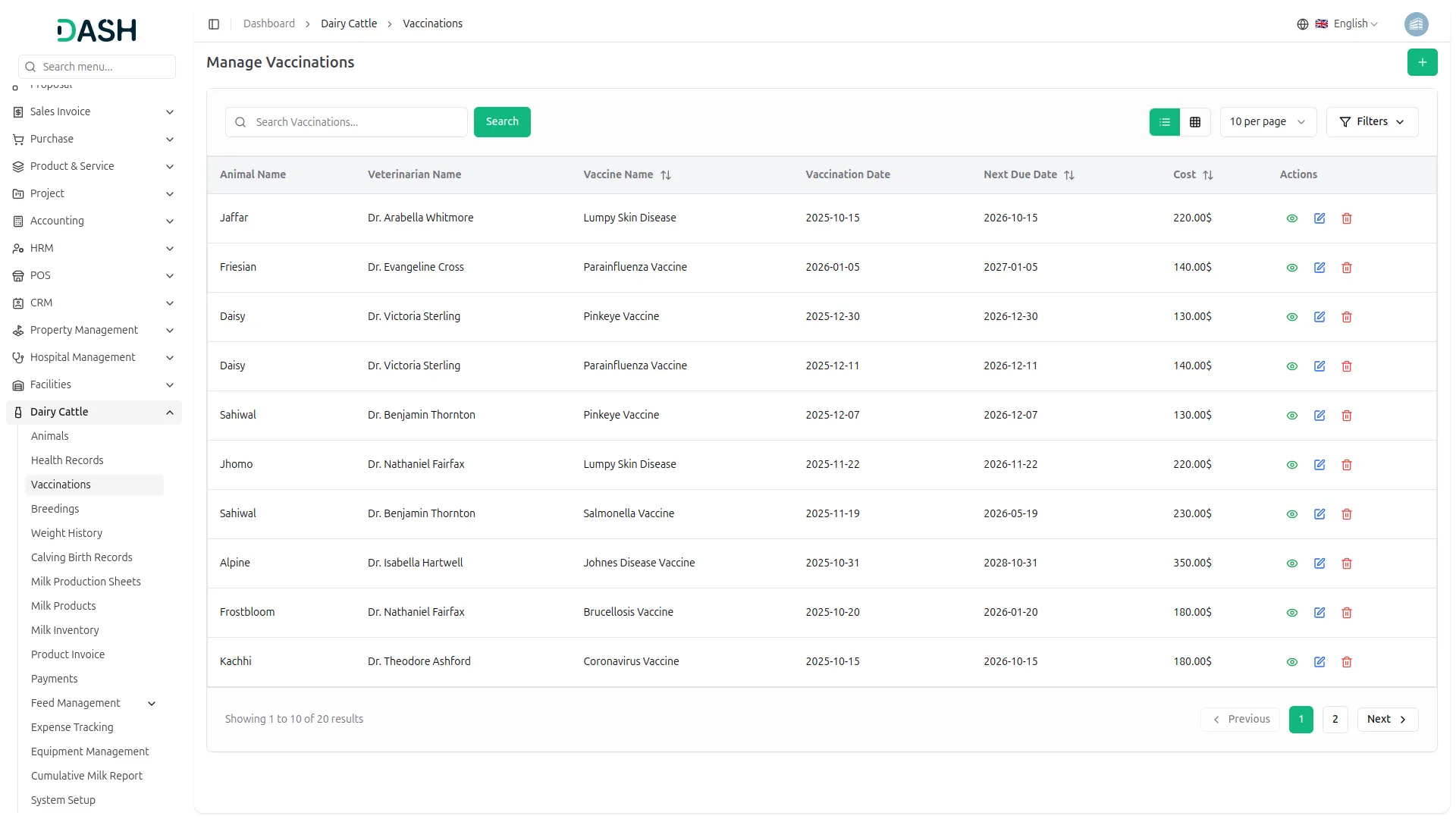
- On the Vaccinations List page, all vaccination records are displayed in a table with columns such as Animal Name, Veterinarian Name, Vaccine Name, Vaccination Date, Next Due Date, and Cost. You can use the Search and Filter options to manage vaccination data efficiently.
- Available actions include View to see complete vaccination details, Edit to update vaccination information, and Delete to remove vaccination records from the system.
Breeding Management
- The Breeding Management module allows you to record and monitor breeding activities for animals efficiently. To create a new breeding record, click the Create button on the Breeding Management page. Select the Animal Name from the dropdown list connected to the Animal Management module. Enter the Breeding Date when the breeding activity occurred and specify the Gestation Period (in days).
- Based on the gestation period, the system calculates the Expected Due Date automatically. Select the Breeding Status from the available options (Pregnant, Not Pregnant, or Heat). Then select the Veterinarian from the dropdown list fetched from the System Setup → Veterinarians module. Enter the Cost and add Breeding Notes with any relevant observations or special instructions.
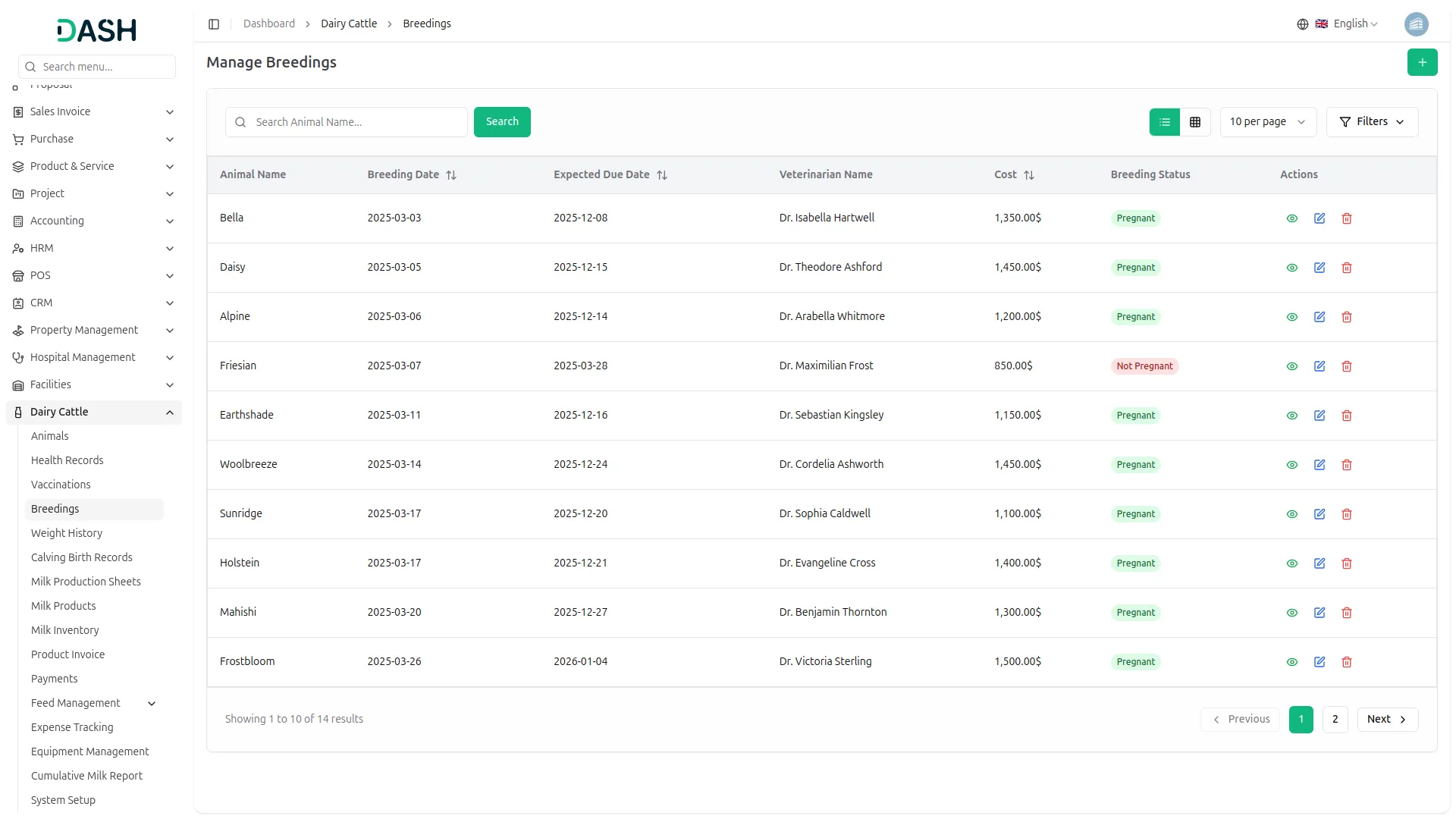
- On the Breeding Records List page, all breeding records are displayed in a table with columns such as Animal Name, Breeding Date, Expected Due Date, Veterinarian Name, Cost, and Breeding Status. You can use the Search and Filter options to manage records efficiently.
- Available actions include View to see complete breeding details, Edit to update breeding information, and Delete to remove breeding records from the system.
Weight Tracking
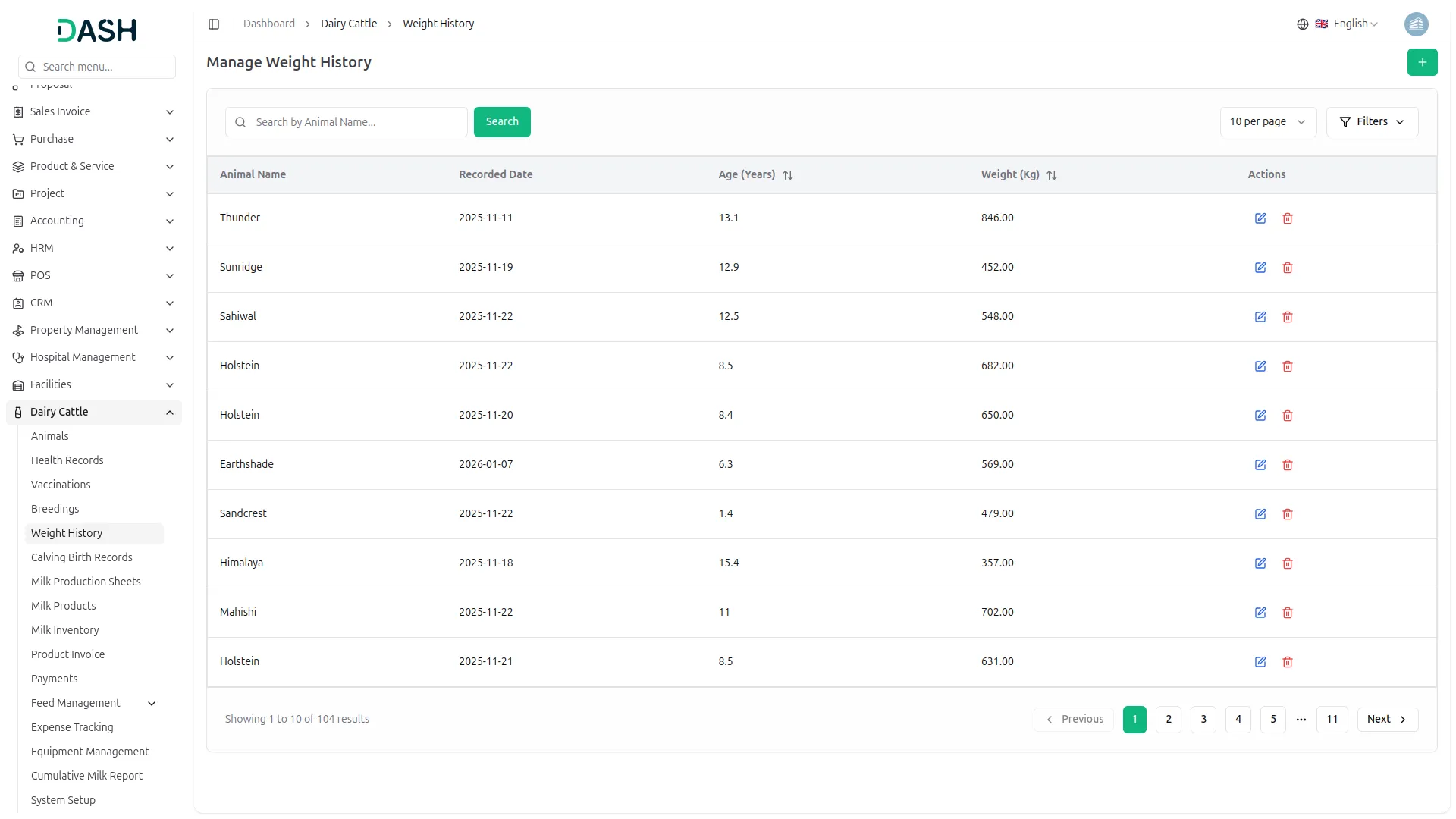
- The Weight Tracking module allows you to record and monitor animal weight data over time. To create a new weight record, click the Create button on the Weight Management page. Select the Animal Name from the dropdown list fetched from the Animal Management module.
- Enter the Date Recorded and specify the animal’s Age at the time of measurement. Record the Weight in kilograms in the designated field, then save the record.
- On the Weight Records List page, all weight entries are displayed in a table with columns such as Animal Name, Date Recorded, Age, and Weight (kg). You can use the Search and Filter options to manage weight data efficiently. Available actions include the Edit button to update weight information and the Delete button to remove weight records from the system.
Calving Birth Records Management
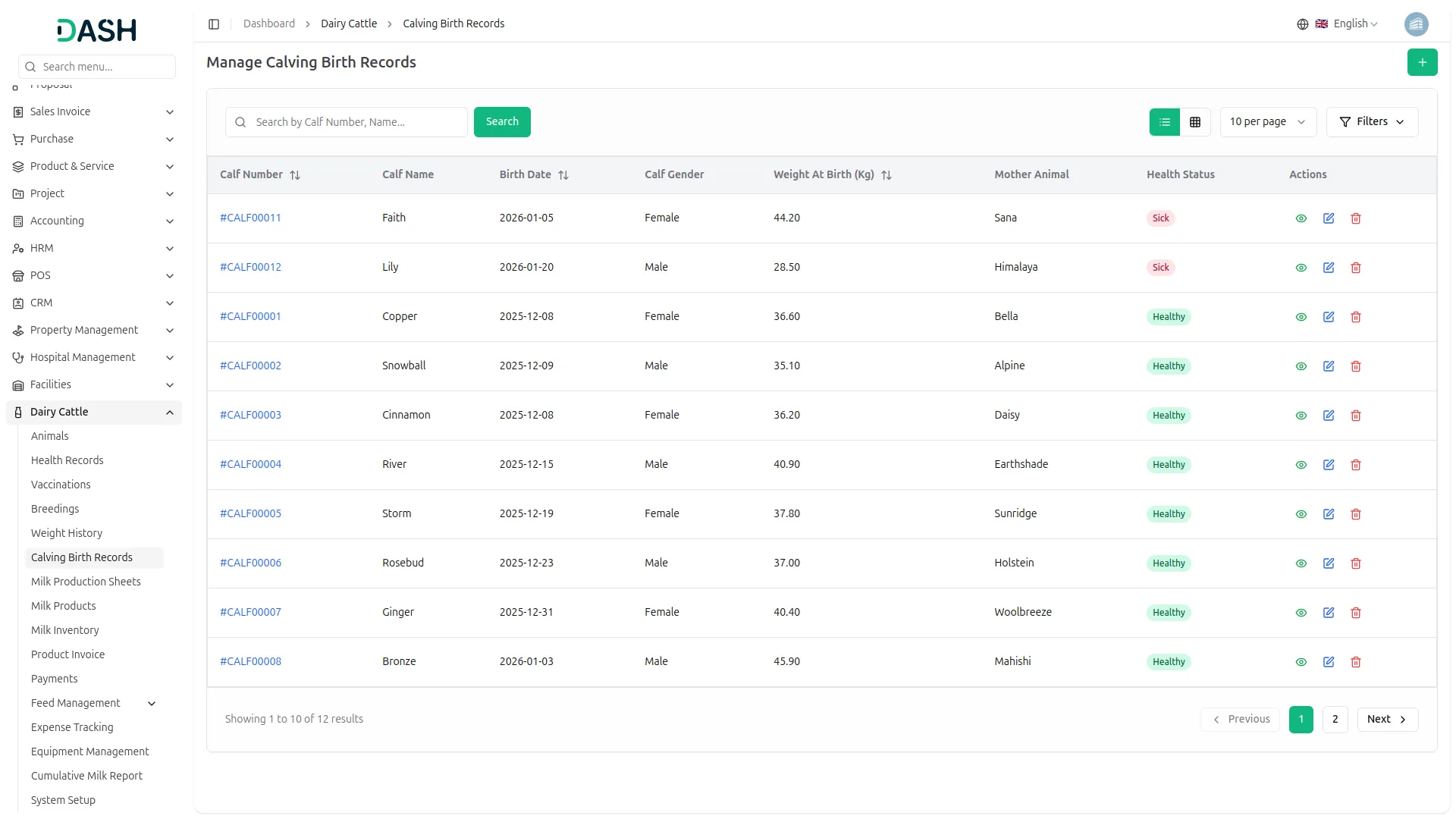
- The Calving / Birth Records Management module allows you to record and track animal birth details accurately. To create a new birth record, click the Create button on the Birth Records page. Select the Animal from the dropdown list, which displays only female animals from the Animal Management module. Enter the Birth Date when the offspring was born.
- Next, select the Gender of the newborn (Male or Female) and record the Birth Weight for health and growth tracking. Choose the Health Status from the available options (Healthy, Sick, or Under Observation) to monitor the newborn’s condition. After completing all required fields, save the birth record.
- On the Birth Records List page, all birth records are displayed in a table with columns such as Record Number, Animal, Birth Date, Gender, Birth Weight, and Health Status. You can use the Search and Filter options to manage birth records efficiently.
- Available actions include the View, Edit button to update birth information and the Delete button to remove birth records from the system.
Milk Production Sheet Management
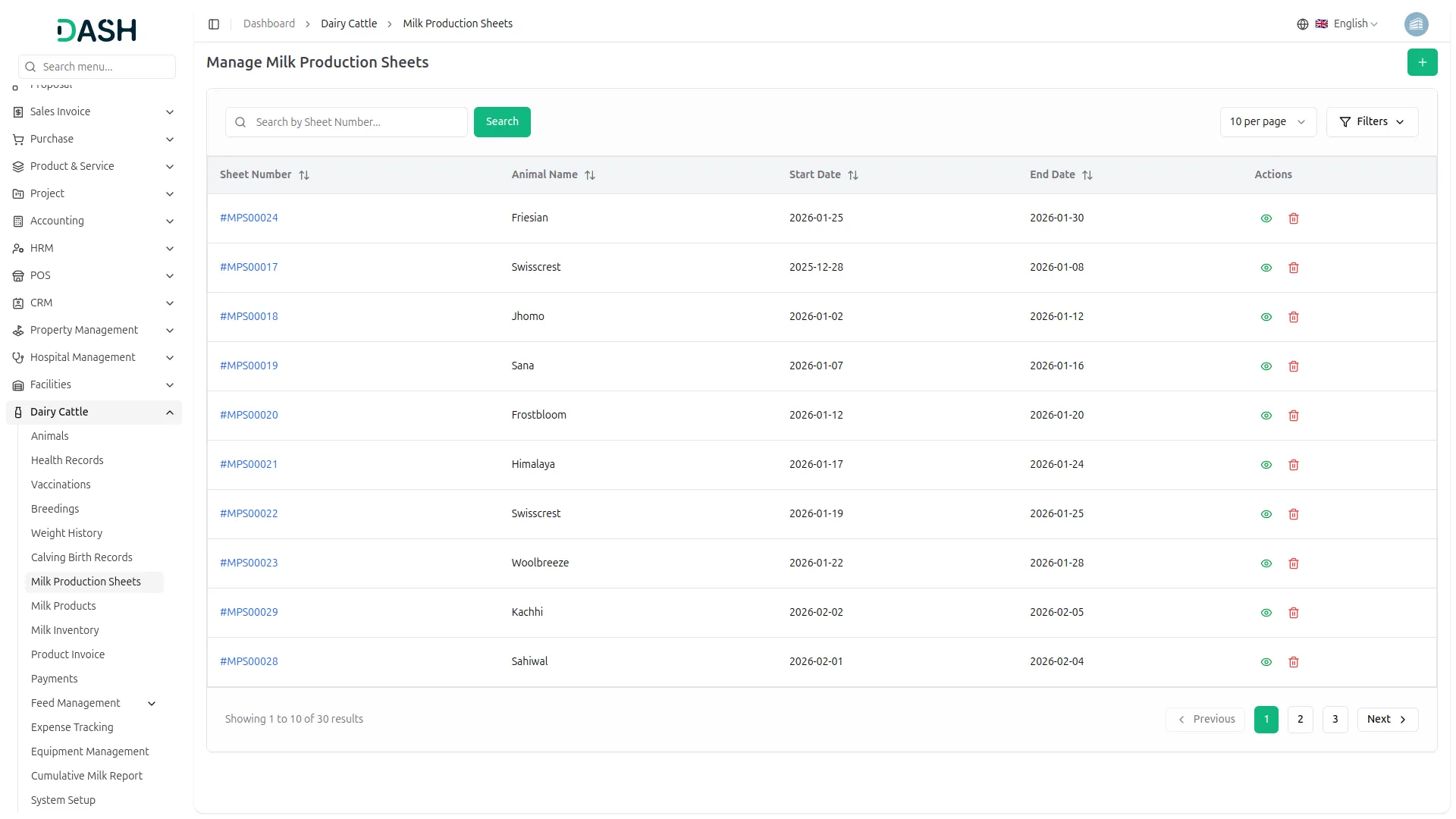
- The Milk Production Sheet Management module allows you to create and manage milk production records for animals over a specific period. To create a new milk production sheet, click the Create button on the Milk Production Sheets page. Select the Animal from the dropdown list connected to the Animal Management module, then choose the Start Date and End Date for the production period.
- On the Milk Production Sheets List page, all milk production sheets are displayed in a table with columns such as Sheet Number, Animal Name, Start Date, and End Date. You can use the Search and Filter options to manage records efficiently.
- Available actions include View,Delete button to remove milk production sheet records from the system.
Milk Products Management
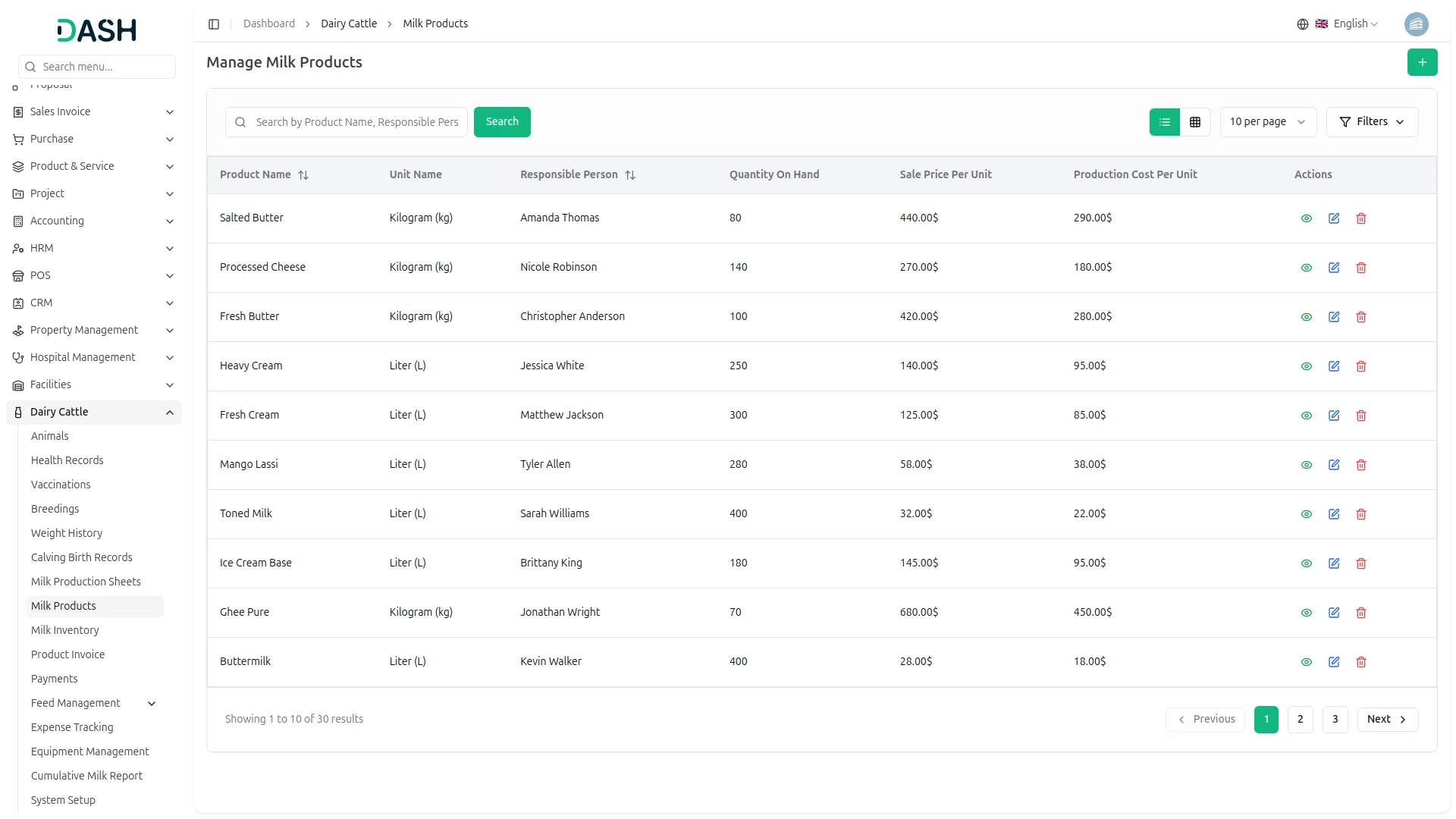
- The Milk Products Management module allows you to create and manage processed milk product records efficiently. To create a new milk product, click the Create button on the Milk Products page. Enter the Product Name, then select the Unit from the dropdown list fetched from the Units module in System Setup.
- Provide the Responsible Person Name and enter the Produced Quantity, Quantity on Hand, and Forecasted Quantity. Specify the Sale Price per Unit and Production Cost per Unit for financial tracking. Enter the Raw Milk Required per Unit (L) to calculate milk usage. The Total Raw Milk Used (L) is automatically calculated as: Produced Quantity × Raw Milk Required per Unit
- The Sold Quantity is also automatically calculated using the formula: Produced Quantity − Quantity on Hand
- On the Milk Products List page, all milk products are displayed in a table with columns such as Product Name, Unit Name, Responsible Person, Quantity on Hand, Sale Price per Unit, and Production Cost per Unit.
- You can use the Search and Filter options to manage product data efficiently. Available actions include View to see complete product details, Edit to update product information, and Delete to remove product records from the system.
Milk Inventory Management
- The Milk Inventory Management module helps you track and manage milk inventory records efficiently. To create a new milk inventory record, click the Create button on the Milk Inventory page. Select the Daily Milk Sheet from the dropdown list, which is connected to the Daily Milk Sheet section.
- Next, enter the Inventory Date and select the Product from the dropdown menu, which is fetched from the Products module. Once all required details are filled in, save the record to add it to the system.
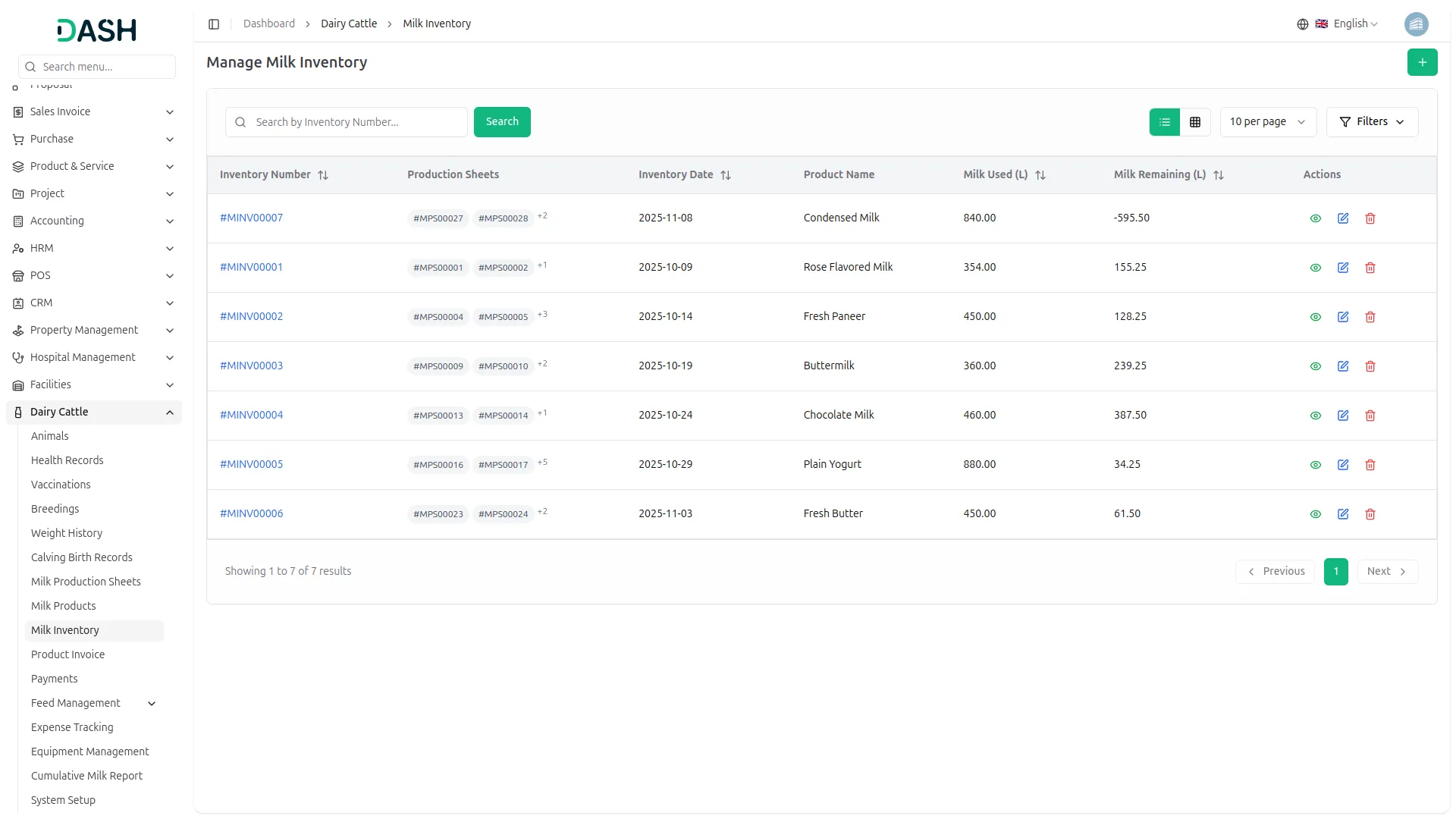
- The Milk Inventory List page displays all inventory records in a table with columns such as View Milk Inventory Detail, Daily Milk Sheet, Date, and Product. You can use the Search and Filter options to manage records efficiently. The Milk Inventory List button allows quick access to the complete inventory listing.
- Available actions include View to see detailed inventory information, Edit to update inventory records, and Delete to remove inventory entries from the system.
- The Milk Inventory Product List page provides a summarized view of inventory data, displaying Product Name, Date, On-Hand Quantity, and Available Quantity, helping you monitor stock levels accurately.
Product Invoices Management
- The Product Invoices Management module allows you to create, manage, and track product invoices efficiently. To create a new product invoice, click the Create button on the Product Invoices page. Enter the Invoice Date and Due Date, then select the Customer from the dropdown list, which is fetched from the Users module. Add the Payment Terms and Notes as required.
- Below the invoice details, you can add multiple products using the Add Item button. For each invoice item, select the Product from the dropdown fetched from the Products module. Once selected, the Unit is filled automatically. Enter the Quantity (Qty), and the Unit Price will be applied. The Total amount is calculated automatically based on the quantity. The Invoice Summary section dynamically calculates the Subtotal and Total Amount, ensuring accurate billing.
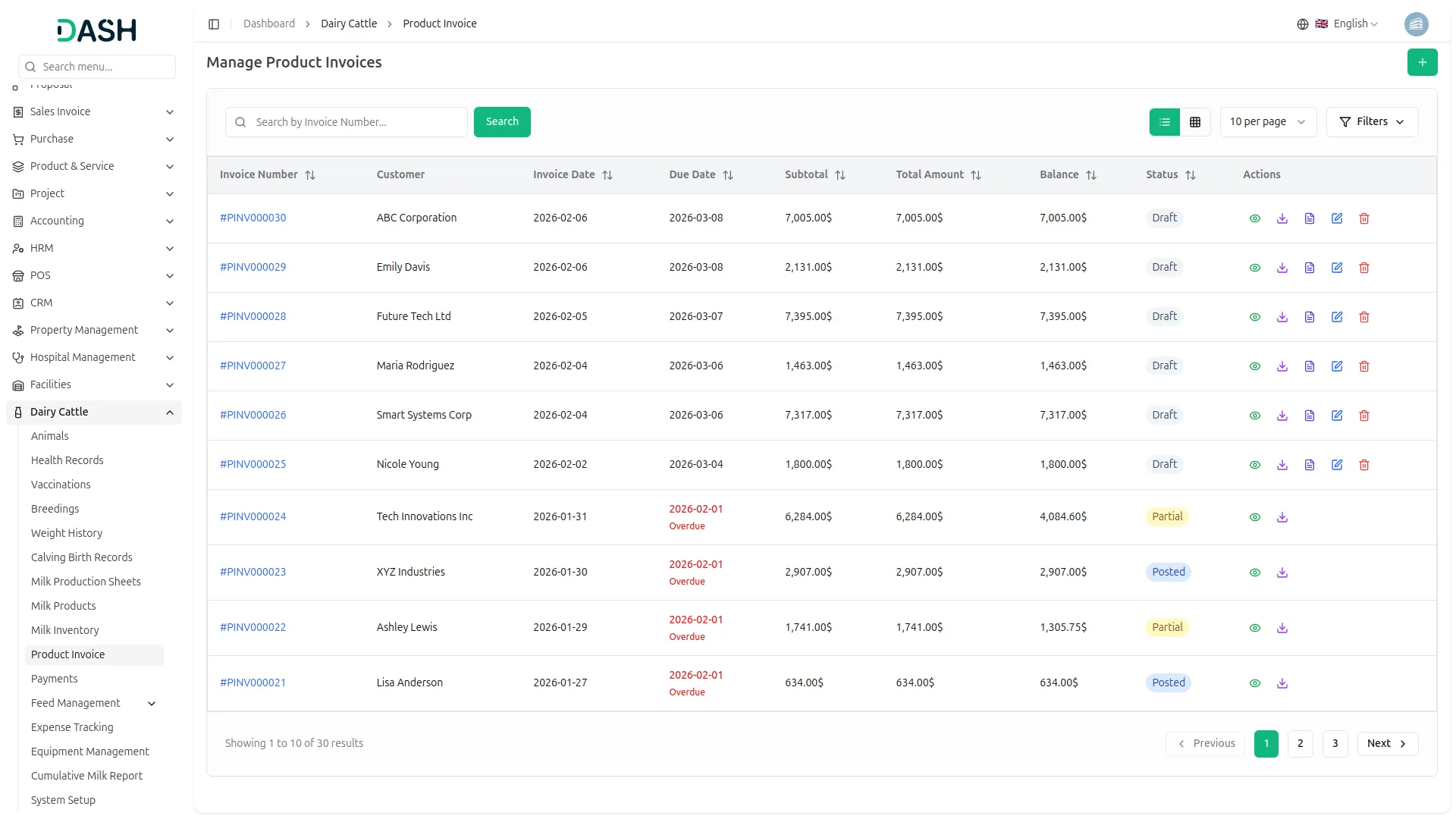
- The Product Invoices List page displays all invoice records in a table with columns for Invoice Number, Customer, Invoice Date, Due Date, Subtotal, Total Amount, Balance, and Status. You can use the Search and Filter options, along with the Product Invoice List button, to manage and locate invoices easily.
- Available actions include Download PDF to export the invoice in PDF format, View to see complete invoice details, Edit to update invoice information, Delete to remove product invoice records from the system, and Post to finalize draft invoices. The Post button converts draft invoices to posted status, making them official and preventing further edits while enabling payment processing.
Payments Management
- The Payments Management module allows you to record and manage customer payments against outstanding invoices. To create a new payment, click the Create button on the Payments page. Enter the Payment Date and select the Customer from the dropdown list fetched from the Users module. Once a customer is selected, all related Outstanding Invoices for that customer will be displayed automatically.
- Next, select the Bank Account from the dropdown, which is fetched from the Accounting Add-On – Bank Accounts module. Enter the Reference Number for tracking purposes. From the list of outstanding invoices, choose the invoice(s) you want to pay and click the Add button. The selected invoice amount will be added automatically to the Total Payment Amount. You can then enter any additional Notes before saving the payment.
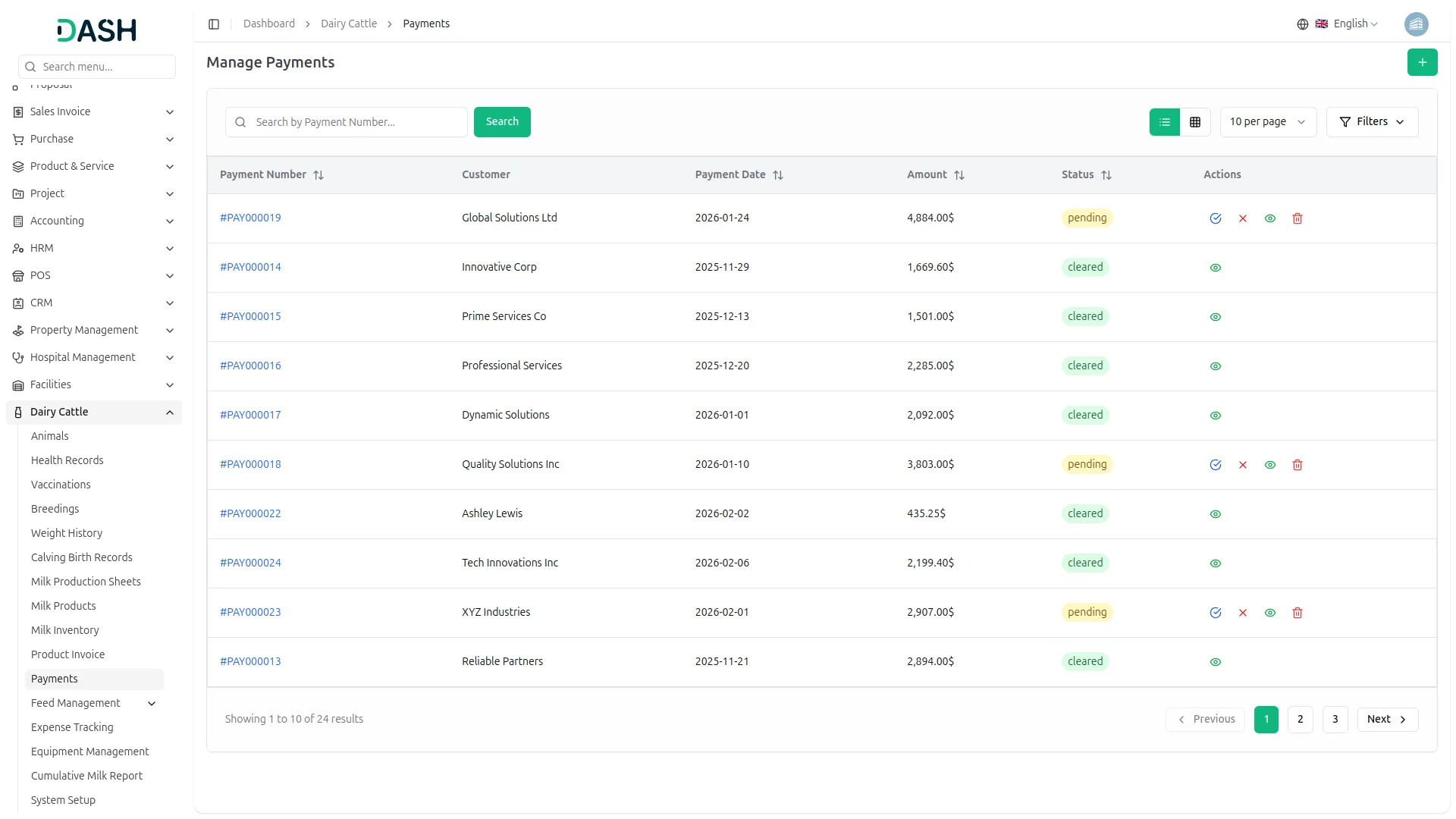
- The Payments List page displays all payment records in a table with columns for Payment Number, Customer, Payment Date, Amount, and Status. Use the Search and Filter options, along with the Payments List button, to easily manage and locate payment records.
- Available actions include Mark as Cleared to confirm that the payment has been successfully processed, Cancel Payment to void a payment, View to see complete payment details, and Delete to remove payment records from the system.
Feed Management
- The Feed Management section provides a complete system for managing animal feeding, covering feed types, scheduling, and consumption tracking. This section helps maintain accurate records, ensures proper nutrition, and streamlines daily feeding operations.
- Creating a new feed type is simple. On the Feed Type page, click the “Create” button, enter the name of the feed type, and provide a description that details its characteristics or nutritional information.
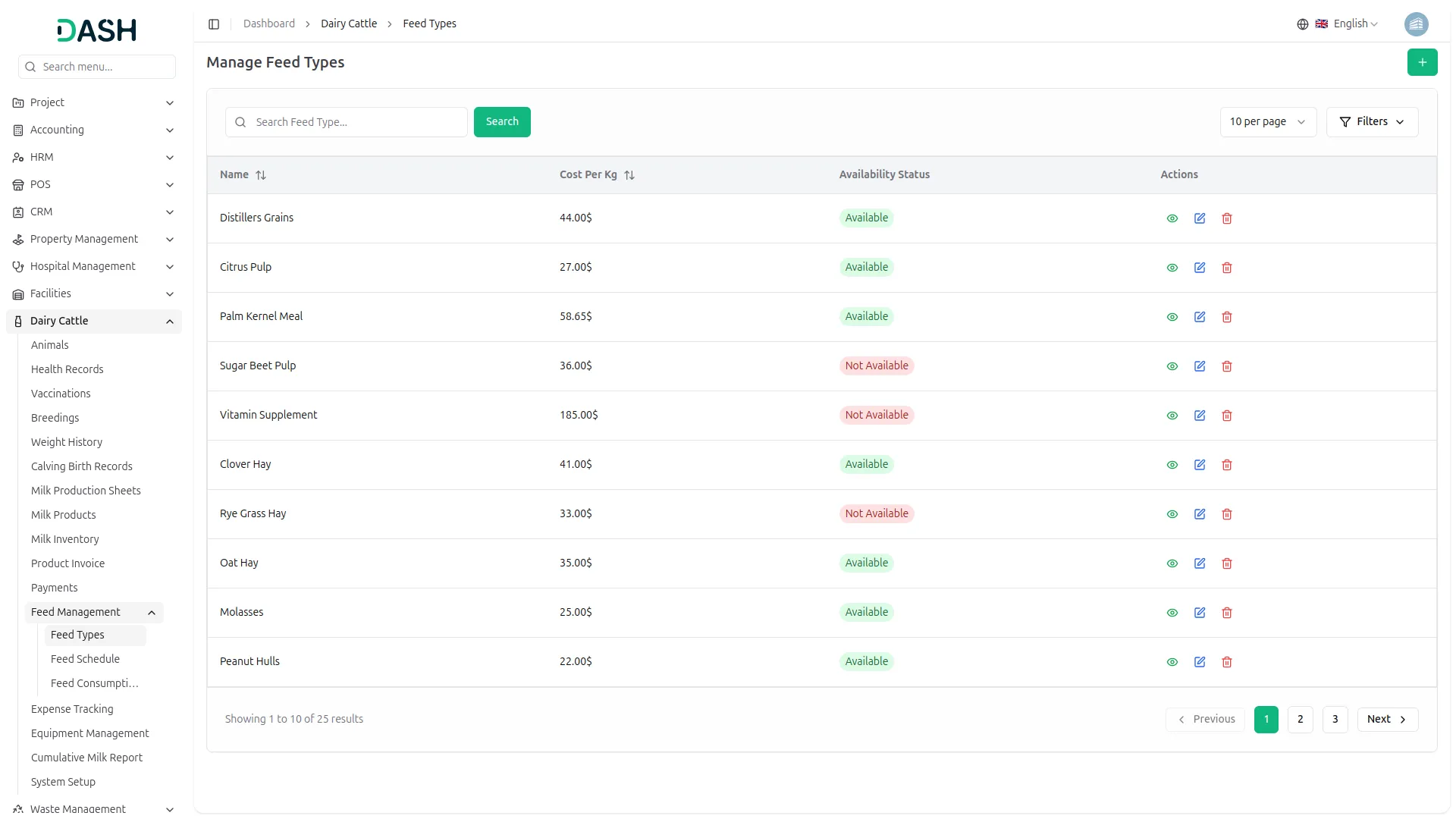
- The feed type list displays all existing feed types with columns for Number, Name, and Description, with a popup view for additional details. Users can quickly search for feed types, filter the list for reporting purposes, and use available actions to view,edit or delete feed types as needed.
-
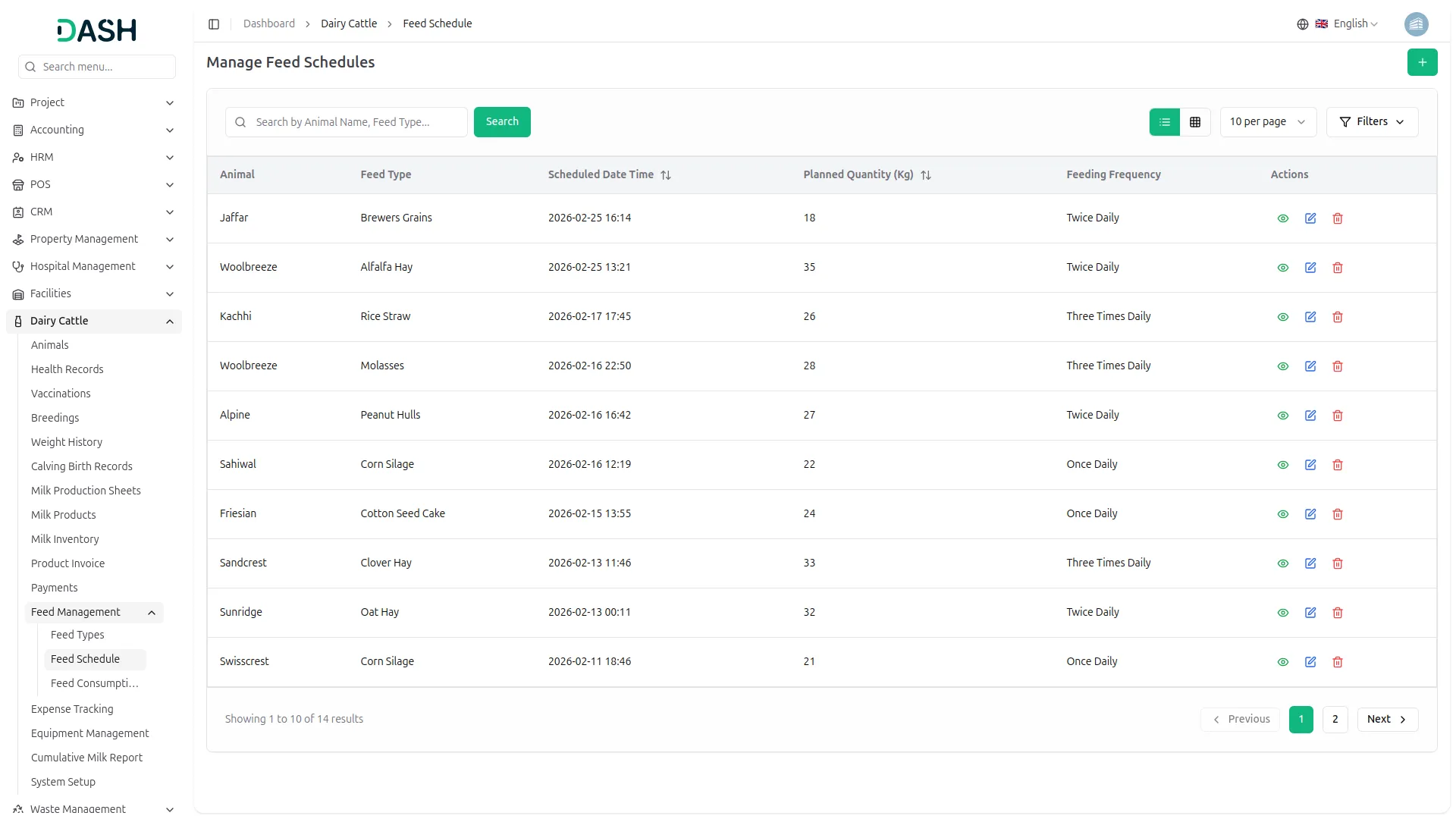
- The Feed Schedule feature allows users to plan and organize feeding times efficiently. On the Feed Schedule page, click “Create”, then select the animal from the dropdown menu and choose the appropriate feed type. Enter the quantity to be fed and set the scheduled feeding time.
- The schedule list provides an overview of all planned feedings, including the animal, feed type, quantity, and scheduled time. Users can search schedules, export data, and manage entries with options to view,edit or delete as required.
-
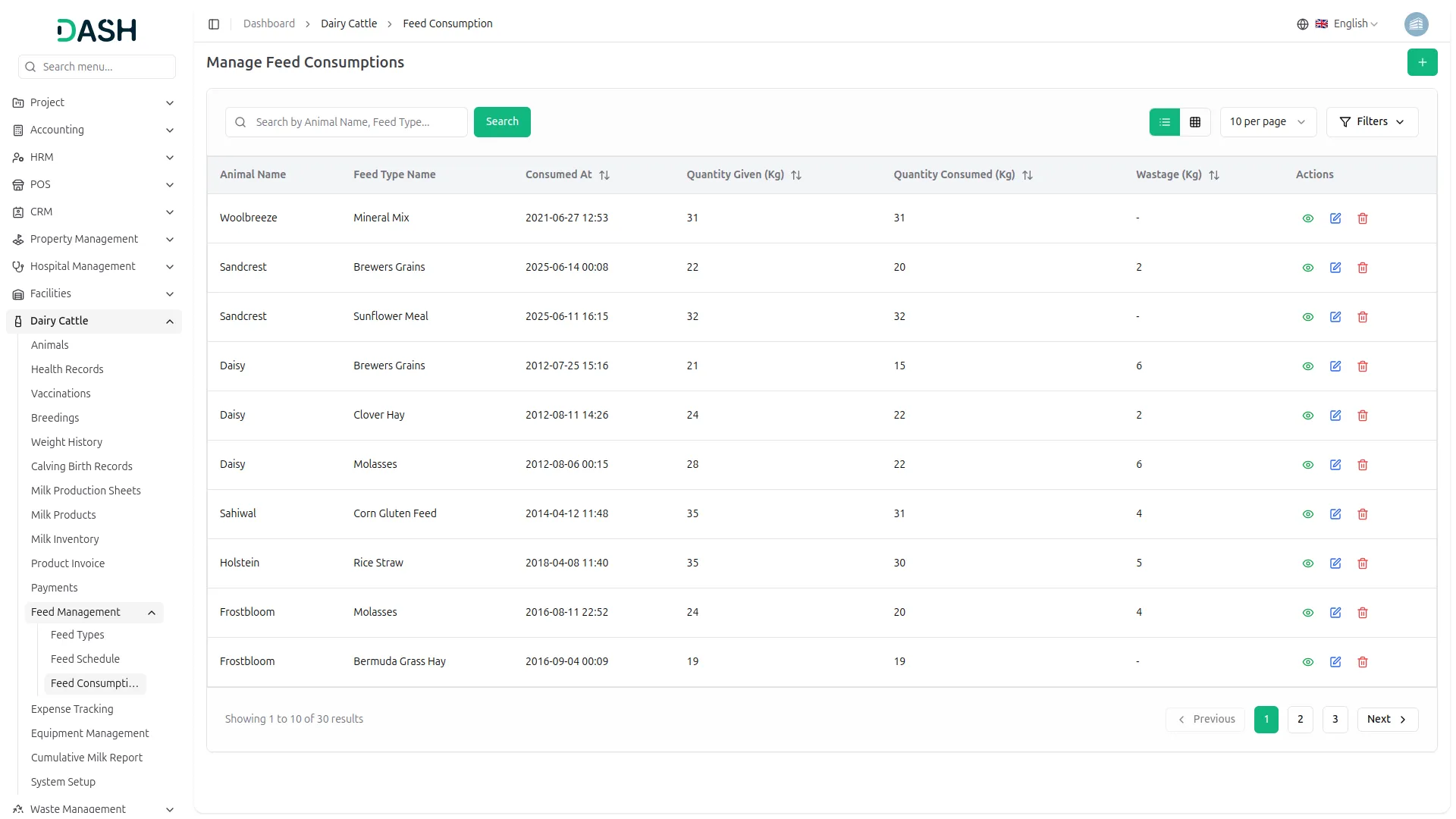
- Recording actual feed consumption ensures accurate tracking of what each animal consumes. On the Feed Consumption page, click “Create”, select the animal and feed type, enter the quantity consumed, and specify the date of consumption.
- The consumption list displays all recorded entries, showing the Number, Animal, Feed Type, Quantity, and Consumption Date. Search and export functions help users manage and track consumption efficiently, while view, edit and delete actions allow for updates and corrections when necessary.
-
- Overall, the Feed Management section streamlines the process of creating feed types, scheduling feedings, and tracking consumption, providing a reliable and organized approach to animal nutrition management.
Expense Tracking Management
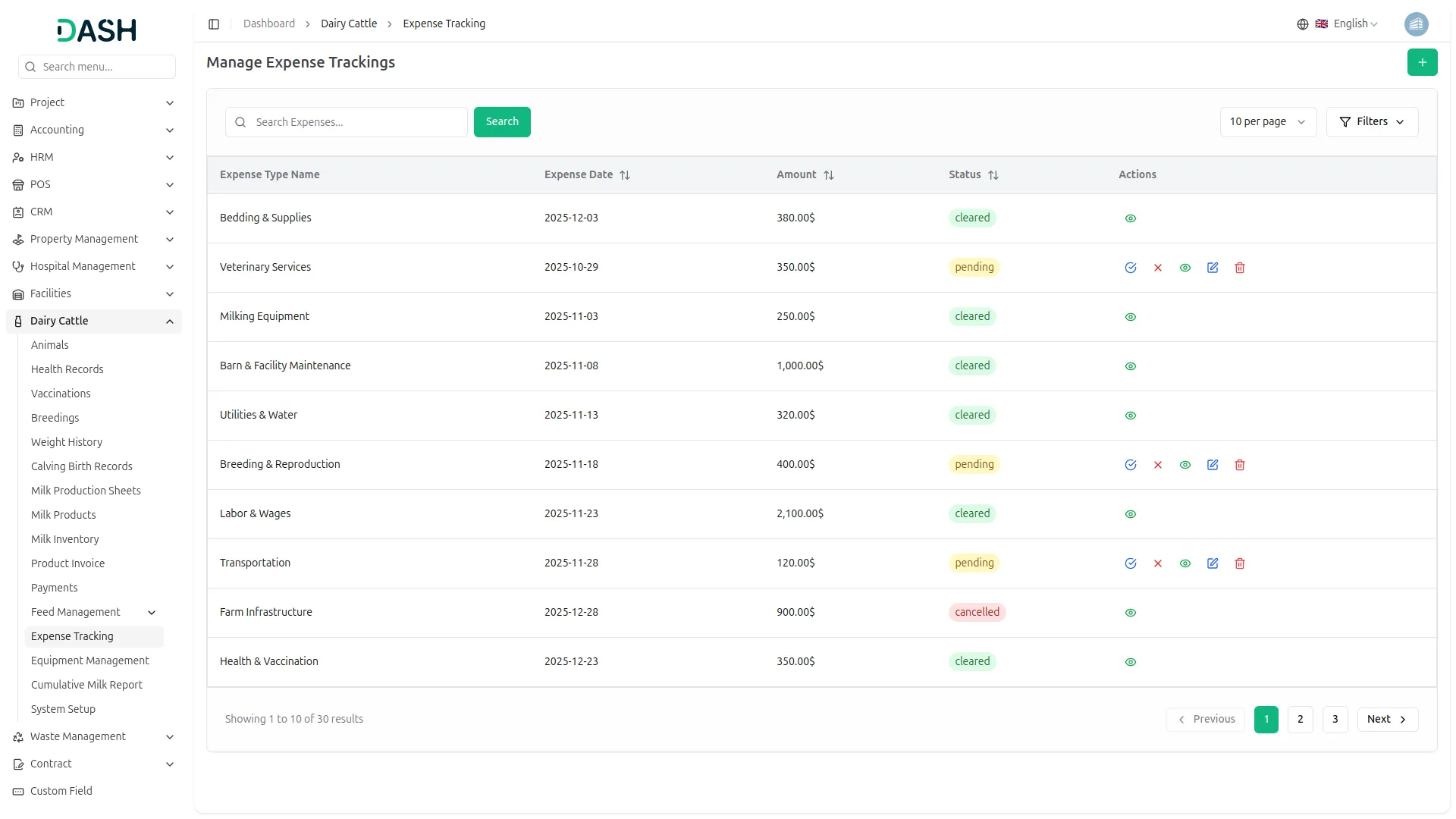
- To create a new expense record, click the Create button on the Expense Tracking page. Enter the Expense Date, select the Expense Type from the dropdown list fetched from the Expense Types module, and specify the Amount. Select the Bank Account from the dropdown for payment tracking, and add a Description for additional details.
- Available actions include Create to add new expense records, Mark as Cleared to confirm that the expense payment has been successfully processed, Cancel Expense to void an expense record, View to see complete expense details, Edit to update expense information, and Delete to remove expense records from the system.
Equipment Management
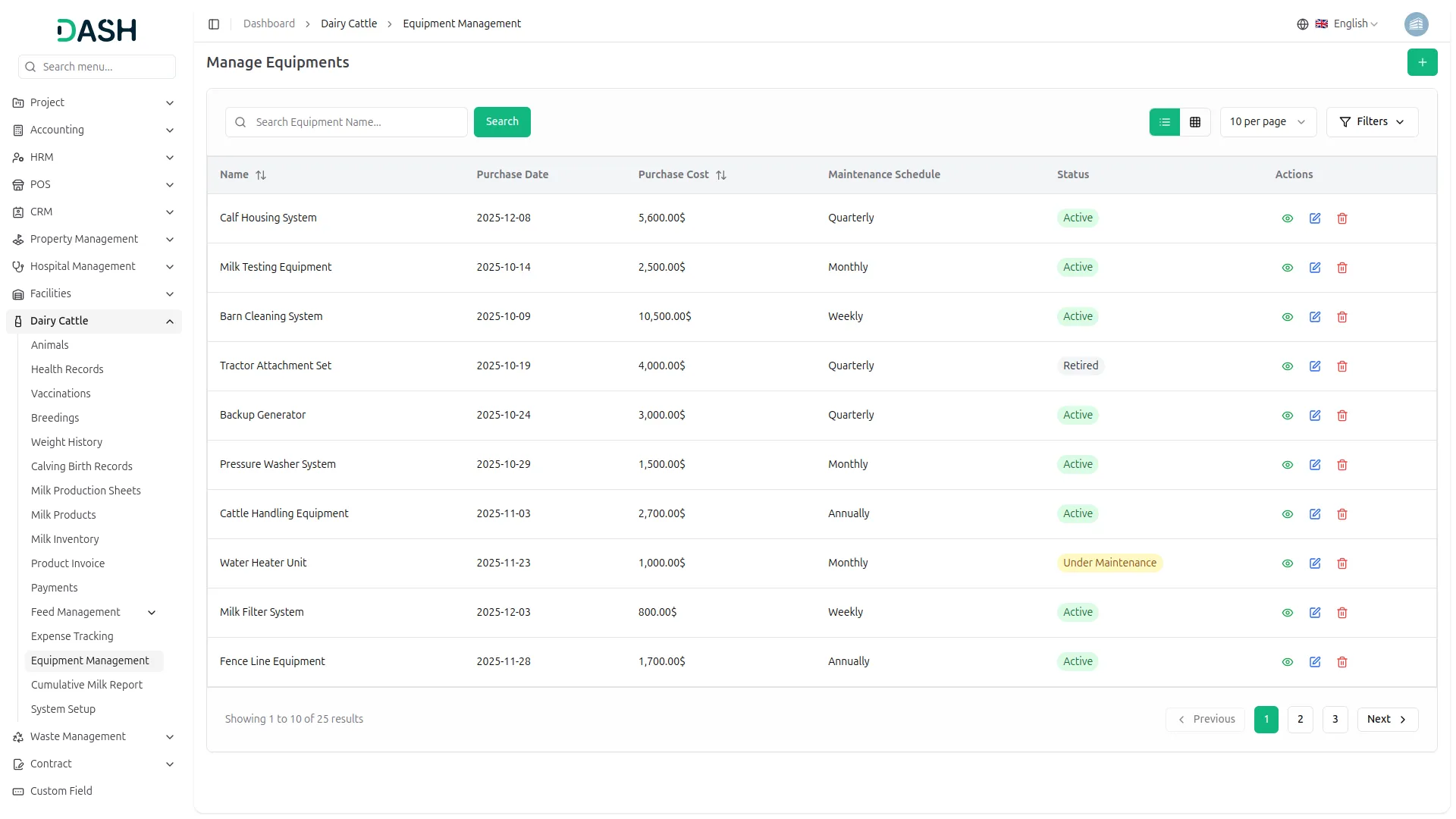
- To add new equipment, navigate to the Equipment page and click the “Create” button. Enter the equipment name and provide a description detailing its specifications or purpose. Set the purchase date to record when the equipment was acquired.
- Users can also select a maintenance schedule from the available options, including Monthly, Quarterly, or Annually. Tracking maintenance schedules helps ensure equipment longevity and supports consistent farm operations.
- The Equipment List page displays all recorded equipment with columns for Number, Name, Purchase Date, Maintenance Schedule, and Description, with a popup view for additional details. Users can efficiently search for equipment, export the list for reporting purposes, and manage records using available actions to view,edit or delete entries as needed.
Cumulative Milk Report
General Report
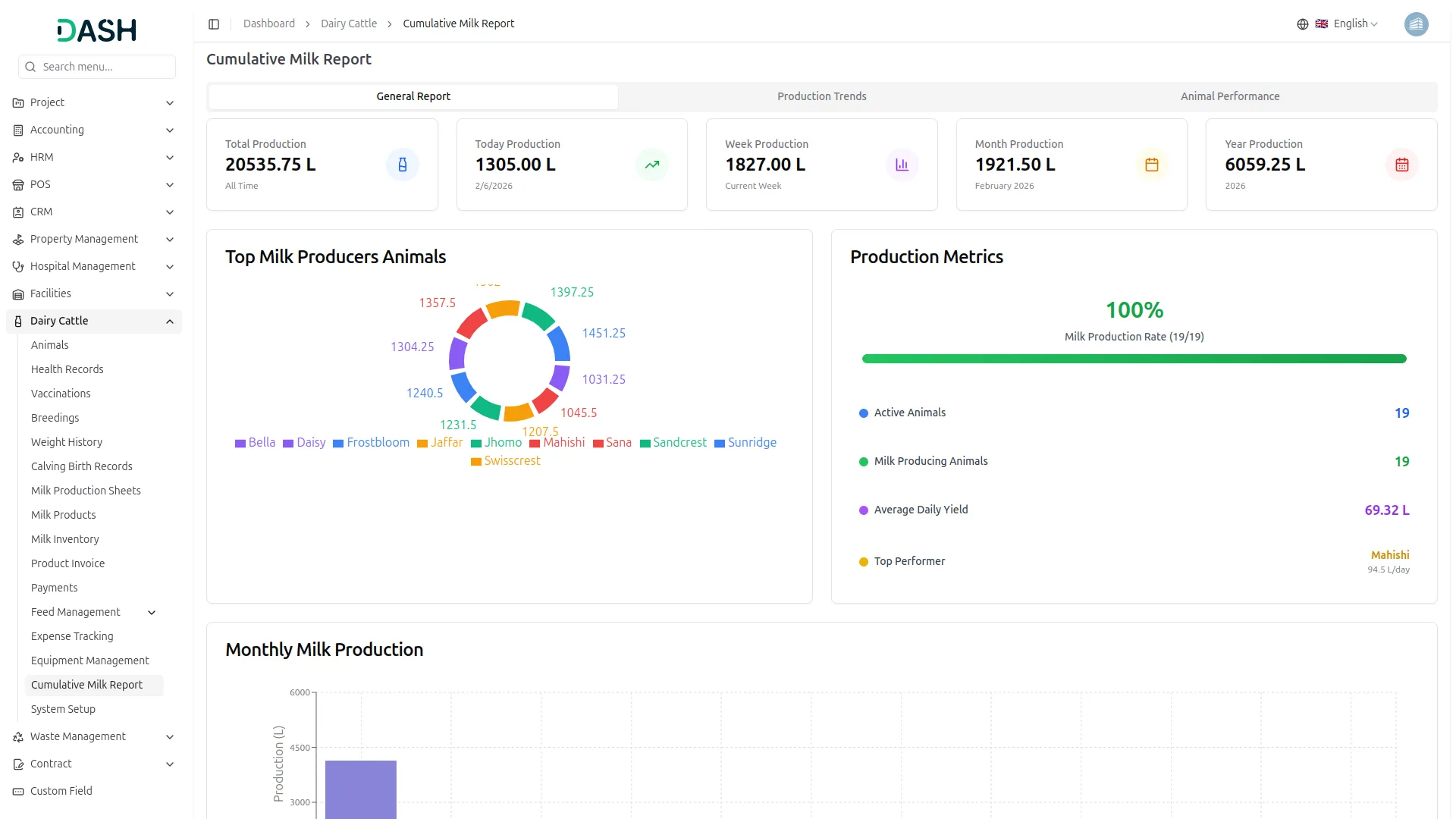
- The General Report displays your dairy operation’s key performance indicators through five summary cards showing Total Production, Today’s Production, Weekly Production, Monthly Production, and Yearly Production. Each card presents production values in liters with color-coded icons and time period descriptions.
- The Top Milk Producer Animals section features an interactive pie chart displaying the top 10 producing animals with hover tooltips and percentage labels. The Production Metrics Panel shows your production rate as a circular progress indicator, along with key statistics including active animals count, milk-producing animals, average daily yield, and top performer details. A monthly production bar chart visualizes the entire year’s production data with morning and evening breakdowns.
Daily Milk Production Trend Details
- The Production Trends section offers advanced filtering capabilities through a date range picker and animal selection dropdown. You can analyze specific time periods or focus on individual animals using the Generate and Clear filter buttons.
- The daily production line chart displays three data lines: total production (blue solid line), morning production (green dashed line), and evening production (orange dashed line). Interactive tooltips show exact values when hovering over data points, while the responsive design adapts to your screen size. The system automatically handles empty data states and preserves your filter selections in the URL for easy sharing and bookmarking.
Animal Performance Details
- The Animal Performance section uses the same filtering system as Production Trends, allowing you to analyze performance data for specific date ranges and animals. The performance bar chart displays the top 15 animals ranked by total production, showing comprehensive metrics including total production, average daily production, production days, best day performance, and morning/evening breakdowns.
- Animal names are displayed at a 45-degree angle for easy reading, with purple gradient bars and detailed tooltips providing additional information on hover. The system processes data efficiently while maintaining security through permission checks and user isolation.
System Setup
Species
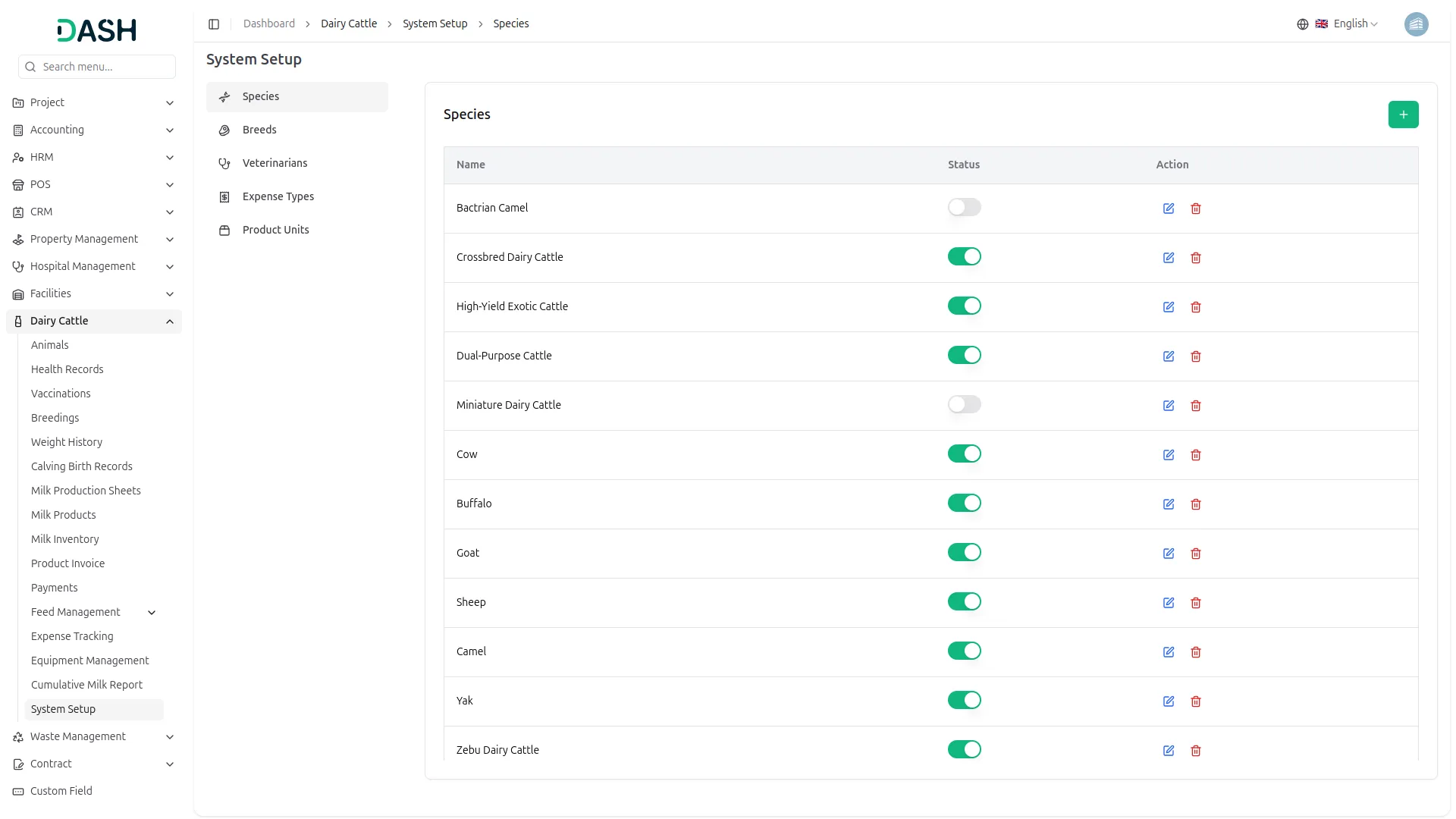
- The Species module allows you to create and manage animal species records in the system. To add a new species, click the Create button on the Species page. Enter the Species Name and set the Status as Active or Inactive using the status option. Save the record to add the species to the system.
- On the Species List page, all species are displayed in a table with columns such as Name and Status. Available actions include the Edit button to update species details and the Delete button to remove species records from the system.
Breeds
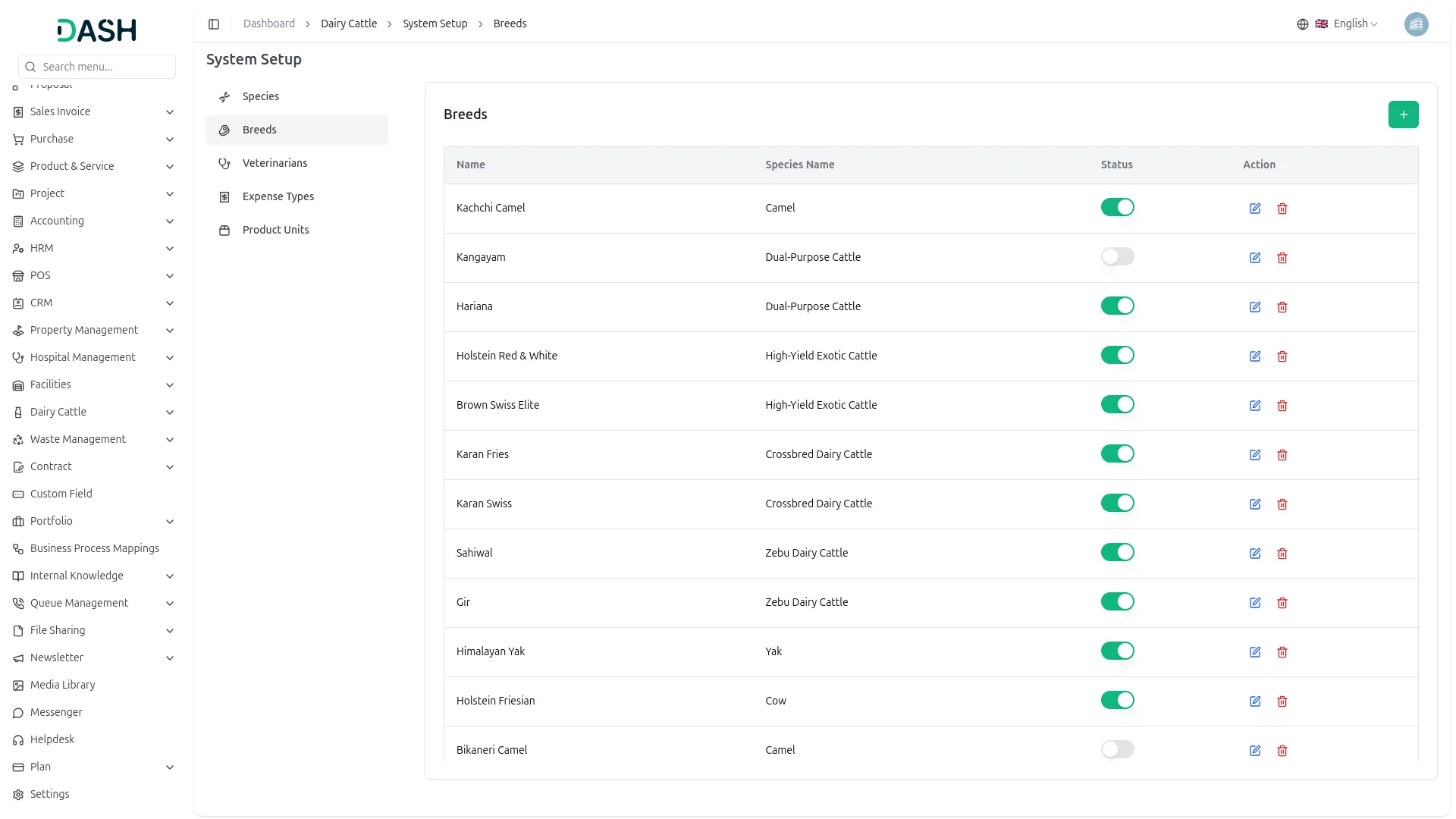
- The Breeds module allows you to create and manage animal breed records in the system. To add a new breed, click the Create button on the Breeds page. Enter the Breed Name, select the Species from the dropdown list fetched from the Manage Species module, and use the Status toggle to set the breed as Active or Inactive. Save the record to add the breed to the system.
- On the Breeds List page, all breeds are displayed in a table with columns such as Name, Species, and Status. The Status toggle allows you to quickly activate or deactivate a breed directly from the list. Available actions include the Edit button to modify breed details and the Delete button to remove breed records from the system.
Veterinarians
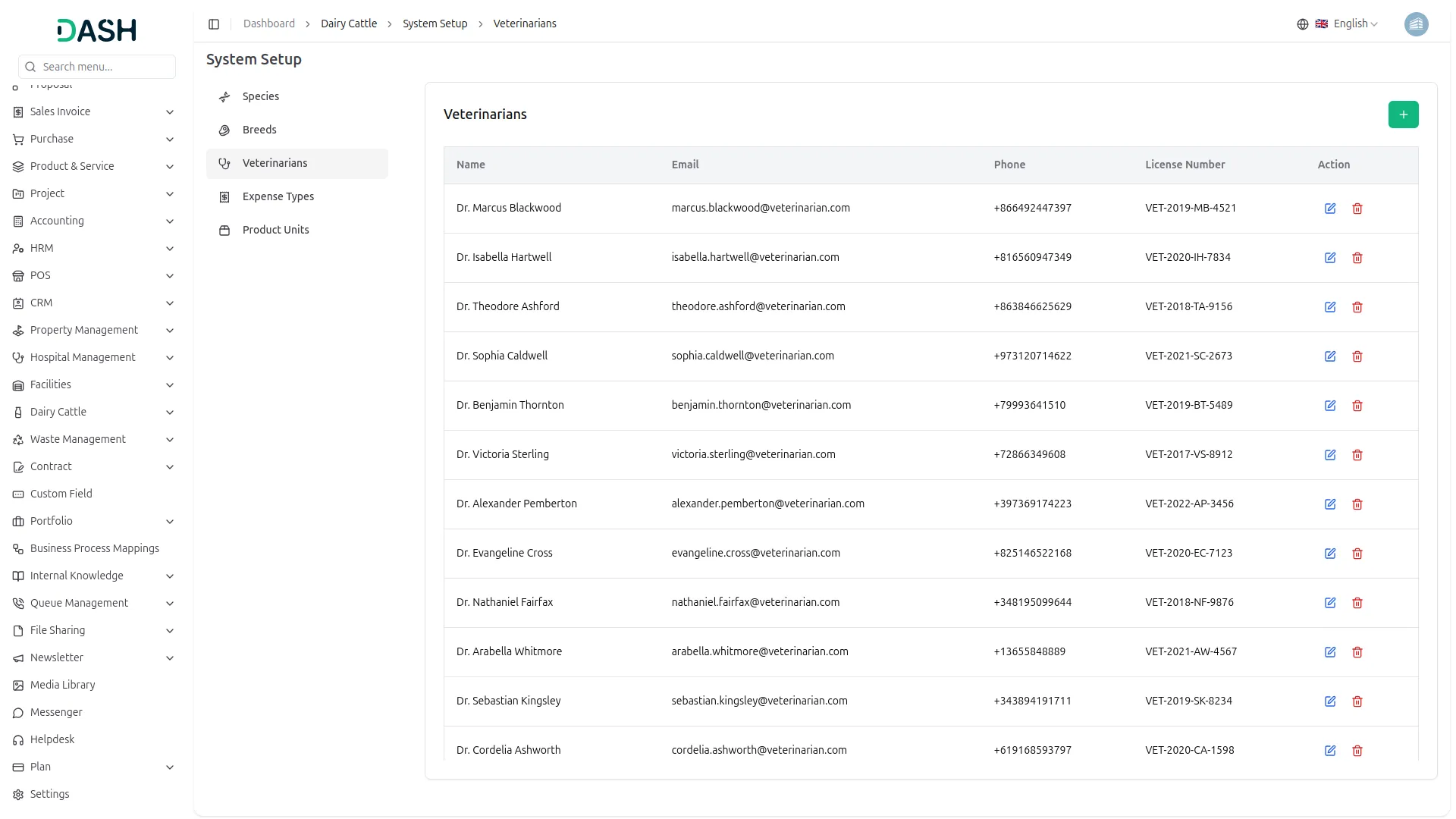
- The Veterinarians module allows you to add and manage veterinarian records in the system. To add a new veterinarian, click the Create button on the Veterinarians page and enter the required details, including Name, Email, Phone Number, and License Number. Save the record to add the veterinarian to the system.
- On the Veterinarians List page, all veterinarians are displayed in a table with columns such as Name, Email, Phone, and License Number. Available actions include the Edit button to update veterinarian details and the Delete button to remove veterinarian records from the system.
Expense Types
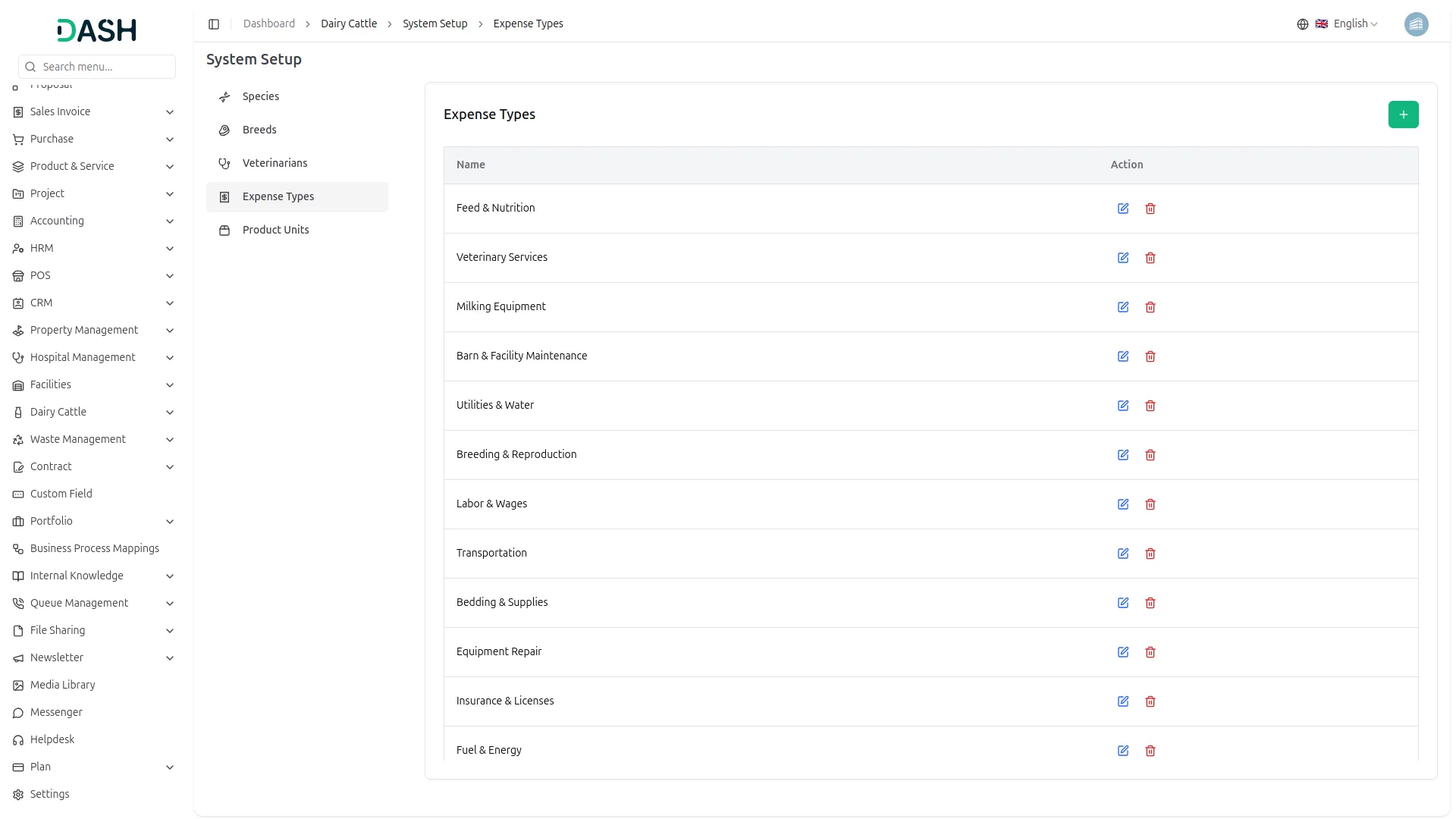
- The Expense Types module allows you to define and manage different categories of expenses used in expense tracking. To add a new expense type, click the Create button on the Expense Types page and enter the Expense Type Name. Once created, these expense types can be selected when recording expenses in the Expense Tracking module.
- On the Expense Types List page, all expense types are displayed in a table with a Name column. Available actions include the Edit button to update expense type details and the Delete button to remove expense type records from the system.
Product Units
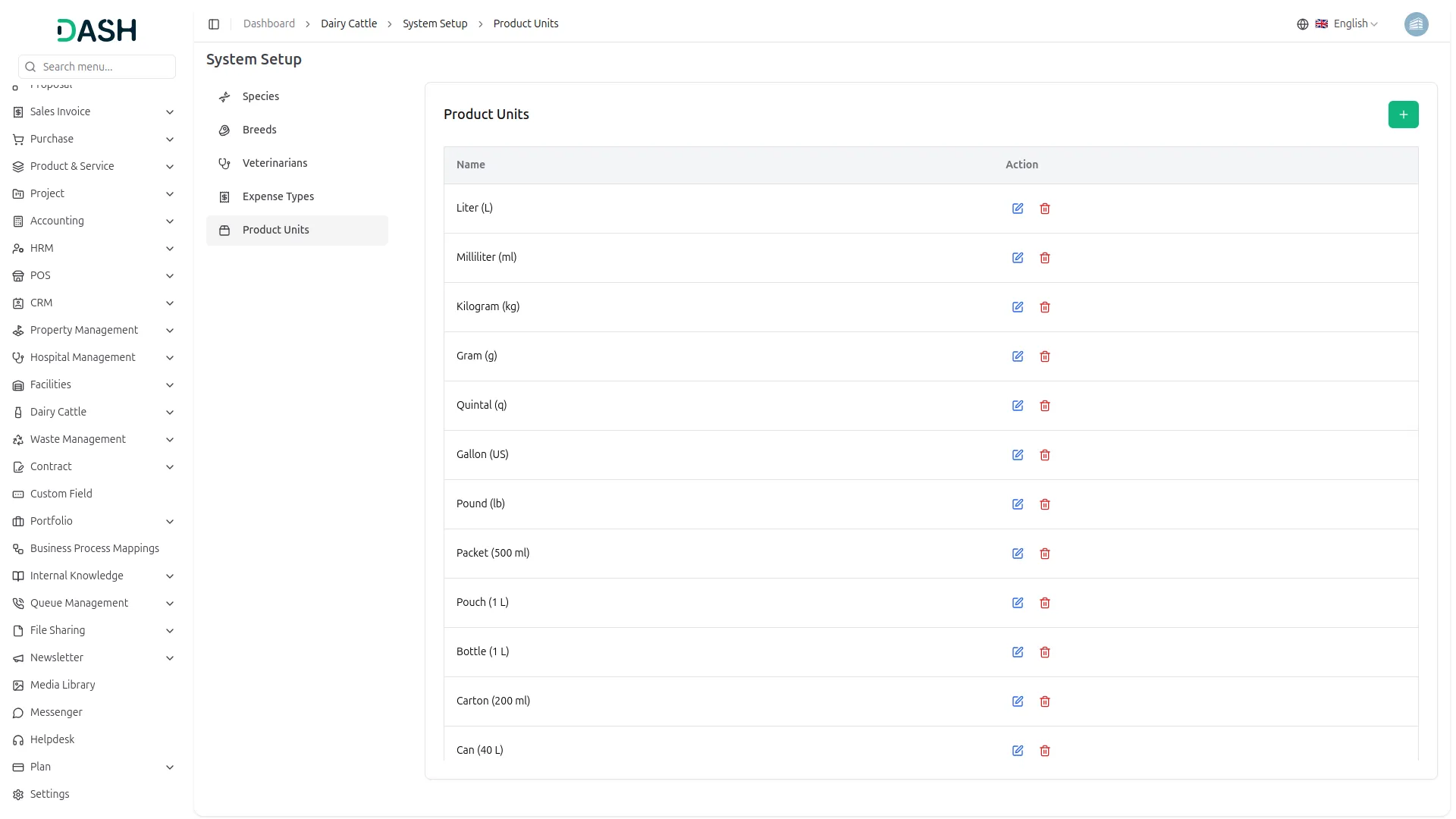
- The Product Units module allows you to define and manage measurement units used for products in the system. To add a new product unit, click the Create button on the Product Units page and enter the Product Unit Name. Save the record to add it to the system.
- On the Product Units List page, all product units are displayed in a table with a Name column. Available actions include the Edit button to modify product unit details and the Delete button to remove product unit records from the system.
Categories
Related articles
- Blog & Article Integration in Dash SaaS
- OneNote Integration in Dash SaaS
- School/Institute Management Integration in Dash SaaS
- Click Send Integration in Dash SaaS
- Laundry Management Integration in Dash SaaS
- BlueSnap Integration in Dash SaaS
- PayPay Payment Gateway
- Resume Builder Detailed Documentation
- Finding Email Credentials for the EMailbox Module in Dash SaaS
- Job Search Detailed Documentation
- LinePay Payment Detailed Documentation
- Backup & Restore Integration in Dash SaaS
Reach Out to Us
Have questions or need assistance? We're here to help! Reach out to our team for support, inquiries, or feedback. Your needs are important to us, and we’re ready to assist you!


Need more help?
If you’re still uncertain or need professional guidance, don’t hesitate to contact us. You can contact us via email or submit a ticket with a description of your issue. Our team of experts is always available to help you with any questions. Rest assured that we’ll respond to your inquiry promptly.
Love what you see?
Do you like the quality of our products, themes, and applications, or perhaps the design of our website caught your eye? You can have similarly outstanding designs for your website or apps. Contact us, and we’ll bring your ideas to life.