
LinePay – WorkDo Dash SaaS Add-On Guide
Learn how to configure and manage LinePay integration in WorkDo Dash SaaS easily.
Supported Countries: Taiwan, Japan, Thailand, USA
Supported Currencies: TWD, JPY, THB, USD
Benefits of LinePay Payment Gateway
Frictionless Payment Experience
LinePay enables customers to complete purchases directly through their LinePay wallet without any redirects or interruptions, making the checkout process fast and effortless.
Widely Recognized & Trusted
As a payment method deeply familiar to users across Japan, Taiwan, and Thailand, LinePay naturally builds customer confidence and encourages higher transaction completion rates.
Instant Transaction Notifications
LinePay delivers real-time payment updates, allowing businesses to process orders immediately and eliminate unnecessary delays in their workflow.
Strong Security Standards
Every transaction is safeguarded by LinePay’s robust security infrastructure, protecting both businesses and customers from potential fraud and unauthorized activity.
Better Business Conversions
A smooth and familiar payment flow reduces drop-offs at checkout, helping businesses turn more visitors into paying customers consistently.
How to Access LinePay Add-On?
- Visit WorkDo Website Head over to WorkDo.io and explore the extensive range of Dash SaaS Add-Ons.
- Discover LinePay Navigate to the “Dash SaaS Add-Ons” section and locate the “LinePay Add-On.”
- Activate the Add-On Click the “Activate” button next to the LinePay Add-On to enable it for your WorkDo Dash account.
Once activated, LinePay becomes available across supported modules based on permissions and settings.
How does LinePay work?
LinePay allows businesses to accept digital payments through the popular Line messaging app, offering a convenient and secure method for transactions. Once integrated, customers can pay directly using their LinePay wallet, enhancing ease of use and speed. It supports real-time transaction updates and ensures a smooth checkout experience. The system improves payment efficiency while maintaining strong security standards.
Super Admin Settings
(Plan Purchase by the Company)
The Super Admin Settings are accessible only to the highest-level administrator. These settings allow the Super Admin to manage company-level subscriptions and payment configurations.
Key Capabilities:
- Purchase or upgrade company subscription plans
- Configure LinePay API credentials for plan payments
- Enable or disable LinePay as a payment gateway
Configuration Path:
Super Admin Login → Settings → LinePay Settings
Company Settings
(Bookings, Beauty Spa, LMS & Other Payments)
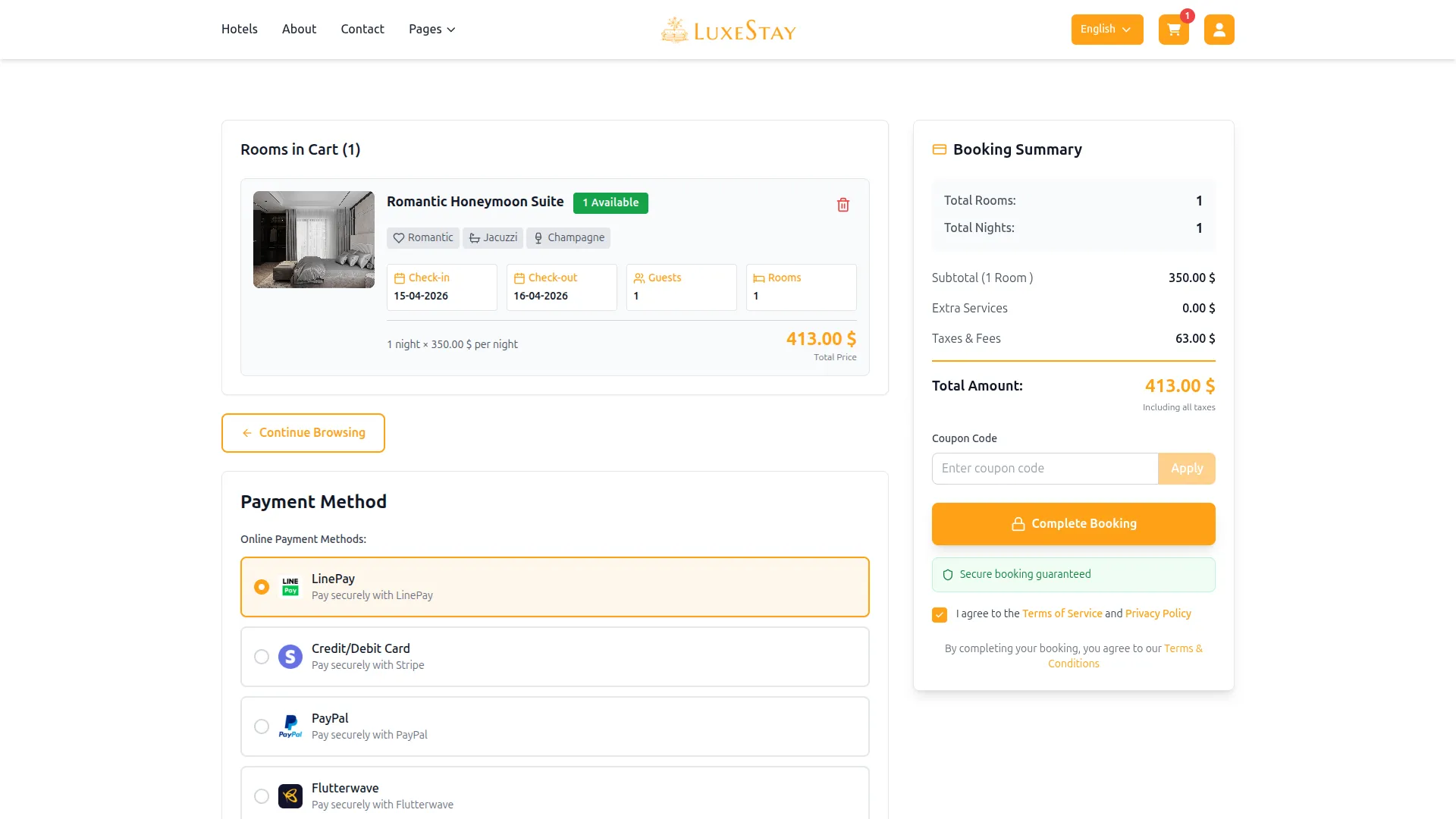
Company Settings allow organizations to configure LinePay for receiving payments from customers across multiple modules.
Supported Modules Include:
Configuration Path:
Company Login → Settings → System Settings → LinePay Settings
Company-Level Capabilities:
- Configure LinePay API credentials
- Enable LinePay for selected modules
- Accept online payments from customers
- Manage Bookings, Beauty Spa, and service
- Handle tax, coupon, and discount calculations
How to Generate LinePay API Keys?
To integrate LinePay seamlessly into your (Product Name), follow the steps below:
1. Generate API Key
- To obtain your LinePay Login credentials, follow these steps:
- Live Mode Login: https://pay.line.me/portal/jp/auth/login
- Sandbox Mode Login: https://sandbox-pay.line.me/
- Log in to the appropriate LinePay portal based on the mode (Live or Sandbox).
- After logging in, toggle to the desired environment at the top of the dashboard.
- Navigate to “Linked Key Management”.
- From this section, you will obtain:
- Channel ID
- Channel Secret Key
2. Configure LinePay Gateway in (Product Name):
- Log in to your (Product Name) account with administrator credentials.
- Navigate to the settings page.
3. Set Up LinePay Gateway:
- Scroll down the page until you find the LinePay Gateway option.
- Click on the LinePay Gateway to access its configuration settings.
4. Enter Required Details:
- In the settings, provide the following essential details:
- Select LinePay Mode
- Channel ID
- Channel Secret Key
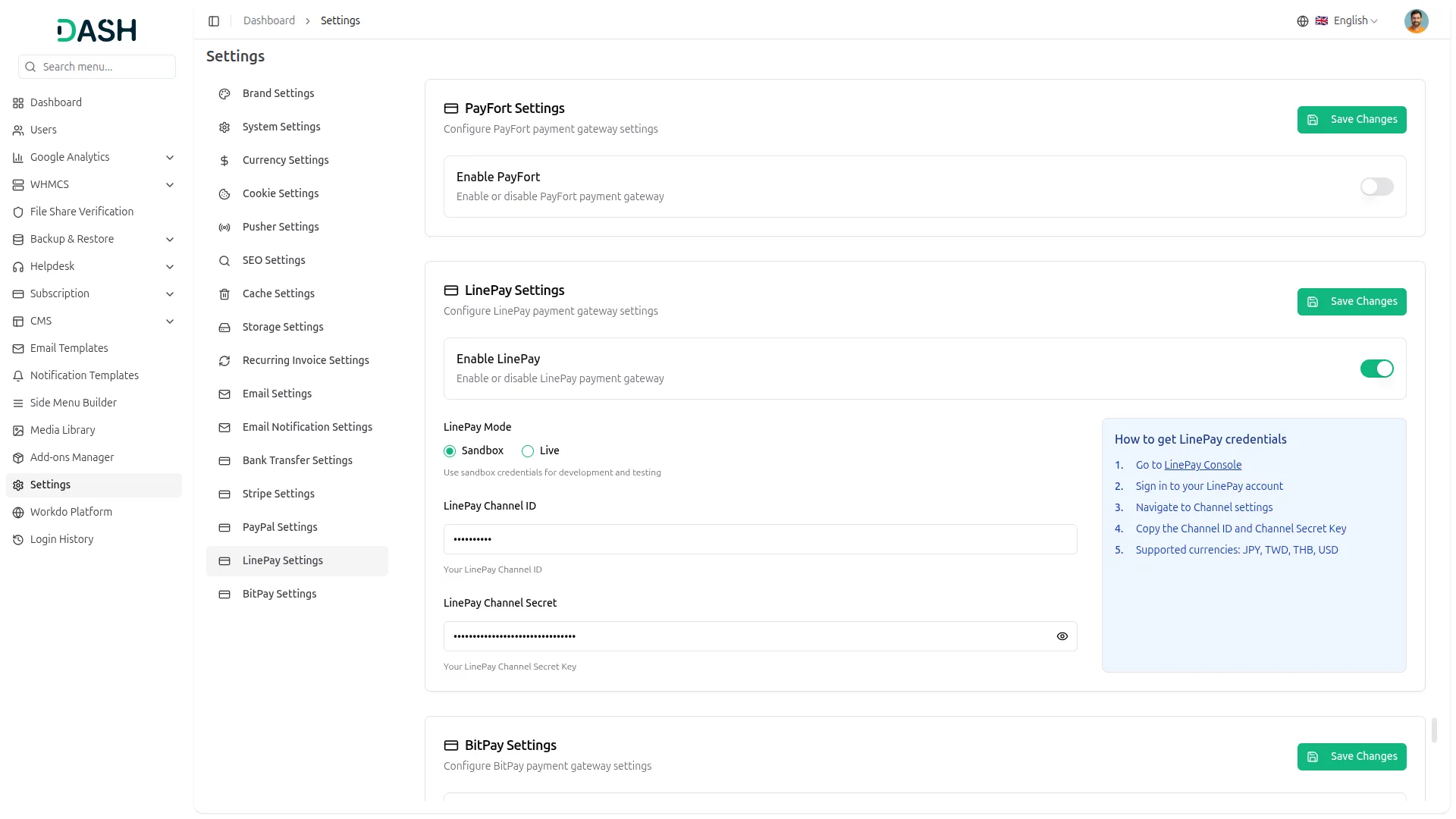
5. Save Your Settings:
- After entering the necessary details, save the settings to activate the LinePay Payment Gateway within your (Product Name) platform.
This detailed documentation overviews LinePay Payment Integration, its benefits, and the integration process. By integrating LinePay, businesses and organizations can offer their customers a secure and flexible payment experience while streamlining their payment processes.
Note: The LinePay Add-On is a paid feature and can be accessed by users who have purchased it. By integrating the LinePay Add-On into your WorkDo Dash SaaS account, you’ll provide a reliable and user-friendly payment gateway that supports global transactions.
Categories
Related articles
- BlueSnap – WorkDo Dash SaaS Add-On Guide
- Livestorm Meeting – WorkDo Dash SaaS Add-On Guide
- Plisio – BookingGo SaaS Add-On Guide
- Spin to Win Reward – eCommerceGo SaaS Add-On Guide
- vCard – WorkDo Dash SaaS Add-On Guide
- Sign in with Google – WorkDo Dash SaaS Add-On Guide
- Product Enquiry – eCommerceGo SaaS Add-On Guide
- Sign in with GitHub – WorkDo Dash SaaS Add-On Guide
- BlueSnap – BookingGo SaaS Add-On Guide
- Resume Builder – WorkDo Dash SaaS Add-On Guide
- Mailchimp – TicketGo Add-On Guide
- Affiliate Product – eCommerceGo SaaS Add-On Guide
We're Here to Help - Let's Talk
Have questions about our solutions, customization services, or business tools? Our team is here to help you. let's talk.