
ClickSend – WorkDo Dash SaaS Add-On Guide
Learn how to configure and manage ClickSend messaging features in WorkDo Dash SaaS.
Introduction
Click Send is a communication Add-On that enables you to send SMS messages, schedule SMS communications, make voice calls, and manage contacts across multiple business modules. It integrates seamlessly with various modules, including General, Accounting, Appointment, CMMS, Contract, HRM, CRM, Sales, Recruitment, Project, and many more. With Click Send, you can easily stay connected with your team and customers by sending real-time updates and automated notifications directly from your WorkDo Dash platform.
How to Install the Add-On?
To Set Up the Click Send Add-On, you can follow this link: Setup Add-On.
How to use the Click Send Add-On?
Settings Configuration
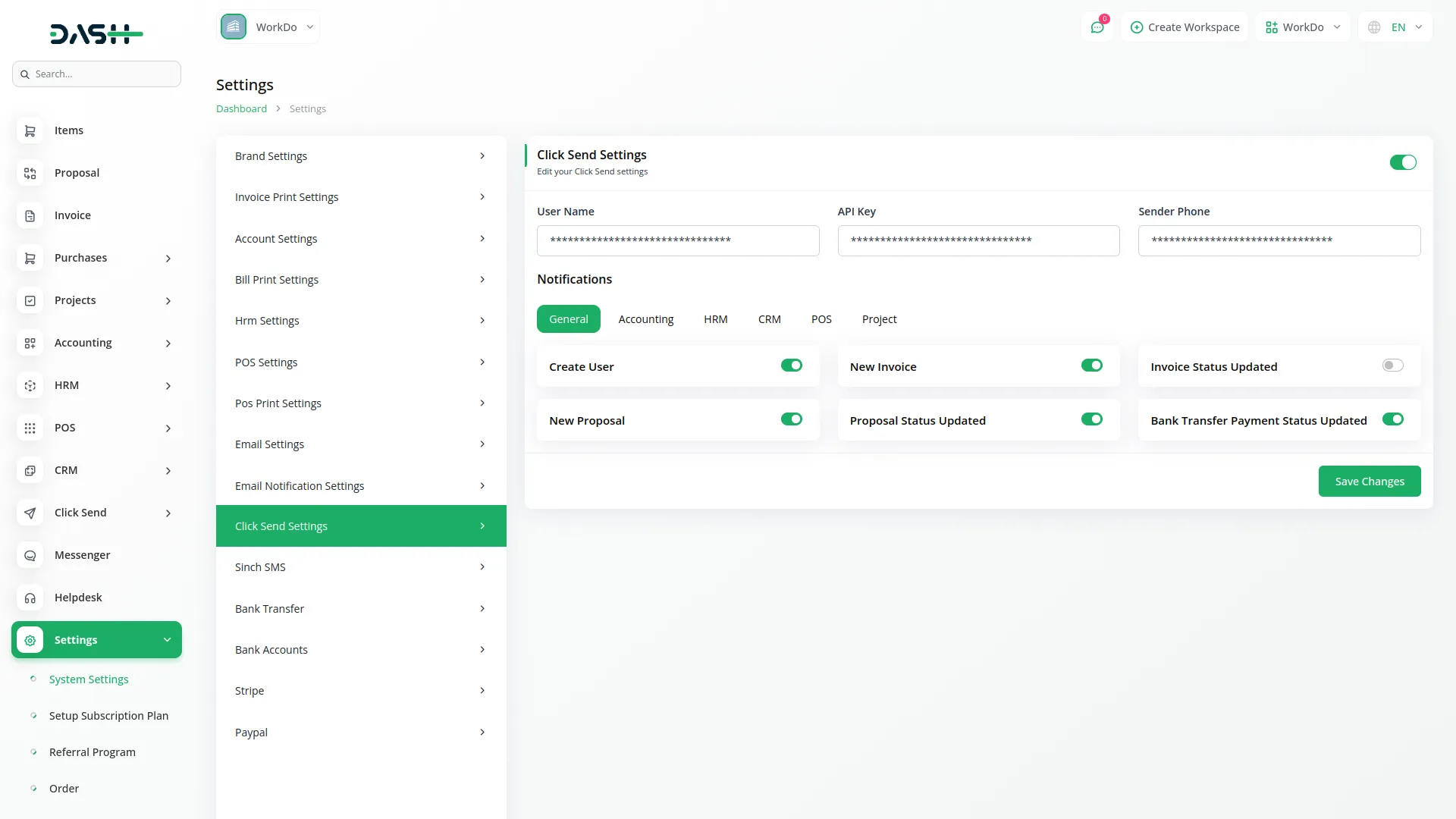
- To start using Click Send, you need to configure your account settings first. Go to Settings and then click on Click Send. At the top of the settings page, you will find the Enable Click Send Integration toggle. Turn this on to allow SMS notifications via Click Send.
- You will need three important details. Enter your unique Click Send User Name in the first field. Then add your unique Click Send API Key that you received from Click Send. Finally, enter the phone number that you used to create your Click Send account as your Sender Phone. Make sure you get the correct credentials from the official Click Send Developer Portal before setting up.
- To get these credentials, log in to your Click Send account or create a new one if needed. Visit the Click Send API documentation at: https://developers.clicksend.com/docs to generate your API key.
- The settings page also includes a Notification Settings section where you can manage SMS notification preferences across all integrated modules. Simply select any module tab and use the toggle switches to enable or disable specific notification events within that module.
- Once you have all the details, click Save Changes to activate, and click Send in your WorkDo Dash platform.
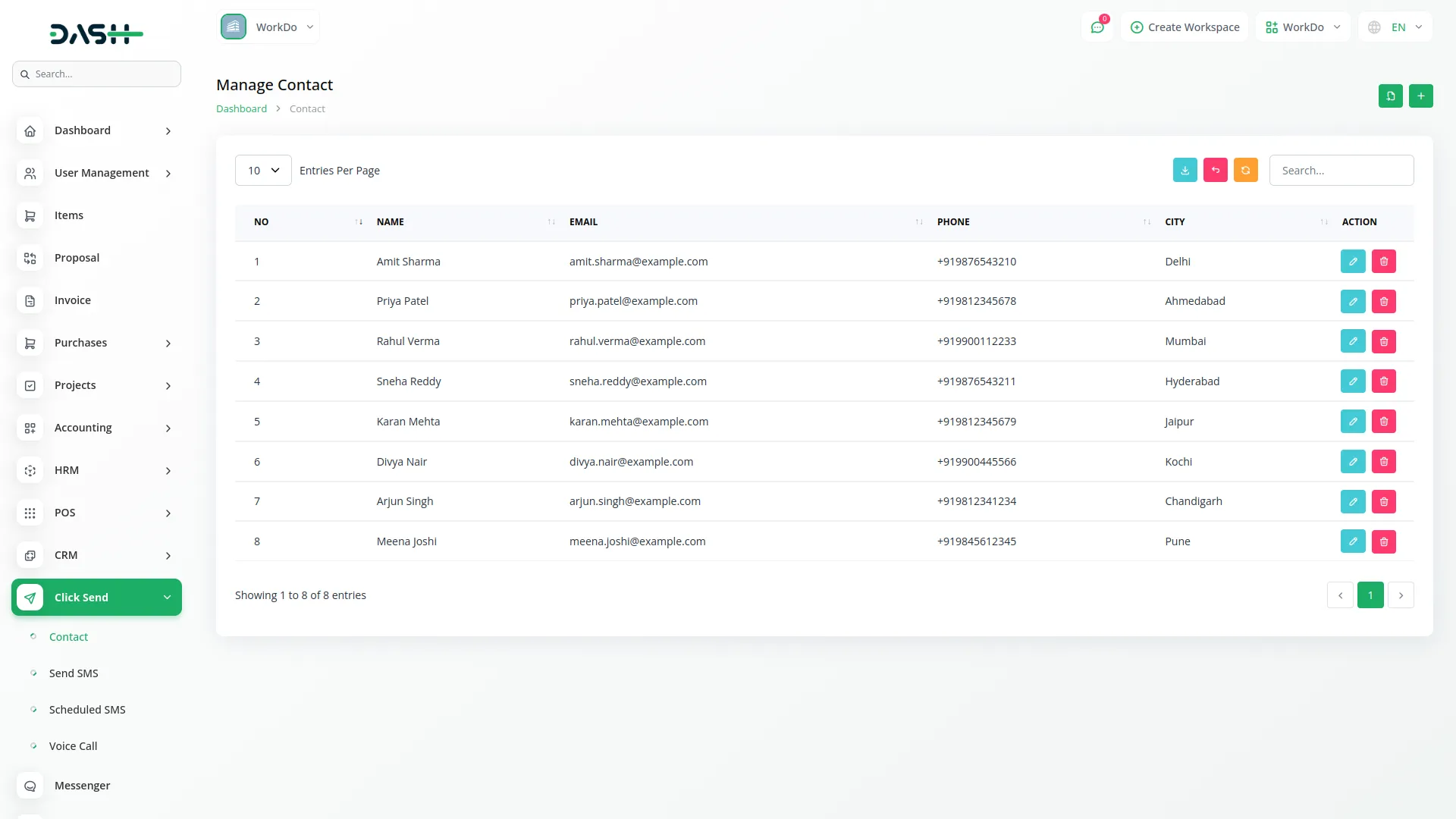
Manage Contact
- To create a new contact, click the “Create” button on the Manage Contacts page. Enter the Name, Email, Mobile No, City, State, Zip code, and click Create to save the contact.
- The Manage Contacts list page displays all saved contacts in a table with the columns, including Name, Email, Mobile No, City, State, Zip, and Actions. You can use the search bar to find the specific contacts.
- In the Actions column, click Edit to modify a contact’s details, or click the Delete to remove a contact from the system.
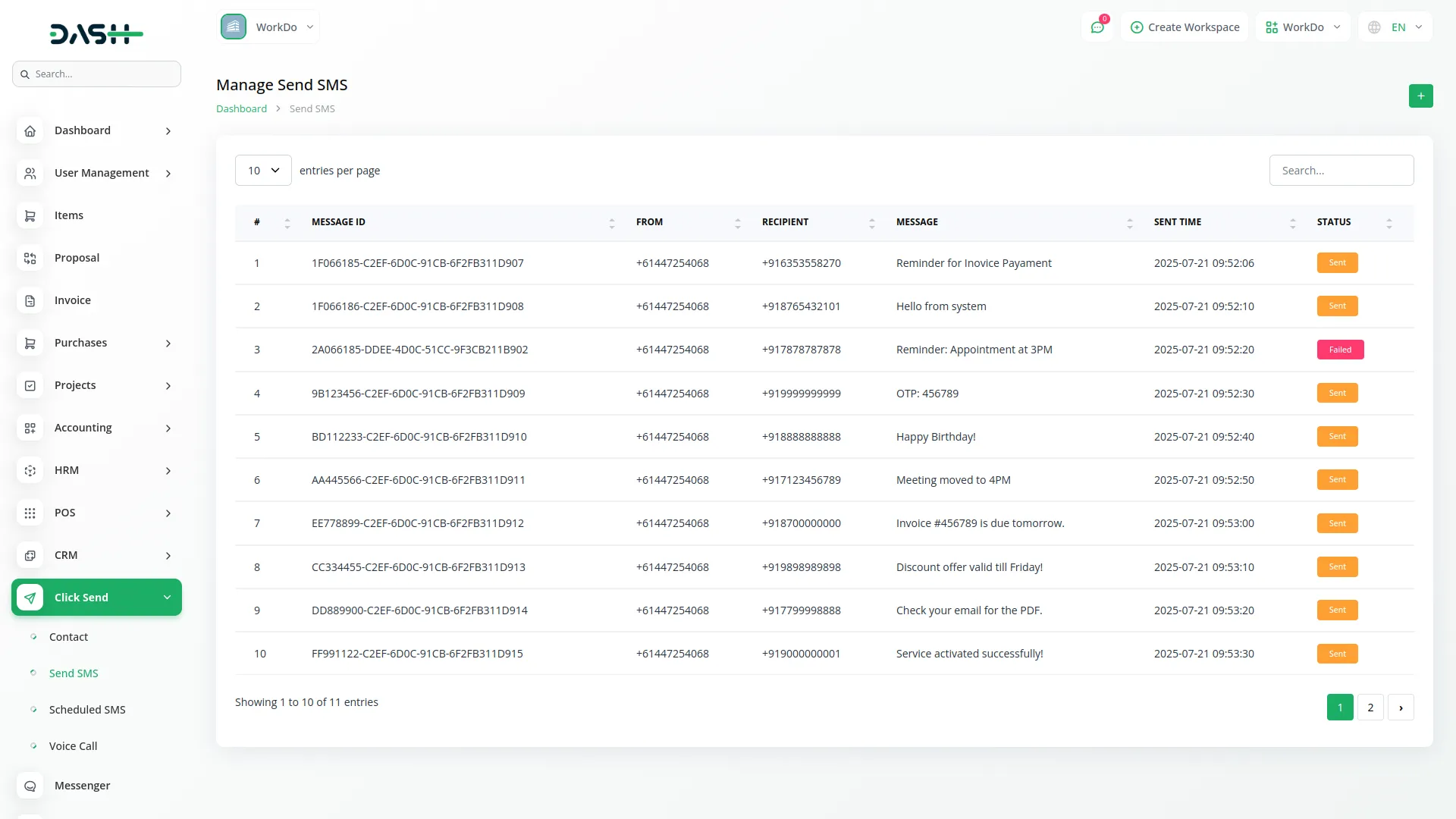
Send SMS
- After creating the contact record, navigate to the send SMS page. Here you can start sending a new SMS by clicking the “Create” button given at the top of the send SMS page.
- First, select the type by choosing one of the radio button options: Custom, User, or Contact. If you choose Custom, a mobile number field will appear where you can enter the recipient’s phone number directly. If you select User, a dropdown menu will show available users from your system. If you choose Contact, a dropdown will display your saved contacts. After selecting the recipient, enter your SMS message.
- On the list page, you’ll see all sent messages in a table with columns including ID, Message ID, From, Recipient, Message, Status, and Sent Time.
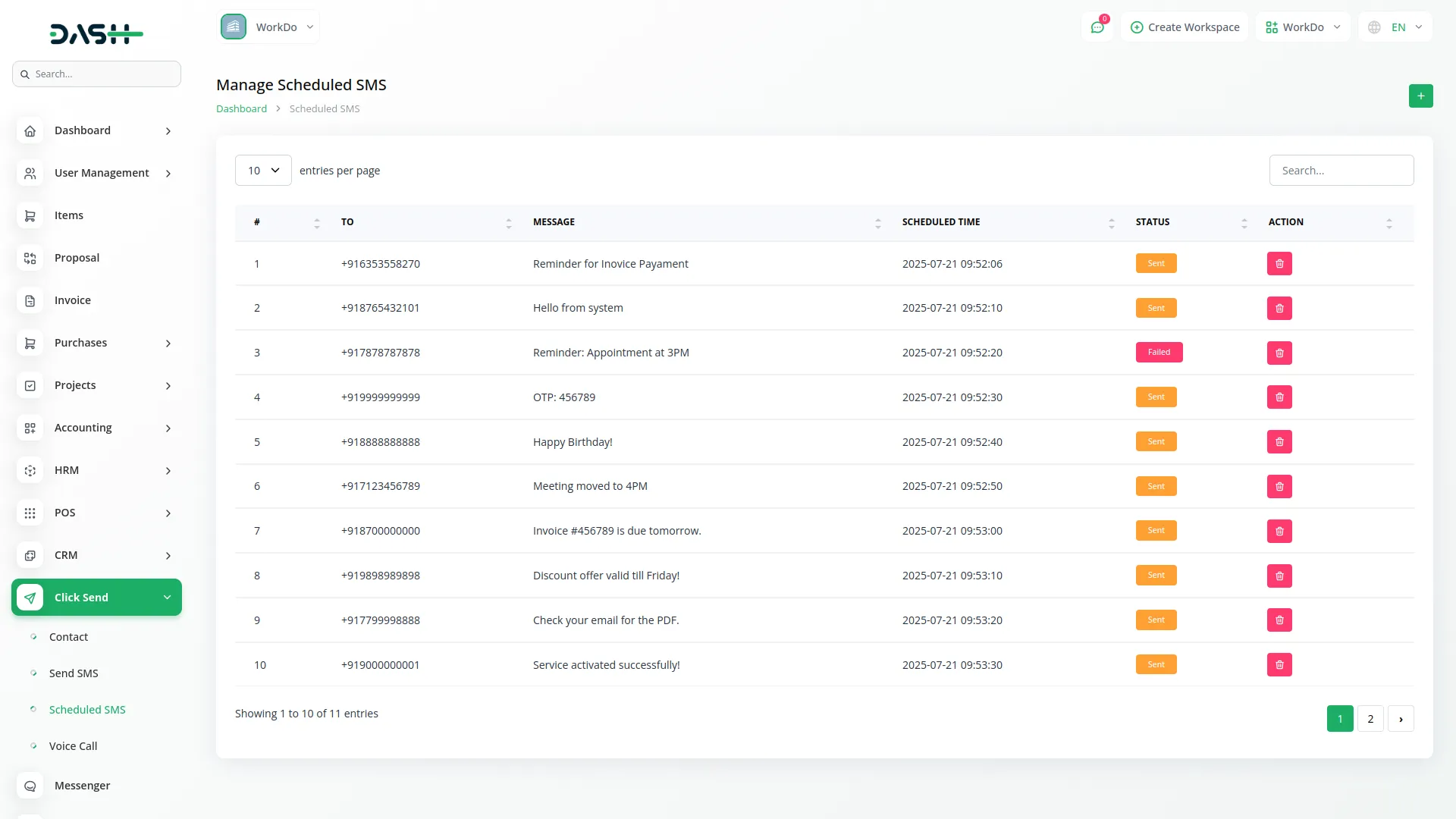
Scheduled SMS
- To schedule an SMS for future delivery, click the “Create” button on the Schedule an SMS page. Select the SMS Type using the radio buttons (Custom, Users, or Contacts). If you select Custom, a Mobile Number field will appear where you can enter the recipient’s phone number.
- If you select Users, a Users multi-select dropdown will appear, allowing you to choose one or more users from your system. If you select Contacts, a Contacts multi-select dropdown will appear, allowing you to choose one or more of your saved contacts.
- Next, set the Schedule Date & Time by selecting the date and time when you want the message to be sent. Then enter your message in the SMS Message field (up to 160 characters). Click Schedule SMS to set up the future delivery.
- The Manage Scheduled SMS list page displays all scheduled messages in a table with the columns, including Message ID, To, Message, Scheduled At, Status, and Actions. In the action column, you can use View to see the full message or Delete to remove that message.
Voice Call
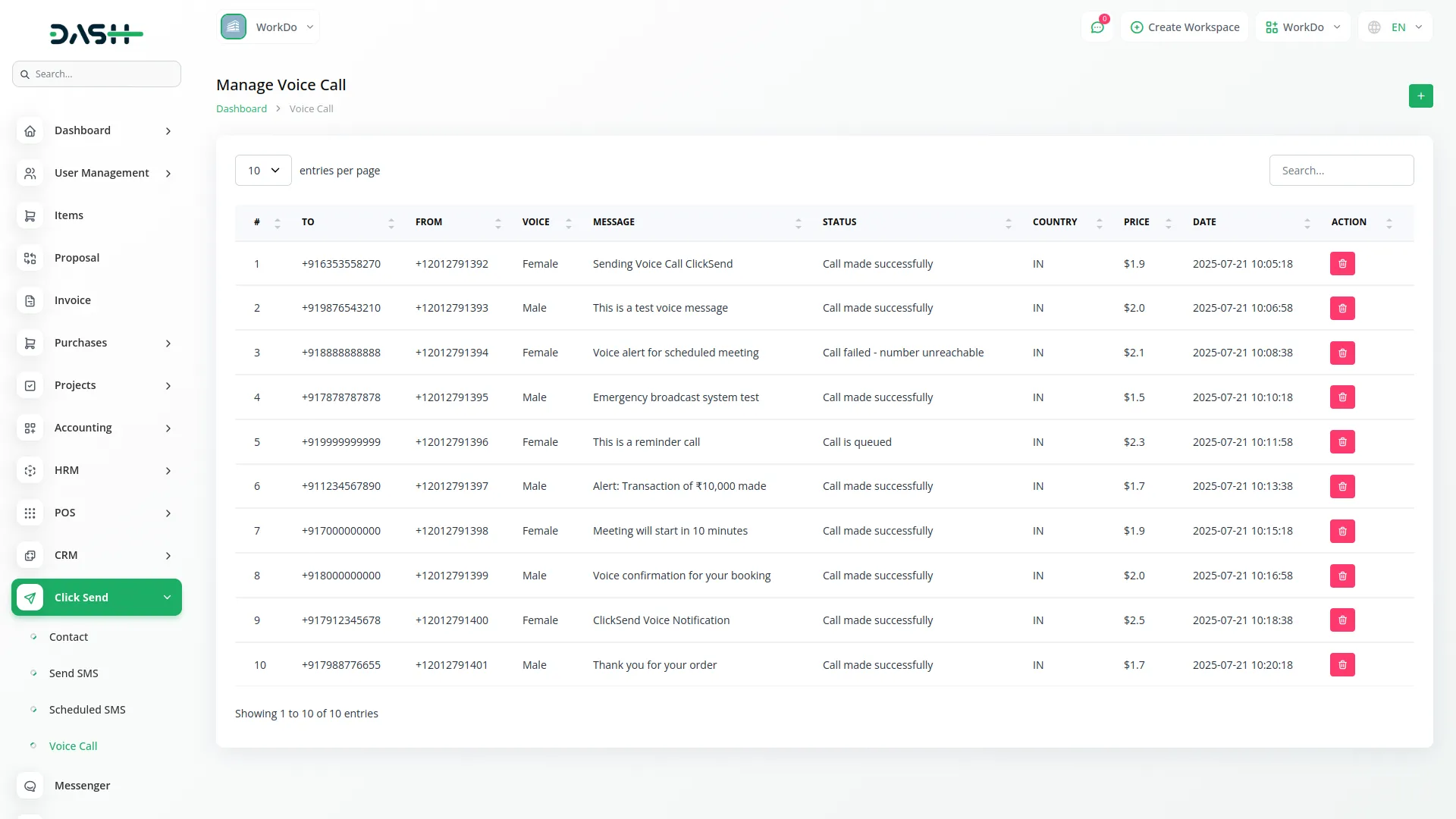
- To create a new voice call, click the “Create” button on the voice call page. Select the Type using the radio buttons (Custom, User, or Contact). If you select Custom, a Mobile No field will appear where you can enter the recipient’s phone number.
- If you select User, a User dropdown will appear where you can select a single user from your system. If you select Contact, a Contact dropdown will appear where you can select a single saved contact.
- After, choose the Language from the language dropdown for the voice message. Then select the Voice type (Female or Male) from the Voice dropdown. Enter your message in the Message field (up to 500 characters), which will be converted to speech for the voice call. Click Create to initiate the voice call.
- The Manage Voice Calls list page displays all voice calls in a table with the columns, including Call ID, To, Message, Created At, Status, and Actions. In the Actions column, you can click the delete to remove call records from the system.
Note: Here is a list of some Add-Ons that we can easily connect to with the Click Send Add-On.
General
- New User
- New Sales Invoice
- Sales Invoice Status Updated
- New Sales Proposal
- Proposal Status Updated
- New Purchase
- New Warehouse
Accounting
- New Customer
- New Revenue
- New Vendor
Appointment
- New Appointment
- Appointment Status
CMMS
- Work Order Request
- New Supplier
- New POs
- Work Order Assigned
- New Component
- New Location
- New Pms
Contract
- New Contract
Hrm
- New Monthly Payslip
- New Award
- New Event
- Leave Approve/Reject
- New Announcement
- New Holidays
CRM
- New Lead
- Lead to Deal Conversion
- New Deal
- Lead Moved
- Deal Moved
Sales
- New Quote
- New Sales Order
- Meeting Assigned
Recruitment
- New Candidate
- Interview Schedule
- Convert To Employee
- New Job Posting
Project
- New Project
- New Task
- New Bug
- New Milestone
- Task Stage Updated
- New Task Comment
Zoom Meeting
- New Zoom Meeting
Fix Equipment
- New Accessories
- New Asset
- New Audit
- New Fix Equipment Component
- New Consumables
- New Licence
- New Fix Equipment Location
- New Maintenance
Visitor Management
- New Visitor
- New Visit Purposes
WordPress (WooCommerce)
- New Product
Feedback
- New Template
- New Feedback Rating
School / Institute Management
- New Teacher
- New Admissions
- New Parents
- New Students
- New Homework
- New Time Table
Cleaning Management
- New Cleaning Team
- New Cleaning Booking
- New Cleaning Invoice
Machine Repair Management
- New Machine
- New Repair Request
Hospital Management
- New Doctor
- New Patient
- New Hospital Appointment
- New Hospital Medicine
Timesheet
- New Timesheet
Notes
- New Note
Internal Knowledge (KB)
- New Article
- New Book
Innovation Center
- New Creativity
- New Challenge
- New Category
ToDo
- New To Do
- Complete To Do
Documents
- New Document
So, this is how you can use the Click Send Add-On very easily.
Categories
Related articles
- PayFast – BookingGo SaaS Add-On Guide
- Financial Goal – WorkDo Dash SaaS Add-On Guide
- Subscribe – eCommerceGo SaaS Add-On Guide
- Make Documentation – TicketGo Add-On Guide
- Support Ticket – BookingGo SaaS Add-On Guide
- PayTR – BookingGo SaaS Add-On Guide
- Easy Deposit Payments – BookingGo SaaS Add-On Guide
- Pet Tag – vCard SaaS Add-On Guide
- Flexible Hours – BookingGo SaaS Add-On Guide
- ToyyibPay – BookingGo SaaS Add-On Guide
- Business Process Mapping – WorkDo Dash SaaS Add-On Guide
- Retainer – WorkDo Dash SaaS Add-On Guide
We're Here to Help - Let's Talk
Have questions about our solutions, customization services, or business tools? Our team is here to help you. let's talk.