
PayPay – WorkDo Dash SaaS Add-On Guide
Learn how to configure and manage PayPay integration in WorkDo Dash SaaS easily.
- Supported Countries: Japan
- Supported Currencies: Japanese Yen (JPY)
Benefits of PayPay Payment Gateway
Safe & Encrypted Transactions
PayPay processes every payment through a secure and encrypted environment, ensuring customer data remains protected, and the risk of fraudulent activity is kept to a minimum at all times.
Instant Payment Processing
Transactions through PayPay are completed in real time, allowing businesses to confirm and fulfill orders without any unnecessary delays, resulting in a faster and more efficient payment cycle.
Automatic Status Updates
PayPay automatically reflects payment statuses within the platform, removing the need for manual reconciliation and keeping financial records accurate and always up to date.
Quick Digital Wallet Payments
As one of Japan’s most widely used digital wallets, PayPay allows customers to pay directly from their balance in just a few taps, offering a fast and completely hassle-free checkout experience.
Smooth & Reliable User Experience
PayPay’s streamlined payment flow minimizes disruptions during checkout, creating a consistent and satisfying experience for customers that encourages repeat transactions and builds long-term trust.
How to Access PayPay Add-On?
- Visit WorkDo Website Go to https://www.workdo.io/ to access the WorkDo Dash platform.
- Navigate to Dash SaaS Add-Ons Explore the “Dash SaaS Add-Ons” section to view all available integrations.
- Discover PayPay Add-On Browse the Add-Ons list and locate “PayPay Payment Gateway.”
- Activate the Add-On Click the “Activate” button next to the PayPay Add-On to enable it for your WorkDo Dash account.
Once activated, PayPay becomes available across supported modules based on permissions and settings.
How Does PayPay Work?
PayPay seamlessly integrates into the Dash SaaS ecosystem, providing businesses with a secure and efficient digital wallet payment solution. Designed for ease of use, PayPay allows users to make quick transactions using their stored balance, eliminating the need for traditional banking methods. Whether processing payments for services, subscriptions, or one-time purchases, PayPay ensures a smooth and reliable payment experience. With instant payment processing and automatic status updates, businesses can efficiently manage transactions while offering customers a hassle-free checkout experience.
Super Admin Settings
(Plan Purchase by the Company)
The Super Admin Settings are accessible only to the highest-level administrator. These settings allow the Super Admin to manage company-level subscriptions and payment configurations.
Key Capabilities:
- Purchase or upgrade company subscription plans
- Configure PayPay API credentials for plan payments
- Enable or disable PayPay as a payment gateway
Configuration Path:
Super Admin Login → Settings → PayPay Settings
Company Settings
(Bookings, Beauty Spa, LMS & Other Payments)
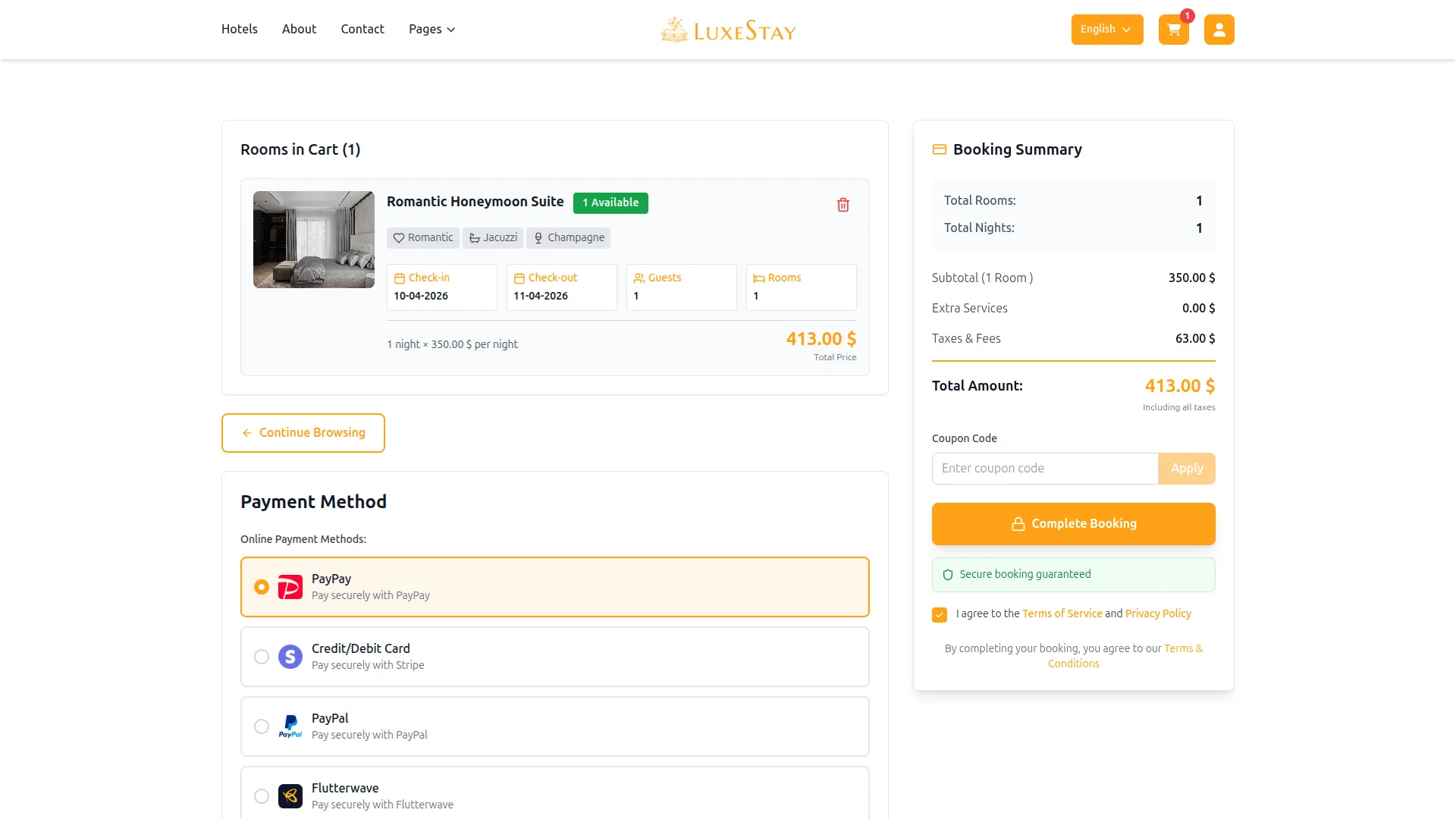
Company Settings allow organizations to configure PayPay for receiving payments from customers across multiple modules.
Supported Modules Include:
Configuration Path:
Company Login → Settings → System Settings → PayPay Settings
Company-Level Capabilities:
- Configure PayPay API credentials
- Enable PayPay for selected modules
- Accept online payments from customers
- Manage Bookings, Beauty Spa, and service
- Handle tax, coupon, and discount calculations
How to Generate PayPay API Keys?
To integrate PayPay seamlessly into your (Product Name), follow the steps below:
1. Generate API Key:
- Log in to your PayPay account or create one if you don’t have an account yet.
- Obtain comprehensive information about PayPay.
- Follow this link and register for an account: https://developer.paypay.ne.jp. After logging in, you can view all your credentials directly in the dashboard.
2. Configure PayPay Gateway in (Product Name):
- Log in to your (Product Name) account with administrator credentials.
- Navigate to the settings page.
3. Set Up PayPay Gateway:
- Scroll down the page until you find the PayPay Gateway option.
- Click on the PayPay Gateway to access its configuration settings.
4. Enter Required Details:
In the settings, provide the following essential details:
- PayPay Mode
- Api Key
- Secret Key
- Merchant ID
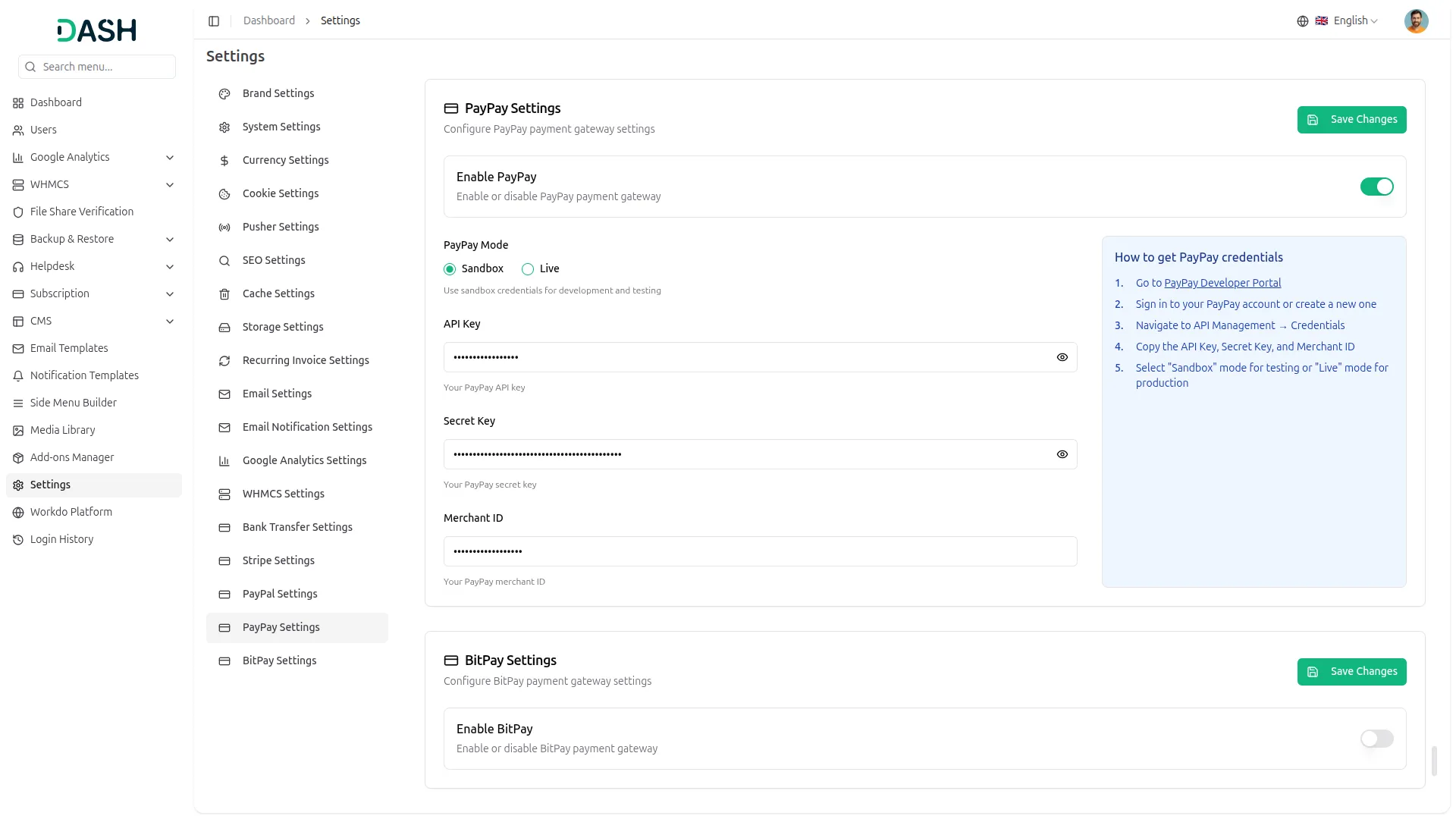
5. Save Your Settings:
- After entering the necessary details, save the settings to activate the PayPay Payment Gateway within your (Product Name) platform.
This detailed documentation overviews PayPay Payment Integration, its benefits, and the integration process. By integrating PayPay, businesses and organizations can offer their customers a secure and flexible payment experience while streamlining their payment processes.
Note: The PayPay Add-On is a paid feature and can be accessed by users who have purchased it. By integrating the PayPay Add-On into your WorkDo Dash SaaS account, you’ll provide a reliable and user-friendly payment gateway that supports global transactions.
Categories
Related articles
- Vehicle Wash – WorkDo Dash SaaS Add-On Guide
- Zoho Credentials Generation Guide
- Storage Settings Guide
- Square – BookingGo SaaS Add-On Guide
- Flutterwave – BookingGo SaaS Add-On Guide
- PWA Application Installation Guide
- Instagram Chat – TicketGo Add-On Guide
- File Sharing – WorkDo Dash SaaS Add-On Guide
- WorkDo Products Installation Guide
- Team Workload – WorkDo Dash SaaS Add-On Guide
- App Download – vCard SaaS Add-On Guide
- Review Reminder – eCommerceGo SaaS Add-On Guide
We're Here to Help - Let's Talk
Have questions about our solutions, customization services, or business tools? Our team is here to help you. let's talk.