
Vehicle Trade Detailed Documentation
The Vehicle Trade Management software is a comprehensive solution designed to help automotive dealerships and vehicle trading businesses efficiently manage their entire vehicle trading operations.
Introduction
The Vehicle Trade Add-On is a comprehensive management solution designed to streamline and optimize every aspect of a vehicle trading business. It provides a centralized dashboard with real-time insights into inventory, trades, parties, and revenue performance, enabling informed, data-driven decisions. The system allows users to efficiently manage vehicles, parties, trades, payments, service histories, specifications, inspections, insurance records, and reports within a structured and user-friendly interface. With advanced filtering, search capabilities, document management, and detailed record tracking, the add-on ensures accurate transaction handling and complete lifecycle management for every vehicle. From initial registration to final trade and payment approval, the Vehicle Trade Add-On delivers full operational visibility and control to support organized, transparent, and profitable trading operations.
How to Install the Add-On?
To Set Up the Vehicle Trade Add-On, you can follow this link: Setup Add-On
How to Use the Vehicle Trade Add-On?
Vehicle Trade Dashboard
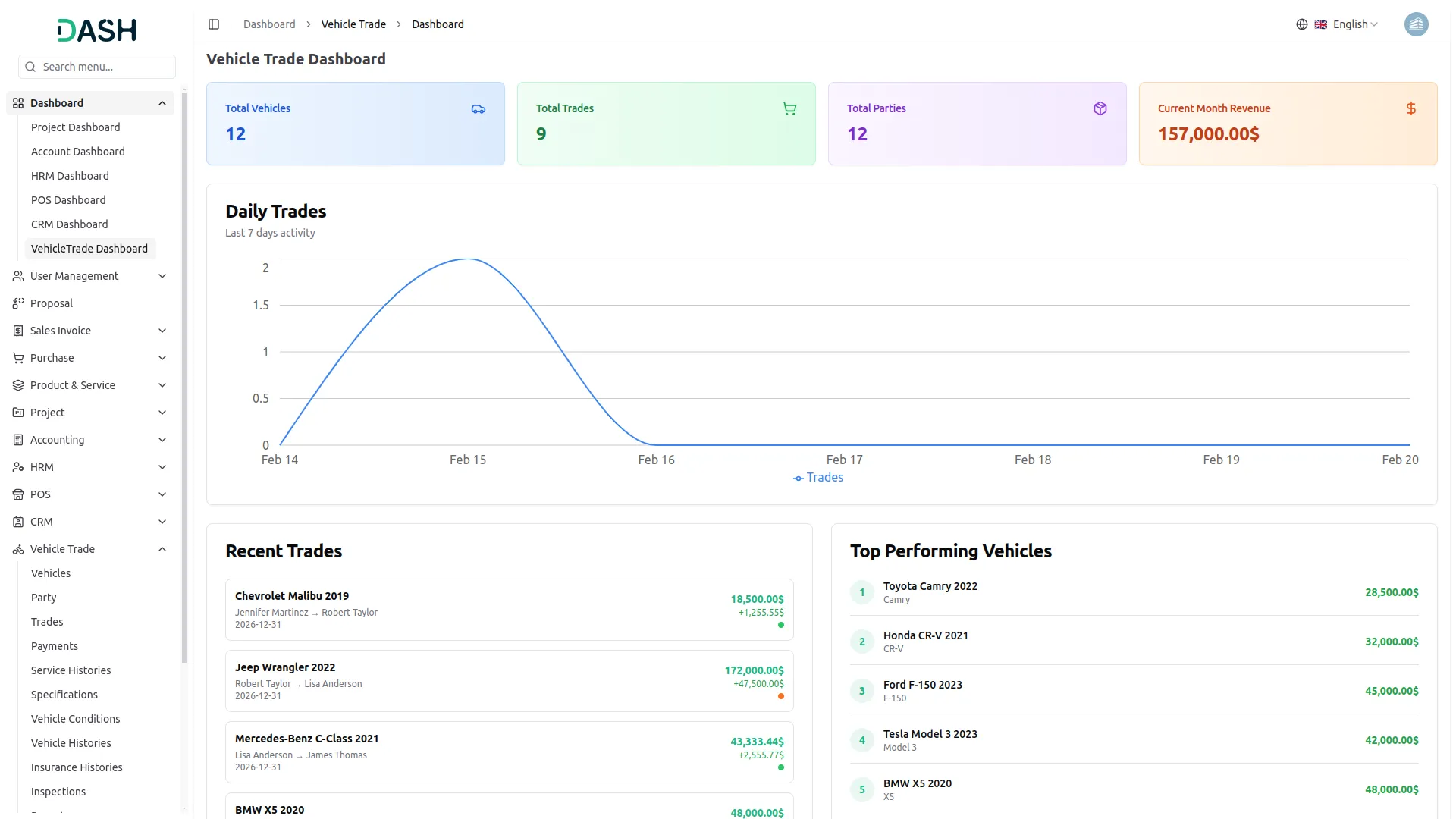
- The Vehicle Trade Dashboard provides a complete overview of your vehicle trading business through key metrics and real-time performance data. The dashboard displays four main summary cards showing Total Vehicles, Total Trades, Total Parties, and Current Month Revenue.
- You can view the Daily Trades line chart that displays your trading activity over the last 7 days, helping you monitor transaction volume and identify high-activity or low-activity periods within your recent business operations. This chart gives you immediate visibility into short-term trade trends and helps you respond quickly to changes in daily performance.
- The Recent Trades panel displays your most recently completed transactions in chronological order, showing the vehicle name and year, the seller and buyer involved in each trade, the transaction date, the total trade value, and the profit generated from each deal. This section allows you to track the flow of individual transactions and verify that trades are being recorded and completed accurately.
- The Top Performing Vehicles panel ranks your vehicles by the revenue they have generated, giving you a clear view of which makes and models are contributing most to your business income. You can use this section to identify high-value inventory, understand buyer demand patterns, and make informed decisions about which vehicle types to prioritize when expanding your stock.
- The Vehicle Trade Dashboard brings together all of these insights in one place, giving you immediate clarity into your inventory levels, trade activity, party relationships, and monthly revenue performance so you can manage your trading operations efficiently and make data-driven business decisions.
System Setup
The System Setup section allows you to manage the core reference data used across the system. It contains three subsections accessible from the left sidebar: Vehicle Types, Fuel Types, and Transmission Types.
Vehicle Types
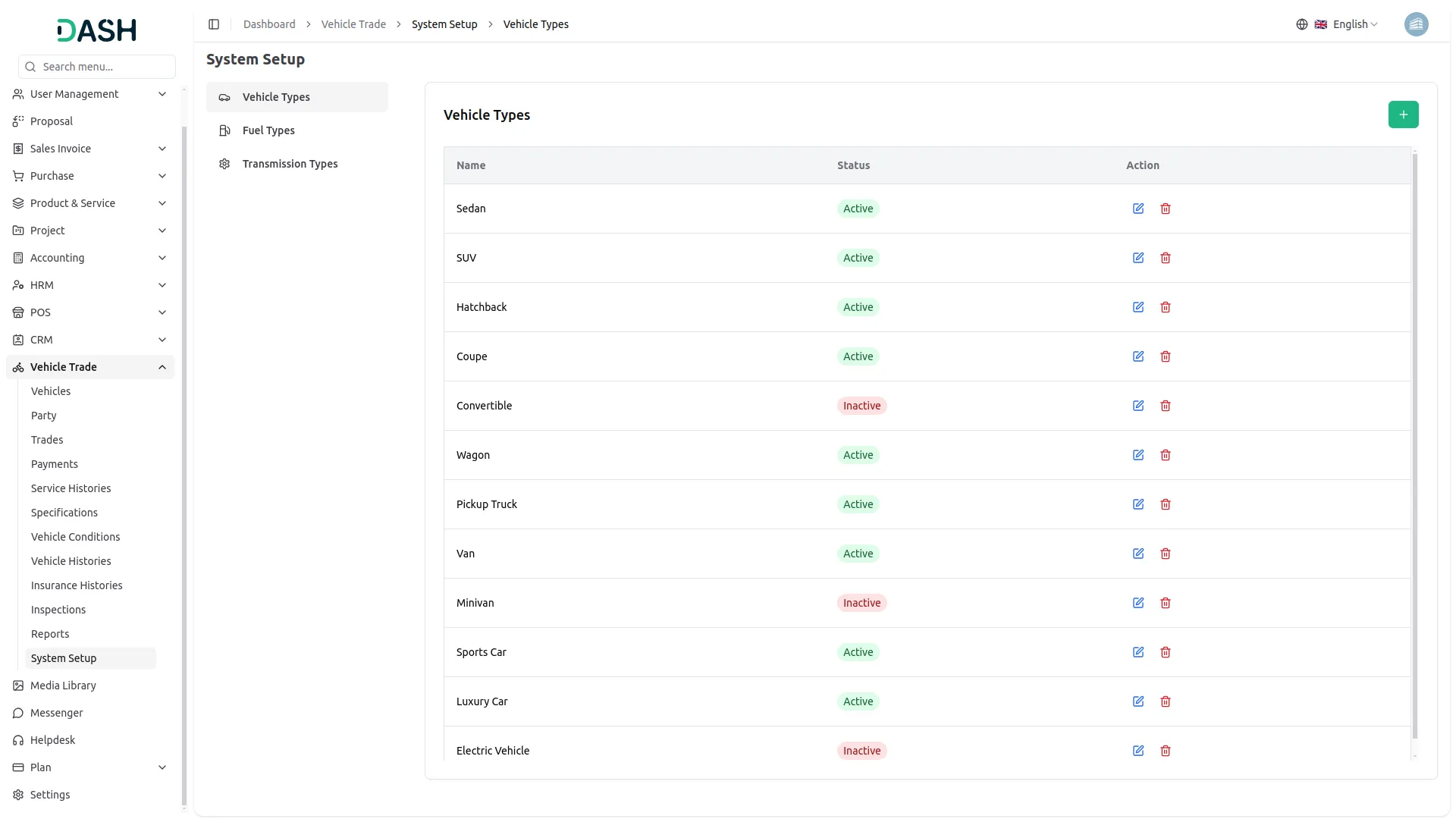
- To create a new vehicle type, click the “Create” button on the Vehicle Types page. Enter the name of the vehicle type and set the status as Active or Inactive. Click “Create” to save it to the system.
- The list displays all vehicle types with columns for Name and Status. Available actions for each record include Edit to modify the vehicle type name or status and Delete to remove it from the system. Only active vehicle types will appear as options in the vehicle type dropdown when creating or editing a vehicle.
Fuel Types
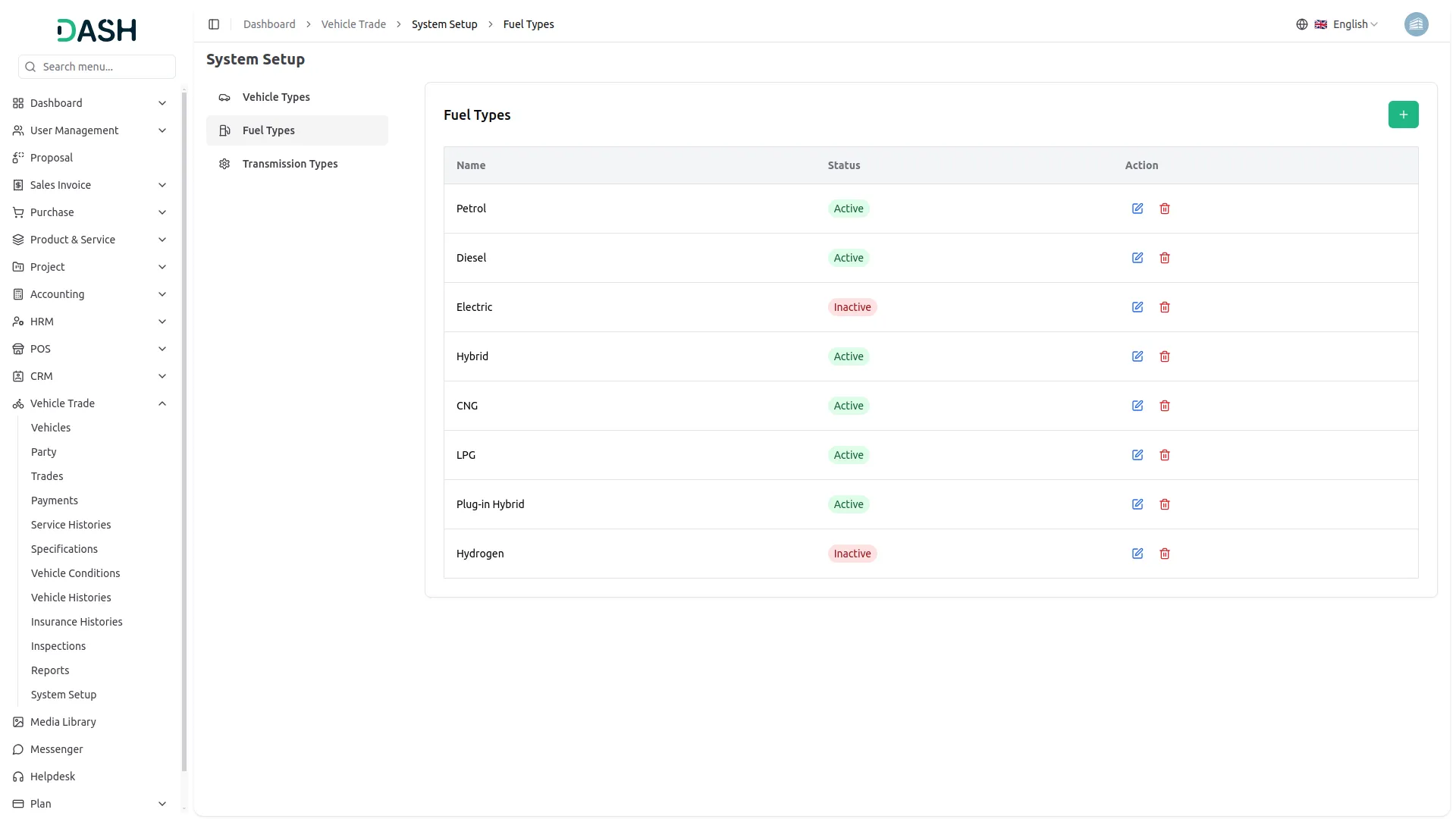
- To create a new fuel type, click the “Create” button on the Fuel Types page. Enter the name of the fuel type and set the status as Active or Inactive. Click “Create” to save it to the system.
- The list displays all fuel types with columns for Name and Status. Available actions for each record include Edit to modify the fuel type name or status and Delete to remove it from the system. Only active fuel types will appear as options in the fuel type dropdown when creating or editing a vehicle.
Transmission Types
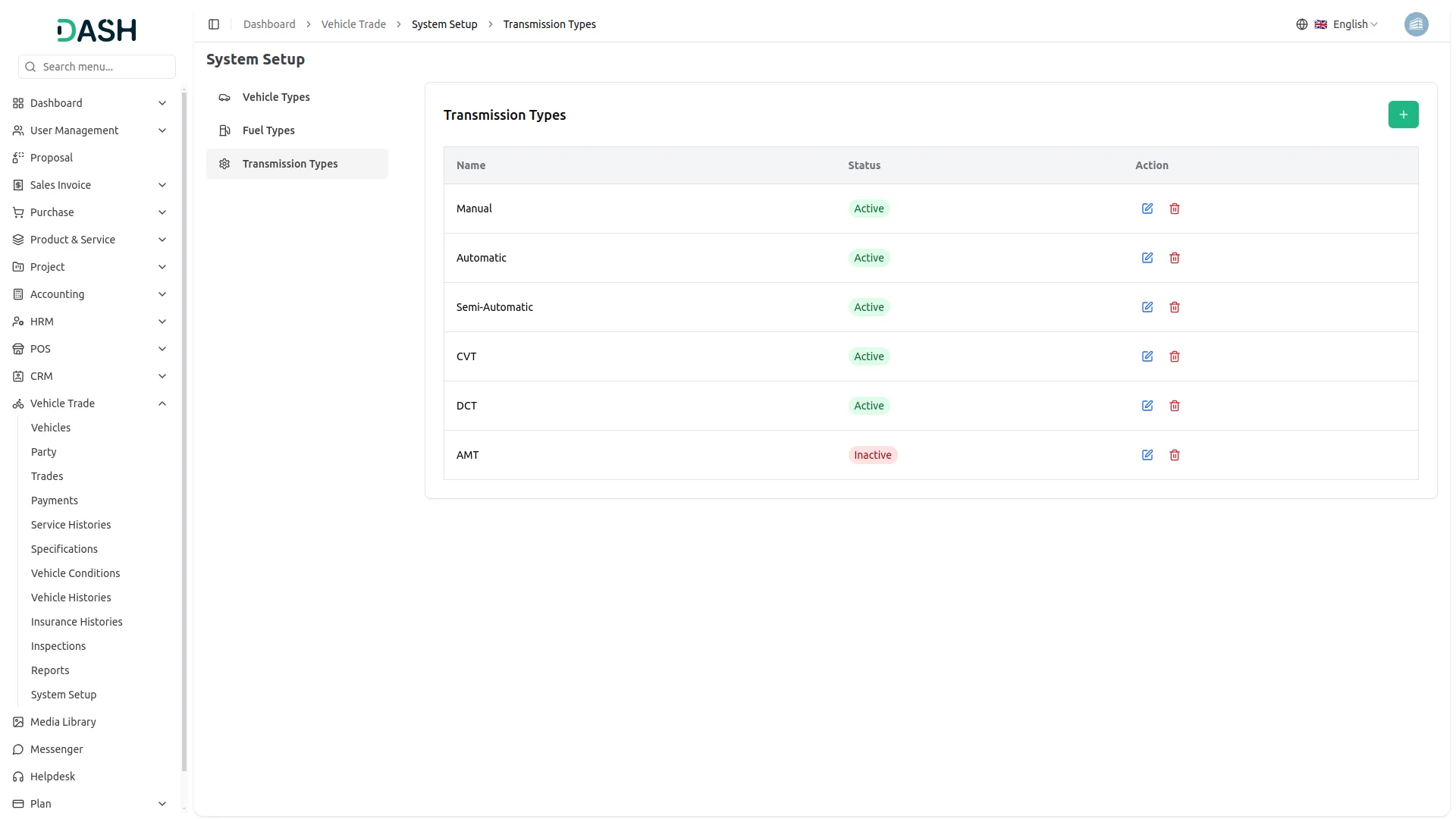
- To create a new transmission type, click the “Create” button on the Transmission Types page. Enter the name of the transmission type and set the status as Active or Inactive. Click “Create” to save it to the system.
- The list displays all transmission types with columns for Name and Status. Available actions for each record include Edit to modify the transmission type name or status and Delete to remove it from the system. Only active transmission types will appear as options in the transmission type dropdown when creating or editing a vehicle.
Manage Vehicles
- To register a new vehicle, click the “Create” button on the Manage Vehicles page. Enter the vehicle name and select the vehicle type from the dropdown menu. Add the make and specify the model name of the vehicle.
- Enter the manufacturing year and license plate number for identification. Add the VIN to uniquely identify the vehicle in the system. Select the fuel type and transmission type from their respective dropdown menus.
- Enter the vehicle price and current mileage reading. Add a color for the vehicle and set the status as Active or Inactive depending on the vehicle’s availability. You can also add a description to provide additional context or notes about the vehicle’s condition.
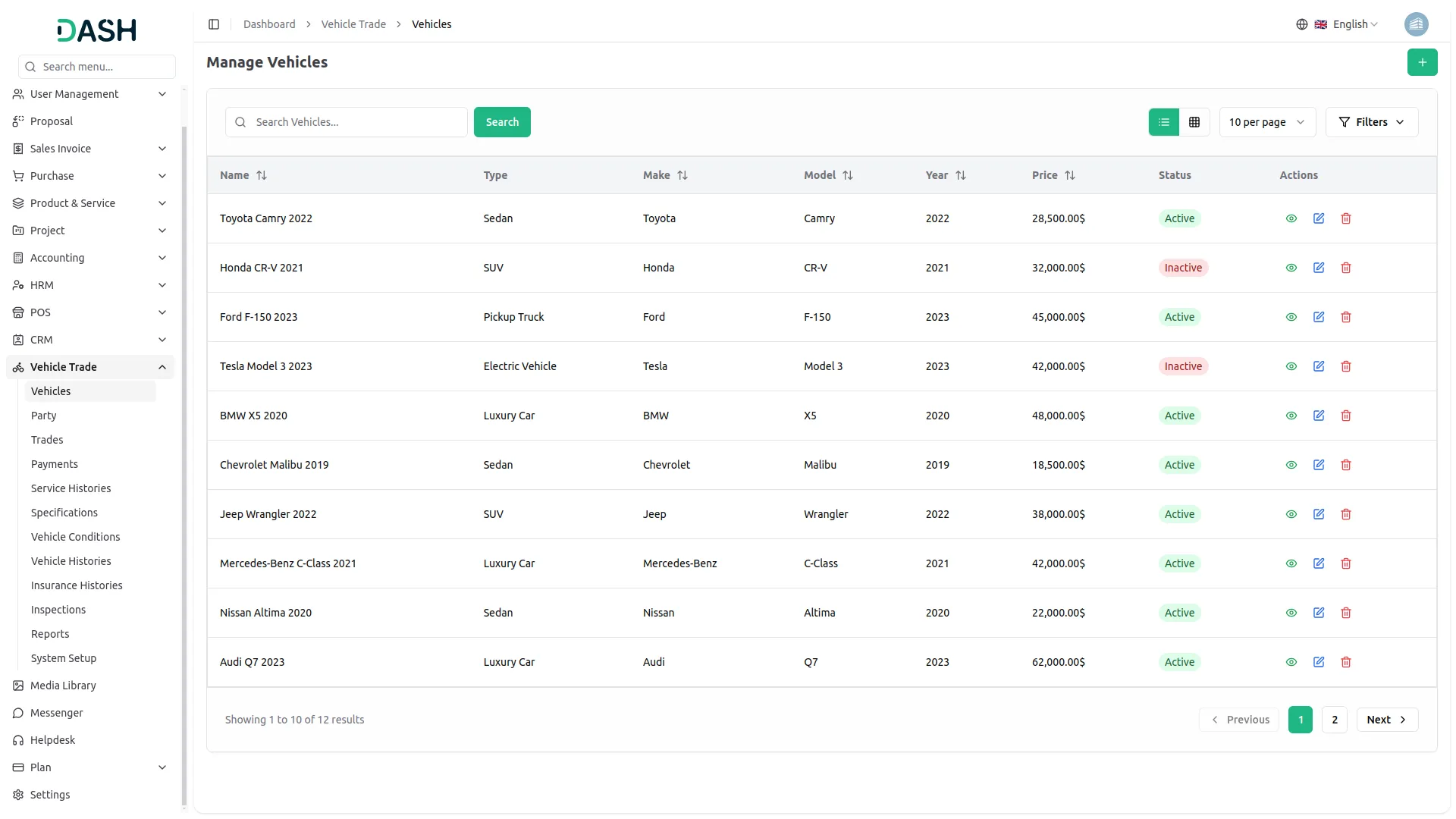
- The list page shows all vehicles with columns for Name, Type, Make, Model, Year, Price, and Status. The search bar allows you to find specific vehicles, as well as an option to toggle between list view and grid view.
- Apply the Filter button to view a specific list, including the filter option, enter the model, select the vehicle type from the dropdown menu, or select the status from the dropdown menu (active or inactive). Then click the Apply button to filter the data or the Clear button to reset it.
- Available actions for each record include View to see complete vehicle details, Edit to modify vehicle information, and Delete to remove the vehicle record from the system.
-
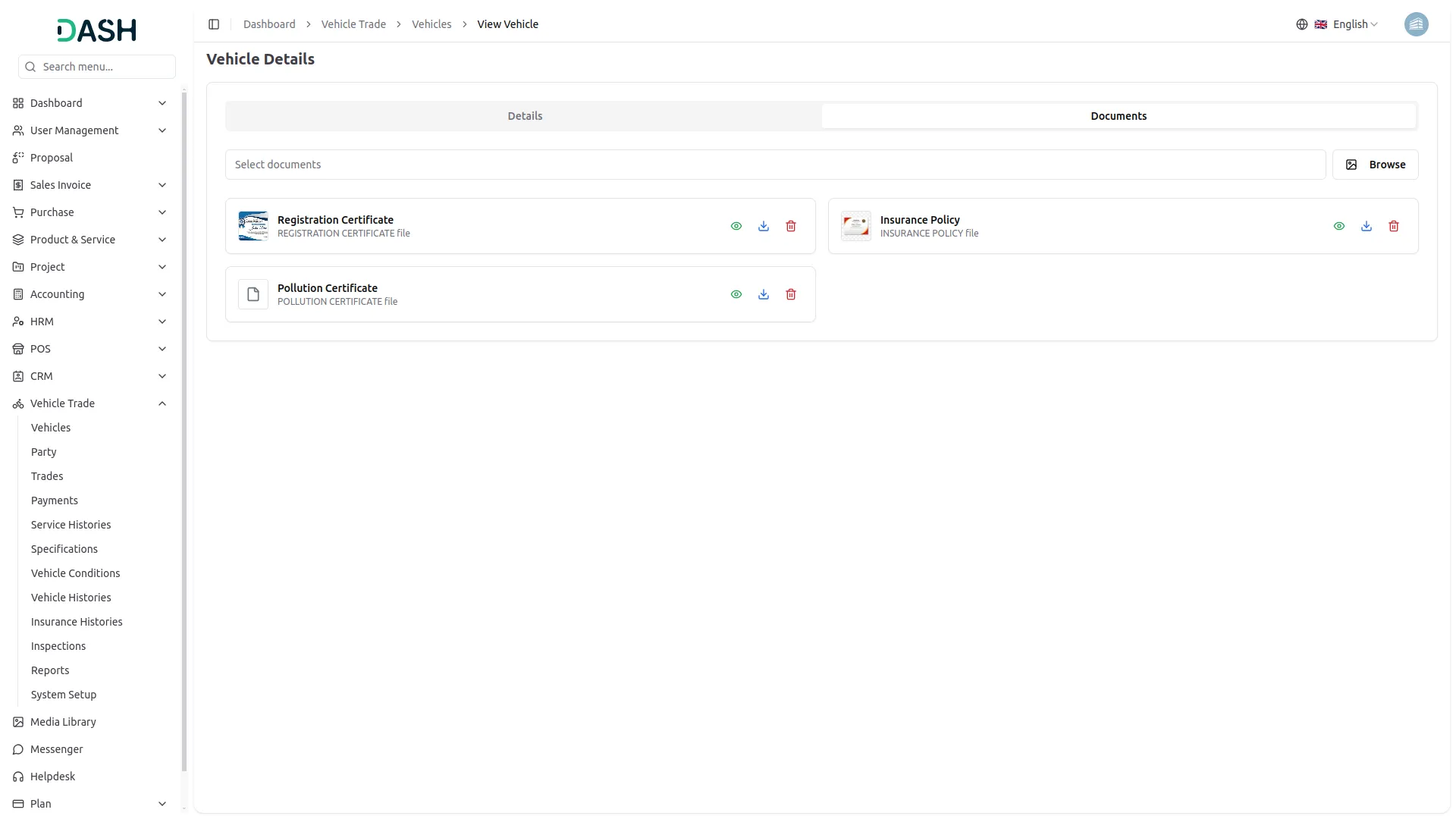
- When you click “View” on a vehicle record, the Vehicle Details page opens with two tabs: Details and Documents. The Details tab displays the complete vehicle profile, organized into basic information sections.
- The Documents tab allows you to manage all files associated with the vehicle. You can upload new documents by clicking the Browse button and selecting files from your device. While each uploaded document appears as a card with three available actions: View to open and preview the document, Download to save a copy to your device, and Delete to permanently remove the document from the vehicle record.
-
Manage Party
- To register a new party, click the “Create” button on the Manage Party page. Enter the party’s full name and email address in their respective fields. Add a phone number.
- Enter the city, state, zip code, and country to record the party’s location details. Set the status as Active or Inactive depending on whether the party is currently engaged in trading activity. You can also enter a full address in the Address field for more detailed location information.
- Add any relevant notes in the Notes field to provide additional context or important information about the party.
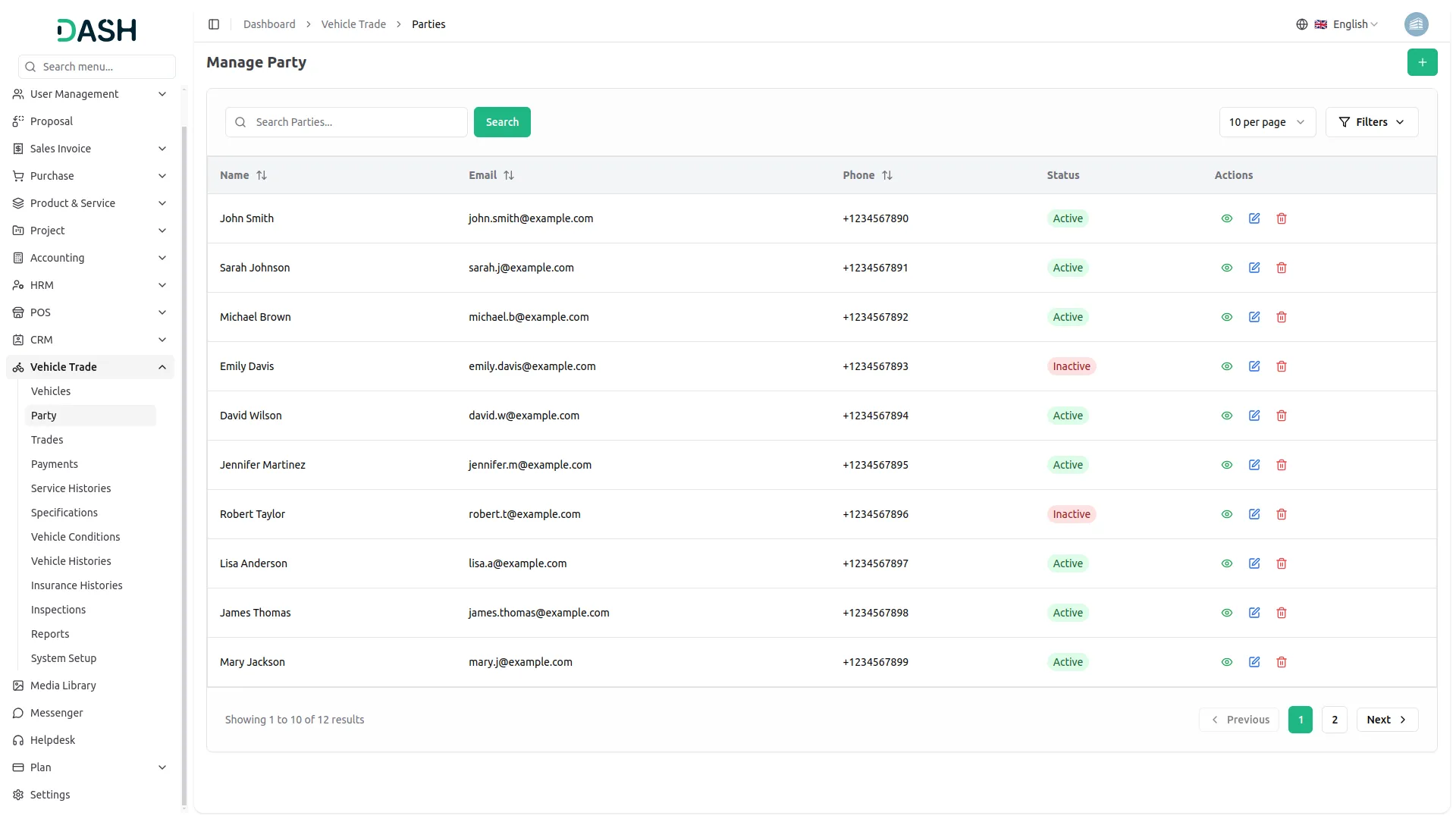
- The list page shows all parties with columns for Name, Email, Phone, and Status. The search bar allows you to find specific parties by name or other details. Apply the Filter button to view a specific list, including the option to filter by entering a city or selecting the status from the dropdown menu as Active or Inactive. Then click the Apply button to filter the data or the Clear button to reset it.
- In the actions column, you can use View to see the complete party profile, Edit to modify party information, and Delete to remove the party record from the system.
Manage Trades
- To create a new trade, click the “Create” button on the Manage Trades page. Select the vehicle from the dropdown (which comes from the vehicle section), and choose a transaction from the dropdown menu (sale or exchange).
- Select the seller and buyer from their respective dropdown menus (which come from the party section). Enter the purchase price and the sale price for the transaction.
- The dealer commission field will reflect the commission amount associated with the trade. Set the transaction date. You can also add any relevant notes in the Notes field for additional context about the transaction.
- The list page shows all trades with columns for Transaction ID, Vehicle, Type, Seller, Purchase Price, Sale Price, Commission, Payment Status, and Date. You can search for specific trades using the search bar. The page also allows you to toggle between list view and grid view.
- Use the Filter button to display a specific list by selecting a Vehicle from the dropdown, choosing a Transaction Type from the dropdown menu, or selecting a Payment Status from the dropdown menu, then click the Apply button to filter the data or the Clear button to reset it.
-
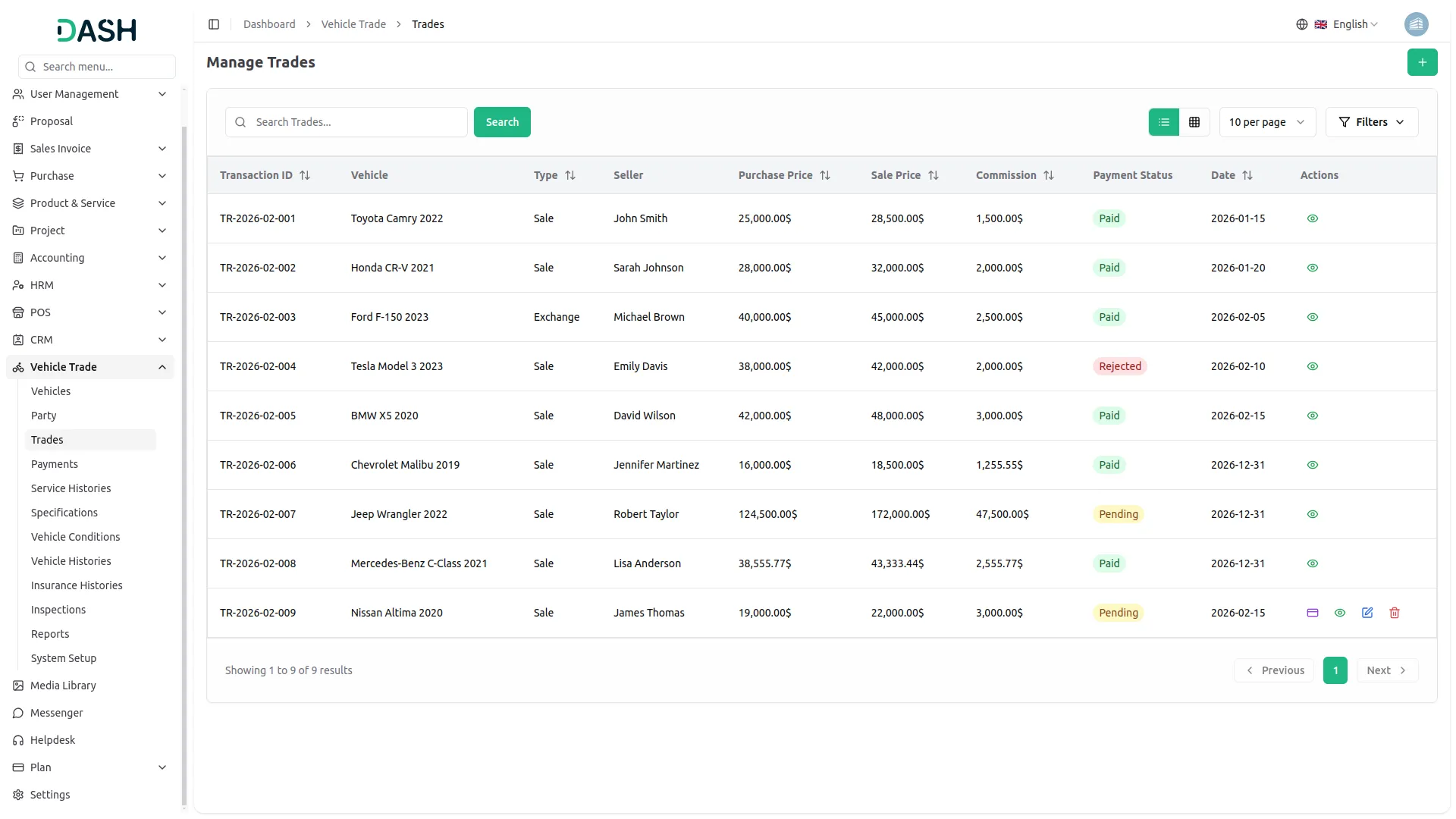
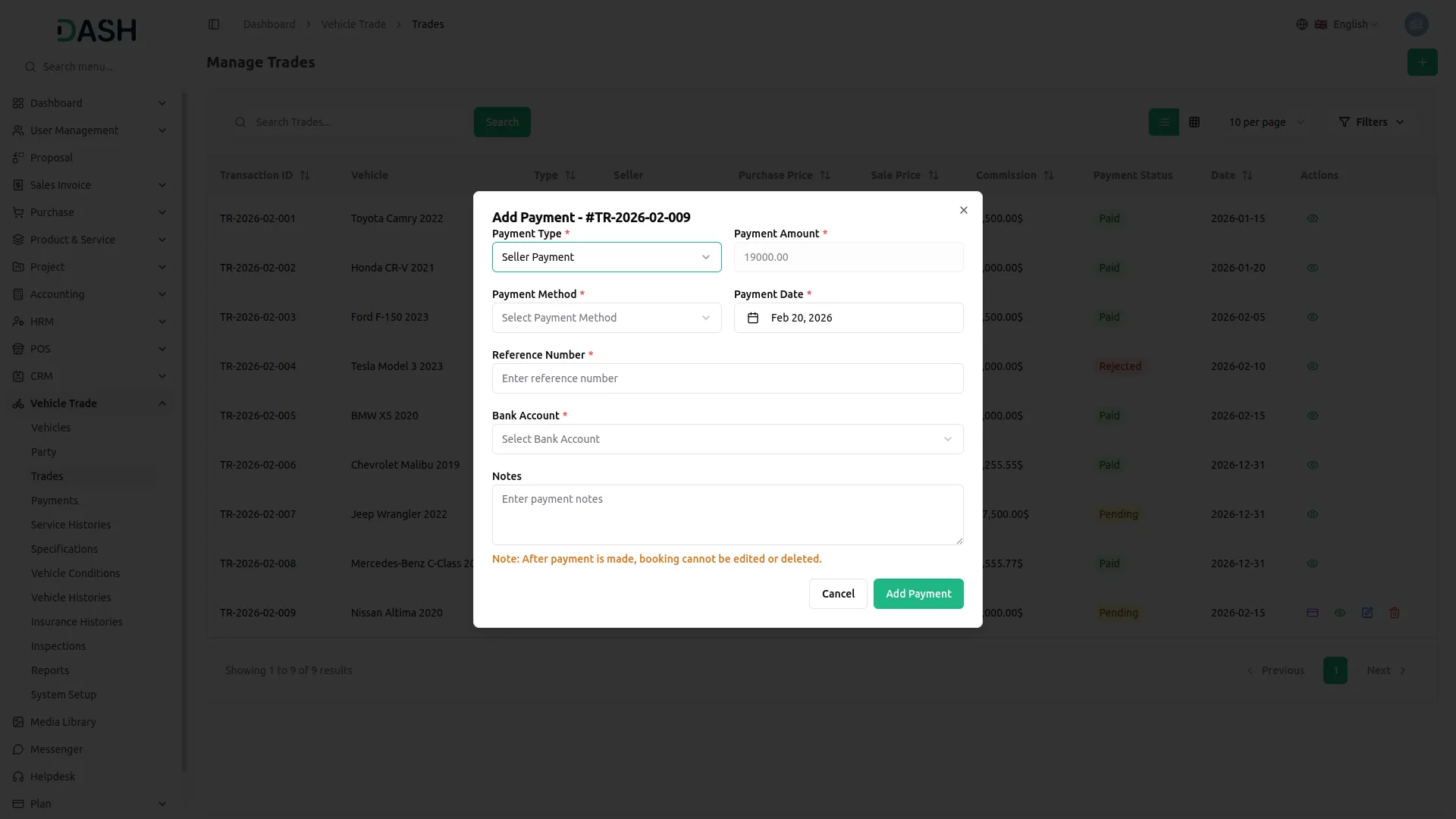
- Available actions for each record include View to see the complete trade details. Edit to modify the trade information. Delete to remove the trade record from the system. Payment to update the payment status by selecting the payment type from the dropdown (Seller Payment or Buyer Payment); the payment amount will auto-fill based on the selected type.
- Choose the payment method from the dropdown (Cash, Bank Transfer, UPI, Cheque), set the payment date, enter the reference number, and select the bank account from the dropdown. Add any relevant notes in the Notes field if needed. After completing all details, click “Add Payment” to confirm and record the payment.
- Note: Once a payment is made, the trade record cannot be edited or deleted.
- The Payment Status column indicates the current financial state of each trade and can display Paid, Pending, or Rejected.
-
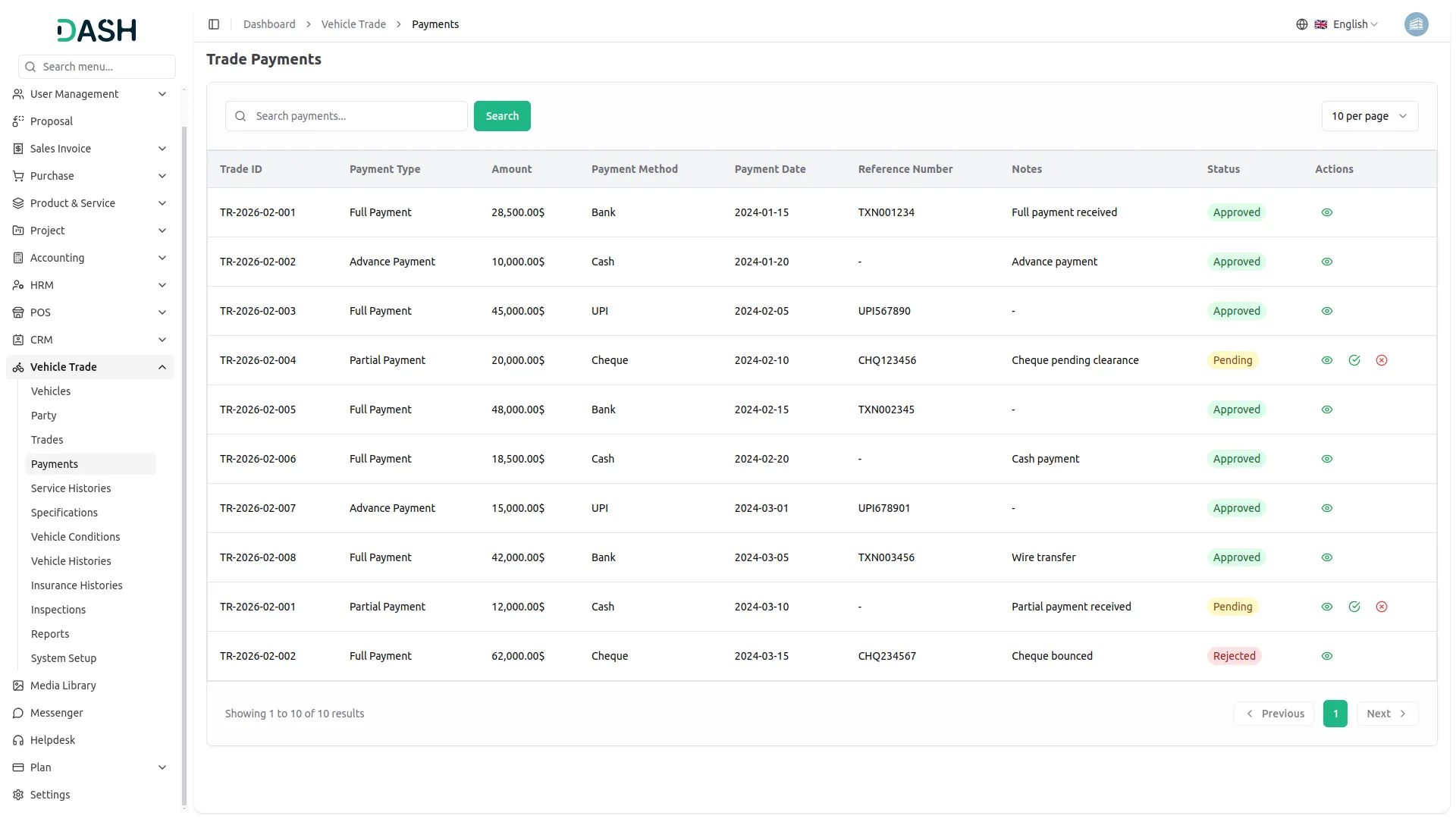
Trade Payments
- The Trade Payments page provides a complete record of all payments linked to trade transactions. The list displays columns for Trade ID, Payment Type, Amount, Payment Method, Payment Date, Reference Number, Notes, and Status, giving you a full overview of each payment entry at a glance.
- The search bar at the top allows you to find specific payment records by keyword.
- The Status column reflects the current state of each payment and can display “Approved,” “Rejected,” or “Pending.”
- Available actions for each record include View to see the complete payment details. For payments that are still pending, additional actions include an Approve button to confirm payment and a Reject button to decline it. Once a payment is approved, only the View action remains available for that record.
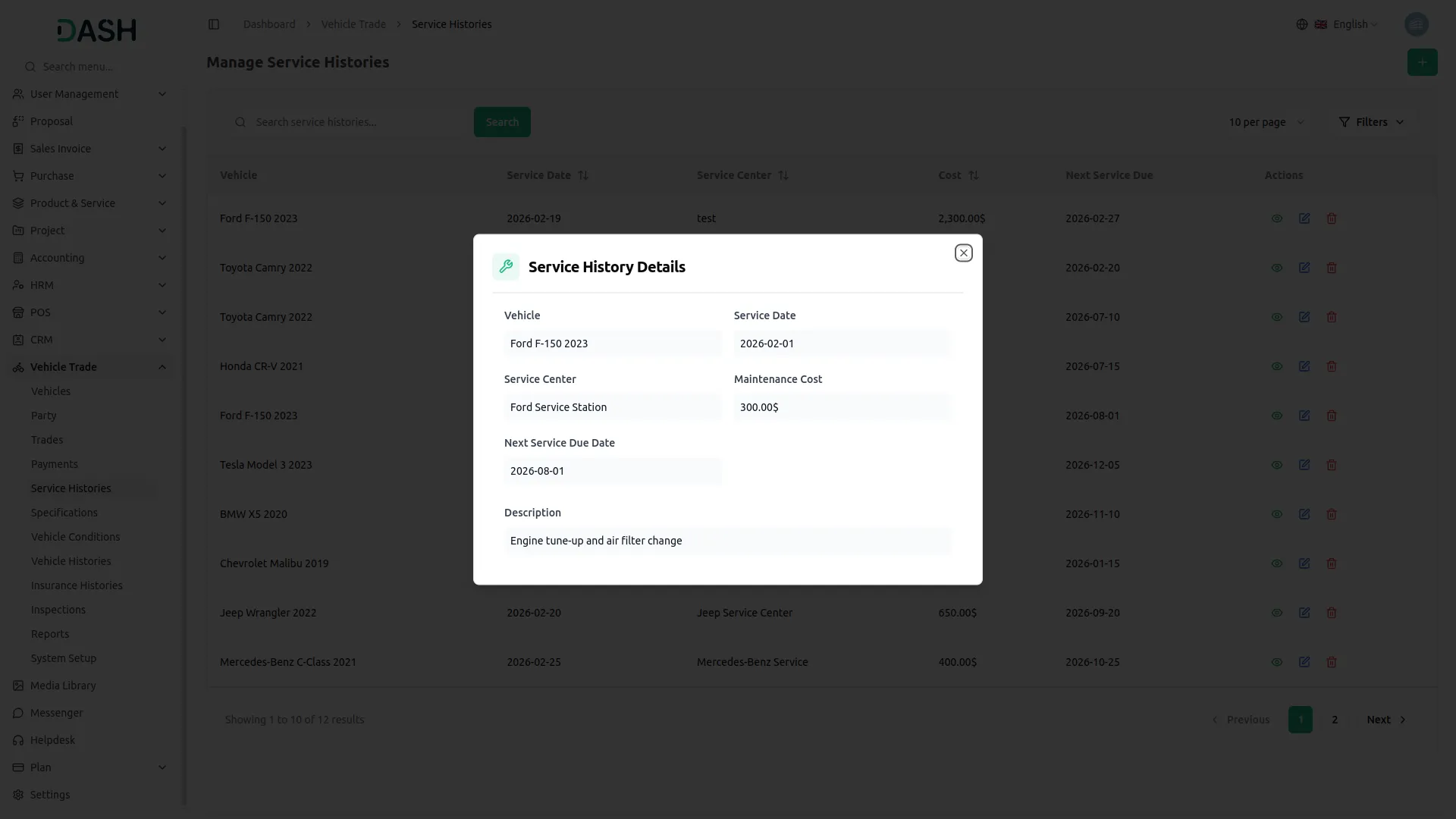
Service Histories
- To create a new service history record, click the “Create” button on the Manage Service Histories page. Select the vehicle from the Vehicle dropdown menu (comes from the vehicle section) and set the service date. Enter the service center name and the maintenance cost for that service visit.
- Select the next service due date to schedule. You can also add a description in the Description field to provide additional details about the service performed.
- The list page shows all service history records with columns for Vehicle, Service Date, Service Center, Cost, and Next Service Due. The search bar allows you to find specific service records by keyword.
- Apply the Filter button to view a specific list, including the option to filter by selecting the Vehicle from the dropdown or set a Service Date Range using the date range picker. Then click the Apply button to filter the data or the Clear button to reset it.
- In the action column, you can use View to see the complete service history details, Edit to modify the service record, and Delete to remove the service history entry from the system.
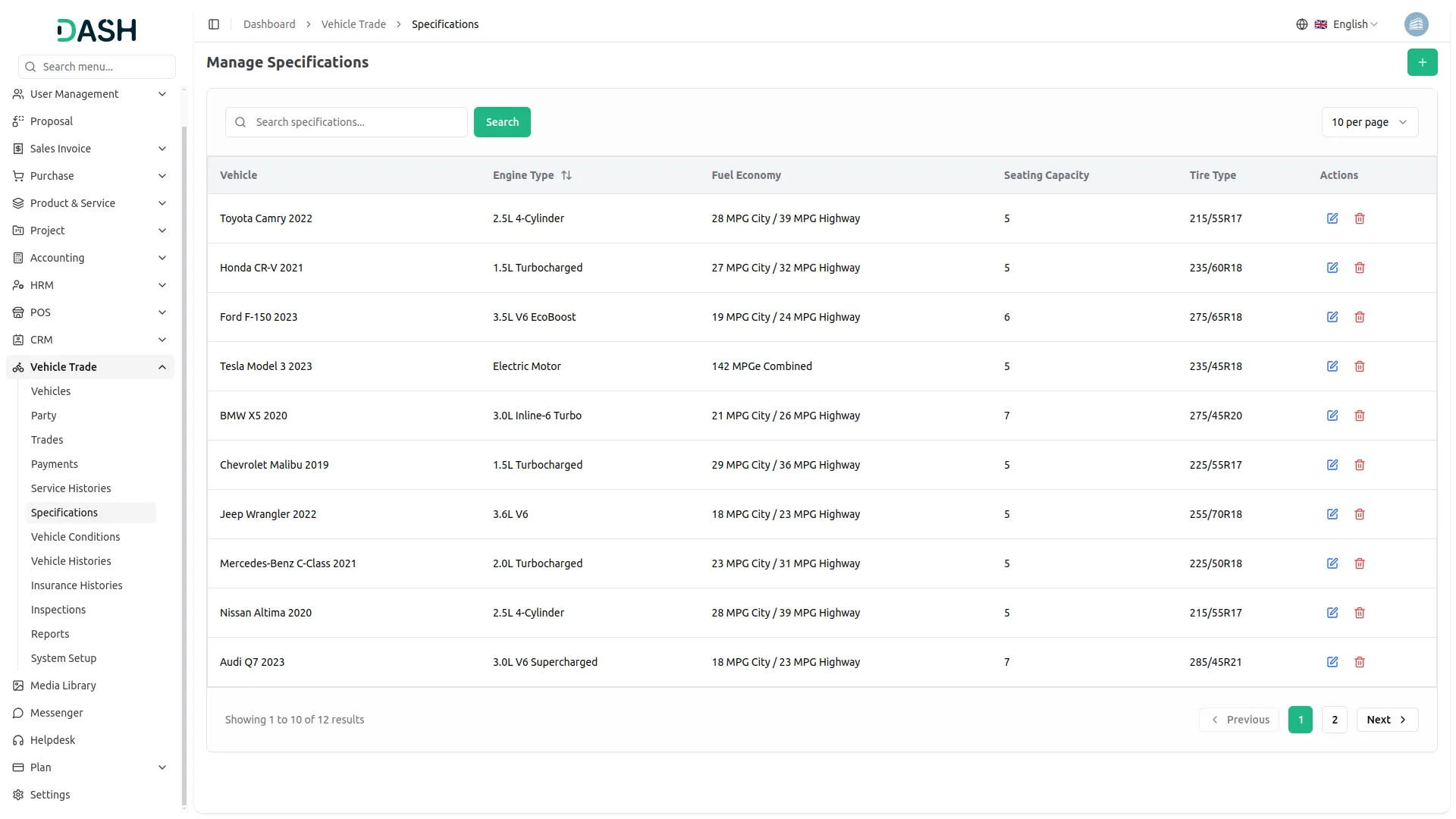
Manage Specifications
- To create a new vehicle specification, click the “Create” button on the Manage Specifications page. Select the vehicle from the Vehicle dropdown menu (comes from the vehicle section) and enter the engine type and fuel economy. Enter the seating capacity and specify the tire type.
- The list page shows all vehicle specifications with columns for Vehicle, Engine Type, Fuel Economy, Seating Capacity, and Tire Type. The search bar allows you to find specific specification records by keyword.
- Available actions for each record include Edit to modify the specification details and Delete to remove the specification entry from the system.
Vehicle Conditions
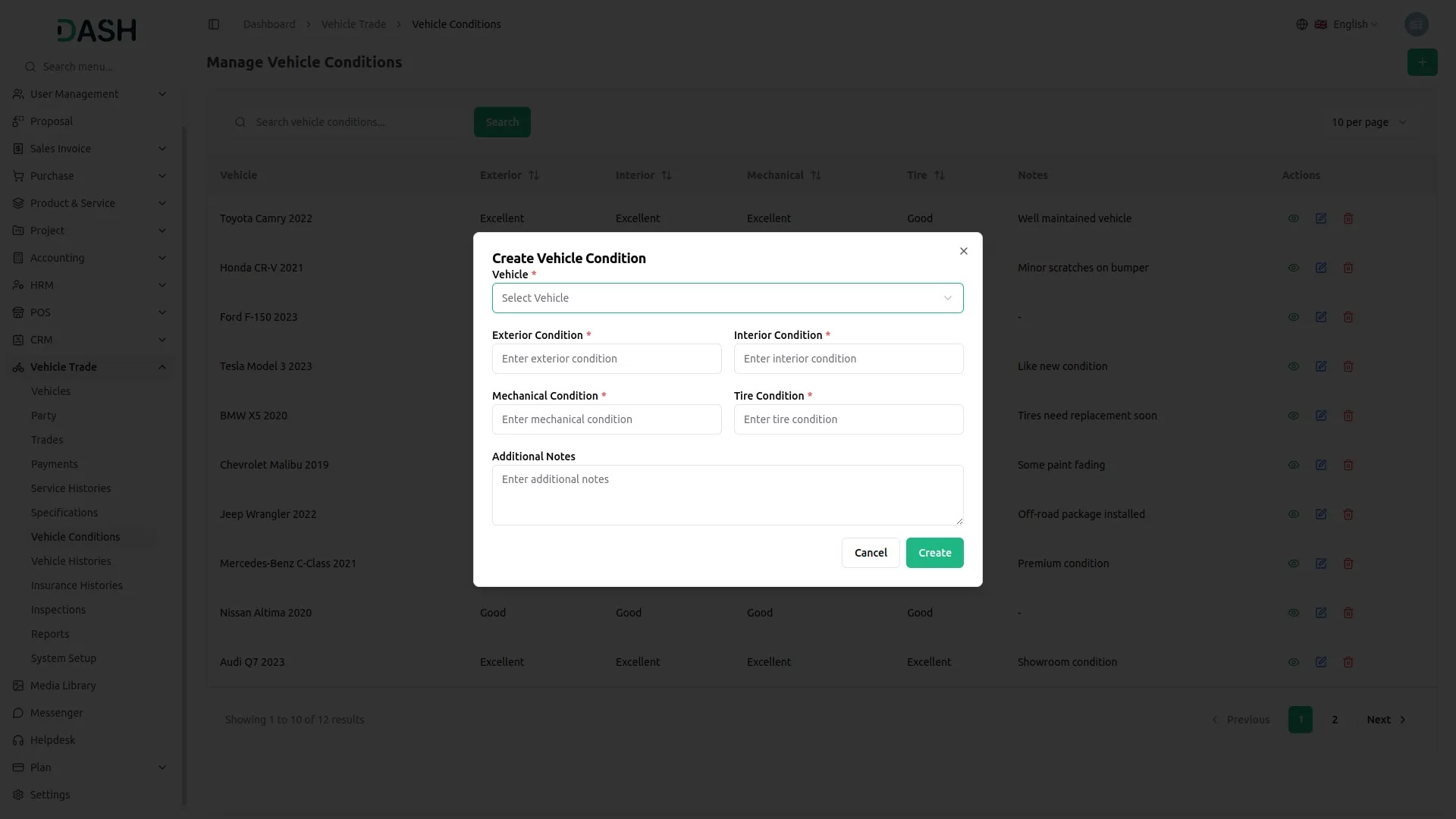
- To create a new vehicle condition record, click the “Create” button on the Manage Vehicle Conditions page. Select the vehicle from the dropdown menu (comes from the vehicle section).
- Enter the condition ratings for the Exterior, Interior, Mechanical, and Tire fields, respectively. Add any relevant notes in the Additional Notes field to provide extra context.
- The list page displays all vehicle condition records with columns for Vehicle, Exterior, Interior, Mechanical, Tire, and Notes. Use the search bar to find specific vehicle condition records by keyword.
- In the Actions column, you can use View to see the full condition details, Edit to update or correct any condition information, and Delete to permanently remove the vehicle condition record from the system.
Vehicle Histories
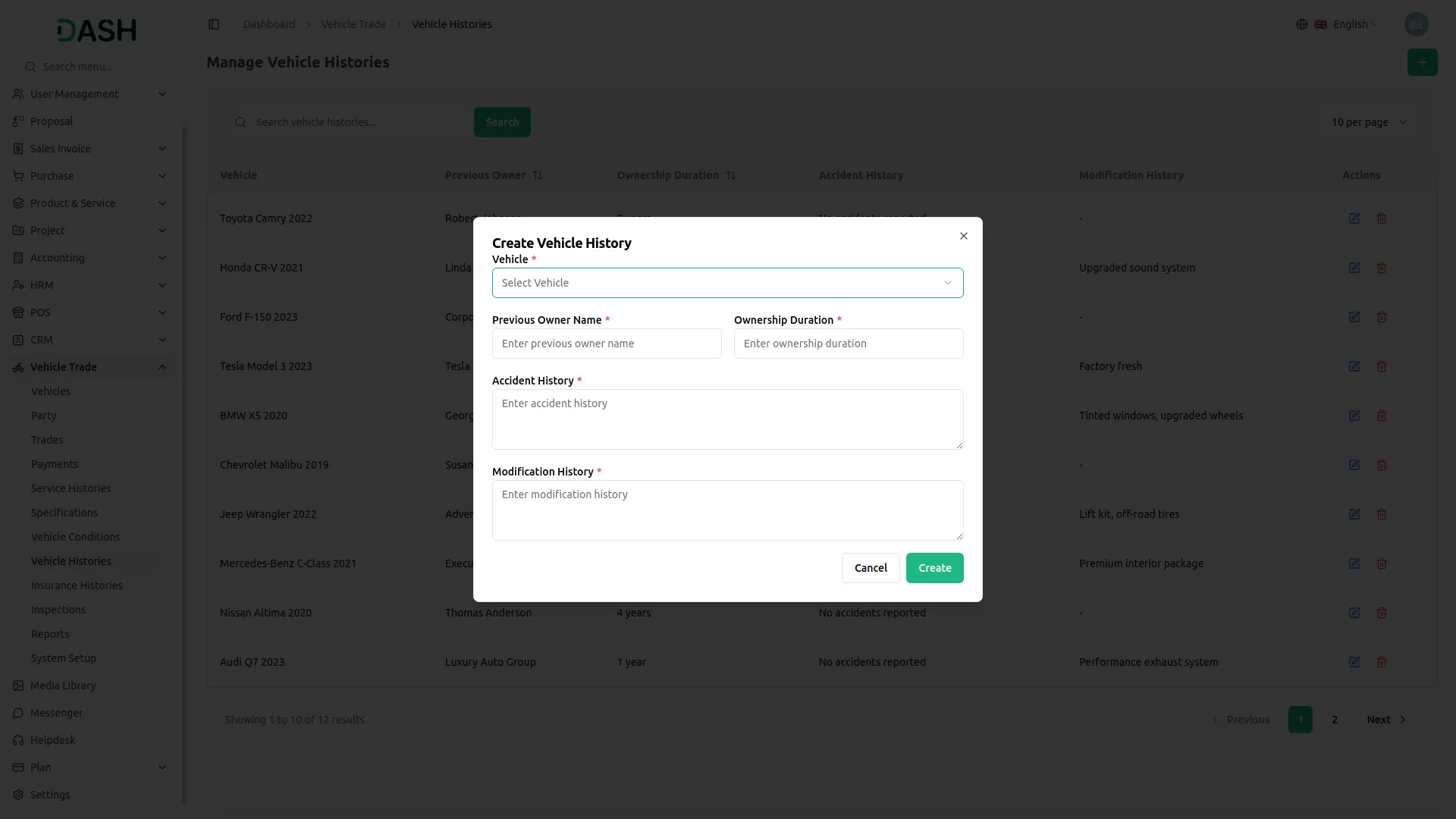
- To create a new vehicle history record, click the “Create” button on the Manage Vehicle Histories page. Select the vehicle from the dropdown menu (comes from the vehicle section), enter the previous owner’s name, and specify the ownership duration. Enter the accident history or add the modification history
- The list page shows all vehicle history records with columns for Vehicle, Previous Owner, Ownership Duration, Accident History, and Modification History. You can search for specific vehicle history records using the search bar.
- Available actions for each record include Edit to modify the vehicle history details and Delete to remove the vehicle history entry from the system.
Insurance Histories
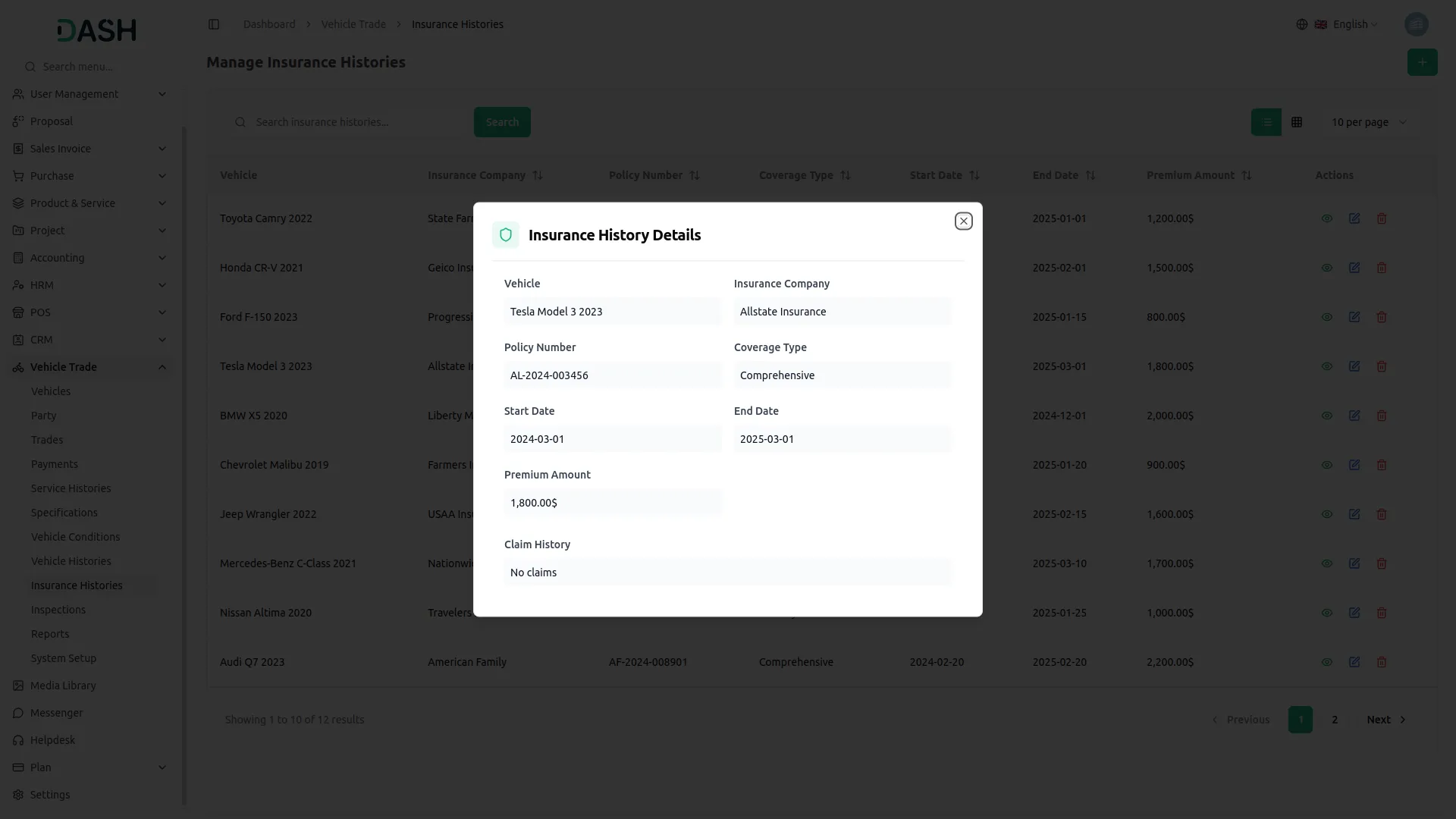
- To create a new insurance history record, click the “Create” button on the Manage Insurance Histories page. Select the vehicle from the dropdown menu (comes from the vehicle section). Enter the Insurance Company name and Policy Number in their respective fields.
- Enter the Coverage Type to specify the type of insurance plan. Enter the Premium Amount to record the cost of the insurance policy. Select the Start Date and End Date to define the active period of the insurance coverage. Add any relevant details in the Claim History field.
- The list page displays all insurance history records with columns for Vehicle, Insurance Company, Policy Number, Coverage Type, Start Date, End Date, and Premium Amount. Use the search bar to find specific records by keyword. The page also allows you to toggle between list view and grid view.
- In the Actions column, you can use View to see the full insurance details, Edit to update or correct any information, and Delete to permanently remove the insurance history record from the system.
Manage Inspections
- To create a new inspection record, click the “Create” button on the Manage Inspections page. Enter the inspection number and select the vehicle from the Vehicle dropdown menu (comes from the vehicle section). Set the inspection date and enter the name of the inspector who performed the inspection.
- Enter the Overall Rating on a scale of 1 to 10, and add the Inspection Cost. Enter the Findings. You can also enter any recommended repairs in the Recommended Repairs field.
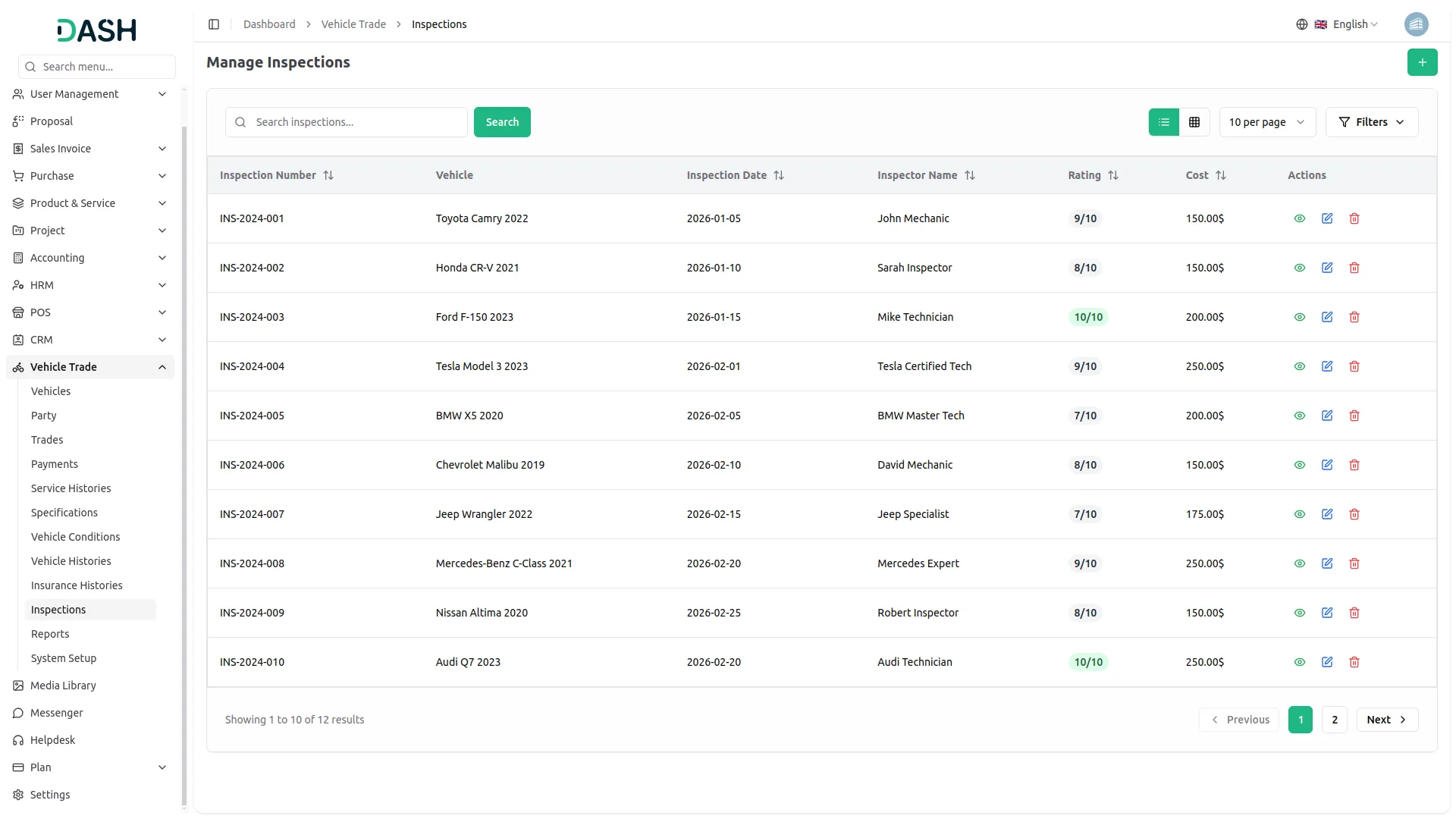
- The list page shows all inspection records with columns for Inspection Number, Vehicle, Inspection Date, Inspector Name, Rating, and Cost. The search bar allows you to find specific inspection records by keyword.
- Apply the Filter button to view a specific list, including the option to filter by selecting Vehicle from the dropdown or set an Inspection Date Range using the date range picker. Then click the Apply button to filter the data or the Clear button to reset it. The page also allows you to toggle between list view and grid view and control how many records are displayed per page.
- Available actions for each record include View to see the complete inspection details, Edit to modify the inspection record, and Delete to remove the inspection entry from the system.
Manage Reports
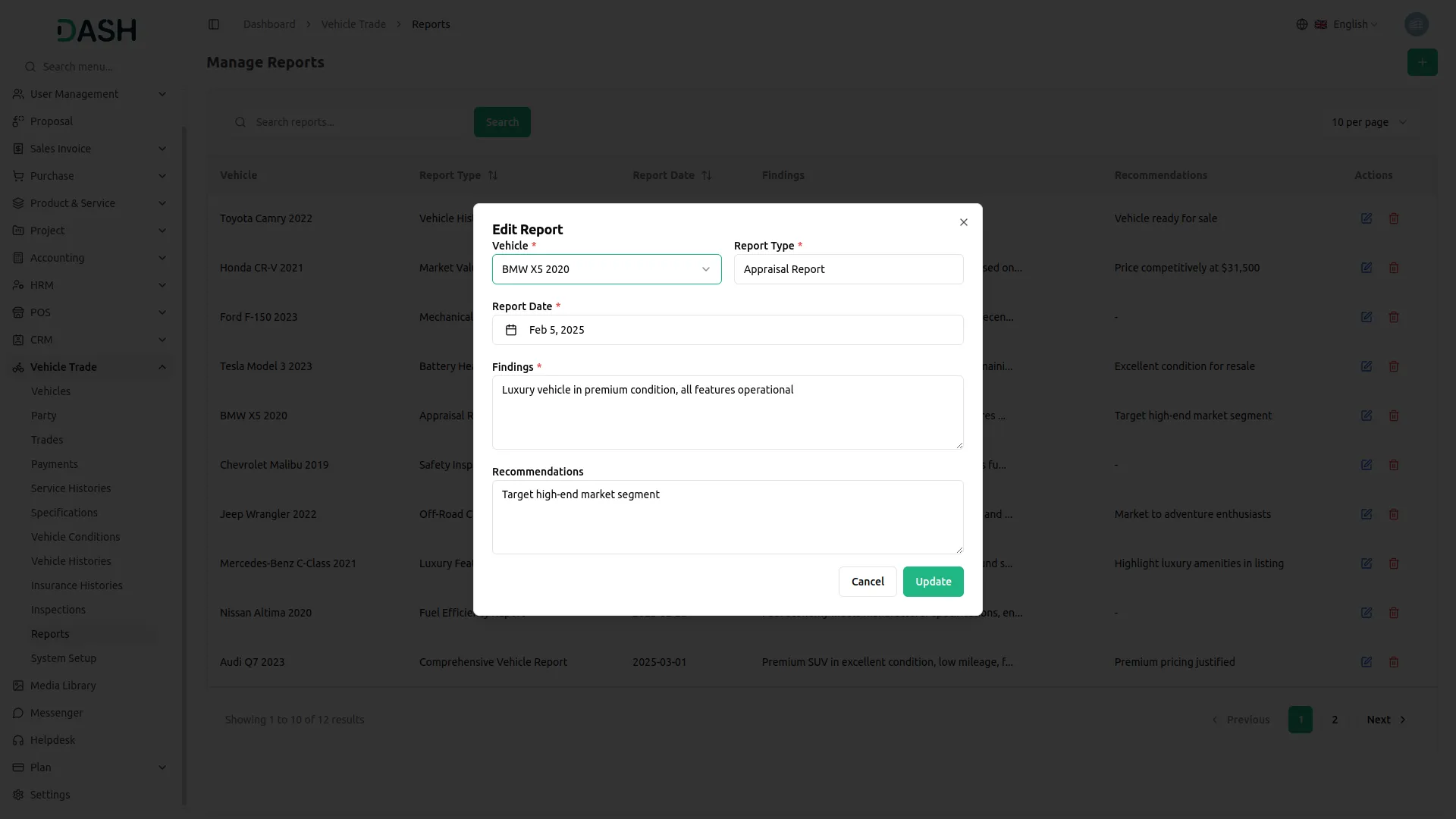
- To create a new report, click the “Create” button on the Manage Reports page. Select the vehicle from the dropdown menu (comes from the vehicle section) and enter the Report Type, and set the Report Date using the date picker.
- Enter the key details in the Findings field. Add any suggested actions or conclusions in the Recommendations field to provide guidance based on the findings.
- The list page displays all reports with columns for Vehicle, Report Type, Report Date, Findings, and Recommendations. Use the search bar to find specific reports by keyword.
- In the Actions column, you can use Edit to update or correct any report information and Delete to permanently remove the report record from the system.
Categories
Related articles
- Rotas Integration in Dash SaaS
- Feedback Integration in Dash SaaS
- WiFi QR Integration in vCard SaaS
- Hair And Care Studio Integration in Dash SaaS
- Size Guideline – eCommerceGo Addon
- How To Generate Token of Meta
- Review Reminder – eCommerceGo Addon
- Marketing Module Integration in eCommerceGo SaaS
- Security Guard Management Integration in Dash SaaS
- Work Permit Detailed Documentation
- Peach Payment Integration in Dash SaaS
- How To Generate The YouTube Credentials
Reach Out to Us
Have questions or need assistance? We're here to help! Reach out to our team for support, inquiries, or feedback. Your needs are important to us, and we’re ready to assist you!


Need more help?
If you’re still uncertain or need professional guidance, don’t hesitate to contact us. You can contact us via email or submit a ticket with a description of your issue. Our team of experts is always available to help you with any questions. Rest assured that we’ll respond to your inquiry promptly.
Love what you see?
Do you like the quality of our products, themes, and applications, or perhaps the design of our website caught your eye? You can have similarly outstanding designs for your website or apps. Contact us, and we’ll bring your ideas to life.