
Art Showcase Integration in Dash SaaS
Art Showcase is a complete Add-On solution designed to manage and display art galleries, exhibitions, and artist portfolios.
Introduction
The Art Showcase Add-On is a complete art gallery management solution that allows you to build and manage a fully functional art gallery website from a single backend. It covers everything from setting up your brand identity and homepage content to managing artists, artworks, exhibitions, and bookings. You can showcase artist portfolios, list artworks with pricing and availability, create and promote exhibitions, and accept online purchases and inquiries directly through the website. Every detail you enter in the backend is automatically reflected on the frontend, ensuring your gallery is always up to date and ready to engage art enthusiasts, collectors, and visitors from around the world.
How to Install the Add-On?
To Set Up the Art Showcase Add-On, you can follow this link: Setup Add-On.
How to use the Art Showcase Add-On?
Art Showcase Dashboard
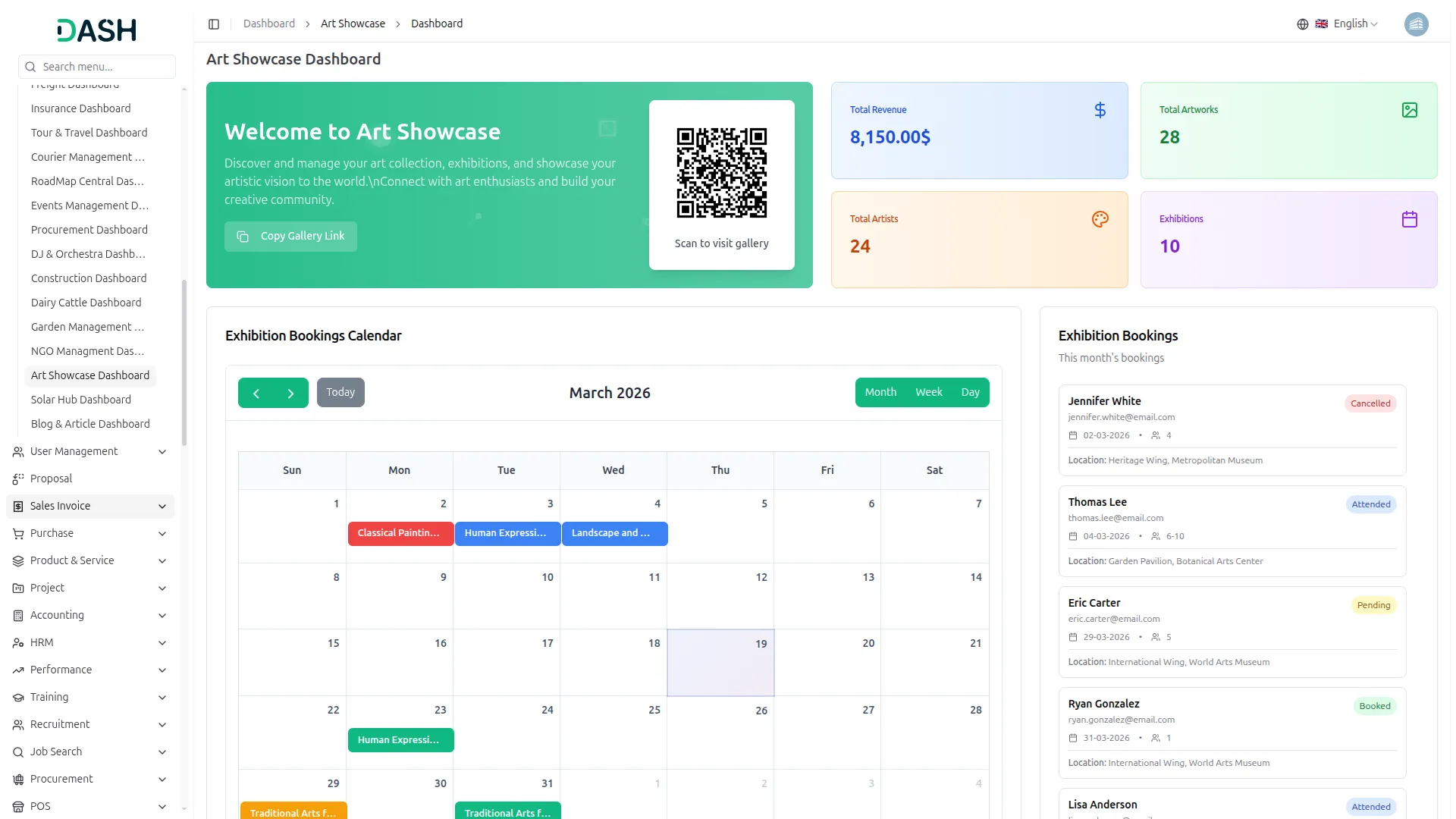
- The dashboard provides a complete overview of your art gallery’s performance through various visual elements and quick access features.
- At the top, you’ll find a Welcome Card displaying your gallery name and description, along with a QR code that visitors can scan to directly access your gallery website, and a Copy Gallery Link button to easily share your gallery link with others.
- The dashboard displays important summary cards showing Total Revenue, Total Artworks, Total Artists, and Total Exhibitions, giving you instant insights into your gallery’s key metrics at a glance.
- The dashboard includes an Exhibition Bookings Calendar that displays all scheduled exhibitions mapped to their respective dates. You can switch between Month, Week, and Day views to get a clear picture of your exhibition schedule and quickly identify upcoming events.
- The Exhibition Bookings panel on the right side shows this month’s booking records, with each entry displaying the visitor’s Name, Email, Booking Date, Number of Attendees, Exhibition Location, and Booking Status (Attended, Pending, or Booked), giving you a quick view of your most recent exhibition reservations.
- The Revenue Trends chart at the bottom left displays monthly revenue performance over the last 6 months as a line graph, allowing you to track your gallery’s earnings over time and identify your strongest revenue periods.
- The Order Payment Status chart at the bottom right displays a donut chart showing the distribution of order payments, split between Paid and Unpaid, giving you an instant visual snapshot of your gallery’s payment collection status.
- The Top Artists panel ranks artists by rating, displaying each artist’s profile photo, name, star rating, and number of artworks, giving you a quick view of your gallery’s highest-performing artists.
- The Recent Artworks panel showcases the latest artworks added to your gallery, with each entry displaying the artwork image, title, artist name, price, and availability status, either Available or Sold, allowing you to monitor your most recently listed pieces at a glance.
- The Recent Orders panel on the bottom right displays orders from the last 7 days, with each entry showing the customer name, artwork title, payment status, either Paid or Unpaid, order amount, and order date, giving you a quick snapshot of your gallery’s most recent sales activity.
System Setup
Brand Settings
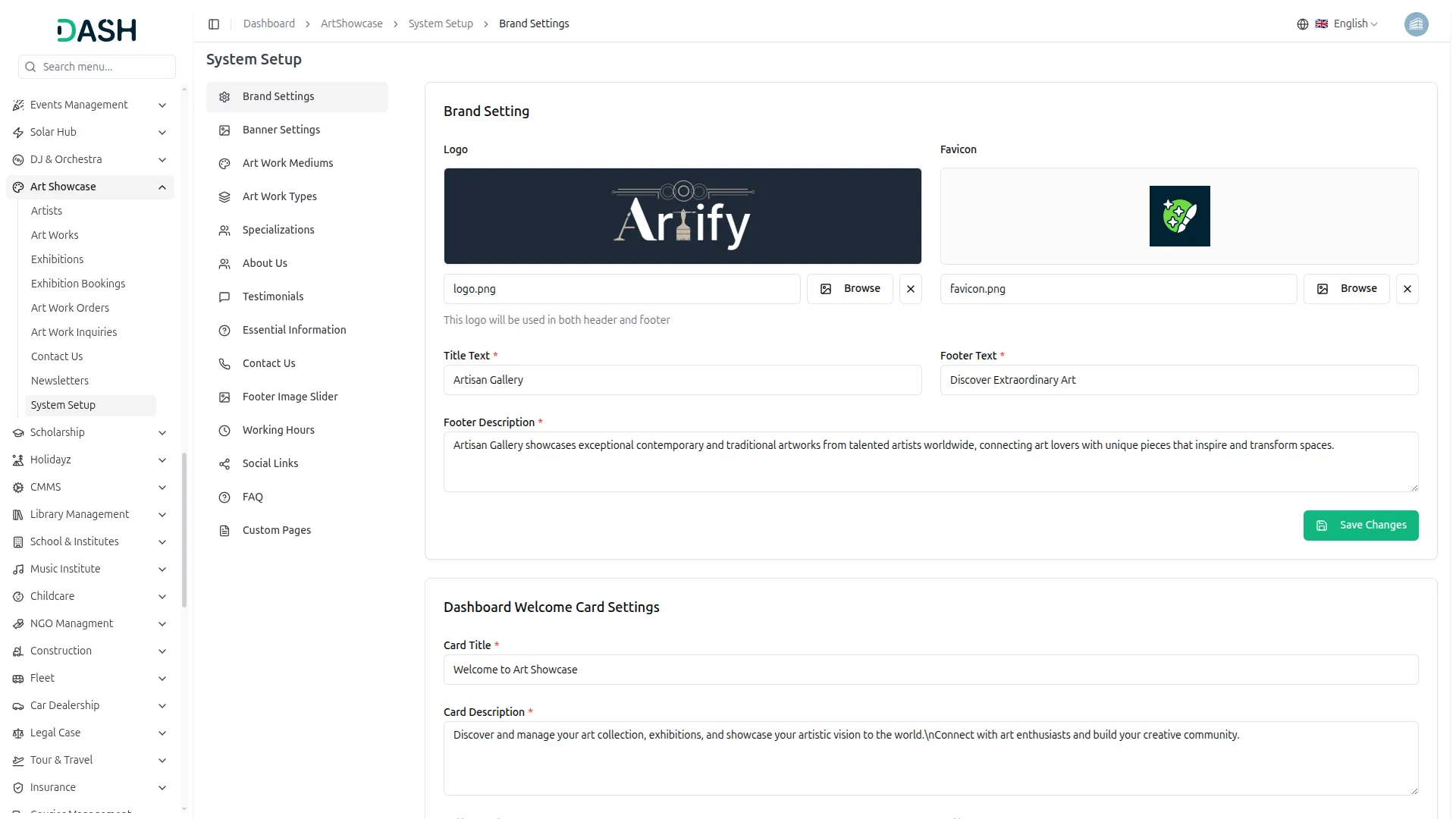
- In the Brand Settings section, you will find fields for Logo, Favicon, Title Text, Footer Text, and Footer Description. You can upload your logo and favicon using the Browse button. Enter all the details and click Save Changes.
- In the Dashboard Welcome Card Settings, you will find fields for Card Title, Card Description, Button Text, and Button Icon. Enter all the details and click Save Changes.
- Once saved, the Logo will appear in both the header and footer of your website. The Title Text will represent your gallery’s name across the site, the Footer Text will display as the footer tagline, and the Footer Description will appear as the short introductory text in the footer section.
Banner Settings
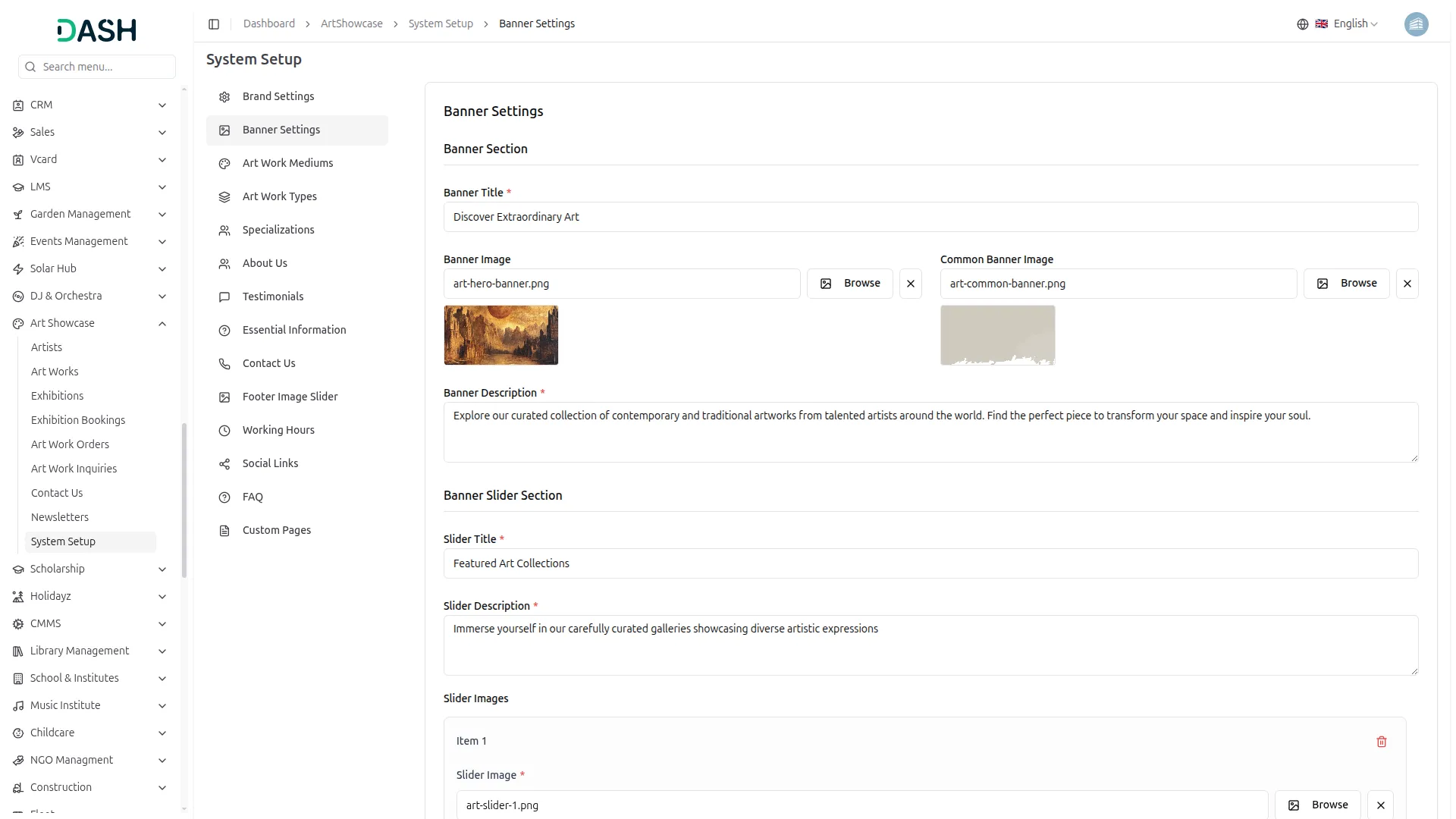
- In the Banner Settings section, you will find fields for Banner Title, Banner Image, Common Banner Image, and Banner Description. Upload your hero image using the Browse button and enter all the required details.
- In the Banner Slider Section, you will find fields for Slider Title, Slider Description, and Slider Images. You can upload multiple artwork images using the Add Slider Image button. Enter all the details and click Save Changes.
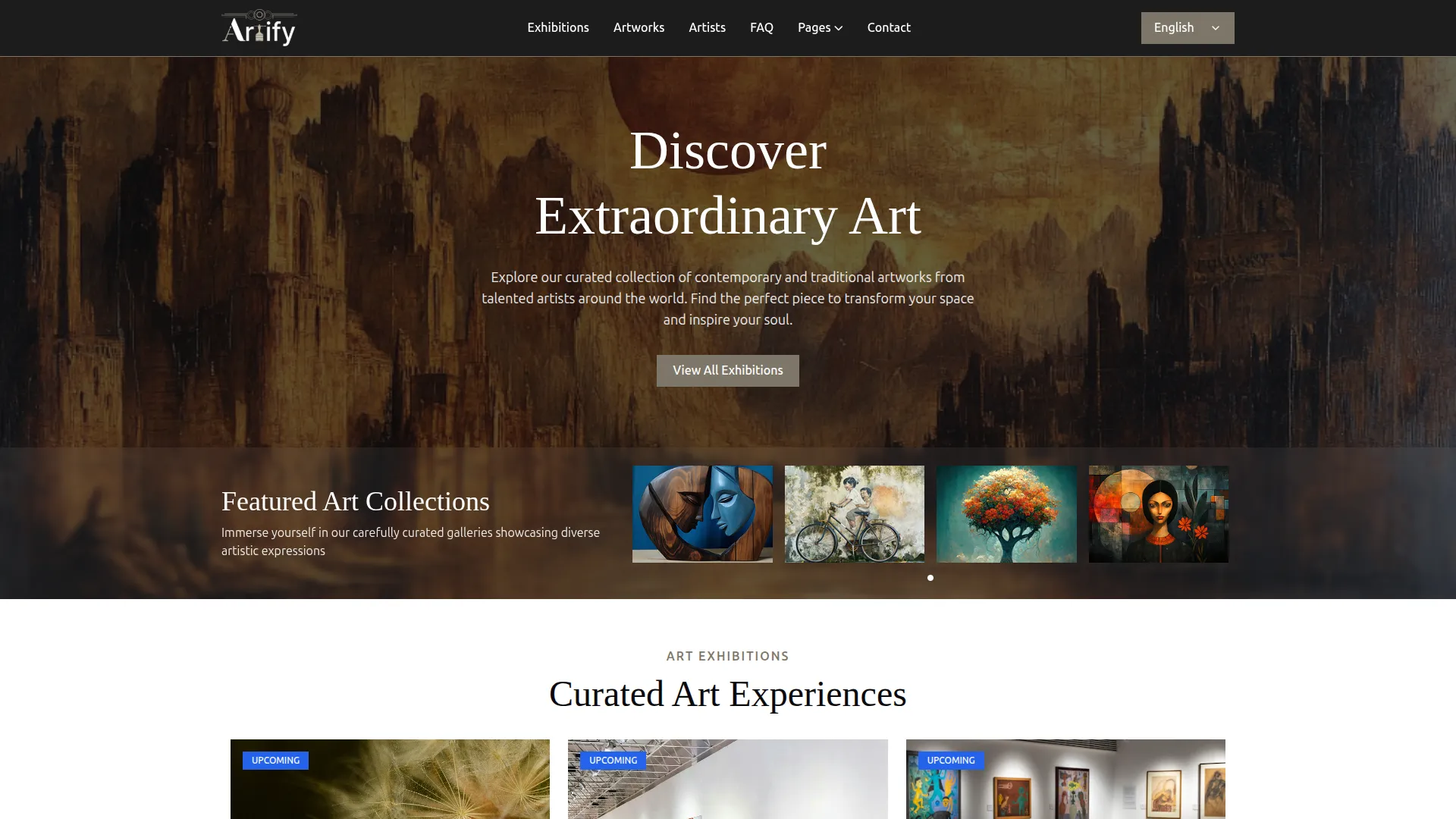
- Once saved, the Banner Title, Image, and Description will appear in the hero section on your homepage, giving visitors an engaging first impression of your gallery. The Common Banner Image will display as the background banner on all inner pages of the website. The Slider Title, Description, and uploaded images will appear in the Featured Art Collections slider on the homepage, rotating through the artwork images you have added.
Art Work Mediums
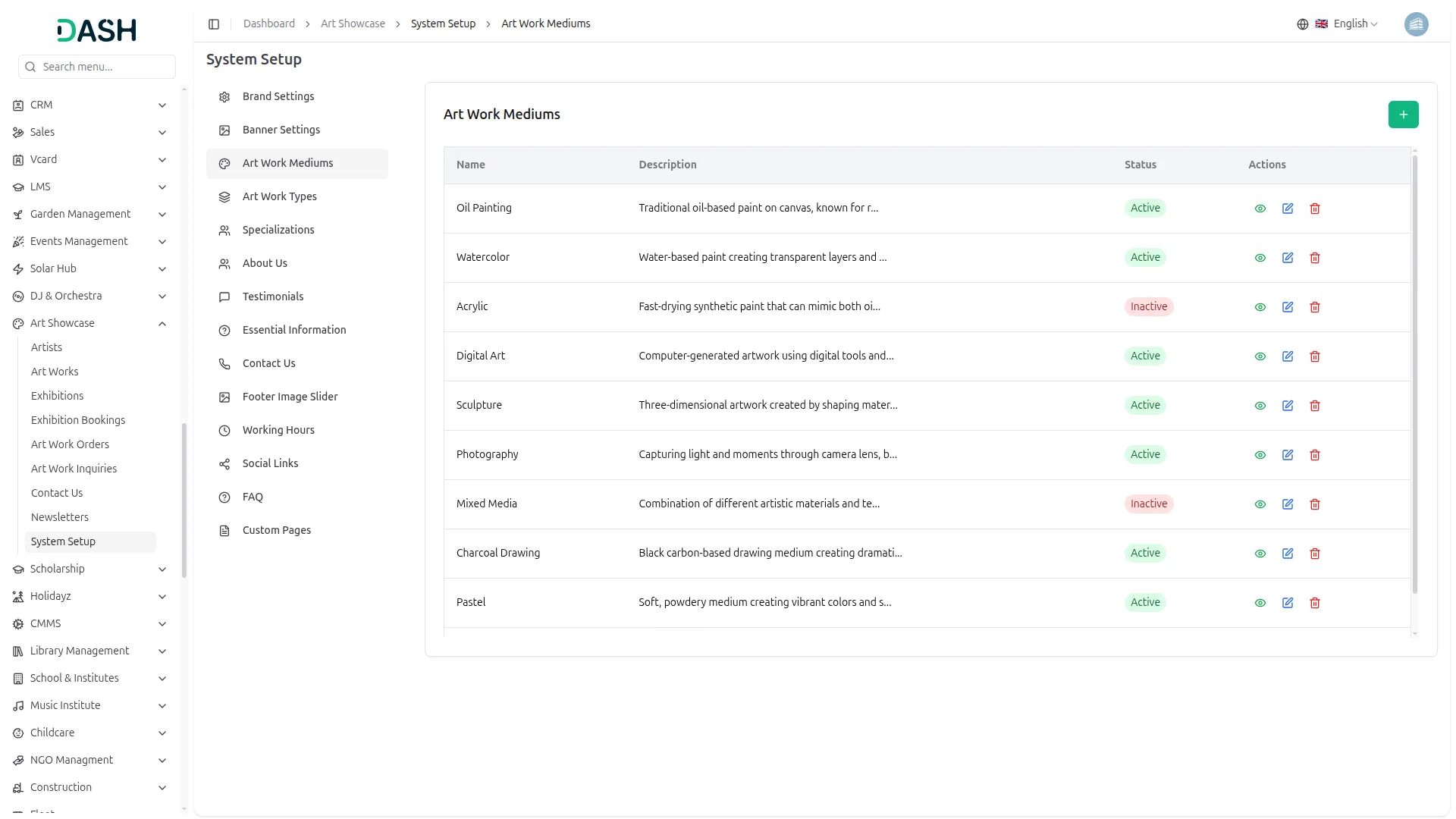
- To add a new medium, click the “Create” button at the top right. In the Create Art Work Medium form, enter the Name, add a Description, set the Status to Active or Inactive, and click Create.
- In the Art Work Mediums section, you will find a list of all existing mediums with their Name, Description, Status, and Actions. In the Actions column, you can use the view icon to preview the medium details, the edit icon to update the information, or the delete icon to remove it.
- Once saved, all active Art Work Mediums will appear as filter options in the Medium dropdown on the Artworks Gallery page, allowing visitors to easily browse and find artworks by their preferred medium, such as Watercolor, Digital Art, Oil Painting, and more.
Art Work Types
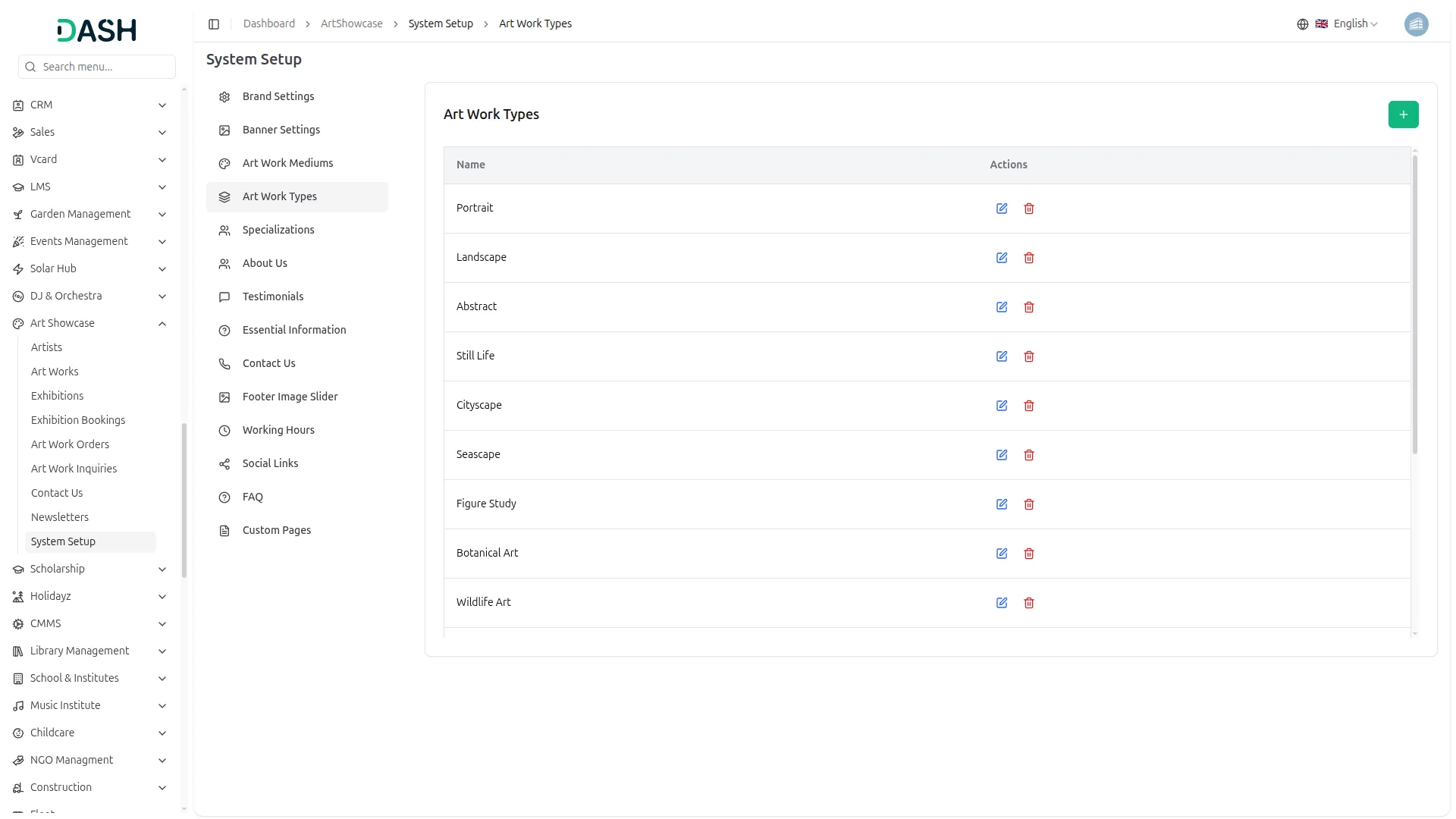
- To add a new type, click the “Create” button at the top right. In the Create Art Work Type form, simply enter the Name and click Create.
- In the Art Work Types section, you will find a list of all existing types with their Name and Actions. In the Actions column, you can use the edit icon to update the type name or the delete icon to remove it.
- Once saved, all Art Work Types will appear as filter options in the Type dropdown on the Artworks Gallery page, helping visitors search and discover artworks by category such as Portrait, Landscape, Abstract, Cityscape, and more.
Specializations
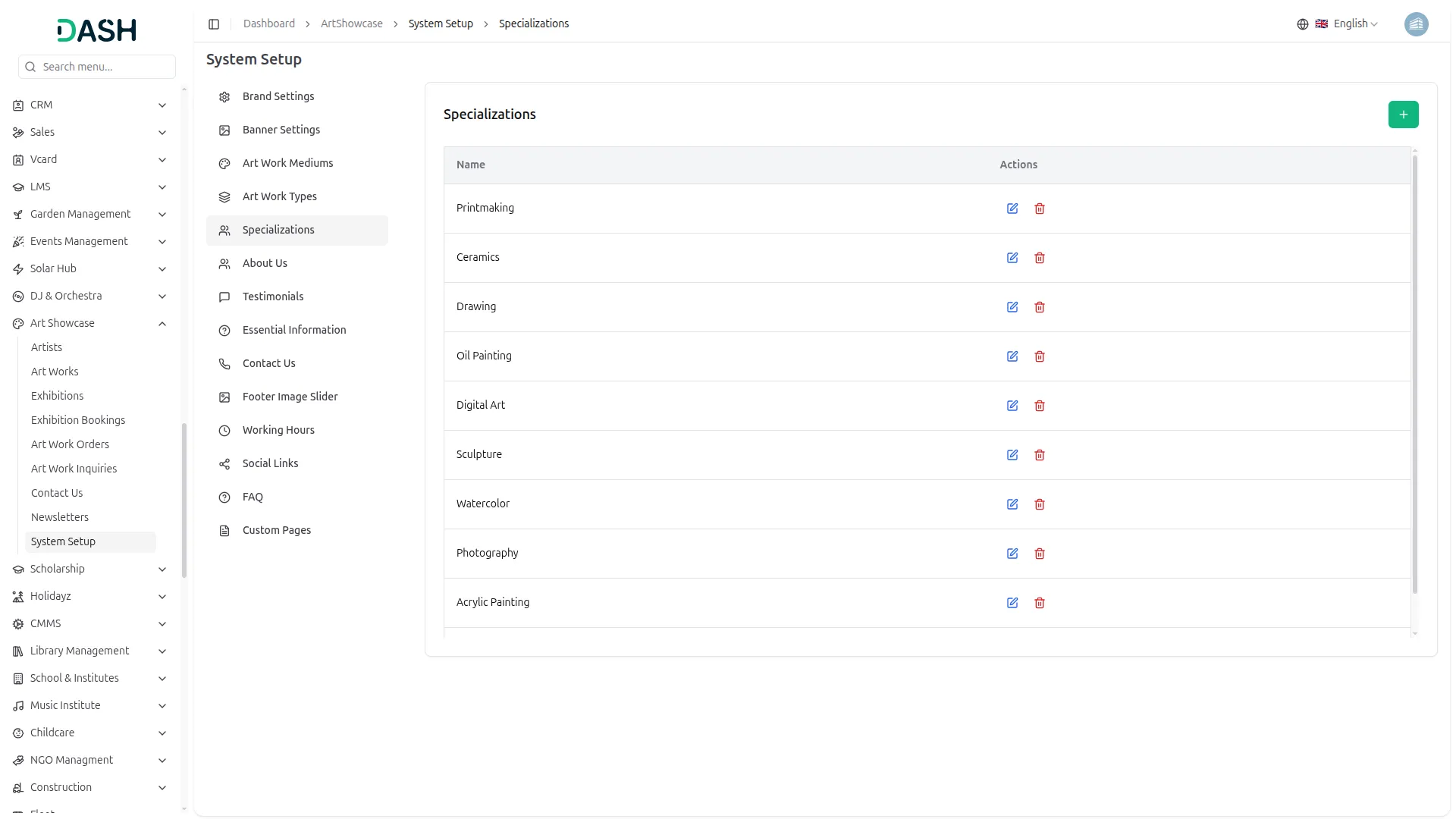
- To add a new specialization, click the “Create” button at the top right. In the Create Specialization form, simply enter the Name and click Create.
- In the Specializations section, you will find a list of all existing specializations with their Name and Actions. In the Actions column, you can use the edit icon to update the specialization name or the delete icon to remove it.
- Once saved, all Specializations will appear as filter options in the Specialization dropdown on the Our Artists page. They will also display under each artist’s name on their profile card, helping visitors identify each artist’s area of expertise, such as Watercolor, Sculpture, Photography, Acrylic Painting, and more.
About Us
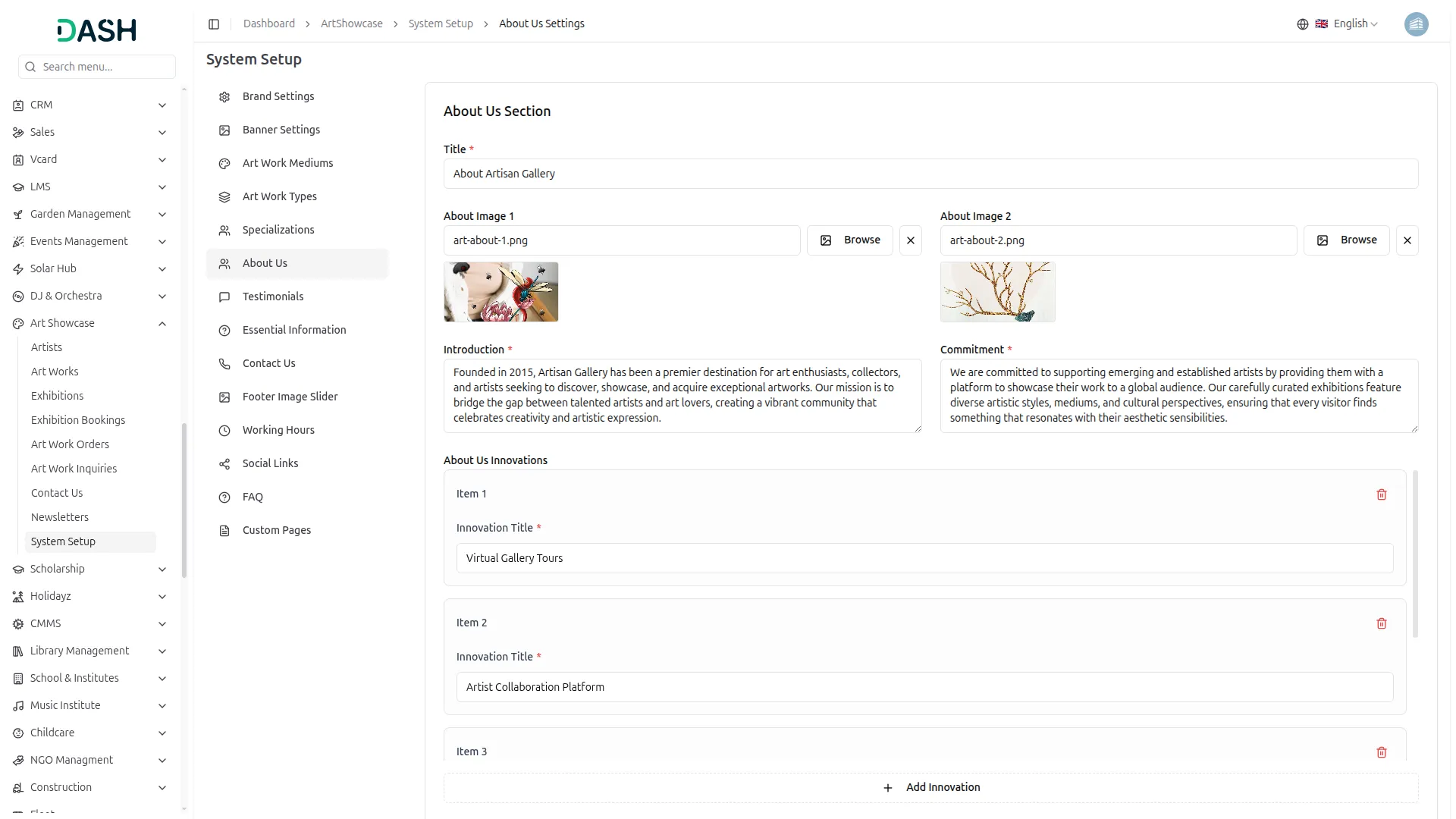
- In the About Us section, you will find fields for Title, About Image 1, About Image 2, Introduction, and Commitment. Upload both images using the Browse button and fill in all the text fields.
- In the About Us Innovations section, you can add multiple innovation items. Each item requires an Innovation Title. Click the Add Innovation button to add more items. Once all details are entered, click Save Changes.
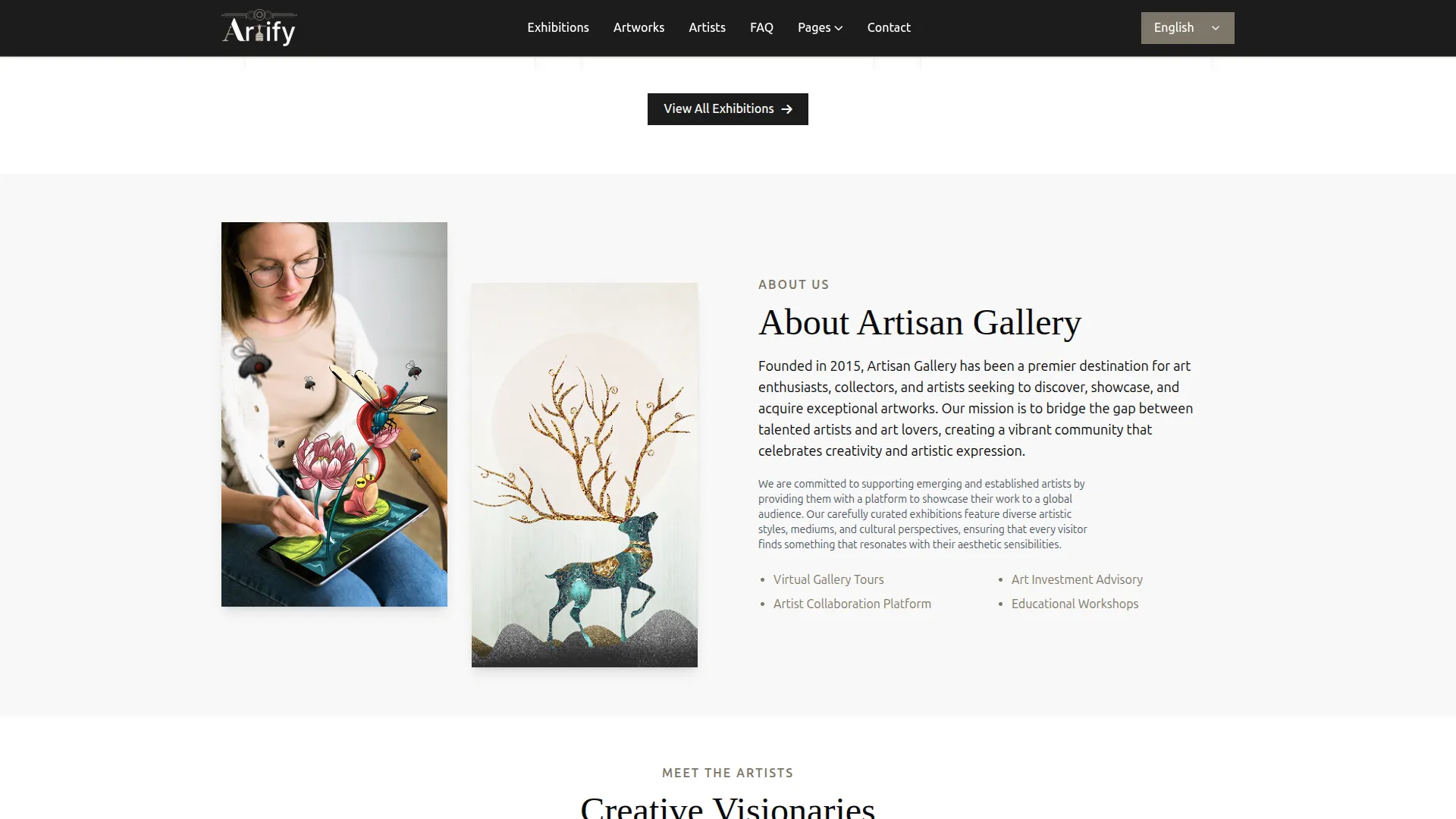
- Once saved, the Title will appear as the heading of the About Us section on the homepage. About Image 1 and About Image 2 will display as the visual images alongside the about content. The Introduction text will appear as the main description paragraph, and the Commitment text will display as the supporting paragraph below it. Each Innovation Title will appear as a bullet point feature highlight, such as Virtual Gallery Tours, Artist Collaboration Platform, Art Investment Advisory, and Educational Workshops.
Testimonials
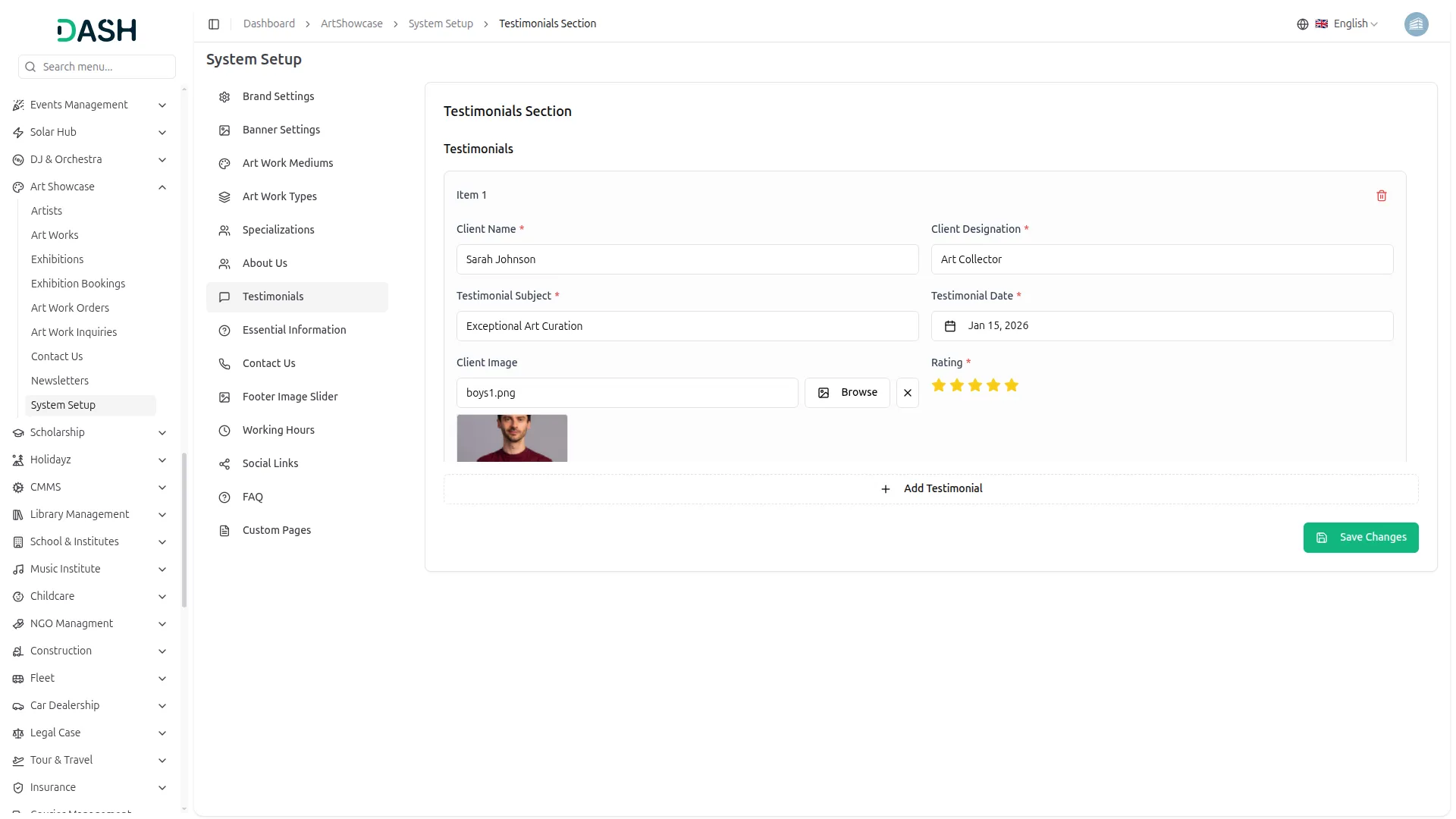
- In the Testimonials section, you will find fields for Client Name, Client Designation, Testimonial Subject, Testimonial Date, Client Image, and Rating for each testimonial item. Upload the client photo using the Browse button and select the star rating. You can add multiple testimonials using the Add Testimonial button. Enter all the details and click Save Changes.
- Once saved, each testimonial will appear in the “What Our Clients Say” section on the homepage, displaying the client’s photo, name, designation, testimonial subject as the heading, review date, star rating, and their review text, giving visitors social proof and building trust in your gallery.

Essential Information
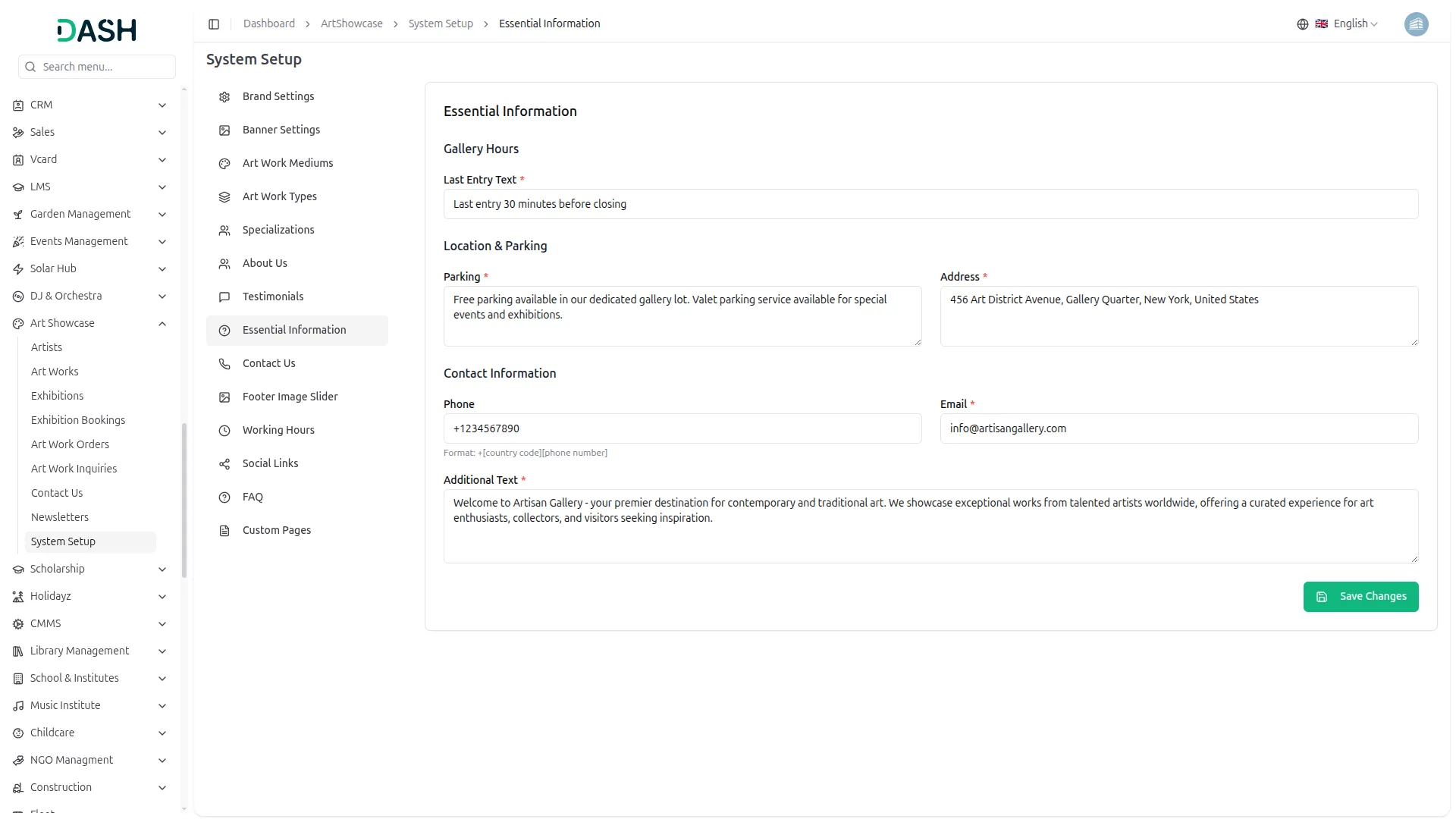
- In the Essential Information section, you will find fields under Gallery Hours for Last Entry Text, and under Location & Parking for Parking details and Address. Under Contact Information, you will find fields for Phone and Email. You can also add an Additional Text to welcome visitors. Enter all the details and click Save Changes.
- Once saved, the Address, Phone, and Email will appear in the footer of your website across all pages. The working hours and last entry text will be visible to visitors checking gallery timings, helping them plan their visit with accurate and up-to-date information.
- Once saved, whatever information you add in this section will be shown on the exhibition Booking page under a separate section called Essential Information. This section is used to display all the important details about the exhibition in one place.
Contact Us
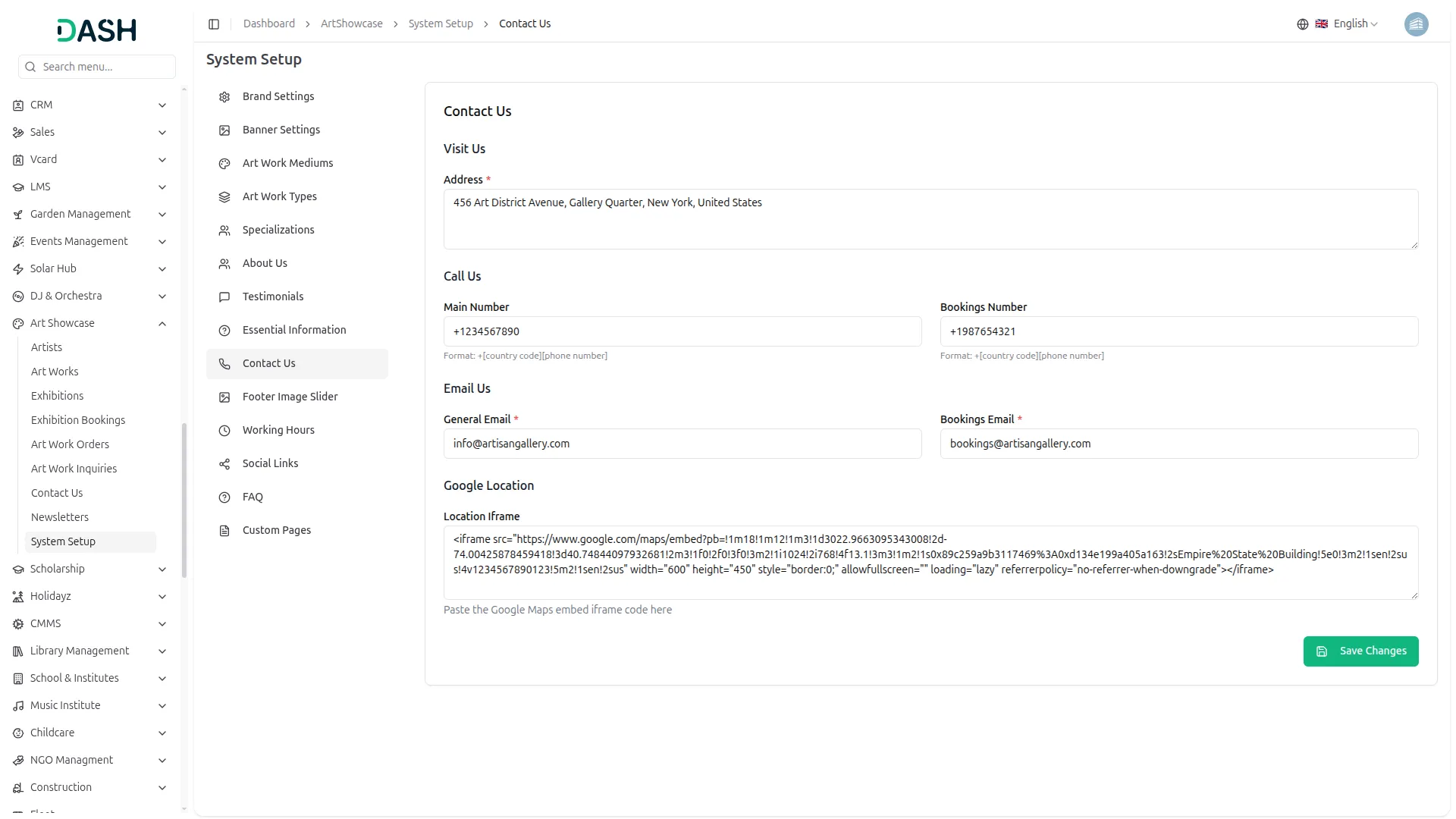
- In the Contact Us section, you will find fields under Visit Us for Address, under Call Us for Main Number and Bookings Number, and under Email Us for General Email and Bookings Email. In the Google Location section, paste your Google Maps embed iframe code in the Location iFrame field. Enter all the details and click Save Changes.
- Once saved, the Address will appear in the Visit Us card on the Contact Us page. The Main Number and Bookings Number will display in the Call Us card, and the General Email and Bookings Email will appear in the Email Us card. The Google Maps embed will display as an interactive map on the Contact Us page, helping visitors easily locate and reach your gallery.
Footer Image Slider
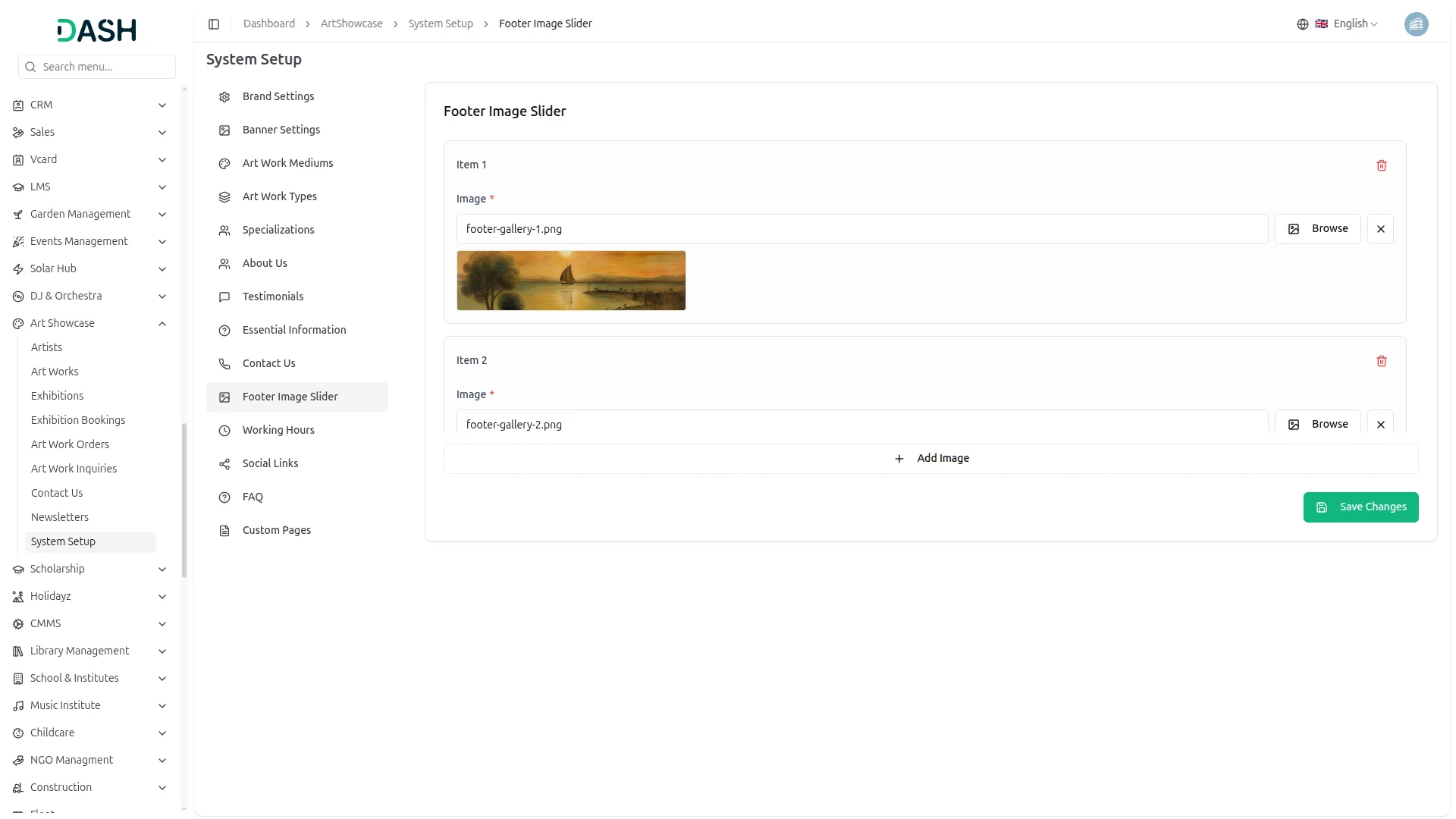
- In the Footer Image Slider section, you can upload multiple artwork images. Each item requires an Image, which you can upload using the Browse button. You can add more images using the Add Image button. Once all images are uploaded, click Save Changes.
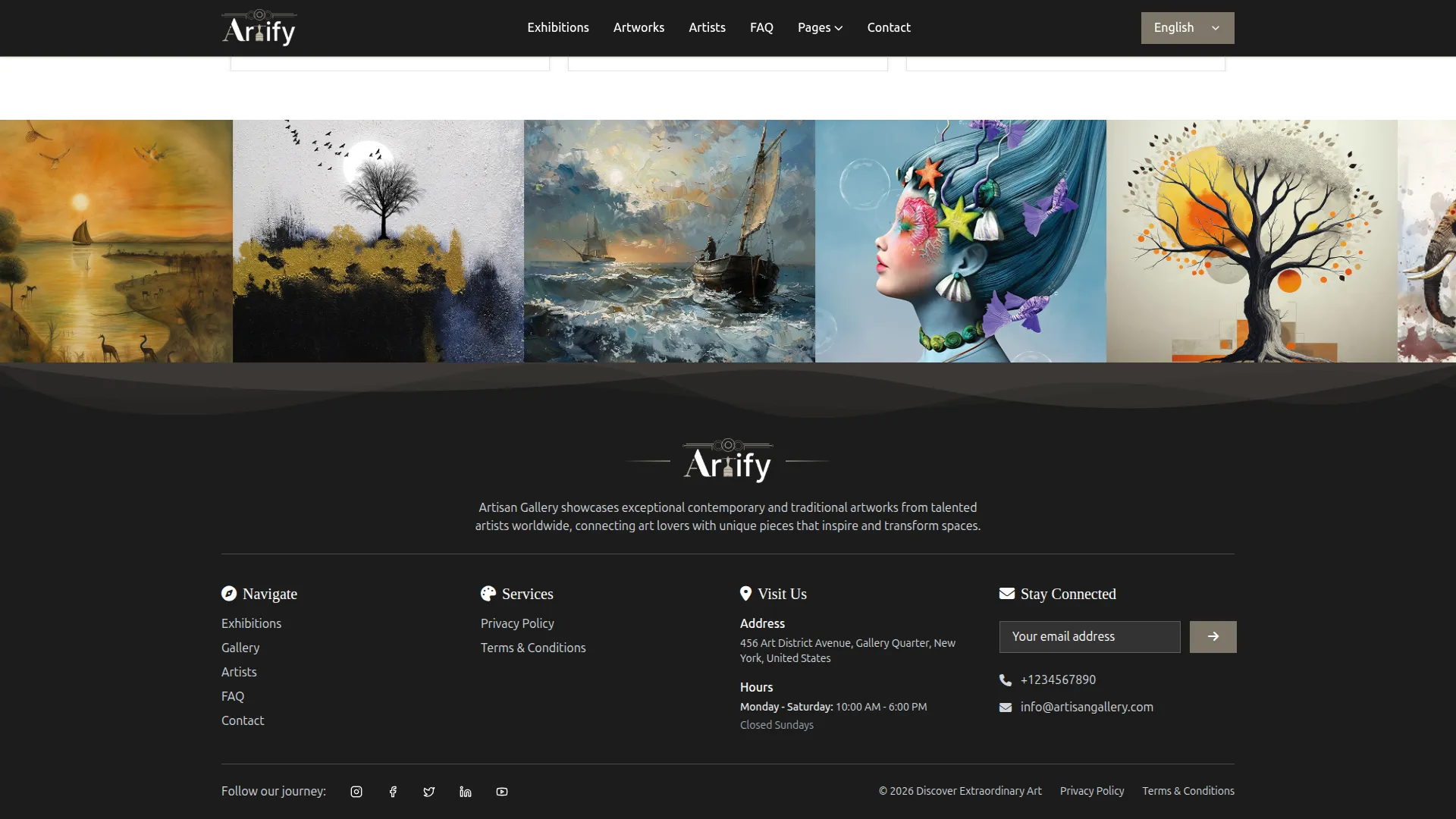
- Once saved, all the uploaded images will appear as a horizontal scrolling artwork strip just above the footer on your website, giving visitors a visually rich and engaging final impression before they reach the footer.
Working Hours
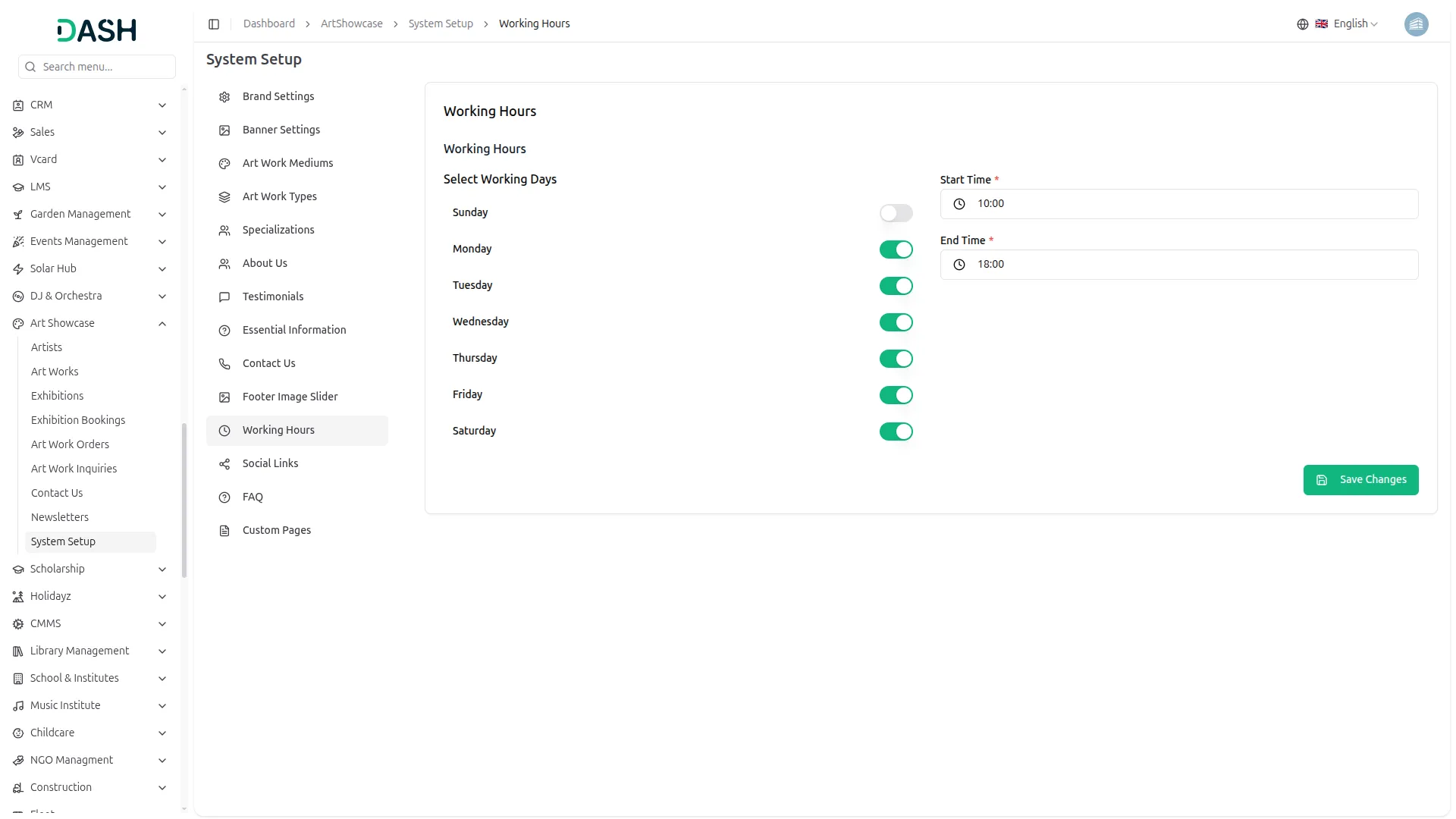
- In the Working Hours section, you will find a list of all seven days of the week. Toggle each day on or off to mark it as a working day or a closed day. Set the Start Time and End Time that apply to all active working days. Once done, click Save Changes.
- Once saved, the working days and hours will appear in the footer of your website and on the Contact Us page under the Visit Us section, clearly informing visitors when your gallery is open and when it is closed.
Social Links
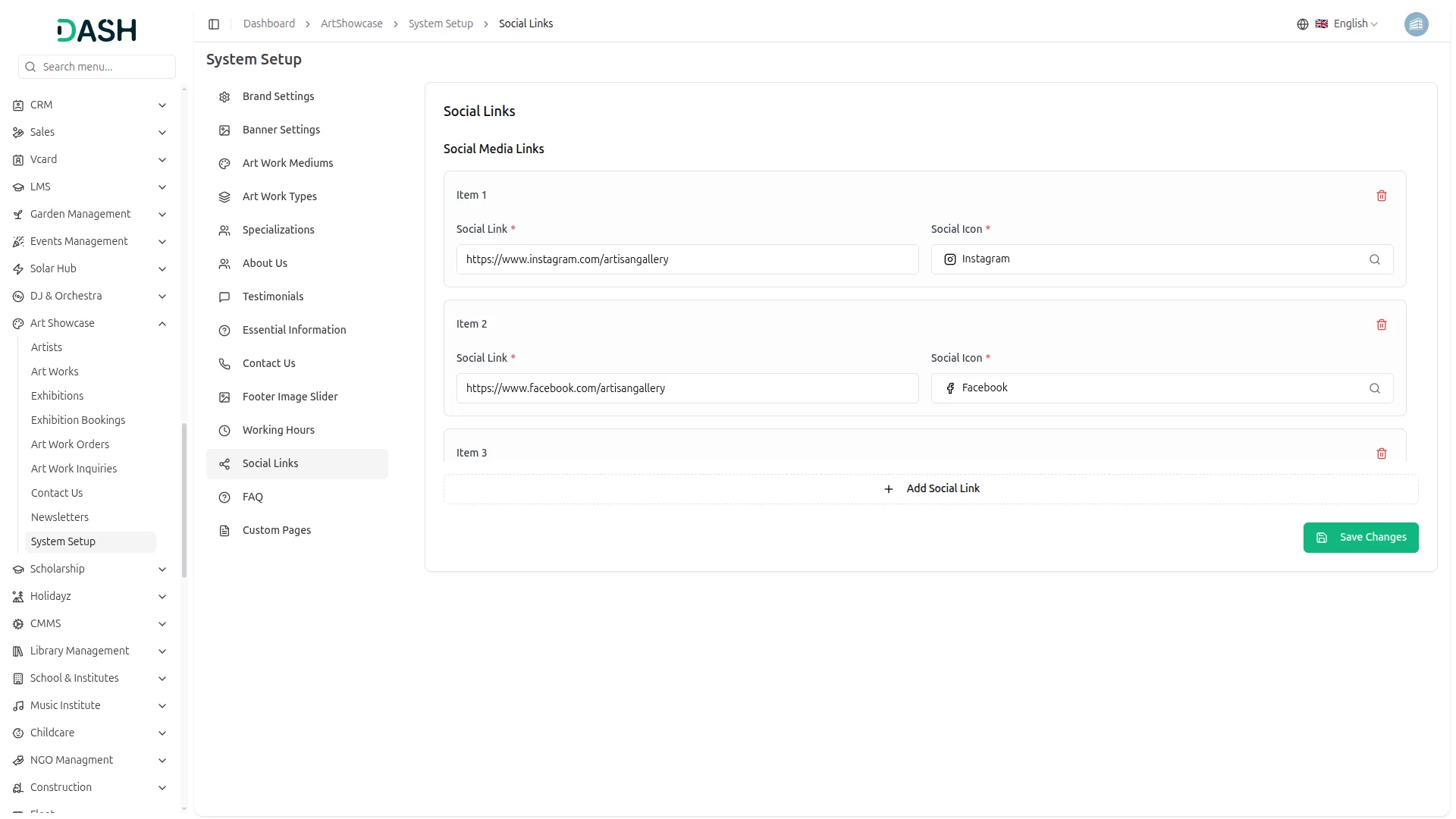
- In the Social Links section, you can add multiple social media profiles. Each item requires a Social Link (the full URL of your social media page) and a Social Icon (select the matching platform icon from the dropdown). You can add more platforms using the Add Social Link button. Enter all the details and click Save Changes.
- Once saved, all the social media icons will appear in the footer of your website under the “Follow our journey” label, allowing visitors to easily find and follow your gallery on platforms such as Instagram, Facebook, Twitter, LinkedIn, and YouTube.
FAQ
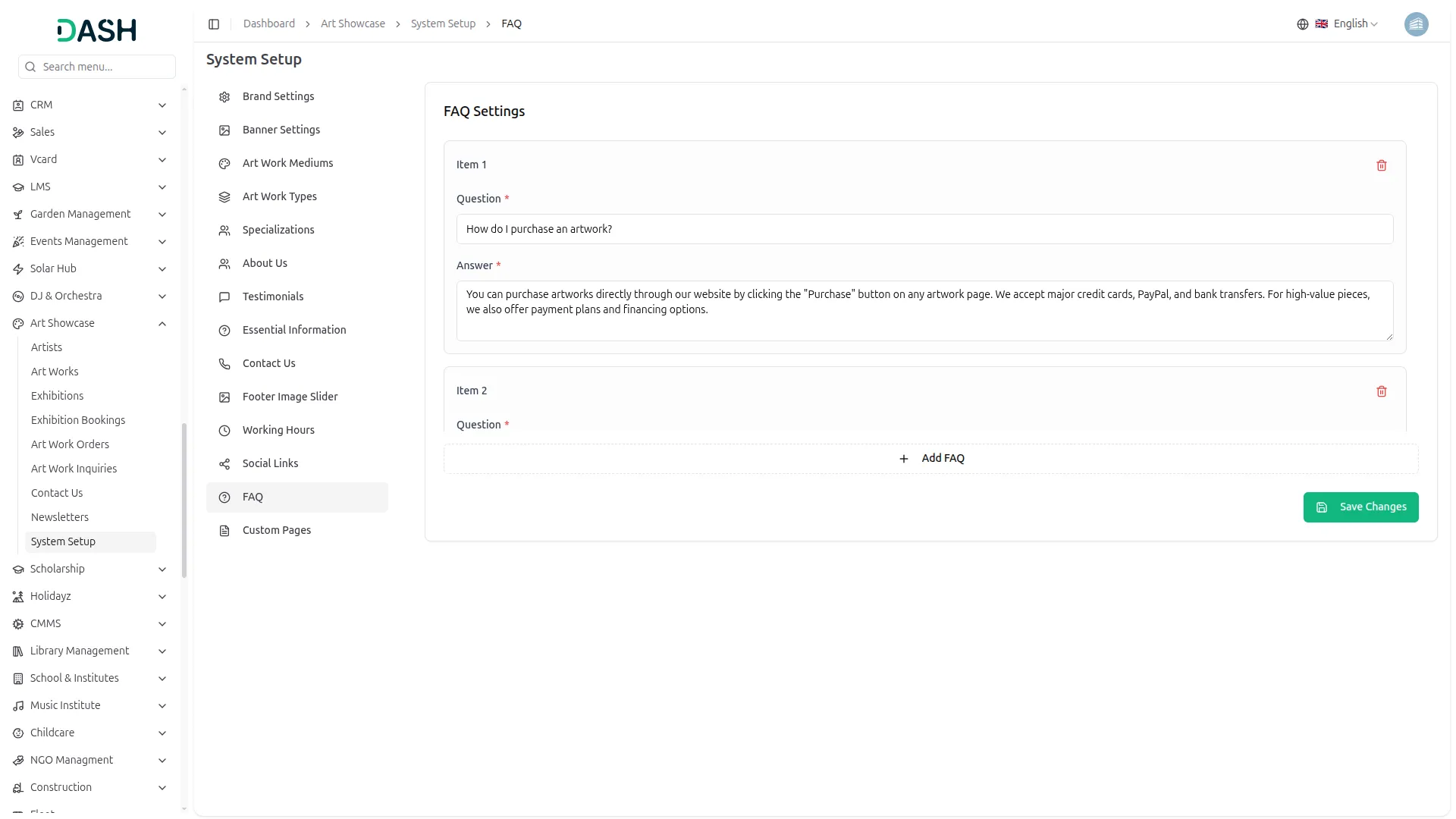
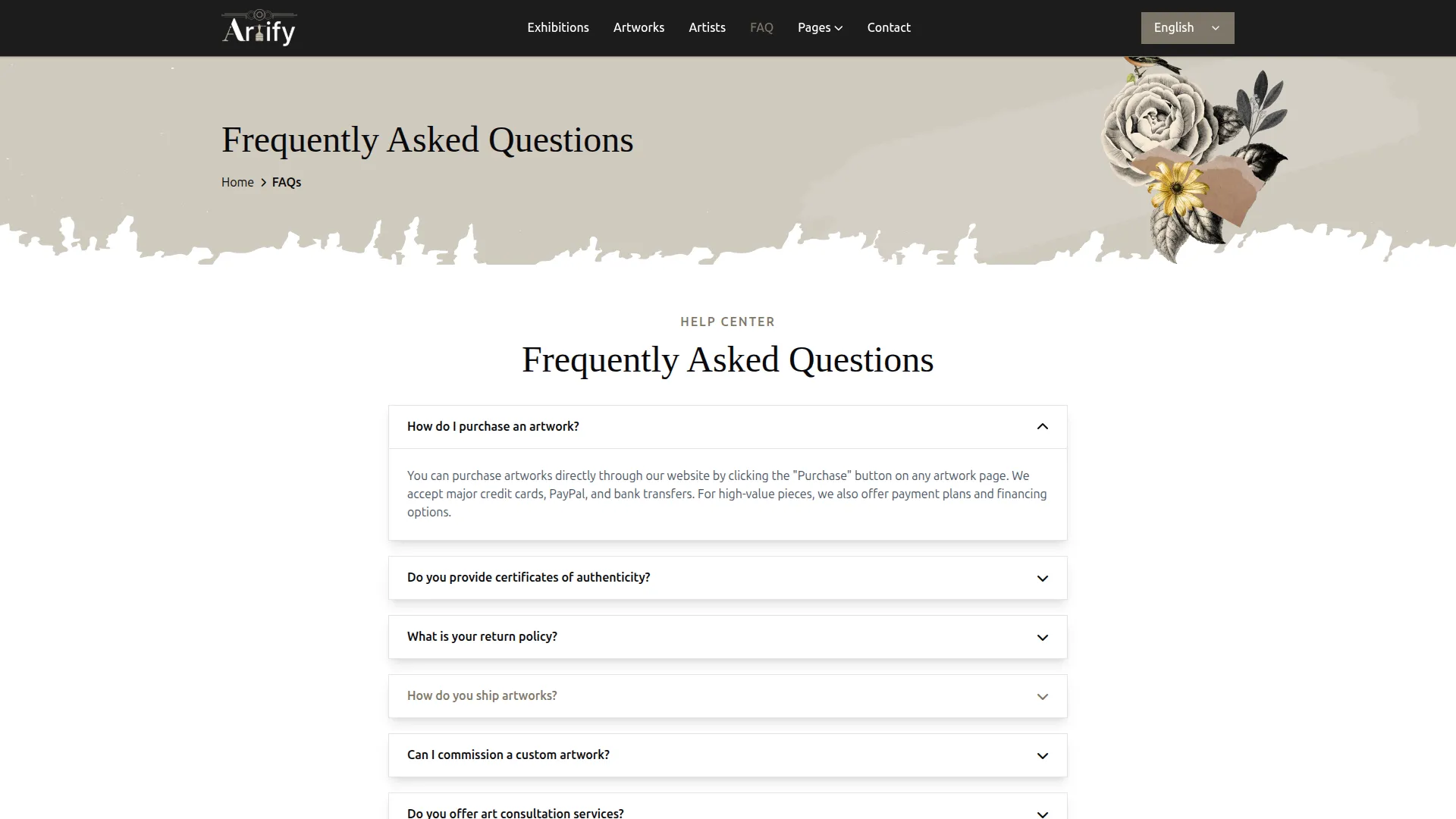
- In the FAQ Settings section, you can add multiple frequently asked questions. Each item requires a Question and an Answer. You can add more questions using the Add FAQ button, and the delete option is also available for each item. Enter all the details and click Save Changes.
- Once saved, all the questions and answers will appear on the FAQ page of your website in an accordion-style layout. Visitors can click on any question to expand and read the answer, making it easy for them to find information about purchasing artworks, shipping, returns, commissions, and more.
Custom Pages
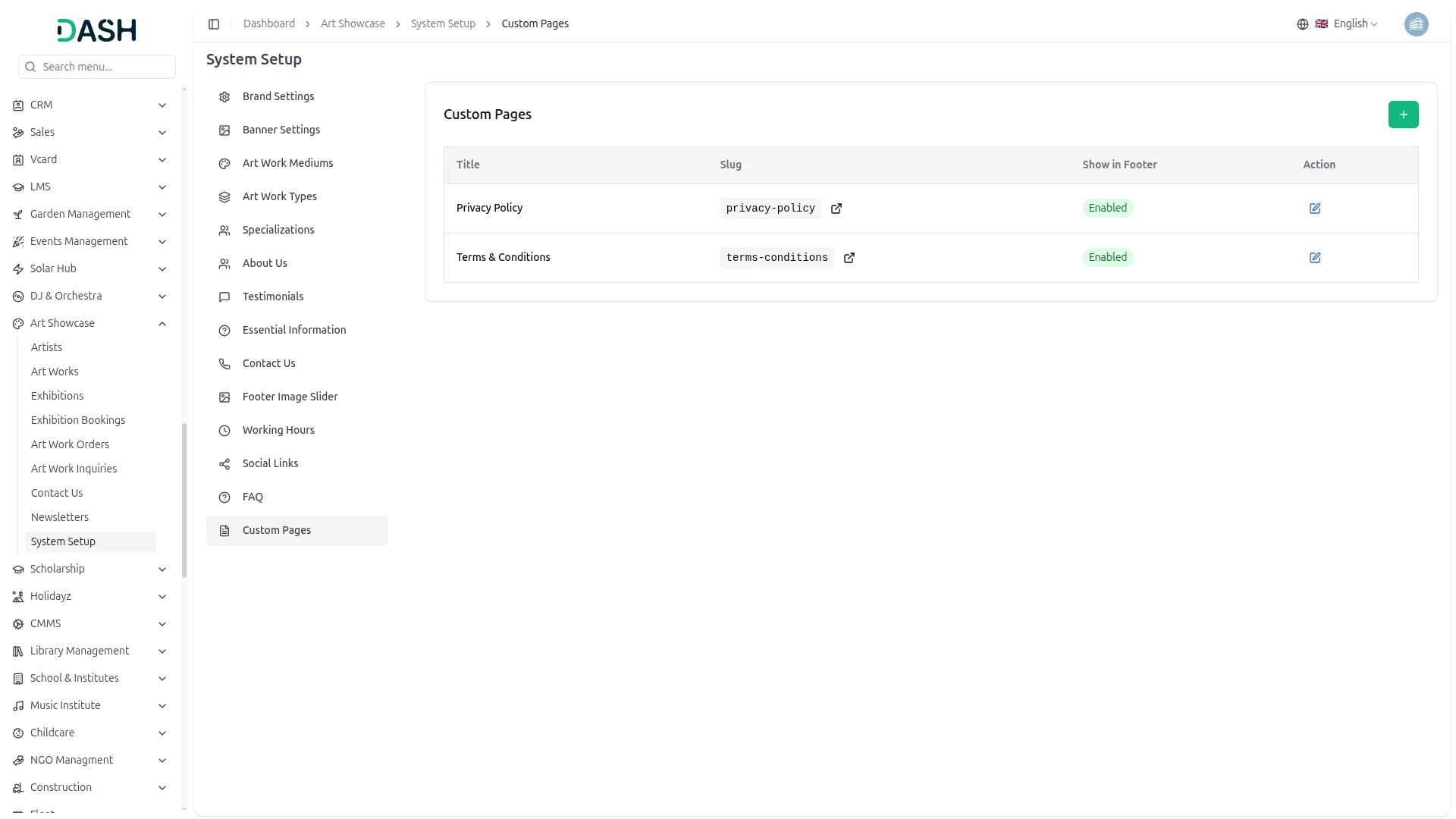
- To create a new custom page, click the “Create” button at the top right. In the Create Custom Page form, enter the Title, URL Slug (using only lowercase letters and hyphens), a short Description, and the full page Contents using the rich text editor, which supports bold, italic, alignment, lists, links, and more. Toggle the Enable Page Footer option on if you want the footer to appear on this page, then click Create.
- In the Custom Pages section, you will find a list of all existing custom pages with their Title, Slug, Show in Footer status, and Actions. In the Actions column, you can use the edit to update the page content.
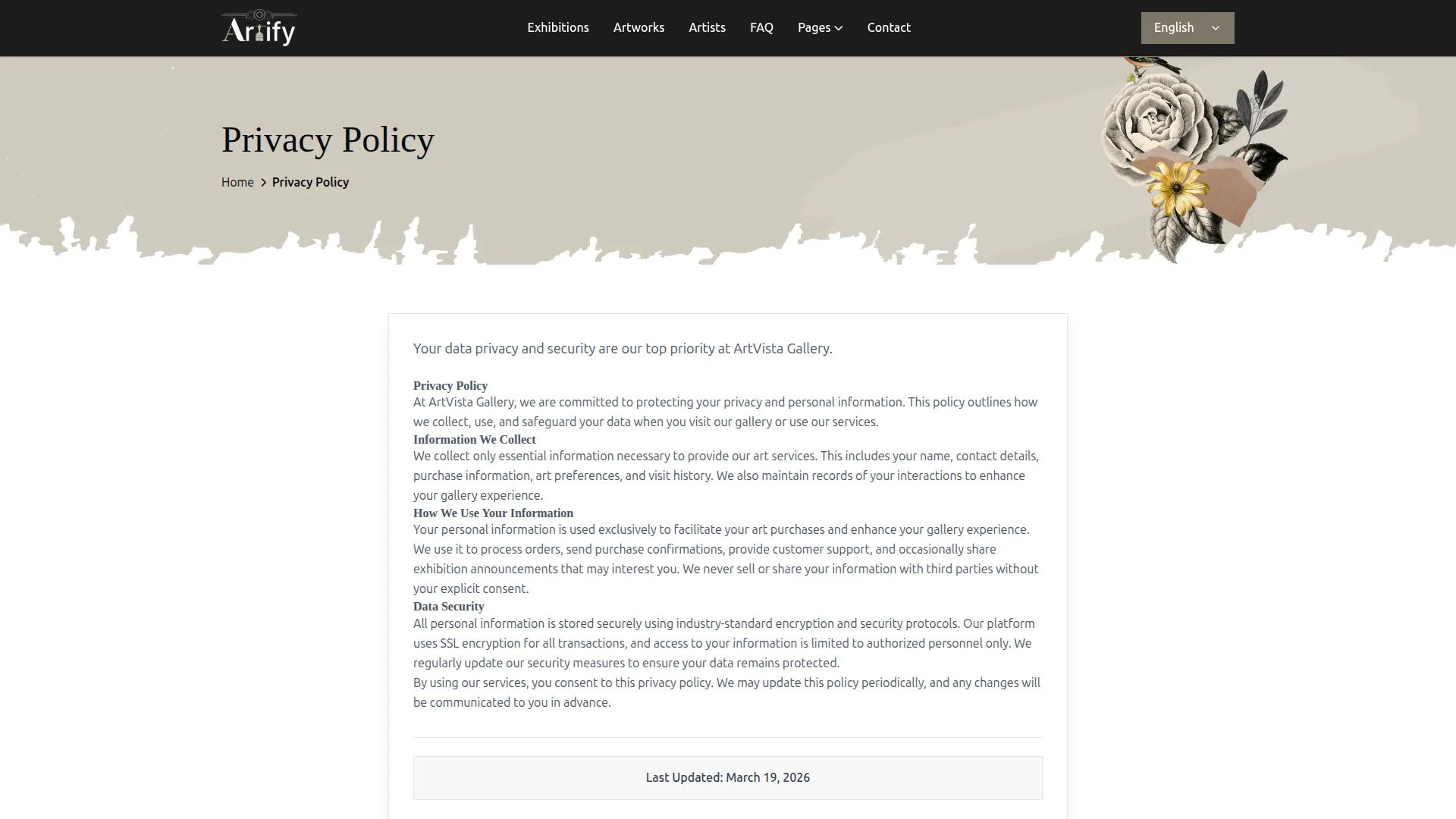
- Once saved, the custom page will be live on your website at its unique URL slug. If the Show in Footer option is enabled, the page link will automatically appear in the Services section of the footer, making it accessible to visitors from every page of the website, just like the Privacy Policy and Terms & Conditions pages.
Manage Artists
- To add a new artist, click the “Create” button on the manage artist page. Enter the artist’s Name and Email Address, enter the Contact Number, and enter the years of Experience. Select Specializations from the dropdown (which is configured from System Setup → Specializations).
- Enter the Awards Count, and upload a Profile Image by clicking the Browse button. You can also add Artistic Styles using the Add Artistic Style button, enter the artist’s Address, and write a Biography to describe their artistic background and work. Toggle the status to Active and click Create to save the artist.
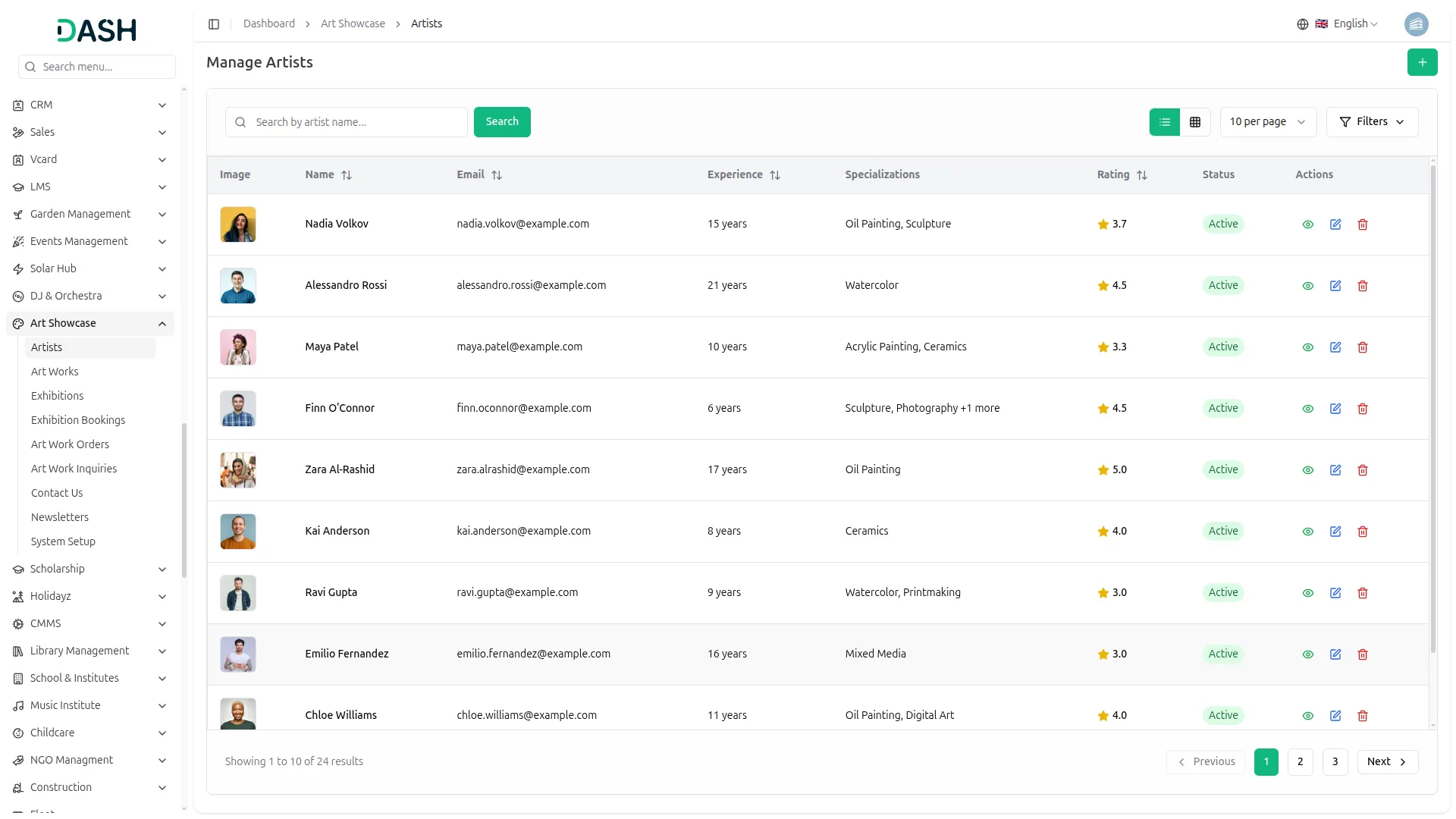
- The list page displays a table of columns including the artist’s Image, Name, Email, Experience, Specializations, Rating, Status, and Actions. Use the search bar to find a specific artist by name. The page also allows you to toggle between list view and grid view.
- Click the Filters button to apply filtering options, including selecting a Specialization from the dropdown and filtering by Status. Click the Apply button to filter the data or the Clear button to reset it.
- In the Actions column, you can use the view to see the full artist details, the edit to update the artist’s information, or the delete to permanently remove the artist from the system.
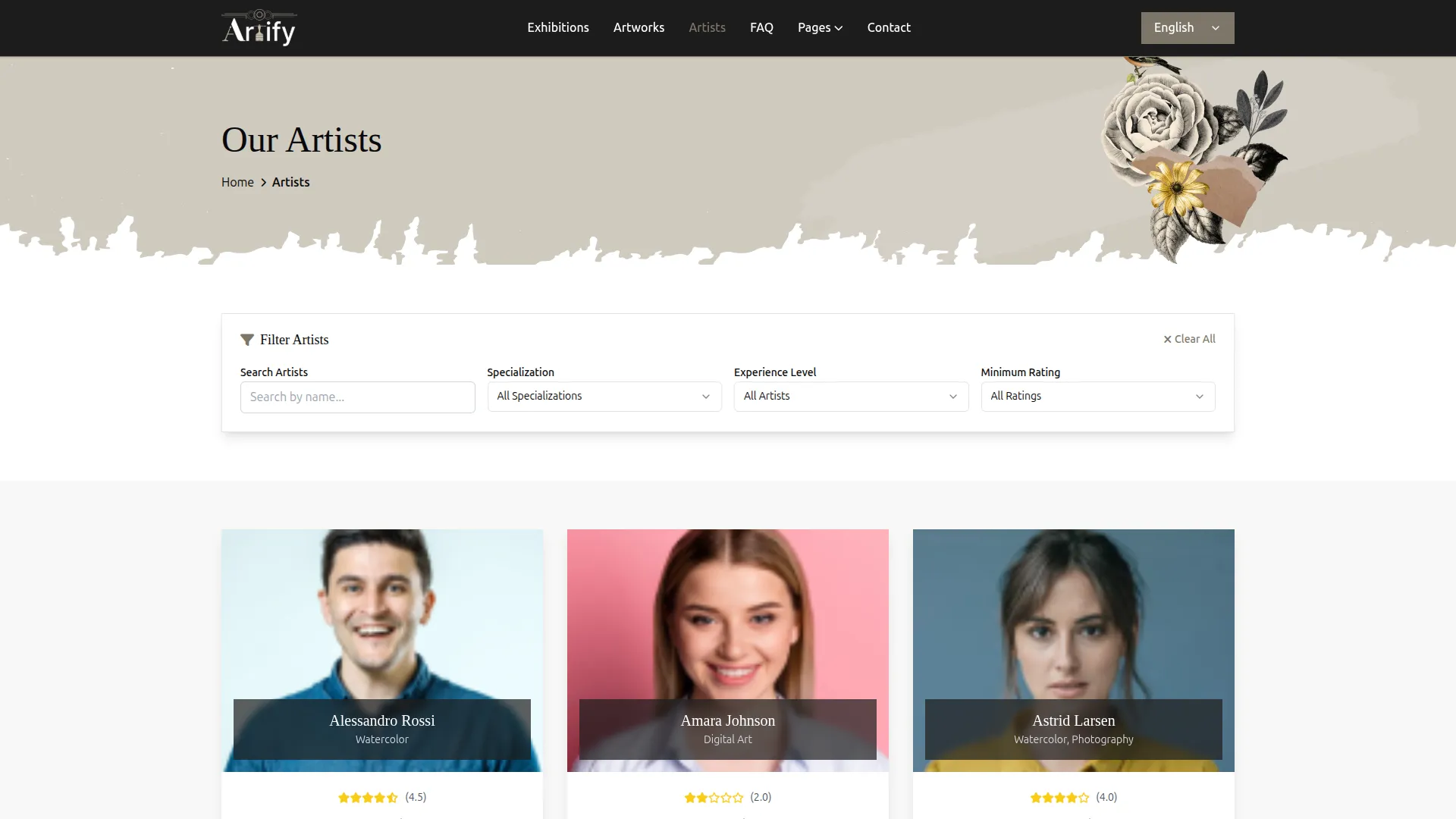
- When you set an artist’s status to Active in the backend, their card automatically appears on the Our Artists page of the website for visitors to see.
- The Profile Image you upload in the backend displays as the artist’s photo on their card. The Name you enter appears as the card heading, and the Specializations you select appear as tags directly below the name.
- The Awards Count you enter in the backend displays on the artist card as the total number of awards. The star rating shown on the card is automatically calculated from the customer reviews submitted on the frontend.
- The Biography you write in the backend appears as the short descriptive text on the artist card, giving visitors a quick introduction to the artist’s work and style.
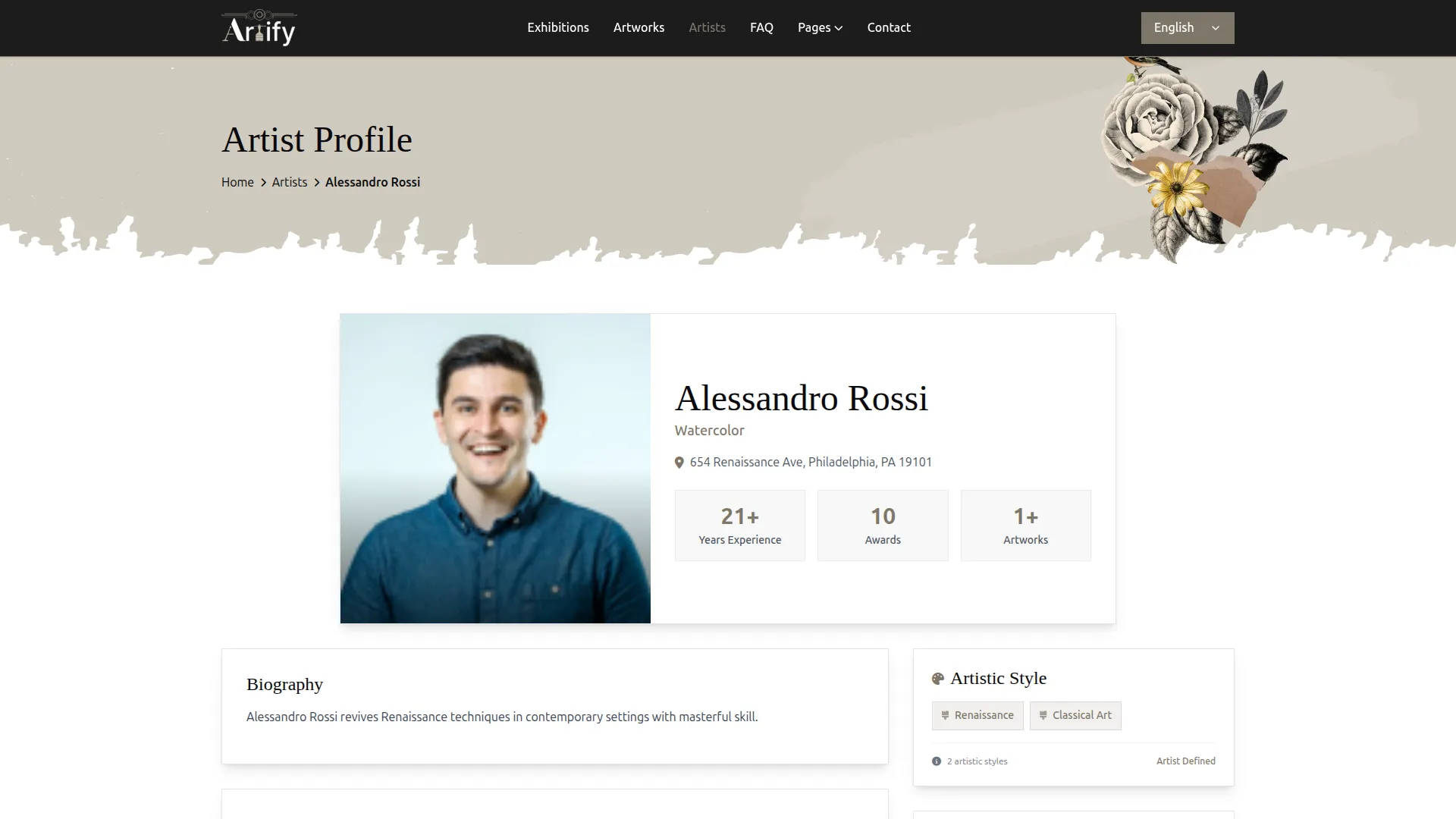
- When a visitor clicks View Portfolio, they land on the artist’s full profile page. The Profile Image, Name, Specializations, and Address you entered in the backend all display at the top of this page.
- The Experience (Years) you entered appears as the Years of Experience counter, the Awards Count appears as the Awards counter, and the total number of artworks linked to this artist automatically appears as the Artworks counter.
- The full Biography text you wrote in the backend displays in the Biography section of the profile page.
- The Artistic Styles you added using the Add Artistic Style button appear as style tags in the Artistic Style panel on the right side of the profile page.
- The Email and Contact Number you entered in the backend appear in the Contact panel on the right side, showing visitors how to reach the artist directly.
- The Artist Rating & Reviews section displays the artist’s overall Average Rating as a star rating out of 5, along with the total number of reviews submitted.
- To write a review, click the Write A Review button. Select your Rating by clicking the desired number of stars, then enter your Name and Email. Optionally, provide a Phone Number. Write your feedback in the Your Review field (up to 1,000 characters), then click Submit Review to publish, or Cancel to discard.
- Once a visitor submits a review, it is displayed in the Customer Reviews panel below the rating form. Each review entry shows the reviewer’s avatar initial, name, email, review date, star rating, and written feedback, giving visitors a clear view of the artist’s community reception.
- All Artworks linked to this artist in the backend are automatically displayed under the Artist Portfolio section on their profile page. If no artworks have been added yet, a “No Artworks Available” message is shown instead.
- All Exhibitions linked to this artist are automatically displayed under the Artist Exhibitions section, separated into Past Exhibitions, Live Exhibitions, and Upcoming Exhibitions, with each entry showing the exhibition name, location, dates, curator, and description.
Manage Art Works
- To add a new artwork, click the “Create” button on the Manage Art Works page. Enter the artwork Name and select the Artist from the dropdown (which comes from Manage Artists). Select the Art Work Medium and Art Work Type from their respective dropdowns (configured from System Setup → Art Work Mediums and Art Work Types).
- Enter the Dimensions and Price, set the Status, and upload a Thumbnail Image by clicking the Browse button. You can also add Multiple Images using the Add Image button, and write a Description of the artwork. Click Create to save.
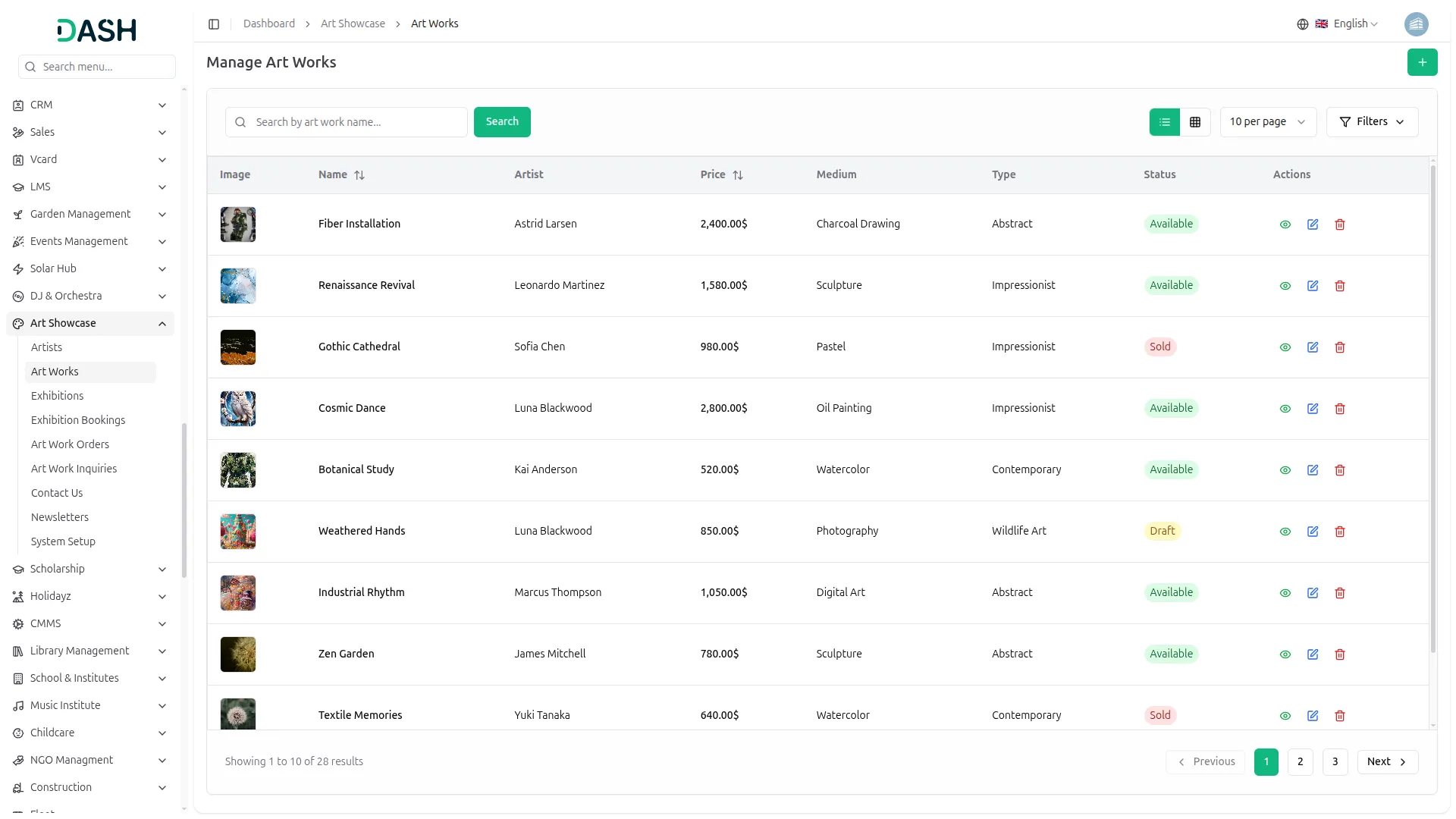
- The list page displays a table of columns including the artwork’s Image, Name, Artist, Price, Medium, Type, Status, and Actions. Use the search bar to find a specific artwork by name. The page also allows you to toggle between list view and grid view.
- Click the Filters button to apply filtering options, including filtering by Artist, Medium, Type, and Status. Click Apply to filter the data or Clear to reset it.
- In the Actions column, you can use the view to see the full artwork details, the edit to update the artwork’s information, or the delete to permanently remove it from the system.
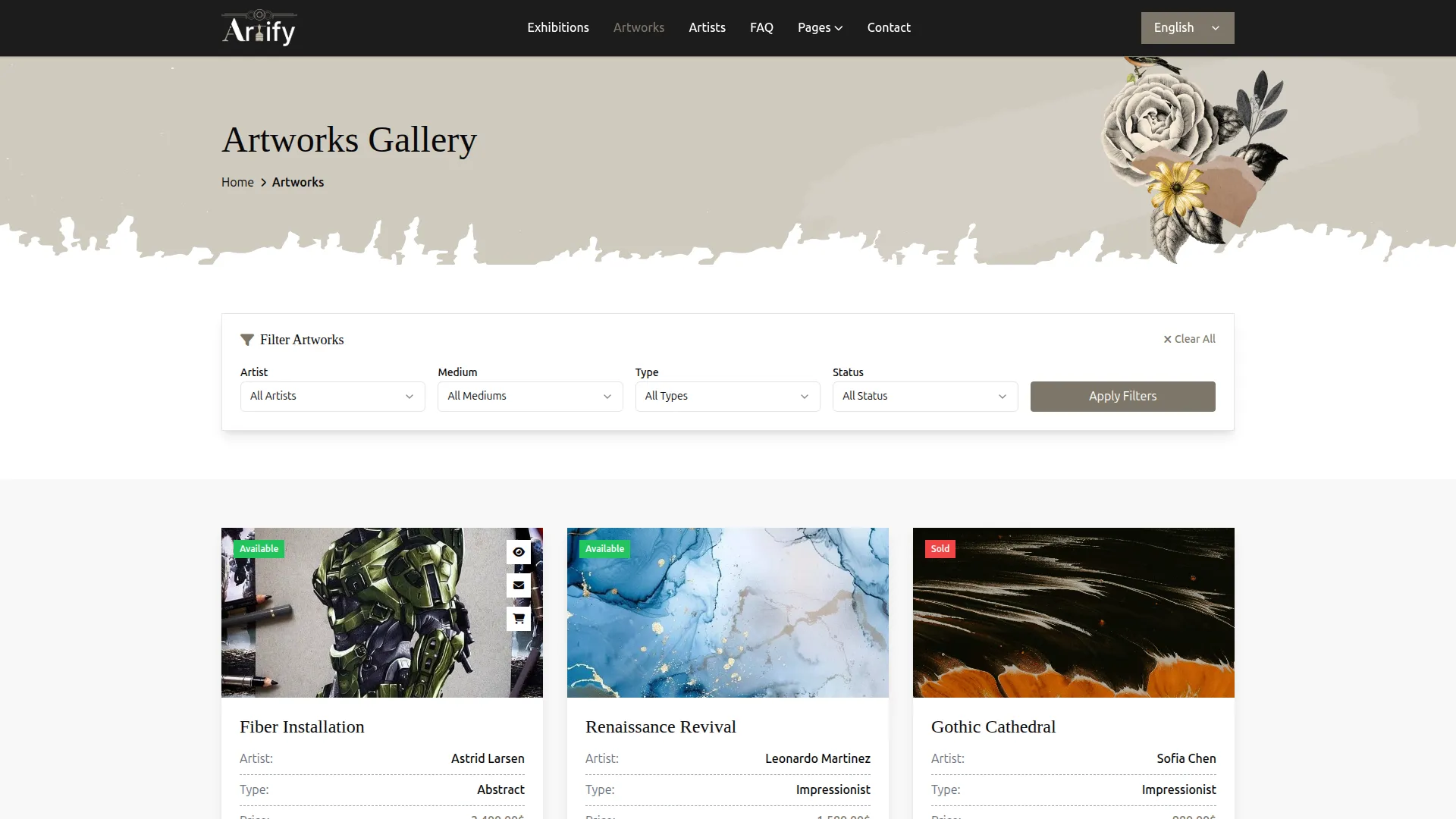
- When an artwork’s status is set to Available in the backend, it automatically appears on the Artworks Gallery page of the website with an Available badge on the artwork image. When the status is set to Sold, a Sold badge appears on the image instead, so website visitors can instantly see which pieces are still available for purchase.
- The Thumbnail Image uploaded in the backend displays as the artwork’s main photo on the website gallery card. The Name appears as the artwork title, the linked Artist name appears below the title, the Type appears as the artwork category, and the Price is displayed at the bottom of the card, all visible to website visitors browsing the gallery.
- Website visitors can use the Filter Artworks panel at the top of the Artworks Gallery page to filter by Artist, Medium, Type, and Status to find specific artworks easily.
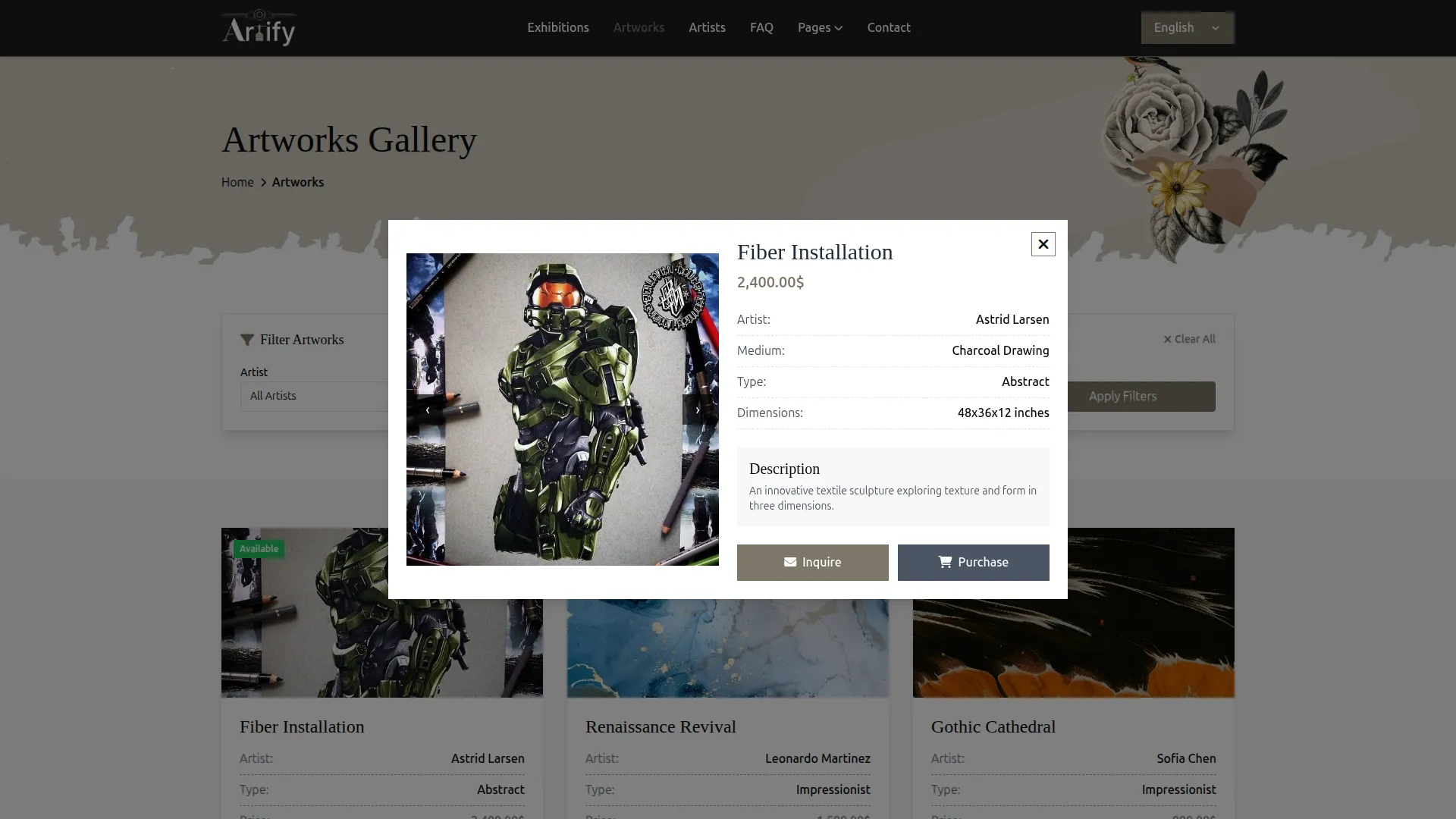
- When a website visitor hovers over any artwork card, three icons appear on the image: a view to open the full artwork detail popup, an email to open the Artwork Inquiry form, and a cart to open the Purchase Artwork form.
- When a website visitor clicks the view icon on any artwork card, a detail pop-up opens on the website displaying all the Multiple Images uploaded in the backend as a scrollable image gallery on the left side. On the right side, the artwork’s Name, Price, Artist name, Medium, Type, Dimensions, and Description are displayed exactly as entered in the backend.
- At the bottom of the pop-up, the website shows two buttons, Inquire and Purchase, for artworks with an Available status. For artworks with a Sold status, only the Inquire button is shown on the website, and the Purchase button is automatically hidden so visitors cannot attempt to buy a sold piece.
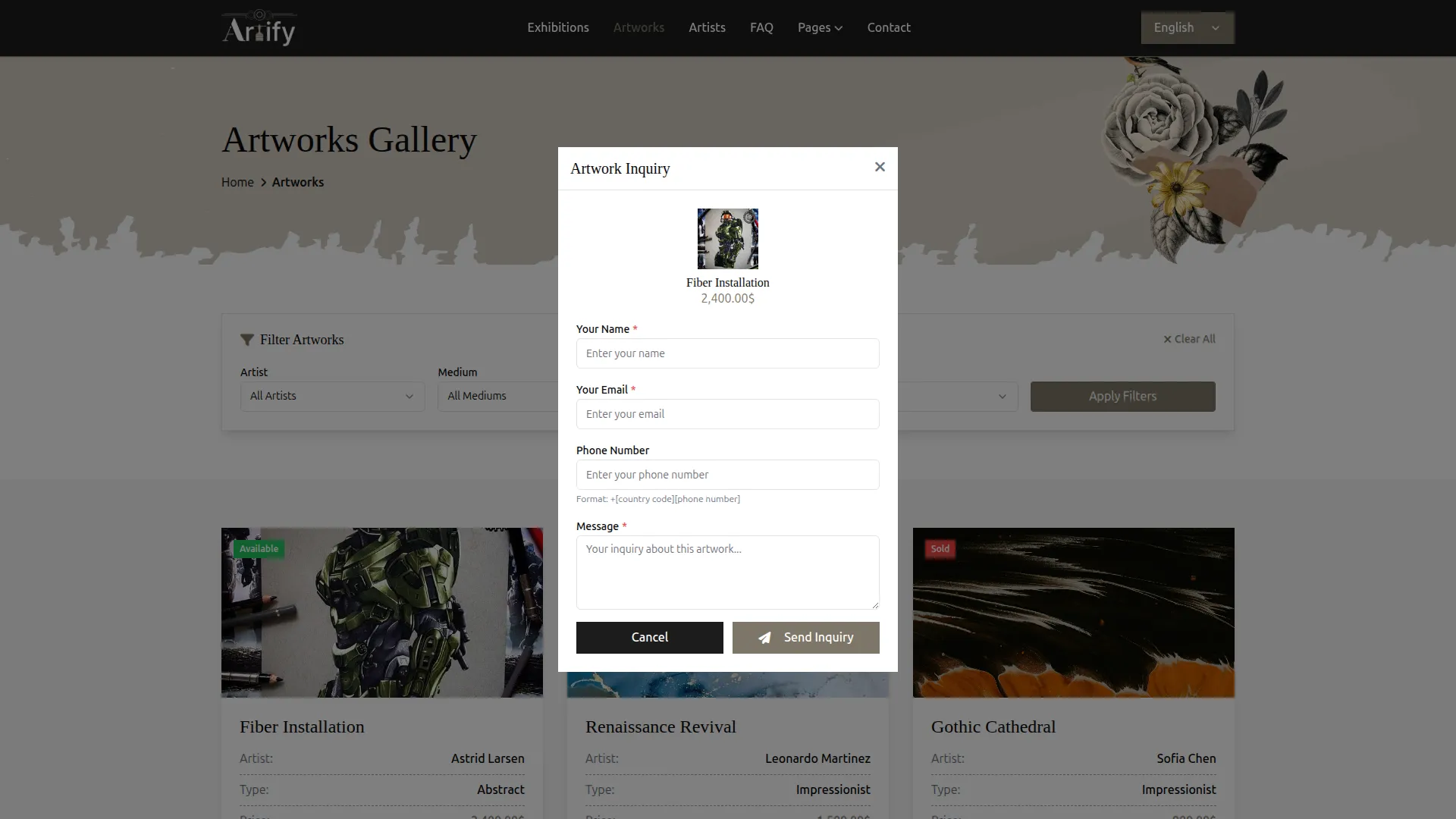
- When a website visitor clicks the Inquire button on any artwork, an Artwork Inquiry pop-up appears on the website showing the artwork’s thumbnail, name, and price at the top. The visitor can fill in their Name, Email, Phone Number, and Message, then click Send Inquiry to send their interest directly to the gallery.
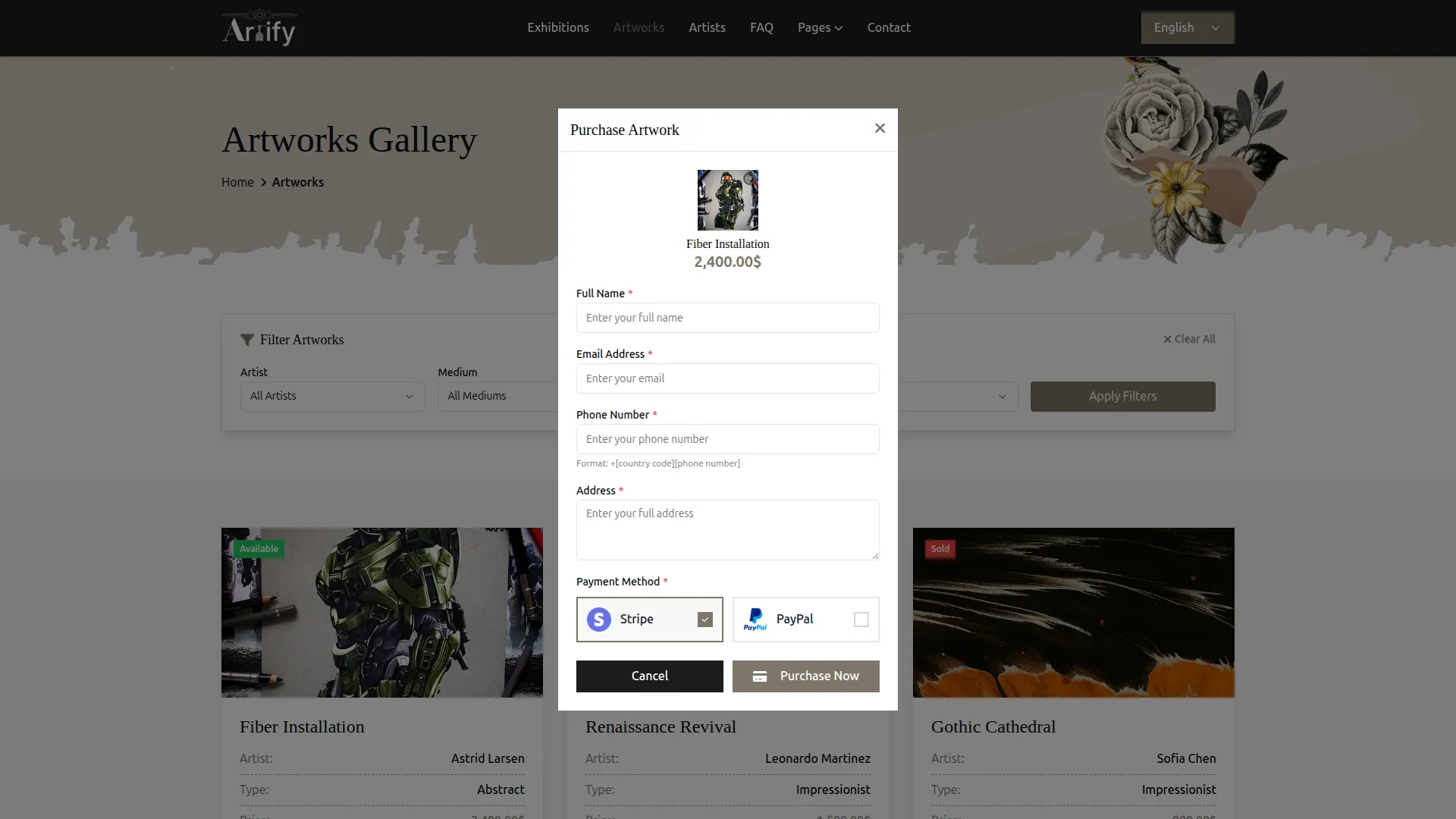
- When a website visitor clicks the Purchase button on an available artwork, a Purchase Artwork pop-up appears on the website showing the artwork’s thumbnail, name, and price. The visitor fills in their Full Name, Email Address, Phone Number, and Address, then selects a Payment Method, either Stripe or PayPal, and clicks Purchase Now to complete the transaction.
Manage Art Exhibitions
- To add a new exhibition, click the “Create” button on the Manage Art Exhibitions page. Enter the Exhibition Title and Location, set the Status (Upcoming, Live, or Completed), and select the Start Date and End Date.
- Toggle the Featured Exhibition option on if you want it to be highlighted on the website. Upload a Main Image using the Browse button, select the Artworks to associate with this exhibition from the dropdown, and write a Description.
- In the Curator Information section, enter the curator’s Name, Email, Contact Number, Designation, Degree, Experience, and upload a Curator Profile Image. In the Essential Information section, enter the Opening Hours, Accessibility details, Featured Artworks, and Featured Artists.
- In the Pricing Information section, enter the ticket prices for Adults, Children, Students/Seniors, and Members. You can also add exhibition photos using the Add Exhibition Image button. Click Create to save.
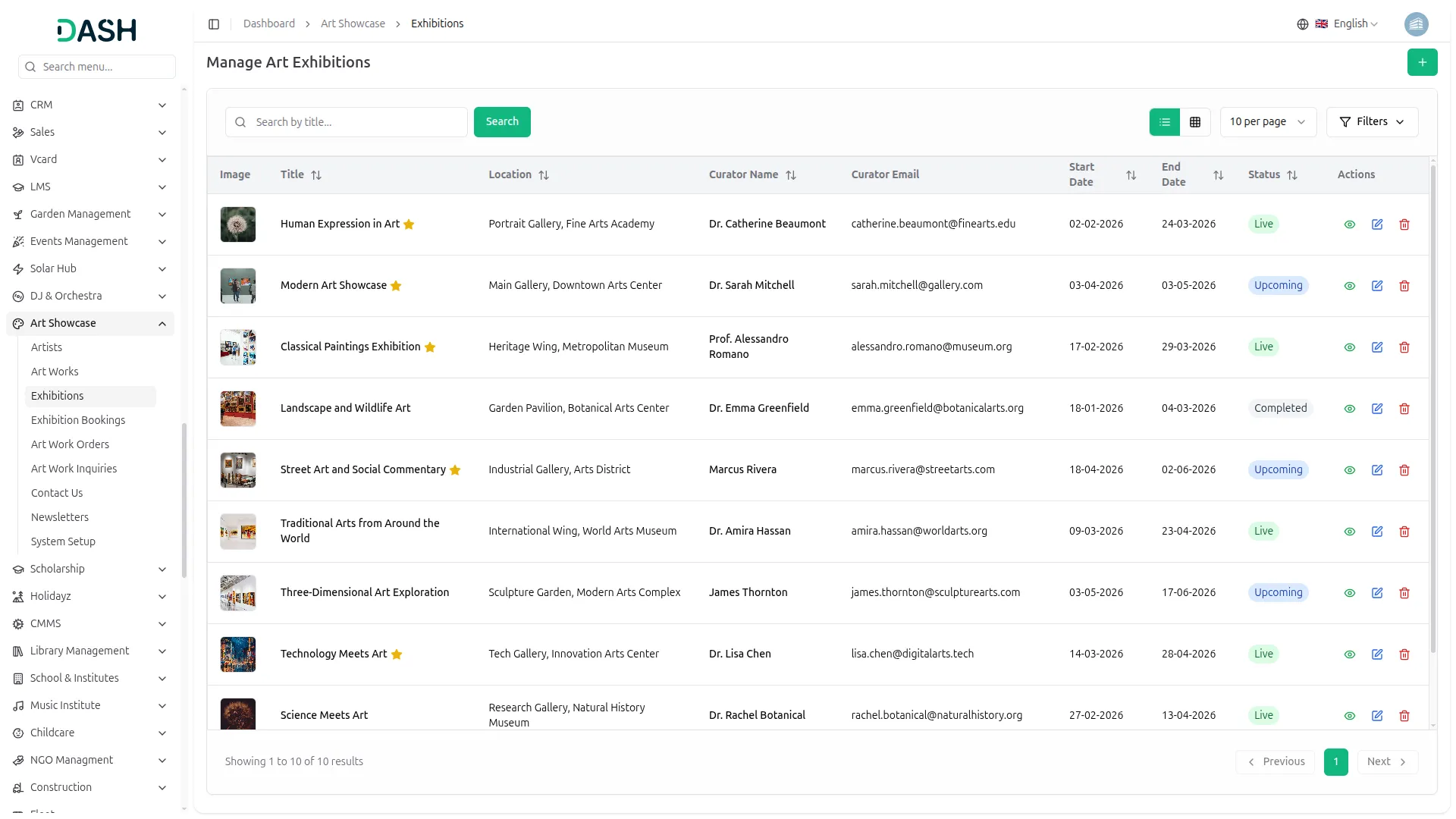
- The list page displays a table of columns including the exhibition’s Image, Title, Location, Curator Name, Curator Email, Start Date, End Date, Status, and Actions. Use the search bar to find a specific exhibition by title. The page also allows you to toggle between list view and grid view.
- Click the Filters button to apply filtering options, including filtering by Status and Artwork. Click Apply to filter the data or Clear to reset it.
- In the Actions column, you can use the view button to see the full exhibition details, the edit button to update the exhibition’s information, or the delete button to permanently remove it from the system.
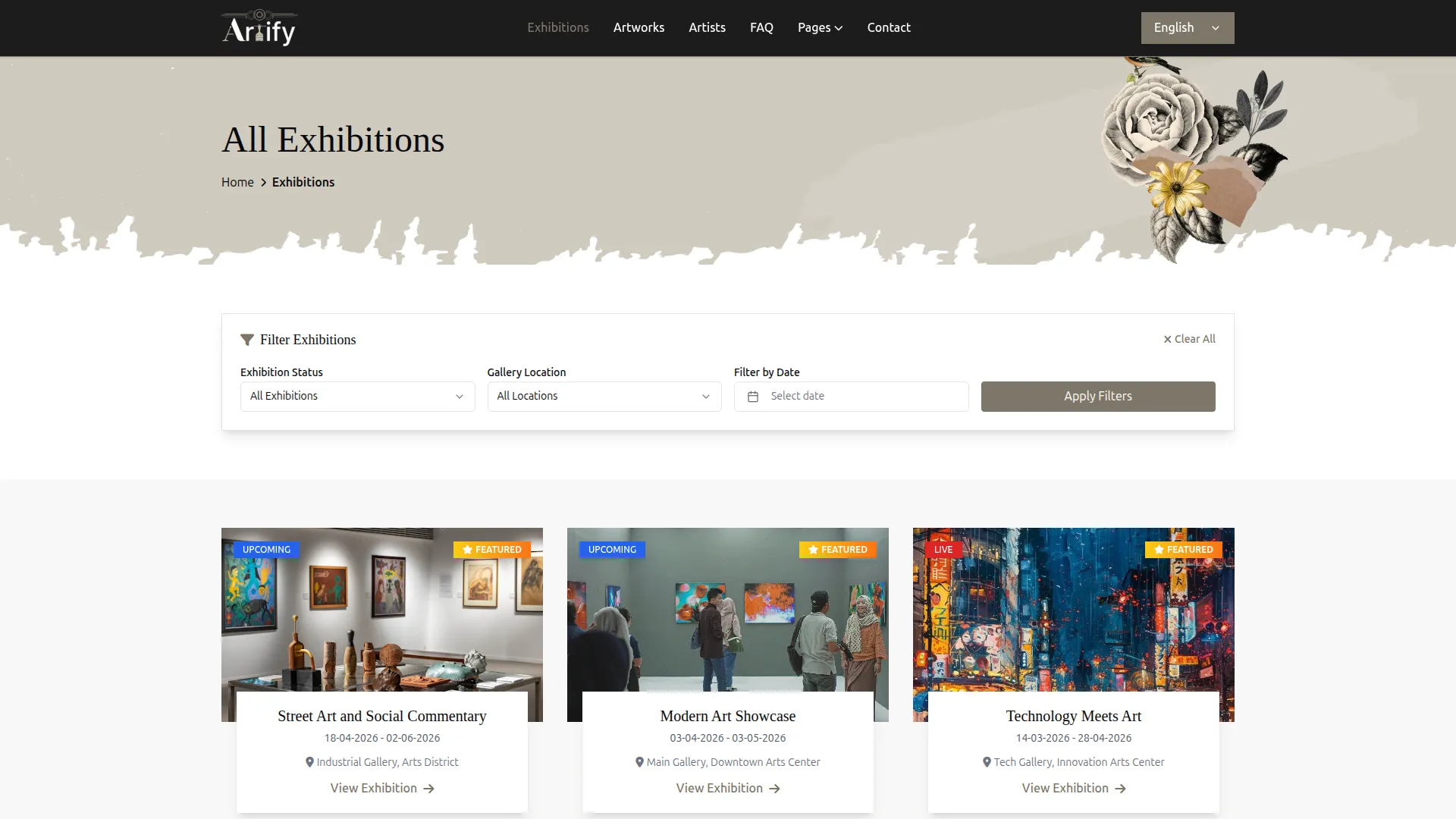
- The website displays an All Exhibitions page where visitors can browse all available exhibitions. Each exhibition card shows the Main Image, Exhibition Title, Start and End Dates, and Location as entered in the backend.
- A status badge appears on each card showing whether the exhibition is Upcoming, Live, or Completed, and if the Featured Exhibition toggle is enabled in the backend, a Featured badge also appears on the card.
- Visitors can use the Filter Exhibitions panel at the top of the page to filter by Exhibition Status, Gallery Location, and Date, then click Apply Filters to narrow down results. Visitors click View Exhibition to open the full exhibition details page.
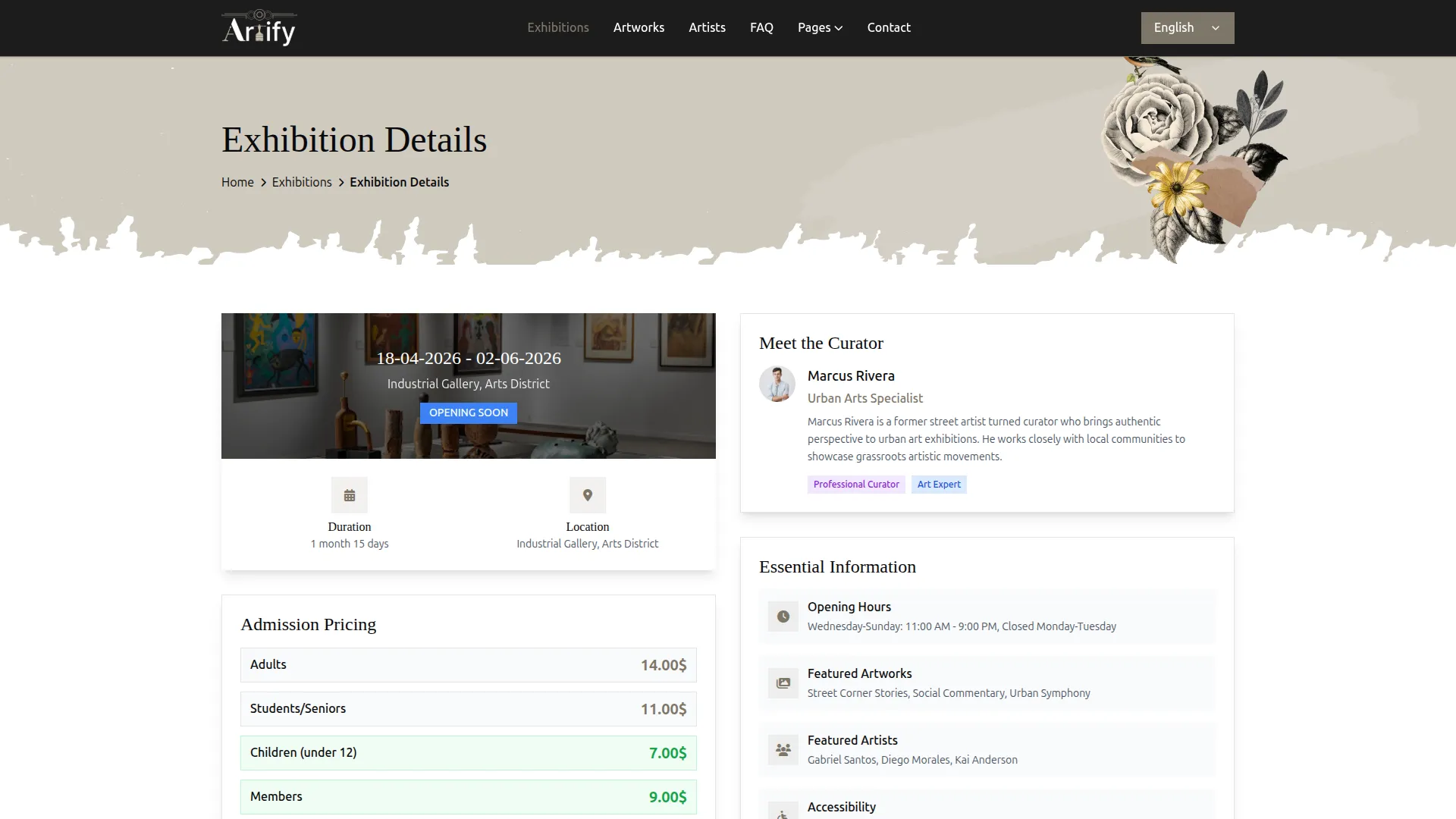
- When a website visitor clicks View Exhibition, they are taken to the full Exhibition Details page. The Main Image, Start and End Dates, Location, Duration, and current Status are all displayed at the top of the page exactly as entered in the backend.
- The Admission Pricing section on the website displays the Adults, Students/Seniors, Children, and Members ticket prices you entered in the backend, along with a Book Visit button for visitors to make a booking.
- The Meet the Curator section displays the curator’s Profile Image, Name, Designation, and Experience description you entered in the backend.
- The Essential Information section on the website displays the Opening Hours, Featured Artworks, Featured Artists, and Accessibility details exactly as entered in the backend.
- All images uploaded using the Add Exhibition Image button in the backend are displayed in the Exhibition Gallery section on the website, giving visitors a visual preview of the exhibition space.
- All Artworks selected in the backend are displayed in the Associated Artworks section on the website, showing each artwork’s image, artist name, type, and price.
- All Featured Artists entered in the backend appear in the Featured Artists section at the bottom of the exhibition detail page, displaying their photo, name, specialization, experience, rating, and a View Portfolio button.
Exhibition Bookings
- To add a new booking, click the “Create” button on the Manage Exhibition Bookings page. Enter the Visitor Name and Visitor Email, enter the Visitor Phone, and select the Visit Date.
- Select the Exhibition from the dropdown (which comes from Manage Art Exhibitions), set the Status as Pending, Booked, Attended, or Cancelled, select the Group Size, and add any additional Notes. Click Create to save the booking.
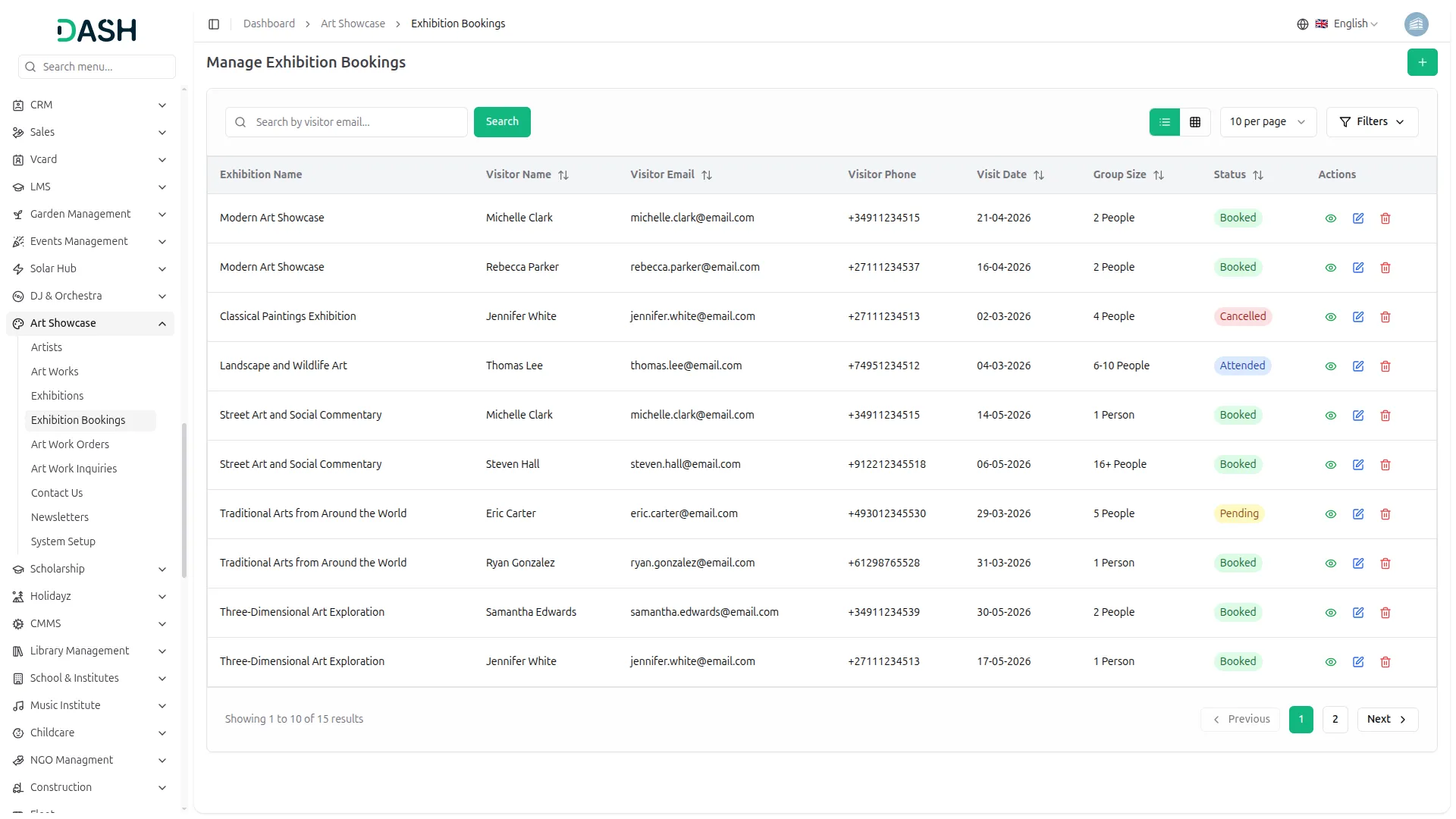
- The list page displays a table of columns including the Exhibition Name, Visitor Name, Visitor Email, Visitor Phone, Visit Date, Group Size, Status, and Actions. Use the search bar to find a specific booking by visitor email. The page also allows you to toggle between list view and grid view.
- Click the Filters button to apply filtering options, including filtering by Exhibition, Status, and Visit Date Range. Click Apply to filter the data or Clear to reset it.
- In the Actions column, you can use the view button to see the full booking details, the edit button to update the booking information, or the delete button to permanently remove the booking from the system.
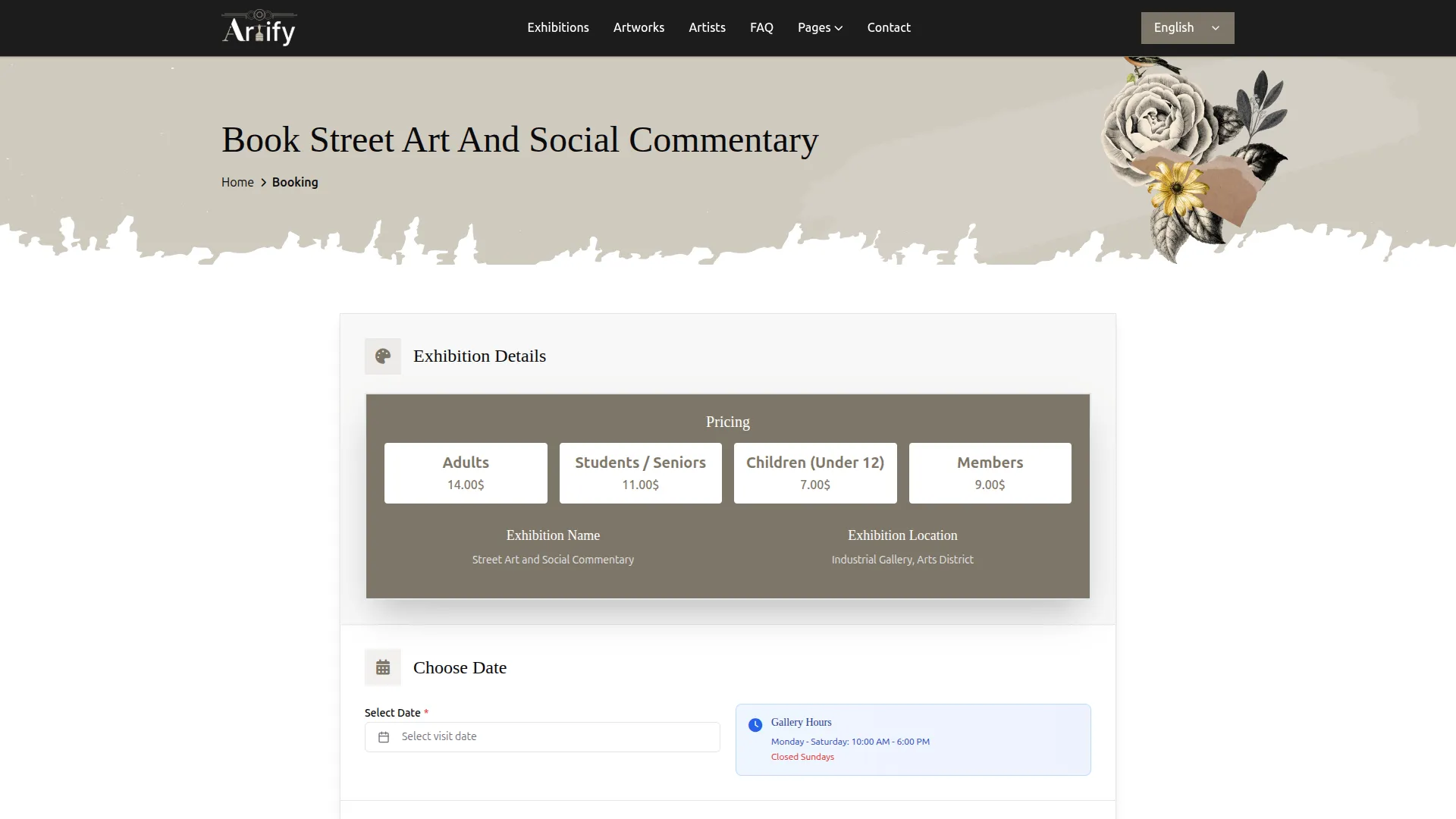
- The website displays a Book page when a visitor clicks the Book Visit button on any Exhibition Details page. The page is divided into four clear sections. In the Exhibition Details section, the visitor can see the Pricing for Adults, Students/Seniors, Children, and Members as entered in the backend, along with the Exhibition Name and Exhibition Location.
- In the Choose Date section, the visitor selects their Visit Date from the date picker. The Gallery Hours are also displayed on this section, showing the working days and times as configured in the backend, so visitors know when the gallery is open before selecting their date.
- In the Personal Information section, the visitor fills in their Full Name, Email Address, Phone Number, and Group Size to complete their booking details.
- In the Additional Information section, the visitor can enter any special requirements, accessibility needs, or questions in the text box. The visitor then agrees to the Terms and Conditions and Privacy Policy and clicks Confirm Booking to submit. A confirmation email is sent to the visitor within 24 hours.
- At the bottom of the page, the website also displays the Plan Your Visit section, showing the Gallery Hours, Location & Parking, and Contact Information as entered in the Essential Information section of the backend (which is configured from System Setup → Essential Information), helping visitors plan their trip to the gallery.
Art Work Orders
- To add a new order manually, click the “Create” button on the Manage Art Work Orders page. Enter the Customer Full Name and Customer Email, and enter the Contact Number.
- Select the Art Work from the dropdown (which comes from Manage Art Works). Select the Bank Account, set the Payment Status as Paid or Unpaid, and enter the customer’s Address. Click Create to save the order.
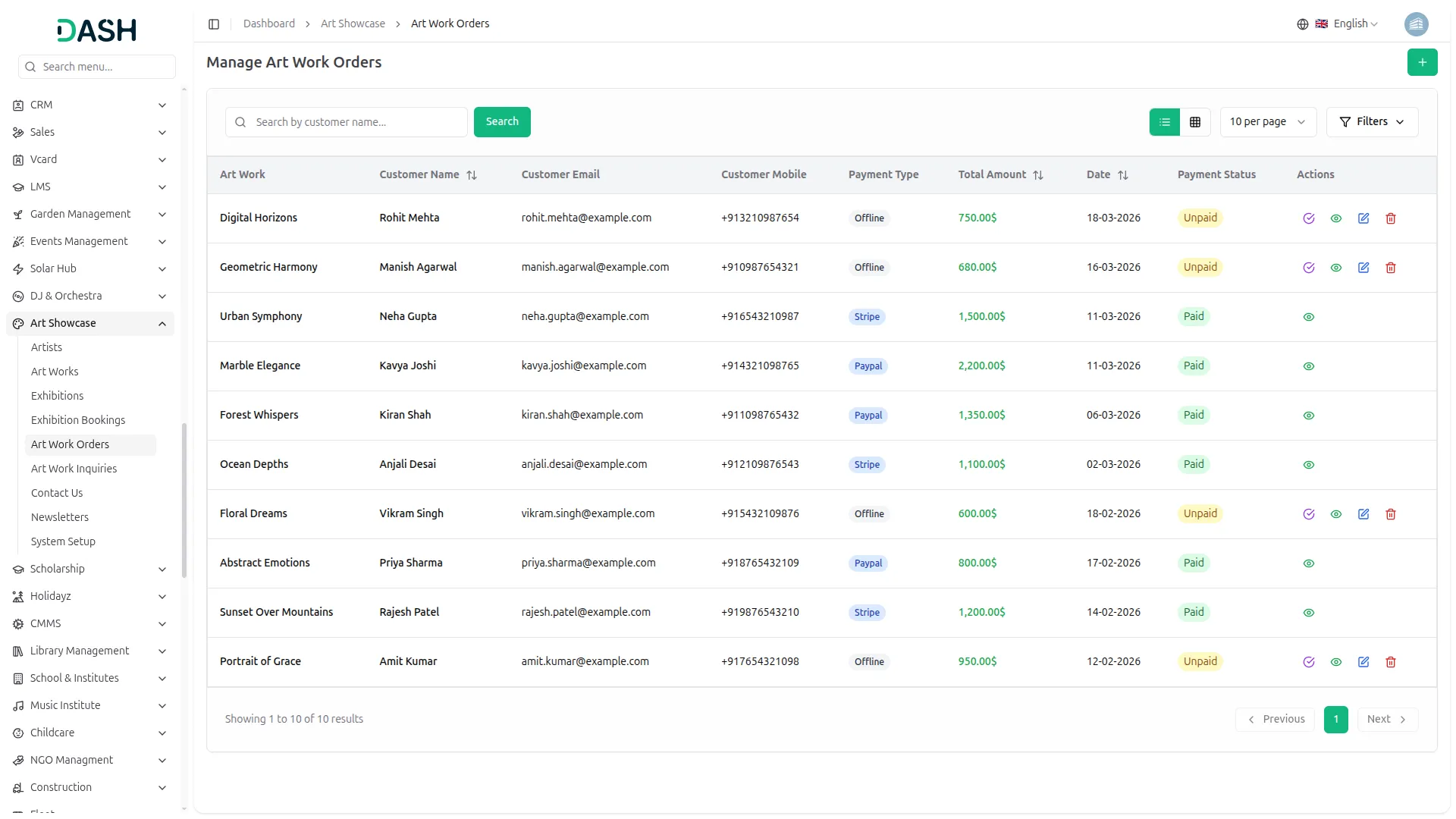
- The list page displays a table of columns including the Art Work, Customer Name, Customer Email, Customer Mobile, Payment Type, Total Amount, Date, Payment Status, and Actions. Use the search bar to find a specific order by customer name. The page also allows you to toggle between list view and grid view.
- Click the Filters button to apply filtering options, including filtering by Art Work and Payment Status. Click Apply to filter the data or Clear to reset it.
- In the Actions column, for Unpaid orders, you can use the Mark as Paid button to update the payment status, the view button to see the full order details, the edit button to update the order information, or the delete button to permanently remove the order from the system. For paid orders, only the view button is available as the order is already completed and cannot be edited or deleted.
- The website automatically creates a new order in the Manage Art Work Orders list every time a visitor completes a purchase on the website. The order is recorded with the customer’s Full Name, Email, Phone Number, Address, selected Artwork, Payment Type (Stripe or PayPal), Total Amount, Date, and Payment Status, which is automatically set to paid for successful online payments.
- For orders added manually by the admin with an Offline payment type, the Payment Status can be updated to Paid using the Mark as Paid option in the Actions column.
Art Work Inquiry
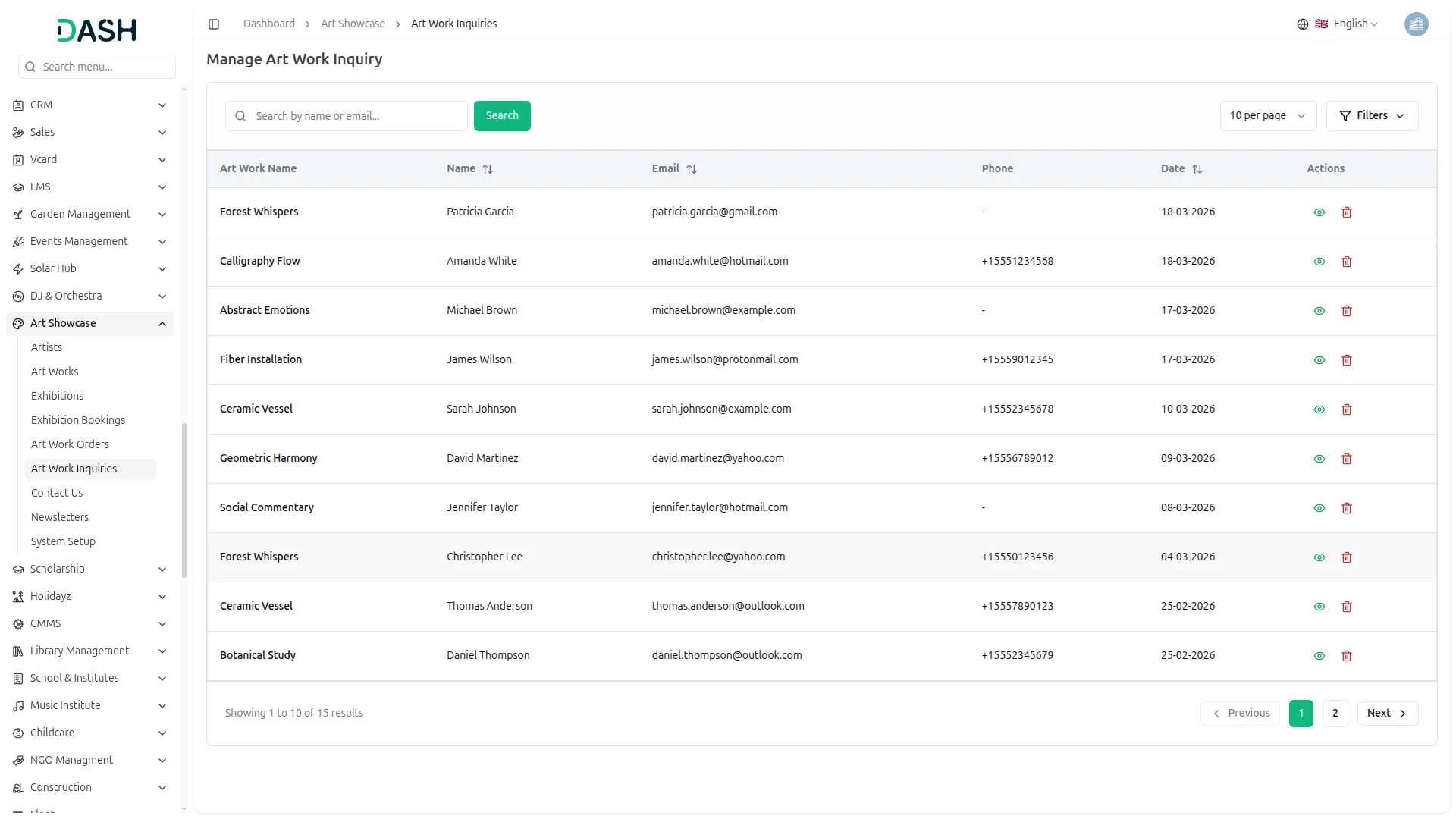
- The list page displays a table of all artwork inquiries submitted by visitors on the website, with columns including the Art Work Name, Name, Email, Phone, Date, and Actions. Use the search bar to find a specific inquiry by name or email.
- Click the Filters button to apply filtering options, including filtering by Art Work. Click Apply to filter the data or Clear to reset it.
- In the Actions column, you can use the view button to see the full inquiry details or the delete button to permanently remove the inquiry from the system.
- The website automatically records a new entry in the Manage Art Work Inquiry list every time a visitor submits an inquiry on the Artworks Gallery page. When a visitor clicks the Inquire button on any artwork card, an Artwork Inquiry form appears where they fill in their Name, Email, Phone Number, and Message, then click Send Inquiry to submit.
- Once submitted, the inquiry is instantly recorded in the backend with the Art Work Name, visitor’s Name, Email, Phone, and Date, allowing the admin to review and follow up with interested visitors directly.
Manage Contact Us
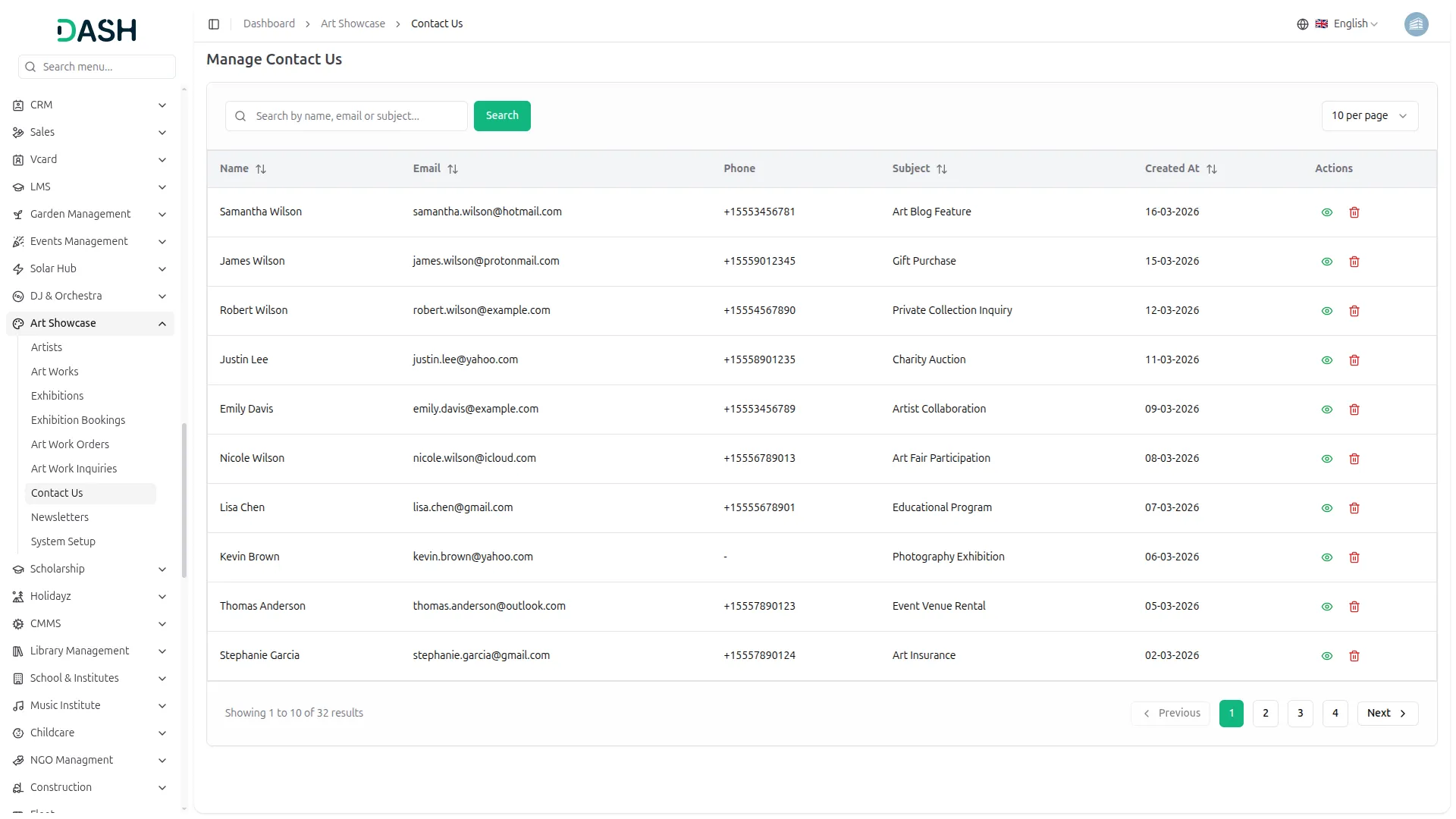
- The list page displays a table of all messages submitted by visitors on the website’s Contact Us page, with columns including Name, Email, Phone, Subject, Created At, and Actions. Use the search bar to find a specific message by name, email, or subject.
- In the Actions column, you can use the view button to read the full message details or the delete button to permanently remove the message from the system.
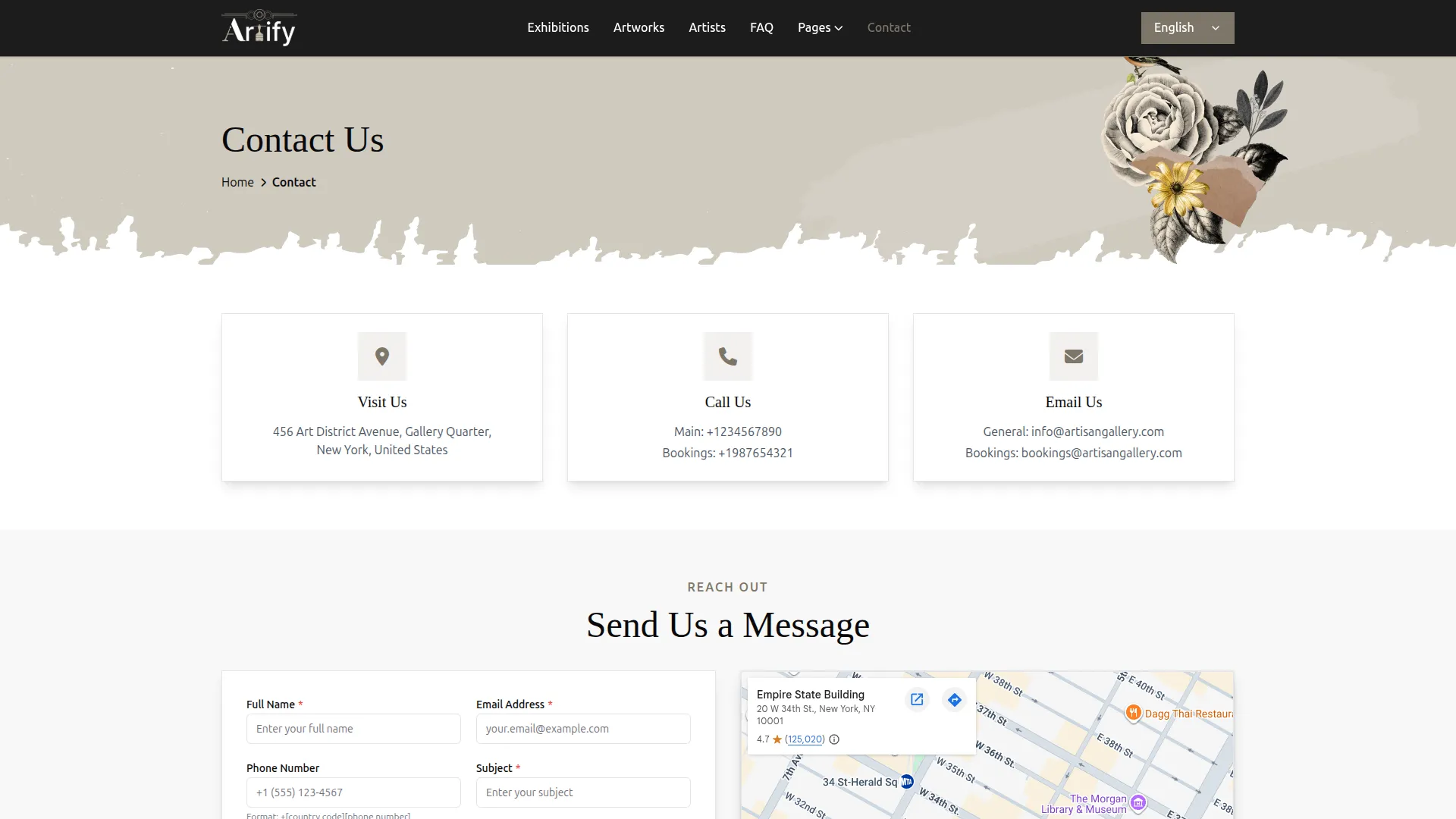
- The website displays a Contact Us page where visitors can find all the gallery’s contact details and send a message directly. At the top of the page, visitors can see three contact cards: the Visit Us card showing the gallery Address, the Call Us card showing the Main Number and Bookings Number, and the Email Us card showing the General Email and Bookings Email, all as entered in the backend under System Setup → Contact Us.
- In the Send Us a Message section, the visitor fills in their Full Name, Email Address, Phone Number, Subject, and Message, then clicks Send Message to submit. Next to the form, the website displays an interactive Google Map showing the gallery’s exact location as configured in the backend using the Google Maps embed code.
- Once a visitor submits the form, their message is automatically recorded in the Manage Contact Us list in the backend, allowing the admin to review and respond to each inquiry.
Manage Newsletter
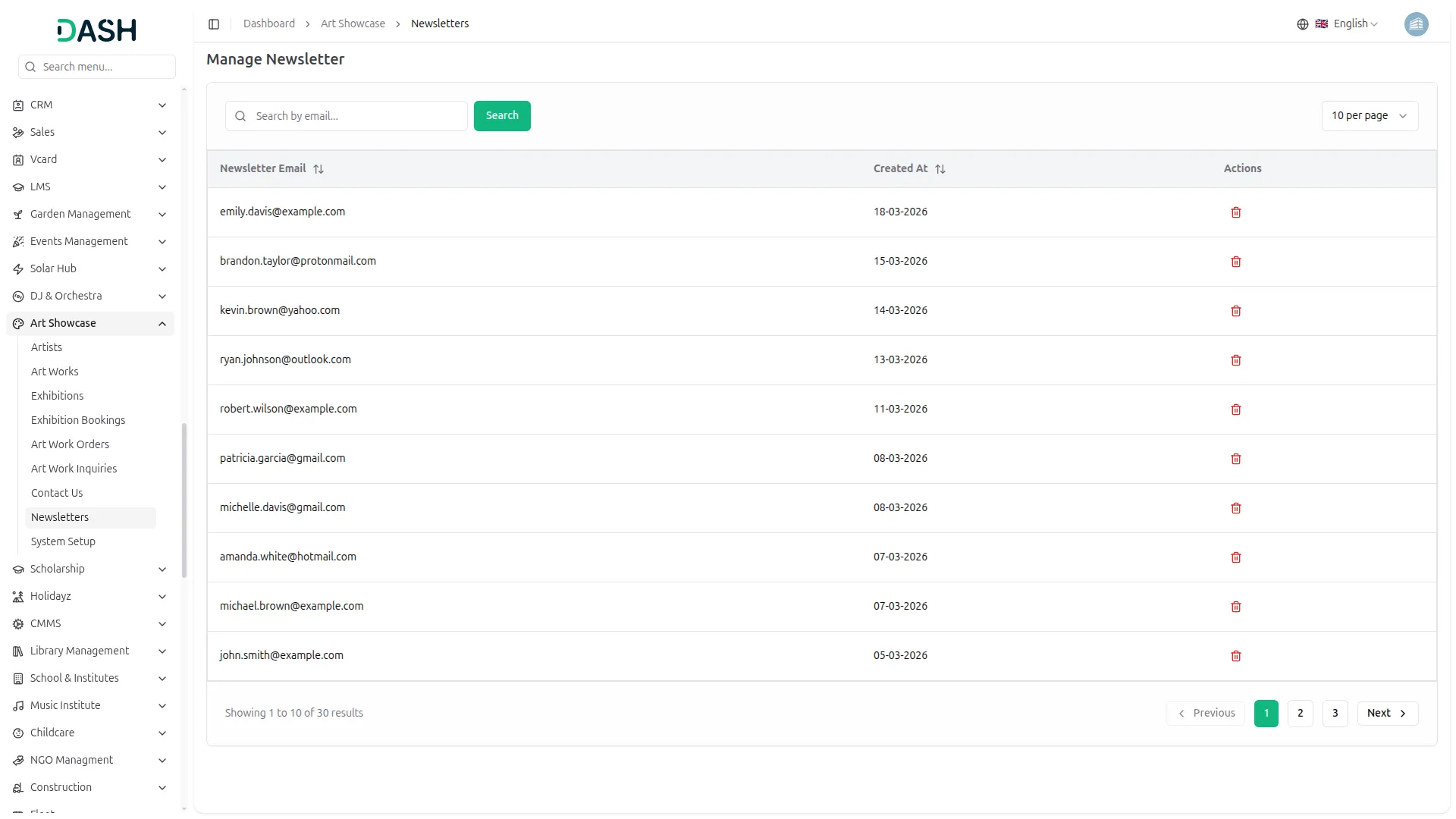
- The list page displays a table of all email addresses subscribed to the gallery’s newsletter, with columns including the Newsletter Email, Created At, and Actions. Use the search bar to find a specific subscriber by email.
- In the Actions column, you can use the delete button to permanently remove a subscriber from the newsletter list.
- The website displays a newsletter subscription field in the footer across all pages of the website. When a visitor enters their email address and clicks the submit button, their email is automatically recorded in the Manage Newsletter list in the backend with the subscription date, allowing the admin to keep track of all subscribers who wish to stay updated about new exhibitions, artworks, and gallery news.
Categories
Related articles
- Microsoft To Do Integration in Dash SaaS
- Warranty Add-On Detailed Documentation
- Office Equipment Management Detailed Documentation
- Launching Your Own SaaS Business with BookingGo SaaS
- Social Media Analytics Detailed Documentation
- WhatsApp Twilio Integration Dash SaaS
- Bookings Integration in Dash SaaS
- How to Generate Credentials in Zoho
- SMS – eCommerceGo Addon
- Cleaning Management Integration in Dash SaaS
- How to Generate Content with the Help of AI in Dash SaaS
- Sign-In with BitBucket – eCommerceGo Addon
Reach Out to Us
Have questions or need assistance? We're here to help! Reach out to our team for support, inquiries, or feedback. Your needs are important to us, and we’re ready to assist you!


Need more help?
If you’re still uncertain or need professional guidance, don’t hesitate to contact us. You can contact us via email or submit a ticket with a description of your issue. Our team of experts is always available to help you with any questions. Rest assured that we’ll respond to your inquiry promptly.
Love what you see?
Do you like the quality of our products, themes, and applications, or perhaps the design of our website caught your eye? You can have similarly outstanding designs for your website or apps. Contact us, and we’ll bring your ideas to life.