
eBook – WorkDo Dash SaaS Add-On Guide
Learn how to create and manage eBooks in WorkDo Dash SaaS easily.
Introduction
The eBook Management Add-On is a complete digital bookstore solution that lets you manage your entire eBook platform from one powerful backend. From the admin dashboard, you can configure your store’s branding, manage categories, authors, books, blog posts, orders, readers, and subscribers, with every change instantly reflected on the frontend website. Visitors can browse and filter eBooks, read sample previews, save books to their wishlist, purchase securely via Stripe or PayPal, and instantly download their eBooks. Readers can register, manage their profile, track purchases, and submit reviews, while you maintain full control over all platform activity from a single centralized dashboard.
How to Install the Add-On?
To Set Up the eBook Add-On, you can follow this link: Setup Add-On.
How to use the eBook Add-On?
Ebook Dashboard
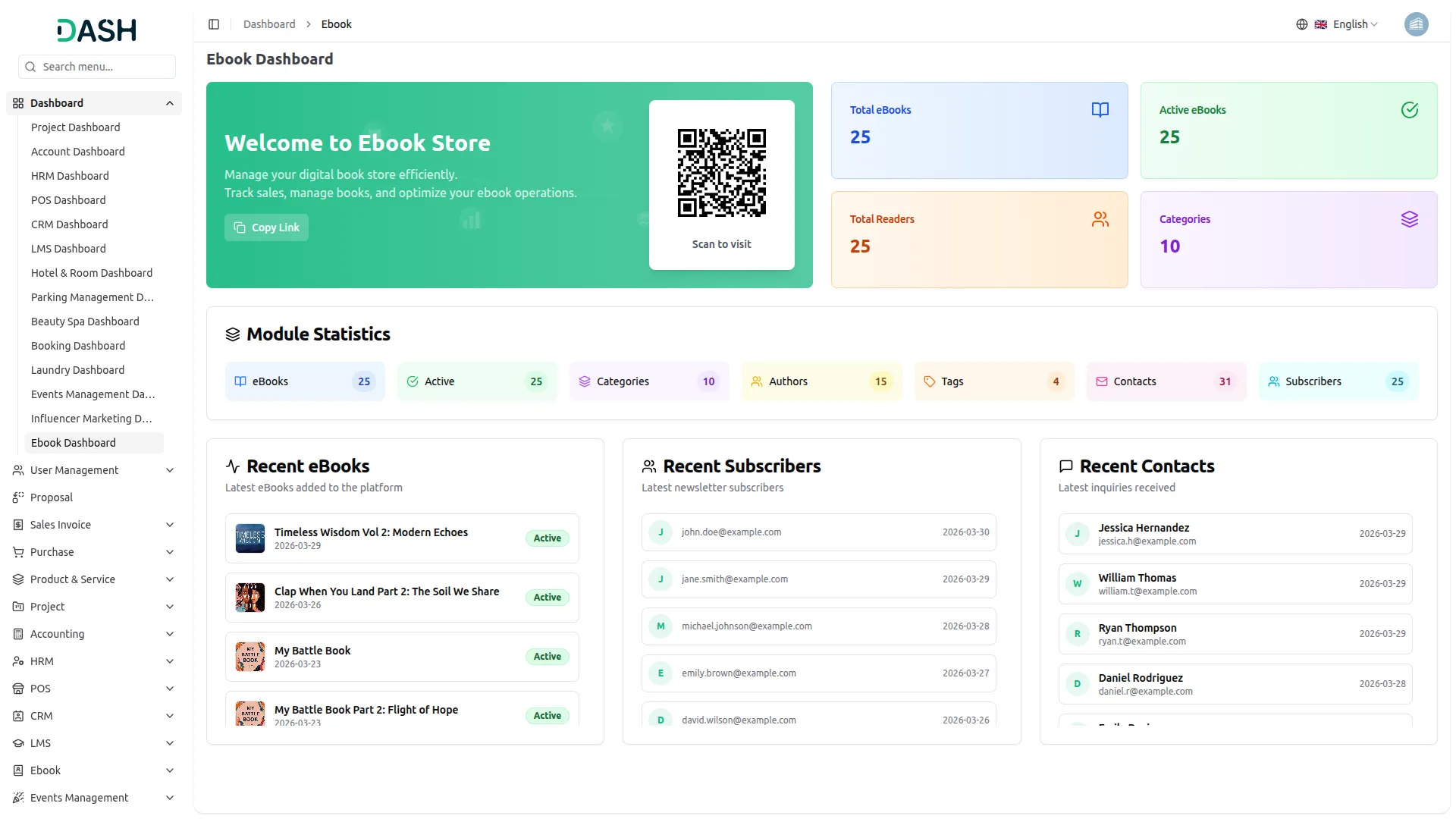
- The dashboard provides a complete overview of your eBook store’s operations and performance through various visual elements and quick access features.
- At the top, you will find a QR Code that visitors can scan to directly access the eBook store on the frontend, along with a Copy Link button to easily share the store’s website link.
- The dashboard displays important summary cards showing Total eBooks, Active eBooks, Total Readers, and Categories, giving you instant insights into your store’s key metrics at a glance.
- The Module Statistics section provides a detailed count of all major platform components, including eBooks, Active eBooks, Categories, Authors, Tags, Contacts, and Subscribers, allowing you to monitor the size and activity of your eBook store from a single view.
- The Recent eBooks section at the bottom left displays the latest eBooks added to the platform, along with their published date and active status, so you can quickly track newly added content.
- The Recent Subscribers section displays the latest newsletter subscribers with their email addresses and the date they subscribed, helping you monitor the growth of your reader audience over time.
- The Recent Contacts section shows the latest inquiries received through the contact form, displaying the contact’s name, email address, and the date the message was submitted, allowing you to stay on top of incoming reader communications directly from the dashboard.
Theme Setup
Brand Settings
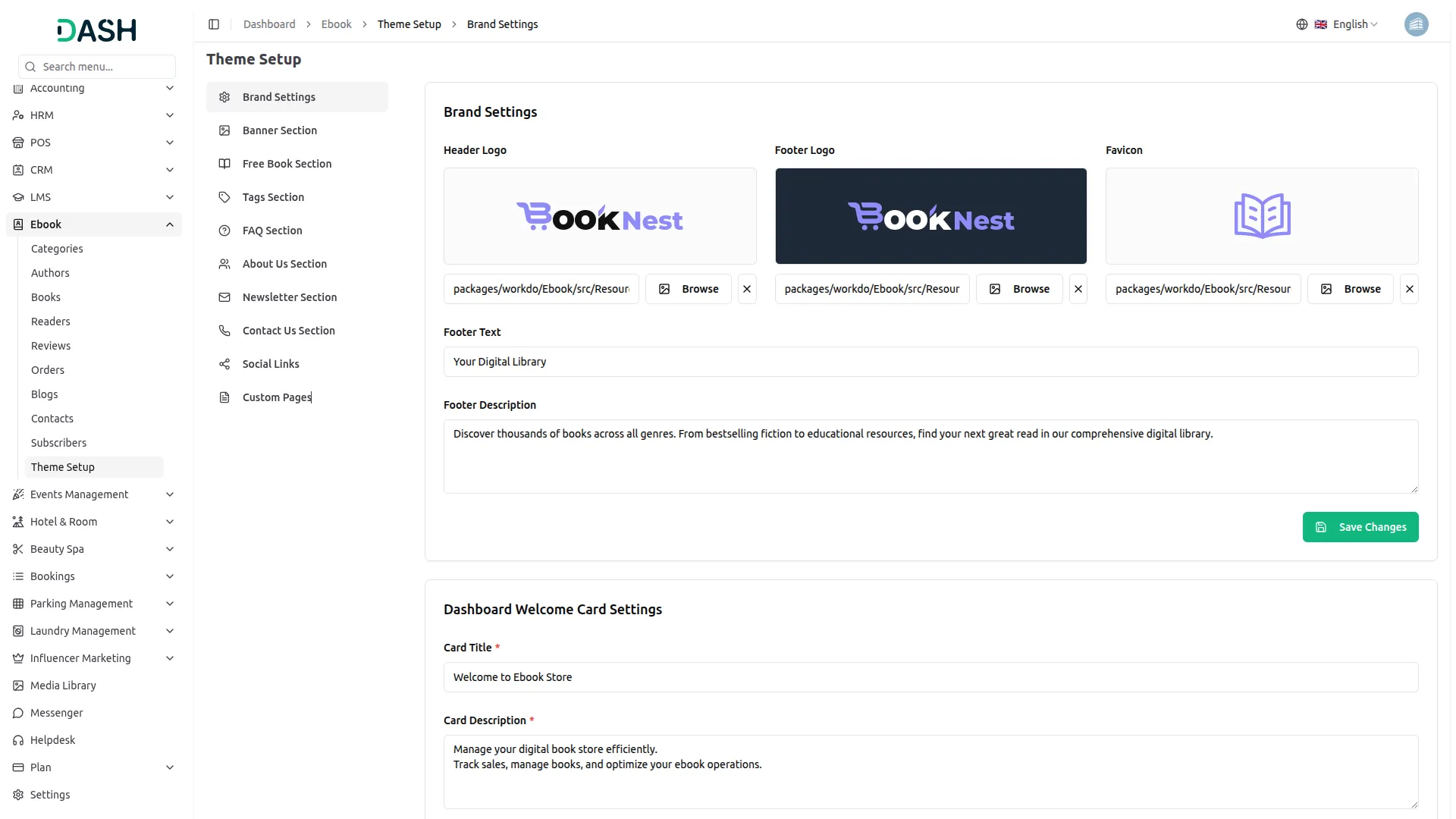
- In the Brand Settings section, you will find fields for Header Logo, Footer Logo, Favicon, Footer Text, and Footer Description. You can upload your header logo, footer logo, and favicon separately using the Browse button for each. Enter the Footer Text and Footer Description, then click Save Changes.
- In the Dashboard Welcome Card Settings, you will find fields for Card Title, Card Description, Button Text, and Button Icon. Enter all the details and click Save Changes.
- Once saved, the Header Logo will appear in the navigation bar at the top of your website, while the Footer Logo will display in the footer section. The Favicon will appear as the small icon in the browser tab. The Footer Text will display as the tagline beneath the footer logo, and the Footer Description will appear as the short introductory text in the footer section across all pages. The Dashboard Welcome Card content will reflect in the welcome banner inside the admin dashboard itself.
Banner Section
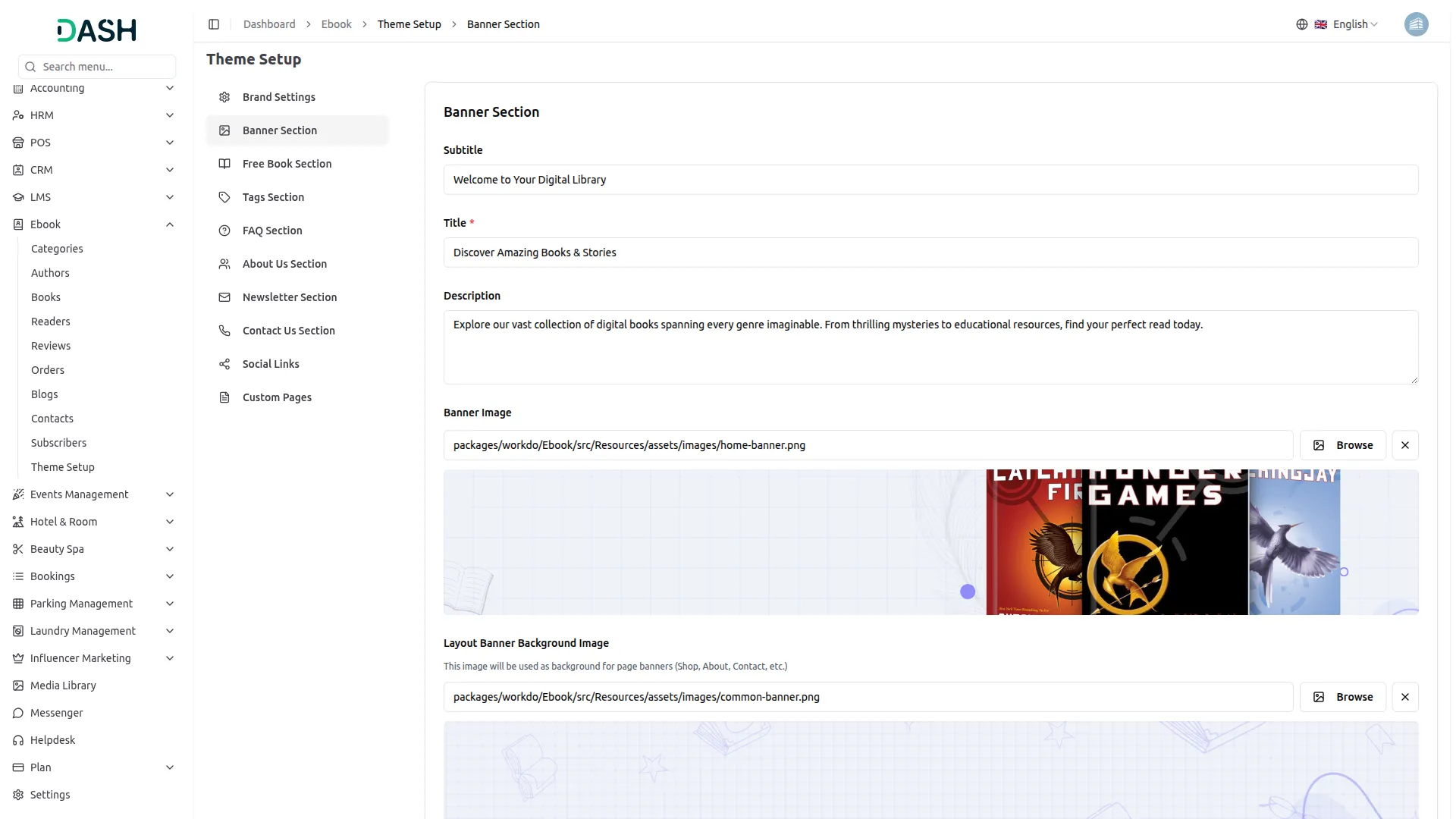
- In the Banner Section, you will find fields for Subtitle, Title, Description, Banner Image, and Layout Banner Background Image. Upload your homepage hero image and your common layout banner image using the Browse button for each, then enter all the required details and click Save Changes.
- Once saved, the Subtitle, Title, Description, and Banner Image will appear in the hero section on your homepage, giving visitors an engaging first impression of your eBook store. The Layout Banner Background Image will display as the background banner on all inner pages of the website, including the Shop, About, Contact, Blog, and FAQ pages.
Free Book Section
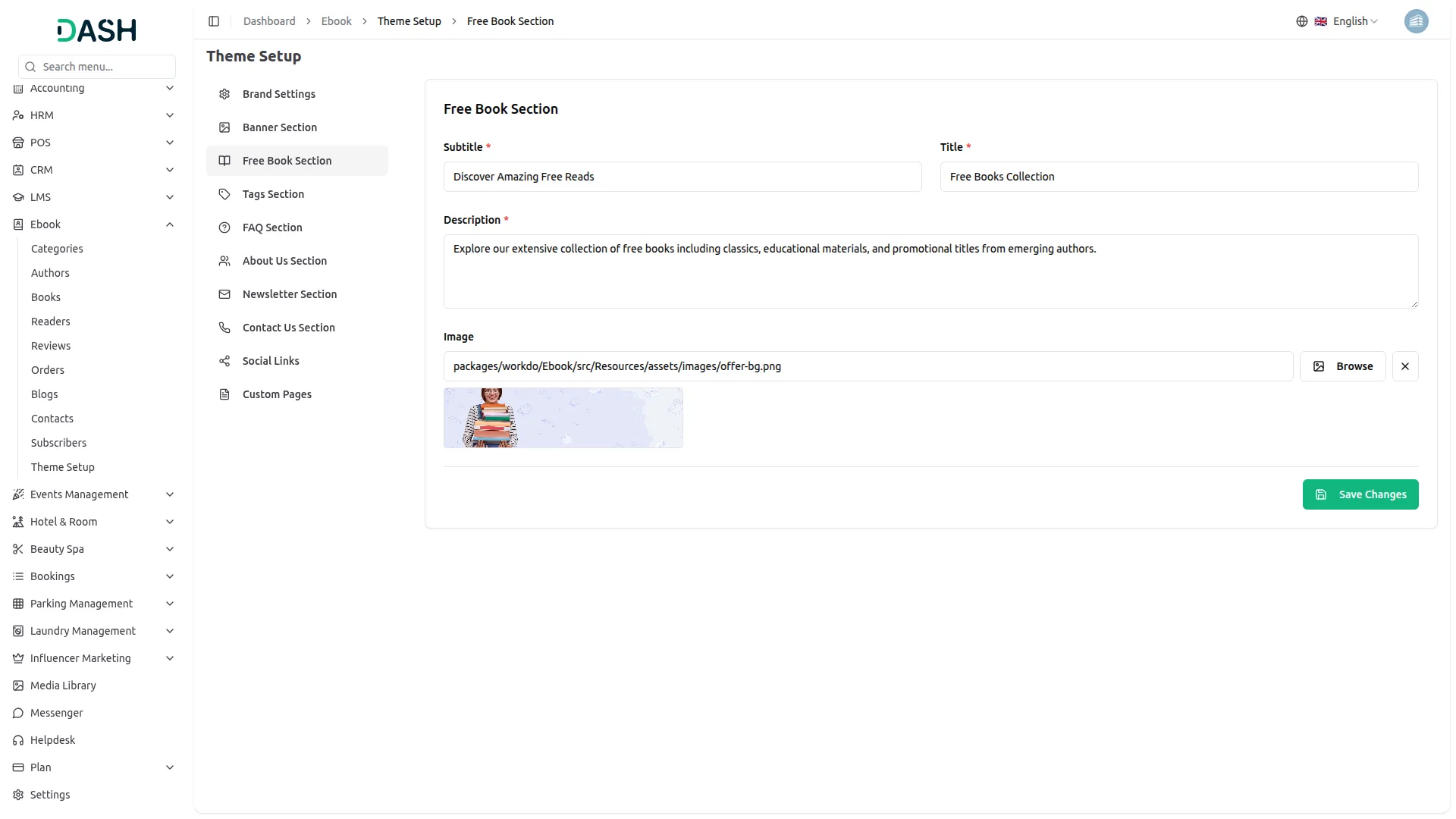
- In the Free Book Section, you will find fields for Subtitle, Title, Description, and Image. Upload a relevant promotional image using the Browse button, enter all the required details, and click Save Changes.
- Once saved, the Subtitle, Title, Description, and Image will appear in the Free Books Collection section on the homepage, inviting visitors to explore and access the free eBooks available on your platform.
Tags Section
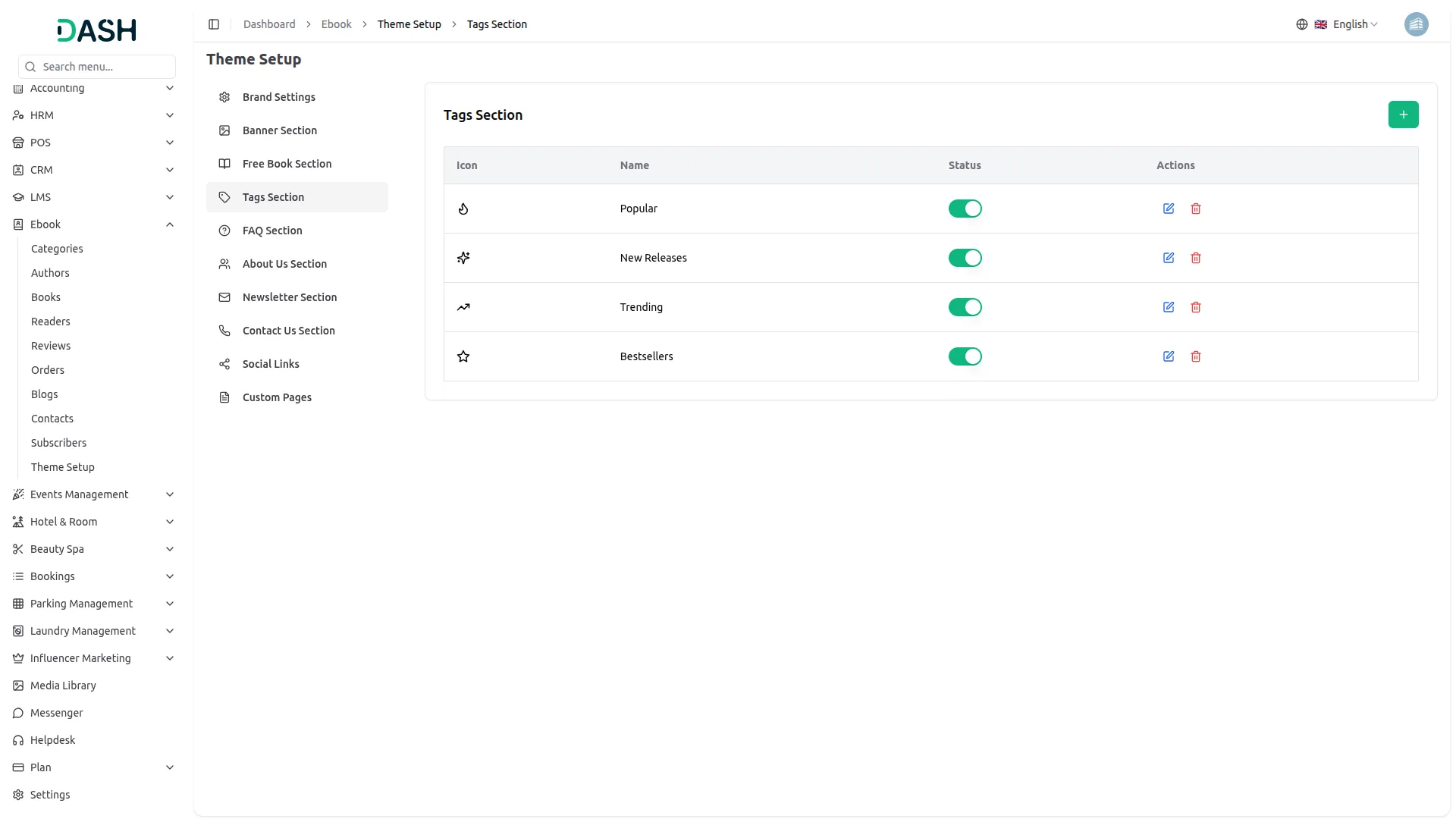
- To add a new tag, click the “Create” button at the top right. In the Create Tag form, enter the Name, select an Icon, set the Status to active or inactive, and click Create.
- In the Tags Section, you will find a list of all existing tags displaying their Icon, Name, Status, and Actions. In the Actions column, you can use the edit icon to update a tag or the delete icon to remove it. You can also toggle the Status switch directly from the list to enable or disable a tag instantly.
- Once saved, all active tags will appear as filter tabs in the Popular Tags section on the homepage, such as Bestsellers, New Releases, Popular, and Trending, allowing visitors to quickly browse eBooks by their preferred tag category.
FAQ Section
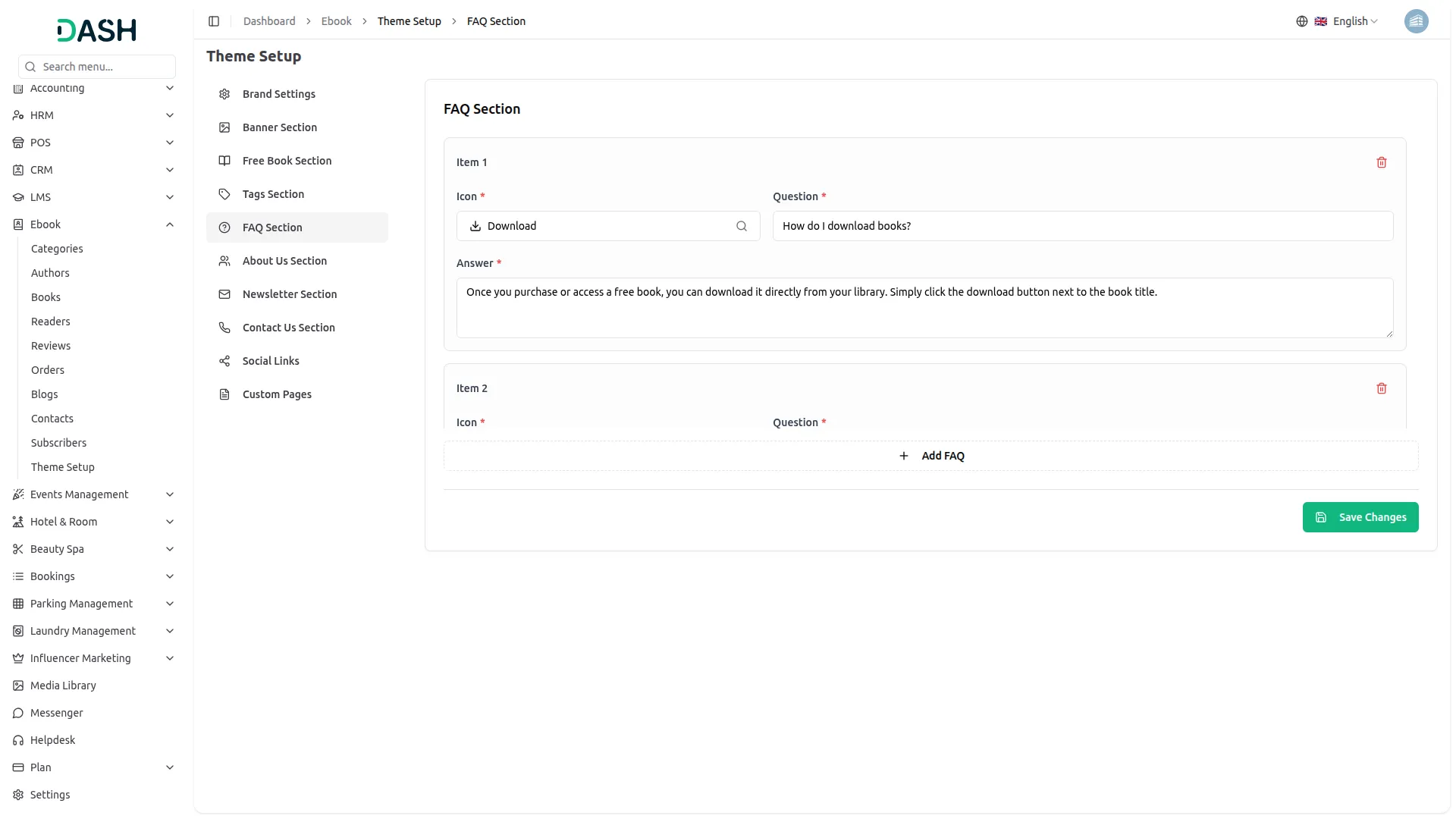
- In the FAQ Section, you will find a list of FAQ items. Each item requires an Icon, a Question, and an Answer. Click the “Add FAQ” button to add more questions, and click Save Changes once all entries are complete.
- Once saved, all FAQ items will appear on the FAQ page of your website in an accordion-style layout, where visitors can click on each question to expand and read the corresponding answer.
About Us Section
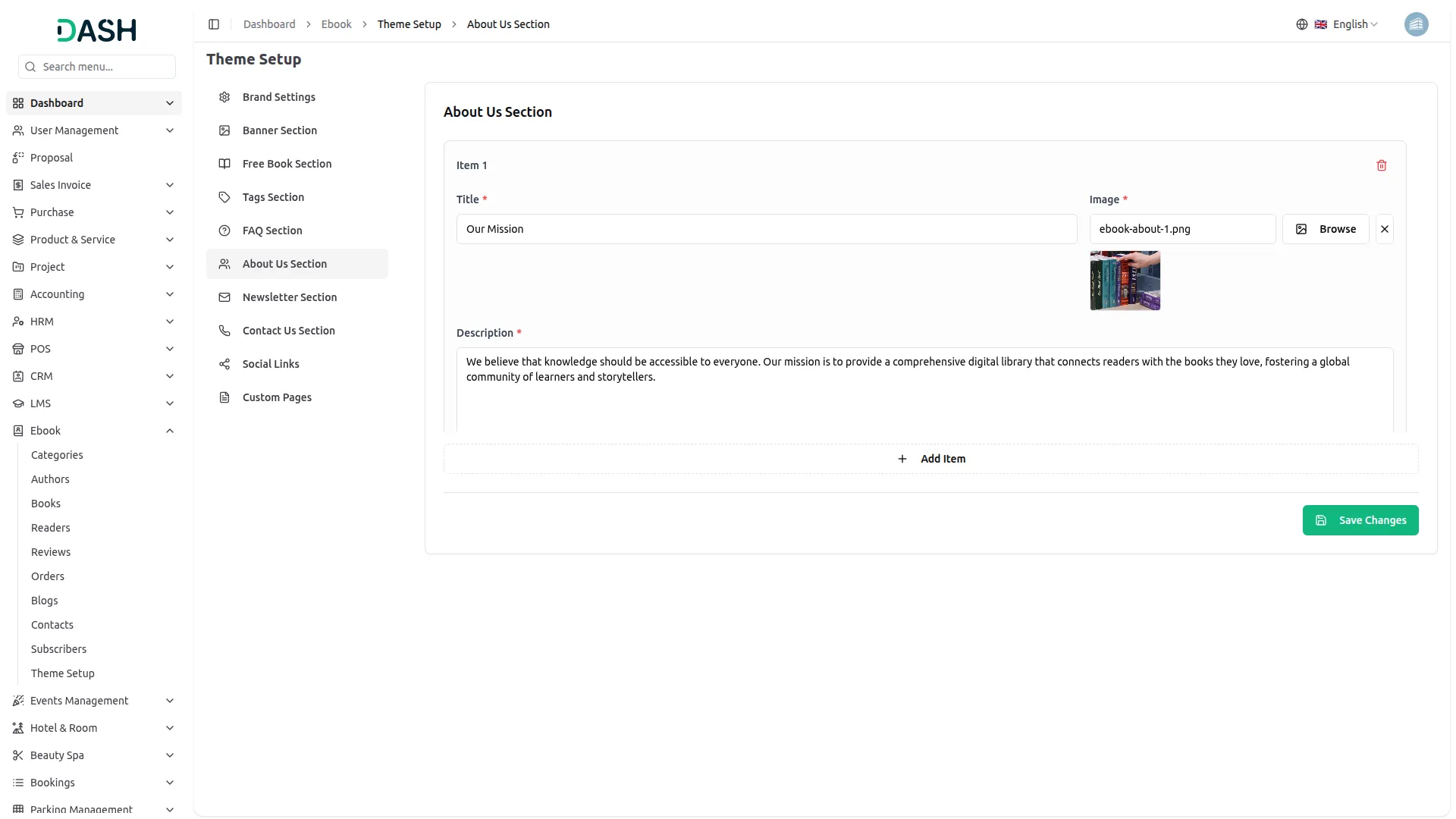
- In the About Us Section, you will find items where each entry requires a Title, an Image, and a Description. Upload a relevant image using the Browse button for each item. Click “Add Item” to include additional sections, and click Save Changes when done.
- Once saved, each item will appear as a content block on the About Us page of your website, displaying the title, image, and description side by side, giving visitors a meaningful introduction to your platform’s mission and values.
Newsletter Section
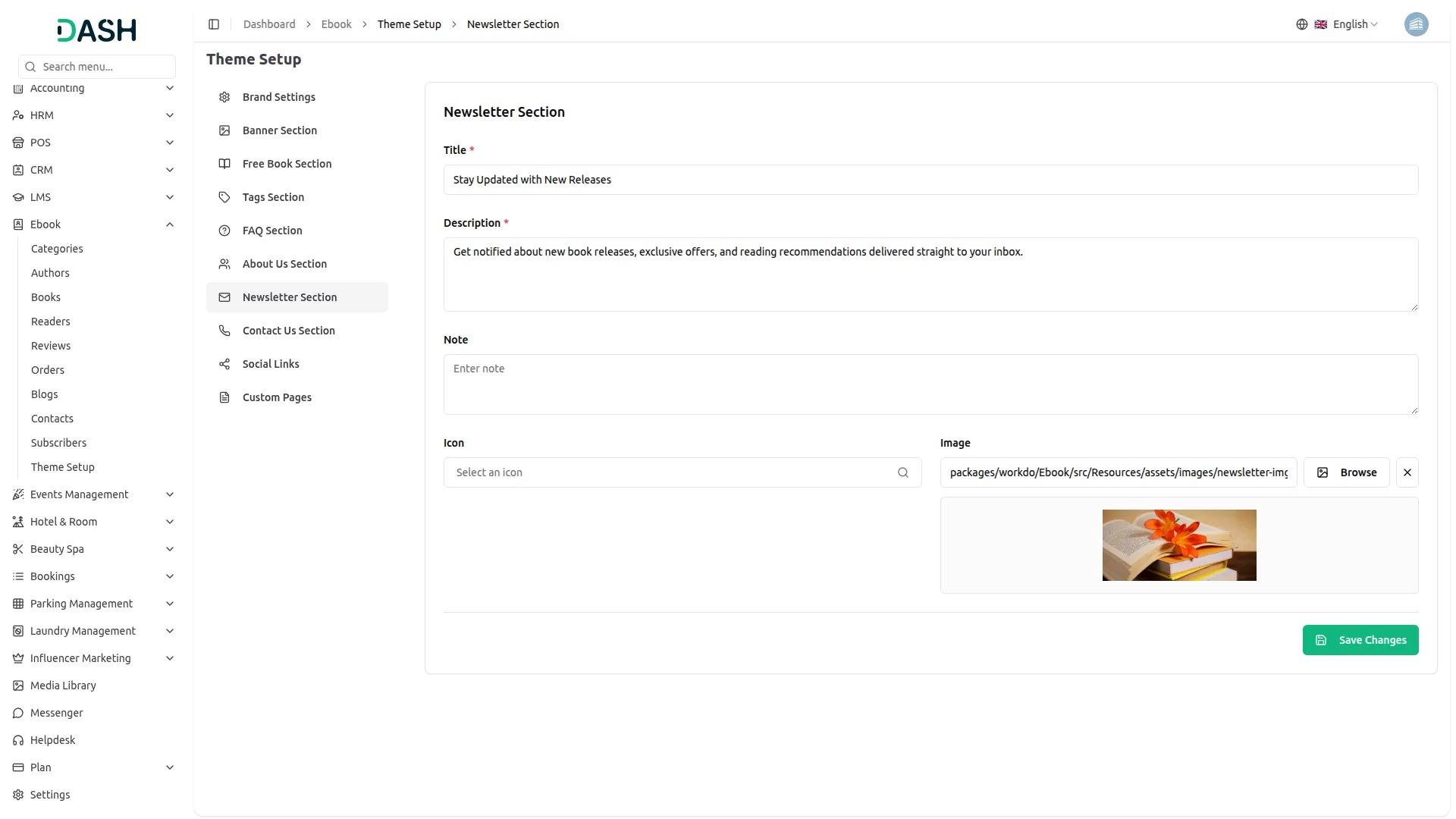
- In the Newsletter Section, you will find fields for Title, Description, Note, Icon, and Image. Upload a relevant image using the Browse button, select an icon if needed, enter all the required details, and click Save Changes.
- Once saved, the Title, Description, and Image will appear in the Newsletter subscription section at the bottom of the homepage, encouraging visitors to enter their email address and subscribe to stay updated with new book releases and exclusive offers.
Contact Us Section
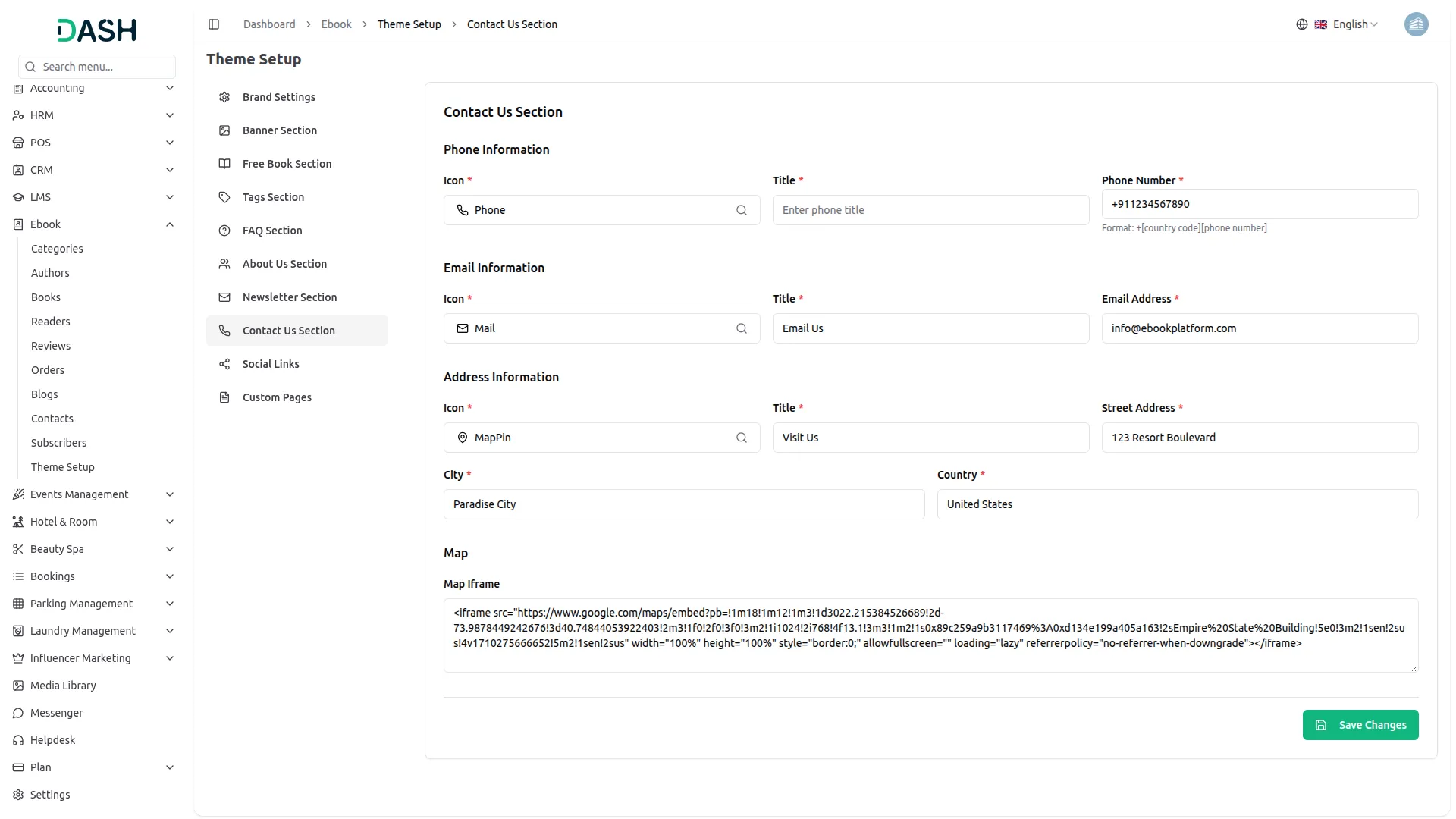
- In the Contact Us Section, you will find three sub-sections. Under Phone Information, enter the Icon, Title, and Phone Number. Under Email Information, enter the Icon, Title, and Email Address.
- Under Address Information, enter the Icon, Title, Street Address, City, and Country. You can also paste a Google Maps Iframe embed code in the Map field to display an interactive map. Click Save Changes when done.
- Once saved, the phone number, email address, and physical address will appear in the contact details sidebar on the Contact Us page, and the Google Map will render as an embedded interactive map for visitors to locate your business easily.
Social Links
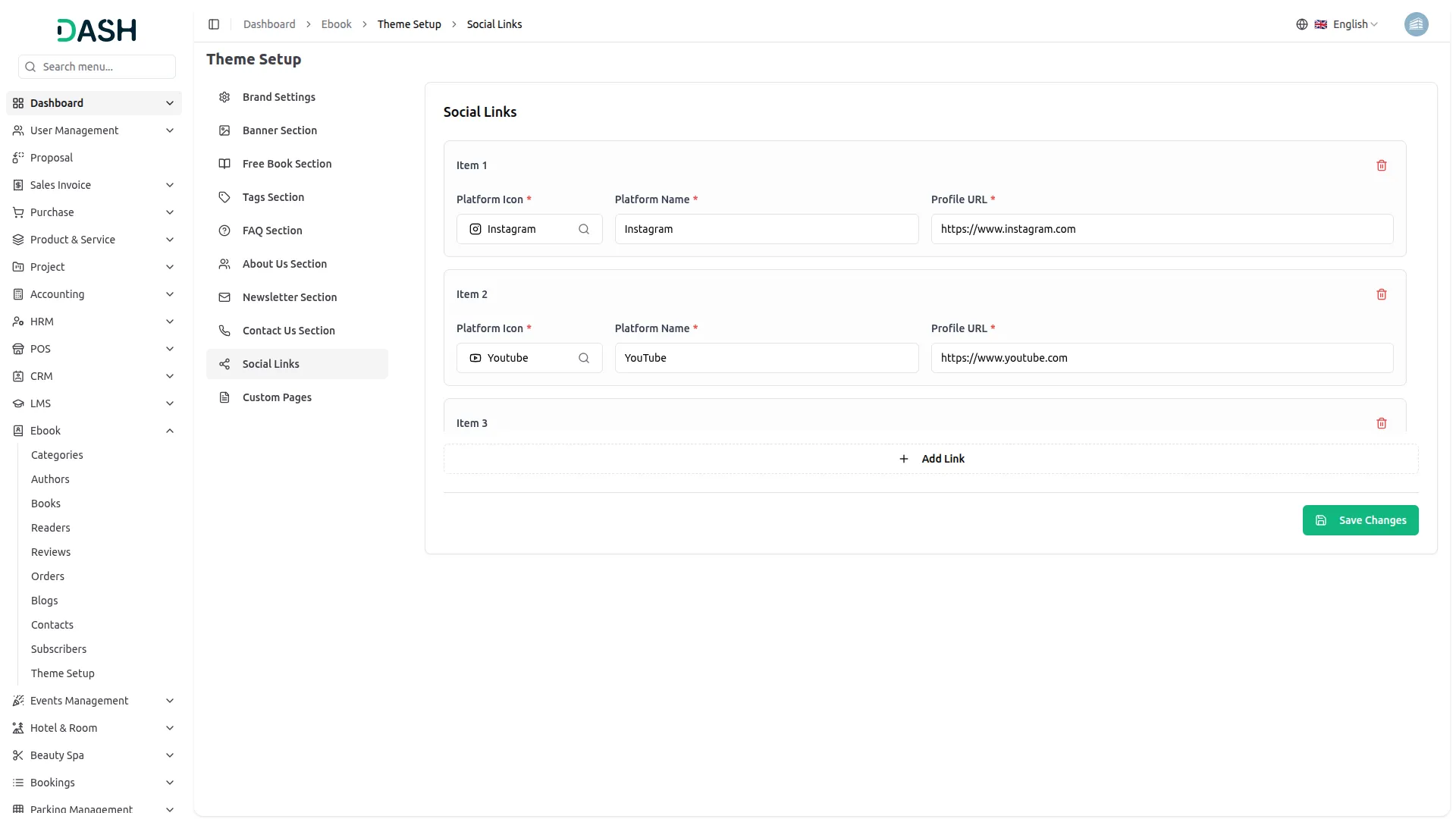
- In the Social Links section, you will find a list of social platform items. Each item requires a Platform Icon, Platform Name, and Profile URL. Click + Add Link to add more social platforms and click Save Changes when done.
- Once saved, all added social media links will appear as clickable icons in the footer of your website and on the Contact Us page, allowing visitors to easily navigate to your social media profiles.
Custom Pages
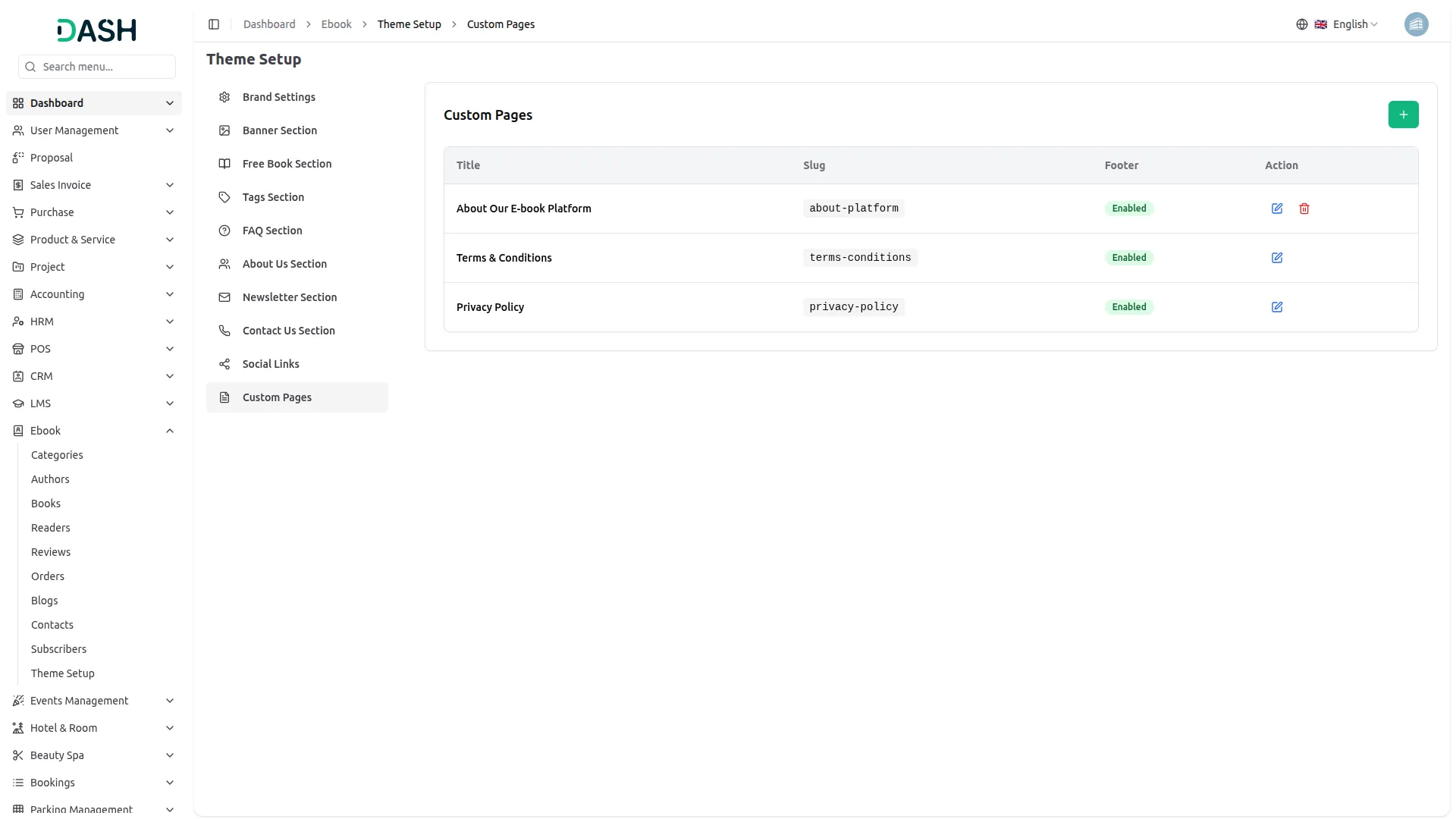
- To create a new custom page, click the “Create” button at the top right. In the Create Custom Page form, enter the Title, a URL-friendly URL Slug (lowercase letters and hyphens only), an optional Description, and the full page Contents using the built-in rich text editor, which supports bold, italic, alignment, lists, links, and more. Toggle Enable Page Footer to control whether the footer appears on that page. Click Create when done.
- In the Custom Pages section, you will find a list of all existing custom pages displaying their Title, URL Slug, Footer visibility status, and Actions. In the Actions column, you can use the edit icon to update page content or the delete icon to remove a page.
- Once saved, the custom page will be accessible on the frontend via its unique URL slug and, if the footer is enabled, it will also appear as a link in the footer’s Customer Service section, making pages like Privacy Policy, Terms & Conditions, and About Our E-Book Platform easily accessible to all visitors.
Manage Categories
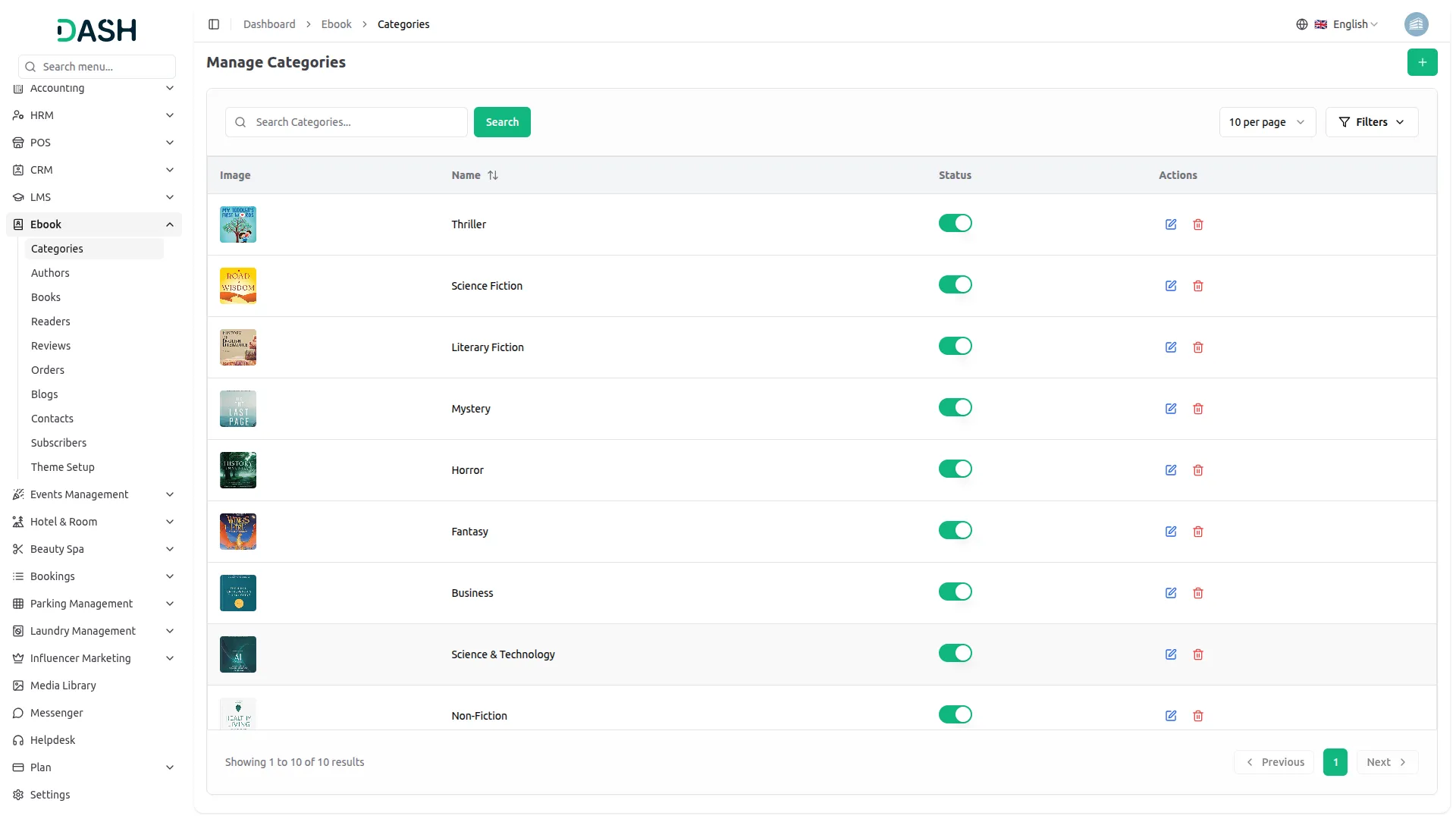
- To add a new category, click the “Create” button at the top right of the Manage Categories page. In the Create Category form, enter the Name, upload a Category Image using the Browse button, and set the Status to active or inactive. Click Create to save.
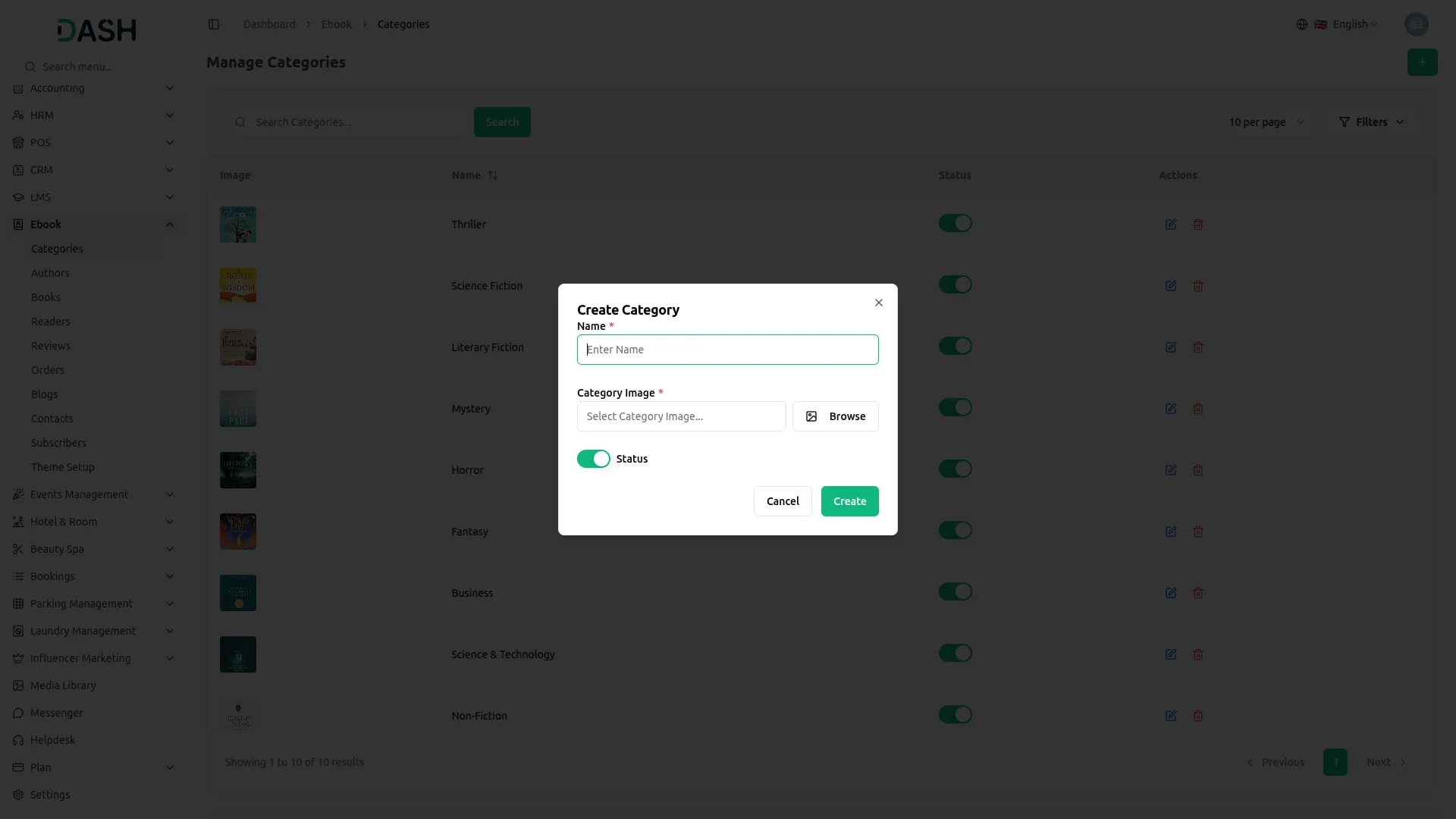
- The list page displays a table of columns including the category’s Image, Name, Status, and Actions. Use the search bar to find a specific category by name. You can also use the Filters button to filter categories by Status, then click Apply to filter the results or Clear to reset them. You can also toggle the Status switch directly from the list to enable or disable a category instantly without opening the edit form.
- In the Actions column, you can use the edit icon to update the category’s name or image, or the delete icon to permanently remove it from the system.
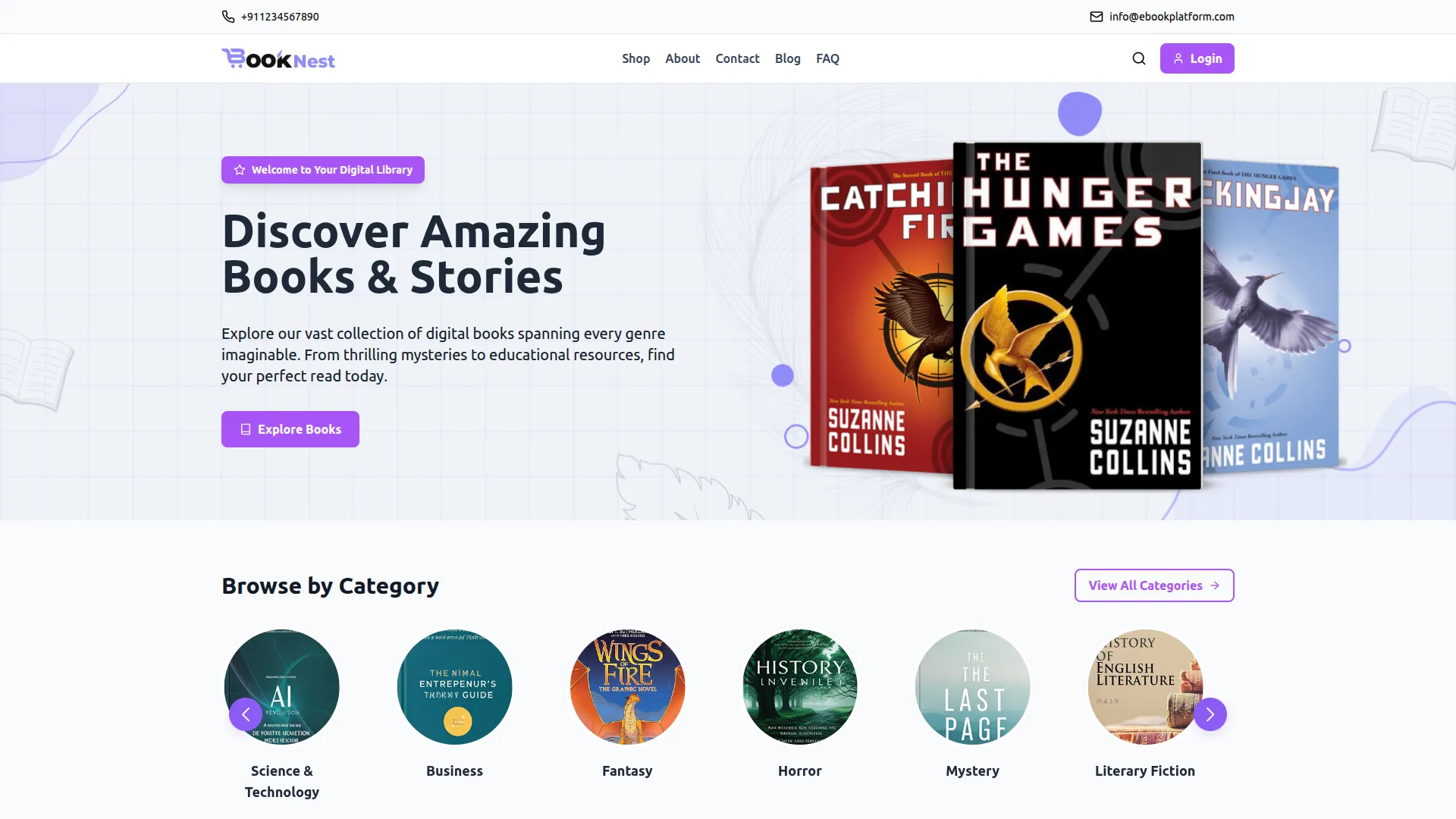
- Once saved, all active categories will appear in the Browse by Category section on the homepage, displaying each category’s uploaded image as a circular icon with the category name below it.
- Visitors can click on any category card to directly browse eBooks under that genre. Active categories will also appear as checkable filter options under the Categories panel in the left sidebar of the Shop page, listing each category name, such as Business, Fantasy, Fiction, Horror, Literary Fiction, Mystery, Science & Technology, Science Fiction, and Thriller. Visitors can check one or more categories and click Apply Filters to narrow down the product list and find eBooks that match their preferred reading genre.
- Additionally, the category name will appear as a badge on each eBook card across the Shop page and homepage sections, giving visitors instant visibility into which genre each eBook belongs to.
Manage Authors
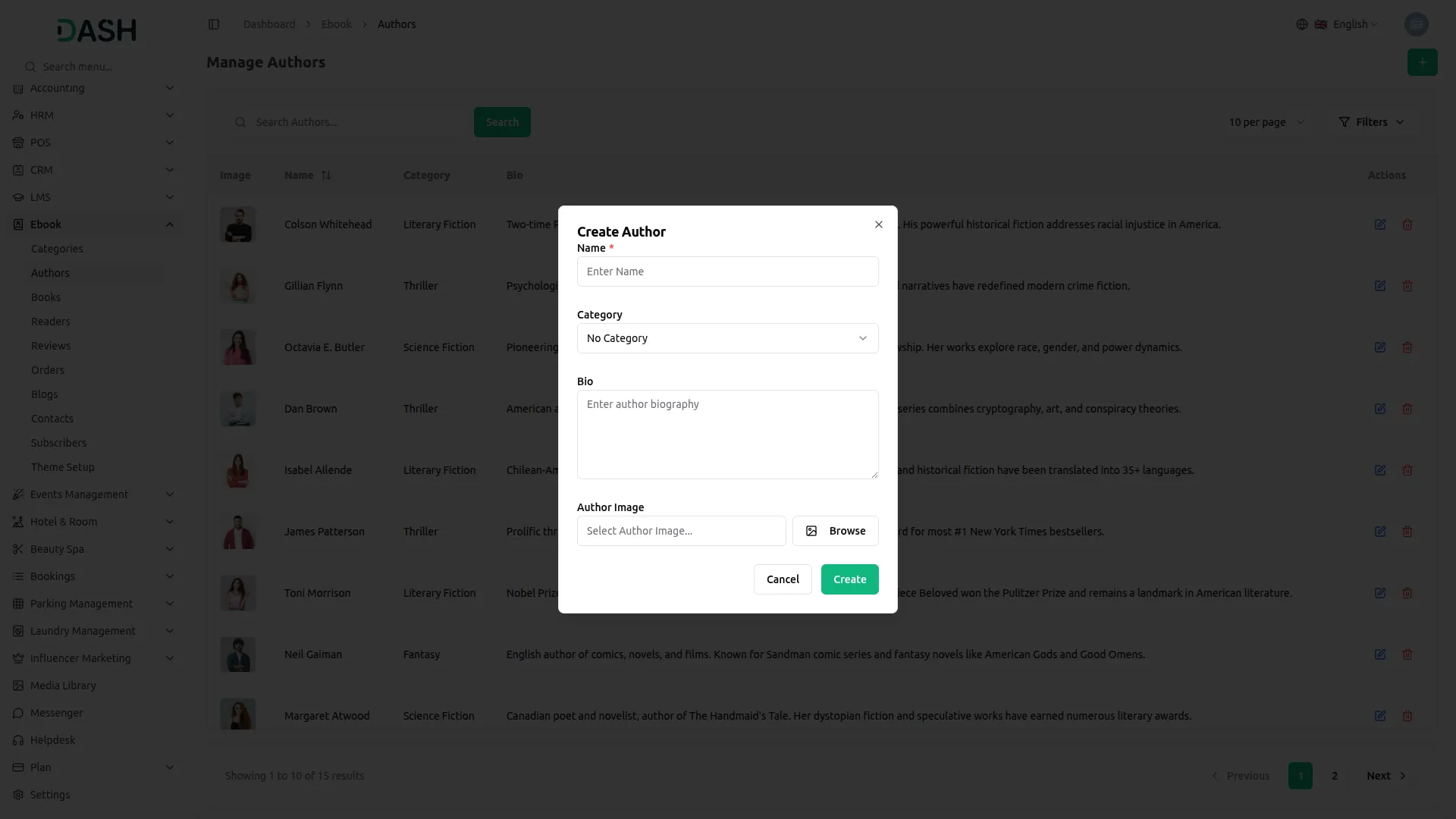
- To add a new author, click the “Create” button at the top right of the Manage Authors page. In the Create Author form, enter the author’s Name, select the relevant Category from the dropdown, write a Bio, and upload an Author Image using the Browse button.
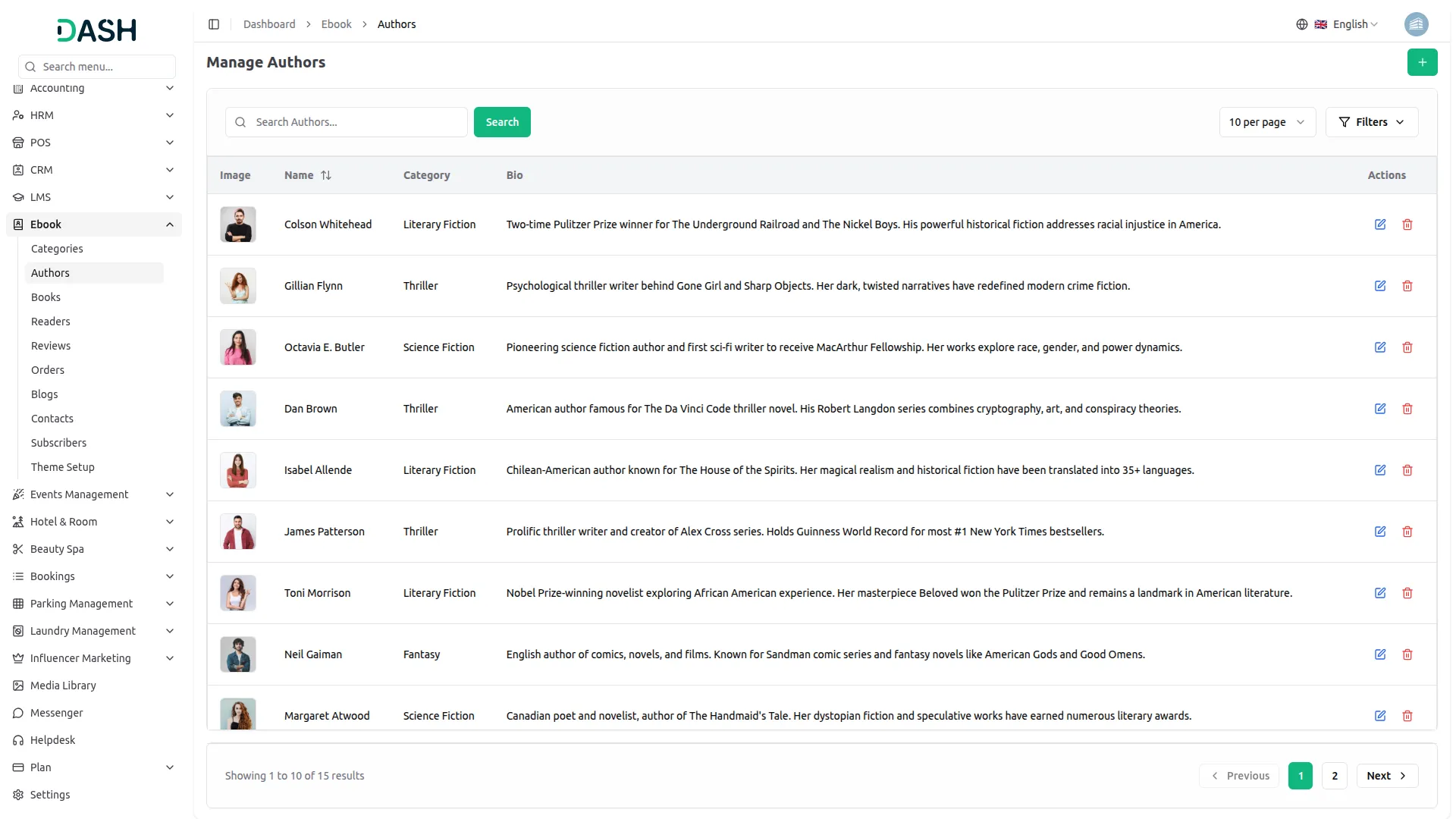
- The list page displays a table of columns including the author’s Image, Name, Category, Bio, and Actions. Use the search bar to find a specific author by name. You can also click the Filters button to filter authors by Category, then click Apply to filter the results or Clear to reset them.
- In the Actions column, you can use the edit icon to update the author’s information or the delete icon to permanently remove the author from the system.
- Once saved, the author’s details will appear across multiple areas of the frontend. On the Shop page, the author’s name will display beneath each eBook title on the product card, shown as “by [Author Name]”, allowing visitors to identify the writer at a glance.
- On the single eBook detail page, the author’s name appears below the book title, and their full profile, including their profile image, name, bio, and average rating, is displayed under the About the Author tab. A “View all books by [Author Name]” link is also shown, allowing visitors to browse all eBooks written by that author.
- The author will additionally appear as a searchable and filterable option in the Authors filter panel on the Shop page, where visitors can search for a specific author by name and check their checkbox to filter the product list accordingly. On the About Us page, featured authors are showcased in the Meet Our E-Book Experts section, displaying their profile image, name, category, and a short bio introduction.

Manage Books
- To add a new book, click the “Create” button at the top right of the Manage Books page. The book creation process is divided into three tabs: Details, Pricing, and Media.
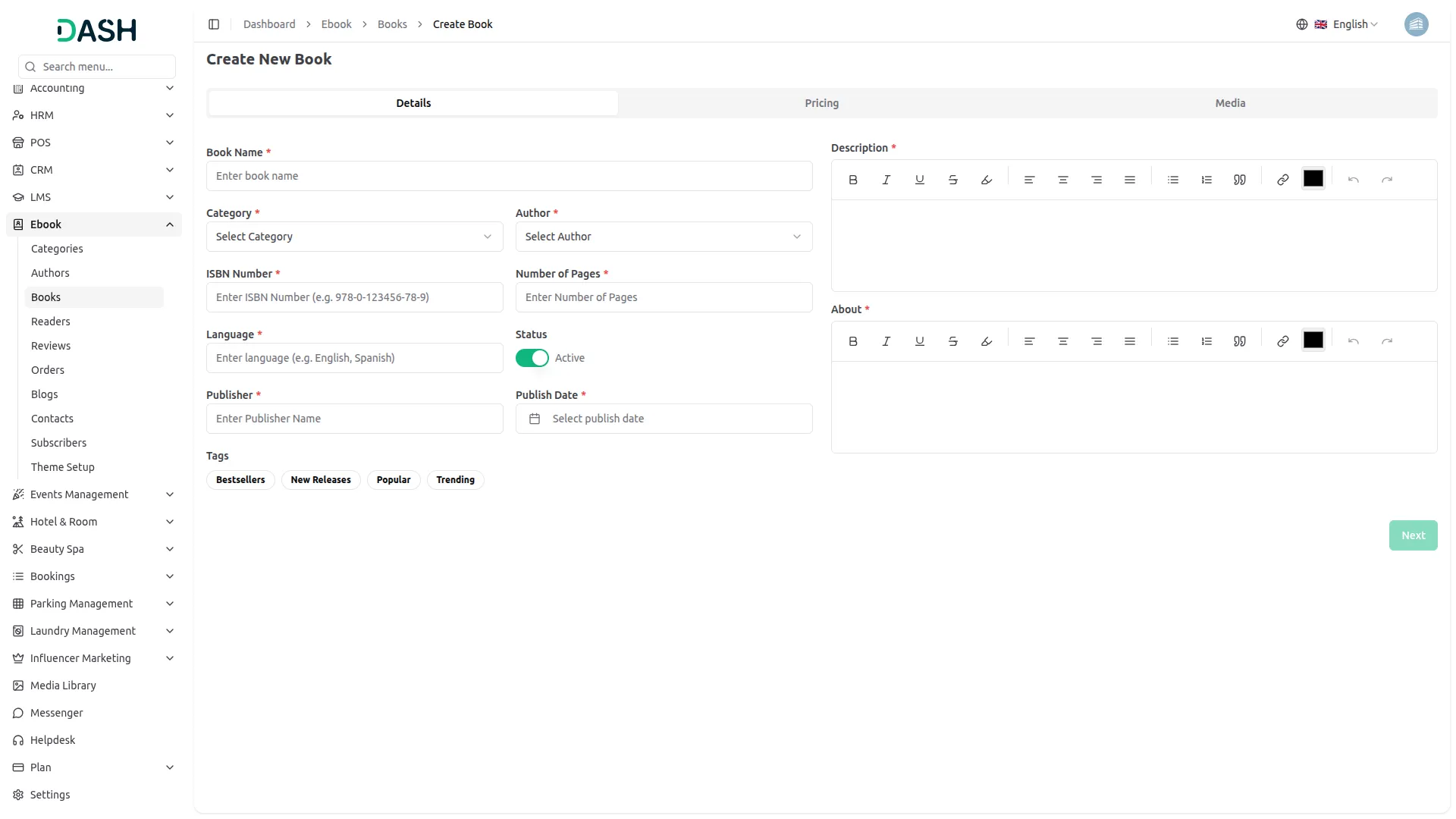
- In the Details tab, enter the Book Name, select the Category from the dropdown (comes from the Category section), and choose Author from the dropdowns (comes from the Author section), enter the ISBN Number, Number of Pages, Language, Publisher, and Publish Date.
- Set the Status toggle to Active or Inactive. Select one or more Tags from the available options, Bestsellers, New Releases, Popular, and Trending, to categorize the book’s visibility on the frontend. On the right side, write the full Description of the book using the rich text editor, and write the About content, which provides additional background information about the book.
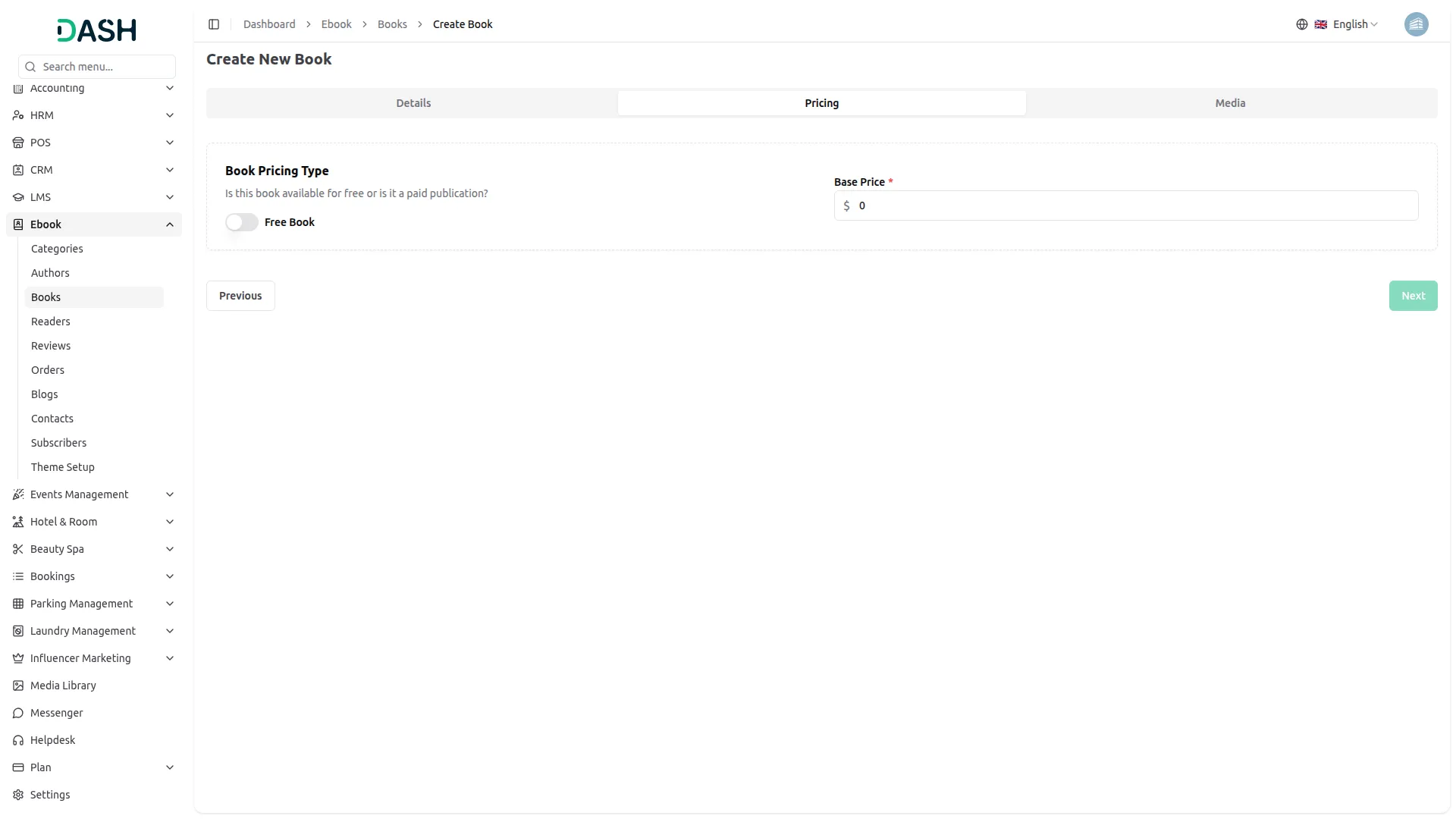
- In the Pricing tab, you will find the Book Pricing Type section. If the book is free, toggle the Free Book switch on. If it is a paid book, leave the toggle off and enter the Base Price in the price field.
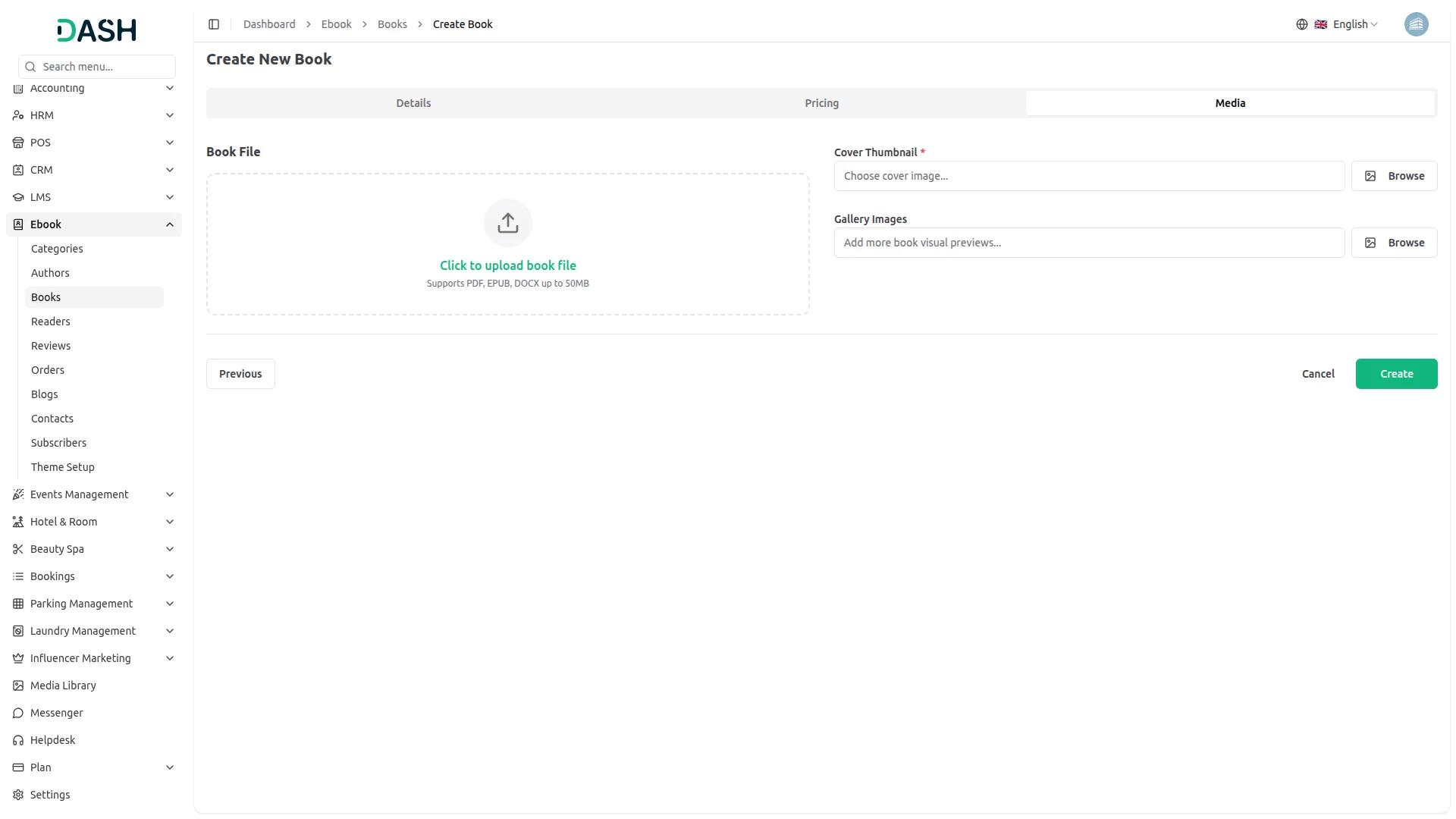
- In the Media tab, upload the actual Book File by clicking the upload area, it supports PDF, EPUB, and DOCX formats up to 50MB. Upload a Cover Thumbnail using the Browse button, which will serve as the book’s cover image across the website. You can also upload multiple Gallery Images using the Browse button to provide visual previews of the book’s interior pages.
- The list page displays a table of columns including the book’s Image, Name, ISBN Number, Category, Author, Type (Free or Paid), Price, Status, and Actions. Use the search bar to find a specific book by name. Click the Filters button to filter books by Category, Author, Type, and Status, then click Apply to filter the results or Clear to reset them.
- In the Actions column, you can use the view icon to see the full book details, including the description, about content, tags, quick details such as category, author, ISBN, pages, language, publisher, publish date, and the full media gallery.
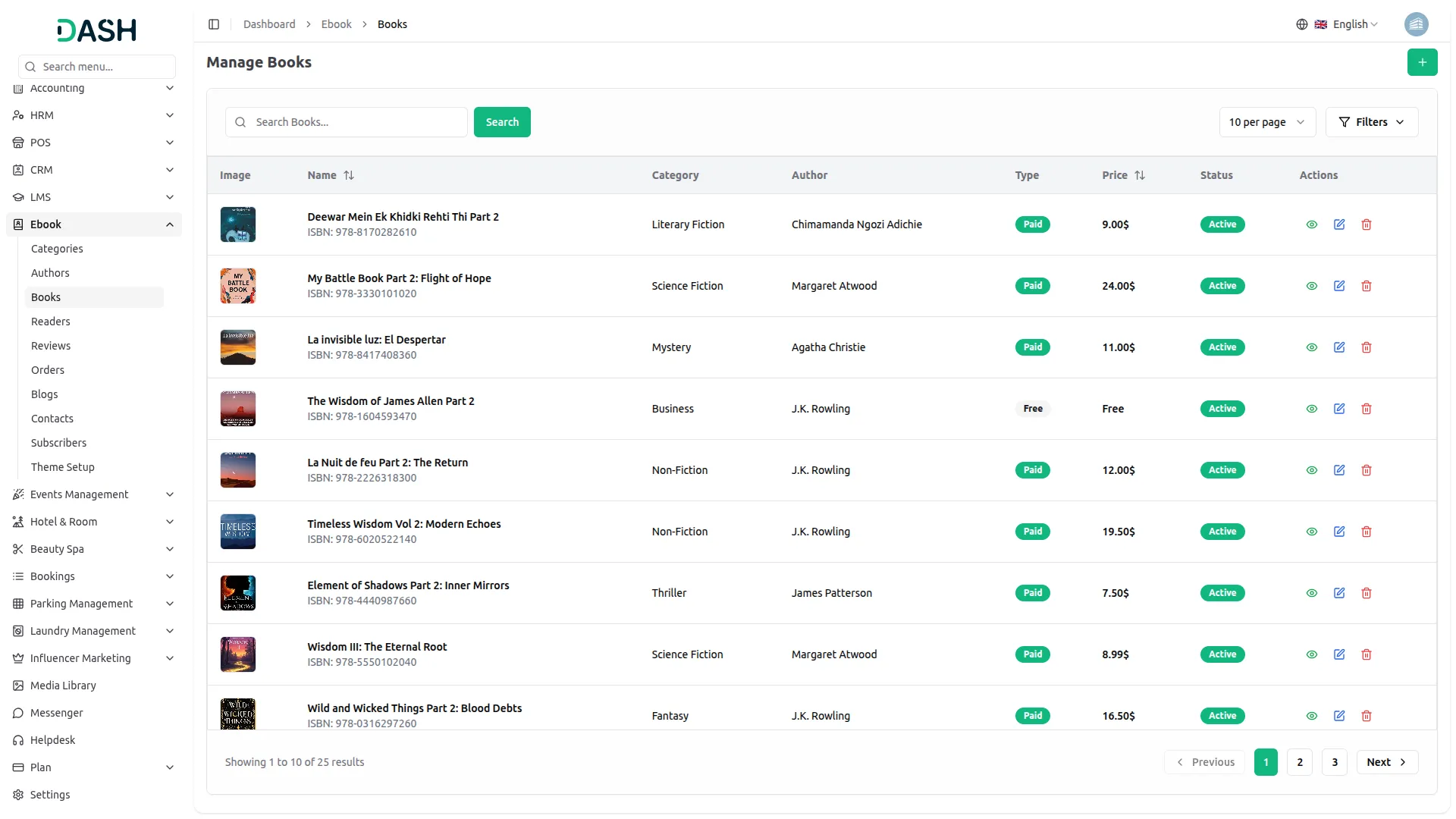
- Use the edit icon to update the book’s information, or the delete icon to permanently remove it from the system.
- Once saved, the book will appear across multiple sections of the frontend website based on its settings. Shop Page, Each book appears as a card showing the Cover Thumbnail, Category Badge, Book Name, Author Name, Star Rating, and Price (or a Free label for free books). Visitors can sort results and navigate through pages.
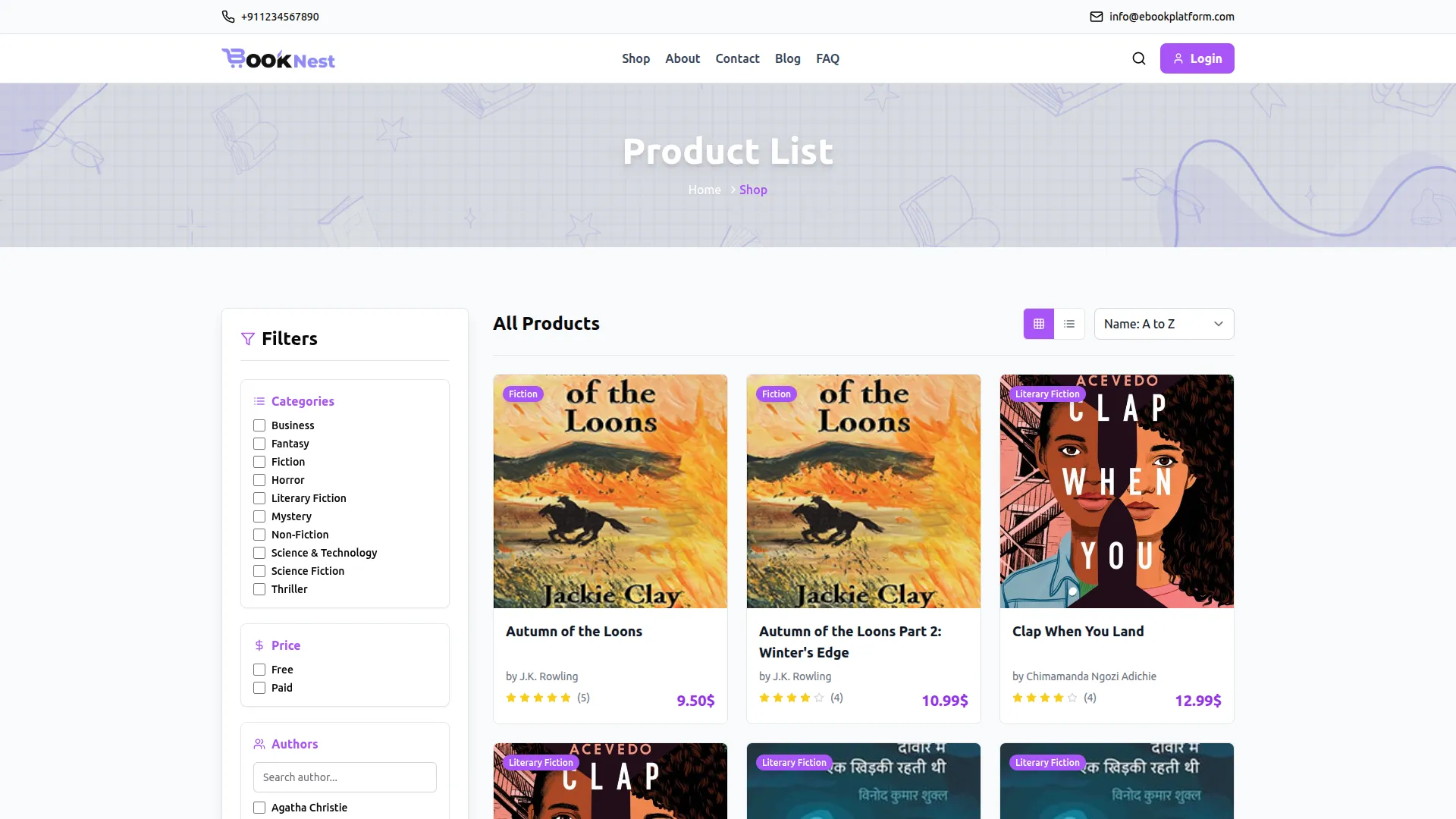
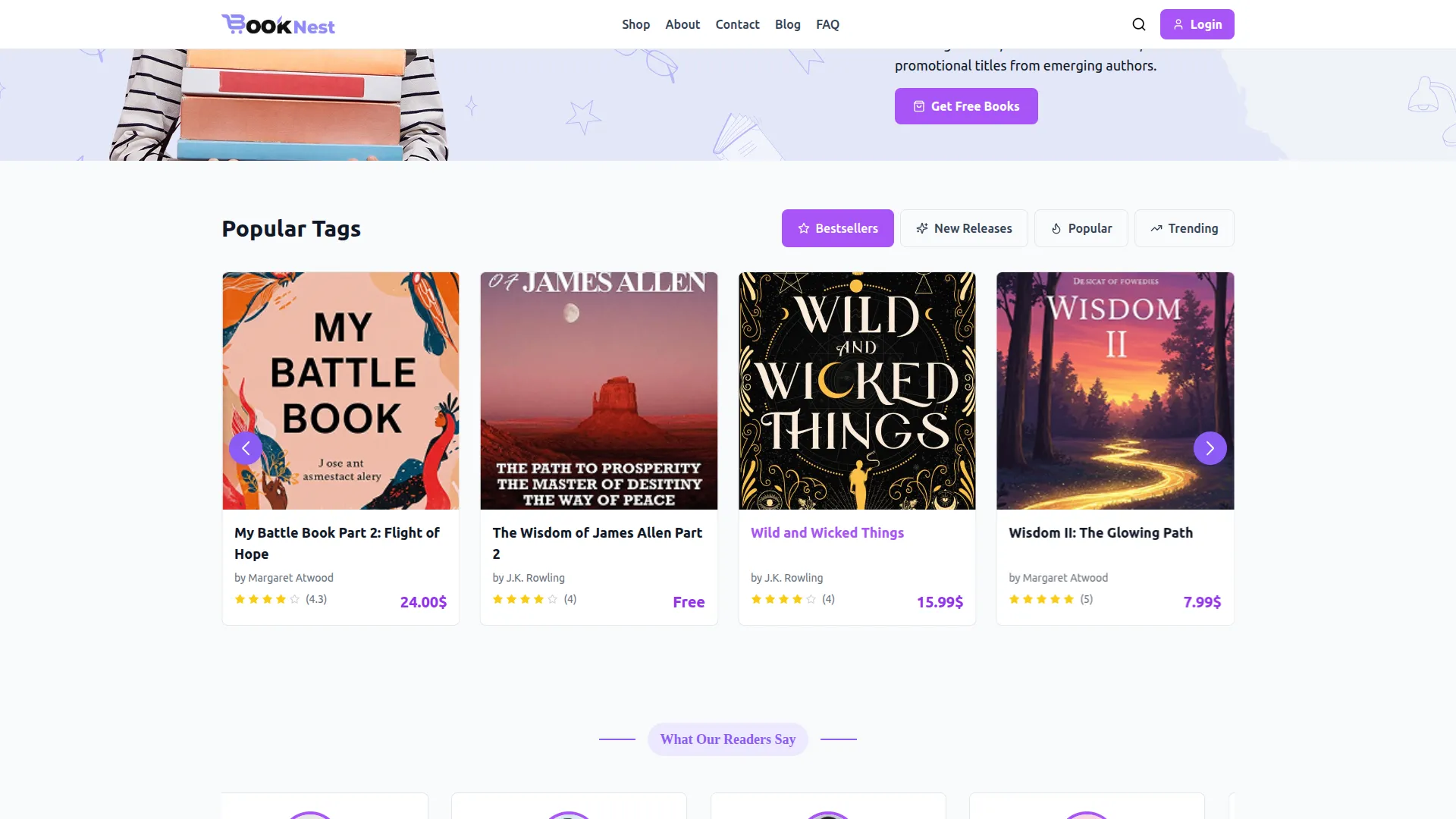
- Homepage, Books tagged as Popular appear in the Popular E-Books section. Books tagged as Bestsellers, New Releases, Popular, or Trending appear in the Popular Tags section under their respective tab.
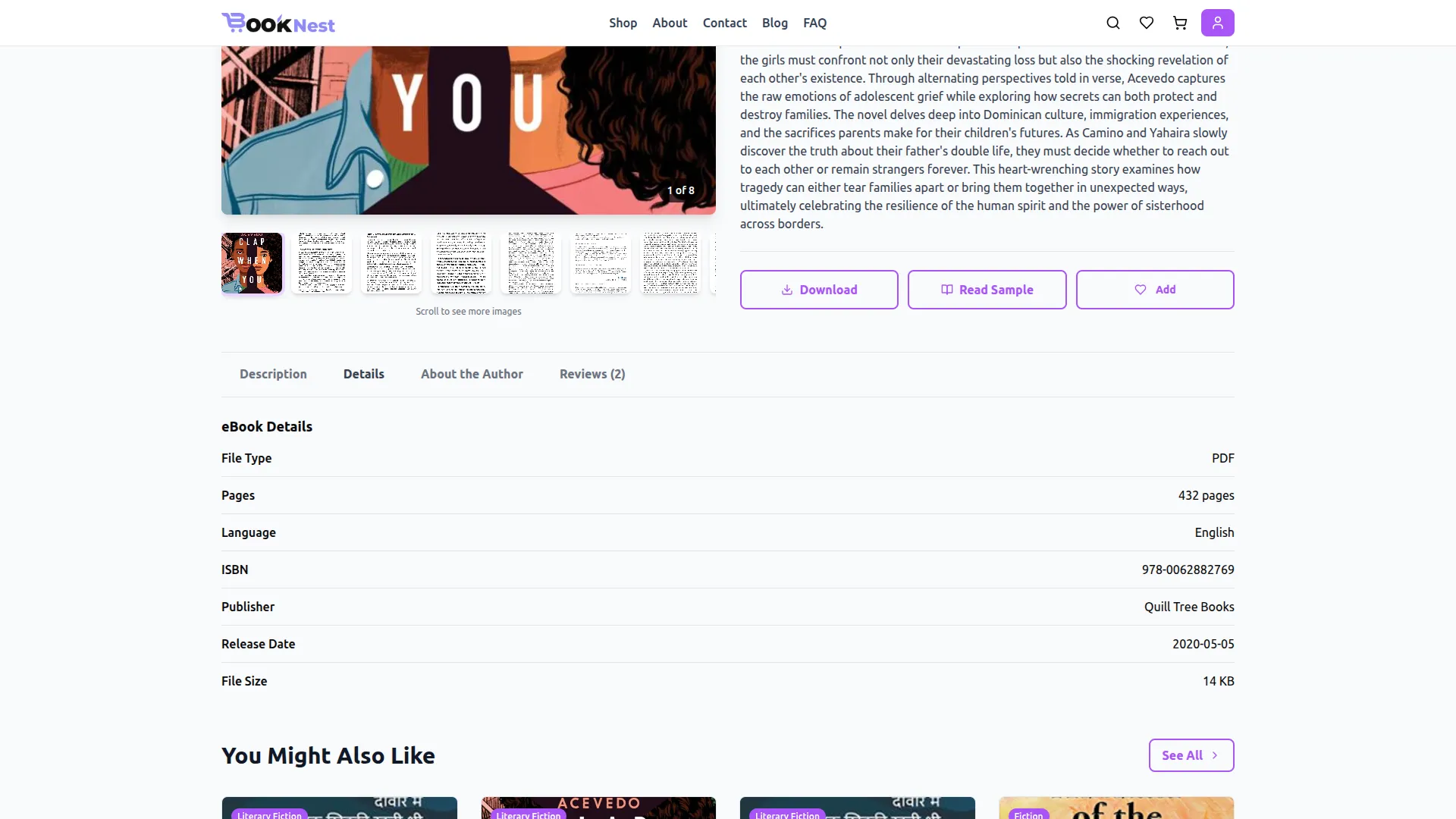
- Single Book Detail Page, Clicking a book opens its detail page, which displays the Cover Thumbnail, Gallery Images, Tags, Book Name, Rating, Price, and action buttons. Paid books show Add to Cart and Wishlist buttons, while free books show a Download button. The Read Sample button opens a pop-up with a preview excerpt, page count, and a Buy Now option.
- The page includes four tabs: Description (full book description), Details (File Type, Pages, Language, ISBN, Publisher, Release Date, File Size), About the Author (profile image, name, bio, rating), and Reviews (customer ratings and written feedback).
- At the bottom, the You Might Also Like section displays related eBooks from the same category.
Manage Readers
- The Manage Readers page displays a list of all registered readers on the platform. The table includes columns for Avatar, First Name, Last Name, Email, Registration Date, and Status.
- Use the search bar to find a specific reader by name or email. You can toggle between list view and grid view using the view icons at the top right. The Status toggle can be switched directly from the list to enable or disable a reader’s account instantly.
- In the Action column, use the view icon to see the full reader profile details, or the delete icon to permanently remove the reader from the system.
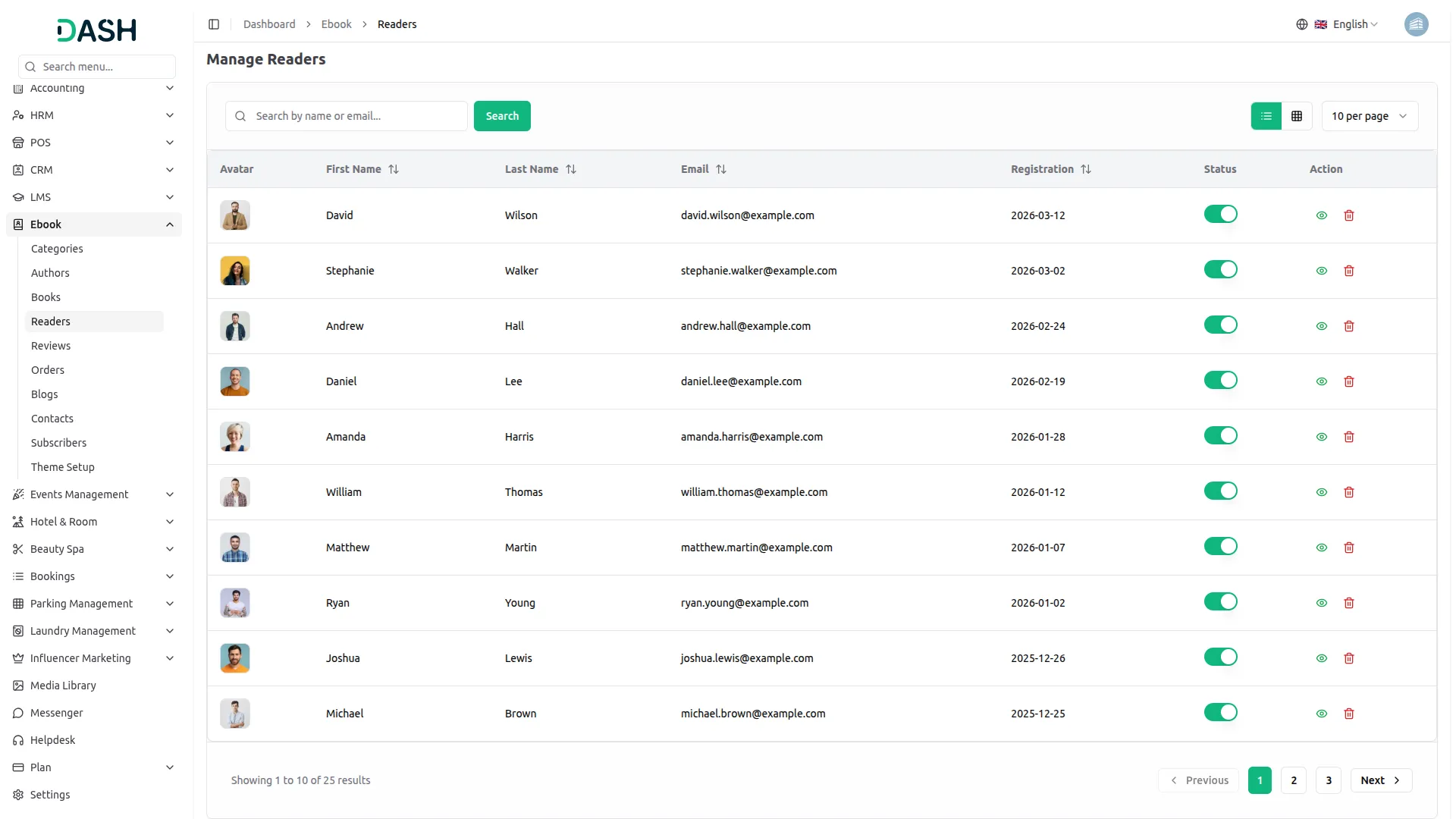
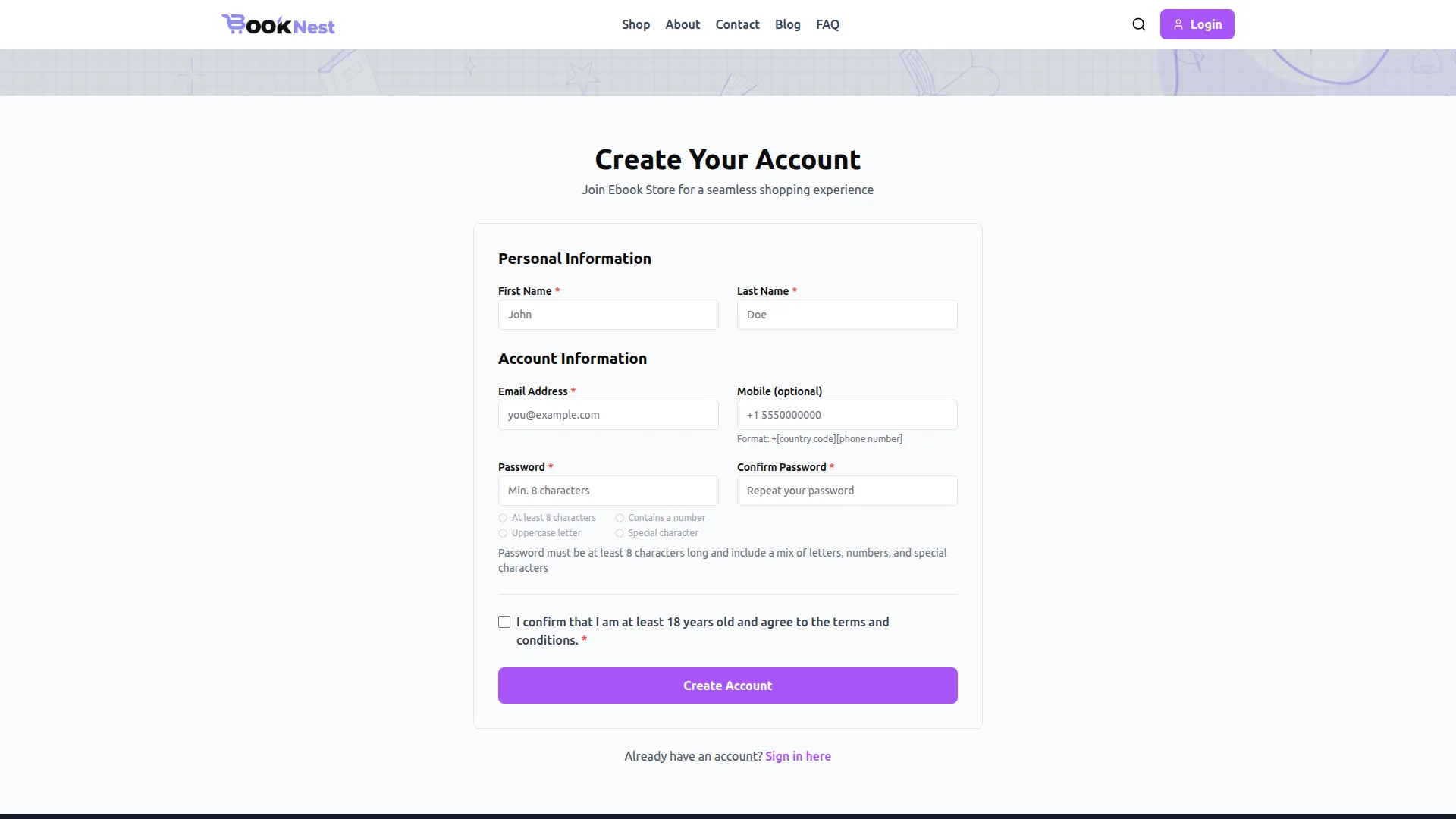
- Readers are not manually created from the backend; they are automatically registered when a visitor signs up on the frontend website. When a visitor registers, their avatar, first name, last name, email, and registration date are captured and appear in the Manage Readers list in the backend.
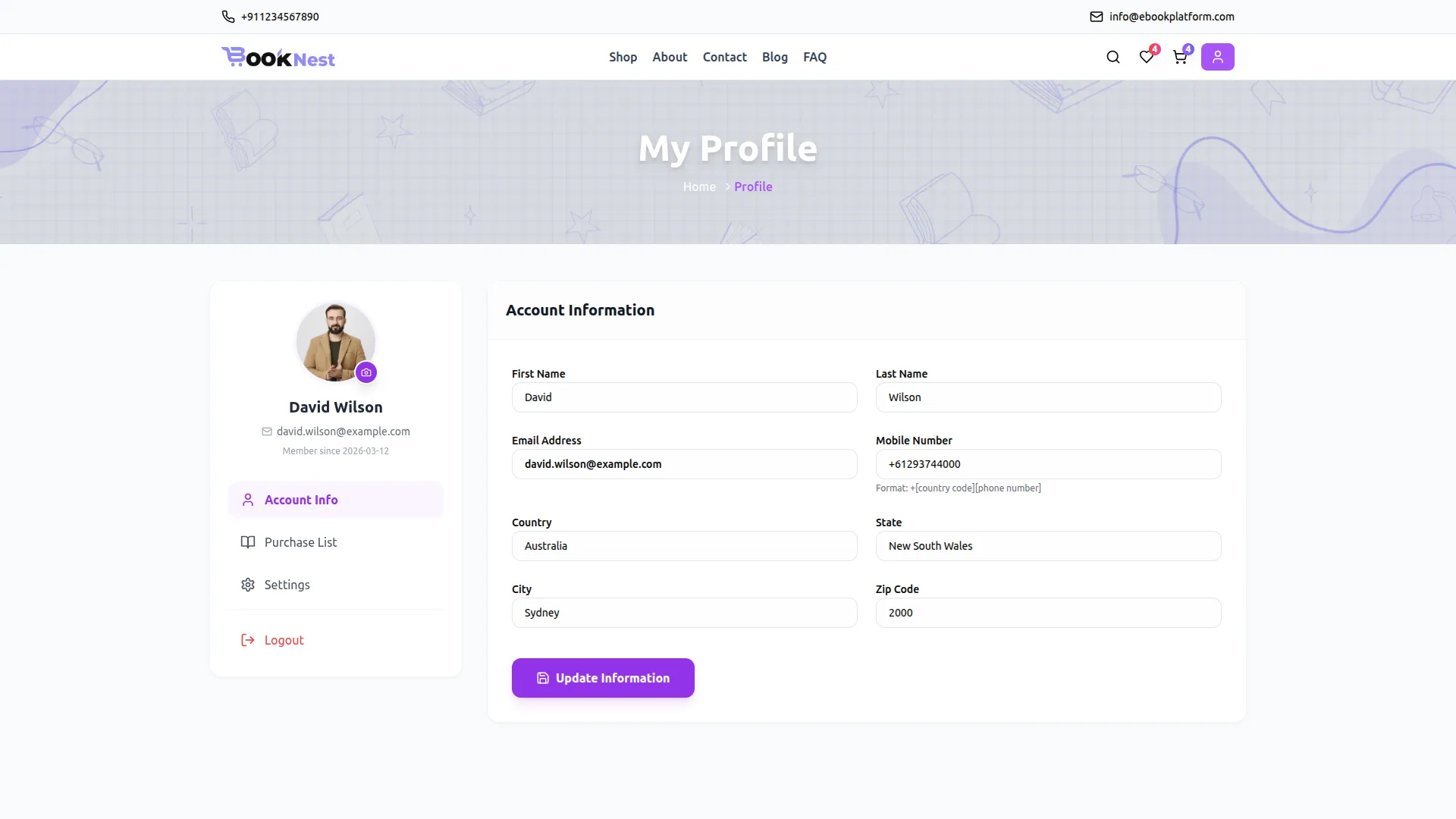
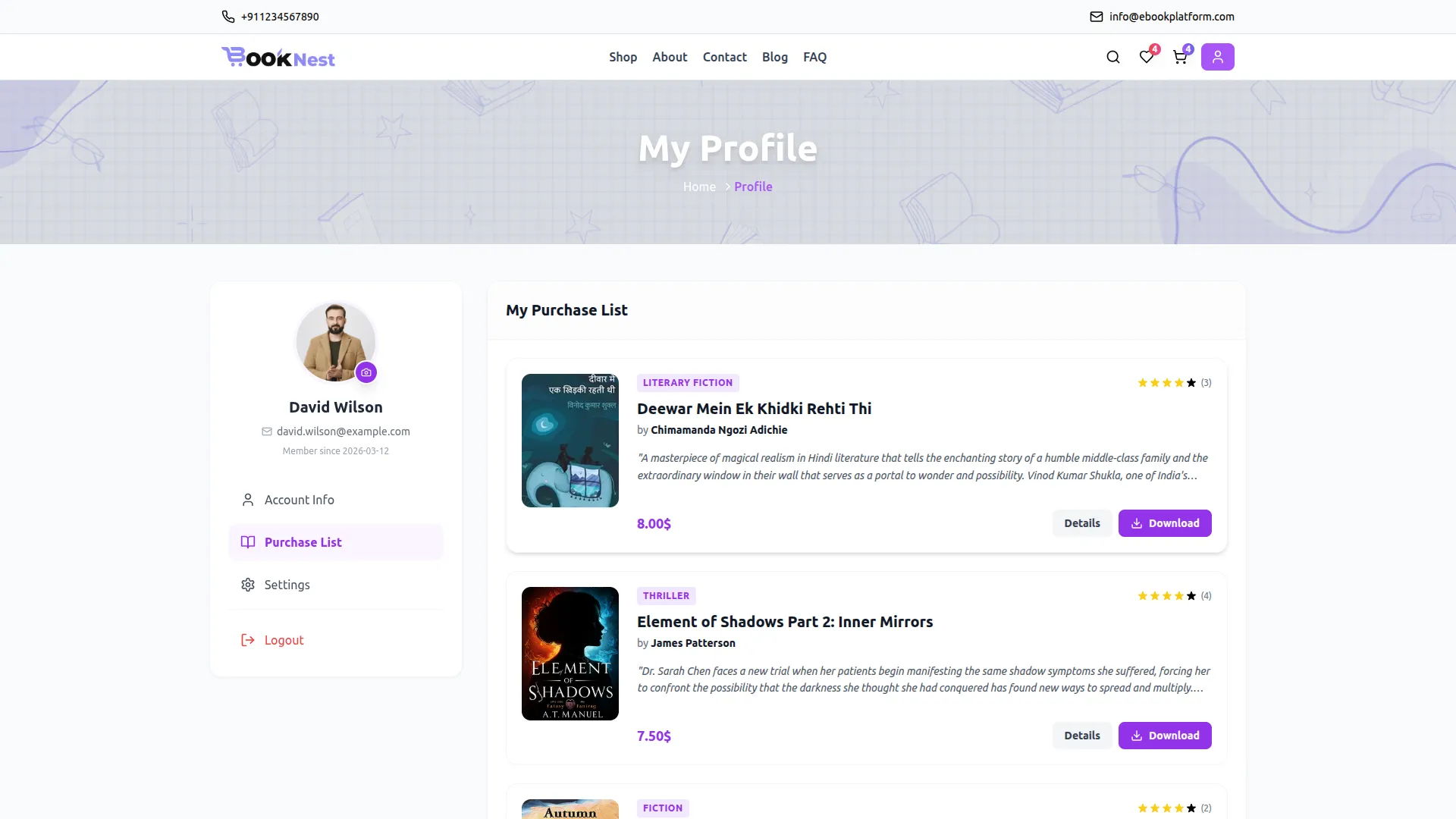
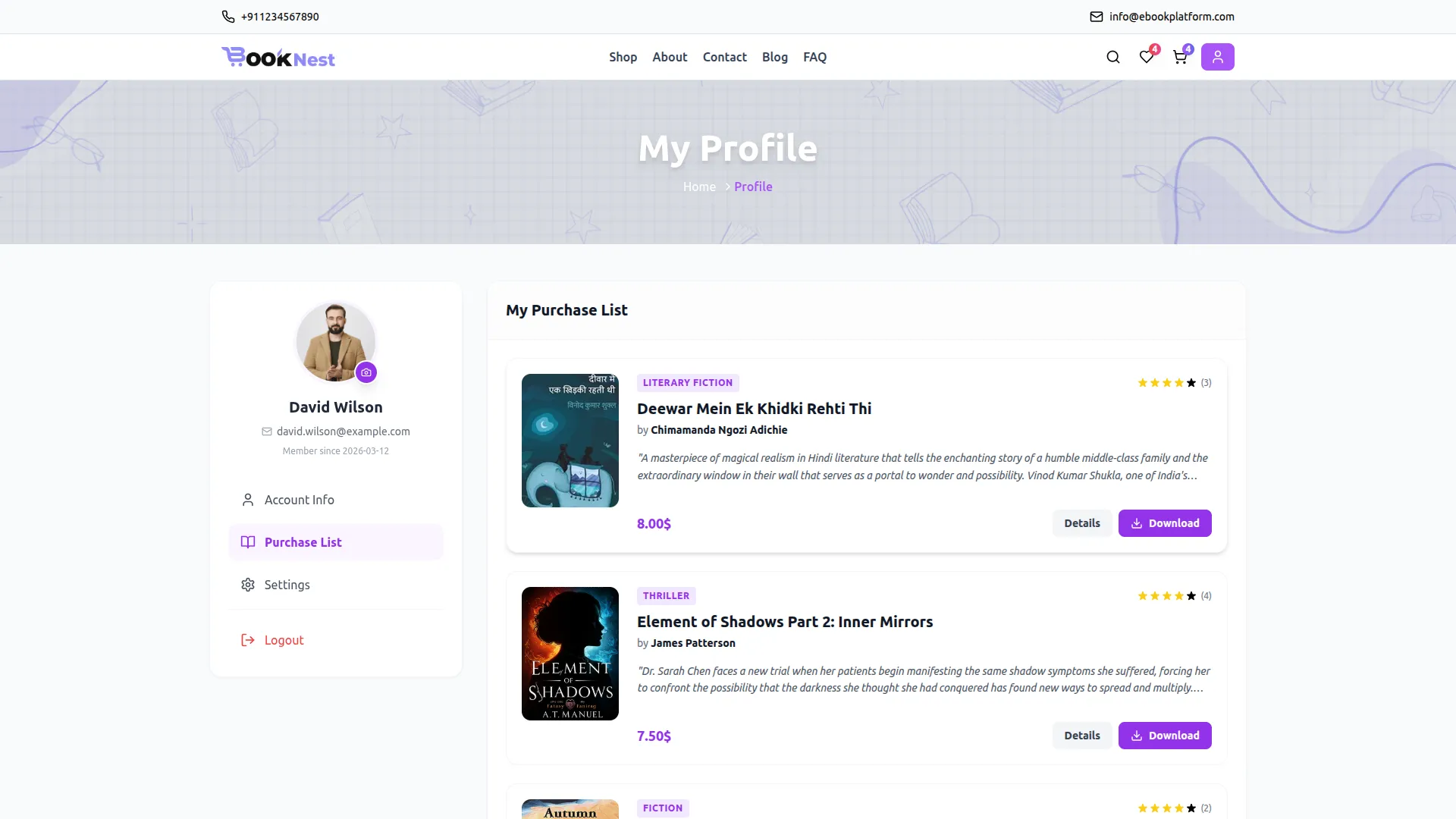
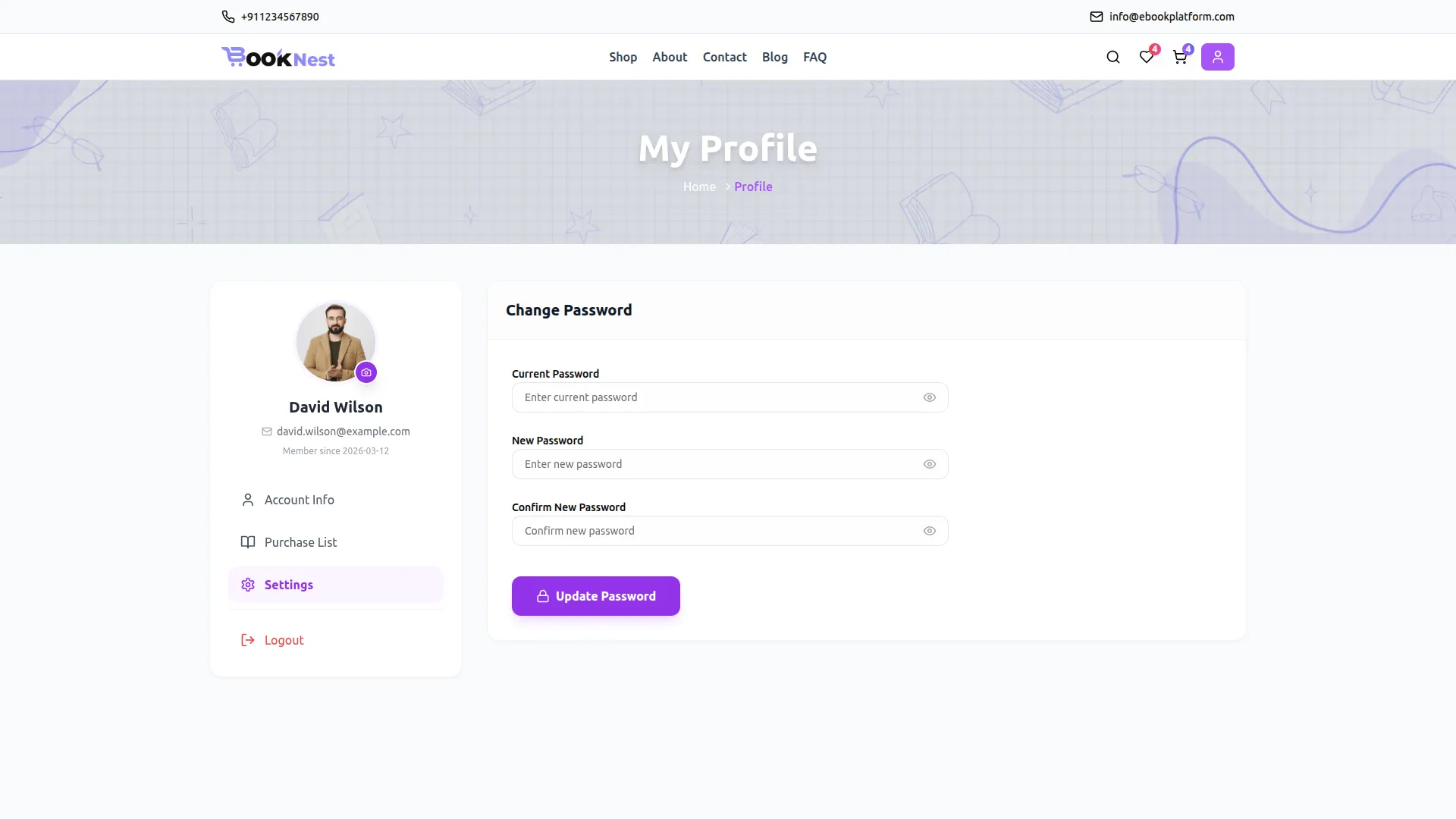
- Once registered and logged in, the reader can access their personal My Profile page on the frontend, which includes three sections, Account Info (first name, last name, email, mobile number, country, state, city, and zip code), Purchase List (all purchased eBooks with their cover, title, category, description, price, rating, and a Download button), and Settings (change password option). If the reader’s status is disabled from the backend, they will lose access to their account on the frontend.
Manage Reviews
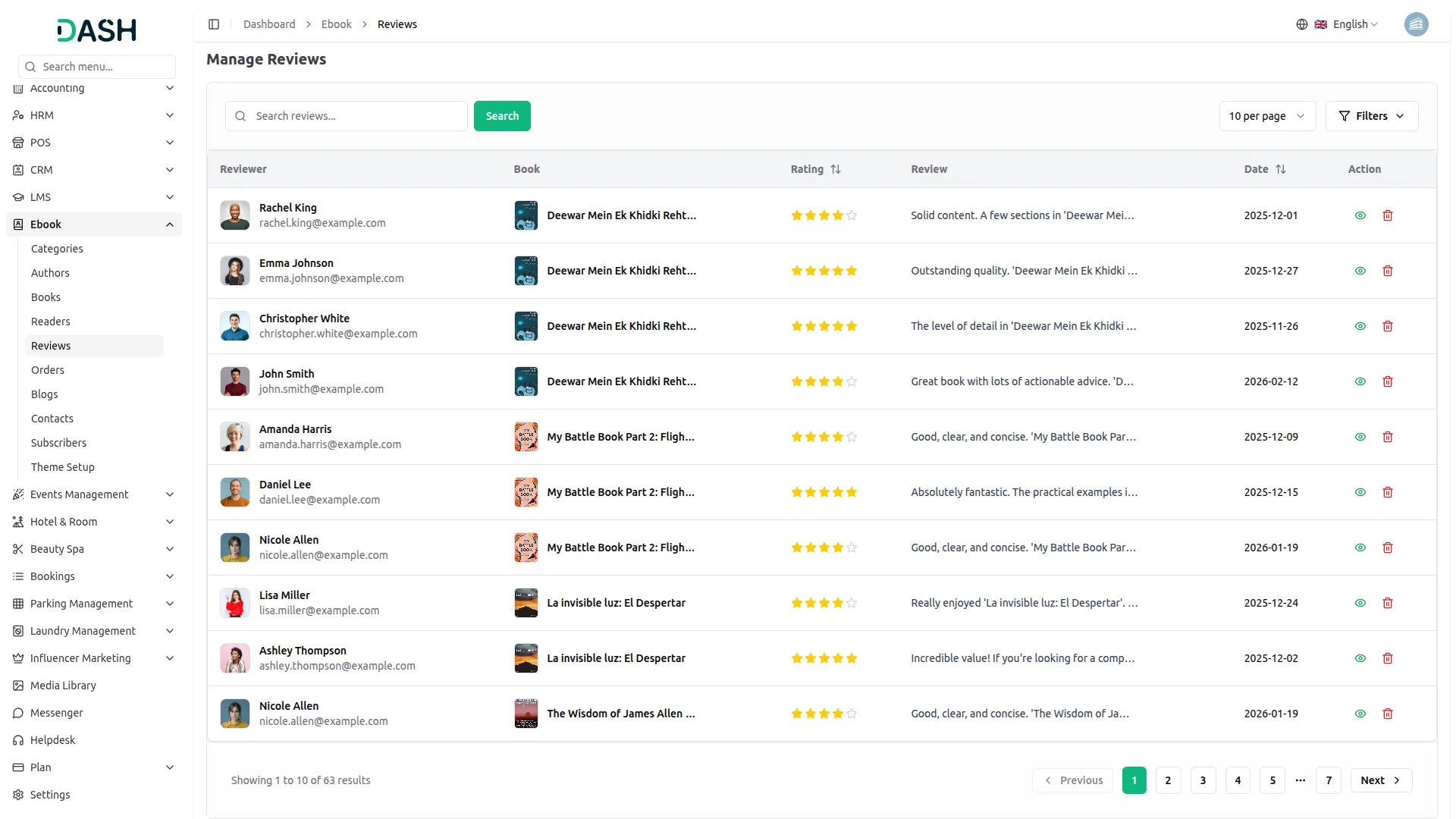
- The Manage Reviews page displays all customer reviews submitted across the platform. The table includes columns for Reviewer (avatar and email), Book (cover thumbnail and title), Rating, Review, Date, and Action.
- Use the search bar to find a specific review by keyword. Click the Filters button to filter reviews by Rating, Book, and Date Range, then click Apply to filter the results or Clear to reset them.
- In the Action column, use the view icon to read the full review details, or the delete icon to permanently remove a review from the system.
- Reviews are not created from the backend; they are submitted by logged-in readers directly on the frontend. Once a reader purchases a book and submits a review, it is captured in the Manage Reviews list in the backend.
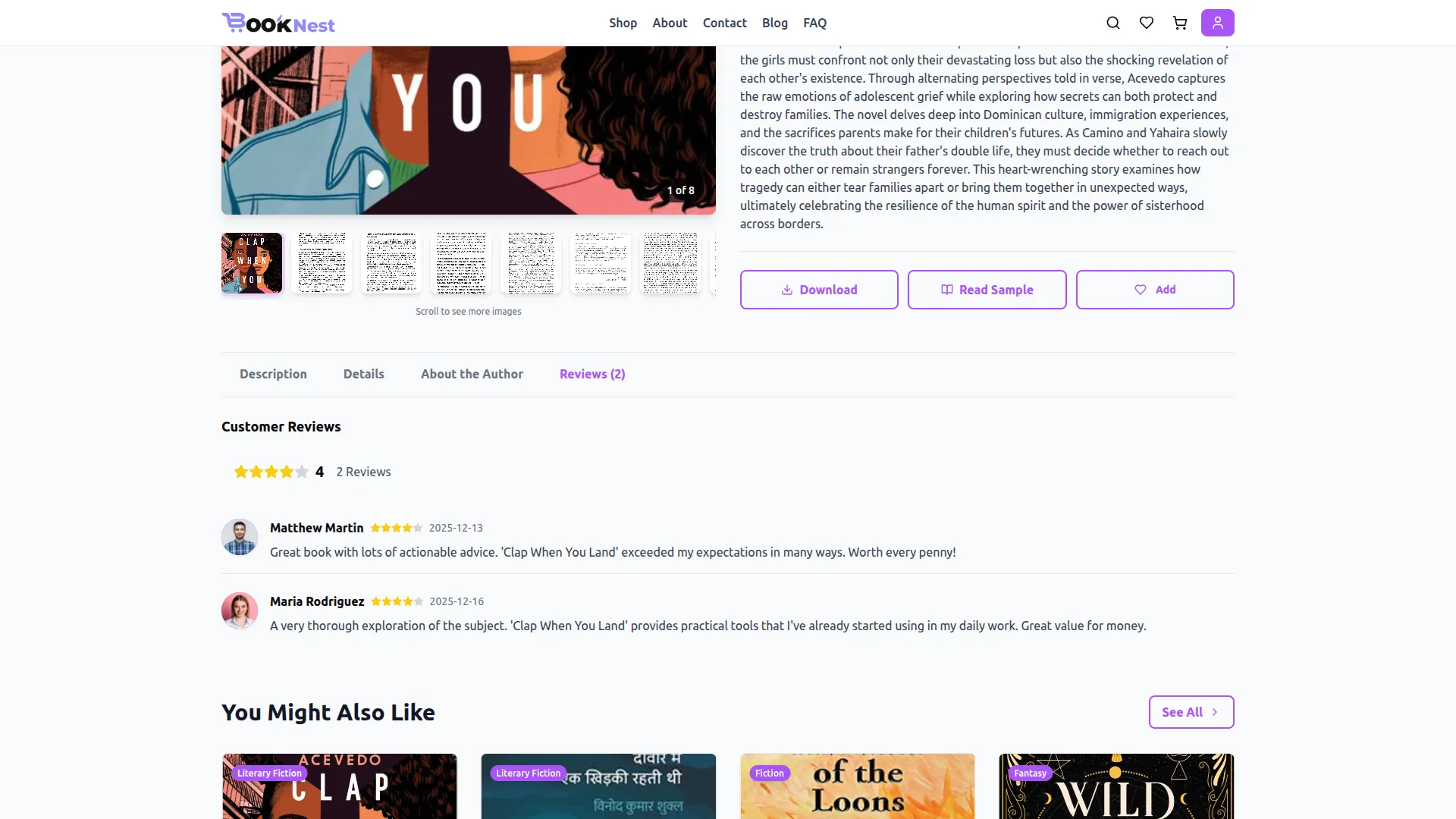
- On the frontend, all submitted reviews appear under the Reviews tab on the Single Book Detail page. The tab label displays the total number of reviews (e.g., Reviews (4)). Inside the tab, the overall star rating average and total review count are shown at the top, followed by individual review entries, each displaying the reviewer’s avatar, name, star rating, review date, and written review text. The average rating is also reflected on every eBook card across the Shop page and homepage as the visible star rating shown beneath the book title.
Manage Orders
- The Manage Orders page displays all orders placed by readers on the platform. The table includes columns for Customer (avatar and email), Books (cover thumbnail), Total, Status, Payment (method), Date, and Actions.
- Use the search bar to find a specific order. Click the Filters button to filter orders by Order Date Range, then click Apply to filter the results or Clear to reset them.
- In the Actions column, use the view icon to open the full Order Details pop-up, which displays the unique Order ID, Payment Status, Customer Information, Order Items, Total Amount, and Payment Information. Use the delete icon to permanently remove an order from the system.
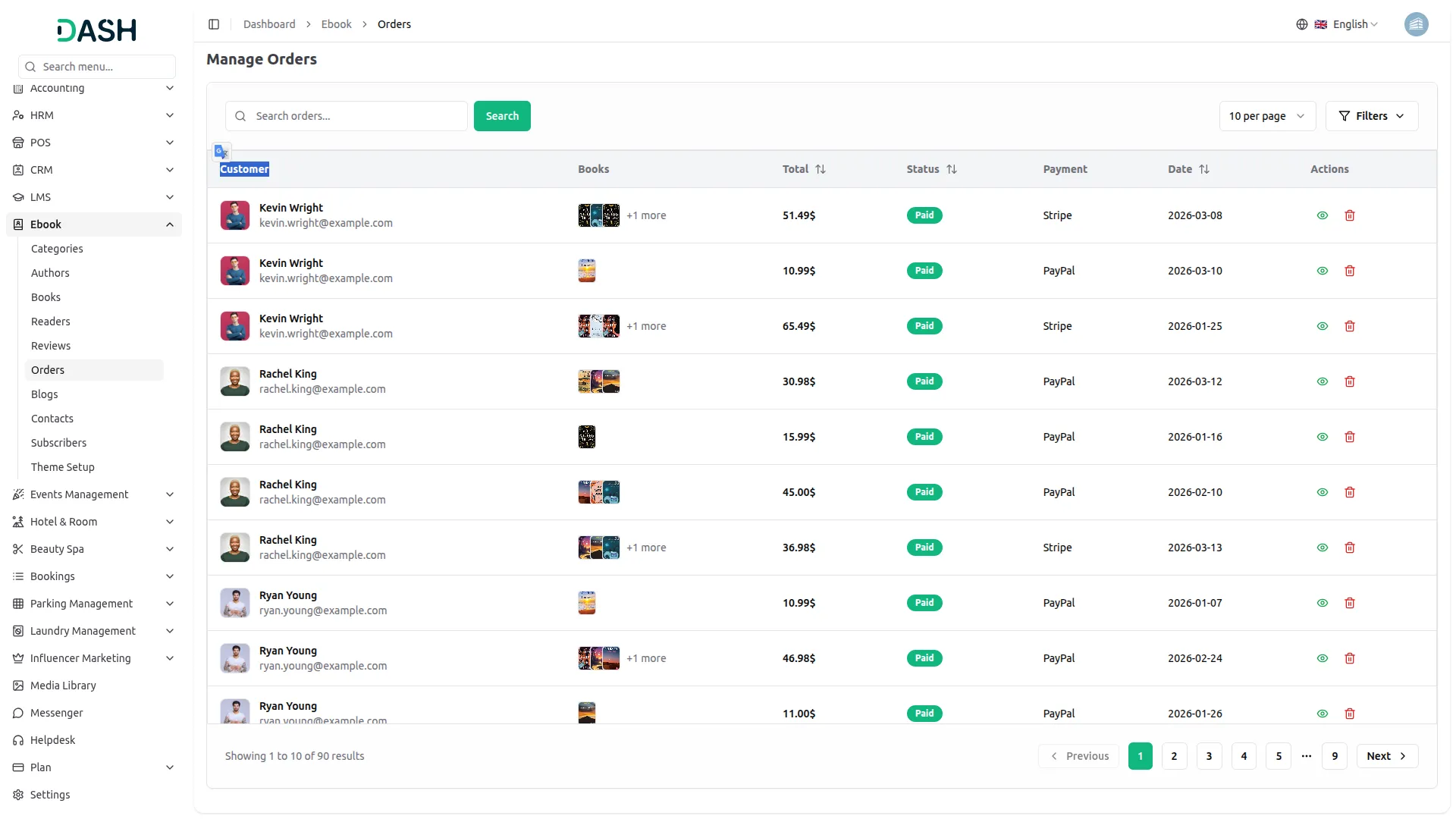
- Orders are not created from the backend; they are automatically generated when a reader completes a purchase on the frontend. Once a reader adds a book to the Cart, proceeds to Checkout, selects a payment method (Stripe or PayPal), and clicks Place Order Securely, the order is recorded and appears in the Manage Orders list in the backend.
- On the frontend, the reader can view all their purchased books under the Purchase List tab on their My Profile page. Each purchased book is listed with its cover image, category tag, title, author, description, rating, price, a Details button to view the full book page, and a Download button to access the purchased eBook file directly.
Manage Blogs
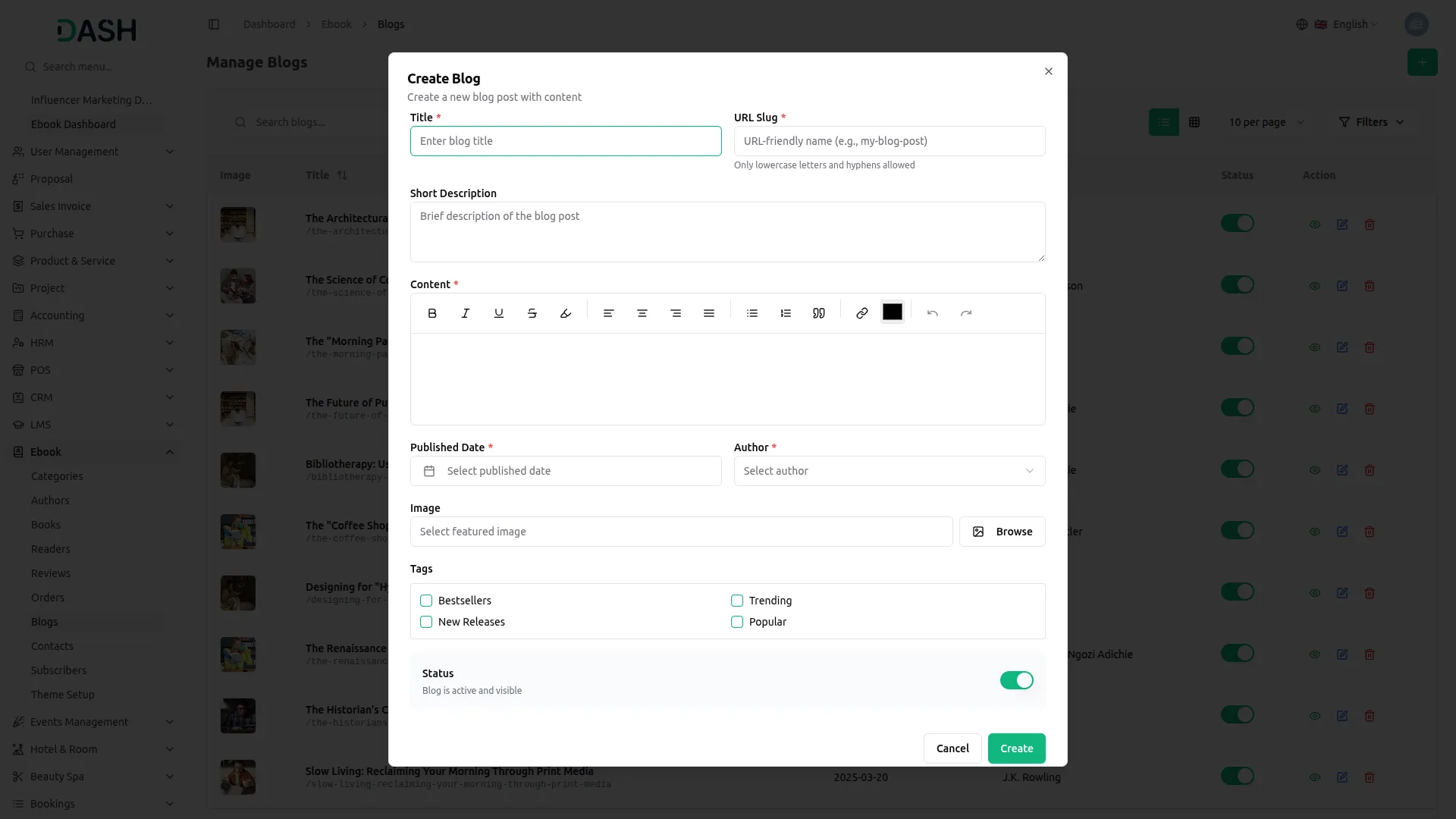
- To add a new blog post, click the “Create” button at the top right of the Manage Blogs page. In the Create Blog form, enter the Title and a URL-friendly URL Slug (lowercase letters and hyphens only).
- Write a Short Description which serves as the brief summary of the blog post. Write the full Content using the rich text editor. Select the Published Date and choose the Author from the dropdown (comes from the Author section).
- Upload a featured Image using the Browse button. Select one or more Tags, Bestsellers, Trending, New Releases, or Popular, and set the Status toggle to active to make the blog visible on the website.
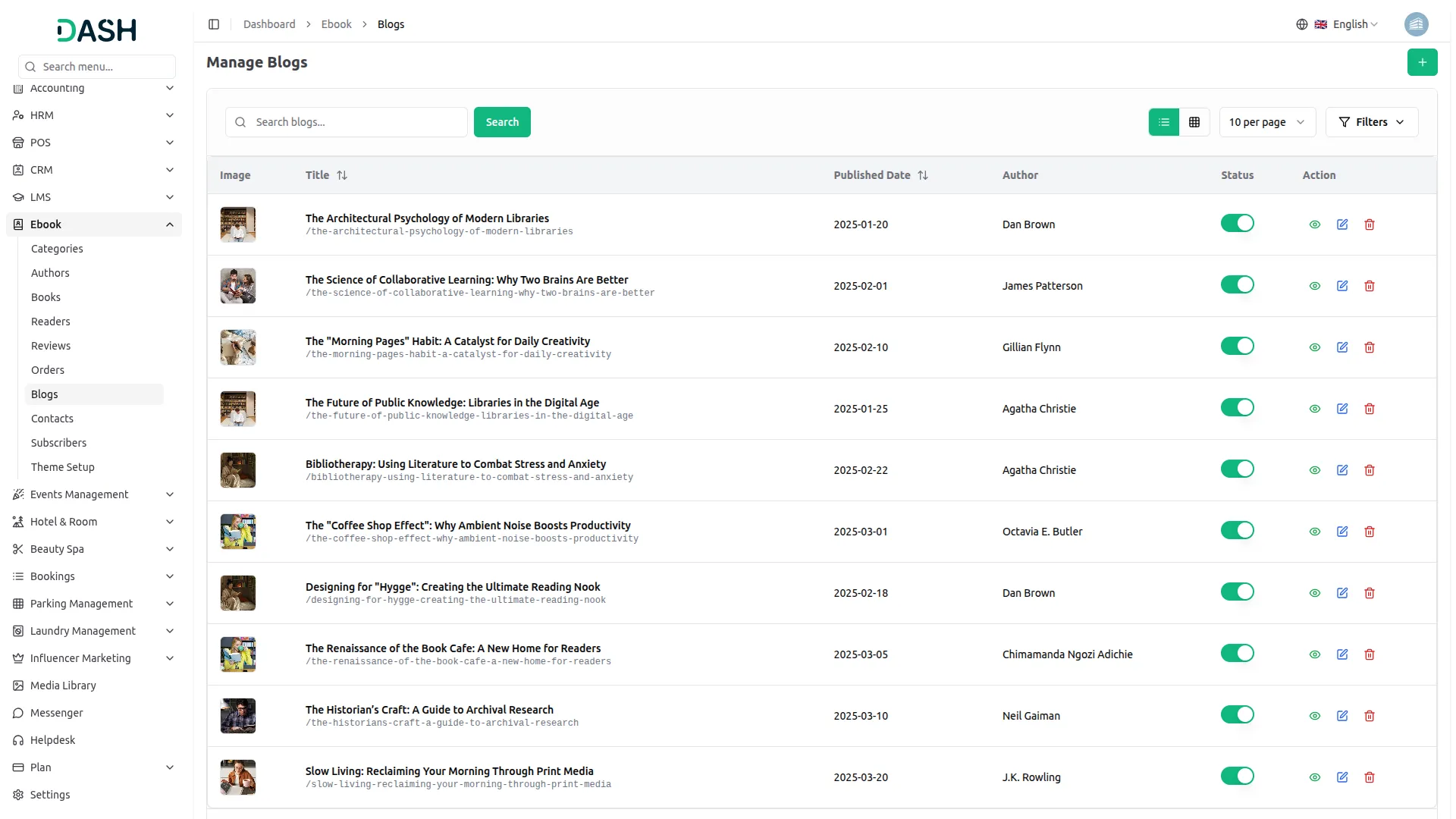
- The list page displays a table of columns including the blog’s Image, Title, URL Slug, Published Date, Author, Status, and Action. You can toggle between list view and grid view using the icons at the top right. Use the search bar to find a specific blog by title. Click the Filters button to filter blogs by Author, Status, and Published Date Range, then click Apply to filter the results or Clear to reset them.
- In the Action column, use the view icon to open a preview popup showing the full blog details, including the Title, Published Date, URL Slug, Author, featured Image, Short Description, Tags, and full Content.
- Use the edit icon to update the blog’s information, or the delete icon to permanently remove it from the system.
- Once saved, the blog post will appear across the following areas of the website.
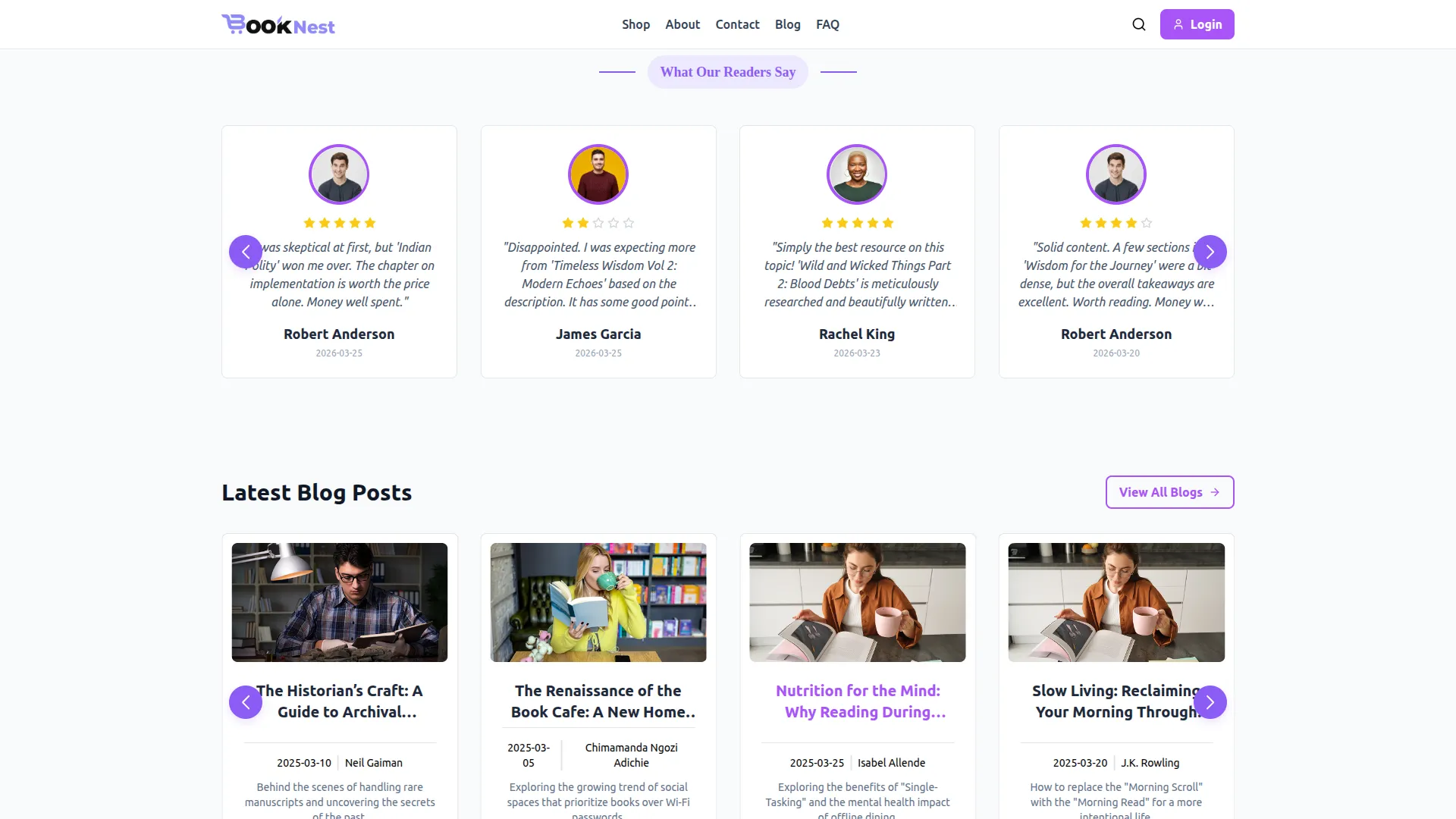
- On the Homepage, the latest active blog posts appear in the Latest Blog Posts section at the bottom of the page. Each blog card displays the featured Image, Published Date, Author Name, Title, and Short Description, along with a Read More link.
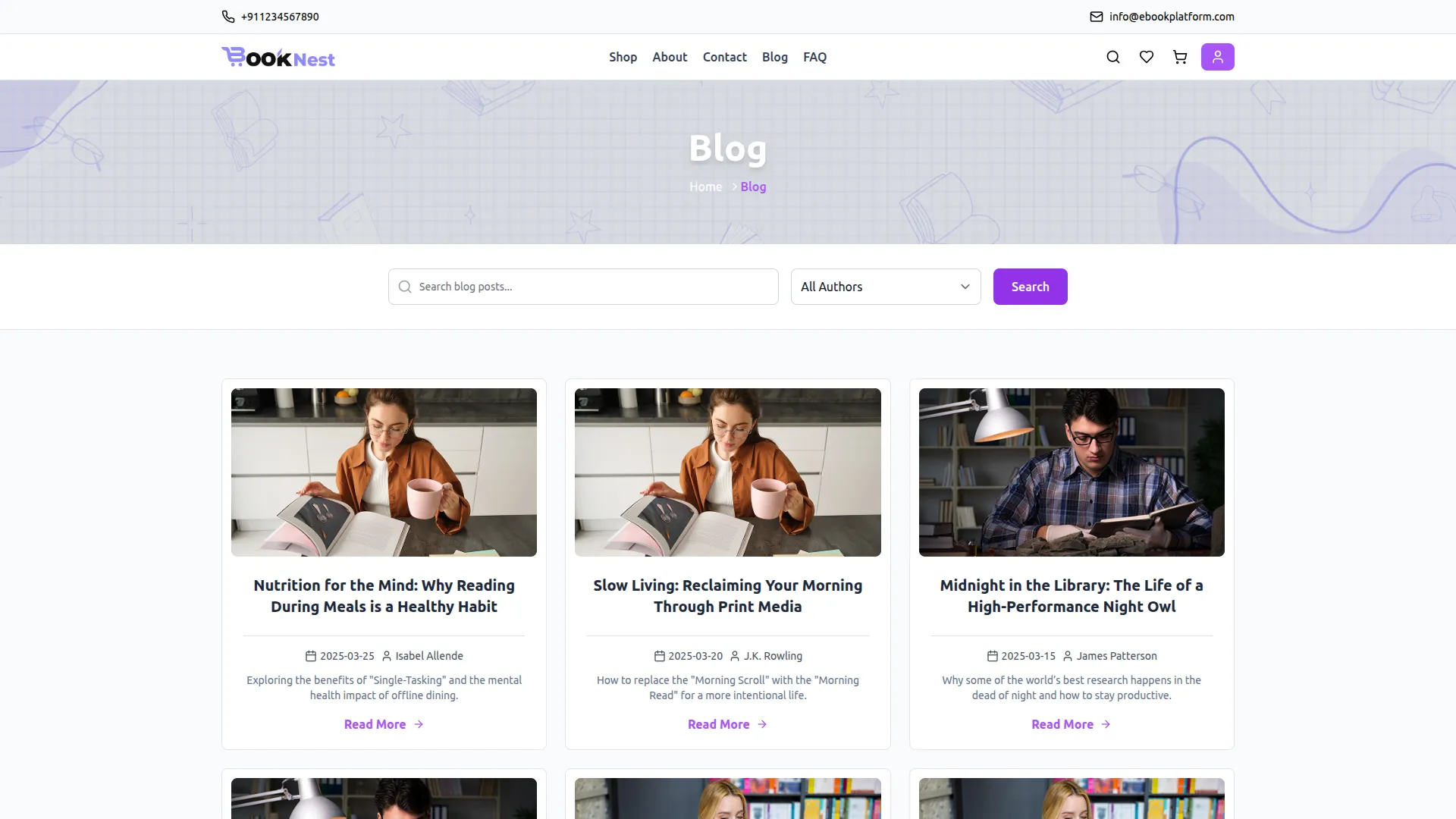
- On the Blog listing page, all active blog posts are displayed in a grid layout. Each card shows the featured Image, Title, Published Date, Author Name, and Short Description with a Read More link. Visitors can search for a specific post using the search bar and filter by author using the All Authors dropdown.
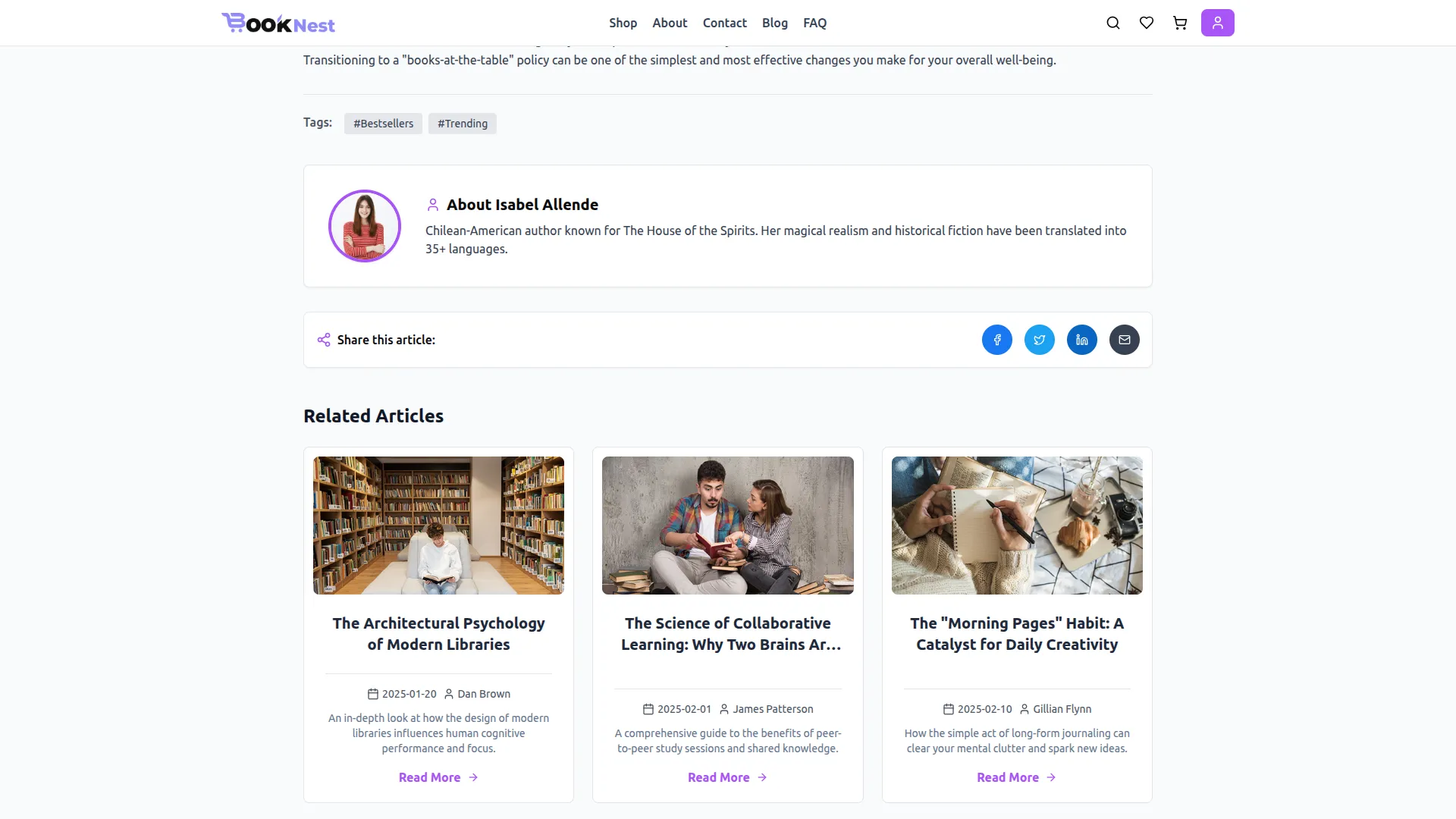
- When a visitor clicks Read More, they are taken to the Single Blog Post page, which displays the blog’s assigned Tag badge (such as Trending or Popular) at the top, followed by the Title, Author Name with their profile photo, Published Date, the full-width featured Image, the Short Description as a highlighted quote block, the assigned Tags, and the complete Content exactly as written in the rich text editor.

- At the bottom of the post, the About the Author section shows the author’s profile image, name, and bio, along with social sharing buttons for Facebook, Twitter, LinkedIn, and Email. A Related Articles section also appears, displaying other blog posts by the same author.
Manage Contacts
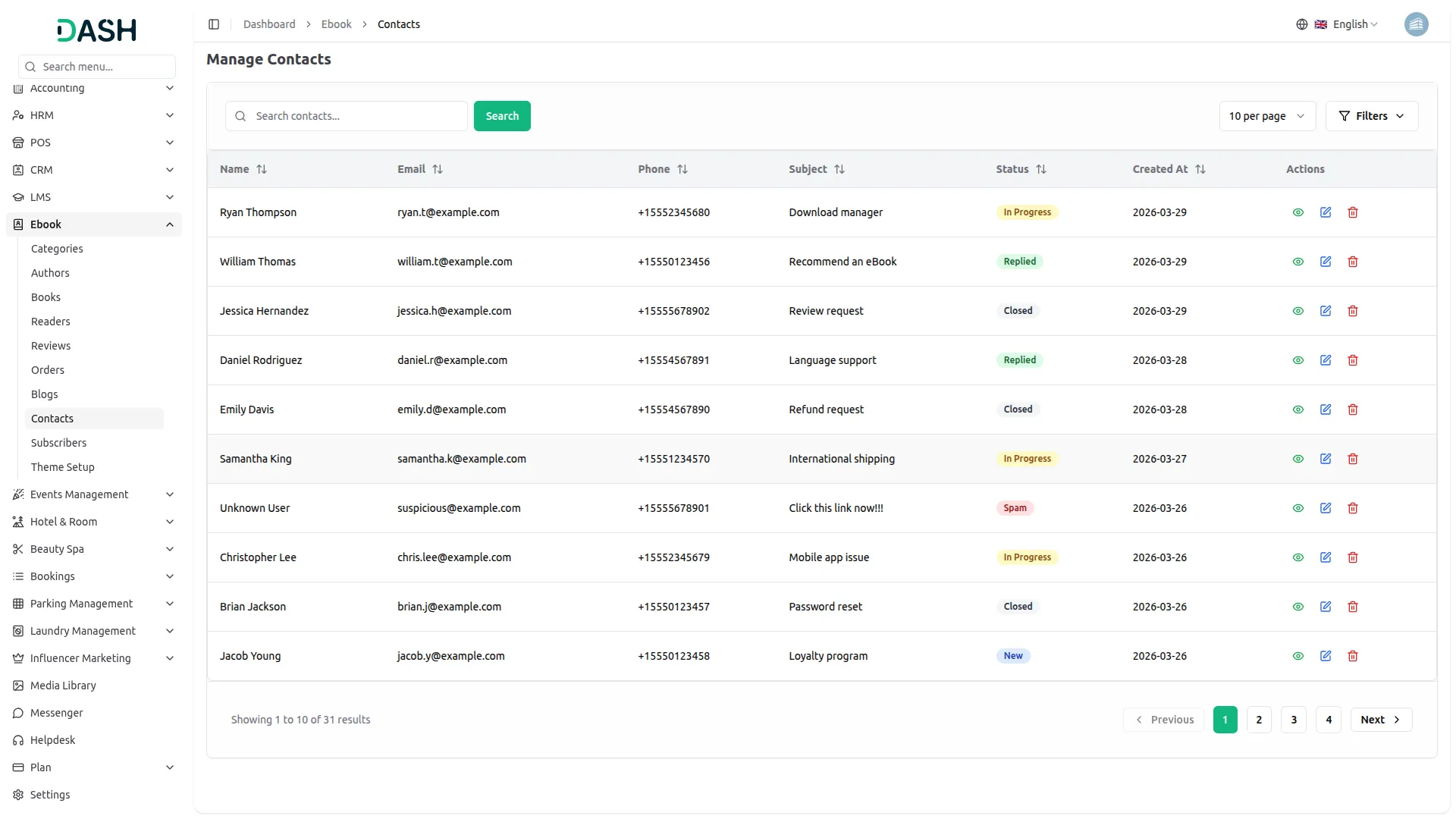
- The Manage Contacts page displays all inquiries submitted by visitors through the Contact Us form on the frontend. The table includes columns for Name, Email, Phone, Subject, Status, Created At, and Actions.
- Use the search bar to find a specific contact by name. Click the Filters button to filter contacts by Status (New, In Progress, Replied, or Closed) and Date Range, then click Apply to filter the results or Clear to reset them.
- In the Actions column, use the view icon to read the full inquiry details, the edit icon to update the contact’s status as you handle the inquiry, or the delete icon to permanently remove it from the system.
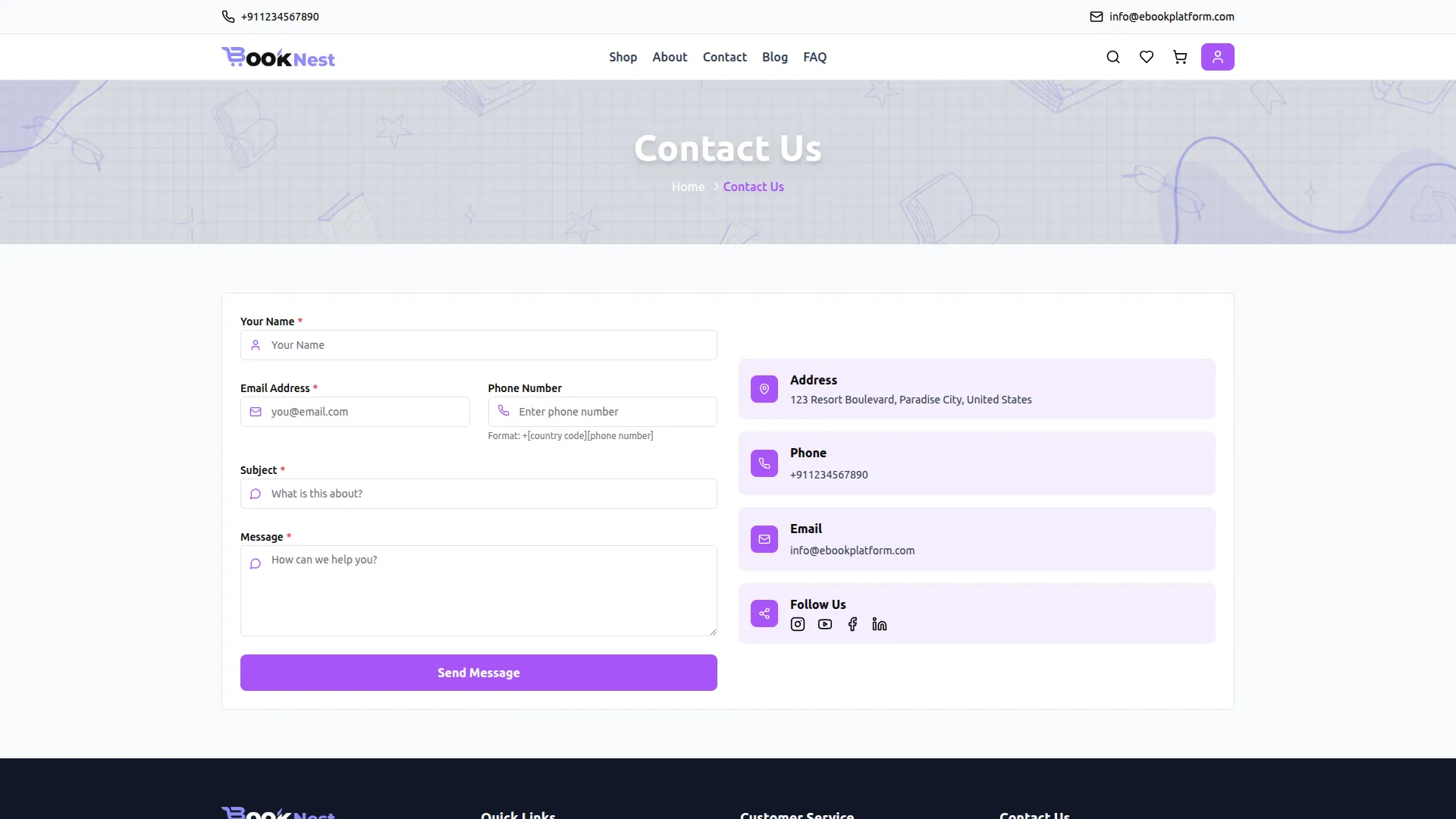
- Contacts are not created from the backend; they are automatically generated when a visitor submits the Contact Us form on the frontend. On the Contact Us page, visitors fill in their Name, Email Address, Phone Number, Subject, and Message, then click the Send Message button.
- Once submitted, the inquiry is instantly captured and appears in the Manage Contacts list in the backend with a New status. As the admin updates the status to In Progress, Replied, or Closed, it reflects the current handling stage of that inquiry within the backend.
Manage Subscribers
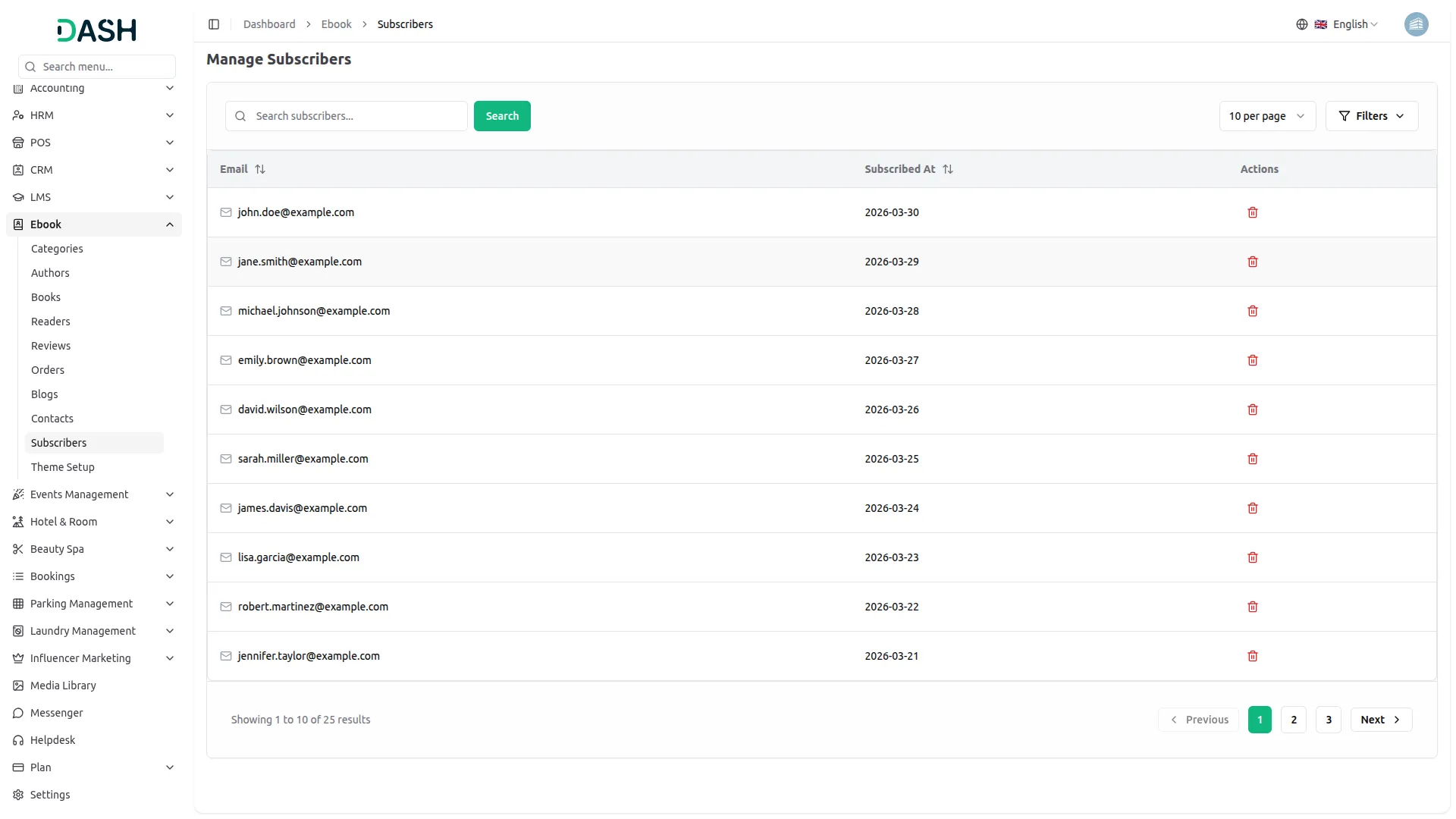
- The Manage Subscribers page displays all visitors who have subscribed to the newsletter on the frontend. The table includes columns for Email, Subscribed At, and Actions.
- Use the search bar to find a specific subscriber by email. Click the Filters button to filter subscribers by Date Range, then click Apply to filter the results or Clear to reset them.
- In the Actions column, use the delete icon to permanently remove a subscriber from the system.
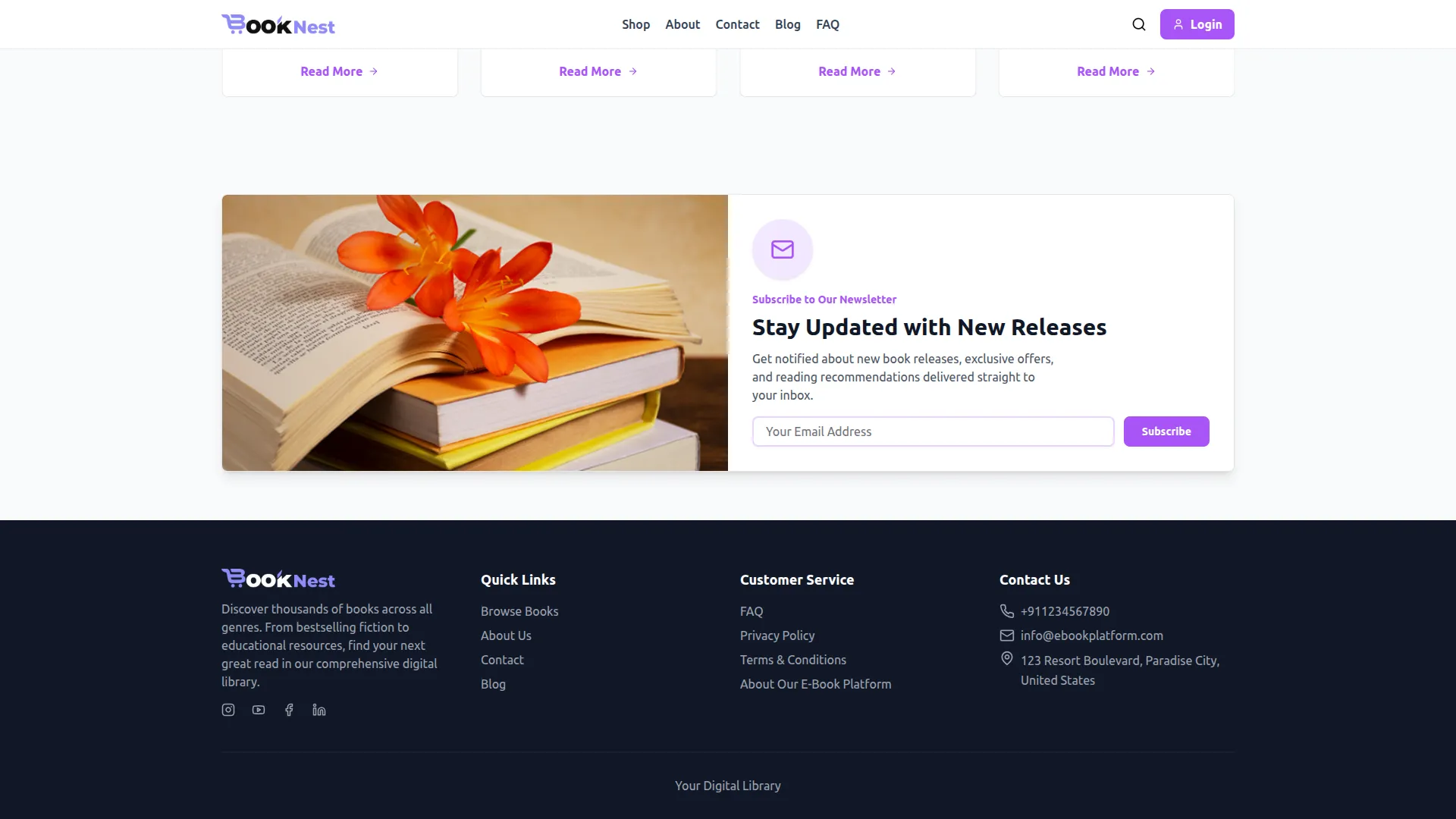
- Subscribers are not created from the backend; they are automatically captured when a visitor submits their email through the Newsletter section on the frontend. At the bottom of the Homepage, visitors will find the newsletter subscription section displaying the Title, Description, and Image configured in the Theme Setup. Visitors enter their email address in the input field and click the Subscribe button.
- Once submitted, their email address and subscription date are instantly recorded and appear in the Manage Subscribers list in the backend.
Frontend Pages Guide
User Profile
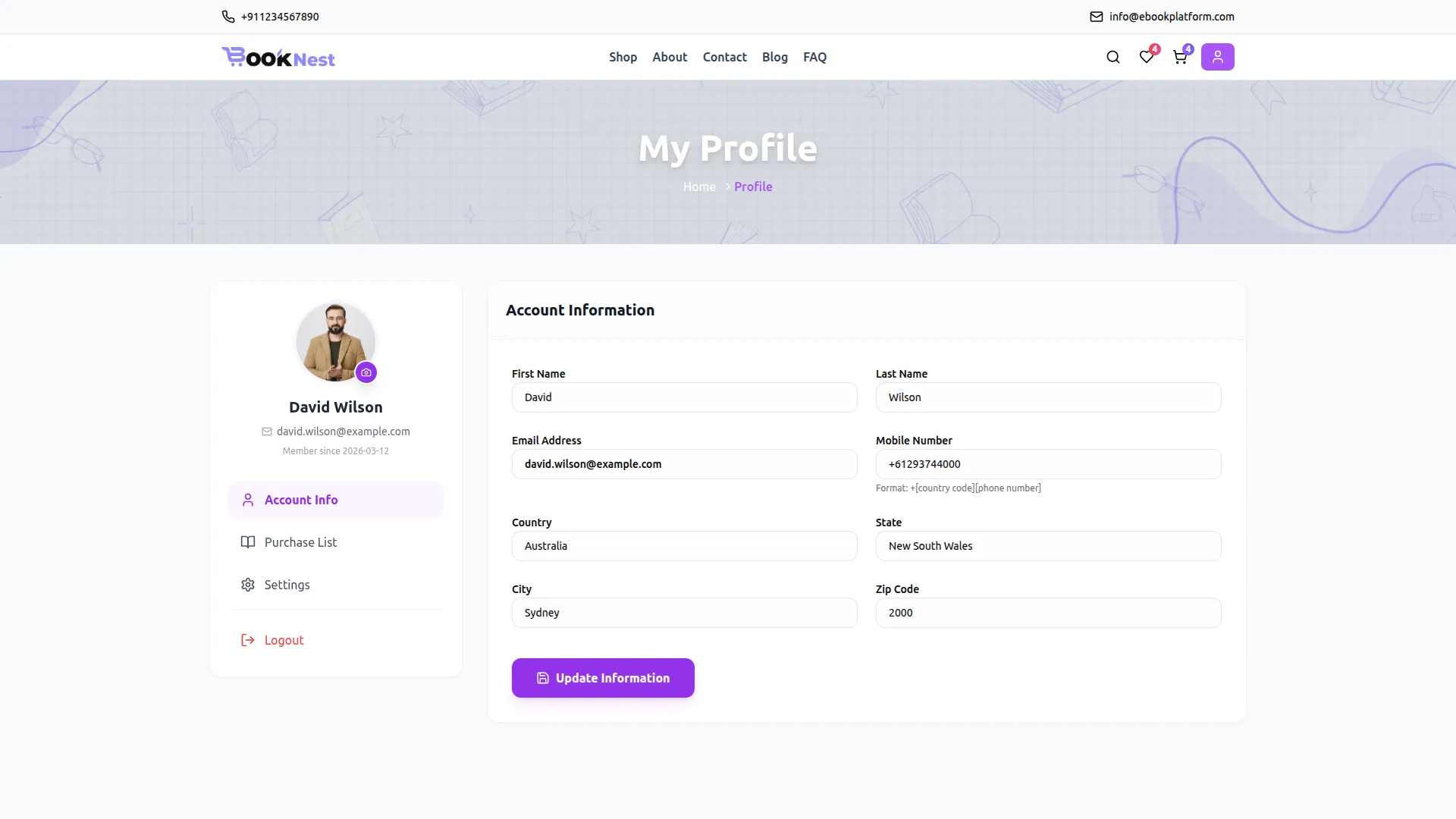
- Registered readers can access their profile by clicking the profile icon at the top right of the navigation bar. The profile page is divided into three sections accessible from the left sidebar:
- Account Info: This section displays the reader’s personal details. The reader can update their First Name, Last Name, Email Address, Mobile Number, Country, State, City, and Zip Code. After making changes, click the Update Information button to save.
- Purchase List: This section displays all eBooks the reader has purchased. Each entry shows the book’s Cover Image, Category Tag, Title, Author Name, Short Description, Star Rating, and Price. Two action buttons are available for each book, the Details button redirects the reader to the full book detail page on the website, and the Download button allows the reader to instantly download their purchased eBook file.
- Settings: This section allows the reader to change their account password. The reader must enter their Current Password, then enter and confirm a New Password, and click Update Password to save the changes.
Manage Wishlist
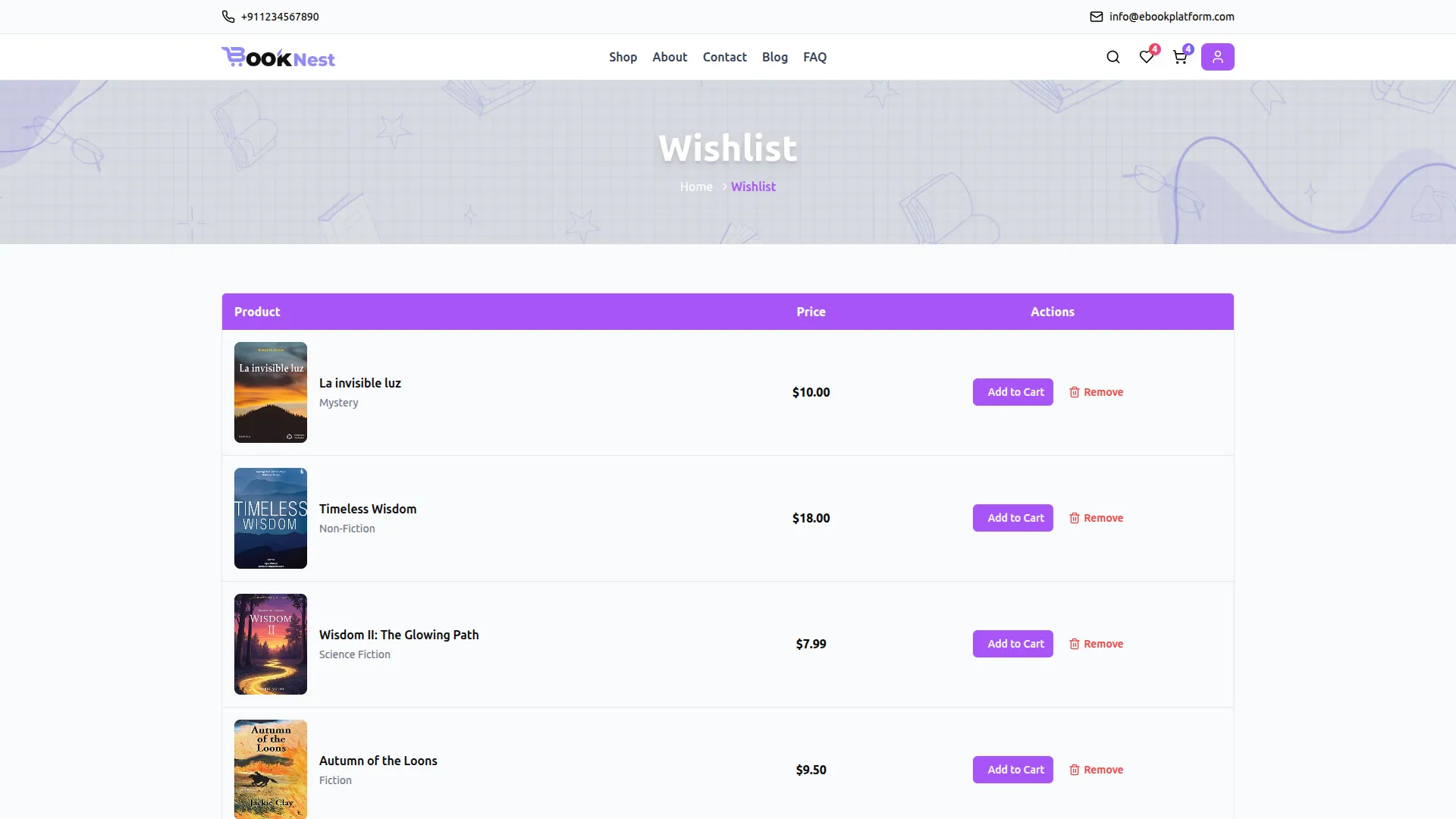
- The Wishlist page is accessible by clicking the heart icon in the top navigation bar. It displays all the eBooks the reader has saved for later.
- Each row in the wishlist table shows the book’s Cover Thumbnail, Title, Category, and Price. Two action buttons are available: the Add to Cart button moves the book directly into the shopping cart for purchase, and the Remove button deletes the book from the wishlist. At the bottom of the page, a Continue Shopping link redirects the reader back to the Shop page to browse more eBooks.
- To add a book to the wishlist, readers click the heart icon that appears on any eBook card on the Shop page or homepage, or click the wishlist button on the single book detail page.
Manage Cart
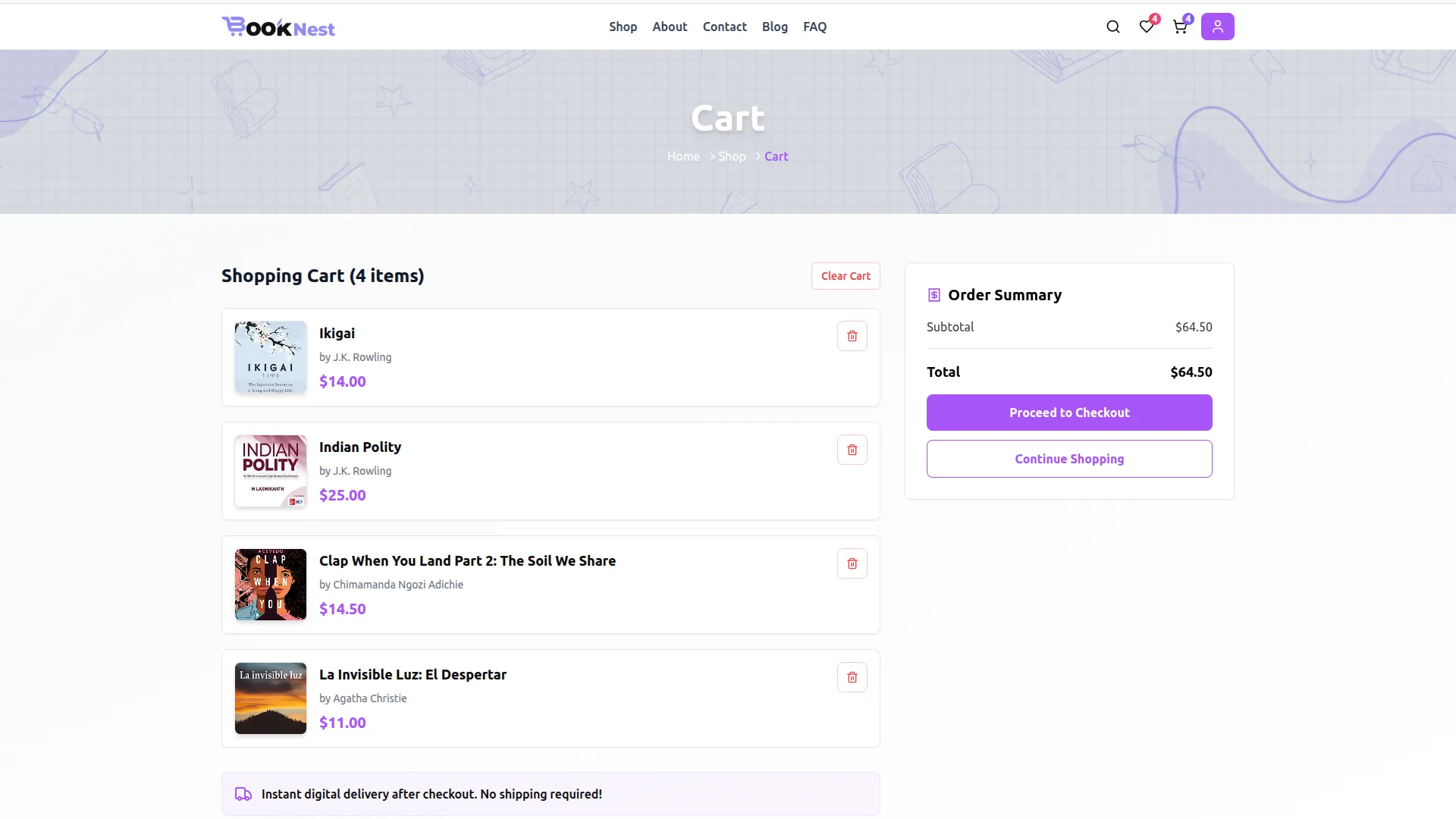
- The Cart page is accessible by clicking the cart icon in the top navigation bar, which also displays a badge showing the number of items currently in the cart.
- The page displays the total number of items in the cart as Shopping Cart (X item). Each item in the cart shows the book’s Cover Thumbnail, Title, Author Name, and Price in purple. A delete icon on the right side of each item allows the reader to remove it individually. A Clear Cart button at the top right removes all items from the cart at once.
- On the right side, the Order Summary panel displays the Subtotal and Total amount. A note below the cart items confirms, “Instant digital delivery after checkout. No shipping required!” Two buttons are available: Proceed to Checkout to move forward with the purchase, and Continue Shopping to return to the Shop page and add more books.
Manage Checkout
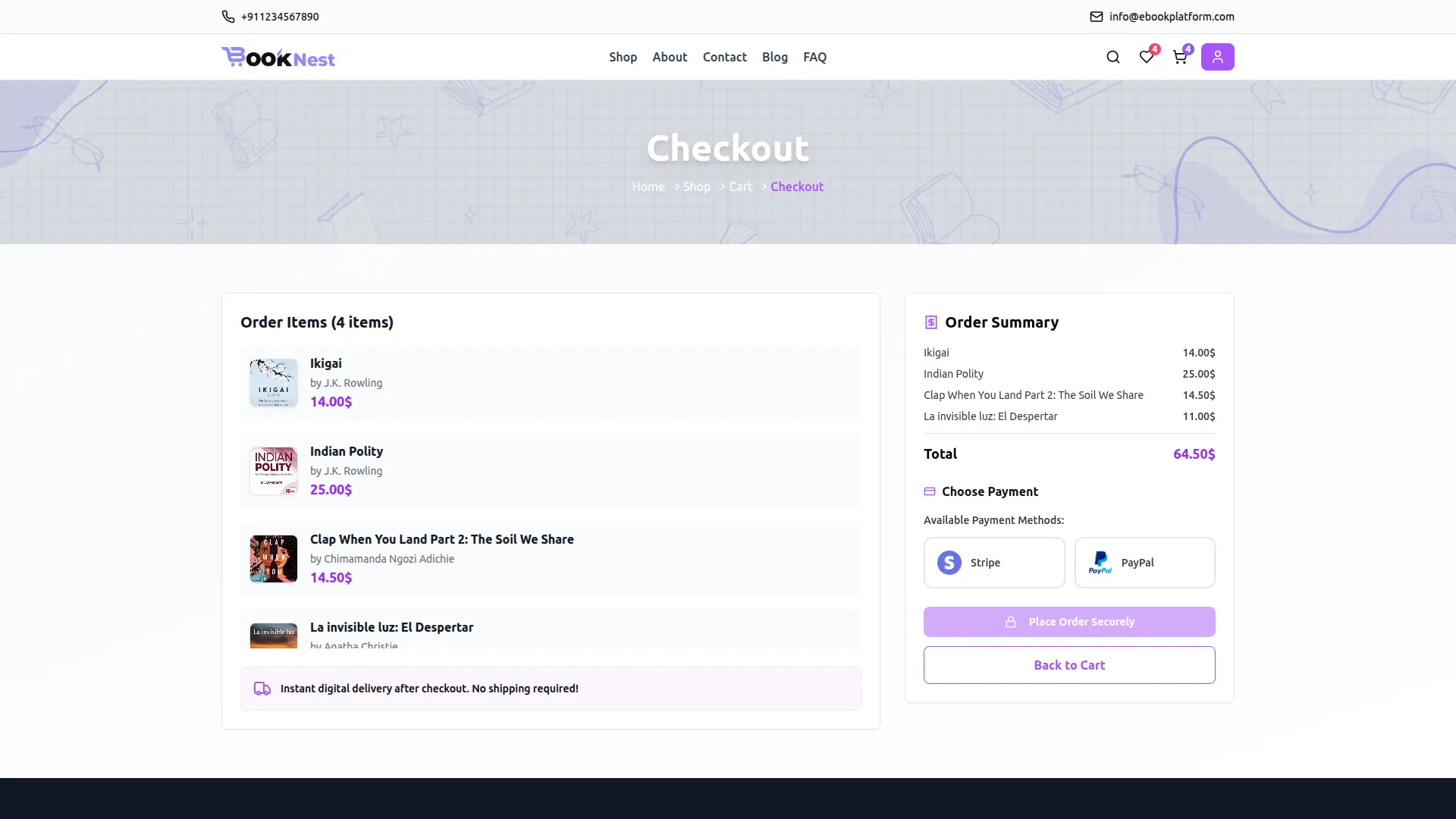
- The Checkout page is the final step before completing a purchase. It is reached by clicking Proceed to Checkout from the Cart page.
- The left side of the page displays Order Items (X item), listing each book with its Cover Thumbnail, Title, Author Name, and Price. The same digital delivery notice is shown here as a reassurance to the reader.
- On the right side, the Order Summary panel shows the individual book price and the Total amount highlighted in purple. Below the summary, the Choose Payment section displays two available payment methods, Stripe and PayPal, shown as selectable card buttons. The reader clicks their preferred payment method to select it, then clicks Place Order Securely to complete the purchase. A Back to Cart button is also available if the reader wishes to return and make changes before confirming.
- Once the order is placed successfully, it is recorded in the backend under Manage Orders, and the purchased books immediately appear in the reader’s Purchase List under My Profile, ready to download.
Categories
Related articles
- Google Slides – WorkDo Dash SaaS Add-On Guide
- Medical Lab Management – WorkDo Dash SaaS Add-On Guide
- Sage – WorkDo Dash SaaS Add-On Guide
- Cybersource – WorkDo Dash SaaS Add-On Guide
- Quotation – WorkDo Dash SaaS Add-On Guide
- Backup & Restore – BookingGo SaaS Add-On Guide
- Wholesale Product – eCommerceGo SaaS Add-On Guide
- Zendesk – TicketGo Add-On Guide
- BitPay – BookingGo SaaS Add-On Guide
- Marketing Plan – WorkDo Dash SaaS Add-On Guide
- SenangPay – BookingGo SaaS Add-On Guide
- Sign in with LinkedIn – WorkDo Dash SaaS Add-On Guide
We're Here to Help - Let's Talk
Have questions about our solutions, customization services, or business tools? Our team is here to help you. let's talk.