
Fire Safety – WorkDo Dash SaaS Add-On Guide
Learn how to manage fire safety operations and emergency processes in WorkDo Dash SaaS.
Introduction
The Fire Safety Add-On is a comprehensive fire safety management solution that helps organizations maintain full control over their fire safety operations from a single platform. It covers everything from managing Properties, Fire Zones, Extinguishers, Fire Alarms, Sprinkler Systems, Safety Equipment, and Fire Exits to handling Fire Inspections, Fire Drills, Risk Assessments, Incidents, and Emergency Contacts. With a real-time dashboard and flexible system configuration options, the Add-On gives safety officers and managers the visibility they need to stay compliant, prepared, and responsive at all times.
How to Install the Add-On?
To Set Up the Fire Safety Add-On, you can follow this link: Setup Add-On.
How to use the Fire Safety Add-On?
Fire Safety Dashboard
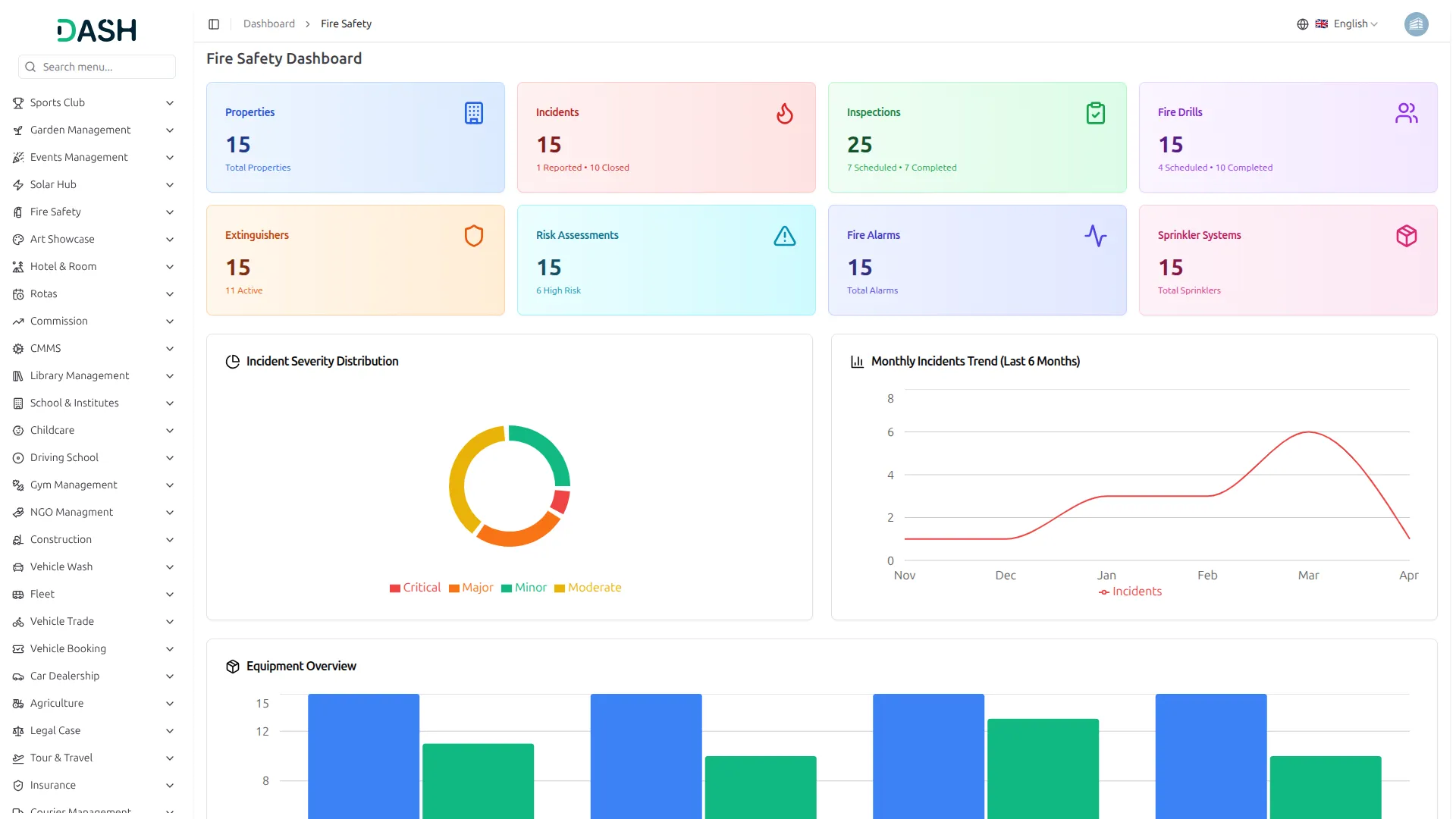
- The Fire Safety Dashboard provides a complete overview of your organization’s fire safety metrics through various summary cards and visual charts. You can view cards displaying total counts for Properties, Incidents, Inspections, Fire Drills, Extinguishers, Risk Assessments, Fire Alarms, and Sprinkler Systems for quick insights into overall system activity.
- The Incident Severity Distribution donut chart breaks down all recorded incidents by severity, Critical, Major, Minor, and Moderate, providing a visual snapshot of the overall incident risk landscape. The Monthly Incidents Trend line chart displays incident activity over the last 6 months, allowing you to track patterns and identify periods of increased fire safety activity.
- The Equipment Overview bar chart compares the Total count versus the active count across key equipment categories, including Fire Extinguishers, Fire Alarms, Sprinkler Systems, and Other Equipment, helping you monitor equipment readiness at a glance.
- The Recent Critical Incidents section lists the latest high-severity incidents along with their incident type, property name, date, and current status. The Recent Inspections section displays the most recent inspection records with their type, property, date, inspector, and current progress status.
- The Upcoming Fire Drills section highlights all scheduled drills with their drill name, property, scheduled date, and assigned coordinator. The High Risk Properties section lists properties currently flagged with a high fire risk level, showing their address and associated fire zone for immediate awareness and action.
Extinguisher Types
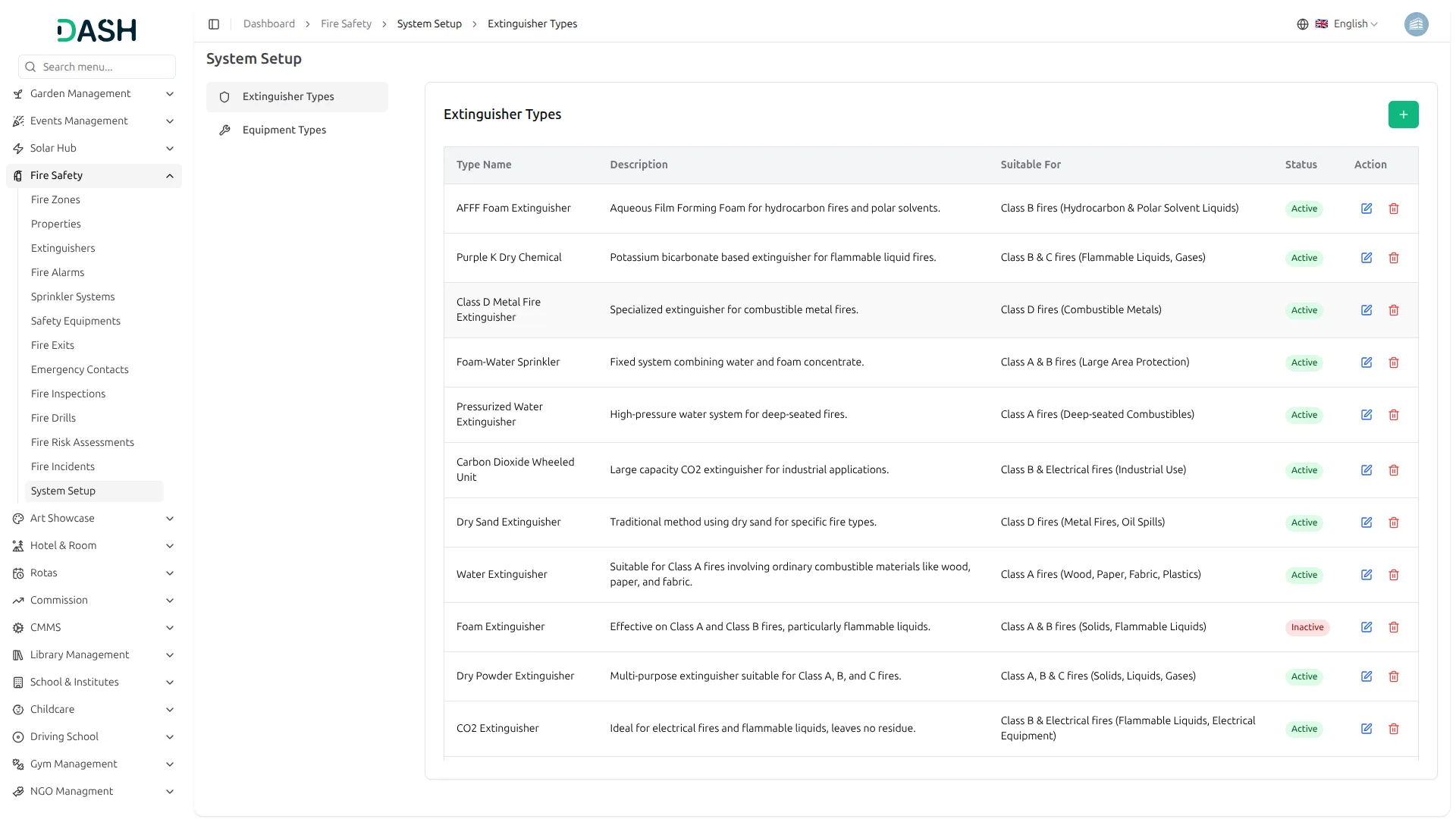
- To create a new extinguisher type, click the “Create” button on the Extinguisher Types page. Enter the Type Name. Optionally, provide a Description and enter the Suitable For field to specify the fire classes the extinguisher is appropriate for. Toggle the Status to Active or Inactive.
- The System Setup page provides configuration options for managing system-level reference data. Use the left sidebar to navigate between available setup sections, including Extinguisher Types and Equipment Types.
- The list page displays all extinguisher types in a table with columns for Type Name, Description, Suitable For, Status, and Action. In the Action column, use Edit to update any extinguisher type information or Delete to permanently remove it from the system.
Equipment Types
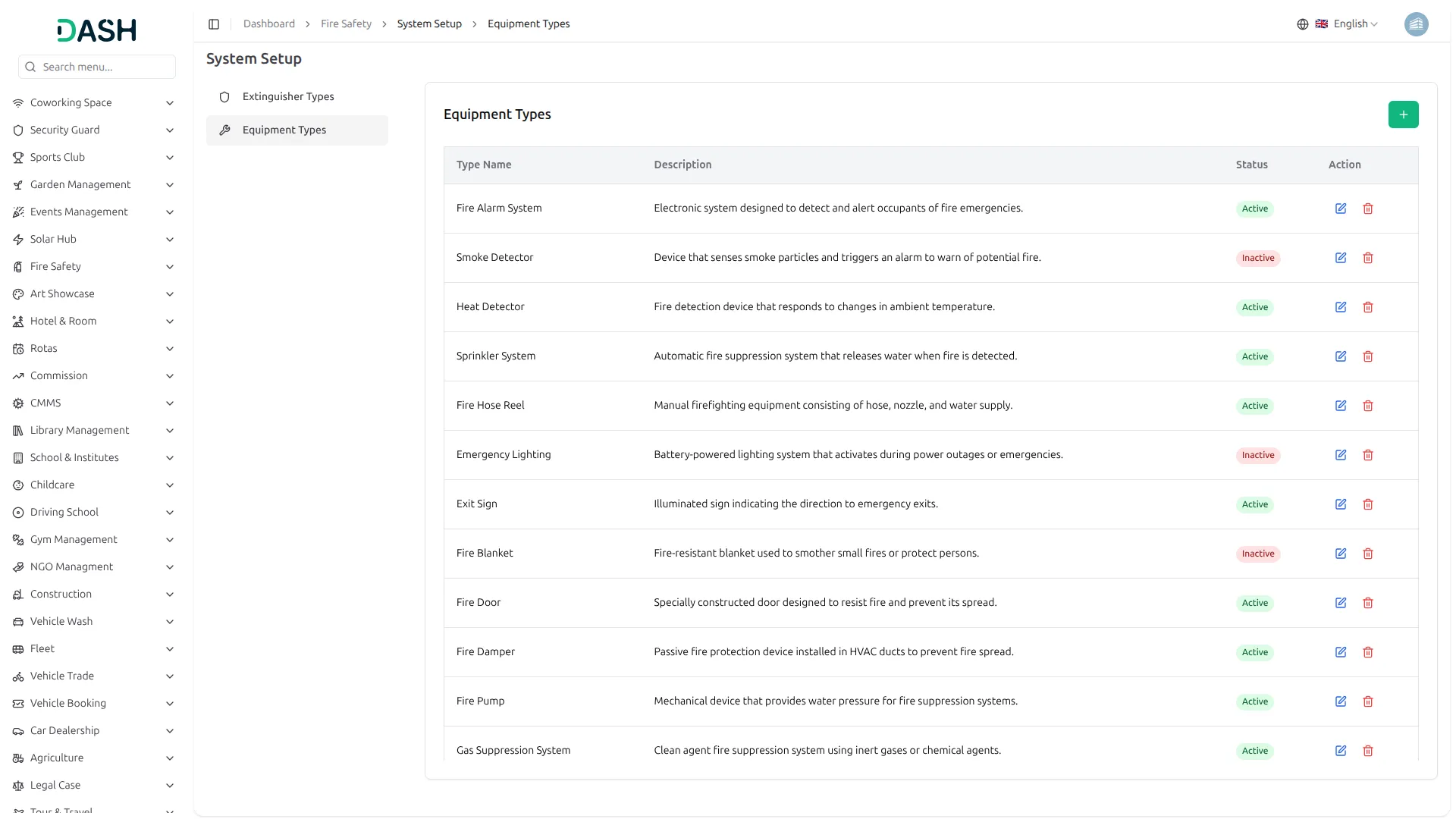
- To create a new equipment type, click the “Create” button on the Equipment Types page. Enter the Type Name. Optionally, provide a Description to explain the equipment’s purpose and function. Toggle the Status to Active or Inactive.
- The list page displays all equipment types in a table with columns for Type Name, Description, Status, and Action. In the Action column, use Edit to update any equipment type information or Delete to permanently remove it from the system.
Fire Zones
- To create a new fire zone, click the “Create” button on the Manage Fire Zones page. Enter the Zone Name, select the Zone Type by clicking the appropriate radio button to choose from Floor, Wing, Section, Building, or Area. Enter the Floor Number and Zone Area. Fill in the Zone Capacity.
- Select the appropriate Fire Risk Level by clicking the corresponding radio button to choose Low, Medium, High, or Critical based on the zone’s assessed risk.
- Assign a Zone Warden or Backup Warden from the respective dropdown (which is configured from the User Management section). Provide a Description and enter any Remarks if needed. Toggle the Status to Active or Inactive.
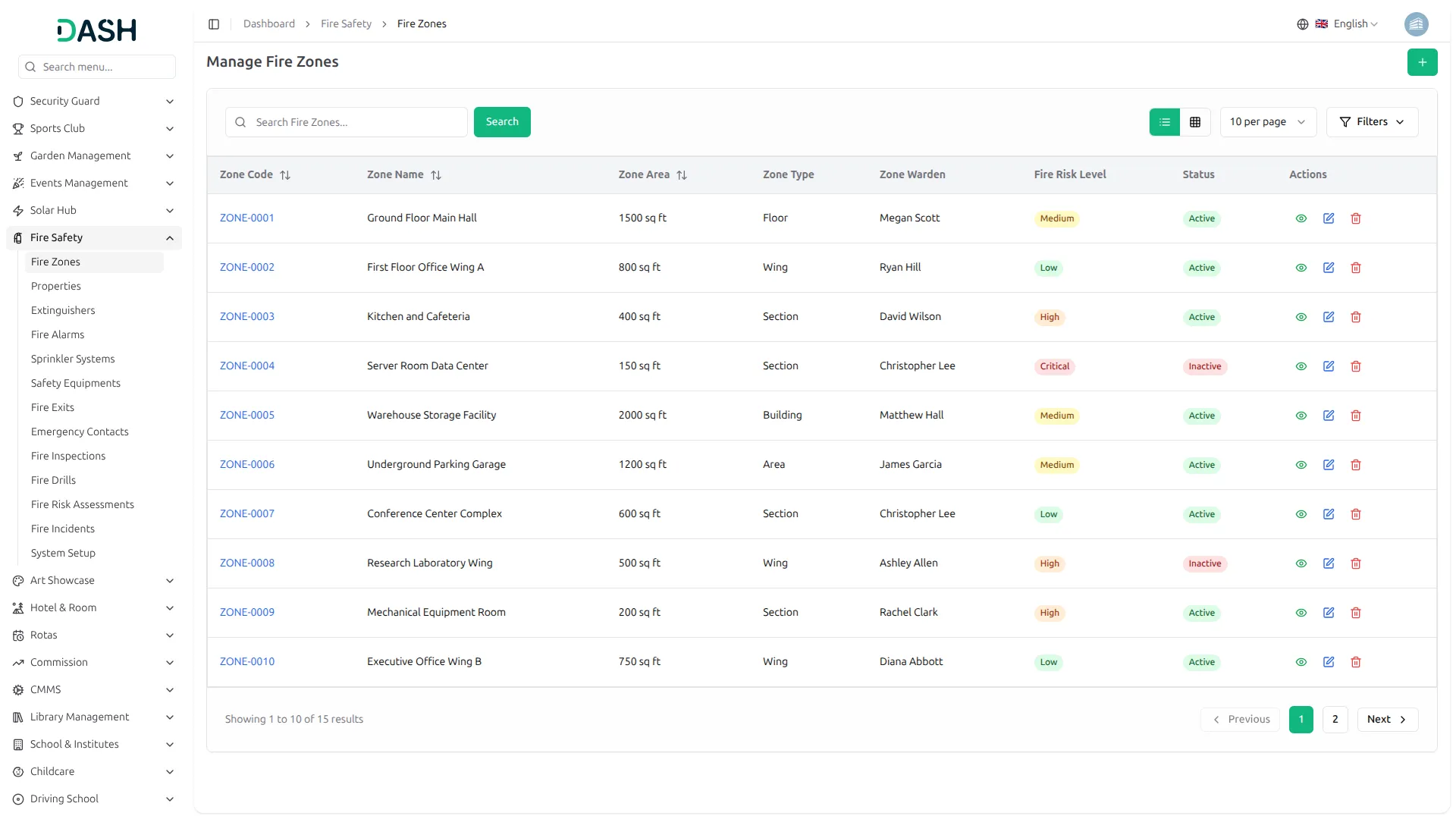
- The list page displays all fire zones in a table with columns for Zone Code, Zone Name, Zone Area, Zone Type, Zone Warden, Fire Risk Level, Status, and Actions. Use the search bar to quickly locate a specific zone by name.
- Filter the list by Zone Type, Fire Risk Level, or Status using the filter dropdowns, then click Apply to narrow results or Clear to reset filters. Toggle between list view and grid view using the view buttons at the top right.
- In the Actions column, use View to see the full zone profile, Edit to update any zone information, or Delete to permanently remove the zone from the system.
Manage Properties
- To create a new property, click the “Create” button on the Manage Properties page. Enter the Property Name and select Fire Zone from the dropdown (comes from the Fire Zone section).
- Enter the Total Area, then select the Fire Risk Category and choose Property Type from the dropdowns. Fill in the Number of Floors, Number of Basements, Building Age, and select Construction Type from the dropdown (Concrete, Steel, Wood, Mixed).
- Enter the Occupancy Type and Max Occupancy to specify usage capacity. Select a Safety Officer from the dropdown (which is configured from the User Management section), then choose to assign a Building Manager from the dropdown (which is configured from the User Management section).
- Fill in the Contact Person Name, Contact Phone, and Contact Email. Optionally, enter the full Address along with City, State, Country, and Postal Code. Provide Latitude and Longitude for precise location mapping if needed.
- Enter the Fire Certificate Number and select both the Fire Certificate Issued Date and Fire Certificate Expiry Date to maintain compliance records. Optionally, provide the Insurance Company name, Insurance Policy Number, and Insurance Expiry Date for coverage tracking. Add any Remarks for additional notes. Toggle the Status to Active or Inactive.
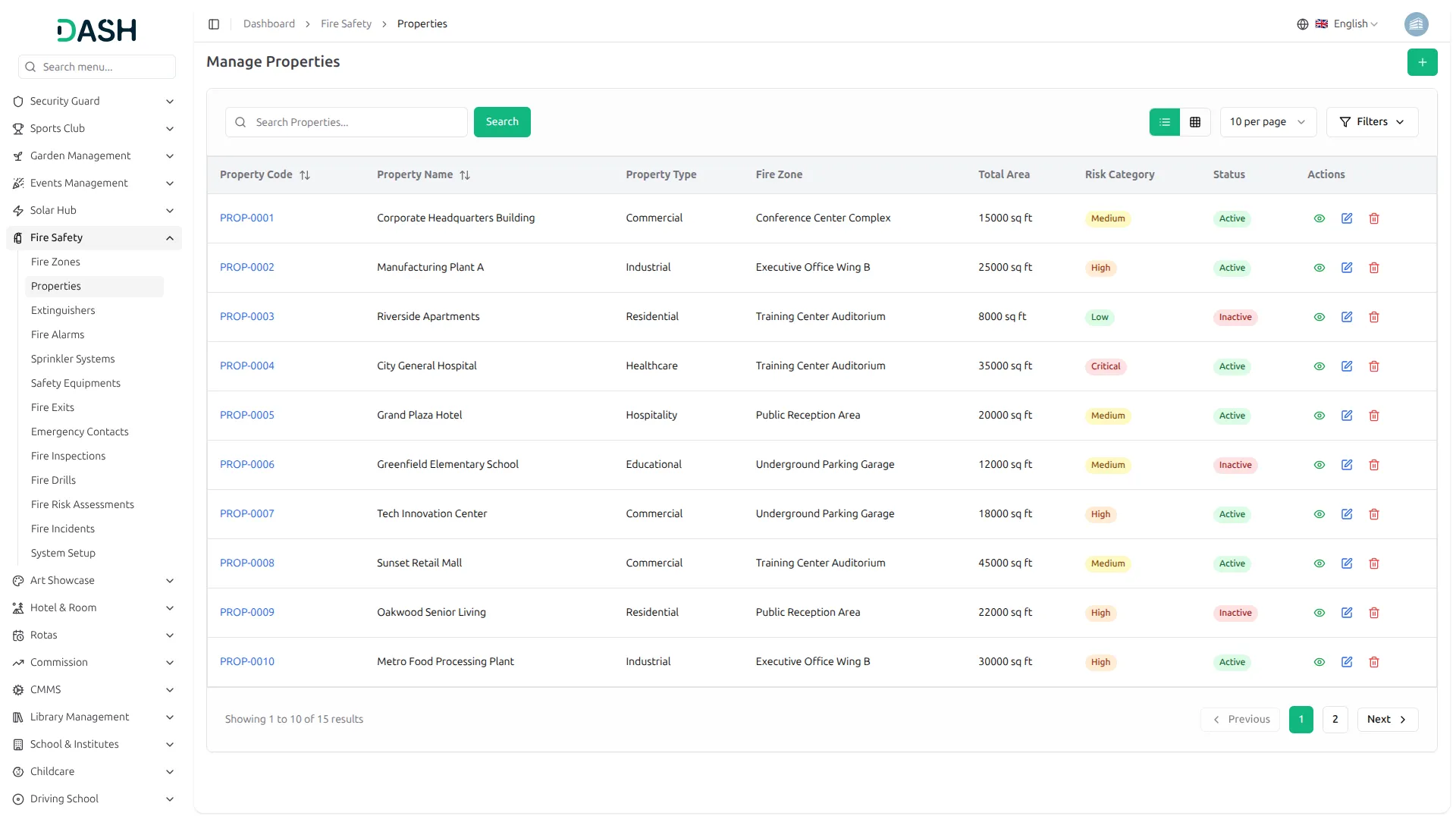
- The list page displays all properties in a table with columns for Property Code, Property Name, Property Type, Fire Zone, Total Area, Risk Category, Status, and Actions.
- Filter the list by Property Type, Risk Category, or Status using the filter dropdowns, then click Apply to narrow results or Clear to reset filters. Toggle between list view and grid view using the view buttons at the top right.
- In the Actions column, use View to see the full property profile, Edit to update any property information, or Delete to permanently remove the property from the system.
Manage Extinguishers
- To create a new extinguisher, click the “Create” button on the Manage Extinguishers page. Enter the Location, Floor Number, Capacity, Manufacturer name, and Model Number.
- Select the Installation Date and Manufacture Date. Set the Expiry Date, and define the Last Inspection Date, Next Inspection Date. Select Extinguisher Type from the dropdown (configure from the System setup). Choose the person it is Assigned To, then select the Inspector based on the assigned personnel from their respective dropdown (comes from the User Management).
- Set the Pressure Status by clicking the appropriate radio button to choose Normal, Low, or High based on the current pressure reading. Indicate the current Condition by clicking the corresponding radio button to select Good, Fair, Poor, or Damaged.
- Optionally, enter any Remarks for additional notes. Toggle the Status to Active or Inactive.
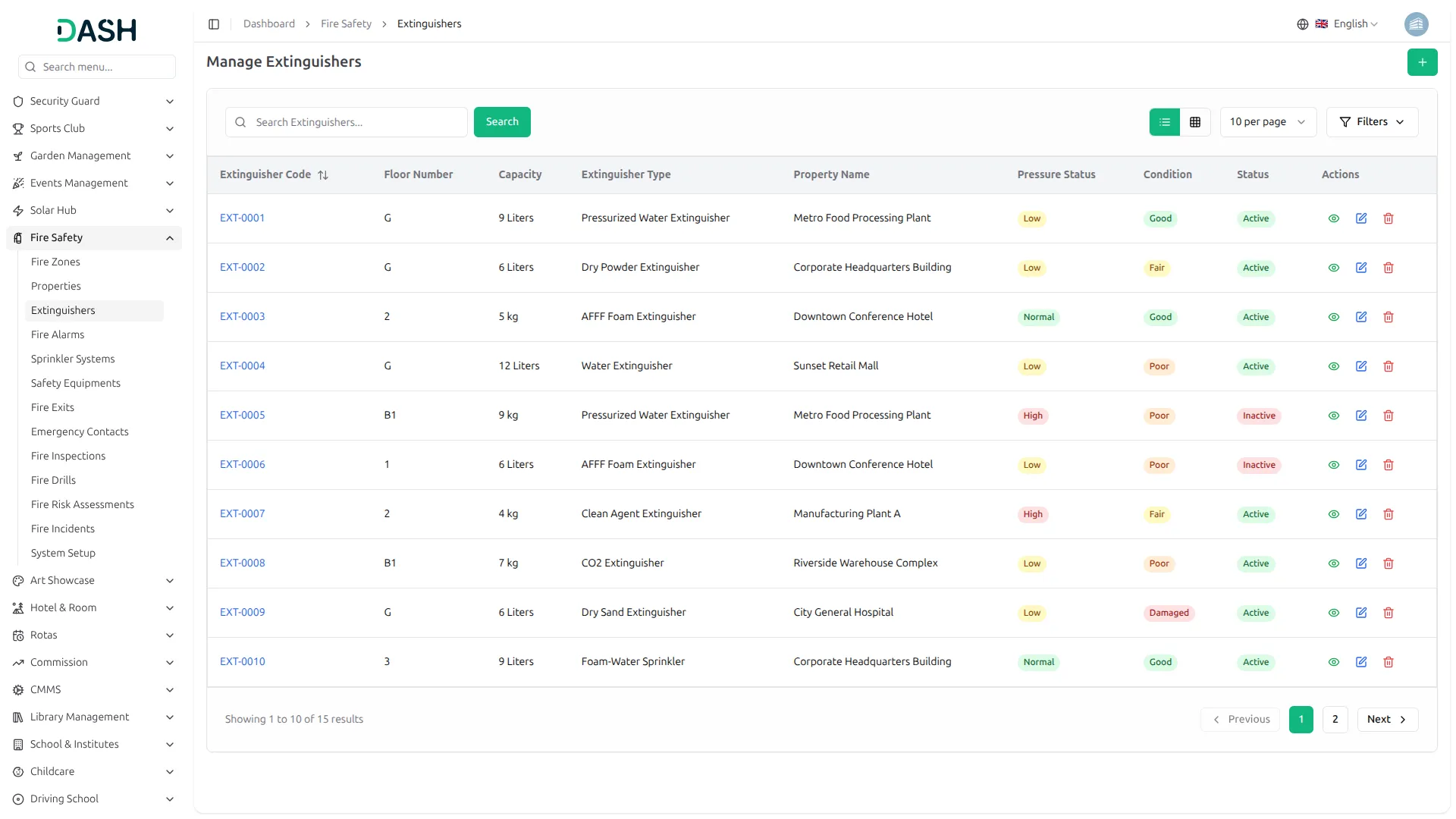
- The list page displays all extinguishers in a table with columns for Extinguisher Code, Floor Number, Capacity, Extinguisher Type, Property Name, Pressure Status, Condition, Status, and Actions.
- Use the search bar to quickly locate a specific extinguisher by name or code. Filter the list by Extinguisher Type, Pressure Status, Condition, or Status using the filter dropdowns, then click Apply to narrow results or Clear to reset filters. Toggle between list view and grid view using the view buttons at the top right.
- In the Actions column, use View to see the full extinguisher profile, Edit to update any extinguisher information, or Delete to permanently remove the extinguisher from the system.
Fire Alarm
- To create a new fire alarm, click the “Create” button on the Manage Fire Alarms page. Select the Alarm Type from the dropdown (Smoke Detector, Heat Detector, Manual Call Point, Beam Detector). Enter the Location and Floor Number, Manufacturer, Model Number, and Serial Number.
- Select the Installation Date, Last Test Date, and Next Test Date. Choose the Power Source by clicking the appropriate radio button to select Mains, Battery, or Both. Set the Battery Status by clicking the corresponding radio button to choose Good, Low, or Replace based on the current battery condition.
- Indicate the Operational Status by clicking the appropriate radio button to select Working, Faulty, or Under Maintenance to reflect the alarm’s current functionality.
- Select Property from the dropdown (comes from the Property section). Choose the person it is Assigned To, then select the Technician based on the assigned user from their respective dropdown (comes from the User Management). Optionally, enter any Remarks for additional notes. Toggle the Status to Active or Inactive.
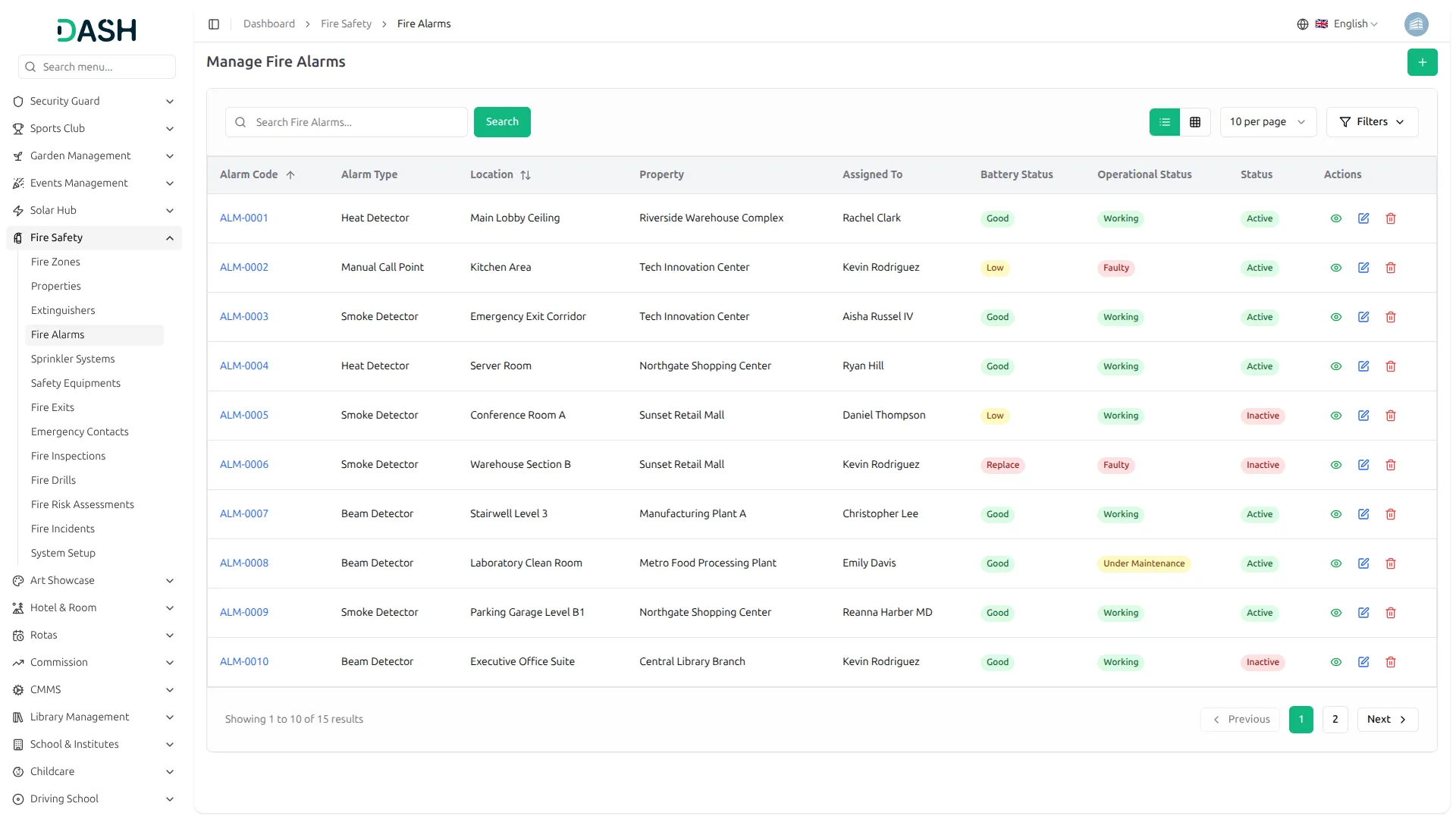
- The list page displays all fire alarms in a table with columns for Alarm Code, Alarm Type, Location, Property, Assigned To, Battery Status, Operational Status, Status, and Actions.
- Use the search bar to quickly locate a specific alarm by name or code. Filter the list by Alarm Type, Battery Status, Operational Status, or Status using the filter dropdowns, then click Apply to narrow results or Clear to reset filters. Toggle between list view and grid view using the view buttons at the top right.
- In the Actions column, use View to see the full alarm profile, Edit to update any alarm information, or Delete to permanently remove the alarm from the system.
Sprinkler Systems
- To create a new sprinkler system, click the “Create” button on the Manage Sprinkler Systems page. Enter the System Name, Coverage Area, and Number of Sprinkler Heads.
- Select the System Type by clicking the appropriate radio button to choose from Wet Pipe, Dry Pipe, Pre-Action, or Deluge. Select the Water Source by clicking the corresponding radio button to choose Municipal, Tank, or Both. Optionally, enter the Manufacturer and Model Number. Enter the Water Pressure value.
- Set the Pressure Status by clicking the appropriate radio button to select Normal, Low, or High. Indicate the Valve Status by clicking the corresponding radio button to choose Open, Closed, or Partially Open. Set the Operational Status by clicking the appropriate radio button to select Working, Faulty, or Under Maintenance.
- Select the Installation Date and Commissioning Date, Warranty Expiry Date, and Service Contract Expiry Date. Select the Last Inspection Date, Next Inspection Date, Last Test Date, and Next Test Date to maintain a regular inspection and testing schedule.
- Enter the Contractor Company name, Contact Person, Contractor Phone, and Contractor Email. Select the associated Property from the dropdown (comes from the Property section).
- Choose the Inspector from the dropdown, then select the Technician based on the selected inspector (comes from the User Management). Optionally, enter any Remarks for additional notes. Toggle the Status to Active or Inactive.
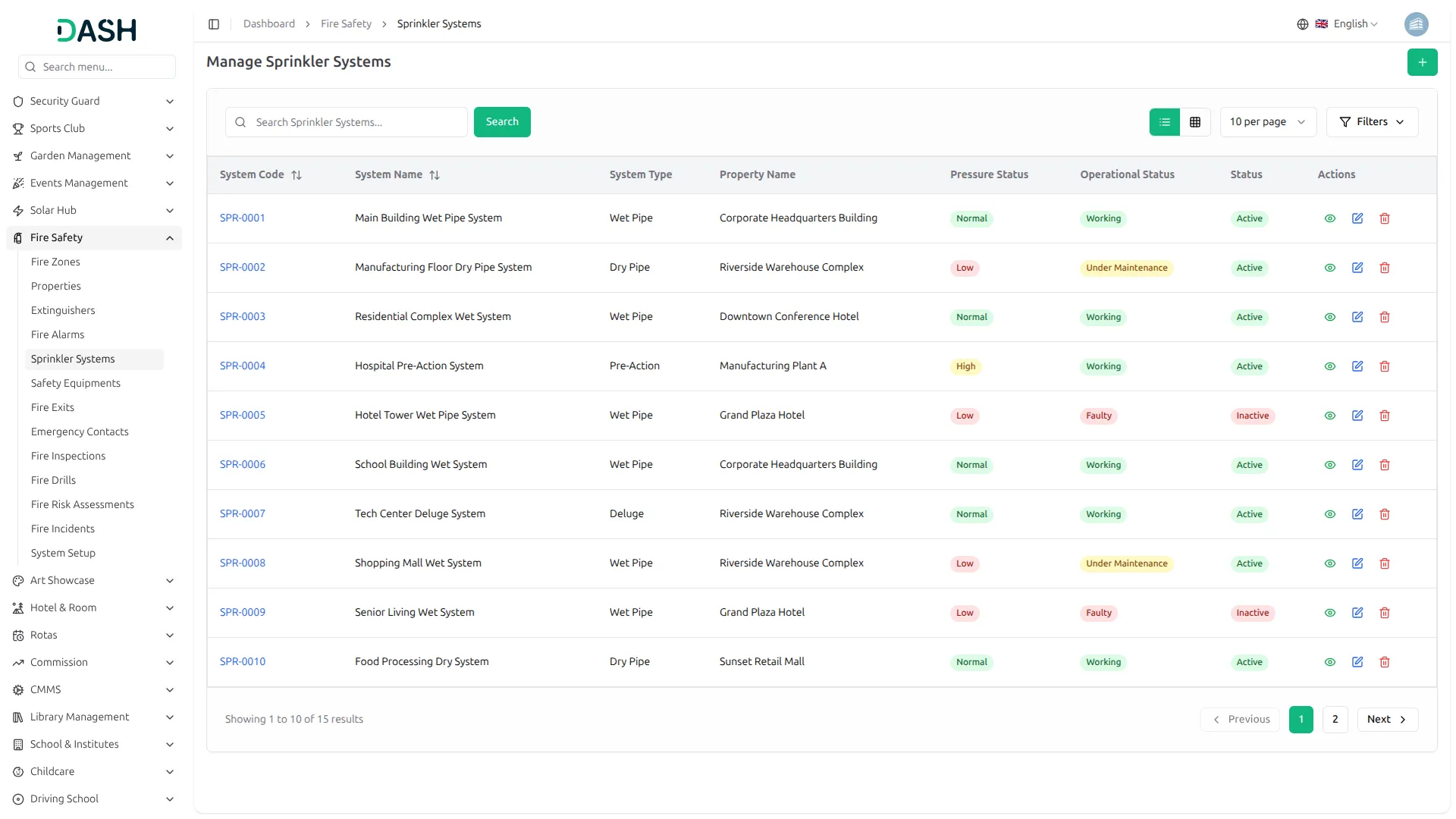
- The list page displays all sprinkler systems in a table with columns for System Code, System Name, System Type, Property Name, Pressure Status, Operational Status, Status, and Actions.
- Use the search bar to quickly locate a specific sprinkler system by name or code. Filter the list by System Type, Pressure Status, or Status using the filter dropdowns, then click Apply to narrow results or Clear to reset filters. Toggle between list view and grid view using the view buttons at the top right.
- In the Actions column, use View to see the full sprinkler system profile, Edit to update any system information, or Delete to permanently remove the system from the system.
Safety Equipment
- To create a new safety equipment record, click the “Create” button on the Manage Safety Equipment page. Enter the Equipment Name and Location. Fill in the Floor Number, Manufacturer name, and Serial Number. Enter the Quantity.
- Select the associated Property from the dropdown (comes from the Property section) and choose the person it is Assigned To from the dropdown (comes from the User Management). Enter the Unit of Measure and select the Equipment Type from the dropdown (configure from the System Setup).
- Select the Installation Date and optionally set the Warranty Expiry Date. Enter the Last Inspection Date and the Next Inspection Date.
- Set the Condition by clicking the appropriate radio button to select Good, Fair, Poor, or Damaged. Indicate the Operational Status by clicking the corresponding radio button to choose Working, Faulty, or Under Maintenance. Optionally, enter any Remarks for additional notes. Toggle the Status to Active or Inactive.
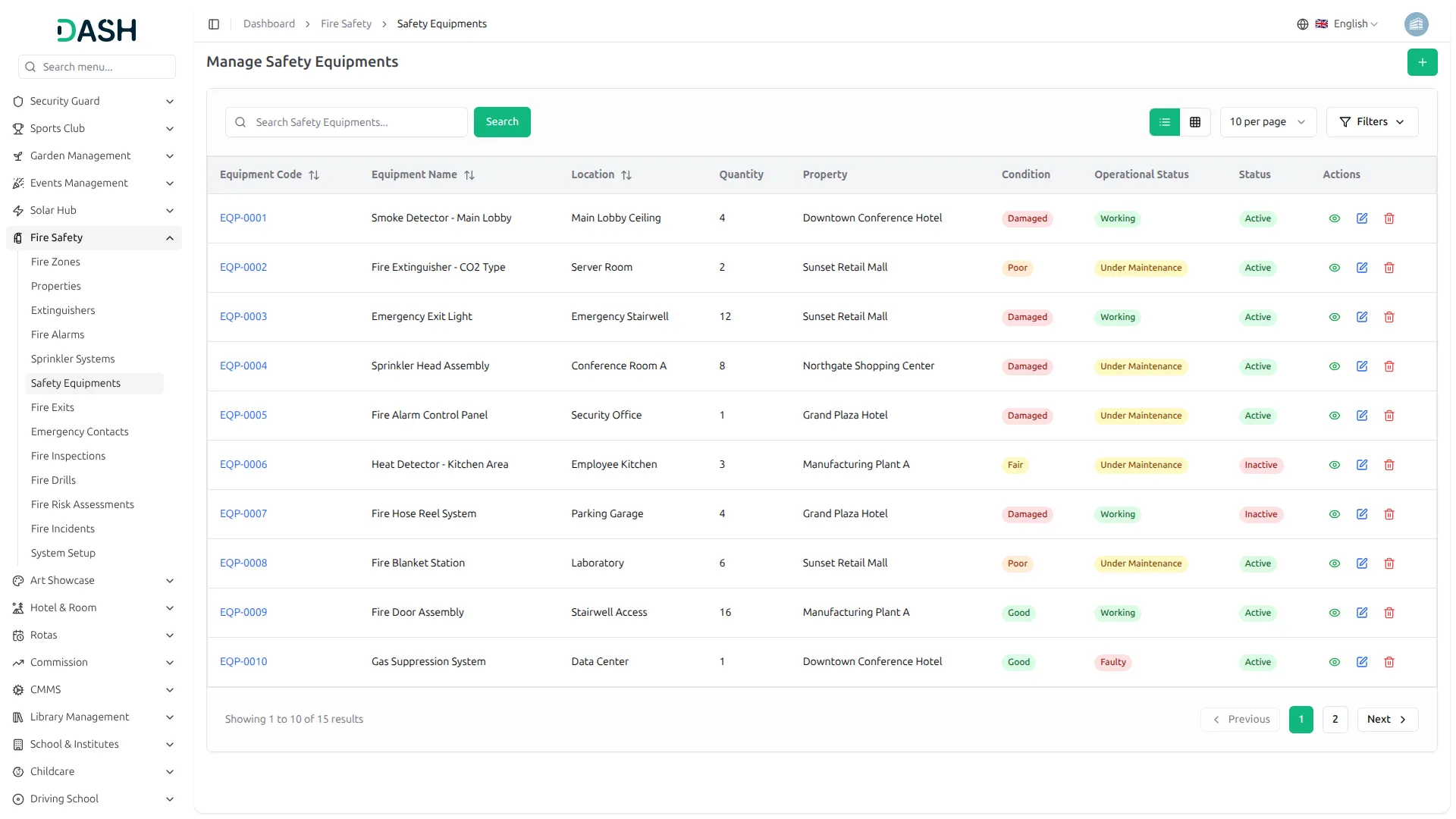
- The list page displays all safety equipment in a table with columns for Equipment Code, Equipment Name, Location, Quantity, Property, Condition, Operational Status, Status, and Actions.
- Use the search bar to quickly locate specific equipment by name or code. Filter the list by Condition or Operational Status using the filter dropdowns, then click Apply to narrow results or Clear to reset filters. Toggle between list view and grid view using the view buttons at the top right.
- In the Actions column, use View to see the full equipment profile, Edit to update any equipment information, or Delete to permanently remove the equipment from the system.
Fire Exits
- To create a new fire exit, click the “Create” button on the Manage Fire Exits page. Enter the Exit Name, Location, and Floor Number. Select the Exit Type by clicking the appropriate radio button to choose from Main Exit, Emergency Exit, Fire Escape, or Stairwell. Optionally, enter the Exit Width and Exit Capacity.
- Select the Door Type by clicking the appropriate radio button to choose Single, Double, Sliding, or Revolving. Set the Opening Direction by clicking the corresponding radio button to select Inward or Outward. Optionally, select the Last Inspection Date and Next Inspection Date.
- Indicate whether Signage is Available by clicking the appropriate radio button to select Yes or No. Set whether Emergency Lighting is in place by clicking the corresponding radio button to choose Yes or No. Indicate the Lighting Status by clicking the appropriate radio button to select Working or Faulty.
- Select the associated Property from the dropdown (comes from the Property section), then choose the Inspector from the dropdown based on the selected property (comes from the User Management).
- Set the Accessibility by clicking the appropriate radio button to select Wheelchair Accessible or Stairs Only. Indicate the Obstruction Status by clicking the corresponding radio button to choose Clear, Partially Blocked, or Blocked. Optionally, enter any Remarks for additional notes. Toggle the Status to Active or Inactive.
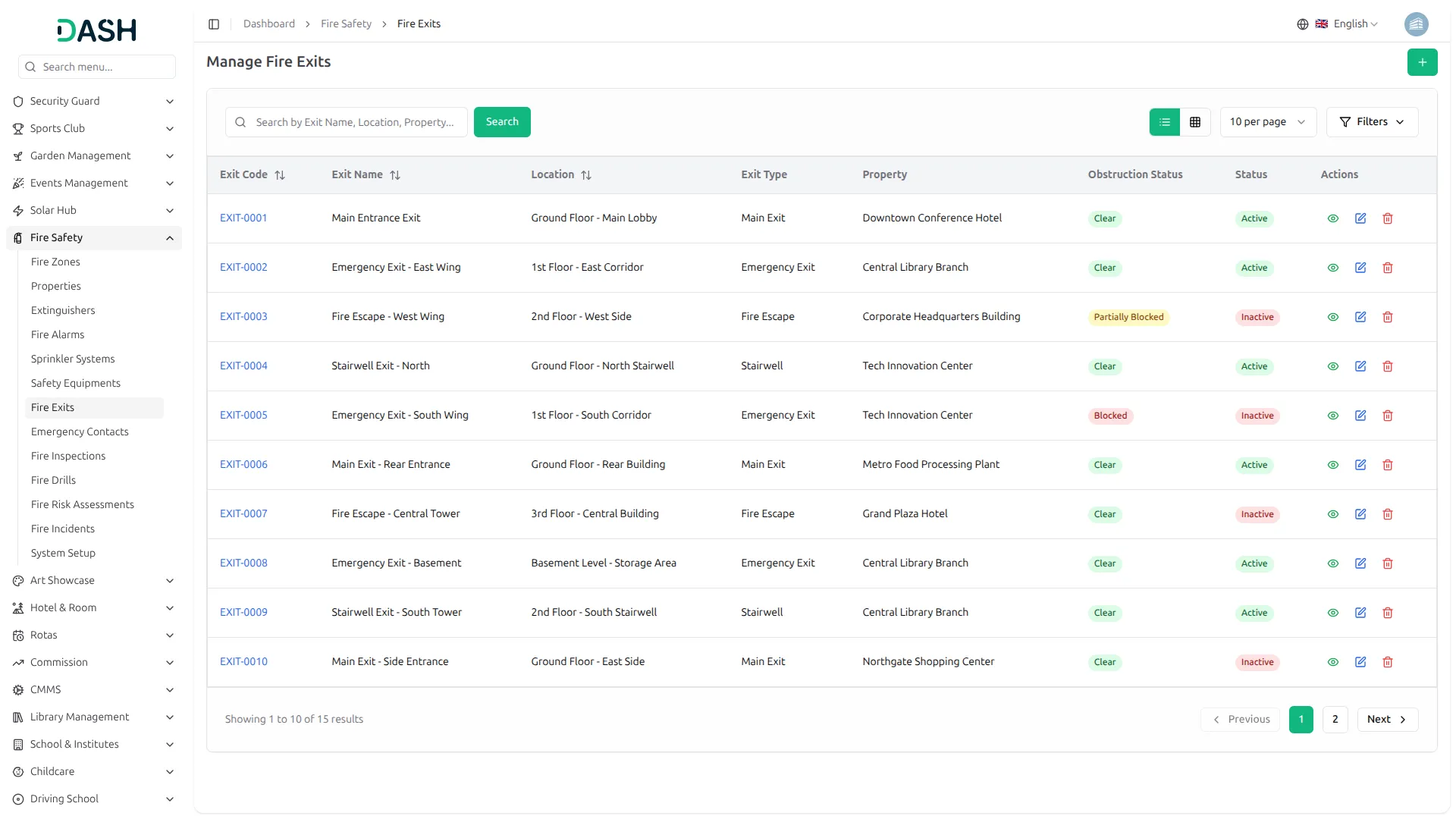
- The list page displays all fire exits in a table with columns for Exit Code, Exit Name, Location, Exit Type, Property, Obstruction Status, Status, and Actions.
- Use the search bar to quickly locate a specific exit by name, location, or property. Filter the list by Exit Type, Obstruction Status, or Status using the filter dropdowns, then click Apply to narrow results or Clear to reset filters. Toggle between list view and grid view using the view buttons at the top right.
- In the Actions column, use View to see the full exit profile, Edit to update any exit information, or Delete to permanently remove the exit from the system.
Emergency Contacts
- To create a new emergency contact, click the “Create” button on the Manage Emergency Contacts page. Enter the Contact Name and Designation. Fill in the Organization and Department. Enter the Primary Phone using the format (+[country code][phone number]), and optionally provide a Secondary Phone and Mobile Number. Fill in the Email and optionally enter a Fax number.
- Optionally, enter the full Address along with City, State, Country, and Postal Code. Enter the Response Time in minutes. Set the Priority Order to define the contact’s rank in the response sequence. Select the Contact Type from the dropdown (Fire Warden, Safety Officer, Fire Department, Emergency Services, Building Manager, Contractor, Other).
- Optionally, enter the Certification Number and select the Certification Expiry Date. Select the associated Property from the dropdown (comes from the Property section) and the corresponding User from the dropdown (comes from the User Management).
- Set the Availability by clicking the appropriate radio button to choose 24/7, Business Hours, or On-Call. Indicate whether this is a Primary Contact by clicking the corresponding radio button to select Yes or No. Optionally, enter any Remarks for additional notes. Toggle the Status to Active or Inactive.
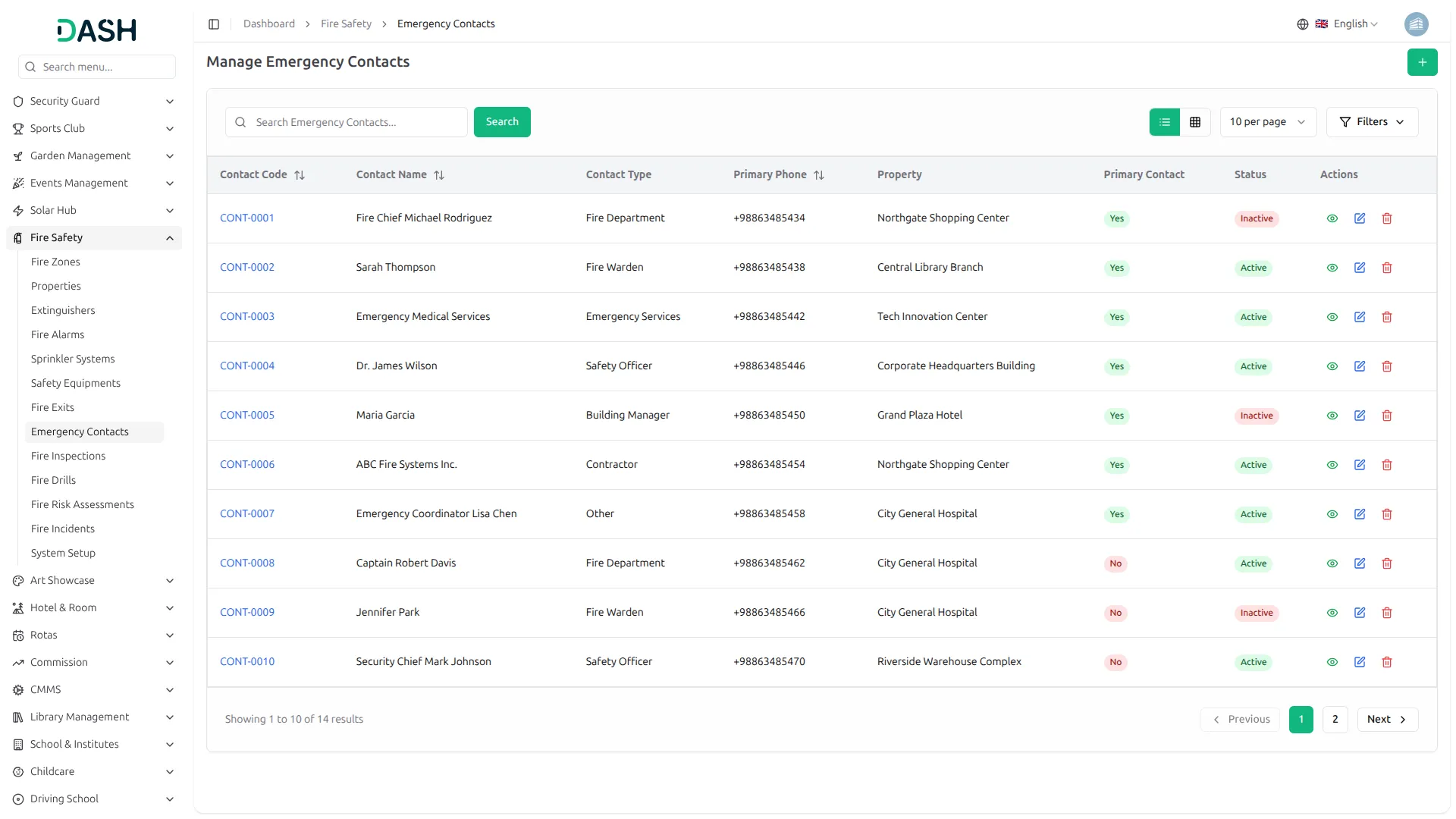
- The list page displays all emergency contacts in a table with columns for Contact Code, Contact Name, Contact Type, Primary Phone, Property, Primary Contact, Status, and Actions.
- Use the search bar to quickly locate a specific contact by name. Filter the list by Contact Type, Availability, or Is Primary Contact using the filter dropdowns, then click Apply to narrow results or Clear to reset filters. Toggle between list view and grid view using the view buttons at the top right.
- In the Actions column, use View to see the full contact profile, Edit to update any contact information, or Delete to permanently remove the contact from the system.
Fire Inspections
- To create a new fire inspection, click the “Create” button on the Manage Fire Inspections page. Select the Inspection Type from the dropdown and the associated Property (comes from the Property section).
- Choose the Inspector from the dropdown (comes from the User Management) and set the Priority Level from the dropdown. Optionally, enter the Inspector Organization and Inspector License Number.
- Select the Scheduled Date, Inspection Date, and Inspection Time. Optionally, enter the Checklist Used and fill in the Total Checkpoints, Checkpoints Passed, and Checkpoints Failed. Select the Compliance Status from the dropdown. Set Follow Up Required from the dropdown, and if applicable, select the Follow Up Date and Follow Up Inspector (comes from the User Management).
- Indicate whether a Certificate was Issued from the dropdown, and if so, enter the Certificate Number and select the Certificate Valid Until date. Optionally, enter Findings and Deficiencies Found. Fill in Corrective Actions Required and Corrective Actions Taken. Enter any Remarks.
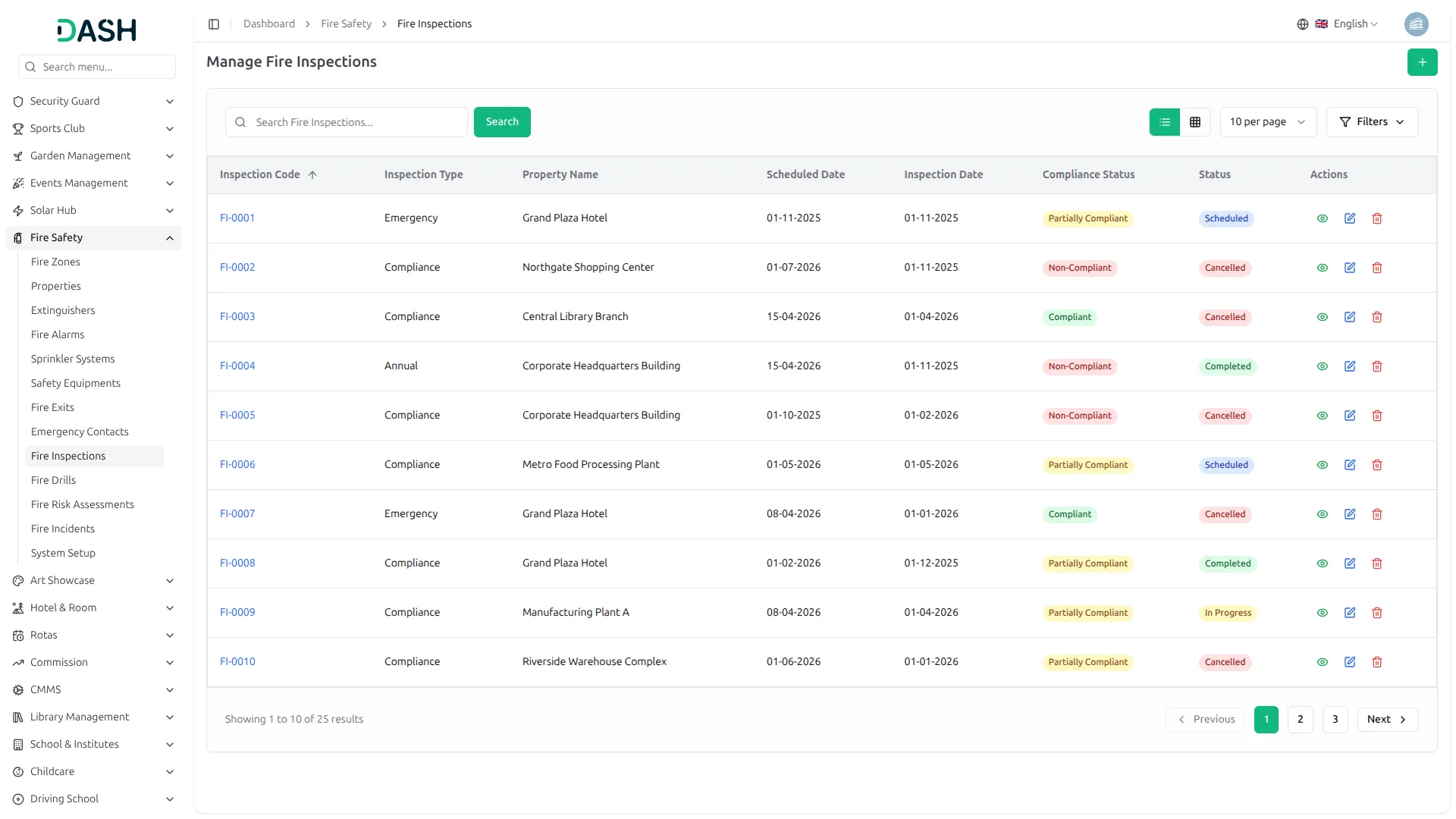
- The list page displays all fire inspections in a table with columns for Inspection Code, Inspection Type, Property Name, Scheduled Date, Inspection Date, Compliance Status, Status, and Actions.
- Use the search bar to quickly locate a specific inspection by name or code. Filter the list by Status, Priority Level, or Compliance Status using the filter dropdowns, then click Apply to narrow results or Clear to reset filters. Toggle between list view and grid view using the view buttons at the top right.
- In the Actions column, use View to see the full inspection record, Edit to update any inspection details, or Delete to permanently remove the inspection from the system.
Fire Drills
- To create a new fire drill, click the “Create” button on the Manage Fire Drills page. Enter the Drill Name and select the associated Property from the dropdown (comes from the Property section). Select the Scheduled Date and Scheduled Time, then set the Actual Date and Actual Time.
- Select the Drill Type by clicking the appropriate radio button to choose Announced or Unannounced. Set the Overall Rating by clicking the corresponding radio button to select Excellent, Good, Satisfactory, or Poor. Optionally, enter the Evacuation Time in minutes. Fill in the Total Participants and, optionally, the Total Expected Participants. Enter the Weather Conditions if relevant.
- Select the Drill Coordinator from the dropdown (comes from the User Management), then choose the Observer based on the selected coordinator. Optionally, enter any Issues Identified and document the Corrective Actions taken. Add any Remarks for additional notes.
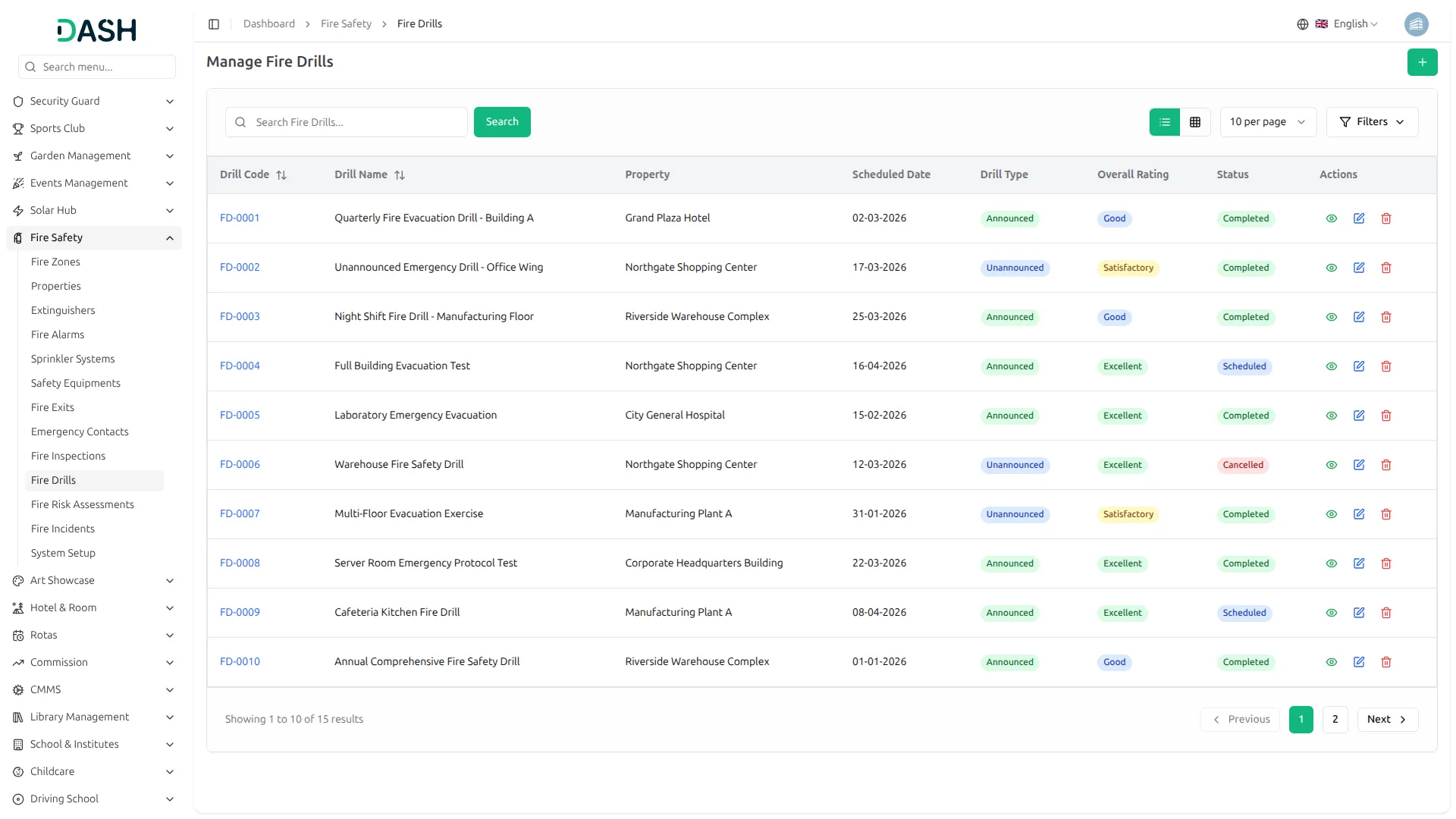
- The list page displays all fire drills in a table with columns for Drill Code, Drill Name, Property, Scheduled Date, Drill Type, Overall Rating, Status, and Actions.
- Use the search bar to quickly locate a specific drill by name or code. Filter the list by Drill Type, Overall Rating, or Status using the filter dropdowns, then click Apply to narrow results or Clear to reset filters. Toggle between list view and grid view using the view buttons at the top right.
- In the Actions column, use View to see the full drill record, Edit to update any drill details, or Delete to permanently remove the drill from the system.
Fire Risk Assessments
- To create a new fire risk assessment, click the “Create” button on the Fire Risk Assessments page. Enter the Assessment Title and select the Assessment Type from the dropdown (Initial, Periodic, Post-Incident, Pre-Occupancy). Select the Assessment Date and the associated Property from the dropdown (comes from the Property section). Optionally, set the Next Assessment Date.
- Optionally, enter the Assessor Organization and Assessor Qualification, then select the Assessor from the dropdown (comes from the User Management). Select the Responsible Person and the Approved By from their respective dropdowns (comes from the User Management).
- Optionally, describe the Fire Hazards Identified and the People At Risk. Enter the Existing Control Measures currently in place. Select the Likelihood Rating and Consequence Rating from the dropdowns, and set the Risk Level accordingly. Optionally, describe the Recommended Actions and set the Action Priority from the dropdown.
- Optionally, select the Target Completion Date, Actual Completion Date, Review Date, and Approval Date. Select the Compliance With Regulations status from the dropdown and optionally enter the Regulations Reference. Provide a Findings Summary and Recommendations Summary. Add any Remarks for additional notes.
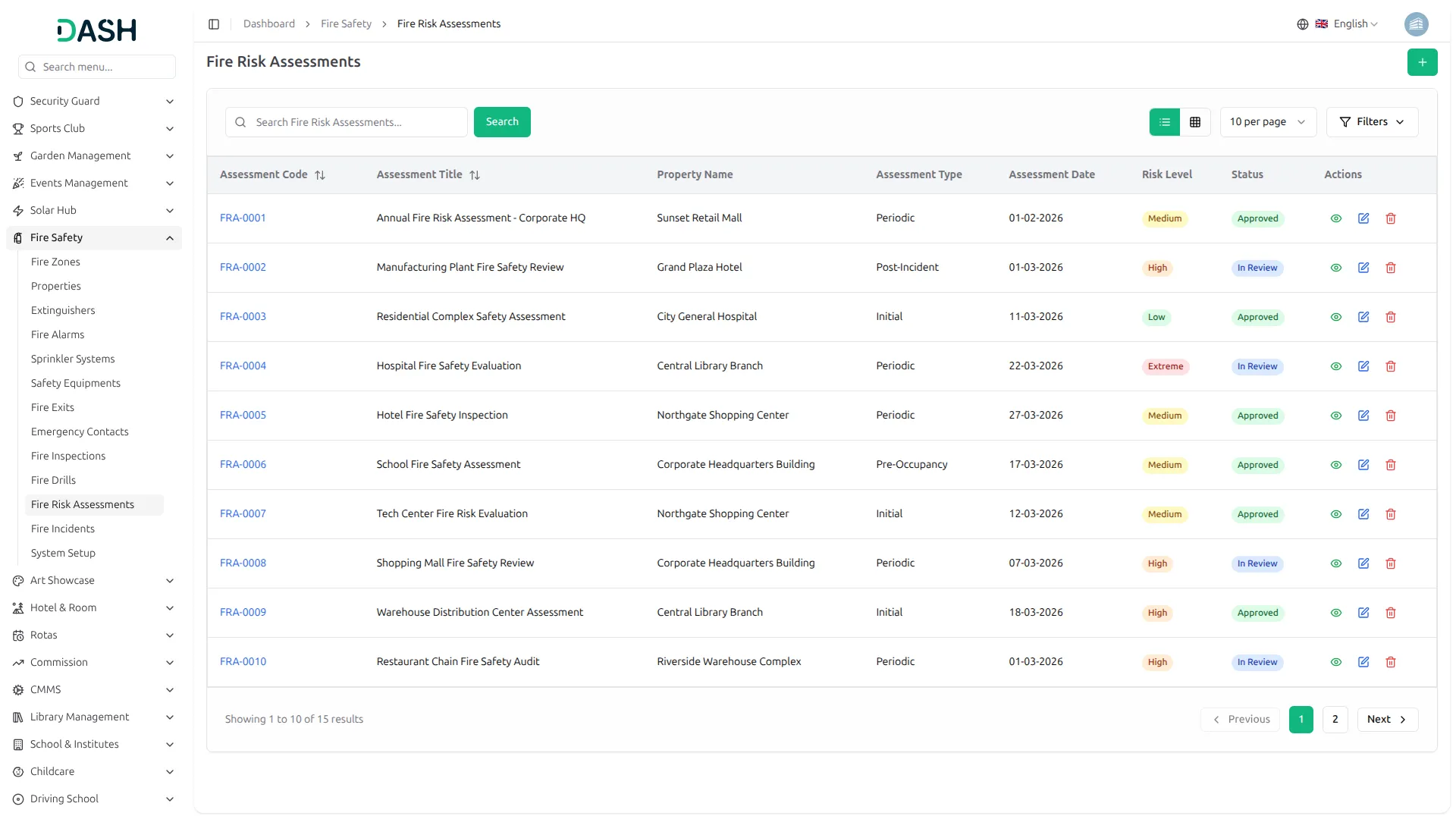
- The list page displays all fire risk assessments in a table with columns for Assessment Code, Assessment Title, Property Name, Assessment Type, Assessment Date, Risk Level, Status, and Actions.
- Use the search bar to quickly locate a specific assessment by title or code. Filter the list by Assessment Type, Risk Level, or Status using the filter dropdowns, then click Apply to narrow results or Clear to reset filters. Toggle between list view and grid view using the view buttons at the top right.
- In the Actions column, use View to see the full assessment record, Edit to update any assessment details, or Delete to permanently remove the assessment from the system.
Fire Incidents
- To create a new fire incident, click the “Create” button on the Manage Fire Incidents page. Enter the Incident Title and select the Incident Date. Enter the Location and optionally the Floor Number. Select the associated Property from the dropdown (comes from the Property section).
- Select the Incident Type from the dropdown (Fire, Smoke, False Alarm, Near Miss). Select the Fire Cause from the dropdown (Electrical, Cooking, Smoking, Arson, Equipment Failure, Unknown and other) and set the Severity Level from the dropdown (Minor, Moderate, Major and Critical).
- Select the Incident Time and optionally enter the Discovery Time, Fire Dept. Notified, Fire Dept. Arrival, Fire Controlled Time, and Fire Extinguished Time to record the full incident timeline.
- Enter the number of Injuries, Fatalities, and People Evacuated. Enter the Property Damage and Equipment Damage values. Optionally, enter the Business Interruption hours.
- Toggle the following indicators to reflect the incident response actions taken: Fire Extinguisher Used, Sprinkler Activated, Fire Alarm Activated, Fire Department Called, and Insurance Claim Filed.
- Select the Reported By and Investigated By from their respective dropdowns (comes from the User Management). Optionally, enter the Claim Number and Insurance Company name.
- Optionally, enter the Investigation Findings and Root Cause Analysis. Provide Preventive Measures and Corrective Actions taken in response to the incident. Add any Remarks for additional notes.
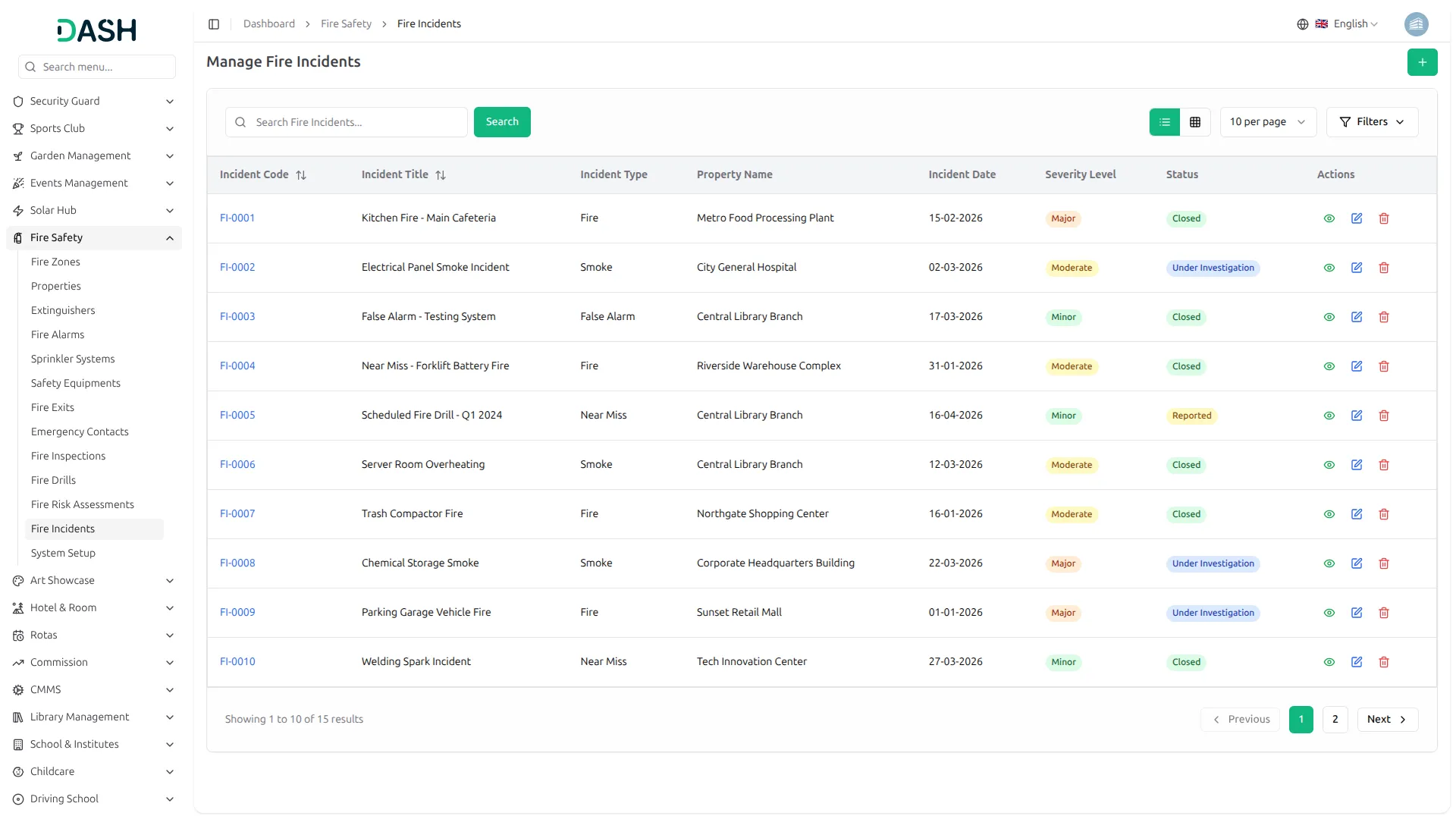
- The list page displays all fire incidents in a table with columns for Incident Code, Incident Title, Incident Type, Property Name, Incident Date, Severity Level, Status, and Actions.
- Use the search bar to quickly locate a specific incident by title or code. Filter the list by Incident Type, Severity Level, or Status using the filter dropdowns, then click Apply to narrow results or Clear to reset filters. Toggle between list view and grid view using the view buttons at the top right.
- In the Actions column, use View to see the full incident record, Edit to update any incident details, or Delete to permanently remove the incident from the system.
Categories
Related articles
- Freight Management System – WorkDo Dash SaaS Add-On Guide
- Chat Pin – TicketGo Add-On Guide
- Grant Management – WorkDo Dash SaaS Add-On Guide
- eBook – WorkDo Dash SaaS Add-On Guide
- Telegram – WorkDo Dash SaaS Add-On Guide
- User Manual – ERPGo
- Ozow – WorkDo Dash SaaS Add-On Guide
- Pabbly Connect – WorkDo Dash SaaS Add-On Guide
- Sales Agent – WorkDo Dash SaaS Add-On Guide
- Payfort – BookingGo SaaS Add-On Guide
- Box.com – WorkDo Dash SaaS Add-On Guide
- Yoco – WorkDo Dash SaaS Add-On Guide
We're Here to Help - Let's Talk
Have questions about our solutions, customization services, or business tools? Our team is here to help you. let's talk.