
Investment System – WorkDo Dash SaaS Add-On Guide
Learn how to manage investments, plans, and financial records in WorkDo Dash SaaS.
Introduction
The Investment System Add-On is a complete, end-to-end investment platform that allows you to manage and grow your investment business professionally. It comes with a fully functional public website where visitors can explore investment plans, register an account, deposit funds, track their portfolio, and request withdrawals, all from their personal dashboard. From the admin side, you have full control over investment plans, investor management, deposit and withdrawal processing, blog content, and complete website customization, making it easy to run and scale your investment platform efficiently from one centralized backend.
How to Install the Add-On?
To Set Up the Investment System Add-On, you can follow this link: Setup Add-On.
How to Use The Investment System Central Add-On?
Investment Dashboard
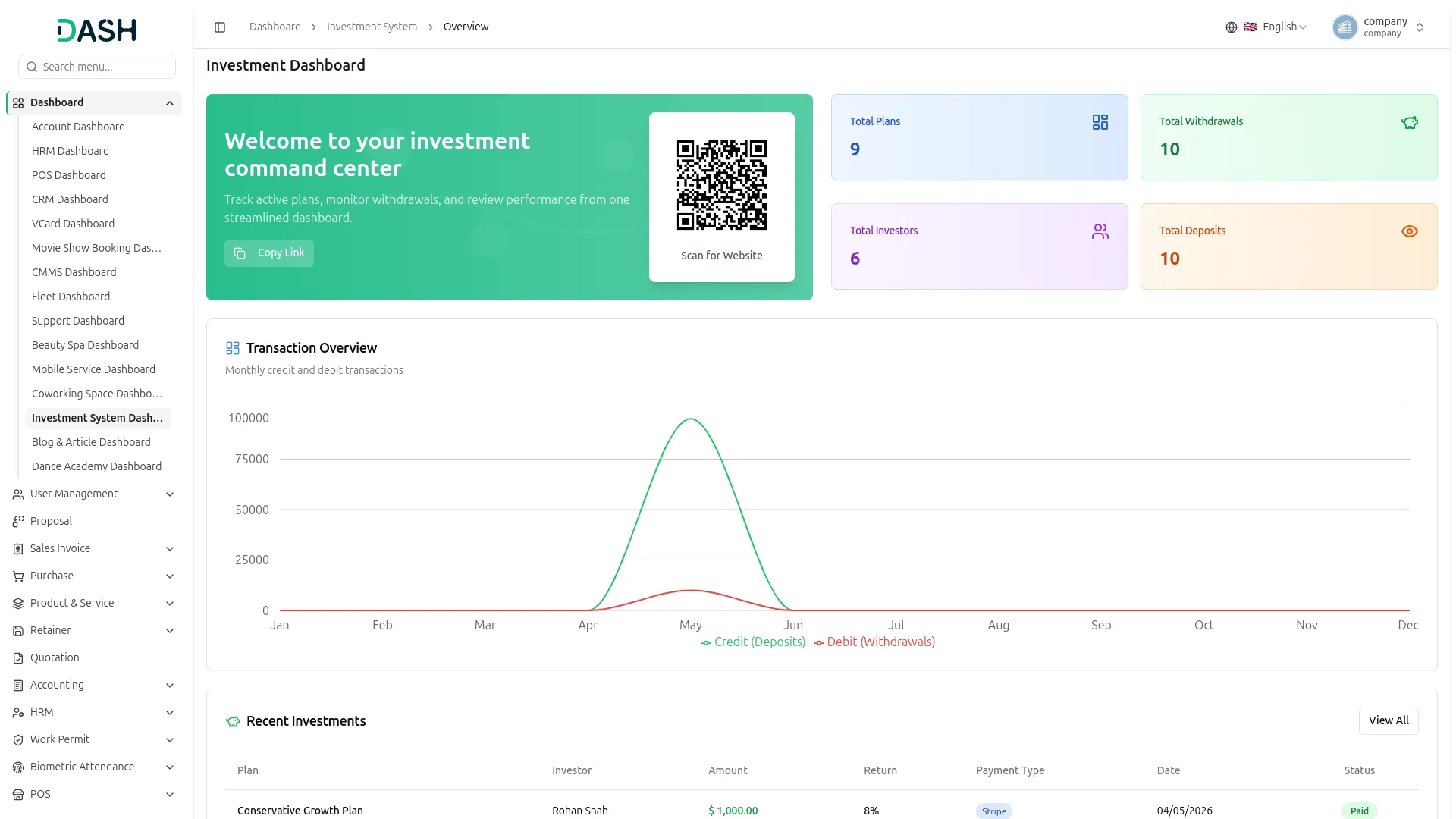
- The Investment Dashboard provides a complete overview of your investment platform’s operations and financial performance through various visual elements and quick access features.
- At the top, you will find a QR Code that investors can scan to directly access the investment website, along with a Copy Link button to easily share the platform link with potential investors.
- The dashboard displays important summary cards showing Total Plans, Total Investors, Total Deposits, and Total Withdrawals, giving you instant insights into your platform’s key metrics at a glance.
- The Transaction Overview chart displays a monthly line graph showing the comparison between Credit (Deposits) and Debit (Withdrawals) throughout the year, allowing you to visually track the flow of funds and monitor your platform’s financial activity month by month.
- The Recent Investments table displays the latest investor activity with columns for Plan, Investor, Amount, Return, Payment Type, Date, and Status, allowing you to monitor and track the most recent investment deposits directly from the dashboard.
- The Latest Withdrawals table at the bottom displays the most recent withdrawal requests with columns for Plan, Investor, Withdraw Amount, Date, and Payment Status, allowing you to quickly review and manage pending or completed withdrawal transactions at a glance.
System Setup
Plan Category
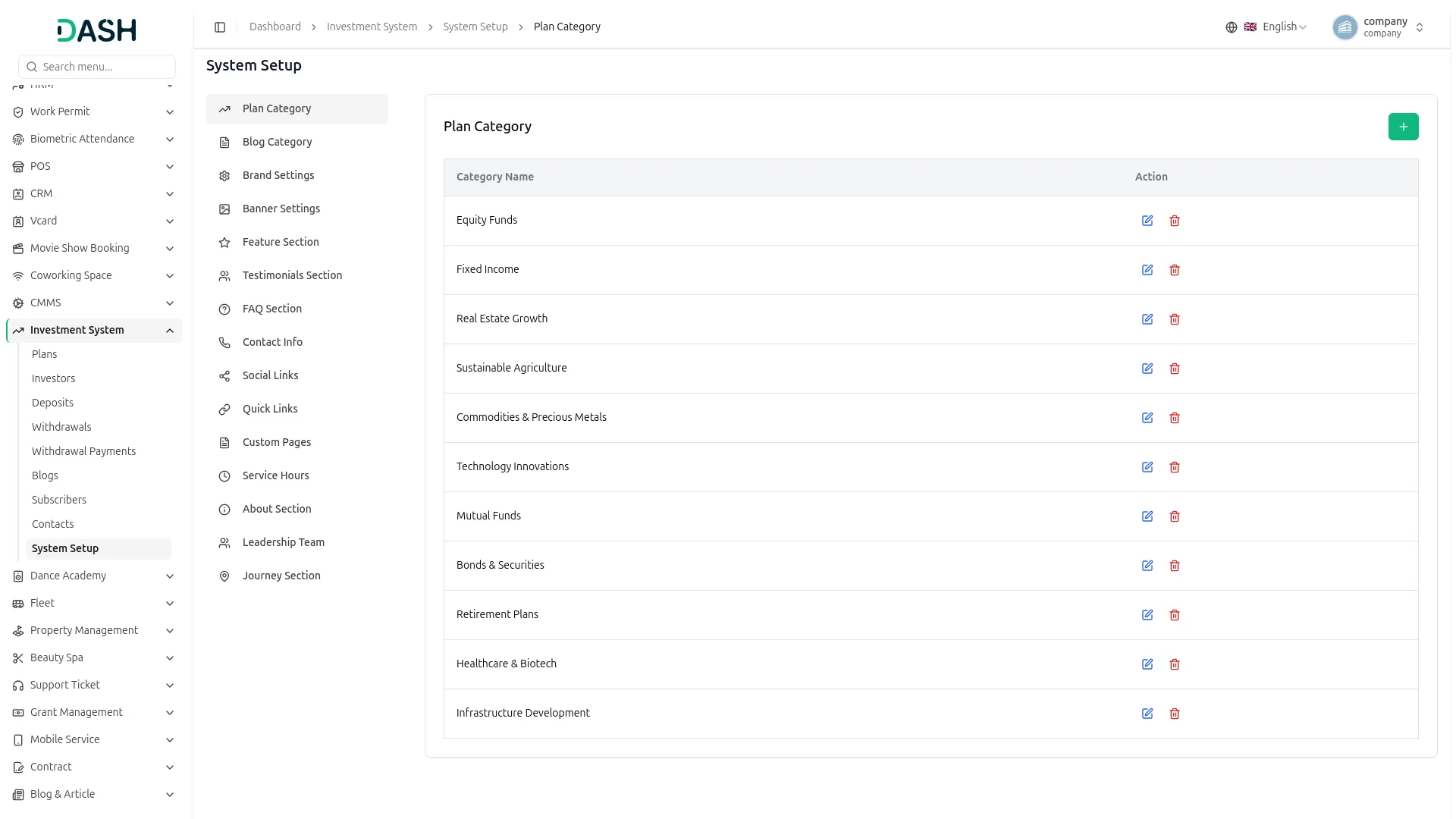
- To add a new plan category, click the “Create” button at the top right. In the Create Plan Category form, enter the Category Name and click Create.
- In the Plan Category section, you will find a list of all existing plan categories with their Category Name and Actions. In the Actions column, you can use the edit to update a category name or the delete to remove it.
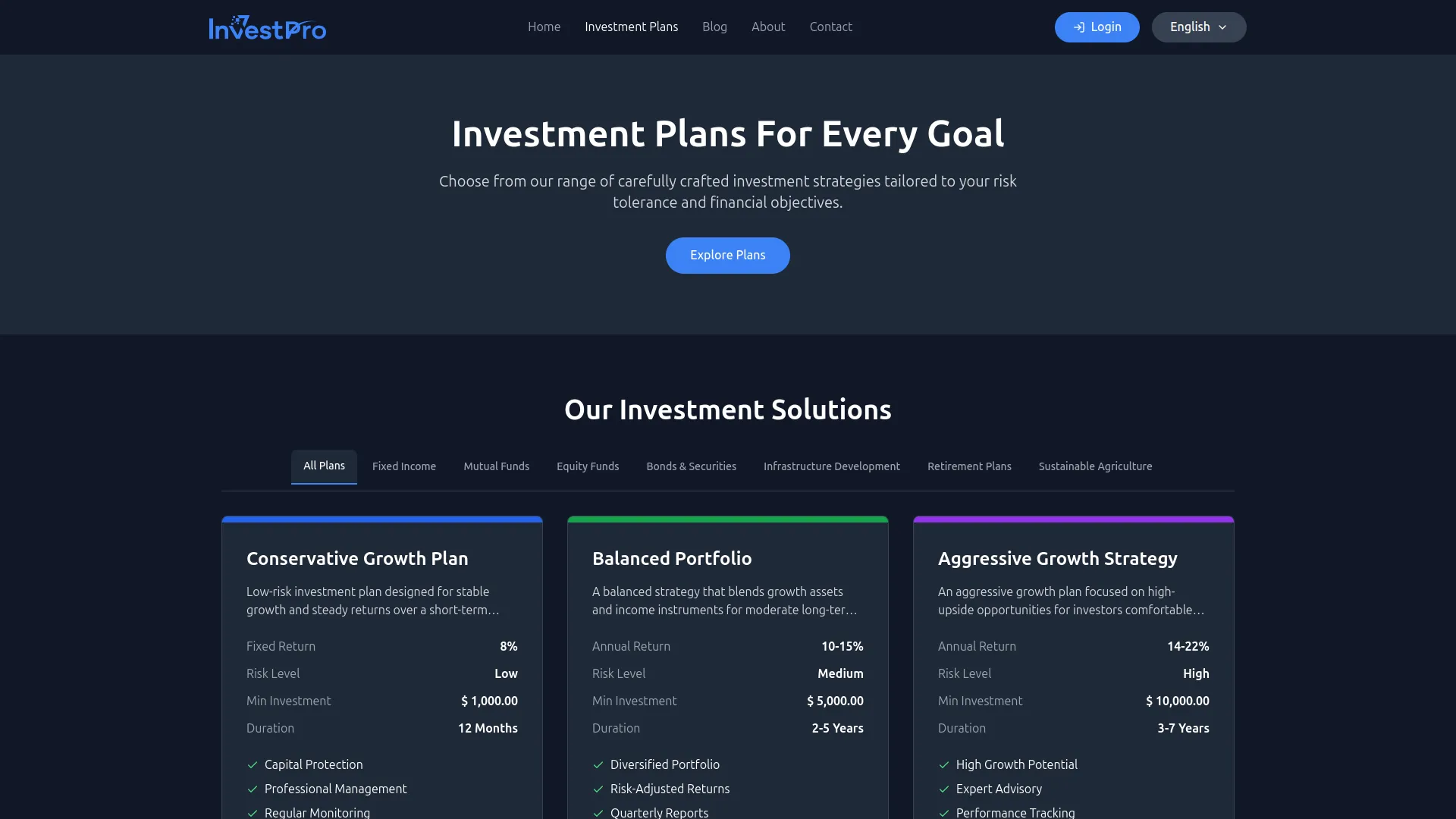
- Once saved, all active Plan Categories will appear as filter tabs on the Investment Plans page of your website, allowing visitors to easily browse and filter investment plans by category, such as Equity Funds, Mutual Funds, Retirement Plans, and more.
Blog Category
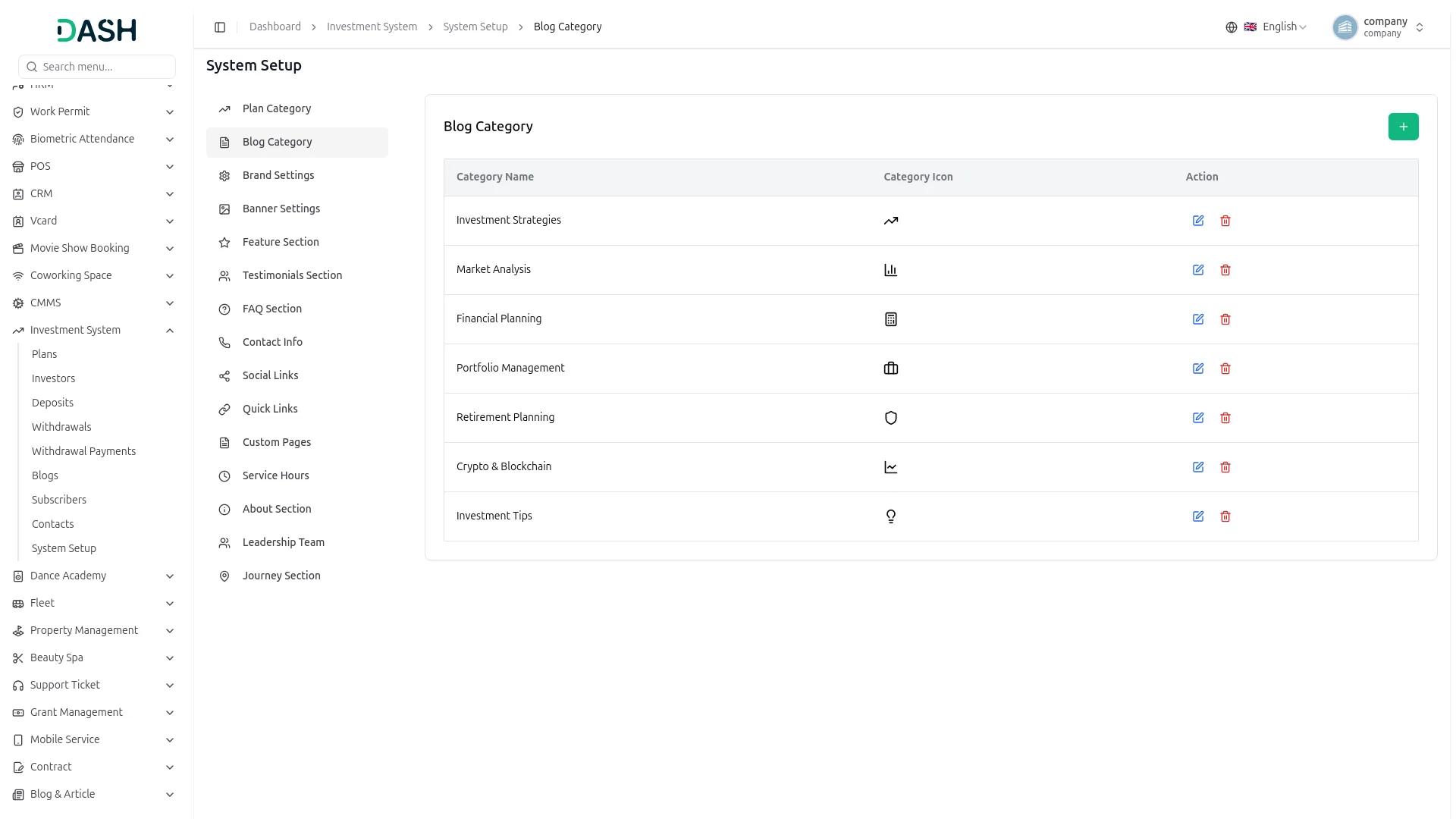
- To add a new blog category, click the “Create” button at the top right. In the Create Blog Category form, enter the Category Name, select a Category Icon, and click Create.
- In the Blog Category section, you will find a list of all existing blog categories with their Category Name, Category Icon, and Actions. In the Actions column, you can use the edit to update the category or the delete to remove it.
- Once saved, all active Blog Categories will appear as filter tabs in the Financial Insights Hub on the Blog page, allowing visitors to easily browse and explore articles by topics such as Investment Strategies, Market Analysis, Crypto & Blockchain, and more.
Brand Settings
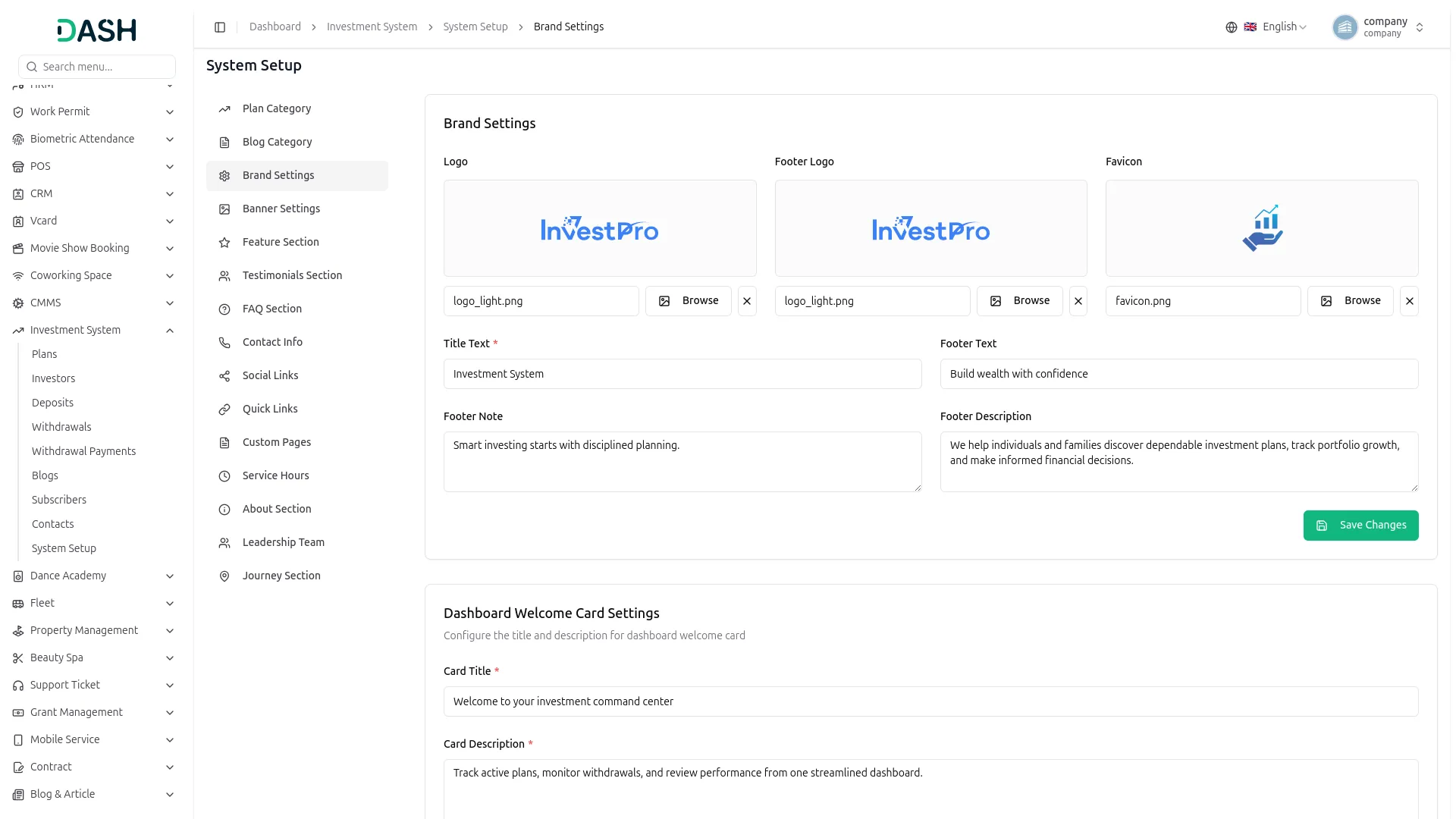
- In the Brand Settings section, you will find fields for Logo, Footer Logo, Favicon, Title Text, Footer Text, Footer Note, and Footer Description. You can upload your logo, footer logo, and favicon using the Browse button. Enter all the details and click Save Changes.
- In the Dashboard Welcome Card Settings, you will find fields for Card Title, Card Description, Button Text, and Button Icon. Enter all the details and click Save Changes.
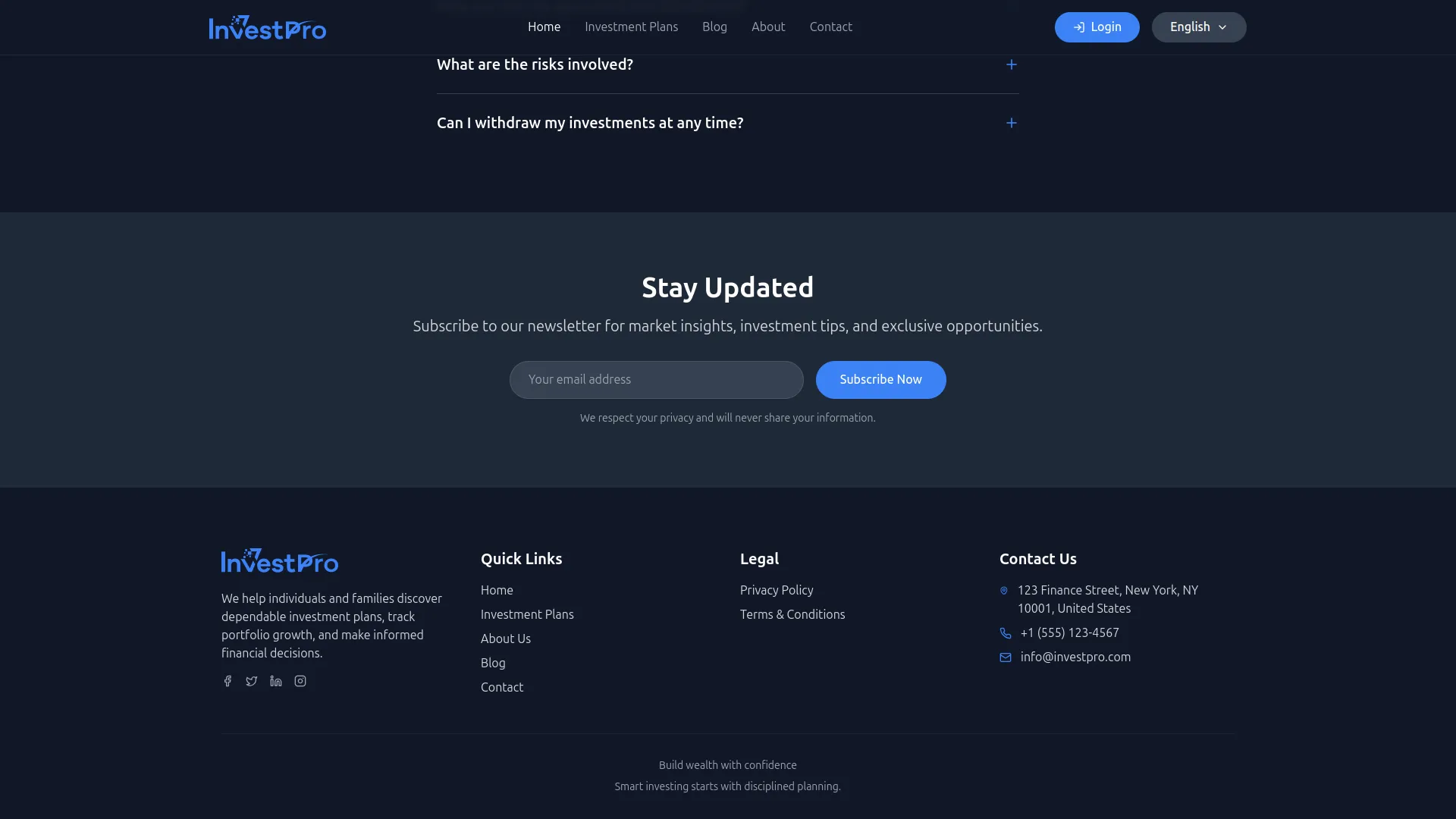
- Once saved, the Logo will appear in the header of your website and the Footer Logo will appear in the footer. The Favicon will display as the small icon in the browser tab. The Title Text will represent your platform’s name across the site, the Footer Text will display as the footer tagline, and the Footer Description will appear as the short introductory text in the footer section. The Card Title and Card Description will appear in the welcome banner card on the admin Investment Dashboard, and the Button Text will display as the label on the action button within that card.

Banner Settings
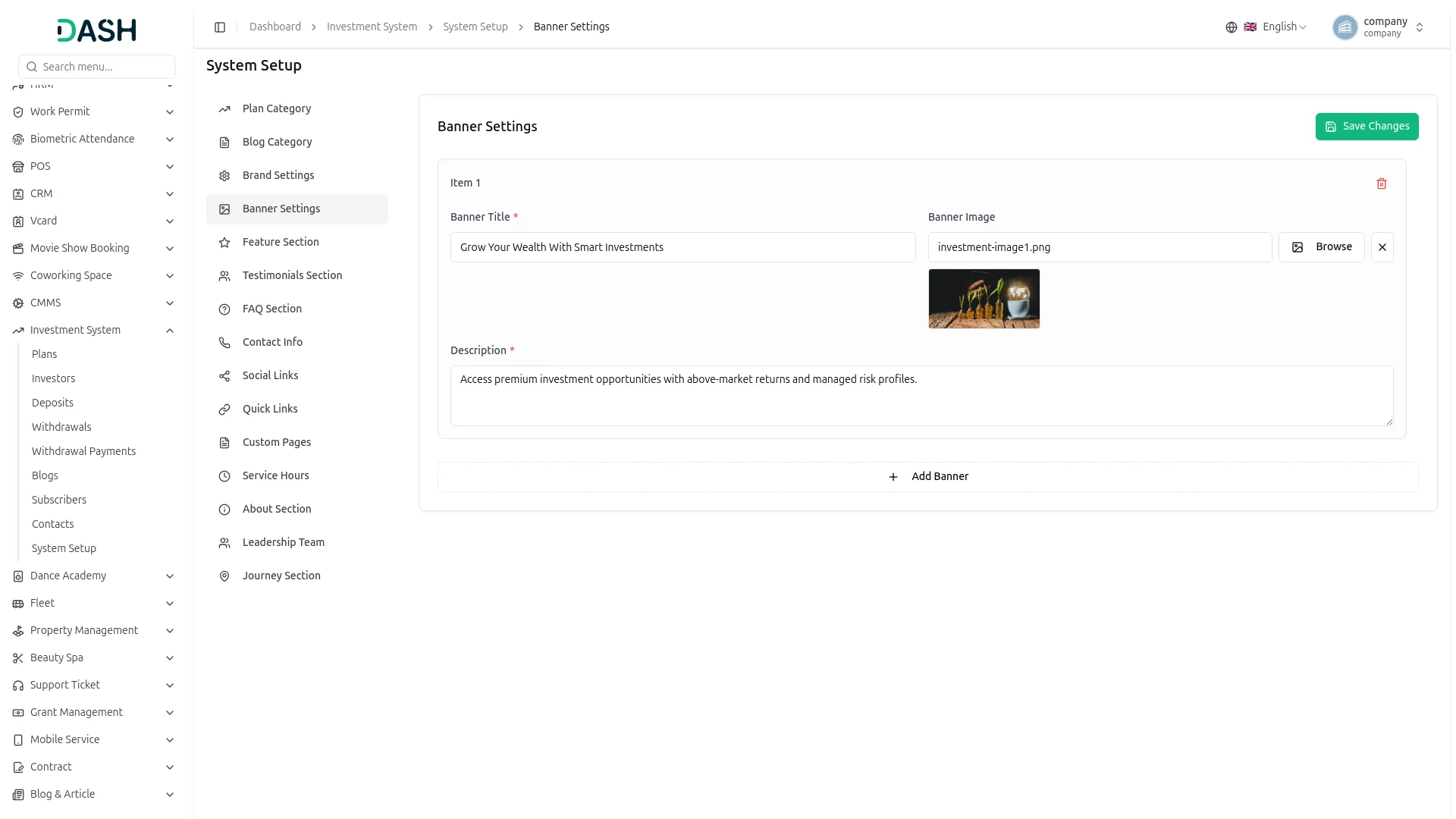
- To add more banner slides, click the “Add Banner” button. Each banner item can be independently removed using the delete button. Click Save Changes when done.
- In the Banner Settings section, you will find fields for Banner Title, Banner Description, and Banner Image for each banner item. Upload your banner image using the Browse button and enter all the required details.
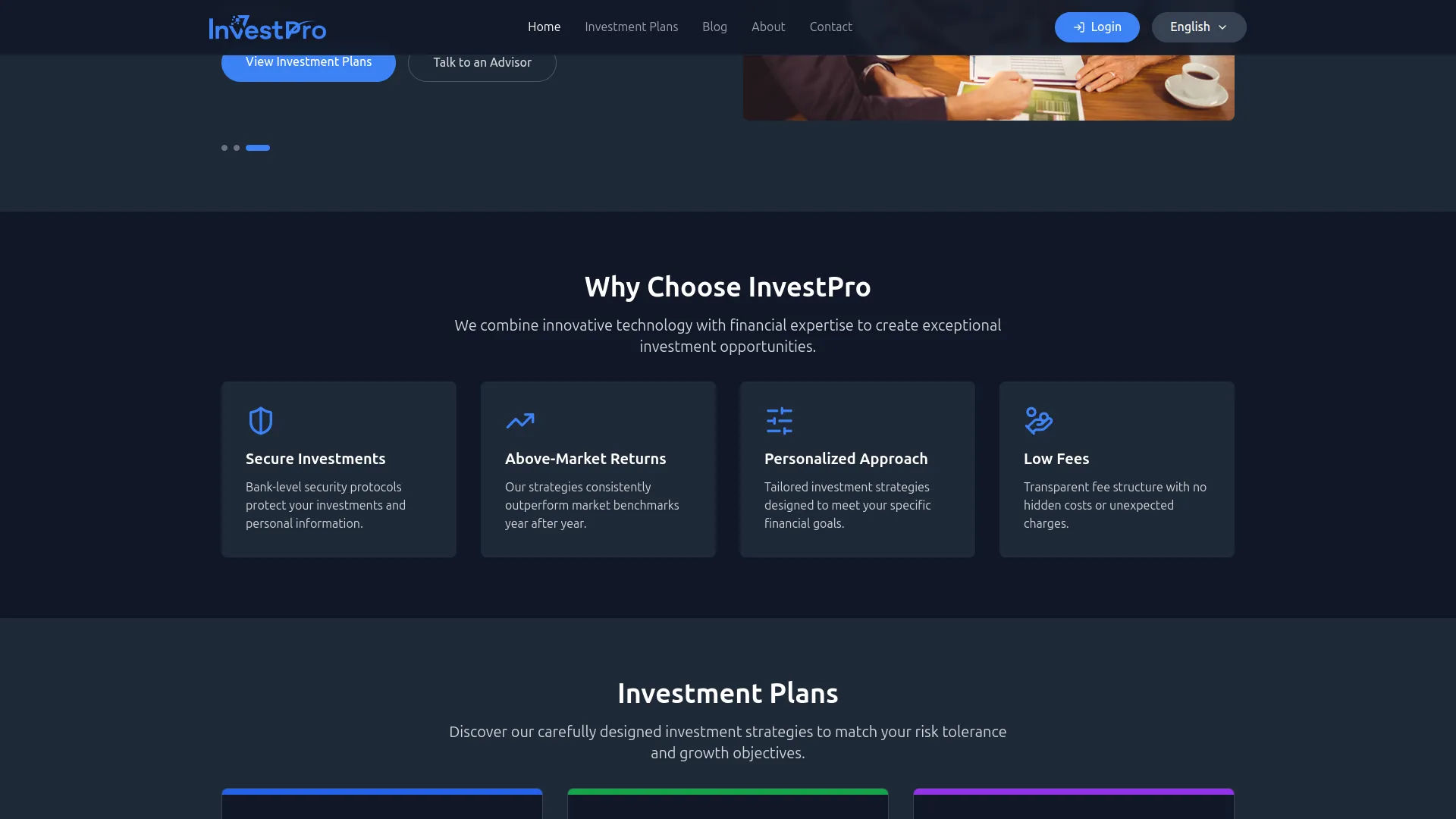
- Once saved, the Banner Title, Description, and Image will appear in the hero slider section on your website homepage, giving visitors an engaging and informative first impression of your investment platform.
Feature Section
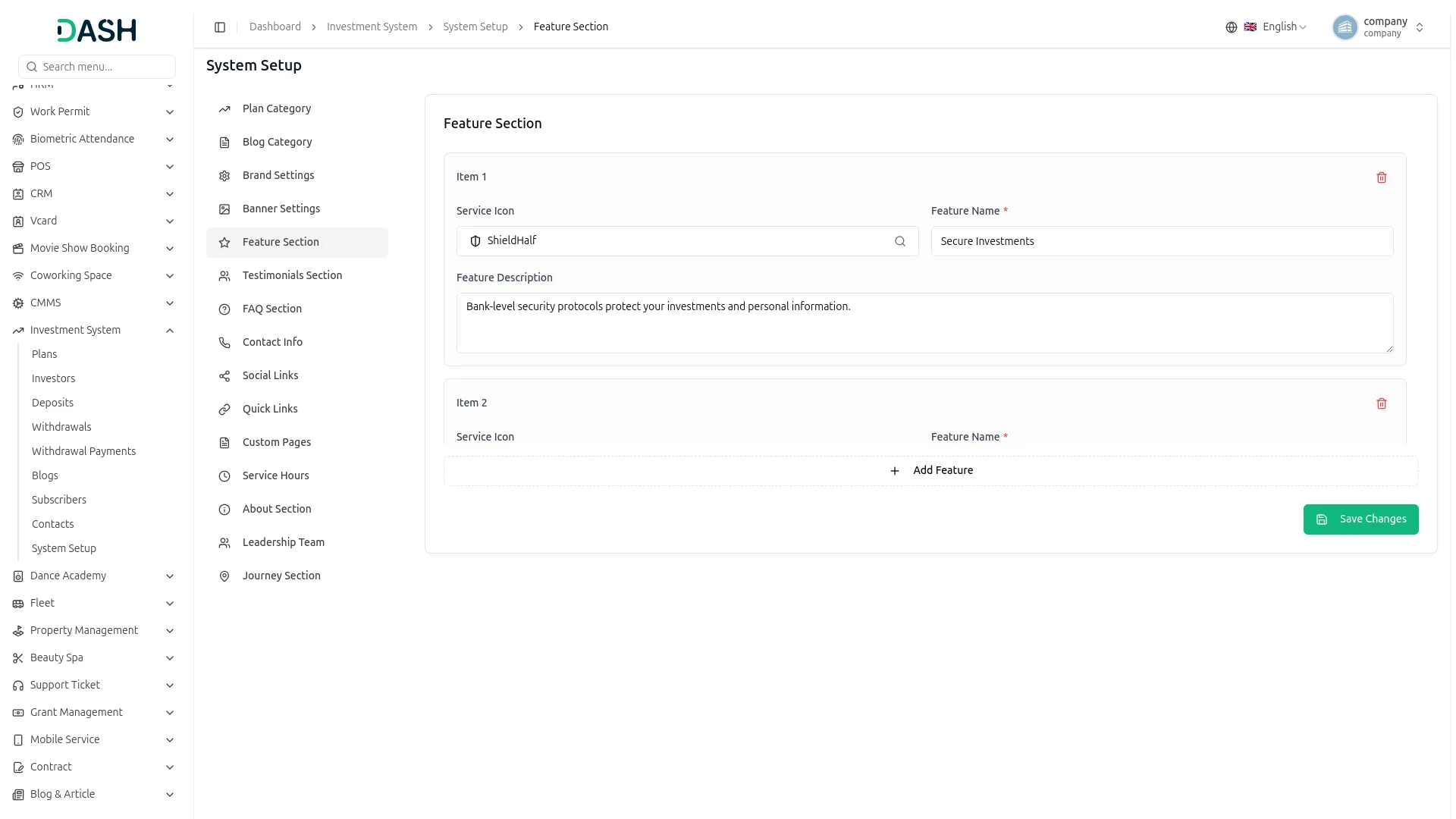
- To add more features, click the “Add Feature” button. Each feature item can be independently removed using the delete button.
- In the Feature Section, you will find fields for Service Icon, Feature Name, and Feature Description for each feature item. Select an icon from the icon picker, enter the feature name and description, and click Save Changes.
- Once saved, all features will appear in the “Why Choose InvestPro” section on your website homepage, displaying each feature with its icon, name, and description to highlight the key advantages of your investment platform to visitors.
Testimonials Section
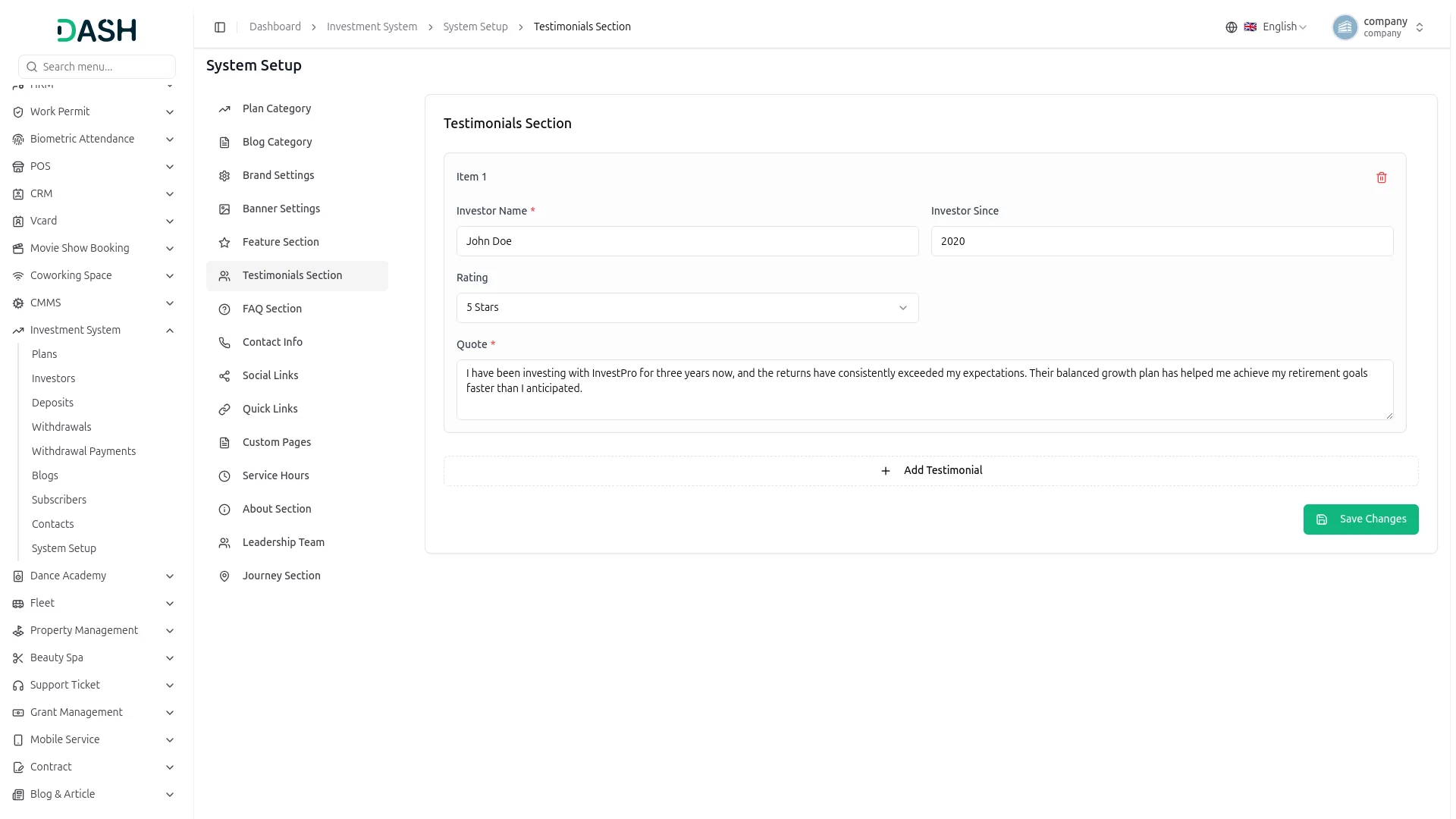
- To add more testimonials, click the “Add Testimonial” button. Each testimonial can be independently removed using the delete button.
- In the Testimonials Section, you will find fields for Investor Name, Investor Since, Rating, and Quote for each testimonial item. Enter all the details and click Save Changes.
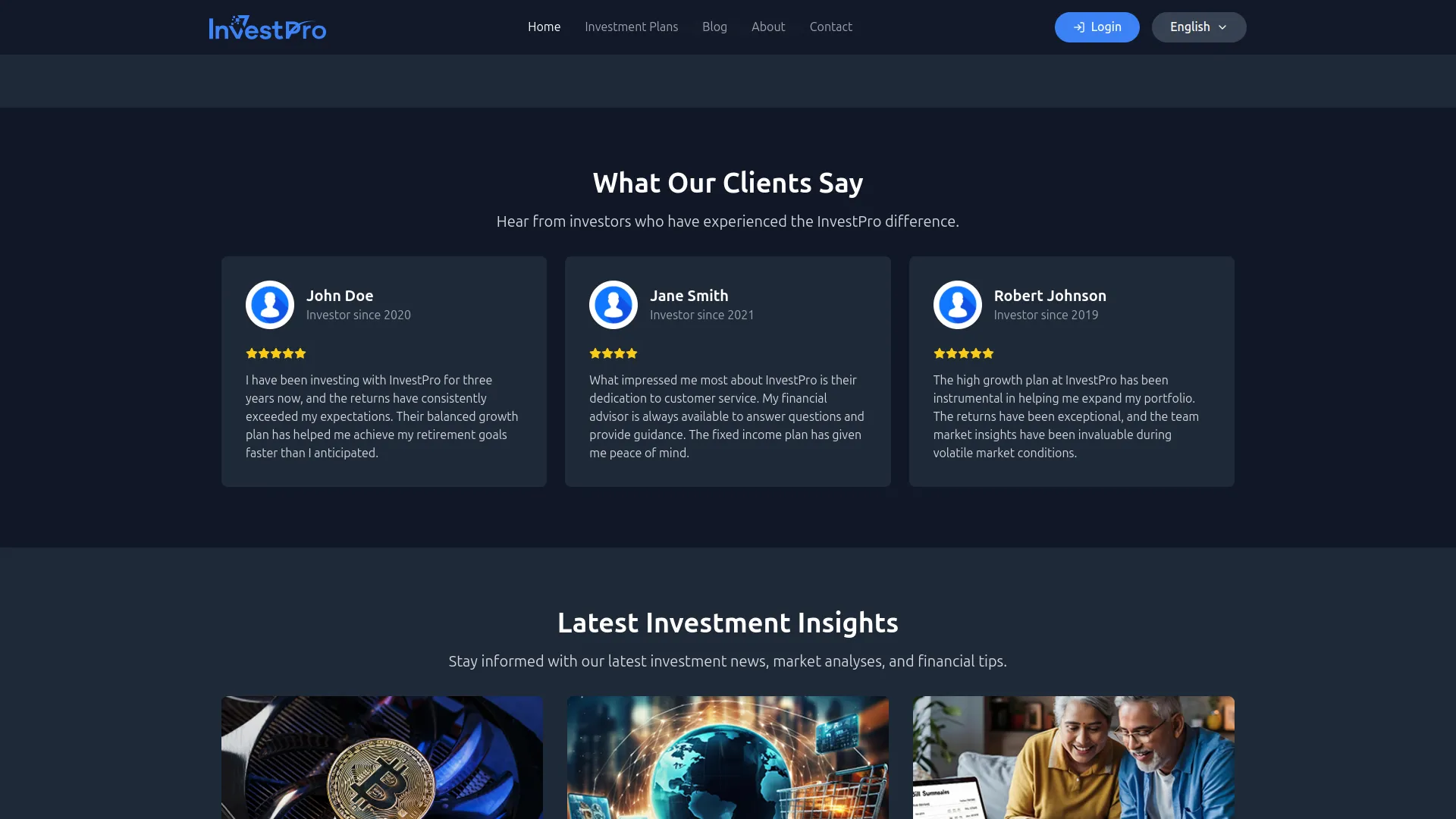
- Once saved, all testimonials will appear in the “What Our Clients Say” section on your website homepage, displaying each investor’s name, star rating, year they joined, and their personal quote to build trust and credibility with potential investors.

FAQ Section
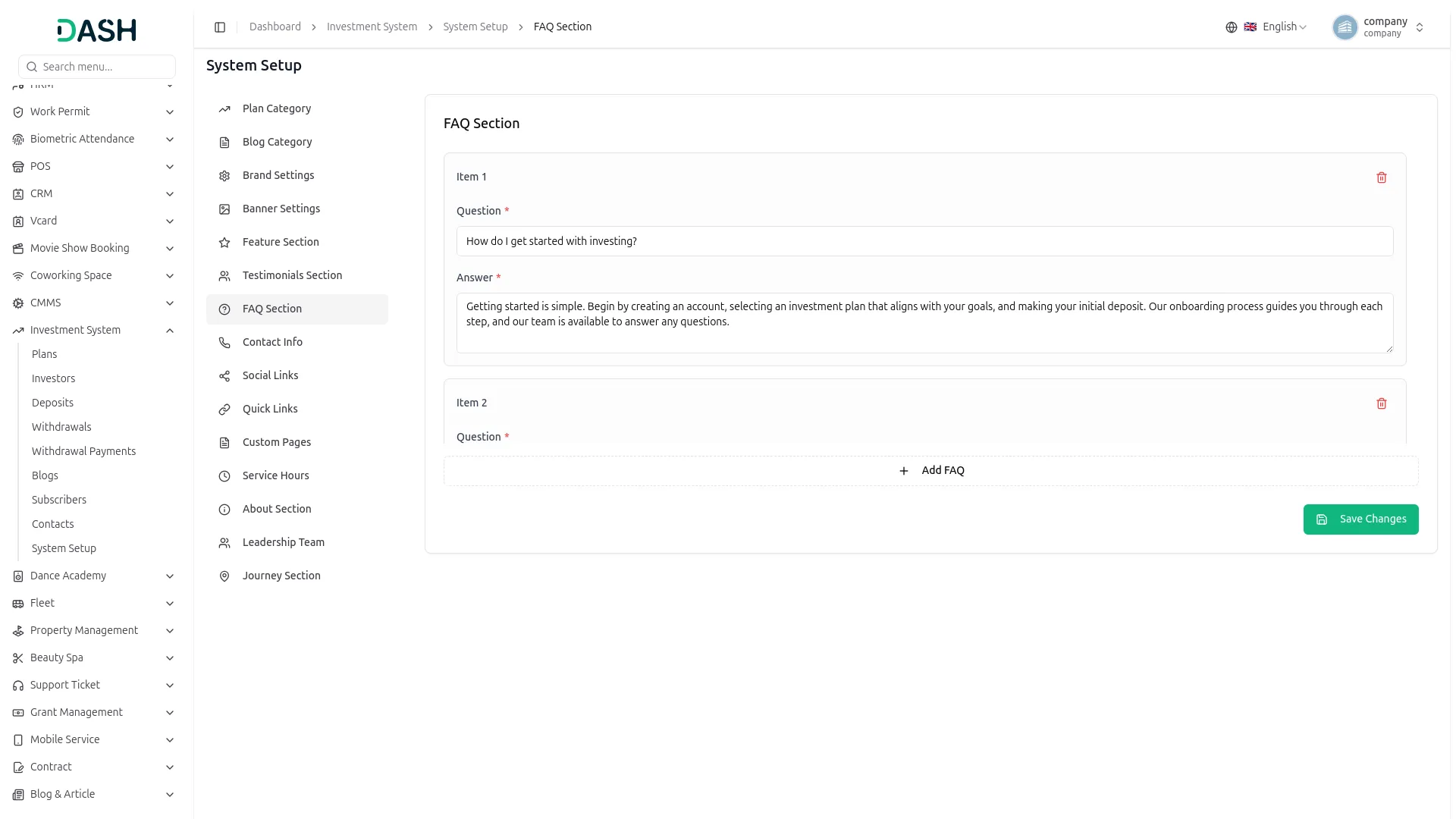
- To add more FAQs, click the ” Add FAQ” button. Each FAQ item can be independently removed using the delete button.
- In the FAQ Section, you will find fields for Question and Answer for each FAQ item. Enter the question and its detailed answer, then click Save Changes.
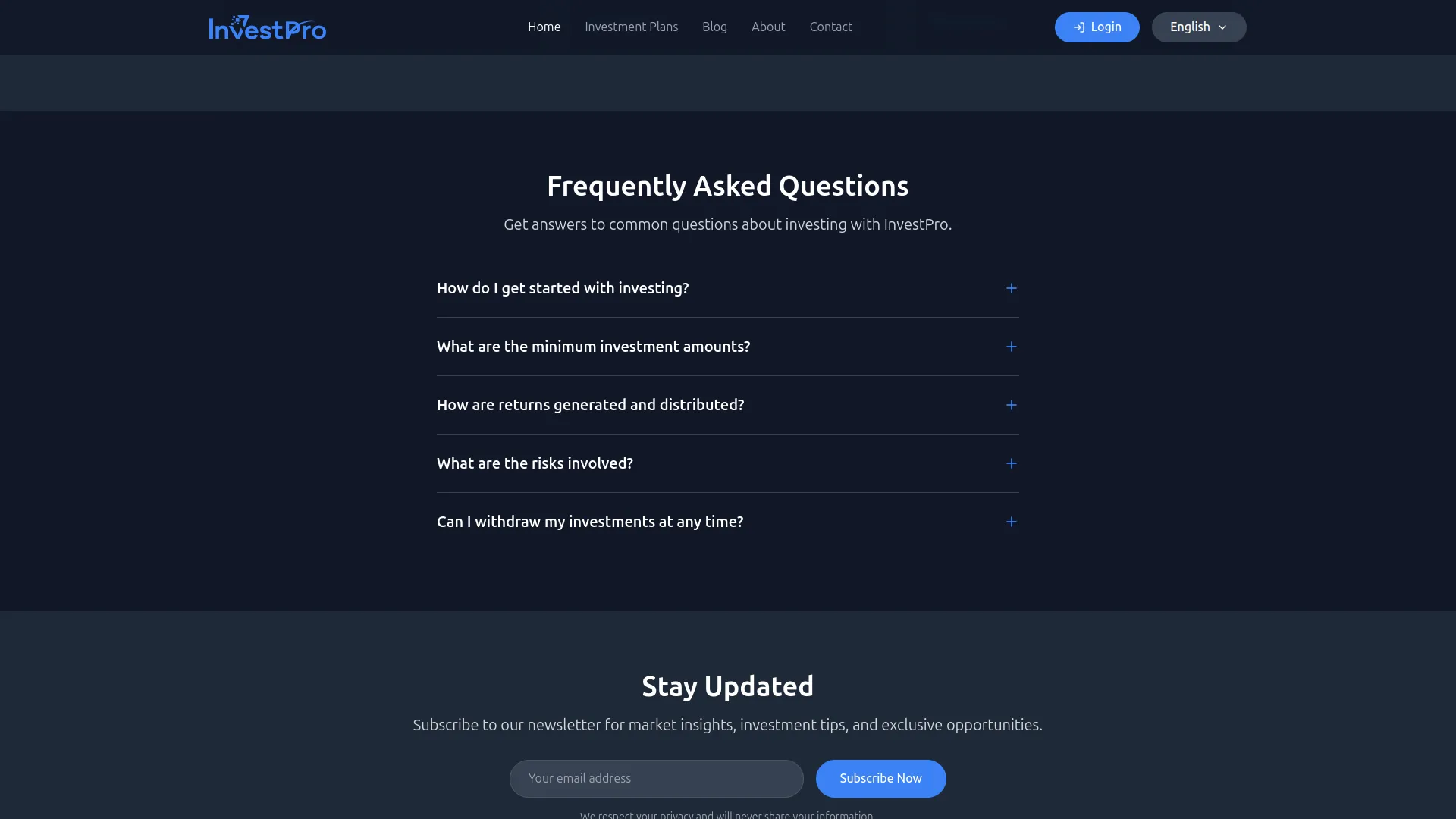
- Once saved, all FAQs will appear in the Frequently Asked Questions section on your website homepage as expandable accordion items, helping visitors quickly find answers to common questions about investing, returns, withdrawals, and more.
Contact Info
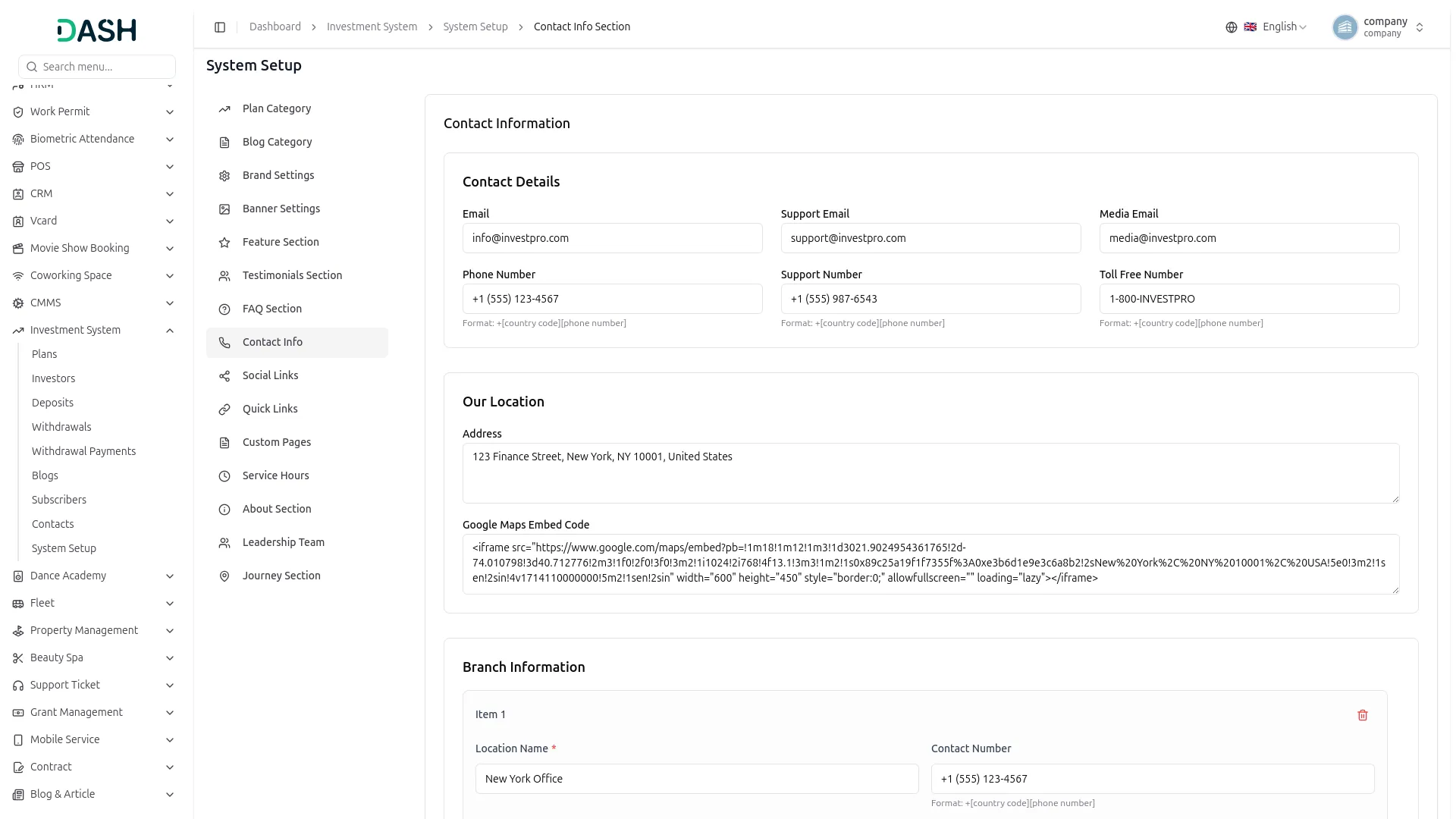
- In the Contact Details section, you will find fields for Email, Support Email, Media Email, Phone Number, Support Number, and Toll-Free Number. Enter all the relevant contact details.
- In the Our Location section, you will find fields for Address and Google Maps Embed Code. Paste your Google Maps embed iframe code to display your office location on the map.
- In the Branch Information section, you can add multiple branch offices by entering the Location Name, Contact Number, Email, and Address for each branch. Click + Add Branch to add more locations. Click Save Changes when all details are complete.
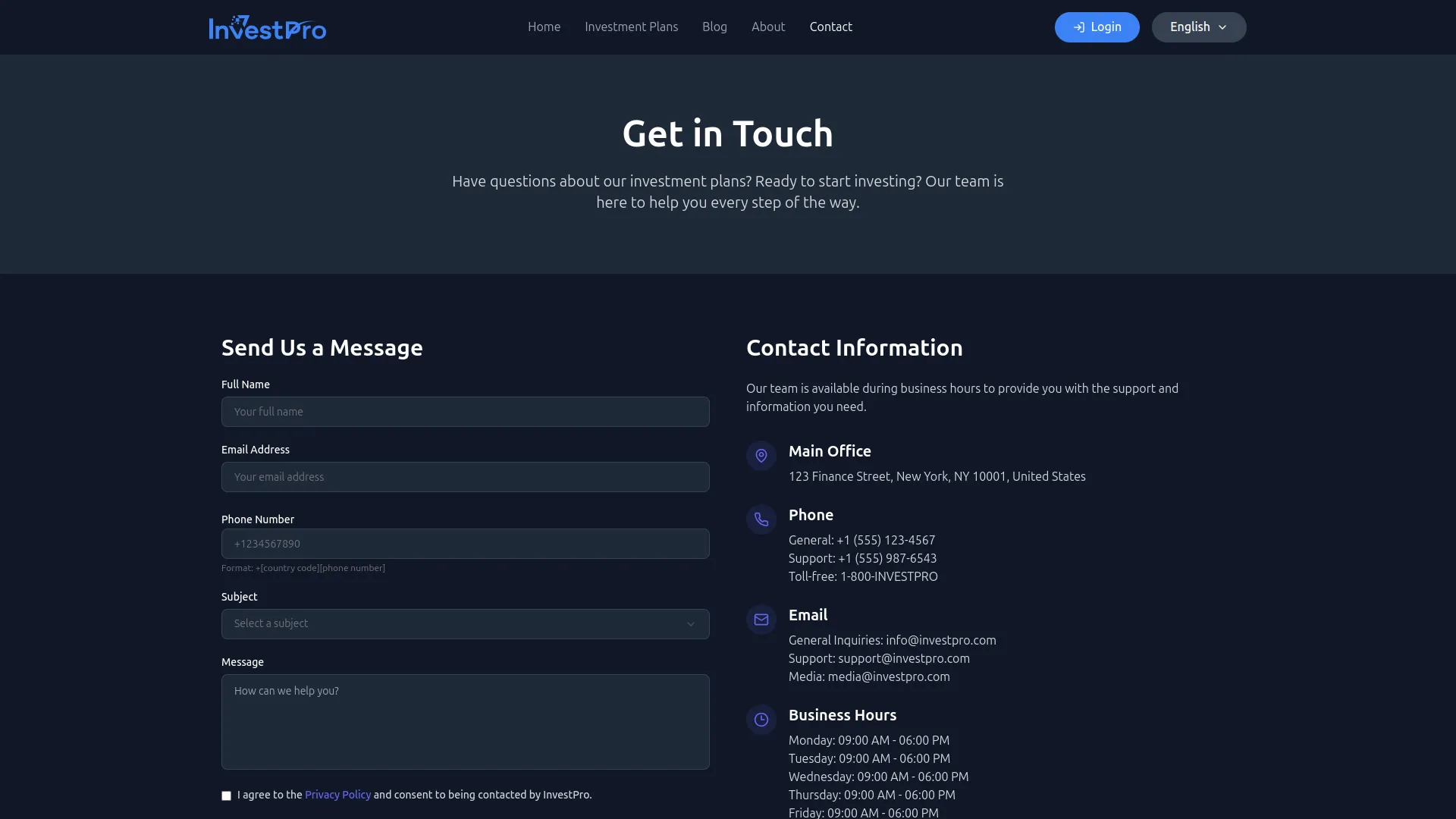
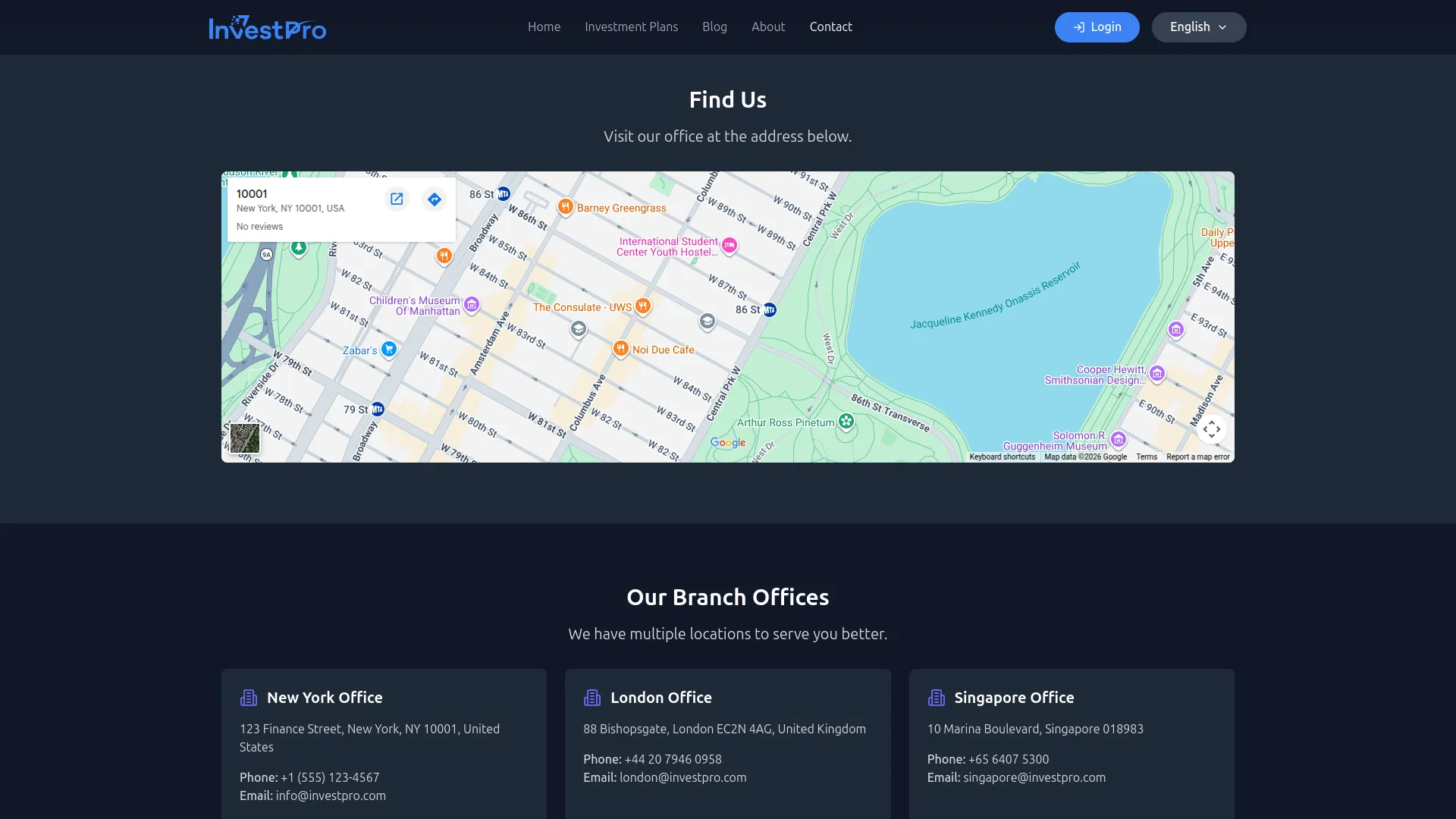
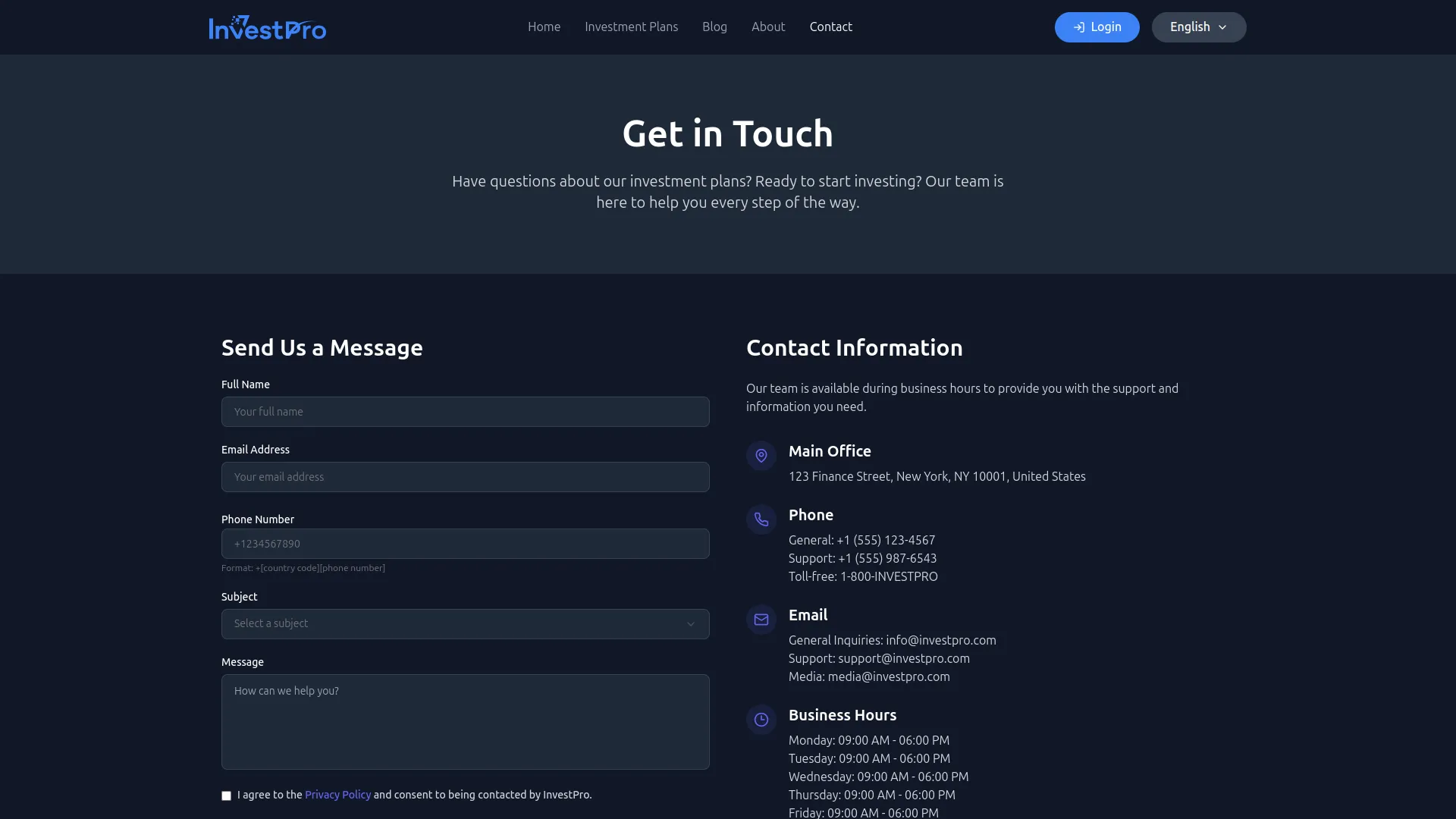
- Once saved, all contact details will appear on the Contact Page of your website. The email addresses and phone numbers will display in the Contact Information panel, the Google Map will appear in the Find Us section, and all branch offices will be listed under the Our Branch Offices section.
Social Links
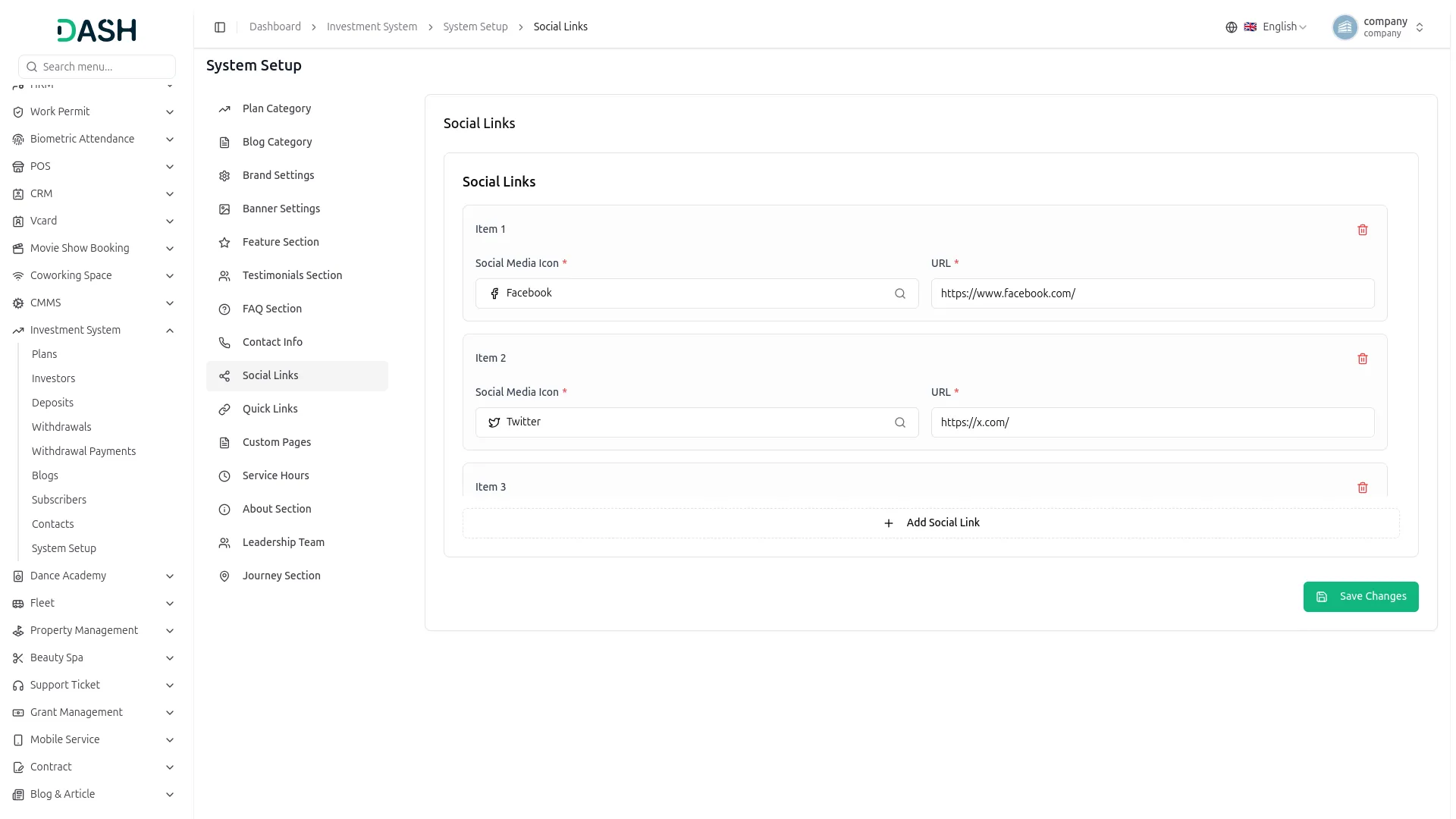
- To add more social links, click the “Add Social Link” button. Each social link can be independently removed using the delete button. Click Save Changes when done.
- In the Social Links section, you will find fields for Social Media Icon and URL for each social link item. Select the social media platform icon and enter its corresponding URL.
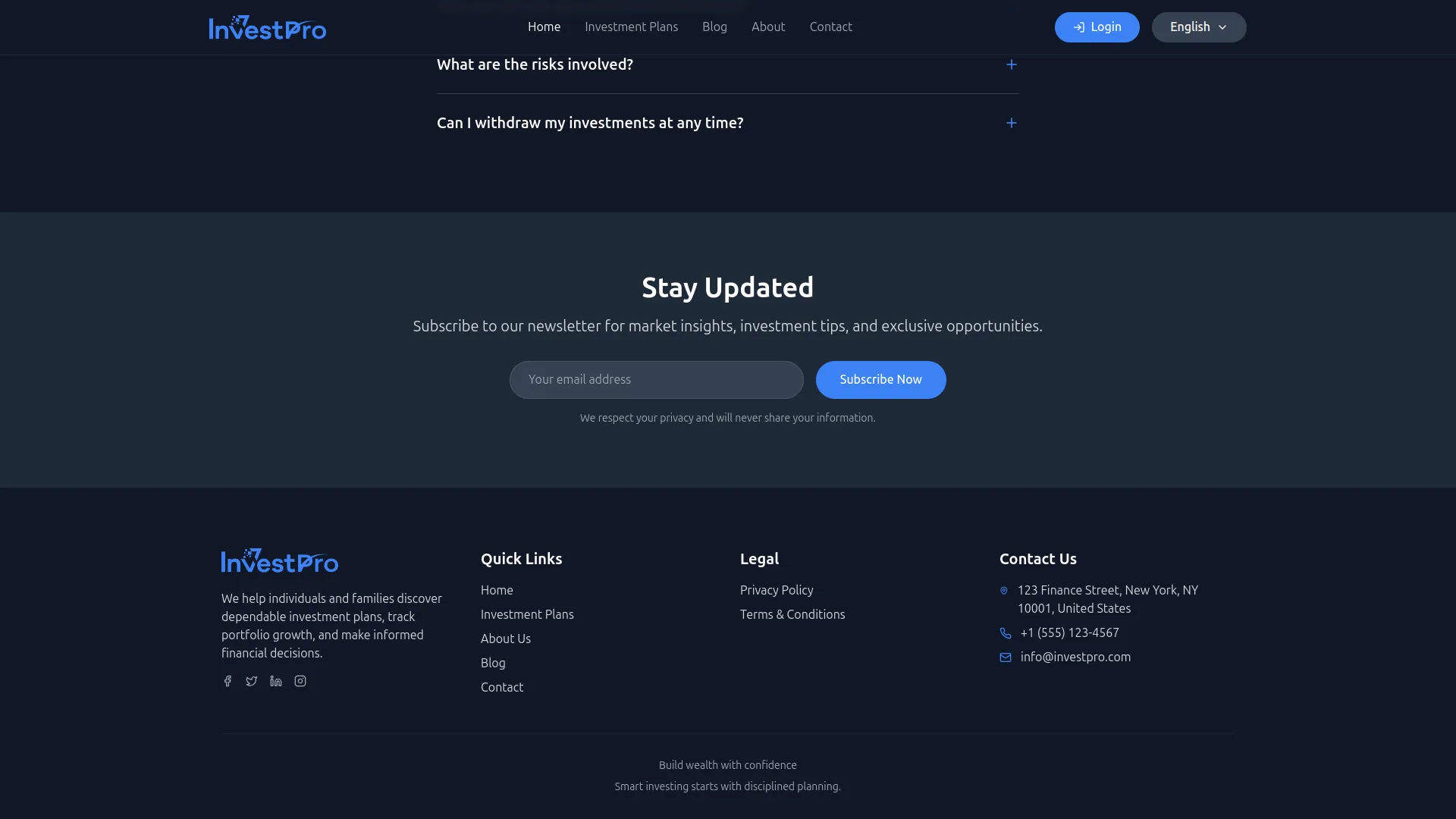
- Once saved, all social media links will appear as clickable icons in the footer of your website and on the Contact page, allowing visitors to connect with your platform across social media channels such as Facebook, Twitter, LinkedIn, and Instagram.
Quick Links
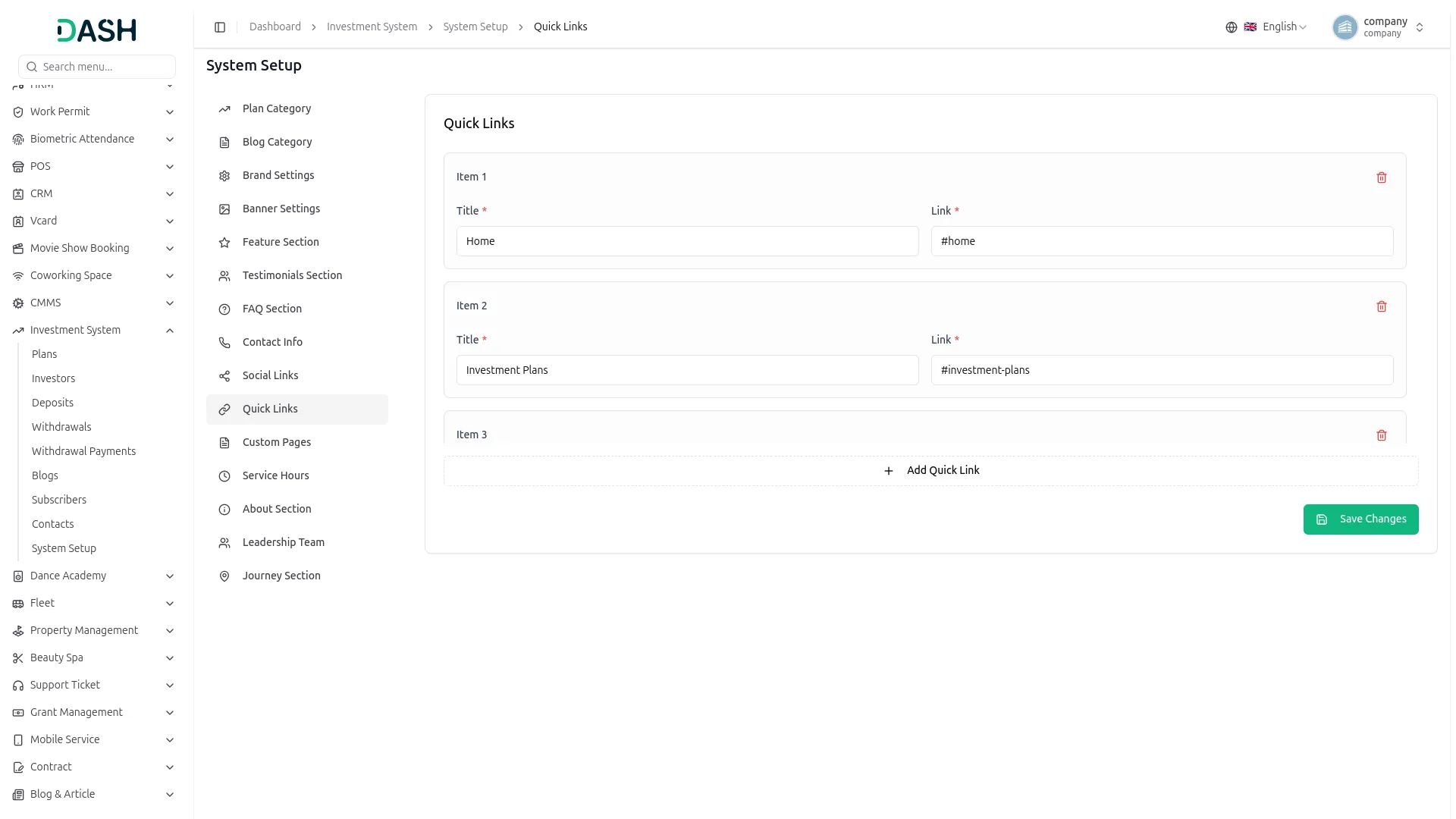
- To add more quick links, click the “Add Quick Link” button. Each quick link can be independently removed using the delete button. Click Save Changes when done.
- In the Quick Links section, you will find fields for Title and Link for each quick link item. Enter the link label as the Title and its corresponding URL or anchor as the Link.
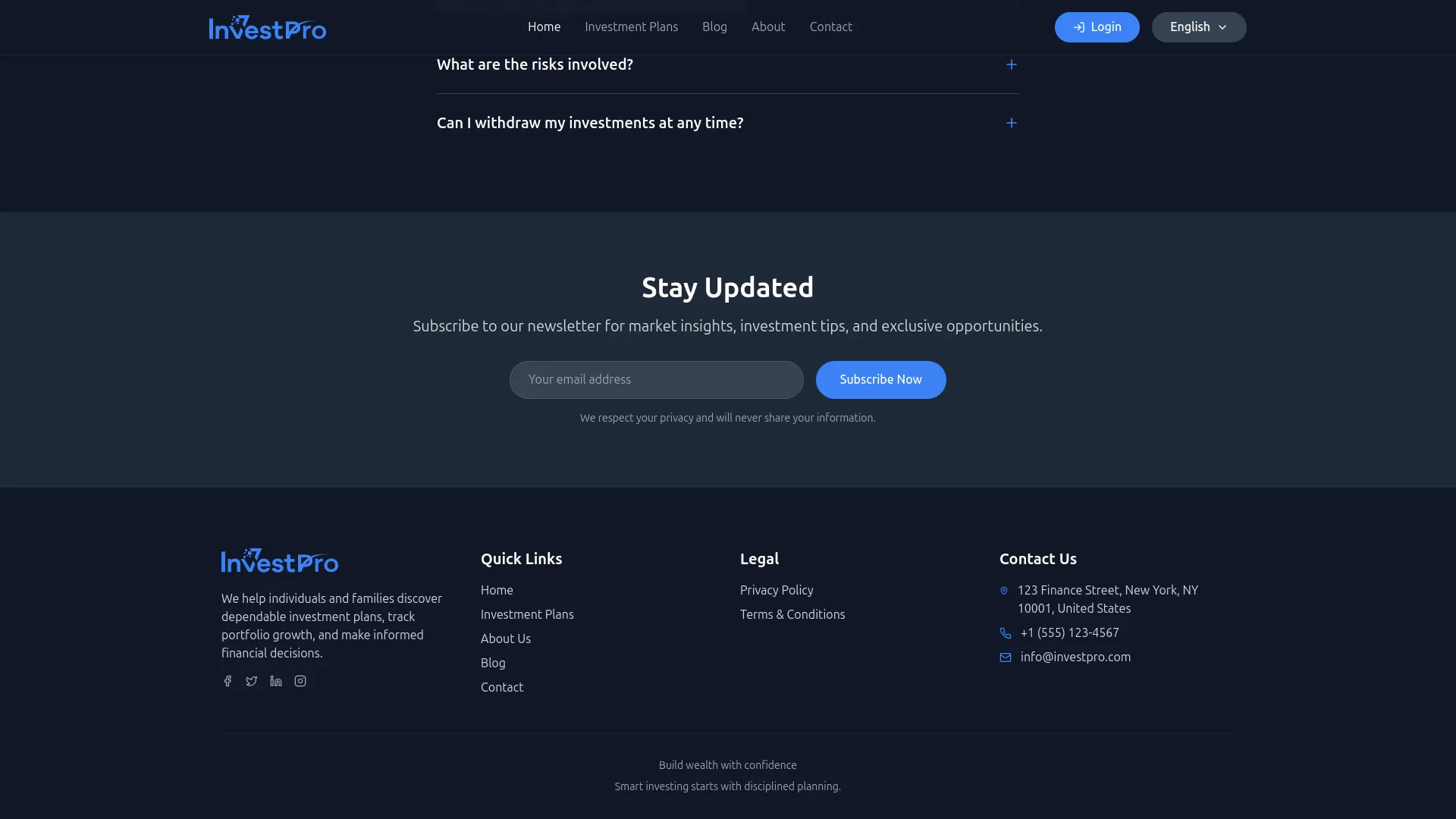
- Once saved, all quick links will appear in the Quick Links column in the footer of your website, providing visitors with fast and easy navigation to important pages such as Home, Investment Plans, About Us, Blog, and Contact.
Custom Pages
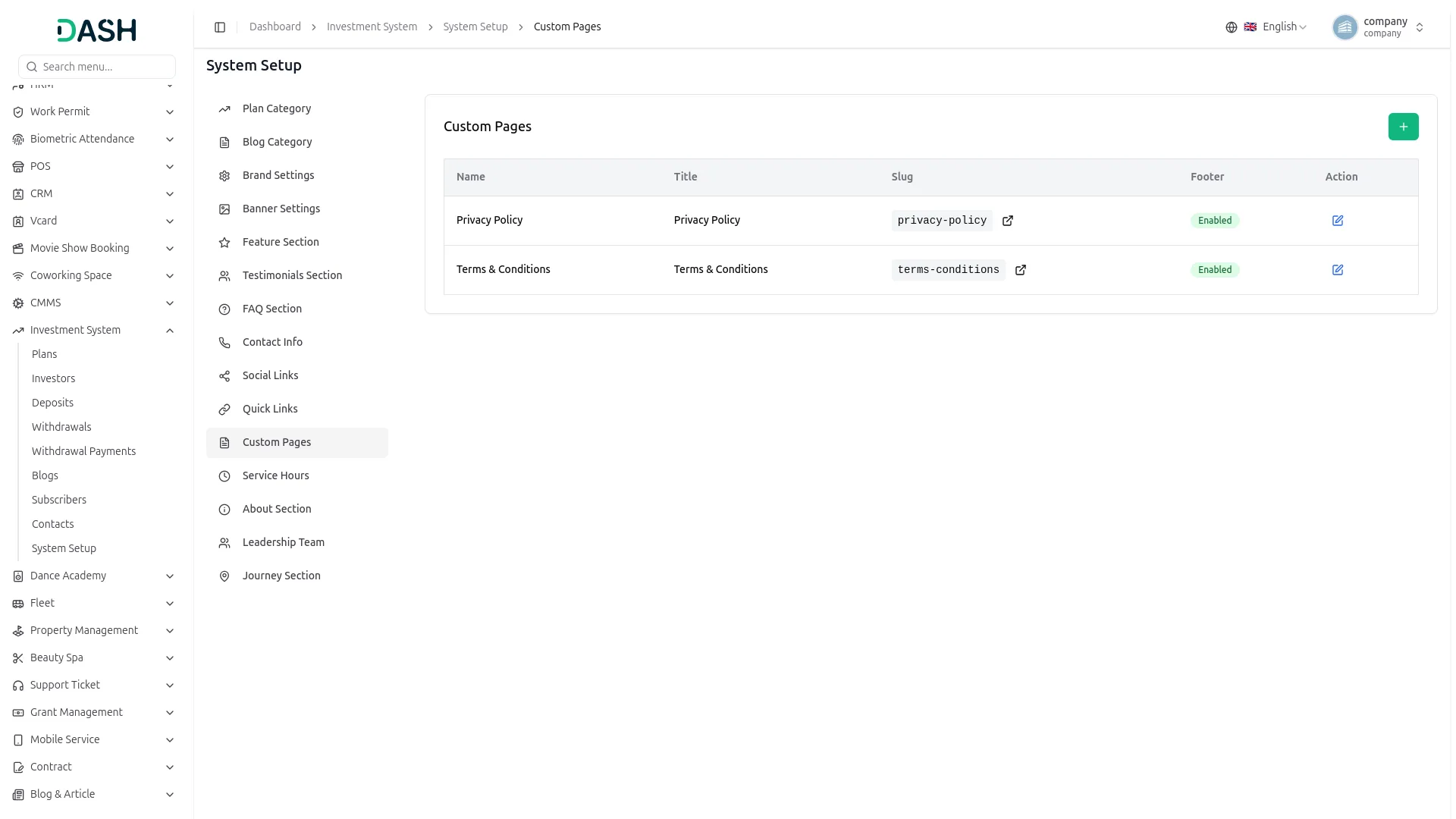
- To create a new custom page, click the “Create” button at the top right. In the Create Custom Page form, enter the Name, Title, URL Slug, and write the page Contents using the rich text editor. You can toggle Enable Page Footer to show or hide the footer on that page. Click Create when done.
- In the Custom Pages section, you will find a list of all existing pages with their Name, Title, Slug, Footer status, and Actions. You can use the edit button to update an existing page’s content.
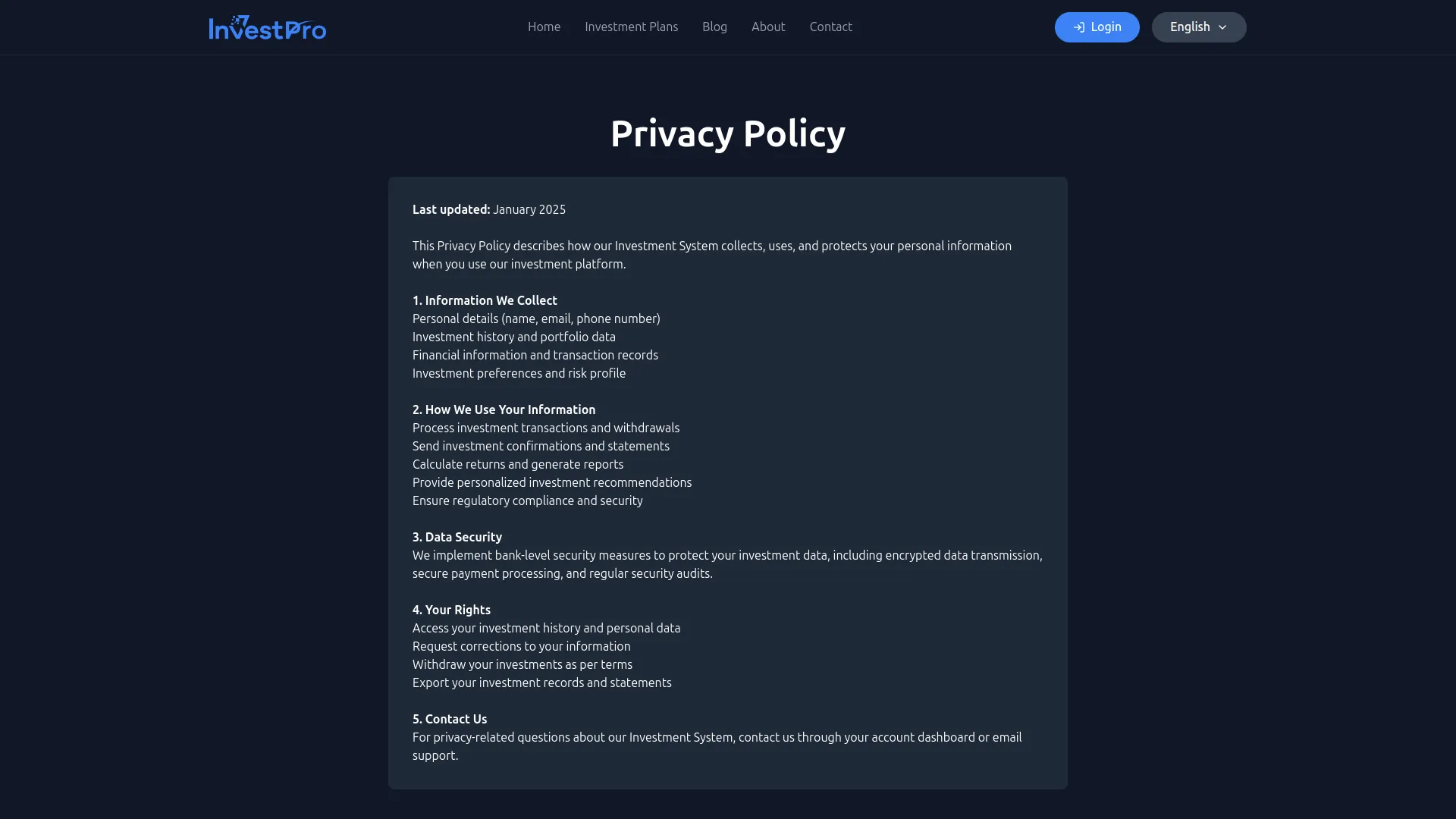
- Once saved, each custom page will be accessible via its unique URL slug and, if the footer is enabled, it will appear as a clickable link in the Legal section of your website footer, for example, Privacy Policy and Terms & Conditions pages.
Service Hours
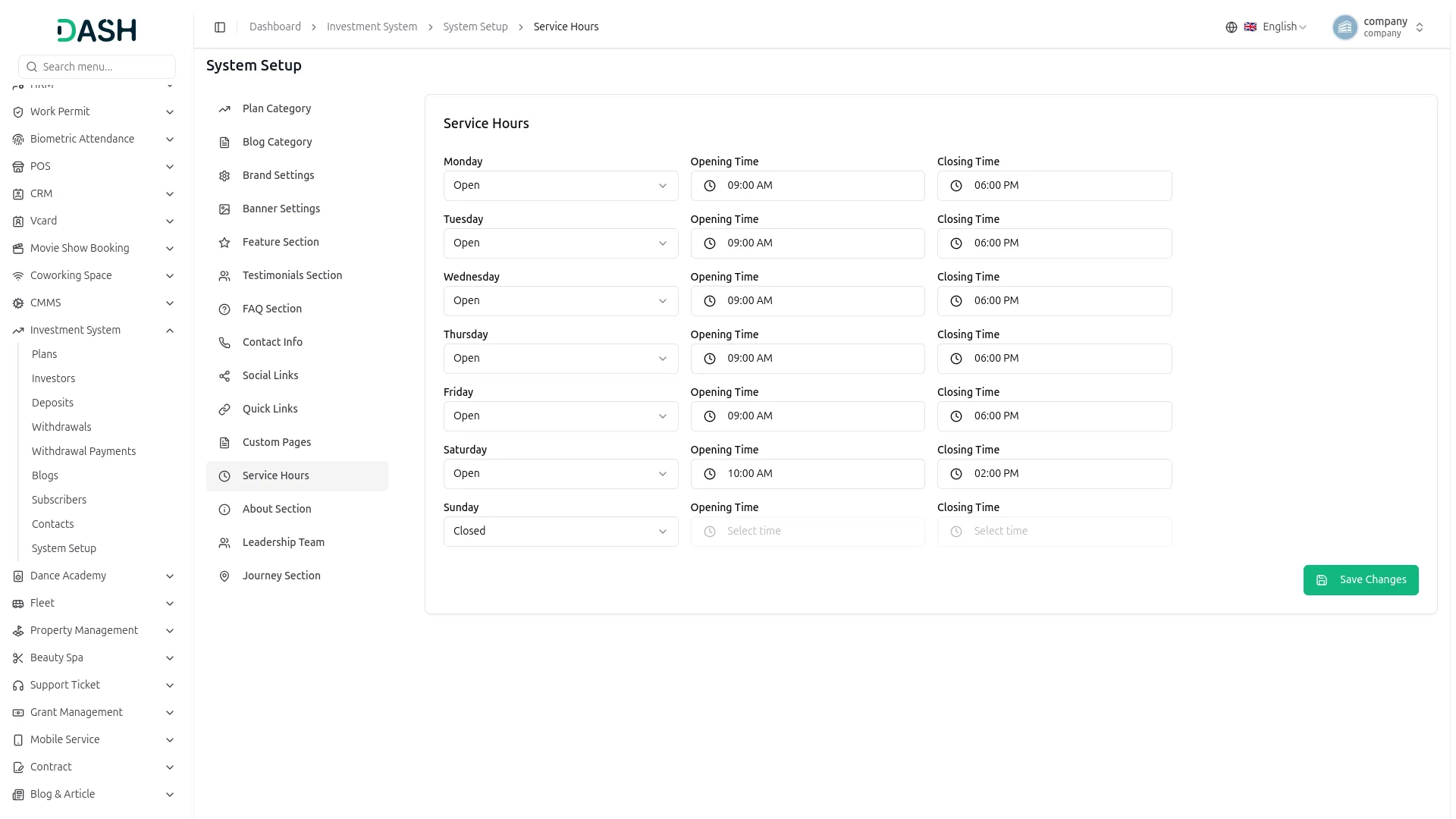
- In the Service Hours section, you will find fields for each day of the week, Monday through Sunday. For each day, set the status to Open or Closed using the dropdown, and if Open, select the Opening Time and Closing Time. Click Save Changes when done.
- Once saved, the service hours will appear in the Business Hours panel on the Contact page of your website, informing visitors of the days and times your team is available to provide support and assistance.
About Section
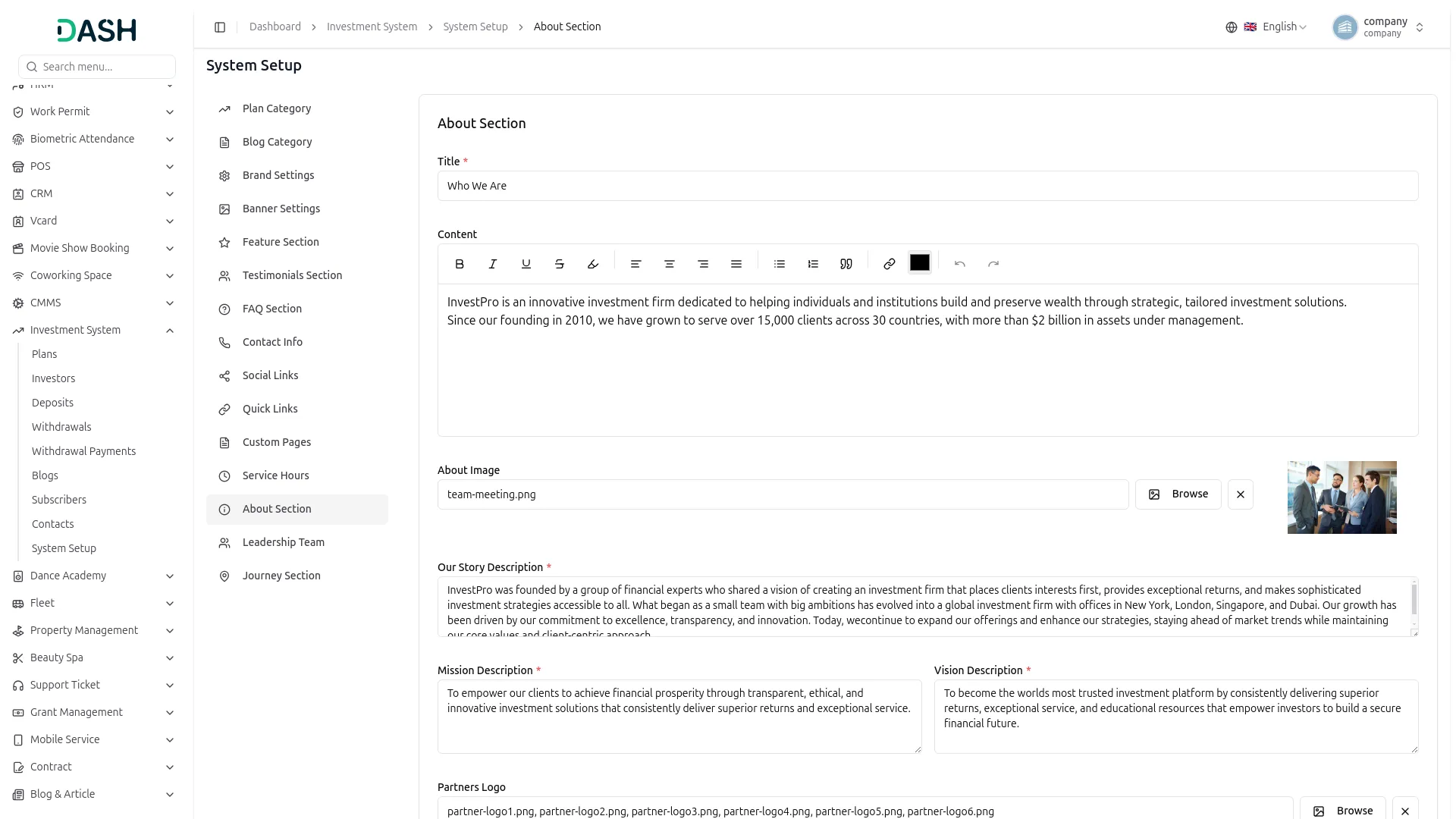
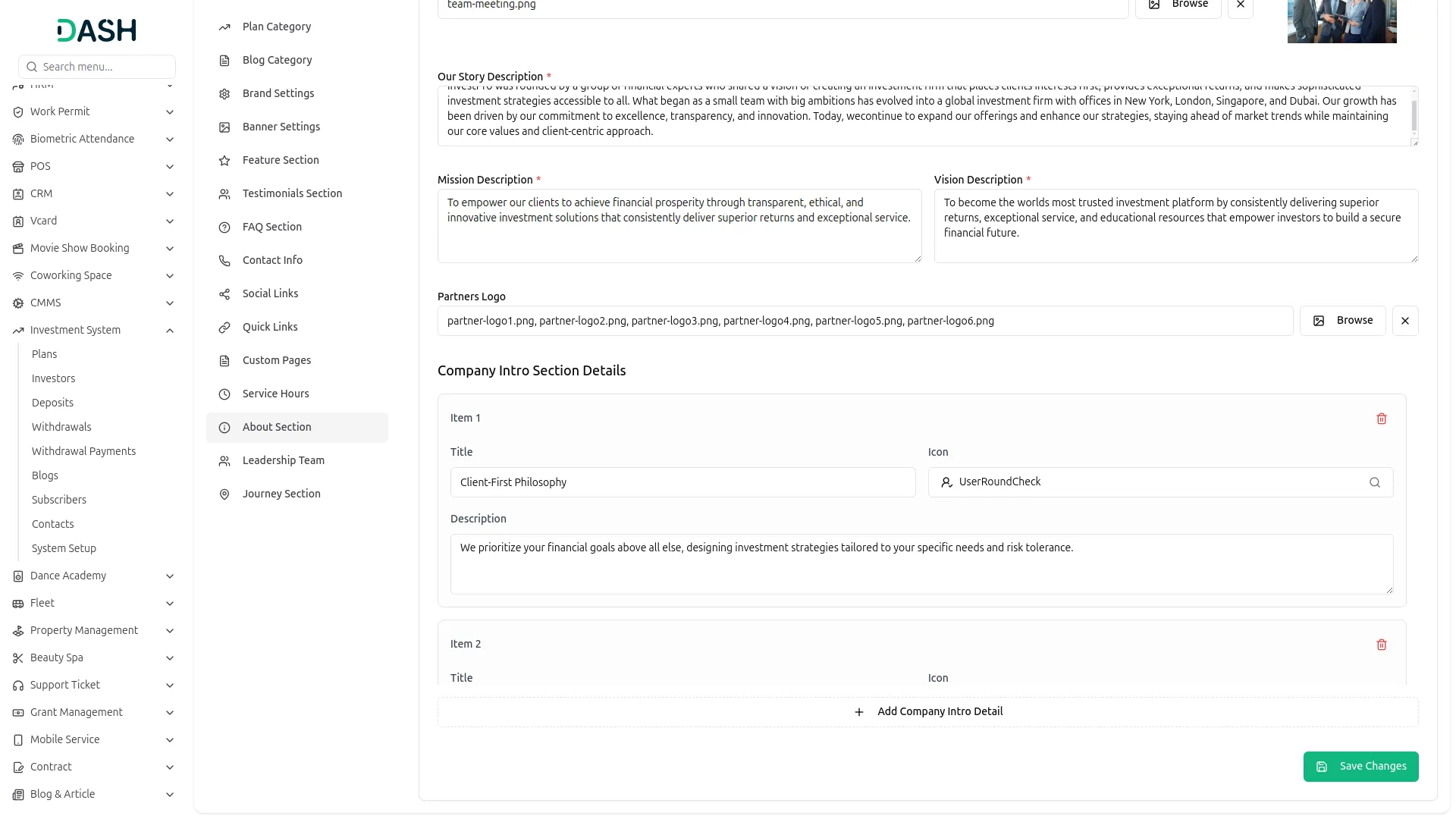
- In the About Section, you will find fields for Title, Content, About Image, Our Story Description, Mission Description, Vision Description, and Partners Logo. Upload the image and partner logos using the Browse button and enter all the required details.
- In the Company Intro Section Details, you can add multiple intro items by entering the Title, Icon, and Description for each. Click + Add Company Intro Detail to add more items. Click Save Changes when all details are complete.
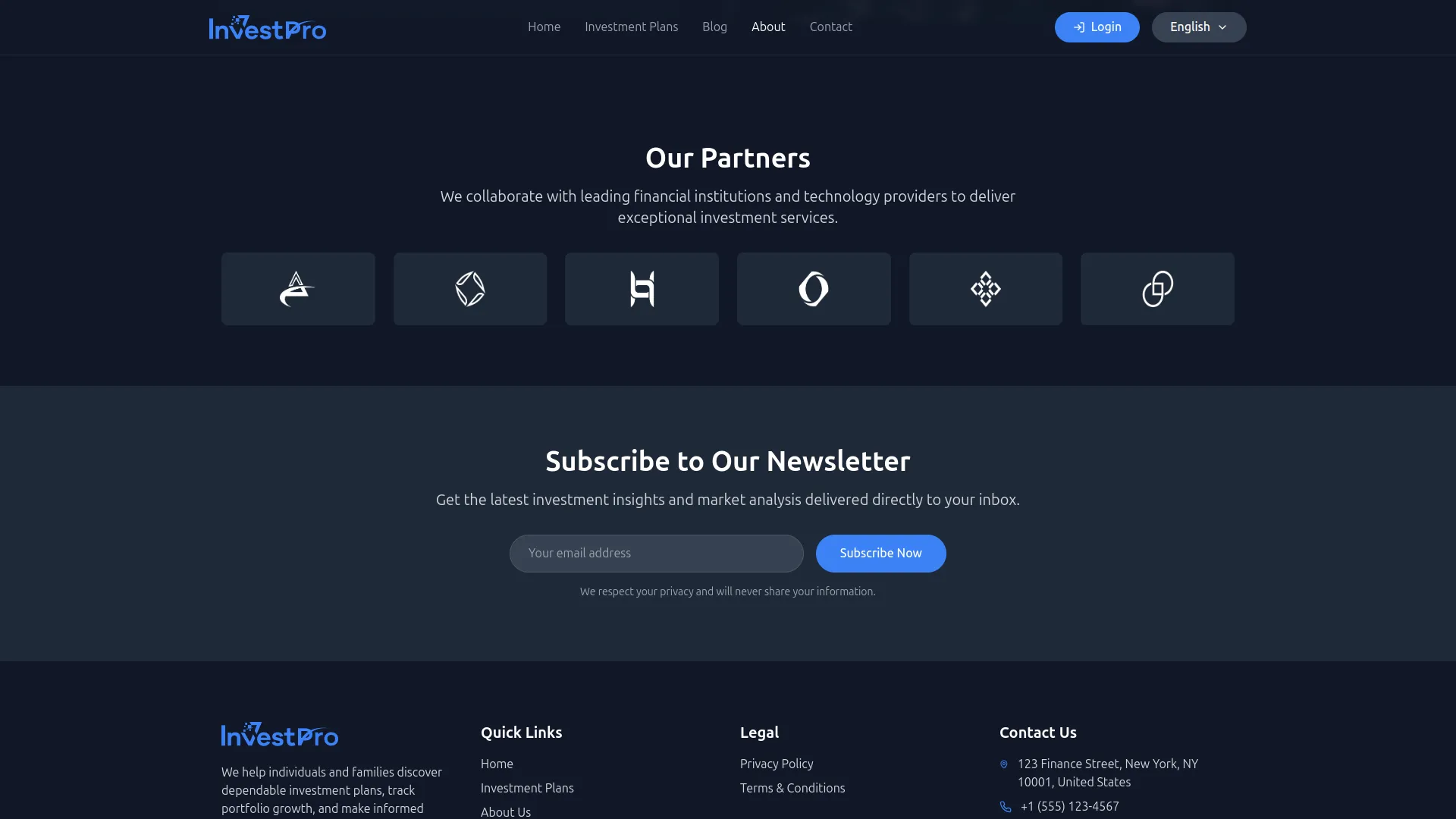
- Once saved, the Title and Content will appear in the Who We Are section on the About page, along with the uploaded team image. The Our Story Description will appear in the Our Story panel, while the Mission and Vision Descriptions will display in the Our Mission & Vision section. The Partner Logos will appear in the Our Partners section, and each Company Intro item will appear under the What Sets Us Apart panel on the About page.
Leadership Team
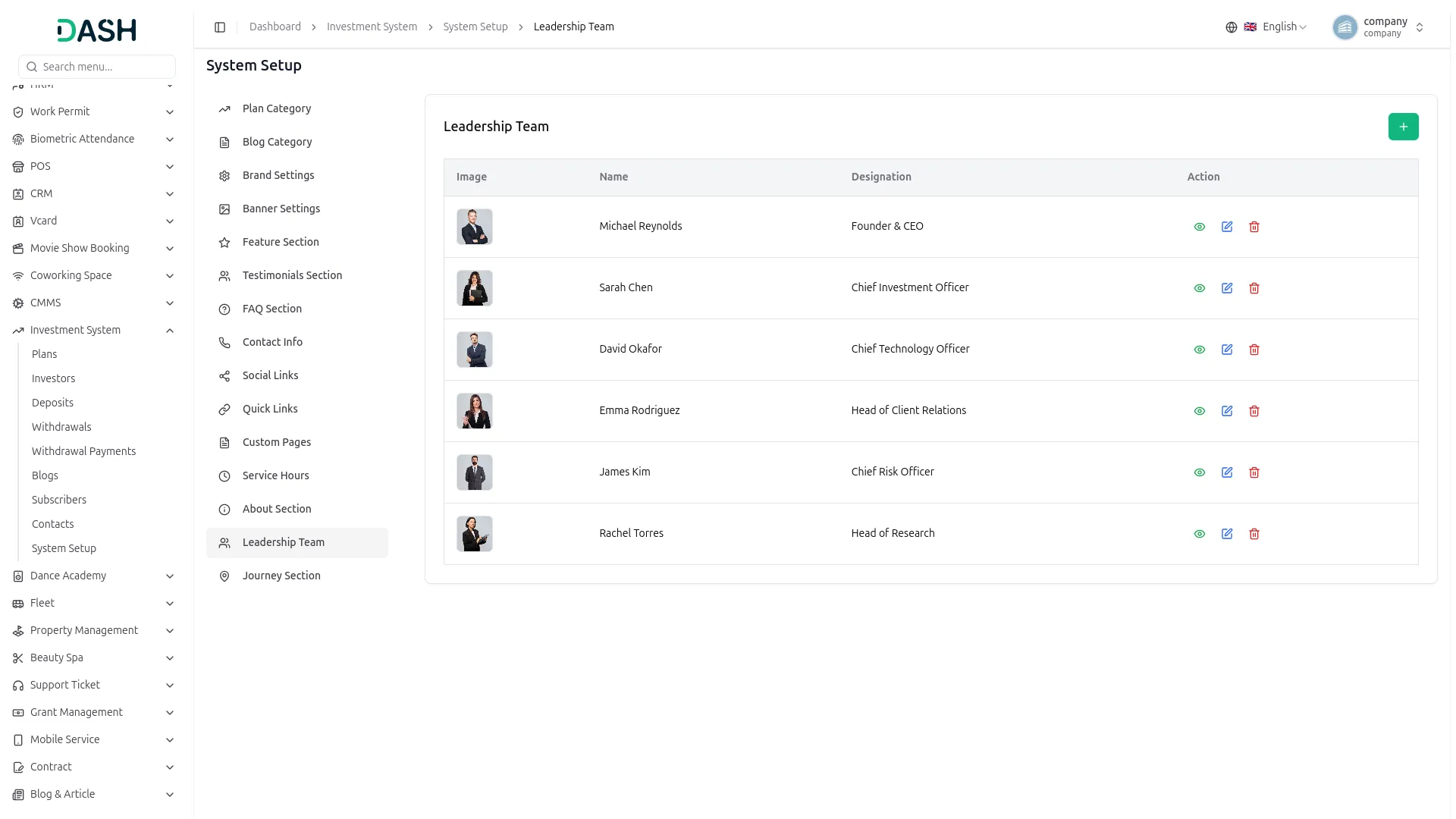
- To add a new team member, click the “Create” button at the top right. In the Create Team Member form, enter the Name, Designation, upload a Member Image using the Browse button, enter the Description, and add any relevant Social Links. Click Create when done.
- In the Leadership Team section, you will find a list of all existing team members with their Image, Name, Designation, and Actions. In the Actions column, you can use the view button to preview member details, the edit button to update information, or the delete button to remove a member.
- Once saved, all team members will appear in the Meet Our Leadership Team section on the About page, displaying each member’s photo, name, designation, short description, and social media links.

Journey Section
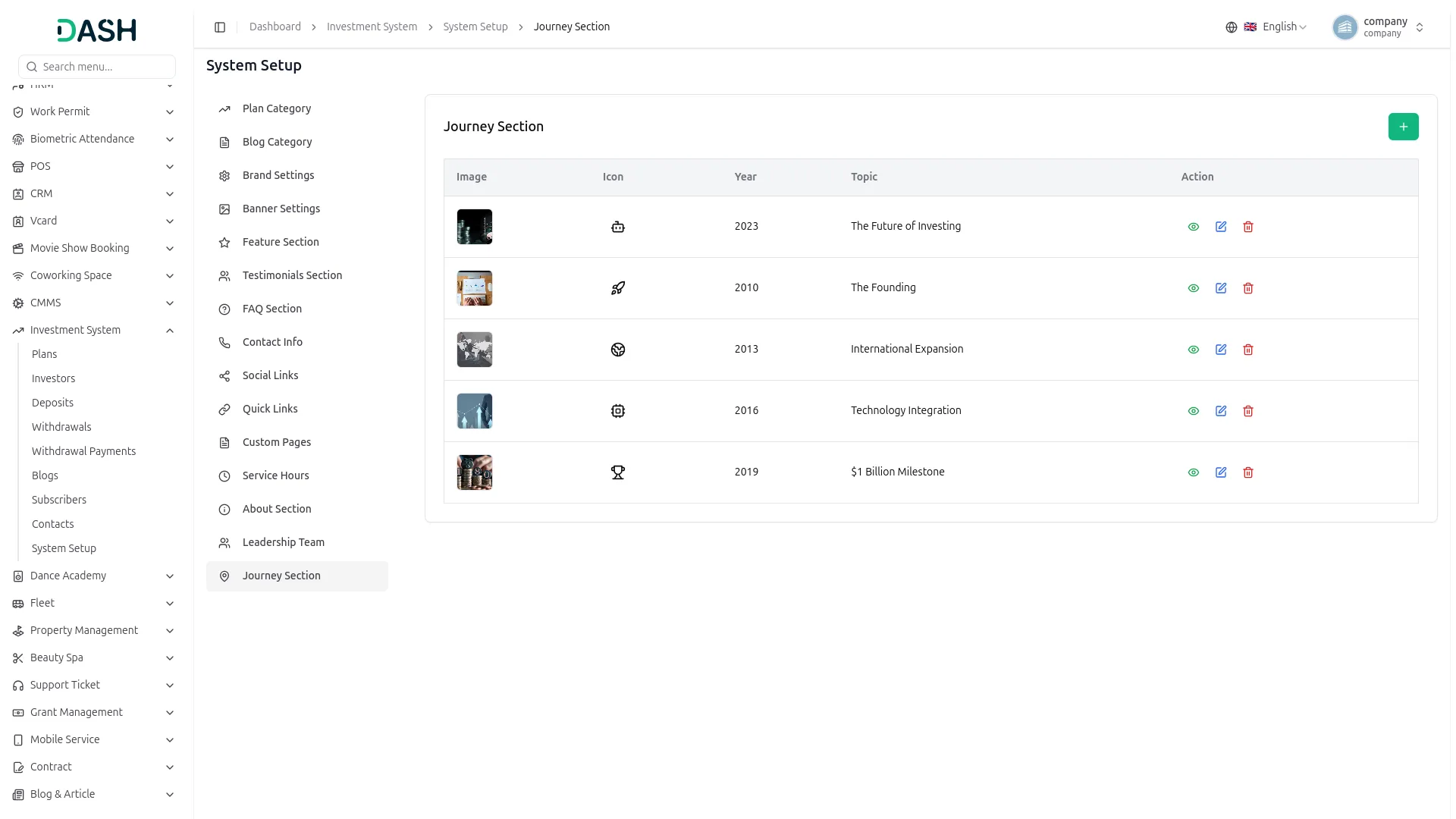
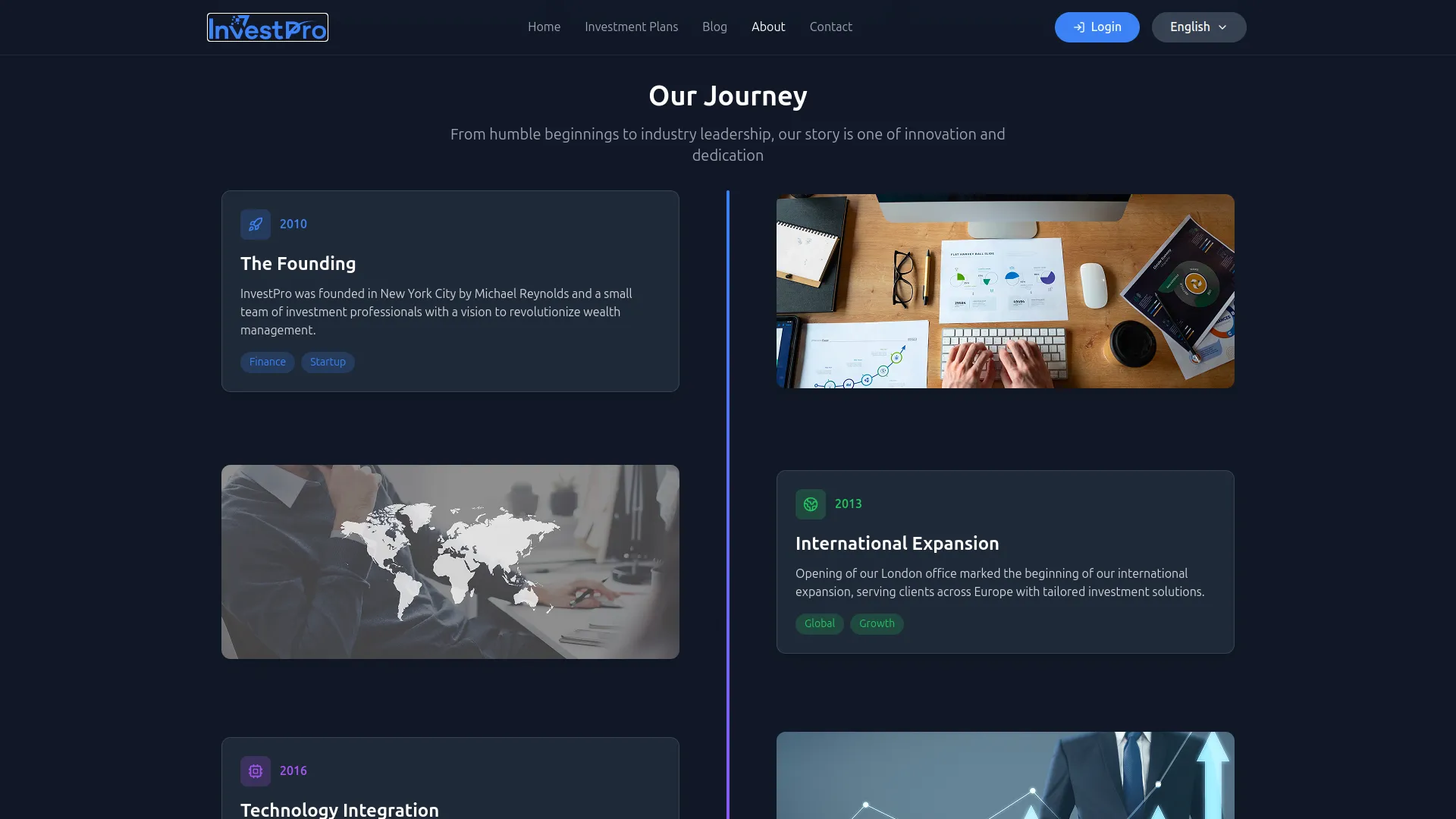
- To add a new journey milestone, click the “Create” button at the top right. In the Create Journey Item form, select a Journey Icon, choose a Color, enter the Year and Topic, upload a Member Image using the Browse button, add Tags, enter the Description, and click Create.
- In the Journey Section, you will find a list of all existing journey milestones with their Image, Icon, Year, Topic, and Actions. In the Actions column, you can use the view button to preview the milestone, the edit button to update it, or the delete button to remove it.
- Once saved, all journey milestones will appear in the Our Journey section on the About page, displaying each milestone in chronological order with its year, topic, icon, image, and description, telling the story of your company’s growth and achievements over time.

Manage Plans
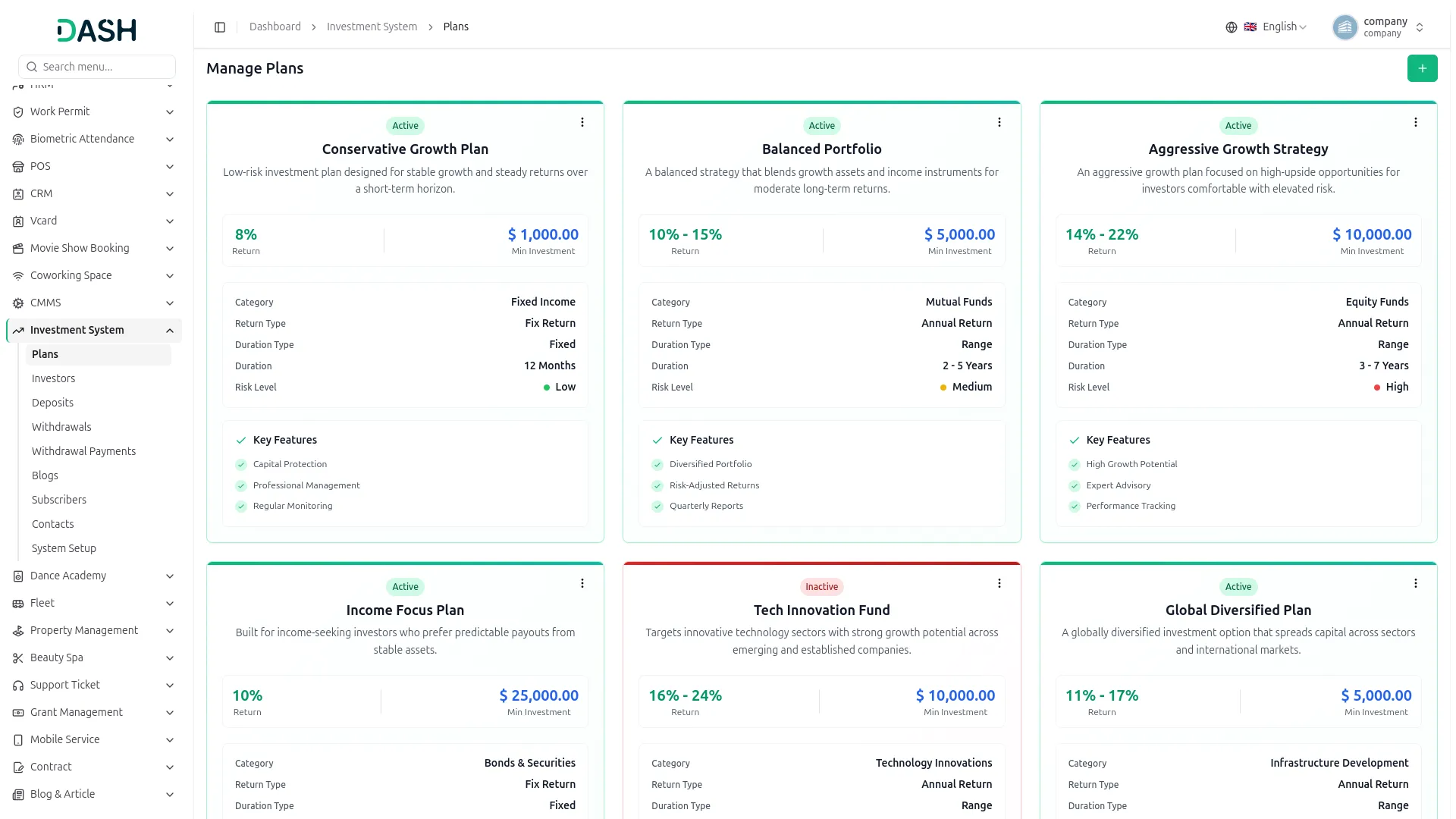
- To create a new investment plan, click the “Create” button at the top right. In the Create Plan form, enter the Plan Name and select the Category Name, then choose the Return Type (Fix Return or Annual Return). If you select Fix Return, enter the Fix Return value. If you select Annual Return, enter the Minimum Return and Maximum Return.
- Next, select the Risk Level (Low, Medium, High) and enter the minimum investment amount in “How much need to invest?”. Then choose the Plan Duration Type (Fixed or Range). If you select Fixed, enter the Fixed Duration. If you select Range, enter the Minimum Duration and Maximum Duration, and select the Duration Unit (Month or Year).
- After that, set the Status to Active or Inactive, add the Plan Features and Plan Description, and finally click Create to save the plan.
- In the Manage Plans section, you will find a list of all existing investment plans displayed as cards, each showing the Plan Name, Status (Active/Inactive), Return, Minimum Investment, Category, Return Type, Duration Type, Duration, Risk Level, and Key Features. Using the three-dot menu on each card, you can select Edit to update the plan details or Delete to remove it permanently.
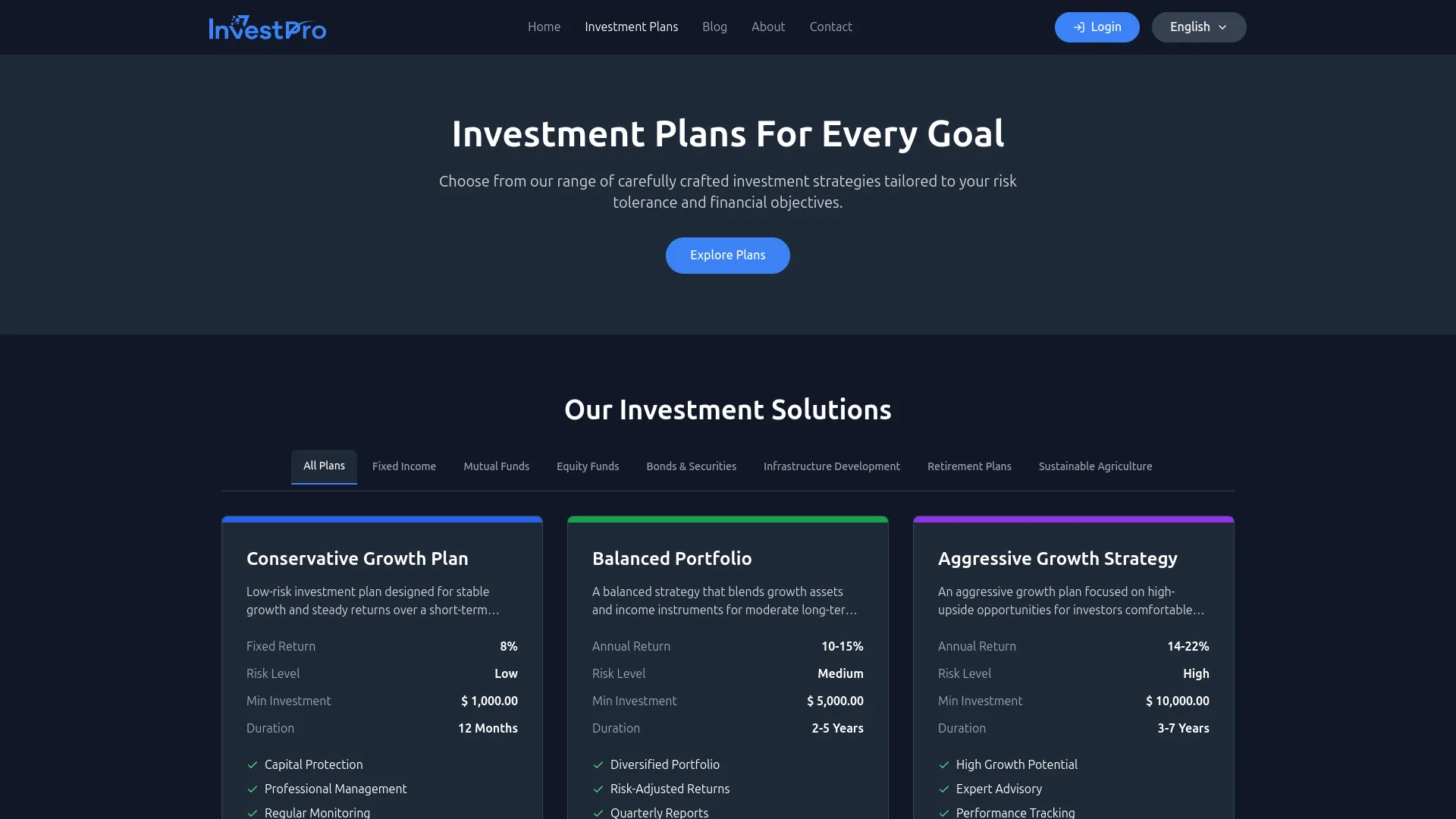
- Once saved, all active investment plans will appear on the Investment Plans page of your website, displaying each plan’s name, description, return rate, minimum investment, duration, risk level, and key features. Investors can browse all available plans and click Invest Now to proceed with their chosen plan. Plans marked as Inactive will not be visible to investors on the website.

Manage Investors
- When an investor registers on your website through the Create Your Account page, they are automatically added to this Manage Investors list, allowing you to monitor and manage all investor accounts from one central place.
- The Manage Investors section gives you complete control over all registered investors on your platform.
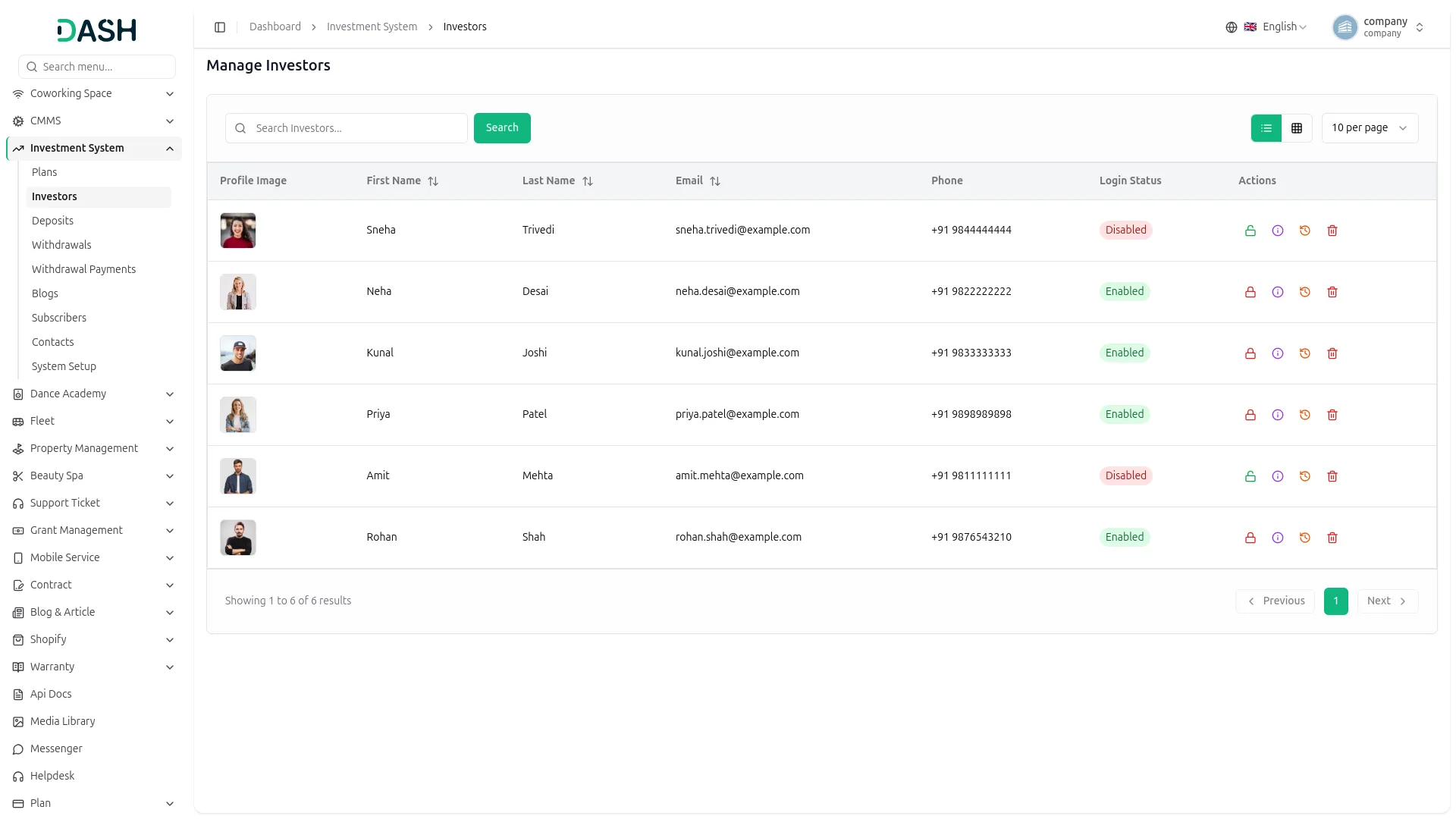
- In the Manage Investors section, you will find a list of all registered investors with their Profile Image, First Name, Last Name, Email, Phone, Login Status (Enabled/Disabled), and Actions. You can search for a specific investor using the search bar and click Search. You can also switch between list and grid view.
- In the Actions column, each investor has four action icons. Use the lock button to Enable or Disable the investor’s login access, the info button to view their Investment Details, the history button to view their Transaction History, and the delete button to permanently remove the investor.
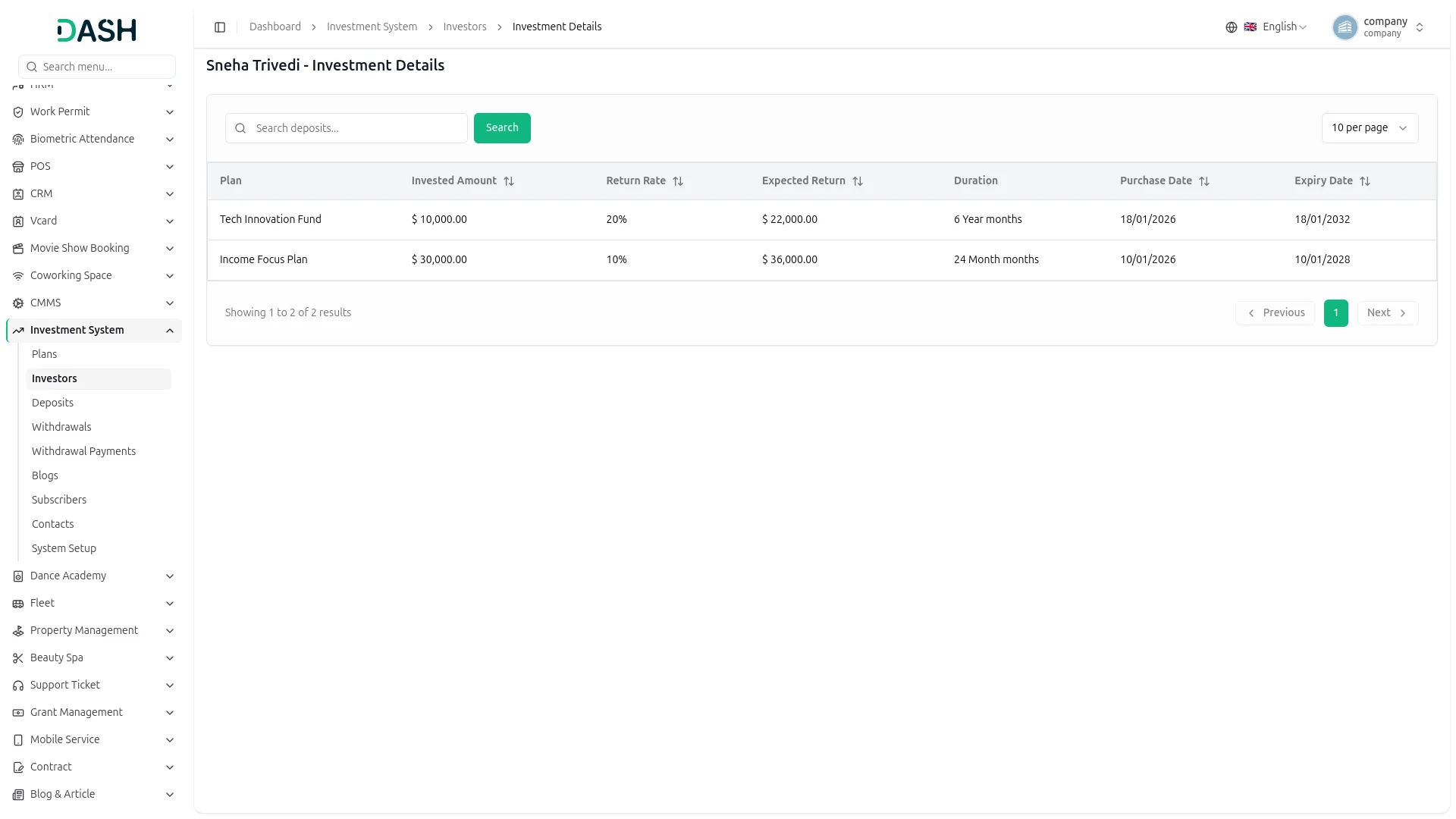
- Clicking the More Info button opens the Investor’s Investment Details page, which displays a table showing all active plans for that investor with columns for Plan, Invested Amount, Return Rate, Expected Return, Duration, Purchase Date, and Expiry Date, giving you a complete overview of that investor’s portfolio at a glance.
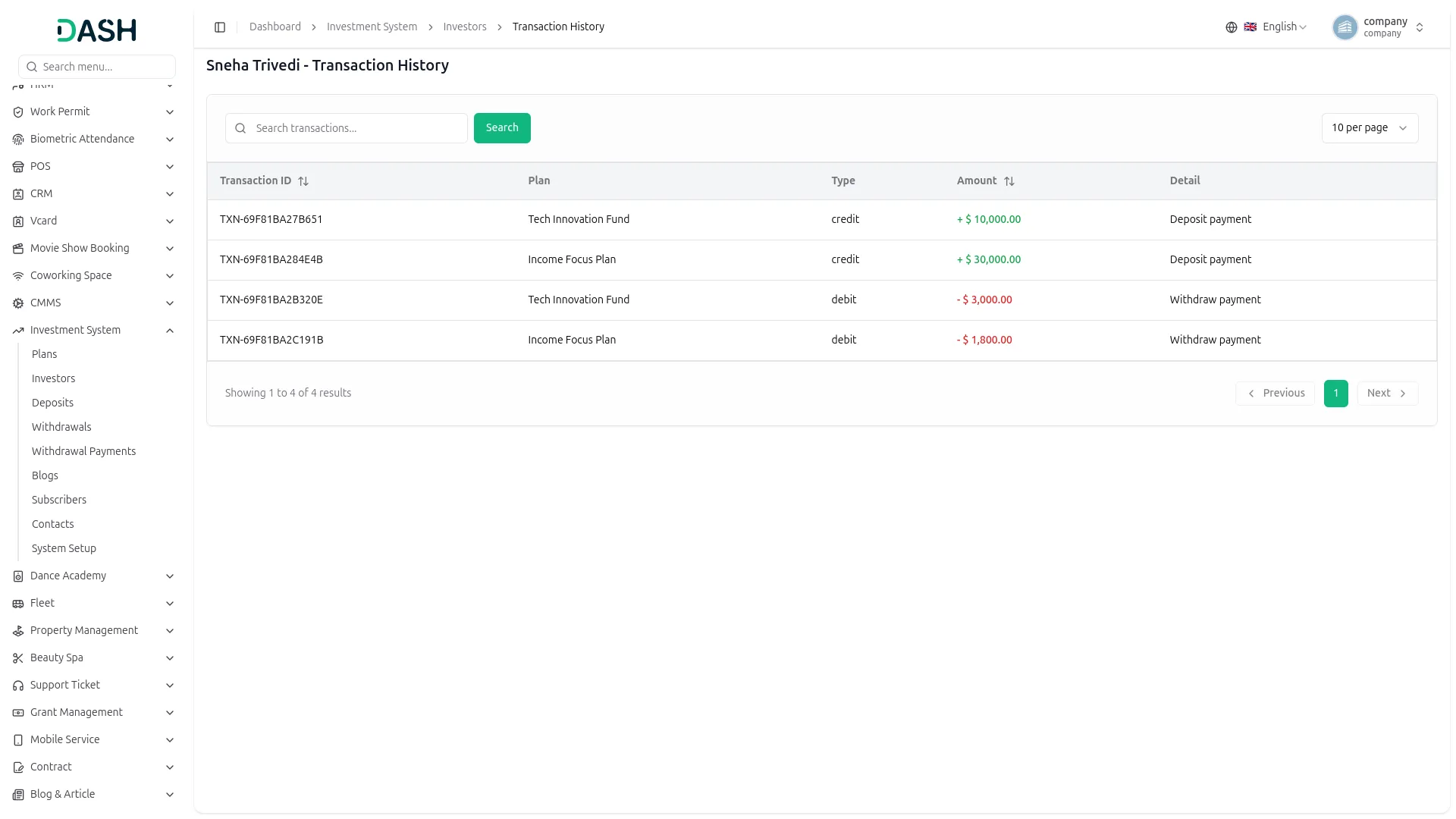
- Clicking the Transaction History button opens the Investor’s Transaction History page, which displays a full record of all financial transactions for that investor with columns for Transaction ID, Plan, Type (credit/debit), Amount, and Detail, allowing you to track every deposit and withdrawal made by that investor.
Manage Deposits
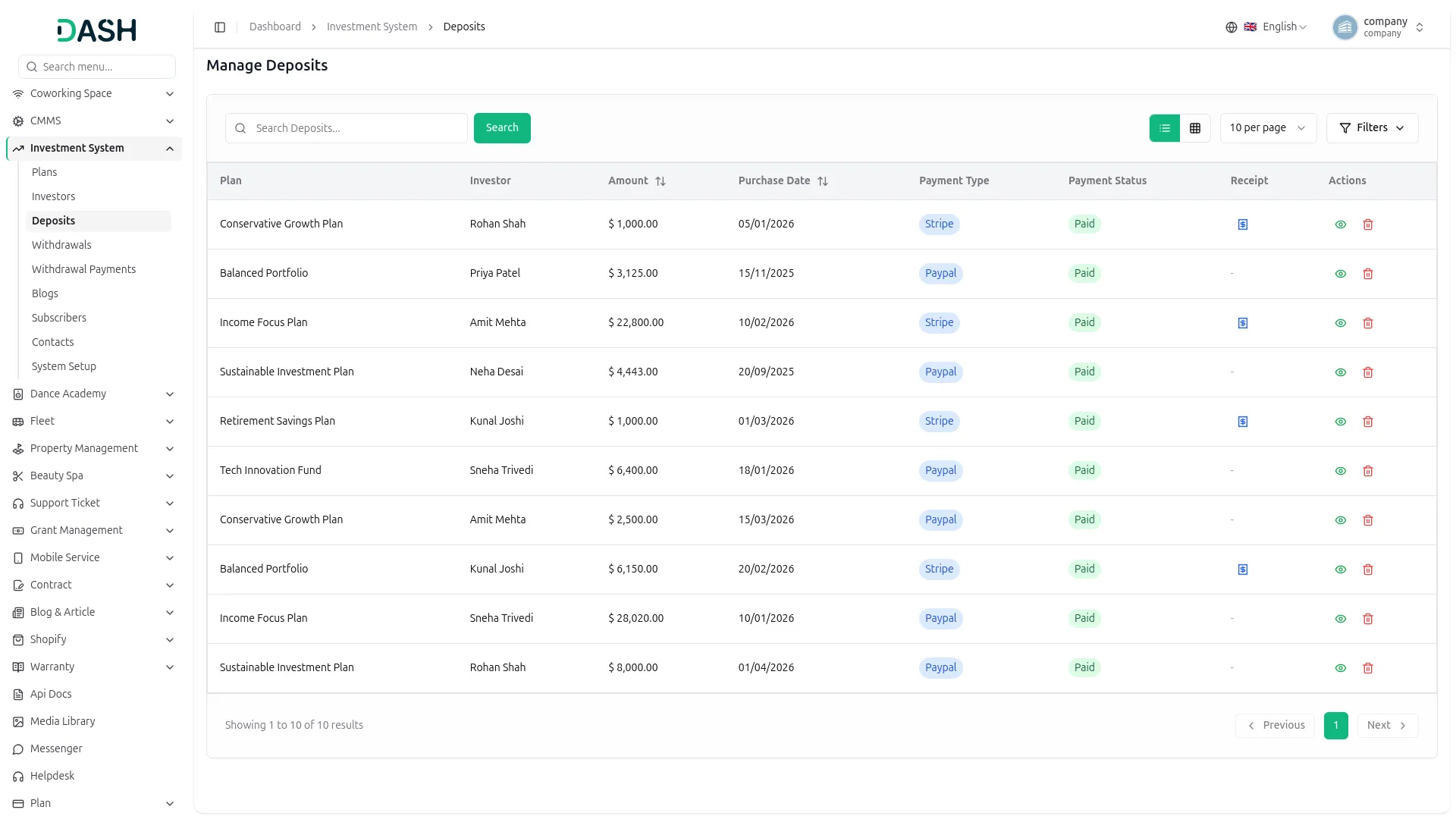
- In the Manage Deposits section, you will find a list of all deposit transactions with columns for Plan, Investor, Amount, Purchase Date, Payment Type, Payment Status, Receipt, and Actions. You can search for a specific deposit using the search bar and click Search. You can also switch between list and grid view.
- To filter the deposits, click the Filters button at the top right to expand the filter panel. You can filter by Plan and by Investor using the respective dropdowns. Click Apply to load the filtered results or Clear to reset the filters.
- In the Actions column, use the view button to see the full deposit details and the delete button to permanently remove a deposit record. If a receipt has been uploaded by the investor for a deposit, a View Receipt icon will appear in the Receipt column, allowing you to quickly access and review the uploaded payment receipt.
Manage Withdrawals
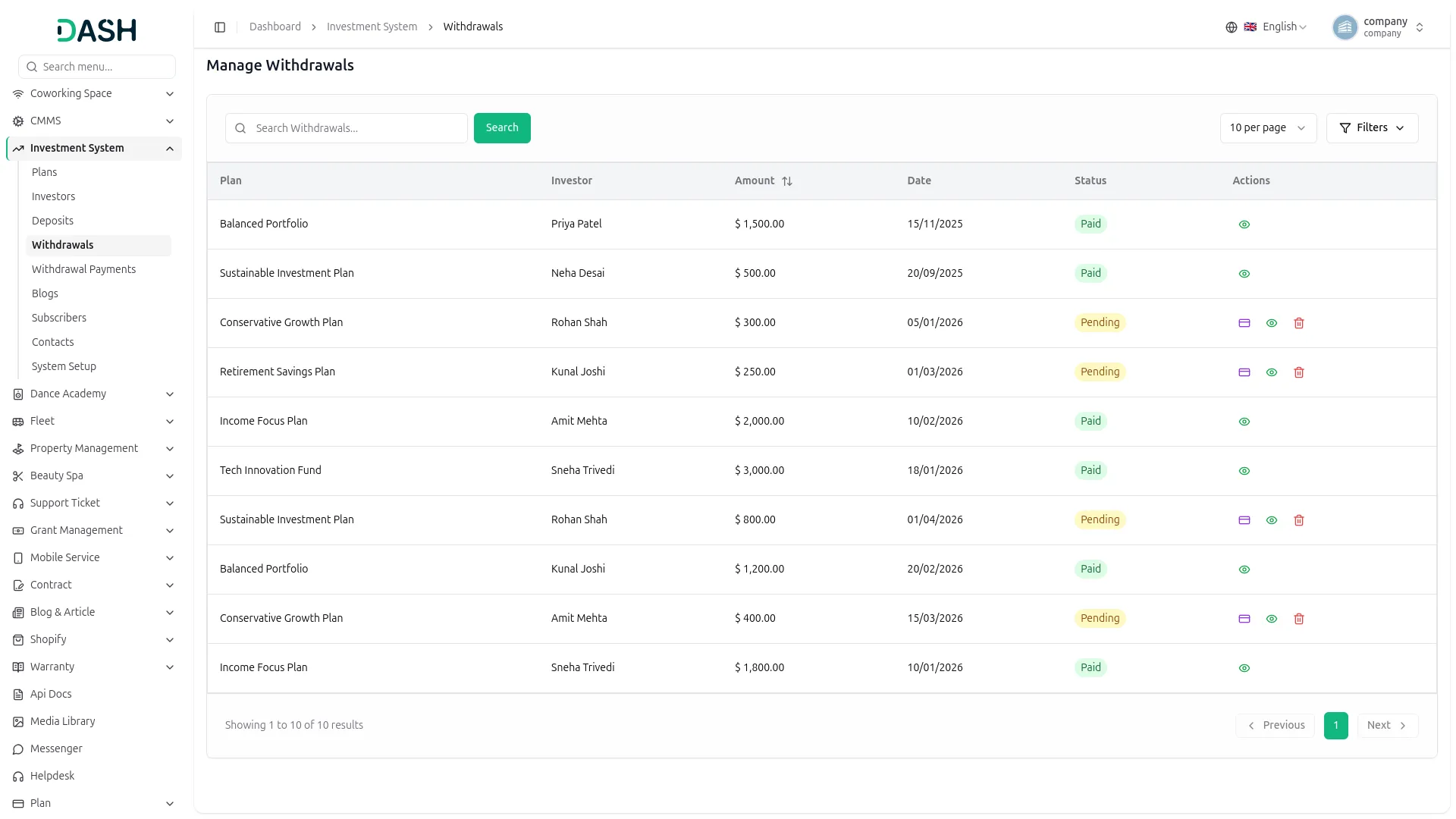
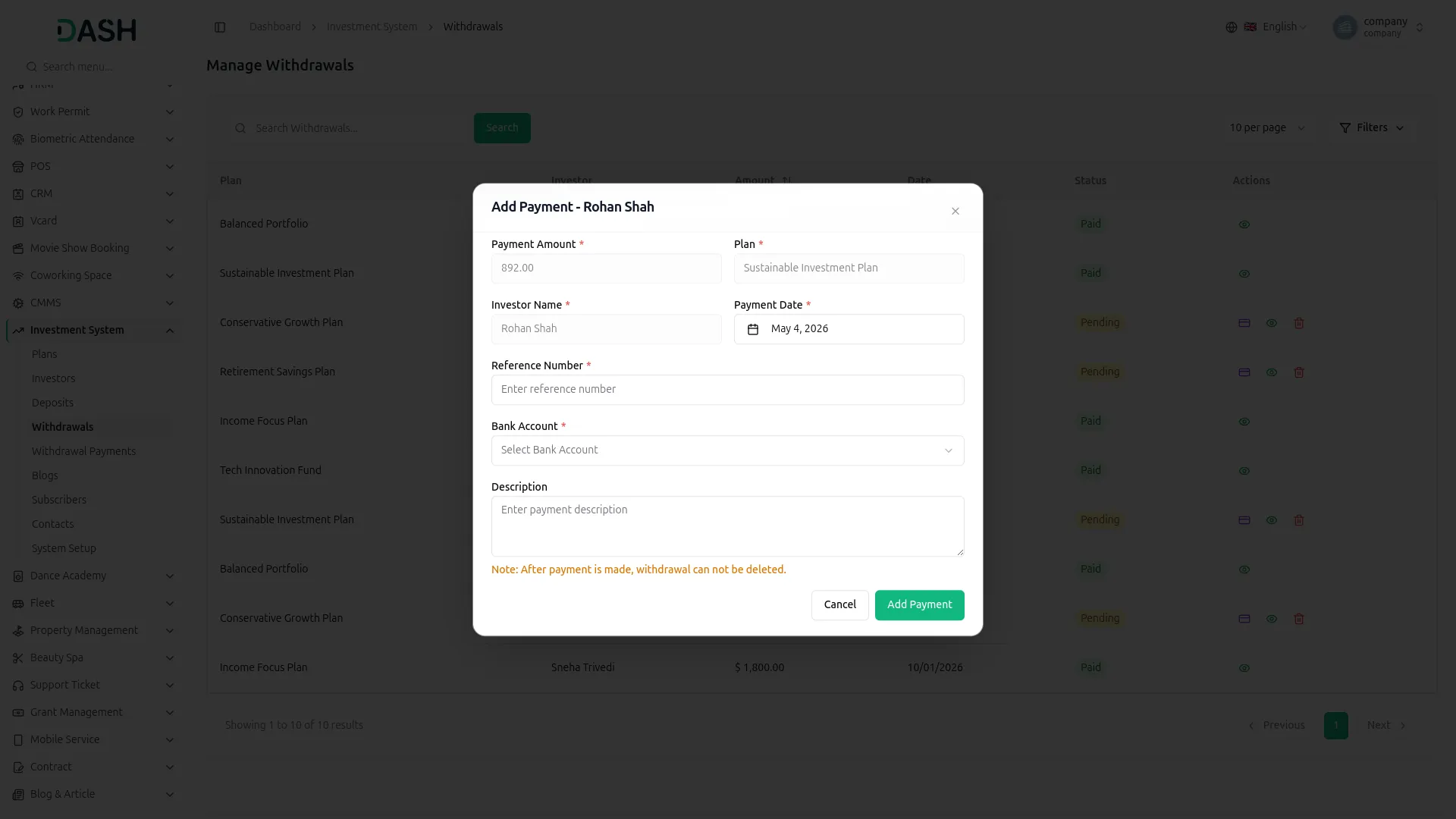
- In the Manage Withdrawals section, you will find a list of all withdrawal requests with columns for Plan, Investor, Amount, Date, Status (Paid/Pending), and Actions. You can search for a specific withdrawal using the search bar and click Search.
- To filter the withdrawals, click the Filters button at the top right to expand the filter panel. You can filter by Plan and by Investor using the respective dropdowns. Click Apply to load the filtered results or Clear to reset the filters.
- In the Actions column, withdrawal requests that are already “Paid” will only show the view button to review the withdrawal details. For withdrawals that are “Pending”, you will see three actions: the payment button to process the payment, the view button to review details, and the delete button to remove the request.
- To process a pending withdrawal, click the payment button on the relevant row. The Add Payment form will open, showing the pre-filled Payment Amount, Plan, Investor Name, and Payment Date. Enter the Reference Number, select the Bank Account, add an optional Description, and click Add Payment to confirm the transaction. Please note that once a payment is made, the withdrawal record cannot be deleted.
Manage Withdrawal Payments
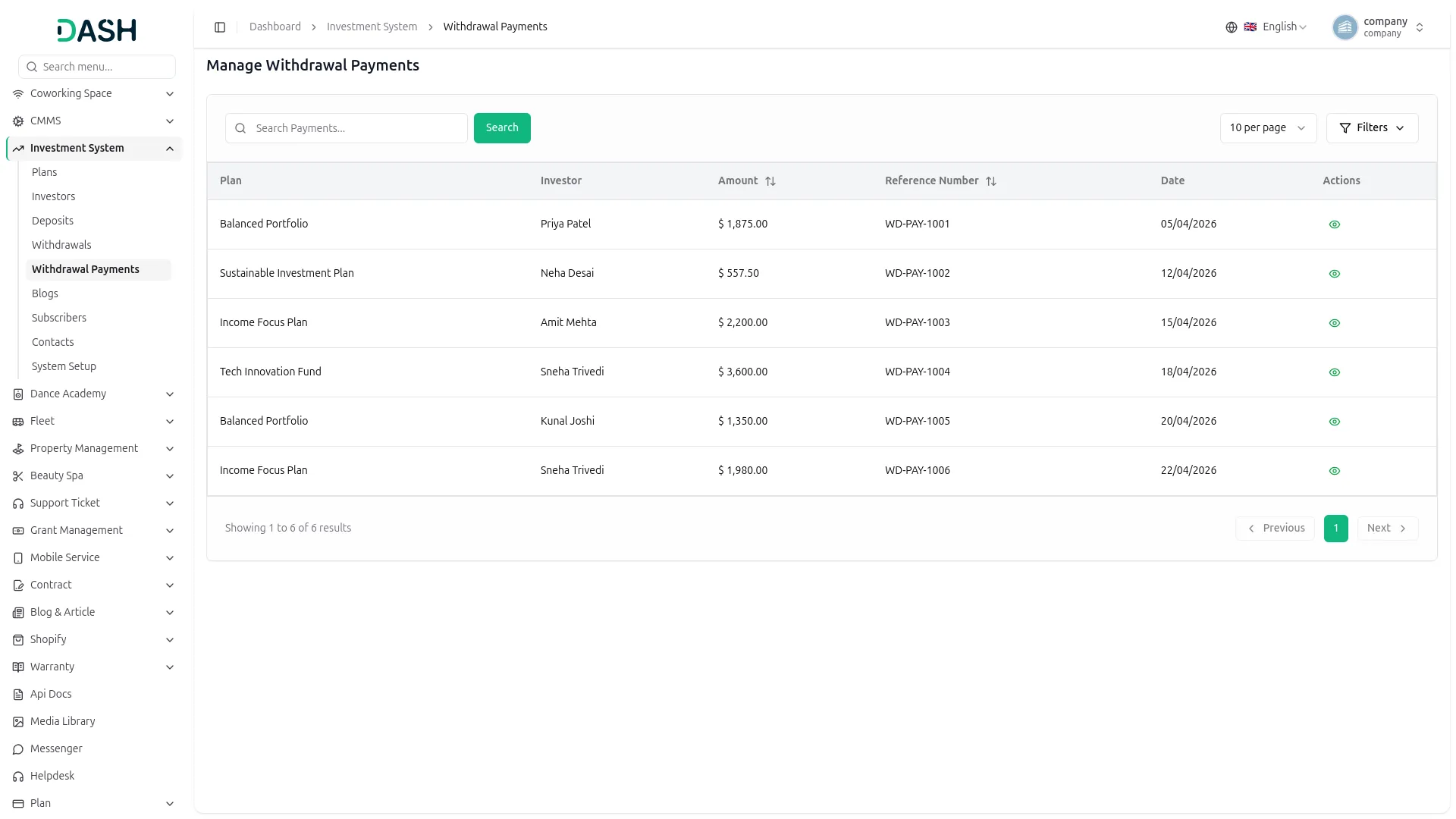
- In the Manage Withdrawal Payments section, you will find a list of all processed withdrawal payments with columns for Plan, Investor, Amount, Reference Number, Date, and Actions. You can search for a specific payment using the search bar and click Search.
- To filter the withdrawal payments, click the Filters button at the top right to expand the filter panel. You can filter by Plan and by Investor using the respective dropdowns. Click Apply to load the filtered results or Clear to reset the filters.
- In the Actions column, use the view button to review the full payment details. For payments that are not yet confirmed, you will also see a Mark as Paid button and a delete button. Click Mark as Paid to confirm and finalize the withdrawal payment for that investor. Once marked as paid, only the view button will remain, as the payment record can no longer be deleted.
Manage Blogs
- To create a new blog post, click the “Create” button at the top right. In the Create Blogs form, enter the Title, Author, select the Category, set the Publish Date, add Blog Tags, enter a Short Description, upload a Blog Image using the Browse button, and write the full blog content in the Description field using the rich text editor. Click Create when done.
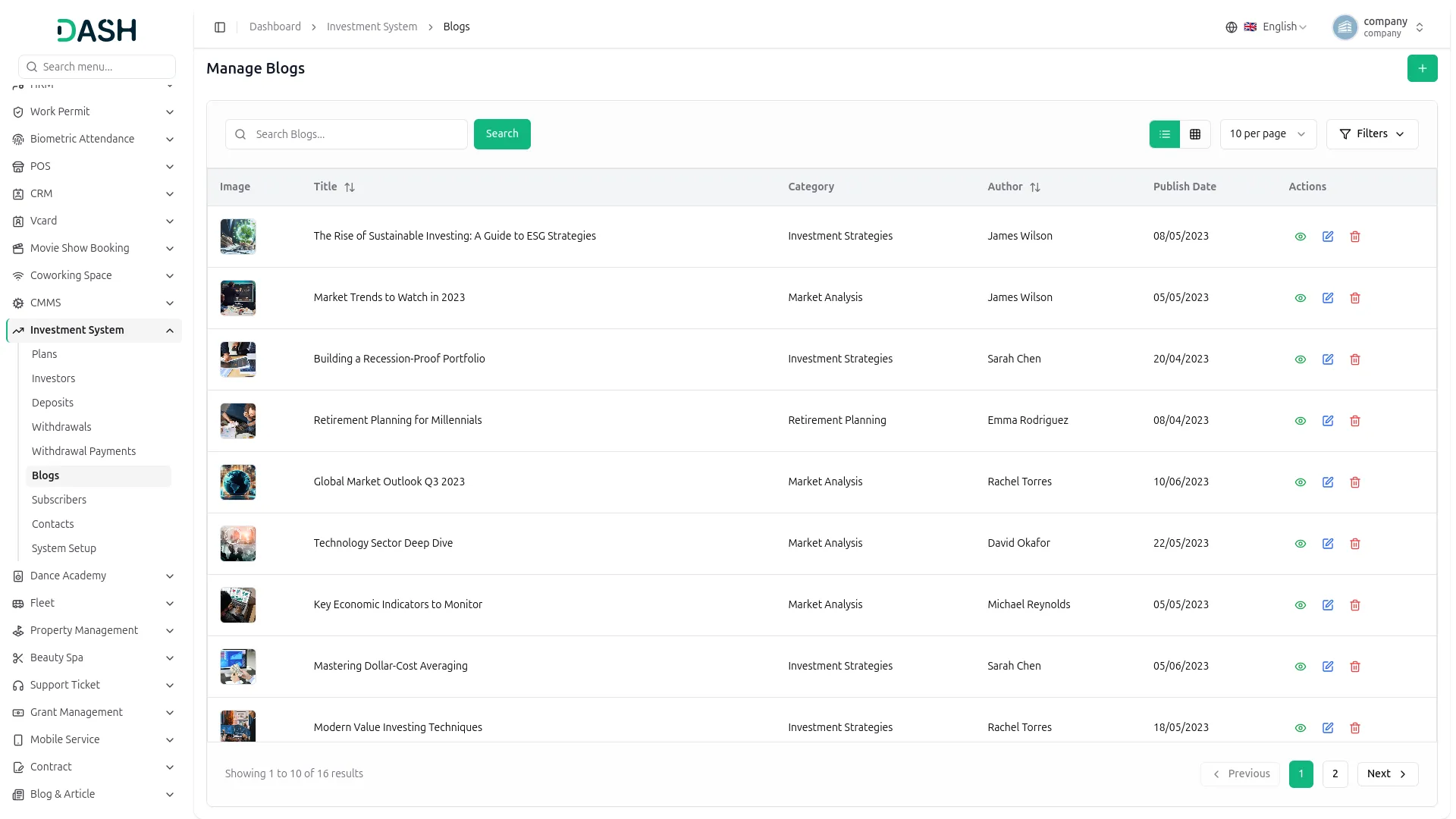
- In the Manage Blogs section, you will find a list of all existing blog posts with columns for Image, Title, Category, Author, Publish Date, and Actions. You can search for a specific blog using the search bar and click Search. You can also switch between list and grid view.
- To filter the blogs, click the Filters button at the top right to expand the filter panel. You can filter by Category using the dropdown. Click Apply to load the filtered results or Clear to reset the filter.
- In the Actions column, use the view button to preview the blog post, the edit icon to update the blog details, and the delete button to permanently remove the blog post.
- Once saved, the blog post will appear on the Blog page of your website under its relevant category, displaying the blog image, title, author, publish date, short description, and tags. Visitors can click Read More to view the full article.
Manage Subscribers
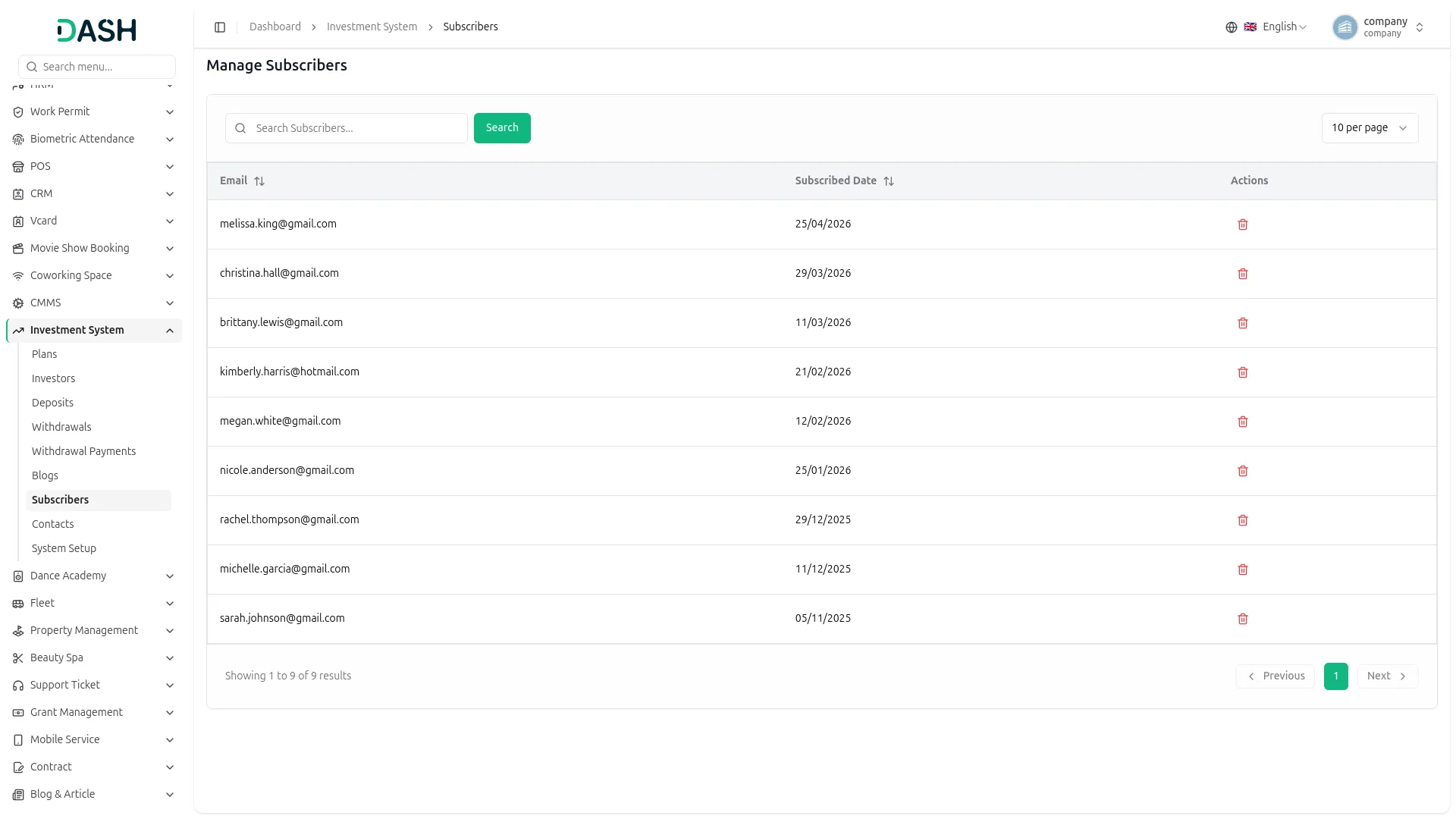
- In the Manage Subscribers section, you will find a list of all newsletter subscribers with columns for Email, Subscribed Date, and Actions. You can search for a specific subscriber using the search bar and click Search.
- In the Actions column, use the delete button to permanently remove a subscriber from the list.
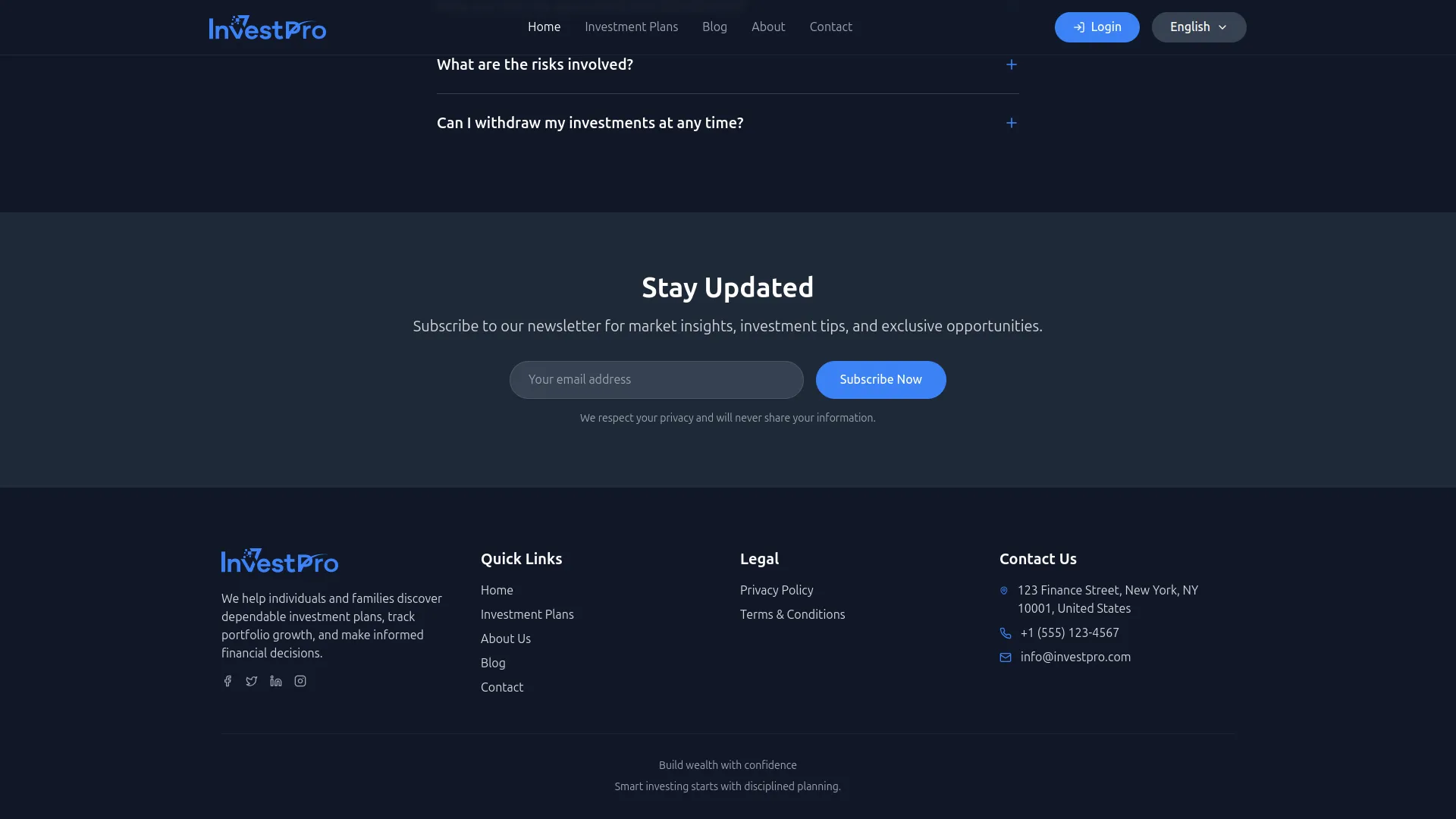
- Subscribers are added automatically when a visitor enters their email address and clicks Subscribe Now in the Stay Updated newsletter section on your website’s homepage or Investment Plans page.
Manage Contacts
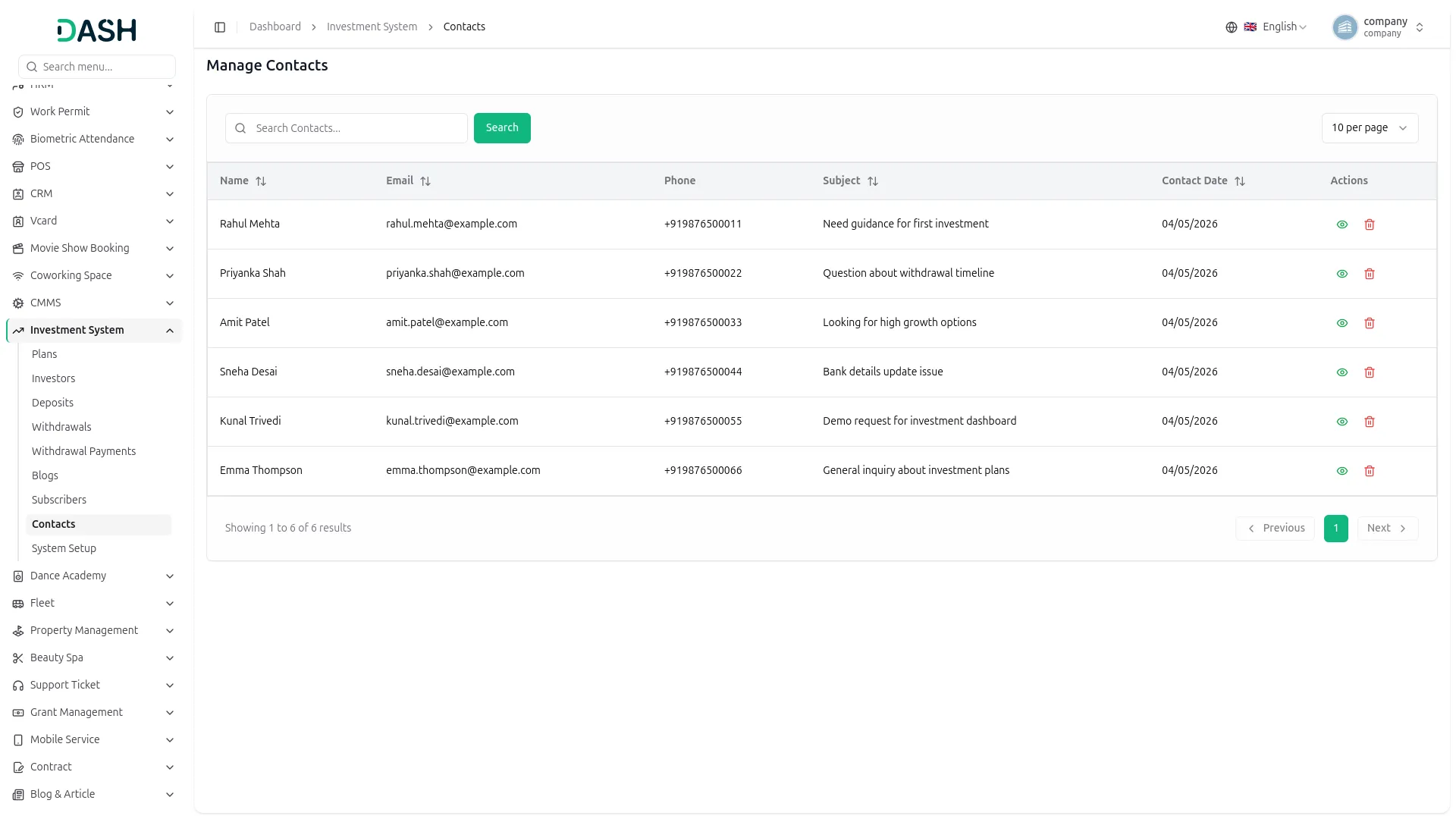
- In the Manage Contacts section, you will find a list of all inquiries submitted through the Contact page of your website, with columns for Name, Email, Phone, Subject, Contact Date, and Actions. You can search for a specific contact using the search bar and click Search.
- In the Actions column, use the view to read the full message and details submitted by the visitor, and the delete to permanently remove the contact inquiry from the list.
- Contacts are added automatically when a visitor fills out and submits the Send Us a Message form on the Contact page of your website, providing their Full Name, Email Address, Phone Number, Subject, and Message.

Investor Registration & Login
Investor Registration
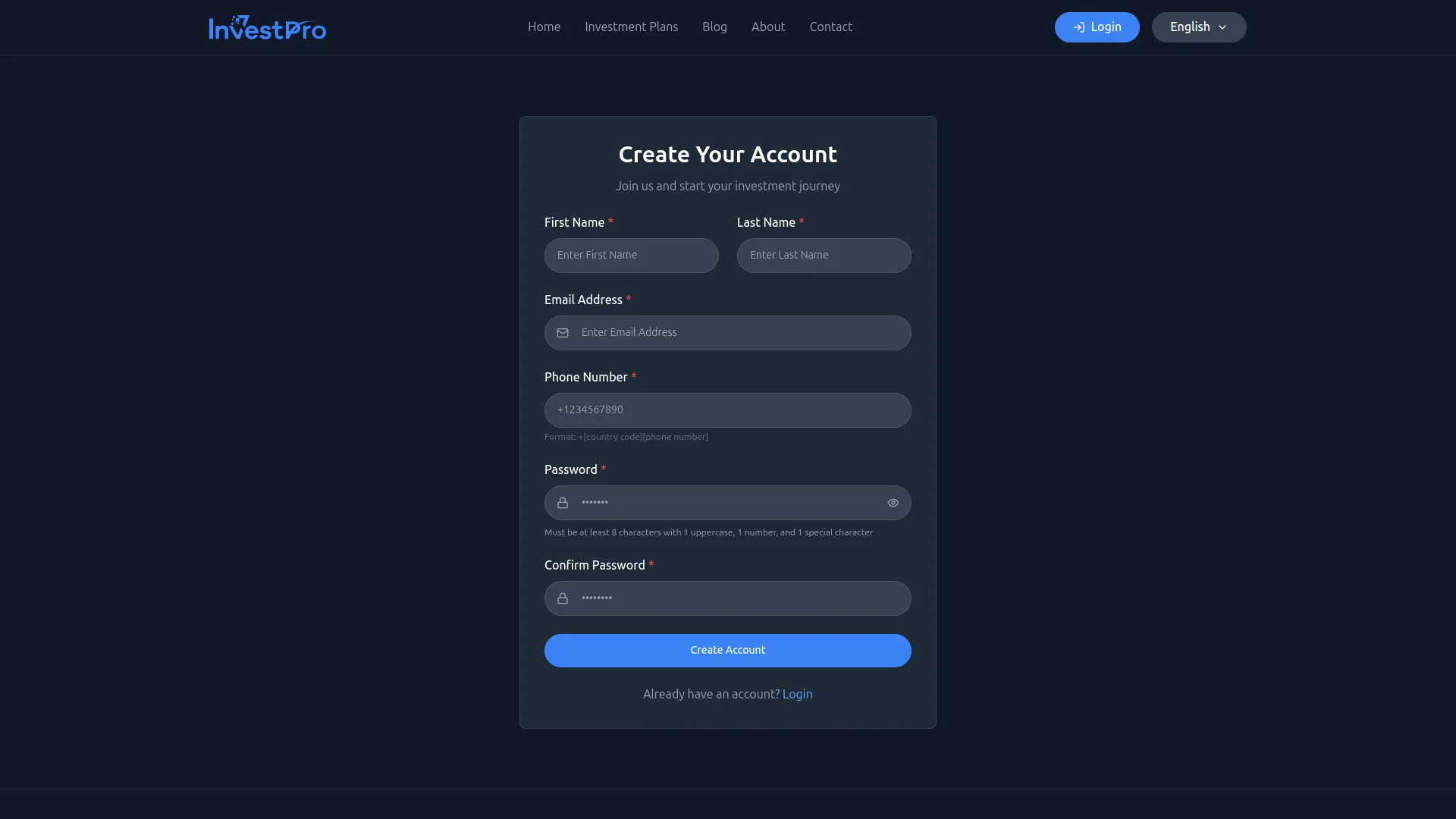
- To get started with InvestPro, click the Login button in the top navigation bar of the website. On the login page, click “Don’t have an account? Create one” to open the registration page.
- On the Create Your Account page, fill in the following details, such as your First Name, Last Name, Email Address, Phone Number, Password, and Confirm Password. Once all fields are filled in, click the Create Account button to complete your registration and start your investment journey.
User Login
- After registration, click the Login button from the top navigation bar of the website. On the Login to Your Account page, enter the following: Email Address, Password, and Remember Me. Click the Sign In button to access your personal dashboard. If you have forgotten your password, click the Forgot Password? link to reset it.
Investor Dashboard
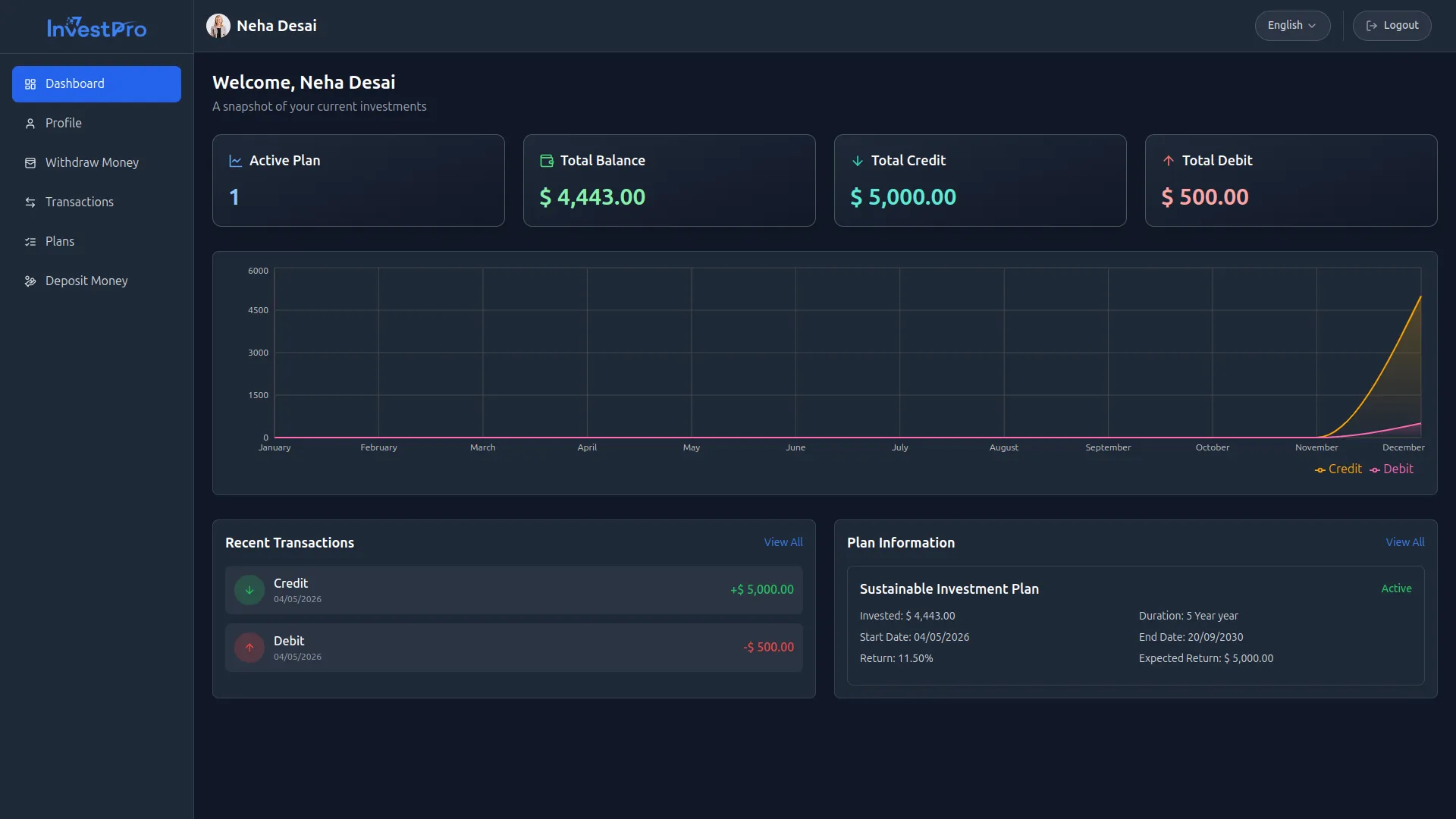
- Once you log in successfully, you will be taken to your personal Dashboard. At the top, you will see a personalized welcome message along with four summary cards: Active Plan, Total Balance, Total Credit, and Total Debit.
- Below the summary cards, you will find a line chart displaying your monthly Credit (Deposits) and Debit (Withdrawals) activity throughout the year, giving you a clear visual overview of your financial movement.
- The Recent Transactions section displays your latest credit and debit transactions with their date and amount. Click View All to see your complete transaction history.
- The Plan Information section on the right displays your currently active investment plans, showing key details for each plan, including the Invested Amount, Duration, Start Date, End Date, Return Rate, and Expected Return. Click View All to see all your enrolled plans.
Profile Settings
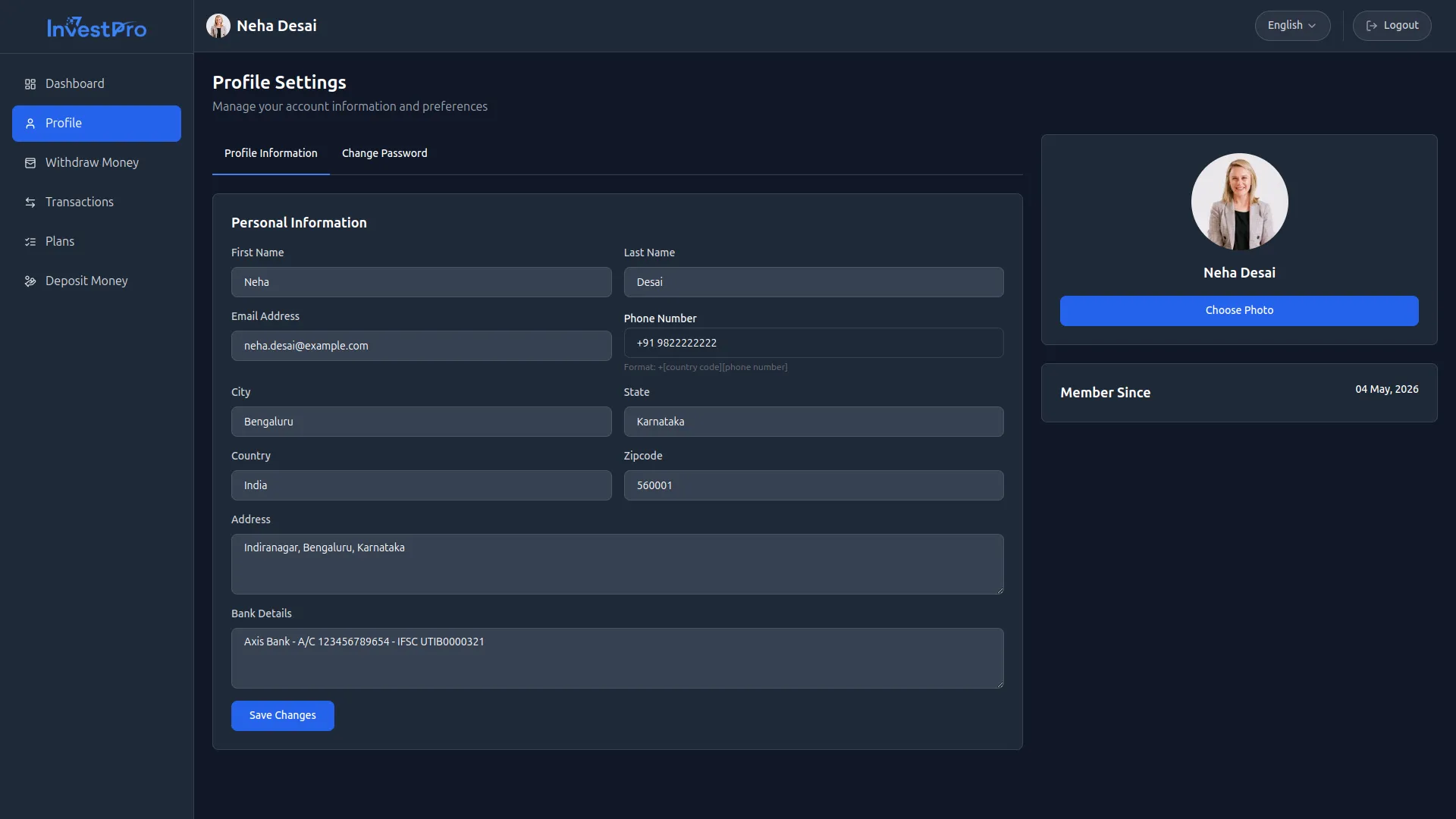
- To manage your personal information, click Profile in the left sidebar. The Profile Settings page has two tabs:
- In the Profile Information Tab, update your First Name, Last Name, Email Address, and Phone Number. Enter your location details, including City, State, Country, Zipcode, and Address. Enter your Bank Details. Upload your profile photo by clicking the Choose Photo button. Click Save Changes to update your information
- In the Change Password Tab, enter the current password, new password, and confirm the new password, then click Update Password.
Withdraw Money
- On the Withdraw Money page, you’ll see these fields: select the plan you want to withdraw from, view the plan-wise balance (which automatically shows the available amount for that plan), and check the invested amount, which is pre-filled with the original investment made in the selected plan.
- Enter the withdrawal amount, and the Applicable Return, Completed Days, Expected Return, and Withdrawal Value will be calculated automatically. The Total Withdrawal (Amount + Return) is also computed automatically, displaying the total amount you will receive, including the applicable return.
- Click the Withdraw Now button to submit your withdrawal request.
- On the right side, the Withdrawal Summary table displays all your previous withdrawal requests with the Plan, Date, Amount, and Payment Status (Paid or Pending).
Plans
- Click Plans in the left sidebar to view all available investment plans. Each plan card displays the Plan Name, Minimum Investment, Return Type, Return Percentage, Duration, Risk Level, and Key Features.
- If you have already invested in a plan, it will show a green “Active for X Year” button on that plan card
- If you have not yet invested in a plan, click the Invest Now button to proceed with that plan and make your deposit.
Deposit Money
- On the Deposit Money page, you can view the Plan Name (auto-filled based on your selection), choose the Plan Duration, see the Plan Return (%) automatically populated, enter the Amount to Deposit, and view the Expected Return calculated automatically; then select your preferred Payment Method (Stripe or PayPal) and click the Deposit Now button to complete your deposit.
- On the right side, the Deposit Summary table displays all your previous deposit transactions with the Payment Method, Date, Amount, and Status.
Transactions
- To view your complete financial history, click Transactions in the left sidebar; the Transaction History page will display all your records in a table, including Transaction ID, associated Plan, Date, Type (Credit for deposits or Debit for withdrawals), Description, and Amount (shown in green for credits and red for debits), and you can use the search bar at the top to quickly find specific transactions by keyword.
Categories
Related articles
- MSG91 – WorkDo Dash SaaS Add-On Guide
- eCommerceGo SaaS Theme Setup Guide
- WhatsApp API – BookingGo SaaS Add-On Guide
- WizzChat – BookingGo SaaS Add-On Guide
- Instamojo – WorkDo Dash SaaS Add-On Guide
- Sage – WorkDo Dash SaaS Add-On Guide
- Yoga Classes – WorkDo Dash SaaS Add-On Guide
- User Manual – BookingGo SaaS
- iCal Exports – BookingGo SaaS Add-On Guide
- User Manual – Task
- Wholesale Product – eCommerceGo SaaS Add-On Guide
- Make – WorkDo Dash SaaS Add-On Guide
We're Here to Help - Let's Talk
Have questions about our solutions, customization services, or business tools? Our team is here to help you. let's talk.