
Outlook Calendar – WorkDo Dash SaaS Add-On Guide
Learn how to configure and manage Outlook Calendar integration in Dash SaaS.
Introduction
The Outlook Calendar integration allows users to sync events between their product calendar and their Microsoft Outlook account. This integration helps keep all scheduled activities updated across both platforms, ensuring that important meetings, tasks, appointments, and reminders are never missed. By using secure Microsoft authentication and real-time synchronization, users can manage all events from one centralized calendar view without maintaining separate schedules.
How To Install the Add-On?
To Set Up the Outlook Calendar Add-On, you can follow this link: Setup Add-On.
How to Use the Outlook Calendar Add-On?
Setting configuration
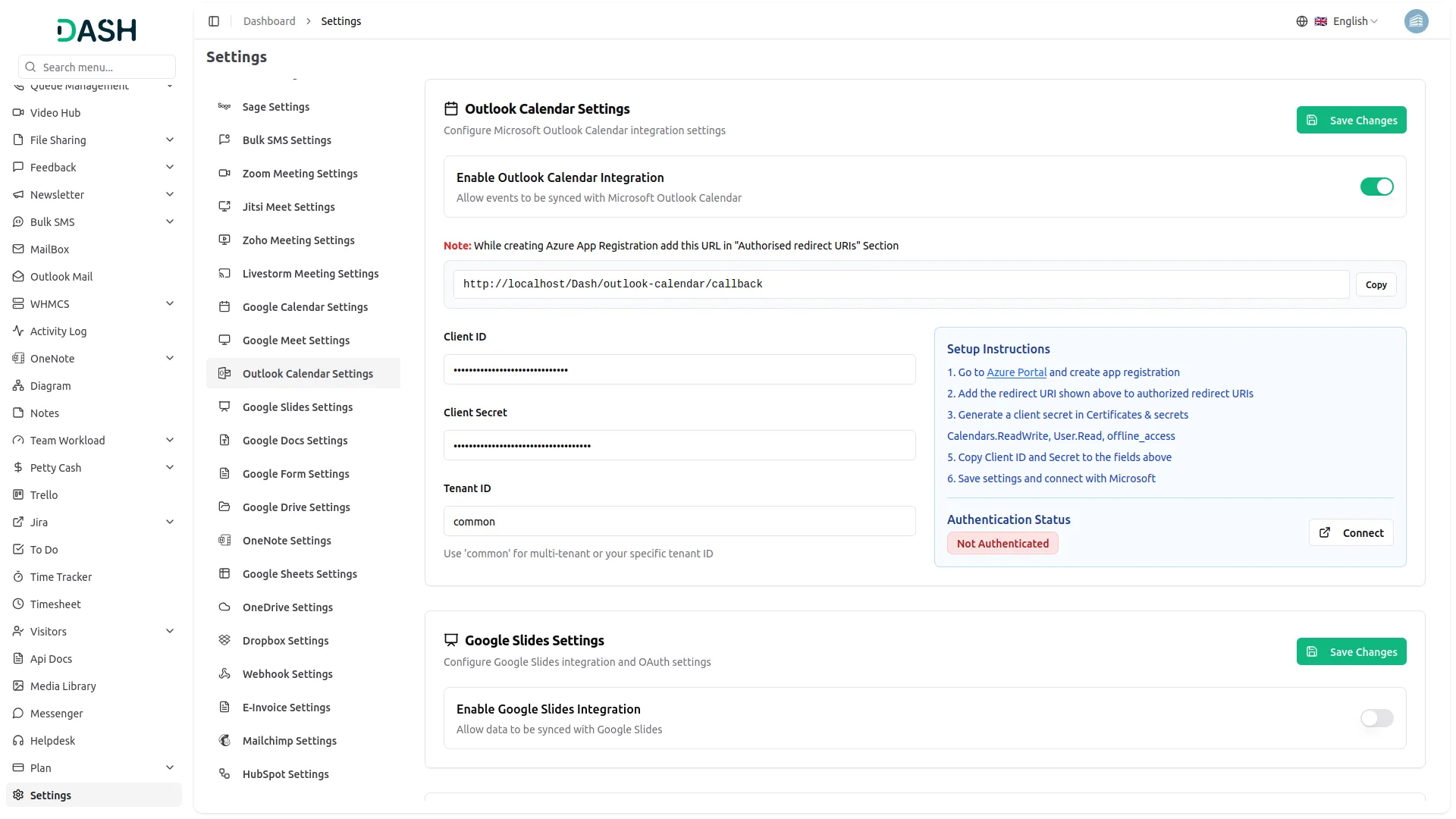
- To activate this Add-On, navigate to the settings page and find the Outlook Calendar Settings section. Toggle Enable Outlook Calendar Integration to allow events to be synced with Microsoft Outlook Calendar.
- Once enabled, note the redirect URL displayed on the page. This URL must be added to your Azure App Registration under the “Authorised redirect URIs” section.
- Enter your Client ID, Client Secret, and Tenant ID in the fields provided. Use “common” for the Tenant ID if you want multi-tenant support, or enter your specific tenant ID.
- To help you generate these credentials, the settings page includes a “Setup Instructions” guide with the following steps:
- Go to Azure Portal and create app registration
- Add the redirect URI shown above to authorized redirect URIs
- Generate a client secret in Certificates & secrets
- Set the required API permissions: Calendars.ReadWrite, User.Read, offline_access
- Copy Client ID and Secret to the fields above
- Save settings and connect with Microsoft
- After entering all required details, click the Save Changes button to apply the updates. Once connected, the Authentication Status will update from “Not Authenticated” to reflect a successful connection with Microsoft.
Outlook Calendar
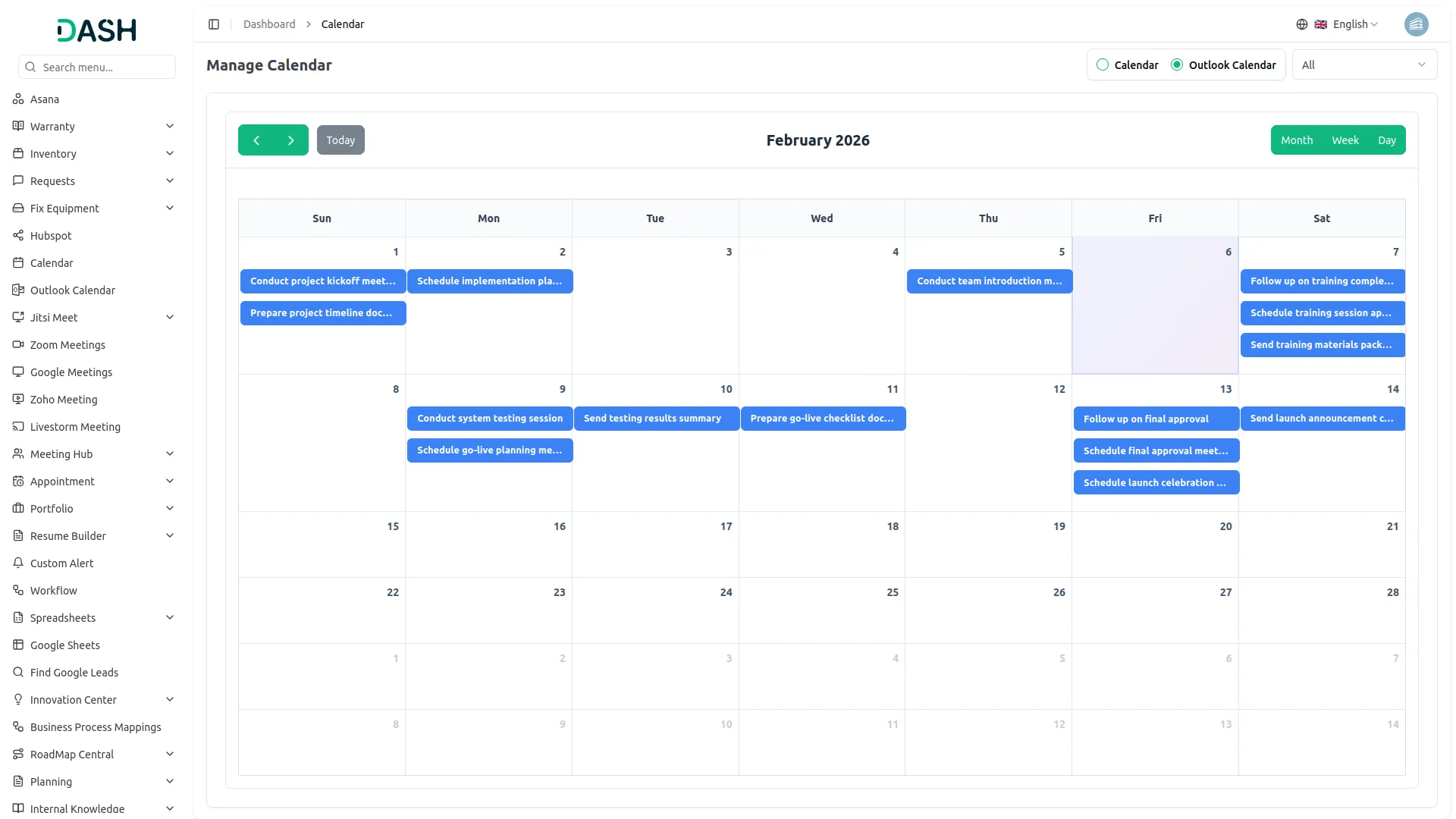
- The Outlook Calendar page displays a Calendar radio button along with a dropdown to view events from All modules or filter by a specific event type.
- Use the Month, Week, or Day view toggles, along with the left/right arrows and the Today button, to navigate between different time periods.
- The calendar grid displays all your synced events by date, with each event shown as a colored bar labeled with its title, such as Sales Invoice entries tagged with their respective invoice numbers.
- Clicking on any date highlights that day on the grid, and clicking on an individual event allows you to view its details.
Syncing Events
- To ensure that an event is synced with your Outlook Calendar, the Sync to Outlook Calendar toggle must be enabled while creating or approving the event. This option is available during event creation and, in some cases, at the approval stage for workflow-based events. Only events with this sync option enabled will be pushed to Outlook and appear on your Outlook Calendar.
- Once enabled, events are automatically synced in real time using Microsoft’s secure API. Synced events can be viewed directly inside the platform, and Outlook events can also be managed from the calendar interface. The system automatically refreshes authentication tokens to maintain uninterrupted synchronization.
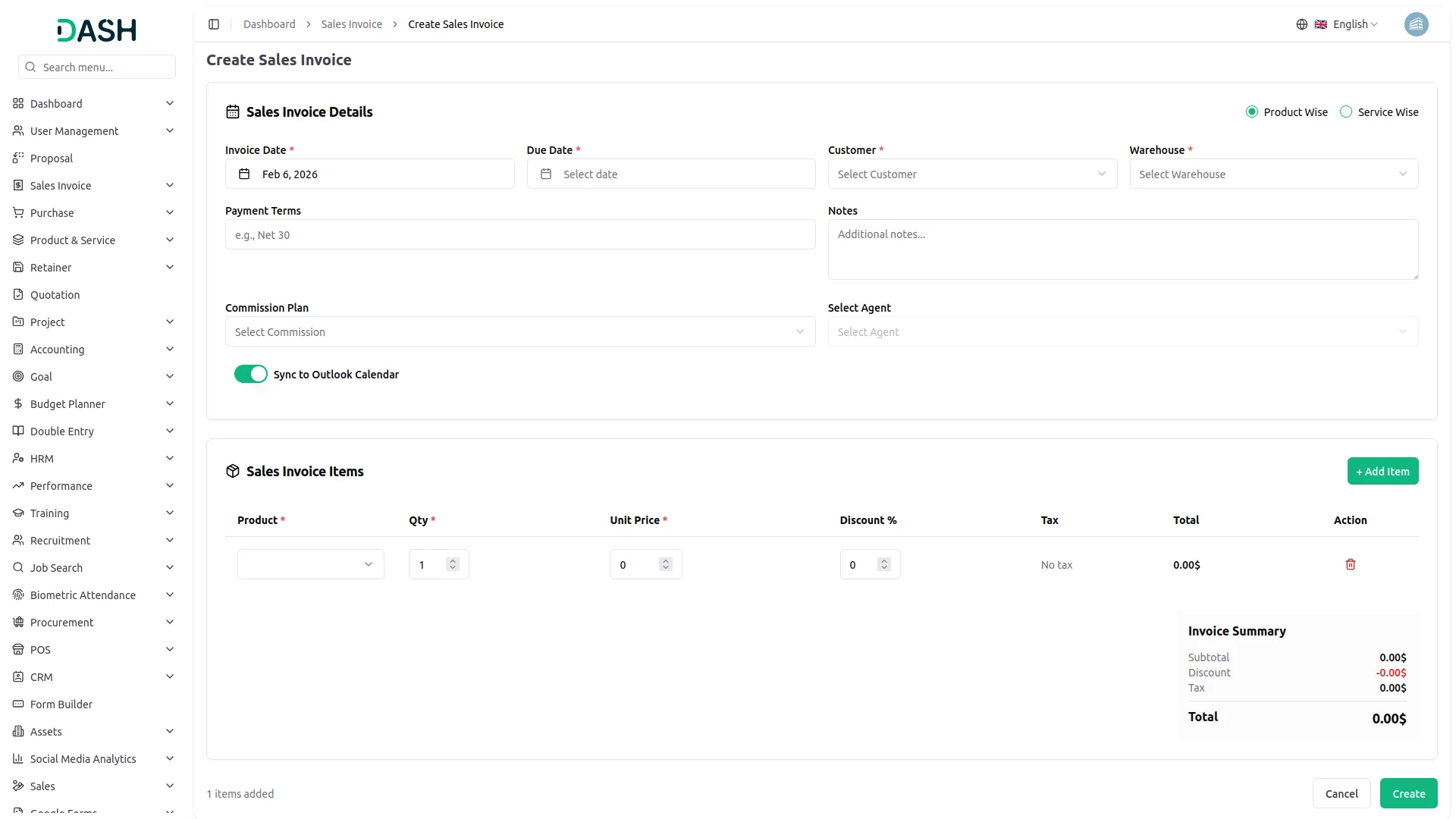
For example, if you enable the Create User setting from General, then the notification via Outlook Calendar will be sent to that particular user when the user is created.
Supported Add-Ons and Event Types
General
- New User
- New Sales Invoice
- Sales Invoice Status Updated
- New Sales Proposal
- Proposal Status Updated
- New Purchase
- New Warehouse
Base
- Sales Invoice
- Purchase Invoice
Appointment
- New Appointment
- Appointment Status
CMMS
- Work Order Request
- New Supplier
- New POs
- Work Order Assigned
- New Component
- New Location
- New Pms
Contract
- New Contract
Google Meet
- Google Meet
Hospital Management
- New Doctor
- New Patient
- New Hospital Appointment
- New Hospital Medicine
HRM
- New Monthly Payslip
- New Award
- New Event
- Leave Approve/Reject
- New Announcement
- New Holidays
CRM
- New Lead
- Lead to Deal Conversion
- New Deal
- Lead Moved
- Deal Moved
Legal Case Management
- Hearing Date
Procurement
- Procurement Interview Schedule
Recruitment
- Interview Schedule
Rotas
- Rota
Sales
- New Quote
- New Sales Order
- Meeting Assigned
School / Institute Management
- New Teacher
- New Admissions
- New Parents
- New Students
- New Homework
- New Time Table
Project
- New Project
- New Task
- New Bug
- New Milestone
- Task Stage Updated
- New Task Comment
Team Workload
- Holiday
To Do
- New Project
- New Task
- New Bug
- New Milestone
- Task Stage Updated
- New Task Comment
vCard
- vCard Appointment
Zoom Meeting
- New Zoom Meeting
So, this is how you can use the Outlook Calendar Add-On very easily.
Categories
Related articles
- Outlook Mail – WorkDo Dash SaaS Add-On Guide
- Sign in with Facebook – WorkDo Dash SaaS Add-On Guide
- NMI – WorkDo Dash SaaS Add-On Guide
- Make – BookingGo SaaS Add-On Guide
- Cybersource – WorkDo Dash SaaS Add-On Guide
- User Manual – Advocate SaaS
- Time Tracker Management – WorkDo Dash SaaS Add-On Guide
- Notice Board – WorkDo Dash SaaS Add-On Guide
- UddoktaPay – WorkDo Dash SaaS Add-On Guide
- Spreadsheet – WorkDo Dash SaaS Add-On Guide
- Additional Custom Field – BookingGo SaaS Add-On Guide
- WhatsApp Chat Bot – TicketGo Add-On Guide
We're Here to Help - Let's Talk
Have questions about our solutions, customization services, or business tools? Our team is here to help you. let's talk.