
Sign in with Facebook – WorkDo Dash SaaS Add-On Guide
Learn how to configure and manage Facebook sign-in integration in Dash SaaS.
Introduction
The Sign in with Facebook Add-On offers a streamlined and secure authentication method, enabling users to log in using their Facebook credentials. This integration reduces the need for multiple passwords, enhances user trust, and leverages Facebook’s developer-focused network for identity verification. By incorporating this Add-On, businesses can boost user convenience, particularly for users active on Facebook, potentially increasing engagement and credibility. This documentation provides a complete guide for implementing and customizing the Sign-in with Facebook Add-On to ensure smooth and effective integration tailored to your business requirements.
How To Install the Add-On?
To Set Up the Sign-In with Facebook Add-On, you can follow this link: Setup Add-On.
How To Use The Sign-In With Facebook Add-On?
After the super admin enables the Add-On, the end users can easily access and use the Add-On.
- After the purchase process, log in to your super admin account and navigate to the settings page in the sidebar.
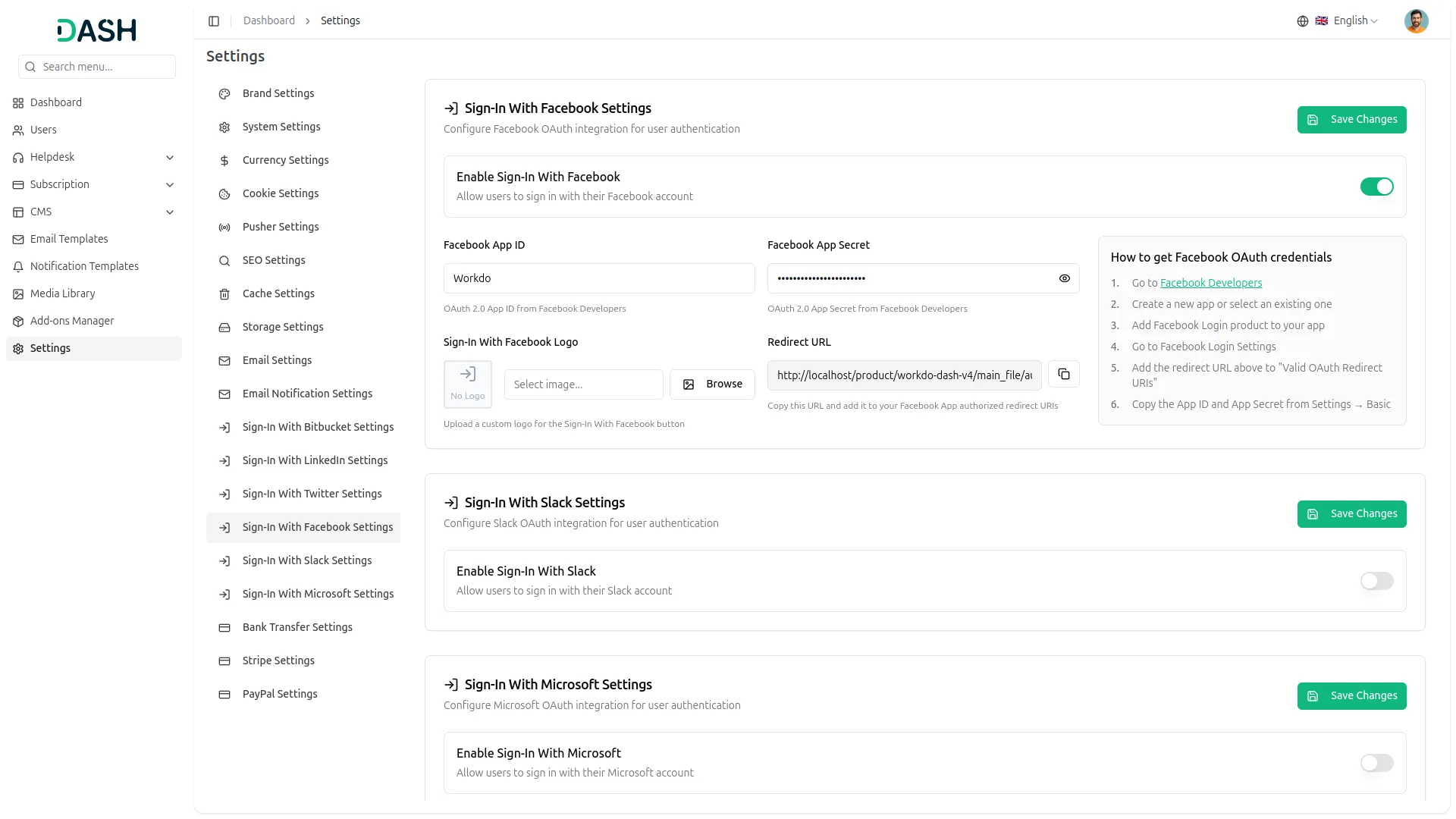
- In the settings, find and click on the Sign-In With Facebook Settings.
- Enter the Facebook App ID and App secret. Upload the necessary image, and then click on the save changes button.
- Once these credentials are entered, the end users will be able to sign in to your store using their Facebook accounts.
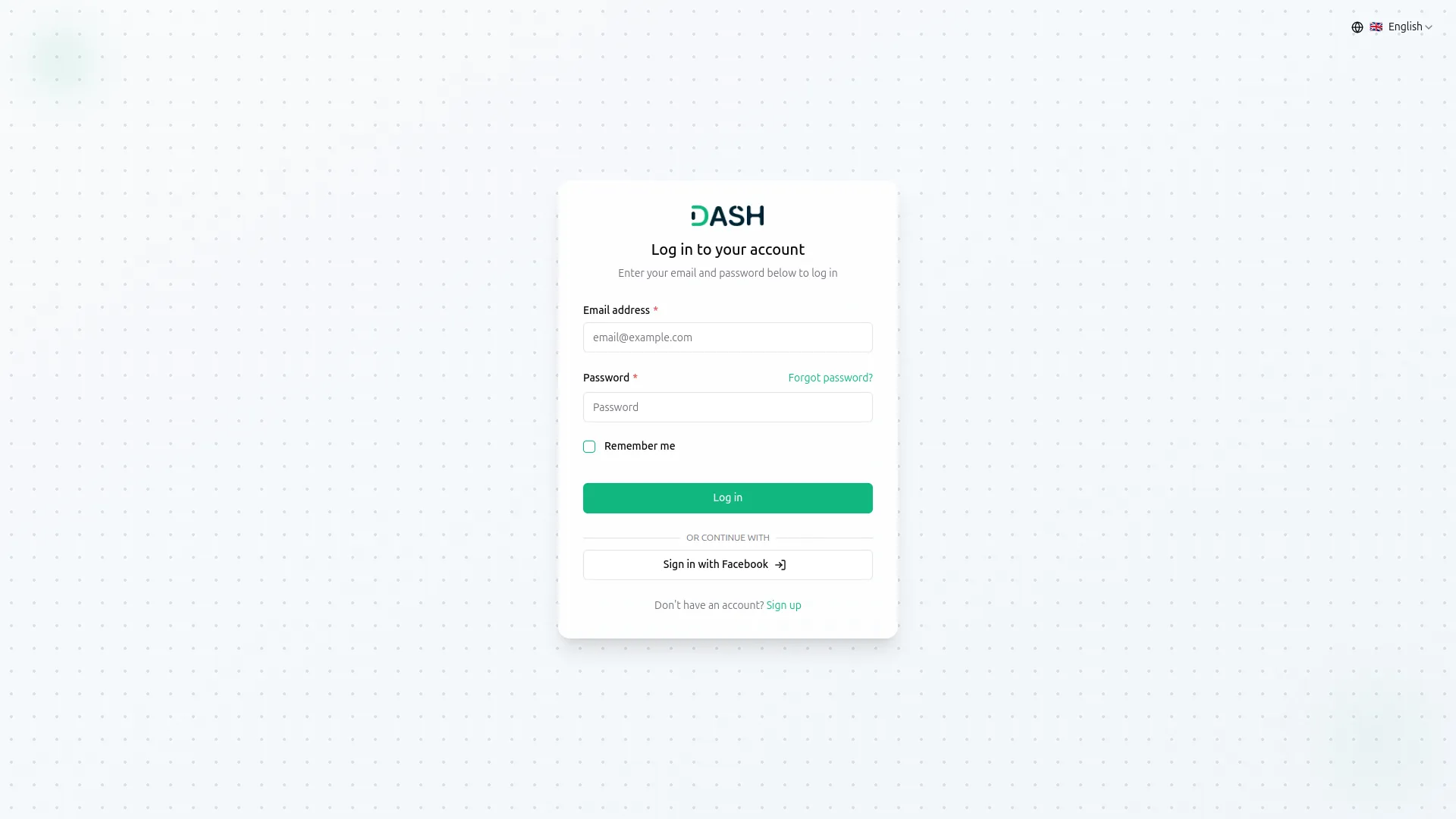
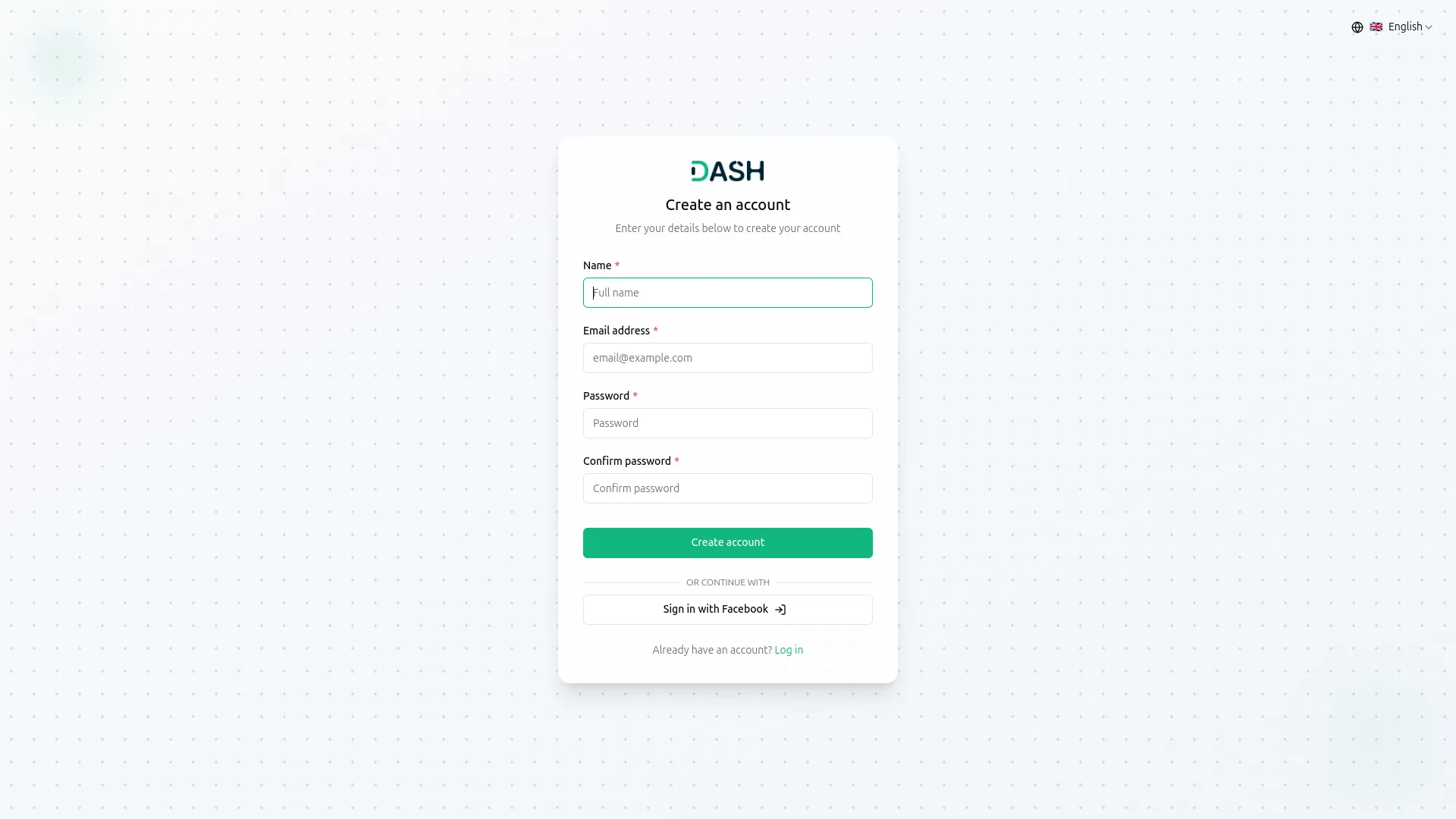
- The image that you upload on the super admin side will be visible on the login and register page in the Sign-In With Facebook button.
-
How to Set Up Facebook Login (OAuth) Using Meta for Developers:
1. Visit Meta for Developers:
- Go to https://developers.facebook.com
- Sign in using your Facebook account.
2. Create a New App:
- Click My Apps in the top-right corner.
- Click Create App.
- After clicking on the create app button, add the necessary details like name and contact email.
- After that, click on the next button and navigate to the use cases page. Scroll down, and select the “Other” option.
- Select the app type. For most login integrations, choose Consumer.
- (Optional) You can select a Business Manager account.
- Click on the create app button last.
3. Add Facebook Login to Your App:
- Once the app is created, you will be taken to the App Dashboard.
- Locate Facebook Login and click Set Up.
- Choose your platform (Web, Android, or iOS).
- You need to copy the callback URL from settings and paste it while setting up the credentials.
4. Get Your App ID and Secret:
- In the left menu, go to App Settings > Basic.
- You will find the following details:
- App ID – This is your Client ID
- App Secret – Click Show (you may need to enter your Facebook password) to view your Client Secret.
Once you add the credentials and activate the Sign-in with Facebook Add-On, a Facebook login button will appear on your register and login pages. By clicking it, the end users can easily log in to your store using their Facebook credentials.
Categories
Related articles
- Smart Dashboard Analytics – WorkDo Dash SaaS Add-On Guide
- Paynow – WorkDo Dash SaaS Add-On Guide
- Payfort – WorkDo Dash SaaS Add-On Guide
- Promo Codes – BookingGo SaaS Add-On Guide
- Pusher Configuration Guide
- User Manual – ERPGo SaaS
- Flutter App Setup & Installation Guide
- Warranty – WorkDo Dash SaaS Add-On Guide
- Digital Product – eCommerceGo SaaS Add-On Guide
- Subdomain & Custom Domain Settings Guide
- Biometric Attendance – WorkDo Dash SaaS Add-On Guide
- User Manual – ERPGo
We're Here to Help - Let's Talk
Have questions about our solutions, customization services, or business tools? Our team is here to help you. let's talk.