
Outlook Mail – WorkDo Dash SaaS Add-On Guide
Learn how to configure and manage Outlook Mail integration in WorkDo Dash SaaS.
Introduction
Outlook Mail is a comprehensive email management software that allows you to sync and manage your Microsoft Outlook emails directly within the system. This module provides full access to your Outlook account, enabling you to read, organise, compose, and manage emails from various folders, including Inbox, Junk Email, Drafts, Sent Items, Deleted Items, and Archive. The software supports all standard email operations such as marking emails as read, flagging, moving between folders, and composing new messages with attachments.
How To Install The Add-On?
To Set Up the Outlook Mail Add-On, you can follow this link: Setup Add-On.
How To Use Outlook Mail Add-On?
Outlook Mail Configuration
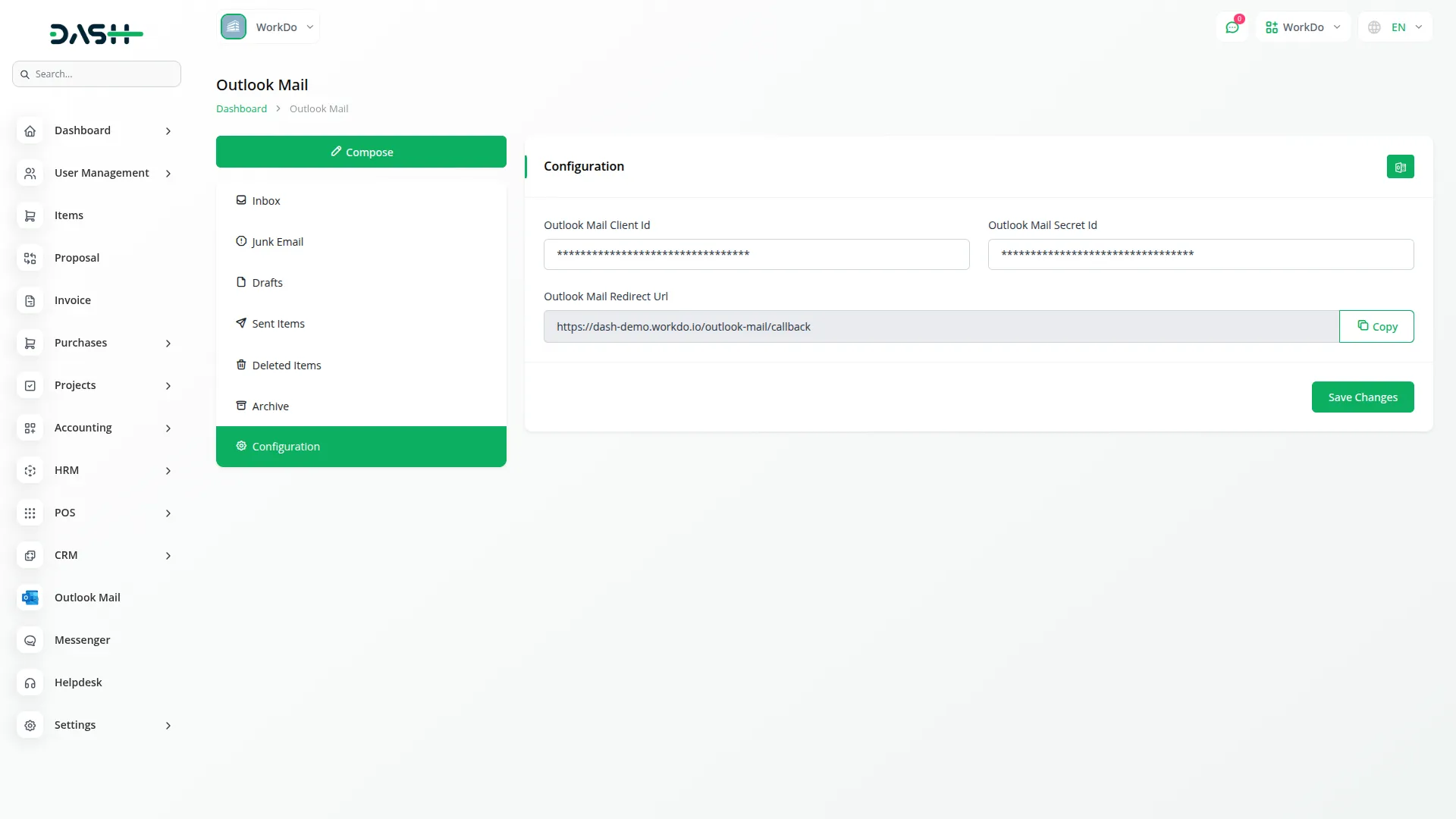
- To set up Outlook Mail integration, navigate to Outlook Mail in the Configuration section. Enter your Outlook Client ID, Outlook Secret ID and Tenant ID in the respective fields.
- Make sure to add the Outlook Mail Redirect URL to your Azure portal Register Application before proceeding.
-
To generate the credentials, you can follow these steps:
-
Register Application in Azure
- Log in to Azure Portal
- Go to Microsoft Entra ID → App registrations
- Click + New Registration
-
Fill in:
- Name: e.g., Outlook Mail Integration
- Under Supported account types – select: Accounts in any organizational directory (Any Microsoft Entra ID tenant – Multitenant) and personal Microsoft accounts (e.g., Skype, Xbox)
- Redirect URI: Paste the one from your system
- Click Register
-
Go to Certificates & Secrets → + New client secret
- Set description and expiration
- Copy the Secret Value (you won’t see it again!)
- Copy the Application (client) ID from the overview page
-
Add Required API Permissions
-
Navigate to your registered app → API permissions → + Add a permission → Select Microsoft Graph → Delegated permissions, and then add:
- Mail.Read – Read user’s mail
- Mail.ReadWrite – Read and write access to mail
- Mail.Send – Send mail as user
- offline_access – Maintain access to data when the user is not online
- User.Read – Sign in and read user profile
- After adding, click “Grant admin consent” for your organisation.
-
-
- After saving the credentials successfully, click the “Generate Token” button to sync with your Outlook account and establish the connection.
Email Folder Access
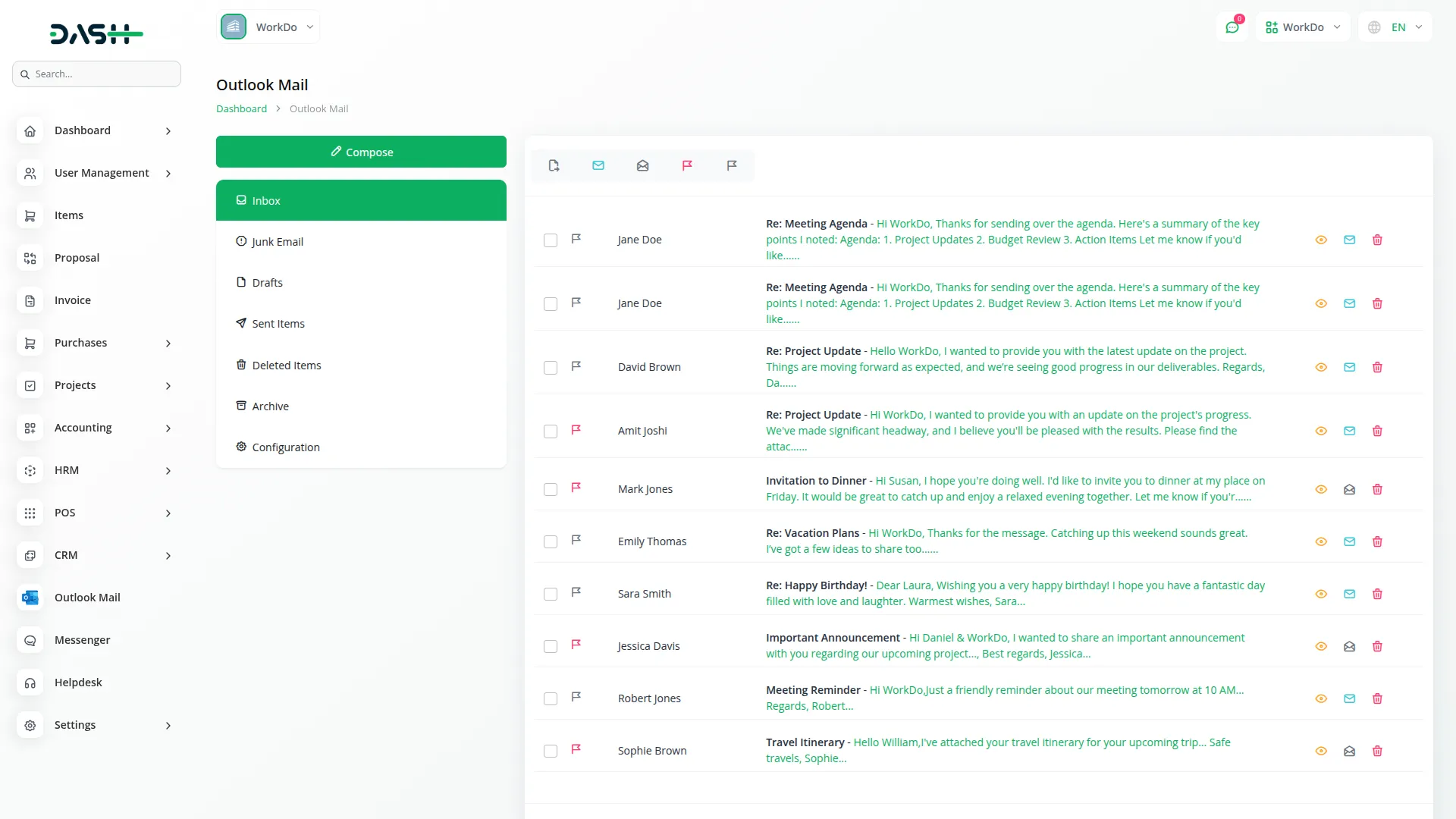
- Once your account is connected, you can access emails from six different Outlook folders: Inbox, Junk Email, Drafts, Sent Items, Deleted Items, and Archive.
- The system will fetch emails from these folders and display them in an organised manner.
- For each email, you can perform several actions, including mark as Read, Mark as Flag/Unflag, move to another folder, delete mail, and view full email details.
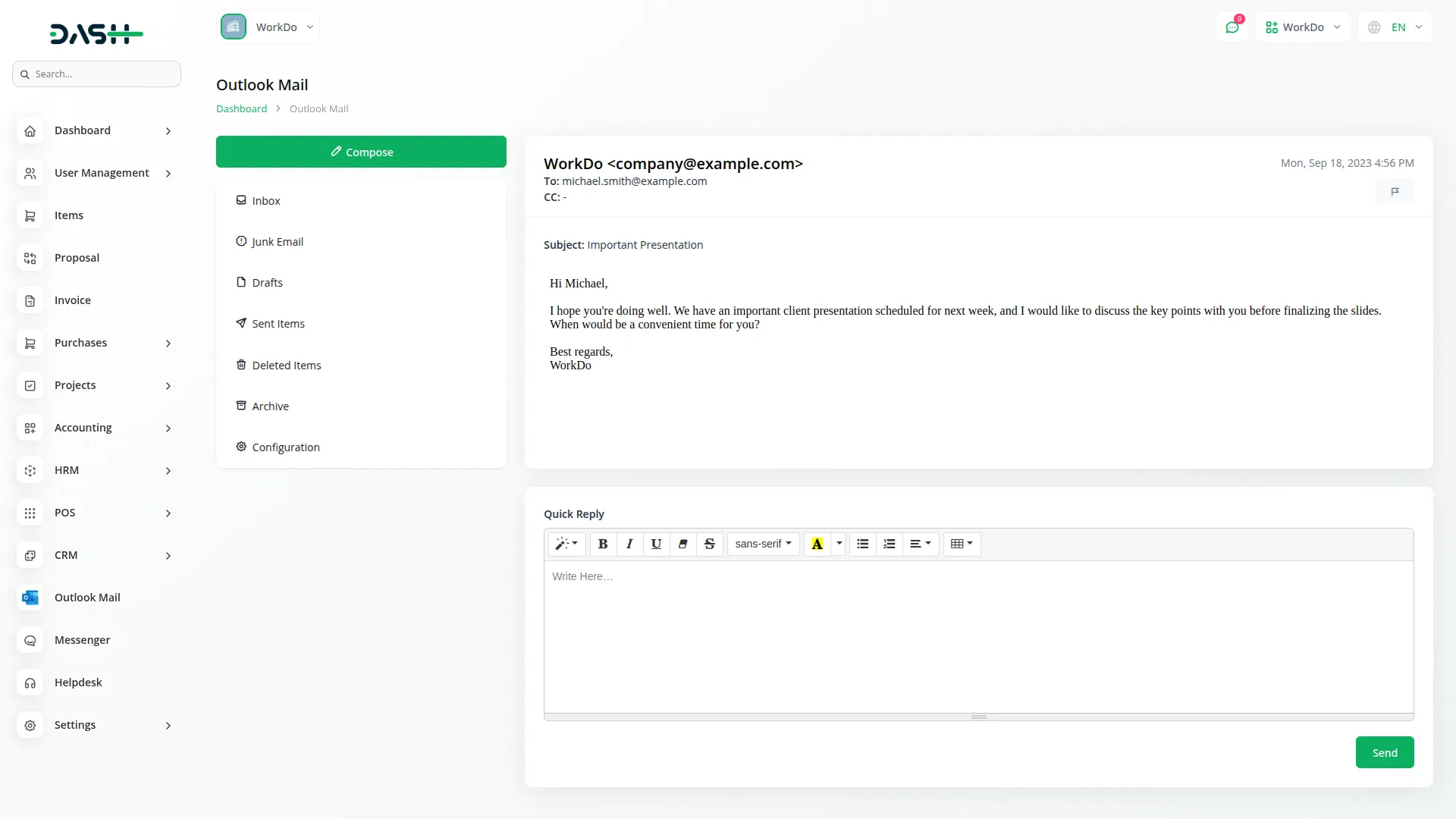
- Click the “view” button to view complete email information, including sender/receiver, subject, content, and attachments.
Compose New Email
- To create a new email, click the “Compose” button to open the email composition form. Fill in the required fields, including To, CC, Subject, and Content. The Content field supports HTML formatting for rich text emails.
- You can attach multiple files using the Attachments feature. Once you have completed composing your email, you can either send it immediately or save it as a draft for later use.
Categories
Related articles
- Garage & Workshop Management – WorkDo Dash SaaS Add-On Guide
- ClickSend – WorkDo Dash SaaS Add-On Guide
- GoTo Credentials Generation Guide
- Solar Hub – WorkDo Dash SaaS Add-On Guide
- Fire Safety – WorkDo Dash SaaS Add-On Guide
- Accounting – WorkDo Dash SaaS Add-On Guide
- DPO Pay – BookingGo SaaS Add-On Guide
- Product Pricing – eCommerceGo SaaS Add-On Guide
- QuickBooks – WorkDo Dash SaaS Add-On Guide
- Business Model – WorkDo Dash SaaS Add-On Guide
- API – WorkDo Dash SaaS Add-On Guide
- WorkDo Products Installation Guide
We're Here to Help - Let's Talk
Have questions about our solutions, customization services, or business tools? Our team is here to help you. let's talk.