
Facebook Post – WorkDo Dash SaaS Add-On Guide
Learn how to configure and manage Facebook Post integration in WorkDo Dash SaaS easily.
Introduction
The Facebook Post Integration allows businesses to seamlessly manage and schedule their social media content directly from the Dash platform. This integration simplifies the process of creating, publishing, and tracking Facebook posts, enabling users to engage with their audience more effectively. With features designed to optimize post management, users can schedule posts in advance, monitor engagement, and gather insights on performance, all within the Dash interface. This detailed documentation provides step-by-step guidance on setting up and utilizing the Facebook Post Integration, ensuring a smooth and efficient experience for users looking to enhance their social media presence and streamline content management.
How to Install the Add-On?
To Set Up the Facebook Post Add-On, you can follow this link: Setup Add-On
How to use the Facebook Post Add-On?
- After activating the Add-On, go to the system settings page of Dash SaaS and find out Facebook Post.
- Add the required credentials, like Facebook Client ID and Facebook Access Token.
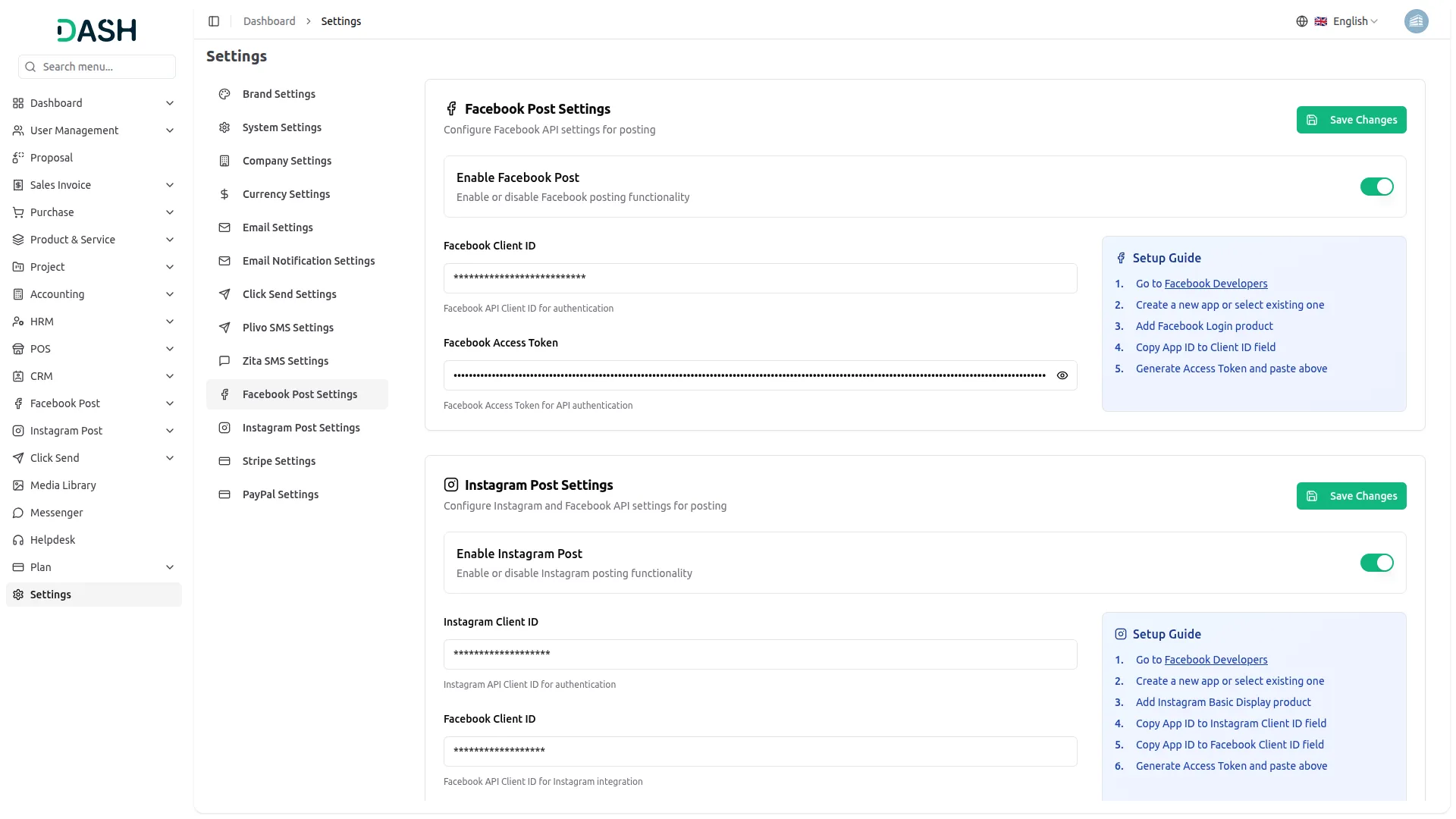
- Once you do that, search for the Facebook Post Add-On in the Sidebar.
- Here you can create posts in three ways.
- The first option to create a post through feed, here you just have to add a message, the link of the post, and lastly, there is a button for post time. If you enable that button, the post will be updated at the same time, and if you disable this button, you can schedule the post by selecting date, time, and default timezone. Once you do this, the post will be updated or scheduled accordingly.
- Then comes the option of posting an image, here you will see two options first is for a link, and the second is for an image. If you choose the option for the link, you can add the link of the image, and if you choose the image option, you can upload the image through your files.
- At last, there is a button for the post time. If you enable this button, the post will be updated at the same time, and if you disable this button, you can schedule the post by selecting the date, time, and default timezone. Once you do this, the post will be updated or scheduled accordingly.
- Then comes the option of posting a video, where you will see two options: the first is for a link and the second is for an image. If you choose the option for the link, you can add the link to the video, and if you choose the image option, you can upload the video from your files. Here also, you can schedule or post the video immediately.
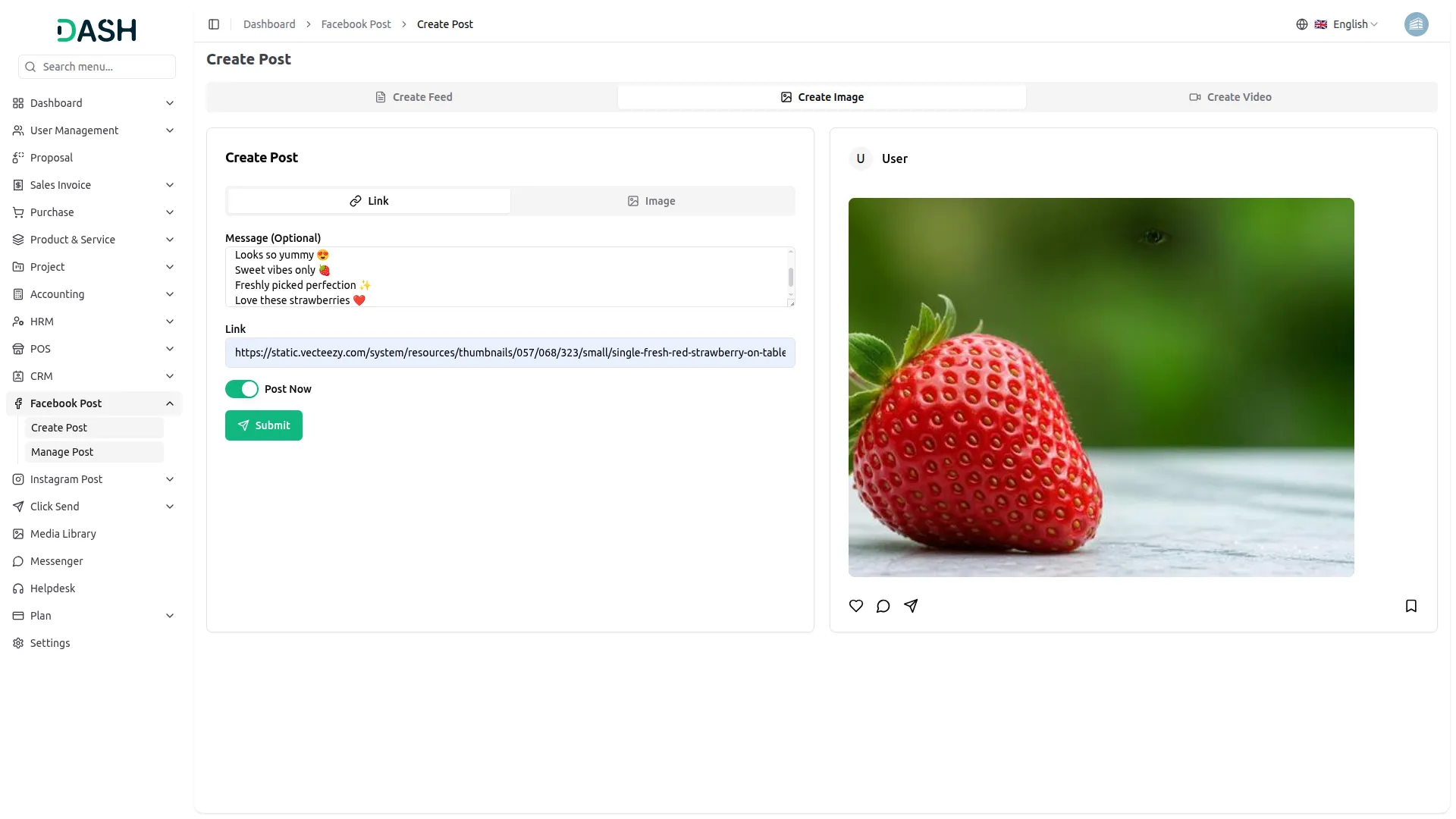
- The posts you add through the portal, it will be directly updated on Facebook, and the posts of the facebook will also be visible in the portal.
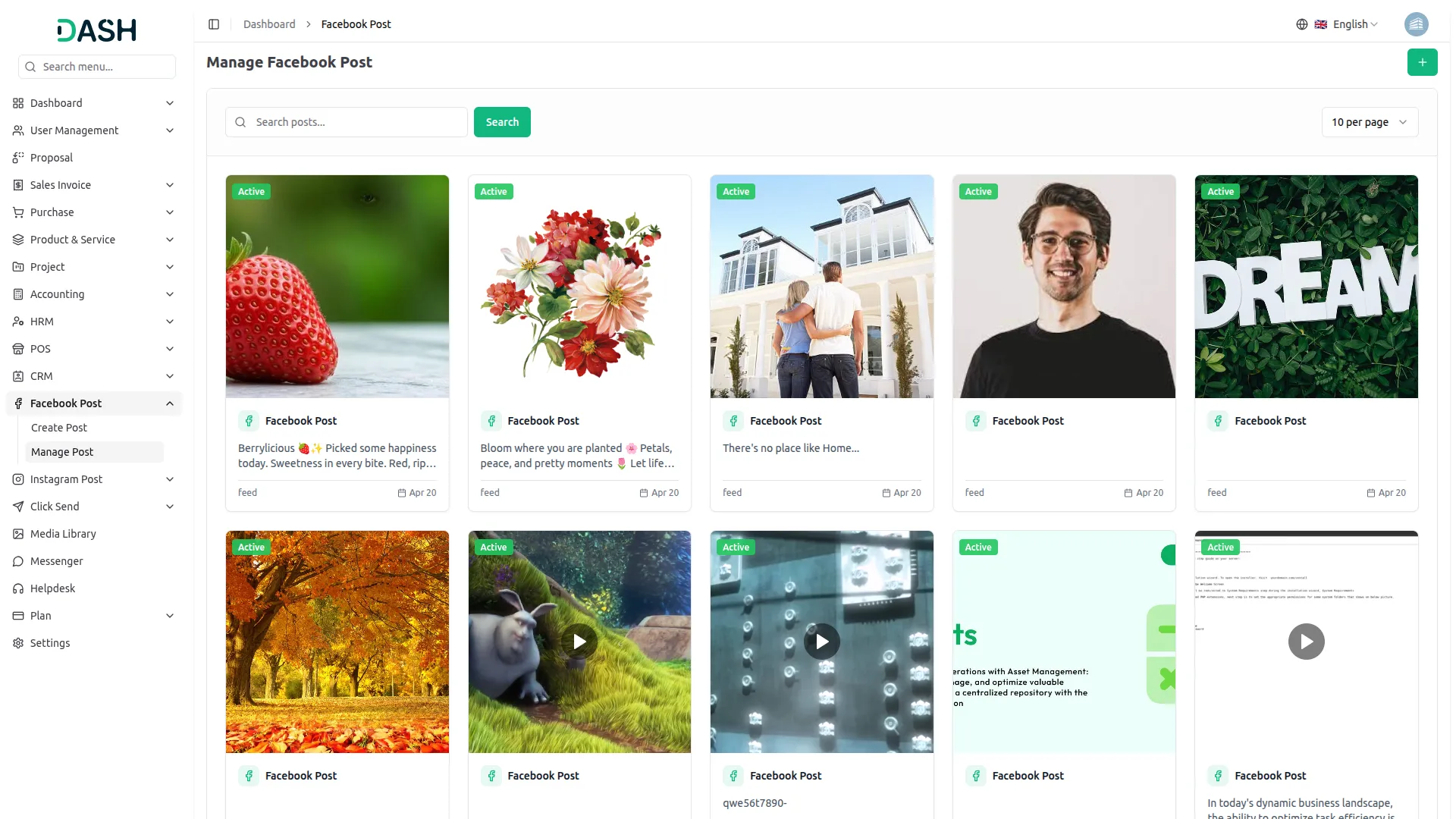
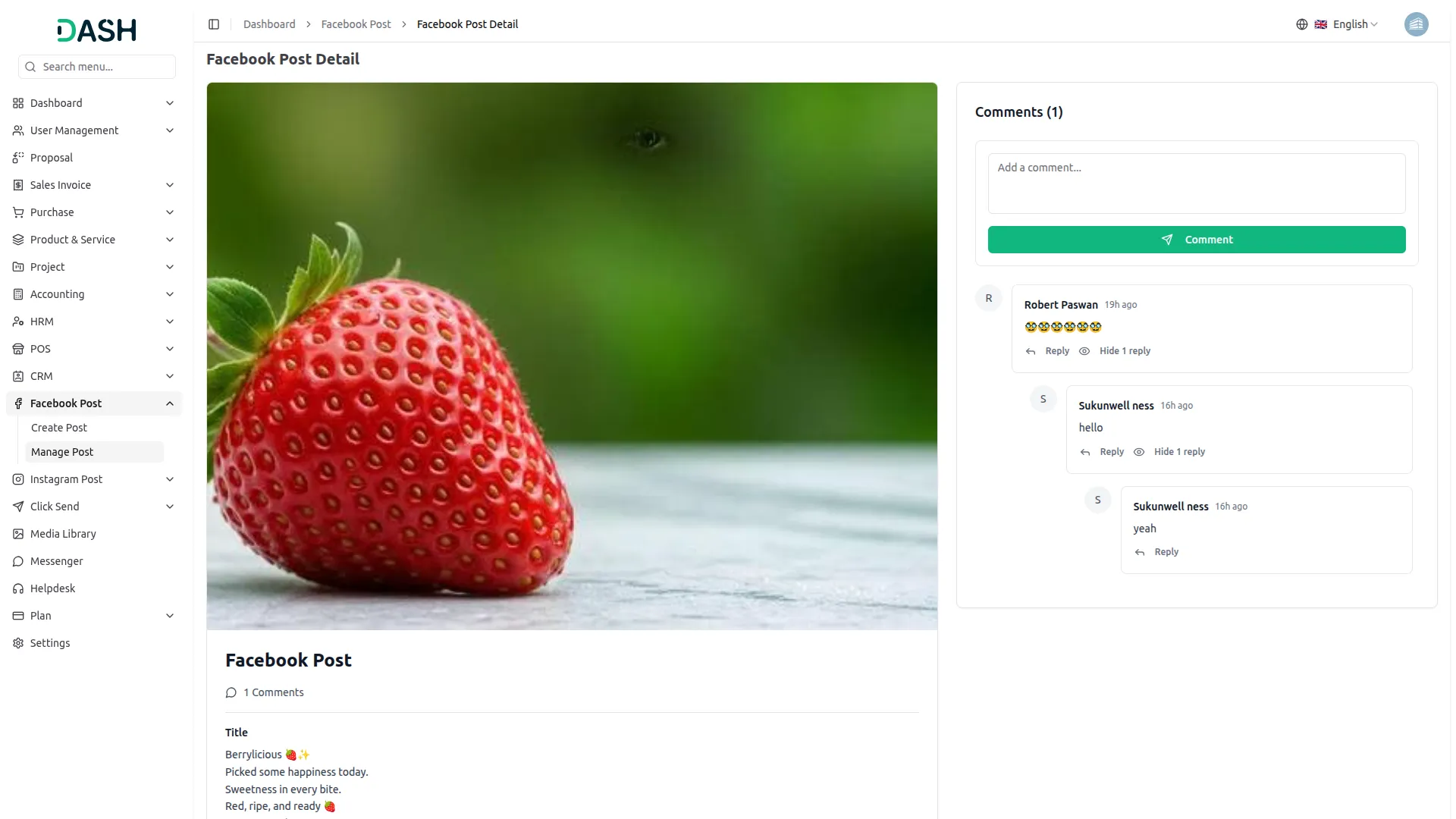
- Once you create the posts, you can also manage them with the help of the Manage Post Section. Here you can see all your Facebook posts, view or delete them whenever you want. If you click on the view button, you can view the image/video and the caption. You can also reply to the comments and add new comments from here.
- To Generate the API Credentials follow this link: https://workdo.io/documents/how-to-generate-token-of-meta/
Categories
Related articles
- LMS – WorkDo Dash SaaS Add-On Guide
- Digital Certificate – WorkDo Dash SaaS Add-On Guide
- PayPay – WorkDo Dash SaaS Add-On Guide
- Coin Payment – WorkDo Dash SaaS Add-On Guide
- Requests – WorkDo Dash SaaS Add-On Guide
- DJ Orchestra – WorkDo Dash SaaS Add-On Guide
- Report Abuse – BookingGo SaaS Add-On Guide
- Equipment Rental – WorkDo Dash SaaS Add-On Guide
- Save Reply – TicketGo Add-On Guide
- API Docs – eCommerceGo SaaS Add-On Guide
- CoinGate – BookingGo SaaS Add-On Guide
- Job Search – WorkDo Dash SaaS Add-On Guide
We're Here to Help - Let's Talk
Have questions about our solutions, customization services, or business tools? Our team is here to help you. let's talk.