
PayU – WorkDo Dash SaaS Add-On Guide
Learn how to configure and manage PayU payment gateway in WorkDo Dash SaaS.
Supported Country: United States of America, Germany, France, United Kingdom, India
Supported Currency: USD, EUR, GBP, INR and more.
Benefits of PayU Payment Gateway
Broad Payment Method Availability
PayU gives customers the freedom to pay using credit and debit cards, net banking, UPI, or digital wallets, ensuring every customer has access to a payment option that suits their preference and improves their overall checkout experience.
Accelerated Checkout Flow
With saved card functionality and fast UPI payment flows, PayU significantly reduces the time taken to complete a transaction, lowering cart abandonment rates and delivering a quicker, more satisfying experience for every customer.
Instant Transaction Status Updates
PayU provides real-time confirmation for every successful or failed transaction, keeping both merchants and customers immediately informed and eliminating any uncertainty during the payment process.
PCI-DSS Compliant Security
PayU meets PCI-DSS compliance standards and applies strong encryption to every transaction, ensuring a secure and trustworthy payment environment that helps businesses build lasting customer confidence.
Effortless Refund & Dispute Management
Merchants can handle refunds and chargebacks directly from within their PayU dashboard, streamlining post-payment processes and reducing the administrative effort involved in resolving transaction disputes.
How to Access PayU Add-On?
Visit the WorkDo Dash website: Go to https://workdo.io/ to access the WorkDo Dash platform.
- Navigate to Dash SaaS Add-Ons:
Explore the “Dash SaaS Add-Ons” section on the website to discover available Add-Ons. - Discover PayU Add-On:
Browse the list of available Add-Ons and find the “PayU Payment Gateway.” - Activate the Add-On:
Click the “Activate” button next to the PayU Add-On to enable it for your WorkDo Dash account.
How does PayU Work?
PayU serves as a versatile payment gateway by seamlessly integrating with your online platform. Customers are empowered to select their preferred payment method, and PayU handles the payment transaction with a strong emphasis on security and reliability. The platform features a user-friendly interface and is supported by a responsive customer service team, delivering a dependable and hassle-free payment experience, which makes it a trusted choice for merchants and customers alike.
Super Admin Settings
(Plan Purchase by the Company)
The Super Admin Settings are accessible only to the highest-level administrator. These settings allow the Super Admin to manage company-level subscriptions and payment configurations.
Key Capabilities:
- Purchase or upgrade company subscription plans
- Configure PayU API credentials for plan payments
- Enable or disable PayU as a payment gateway
Configuration Path:
Super Admin Login → Settings → PayU Settings
Company Settings
(Bookings, Beauty Spa, LMS & Other Payments)
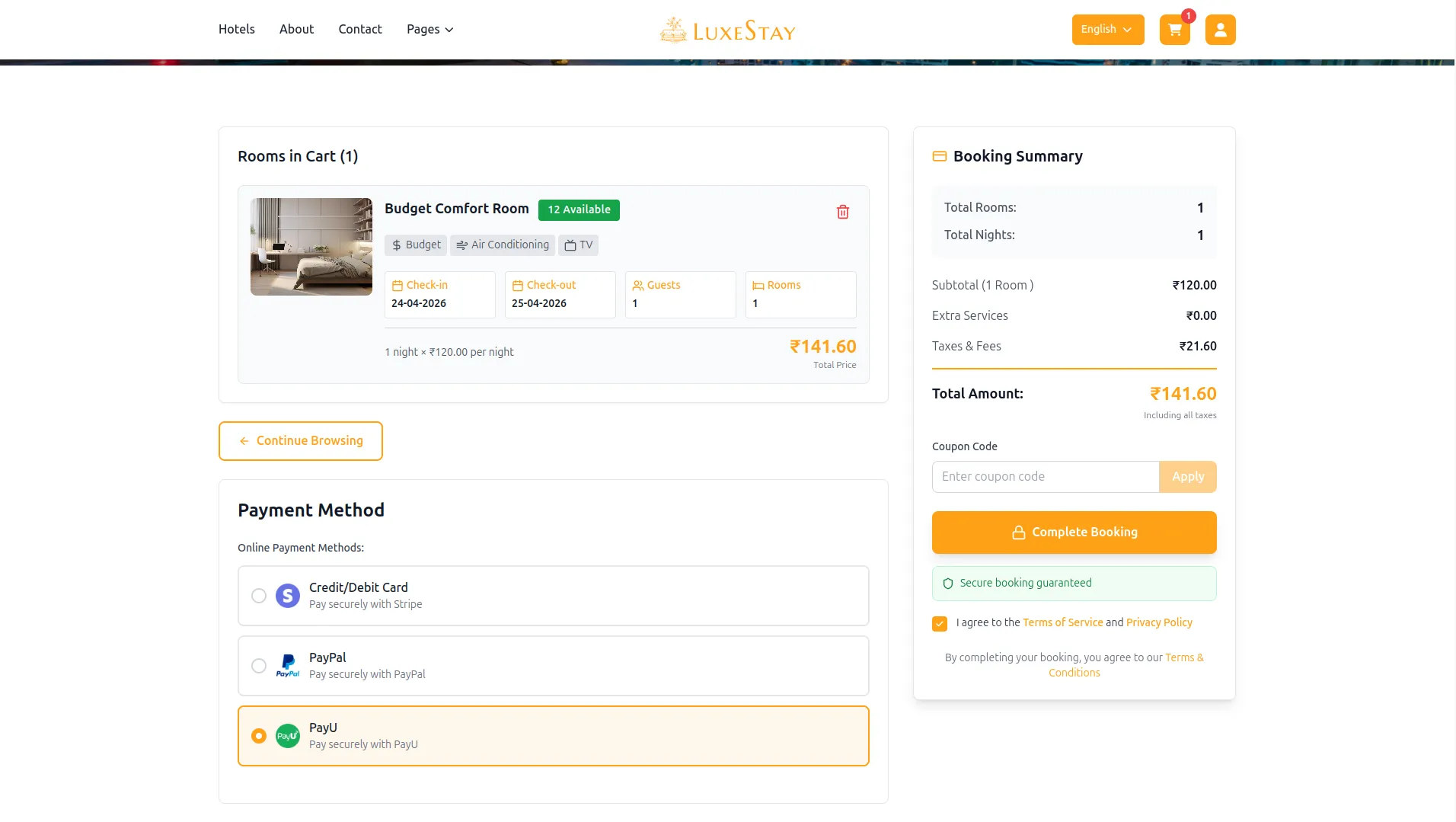
Company Settings allow organizations to configure PayU for receiving payments from customers across multiple modules.
Supported Modules Include:
Configuration Path:
Company Login → Settings → PayU Settings
Company-Level Capabilities:
- Configure PayU API credentials
- Enable PayU for selected modules
- Accept online payments from customers
- Manage Bookings, Beauty Spa, and service
- Handle tax, coupon, and discount calculations
How to Generate the API Key?
1. Generate API Key:
To integrate PayU with WorkDo Dash, you need to obtain API credentials from the PayU developer portal. Follow these steps:
1. Register a Developer Account
- Visit the official PayU Developer Portal: https://docs.payu.in
- Sign up for a test (sandbox) or live merchant account as needed
2. Access Your Sandbox Credentials
- After logging in, go to the Dashboard
- Copy the provided Merchant Key and Salt Key under sandbox mode.
3. For Live Credentials
- Contact PayU support or generate from your production account dashboard.
Note: Use sandbox credentials for testing purposes only. For real transactions, switch to Live mode and obtain production credentials from the PayU team.
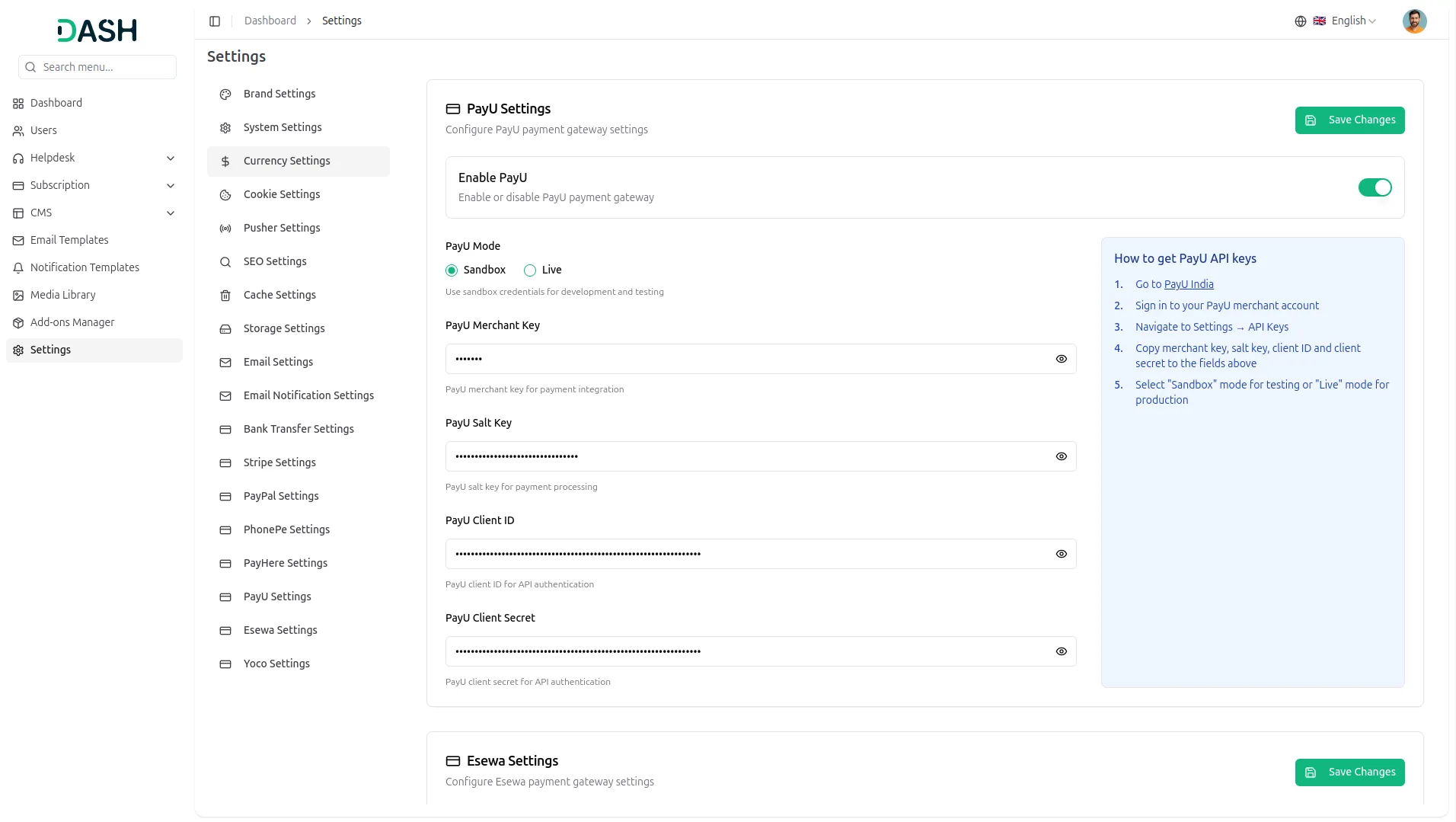
2. Configure PayU Gateway:
- Log in to your account with admin credentials.
- Navigate to the settings page.
3. Set Up PayU Gateway:
- Scroll down the page until you find the PayU Gateway option.
- Click on the PayU Gateway to access its configuration settings.
4. Enter Required Details:
In the settings, provide the following essential details:
- Mode, Merchant ID, Salt Key, C lient ID, Client Secret
5. Save Your Settings:
- After entering the necessary details, save the settings to activate the PayU Payment Gateway within your platform.
- This detailed documentation overviews PayU Payment Integration, its benefits, and the integration process. By integrating PayU, businesses and organizations can offer their customers a secure and flexible payment experience while streamlining their payment processes.
Note: The PayU Add-On is a paid feature and can be accessed by users who have purchased it. By integrating the PayU Add-On into your WorkDo Dash SaaS account, you’ll provide a reliable and user-friendly payment gateway that supports global transactions.
Categories
Related articles
- Abandon Cart Guide – eCommerceGo SaaS
- Facebook Link Page – vCard SaaS Add-On Guide
- Game Zone – WorkDo Dash SaaS Add-On Guide
- Cleaning Management – WorkDo Dash SaaS Add-On Guide
- WizzChat Messenger – WorkDo Dash SaaS Add-On Guide
- Paiement Pro – WorkDo Dash SaaS Add-On Guide
- Razorpay – BookingGo SaaS Add-On Guide
- Hotel & Room Management – WorkDo Dash SaaS Add-On Guide
- Quick Checkout – eCommerceGo SaaS Add-On Guide
- Recurring Invoice & Bills – WorkDo Dash SaaS Add-On Guide
- PayTR – BookingGo SaaS Add-On Guide
- Google Docs – WorkDo Dash SaaS Add-On Guide
We're Here to Help - Let's Talk
Have questions about our solutions, customization services, or business tools? Our team is here to help you. let's talk.