
Grant Management – WorkDo Dash SaaS Add-On Guide
Learn how to manage grants, funding processes, and applications in WorkDo Dash SaaS.
Introduction
The Grant Management Add-On is a comprehensive grant administration solution that allows administrators to manage grants, grant types, applications, payments, reports, and document types from a centralized dashboard. It provides complete control over the grant lifecycle from creation to application review, payment processing, and progress tracking. The system supports full configuration of grant types, document requirements, application workflows, automated payment tracking, and detailed reporting. Administrators can create grants with specific eligibility criteria, manage application submissions, review applications with scoring systems, process payments, and generate progress reports. From setting up grant categories and document types to managing applications, payments, and generating comprehensive reports, the add-on streamlines both administrative control and applicant management in one integrated platform.
How To Install the Add-On?
To Set Up the Grant Management Add-On, you can follow this link: Setup Add-On.
How to use the Grant Management Add-On?
System Setup
Grant Types
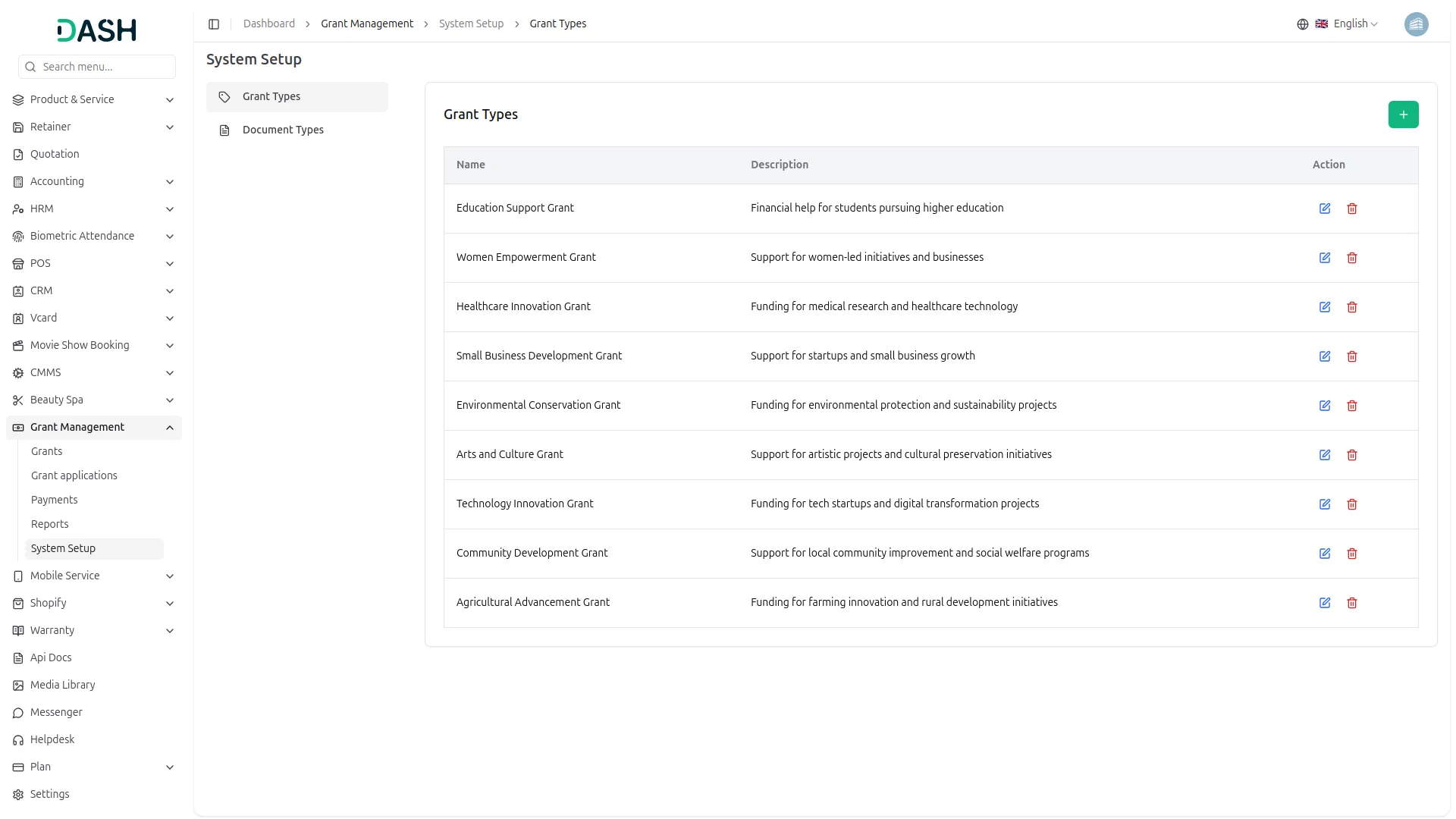
- To add a new Grant Type, click the “Create” button and enter the grant type name (e.g., Research Grant, Education Grant, Community Development) in the Name field and provide a detailed Description. The list page displays a table with the Name, Description, and Action columns. Available actions: you can use ‘Edit’ to modify the grant type details and ‘Delete’ to remove it.
- Once a Grant Type is created, it appears in the Grant creation form as a dropdown option, allowing administrators to categorize grants appropriately and helping applicants identify the right grant category for their needs.
Grant Document Types
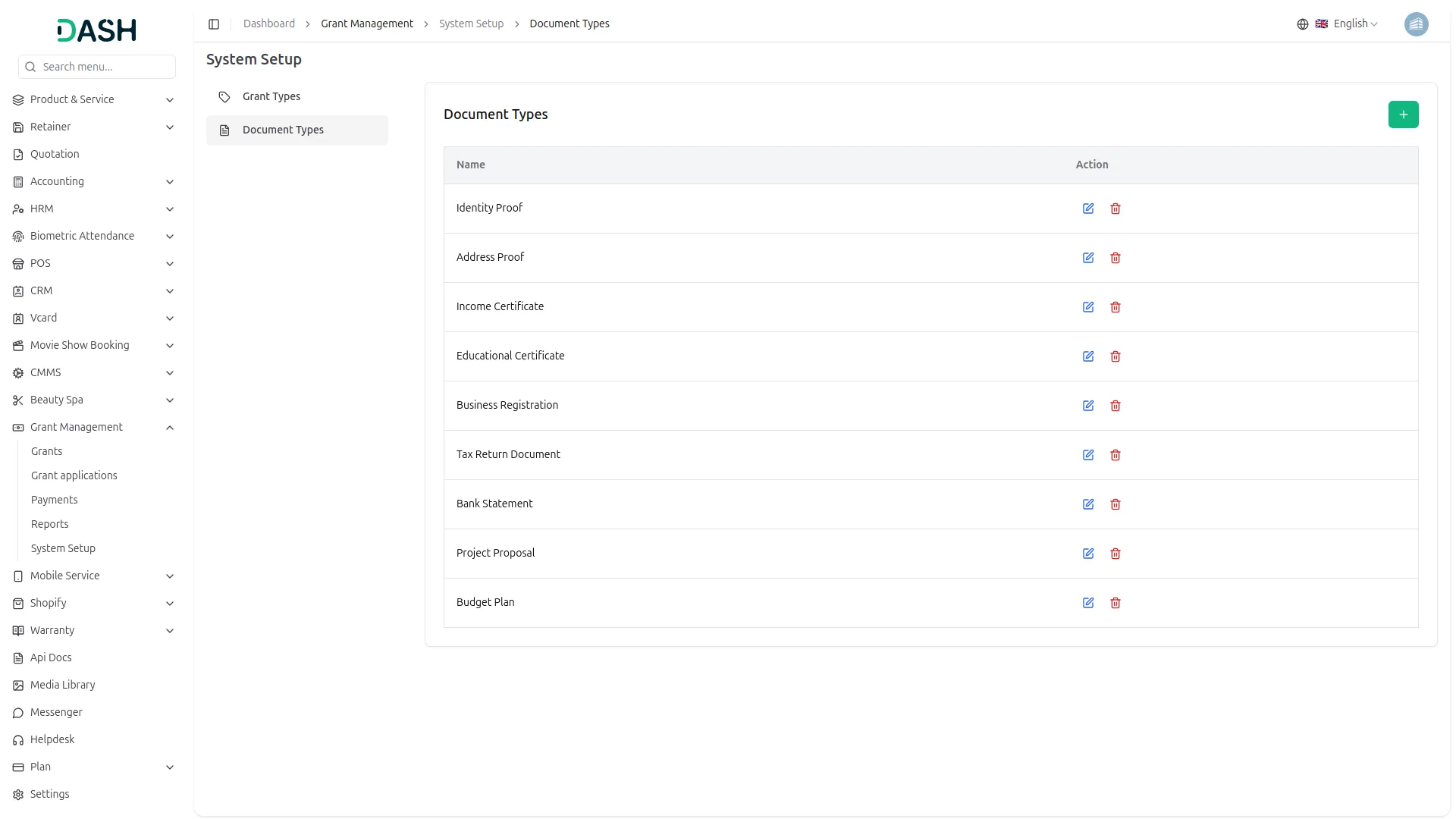
- To add a new Grant Document Type, click the “Create” button and enter the document type name (e.g., Project Proposal, Budget Plan, CV, Reference Letter) in the Name field. The list page displays a table with the Name and Action columns. In the action column, you can use ‘Edit’ to modify the document type details and ‘Delete’ to remove it.
- Once a Grant Document Type is created, it appears in the Grant creation form where administrators can select which document types are required for each grant, and these requirements are then displayed to applicants during the application process.
Manage Grants
- To add a new grant, click the “Create” button and fill in the comprehensive form. Enter the Grant Name, provide a detailed Description, select the Grant Type from the dropdown (comes from System Setup → Grant Types), and set the Application Deadline Date using the date picker. Enter the Total Budget amount, define the Eligibility Rules, and specify the Evaluation Criteria.
- Set the Grant Status (Open or Closed) and select the required Document Types from the available options (comes from System Setup → Grant Document Types). Click “Create” to save the grant.
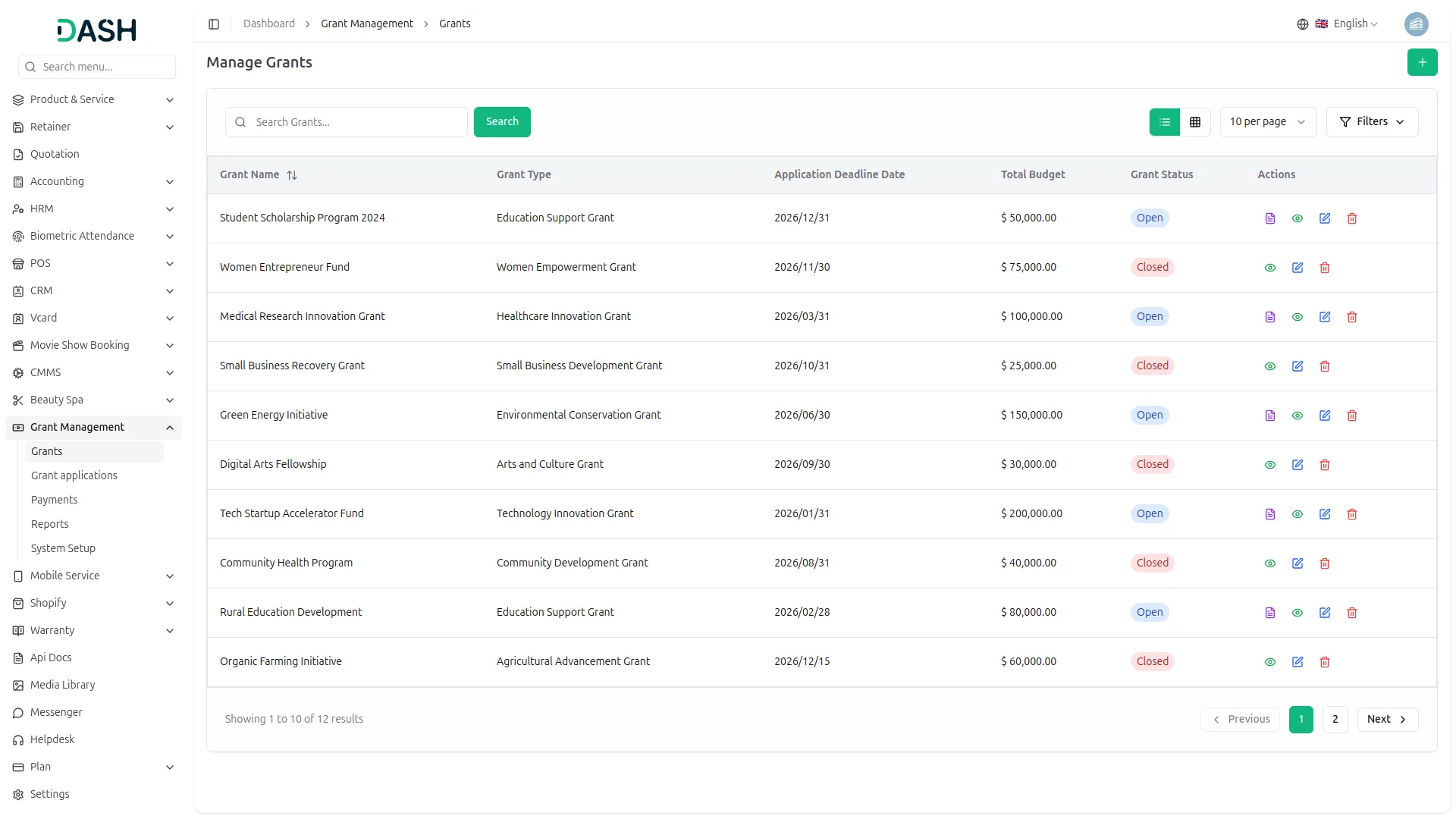
- The list page displays a table with Grant Name, Grant Type, Application Deadline, Total Budget, Status, and Action columns. You can search for a specific grant using the search bar.
- Available actions are View (to see full grant details), Edit to modify the grant information, and Delete to remove it.
-
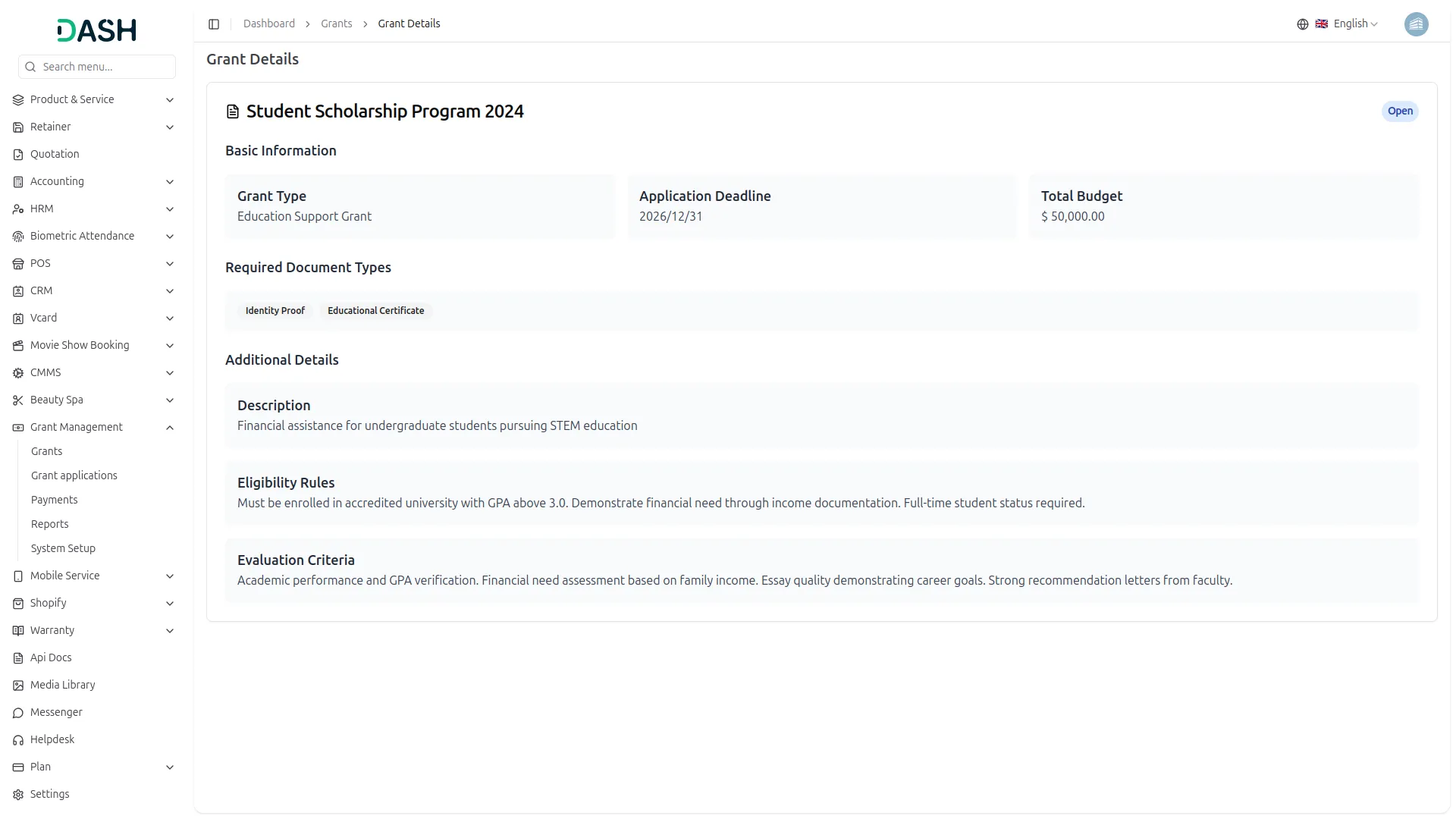
- When you click the View button, you’ll see the complete Grant Details page displaying all grant information including the Grant Name, Description, Grant Type, Application Deadline, Total Budget, Eligibility Rules, Evaluation Criteria, and Grant Status.
- In the action column, the “Apply for Grant” button will be displayed only when the grant status is Open, otherwise, it will not be shown.
-
Manage Grant Applications
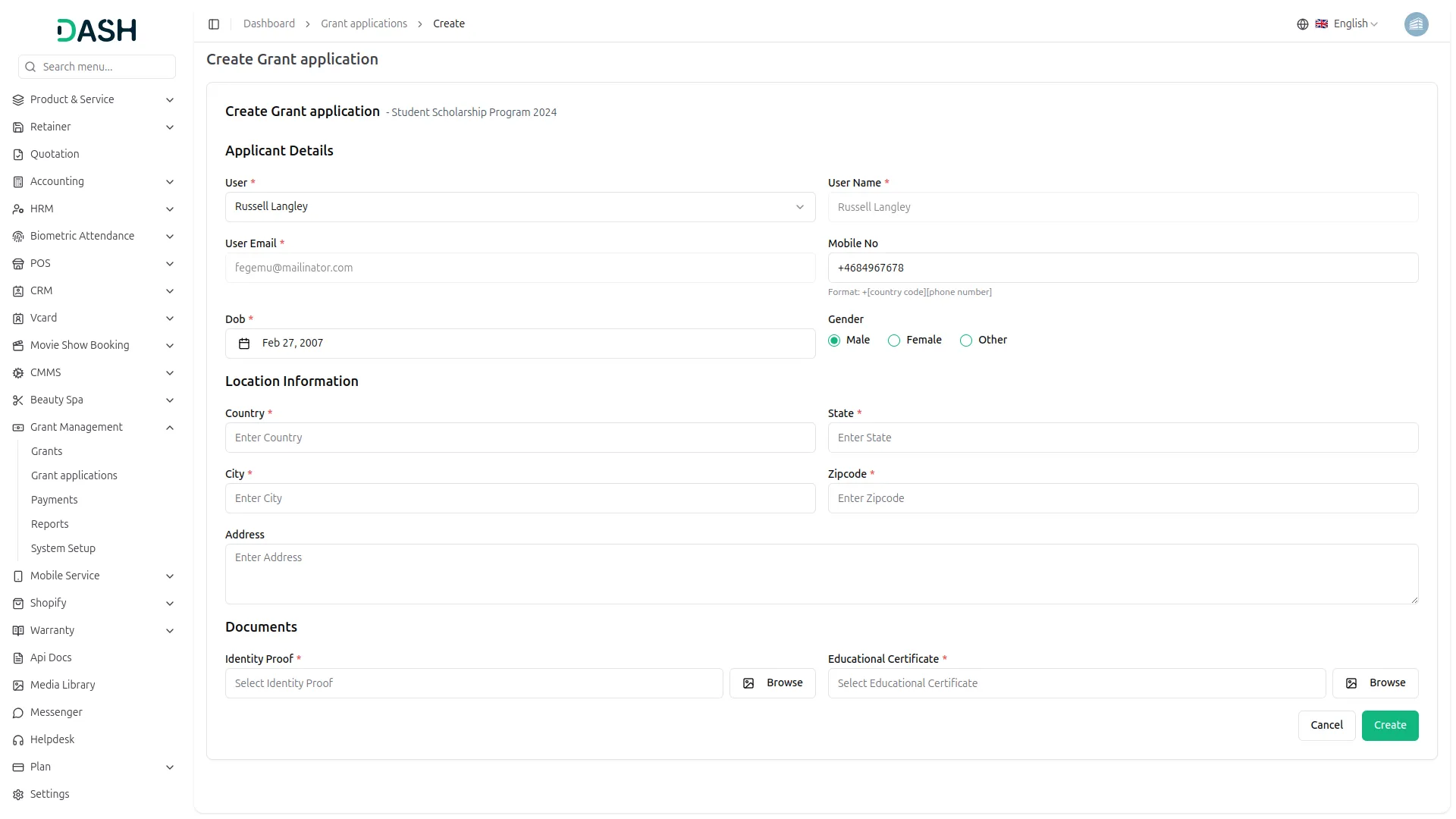
- This section displays all grant applications submitted through the “Apply for Grant” button available on the Grants index page. When users click “Apply for Grant” on any available grant.
- Fill in the applicant information including User Name, User Email, Mobile Number, Date of Birth, Gender, Country, State, City, Zipcode, and Address. Upload the required documents based on the selected grant’s document requirements. Each required document type must be uploaded before the application can be submitted. Applications can be submitted until the Application Deadline Date.
- The system automatically generates a unique Application Number in the format #GAP000001. Click “Create” to save the grant application.
-
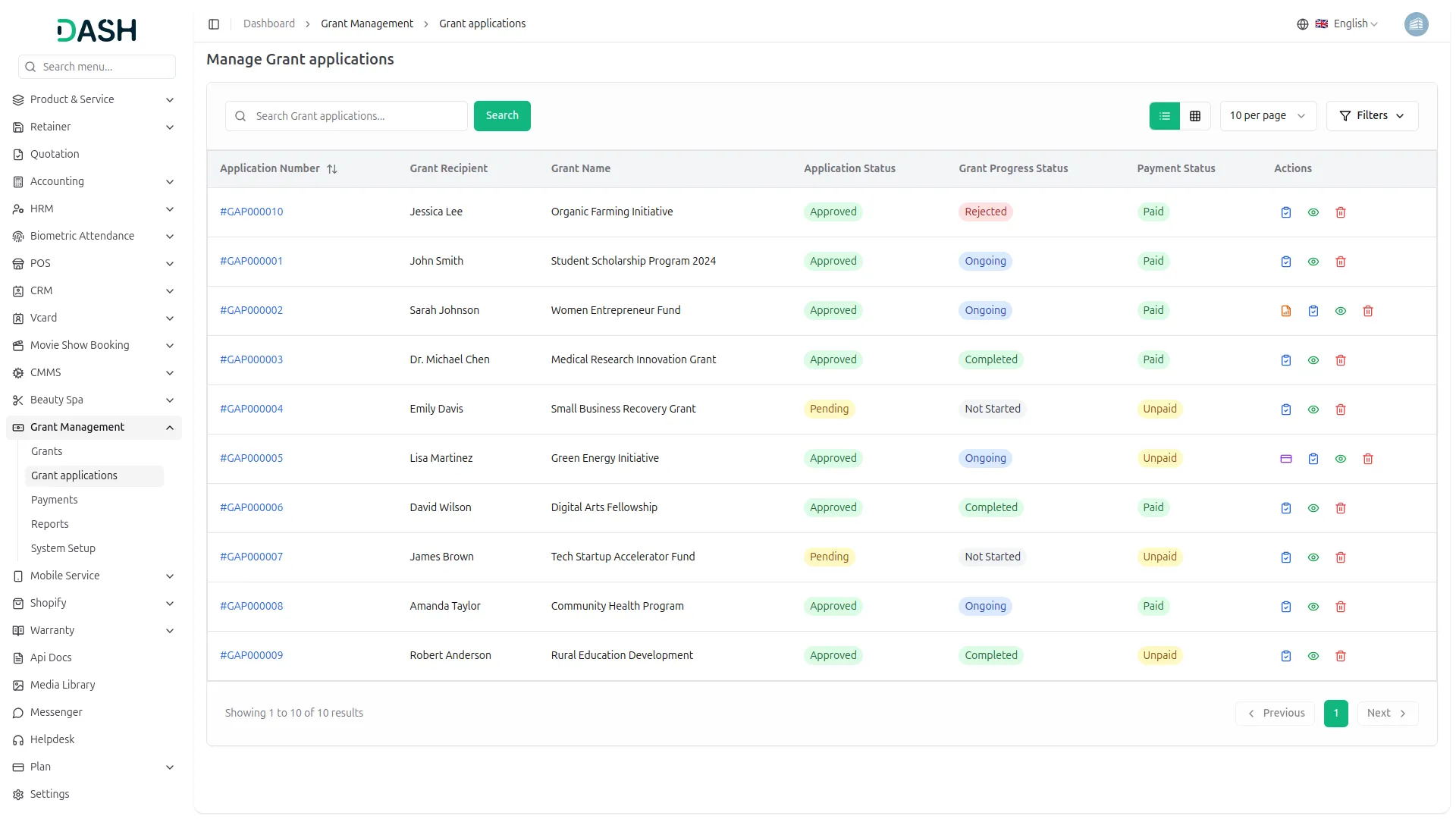
- The list page displays a table with Application Number, Grant Name, Application Status, Grant Progress Status, Payment Status, and Action columns. You can search for a specific application using the search bar. Click the Filters button to filter by Grant, Application Status, or Grant Progress Status, then click “Apply” to filter the data or “Clear” to reset it.
- The application status options are Pending, Approved, and Rejected, and the grant progress status options are Not Started, Ongoing, Completed, and Rejected.
-
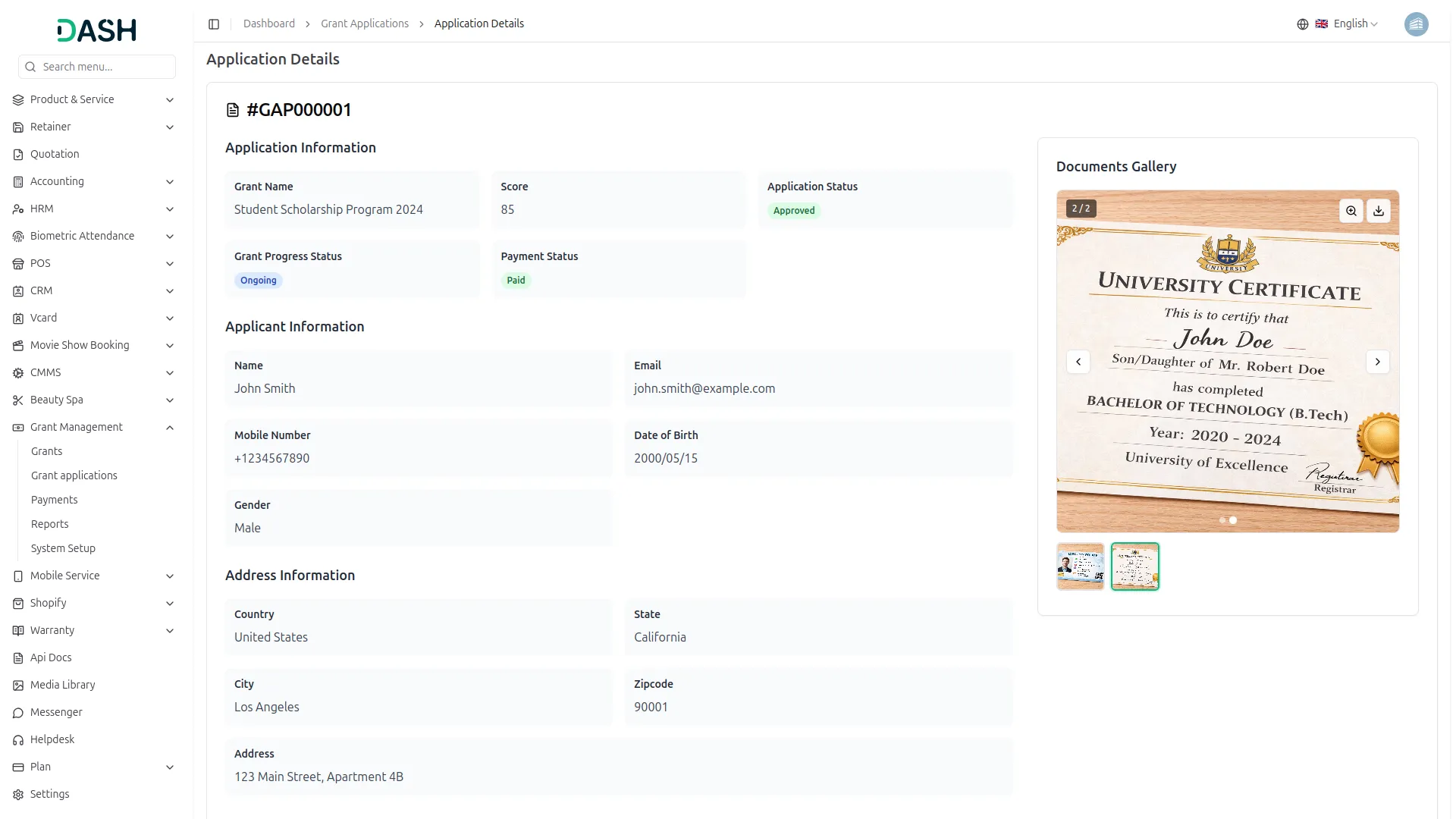
- Available actions are View (to see full application details), Edit (to review and score the application), and Delete to remove the application.
- When you click the View button, you’ll see the complete Application Details page showing all application information, applicant information, address information, uploaded documents, and comments.
-
- Available actions in the Action column include Add Payment, Grant Reports, Application Review, View, and Delete.
- “Add Payment” is available only for applications with Approved status and Ongoing grant progress status. This option allows users to create payment records for approved applications. Once a payment has been added, the “Add Payment” button will no longer be visible.
- “Grant Reports” are available only for applications with Approved status and Ongoing grant progress status. It will be visible only if the application has at least one payment record. This option allows users to create and manage progress reports for funded applications. Once a grant report has been created, the “Grant Reports” button will no longer be visible.
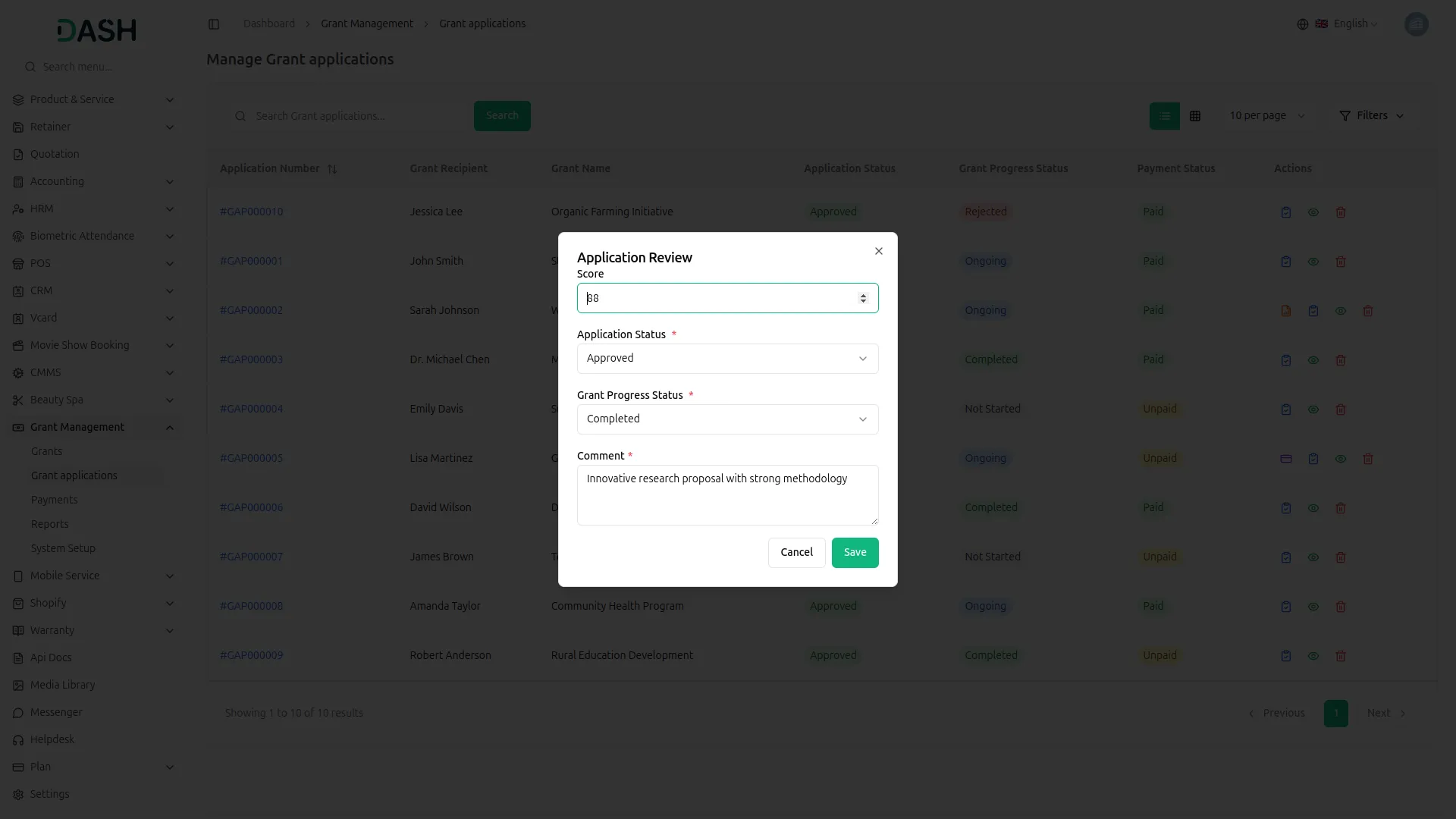
- “Application Review” is available for all applications. This option allows users to review the application, assign scores, update the application status (Pending, Approved, Rejected), set the grant progress status (Not Started, Ongoing, Completed, Rejected), and add review comments.
-
- Use “Delete” to permanently remove the application record from the system.
Manage Grant Application Payments
- This section manages all payments related to grant applications. Payments are created from the Manage Grant Applications section by clicking the “Add Payment” button on applications with Approved status and Ongoing grant progress status.
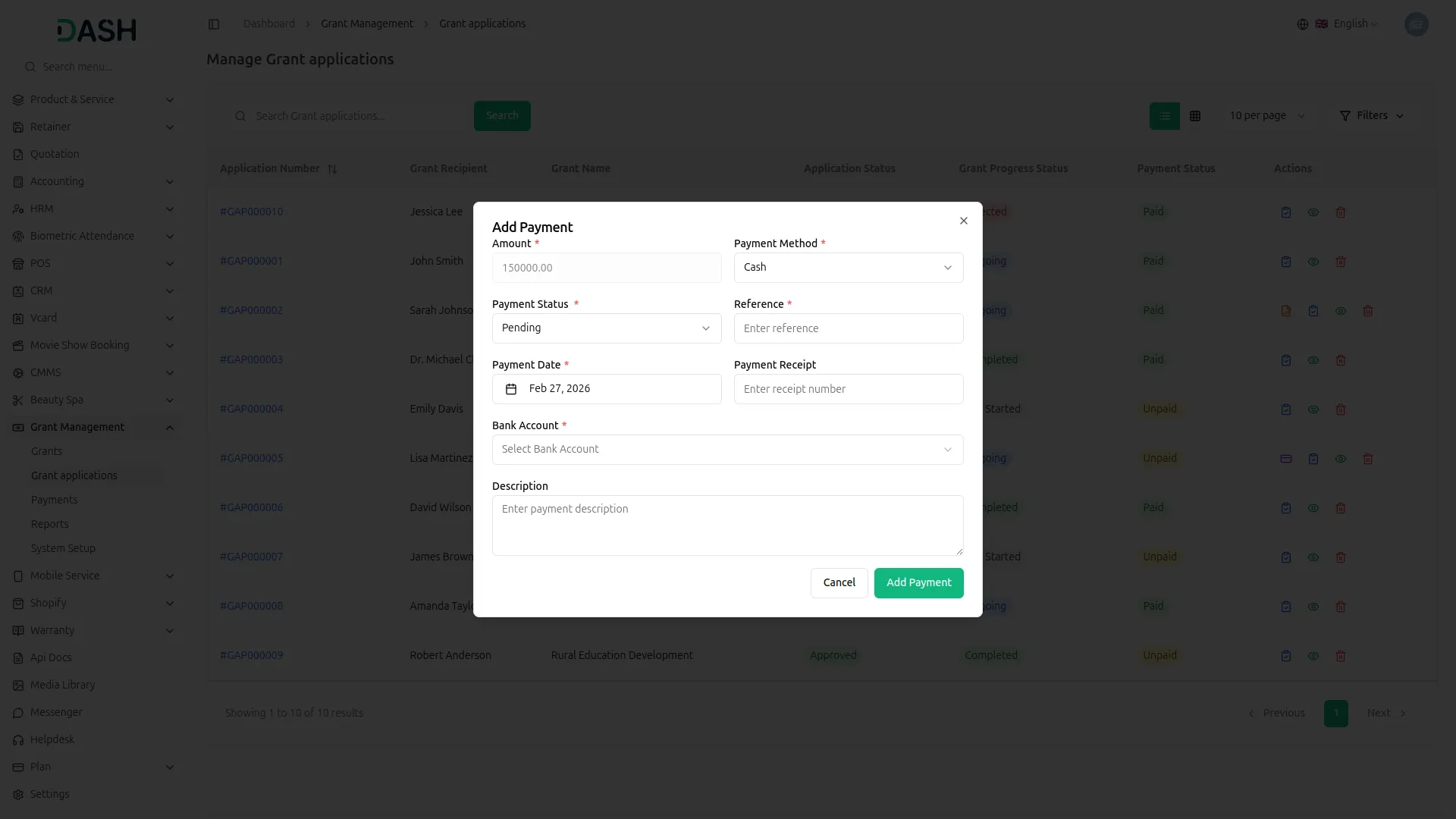
- “Add Payment” opens a modal where users can enter payment details. The fields include the Amount, which is pre-filled with the grant’s total budget and cannot be edited. Payment Method can be selected from Cash, Bank Transfer, Check, or Other. Payment Status can be set to Pending or Paid. Users must enter a Reference number, select the Payment Date, optionally add a Payment Receipt number, choose the Bank Account, and provide an optional Description. Click “Add Payment” to save the payment record or “Cancel” to close the modal without saving.
-
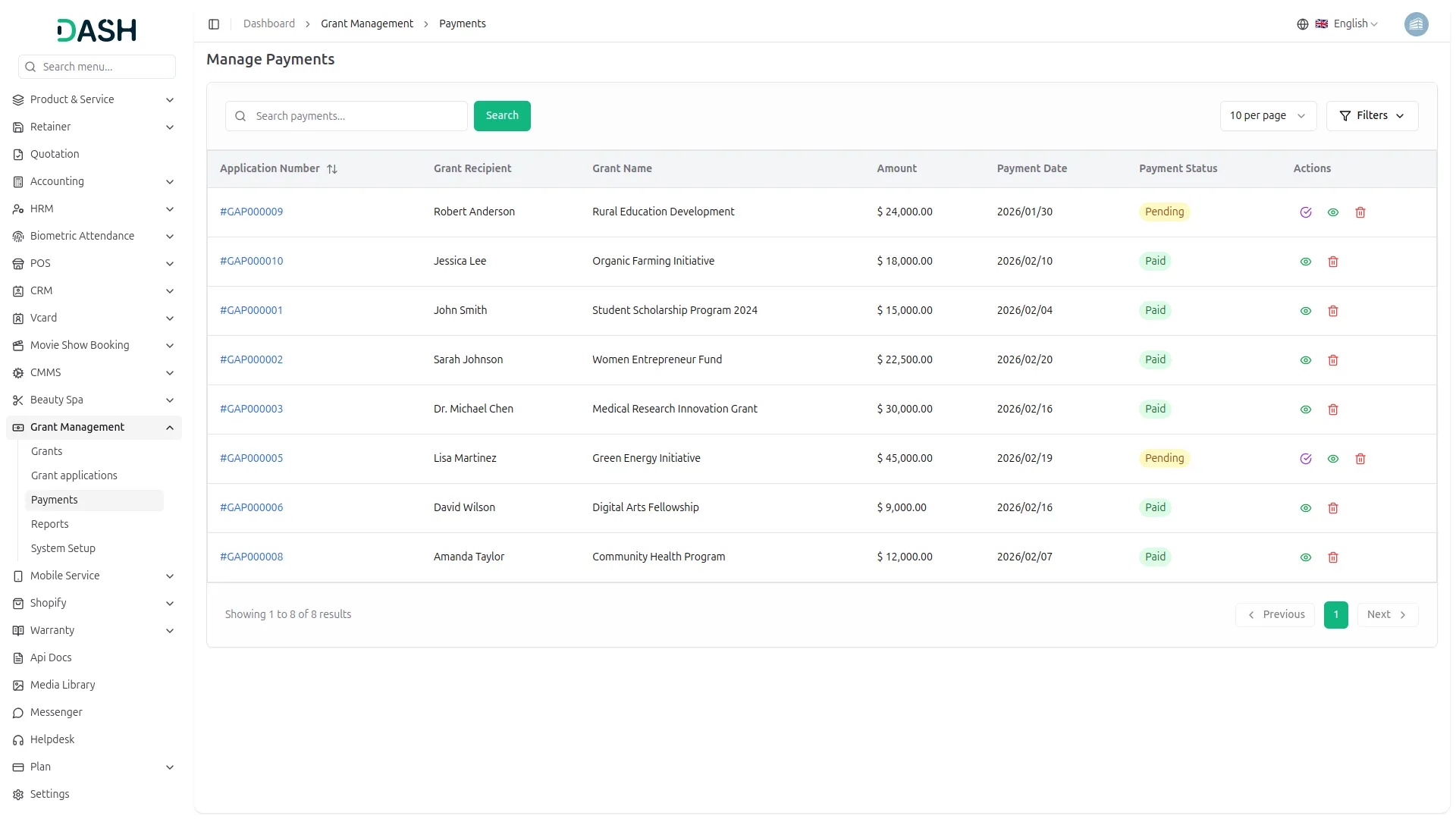
- The list page displays a table with Application Number, Grant Recipient Name, Grant Name, Amount, Payment Date, Payment Status, and Action columns. You can search for a specific payment using the search bar.
- The payment status options include Pending and Paid.
- Available actions include View (to see payment details), Mark as Paid (to update the payment status), and Delete (to remove the payment record).
- When you click “Mark as Paid,” the payment status changes from Pending to Paid. The Delete option is not visible once the payment has been marked as Paid.
Manage Grant Reports
- This section manages all grant reports related to funded applications. Reports are created from the Manage Grant Applications section by clicking the “Grant Reports” button on applications that have at least one payment record, Approved status, and Ongoing grant progress status.
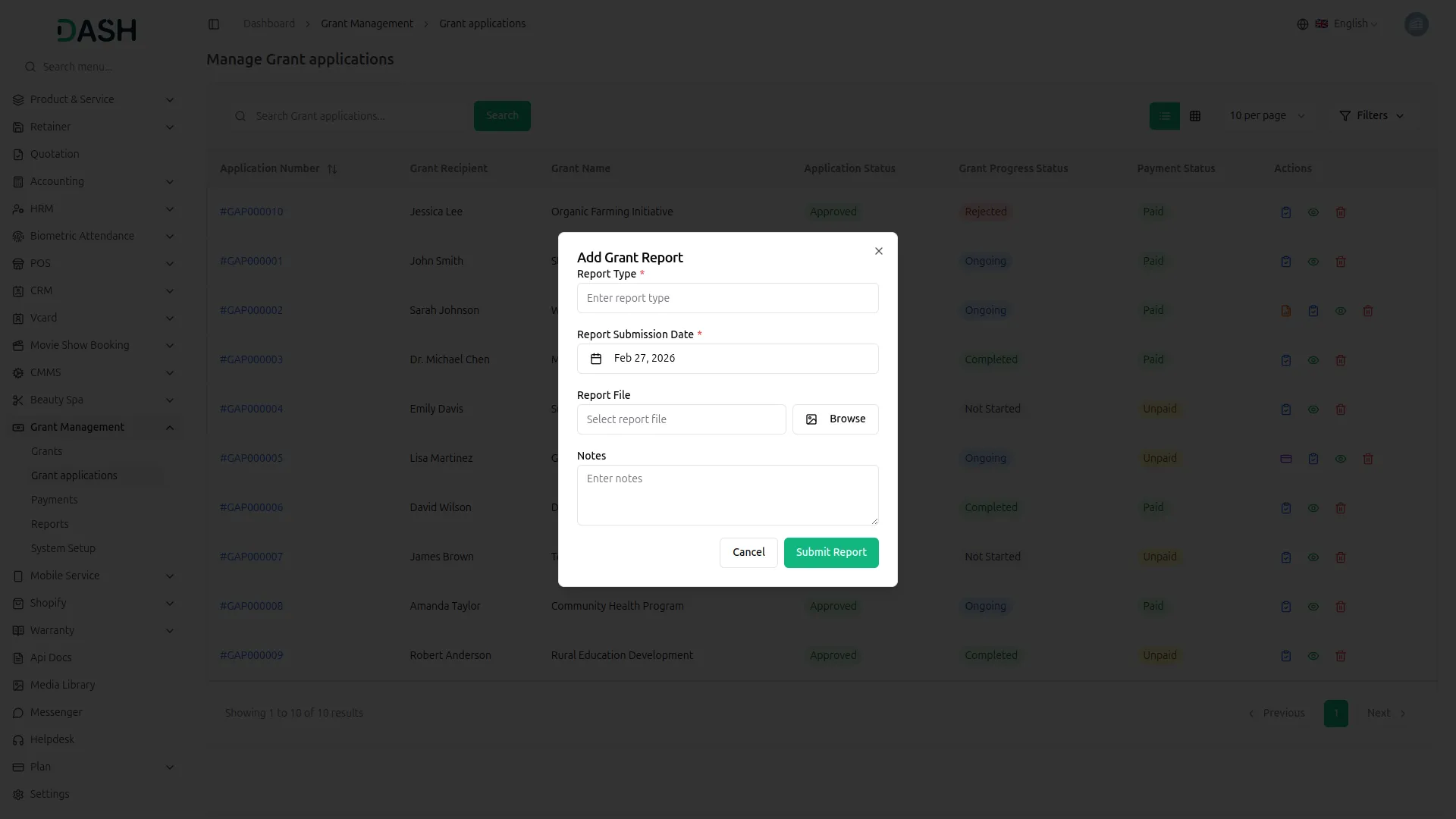
- “Grant Reports” opens a modal where users can enter report details. The fields include Report Type, where users can specify the type of report. Report Submission Date allows users to select the date of submission using the date picker and is a required field. Report File lets users upload the report document using the media picker and preview the uploaded file. Notes provides an option to add any additional comments or remarks about the report. Click “Submit Report” to save the report record or “Cancel” to close the modal without saving.
-
- The list page displays a table with Application Number, Grant Recipient Name, Grant Name, Report Title, Report Status, Submission Date, and Action columns. You can search for a specific report using the search bar.
- The report status options include Pending, Approved, and Rejected.
- Available actions include View (to read the full report), Update Status (to change the report status), and Delete (to remove the report). Click on the Report File to view the uploaded report document. The Delete button is visible only when the report status is Pending.
-
Categories
Related articles
- Shopify Sync – WorkDo Dash SaaS Add-On Guide
- Mark as Important – TicketGo Add-On Guide
- Duo 2FA – eCommerceGo SaaS Add-On Guide
- Audit & Inspection – WorkDo Dash SaaS Add-On Guide
- Childcare Management – WorkDo Dash SaaS Add-On Guide
- Braintree – WorkDo Dash SaaS Add-On Guide
- BTCPay – BookingGo SaaS Add-On Guide
- Property Management – WorkDo Dash SaaS Add-On Guide
- Delivery Boy – eCommerceGo SaaS Add-On Guide
- Language Manager Guide
- Benefit – WorkDo Dash SaaS Add-On Guide
- PayTR – WorkDo Dash SaaS Add-On Guide
We're Here to Help - Let's Talk
Have questions about our solutions, customization services, or business tools? Our team is here to help you. let's talk.