
Rocket.Chat – WorkDo Dash SaaS Add-On Guide
Learn how to configure and manage Rocket.Chat integration in WorkDo Dash SaaS easily.
Introduction
Rocket.Chat notifications are essential for seamless team communication and timely updates. They deliver real-time alerts about tasks, invoices, user activity, and more. With customizable settings and smooth integration with Add-Ons like New Task Assign and Invoice, Rocket.Chat keeps teams informed, collaborative, and efficient in any workflow. Notifications can be personalized based on channels, users, and triggers to ensure the right people receive the right updates at the right moment. With support for emojis, avatars, and rich formatting, these messages are informative, visually engaging, and easy to follow.
How To Install the Add-On?
To Set Up the Rocket Chat Add-On, you can follow this link: Setup Add-On.
How to use the Rocket Chat Add-On?
1. Access Settings
- After purchasing, go to Settings and find Rocket Chat under it.
2. Configure Webhook
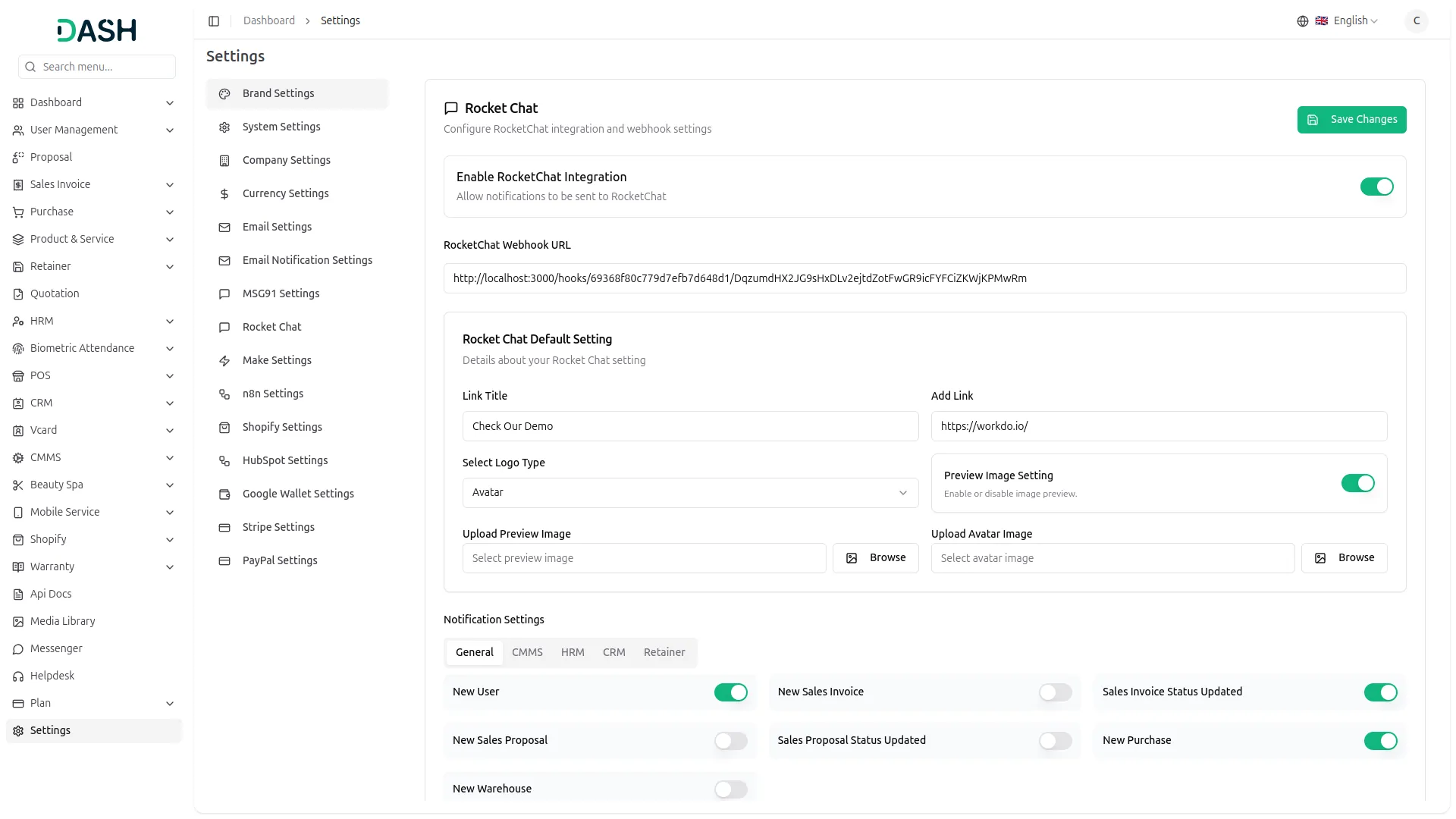
- On that page, you have to enter the Rocket Chat Webhook URL, with the help of which you can send messages via Rocket Chat.
3. Additional Settings
- Link Title: Set the name of the link in the message.
- Add Link: Enter the actual clickable URL.
-
Select Logo Type:
- Avatar → Enables “Upload Avatar Image” and allows you to upload a custom avatar image.
- Emoji → Enables an emoji input (e.g., : rocket:).
-
Preview Image Toggle:
- ON → Allows you to upload an image to include in messages.
- OFF → No image preview in messages.
-
Upload Options:
- Upload Preview Image: Appears if the Preview toggle is ON.
- Upload Avatar Image: Only if Logo Type is set to Avatar.
4. Generate API Credentials
- Follow this guide: https://workdo.io/documents/how-to-generate-the-credentials-from-rocketchat/
5. Enable Notifications for Add-Ons
- After you do this, you get a chance to choose the notification settings. Here is the way you can enable or disable the notifications of the various Add-Ons.
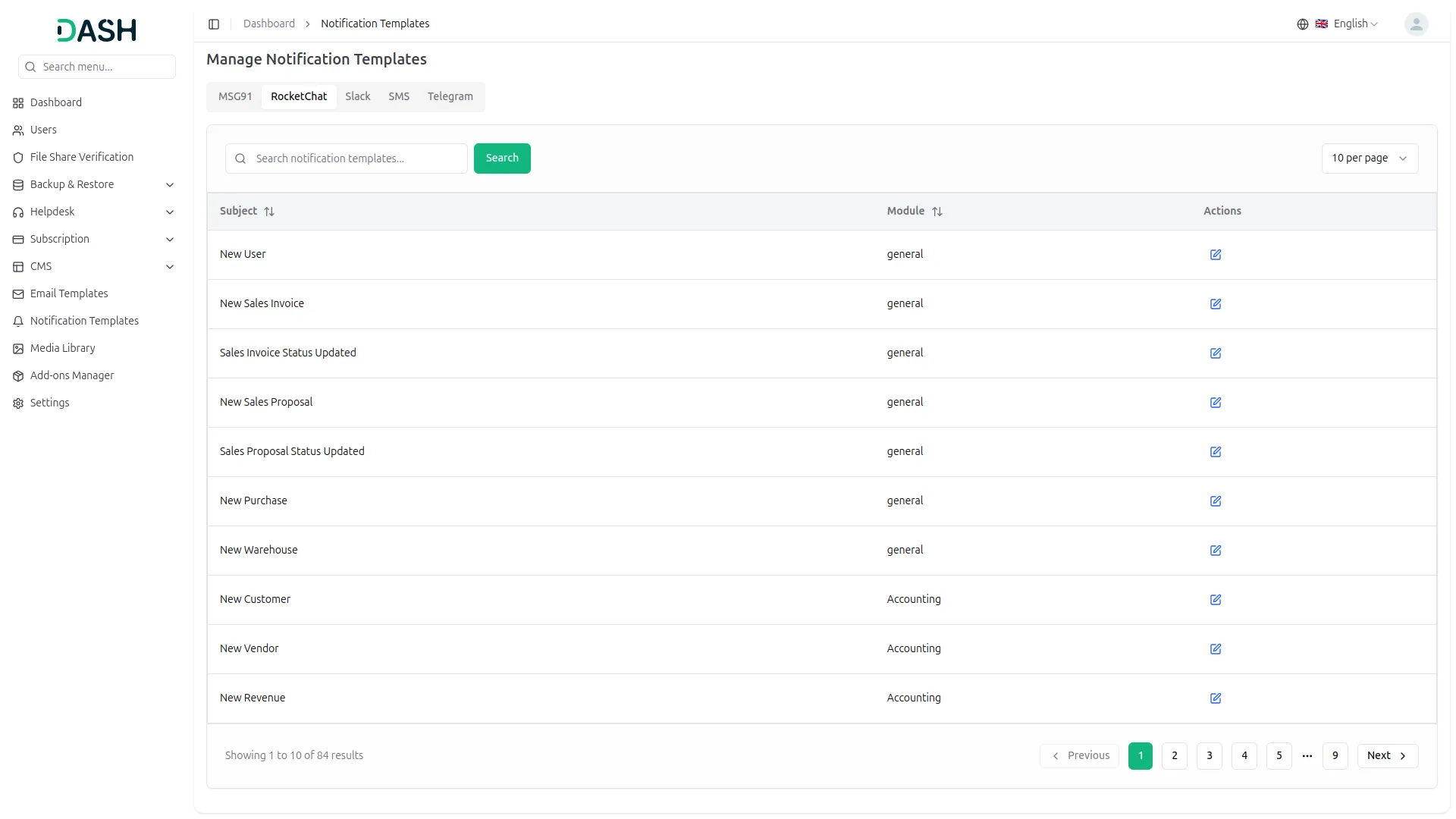
- You can customize notification messages language-wise, for example, if you want to change the message for new user notifications, you can do it here.
- For example: If you enable the create user setting from General, then the notification via Rocket Chat will be sent to that particular user when the user is created.
General
- Create User
- New Sales Invoice
- Sales Invoice Status Updated
- New Sales Proposal
- Proposal Status Updated
- New Purchase
- New Warehouse
Account
- New Customer
- New Vendor
- New Revenue
Appointment
- New Appointment
- Appointment Status
CMMS
- Work Order Request
- New Supplier
- New POs
- Work Order Assigned
- New Part
- New Component
- New Location
- New Pms
Contract
- New Contract
Hrm
- New Award
Lead
- New Lead
- Lead to Deal Conversion
- New Deal
- Lead Moved
- Deal Moved
Recruitment
- New Candidate
- Interview Schedule
- Convert To Employee
- New Job Posting
Retainer
- Create Retainer
- New Retainer Payment
Sales
- New Quote
- New Sales Order
- Meeting Assigned
Taskly
- New Project
- New Task
- New Bug
- New Milestone
- Task Stage Updated
- New Task Comment
Training
- New Trainer
Zoom Meeting
- New Zoom Meeting
Portfolio
- New Portfolio
Spreadsheet
- New Spreadsheet
Fix Equipment
- New Accessories
- New Asset
- New Audit
- New Fix Equipment Component
- New Consumables
- New Licence
- New Fix Equipment Location
- New Maintenance
Visitor Management
- New Visitor
WordPress (WooCommerce)
- New Product
School
- New Admissions
- New Parents
- New Students
- New Homework
- New Subject
- New Time Table
Cleaning Management
- New Cleaning Team
- New Cleaning Booking
- New Cleaning Invoice
Time Tracker
- New Tracker
Machine Repair Management
- New Machine
- New Repair Request
Hospital Management
- New Doctor
- New Patient
- New Hospital Appointment
- New Hospital Medicine
Form Builder
- New Form
- Convert To Modal
Timesheet
- New Timesheet
Notes
- New Note
Internal Knowledge (KB)
- New Article
- New Book
Innovation Center
- New Creativity
- New Challenge
- New Category
ToDo
- New To Do
- Complete To Do
Documents
- New Document
Categories
Related articles
- Training – WorkDo Dash SaaS Add-On Guide
- PhonePe – BookingGo SaaS Add-On Guide
- Tags – TicketGo Add-On Guide
- PowerTranz – WorkDo Dash SaaS Add-On Guide
- Coupon Email – eCommerceGo SaaS Add-On Guide
- Locker & Safe Deposit – WorkDo Dash SaaS Add-On Guide
- Machine Repair Management – WorkDo Dash SaaS Add-On Guide
- Shopping Cart – BookingGo SaaS Add-On Guide
- Fix Equipment – WorkDo Dash SaaS Add-On Guide
- Import Export – eCommerceGo SaaS Add-On Guide
- Discord Module – WorkDo Dash SaaS Add-On Guide
- Google Calendar Credentials Generation Guide
We're Here to Help - Let's Talk
Have questions about our solutions, customization services, or business tools? Our team is here to help you. let's talk.