
Side Menu Builder – WorkDo Dash SaaS Add-On Guide
Learn how to create and customize side menus and navigation in WorkDo Dash SaaS.
Introduction
Side Menu Builder Add-On allows Admin and company users to create and manage customized side menus within the software. It provides a flexible interface to build both main menus and submenus, set link types, control how menu items open, and assign icons. This Add-On helps organize navigation efficiently by enabling menu options that suit the company’s needs. Here you will learn how to use each feature of the Side Menu Builder Add-On for both Admin and company logins, ensuring smooth menu configuration and management.
How to Install the Add-On?
To Set Up the Side Menu Builder Add-On, you can follow this link: Setup Add-On.
How To Use The Side Menu Builder Add-On?
Manage Menu Builder
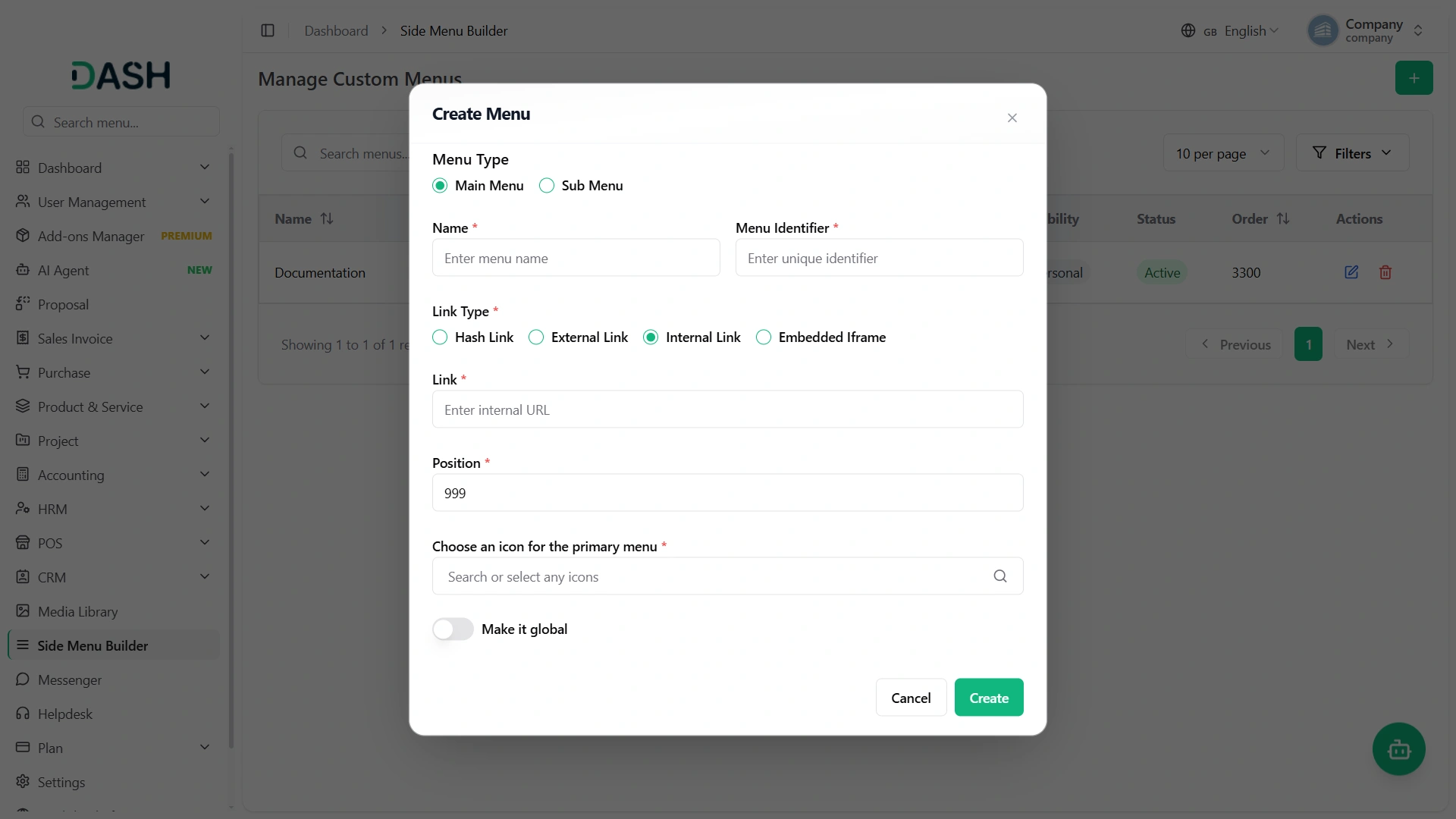
The Side Menu Builder allows super admins to create and customize the sidebar navigation menu structure for the entire system. When creating a menu, you can choose between two types using radio buttons: Main Menu or Sub Menu.
If you select the Main menu:
- Enter the menu Name and Menu Identifier (unique system identifier)
- Select a Link Type from four options: Hash Link, External Link, Internal Link, or Embedded iFrame
- If you select External Link, you can add external URLs in the Link field
- If you select Internal Link, you can add internal system route paths in the Link field
- If you select Embedded iFrame, an iFrame Code field will appear where you can paste your embed code
- Set the Position (numeric value) to determine the menu’s order in the sidebar
- Use the icon selector to choose an Icon for the Primary Menu by searching or browsing available icons
- Enable the Make it Global toggle to make this menu available across all companies in the system
If you select Sub menu:
- Select the parent Main Menu from the dropdown (only shows previously created main menus)
- Enter the sub menu Name and Menu Identifier (unique system identifier)
- Select a Link Type from four options: Hash Link, External Link, Internal Link, or Embedded iFrame
- If you select External Link, you can add external URLs in the Link field
- If you select Internal Link, you can add internal system route paths in the Link field
- If you select Embedded iFrame, an iFrame Code field will appear where you can paste your embed code
- Set the Position (numeric value) to determine the sub-menu’s order under its parent menu
- Enable the Make it Global toggle to make this sub-menu available across all companies in the system
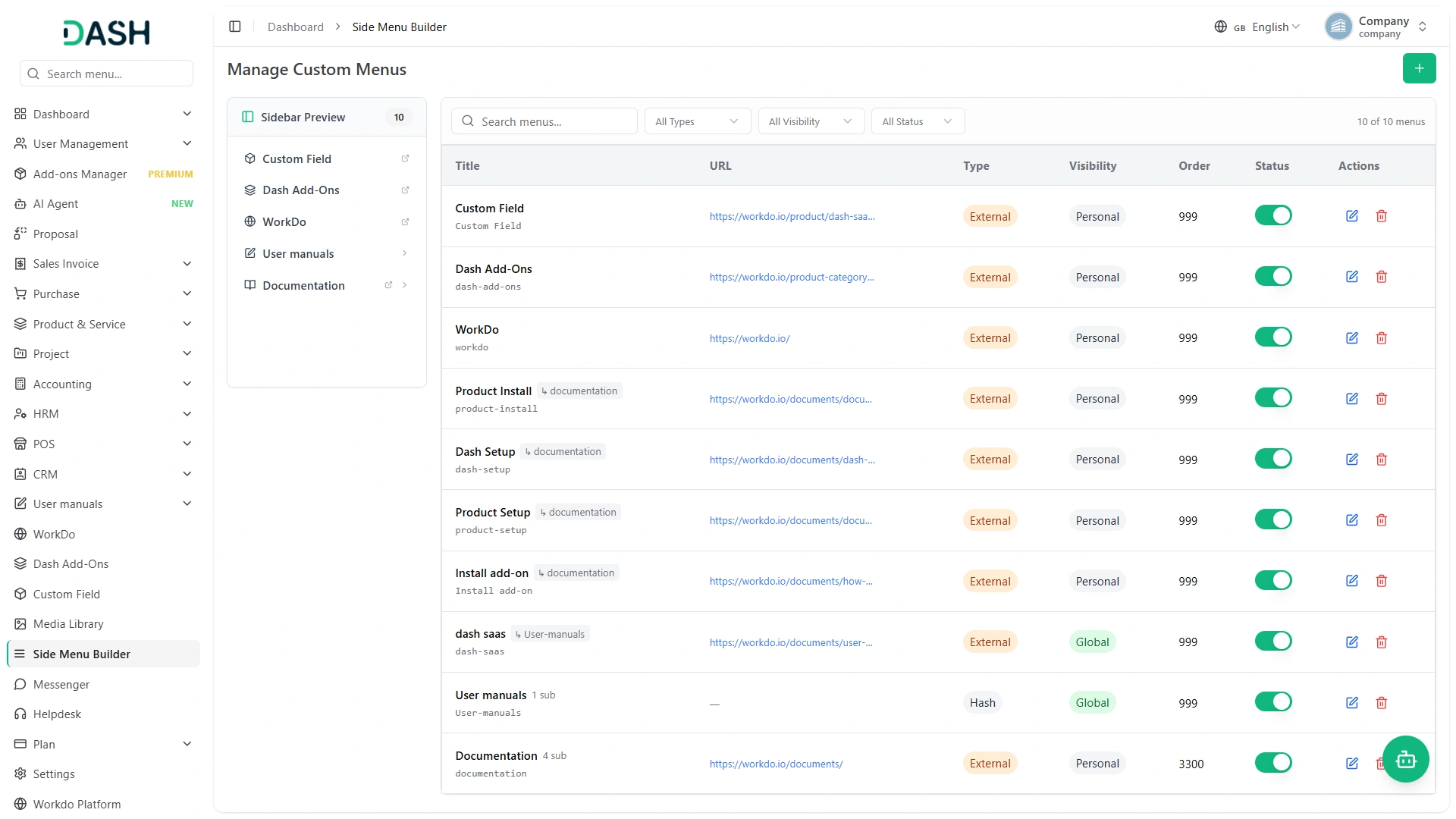
- The Manage Custom Menus page displays a table of menus with columns for Title, URL, Type, Visibility, Order, Status, and Actions. In the Actions column, you can use the edit option to modify the menu and the delete option to remove it.
- Use the Search bar to find a specific menu, and apply filters using the Type dropdown (Internal, External, Hash, Iframe), Visibility dropdown (Personal, Global), and Status dropdown (Active, Inactive) to narrow the results.
Categories
Related articles
- Aamarpay – WorkDo Dash SaaS Add-On Guide
- Support Ticket Guide – eCommerceGo SaaS
- WhatsApp Twilio – TicketGo Add-On Guide
- Tawk.to Messenger – WorkDo Dash SaaS Add-On Guide
- HubSpot Support Ticket – WorkDo Dash SaaS Add-On Guide
- Mailchimp – BookingGo SaaS Add-On Guide
- Training – WorkDo Dash SaaS Add-On Guide
- Out of Office – TicketGo Add-On Guide
- Appointment – WorkDo Dash SaaS Add-On Guide
- vCard SaaS Add-On Setup Guide
- Sign in with Facebook – WorkDo Dash SaaS Add-On Guide
- Reports – TicketGo Add-On Guide
We're Here to Help - Let's Talk
Have questions about our solutions, customization services, or business tools? Our team is here to help you. let's talk.