
Reminder Module – WorkDo Dash SaaS Add-On Guide
Learn how to create and manage reminders and notifications in Dash SaaS.
Introduction
The Reminder Add-On is a powerful notification tool that allows companies to create and automate reminders across key modules, including General and CRM. Reminders can be scheduled automatically or manually and delivered through multiple notification channels such as Email, Slack, Telegram, Twilio, and WhatsApp API. With Super Admin enabling the required server configuration, the system ensures timely, automated notifications reach the right people, every time.
How To Install The Add-On?
To Set Up the Reminder Add-On, you can follow this link: Setup Add-On.
How To Use The Reminder Add-On?
Superadmin – Settings
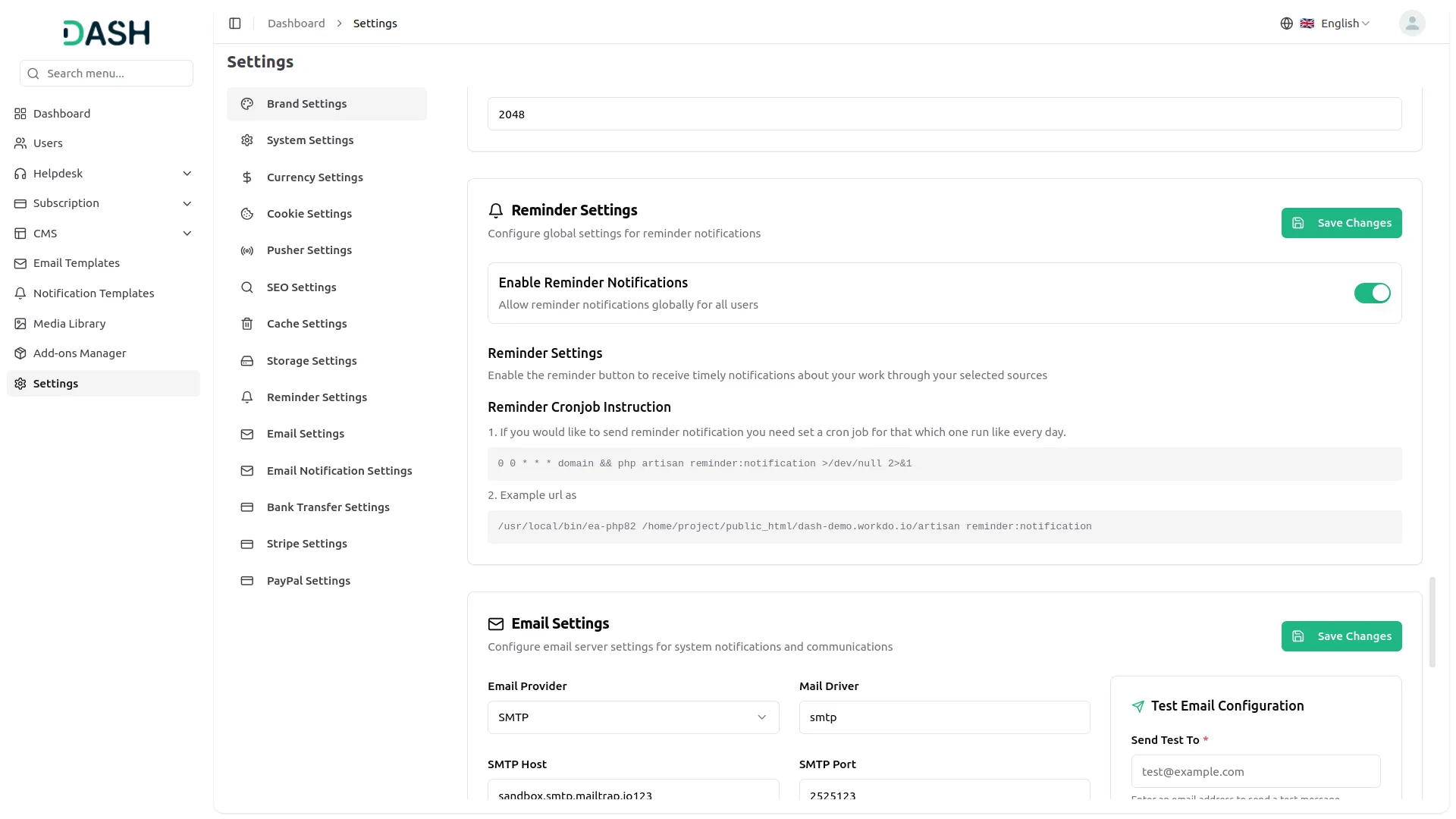
- To configure reminder settings from the super admin side, navigate to Settings and locate the “Reminder Settings” section. Here, you must first enable the Enable Reminder Notifications toggle to allow reminder notifications globally for all users across the system.
- Once the toggle is enabled, you need to set up a cron job on your server to ensure reminders are sent out automatically on a daily basis. Follow the steps provided under the “Reminder Cronjob Instruction” carefully to configure the cron job correctly on your server.
- Set up the cron job using the command provided to schedule it to run once every day.
- Replace the domain placeholder in the example URL with your actual project path, as shown in the example URL provided on the settings page.
- This configuration is essential for the automated daily processing and delivery of reminder notifications across all companies and users in the system.
Company – Settings
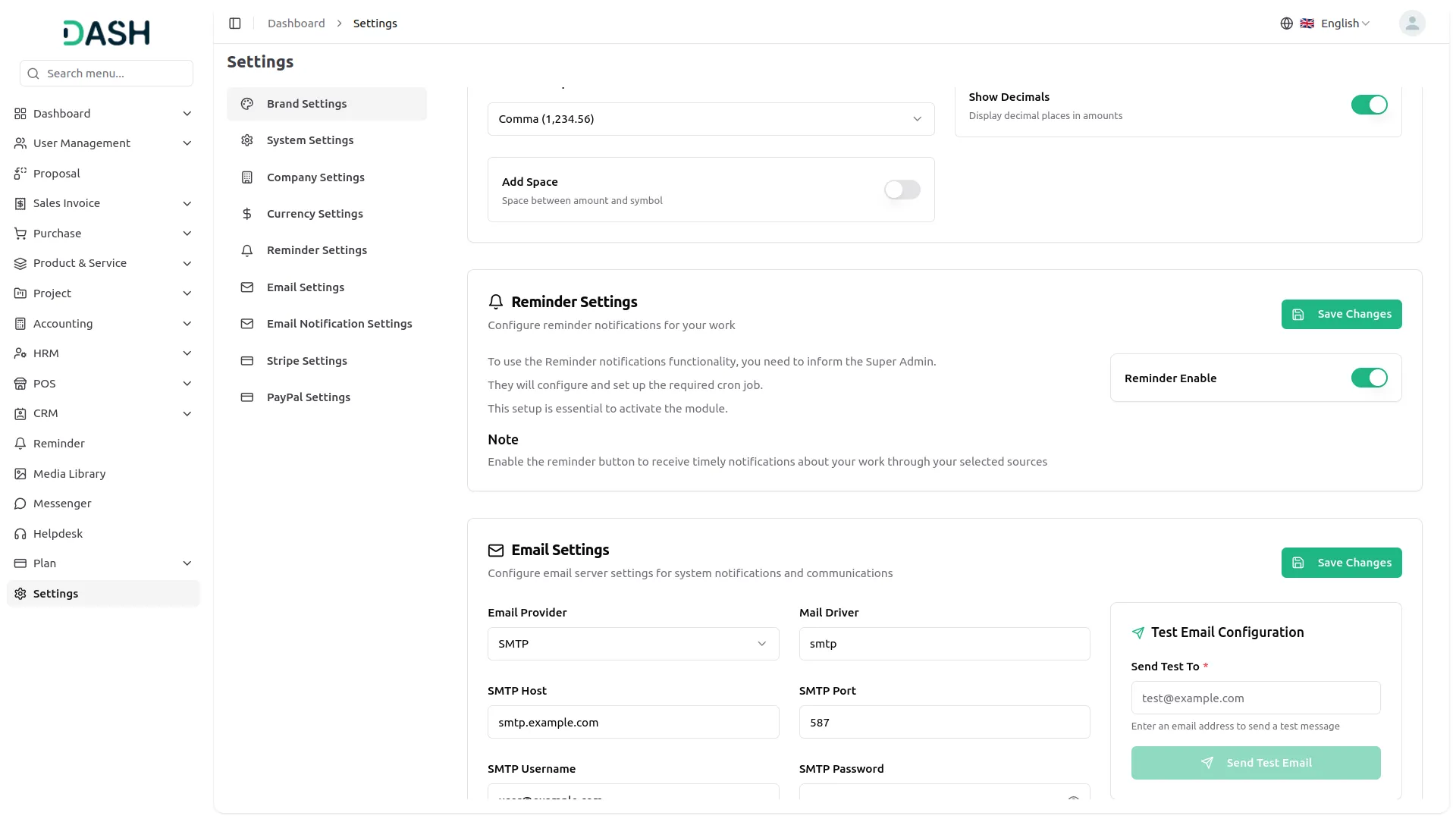
- To configure reminder settings from the company side, navigate to Settings and locate the Reminder Settings section. Here, you can enable the Reminder Enable toggle to start receiving timely notifications about your work through your selected sources.
- Please note that to use the Reminder Notifications functionality, you must first inform your Super Admin to configure and set up the required cron job on the server, as this setup is essential to activate the module.
- Once the Super Admin has completed the configuration, your reminder notifications will begin processing automatically on a daily basis, keeping you updated on your work across all selected sources.
Reminder Management
- To add a new reminder, click the “Create” button on the reminder page. In the Reminder Details section, enter the Reminder Name, then select a Module from the dropdown. Two modules are available: General and CRM.
- If you select the General module, the Sub Module dropdown will display three options: Sales Invoice, Purchase Invoice, and User. Selecting Sales Invoice or Purchase Invoice will show a Module Item field to pick the specific invoice. If you select a user, it will display a Module Item field that lists all users.
- Note: that if you select User as the sub-module, only the Manually scheduling option will be available under Reminder Schedule.
- If you select the CRM module, a Sub Module dropdown will appear with two options: Lead or Deal. Once a sub-module is selected, a Module Item dropdown will appear, allowing you to choose a specific lead or deal record to link the reminder to.
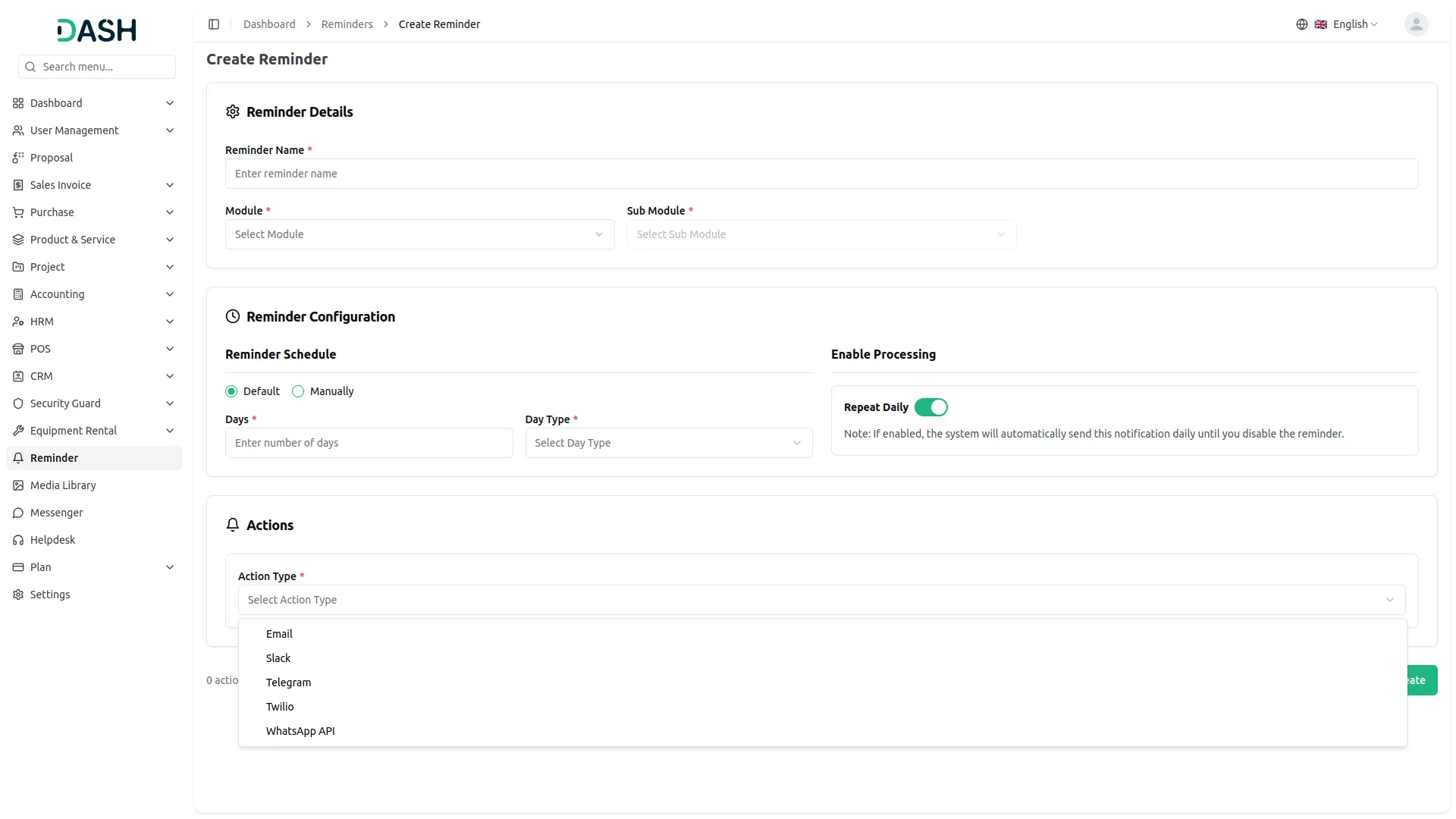
- In the Reminder Configuration section, choose the Reminder Schedule type using the radio button options. Select Default to define automatic scheduling, or Manually to set a specific date.
- If you select Default, two additional fields will appear, enter the number of days, and select the Day Type for automatic scheduling. If you select Manually, a date picker field will appear where you can choose the exact reminder date.
- The Enable Processing panel on the right contains a Repeat Daily toggle. When enabled, the system will automatically send the notification every day until the reminder is manually disabled.
- In the Actions section, select an Action Type from the dropdown. Available notifications are Email, Slack, Telegram, Twilio, and WhatsApp API. Each selection reveals a dedicated configuration panel below.
- Important Note: Each action type will only appear in the dropdown if its corresponding Add-On has been enabled in your settings. If a particular option is not visible, ensure the relevant Add-On is activated before creating the reminder
- For the Email action, an Email Configuration panel will appear. Choose the Recipient Type, either Custom (to enter a specific email address) or Staff (to select from your staff list), then fill in the Recipient Email field and compose your Message.
- For the Slack action, a Slack Configuration panel will appear. Enter the Slack Webhook URL and compose the Message to be sent to the configured Slack channel.
- For the Telegram action, a Telegram Configuration panel will appear. Provide the Telegram Access Token and the Telegram ChatID, then compose your Message.
- For the Twilio action, a Twilio Configuration panel will appear. Select the Recipient Type: Custom or Staff, then enter the Phone Number and compose the Message for the SMS.
- For the WhatsApp API action, a WhatsApp API Configuration panel will appear. Select the Recipient Type: Custom or Staff, then enter the recipient’s Phone Number and compose the Message to be delivered via the WhatsApp API.
- Once all details, configurations, and actions are filled in, click the “Create” button at the bottom right to save the reminder, or click “Cancel” to discard the changes.
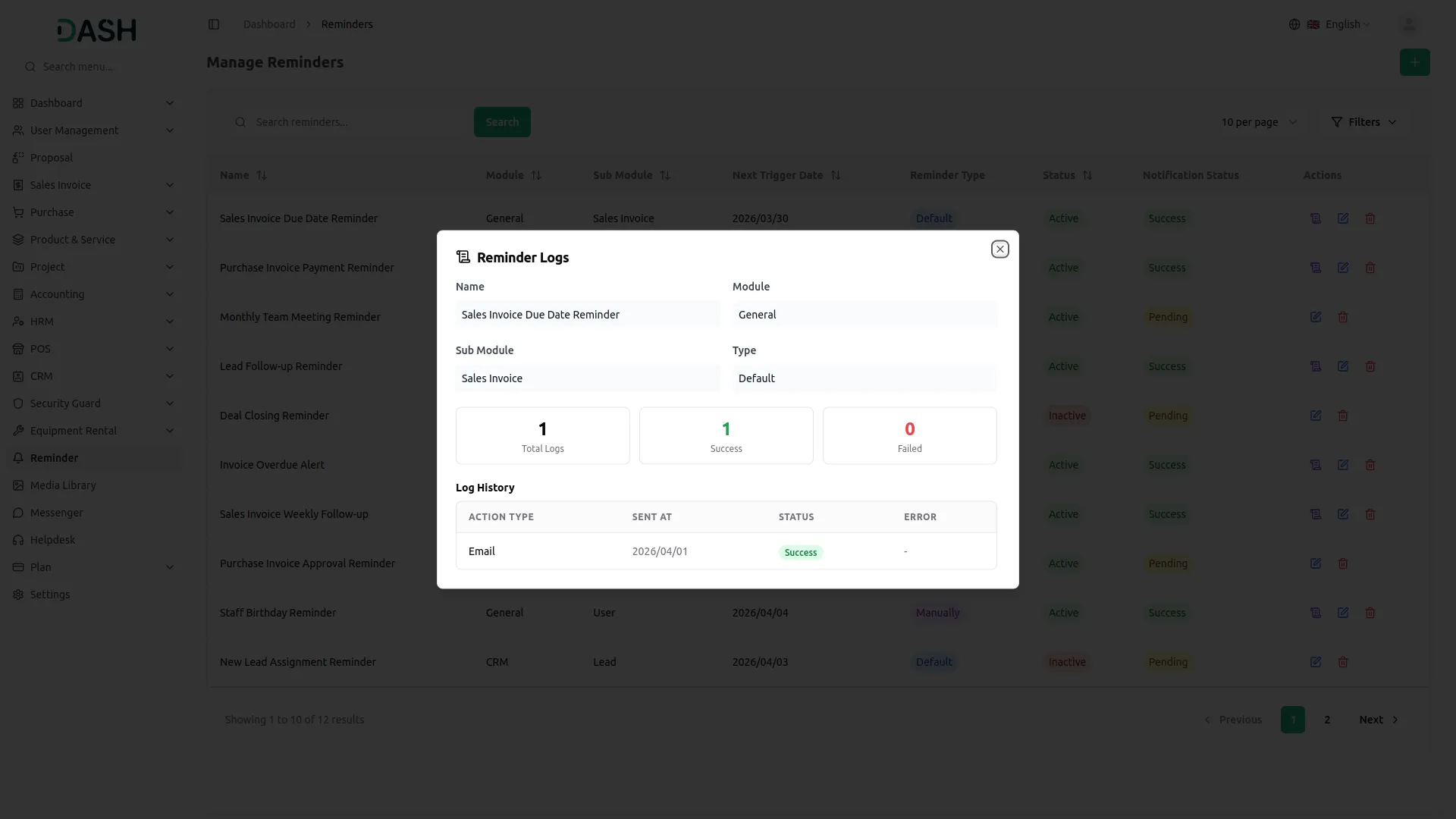
- The Manage Reminders page displays all created reminders in a table with columns for Name (reminder title), Module, Sub Module, Next Trigger Date (the upcoming scheduled date for the reminder), Reminder Type (Default or Manually), Notification Status (Pending or Success), Status (Active or Inactive), and Actions.
- Use the Search bar to find specific reminders by name, and apply filters using the Module dropdown, Status dropdown, and Date Range picker. Click Apply to activate the filters or Clear to reset them.
- With the help of the Actions column, use the View Logs icon to review the delivery history of a reminder, the Edit icon to modify the reminder details, and the Delete icon to permanently remove the reminder.
- When you click View Logs opens the Reminder Logs modal, which displays the reminder’s Name, Module, Sub Module, and Type. It also shows a summary of Total Logs, Success, and Failed delivery counts. The Log History table below lists each delivery attempt with its Action Type (e.g., Email), Sent At date, Status (Success or Failed), and any Error message if the delivery was unsuccessful.
Example Reminder Workflow
Reminder Details
- Reminder Name: Overdue Sales Invoice Payment Reminder
- Module → General
- Sub Module → Sales Invoice
- Module Item → SI-2026-02-002
Reminder Configuration
- Reminder Schedule → Default
- Days → 3
- Day Type → After
- Repeat Daily → Enabled
Selected Actions:
Send Slack Notification
- Webhook URL → https://hooks.slack.com/services/…
- Message → “Payment follow-up required for INV-00123. Check the CRM for details.”
Result:
Once the reminder is saved and activated, the system schedules the first trigger to occur 3 days after the due date.
Available module & Sub Modules
General:
- Sales Invoice
- Purchase Invoice
- User
CRM:
- Lead
- Deal
Categories
Related articles
- Notice Board – WorkDo Dash SaaS Add-On Guide
- Zoho Meeting – WorkDo Dash SaaS Add-On Guide
- Rental Management – WorkDo Dash SaaS Add-On Guide
- PayU – BookingGo SaaS Add-On Guide
- AamarPay – BookingGo SaaS Add-On Guide
- Import Export – eCommerceGo SaaS Add-On Guide
- User Manual – Task SaaS
- eCommerceGo SaaS Add-On Setup Guide
- Investment System – WorkDo Dash SaaS Add-On Guide
- Google Docs – WorkDo Dash SaaS Add-On Guide
- Diagram – WorkDo Dash SaaS Add-On Guide
- Slack Integration – TicketGo Add-On Guide
We're Here to Help - Let's Talk
Have questions about our solutions, customization services, or business tools? Our team is here to help you. let's talk.