
Braintree – WorkDo Dash SaaS Add-On Guide
Learn how to configure and manage Braintree integration in WorkDo Dash SaaS easily.
Supported Countries: United States, Canada, Australia, Singapore, Hong Kong SAR, Malaysia, New Zealand, and All European Countries
Supported Currencies: USD, EUR, GBP, CAD, AUD, NZD, HKD, CHF, NOK, SEK, JPY, ZAR, and More
Benefits of Braintree Payment Gateway
Comprehensive Payment Security
Braintree safeguards every transaction with advanced encryption and industry-leading security features, ensuring that all payments processed through the platform remain fully protected and secure from unauthorized access.
Wide Range of Payment Methods
Customers can choose from multiple payment options, including credit and debit cards, bank transfers, and digital wallets, giving businesses the flexibility to accommodate diverse customer preferences and deliver a convenient checkout experience.
Global Payment Accessibility
With support across the United States, Europe, Asia Pacific, and beyond, Braintree enables businesses to accept payments from customers worldwide, removing geographical barriers and opening doors to a truly international customer base.
Seamless & Intuitive User Experience
Braintree’s smooth and well-designed payment flow minimizes friction at checkout, reducing drop-offs and ensuring customers can complete their transactions quickly and effortlessly every time.
Consistent Uptime & Reliable Support
Braintree delivers dependable system availability and responsive customer support, ensuring that payment operations remain uninterrupted and businesses can always count on a stable and trustworthy gateway experience.
How to Access Braintree Add-On?
- Visit the WorkDo Dash website:
Go to https://workdo.io/ to access the WorkDo Dash platform. - Navigate to Dash SaaS Add-Ons:
Explore the “Dash SaaS Add-Ons” section on the website to discover available Add-Ons. - Discover Braintree Add-On:
Browse the list of available Add-Ons and find the “Braintree Payment Gateway.” - Activate the Add-On:
Click the “Activate” button next to the Braintree Add-On to enable it for your WorkDo Dash account.
How does Braintree Works?
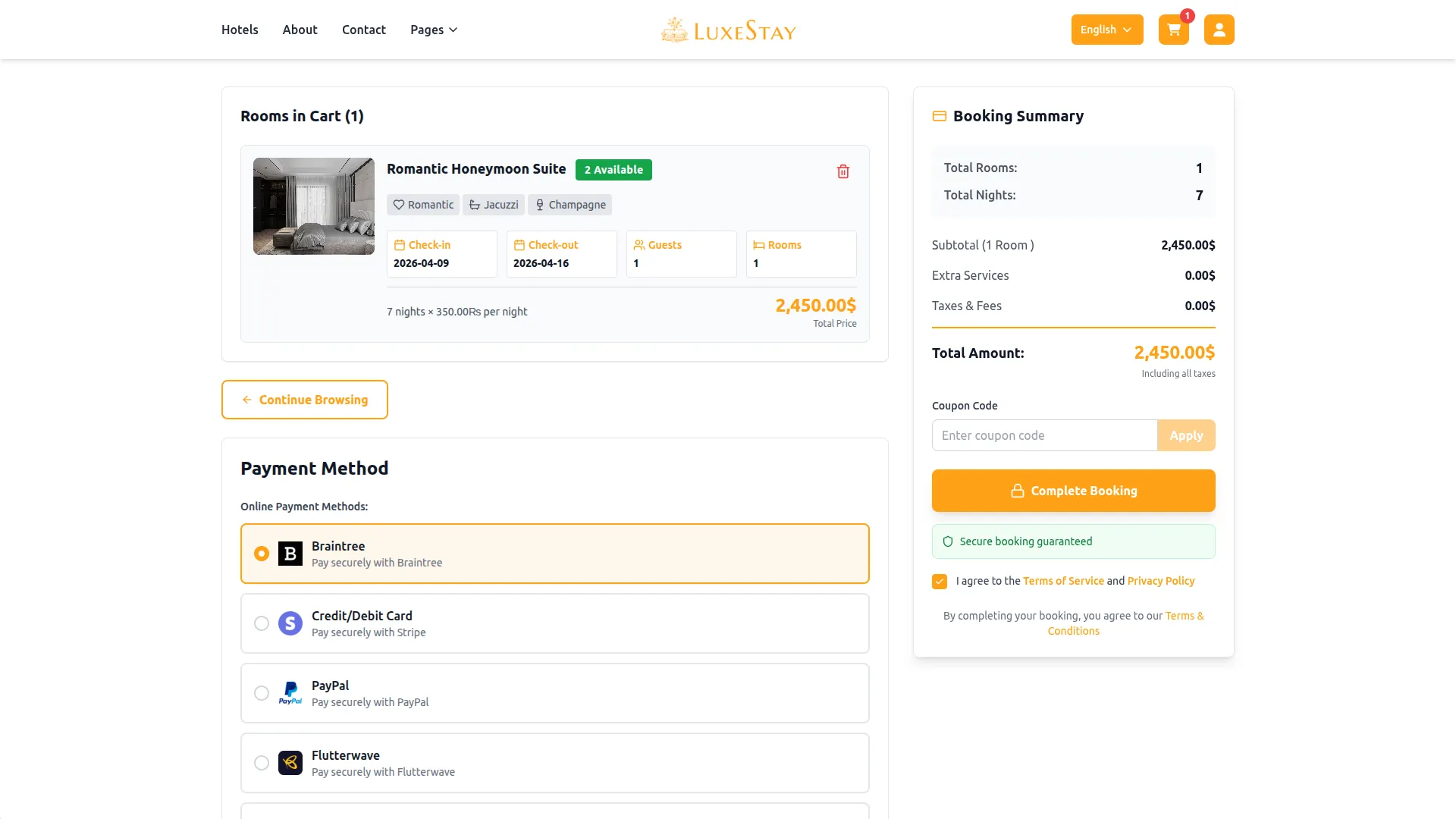
Braintree integration in Dash SaaS enables businesses to accept online payments directly within their platform by connecting their Braintree account through the settings panel. Once integrated, users can offer customers a variety of payment options such as cards, bank transfers, and more, all processed securely via Braintree’s encrypted gateway. Transactions are automatically tracked and recorded within Dash SaaS, providing real-time visibility and simplifying financial management. The integration requires minimal setup and ensures a smooth, reliable, and secure payment experience for both businesses and their customers.
Super Admin Settings
(Plan Purchase by the Company)
The Super Admin Settings are accessible only to the highest-level administrator. These settings allow the Super Admin to manage company-level subscriptions and payment configurations.
Key Capabilities:
- Purchase or upgrade company subscription plans
- Configure Braintree API credentials for plan payments
- Enable or disable Braintree as a payment gateway
Configuration Path:
Super Admin Login → Settings → Braintree Settings
Company Settings
(Bookings, Beauty Spa, LMS & Other Payments)
Company Settings allow organizations to configure Braintree for receiving payments from customers across multiple modules.
Supported Modules Include:
Configuration Path:
Company Login → Settings → Braintree Settings
Company-Level Capabilities:
- Configure Braintree API credentials
- Enable Braintree for selected modules
- Accept online payments from customers
- Manage Bookings, Beauty Spa, and service
- Handle tax, coupon, and discount calculations
How to Generate Braintree API Credentials?
To integrate Braintree with WorkDo Dash, obtain API credentials from your Braintree Portal:
1. Register an Account
- Visit the official Braintree Portal:
- Signup URL: https://apply.Braintreegateway.com/signup/sandbox
- Log in URL: https://sandbox.Braintreegateway.com/login
- Sign up for an account.
2. Access Your API Credentials
- After logging in, navigate to your settings from the header menu.
- Locate the “API” section.
- Obtain your Merchant ID, Public Key, and Private Key.
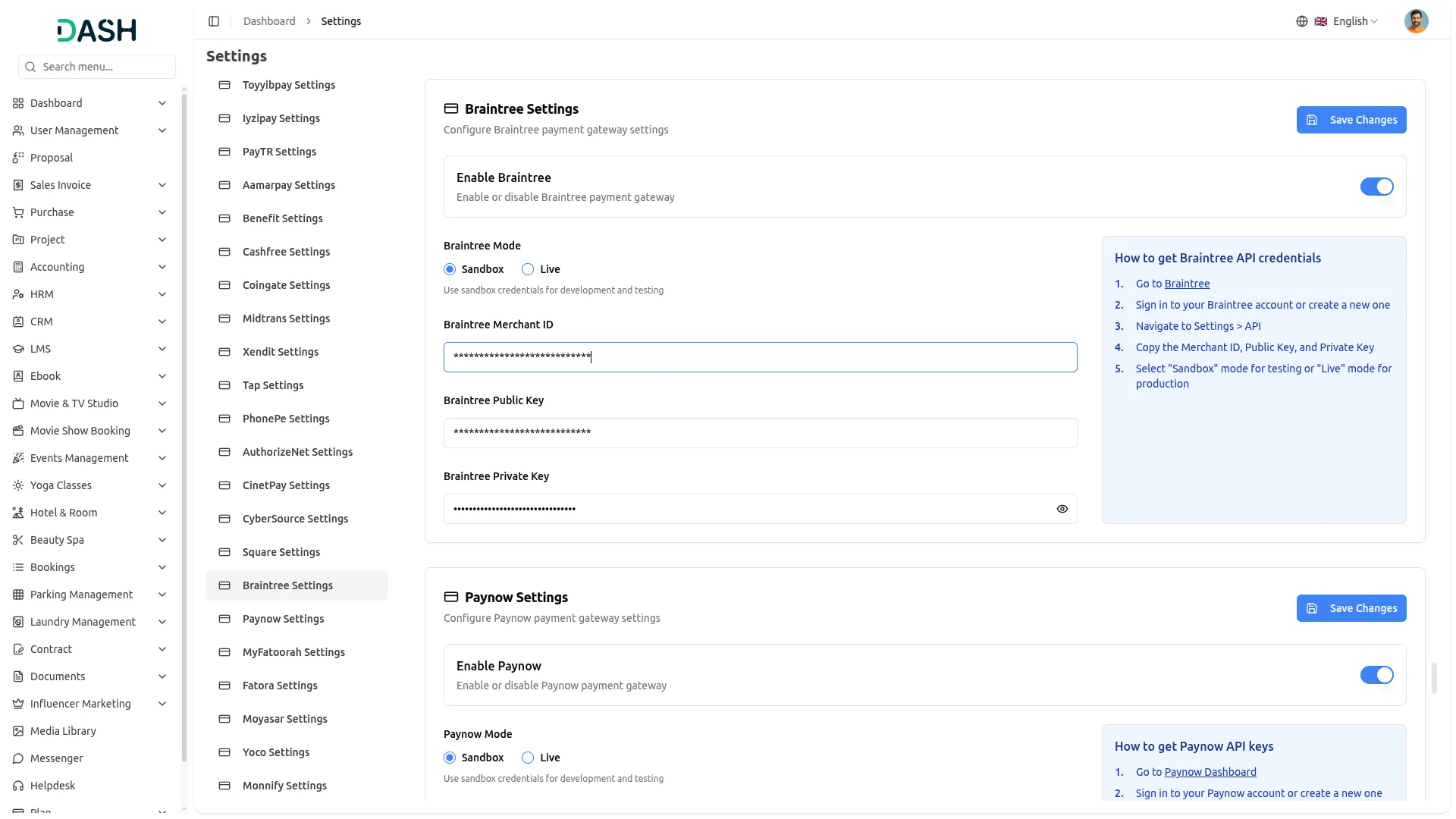
3. Configure Braintree Gateway in (Product Name):
- Log in to your (Product Name) account with administrator credentials.
- Navigate to the settings page.
4. Set Up Braintree Gateway :
- Scroll down the page until you find the Braintree Gateway option.
- Click on the Braintree Gateway to access its configuration settings.
5. Enter Required Details :
- In the Braintree settings, provide the following essential details :
- Braintree Merchant ID
- Braintree Public Key
- Braintree Private Key
6. Save Your Settings
- After entering the necessary details, save the settings to activate the Braintree Payment Gateway within your Dash SaaS platform.
This detailed documentation overviews Braintree Payment Integration, its benefits, and the integration process. By integrating Braintree, businesses and organizations can offer their customers a secure and flexible payment experience while streamlining their payment processes.
Note: The Braintree Add-On is a paid feature and can be accessed by users who have purchased it. By integrating the Braintree Add-On into your WorkDo Dash SaaS account, you’ll provide a reliable and user-friendly payment gateway that supports global transactions.
Categories
Related articles
- Event – vCard SaaS Add-On Guide
- Tip – BookingGo SaaS Add-On Guide
- NGO Management – WorkDo Dash SaaS Add-On Guide
- CoinGate – WorkDo Dash SaaS Add-On Guide
- Instamojo – WorkDo Dash SaaS Add-On Guide
- SSLCommerz – BookingGo SaaS Add-On Guide
- Paystack – BookingGo SaaS Add-On Guide
- PhonePe – WorkDo Dash SaaS Add-On Guide
- Google Forms – WorkDo Dash SaaS Add-On Guide
- Pet Tag – vCard SaaS Add-On Guide
- Coupon List – eCommerceGo SaaS Add-On Guide
- Medical Lab Management – WorkDo Dash SaaS Add-On Guide
We're Here to Help - Let's Talk
Have questions about our solutions, customization services, or business tools? Our team is here to help you. let's talk.