
Vehicle Booking Management – WorkDo Dash SaaS Add-On Guide
Learn how to manage vehicle bookings, schedules, and customer records in WorkDo Dash SaaS.
Introduction
The Vehicle Booking Add-On is a complete management solution for operating a vehicle booking business, built on top of the Fleet Add-On. It allows you to manage vehicles, routes, services, bookings, payments, and daily operations such as fuel logs, maintenance, and incident tracking, while also handling customer interactions, reviews, blogs, and inquiries. Alongside backend operations, it provides full control over website content, branding, and frontend sections, enabling a seamless booking experience and a fully customizable vehicle booking platform.
How To Install The Add-On?
To Set Up the Vehicle Booking Add-On, you can follow this link: Setup Add-On.
Note: This Add-On is dependent on the Fleet Add-On, so you must first purchase and enable the Fleet Add-On in order to use the Vehicle Booking Add-On.
How To Use The Vehicle Booking Add-On?
Dashboard
- After completing the purchase process, go to the sidebar and find the Vehicle Booking Add-On.
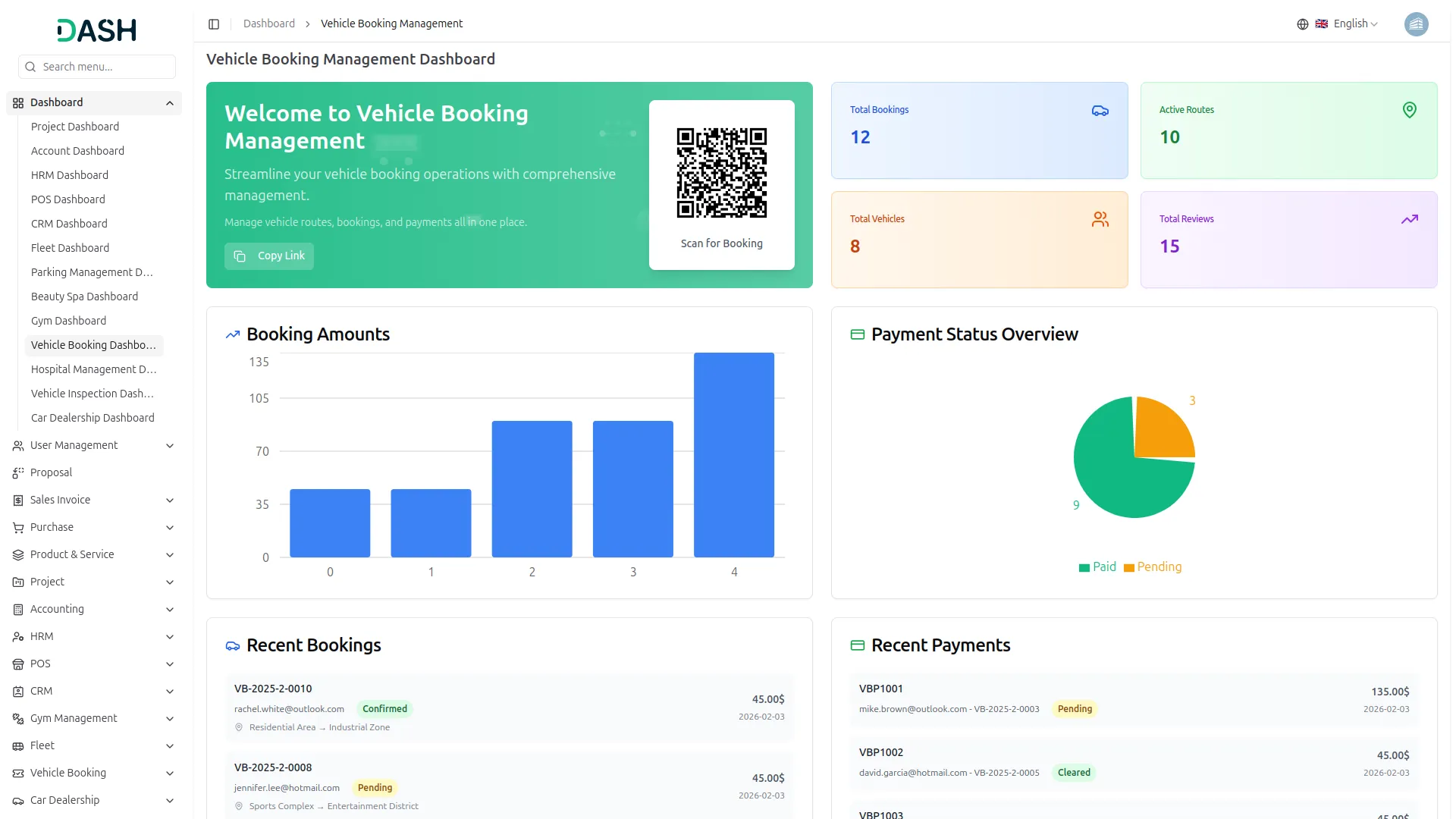
- After accessing the Vehicle Booking Management Dashboard, you will see the welcome section at the top with a QR code that users can scan for quick booking access.
- At the top, you’ll find the “Copy Link” button to share the booking page with your customers.
- The dashboard gives you a clear overview with summary cards showing live counts of Total Bookings, Active Routes, Total Vehicles, and Total Reviews.
- Below the summary cards, you will find the Booking Amounts chart that displays your booking trends across different time periods, helping you track booking patterns at a glance.
- On the right side, the Payment Status Overview shows a pie chart breaking down your payments into Paid and Pending categories, giving you instant visibility of your payment collection status.
- At the bottom left, the Recent Bookings section displays your latest reservations with details including booking ID, customer email, location, status (Confirmed or Pending), amount, and date.
- On the bottom right, the Recent Payments section shows payment transactions with payment ID, customer email,payment status (Cleared or Pending), amount, and transaction date, allowing you to track all financial activities in one place.
Vehicle Booking
- On the Vehicle Bookings page, you can easily add a new booking by clicking the “Create” button given at the top right of the page.
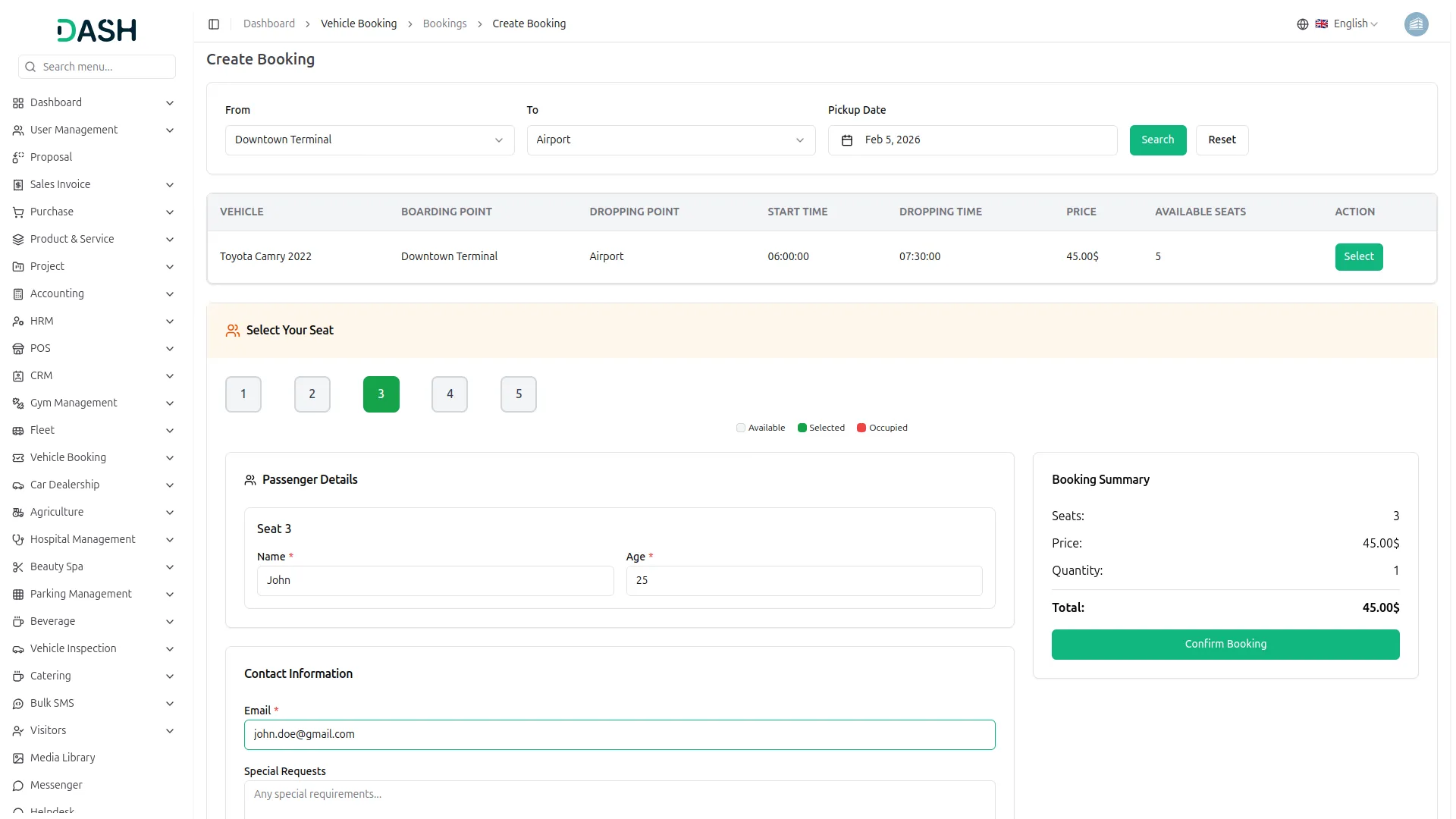
- First, choose the “From” and “To” locations from the dropdown menu (both fields will come from the route section). Set the onward date for your journey.
- After this, you can click the “Search” button to filter available vehicles for your selected onward date.
- The search results appear in a table showing Vehicle name, Boarding Point, Dropping Point, Start Time, Dropping Time, Price, Available Seats, and a Select button for each available option.
- When you find a suitable vehicle, click the Select button to proceed with the booking process.
- After selecting a vehicle, the Select Your Seat section appears below, showing numbered seat buttons with color indicators – gray for available seats, green for selected seats, and red for occupied seats. Click on the seats you want to reserve.
- Once you’ve selected your seats, scroll down to the Passenger Details section, where you’ll need to enter the Name and Age for each passenger corresponding to the seat numbers you selected.
- Below the passenger details, complete the Contact Information section by entering your Email address and add any Special Requests in the text area if needed.
- On the right side, the Booking Summary displays your selected seat numbers, price per seat, quantity of seats, and the total amount. Review this information carefully.
- After filling in all the required details, click the Confirm Booking button at the bottom of the summary section to complete your reservation.
-
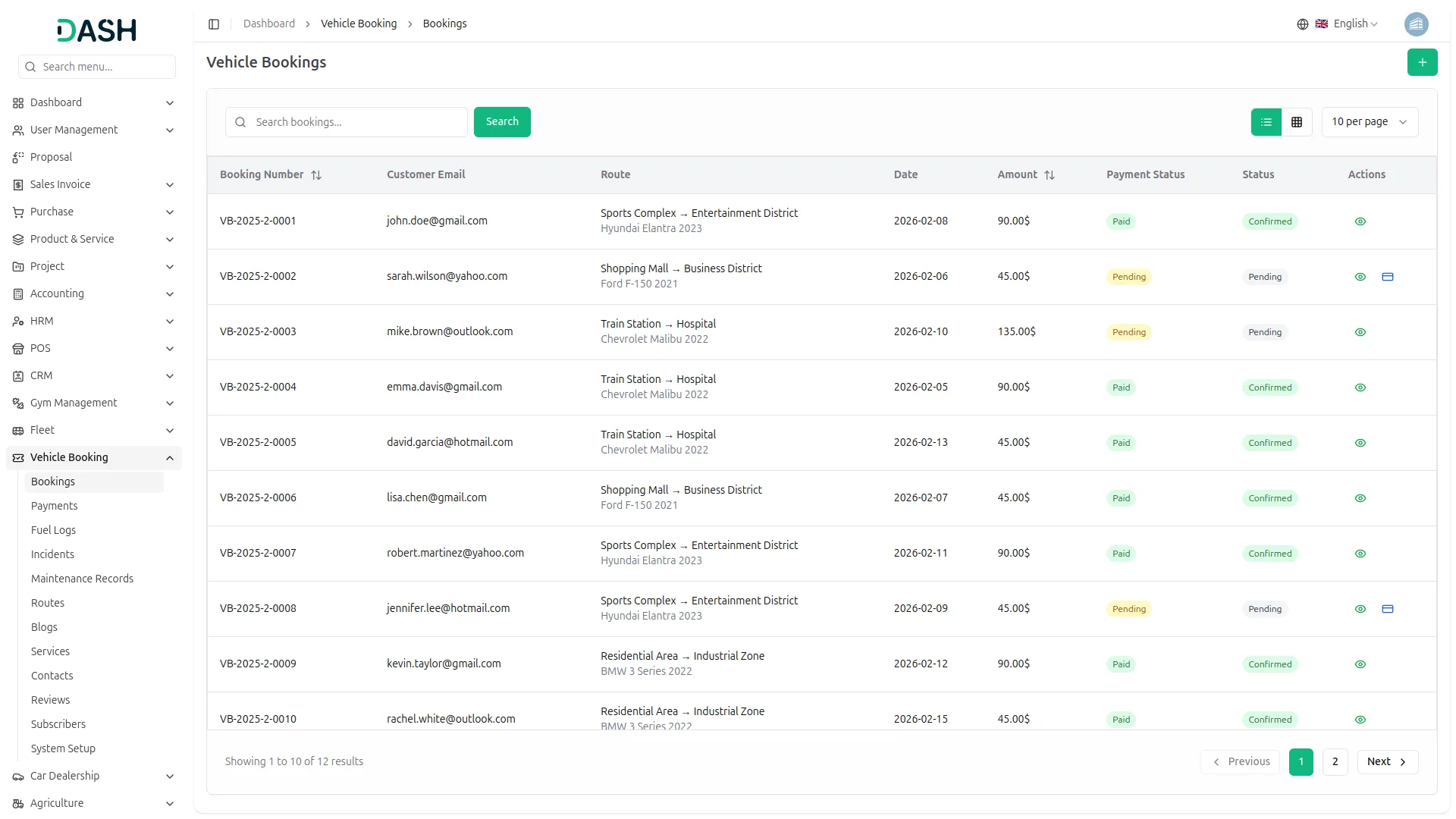
- The list page displays all bookings in a table with a column for booking number, customer email, route, date, amount, payment status (displayed as paid or pending), status (confirmed or pending), and action. Use the search bar to find existing specific booking records.
- Available action: You can use the view to see the Booking Vehicle Details. To process a payment for a booking, click on the payment action, which opens the Process Payment form.
- In the Process Payment form, enter the Payment Date, select a Bank Account from the dropdown (which comes from the base), add the Reference Number, confirm the Payment Amount, and add any Notes if needed in the text area. The payment-enabled entry will be displayed in the Payments section.
Manage Payment
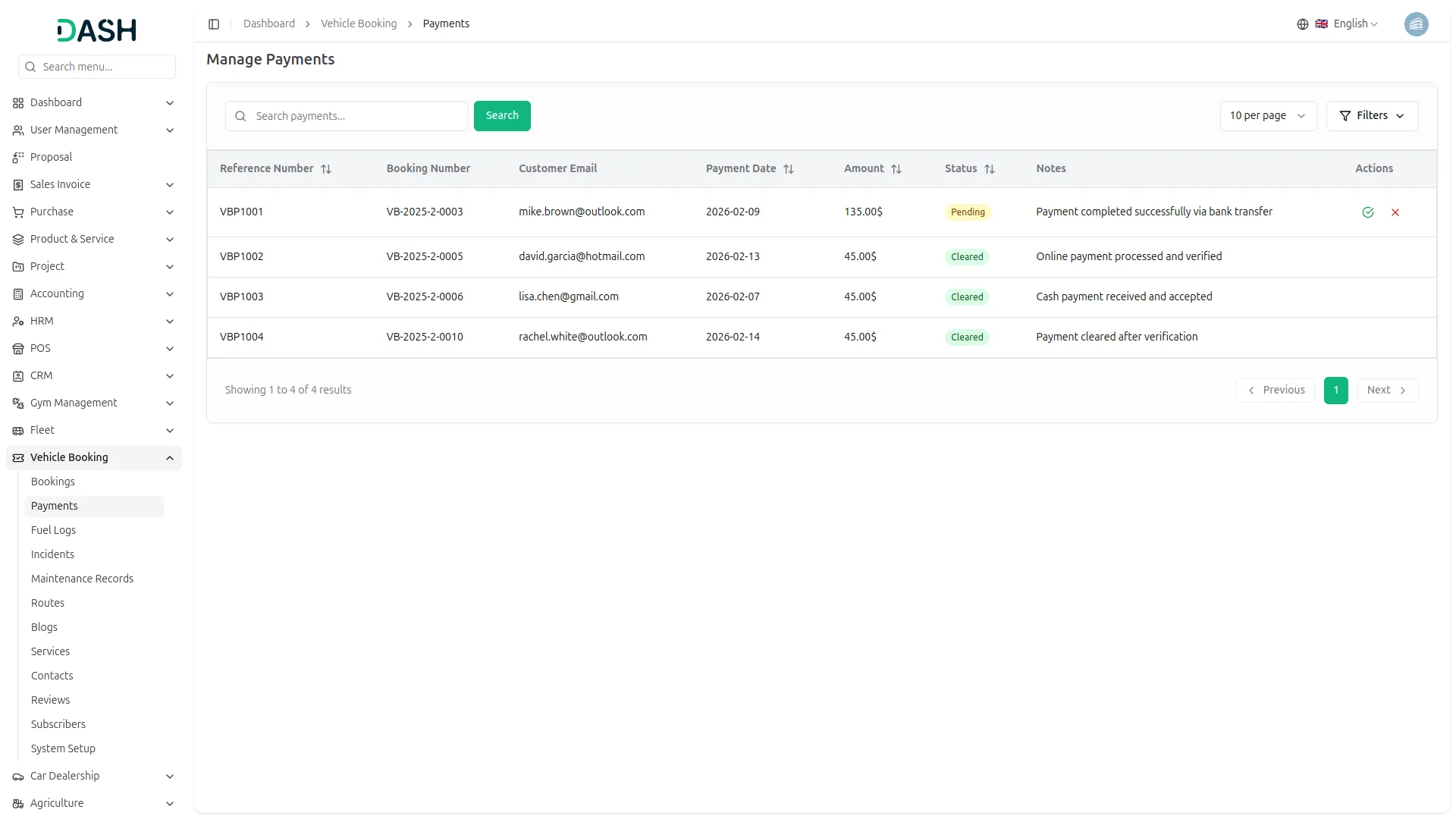
- On the Manage Payments page, you can view and manage all payments in a table of columns, including Reference Number, Booking Number, Customer Email, Payment Date, Amount, Status (Pending or Cleared), Notes (showing payment details and confirmation messages), and Actions.
- In the Actions column, you’ll find actions to manage each payment: click an approved payment to confirm or verify it, and click a rejected payment to delete or reject it if needed. When you click the approved button, the pending payment status will change to Cleared.
Fuel Logs
- After managing your vehicle bookings, to add new fuel log data, click the “Create” button at the top of the page.
- Fill in the information by selecting the Vehicle from the dropdown (populated from Fleet Add-On’s Vehicles section), choosing the Fuel Type from the dropdown (coming from Fleet Add-On’s Fuel Type section), entering the Quantity of fuel purchased, adding the Cost, and selecting the Refuel Date from the date picker.
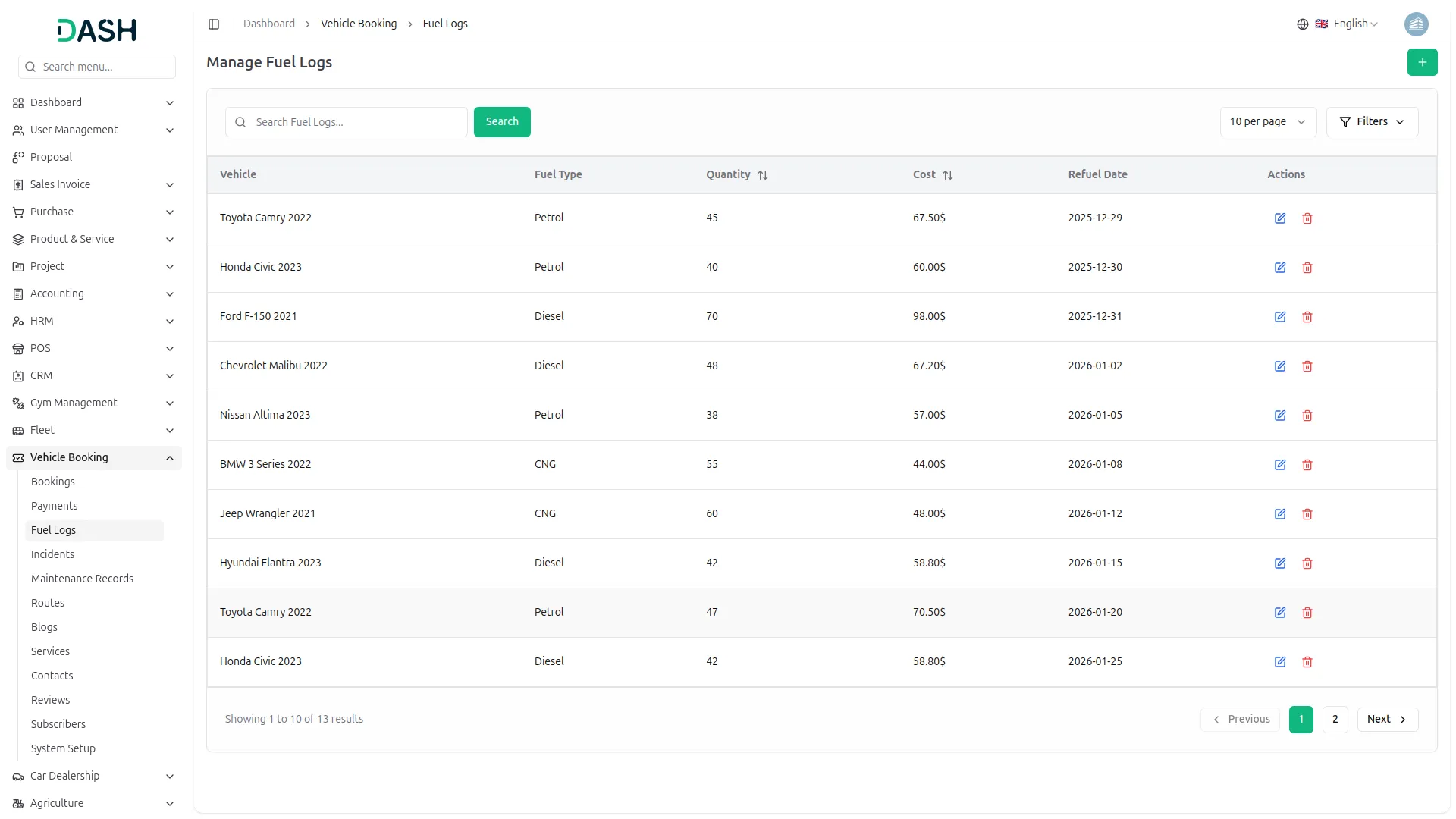
- The fuel logs list page displays all records in a well-organized table with columns for Vehicle Name, Fuel Type, Quantity, Cost, Refuel Date, and Actions. You can use the search bar to manage the fuel log list.
- Click the filter button to apply filtering data, including selecting the Vehicle from the dropdown (which comes from the Fleet Add-On), Fuel Type (which comes from the Fleet Add-On), then click the Apply button to filter the data or the Clear button to reset it.
- Available actions: Using the Actions column, you can edit to modify the fuel log data or delete to remove the existing record.
Manage Incidents
- To track vehicle damages and incidents, click the “Create” button at the top right of the Manage Incidents page.
- Select the Vehicle from the dropdown (populated from Fleet Add-On’s Vehicles section), choose the Incident Date, enter the Damage Details, add the cost, select the Status by choosing either the Resolved or Unresolved radio button, and optionally add a Description.
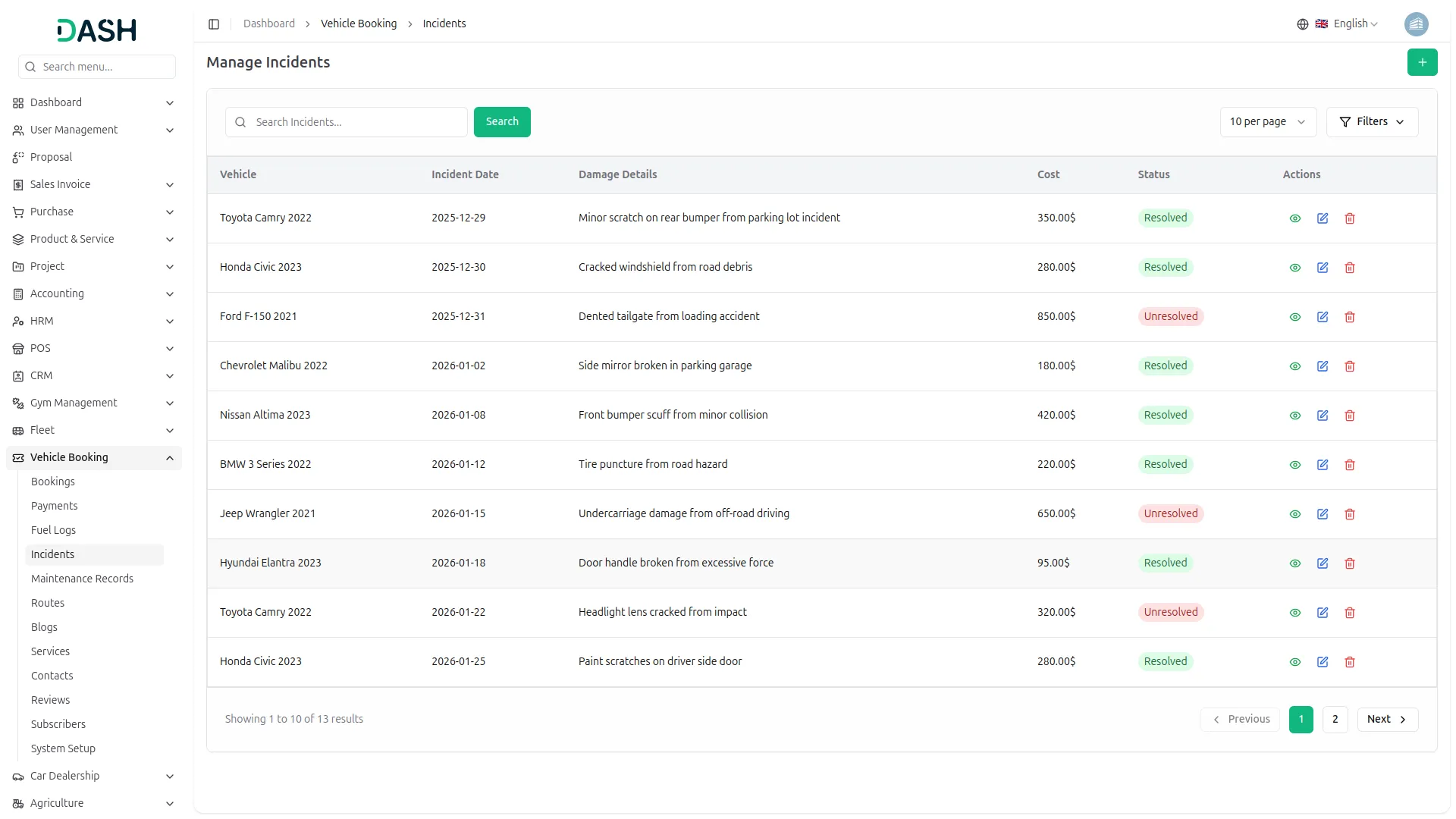
- The incidents list page displays all records in a table with columns for Vehicle Name, Incident Date, Damage Details, Cost, Status (Resolved or Unresolved), and Actions. Use the search function to find a specific incident record.
- Then click the filter button to apply filters from the available options: select the vehicle from the dropdown menu (comes from the Fleet Add-On), choose the status from the dropdown (Resolved, Unresolved), and click the Apply button to filter the data or the Clear button to reset it.
- In the action column, use view to see the incident details, edit to modify the incident data, or delete to remove the incident record permanently.
Maintenance Records
- On the maintenance page, you can add your maintenance record by clicking on the “Create” button at the top of the maintenance records page.
- Fill in the required details, including selecting the Vehicle from the dropdown (populated from Fleet Add-On’s Vehicles section), choosing the Service Type from the dropdown (from the Service section), entering the Cost, setting the Maintenance Date or Next Maintenance Due date, and optionally adding a Description.
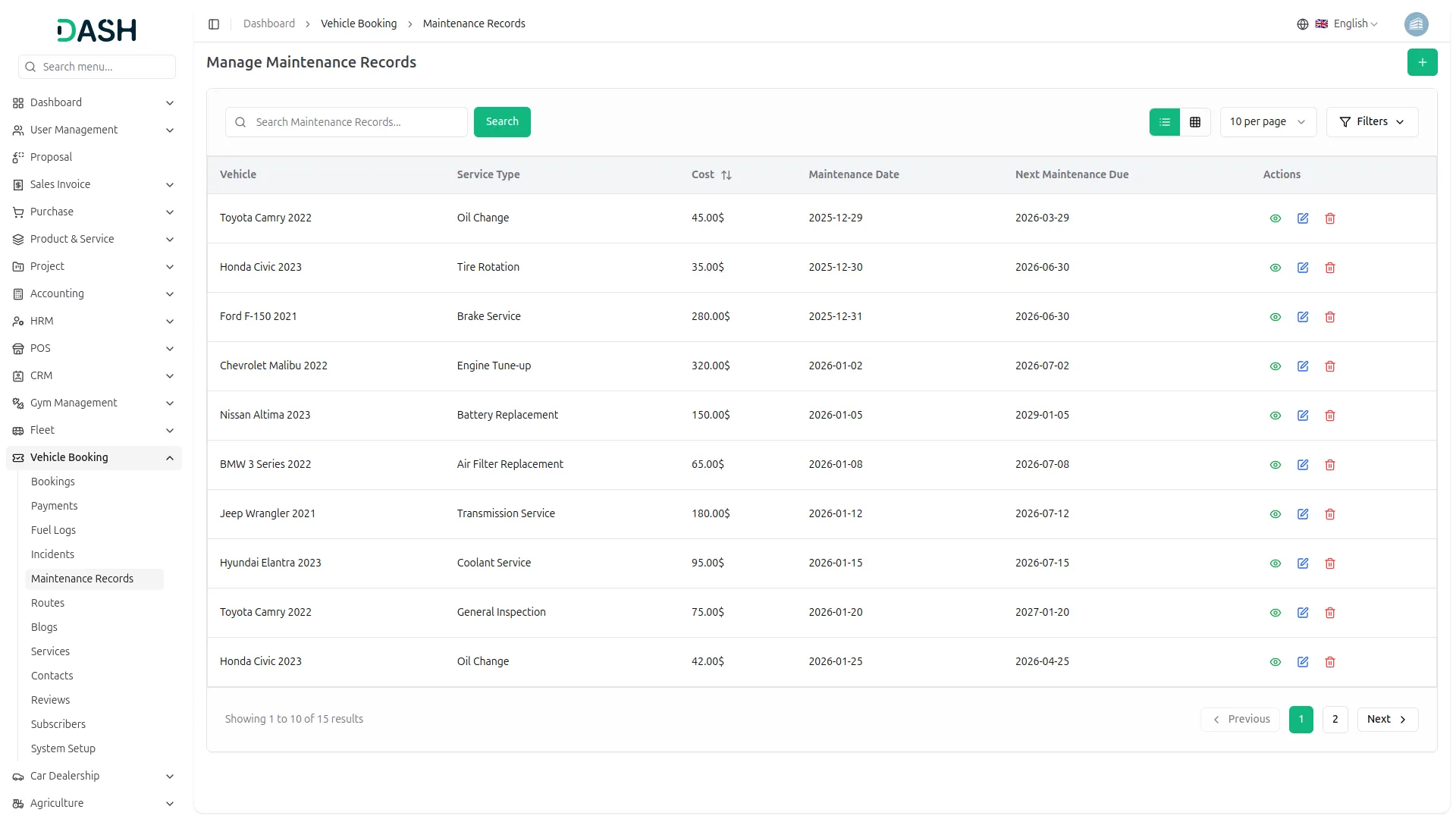
- The maintenance records list page displays all records in a table with columns for Vehicle Name, Service Type, Cost, Maintenance Date, Next Maintenance Due, and Actions.
- You can use the available actions, including viewing the maintenance record details, editing to modify the maintenance details, or deleting to remove them whenever you want.
- You can use the search bar to find specific records, and click the filter button to filter the list data, select Vehicle from the dropdown (which comes from the Fleet Add-On), then click the Apply button to filter the data or the Clear button to reset it.
Routes Management
- In the Route Management section, to add a new route, click the “Create” button at the top of the route management page and fill in the required details, such as selecting the Vehicle from the dropdown (populated from Fleet Add-On’s Vehicles section), entering the Starting Point or Dropping Point, Start Location, End Location, setting the Start Time or End Time, and adding the Price.
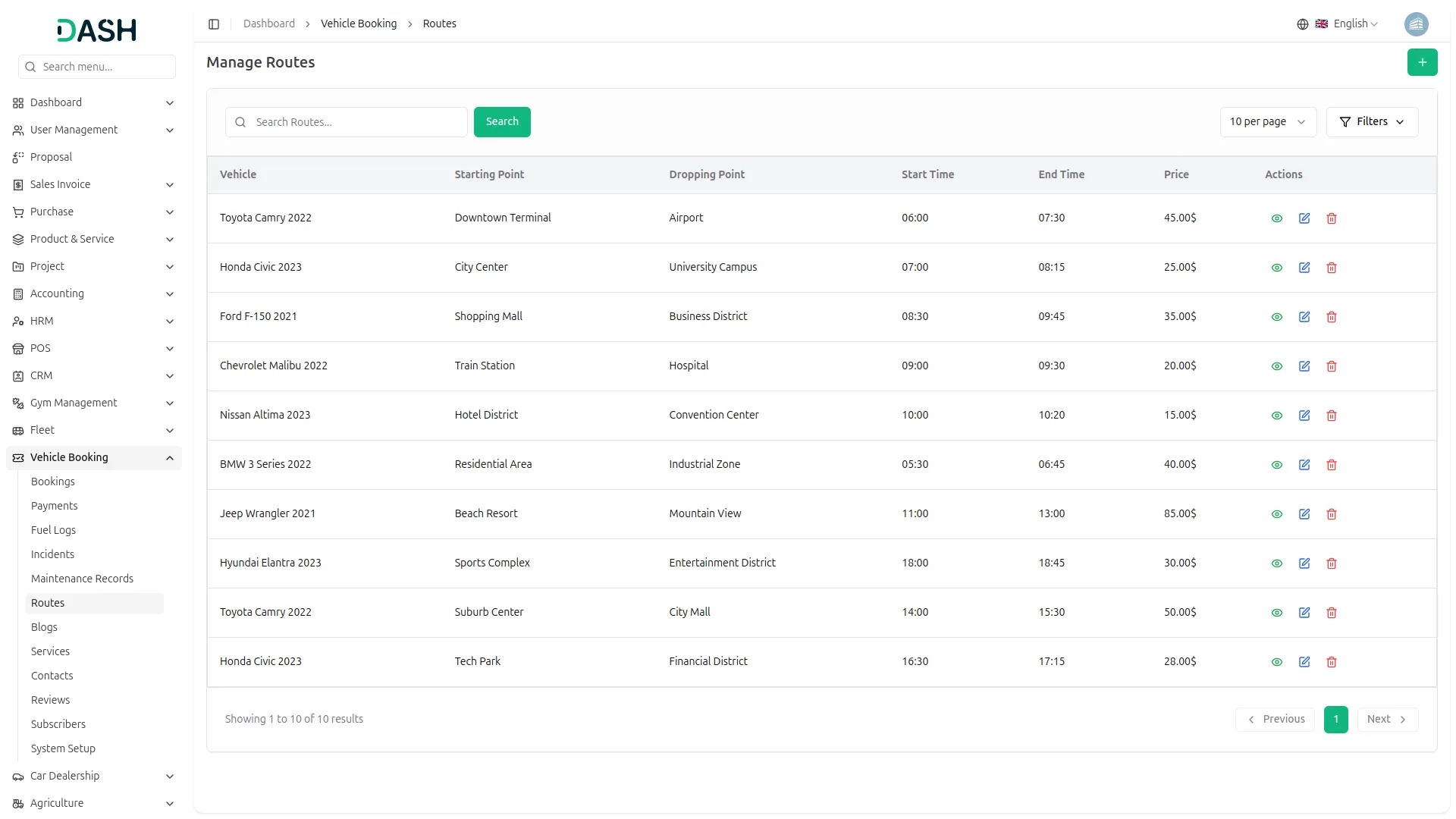
- The route list page displays all records in an organized table with columns for Vehicle Name, Starting Point, Dropping Point, Start Time, End Time, Price, and Action.
- Use the search function to find the specific route data. Click the filter button to apply filtering data, including selecting the Vehicle from the dropdown (which comes from the Fleet Add-On), then click the Apply button to filter the data or the Clear button to reset it.
- Available actions for each route include View to see the route details, Edit to modify route details, and Delete to remove routes.
Manage Blog
- To add a new blog, click the “Create” button at the top of the manage blog page. Start with the enter the title, and upload a Featured Image by clicking the Browse button next to the Select featured image, and entering the description. Write blog content.
- In the author information section, you need to enter the author’s name and designation, upload the author image by clicking the Browse button to select the author’s photo from your device, and enter the author description.
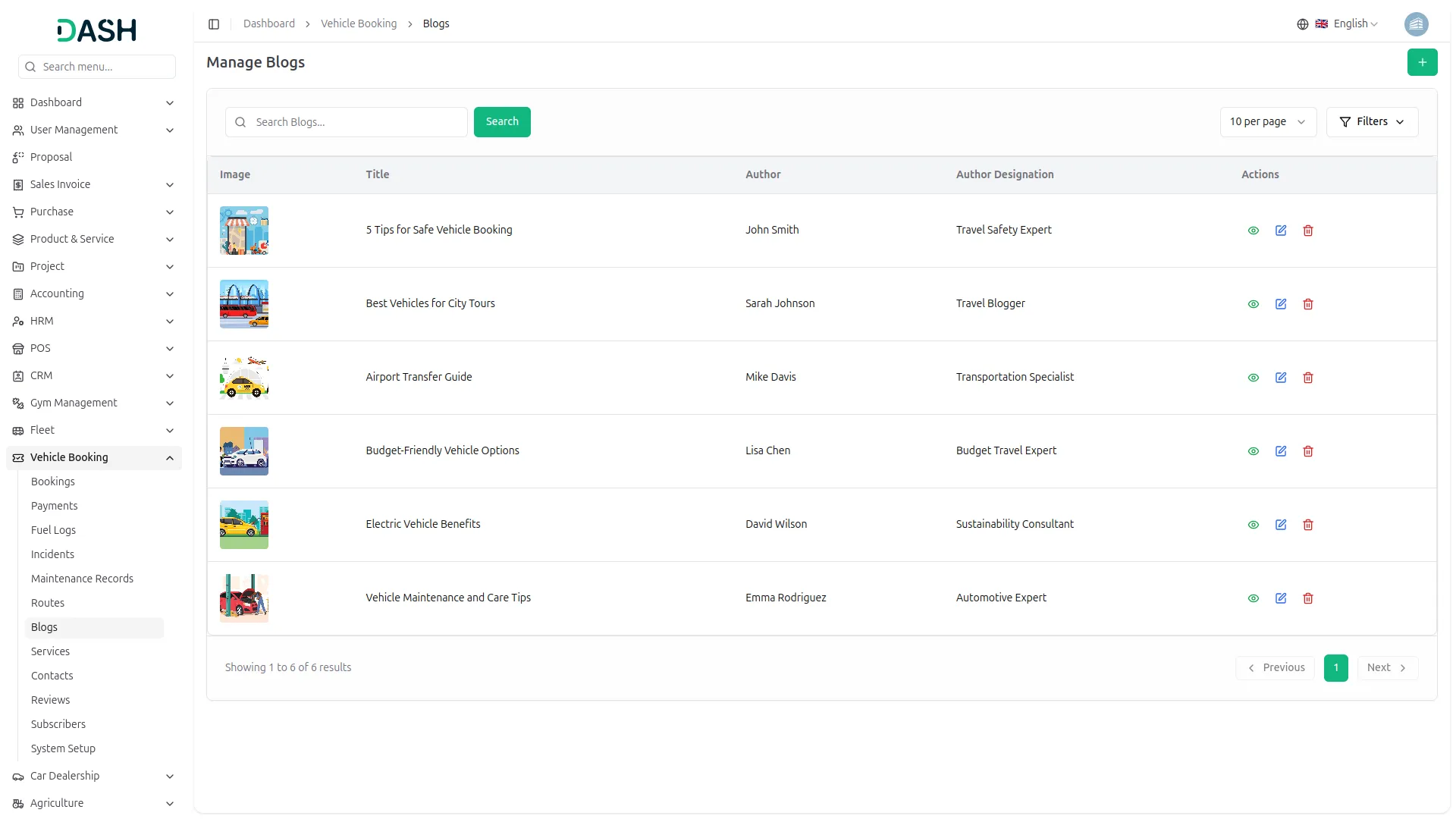
- The blogs list page displays all blog posts in a table with columns for Image (showing blog thumbnail), Title, Author, Author Designation, and Actions.
- Use the search functionality to find specific data from the list, click the filter button to access additional options, and set the date range to filter, with Apply and Clear buttons to apply or remove the date filter.
- Available actions you can use the view to see the full blog details, edit to modify the blog information, and delete to remove the existing record permanently.
-
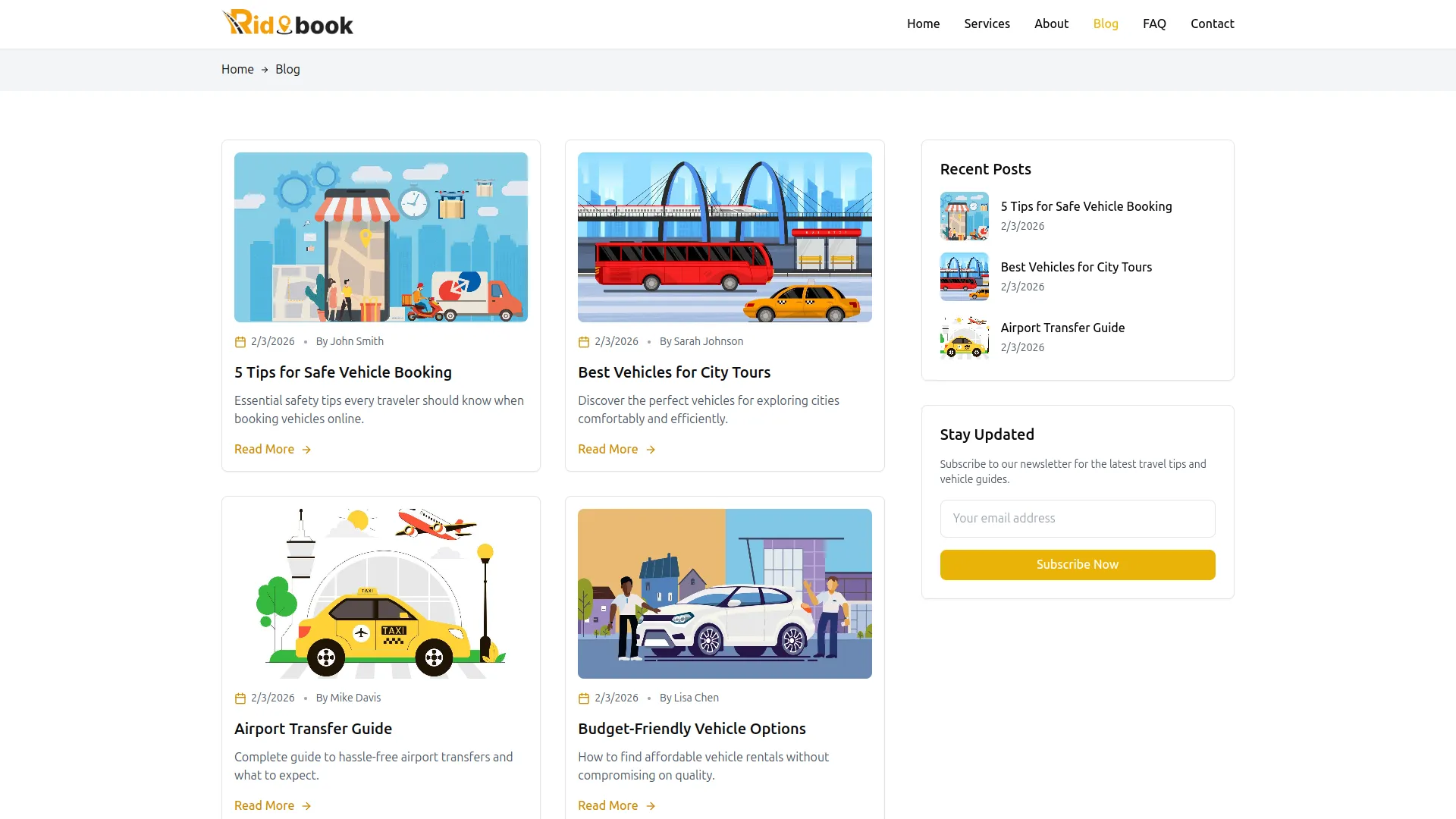
- On the website, you’ll get to see the page that displays blog articles in a grid layout. Each blog card includes a featured image, publication date, author name, article title, excerpt, and a “Read More” button to open the full article.
- The right sidebar displays the Recent Posts section with quick links to the latest three articles. Below that, the Stay Updated section allows you to subscribe to the newsletter by entering your email and clicking the “Subscribe Now” button.
Manage Services
- To add a new service, click the “Create” button at the top of the manage service page. Select Route from the dropdown (populated from the routes section). After the Vehicle is auto-selected based on the route you choose, enter the Rent Price, and add a description.
- In the Features section, you can add service features by selecting an Icon from the icon picker, entering the Feature Name, and specifying the Price. Click the Add Feature button to add multiple features to your service (you can add as many features as needed).
- Click the Browse button next to Main Image to open the Media Library and select the primary service image, and click the Browse button next to Additional Images to upload multiple supplementary images for the service.
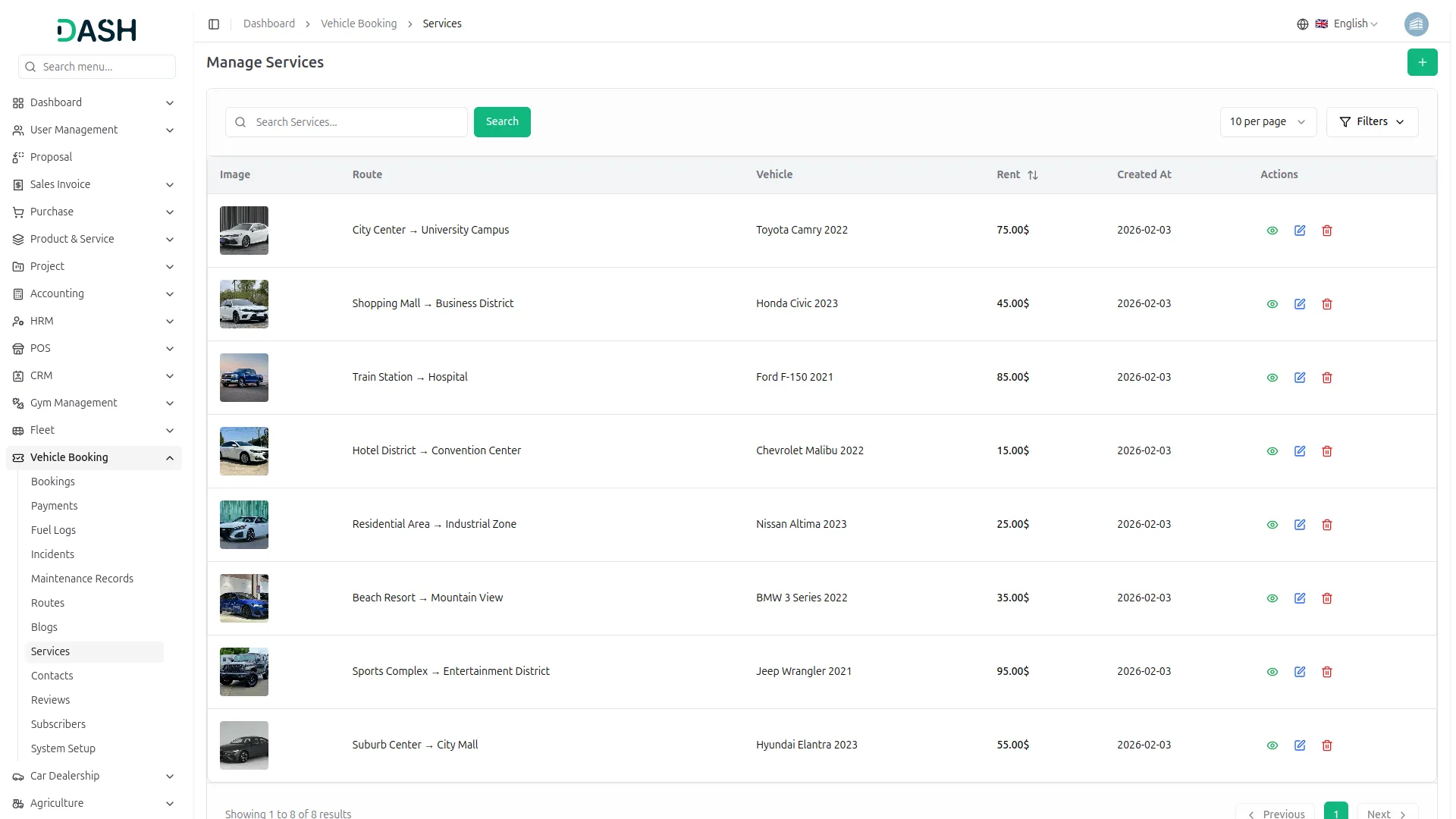
- The page displays a table with columns for Image (service thumbnail), Route, Vehicle, Rent, Created At, and Actions. Use the search function to find a specific service.
- In the action column, you can use the view to complete details of the service, the edit to modify the service entry, and the delete to remove the service record.
- Use the search function to find the specific route data. Click the filter button to apply filtering data, including selecting the Vehicle from the dropdown (which comes from the Fleet Add-On), then click the Apply button to filter the data or the Clear button to reset it.
-
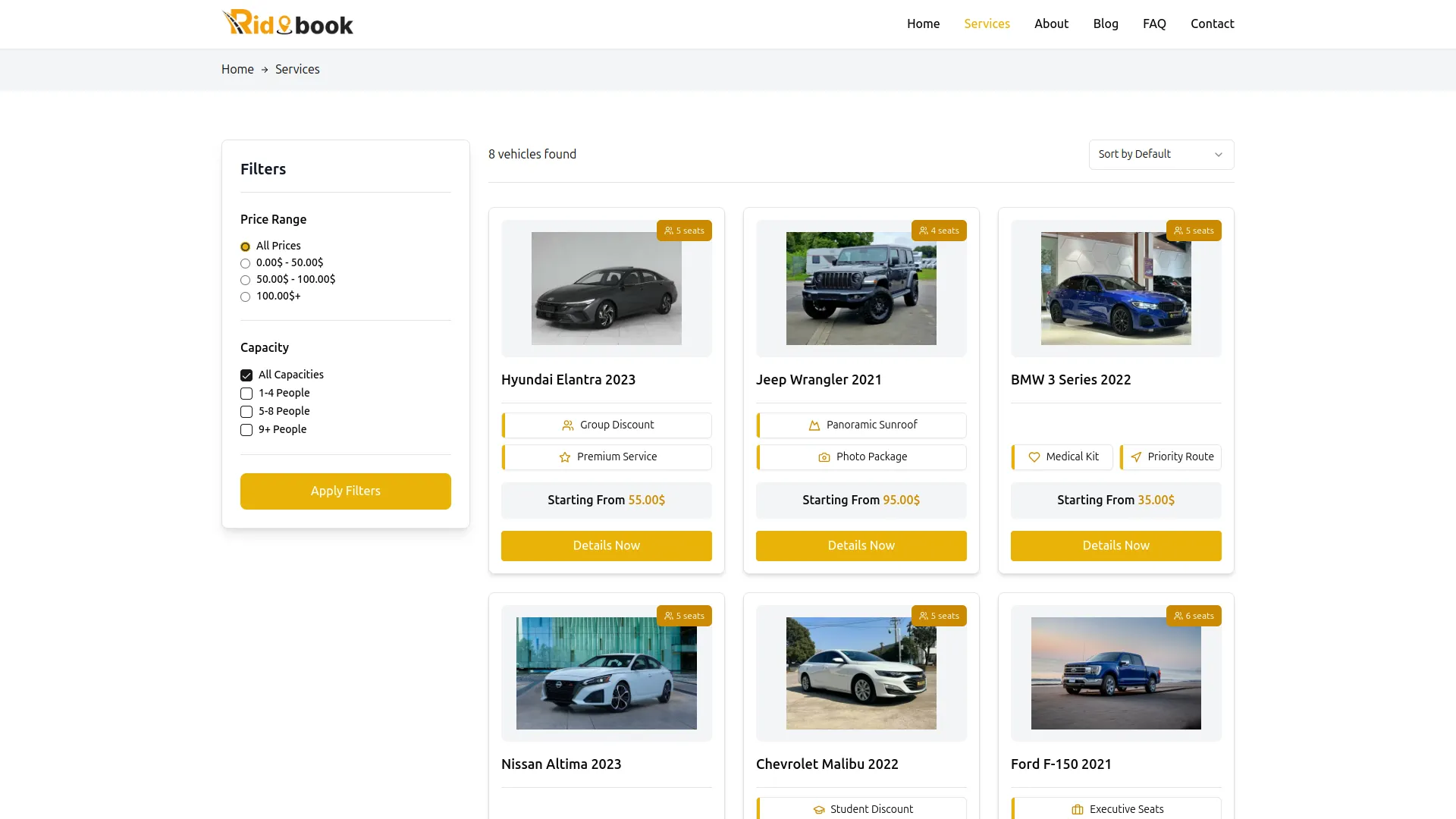
- On the website, you’ll get to see the Filter Panel on the left side of the page. You can narrow your search by Price Range and Capacity.
- After choosing your filters, just click the Apply Filters button. At the top of the results, you’ll see how many vehicles match your filters. You can also use the Sort by dropdown to change how the results are ordered.
- The page will show you vehicle cards, which include an image, ratings, key features, and the price. To get more details, click the Details Now button on any vehicle card.
Manage contact
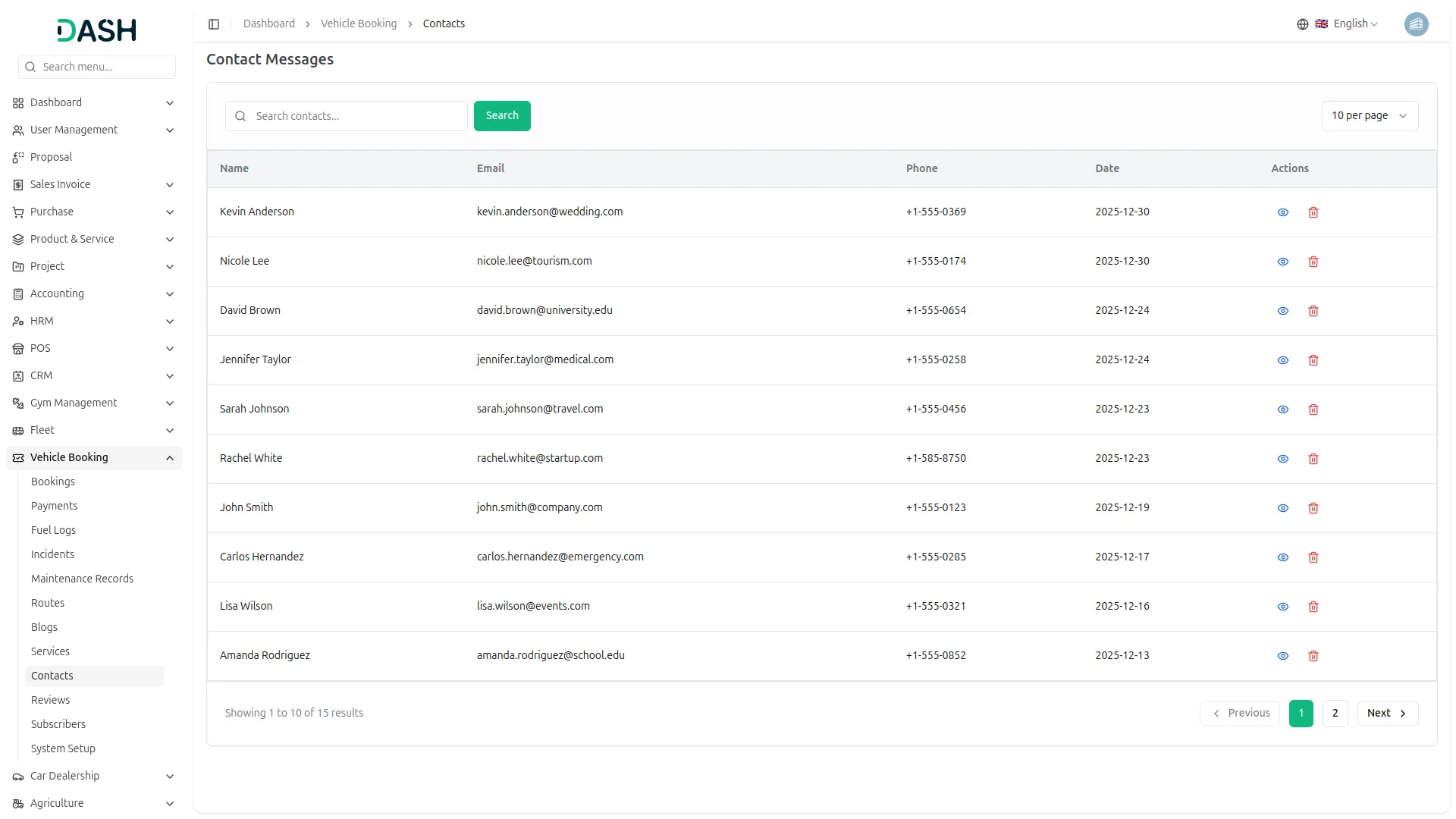
- The entry of contact data created on the frontend is shown on the backend. In the Contact Messages page, you can view and manage all contact submissions.
- On the Manage contact page, you can view and manage all customer contacts and messages for your vehicle booking site.
- The page displays a table with columns for Name, Email, Phone, Date, and Actions. You can use the search function to easily find the specific contact. Available actions you can use the view to see a contact entry, and delete to remove the contact whenever you want.
Manage Review
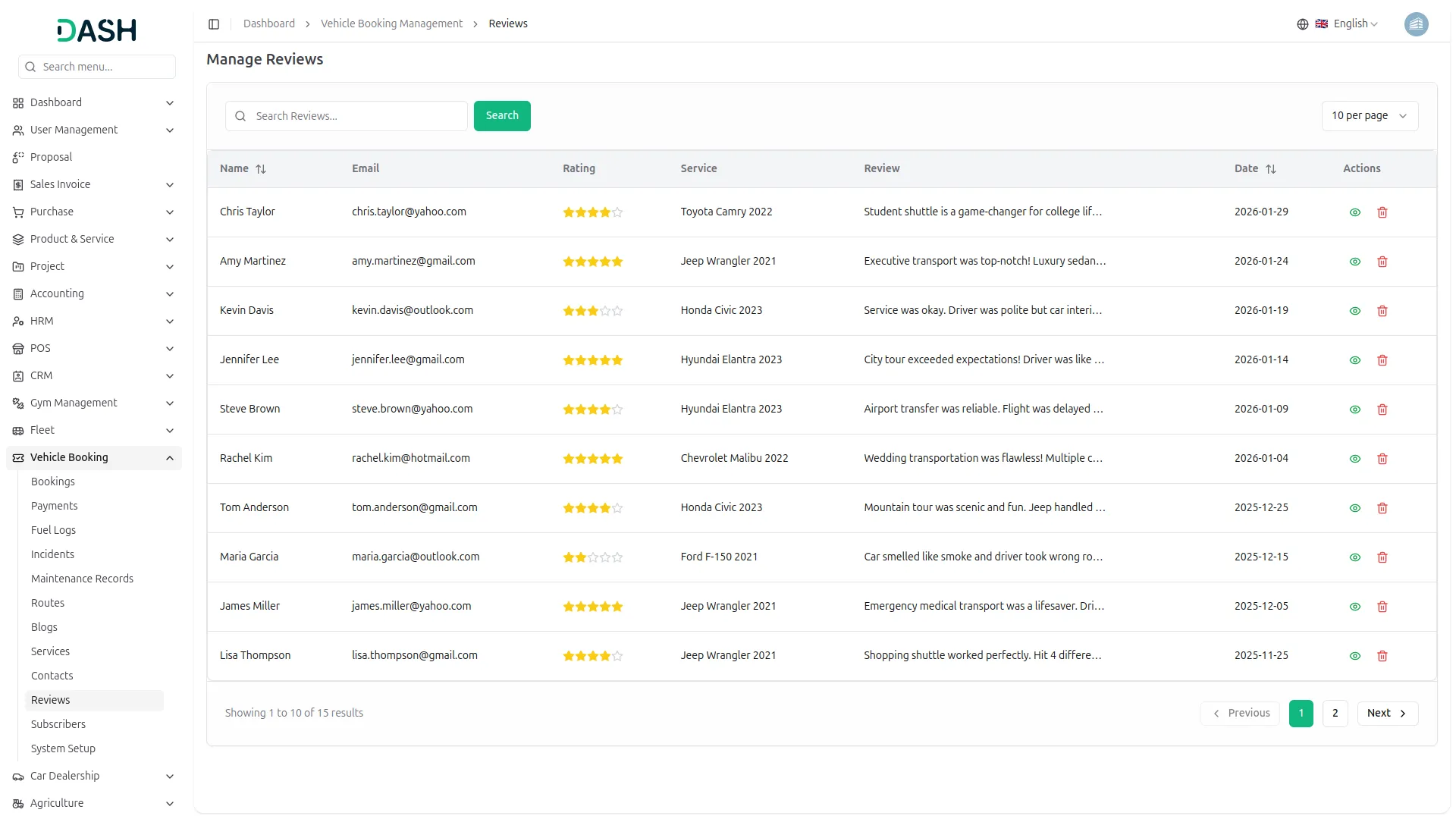
- On the Manage Reviews page, you can view and manage all customer reviews and ratings for your vehicle booking services.
- The page displays a table with columns for Name, Email, Rating (displayed as star ratings from 1 to 5 stars), Service, Review, Date, and Actions. Use the search function to find the specific review record.
- In the action column, you can use the view to see the complete details of the review, or delete to remove review data permanently.
Manage Subscribers
- On the website, in the footer section, you’ll find the Newsletter area where you can subscribe to updates and offers. Simply enter your email address in the subscription field and click the arrow button to submit.
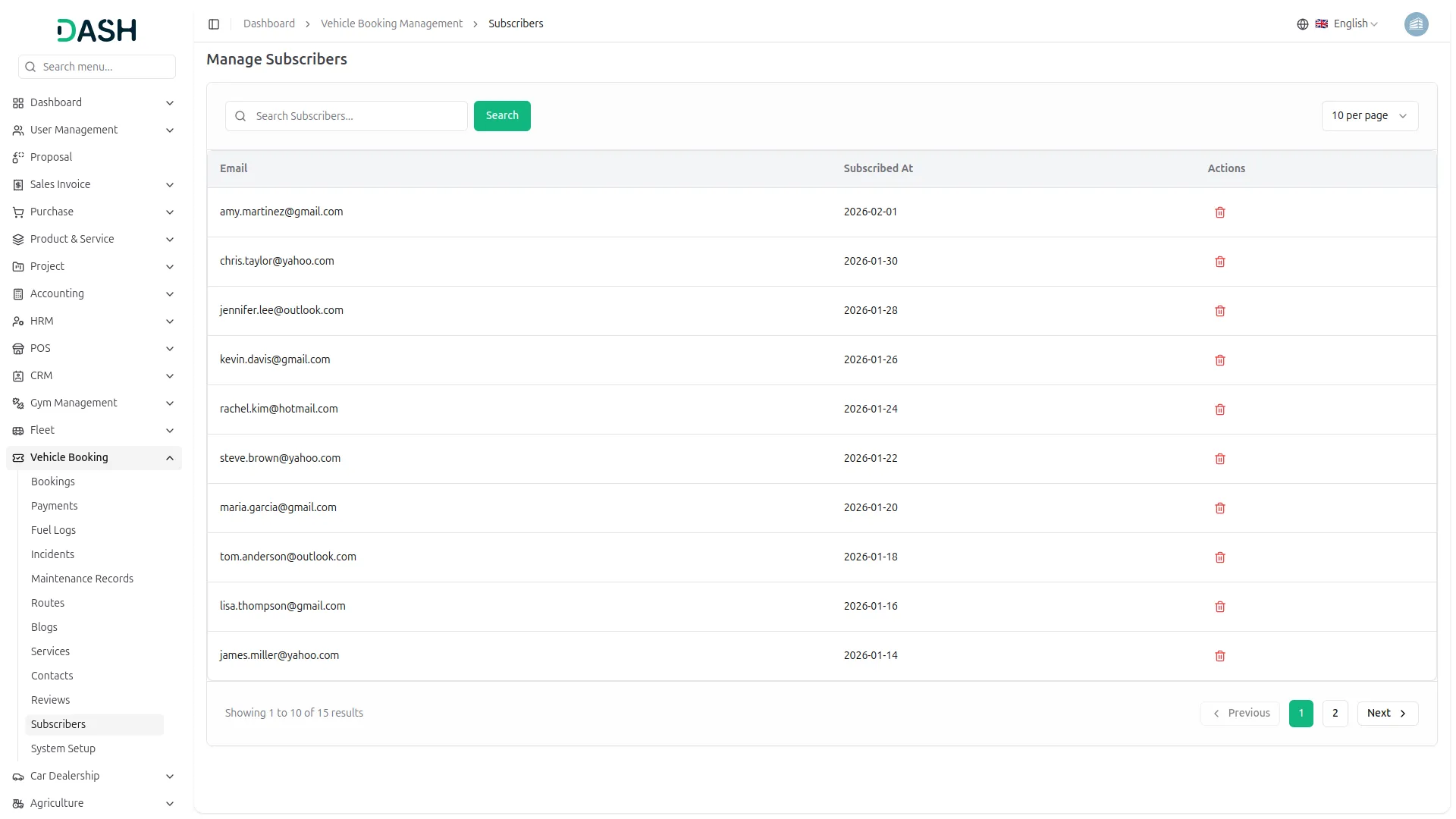
- The entry of subscribers’ data created on the frontend is shown on the backend. In the Manage Subscribers page, you can view and manage all newsletter subscribers.
- The page displays a table with columns for Email, Subscribed At, and Actions. Use the search function to find a specific subscriber. In the action column, you can use the delete to remove the subscriber entry.
System Setup
- The System Setup section allows you to configure various frontend sections of your vehicle booking website. Access the System Setup from the left sidebar menu.
Brand Settings
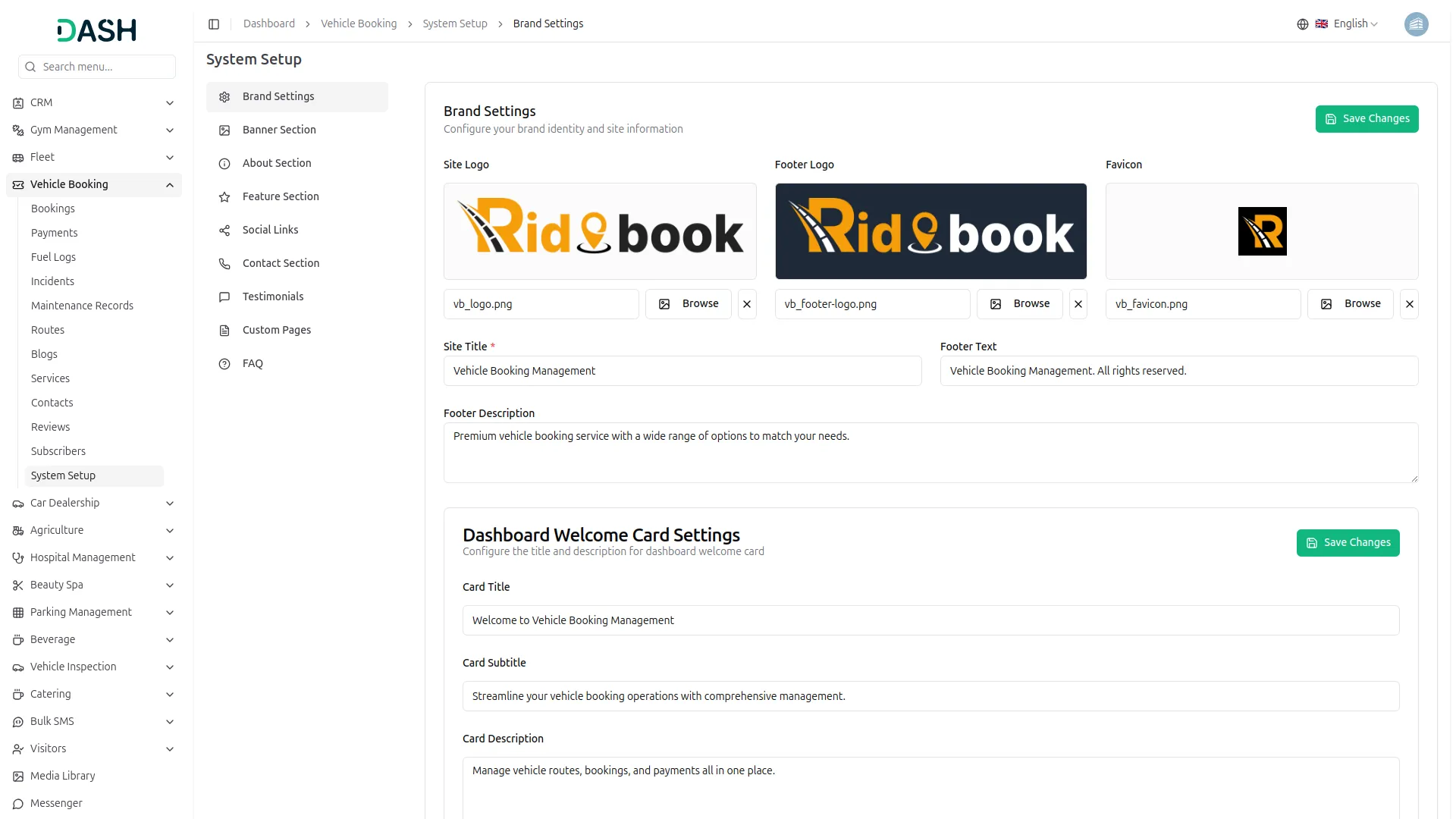
- In the Brand Settings section, click the Browse button next to Site Logo, Footer Logo, or Favicon to open the Media Library. In the Media Library, you can upload new files by clicking the Upload Files button, search for existing media files, or create directories by entering a directory name and clicking Create. Select an image from the library to use as your logo.
- Enter the Site Title and Footer Text. Write a Footer Description explaining your vehicle booking service. Click the Save Changes button.
- In the Dashboard Welcome Card Settings section, enter the Card Title, Card Subtitle, and Card Description. Click Save Changes to update.
- Once saved, the Site Logo, Footer Logo, and Favicon will appear across your booking website. At the same time, the Site Title, Footer Text, and Footer Description will display in their respective sections on the frontend.
Banner Settings
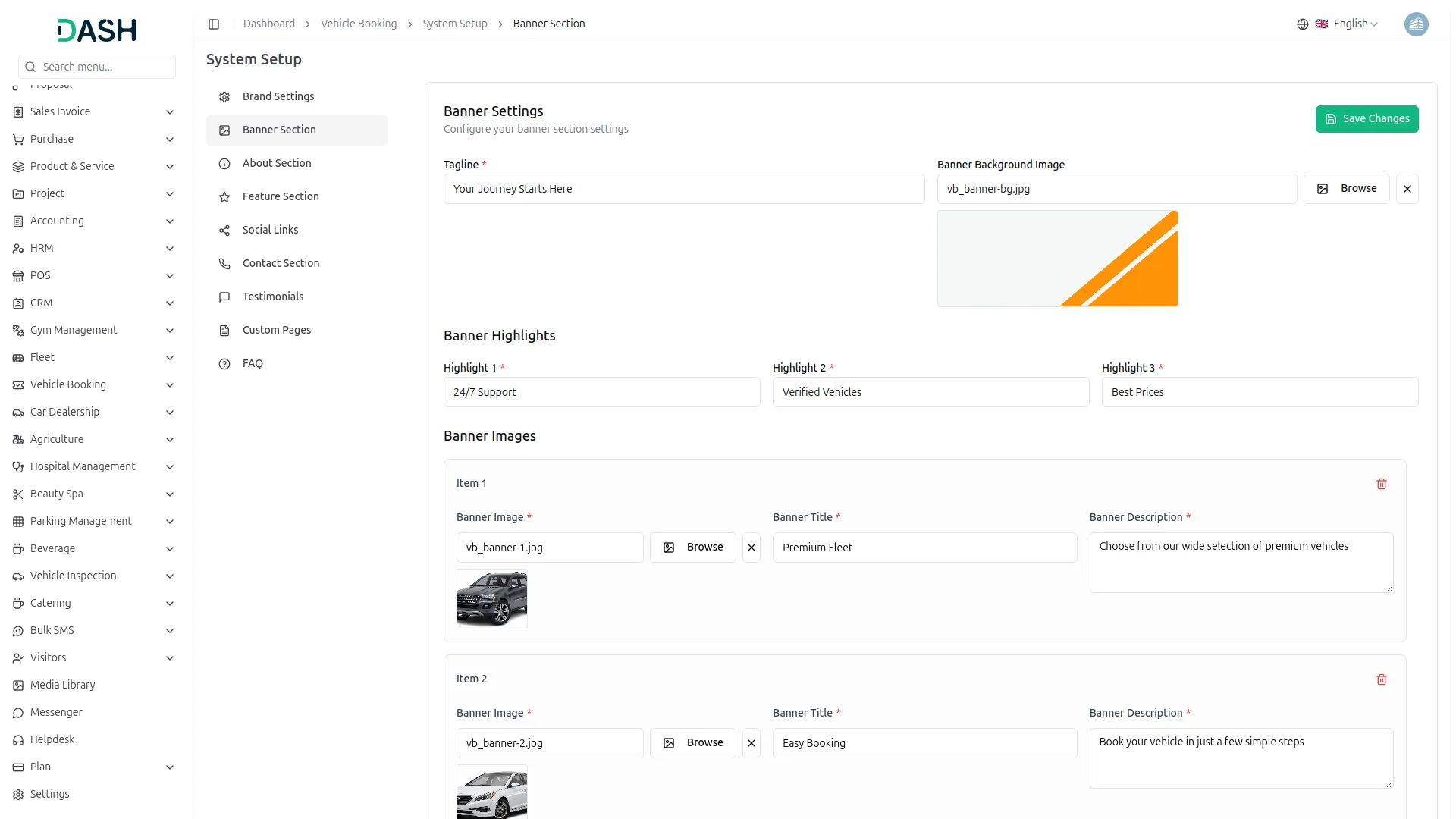
- In the Banner Settings section, enter the Tagline. Click the Browse button next to Banner Background Image to open the Media Library, where you can upload new files, search existing media, or create directories.
- In the Banner Highlights section, enter text for Highlight 1, Highlight 2, and Highlight 3 to showcase key features or benefits.
- Under Banner Images, each item includes Banner Image, Banner Title, and Banner Description fields. Click the Browse button to open the Media Library, where you can upload or select images. Enter the Banner Title and write a Banner Description for each slide.
- Click the delete icon to remove a banner image. Click Add Banner Image to add more banner slides. Click Save Changes to update.
-
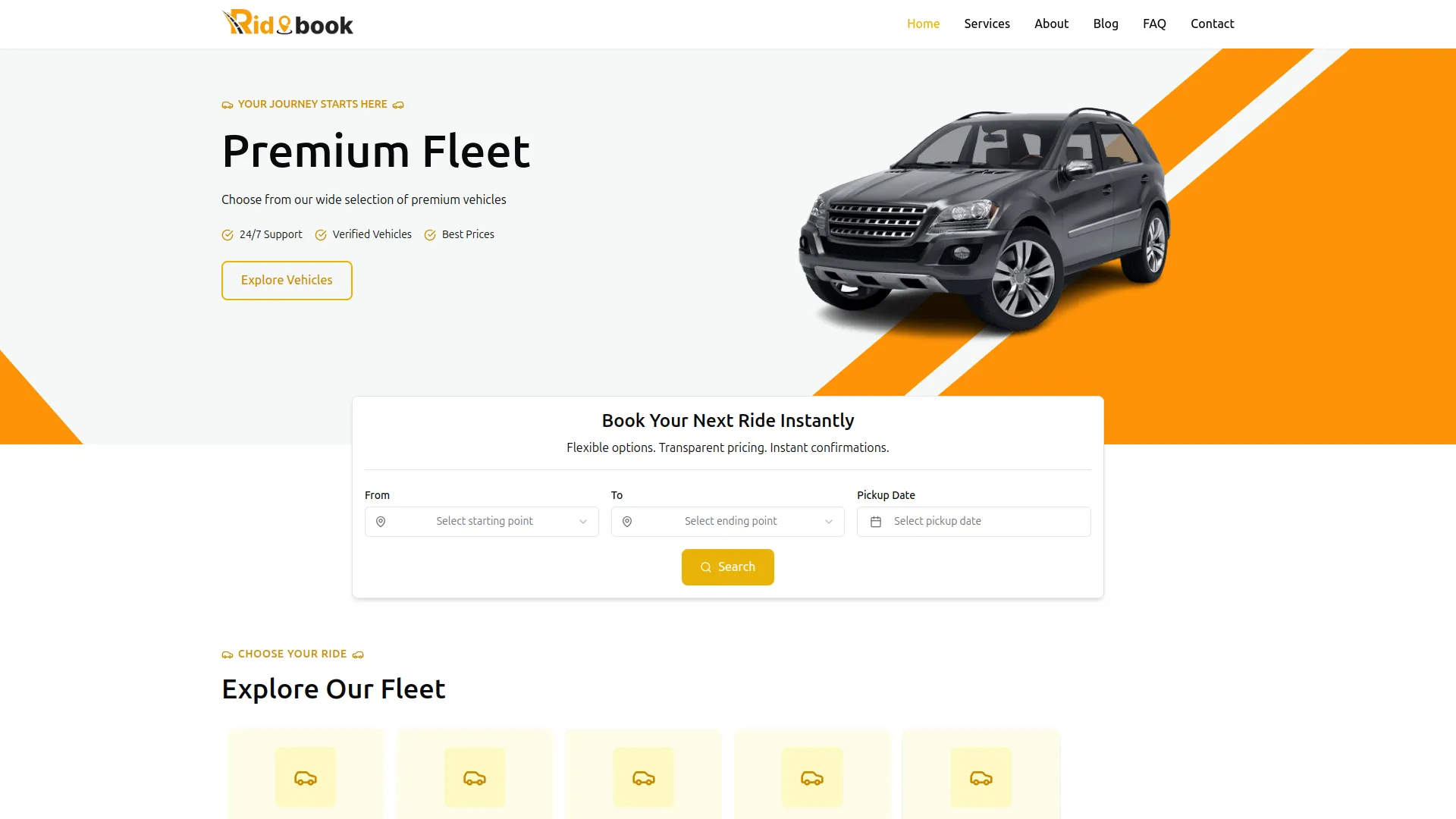
- Once saved, the Tagline, Banner Background Image, Banner Highlights, and all Banner Images will automatically appear in the banner area of your website’s homepage as a carousel or slider.
About Section
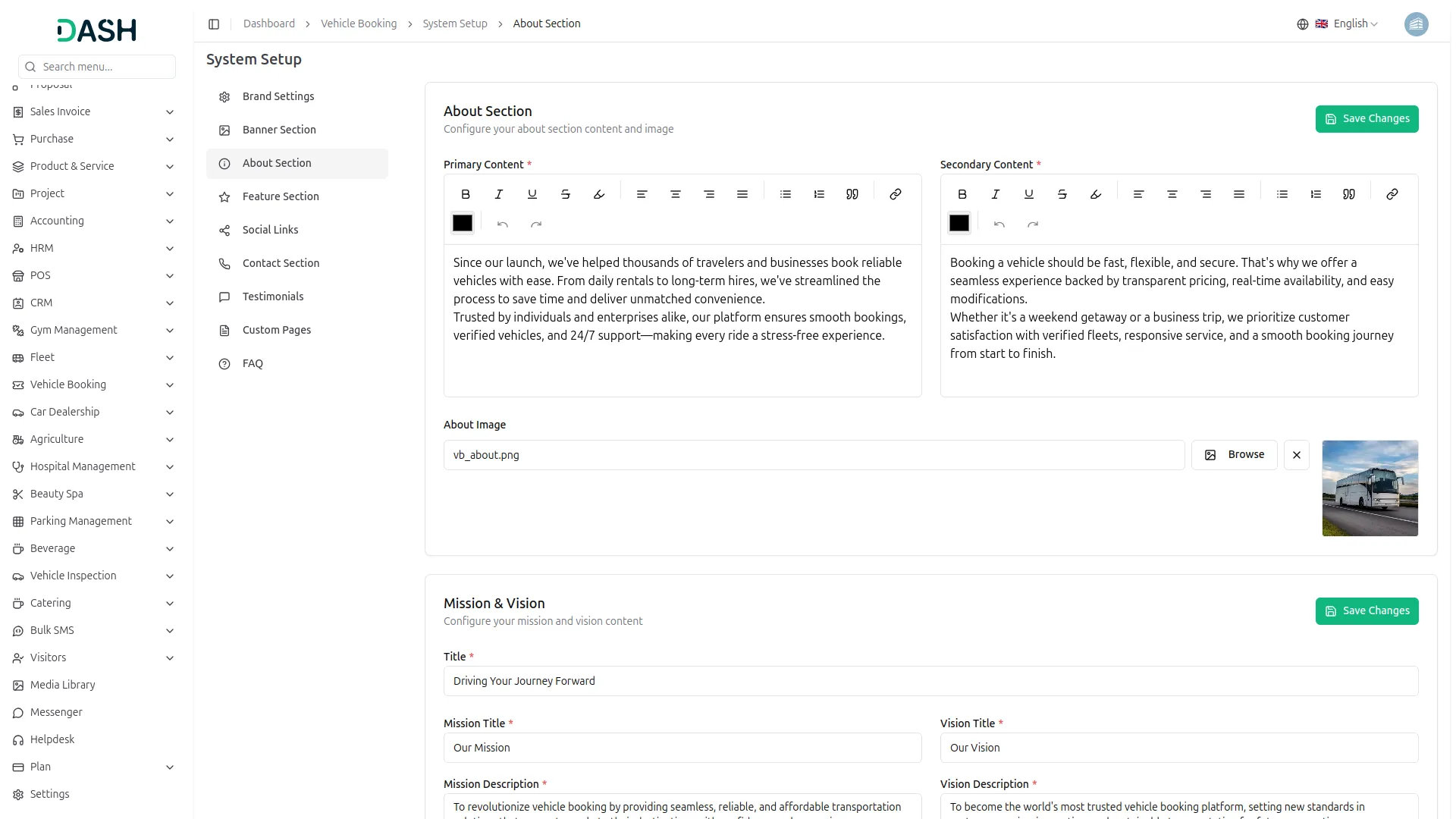
- In the About Section, use the rich text editor to write the Primary Content describing your vehicle booking service’s story and background. Use the formatting toolbar to apply bold, italic, underline, strikethrough, alignment, lists, and other text formatting as needed.
- Use the Secondary Content editor to write additional information about your service offerings, values, or customer experience. Apply formatting using the available toolbar options.
- Click the Browse button next to About Image to open the Media Library, where you can upload or select an image that represents your business. Click Save Changes to update.
- In the Mission & Vision section, enter the Title for this section heading. Under Mission, fill in the Mission Title and write the Mission Description explaining your company’s purpose and commitment to customers.
- Under Vision, fill in the Vision Title and write the Vision Description outlining your long-term goals and aspirations. Click Save Changes to update.
-
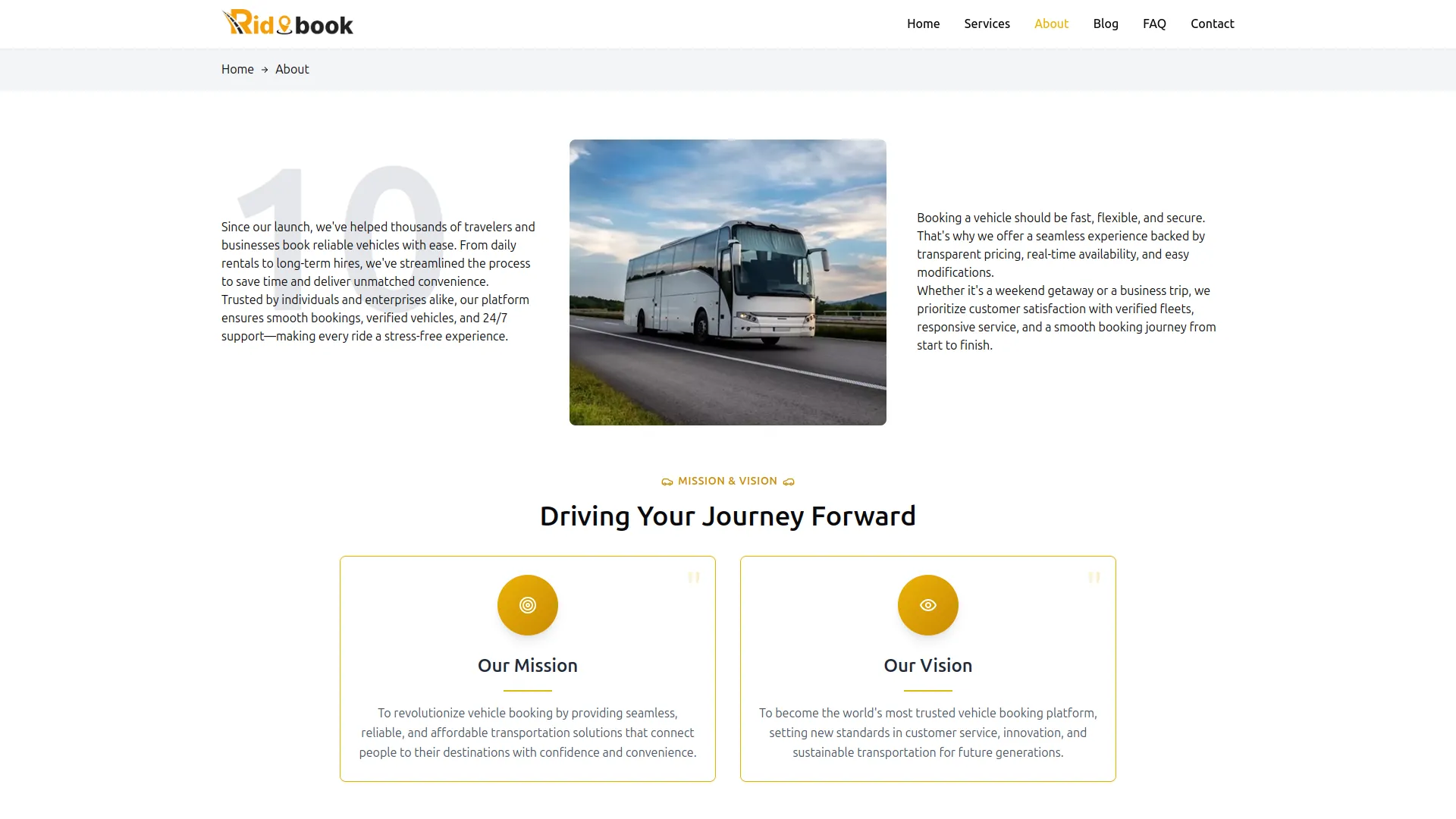
- Once saved, the About Section will display on the frontend About page with your company story, image, mission, and vision information.
Feature Section
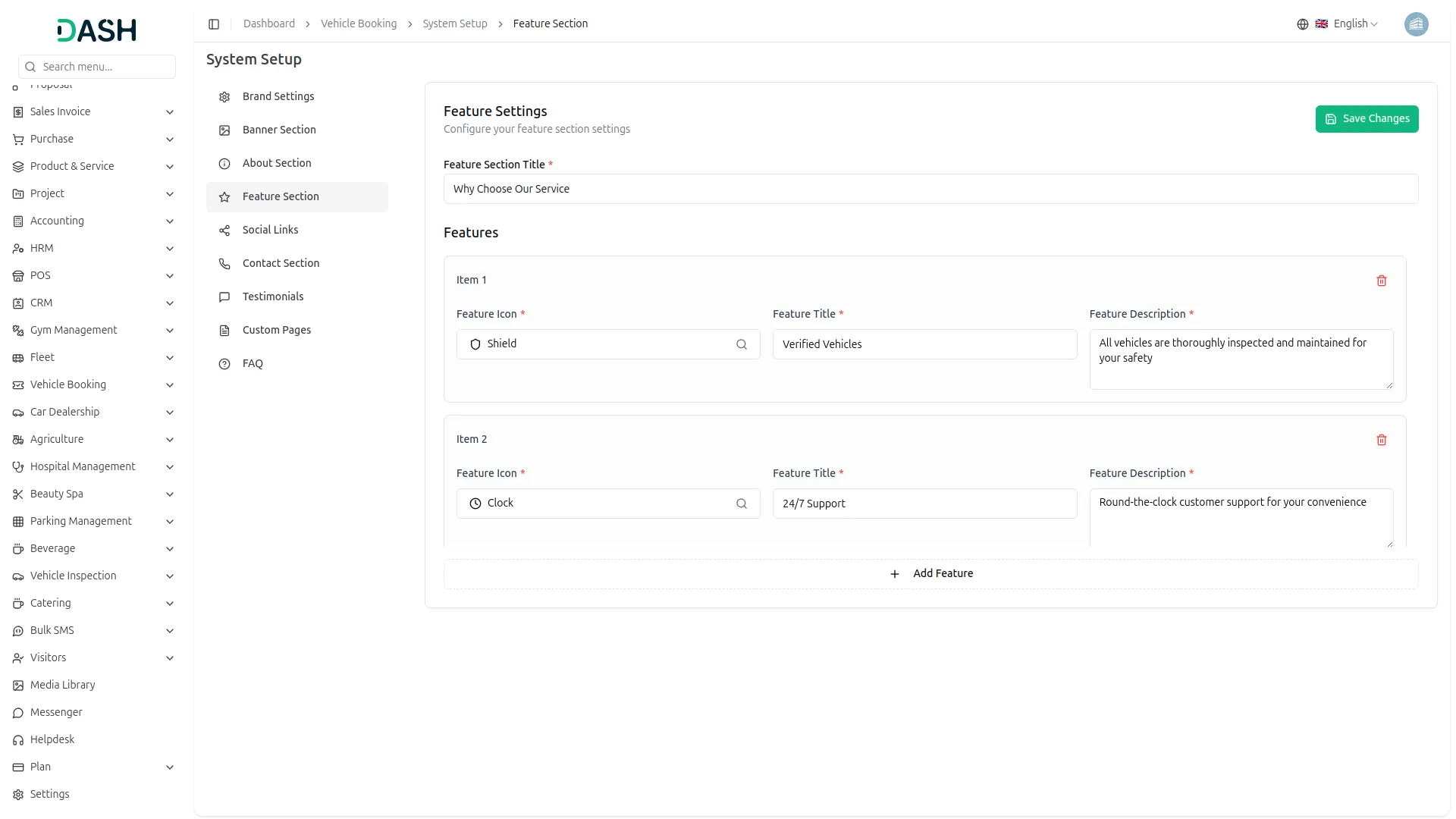
- In the Feature Section, enter the Feature Section Title to create a heading for your service highlights.
- Under Features, each item includes Feature Icon, Feature Title, and Feature Description fields. Click the Feature Icon search field to browse and select an icon from the available icon library. Enter the Feature Title and write a Feature Description explaining the benefit or service feature.
- Click the delete icon to remove a feature item. Click Add Feature to add more service highlights. Click Save Changes to update.
-
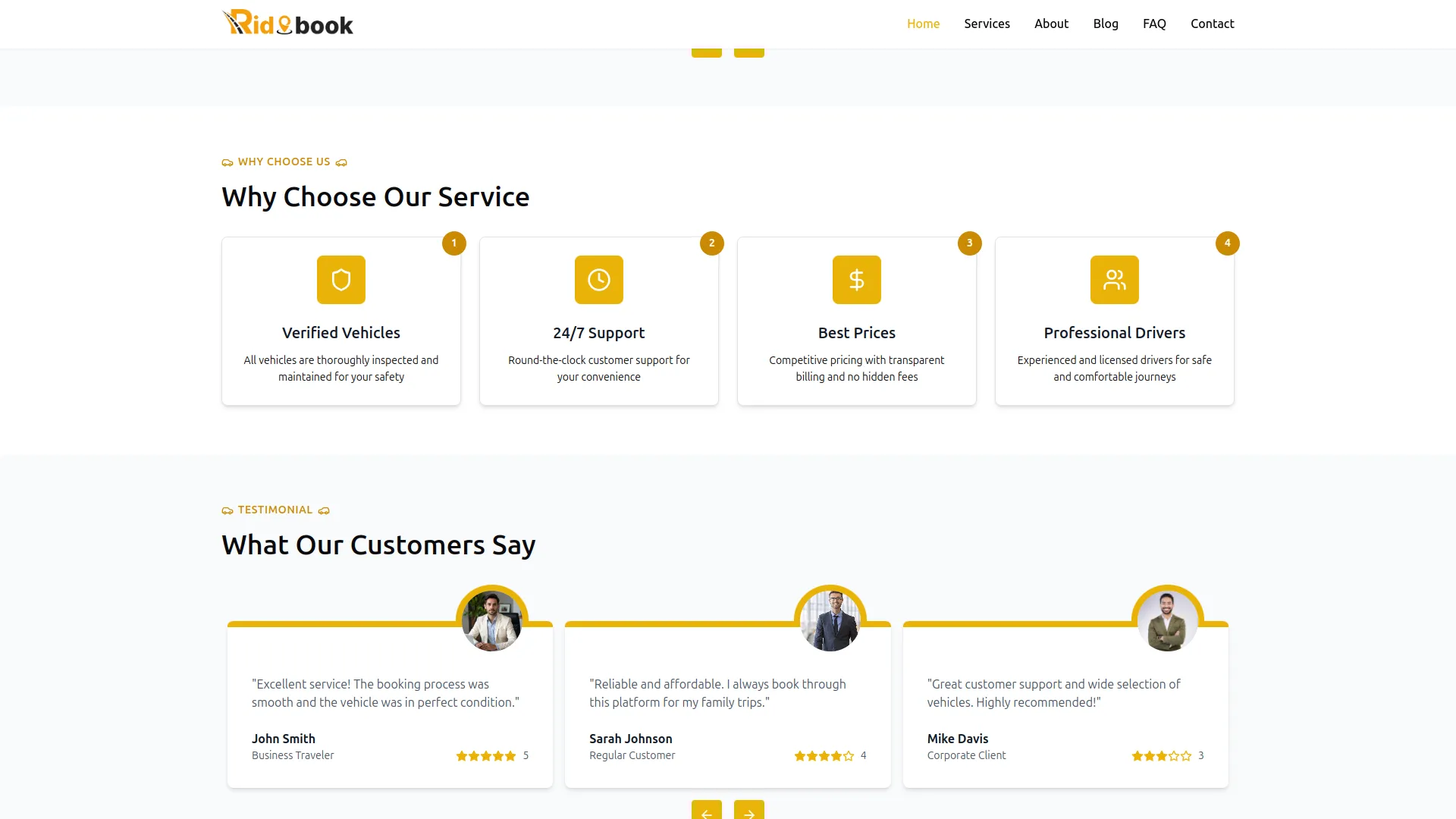
- Once saved, the Feature Section will display on the frontend with the section title and all added features showcasing your service’s key benefits and differentiators.
Social Links
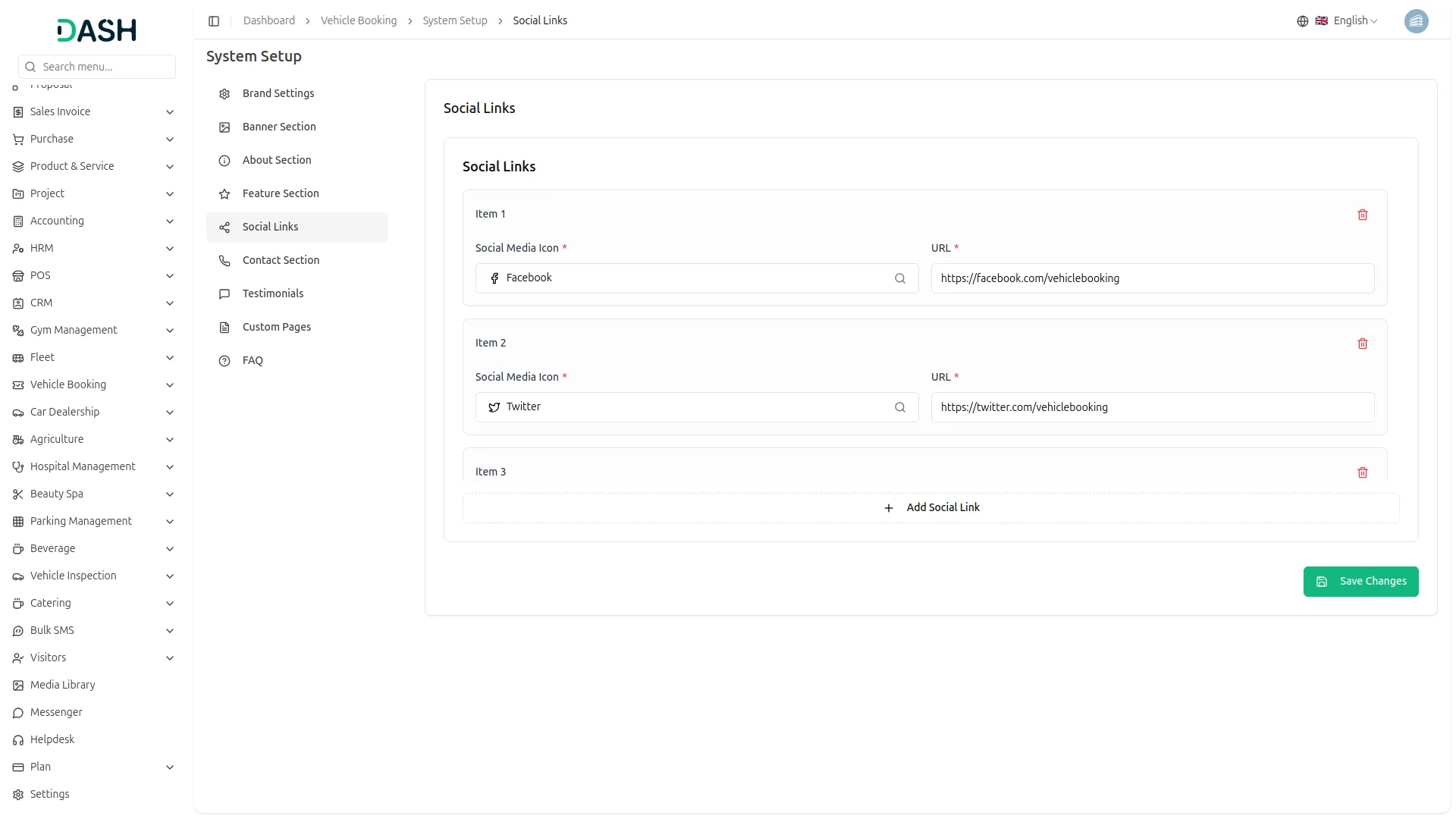
- In the Social Links section, each item includes Social Media Icon and URL fields. Click the Social Media Icon search field to browse and select an icon from the available social media platforms. Enter the complete URL for your social media profile in the URL field.
- Click the delete icon to remove a social link. Click Add Social Link to add more social media profiles. Click Save Changes to update.
-
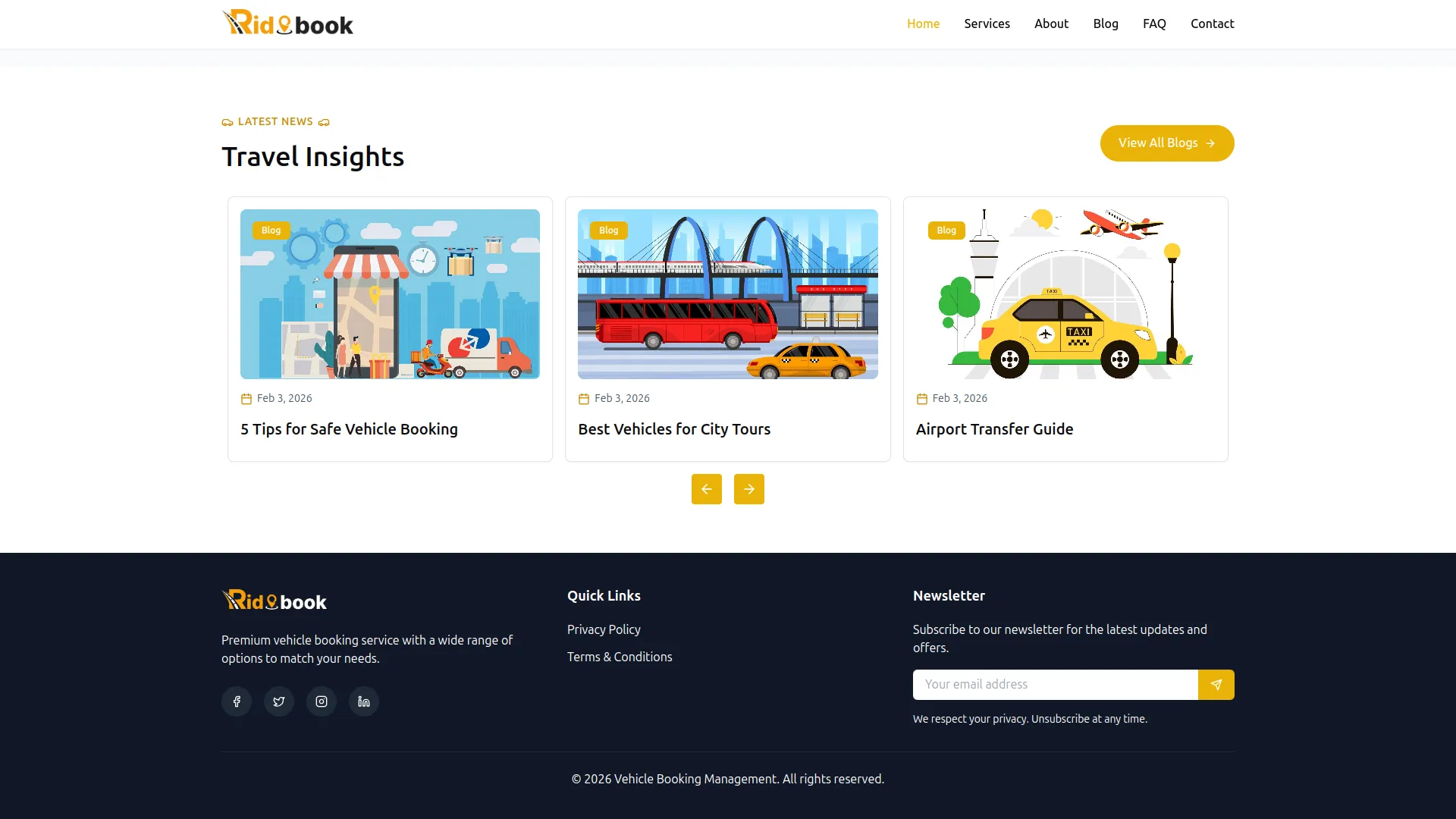
- Once saved, the social media links will display in the footer of the frontend booking website, allowing visitors to connect with your business on social platforms.
Contact Section
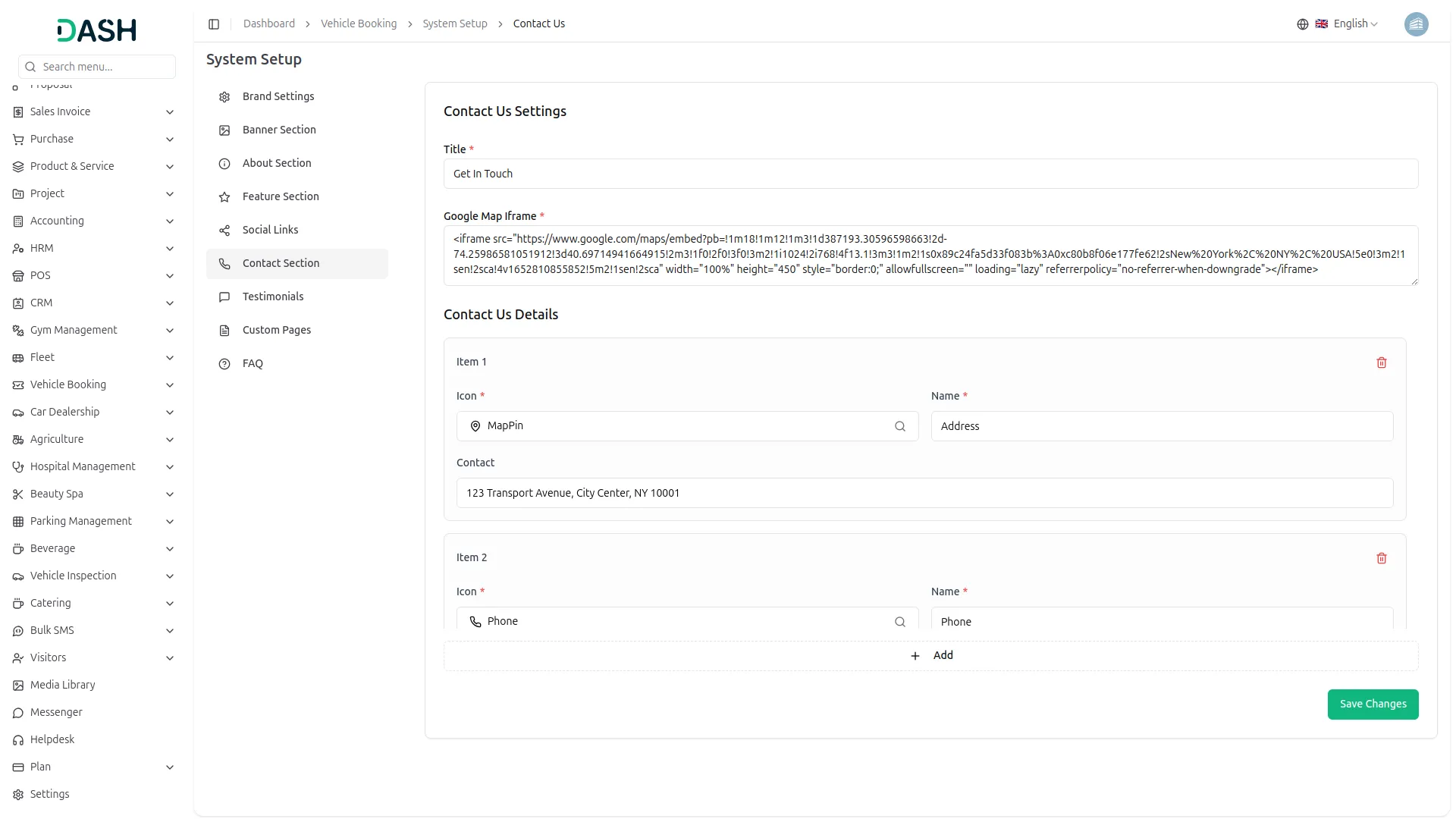
- In the Contact Us Settings section, enter the Title for the section heading. Paste the Google Map Iframe embed code from Google Maps in the Google Map Iframe field.
- Under Contact Us Details, each item includes an Icon, Name, and Contact fields. Click the Icon search field to browse and select an icon from the available icon library. Enter the Name to identify the contact type (such as Address, Phone, or Email). Fill in the Contact field with the corresponding contact information.
- Click the delete icon to remove a contact detail item. Click Add to add more contact information. Click Save Changes to update.
-
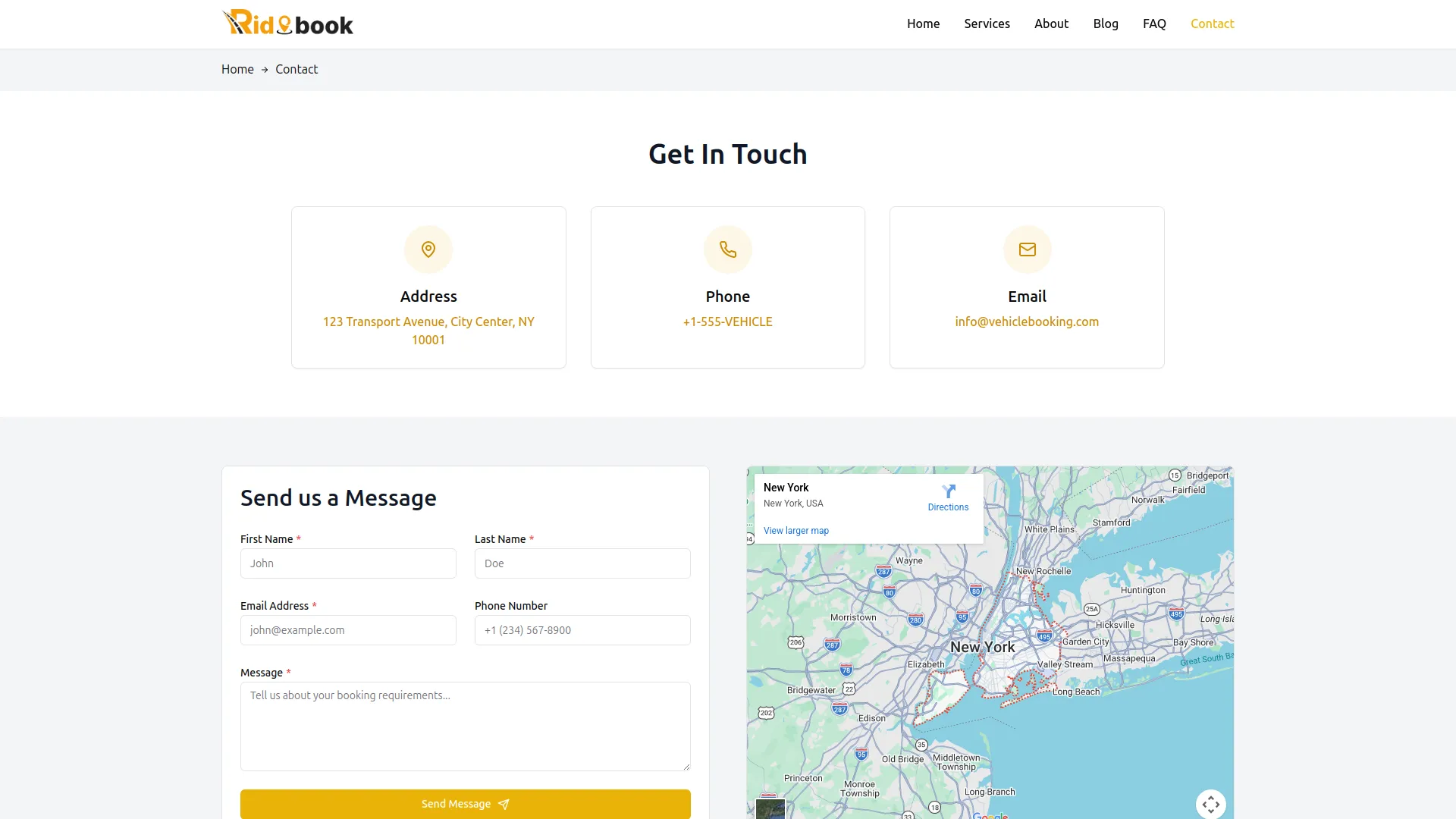
- Once saved, the Contact Us page will display on the frontend with the section title, all contact details with their icons and information, and an embedded map showing your location for customers to reach you.
Testimonials
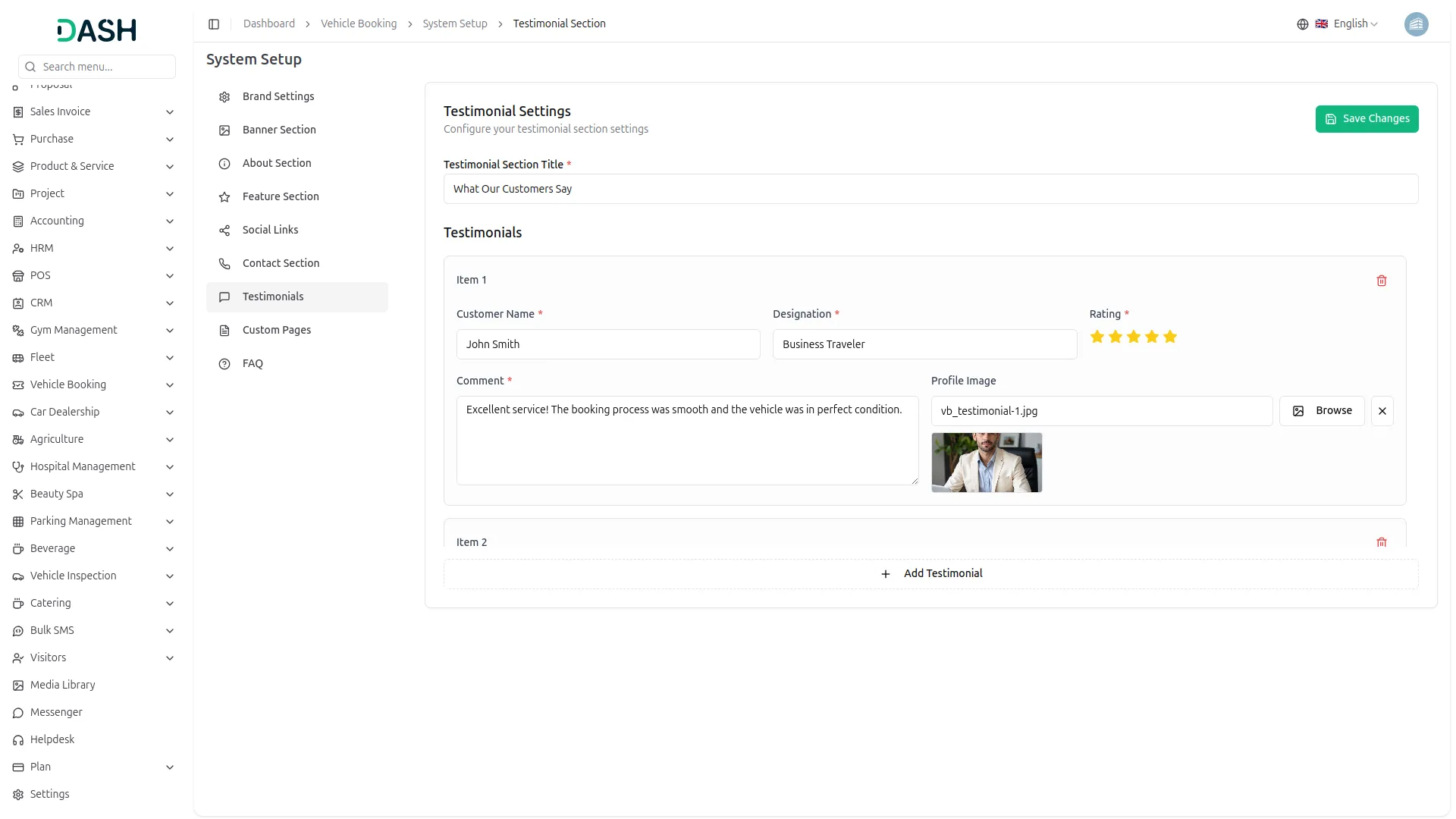
- In the Testimonial Settings section, enter the Testimonial Section Title for the section heading.
- Under Testimonials, each item includes Customer Name, Designation, Rating, Comment, and Profile Image fields. Enter the Customer Name and Designation to identify the customer and their role.
- Select the Rating by clicking the star icons to display the customer’s satisfaction level. Write the Comment containing the customer’s review or feedback. Click the Browse button to open the Media Library, where you can upload or select a customer profile image.
- Click the delete icon to remove a testimonial. Click Add Testimonial to add more customer reviews. Click Save Changes to update.
-
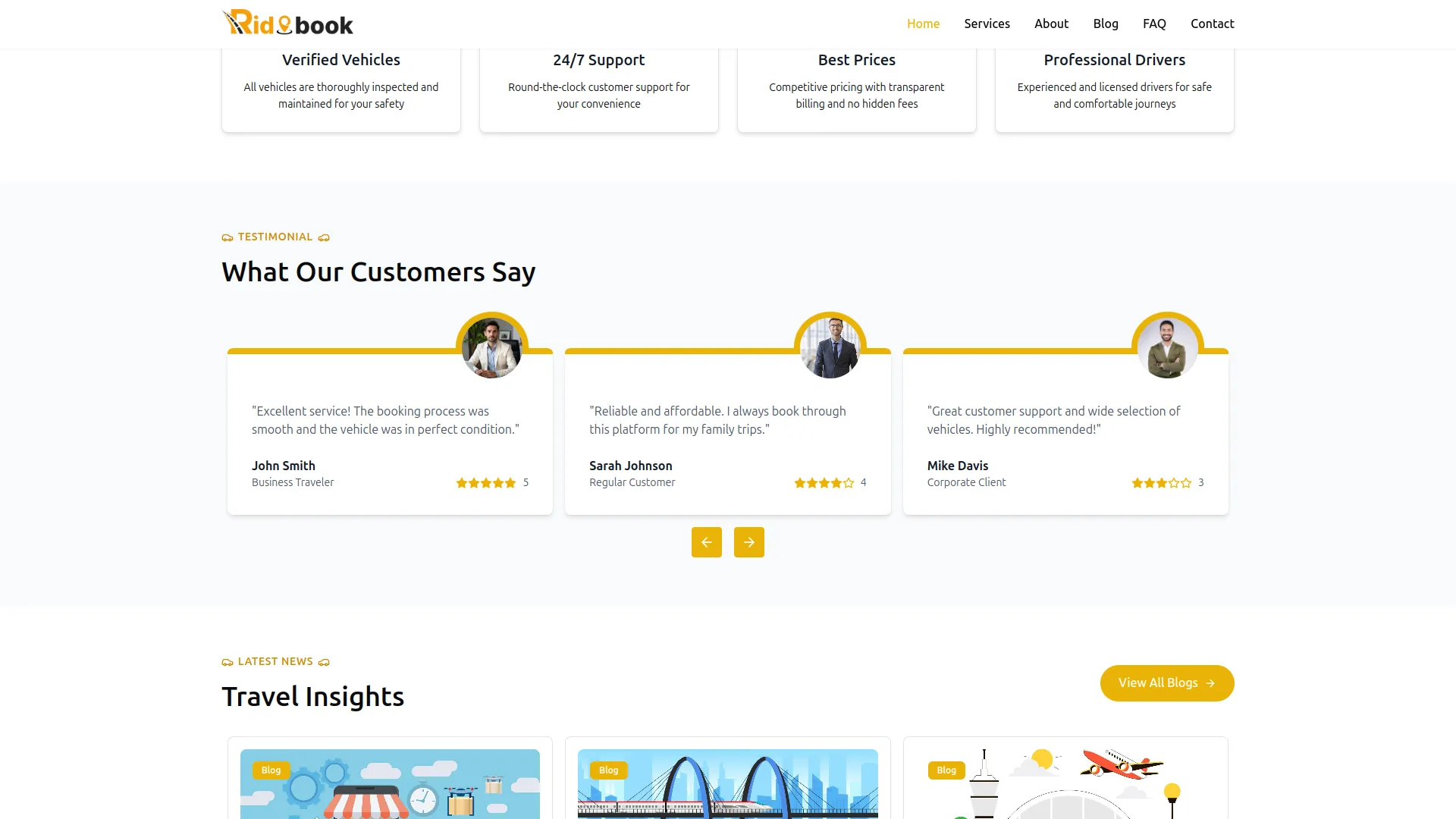
- Once saved, the Testimonials section will display on the frontend with customer reviews, ratings, profile images, and designations, showcasing positive experiences from your clients.
Create Custom Page
- To create a new custom page, click the “Create” button in the Custom Pages section.
- Enter the page Name in the Name field. This will be used to generate the page URL slug. Enter the page Name and Title that will display as the heading on the custom page. Write a Description to provide a brief summary of the page content.
- In the Contents section, use the rich text editor to write the page content. Use the formatting toolbar to apply bold, italic, underline, strikethrough, alignment, lists, quotes, links, and other text formatting as needed.
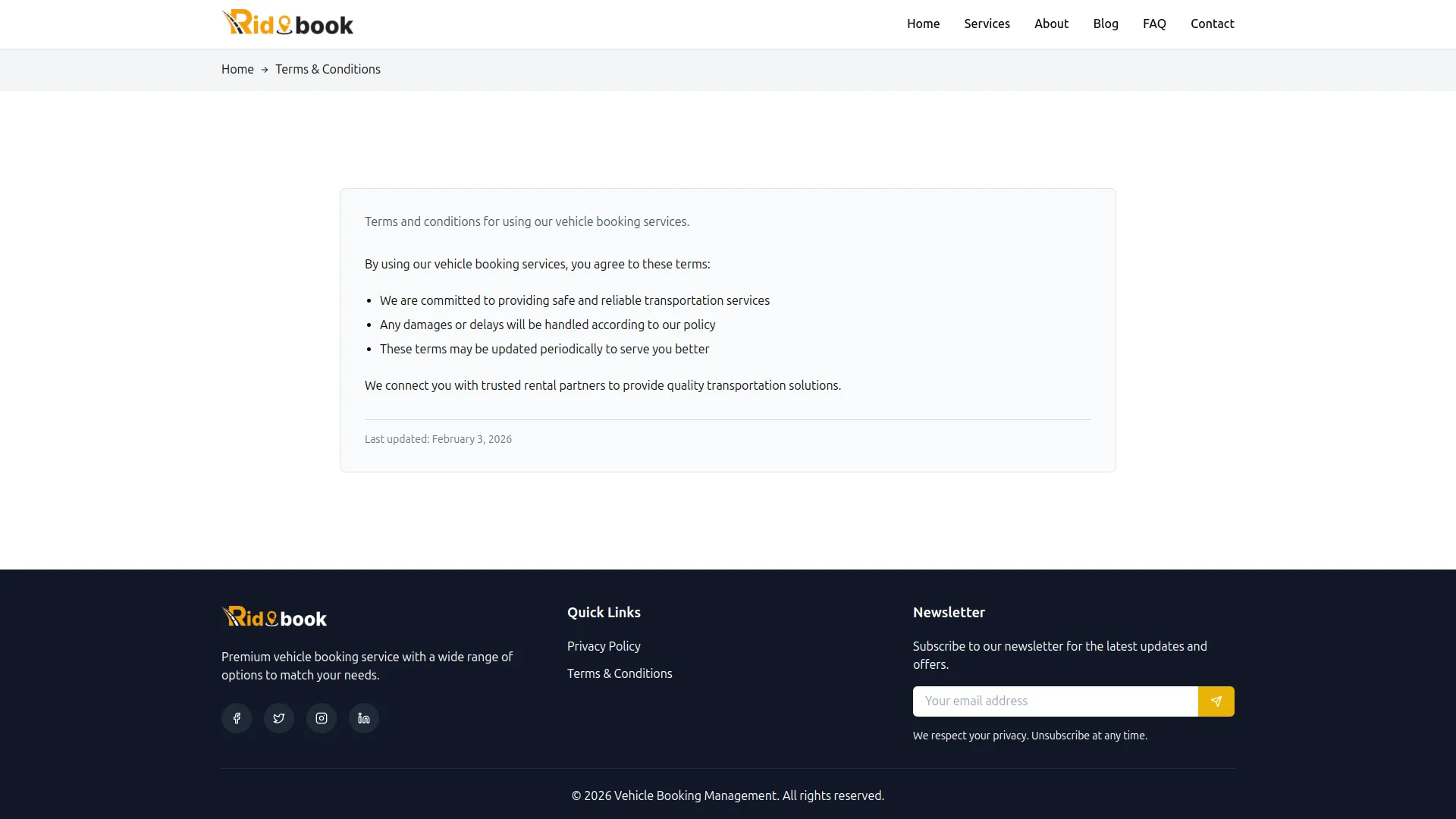
- Toggle Enable Page Footer to include this page link in the website footer menu. When enabled, the page will appear in the footer navigation.
- Click Cancel to discard the changes or click Create to save the custom page.
-
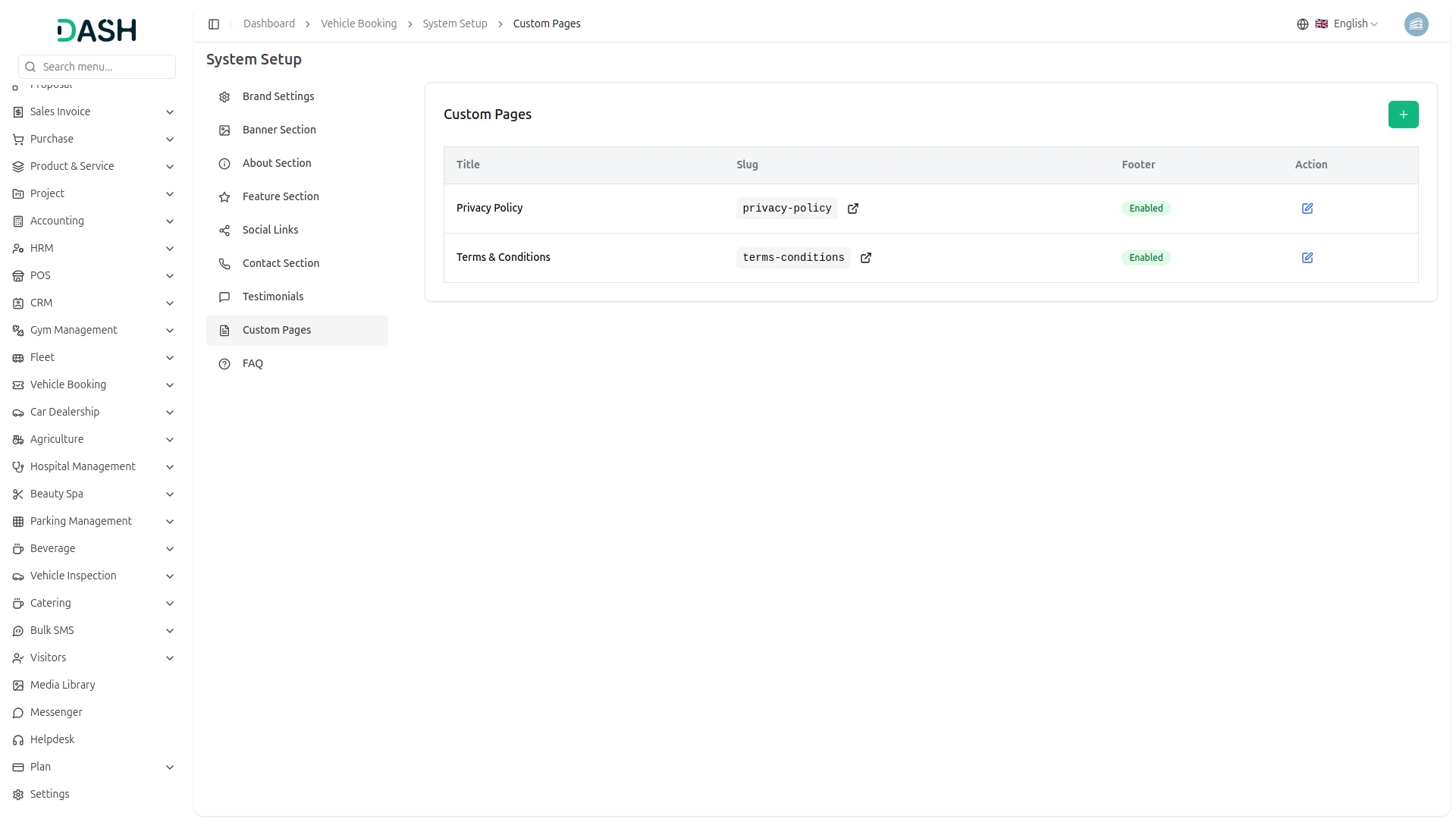
- Once created, the custom page will appear in the Custom Pages list and be accessible on the frontend booking website through its generated URL slug.
FAQ
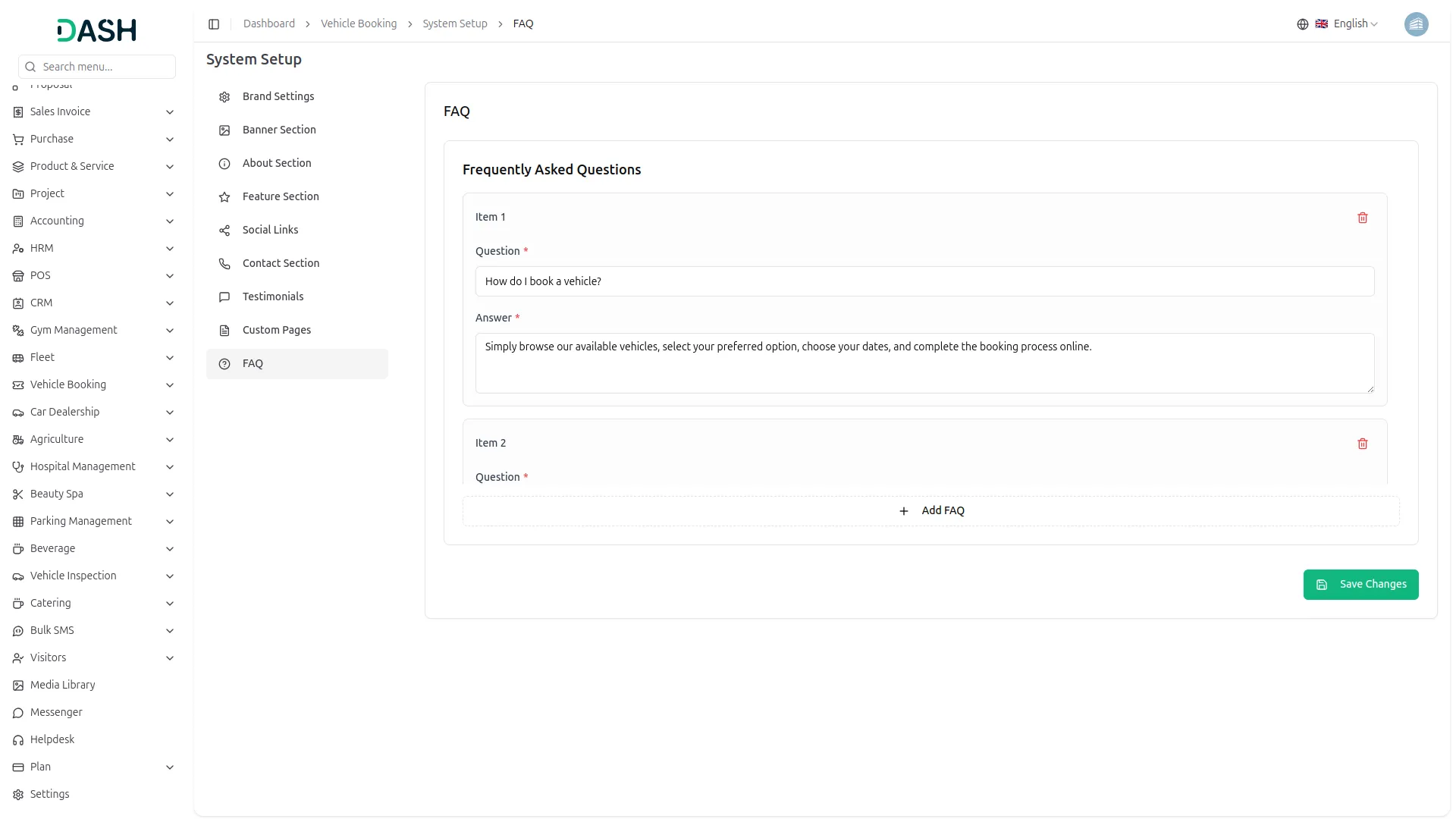
- In the FAQ section, each item includes Question and Answer fields. Enter the Question that customers frequently ask about your vehicle booking service. Write the Answer, providing clear and helpful information to address the question.
- Click the delete icon to remove an FAQ item. Click Add FAQ to add more frequently asked questions. Click Save Changes to update.
-
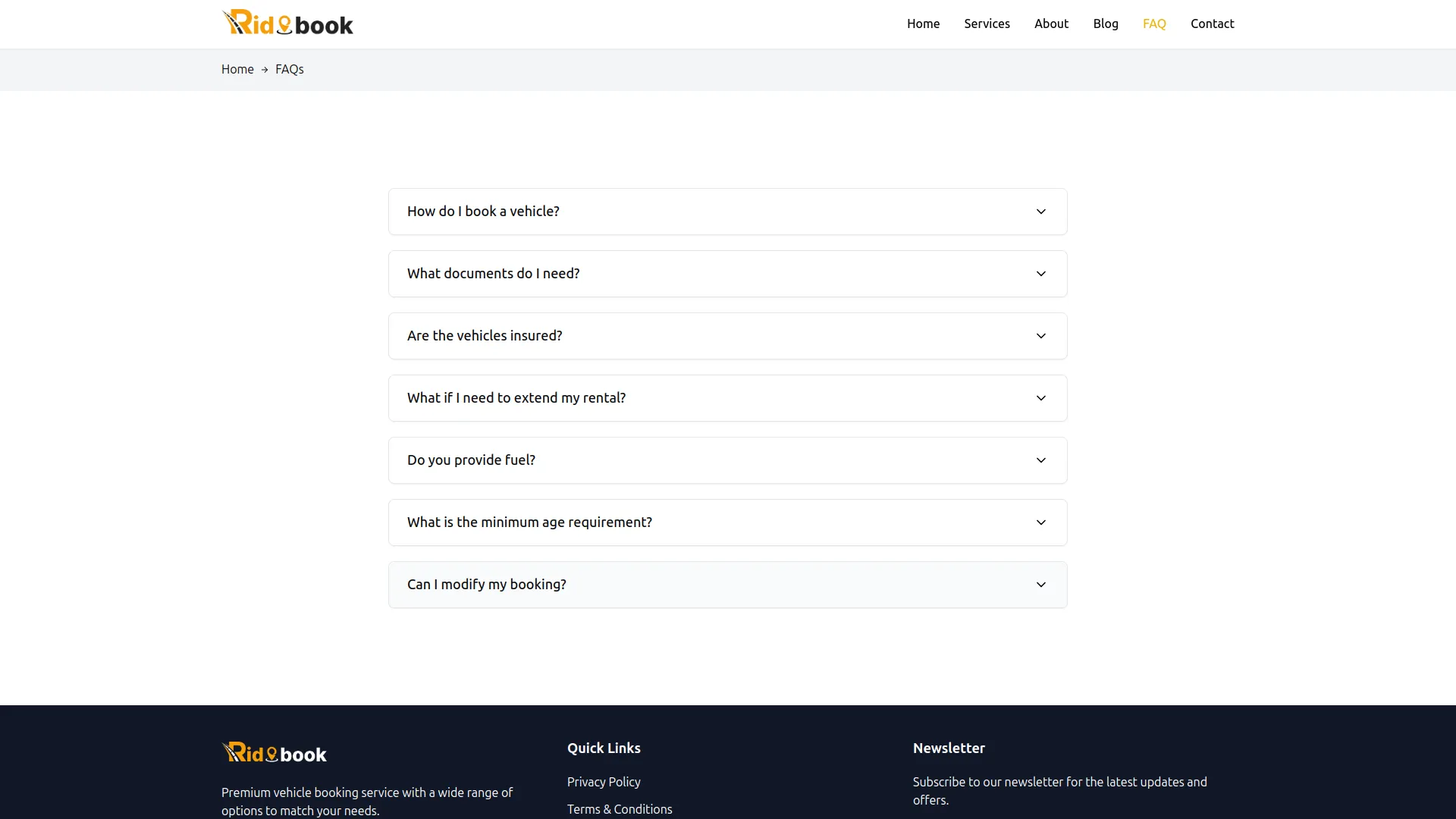
- Once saved, the FAQ section will display on the frontend booking website, helping customers find answers to common questions about your vehicle booking services.
Categories
Related articles
- Paystack – BookingGo SaaS Add-On Guide
- Meeting Hub – WorkDo Dash SaaS Add-On Guide
- BitPay – WorkDo Dash SaaS Add-On Guide
- SinchSMS – WorkDo Dash SaaS Add-On Guide
- Google Authentication – BookingGo SaaS Add-On Guide
- LinePay – WorkDo Dash SaaS Add-On Guide
- Branding & White Label Settings Guide
- eCommerceGo SaaS Theme Setup Guide
- Innovation Center – WorkDo Dash SaaS Add-On Guide
- LinePay – BookingGo SaaS Add-On Guide
- Sign in with Twitter – eCommerceGo SaaS Add-On Guide
- SWOT Analysis Model – WorkDo Dash SaaS Add-On Guide
We're Here to Help - Let's Talk
Have questions about our solutions, customization services, or business tools? Our team is here to help you. let's talk.