
Salesforce – WorkDo Dash SaaS Add-On Guide
Learn how to sync customers, leads, and data with Salesforce in WorkDo Dash SaaS.
Introduction
The Salesforce Add-On integrates your Salesforce CRM data directly into the Dash system, allowing you to manage your accounts, contacts, opportunities, leads, cases, tasks, and files, all from one place. Once the integration is configured and authenticated, navigate to the left sidebar and click on SalesForce to expand the Add-On and access all seven sections.
How to Install the Add-On?
To Set Up the Salesforce Add-On, you can follow this link: Setup Add-On.
How To Use The Salesforce Add-On?
Setting Up the Salesforce
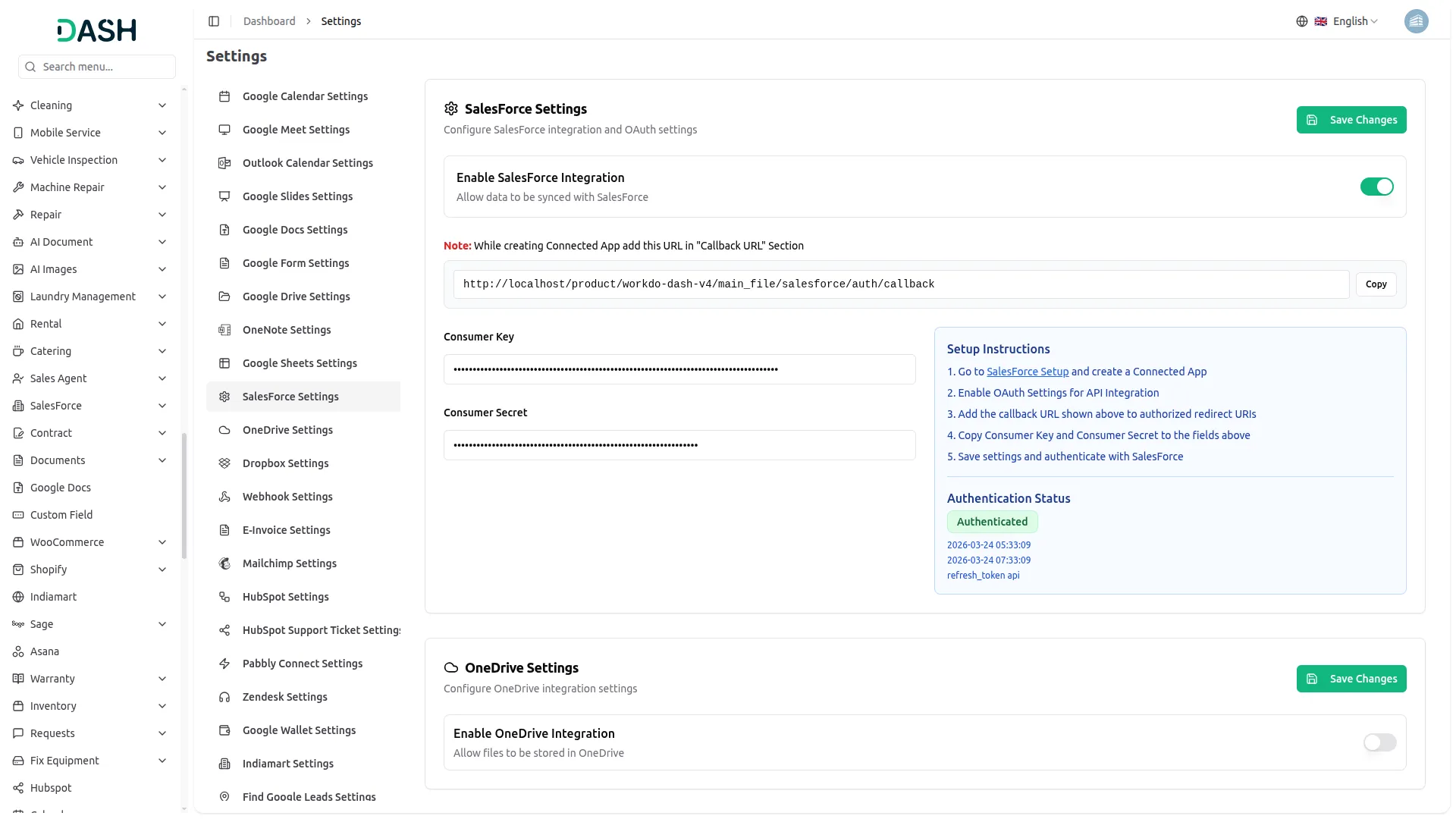
To begin using the Salesforce Integration, you first need to configure it within the system settings:
- Go to the Settings section and navigate to Salesforce Settings.
- At the top of the page, toggle on the Enable Salesforce Integration switch to allow data to be synced with Salesforce.
- Before proceeding, take note of the Callback URL displayed on the page:
- Copy this URL using the Copy button.
- You will need to paste this into the Callback URL section while creating a Connected App in Salesforce.
- In the configuration form, you will be required to enter:
- Consumer Key – Enter the Consumer Key obtained from your Salesforce Connected App.
- Consumer Secret – Enter the Consumer Secret provided by your Salesforce Connected App.
- If you haven’t set up a Connected App in Salesforce yet, follow the Setup Instructions panel on the right:
- Go to Salesforce Setup and create a Connected App.
- Enable OAuth Settings for API Integration.
- Add the Callback URL shown on the page to the authorized redirect URIs.
- Copy the Consumer Key and Consumer Secret to the respective fields.
- Once all fields are filled out, click “Save Changes” to apply your configuration.
- The Authentication Status will update from Not Authenticated to Authenticated once the credentials are saved and verified successfully.
- Once the Salesforce Add-On is configured and authenticated, all your Salesforce data will be automatically synced and accessible within the Dash system. To access this, navigate to the left sidebar and click on SalesForce to expand the Add-On.
- Upon opening the SalesForce module, you will find seven sections available: Accounts, Contacts, Opportunities, Leads, Cases, Tasks, and Files. Each section mirrors the corresponding data from your connected Salesforce account, ensuring that both systems remain in sync at all times.
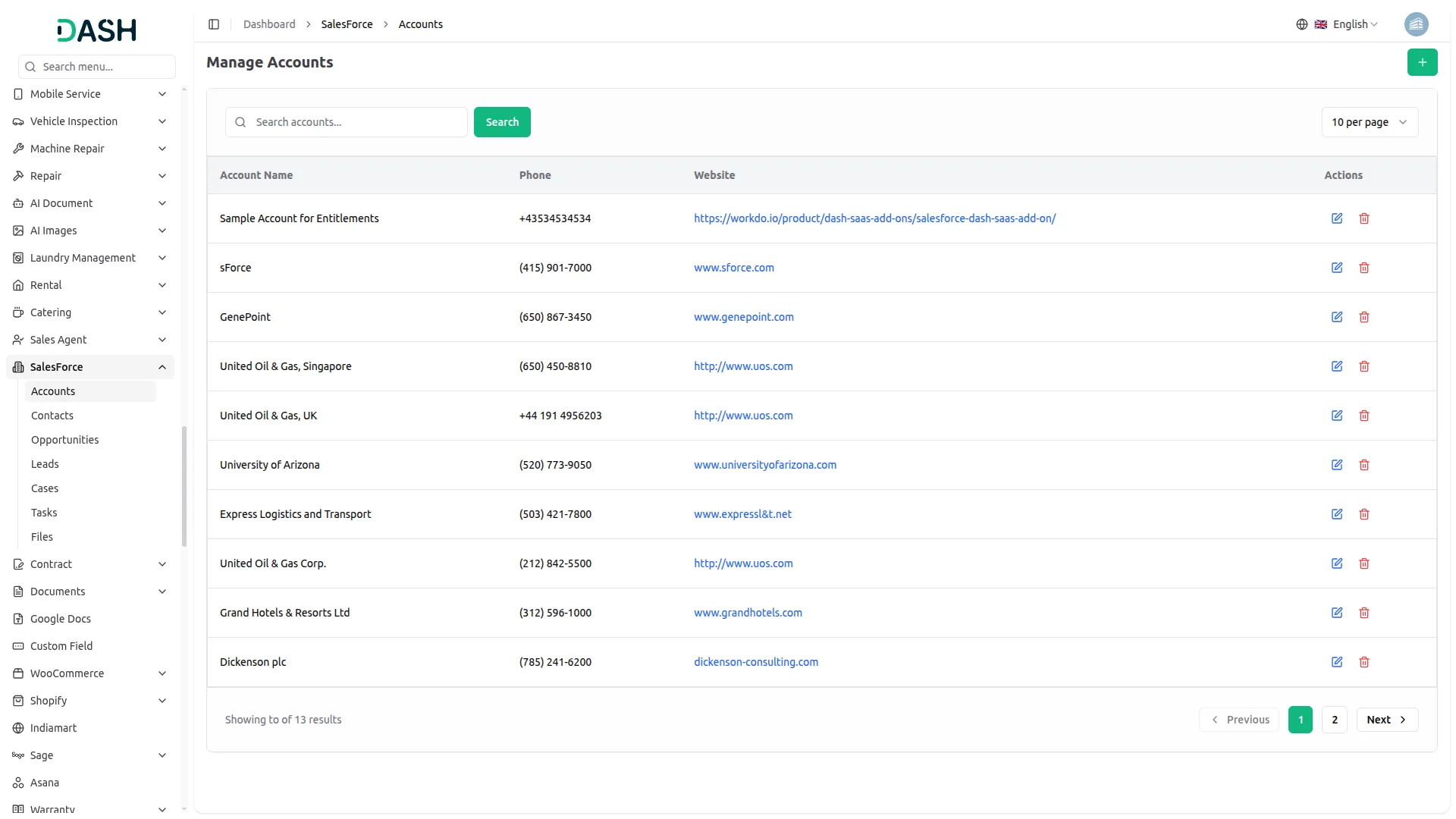
Manage Accounts
- To add an account, click the “Create” button on the Manage Accounts page, then fill in the required details, including entering the Account Name, Phone, Website. Click Create to save the account.
- The Manage Accounts list page displays a table with columns, including Account Name, Phone, Website, and Actions. In the action column, you can use the Edit option to modify the data or Delete to remove the data permanently.
- The Accounts section displays all the company and organization records synced from your Salesforce account. To access this, navigate to SalesForce from the left sidebar, then click on Accounts. You can use the Search bar at the top of the page to quickly find a specific account by name.
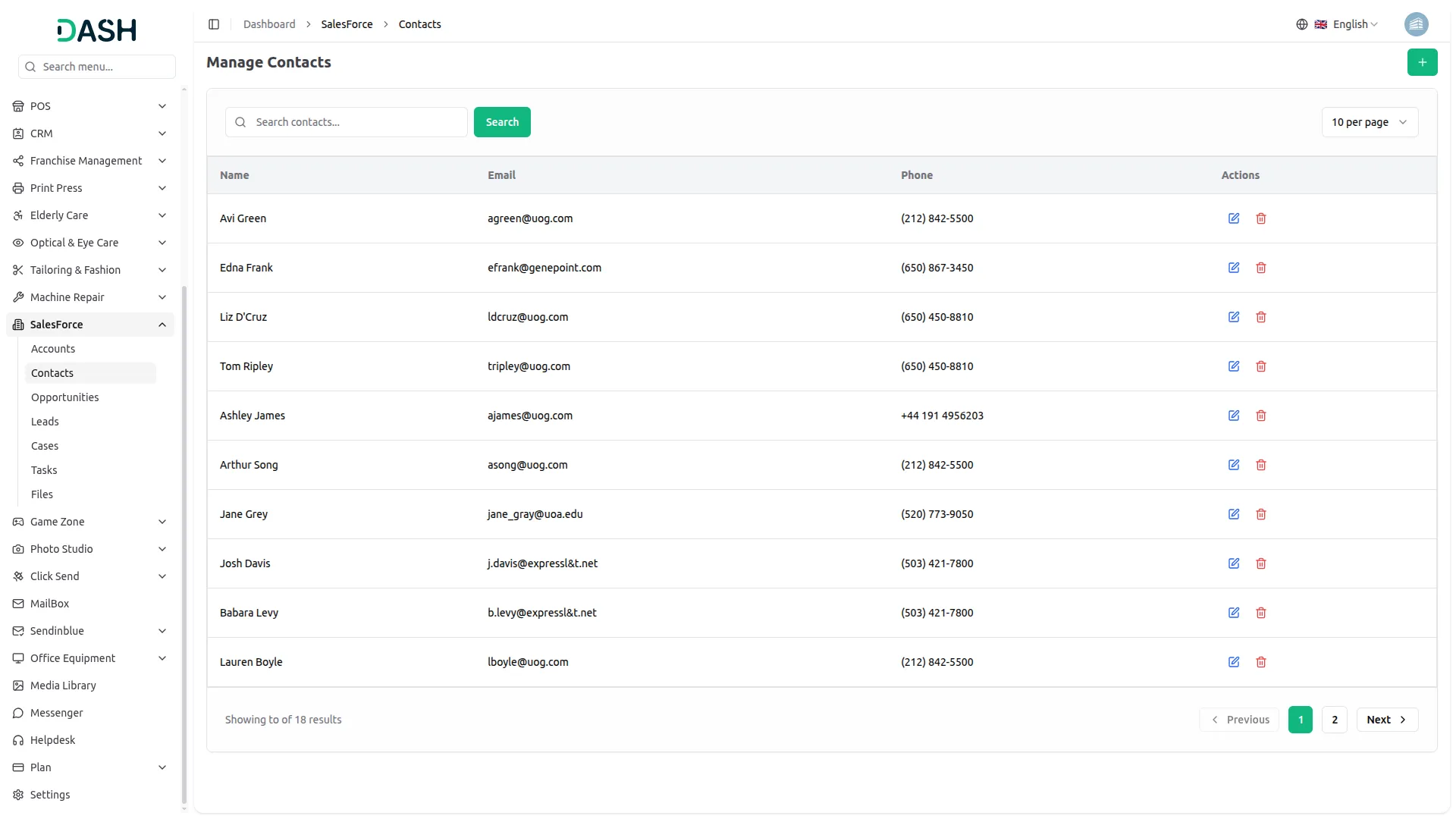
Manage Contacts
- To add a new contact, click the “Create” button on the manage Contacts page. Fill in the following details, such as the Name, Email, and Phone, and click Create to save the contact.
- The Manage Contacts page will display a list of all synced contacts in a table with columns such as Name, Email, Phone, and Actions.
- You can use the Search bar at the top of the page to quickly find a specific contact by name. In the Actions column, you can use the Edit option to modify the contact details or Delete to permanently remove the record.
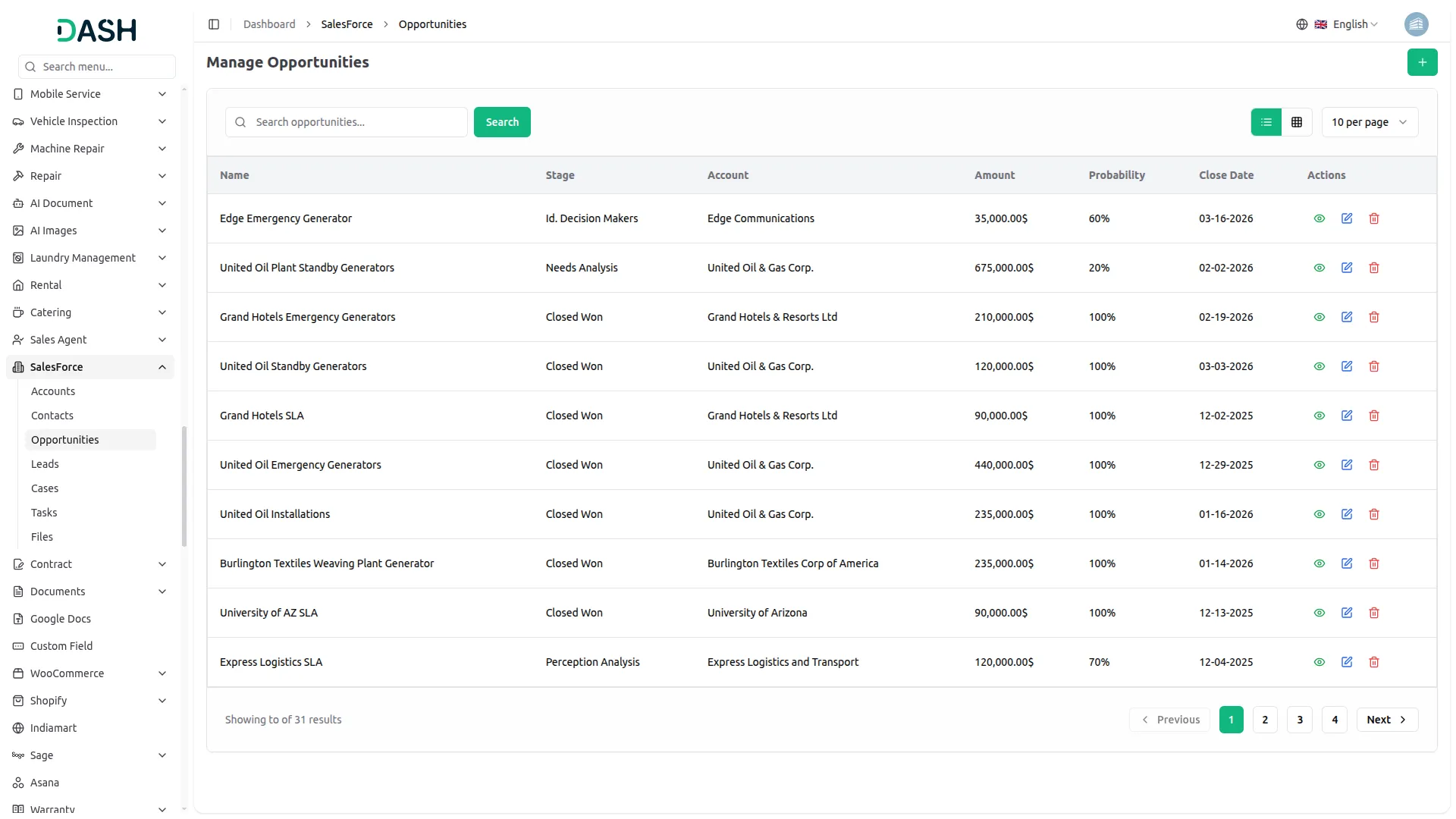
Manage Opportunities
- To add a new opportunity, click the “Create” button on the Manage Opportunities page. Enter the Opportunity Name, Description, Amount, Probability (%), Stage, Close Date, and Account. Once all the required fields are filled, click Create to save the opportunity.
- The Manage Opportunities page will display a list of all synced opportunities in a table with columns such as Name, Stage, Account, Amount, Probability, Close Date, and Actions.
- You can use the Search bar at the top of the page to quickly find a specific opportunity by name. In the Actions column, you can use the View option to see full details, Edit to modify the record, or Delete to permanently remove it.
Manage Leads
- To add a new lead, click the “Create” button on the Manage Leads page. Enter the lead’s First Name and Last Name, along with their Company, Title, Email, Phone, and Website.
- Select the appropriate Lead Status, Lead Source, and Industry from the dropdown menus. Provide additional details such as the Number of Employees, Annual Revenue, Mailing Address, and a Description if needed. Once all information is complete, click Create to save the lead.
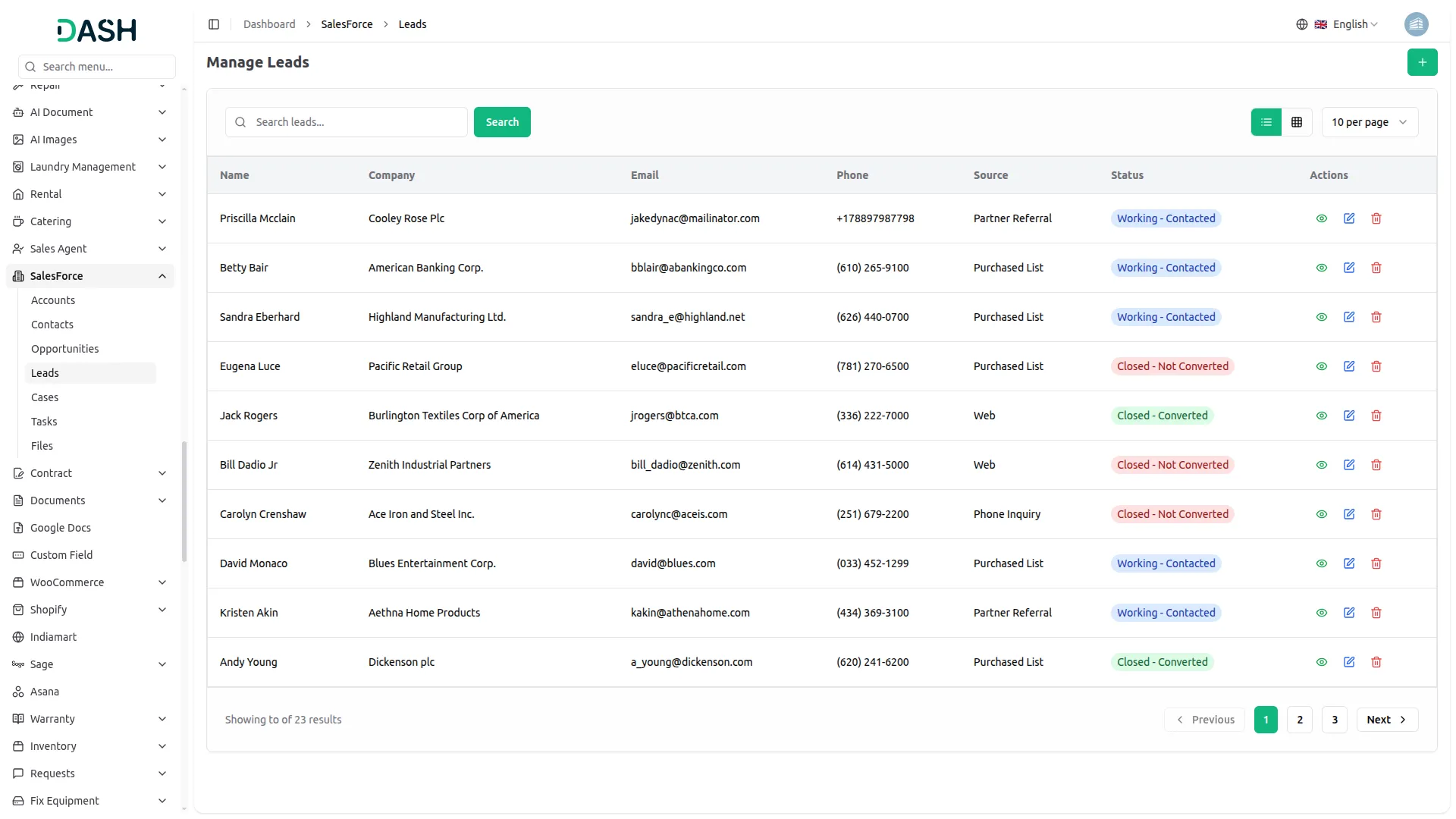
- The Manage Leads page will display a list of all synced leads in a table with columns such as Name, Company, Email, Phone, Status, Source, and Actions.
- You can use the Search bar at the top of the page to quickly find a specific lead by name. In the Actions column, you can use the View option to see full details, Edit to modify the record, or Delete to permanently remove it.
Managing Cases
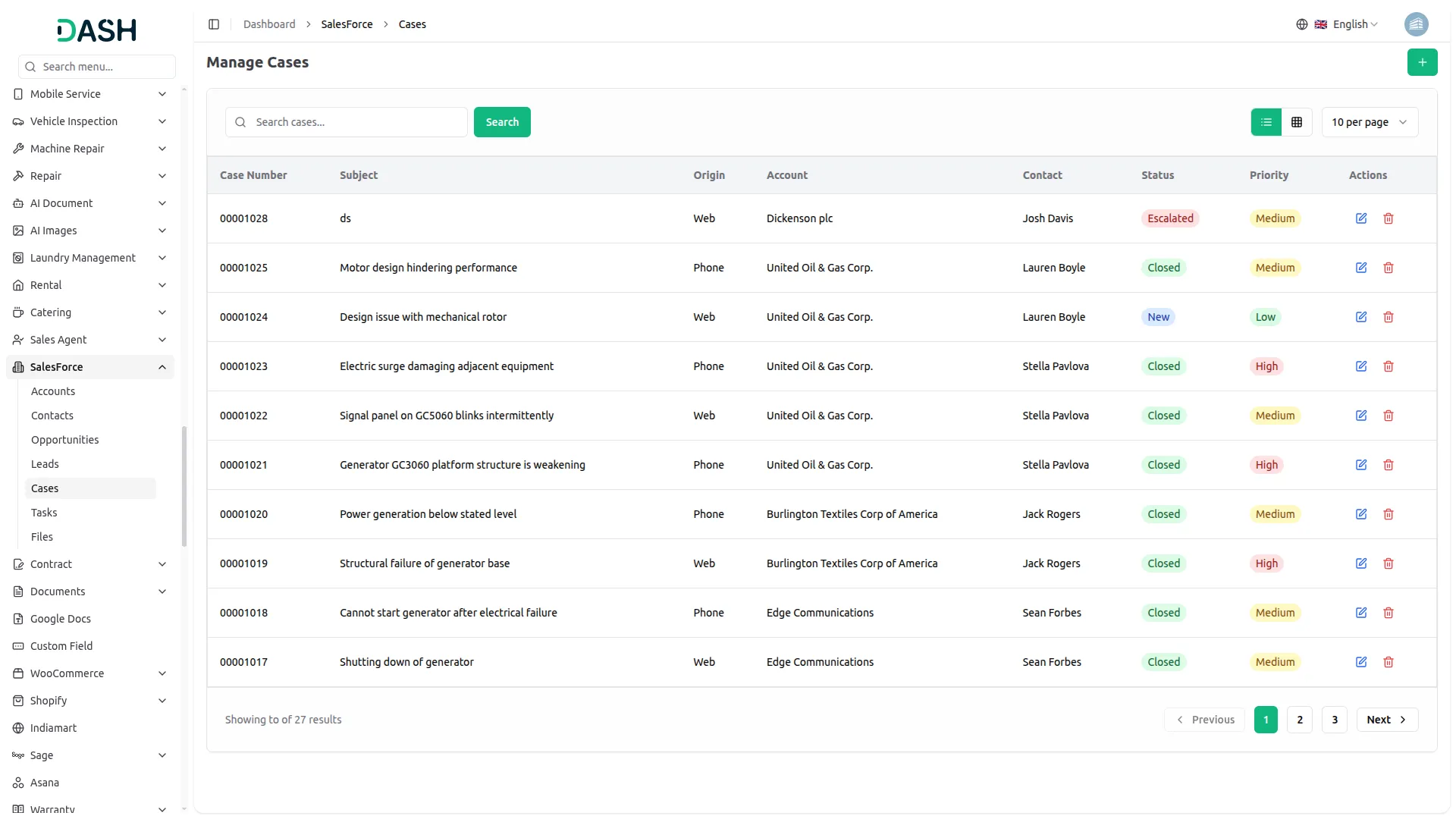
- To log a new case, click the “Create” button on the Manage Cases page. Select the Status from the dropdown, choose the Priority from the dropdown, select the Account Name or Contact Name from their respective dropdown, and enter the Subject and Description. Click Create to log the case.
- The Manage Cases page will display a list of all synced cases in a table with the following columns: Case Number, Subject, Origin, Account, Contact, Status, Priority, and Actions.
- You can use the Search bar at the top of the page to quickly find a specific case by subject or case number. In the Actions column, you can use the Edit option to modify the case details or Delete to permanently remove the record.
Manage Tasks
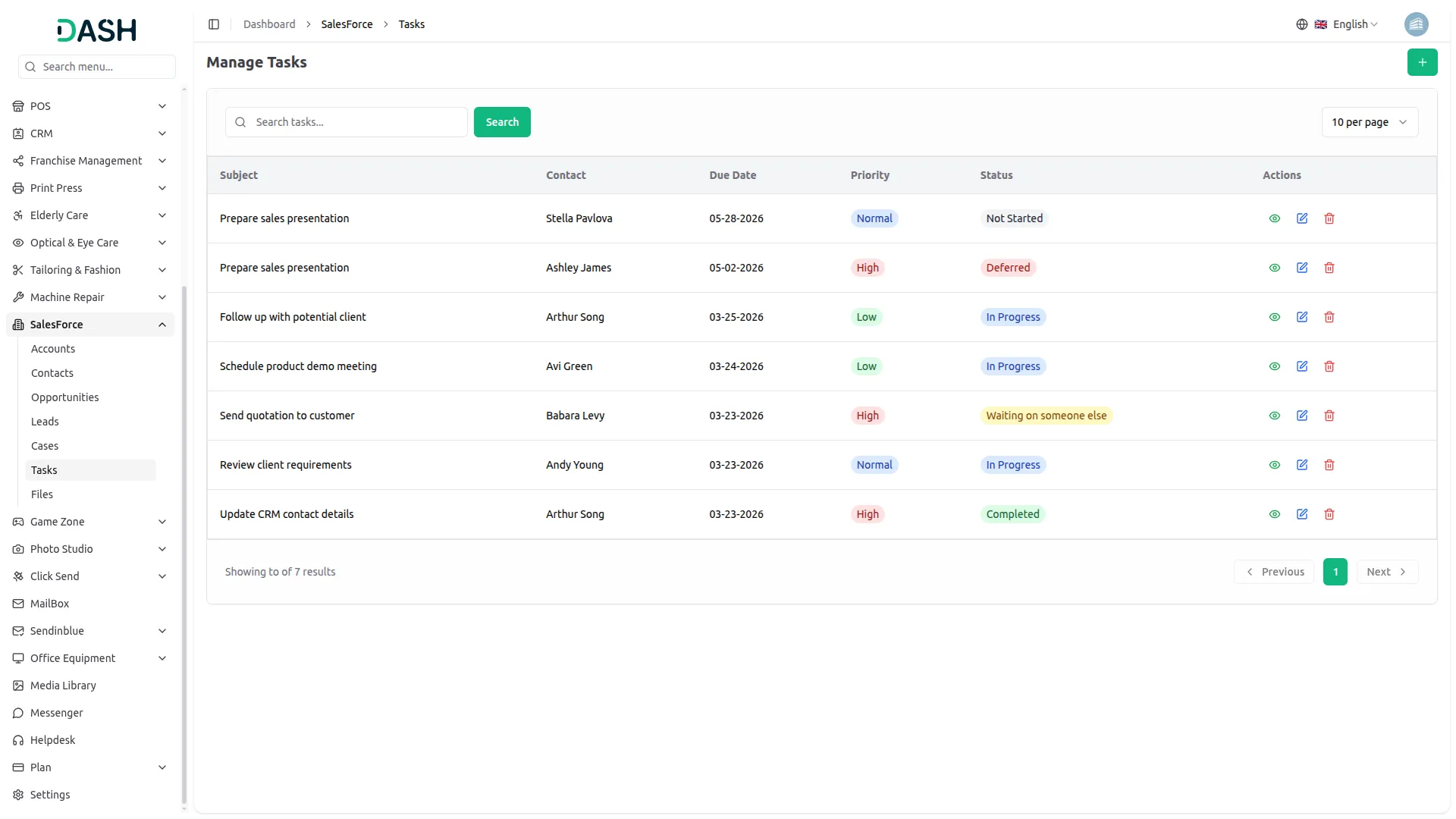
- To add a new task, click the “Create” button on the Manage Tasks page. Enter the Subject, set a Due Date, select WhoId (Contact) from the dropdown, choose the Status or Priority from their respective dropdown, and add the Description, then click Create to save the task.
- The Manage Tasks page will display a list of all existing tasks in a table with columns such as Subject, Contact, Due Date, Priority, Status, and Actions.
- You can use the Search bar at the top of the page to quickly find a specific task by subject. In the Actions column, you can use the View option to see full details, Edit to modify the task, or Delete to permanently remove it.
Manage Files
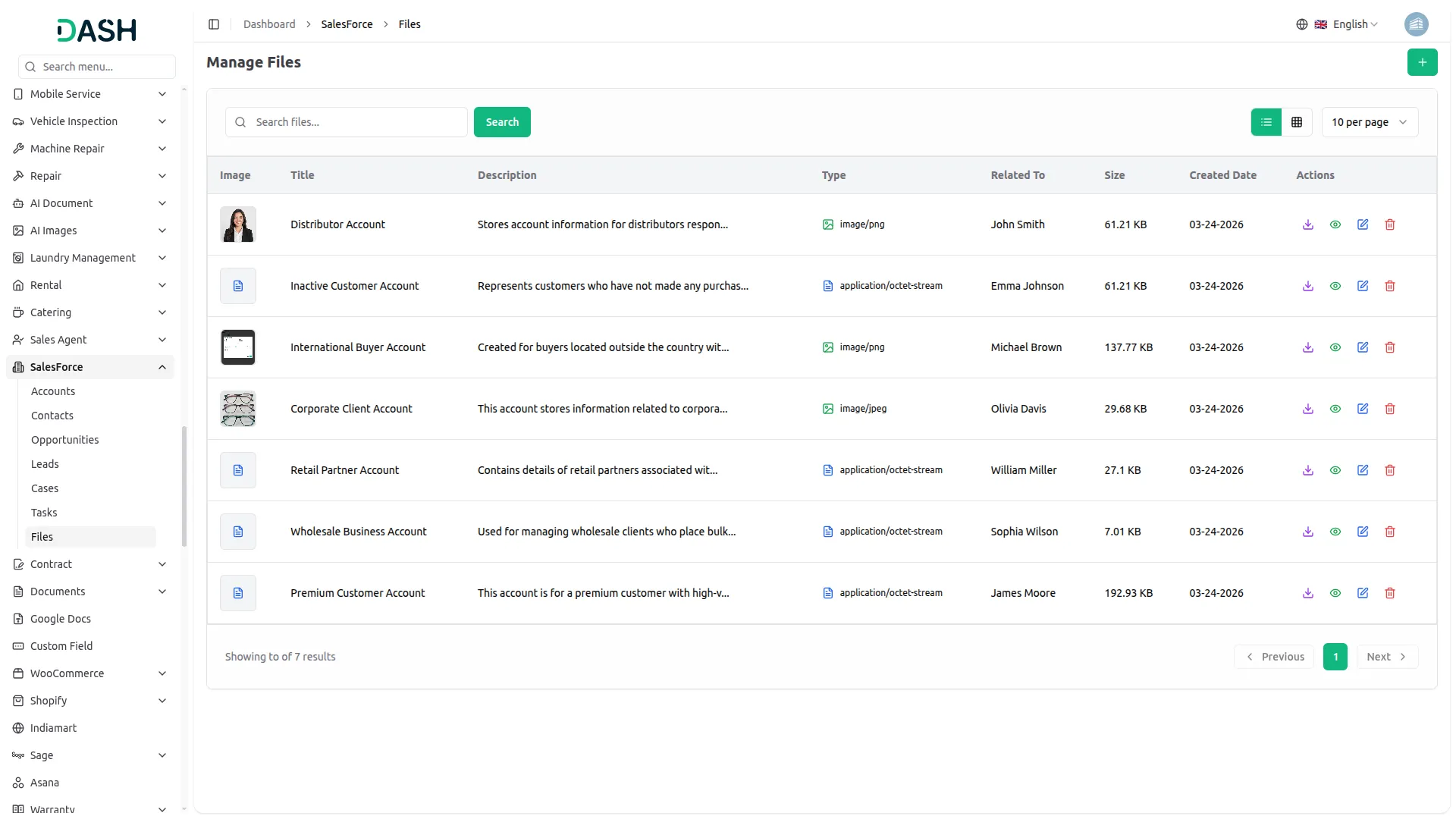
- To upload a new file, click the “Create” button on the Manage Files page. Choose File to select a file from your device. Enter the Title, Description, and select Link to Account from the dropdown.
- The Manage Files page will display a list of all uploaded files in a table with columns, like Image, Title, Description, Type, Related To, Size, Created Date, and Actions.
- You can use the Search bar at the top of the page to quickly find a specific file by title.In the Actions column, you can use the Download option to save the file, View to preview it, Edit to modify the details, or Delete to permanently remove it.
Categories
Related articles
- Property Management – WorkDo Dash SaaS Add-On Guide
- Business Process Mapping – WorkDo Dash SaaS Add-On Guide
- Product Catalog Request – eCommerceGo SaaS Add-On Guide
- Benefit – BookingGo SaaS Add-On Guide
- Sales – WorkDo Dash SaaS Add-On Guide
- vCard – WorkDo Dash SaaS Add-On Guide
- Spreadsheet – WorkDo Dash SaaS Add-On Guide
- WhatsApp API – WorkDo Dash SaaS Add-On Guide
- Google Authentication – BookingGo SaaS Add-On Guide
- Countdown Timer – eCommerceGo SaaS Add-On Guide
- Video Hub – WorkDo Dash SaaS Add-On Guide
- Blog & Article – WorkDo Dash SaaS Add-On Guide
We're Here to Help - Let's Talk
Have questions about our solutions, customization services, or business tools? Our team is here to help you. let's talk.