
OneDrive – WorkDo Dash SaaS Add-On Guide
Learn how to store, sync, and manage files with OneDrive in WorkDo Dash SaaS.
Introduction
The OneDrive Add-On connects your OneDrive storage with the platform, allowing you to access and manage your files in one place without switching between different applications. Once set up, you can browse, upload, and organize your files directly within the platform. Any changes made to the files will be updated on both OneDrive and the platform. The setup process is straightforward—upload your OneDrive credentials, enable the necessary features, and start using your files right away. This documentation provides a detailed guide to help you get started and make full use of the OneDrive Add-On.
How to Install the Add-On
To Set Up the OneDrive Add-On you can follow this link: Setup Add-On.
How to use the OneDrive Add-On?
System Settings
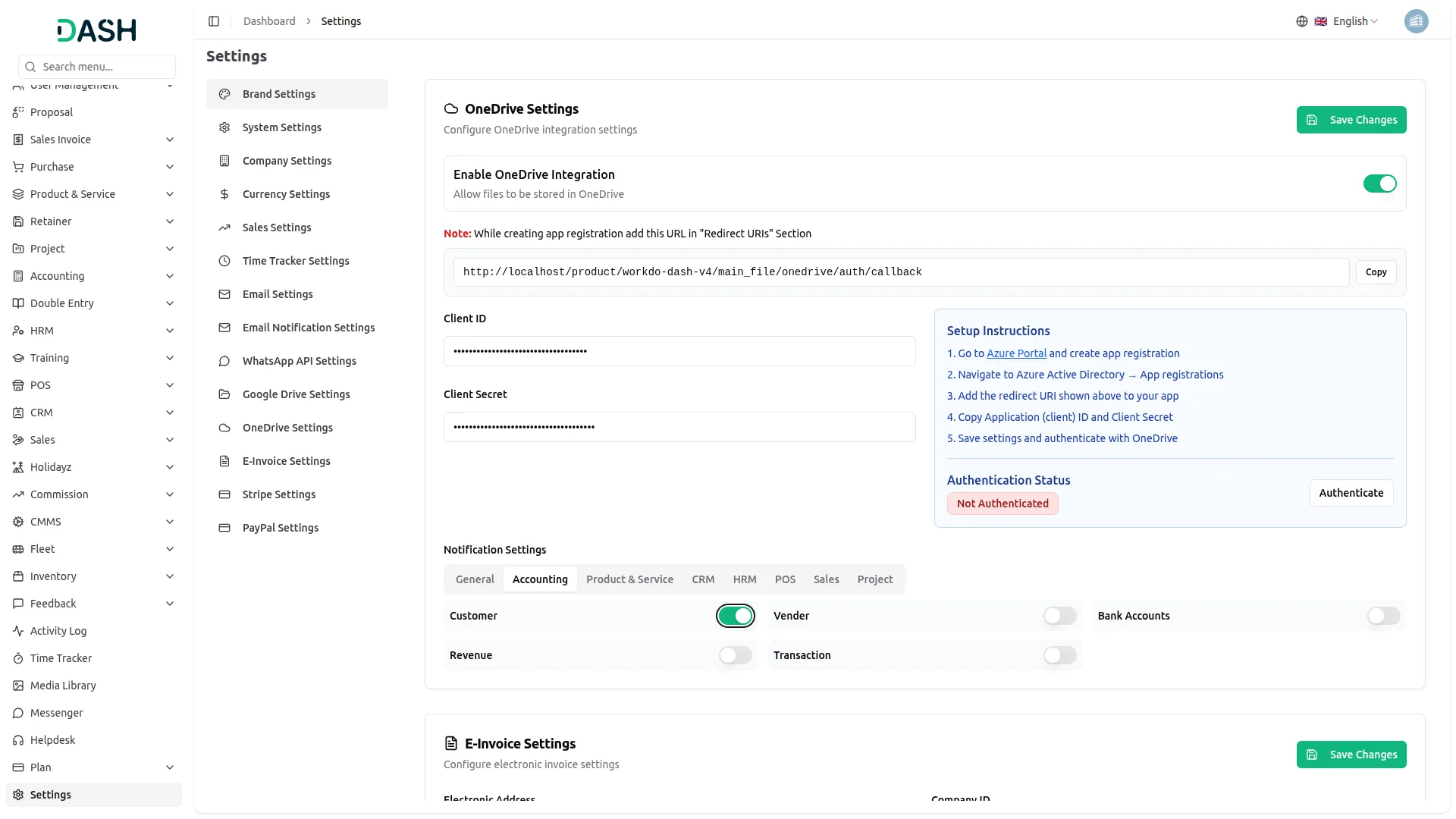
- To activate this Add-On, navigate to the Settings page and find the OneDrive Settings section. Toggle Enable OneDrive Integration to allow files to be stored in OneDrive.
- Before creating your app registration in Azure Portal, copy the redirect URL shown on this page and add it under the “Redirect URIs” section while setting up your app registration.
- Once enabled, enter your Client ID and Client Secret.
- To help you generate the Client ID and Client Secret, the settings page includes a “Setup Instructions” guide with the following steps:
- Go to Azure Portal and create app registration
- Navigate to Azure Active Directory → App registrations
- Add the redirect URI shown above to your app
- Copy Application (client) ID and Client Secret
- Save settings and authenticate with OneDrive
- Below the authentication section, the Connections Settings area lets you choose exactly where OneDrive integration is available across the system. Modules are grouped under tabs such as General, Accounting, Product & Service, CRM, AI Image, Contract, HRM, POS, Sales, Project, AI Document, Notes, and several others.
- Within each tab, individual features are listed with their own toggles; for example, under General, you’ll find Sales Invoice, Proposal, Purchase Invoice, and Warehouse. Enable a toggle to allow files for that specific feature to be stored in OneDrive.
- After entering all required details, click the Save Changes button. Once your credentials are saved, authenticate with OneDrive to complete the connection. The Authentication Status section will update to reflect whether your account is connected; until then, it displays as Not Authenticated, with a note to save the Client ID and Client Secret first.
- Once the integration is complete, you’ll be able to access your OneDrive files directly from the platform, eliminating the need to switch between different applications.
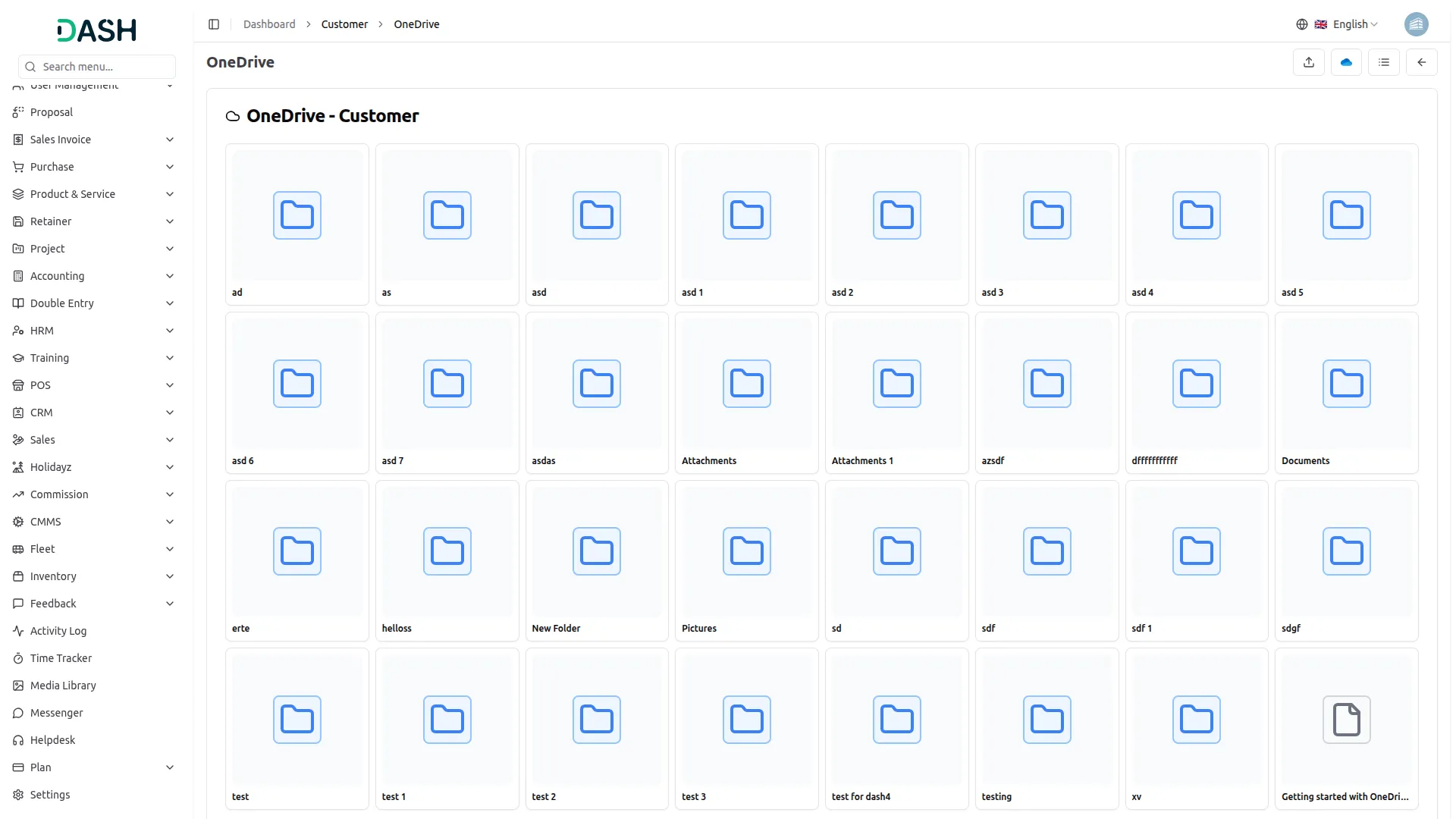
- After setting up this Add-On, a OneDrive icon will appear at the top of any feature you have activated in the system settings. For instance, if you enable the Sales Invoice feature, you’ll see the OneDrive icon on the Sales Invoice page. Clicking this icon will show all the files you’ve added from OneDrive.
- You can upload new files using the add button,and remove files when necessary. Deleting a file on the platform will also remove it from OneDrive, and vice versa.
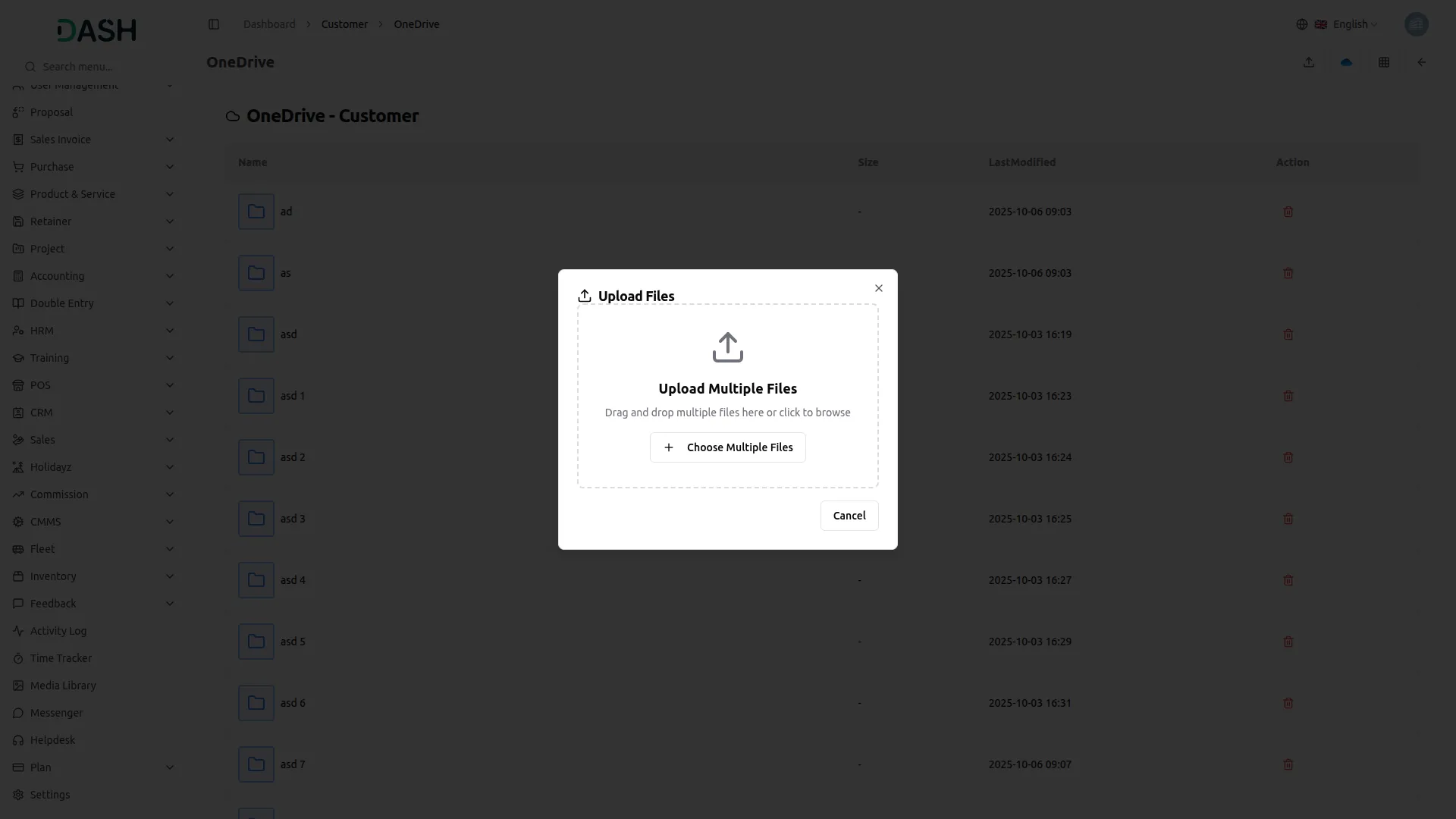
- View and manage your OneDrive documents and folders without downloading them.
- Organize files in grid or list format for easier navigation.
- Connect OneDrive folders to different features for improved collaboration.
- Any modifications made to a file in OneDrive will automatically reflect in the platform, and changes made in the platform will update in OneDrive.
- Experience effortless synchronization and quick access to your files without constantly switching between tools.
For example, if you enable the create user setting from General, then the notification via OneDrive will be sent to that particular user when the user is created.
Accounting
- New Customer
- New Revenue
- New Vendor
- Bank Transfer Payment Status Updated
Product & Service
- Products
CRM
- New Lead
- Lead to Deal Conversion
- New Deal
- Lead Moved
- Deal Moved
AI Image
- Generated Image
Contract
- New Contract
Hrm
- New Monthly Payslip
- New Award
- New Event
- Leave Approve/Reject
- New Announcement
- New Holidays
Pos
- Pos Order
Sales
- New Quote
- New Sales Order
- Meeting Assigned
Project
- New Project
- New Task
- New Bug
- New Milestone
- Task Stage Updated
- New Task Comment
AI Document
- Documents
School / Institute Management
- New Teacher
- New Admissions
- New Parents
- New Students
- New Homework
- New Time Table
Insurance Management
- Policies
- Claim
Courier Management
- Pending Courier
- Payment Information
Freight Management System
- Freight Customer
- Freight Booking Request
- Freight Invoice
Garage Management
- Garage Vehicle
- Garage Jobcard
Hospital Management
- New Doctor
- New Patient
- New Hospital Appointment
- New Hospital Medicine
Innovation Center
- New Creativity
- New Challenge
- New Category
ToDo
- New To Do
- Complete To Do
Visitor Management
- New Visitor
- New Visit Purposes
So, this is how you can use the OneDrive Add-On very easily.
Categories
Related articles
- OneNote – WorkDo Dash SaaS Add-On Guide
- Biometric Attendance Documentation Guide
- Meta Token Generation Guide
- Office Hours – TicketGo Add-On Guide
- Bundle Products – eCommerceGo SaaS Add-On Guide
- Promo Codes – BookingGo SaaS Add-On Guide
- Blog & Article – WorkDo Dash SaaS Add-On Guide
- Webhook – TicketGo Add-On Guide
- Midtrans – BookingGo SaaS Add-On Guide
- Vonage SMS – WorkDo Dash SaaS Add-On Guide
- Flexible Duration – BookingGo SaaS Add-On Guide
- Call Hub – WorkDo Dash SaaS Add-On Guide
We're Here to Help - Let's Talk
Have questions about our solutions, customization services, or business tools? Our team is here to help you. let's talk.