
Suggestion Box – WorkDo Dash SaaS Add-On Guide
Employee suggestion platform with idea tracking, voting, feedback, and transparent workflow management.
Introduction
The Suggestion Box Add-On is a centralized platform that enables employees to share ideas, engage with suggestions through voting, and track their progress in a transparent workflow. Administrators can review, respond to, and manage all submissions through a dedicated dashboard, ensuring every idea is properly evaluated. The system improves communication between employees and management by organizing suggestions, tracking engagement, and providing visibility into feedback and responses throughout the process.
In short, the flow works like this:
Employee has an idea → Submits a suggestion → Admin reviews → Decision made → Employee gets an update
How To Install The Add-On?
To set up the Suggestion Box Add-On, you can follow this link: Setup Add-On.
How To Use The Suggestion Box Add-On?
Admin Dashboard
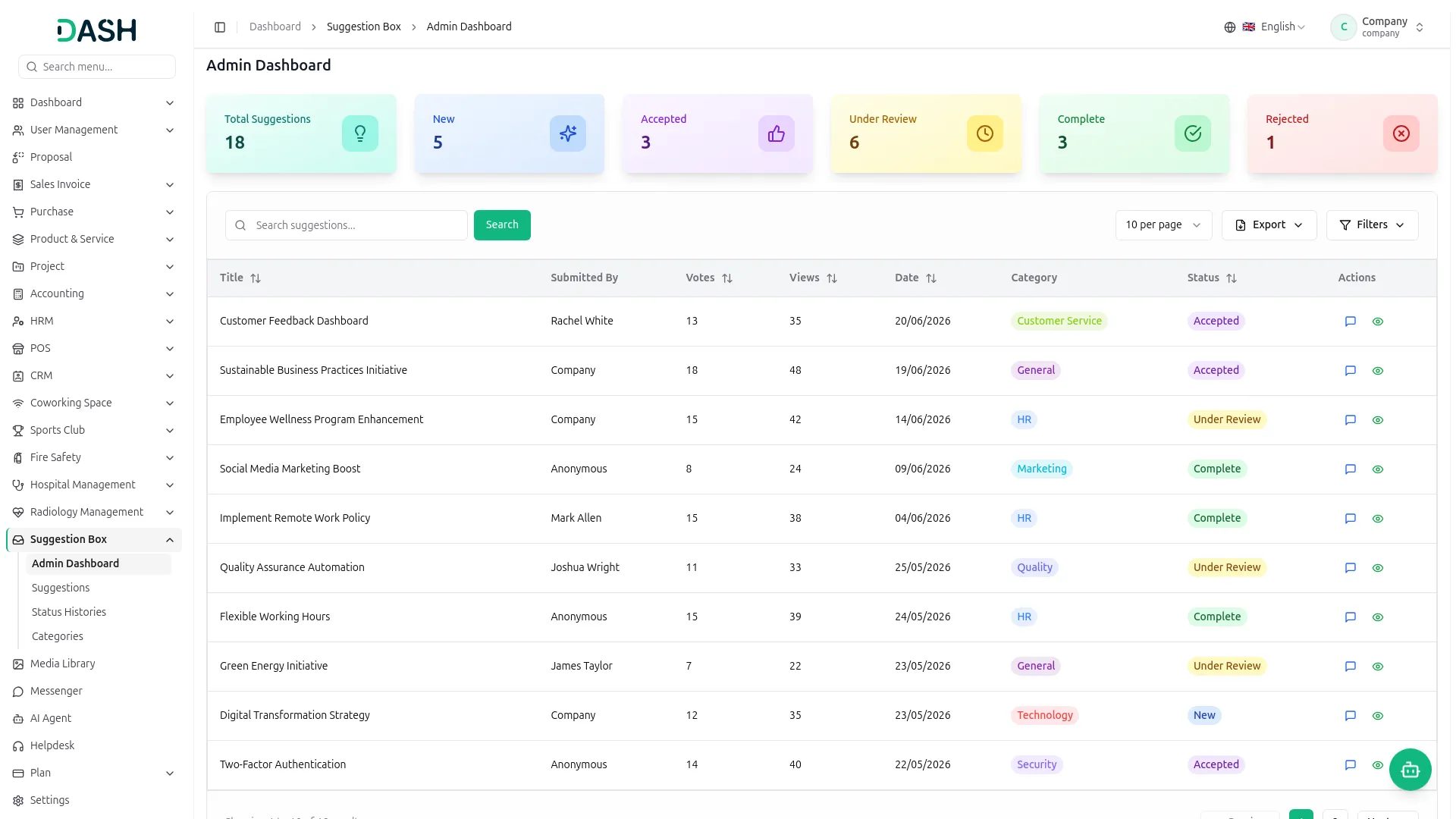
- The Admin Dashboard gives the Admin a quick summary of all suggestions through status cards: Total Suggestions, New, Accepted, Under Review, Complete, and Rejected.
- The table below lists every suggestion with columns for Title, Submitted By, Votes, Views, Date, Category, Status, and Actions. Use the Search suggestions bar to find specific records and apply Filter Dropdowns (status, category, date range) to narrow results. Then click ‘Apply’ to activate filters or ‘Clear’ to reset them. Use Export to export the data to Excel, PDF, or CSV.
- In the Actions column, use the response button to reply to a suggestion and the view button to open its full details.
- When you click the response button in the Actions column, to open the Admin Response window. Choose the new Status from the dropdown (New, Under Review, Accepted, Rejected, or Complete). Write your Response to explain the decision or provide feedback. Then click Update to save.
Suggestions
- To add a new Suggestion, click the “Create” button to open the Create Suggestion form and enter a Title, choose a category from the dropdown (comes from the manage category section), and write a Description of your idea. Tick Submit anonymously if you want to hide your name from the suggestion. Click Create to submit.
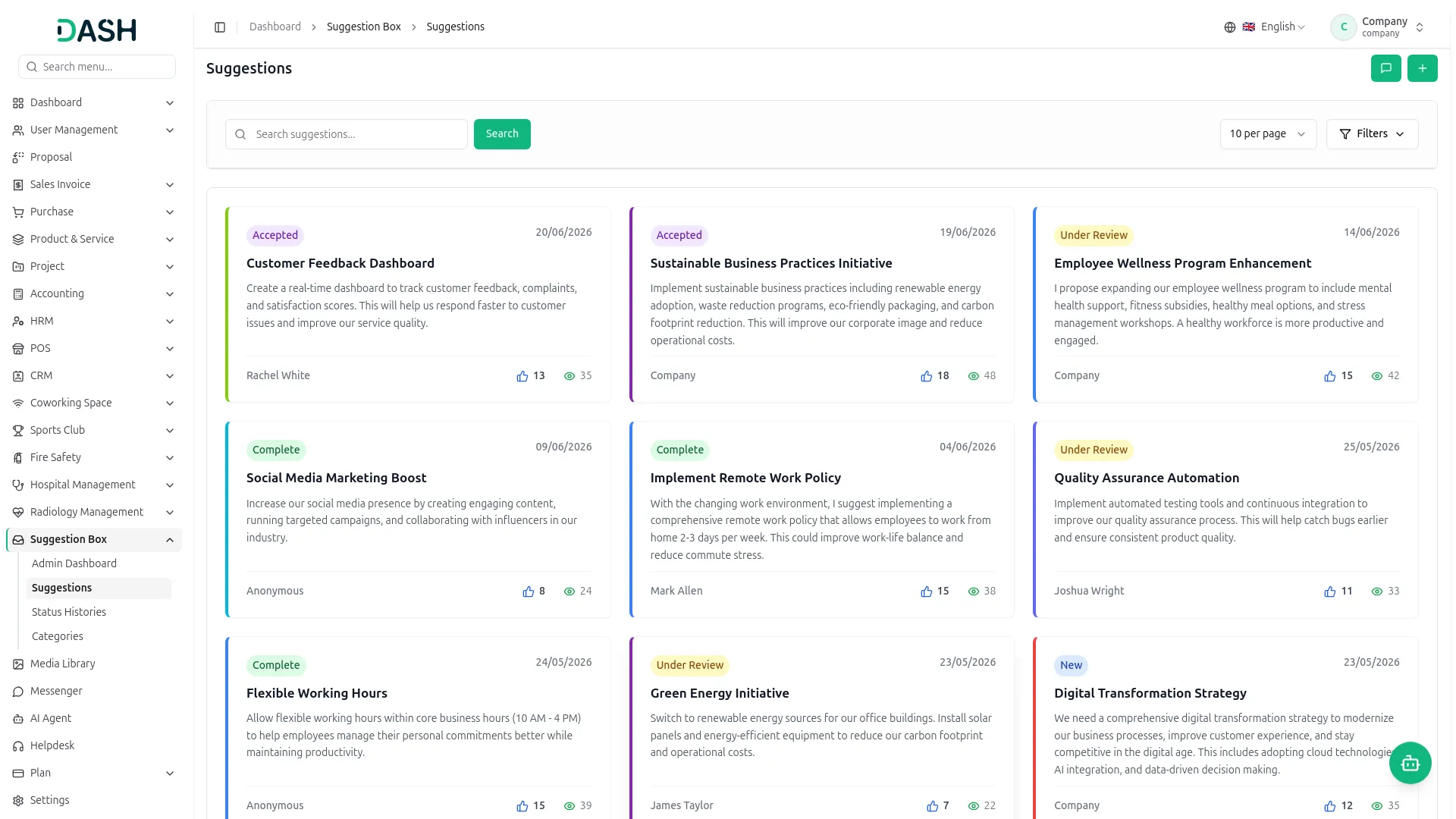
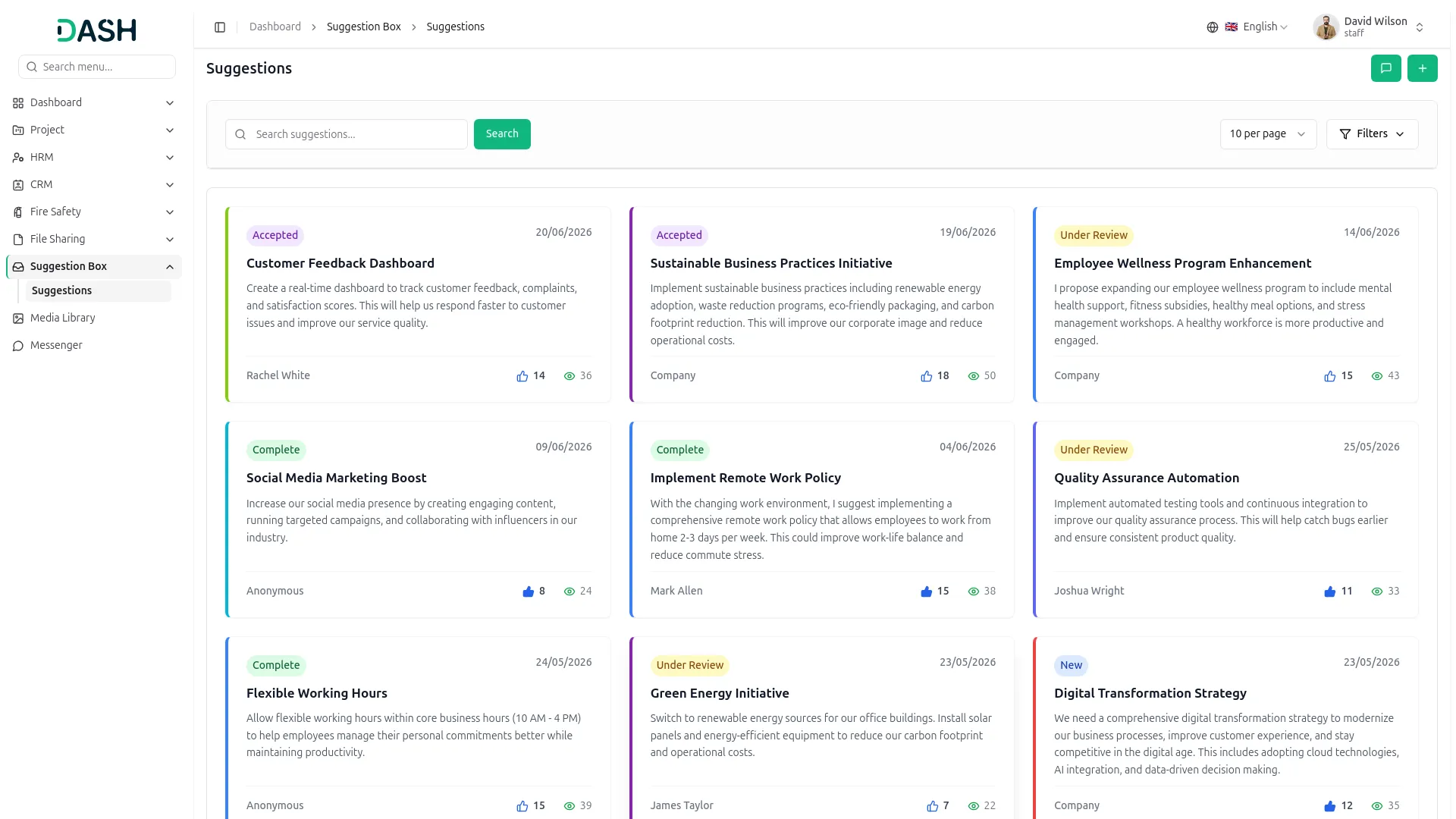
- The Suggestions page shows every suggestion as a card. Each card displays the status badge, the submission date, the title, the description, the submitter’s name (or Anonymous), the vote count, and the view count.
- Use the Search bar to find specific suggestions and apply Filter Dropdowns (category, status) to narrow results. Then click ‘Apply’ to activate filters or ‘Clear’ to reset them.
- Employees can vote to like or support other employees’ suggestions. You cannot vote on your own ideas.
- Note : Employees can only edit or delete their own New suggestions. You cannot vote on your own ideas. Anonymous suggestions hide your name. All suggestions get reviewed by management. You get notified of status changes.
My Suggestions
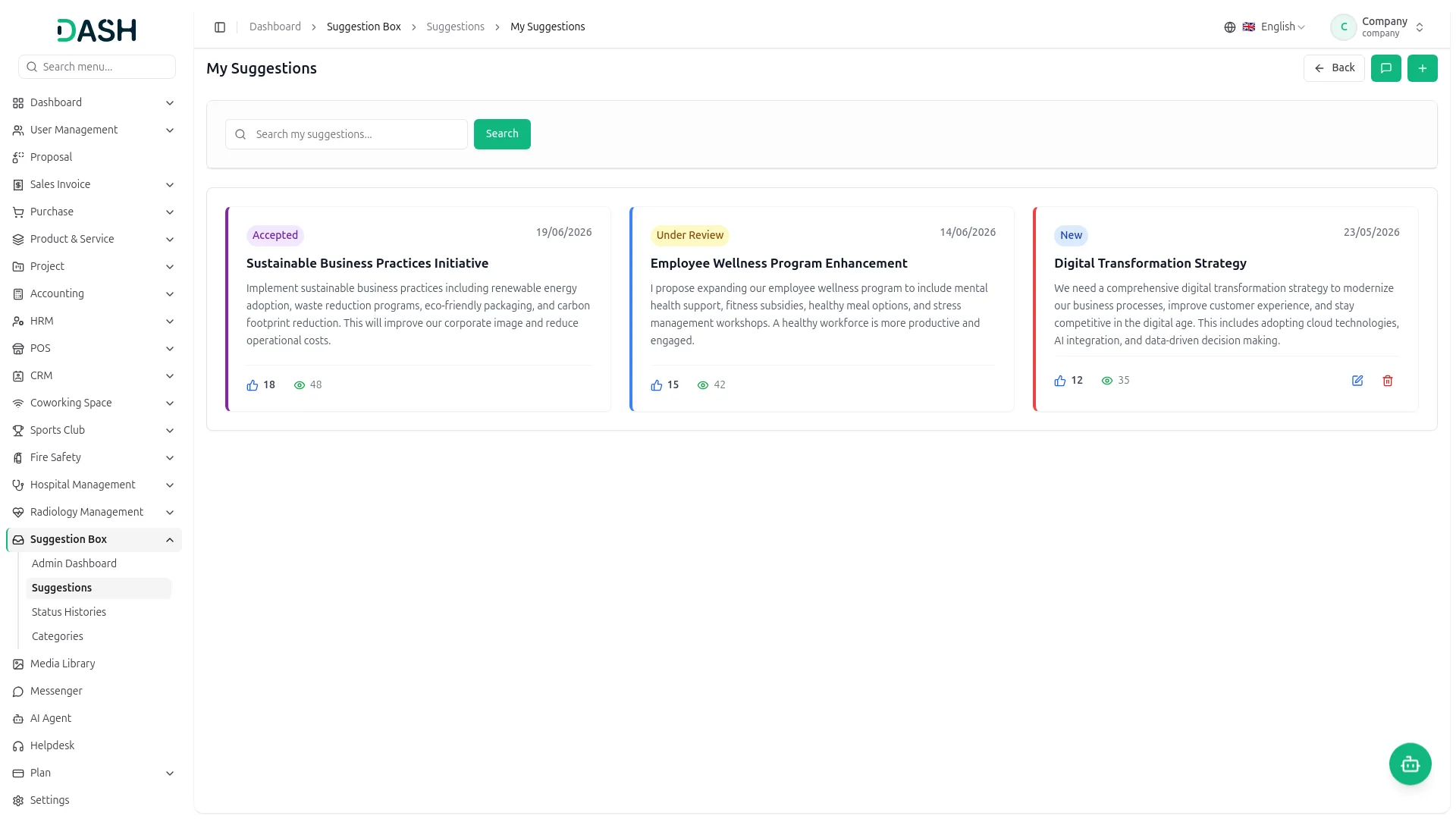
- When you click the “My Suggestion” button, you can see the My Suggestions page, which shows the suggestions you have submitted, each with its current status, date, title, description, vote count, and view count.
- Suggestions with the New status display Edit and Delete option, so you can edit or delete your own new suggestions. Use the ‘Search my suggestions’ bar to find a specific entry, or click Back to return to the previous page.
Viewing a Suggestion
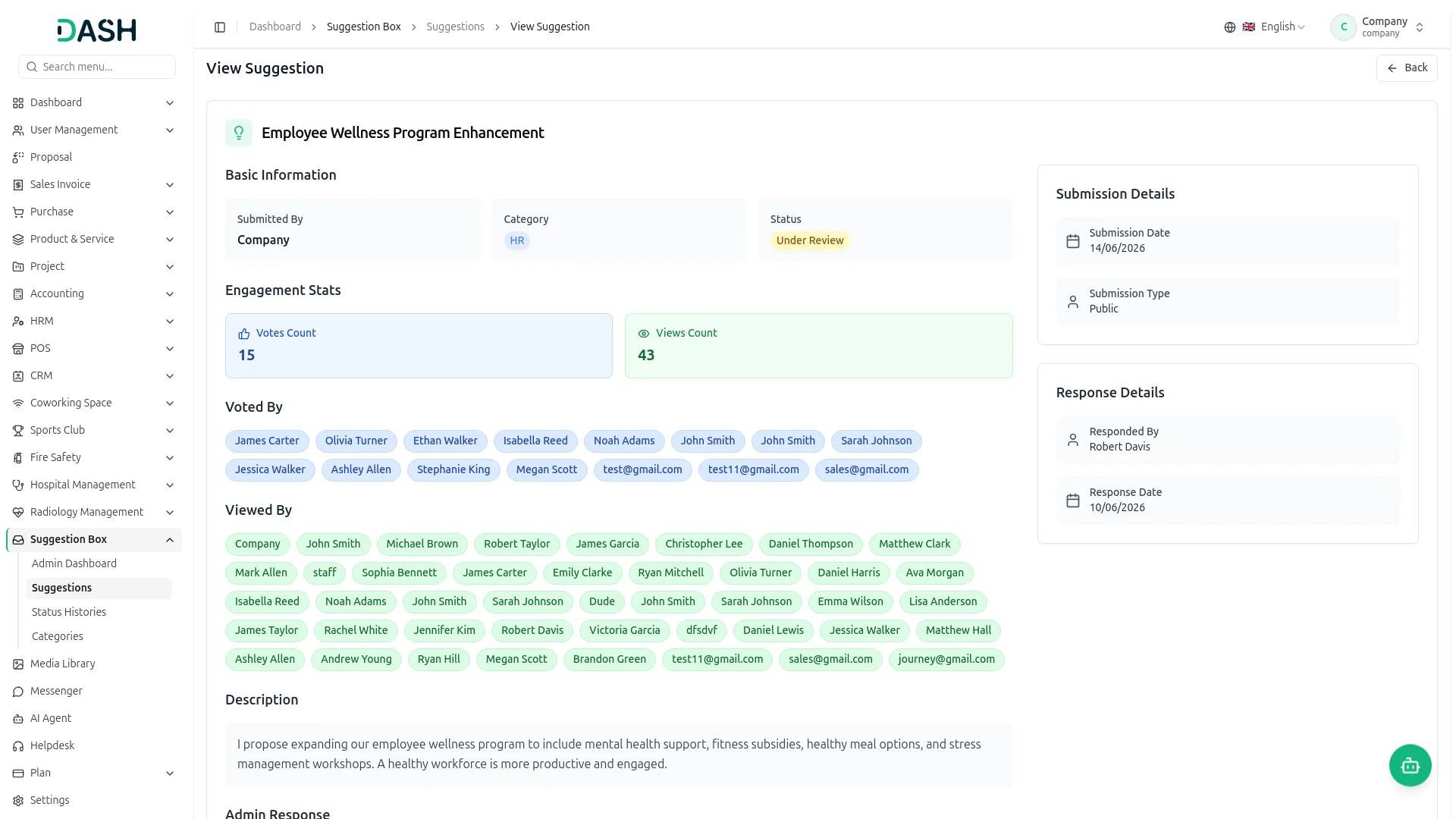
- When you click a specific suggestion to view its details, the “View Suggestion” page displays the complete information for that individual suggestion. Basic Information lists Submitted By, Category, and Status. Engagement Stats show the Vote Count and Views Count.
- Voted By lists everyone who voted for the suggestion, and Viewed By lists everyone who viewed it. The description shows the full text of the idea. Submission Details show the Submission Date and Submission Type. Response Details (right panel) show the ‘Responded By’ and the ‘Response Date’.
- If the admin responds, the Admin Response section displays the administrator’s reply to the submitted suggestion.
Status Histories
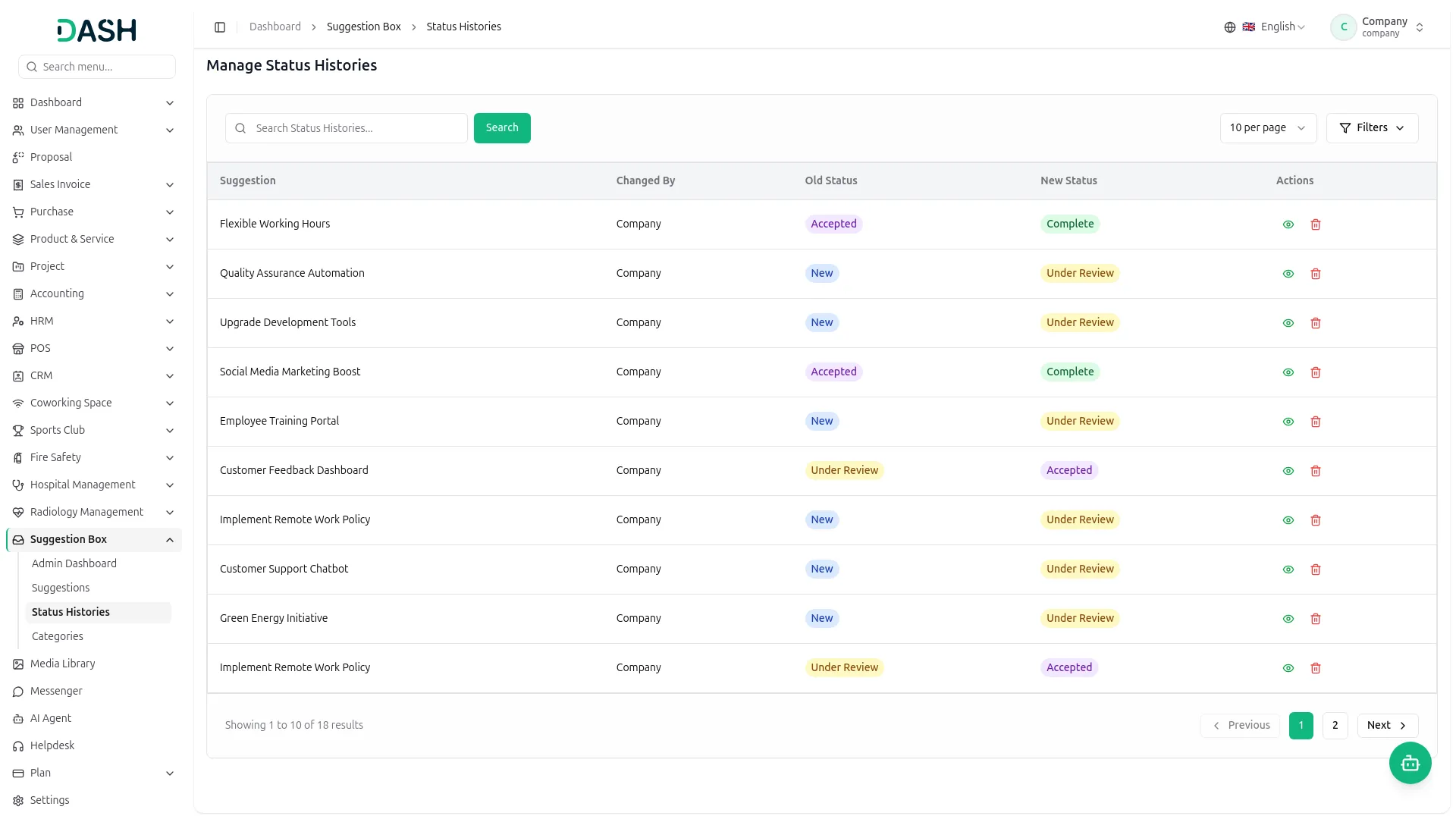
- The Manage Status Histories page records every status change made to a suggestion. Each row shows the Suggestion, who it was Changed By, the Old Status, the New Status, and Actions.
- Each suggestion goes through these stages: New (submitted), Under Review (being checked), Accepted (approved), Rejected (not approved), and Complete (done/implemented).
- Use the Search Status Histories bar and Filters to find specific entries, and use the Actions to view the suggestion status history or delete a record.
Manage Categories
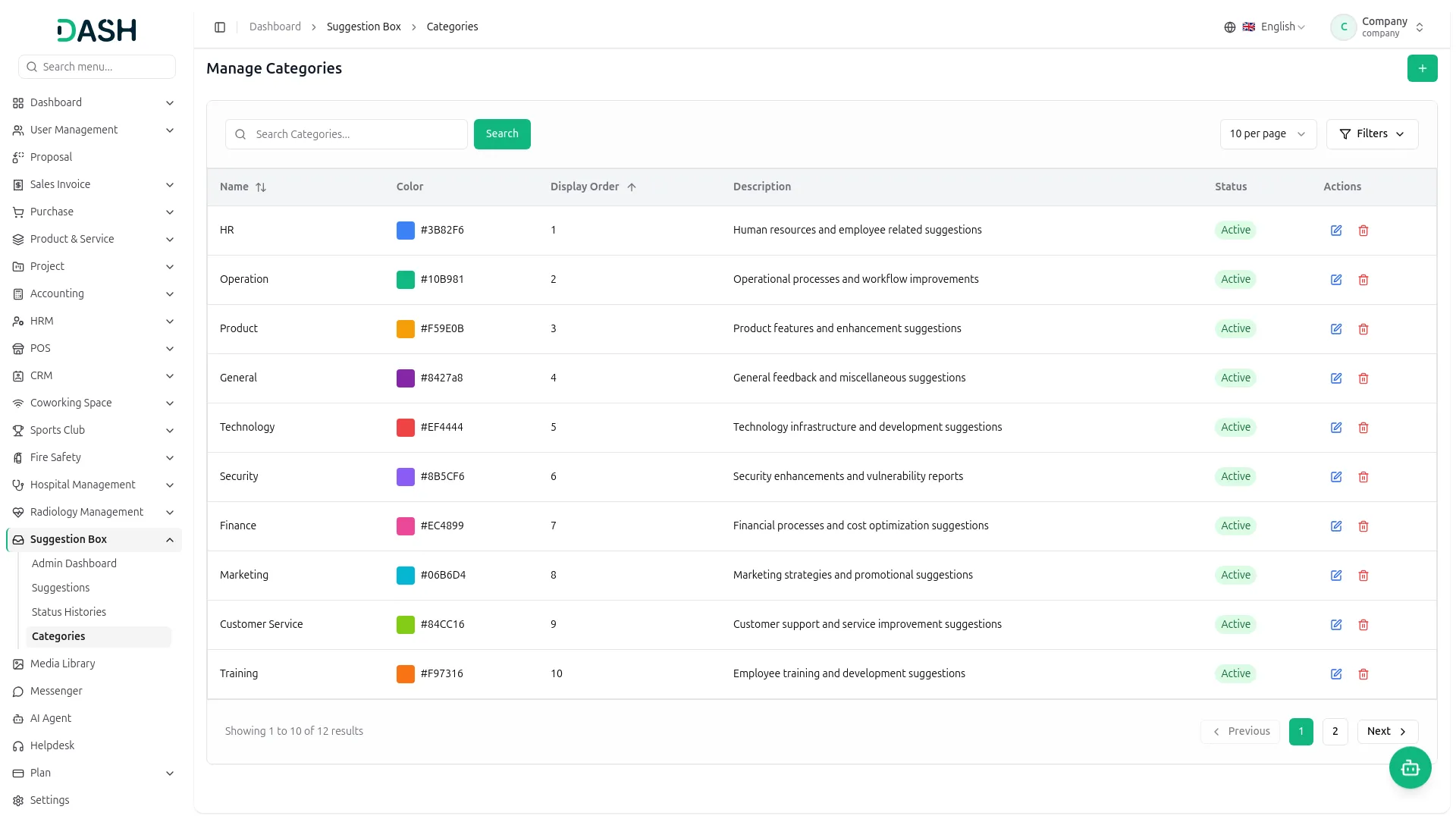
- To add a new category, click the Create button and fill in these fields, including entering the category Name, choosing a Color for the category, and entering the order in which the category appears. Use Toggle this on to make the category ‘Is Active’. Click Create to save the category.
- The Manage Categories page lists the categories that suggestions can be organized into. Each row shows the Name, Color, Display Order, Description, Status, and Actions.
- The category color shown here should also appear on the category cards in the “My Suggestions” grid section.
- Use the Search Categories bar to find a category and apply the Filter Dropdowns status (active/inactive) to narrow results. Then click ‘Apply’ to activate filters or ‘Clear’ to reset them.
- In the Actions column, use the Edit button to change a category’s details or the Delete button to remove it.
Employee Side Login
Once an employee logs in, they can access the Suggestion Box directly from their dashboard. The module provides a simple and transparent way to submit ideas, track their progress, and engage with suggestions submitted by colleagues.
The employee can browse all submitted suggestions that are visible to employees. Users can view suggestion details, support valuable ideas through voting, and stay informed about ongoing improvement initiatives within the organization.
Track the current status of each suggestion (such as New, Under Review, Accepted, Rejected, or Implemented). View responses or feedback provided by administrators and reviewers. Monitor the progress of suggestions from submission through final decision. This ensures employees have complete visibility into their submitted ideas and can easily follow the review process without needing to contact administrators directly.
Categories
Related articles
- Waste Management – WorkDo Dash SaaS Add-On Guide
- Store Locator – eCommerceGo SaaS Add-On Guide
- SMS Integration – WorkDo Dash SaaS Add-On Guide
- Agriculture Management – WorkDo Dash SaaS Add-On Guide
- Jewellery Store Management – WorkDo Dash SaaS Add-On Guide
- Jitsi Meet – WorkDo Dash SaaS Add-On Guide
- FedaPay – WorkDo Dash SaaS Add-On Guide
- SenangPay – BookingGo SaaS Add-On Guide
- CCTV & Security System – WorkDo Dash SaaS Add-On Guide
- Sports Club & Academy Management – WorkDo Dash SaaS Add-On Guide
- Storage Settings Guide
- AI Assistant – BookingGo SaaS Add-On Guide
We're Here to Help - Let's Talk
Have questions about our solutions, customization services, or business tools? Our team is here to help you. let's talk.