

MSG91 – WorkDo Dash SaaS Add-On Guide
Learn how to configure and manage MSG91 integration in WorkDo Dash SaaS easily.
Introduction
The MSG91 Add-On enables automated SMS notifications across multiple Add-Ons by integrating your platform with the MSG91 messaging service. Once activated, it allows administrators to send real-time alerts, reminders, and updates via text messages to users, employees, or clients. With customizable templates and dynamic variables, each notification can be tailored to suit specific events or Add-Ons like HRM, Projects, Invoices, CRM, and more. This Add-On is especially useful for improving communication, ensuring timely updates, and maintaining a professional touch through branded SMS delivery using your registered Sender ID.
How To Install the Add-On?
To Set Up the MSG91 Add-On, you can follow this link: Setup Add-On.
Note: You need to add your phone number while creating the user to have access to the MSG91 Add-On.
How to use the MSG91 Add-On?
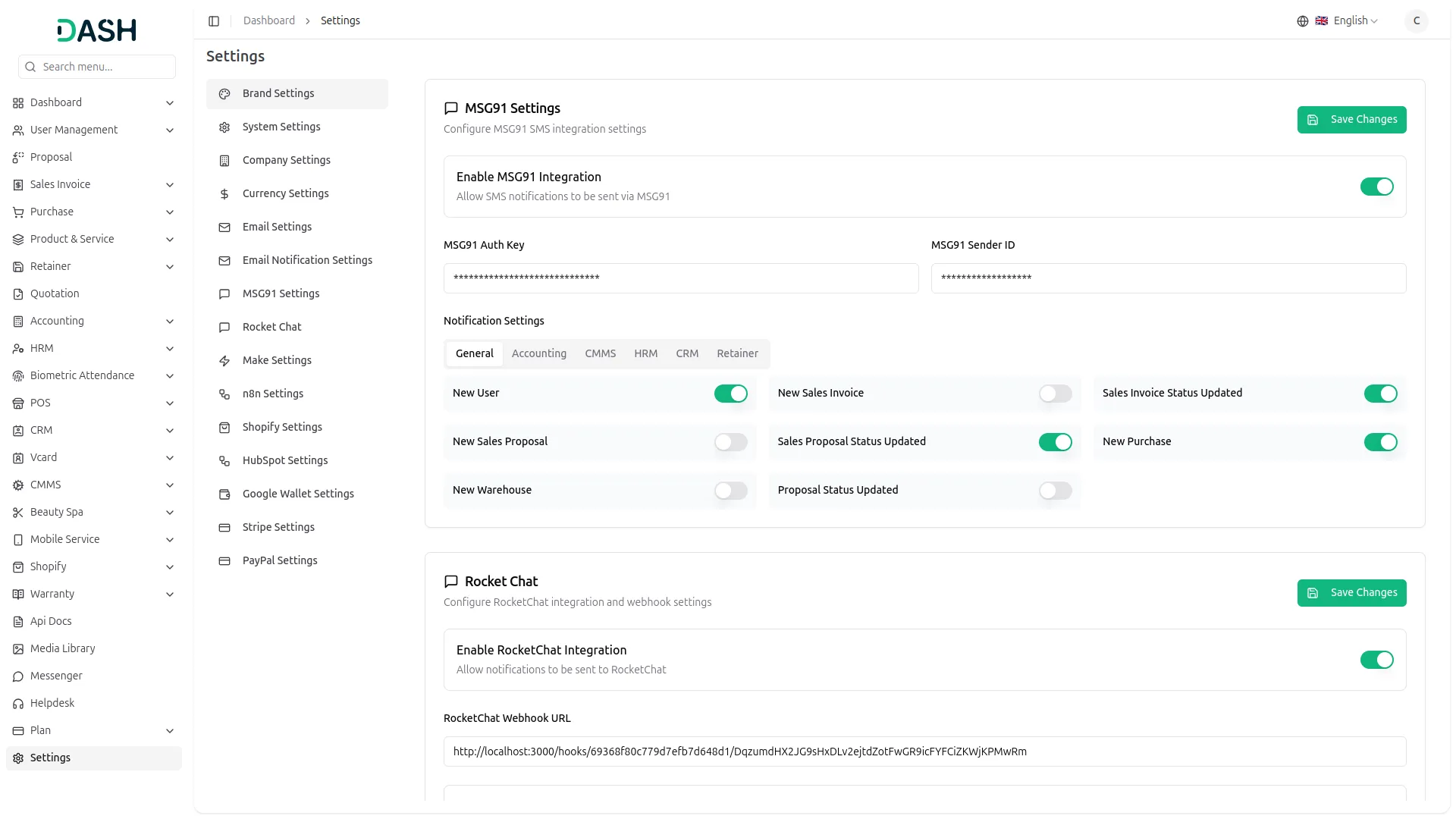
- After purchasing the MSG91 Add-On, go to the settings and find the MSG91 Settings from the available options.
- Inside the MSG91 settings, you will find fields where you need to enter two credentials: MSG91 AuthKey and MSG91 Sender ID, which are necessary for enabling message sending through MSG91’s system.
- To obtain your MSG91 AuthKey, visit this link: https://msg91.com/help/api/where-can-i-find-my-authentication-ke and follow the instructions provided on the page to locate your authentication key.
- To create a new Sender ID that will be used for delivering messages, visit: https://msg91.com/help/sender-id/how-to-add-sender-id-in-msg91 and complete the steps given.
- Once you have entered both the AuthKey and Sender ID into the fields in system settings, notification toggle switches will become available for various Add-Ons, turning these on ensures notifications are sent when any related activity occurs.
-
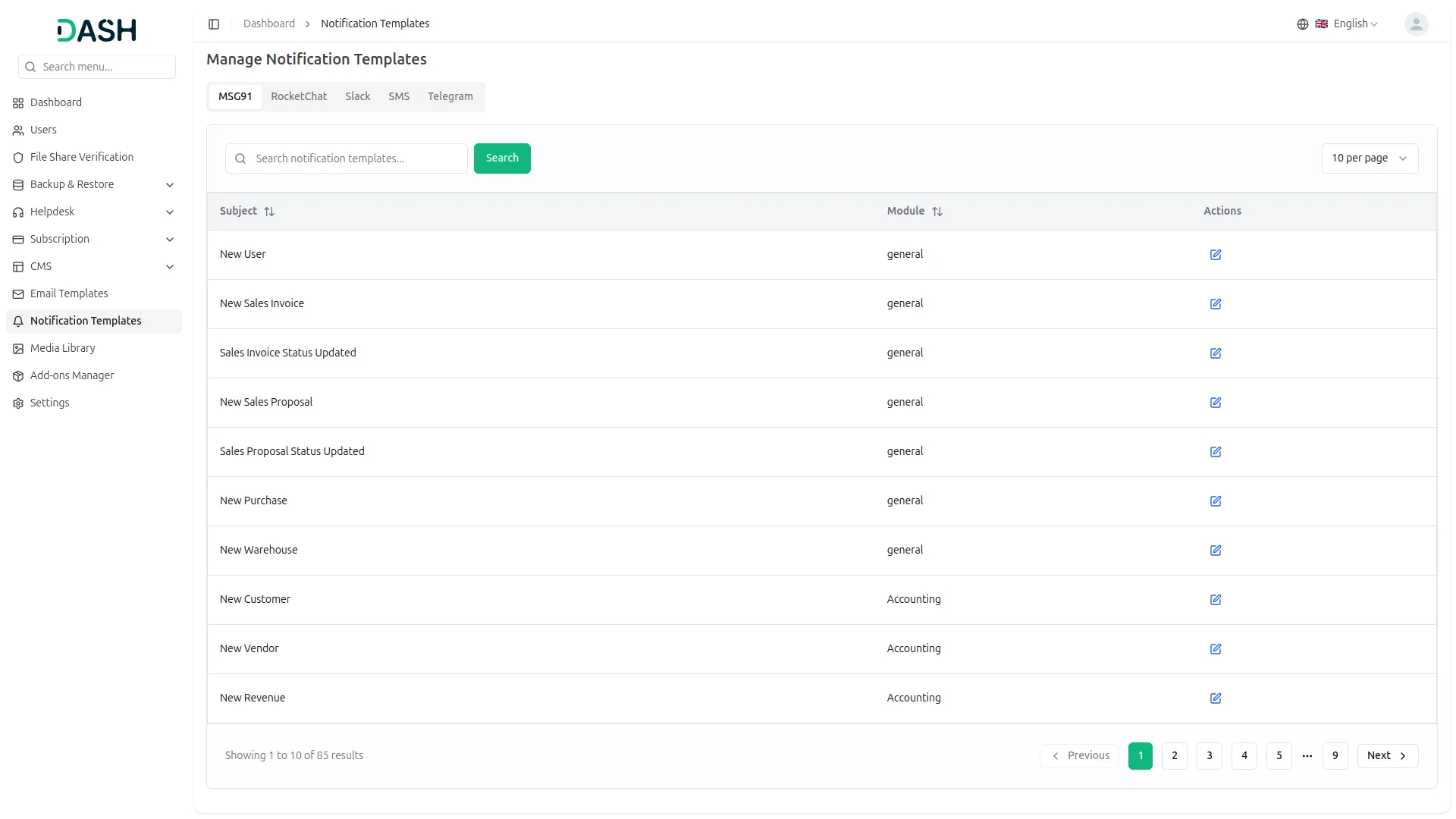
- Navigate to the Notification Templates section and click on the MSG91 tab, which will display all the Add-On notifications templates that can send out notifications via MSG91 integration.
- Here, you can change the default notification messages for each Add-On based on your preferred language, and the system also shows the list of supported variables that can be inserted into the message templates.
- You can select a notifications template (like Create User, New Invoice, New Proposal, etc.), choose a language, and edit the message format using the dynamic variables listed to personalize each notification message.
-
- After editing a template, click Save to apply the changes, this customized message will then be used each time that specific event triggers a notification through MSG91.
- If you enable the Create User notification from the General settings tab, a message will automatically be sent via MSG91 to the new user as soon as their account is created.
Here is the list of Add-Ons and their notifications.
General
- New User
- New Sales Invoice
- Sales Invoice Status Updated
- New Sales Proposal
- Proposal Status Updated
- New Purchase
- New Warehouse
Account
- New Customer
- New Vendor
- New Revenue
Appointment
- New Appointment
- Appointment Status
CMMS
- Work Order Request
- New Supplier
- New POs
- Work Order Assigned
- New Component
- New Location
- New Pms
Contract
- New Contract
Hrm
- New Award
Lead
- New Lead
- Lead to Deal Conversion
- New Deal
- Lead Moved
- Deal Moved
Recruitment
- New Candidate
- Interview Schedule
- Convert To Employee
- New Job Posting
Retainer
- Create Retainer
- New Retainer Payment
Sales
- New Quote
- New Sales Order
- Meeting Assigned
Taskly
- New Project
- New Task
- New Bug
- New Milestone
- Task Stage Updated
- New Task Comment
Training
- New Trainer
ZoomMeeting
- New Zoom Meeting
Portfolio
- New Portfolio
Spreadsheet
- New Spreadsheet
FixEquipment
- New Accessories
- New Asset
- New Audit
- New Fix Equipment Component
- New Consumables
- New Licence
- New Fix Equipment Location
- New Maintenance
VisitorManagement
- New Visitor
WordPressWoocommerce
- New Product
School
- New Admissions
- New Parents
- New Students
- New Homework
- New Subject
- New Time Table
CleaningManagement
- New Cleaning Team
- New Cleaning Booking
- New Cleaning Invoice
TimeTracker
- New Tracker
MachineRepairManagement
- New Machine
- New Repair Request
HospitalManagement
- New Doctor
- New Patient
- New Hospital Appointment
- New Hospital Medicine
FormBuilder
- New Form
- Convert To Modal
Timesheet
- New Timesheet
Notes
- New Note
Internal knowledge
- New Article
- New Book
InnovationCenter
- New Creativity
- New Challenge
- New Category
ToDo
- New To Do
- Complete To Do
Documents
- New Document
Categories
Related articles
- Omise – BookingGo SaaS Add-On Guide
- SenangPay – BookingGo SaaS Add-On Guide
- Easebuzz – BookingGo SaaS Add-On Guide
- SMS – BookingGo SaaS Add-On Guide
- Mollie – BookingGo SaaS Add-On Guide
- Consultancy – WorkDo Dash SaaS Add-On Guide
- 2Checkout – WorkDo Dash SaaS Add-On Guide
- Workflow – WorkDo Dash SaaS Add-On Guide
- Outlook Calendar Credentials Generation Guide
- Outlook Mail – WorkDo Dash SaaS Add-On Guide
- Backup & Restore – eCommerceGo SaaS Add-On Guide
- Dance Academy – WorkDo Dash SaaS Add-On Guide
We're Here to Help - Let's Talk
Have questions about our solutions, customization services, or business tools? Our team is here to help you. let's talk.