

Office Equipment Management – WorkDo Dash SaaS Add-On Guide
Learn how to manage office equipment, maintenance, and asset assignments in WorkDo Dash SaaS.
Introduction
The Office Equipment Management Add-On helps organizations keep track of all their office equipment in one place. It lets administrators organize equipment by categories and locations, and keep detailed records of each item, including purchase date, status, and assigned user. The system also allows tracking maintenance, transfers between locations, disposals, and usage, giving a clear history of every piece of equipment. This makes managing office resources easier, more organized, and more efficient.
How to Install the Add-On?
To Set Up the Office Equipment Management Add-On, you can follow this link: Setup Add-On.
How To Use the Office Equipment Add-On?
System Setup
- The System Setup section allows administrators to configure foundational data used across the system. It currently includes Category and Location, both of which are referenced when creating and managing office equipment records throughout the platform.
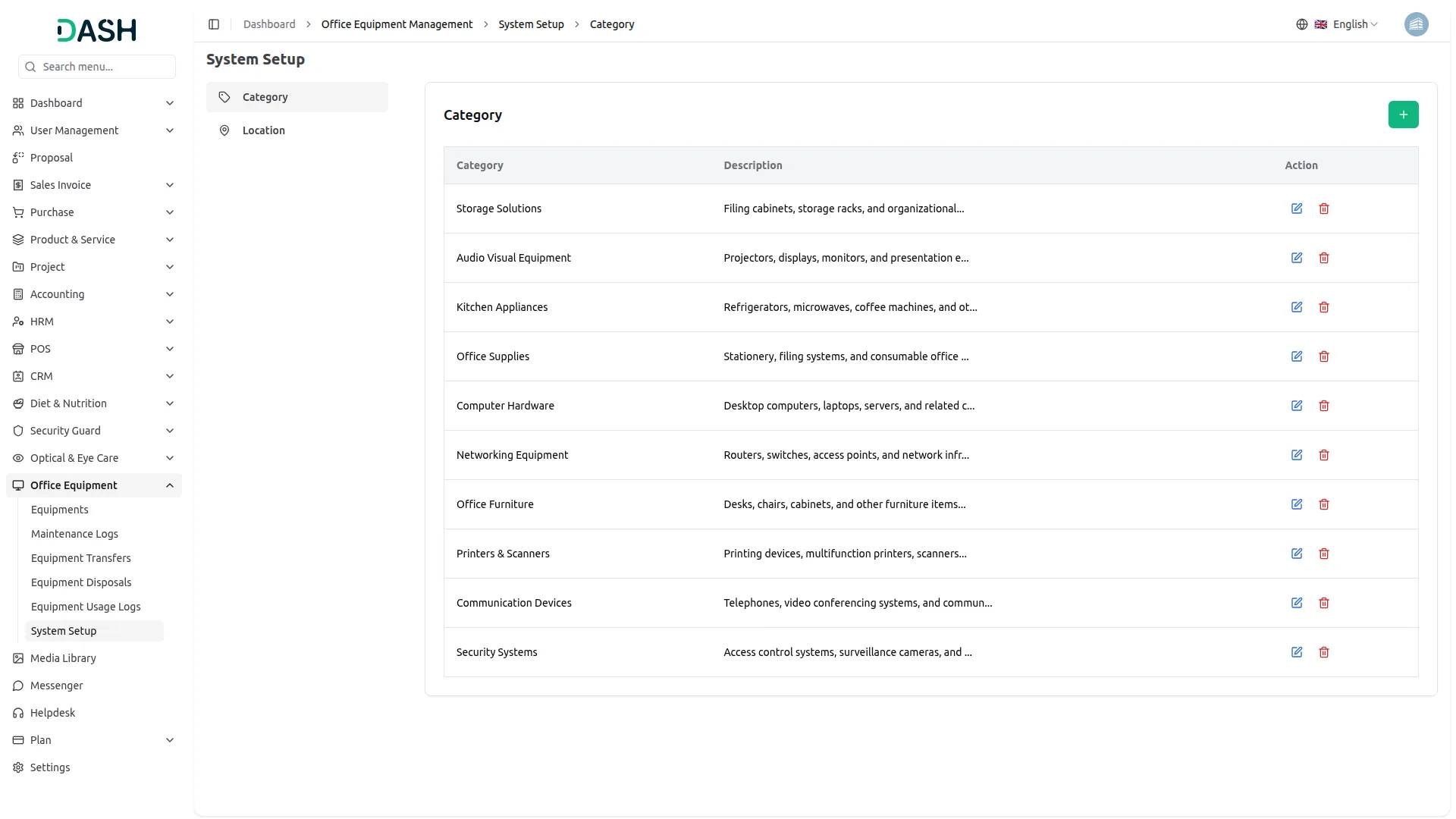
Category
- To add a new category, click the “Create” button on the Category page. In the form that opens, enter the Name of the category in the provided field. Optionally, add a Description to explain the types of equipment that fall under the category. Click Create to save, or Cancel to discard.
- The Category list displays all configured categories in a table with columns for Category, Description, and Action.
- Available Actions: use Edit to update or modify an existing category, and Delete to permanently remove the category from the system. Note that categories actively in use should be managed carefully, as changes may affect existing equipment records that reference them.
Location
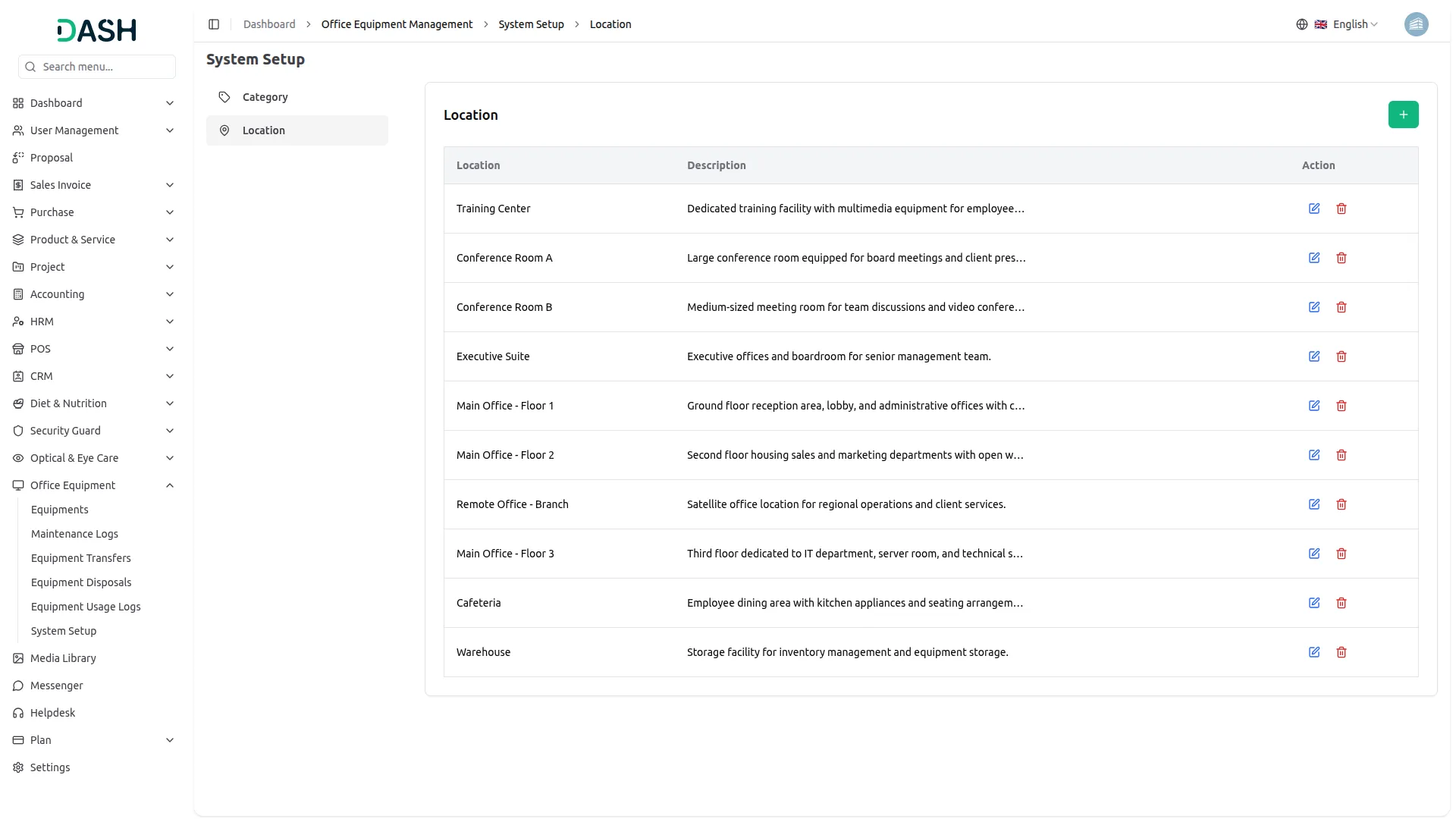
- To add a new location, click the “Create” button on the Location page. In the form that opens, enter the Name of the location in the provided field. Optionally, add a Description to provide additional context about the physical space or area the location represents. Click Create to save, or Cancel to discard.
- The Location list displays all configured locations in a table with columns for Location, Description, and Action.
- Available Actions: use Edit to update or modify an existing location, and Delete to permanently remove the location from the system. Note that locations actively in use should be managed carefully, as changes may affect existing equipment records, transfers, and assignments that reference them.
Office Equipments
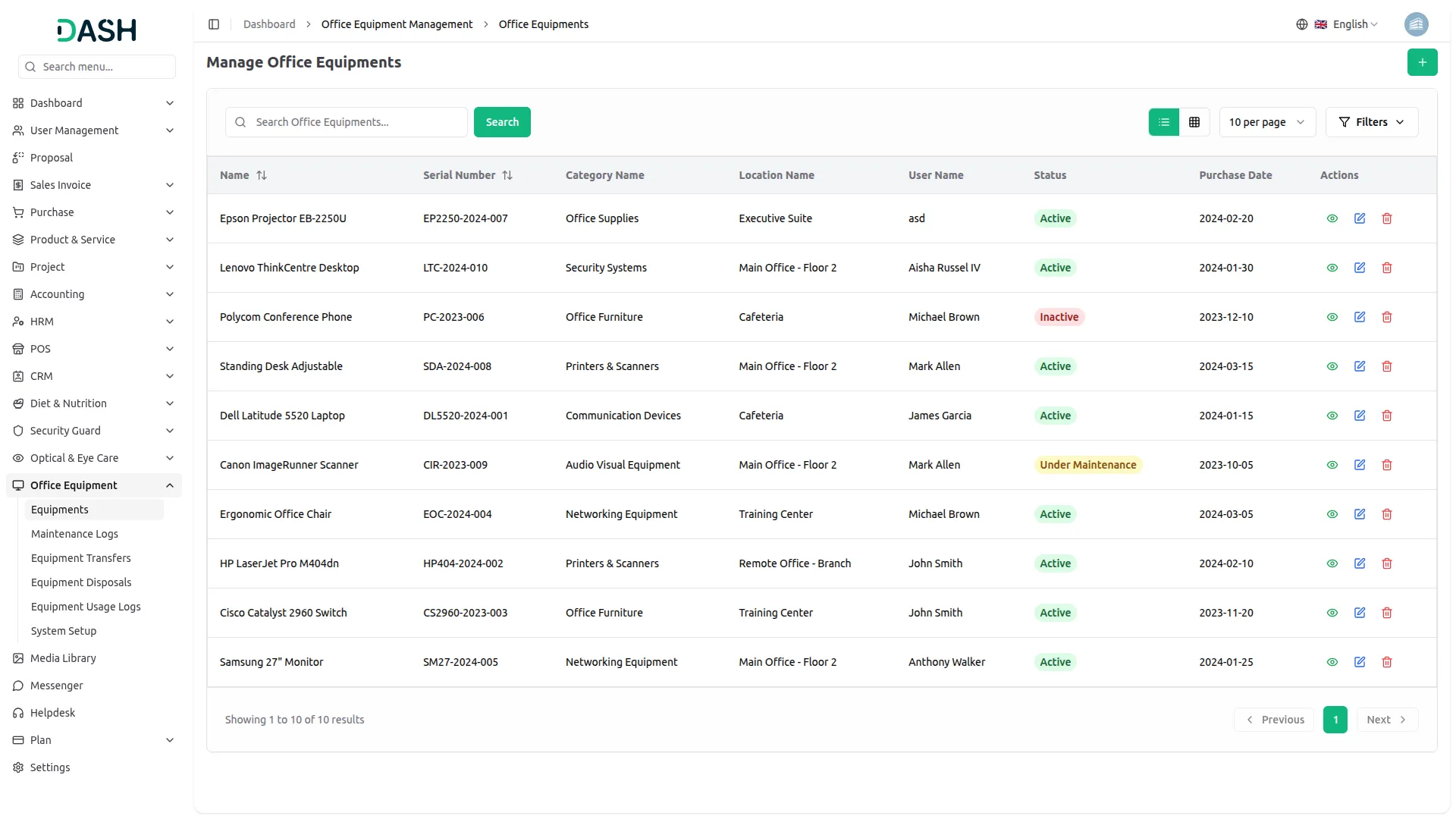
- To add a new office equipment record, click the “Create” button on the Manage Office Equipment page. In the form that opens, enter the equipment Name and Serial Number, then select the Purchase Date and Warranty Expire Date using the date pickers.
- Set the Status from the dropdown (Active, Inactive, Retired, or Under Maintenance). Select the Category from the dropdown (populated from the equipment categories configured in the system) and choose the Location and User from their respective dropdowns. Click Create to save the record, or Cancel to discard it.
- The list page displays all office equipment records in a table with columns for Name, Serial Number, Category Name, Location Name, User Name, Status, and Purchase Date.
- Use the Search bar to find specific equipment by name. Apply filters using the Category, Location, User, and Status dropdowns to narrow down results. Click Apply to activate the filters or Clear to remove them.
- In the Actions column, select the View to inspect the full details of an equipment record, the Edit to modify an existing record, and the Delete to permanently remove the equipment from the system.
Maintenance Logs
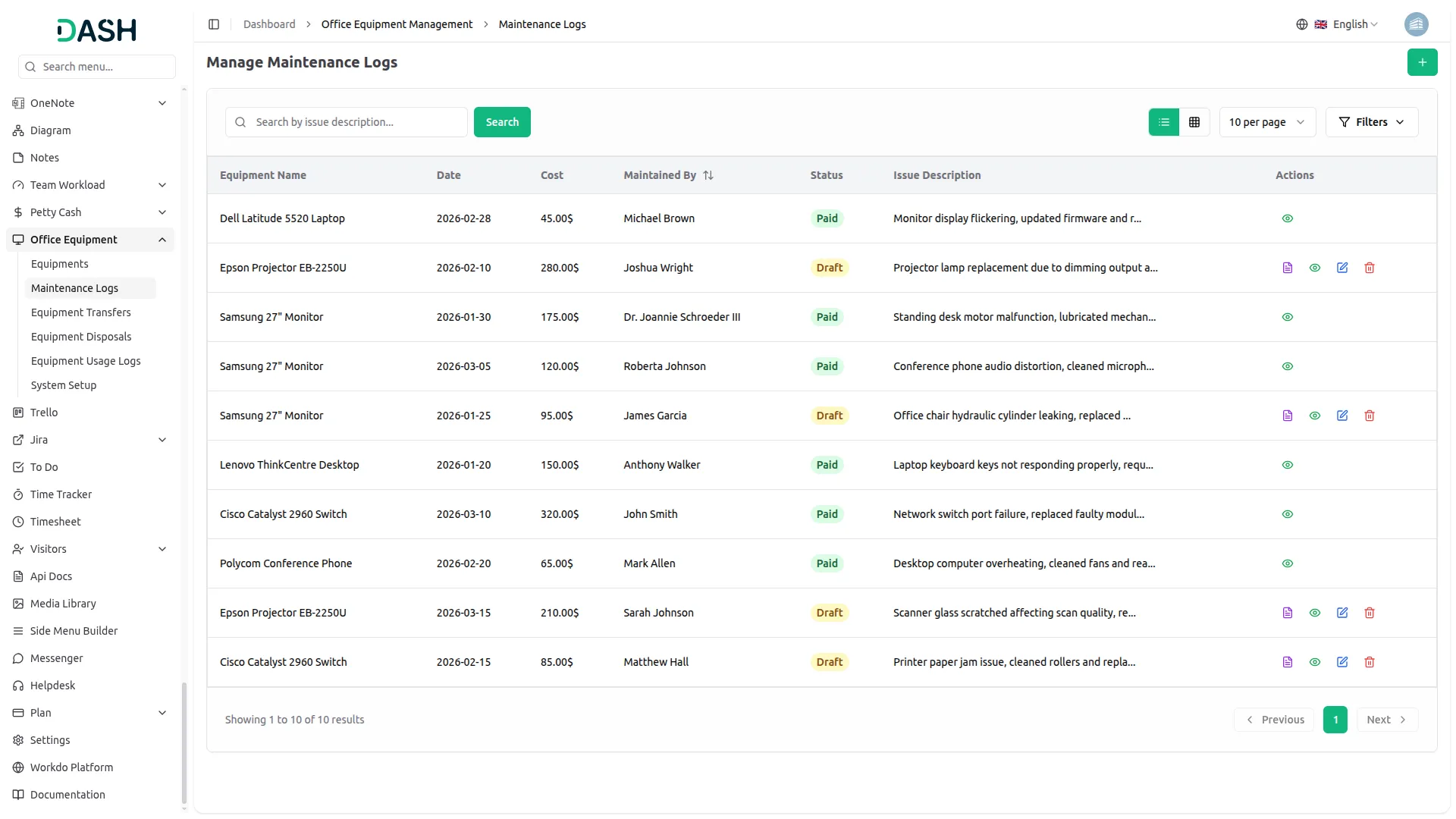
- To add a new maintenance log, click the “Create” button on the Manage Maintenance Logs page. Select the Equipment from the dropdown (populated from the equipment records configured in Manage Office Equipment) and choose the Date using the date picker.
- Enter the Cost of the maintenance work in the cost field, then select the Maintained By person from the dropdown, select the Bank Account from the dropdown. Optionally, enter a description of the issue and the work performed in the Issue Description text area. Click Create to save the log, or Cancel to discard it.
- The list page displays all maintenance logs in a table with columns for Equipment Name, Date, Cost, Maintained By, and Issue Description. When a new maintenance log is created, its status is automatically set to Draft. While the status is Draft, a Payment button will be visible in the Action column
- Use the Search bar to find specific logs by issue description. Apply filters using the Equipment and Maintained By dropdowns to narrow down results. Click Apply to activate the filters or Clear to remove them.
- Using the Actions column, clicking the Payment button will update the status to Paid. Once the status is updated to Paid, the Payment button will no longer be displayed. At this stage, only the View and Delete actions will be available for that record.
- Use View to inspect the full details of a maintenance log, Edit to modify an existing log, and Delete to permanently remove the log from the system.
Equipment Transfers
- To add a new equipment transfer record, click the “Create” button on the Manage Equipment Transfers page. In the form that opens, select the Equipment from the dropdown (populated from the equipment records configured in Manage Office Equipment), then choose the From Location and To Location from their respective dropdowns.
- Select the Transfer Date using the date picker to record when the transfer took place. Click Create to save the transfer record, or Cancel to discard it.
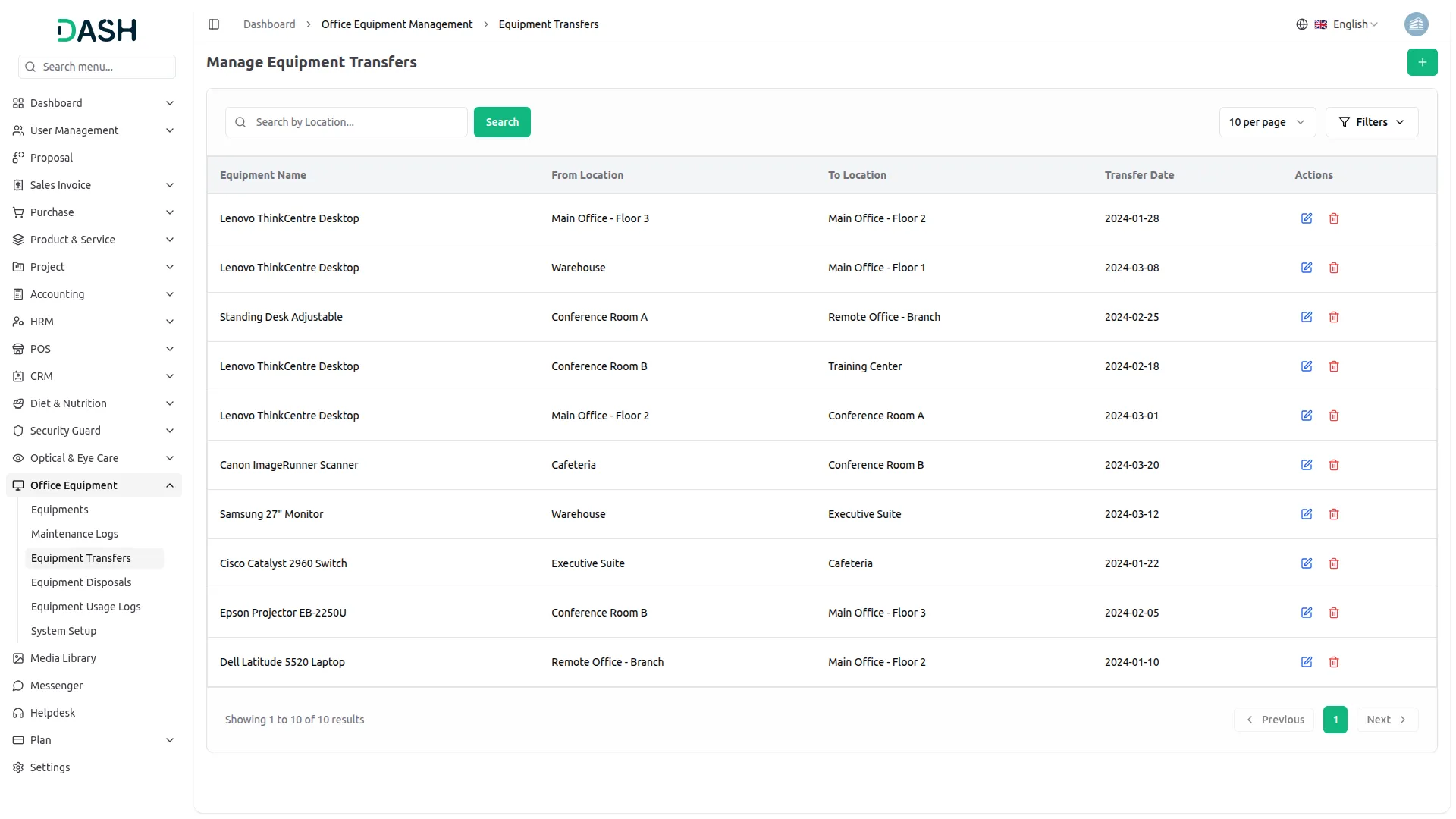
- The list page displays all equipment transfer records in a table with columns for Equipment Name, From Location, To Location, and Transfer Date, providing a clear audit trail of equipment movements across the organization.
- Use the Search bar to find specific transfer records by location. Apply filters using the Equipment dropdown and the Transfer Date picker to narrow down results. Click Apply to activate the filters or Clear to remove them.
- In the Actions column, select Edit to modify an existing transfer record, and Delete to permanently remove the transfer record from the system.
Equipment Disposals
- To add a new equipment disposal record, click the “Create” button on the Manage Equipment Disposals page. Select the Equipment from the dropdown (populated from the equipment records configured in Manage Office Equipment) and choose the Disposal Date using the date picker.
- Select the Disposed By user from the dropdown, then enter the Reason For Disposal in the text area to document why the equipment is being retired from service. Click Create to save the disposal record, or Cancel to discard it.
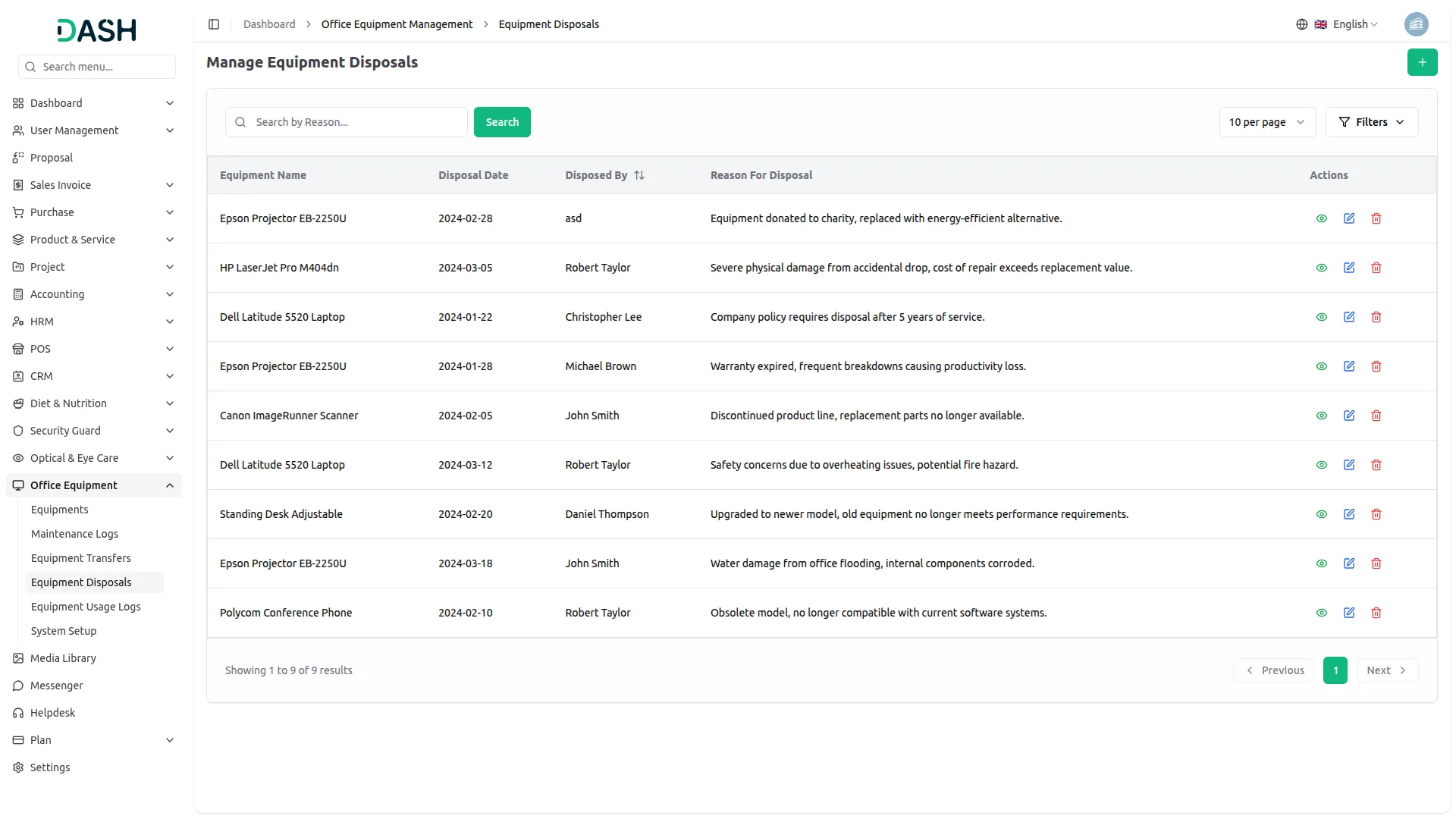
- The list page displays all equipment disposal records in a table with columns for Equipment Name, Disposal Date, Disposed By, and Reason For Disposal, providing a full history of retired equipment and the circumstances of each disposal.
- Use the Search bar to find specific disposal records by reason. Apply filters using the Equipment dropdown and the Disposal Date picker to narrow down results. Click Apply to activate the filters or Clear to remove them.
- Available actions: select the View to inspect the full details of a disposal record, the Edit to modify an existing record, and the Delete to permanently remove the disposal record from the system.
Equipment Usage Logs
- To add a new equipment usage log, click the “Create” button on the Manage Equipment Usage Logs page. In the form that opens, select the Equipment from the dropdown (populated from the equipment records configured in Manage Office Equipment) and choose the User from the dropdown.
- Select the Usage Date using the date picker, then enter the Hours Of Use in the numeric field. Enter a Purpose text area to document what the equipment was used for. Click Create to save the log, or Cancel to discard it.
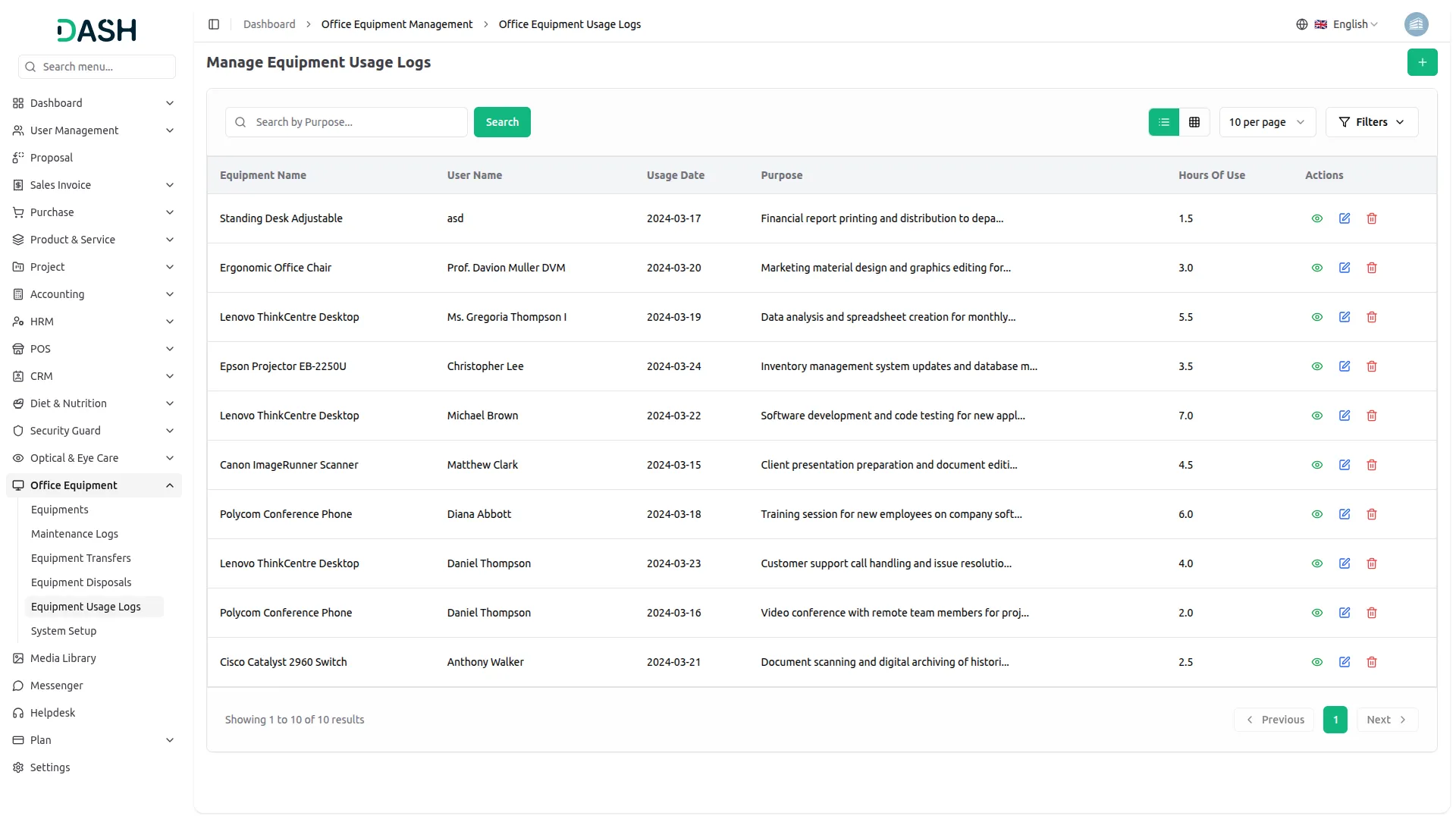
- The list page displays all equipment usage logs in a table with columns for Equipment Name, User Name, Usage Date, Purpose, and Hours Of Use.
- Use the Search bar to find specific usage logs by purpose. Apply filters using the Equipment and User dropdowns to narrow down results. Click Apply to activate the filters or Clear to remove them.
- In the Actions column, select the View to inspect the full details of a usage log, the Edit to modify an existing log, and the Delete to permanently remove the log from the system.
Categories
Related articles
- FedaPay – WorkDo Dash SaaS Add-On Guide
- Return & Refund Guide – eCommerceGo SaaS
- Mercado Pago – BookingGo SaaS Add-On Guide
- Language Manager Guide
- Make – WorkDo Dash SaaS Add-On Guide
- Financial Goal – WorkDo Dash SaaS Add-On Guide
- Vehicle Wash – WorkDo Dash SaaS Add-On Guide
- Petty Cash Management – WorkDo Dash SaaS Add-On Guide
- PrintPress Management – WorkDo Dash SaaS Add-On Guide
- Sign in with Bitbucket – WorkDo Dash SaaS Add-On Guide
- Discord Module – WorkDo Dash SaaS Add-On Guide
- Skrill – BookingGo SaaS Add-On Guide
We're Here to Help - Let's Talk
Have questions about our solutions, customization services, or business tools? Our team is here to help you. let's talk.