
Find Google Leads – WorkDo Dash SaaS Add-On Guide
Learn how to find and manage Google leads in WorkDo Dash SaaS easily.
Introduction
The Find Google Leads Add-On Integration revolutionizes lead management by providing essential input fields like API key, search radius, pipeline selection, and stage customization. This feature streamlines the process, eliminating manual data entry and simplifying the identification and tracking of potential customers. With seamless integration, users can effortlessly manage leads, ensuring prompt identification within their target area. It enables easy pipeline selection and customization of lead stages, facilitating efficient lead progression and management from initial contact to conversion.
How To Install The Add-On?
To install the Find Google Leads Add-On you can follow this link: Setup Add-On.
Note: This Add-On is dependent on the CRM Add-On, so you need to activate it first to access all Find Google Leads features.
How To Use The Find Google Leads Add-On?
- After purchasing and enabling the Find Google Leads Add-On, navigate to the Settings page to begin configuration.
- In the settings, search for the “Find Google Leads” section where you’ll need to enter essential API credentials like API Key, Radius, Pipeline and Stages.
- If you’re unsure how to generate these credentials, a helpful link or guide will be provided in the interface.
- To generate the API Credentials you can follow this link Google Cloud Console
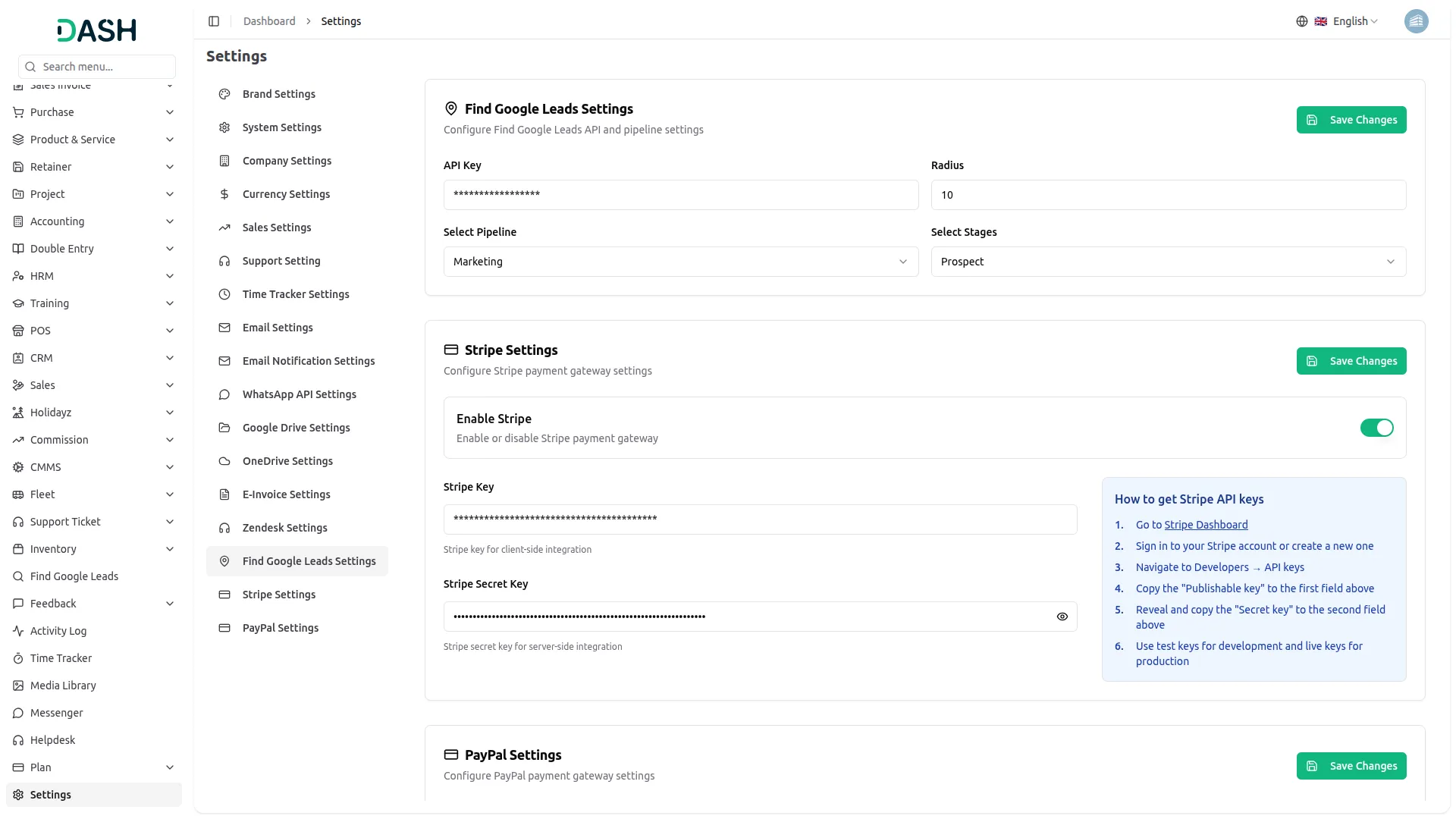
Accessing the Add-On from Sidebar
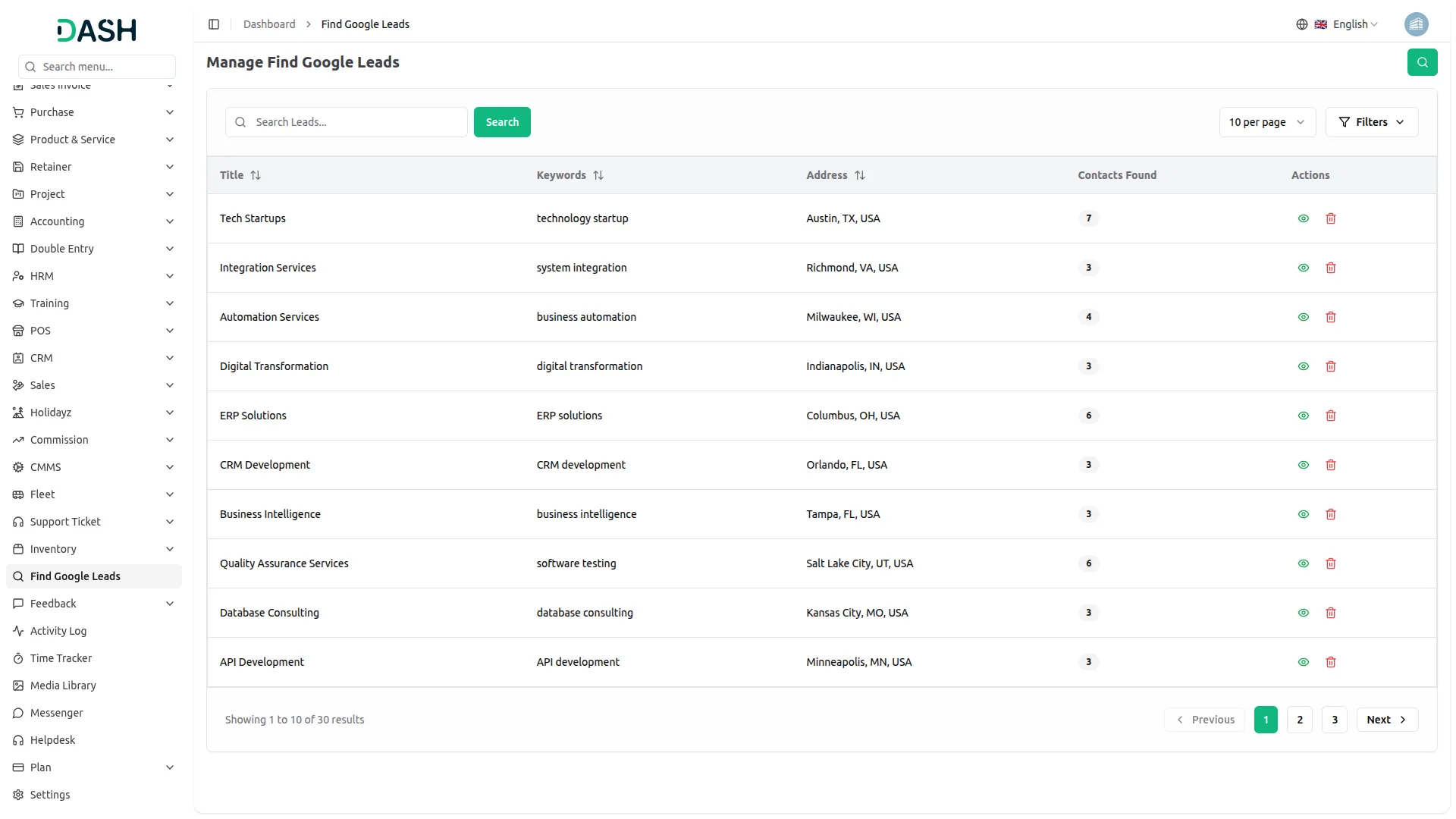
- Once configuration is complete, locate Find Google Leads in the left-hand sidebar of the platform.
- This will open the dedicated page where you’ll see a dashboard listing previously fetched or saved leads pulled directly from Google.
- All saved searches can be easily managed, viewed or deleted anytime using the Action column.
- Clicking on View will show a detailed list of leads associated with that particular search, including contact and business information.
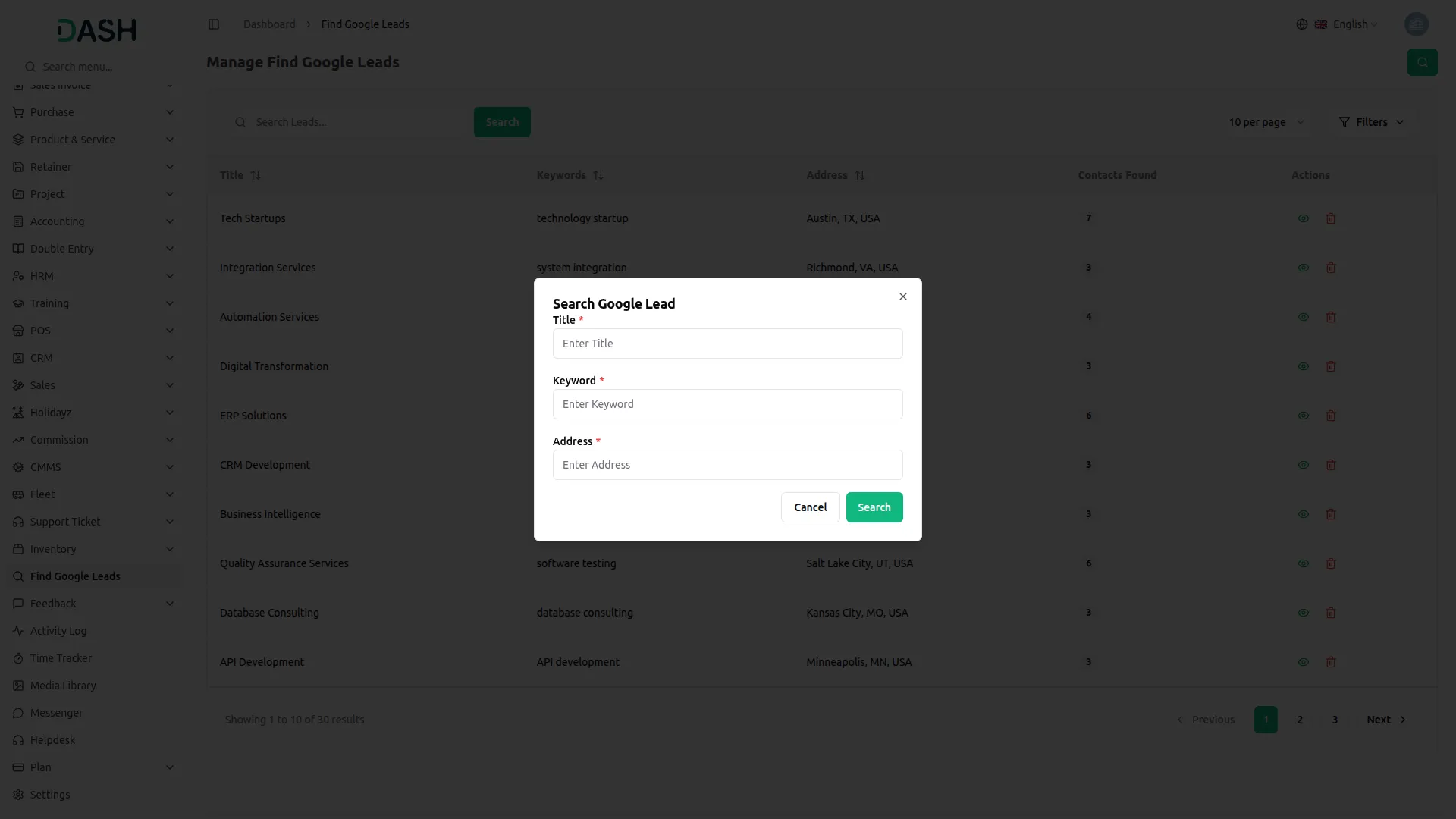
Adding New Google Lead Searches
- Use the Search button at the top of the page to create new lead searches.
- You’ll need to enter the Title of the search, Keyword to specify the type of lead or business you’re targeting, and Address to define the location of the search
- After saving, these searches will appear both in your platform interface and in the linked Google Leads page.
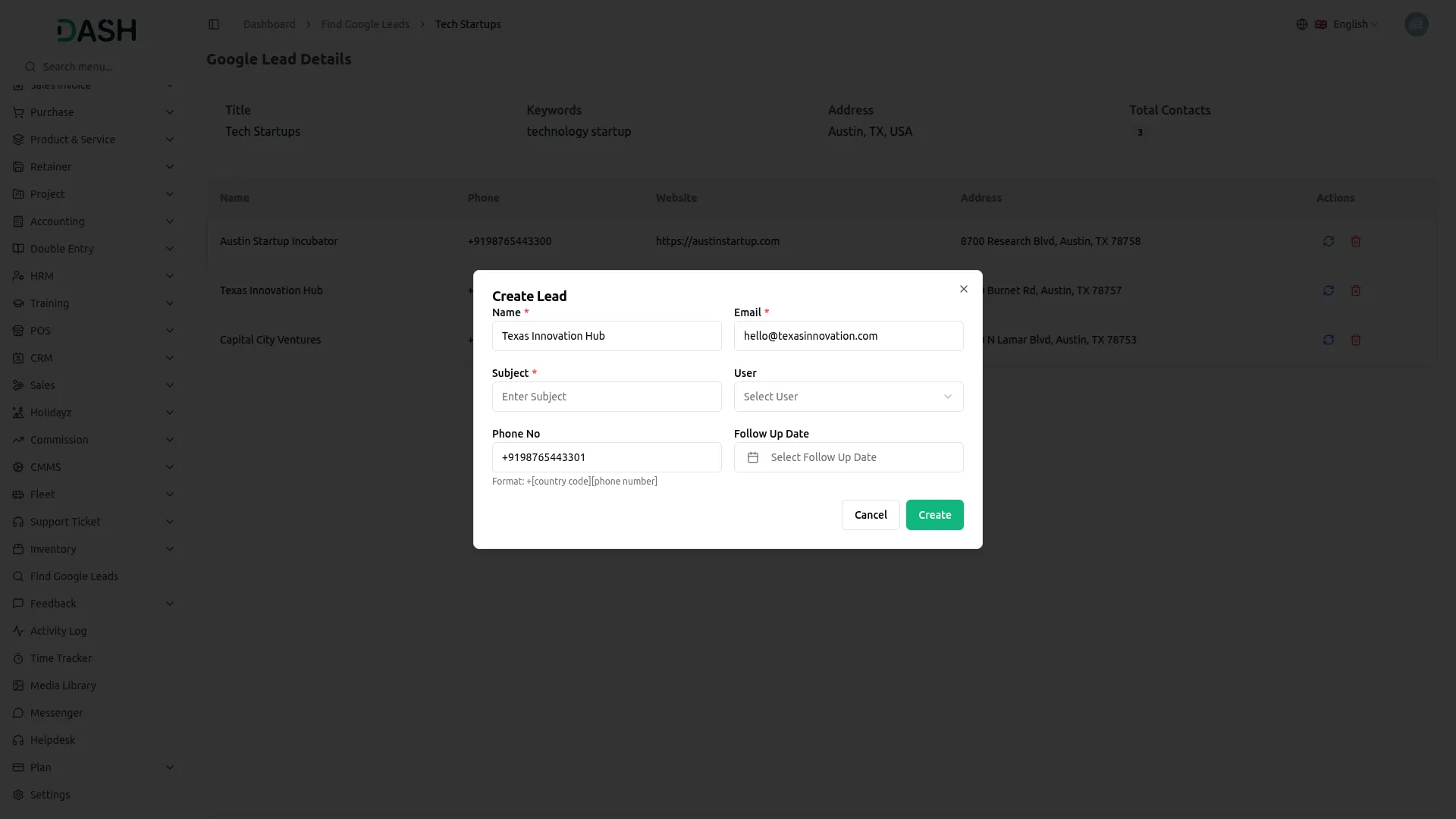
Converting Google Leads into CRM Leads
In the Action column for each lead, you will see two key options:
- Convert – This opens a form where you can convert a Google lead into a CRM Lead. Fill in: Subject, Username (auto-fetched, editable), Email, Phone, Website, Follow-up Date
- Once saved, the lead is added to your CRM pipeline automatically.
- Delete – This removes unwanted or irrelevant leads from your system.
Categories
Related articles
- Resume Builder – WorkDo Dash SaaS Add-On Guide
- CRM – WorkDo Dash SaaS Add-On Guide
- Consultancy – WorkDo Dash SaaS Add-On Guide
- Zoom Meeting – WorkDo Dash SaaS Add-On Guide
- Feedback – WorkDo Dash SaaS Add-On Guide
- Mollie – WorkDo Dash SaaS Add-On Guide
- Paddle – BookingGo SaaS Add-On Guide
- Square – BookingGo SaaS Add-On Guide
- Purchase Notification – eCommerceGo SaaS Add-On Guide
- Call Hub – WorkDo Dash SaaS Add-On Guide
- Optical Eyecare Center – WorkDo Dash SaaS Add-On Guide
- Reminder Module – WorkDo Dash SaaS Add-On Guide
We're Here to Help - Let's Talk
Have questions about our solutions, customization services, or business tools? Our team is here to help you. let's talk.