
Yoco – WorkDo Dash SaaS Add-On Guide
Learn how to configure and manage Yoco payment integration in WorkDo Dash SaaS.
Supported Countries: South Africa
Supported Currencies: ZAR (South African Rand)
Benefits of Yoco Payment Gateway
Versatile Payment Acceptance
Yoco empowers businesses to accept a wide range of payment methods including Visa, Mastercard, and Apple Pay, both online and in-store, giving customers the flexibility to pay however they prefer.
Hassle-Free Setup
Getting started with Yoco requires minimal technical knowledge, making it an ideal choice for startups, small businesses, and merchants looking to begin accepting payments quickly and confidently.
No Fixed Monthly Costs
Yoco operates on a transaction-based pricing model with no monthly fees or hidden charges, allowing businesses to manage costs more effectively and only pay when they earn.
Fast Fund Transfers
Merchants receive their earnings directly into their bank accounts within one to two business days, ensuring consistent and predictable cash flow for everyday business operations.
End-to-End Payment Security
Every transaction processed through Yoco is protected with advanced encryption technology, reducing fraud risks and giving both merchants and customers complete confidence in every payment.
How to Access Yoco Add-On?
Ready to enhance your online payment capabilities with Yoco? Follow these simple steps to get started:
- Visit WorkDo Website:
Head over to workdo.io and explore the extensive range of Dash SaaS Add-Ons. - Discover Yoco:
Navigate to the “Dash SaaS Add-Ons” section and locate the “Yoco Add-On”. - Activate the Add-On:
Click the “Activate” button next to the Yoco Add-On to enable it for your WorkDo Dash account.
Super Admin Settings
(Plan Purchase by the Company)
The Super Admin Settings are accessible only to the highest-level administrator. These settings allow the Super Admin to manage company-level subscriptions and payment configurations.
Key Capabilities:
- Purchase or upgrade company subscription plans
- Configure Yoco API keys for plan payments
- Enable or disable Yoco as a payment gateway
Configuration Path:
Super Admin Login → Settings → Yoco Settings
Company Settings
(Bookings, Beauty Spa, LMS & Other Payments)
Company Settings allow organizations to configure Yoco for receiving payments from customers across multiple modules.
Supported Modules Include:
Configuration Path:
Company Login → Settings → Yoco Settings
Company-Level Capabilities:
- Configure Yoco API keys
- Enable Yoco for selected modules
- Accept online payments from customers
- Manage service and booking payments
- Handle tax, coupon, and discount calculations
How to Generate Yoco API Keys?
To integrate Yoco into your (Product Name), follow the steps below:
1. Generate API Keys
Visit the Yoco Developer Portal: https://developer.yoco.com/online/resources/integration-keys/ Log in or create a Yoco account and retrieve your credentials.
You will receive:
- Public Key – Used for client-side integration
- Secret Key – Used for server-side payment verification
2. Configure Razorpay Gateway in (Product Name)
1. Login to Admin Panel
Log in to your (Product Name) account using administrator credentials.
2. Access Yoco Settings
Navigate to the Settings section and select Yoco Settings.
3. Open Yoco Gateway Settings
Scroll down to find the Yoco Payment Gateway option and click to configure it.
4. Enter Required Details
Provide the following details carefully:
- Enable Yoco – Toggle to activate the gateway
- Public Key – Enter your Yoco Public Key
- Secret Key – Enter your Yoco Secret Key
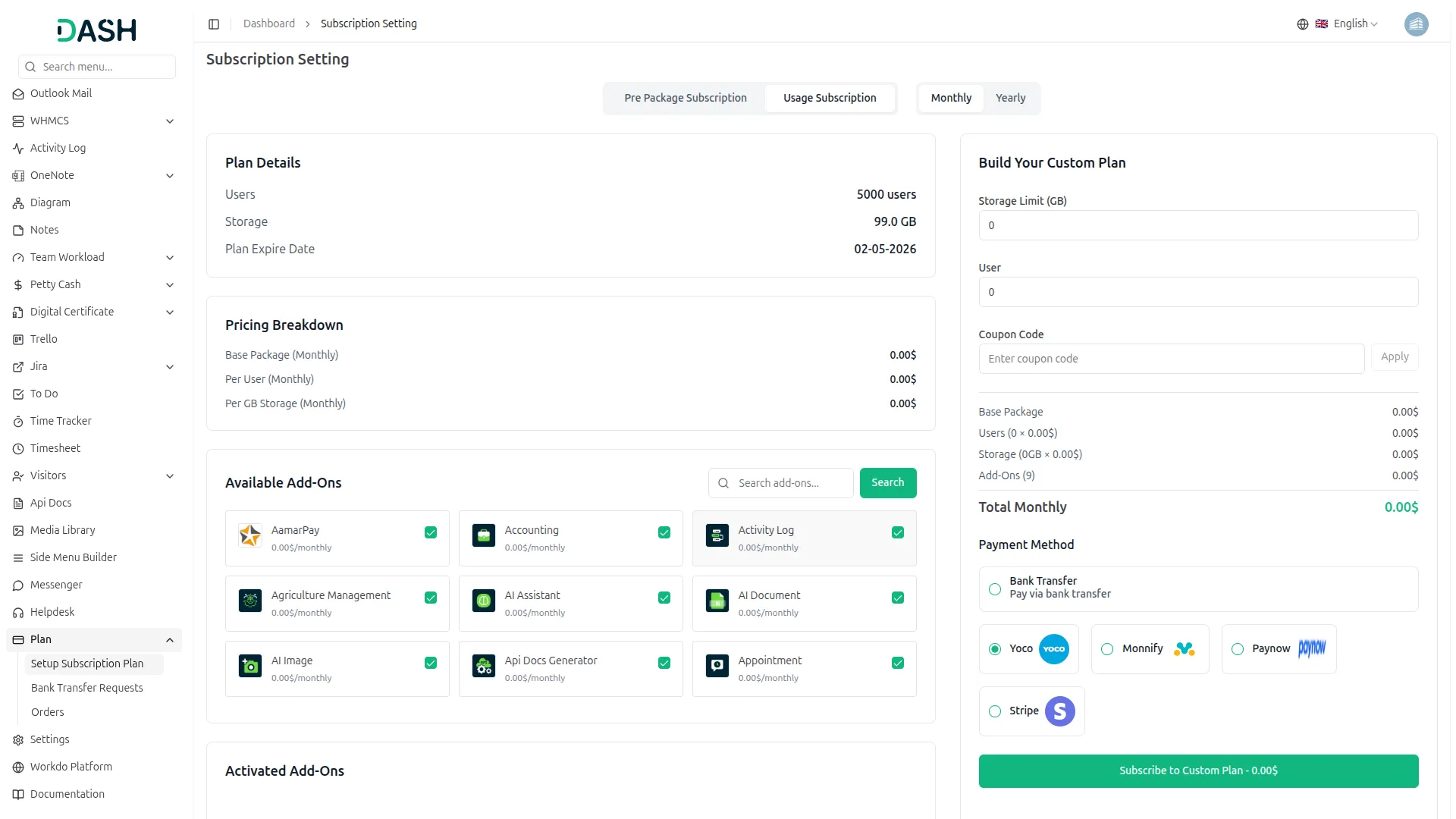
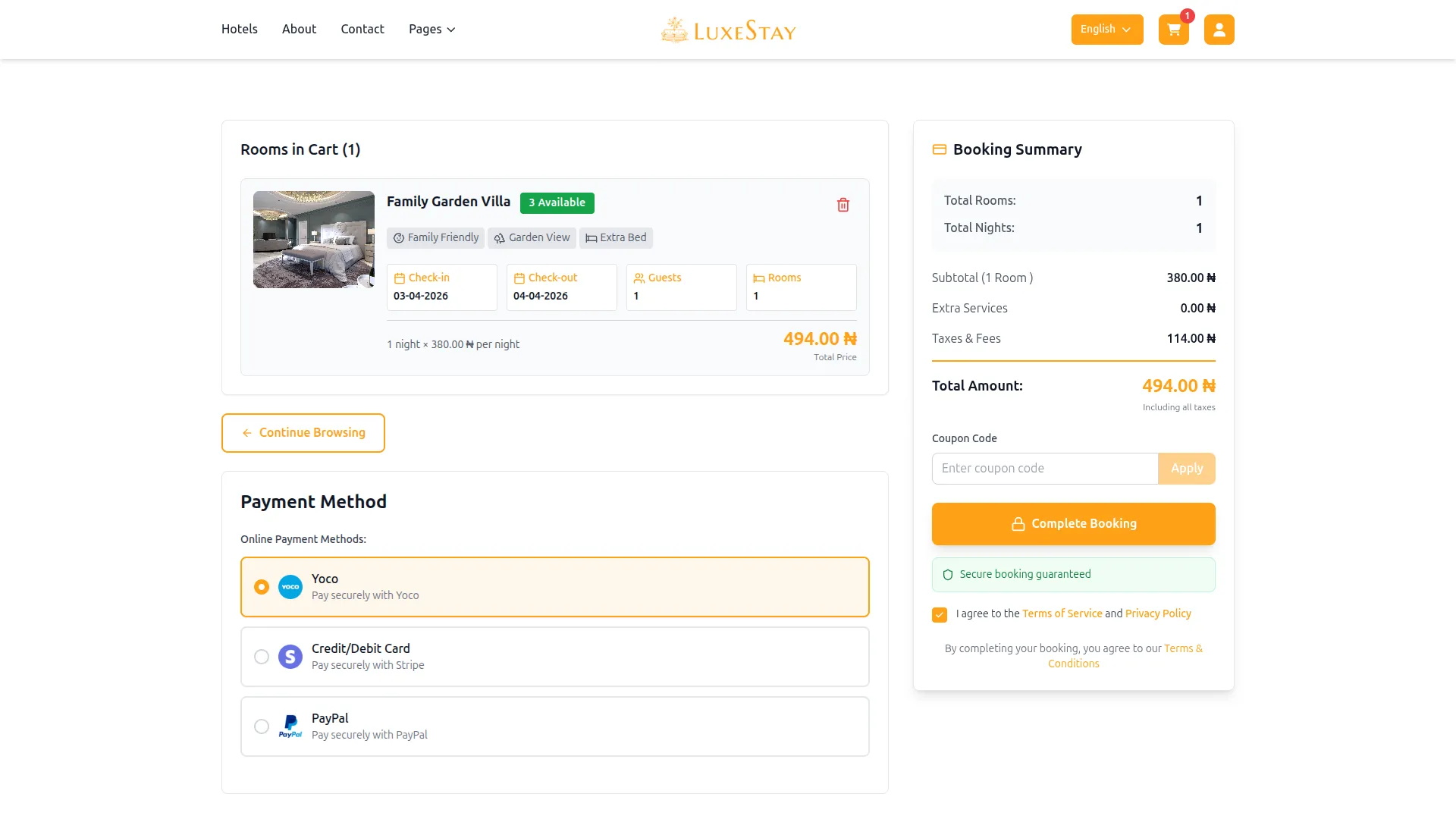
5. Save Settings
Click Save to apply the configuration. Yoco will now be active across all enabled modules.
This documentation provides a complete overview of the Yoco Payment Gateway integration, covering its key benefits and step-by-step setup process. By integrating Yoco, businesses operating in South Africa can offer customers a secure, fast, and flexible payment experience while keeping their financial operations smooth and well-organized.
Note: The information provided in this documentation is intended for guidance purposes. Please ensure your Yoco account and API credentials are handled securely to guarantee smooth and proper payment processing.
Categories
Related articles
- Recent Orders – eCommerceGo SaaS Add-On Guide
- Facebook Link Page – vCard SaaS Add-On Guide
- Radiology Management – WorkDo Dash SaaS Add-On Guide
- Promo Codes – BookingGo SaaS Add-On Guide
- Paystack – WorkDo Dash SaaS Add-On Guide
- Jira – WorkDo Dash SaaS Add-On Guide
- Warranty – WorkDo Dash SaaS Add-On Guide
- Instamojo – WorkDo Dash SaaS Add-On Guide
- Movie & TV Studio – WorkDo Dash SaaS Add-On Guide
- User Manual – Task SaaS
- Livestorm Meeting Credentials Generation Guide
- Equipment Rental – WorkDo Dash SaaS Add-On Guide
We're Here to Help - Let's Talk
Have questions about our solutions, customization services, or business tools? Our team is here to help you. let's talk.