
Zulip Chat – WorkDo Dash SaaS Add-On Guide
Learn how to configure and manage Zulip Chat integration in WorkDo Dash SaaS easily.
Introduction
The Zulip Chat Add-On provides a smooth and seamless integration between Dash Saas and Zulip Chat. Now, users of the organization can directly access Zulip chat within the platform by adding the Zulip organizational URL. Also, this provides various different features. Users can access and authenticate very easily. No need for any external chat, users can chat and organize within the platform.
How to install the Add-On?
To Set Up the Zulip Chat Add-On, you can follow this link: Setup Add-On.
How to use the Zulip Chat Add-On?
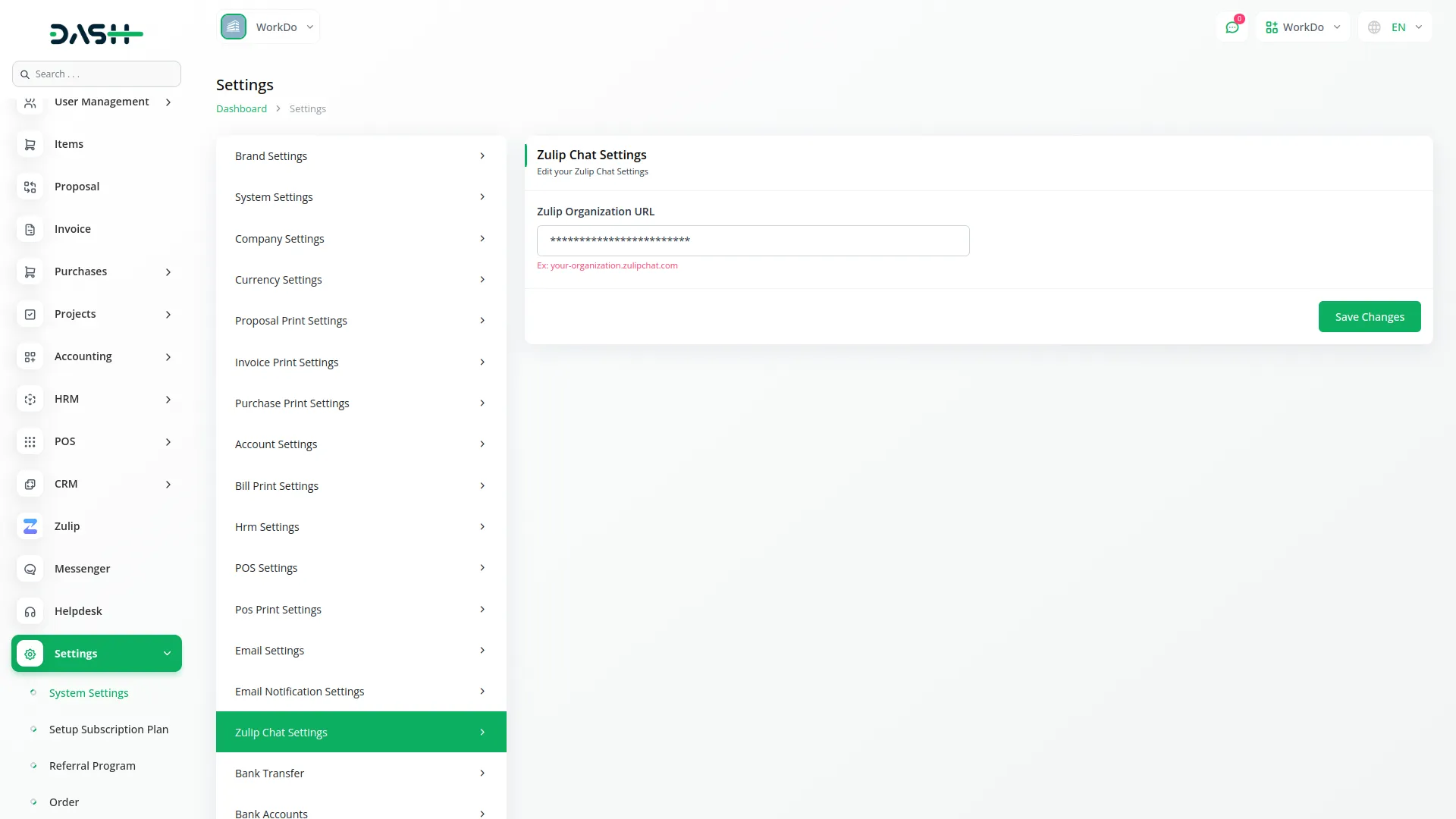
- After successfully purchasing the Add-On, navigate to the settings page and click on the “Settings” button.
- In the Settings, scroll down and find out the “Zulip Chat Settings” settings.
- You need to enter the Zulip Organization URL.
- To find this URL.
- Log in to your Zulip account at: https://zulip.com/login.
- After logging in, you will be redirected to your Zulip organization’s unique URL, which looks like: https://zulip.com/.
- If you do not have a Zulip organization, follow the official steps at: https://zulip.com/help/
- After generating the credentials, you can communicate with members and groups of the organization.
-
Zulip Chat
- Once your credentials are saved in the settings, the login form will appear. Use your Zulip email and password to log in once. After logging in, you will communicate with all organizations with connected groups and members.
-
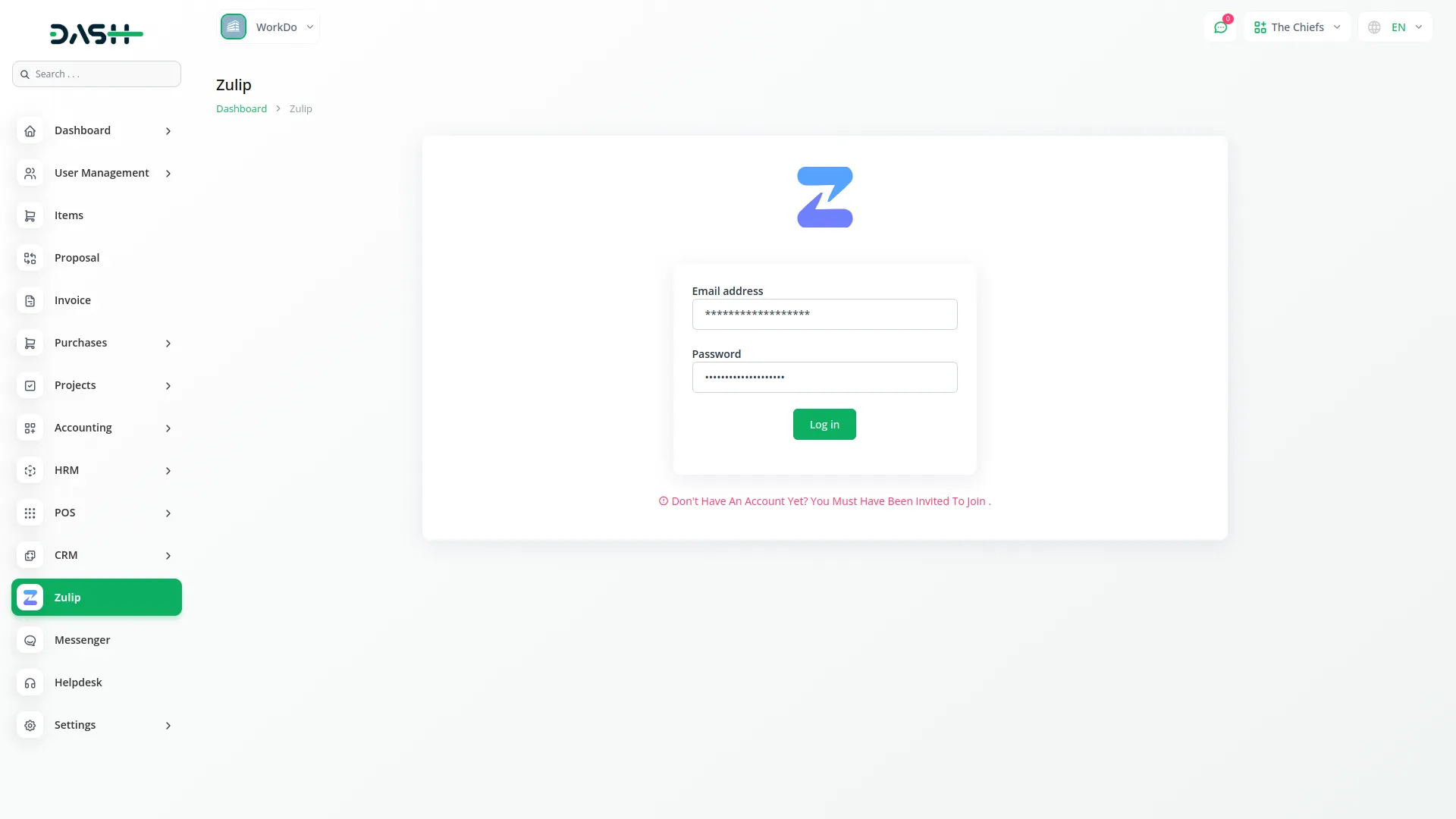
- All users who are part of the Zulip organization can log in and start chatting directly from the dashboard.
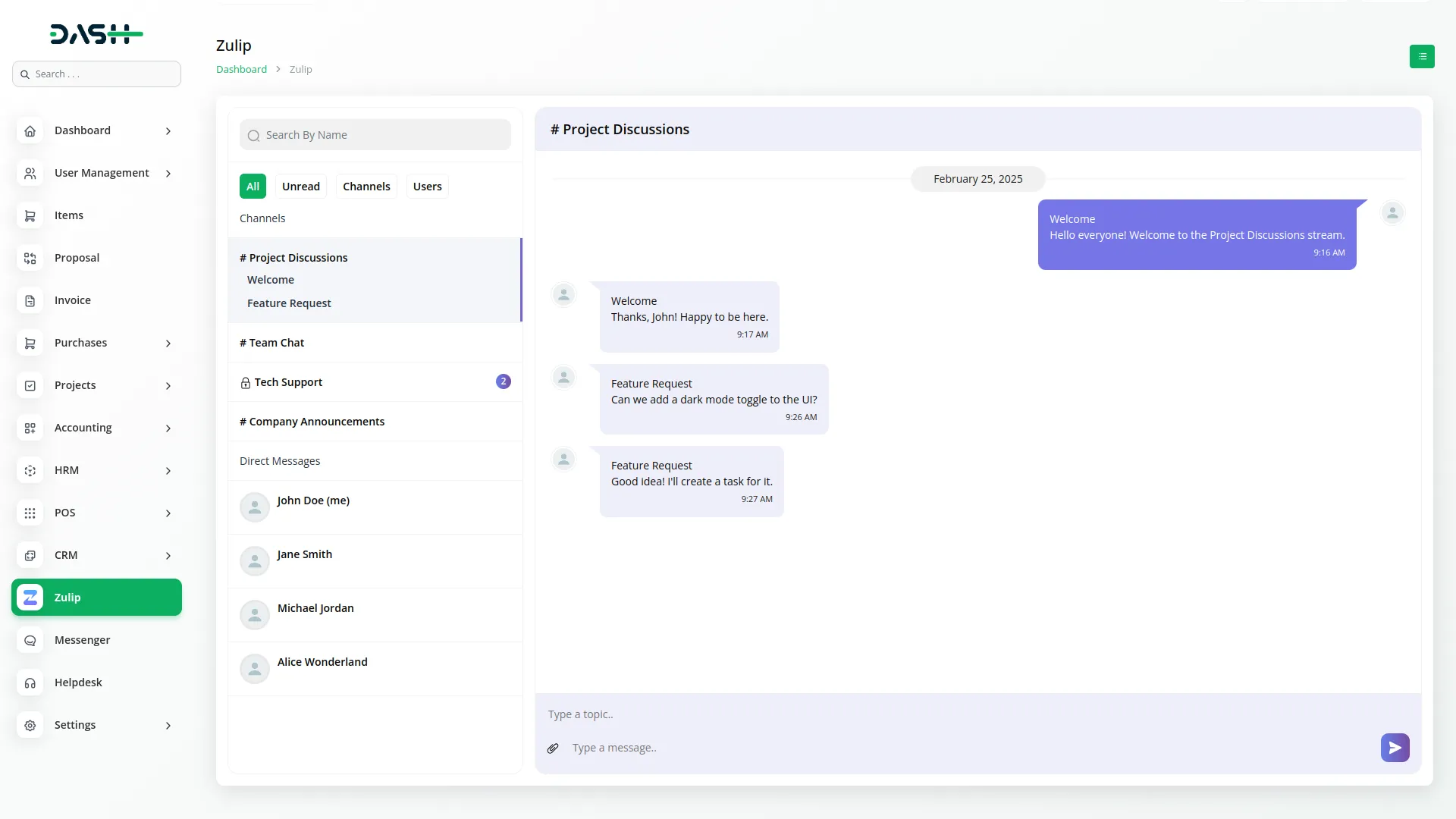
- Users communicate in groups based on topics or send messages directly to members. Only members connected to your Zulip organization will be shown here.
- You can also filter communications by All, Unread, Channels, or Users, or use the search bar to find a group or user by name.
- To disconnect, click the “Disconnect from Zulip” button.
- To invite new members, click the “Send Invitation List” button.
-
Manage Invitations
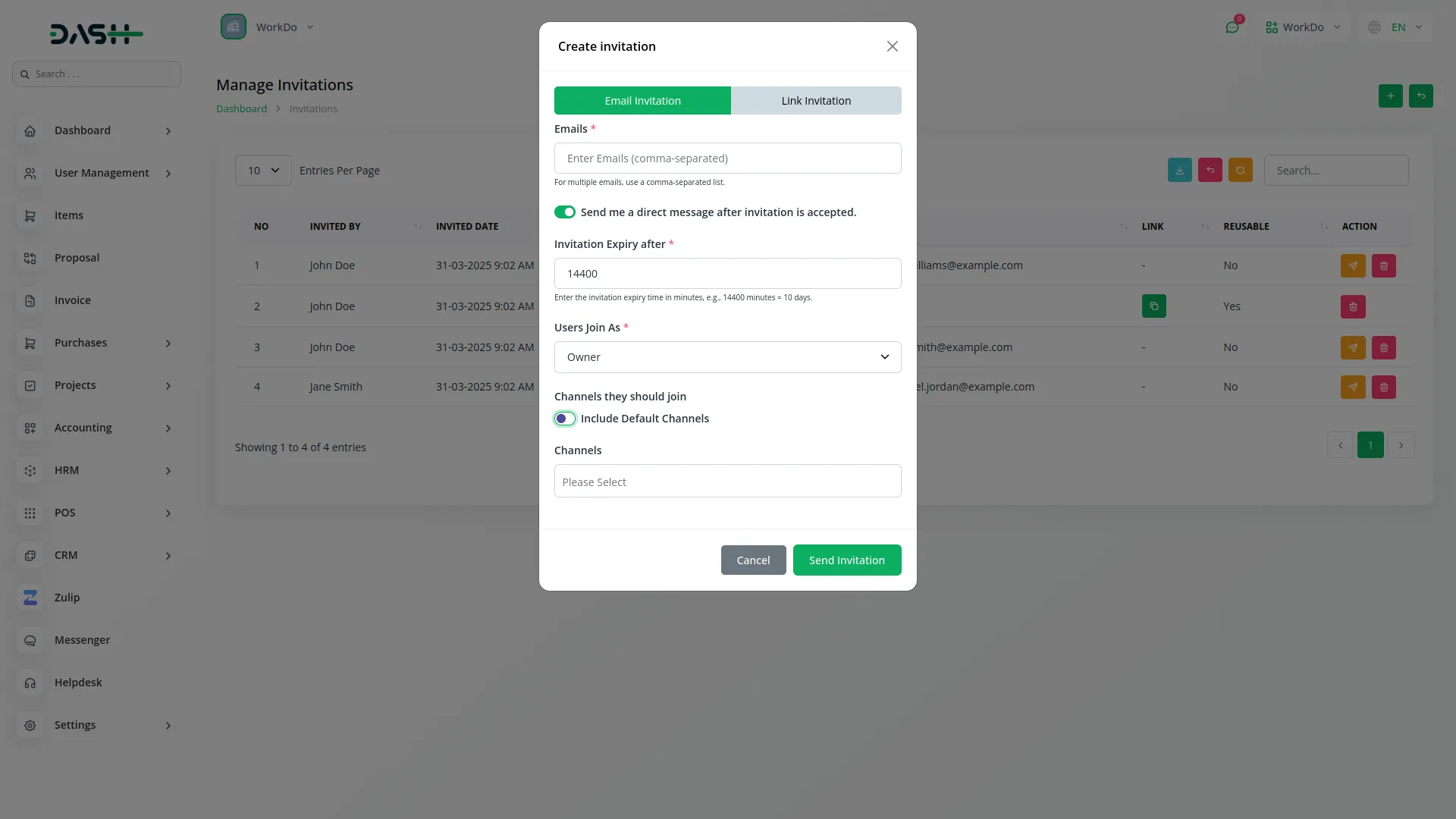
- To invite members to your Zulip organization, click the “Create” button. There are two ways to send invitations
- Enter multiple email addresses separated by commas
- Checkbox the option to send a direct message after the invitation is accepted
- Set the invitation expiry time in minutes
- Select the user role: Owner, Administrator, Moderator, Member, or Guest
- Choose if the user should join the Default Channels or select channels from a list
- Set the invitation expiry time in minutes
- Select the user role: Owner, Administrator, Moderator, Member, or Guest
- Choose if the user should join the Default Channels or select channels from a list
-
- On the list page, you can see all sent invitations. The table shows columns like: Invited By, Invited Date, Expiry Date, Role, Email, Link, and Reusable.
- You can use the “Search” buttons to find Invitations records.
- Actions available are Resend and Delete.
- If the invitation was created using the link invitation option, a Copy Link button will appear to copy the link and send it to other members.
- If the invitation was created using the email invitation option, the Resend Invitation option will be available.
- So, this is how you can integrate Zulip Chat with your platform.
Email Invitation
Link Invitation
Categories
Related articles
- Project Template – WorkDo Dash SaaS Add-On Guide
- Cart Quantity Control – eCommerceGo SaaS Add-On Guide
- Skrill – WorkDo Dash SaaS Add-On Guide
- Elderly Care – WorkDo Dash SaaS Add-On Guide
- Gym Management – WorkDo Dash SaaS Add-On Guide
- Tawk.to Messenger – eCommerceGo SaaS Add-On Guide
- Insurance Management – WorkDo Dash SaaS Add-On Guide
- Support Ticket Guide – eCommerceGo SaaS
- Google Slides – WorkDo Dash SaaS Add-On Guide
- Payfort – WorkDo Dash SaaS Add-On Guide
- Promo Codes – BookingGo SaaS Add-On Guide
- BookingGo SaaS Add-On Setup Guide
Get in Touch
We're Here to Help - Let's Talk
Have questions about our solutions, customization services, or business tools? Our team is here to help you. let's talk.