
Yoga Classes – WorkDo Dash SaaS Add-On Guide
Learn how to manage yoga classes, schedules, and memberships in WorkDo Dash SaaS.
Introduction
The Yoga Classes Management Add-On is a complete solution for managing and running your yoga studio’s online presence from a single admin panel. It allows you to set up and customize your website’s appearance through the Theme Setup, manage your course catalog, instructors, and members, track orders and payments, handle blog content, and monitor subscriber and contact inquiries, all from one place. The Add-On is designed with two user roles in mind: the Admin, who has full control over the backend, and the Member, who can browse, purchase, and engage with courses on the frontend website. Every change made in the backend reflects directly on the website, ensuring your content is always up to date and your members always have the best experience.
How To Install The Add-On?
To Set Up the Yoga Classes Management Add-On, you can follow this link: Setup Add-On.
How To Use The Yoga Classes Management Add-On?
Yoga Classes Dashboard
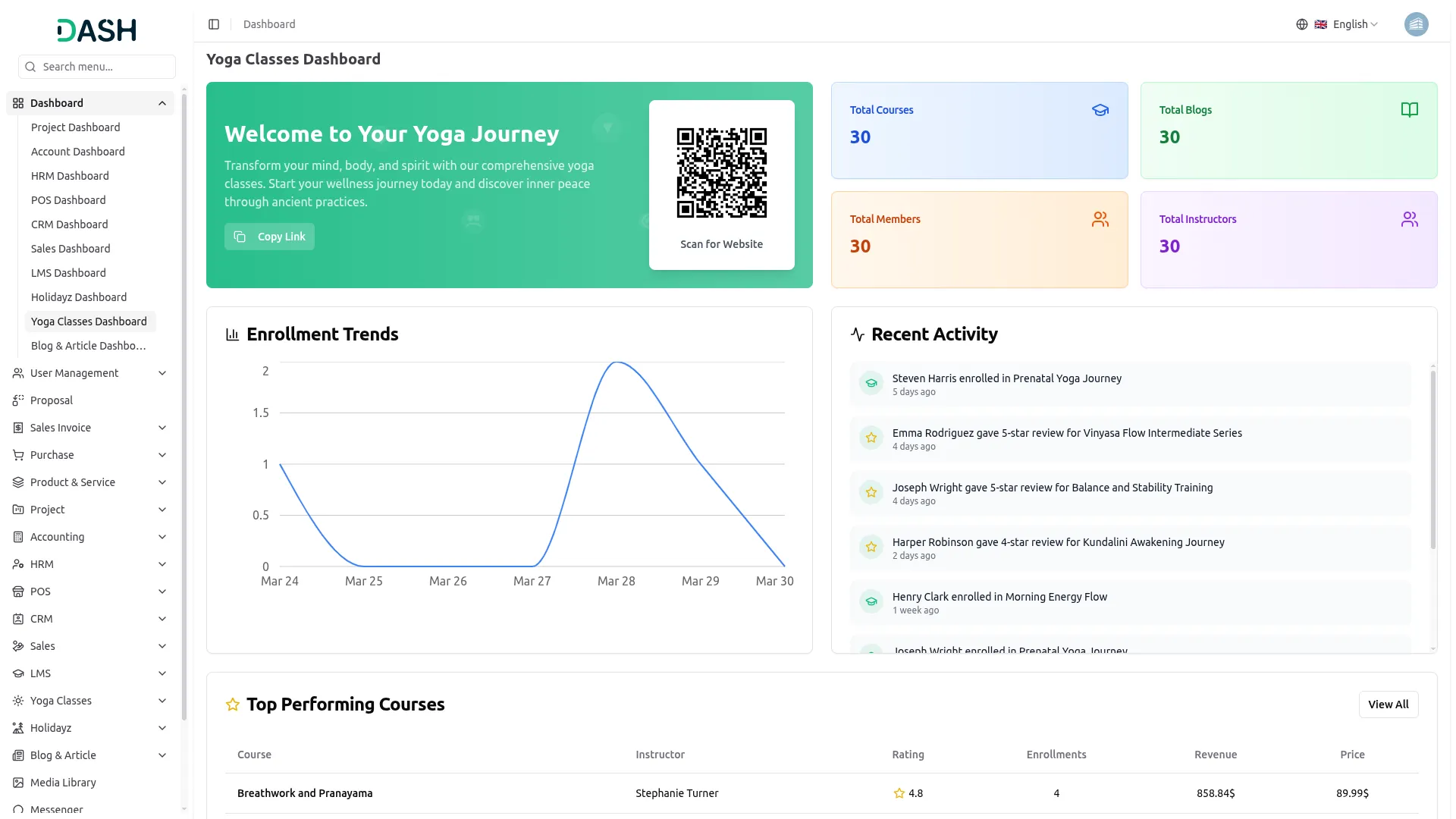
- The dashboard provides a complete overview of your yoga studio’s operations and performance through various visual elements and quick access features.
- At the top, you will find a QR Code that visitors can scan to directly access the yoga classes website, along with a Copy Link button to easily share the website link.
- The dashboard displays important summary cards showing Total Courses, Total Blogs, Total Members, and Total Instructors, giving you instant insights into your studio’s key metrics at a glance.
- The Enrollment Trends chart displays a line graph showing the day-by-day enrollment activity over a selected date range, allowing you to monitor enrollment patterns and identify peak registration periods.
- The Recent Activity feed displays the latest actions happening across the platform, including new member enrollments into courses and star ratings given by members, so you can stay updated on studio activity in real time.
- The Top Performing Courses table displays your best courses with columns for Course, Instructor, Rating, Enrollments, Revenue, and Price, allowing you to track which courses are driving the most engagement and income.
- The Recent Reviews section displays the latest member and instructor feedback submitted for courses, showing the course name, reviewer name, star rating, and a preview of the review comment.
- The Recent Contact Messages section displays the latest inquiries submitted through the contact form, showing the subject, sender name, email, phone number, date, and a preview of their message.
- At the bottom, the dashboard shows four additional performance metrics: Monthly Revenue, Average Order Value, Active Members, and Active Instructors, giving you a quick financial and engagement summary of your studio.
Theme Setup
Brand Settings
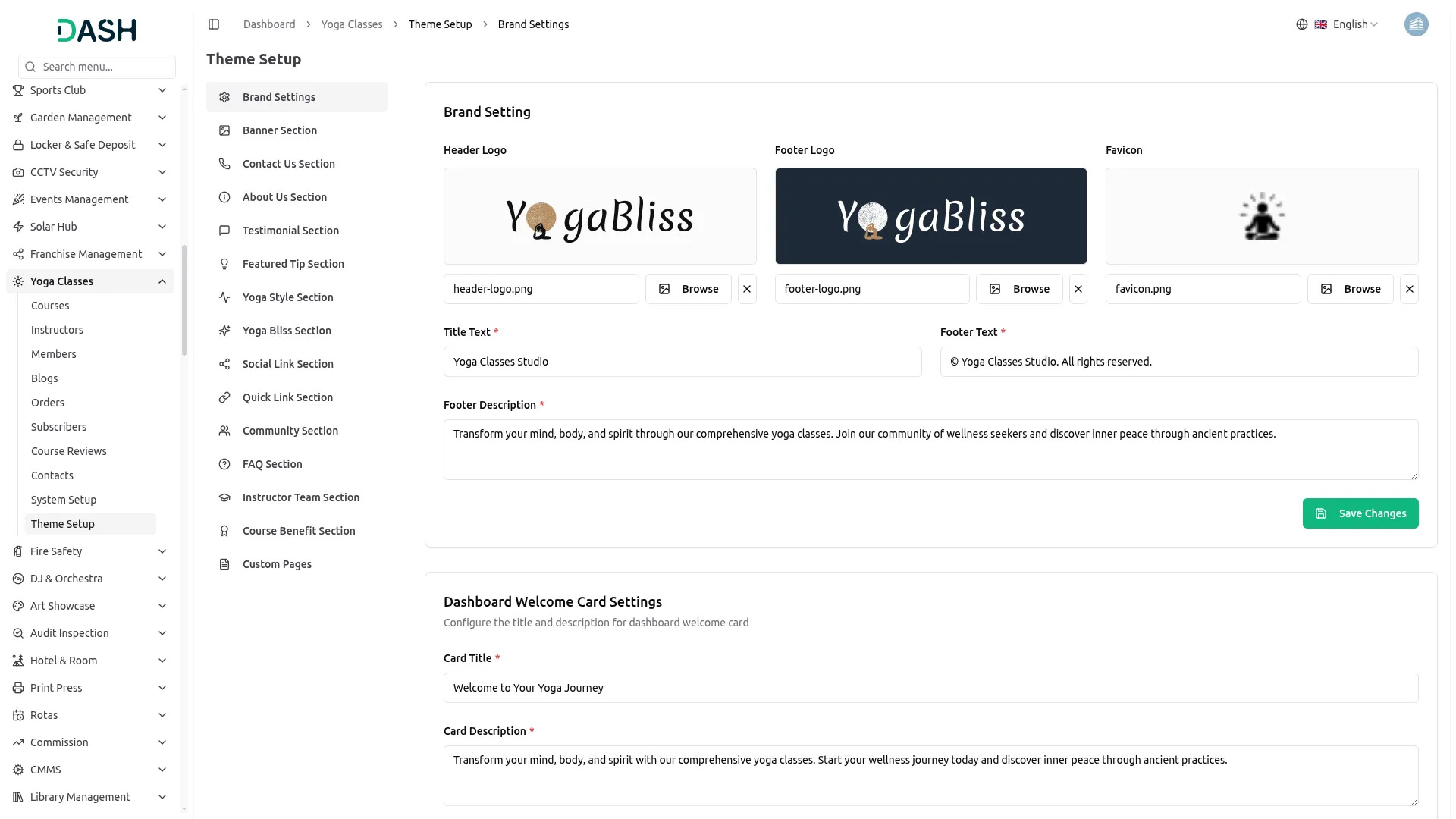
- In the Brand Settings section, you will find fields for Header Logo, Footer Logo, Favicon, Title Text, Footer Text, and Footer Description. You can upload your header logo, footer logo, and favicon separately using the Browse button. Enter all the details and click Save Changes.
- Once saved, the Header Logo will appear in the navigation bar at the top of your website, and the Footer Logo will appear in the footer section. The Favicon will display as the small option in the browser tab. The Title Text will represent your studio’s name across the site, the Footer Text will display as the copyright tagline at the bottom of the footer, and the Footer Description will appear as the short introductory text in the footer section.
- In the Dashboard Welcome Card Settings, you will find fields for Card Title, Card Description, Button Text, and Button option. Enter all the details and click Save Changes.
- The Dashboard Welcome Card Title and Description will appear on the welcome card in the admin dashboard, along with the button label you have set.
Banner Section
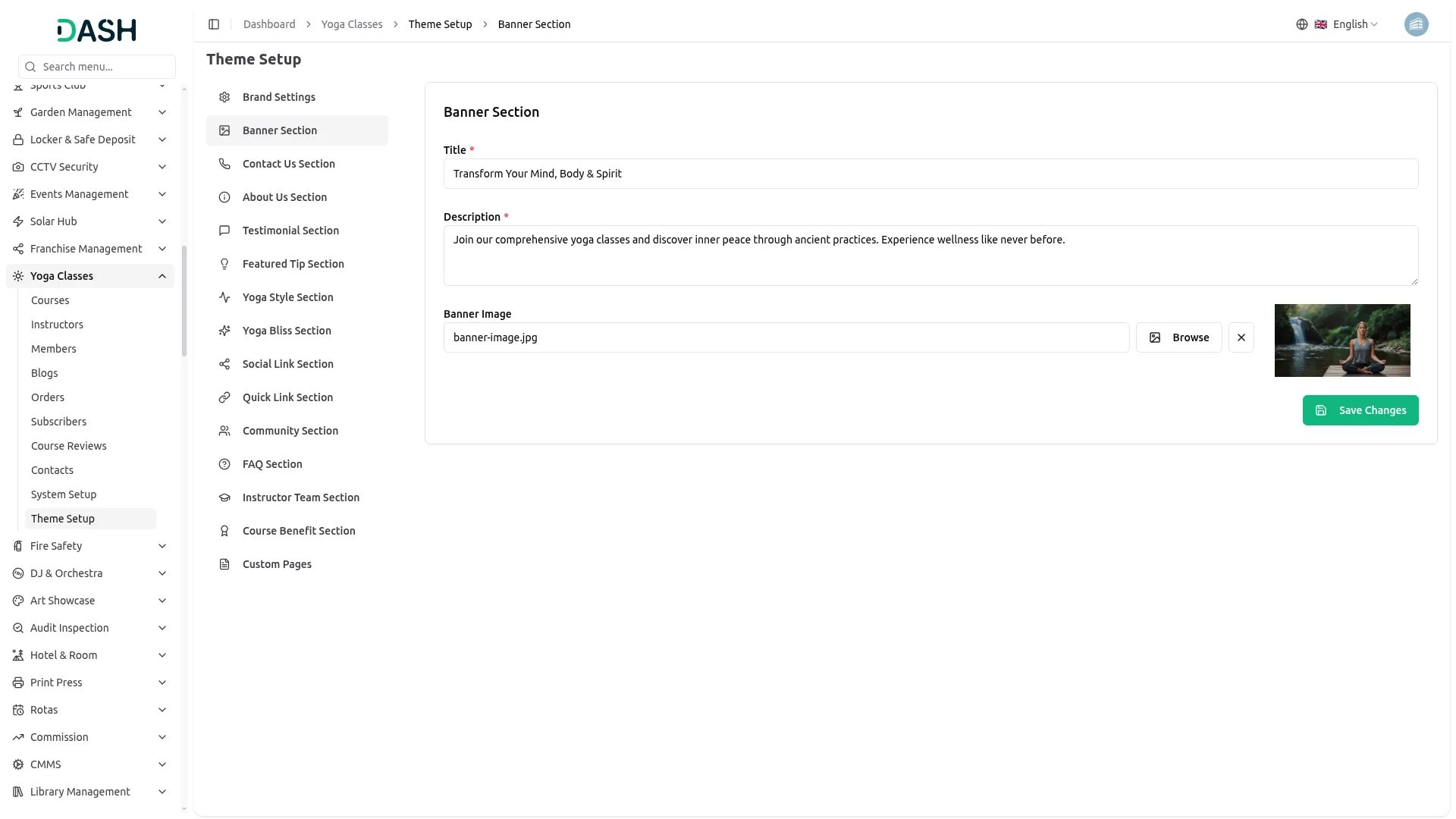
- In the Banner Section, you will find fields for Title, Description, and Banner Image. Upload your hero image using the Browse button and enter all the required details. Click Save Changes.
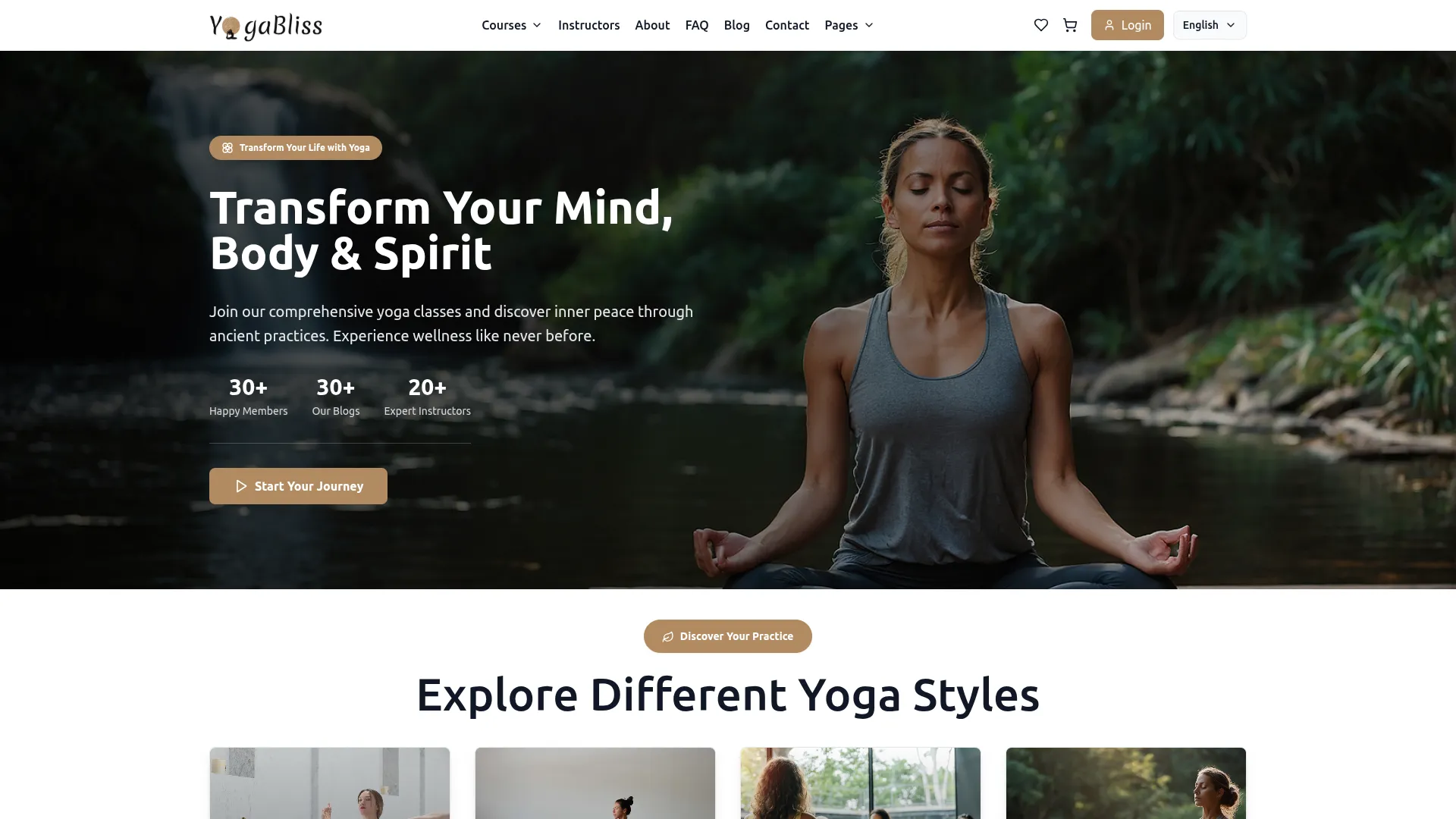
- Once saved, the Banner Title and Description will appear as the main headline and supporting text in the hero section on your homepage. The Banner Image will display as the full background image behind the hero text, giving visitors an engaging first impression of your yoga studio.
Contact Us Section
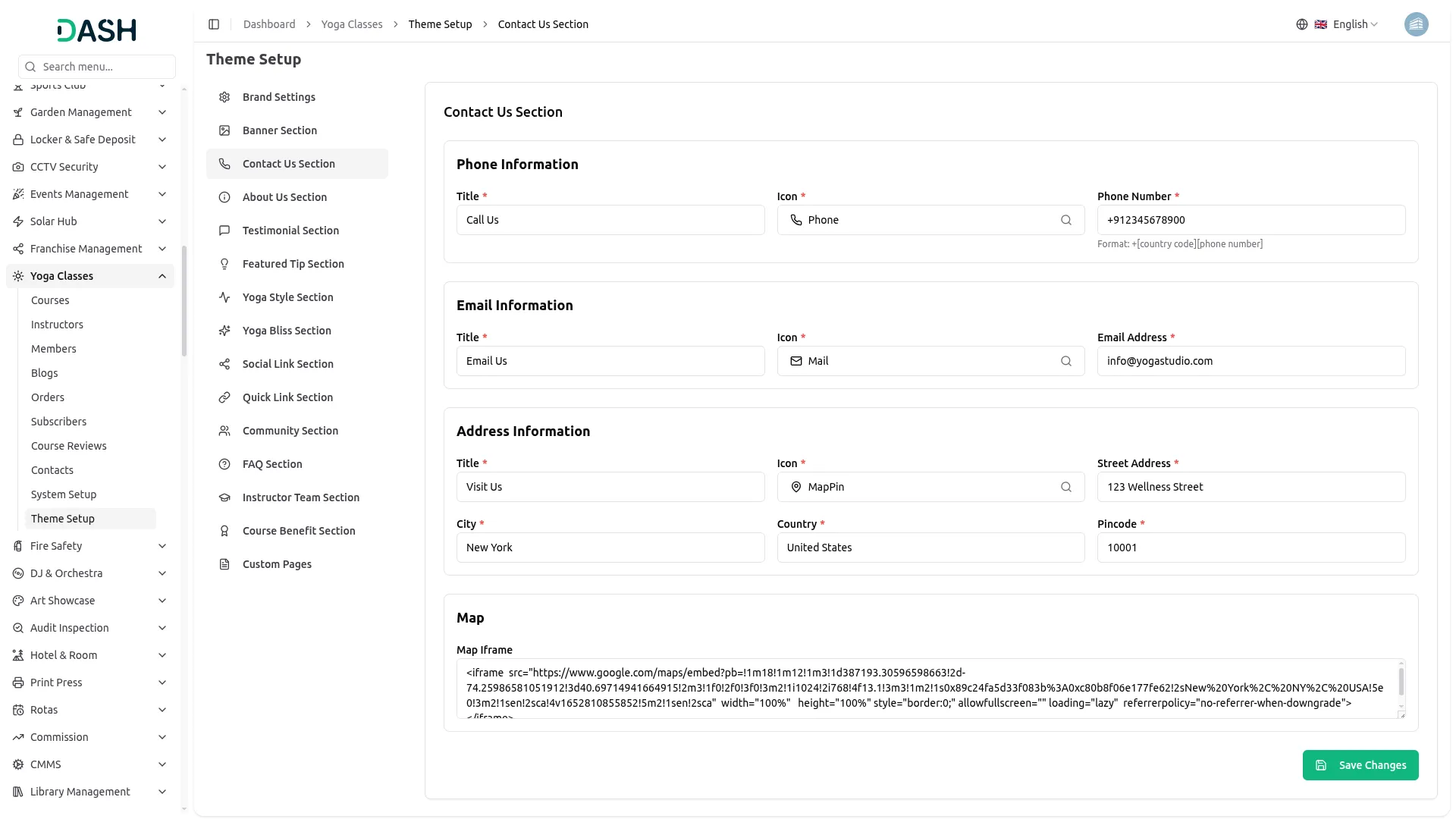
- In the Contact Us Section, you will find three sub-sections: Phone Information, Email Information, and Address Information, along with a Map field.
- In the Phone Information sub-section, enter the Title, select an option, and enter the Phone Number. In the Email Information sub-section, enter the Title, select an option, and enter the Email Address. In the Address Information sub-section, enter the Title, select an option, and fill in the Street Address, City, Country, and Pincode. In the Map field, paste your Google Maps embed iframe code. Click Save Changes.
- Once saved, the Phone Information, Email Information, and Address Information will appear as three separate contact cards on the Contact Us page. The map iframe will display as an interactive Google Map on the same page, alongside the contact inquiry form.
About Us Section
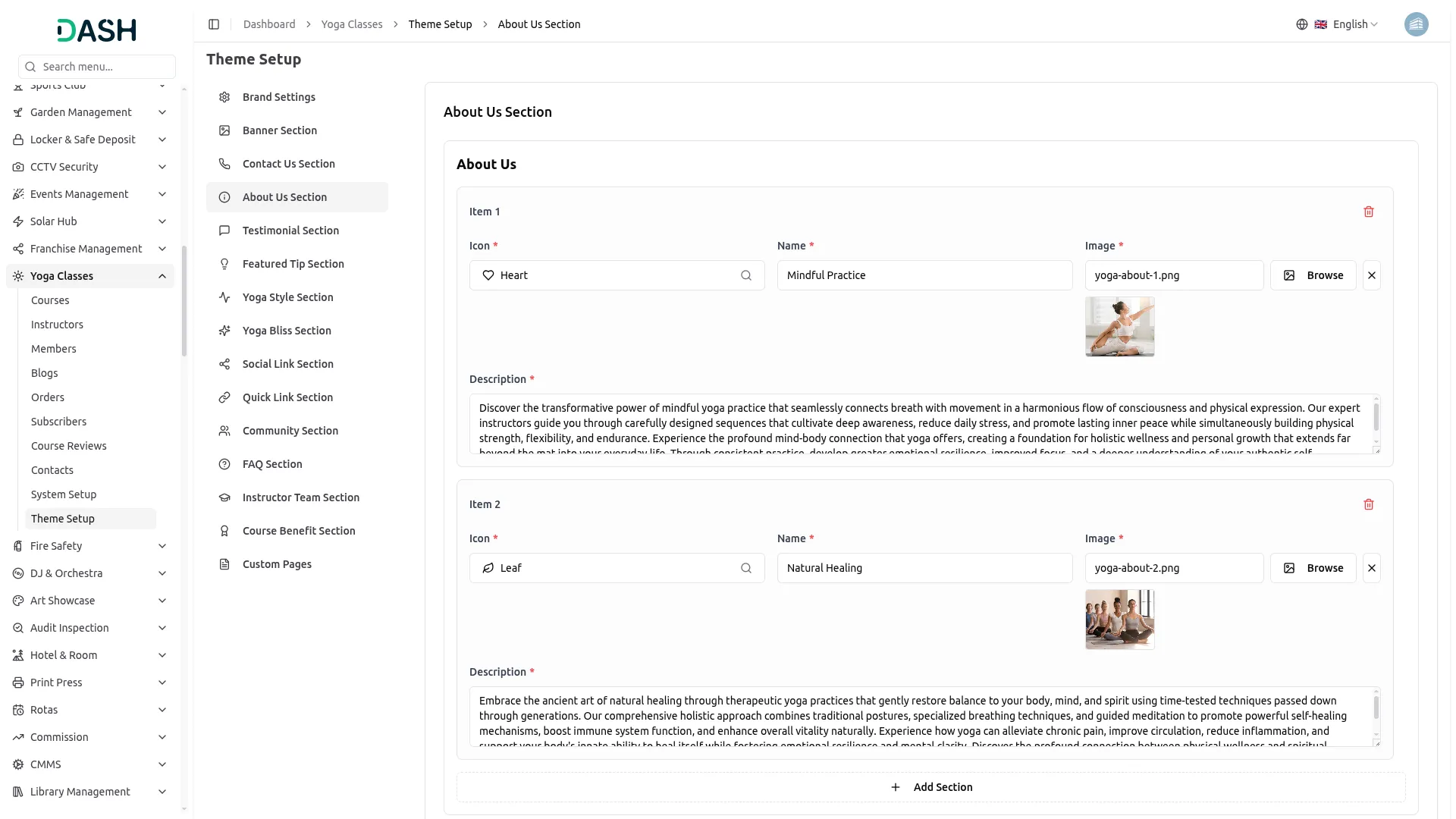
- In the About Us Section, you will find two sub-sections, About Us and Our Team.
- In the About Us sub-section, each item contains an option, Name, Image, and Description. Upload your image using the Browse button and fill in all the required fields. You can add more items using the Add Section button. In the Our Team sub-section, each team member item contains a Name, Position, Image, and Description. Upload the member’s photo using the Browse button and fill in all the details. You can add more team members using the Add Team Member button. Click Save Changes.
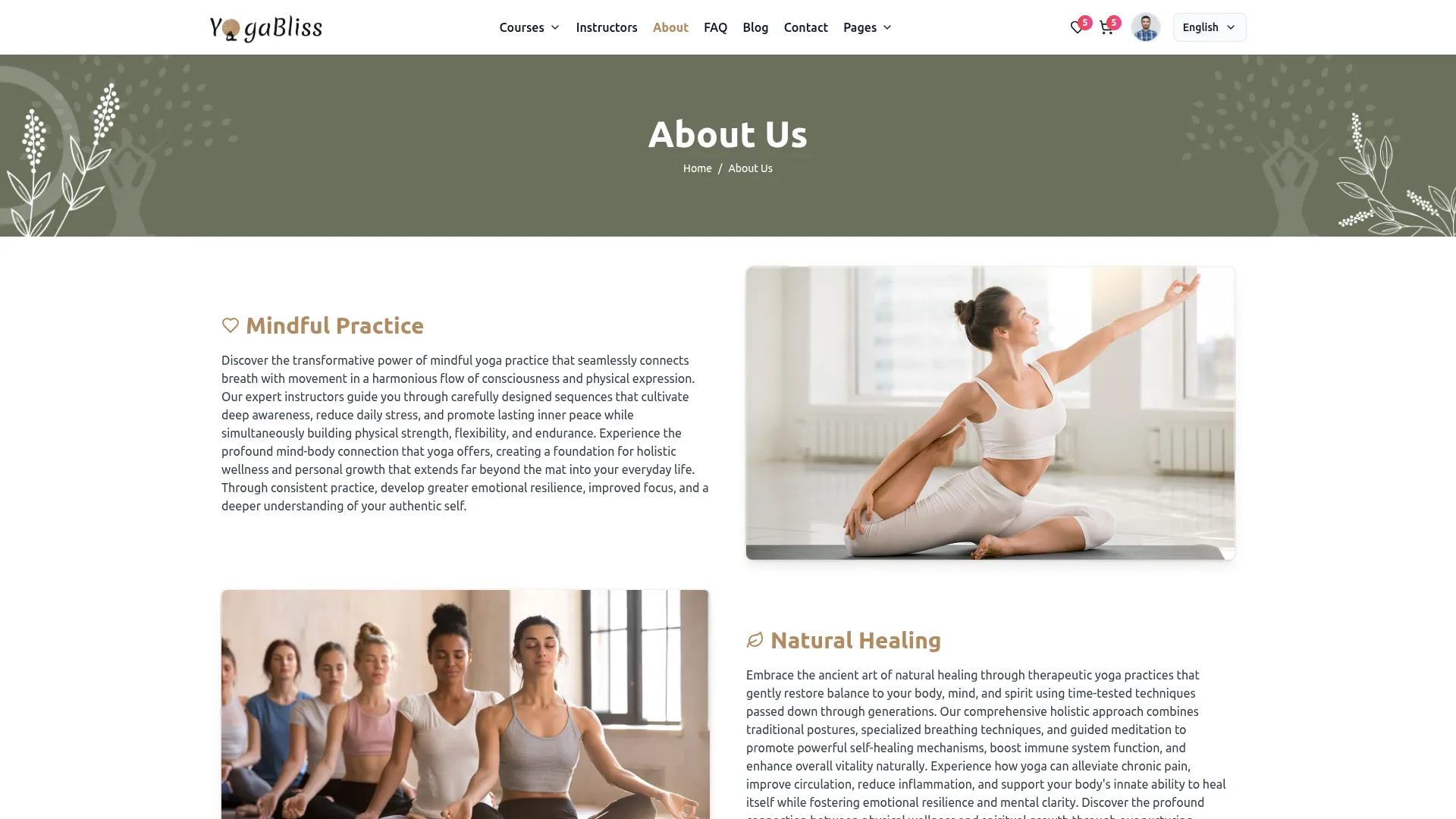
- Once saved, the About Us items will appear as alternating content blocks on the About Us page, each displaying the option, name, image, and description you have entered. The Our Team items will appear as a carousel of team member cards on the About Us page, showing each member’s photo, name, position, and short description.
Testimonial Section
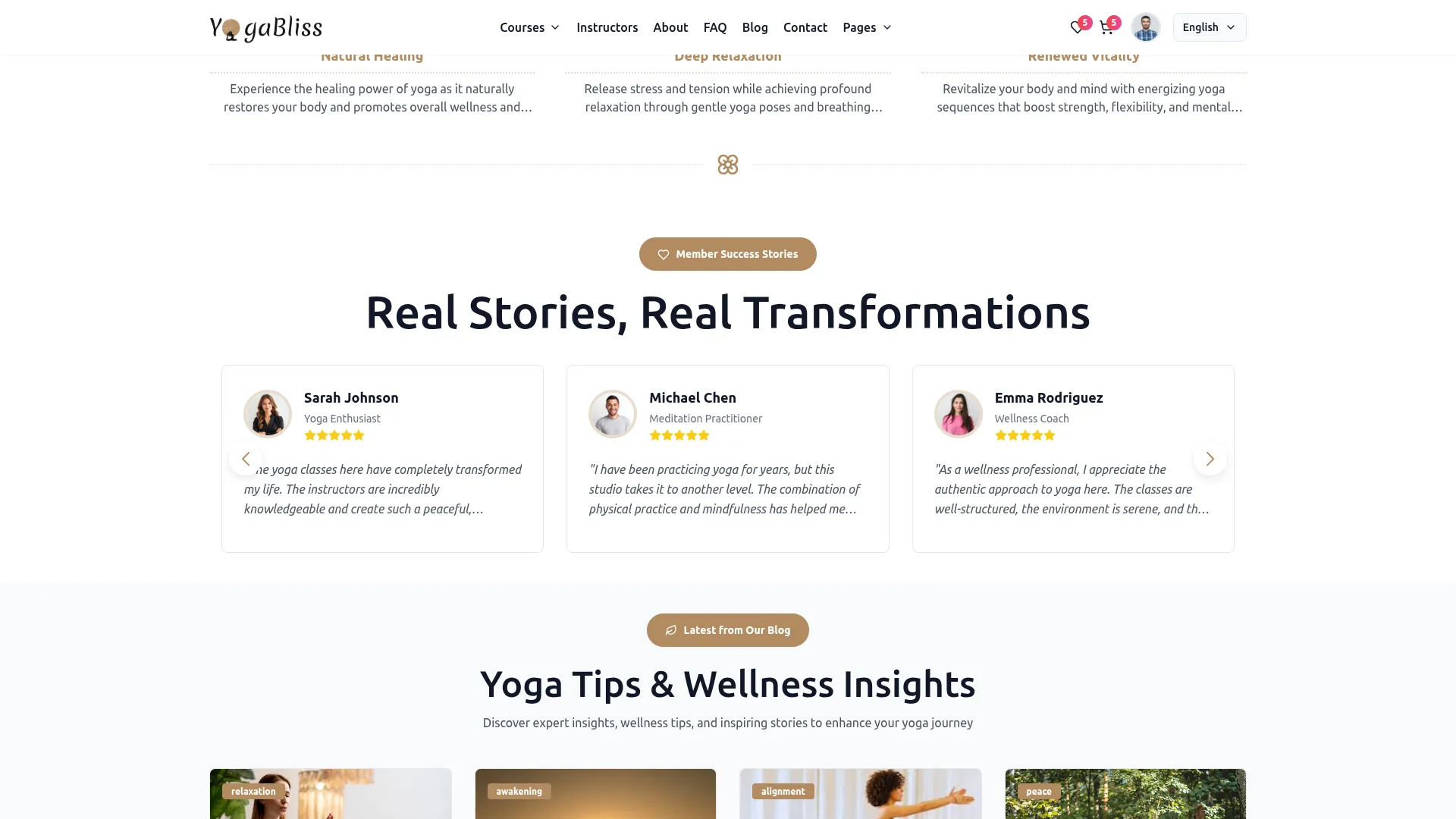
- In the Testimonial Section, each item contains fields for Name, Position, Rating, Image, and Description. Upload the reviewer’s photo using the Browse button, select the star rating, and fill in all the required details. You can add more testimonials using the Add Testimonial button. Click Save Changes.
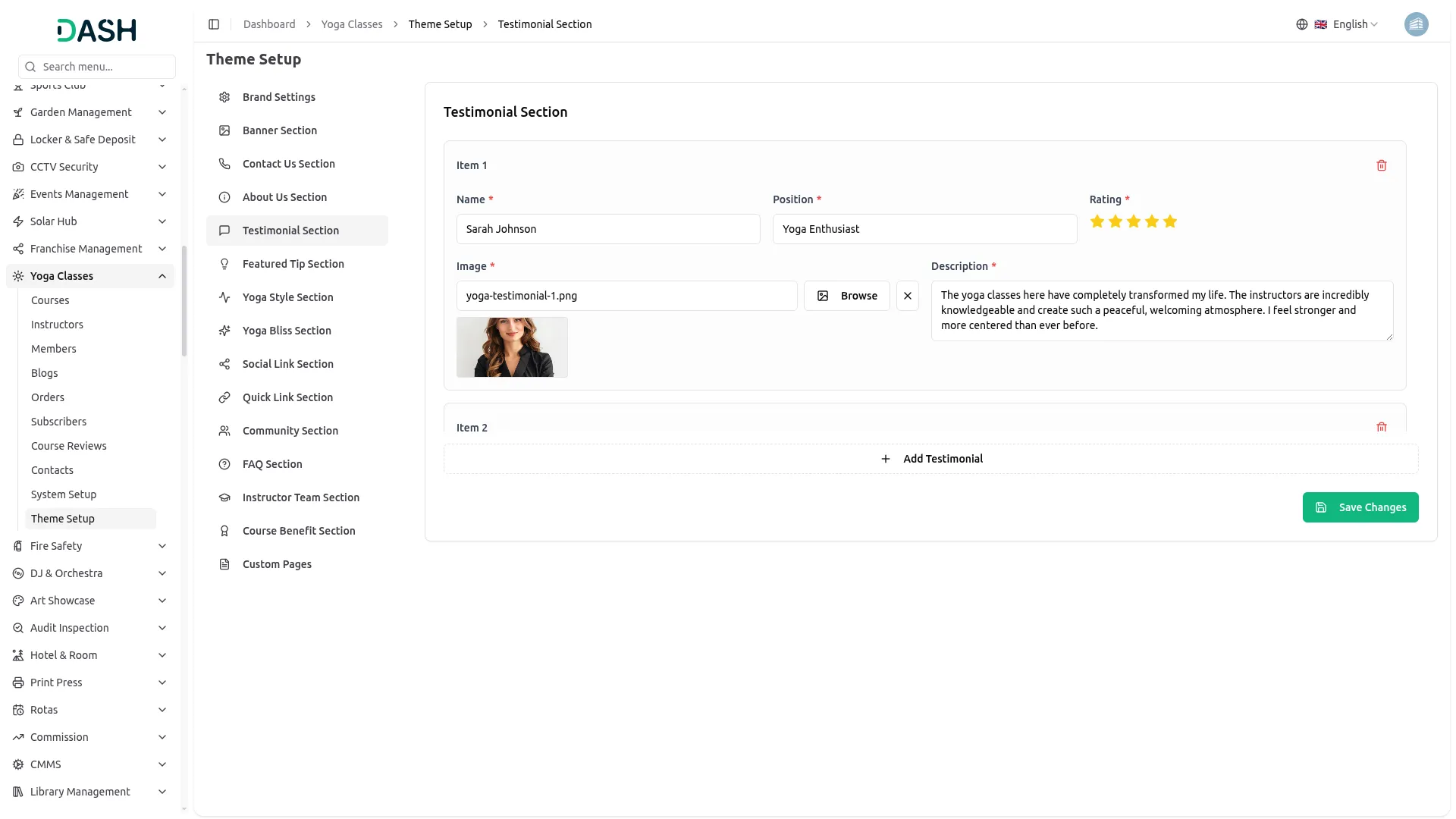
- Once saved, all testimonials will appear in the Real Stories, Real Transformations section on the homepage, displaying each reviewer’s photo, name, position, star rating, and review text.
Featured Tip Section
- In the Featured Tip Section, each item contains fields for option, Name, and Description. Select an option, enter the tip name, and its description. You can add more tips using the Add Tip button. Click Save Changes.
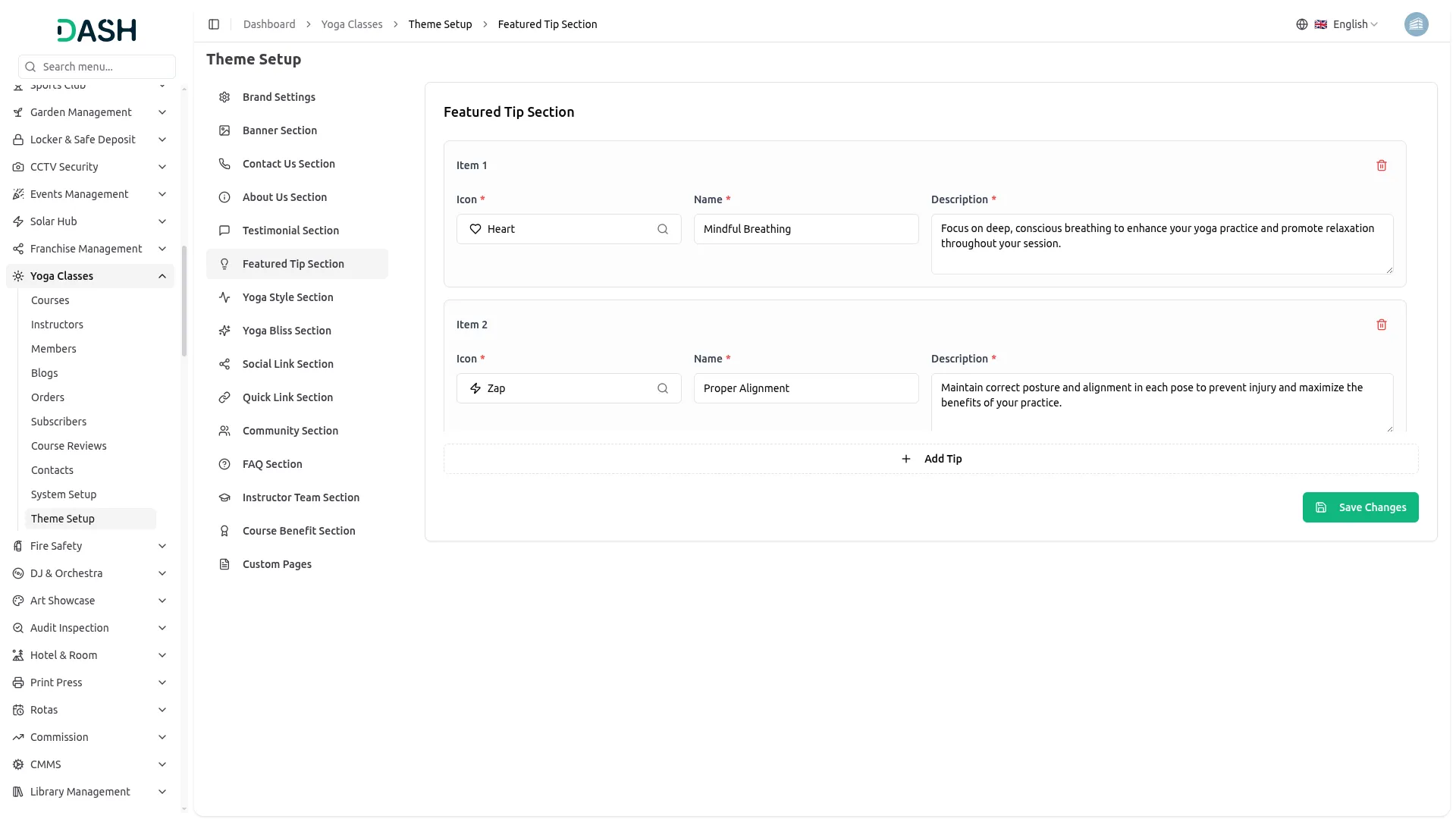
- Once saved, all featured tips will appear in the Featured Yoga Tips section on the Blog page, displaying each tip’s option, name, and description.
Yoga Style Section
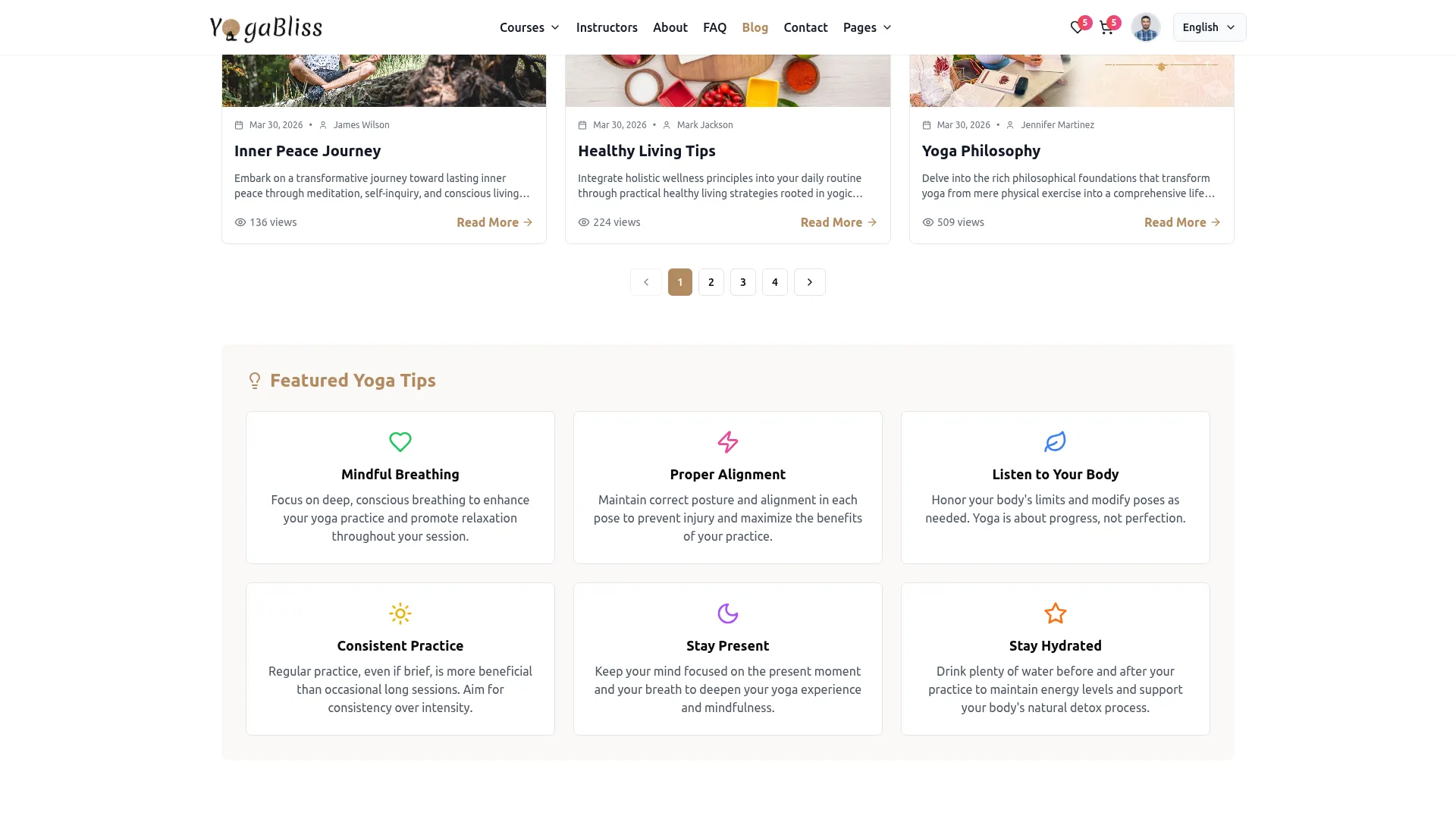
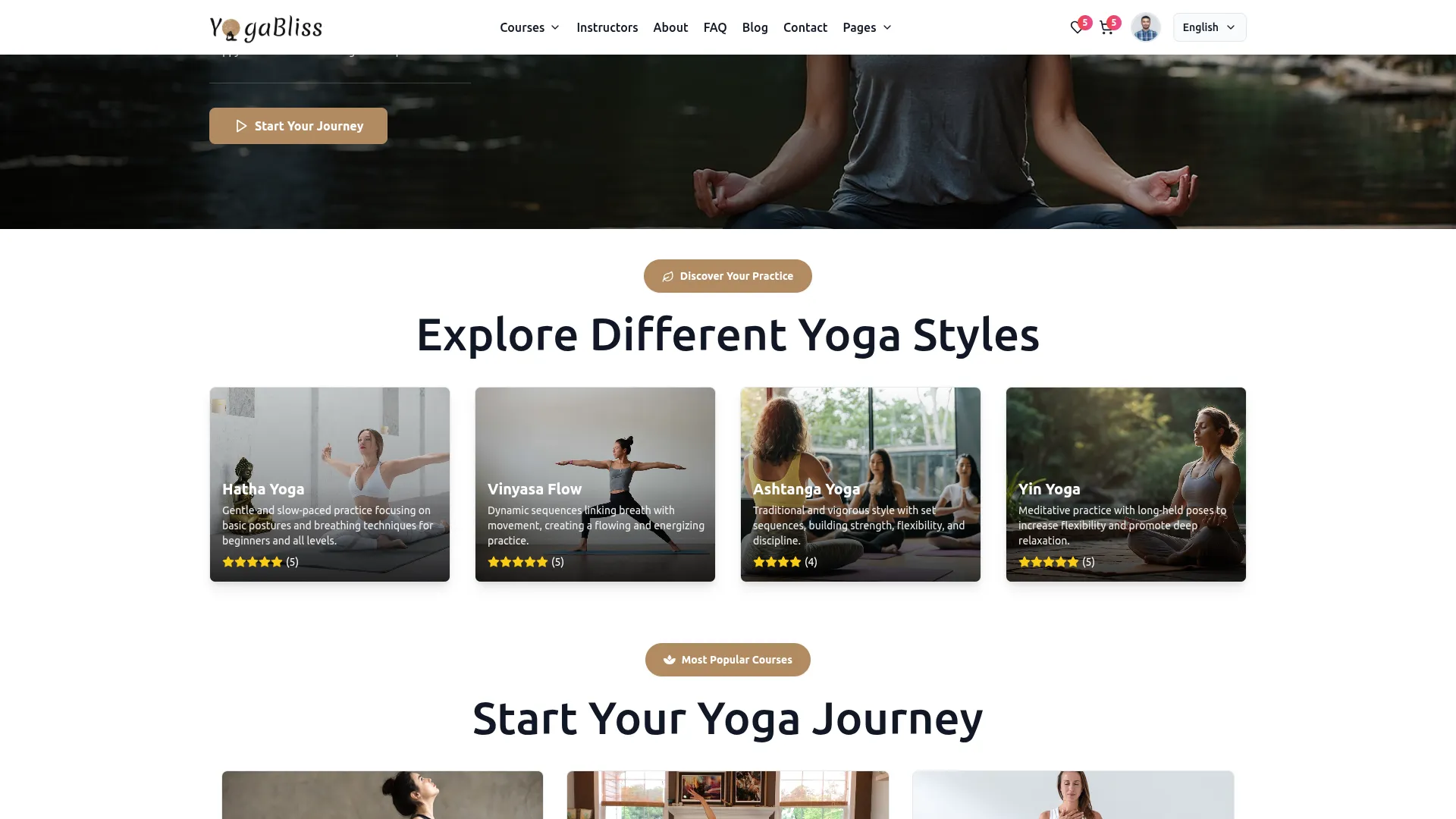
- In the Yoga Style Section, each item contains fields for Name, Rating, Image, and Tagline. Upload the yoga style image using the Browse button, set the star rating, and fill in the name and tagline. You can add more yoga styles using the Add Yoga Style button. Click Save Changes.
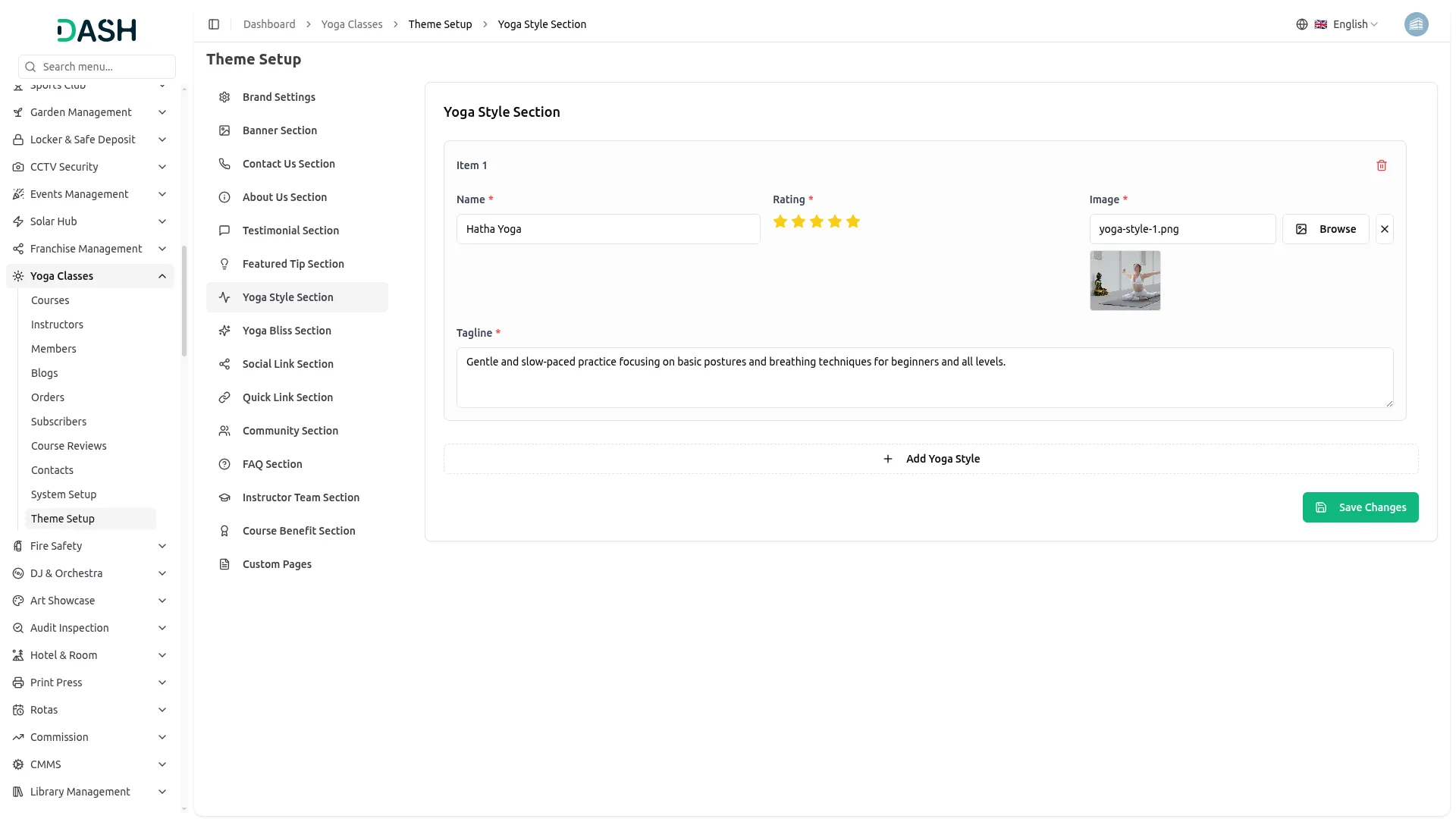
- Once saved, all yoga style items will appear in the Explore Different Yoga Styles section on the homepage, displaying each style’s image, name, rating, and tagline.
Yoga Bliss Section
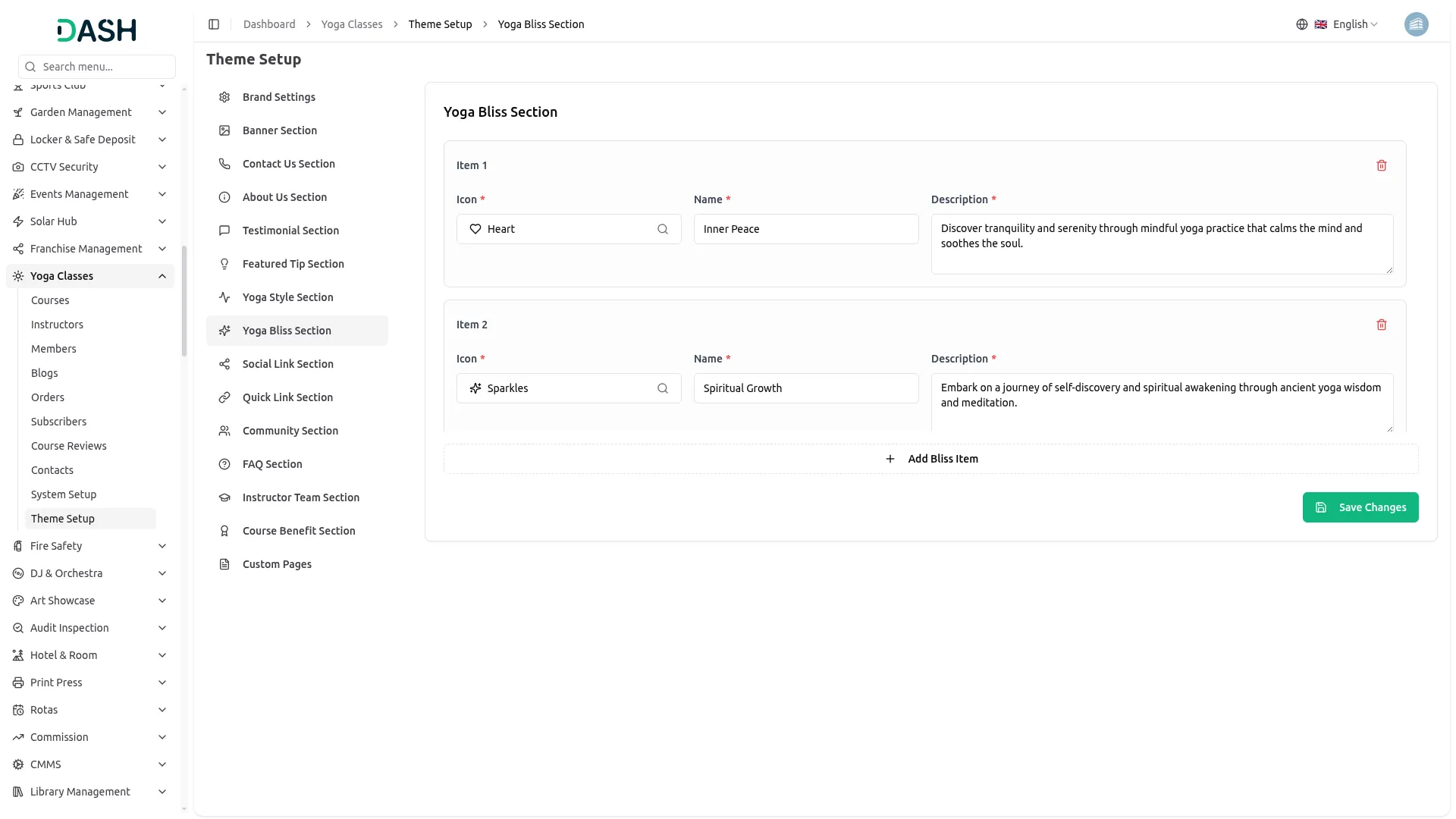
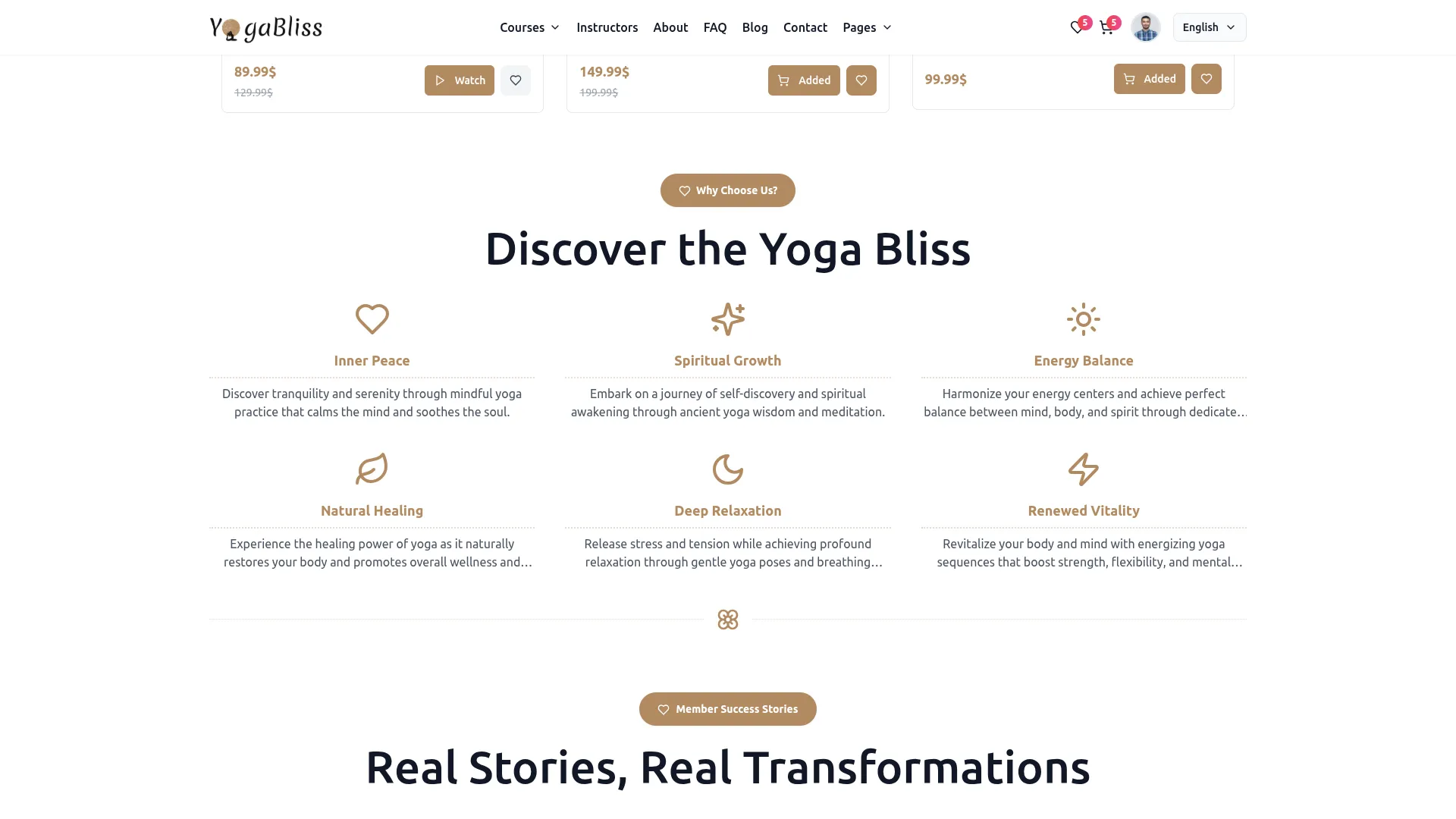
- In the Yoga Bliss Section, each item contains fields for option, Name, and Description. Select an option, enter the bliss item name, and its description. You can add more items using the Add Bliss Item button. Click Save Changes.
- Once saved, all items will appear in the Discover the Yoga Bliss section on the homepage, displaying each item’s option, name, and description.
Social Link Section
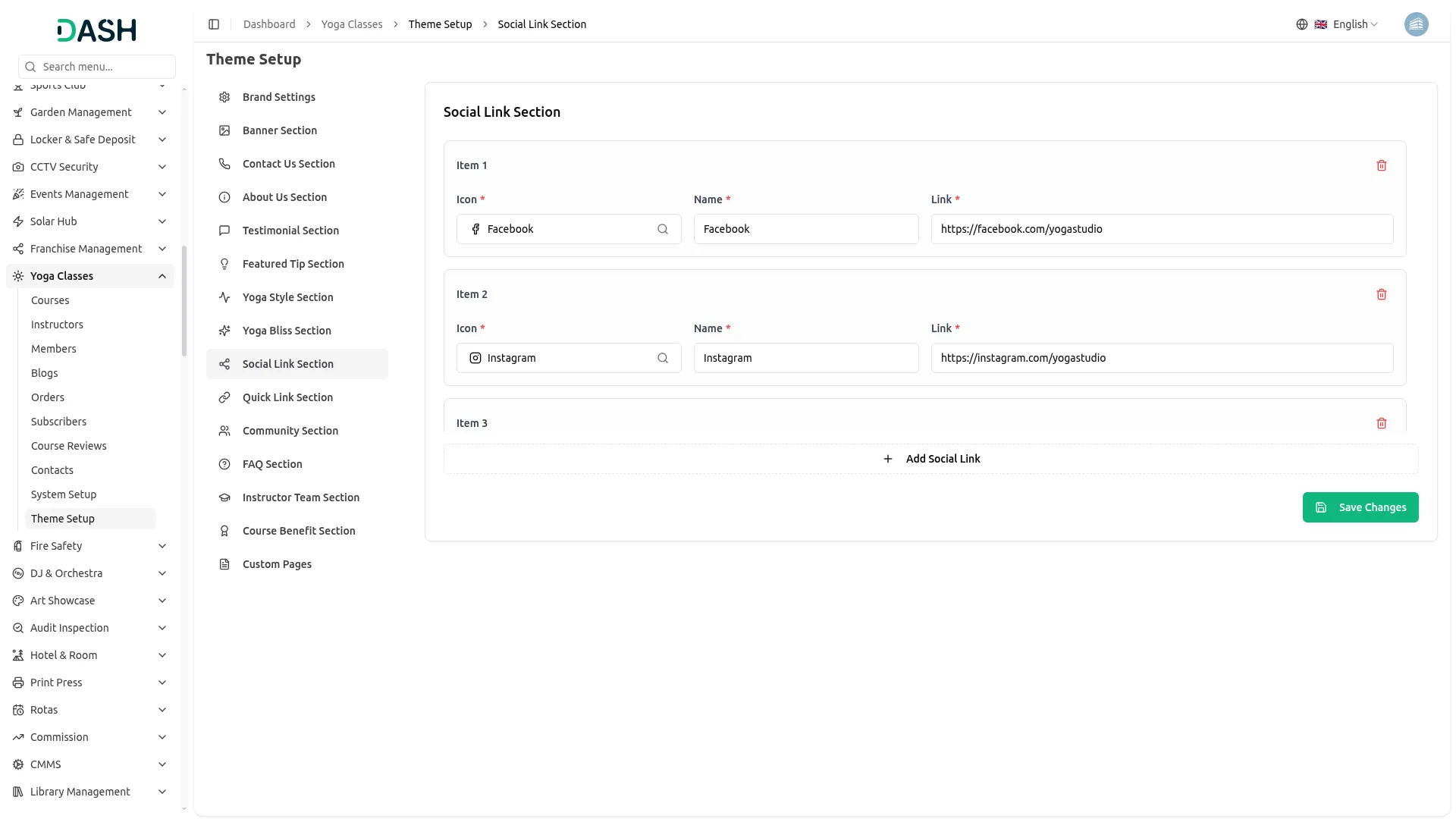
- In the Social Link Section, each item contains fields for option, Name, and Link. Select the social media option, enter the platform name, and paste the full URL of your social media profile. You can add more social links using the Add Social Link button. Click Save Changes.
- Once saved, all social media links will appear as clickable options in the footer section of your website.
Quick Link Section
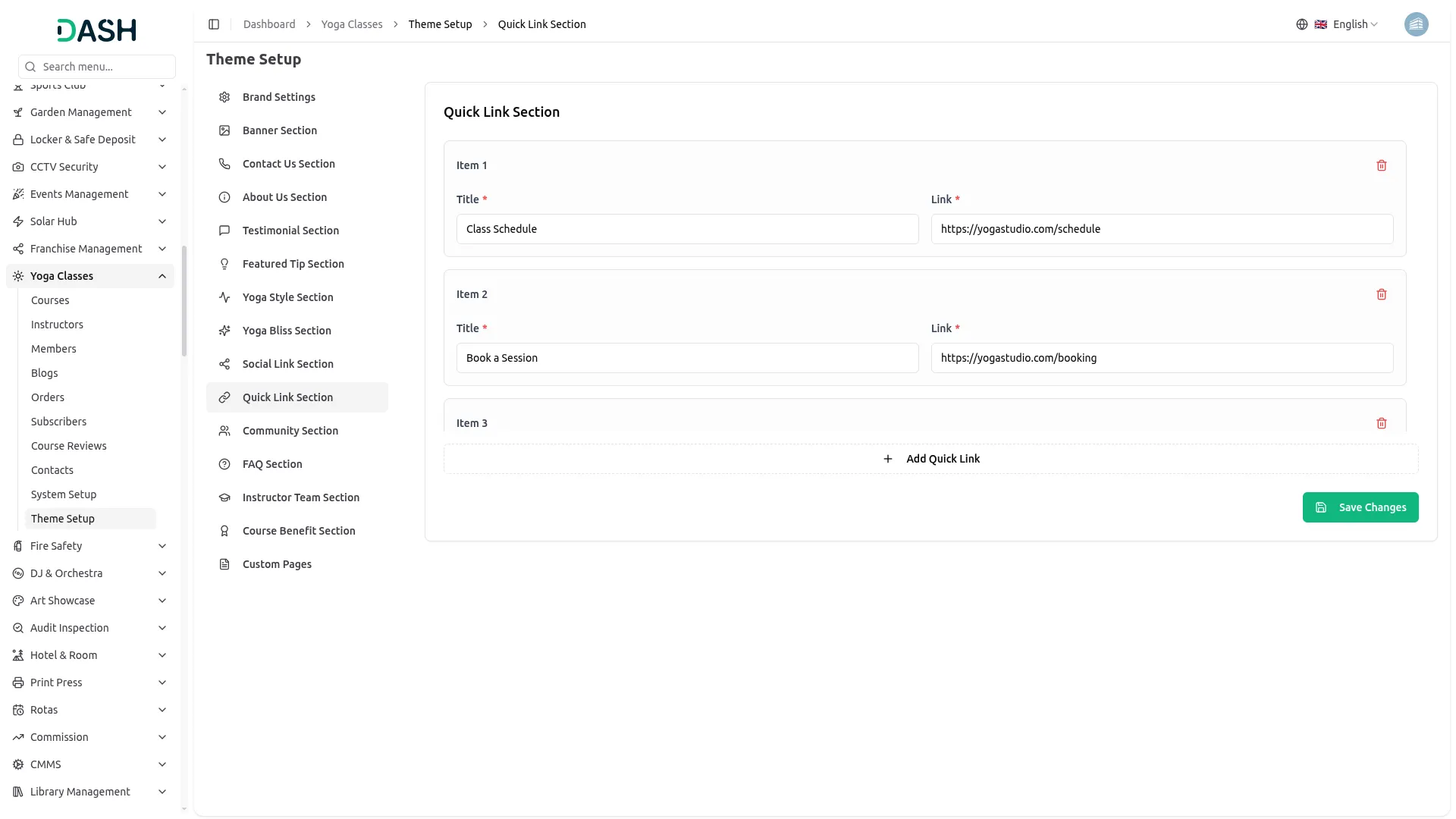
- In the Quick Link Section, each item contains fields for Title and Link. Enter the link label in the Title field and paste the corresponding URL in the Link field. You can add more quick links using the Add Quick Link button. Click Save Changes.
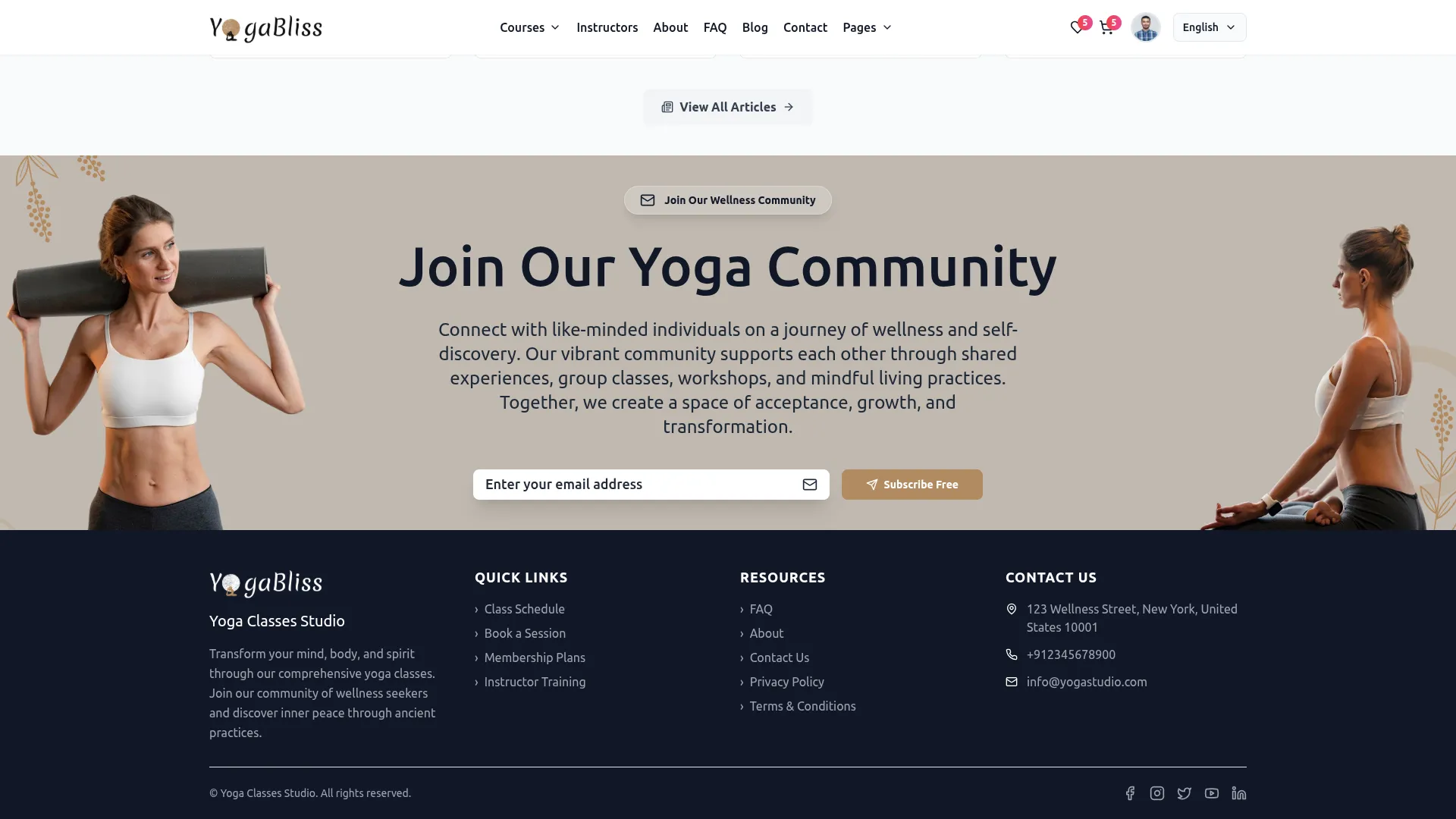
- Once saved, all quick links will appear under the Quick Links column in the footer section of your website, allowing visitors to navigate to important pages directly from the footer.
Community Section
- In the Community Section, you will find fields for Title, Community Image, and Description. Enter the section title, upload your community image using the Browse button, and write the description. Click Save Changes.
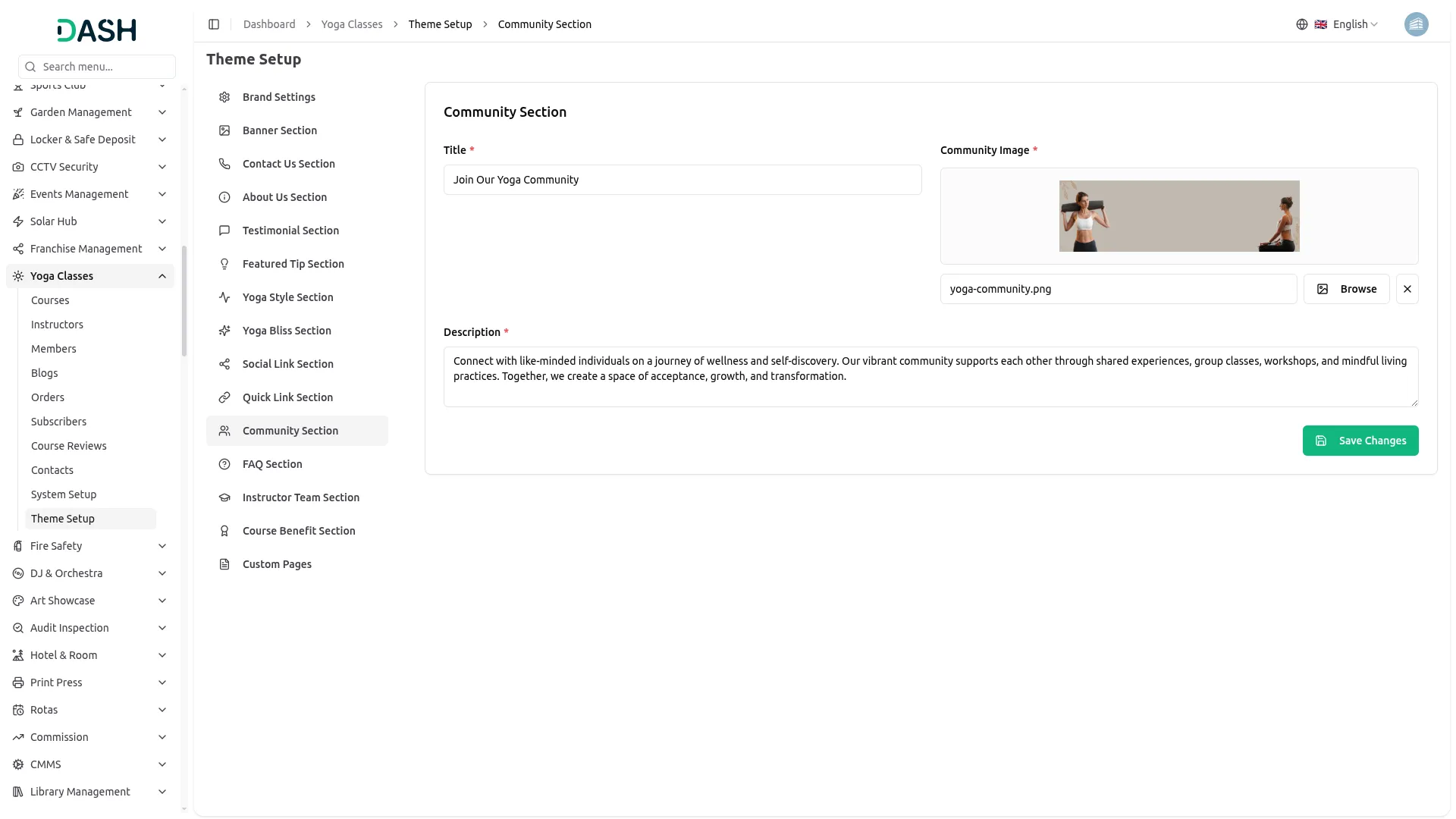
- Once saved, the Community Section title, image, and description will appear in the Join Our Yoga Community section at the bottom of the homepage, encouraging visitors to subscribe and connect with your studio’s community.
FAQ Section
- In the FAQ Section, each item contains fields for Question and Answer. Enter the frequently asked question and its corresponding answer. You can add more FAQs using the Add FAQ button. Click Save Changes.
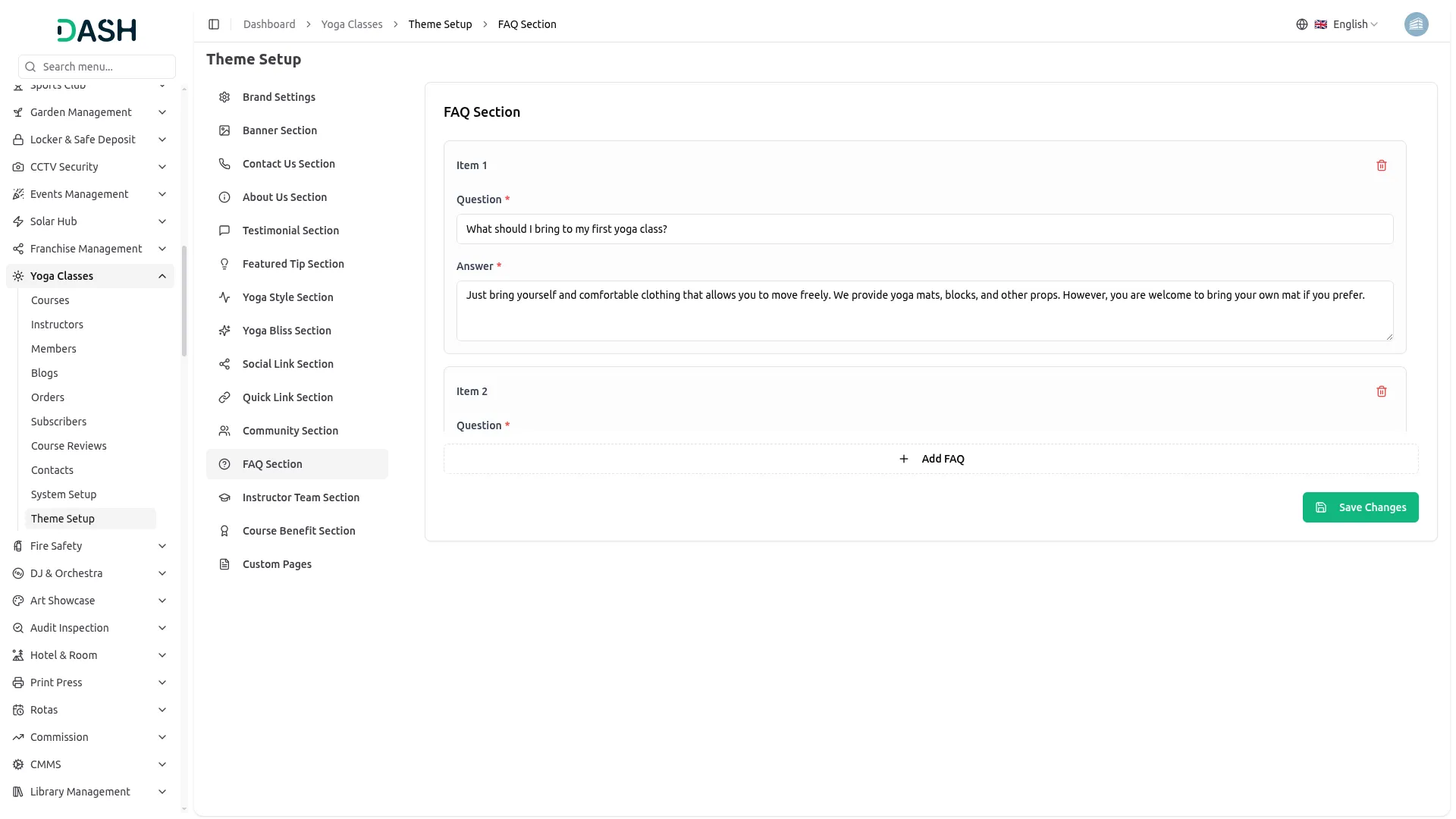
- Once saved, all FAQs will appear on the FAQs page as an accordion-style list, where visitors can click on any question to expand and read the answer.
Instructor Team Section
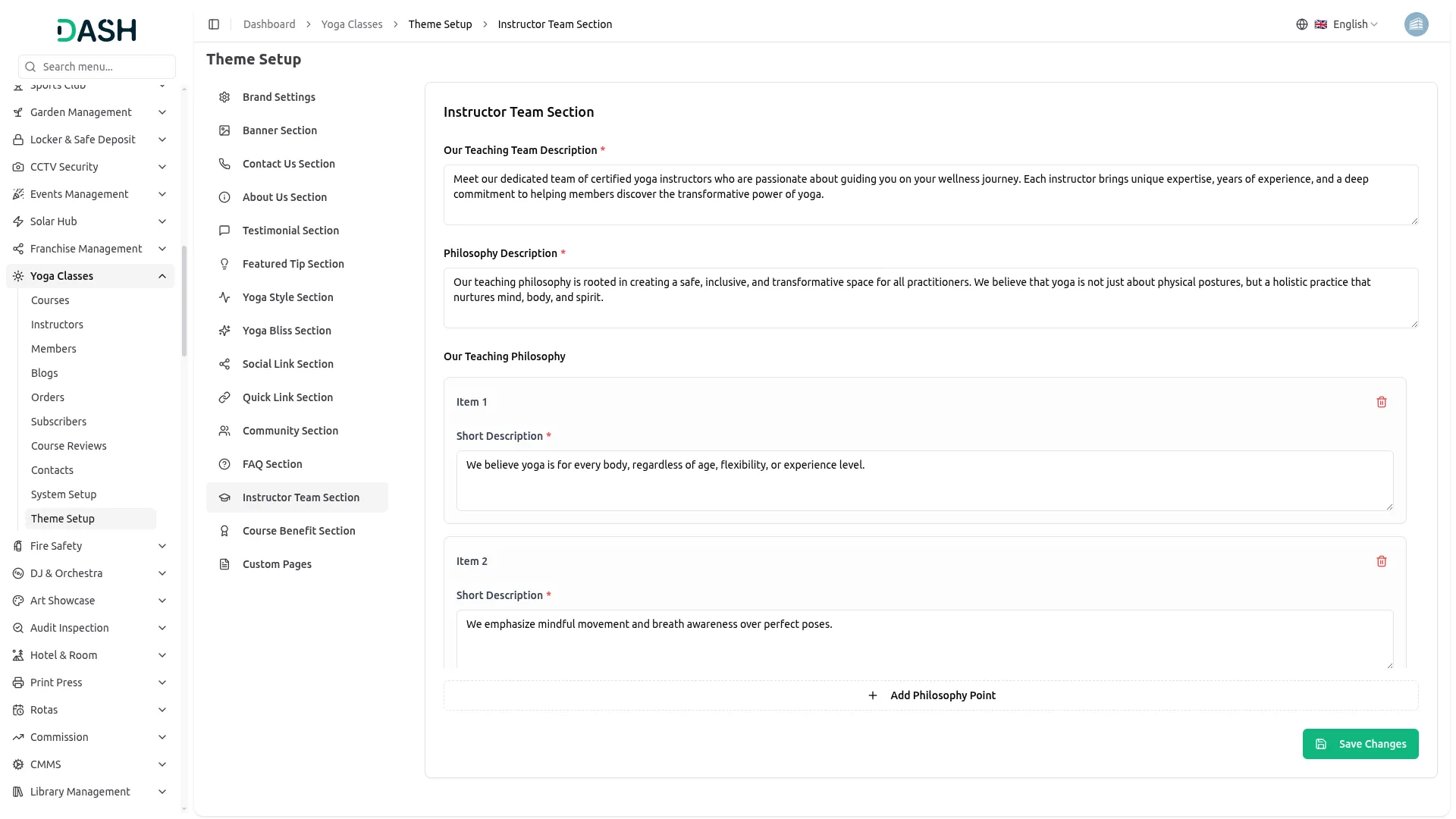
- In the Instructor Team Section, you will find fields for Our Teaching Team Description and Philosophy Description. Enter the overall description of your teaching team and your studio’s teaching philosophy in the respective fields.
- In the Our Teaching Philosophy sub-section, each item contains a Short Description field. Enter each individual philosophy point as a separate item. You can add more philosophy points using the Add Philosophy Point button. Click Save Changes.
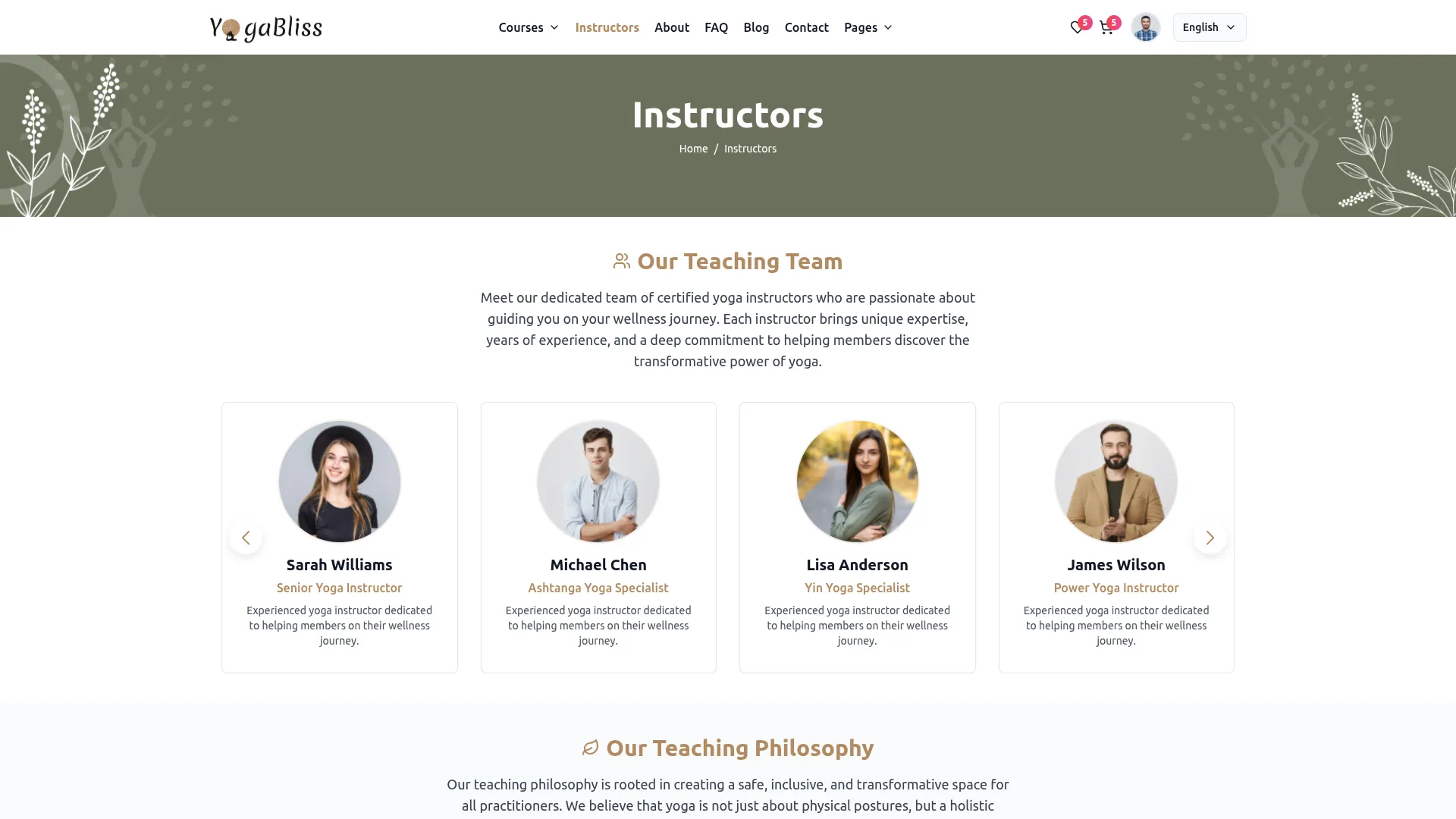
- Once saved, the Teaching Team Description will appear as the introductory paragraph in the Our Teaching Team section on the Instructors page. The Philosophy Description will appear as the introductory text in the Our Teaching Philosophy section, and each short description point will appear as a separate bullet point beneath it.
Course Benefit Section
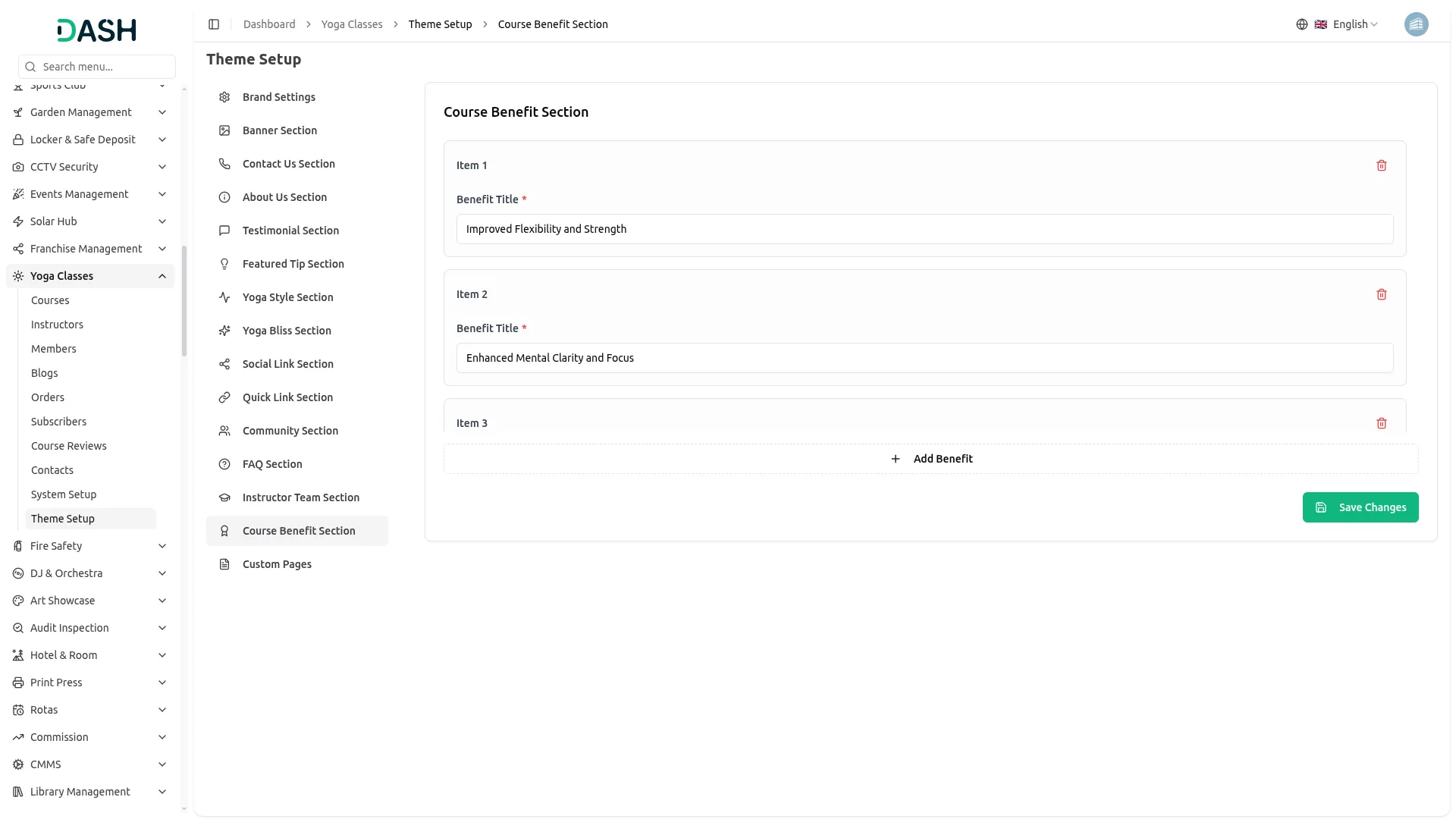
- In the Course Benefit Section, each item contains a Benefit Title field. Enter the title of each course benefit. You can add more benefits using the Add Benefit button. Click Save Changes.
- Once saved, all benefit titles will appear as a list of course benefits on the individual course detail pages, helping members and instructors understand the value of enrolling in a course.
Custom Pages
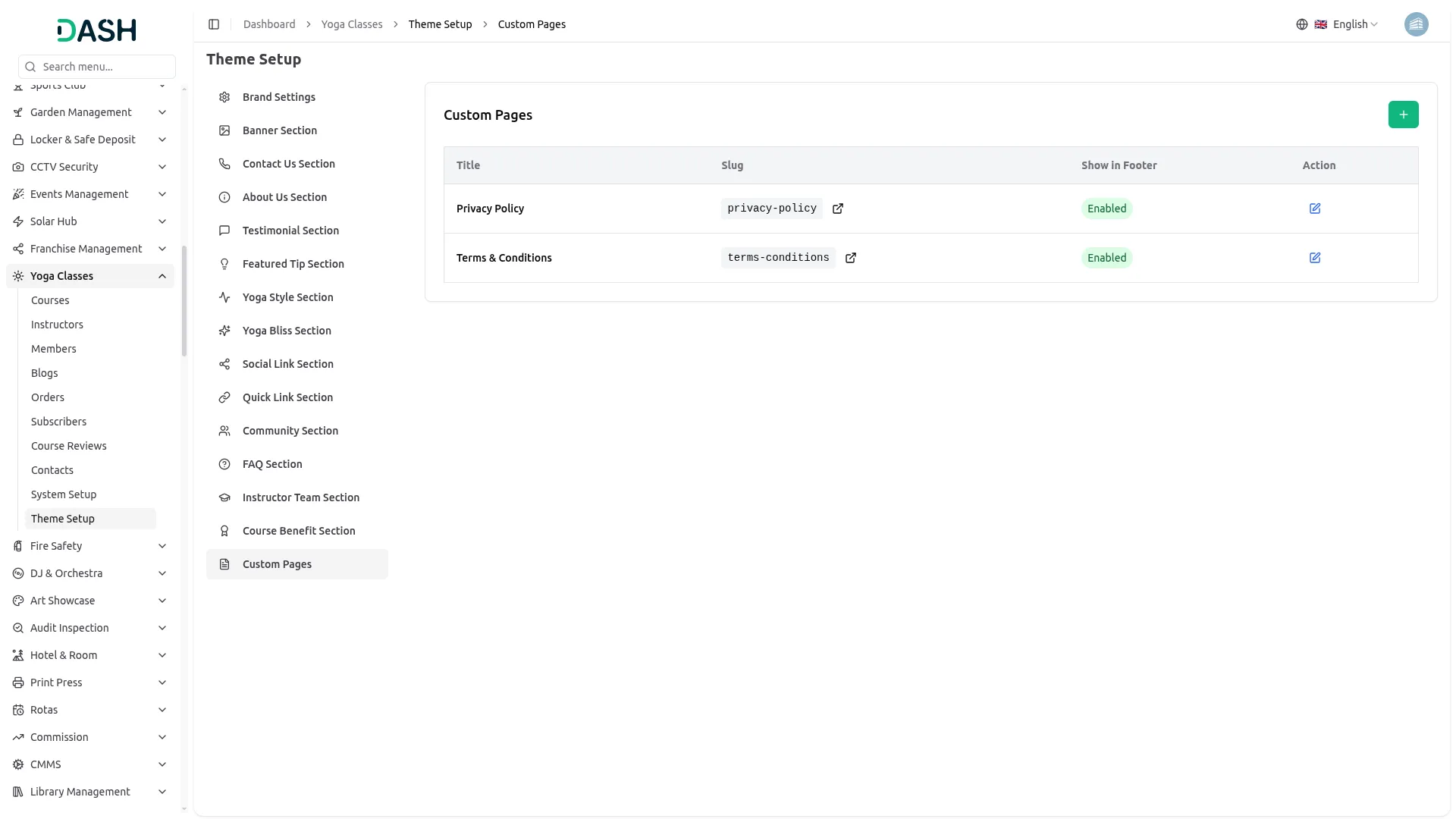
- To create a new custom page, click the “Create” button at the top right. In the Create Custom Page form, enter the Title, set the URL Slug using only lowercase letters and hyphens, add an optional Description, and write the full page content using the rich text editor, which supports formatting options such as bold, italic, underline, strikethrough, alignment, lists, blockquote, and links. Use the Enable Page Footer toggle to control whether this page appears in the website footer. Click Save to publish the page.
- The Custom Pages section displays a list of all existing custom pages with their Title, Slug, Show in Footer status, and an edit Action button. Currently, Privacy Policy and Terms & Conditions pages are listed with their respective slugs and are both enabled to show in the footer.
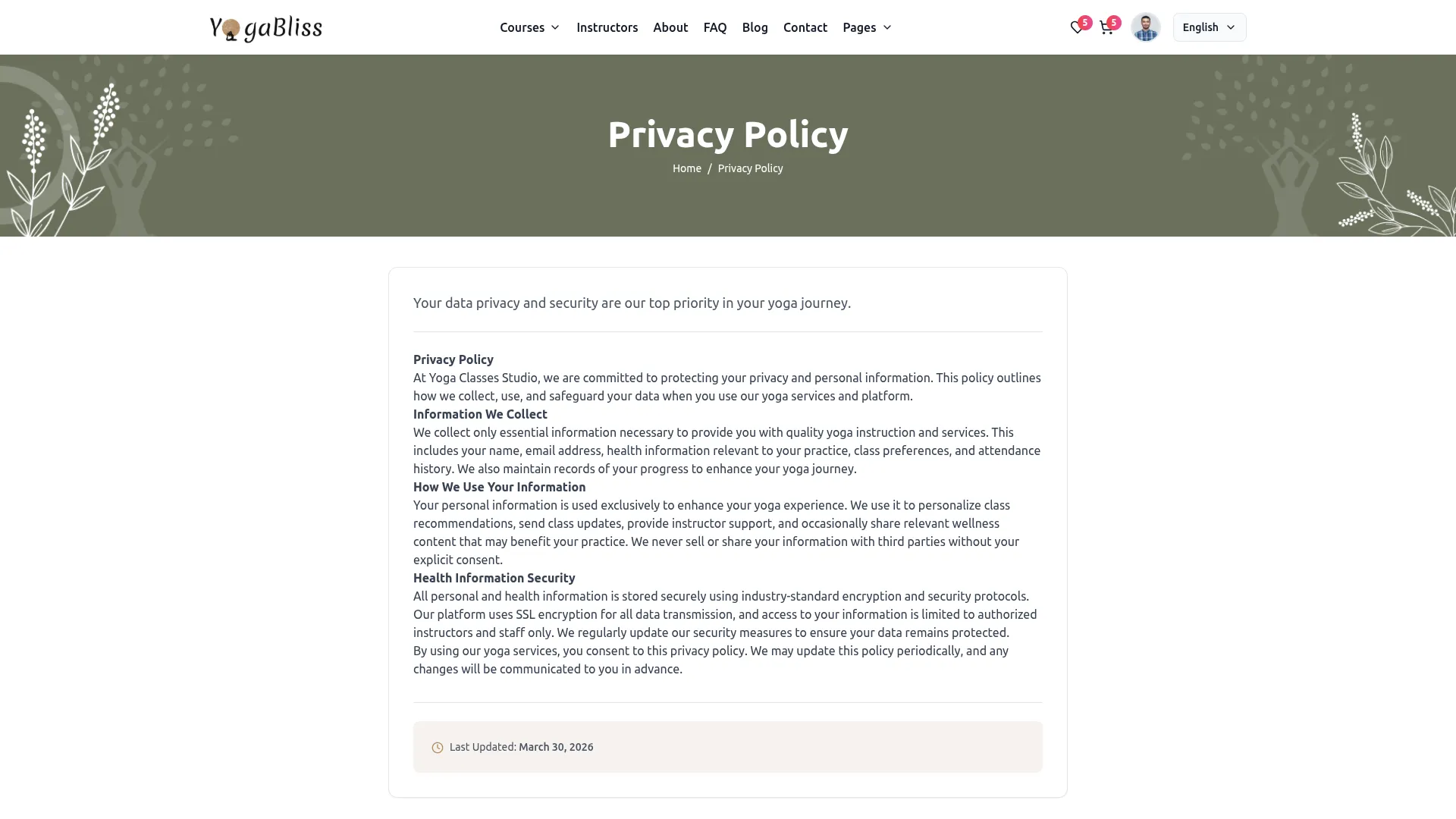
- Once saved, the custom page will become accessible on your website via its URL slug, and if the footer option is enabled, a link to the page will appear in the footer’s Resources section.
System Setup
Categories
- To add a new category, click the “Create” button at the top right. In the Create Category form, enter the Name and toggle the Is Active switch to activate it. Click Create to save.
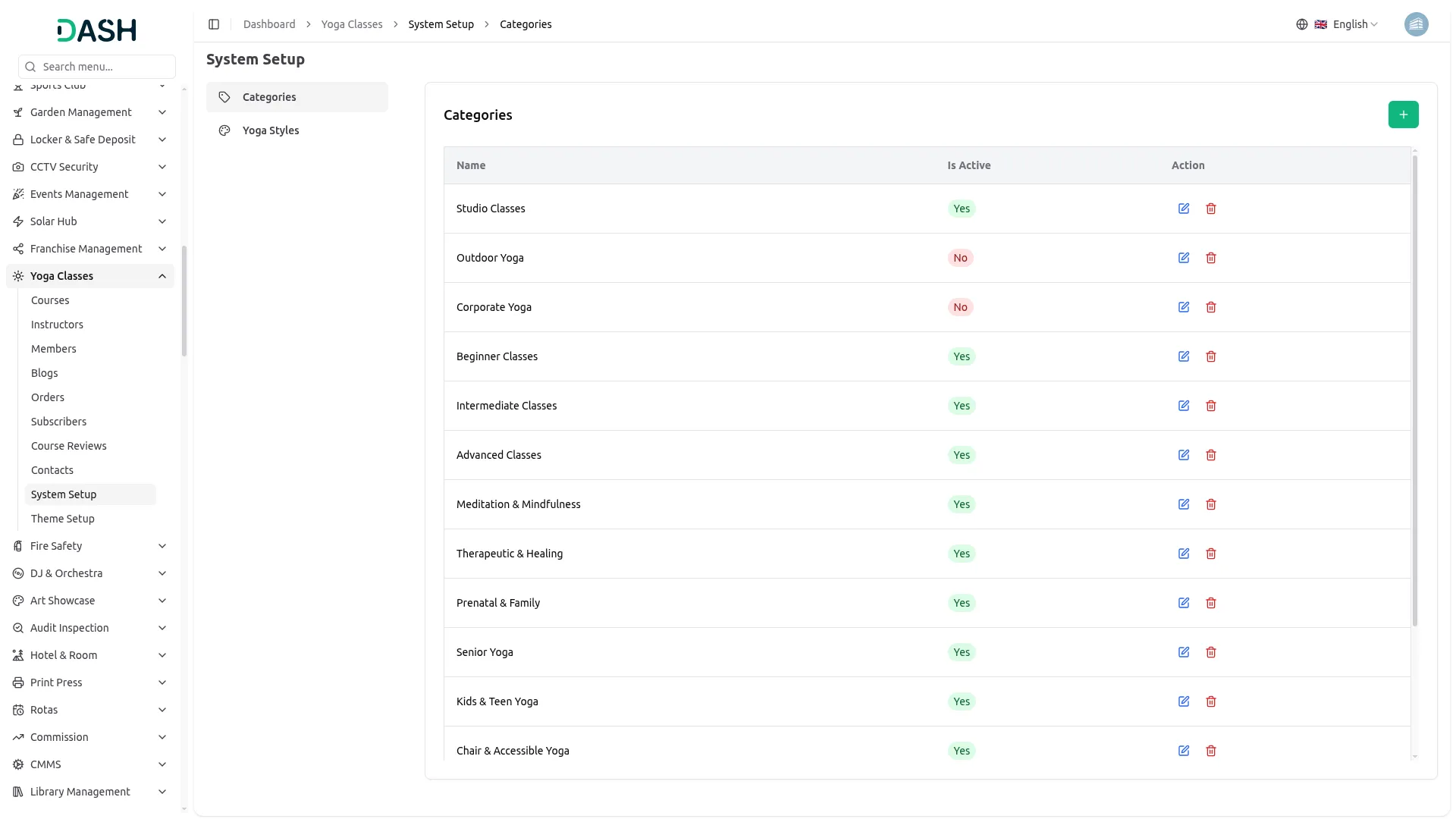
- In the Categories section, you will find a list of all existing categories with their Name, Is Active status, and Actions. In the Actions column, you can use the edit option to update the category name or status, or the delete option to remove it.
- Once saved, all active categories will appear as filter options under the Level filter on the All Courses page, allowing visitors to browse and find courses by their preferred class level such as Beginner Classes, Intermediate Classes, or Advanced Classes.
Yoga Styles
- To add a new yoga style, click the “Create” button at the top right. In the Create Yoga Style form, enter the Name and toggle the Is Active switch to activate it. Click Create to save.
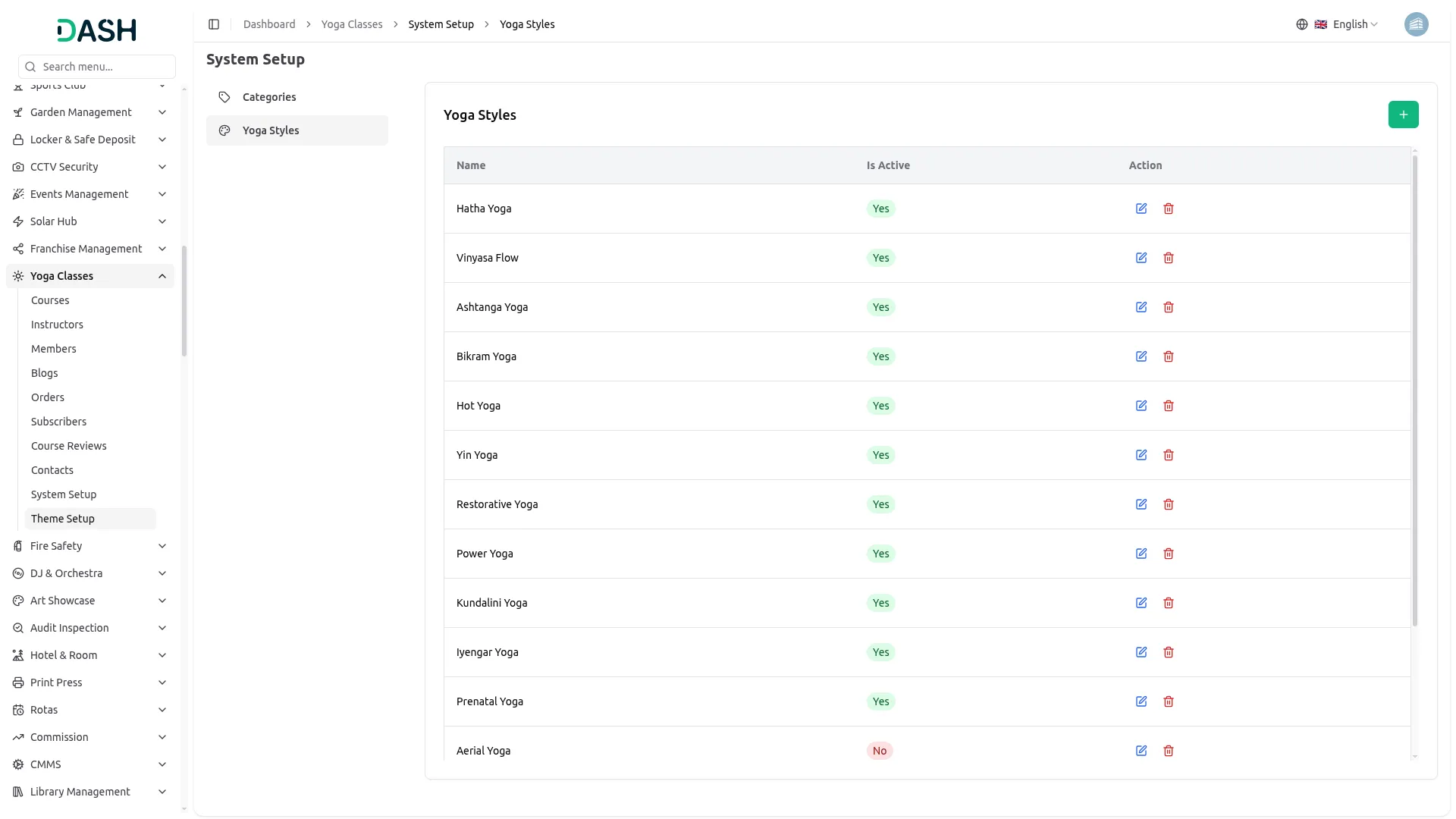
- In the Yoga Styles section, you will find a list of all existing yoga styles with their Name, Is Active status, and Actions. In the Actions column, you can use the edit option to update the yoga style name or status, or the delete option to remove it.
- Once saved, all active yoga styles will appear as filter options under the Yoga Styles filter on the All Courses page, allowing visitors to browse and find courses by their preferred style such as Hatha Yoga, Vinyasa Flow, Ashtanga Yoga, and more.
Manage Courses
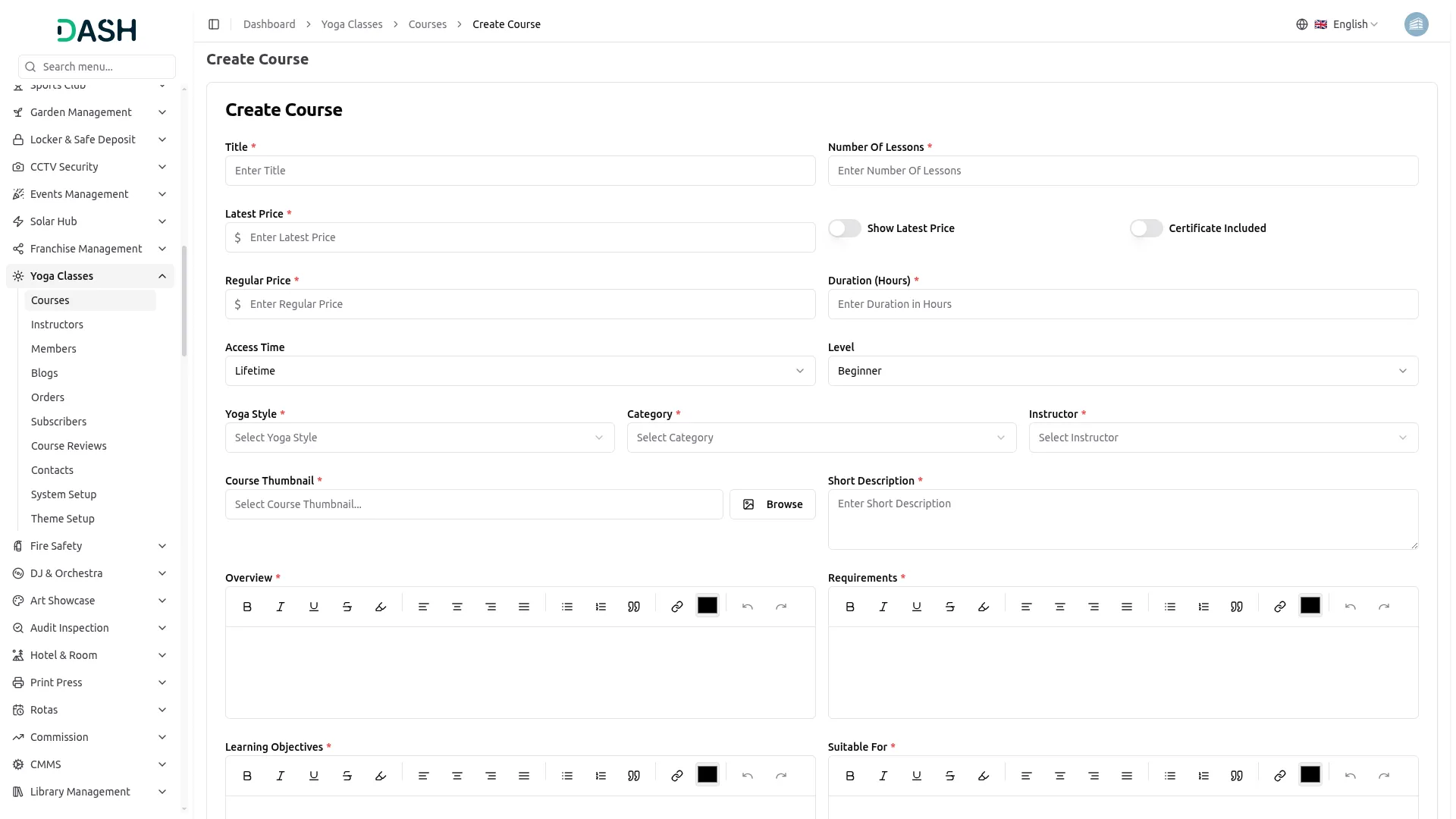
- To add a new course, click the “Create” button on the Manage Courses page. In the Create Course form, enter the Title and Number of Lessons. Enter the Latest Price and Regular Price, and toggle Show Latest Price on if you want the discounted price to be visible on the website. Toggle Certificate Included on if the course offers a certificate upon completion.
- Enter the Duration in hours and select the Access Time from the dropdown; the available options are Lifetime, Three Months, Six Months, and One Year. Select the Level from the dropdown (Beginner, Intermediate, and Expert). Select the Yoga Style, Category, from their respective dropdowns (which are configured in the System setup), and choose Instructor from the dropdowns (populated from the Instructor section).
- Upload the Course Thumbnail using the Browse button and enter a Short Description. In the Overview field, write the full course description using the rich text editor. In the Requirements field, enter the prerequisites or conditions a member should meet before taking the course. Enter the Learning Objectives to describe what members will achieve, and fill in the Suitable For field to describe who this course is best suited for. Click Create to save.
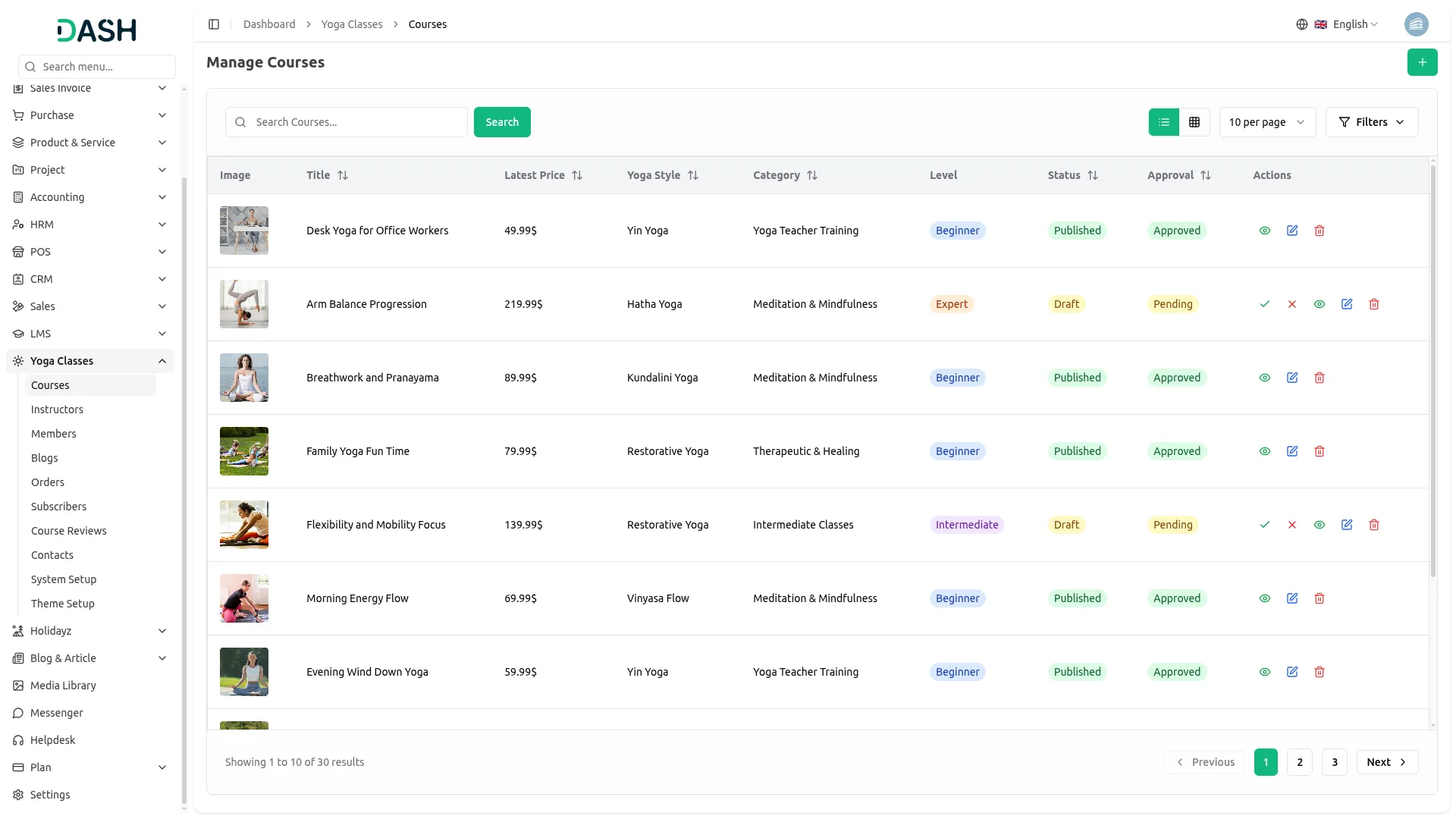
- The Manage Courses list page displays a table with columns for Image, Title, Latest Price, Yoga Style, Category, Level, Status, Approval, and Actions. You can switch between list view and grid view using the toggle buttons. Use the search bar to find a specific course by title and click Search.
- Click the Filters button to apply filtering options, including Yoga Style, Category, Level, Access Time, Status, and Approval. Click Apply to filter the results or Clear to reset them.
- In the Actions column, you can use the View Option to see the full course details, including the Overview, Learning Objectives, Requirements, Suitable For, and Course Curriculum. Use the Edit Option to update the course information, or the Delete Option to permanently remove it from the system.
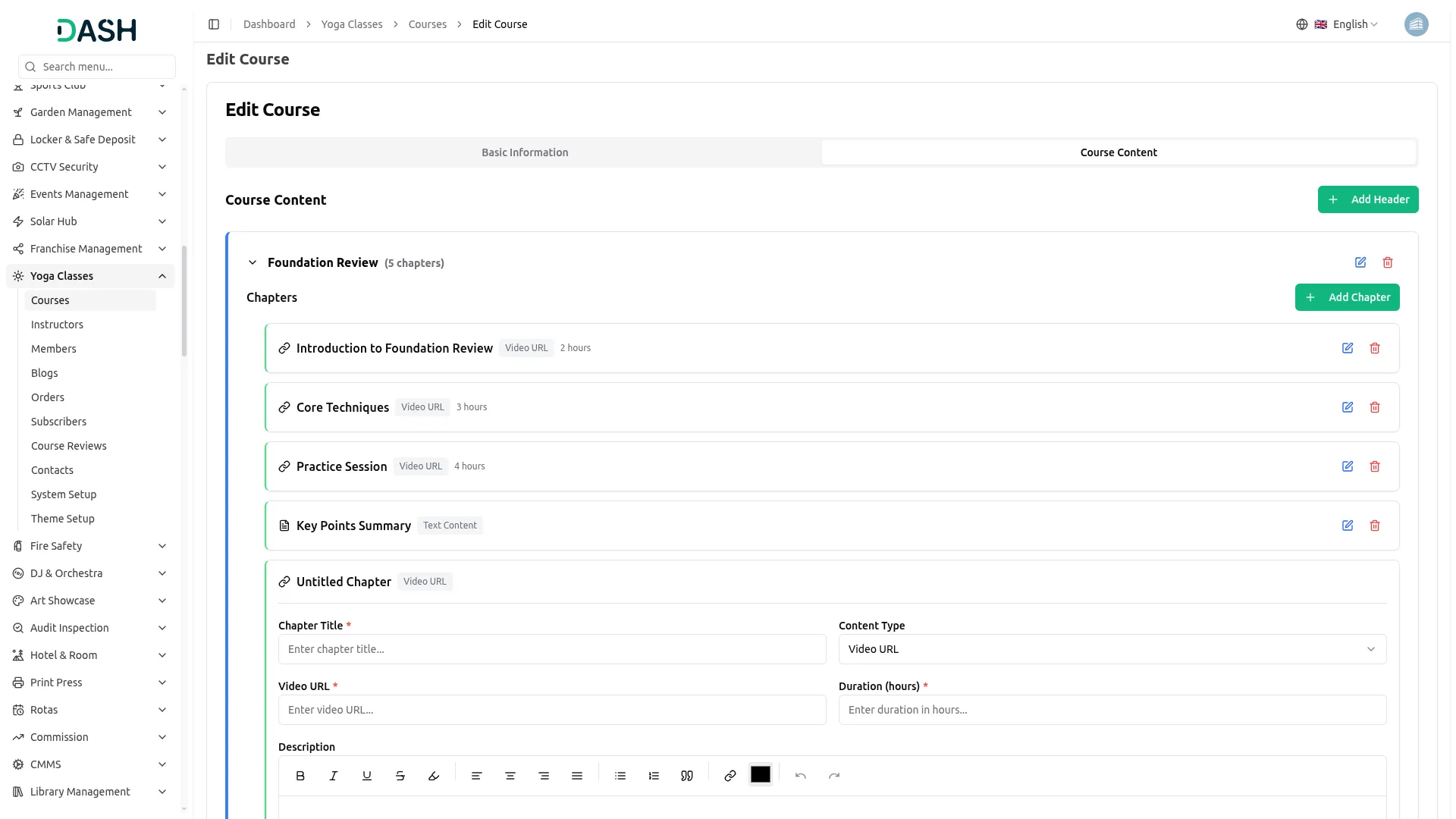
- When you click the Edit option open the Edit Course form has two tabs: Basic Information and Course Content.
- You can update any information for your course that was created at the time of setup. Changes can be made at any time, and all updates will be saved once you click Update. This allows you to keep your course details accurate, current, and relevant for learners.
- In the Course Content tab, you can manage the course curriculum structure. Click the Add Header button to add a new section to the course. Each existing header displays its title and chapter count. You can click the edit icon next to any header to rename it, or click the delete icon to remove it. Click the arrow next to any header to expand it and manage the chapters inside it.
- Once a header is expanded, you will see the Chapters section with an Add Chapter button. Each existing chapter displays the chapter title, Content Type (Video URL or Text Content), and duration. You can click the edit icon next to any chapter to update it, or click the delete icon to remove it.
- To add a new chapter, click the Add Chapter button. In the chapter form, enter the Chapter Title and select the Content Type from the dropdown; you can choose either Video URL or Text Content. If you select Video URL, enter the Video URL and the Duration in hours. You can also write an optional Description for the chapter using the rich text editor. The chapter will be saved under the header it was added to.
- All updates made in the Course Content tab will reflect immediately on the course detail page on the website once saved, where members can see the full curriculum structure with all headers and their chapters listed in order.
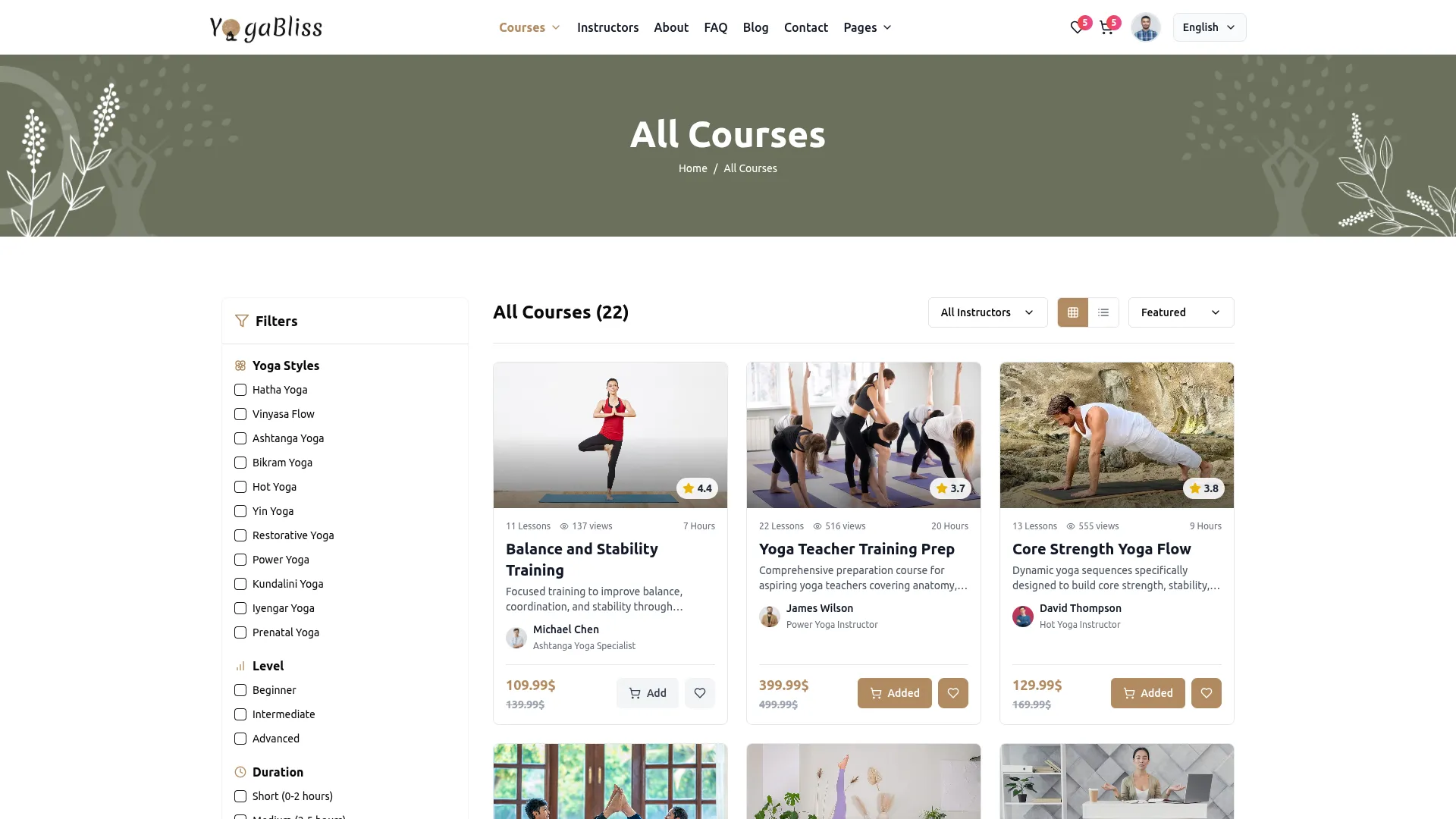
- On the website, the All Courses page is visible once courses are published and approved. Each course will appear on this page, and every course card will display the details exactly as entered in the backend.
- The Course Thumbnail you uploaded appears as the main card image. The Title appears as the course heading on the card. The Short Description appears as the supporting text below the title. The instructor’s name appears with their profile photo below the description.
- The Number of Lessons and Duration in hours appear as small info tags on the card. The star rating appears based on member and instructor reviews. The Latest Price appears as the current price, and if the Regular Price is entered and Show Latest Price is toggled on, the original price appears as a crossed-out amount beside it. Visitors can click the Add to Cart button or the wishlist option directly from the course card.
Course Detail Page
- When a visitor clicks on a course, they are taken to the full Course Detail page. At the top of the page, the course thumbnail, title, short description, level badge, overall star rating, total number of reviews, and member count are displayed. Below that, the number of lessons, total hours, certificate status, and access duration are shown as quick info tags. The latest price and regular price are displayed side by side, with the discount percentage shown in between. Visitors can click the Add button to add the course to their cart or click the Wishlist button to save it for later.
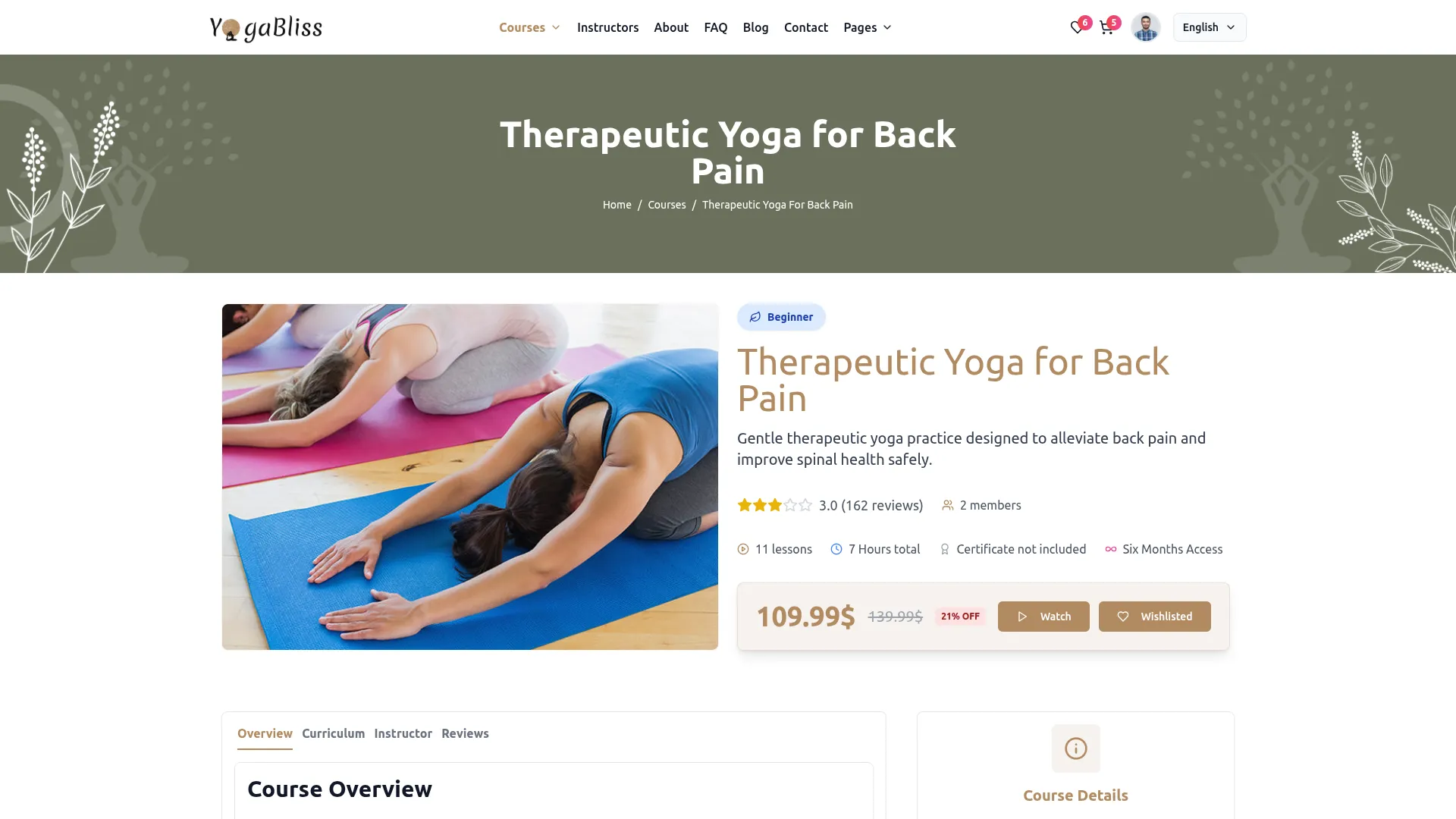
- The Course Detail page has four tabs: Overview, Curriculum, Instructor, and Reviews.
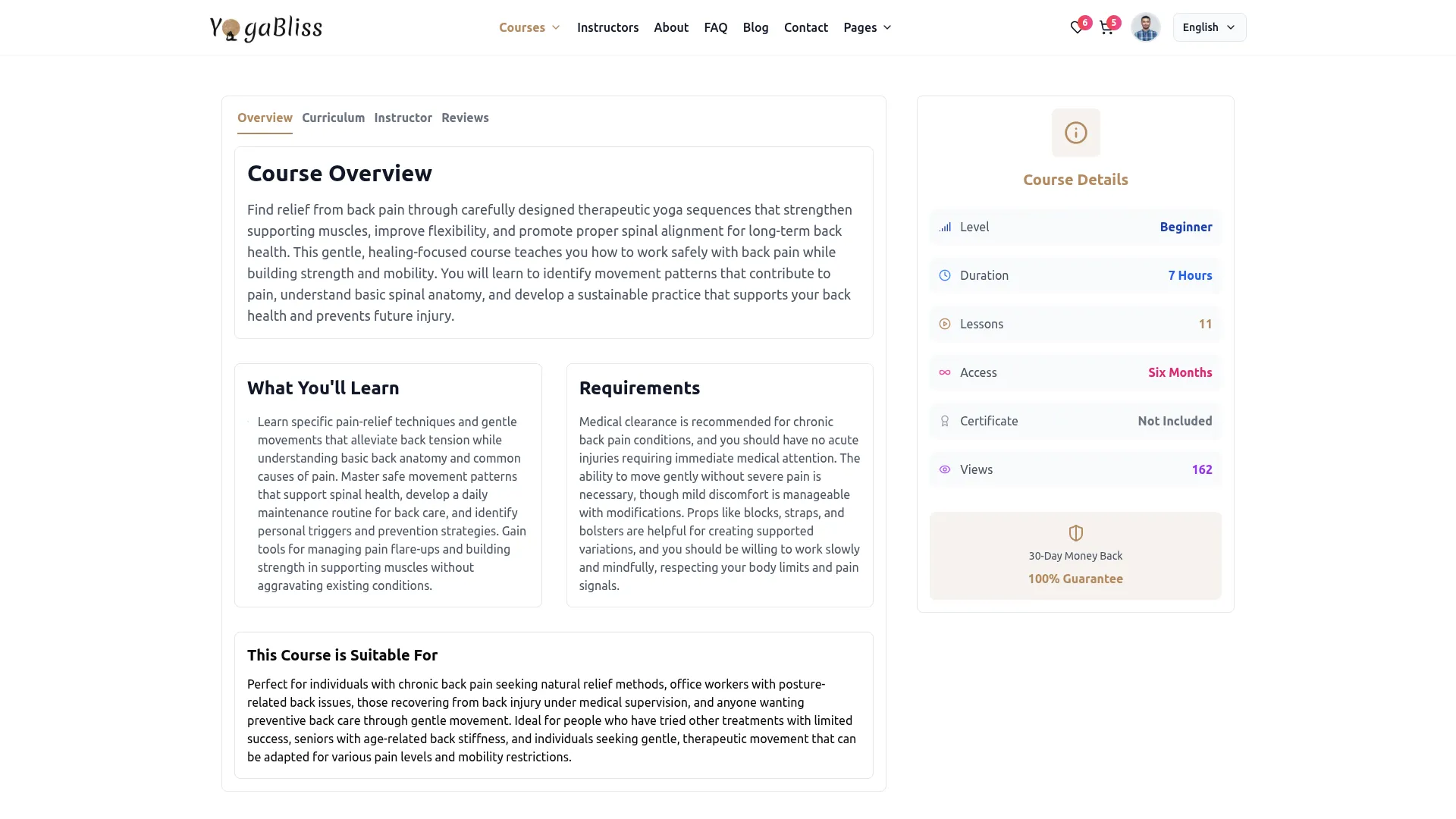
- The Overview tab displays the full course description, learning objectives, requirements, and suitable for sections exactly as entered in the backend. On the right side, the Course Details panel shows the Level, Duration, Lessons, Access period, Certificate status, and total Views.
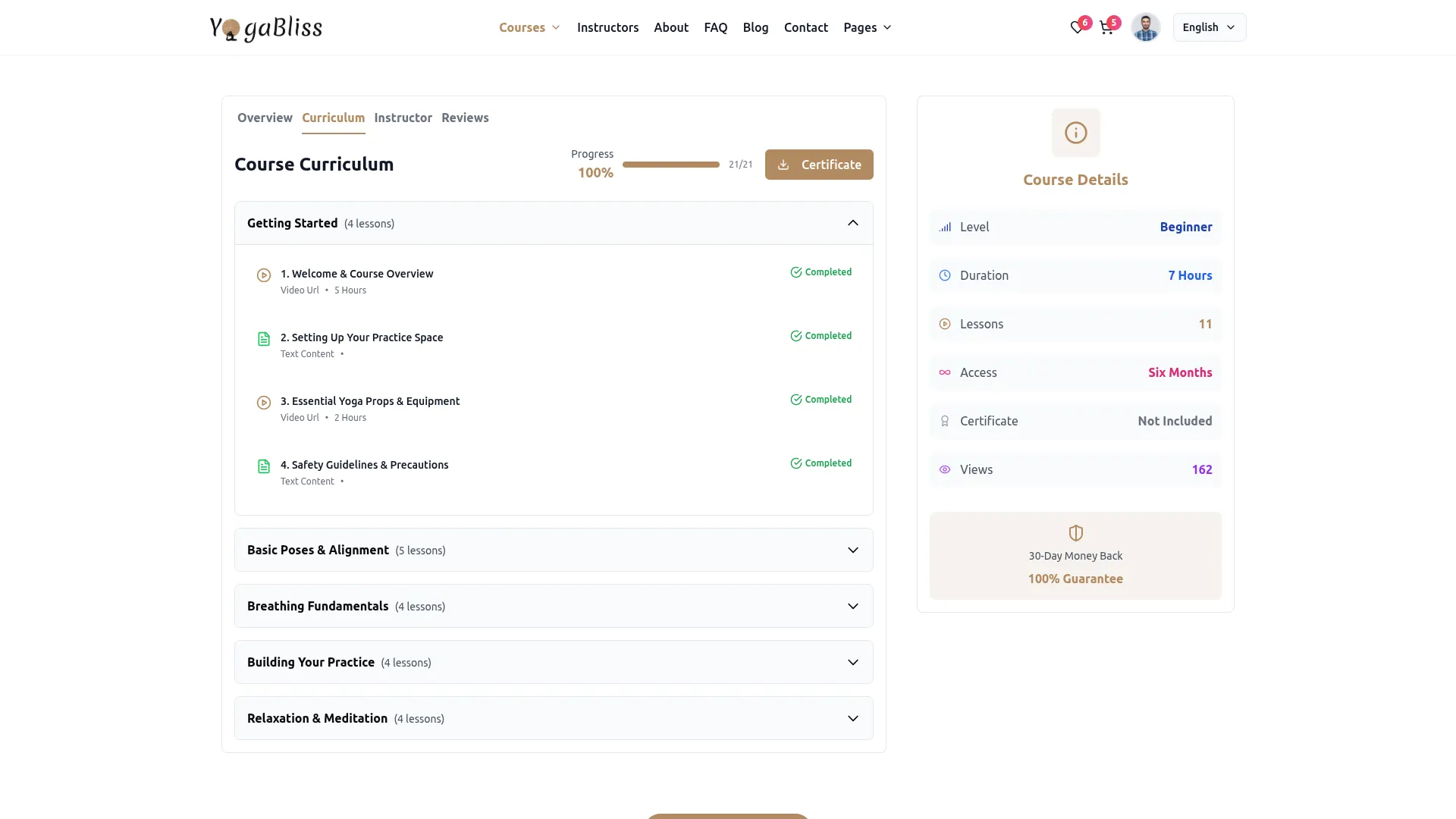
- The Curriculum tab displays the complete Course Curriculum with a Progress bar showing the member’s completion percentage. All headers added in the backend are listed as expandable sections, each showing the header title and the number of lessons inside it. Members can click any header to expand it and view the individual chapters. On the right side, the Course Details panel remains visible along with a 30-Day Money Back 100% Guarantee badge.
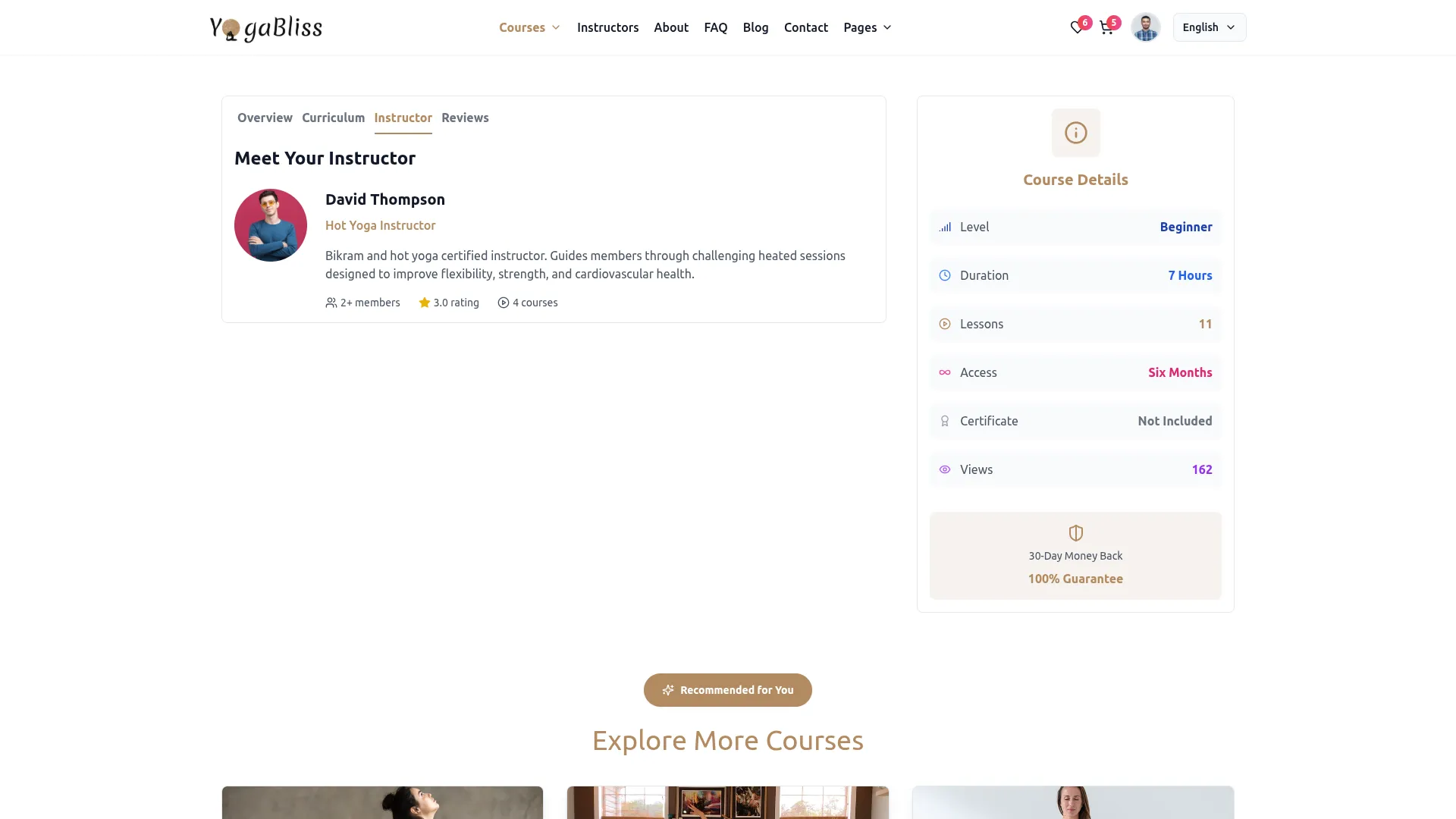
- The Instructor tab displays the Meet Your Instructor section, showing the instructor’s profile photo, name, position, bio, overall rating, and number of courses they have created. On the right side, the Course Details panel remains visible.
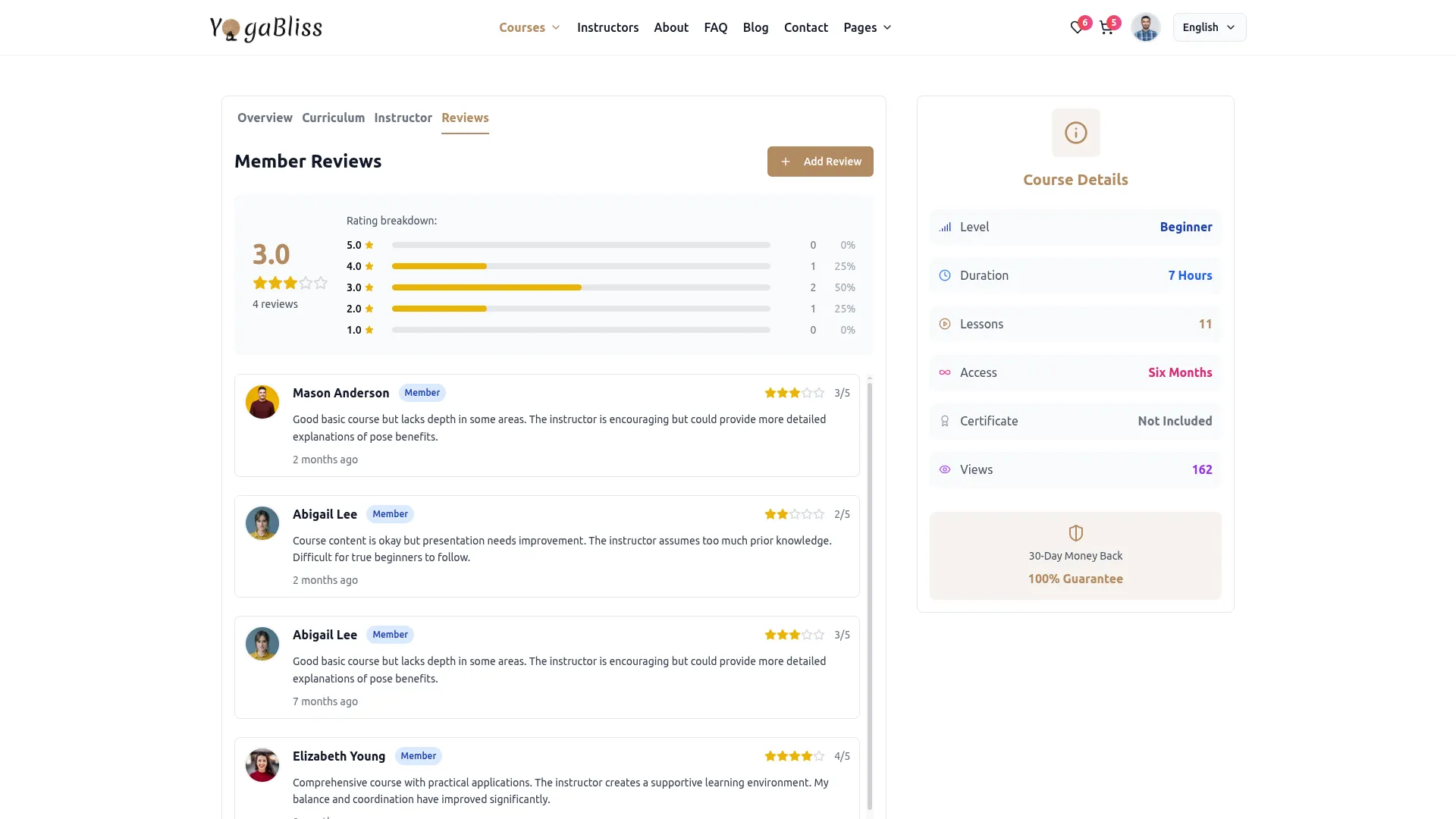
- The Reviews tab displays the Member Reviews section, showing the overall average rating, total number of reviews, and a Rating Breakdown chart with percentage bars for each star level from 5 to 1. Below the breakdown, all individual member reviews are listed, each showing the reviewer’s profile photo, name, Member badge, star rating out of 5, review text, and how long ago it was posted.
- To submit a review, click the Add Review button at the top right of the Reviews tab. In the Write a Review popup, the course name and instructor are shown at the top. Select Your Rating by clicking the stars, write your review in the Your Review field, and optionally enter Your Name. Click Submit Review to post it, or Cancel to close the popup without saving.
- At the bottom of the Course Detail page, the Explore More Courses section displays other recommended courses that visitors may be interested in.
Manage Instructors
- To add a new instructor, click the “Create” button on the Manage Instructors page. In the Create Instructor form, enter the Name, Email, and Phone Number. Enter a Password for the instructor’s login account. Enter the Position and write the instructor’s details. Upload a Profile Image using the Browse button, and toggle Is Active on to make the instructor active. Click Create to save.
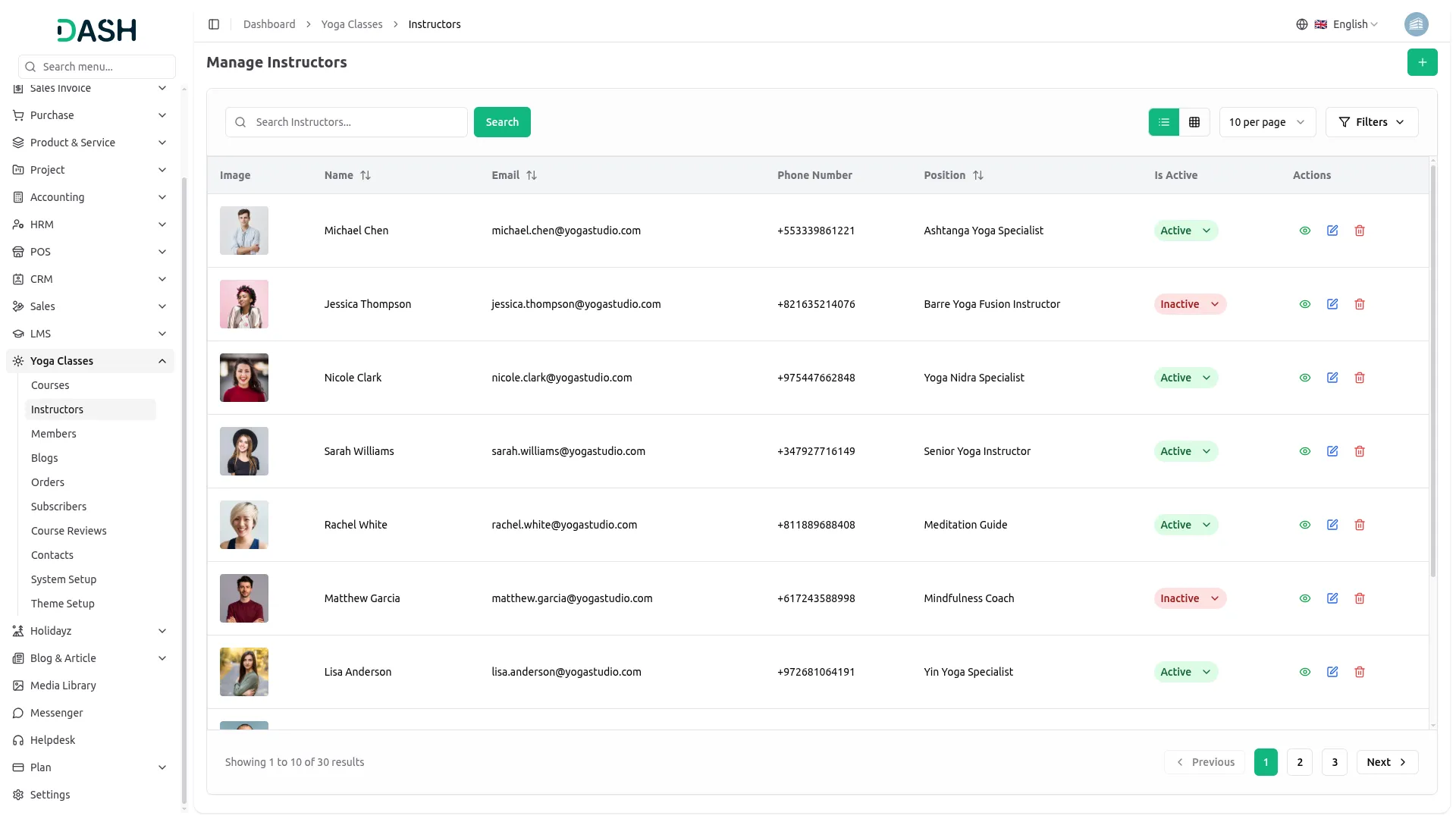
- The Manage Instructors list page displays a table with columns for Image, Name, Email, Phone Number, Position, Is Active, and Actions. You can directly change an instructor’s status to Active or Inactive using the inline dropdown without opening the edit form.
- You can switch between list view and grid view using the toggle buttons. Use the search bar to find a specific instructor by name and click Search.
- Click the Filters button to apply filtering options, including filtering by Is Active status. Click Apply to filter the results or Clear to reset them.
- In the Actions column, you can use the View option to see the full instructor details, the Edit option to update the instructor’s information, or the Delete option to permanently remove the instructor from the system.
- Once an instructor is created and set to Active, their profile will appear on the Instructors page of the website, displaying their Profile Image, Name, and Position. Their name and profile photo will also appear on course cards and course detail pages for any courses they are assigned to as the instructor.
Manage Members
- To add a new member, click the “Create” button on the Manage Members page. In the Create Member form, enter the Name, Email, and Phone Number. Upload a Profile Image using the Browse button and enter a Password for the member’s login account. Toggle Is Active on to make the member active. Click Create to save.
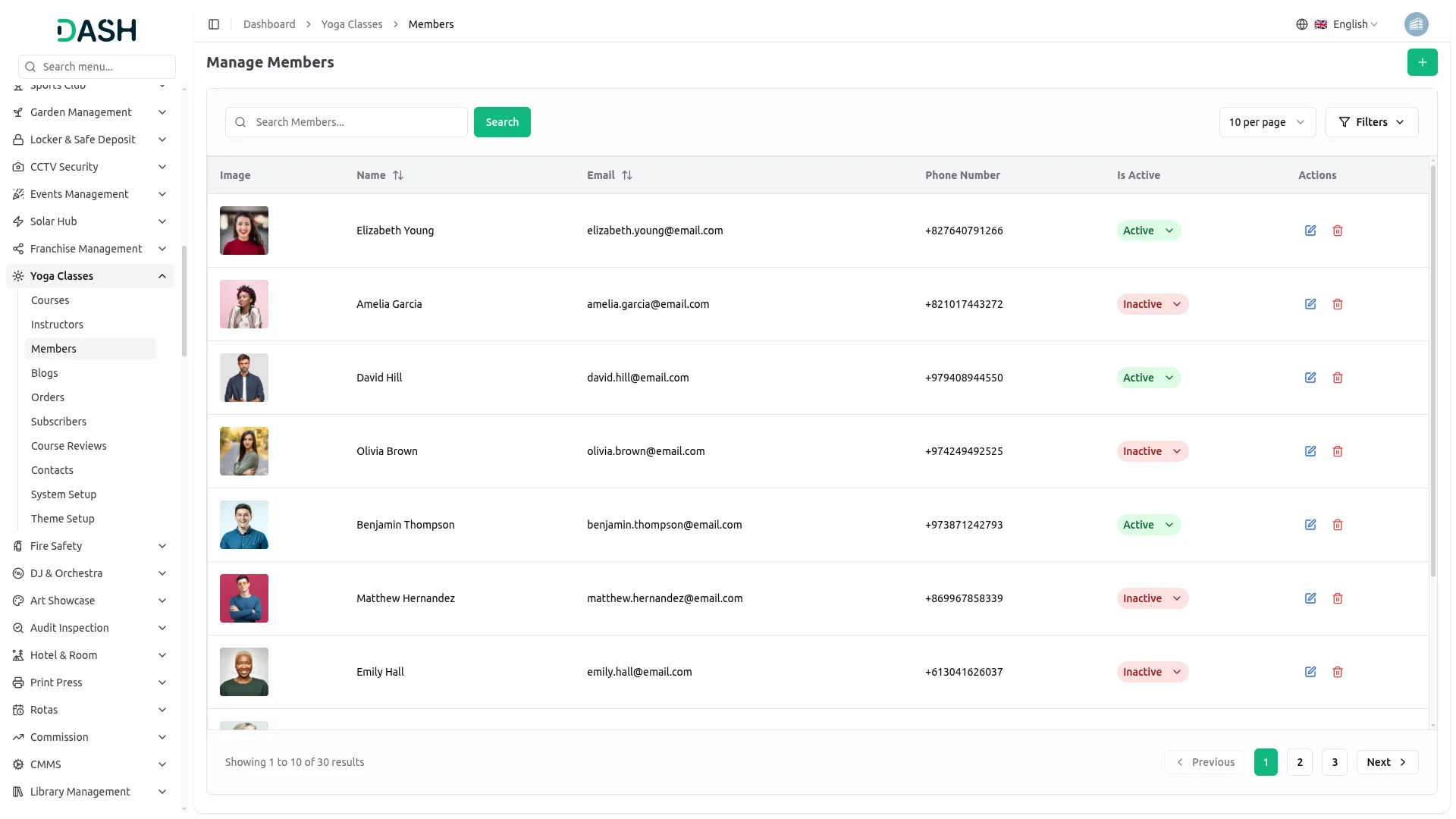
- The Manage Members list page displays a table with columns for Image, Name, Email, Phone Number, Is Active, and Actions. You can directly change a member’s status to Active or Inactive using the inline dropdown without opening the edit form.
- Use the search bar to find a specific member by name and click Search. You can control how many members appear per page using the per page dropdown.
- Click the Filters button to apply filtering options, including filtering by Is Active status. Click Apply to filter the results or Clear to reset them.
- In the Actions column, you can use the Edit option to update the member’s information, or the Delete option to permanently remove the member from the system.
- Once a member is created and set to Active, they can log in to the website using their email and password, browse and purchase courses, add courses to their wishlist, leave reviews, and manage their profile and enrolled courses from their member dashboard.
Manage Blogs
- To add a new blog, click the “Create” button on the Manage Blogs page. In the Create Blog form, enter the Title and select the Instructor from the dropdown (populated from the Instructor Section). Add Tags by typing each tag and pressing Enter. Upload a blog Image using the Browse button and write the full blog content in the Detail field using the rich text editor. Click Create to save.
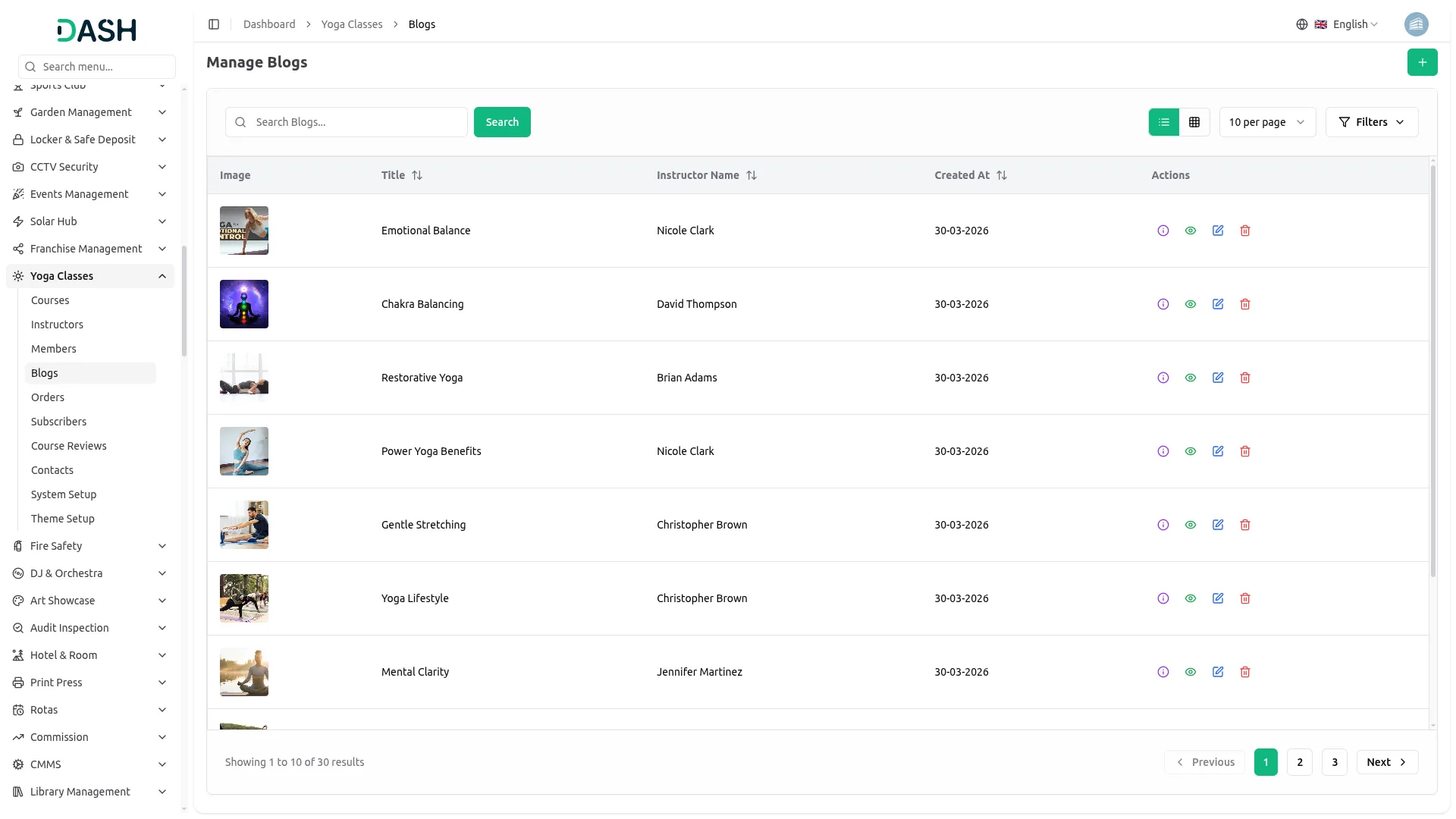
- The Manage Blogs list page displays a table with columns for Image, Title, Instructor Name, Created At, and Actions.
- You can switch between list view and grid view using the toggle buttons. Use the search bar to find a specific blog by title and click Search. Click the Filters button to apply filtering options, including filtering by Instructor and Date. Click Apply to filter the results or Clear to reset them.
- In the Actions column, you can use the Articles option to add article content to the blog, the View option to preview the full blog details, the Edit option to update the blog information, or the Delete option to permanently remove the blog from the system.
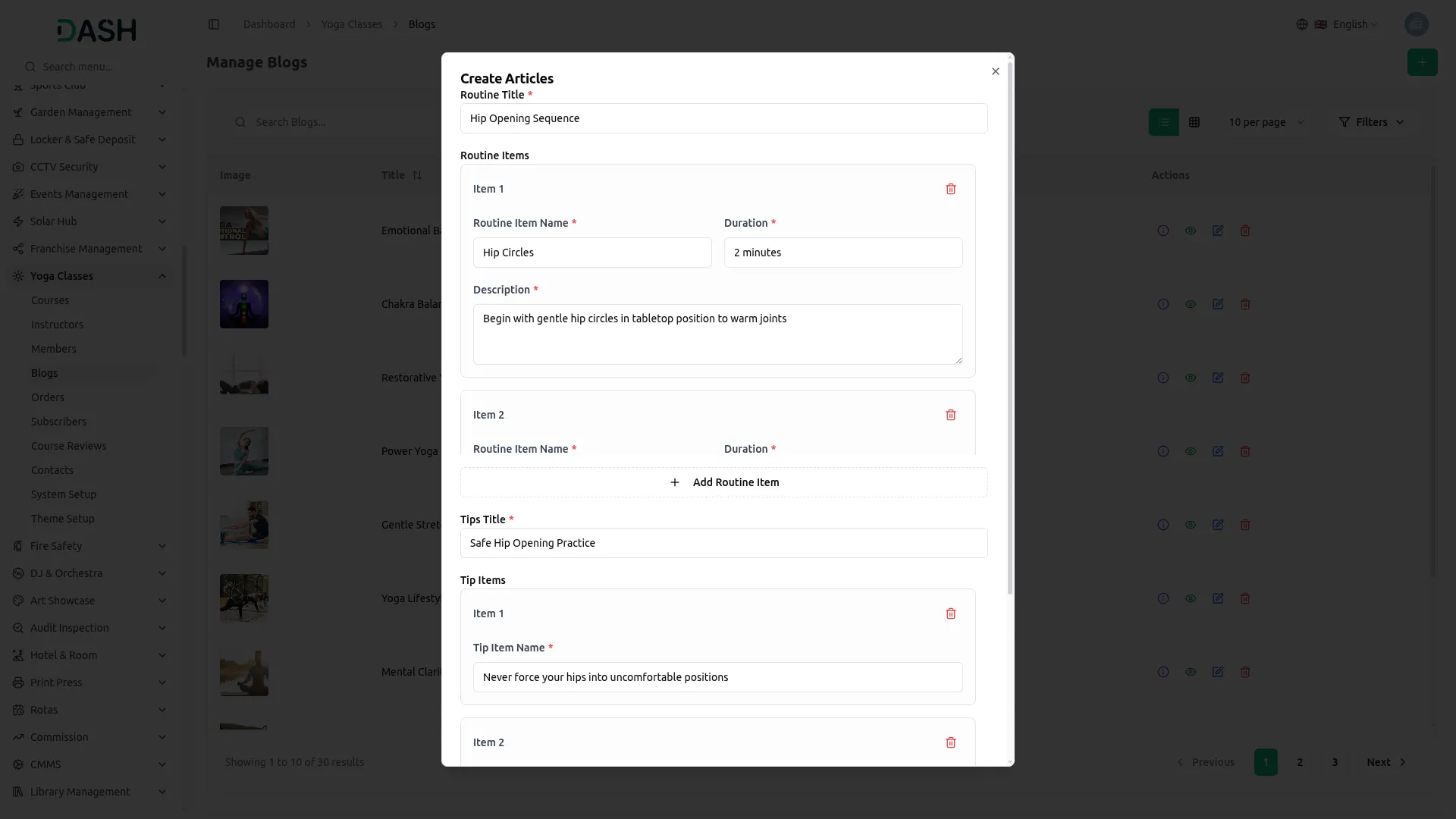
- When you click the Articles option in the Actions column. Open the Create Articles form, enter the Routine Title. In the Routine Items section, each item contains a Routine Item Name, Duration, and Description.
- You can add more routine items using the Add Routine Item button. In the Tips section, enter the Tips Title and add individual tip points using the Tip Item Name field. You can add more tip items using the Add Tip Item button. Click Save Articles to save.
- Once a blog is created, it will appear on the Blogs page of the website, displaying the blog image, category tag, title, author name, date, and view count. Visitors can click Read More to open the full blog detail page, where the complete blog content, tags, and article details are displayed.
Manage Orders
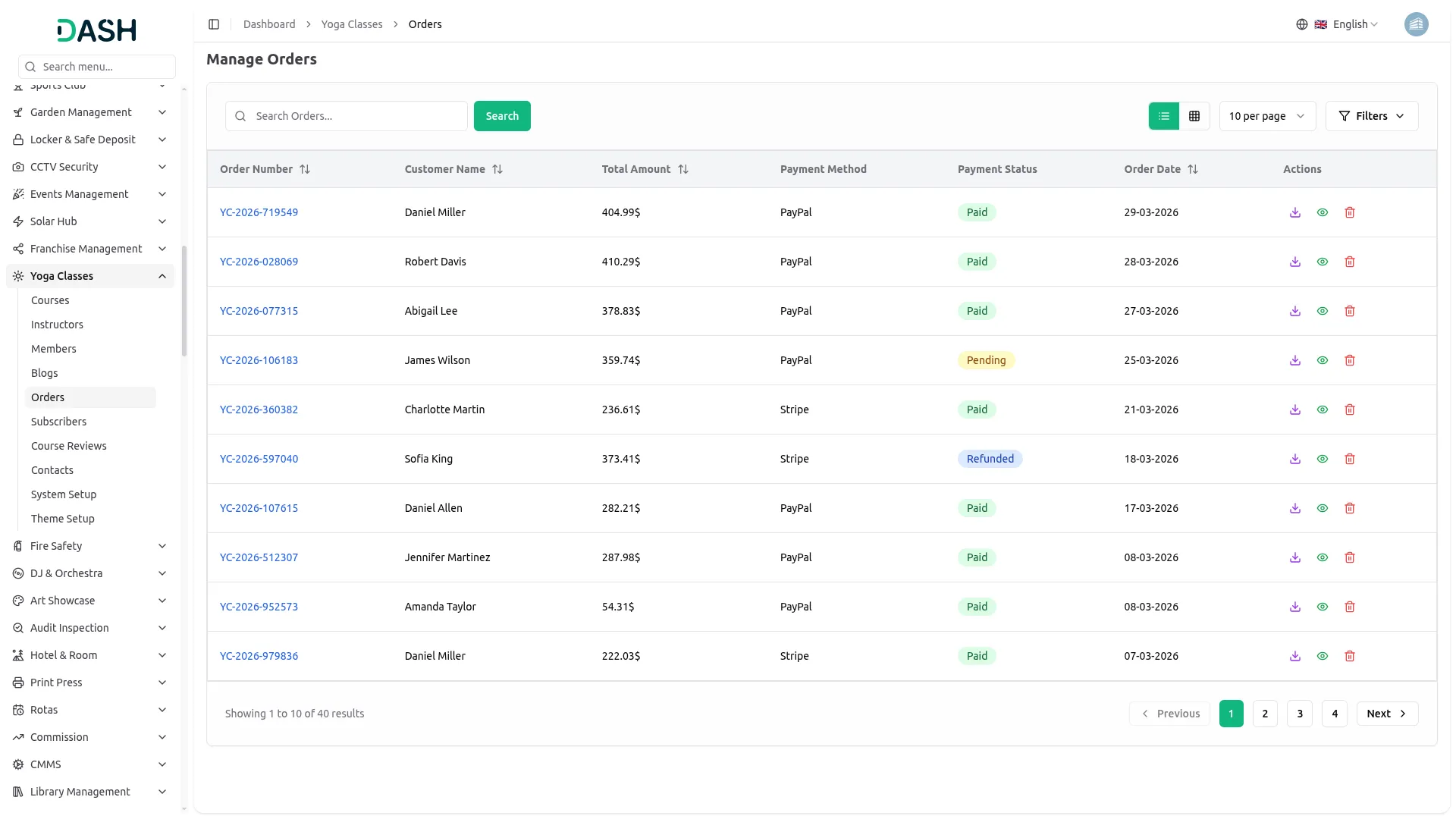
- The Manage Orders page displays a list of all orders placed by members and instructors on the website. The list displays a table with columns for Order Number, Customer Name, Total Amount, Payment Method, Payment Status, Order Date, and Actions. You can switch between list view and grid view using the toggle buttons. Use the search bar to find a specific order and click Search. You can control how many orders appear per page using the per page dropdown.
- Click the Filters button to apply filtering options, including filtering by Payment Status, Instructor, Member, Date From, and Date To. Click Apply to filter the results or Clear to reset them.
- The Payment Status column displays the current status of each order: Paid, Pending, Failed, or Refunded, allowing you to quickly monitor the payment health of all orders at a glance.
- In the Actions column, you can use the Download PDF icon to download the order invoice as a PDF file, the View icon to see the full order details, or the Delete icon to permanently remove the order from the system. You can also click the Order Number link directly to open the full order details.
- Once a member and instructor completes a purchase on the website, the order is automatically recorded in the Manage Orders section, showing the order number, member or instructor name, total amount, payment method, payment status, and order date.
Manage Subscribers
- The Manage Subscribers page displays a list of all visitors who have subscribed to the yoga studio’s newsletter through the website.
- The list displays a table with columns for Email, Subscribed At, and Actions. Use the search bar to find a specific subscriber by email and click Search. You can control how many subscribers appear per page using the per page dropdown. You can navigate between pages using the Previous and Next buttons at the bottom of the list.
- In the Actions column, you can use the Delete icon to permanently remove a subscriber from the system.
- Once a visitor enters their email address and clicks the Subscribe button in the Join Our Yoga Community section on the homepage of the website, their email address is automatically recorded in the Manage Subscribers section along with the date they subscribed.
Course Reviews
- The Manage Course Reviews page displays a list of all reviews submitted by members and instructors for courses on the website.
- The list displays a table with columns for Name, Email, Rating, Posted On, and Actions. Use the search bar to find a specific review and click Search. You can control how many reviews appear per page using the per page dropdown. You can navigate between pages using the Previous and Next buttons at the bottom of the list.
- In the Actions column, you can use the View icon to see the full review details or the Delete icon to permanently remove the review from the system.
- Once a member and instructor submits a review for a course on the website, it is automatically recorded in the Manage Course Reviews section, showing the member’s and instructor’s name, email, star rating out of 5, and the date it was posted. The submitted reviews also appear on the course cards and course detail pages on the website, contributing to the overall star rating displayed for each course.
Manage Contacts
- The Manage Contacts page displays a list of all inquiries submitted by visitors through the Contact Us form on the website. The list displays a table with columns for Name, Email, Phone, Subject, Date, and Actions. Use the search bar to find a specific contact by name and click Search. You can control how many contacts appear per page using the per page dropdown. You can navigate between pages using the Previous and Next buttons at the bottom of the list.
- In the Actions column, you can use the View icon to read the full message details or the Delete icon to permanently remove the contact inquiry from the system.
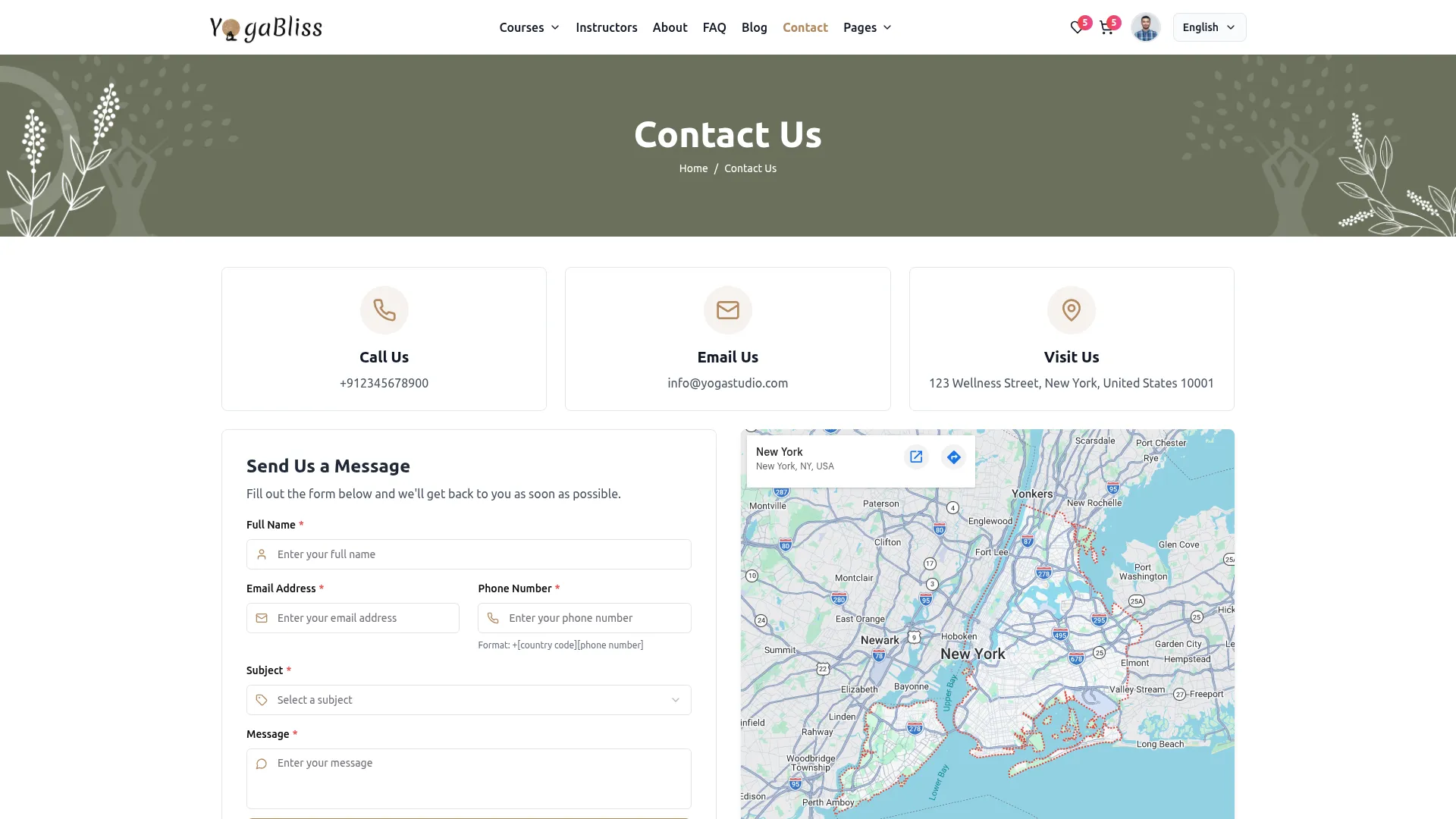
- Once a visitor fills out and submits the contact form on the Contact Us page of the website, entering their Full Name, Email Address, Phone Number, Subject, and Message, their inquiry is automatically recorded in the Manage Contacts section, showing their name, email, phone number, selected subject, and the date the message was submitted.
User Authentication
Sign In
- To sign in to your account, click the Login button in the website header. On the Sign In page, select your account type from the “I am a” dropdown; you can choose either Member or Instructor. Enter your Email Address and Password, then click the Sign In button to access your account.
- You can check the Remember Me box to stay logged in on your device. If you forget your password, click Forgot Password.
- On the Forgot Password page, select your account type from the “I am a” dropdown, enter your Email Address, and click Send Reset Link. The system will send a password reset link to your email. Click Back to Login to return to the Sign In page.
Sign Up
- To create a new account, click Sign Up on the login page. On the Create Account page, select your account type from the “I want to join as” dropdown; you can choose either Member or Instructor.
- Enter your Full Name, Email Address, and Phone Number. Create a Password and enter it again in the Confirm Password field to confirm it matches. Click Create Account to register.
Member Account
- Once a member logs in, they can access their account by clicking their profile photo in the header, which opens a dropdown showing their name, email, and three options: My Profile, My Courses, and Logout.
My Profile
- The My Profile page displays the member’s profile photo, name, position, Member Since year, Active status, email, and phone number at the top. Summary counters for total Courses, Certificates, and Wishlist items are shown on the right side. The profile has four tabs, Overview, Courses, Certificates, and Settings.
- The Overview tab displays the Profile Overview section showing the member’s Name, Email, Phone, Member Since year, Status, and User Type. The Progress section on the right shows all enrolled courses with their completion progress.
- The Courses tab displays the Enrolled Courses section, showing all courses the member has purchased. If no courses have been purchased yet, a Browse Courses button is shown to encourage the member to start their learning journey.
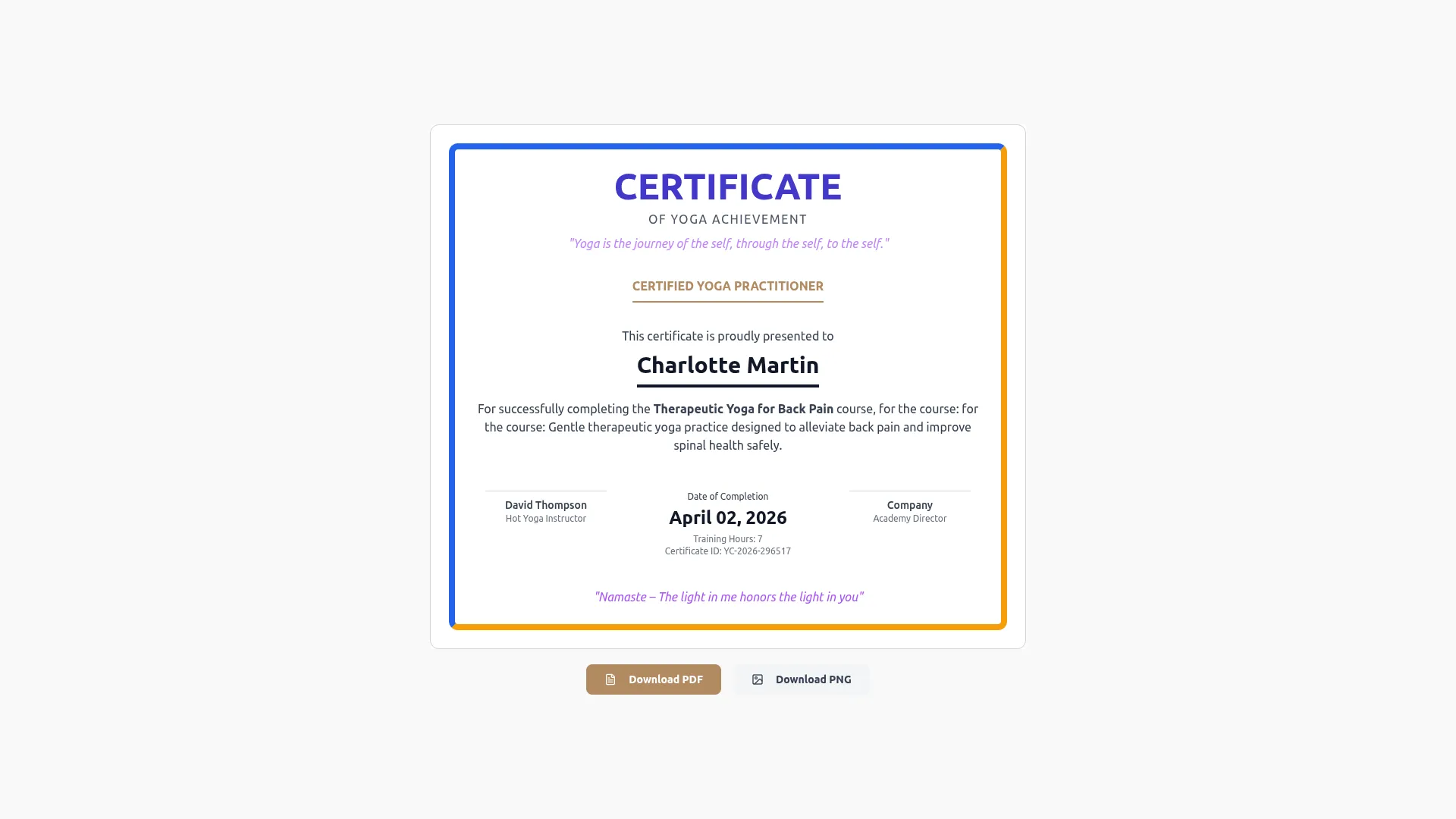
- The Certificates tab is where you manage all your course certificates. You can see how many certificates you can earn from all your courses.
- Completed certificates can be downloaded right away as PDF files. You can see when you earned each certificate and preview them before downloading. The PDFs are ready for printing if you want to hang them on your wall.
- In-progress certificates show you how close you are to earning them and what you still need to do. Not-started certificates show you which courses offer certificates that you haven’t begun working toward yet.
- The Settings tab displays the Account Settings page with two sections. In the Personal Information section, the member can update their Full Name, Email Address, and Phone Number. In the Security Settings section, the member can set a New Password and Confirm New Password to update their login credentials. Click Save Changes to apply all updates.
Instructor Account
- The Instructor account works exactly the same as the Member account, with one additional option. When an instructor clicks their profile photo in the header, the dropdown shows four options: My Profile, Create Course, My Courses, and Logout.
- The Create Course option takes the instructor to the Add New Course page on the website, where they can fill in the Course Title, Number of Lessons, Latest Price, Regular Price, Access Time, Level, Yoga Style, Category, Course Thumbnail, Short Description, Overview, Requirements, Learning Objectives, and Suitable For fields, then click Add Course to submit. Once submitted, the course will remain in Pending status until the Admin reviews and approves it from the backend. Only after Admin approval will the course appear on the website for members to browse and purchase.
Cart Details
- The Cart Details page is where you can review all the courses you have added before making a purchase. To access your cart, click the cart icon in the website header.
- The cart displays a table with columns for Course, Price, and Action. Each course row shows the course image, course title, number of lessons, total hours, instructor name, star rating, and price. If a course has a discounted price, the original price appears as a crossed-out amount beside the latest price.
- The Order Summary section on the right side shows the Subtotal of all courses in your cart, any Discount applied, and the final Total amount you will be charged. Click the Proceed to Checkout button to move forward with your purchase. If you want to remove a course from your cart, click the delete icon in the Action column next to that course. If you want to continue browsing and add more courses, click the Continue Shopping link at the bottom of the page.
Manage Wishlist
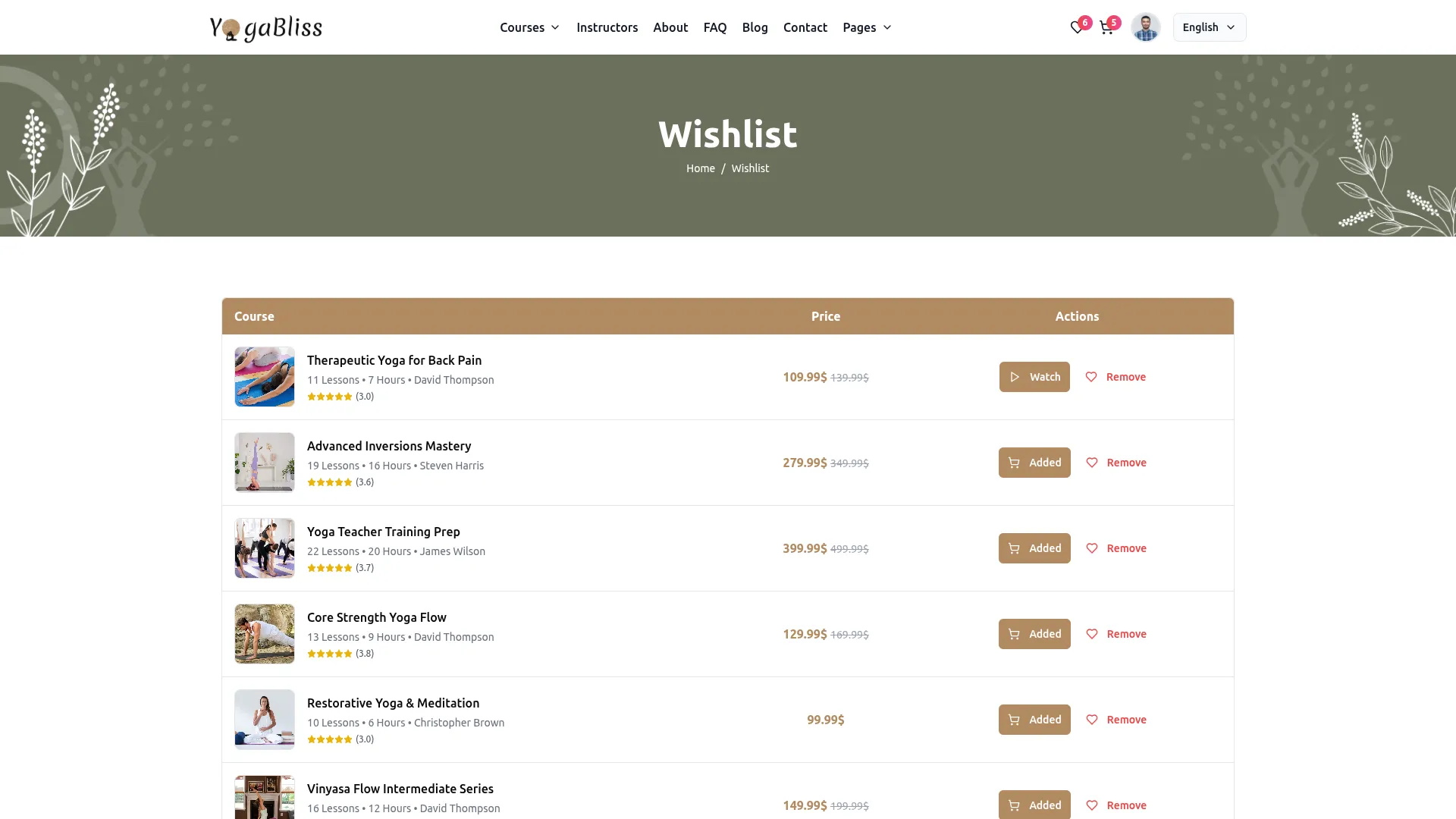
- The Wishlist page is where you can save courses you are interested in and add them to your cart when you are ready to buy. To access your wishlist, click the heart icon in the website header.
- The wishlist displays a table with columns for Course, Price, and Actions. Each course row shows the course image, title, number of lessons, total hours, instructor name, star rating, and price. If a course has a discounted price, the original price appears as a crossed-out amount beside the latest price.
- In the Actions column, you will find two buttons for each course. Click the Added button to add the course directly to your cart, or click Remove to delete the course from your wishlist. If you want to browse and add more courses to your wishlist, click the Browse More Courses link at the bottom of the page.
Checkout Process
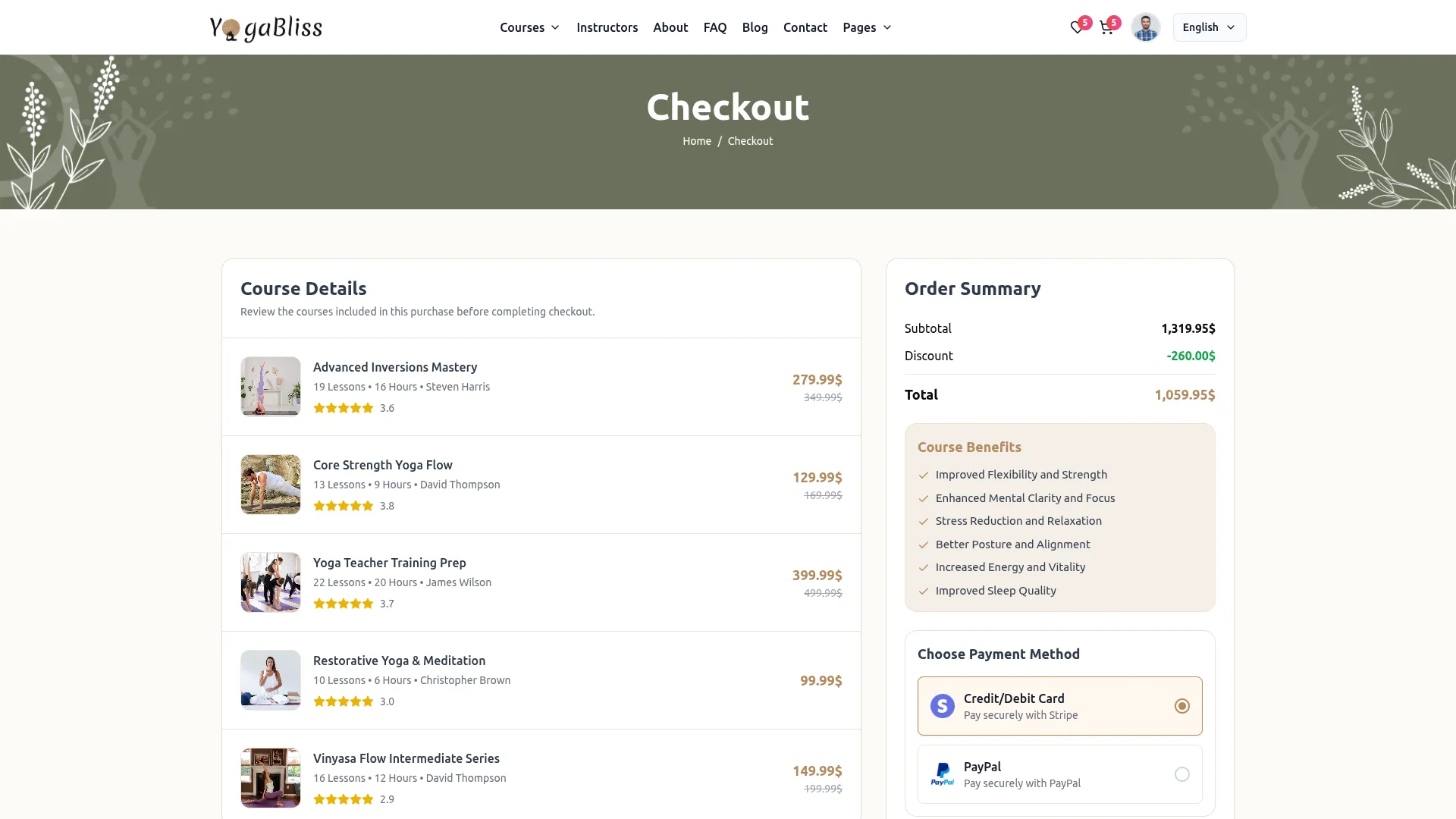
- The Checkout page is where you complete your purchase. It is divided into two sections: Course Details on the left and Order Summary on the right.
- The Course Details section displays all the courses you are purchasing, showing the course image, title, number of lessons, total hours, instructor name, star rating, and price for each course. If a course has a discounted price, the original price appears as a crossed-out amount beside the latest price.
- The Order Summary section on the right shows the Subtotal, any Discount applied, and the final Total amount. Below the order summary, the Course Benefits section displays the benefits you will receive from your purchase.
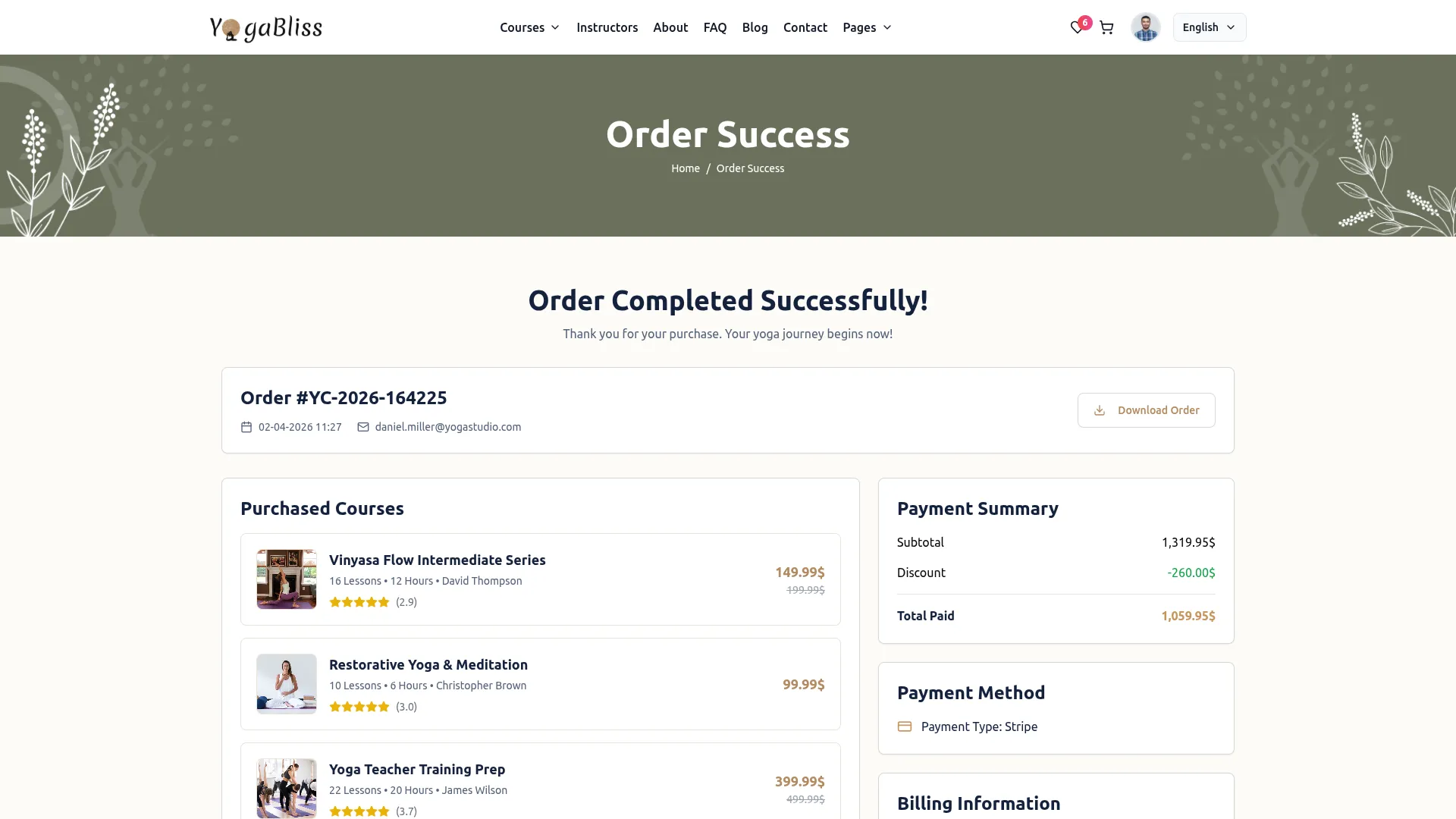
- In the Choose Payment Method section, you can select either Credit/Debit Card via Stripe or PayPal as your preferred payment method. Select your payment method and complete the payment to finish your purchase. Once payment is successful, your purchased courses will be immediately available in your account under My Courses.
Categories
Related articles
- Outlook Calendar – WorkDo Dash SaaS Add-On Guide
- SaveChat – TicketGo Add-On Guide
- Rocket.Chat – WorkDo Dash SaaS Add-On Guide
- Recent Orders – eCommerceGo SaaS Add-On Guide
- API – BookingGo SaaS Add-On Guide
- DJ Orchestra – WorkDo Dash SaaS Add-On Guide
- Zendesk – TicketGo Add-On Guide
- GoTo Credentials Generation Guide
- Sign in with GitHub – eCommerceGo SaaS Add-On Guide
- Import Export – eCommerceGo SaaS Add-On Guide
- Sign in with Slack – eCommerceGo SaaS Add-On Guide
- ToyyibPay – WorkDo Dash SaaS Add-On Guide
We're Here to Help - Let's Talk
Have questions about our solutions, customization services, or business tools? Our team is here to help you. let's talk.