
Elderly Care – WorkDo Dash SaaS Add-On Guide
Learn how to manage elderly care services, schedules, and records in WorkDo Dash SaaS.
Introduction
The Elderly Care Add-On is designed to help organizations efficiently manage and coordinate services for elderly residents within a care facility or home care system. It provides a centralized platform to maintain detailed records of elderly residents, caretakers, service types, and care requests. The system allows administrators to track resident information such as personal details, medical conditions, medications, and dietary preferences, while also managing caretaker profiles including their shifts, qualifications, and service charges. In addition, the add-on enables the scheduling of daily activities, monitoring of health checkups, and planning of meal services to ensure residents receive proper care and attention.
How to Install the Add-On?
To Set Up the Elderly Care Add-On, you can follow this link: Setup Add-On.
How to Use The Elderly Care Add-On?
Elderly Residents
- To add a new elderly resident record, click the “Create” button on the Manage Elderly Residents page. In the form that opens, enter the resident’s Name and select their Gender from the dropdown (male, female, other).
- Fill in the Date of Birth and Admission Date using the date pickers, then provide the Contact Number and Emergency Contact in the required format. Enter the resident’s Address in the text area.
- Optionally, fill in Medical Conditions, Medications, Dietary Preferences, and Special Needs in their respective fields. Click Create to save the record, or Cancel to discard it.
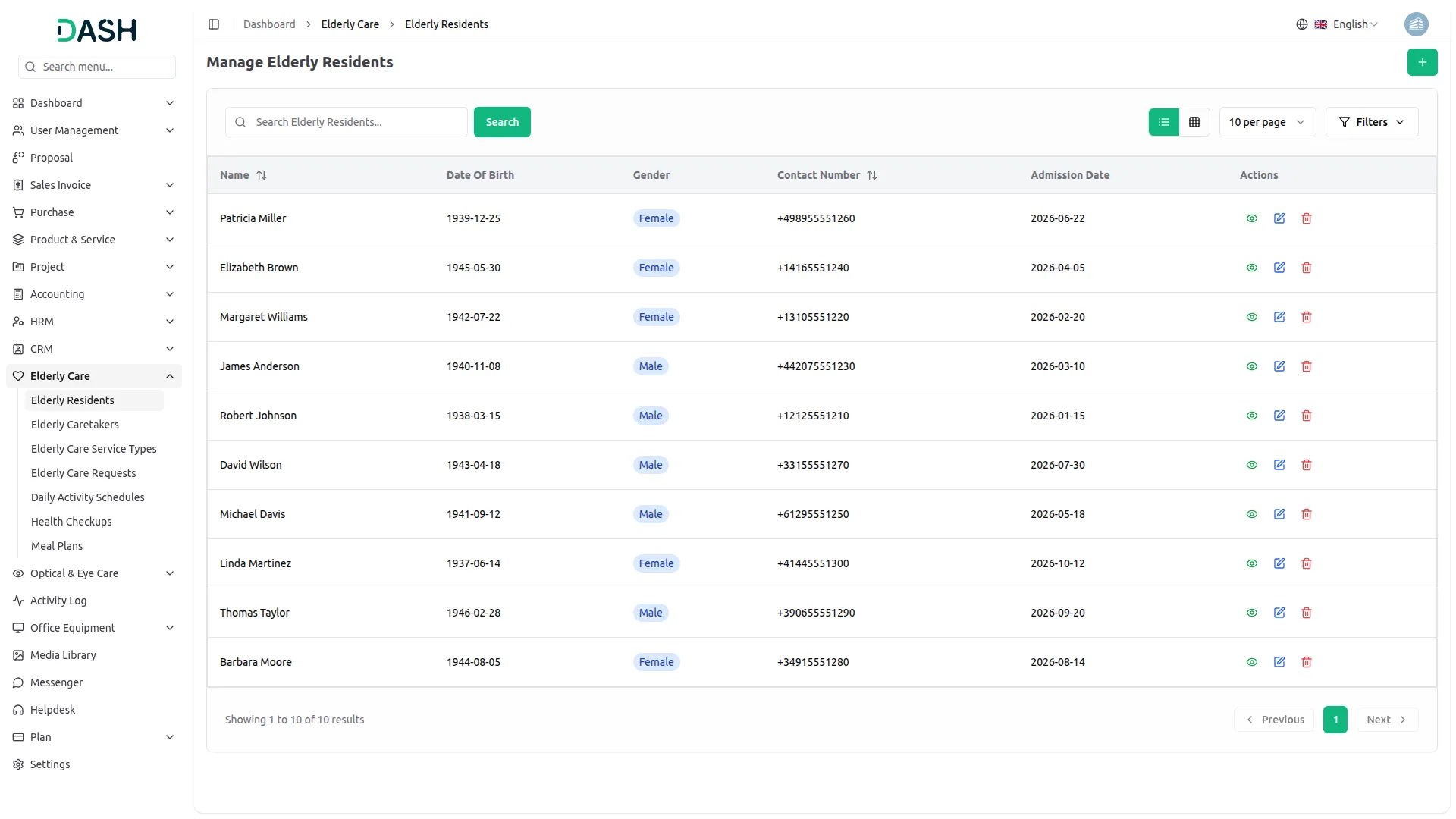
- The list page displays all elderly resident records in a table with columns for Name, Date of Birth, Gender, Contact Number, and Admission Date. Use the Search bar to find specific residents by name. The page also allows you to toggle between list view and grid view.
- Apply filters using the Gender dropdown or the Admission Date picker to narrow down results. Click Apply to activate the filters or Clear to remove them.
- In the Actions column, select View to inspect the full details of a resident record, Edit to modify an existing record, and Delete to permanently remove the resident from the system.
Elderly Caretakers
- To add a new elderly caretaker record, click the “Create” button on the Manage Elderly Caretakers page. In the form that opens, enter the caretaker’s Name, Contact Number in the required format, and Email.
- Set the Shift Start Time and Shift End Time using the time pickers, then enter the Duration and Charges Per Hour in their respective fields. Optionally, fill in the Address, Qualifications, and Work Experience in their respective fields. Click Create to save the record, or Cancel to discard it.
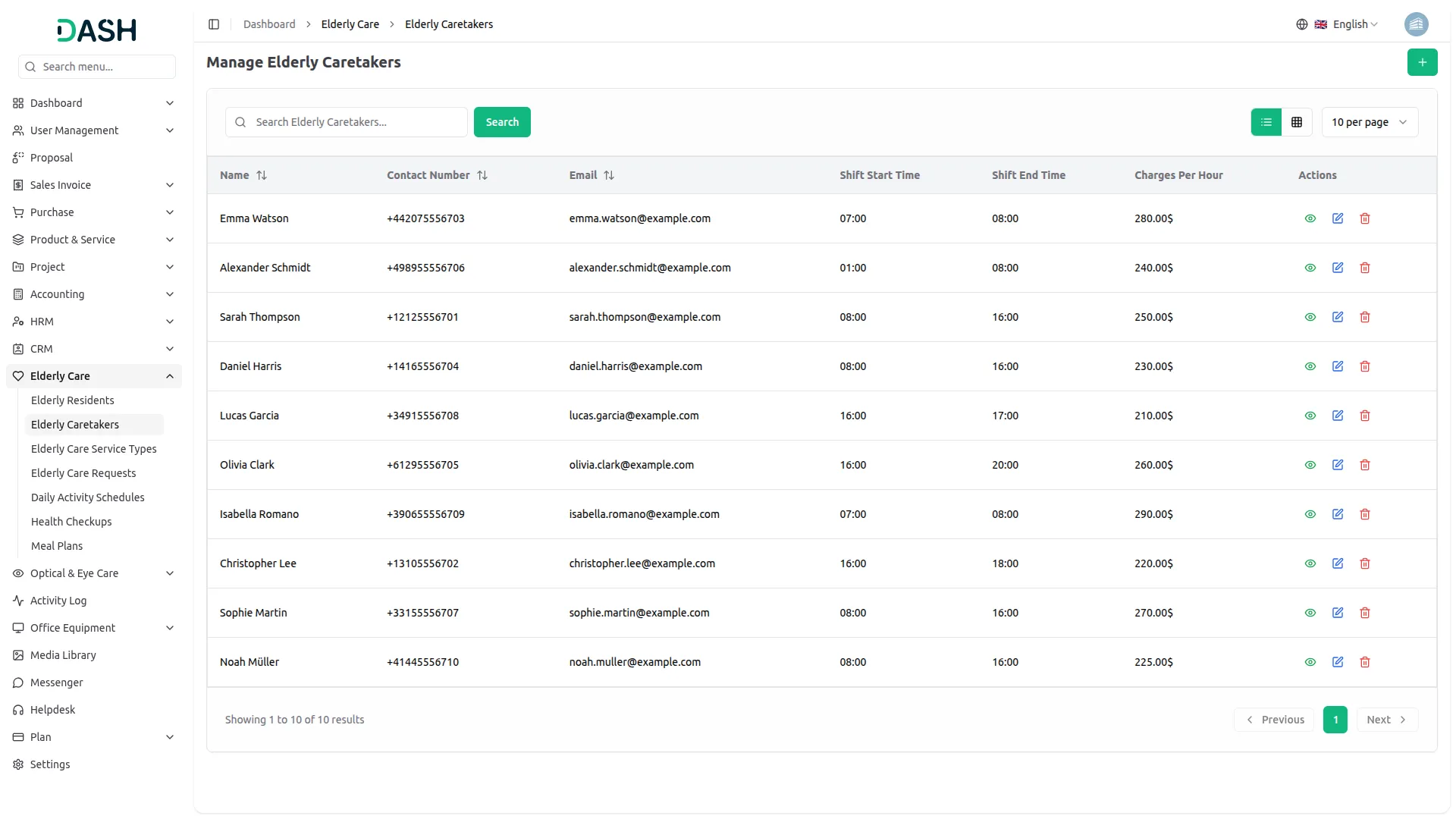
- The list page displays all elderly caretaker records in a table with columns for Name, Contact Number, Email, Shift Start Time, Shift End Time, and Charges Per Hour. Use the Search bar to find specific caretakers by name. The page also allows you to toggle between list view and grid view.
- In the Actions column, select View to inspect the full details of a caretaker record, Edit to modify an existing record, and Delete to permanently remove the caretaker from the system.
Elderly Care Service Types
- To add a new elderly care service type record, click the “Create” button on the Manage Elderly Care Service Types page. In the form that opens, enter the service type Name and Charges. Optionally, provide a Description in the text area and set the Status using the dropdown (Active or Inactive). Click Create to save the record, or Cancel to discard it.
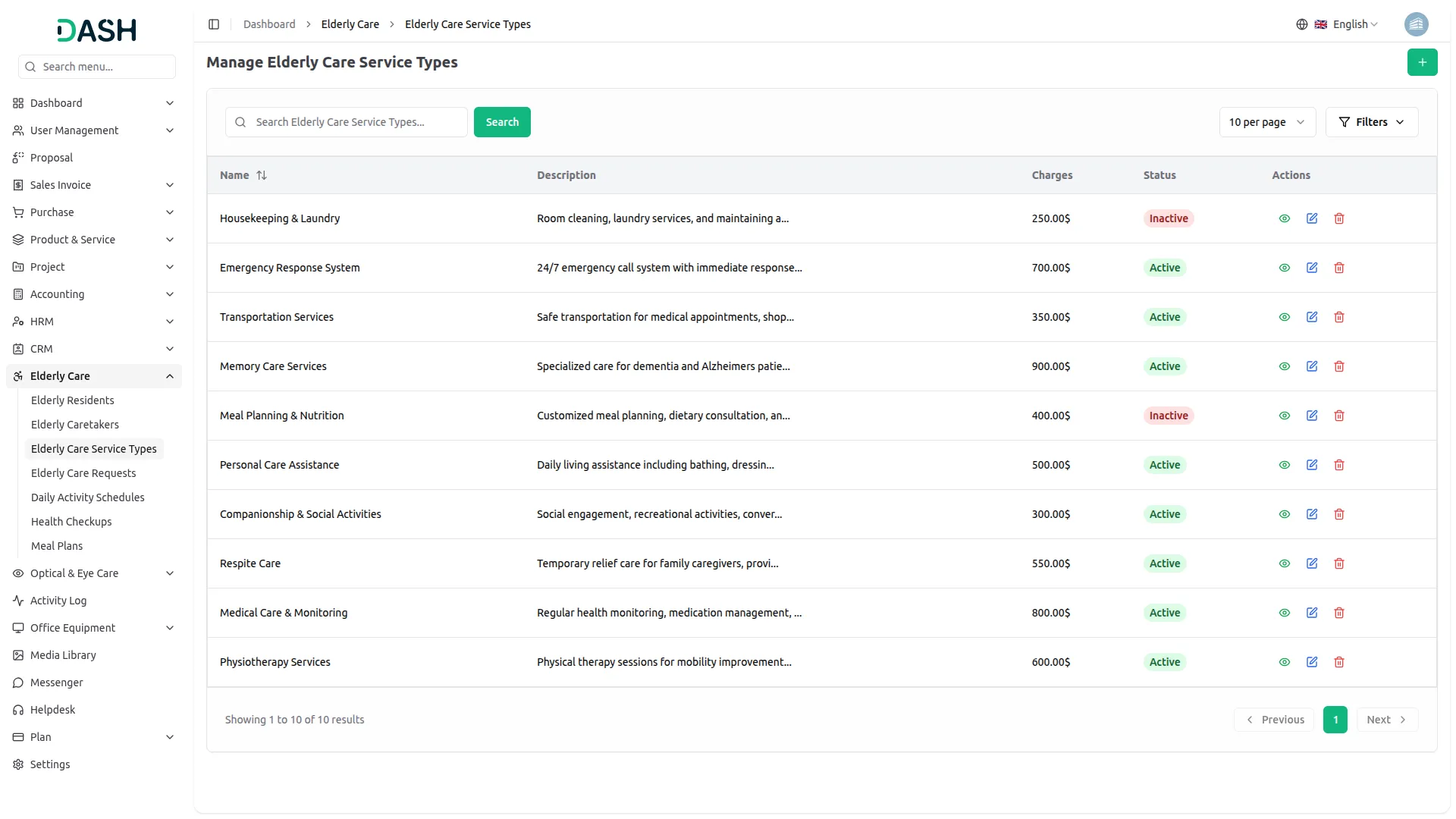
- The list page displays all elderly care service type records in a table with columns for Name, Description, Charges, and Status.
- Use the Search bar to find specific service types by name. Apply a filter using the Status dropdown to narrow down results. Click Apply to activate the filter or Clear to remove it.
- In the Actions column, select View to inspect the full details of a service type record, Edit to modify an existing record, and Delete to permanently remove the service type from the system.
Elderly Care Requests
- To add a new elderly care request record, click the “Create” button on the Manage Elderly Care Requests page. In the form that opens, select the Service Type and Elderly Caretaker from their respective dropdowns (populated from the service and caretakers section).
- Set the Shift Start Time and Shift End Time using the time pickers; the Duration (Hours) will be auto-calculated. The Service Type Charges and Caretaker Charges will populate based on the selections made.
- Select the Elderly Resident and Date using their respective fields, then enter the Contact Information in the required format. Select the Bank Account from the dropdown. Note that the Amount is automatically calculated based on the selected service charges and the caretaker’s hourly charges.
- Optionally, enter any Special Requirements in the text area. Click Create to save the record, or Cancel to discard it.
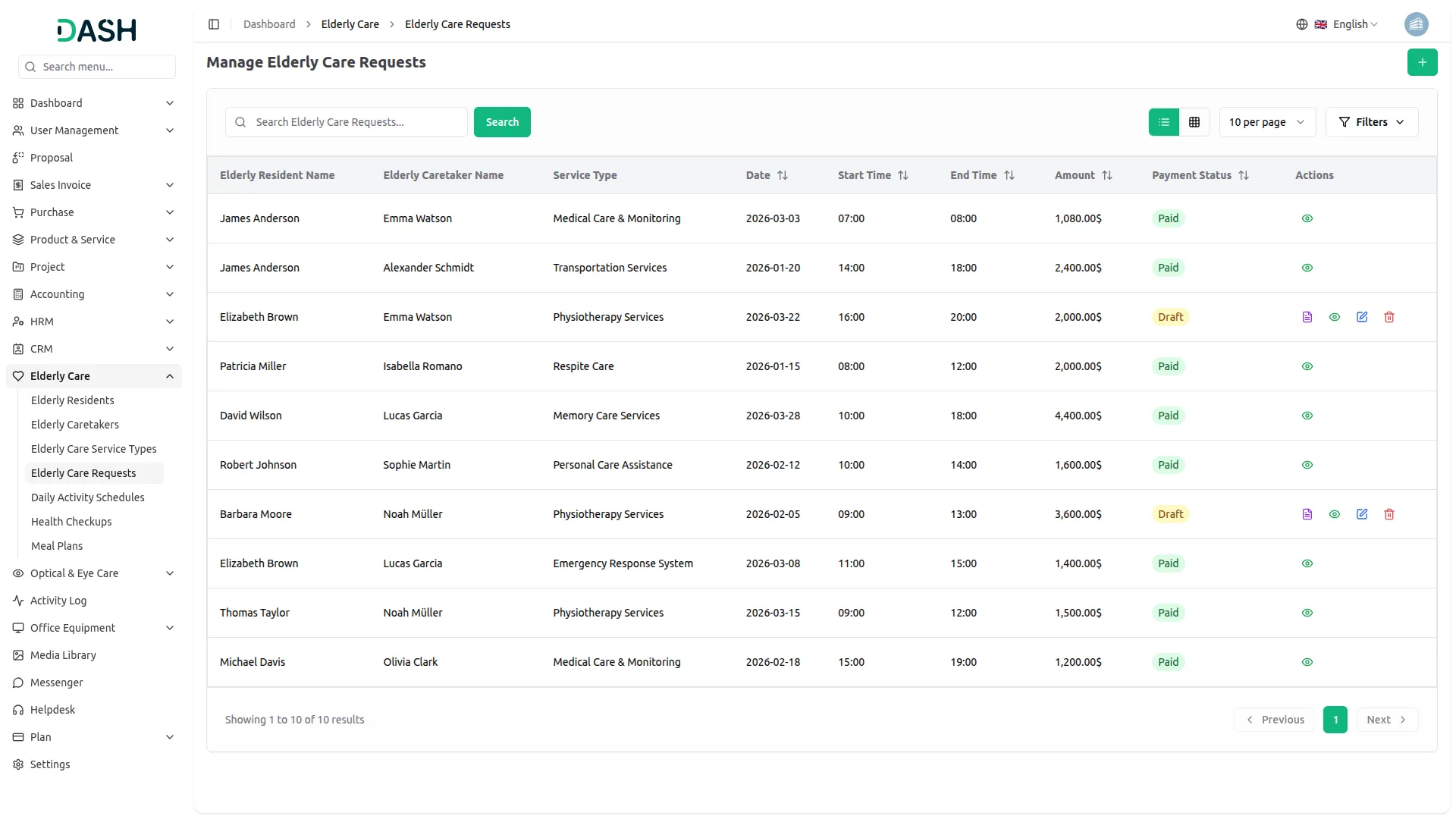
- The list page displays all elderly care request records in a table with columns for Elderly Resident Name, Elderly Caretaker Name, Service Type, Date, Start Time, End Time, Amount, and Payment Status.
- Use the Search bar to find specific care requests. Apply filters using the Elderly Caretaker, Service Type, and Payment Status dropdowns to narrow down results. Click Apply to activate the filters or Clear to remove them. The page also allows you to toggle between list view and grid view.
- In the Actions column, select Post to confirm and finalize a draft request, View to inspect the full details of a care request record, Edit to modify an existing record, and Delete to permanently remove the request from the system. Note that records with a Paid status only display the View action.
Daily Activity Schedules
- To add a new daily activity schedule record, click the “Create” button on the Manage Daily Activity Schedules page. In the form that opens, enter the Activity Name and set the Start Date Time and End Date Time using the date-time pickers.
- Select the Status from the dropdown (Draft, Started, Completed), choose Elderly Caretaker from the dropdown (comes from the elderly caretaker section), and select Elderly Residents from the dropdowns (comes from the elderly residents section). Optionally, provide a Description in the text area. Click Create to save the record, or Cancel to discard it.
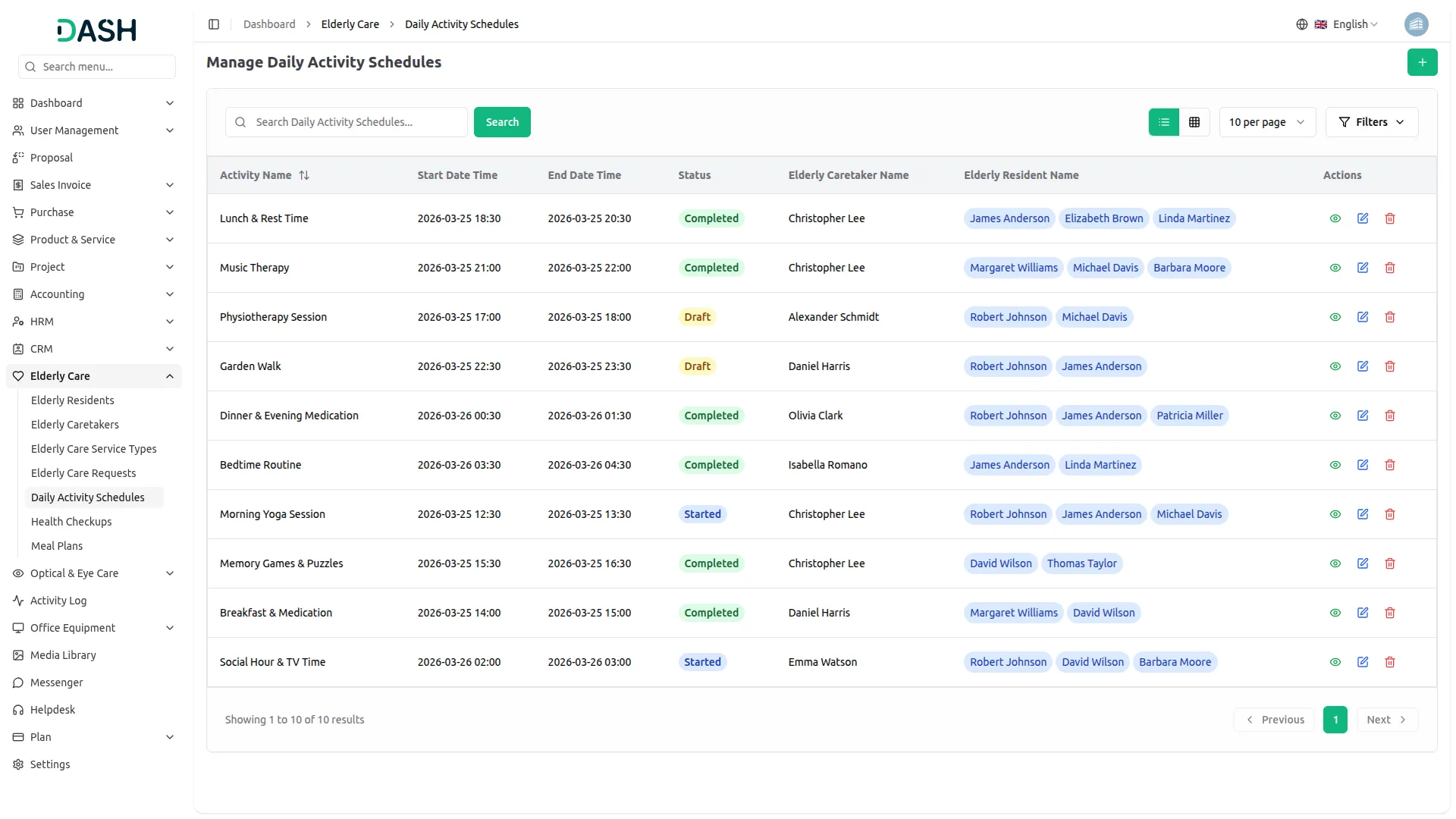
- The list page displays all daily activity schedule records in a table with columns for Activity Name, Start Date Time, End Date Time, Status, Elderly Caretaker Name, and Elderly Resident Name.
- Use the Search bar to find specific activity schedules by name. Apply filters using the Status and Elderly Caretaker dropdowns to narrow down results. Click Apply to activate the filters or Clear to remove them. The page also allows you to toggle between list view and grid view.
- In the Actions column, select View to inspect the full details of an activity schedule record, Edit to modify an existing record, and Delete to permanently remove the schedule from the system.
Health Checkups
- To add a new health checkup record, click the “Create” button on the Manage Health Checkups page. In the form that opens, select the Checkup Date using the date picker and enter the Doctor Name. Select the Elderly Resident from the dropdown (comes from the elderly residents section).
- Optionally, fill in the Prescription and Remarks in their respective text areas, set the Next Checkup Date using the date picker, and upload any relevant documents using the Attachment field. Click Create to save the record, or Cancel to discard it.
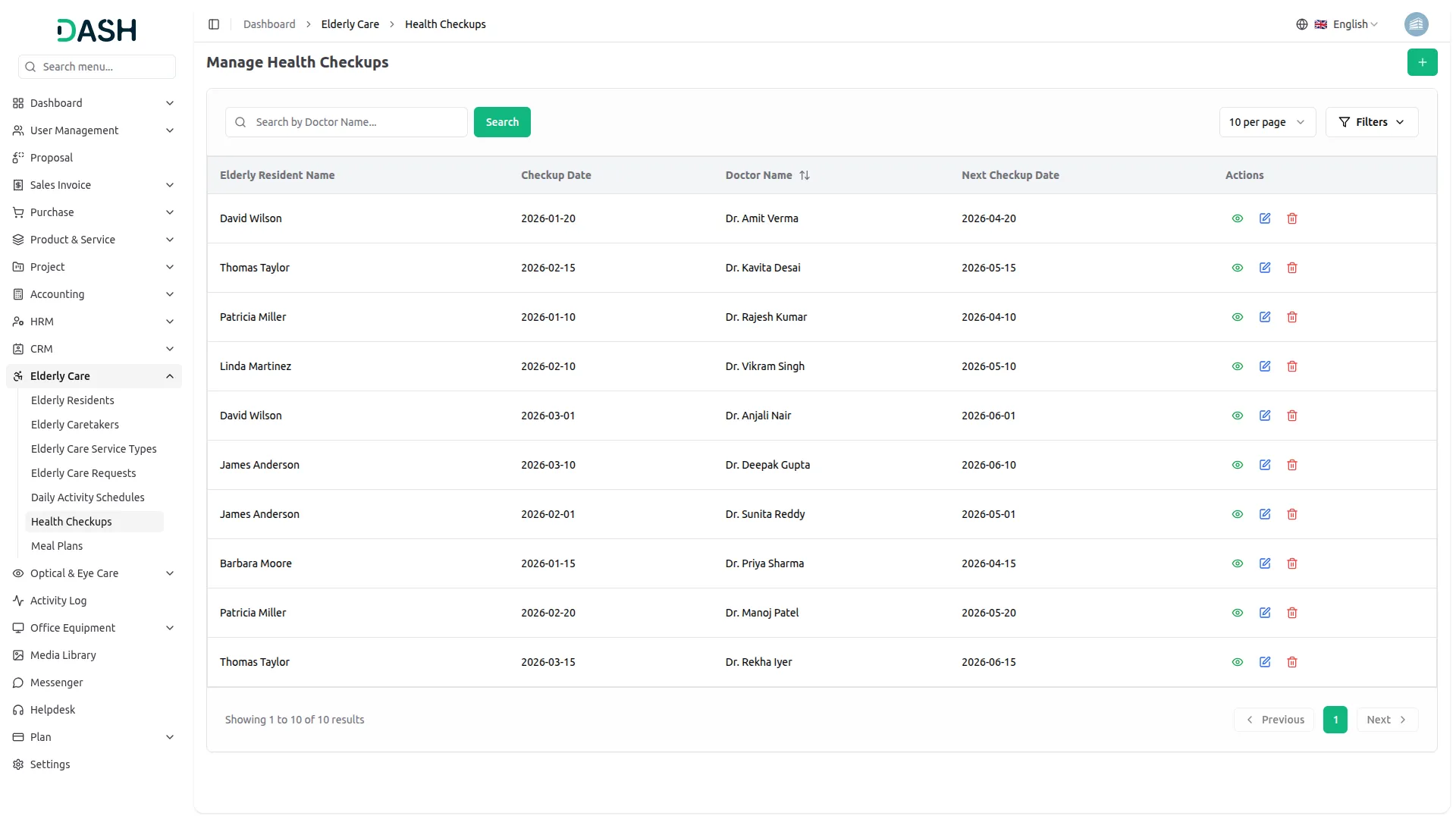
- The list page displays all health checkup records in a table with columns for Elderly Resident Name, Checkup Date, Doctor Name, and Next Checkup Date.
- Use the Search bar to find specific health checkups by doctor name. Apply filters using the Elderly Resident dropdown or the Checkup Date picker to narrow down results. Click Apply to activate the filters or Clear to remove them.
- In the Actions column, select View to inspect the full details of a health checkup record, Edit to modify an existing record, and Delete to permanently remove the checkup from the system.
Meal Plans
- To add a new meal plan record, click the “Create” button on the Manage Meal Plans page. In the form that opens, select the Meal Type using the radio buttons (Breakfast, Lunch, Dinner, or Snack).
- Select the Elderly Resident from the dropdown (comes from the elderly caretaker section) and Elderly Caretaker from the dropdowns(comes from the elderly residents section).
- Set the Meal Status using the radio buttons (Pending, Prepared, or Served). Enter the Food Items in the text area. Optionally, provide any Special Dietary Notes in the text area. Click Create to save the record, or Cancel to discard it.
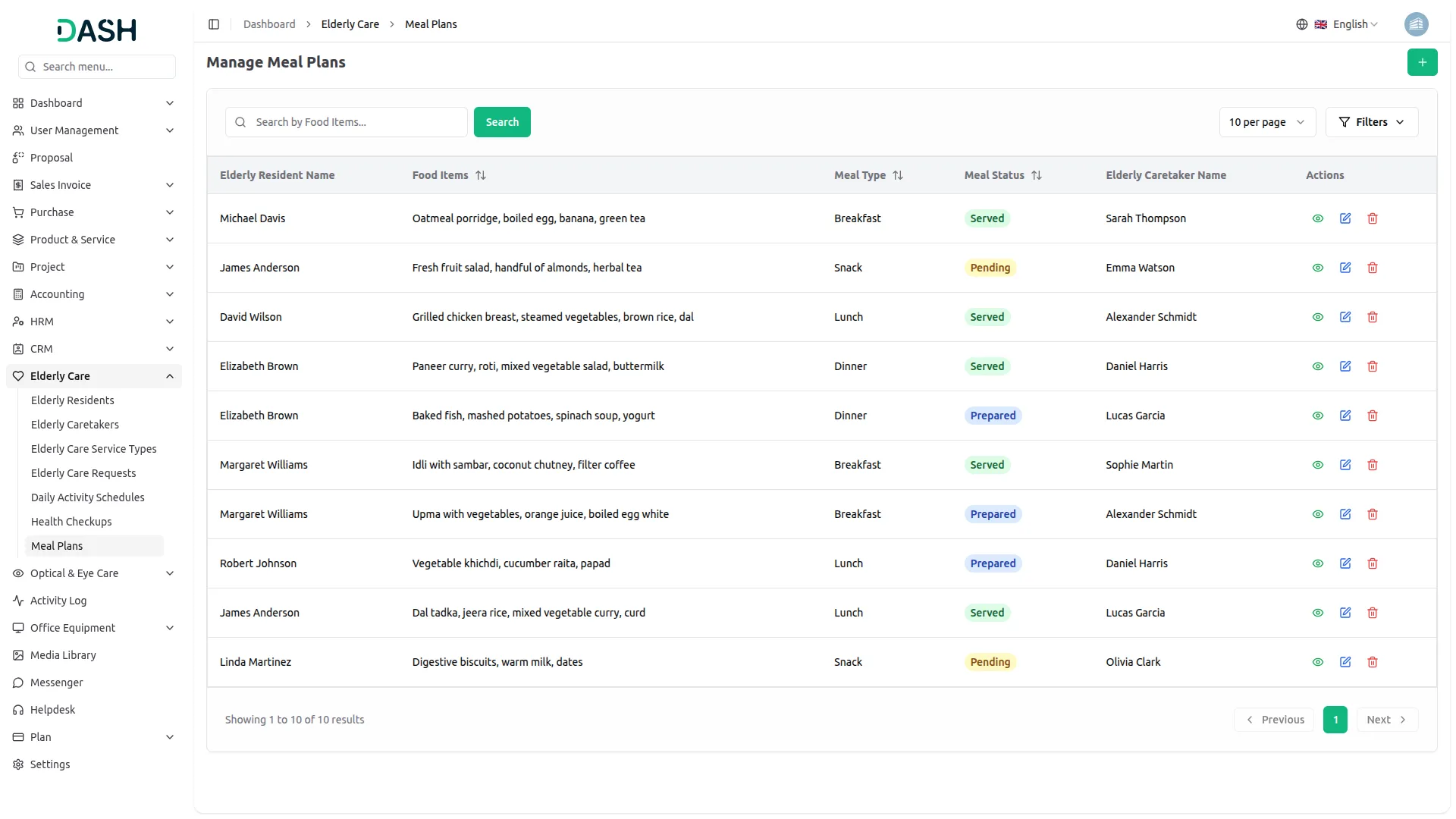
- The list page displays all meal plan records in a table with columns for Elderly Resident Name, Food Items, Meal Type, Meal Status, and Elderly Caretaker Name.
- Use the Search bar to find specific meal plans by food items. Apply filters using the Meal Type, Meal Status, and Elderly Caretaker dropdowns to narrow down results. Click Apply to activate the filters or Clear to remove them.
- In the Actions column, select View to inspect the full details of a meal plan record, Edit to modify an existing record, and Delete to permanently remove the meal plan from the system.
Categories
Related articles
- Blog & Article – WorkDo Dash SaaS Add-On Guide
- Radiology Management – WorkDo Dash SaaS Add-On Guide
- Compound Service – BookingGo SaaS Add-On Guide
- Sign in with Outlook – WorkDo Dash SaaS Add-On Guide
- Sales – WorkDo Dash SaaS Add-On Guide
- Sinch SMS Integration – TicketGo Add-On Guide
- Instagram Follow – vCard SaaS Add-On Guide
- Restaurant Menu – WorkDo Dash SaaS Add-On Guide
- NepalSTE – BookingGo SaaS Add-On Guide
- Backup & Restore – BookingGo SaaS Add-On Guide
- Feedback – WorkDo Dash SaaS Add-On Guide
- Slack – WorkDo Dash SaaS Add-On Guide
We're Here to Help - Let's Talk
Have questions about our solutions, customization services, or business tools? Our team is here to help you. let's talk.