
Zoho Credentials Generation Guide
Learn how to generate and configure Zoho credentials with easy setup instructions.
- To generate the credentials of Zoho, go to Zoho API Console.
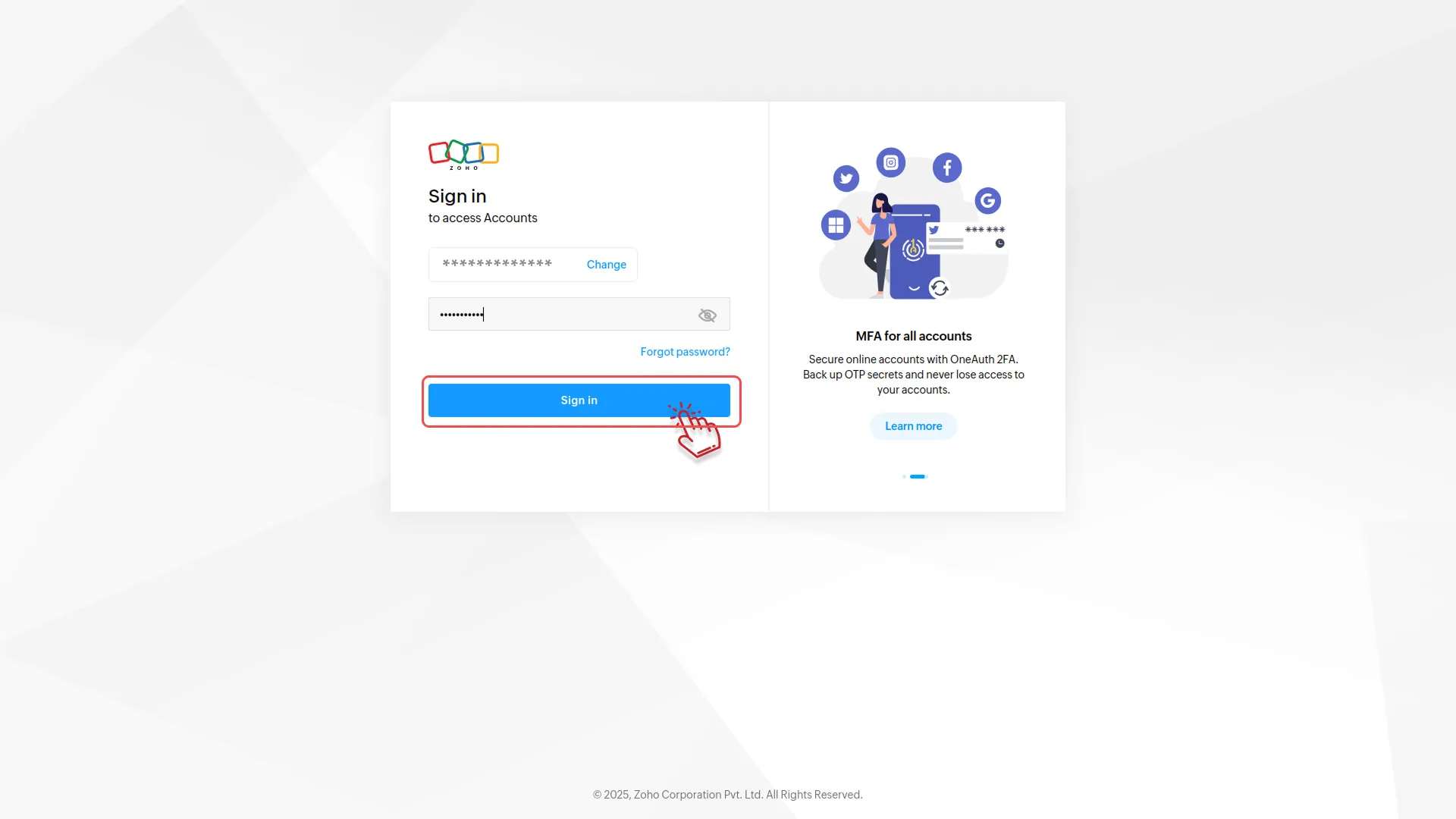
- After that, you will be navigated to the sign-up page. Enter your email ID and password.
-
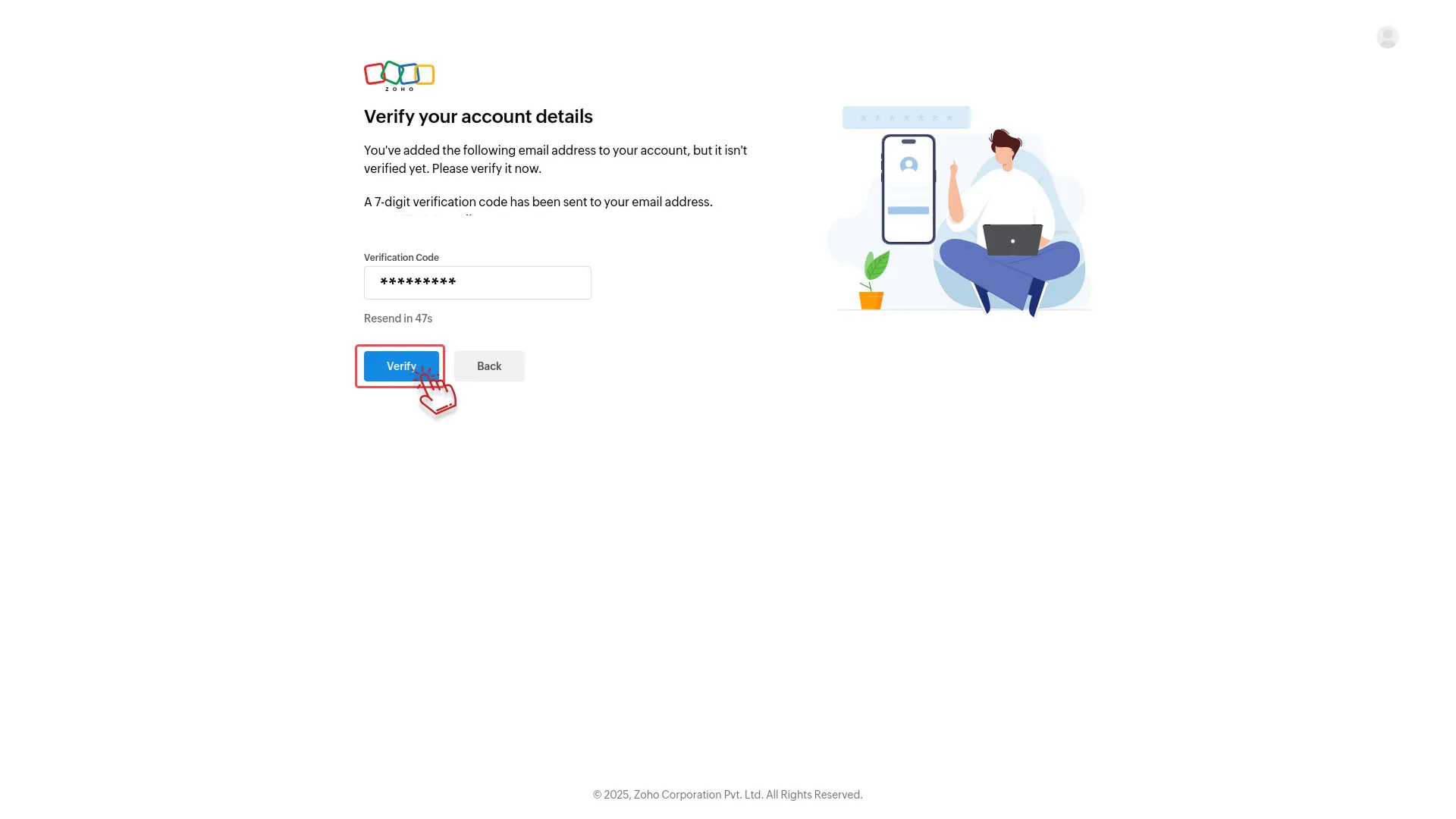
- Once you add the credentials, your account will be verified. Just enter the verification code sent to your email ID.
-
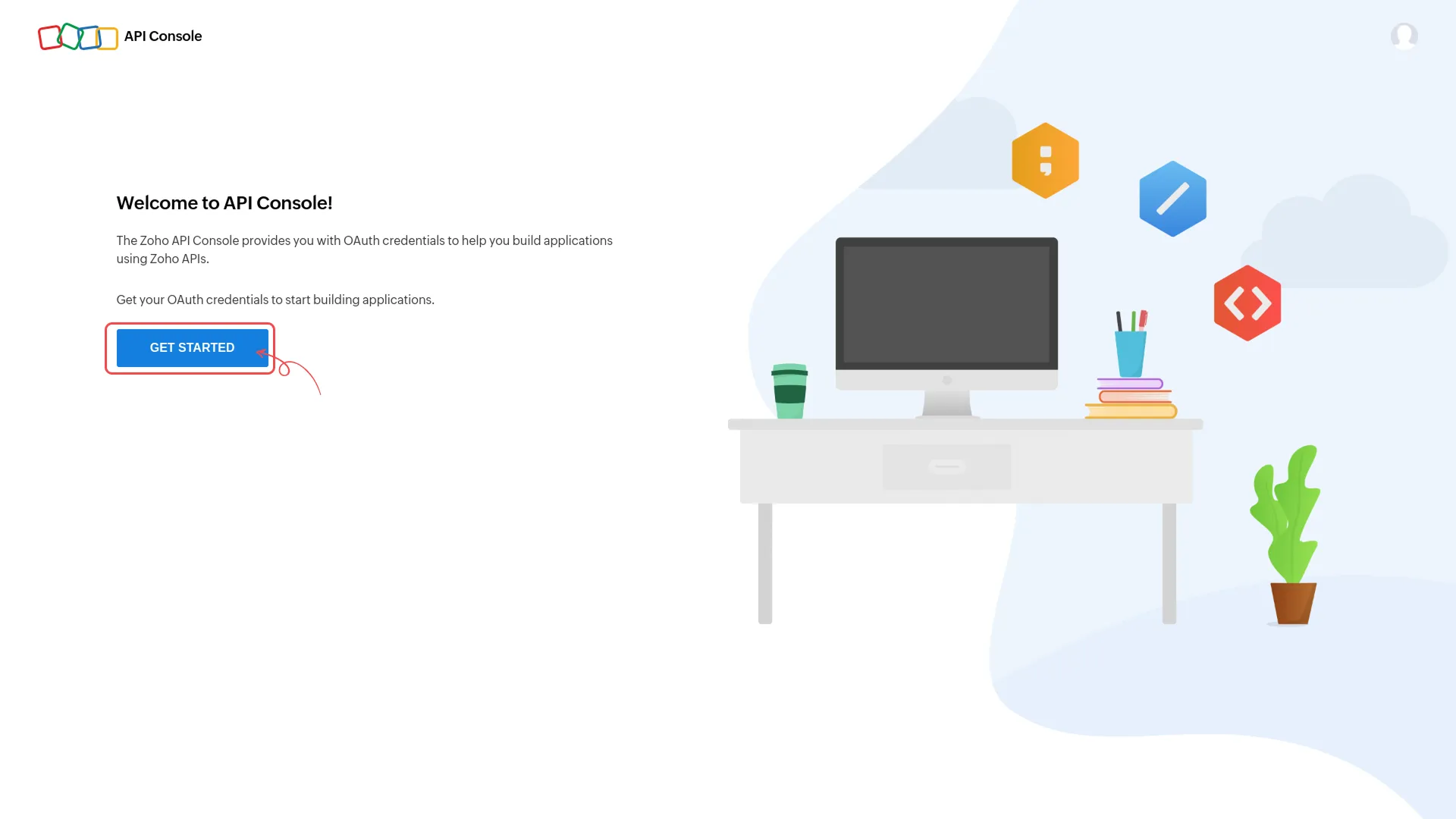
- Once your account gets verified, you will be navigated to the API Console Page. Over there, click on the “Get Started” button.
-
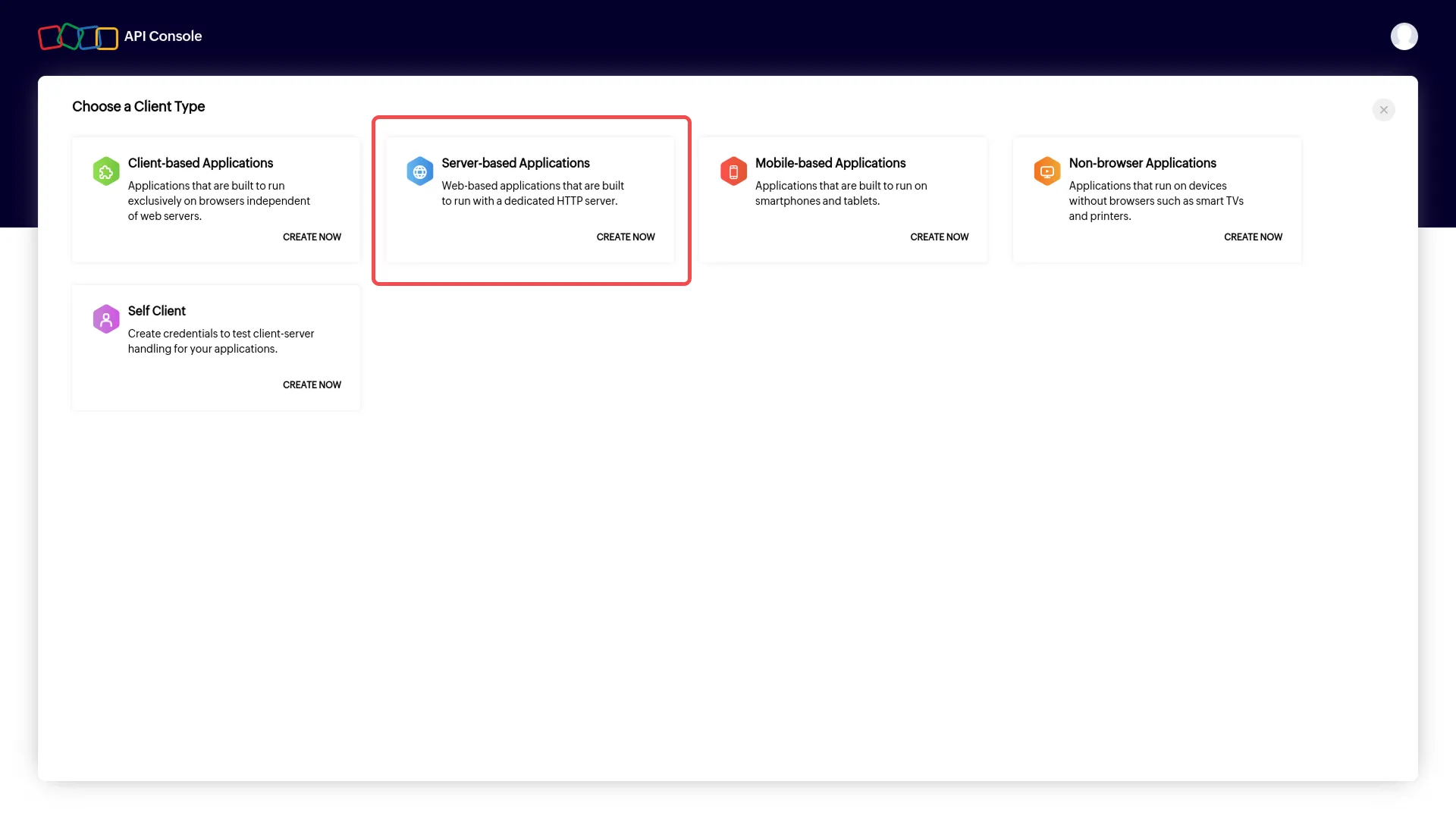
- You will see many options to choose a client. Select the “Server Applications” button and click on the “Create Now” button.
-
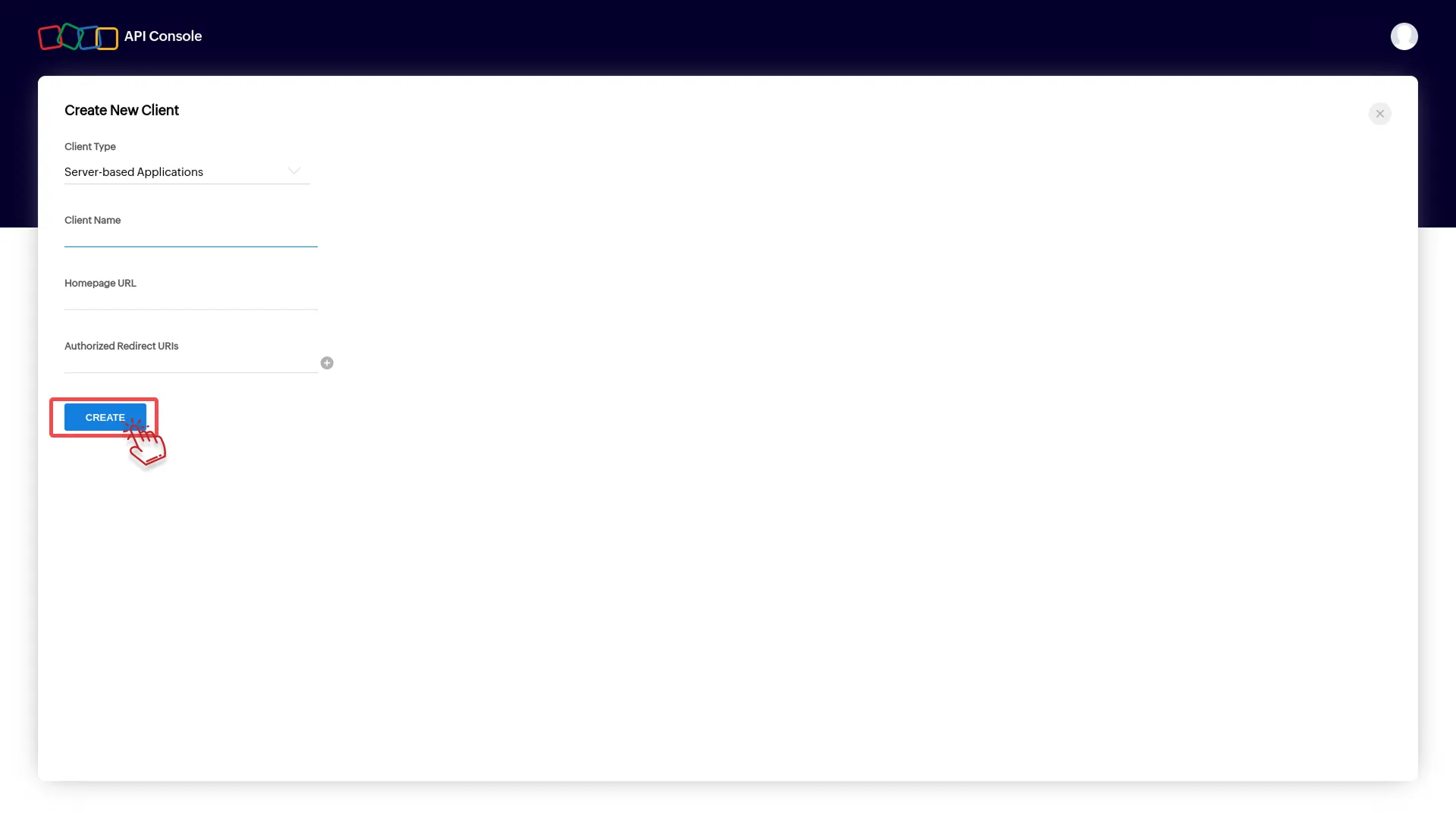
- After clicking the “Create Now” button, you can create new clients. Enter the “Name of Client,” “Your Homepage URL,” and the “Authorized URL.”
-
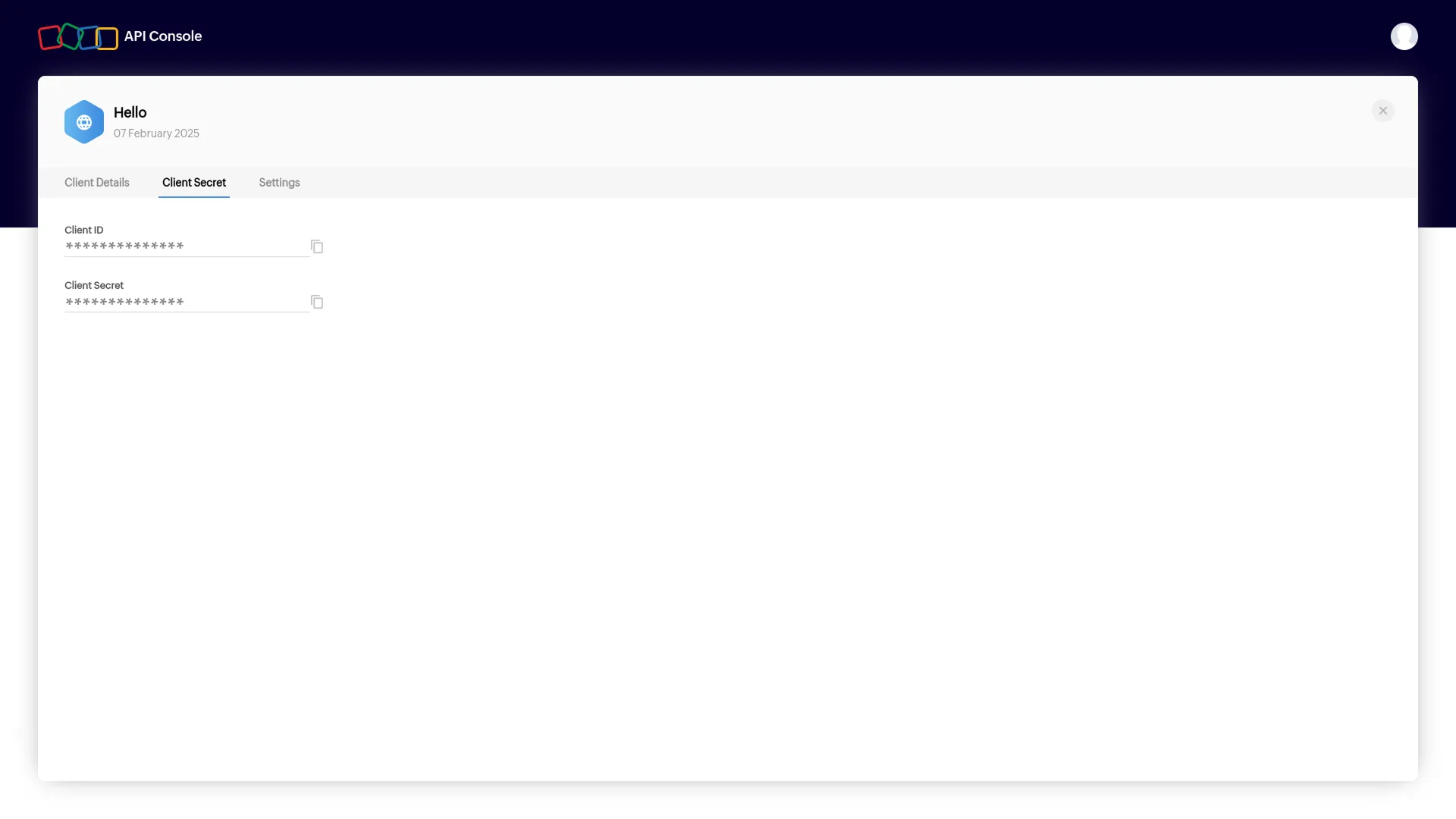
- Here, you will get to see the Client ID and Client Secret Key.
-
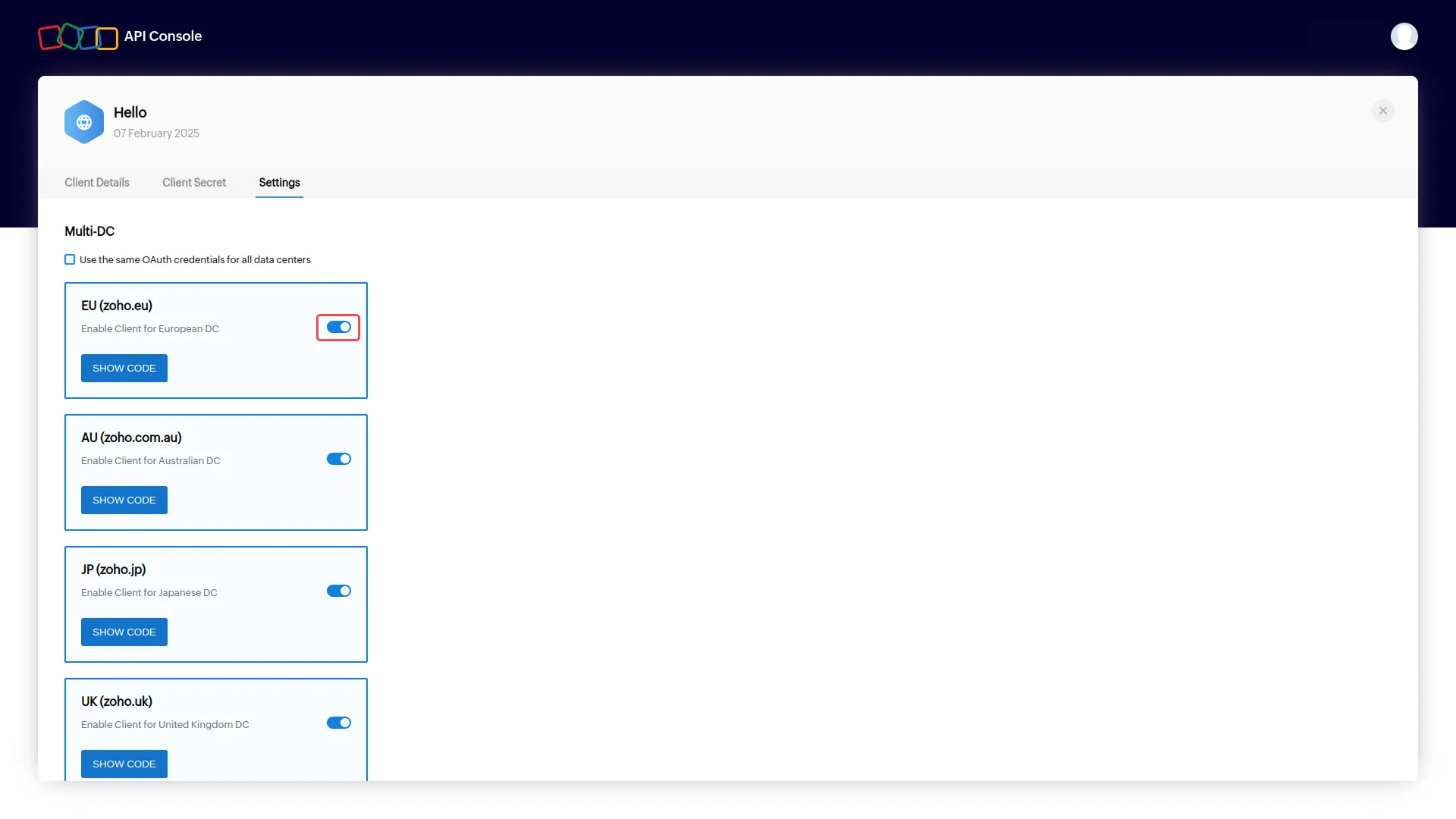
- After that, you will see a page with some options and toggle buttons beside them. Make sure you enable all of them.
-
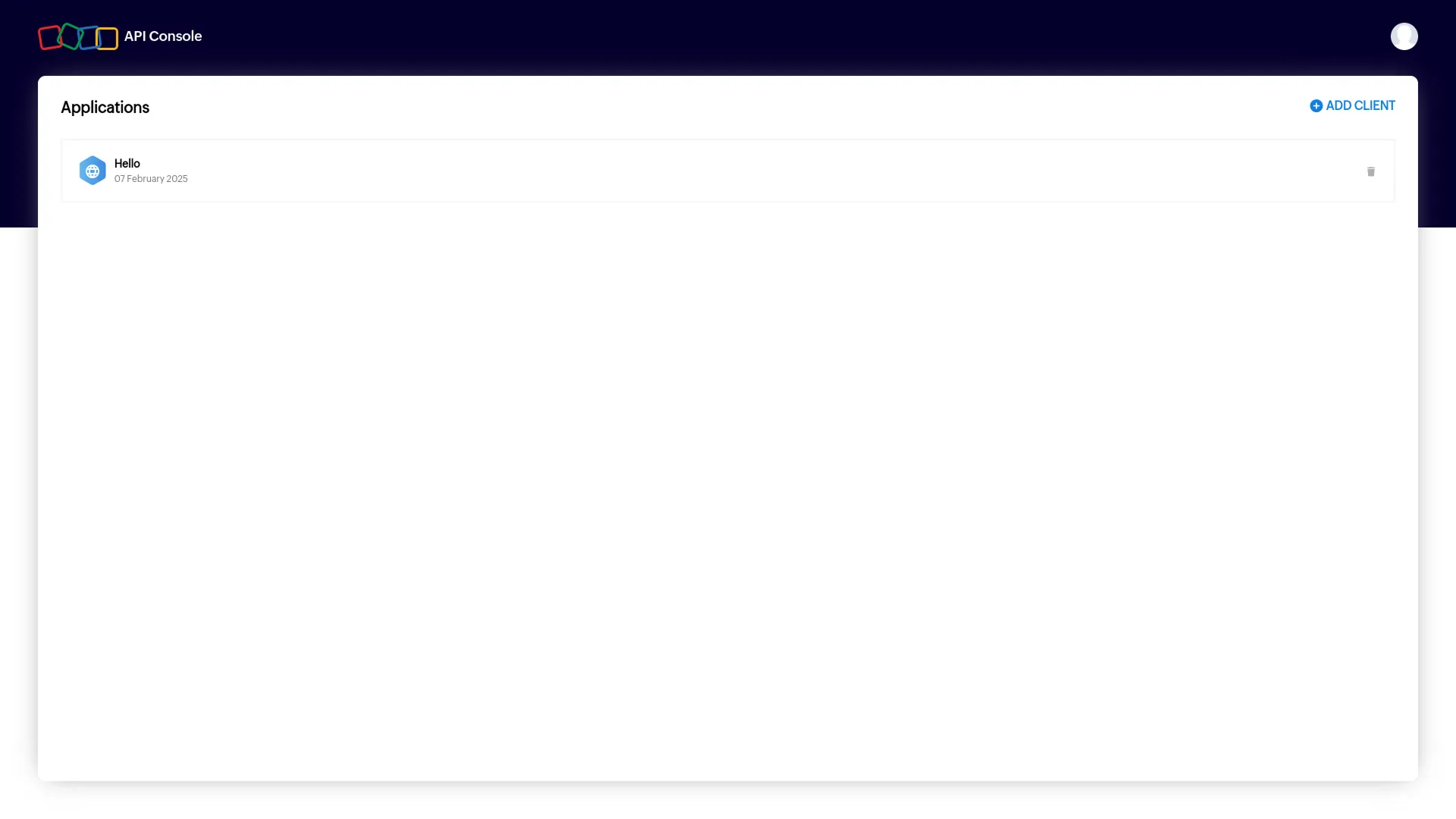
- After this, you can generate your API credentials easily.
-
Note: In the “Authorized URL” section, copy the “Callback URL” from the system settings page of Dash SaaS.
Categories
Related articles
- Sinch SMS Integration – TicketGo Add-On Guide
- Blood Bank – WorkDo Dash SaaS Add-On Guide
- WiFi QR Code – vCard SaaS Add-On Guide
- Yoga Classes – WorkDo Dash SaaS Add-On Guide
- Ratings – TicketGo Add-On Guide
- Telegram – TicketGo Add-On Guide
- SSLCommerz – WorkDo Dash SaaS Add-On Guide
- Facebook Post – WorkDo Dash SaaS Add-On Guide
- Digital Certificate – WorkDo Dash SaaS Add-On Guide
- Google Drive – WorkDo Dash SaaS Add-On Guide
- Additional Services – BookingGo SaaS Add-On Guide
- Custom Alert – WorkDo Dash SaaS Add-On Guide
Get in Touch
We're Here to Help - Let's Talk
Have questions about our solutions, customization services, or business tools? Our team is here to help you. let's talk.